Digital Business Telephone Systems
Electronic Telephone
User Guide
Publication Information
Toshiba America Information Systems, Inc., Telecommunication Systems Division, reserves the right, without prior notice, to revise this information publication for any reason, including, but not limited to, utilization of new advances in the state of technical arts or to simply change the design of this document.
Further, Toshiba America Information Systems, Inc., Telecommunication Systems Division, also reserves the right, without prior notice, to make such changes in equipment design or components as engineering or manufacturing methods may warrant.
DKA-UG-EKTEL-VC 4016150
Version C.2, May 1999 Version C.1, December 1998 Version C, April 1998 Version B, October 1997 Version A, September 1996
Toshiba America Information Systems, Inc. Telecommunication Systems Division All rights reserved. No part of this manual, covered by the copyrights hereon, may be reproduced in any form or by any means—graphic, electronic, or mechanical, including recording, taping, photocopying, or information retrieval systems—without express written permission of the publisher of this material.
Strata and Stratagy are registered trademarks of Toshiba America Information Systems, Inc.
Contents
Introduction
Organization ... viii
Conventions ... ix
Related Documents ... x
Chapter 1 – The Grand Tour
Buttons ... 3Fixed Buttons ... 3
Flexible Buttons ... 5
LCD ... 8
LCD Buttons ... 8
LED Indicators ... 10
On-hook/Off-hook ... 11
Volume Controls ... 11
Features ... 12
Before You Begin ... 12
Automatic Line Selection ... 12
Ringing Line Preference ... 13
Signaling ... 13
Quick Reference ... 13
Chapter 1 - The Grand Tour
Making an Outside Call to an ISDN Trunk ... 15
On-Hook Dialing ... 15
Answering Calls ... 15
Incoming Call Notification ... 16
Calling a Forwarded [DN] ... 16
Receiving a Forwarded Call ... 16
Account Code Calls ... 17
Forced Account Codes (Verified/Non-Verified) ... 17
Voluntary Account Codes (Verified/Non-Verified) ... 17
Alarm Reset ... 19
Alert Signaling ... 19
Attendant Console Calling ... 19
Automatic Busy Redial (ABR) ... 20
All Call Voice Page ... 21
Automatic Callback (ACB) ... 22
Automatic Hold ... 23
Background Music (BGM) ... 23
Call Forwarding ... 24
Access Codes ... 24
LCD Telephones ... 24
Call Forward–All Calls ... 25
Call Forward–Busy ... 25
Call Forward–No Answer ... 26
Call Forward–Busy/No Answer ... 27
Call Forward–Fixed ... 29
Call Forward–External ... 29
Call Forward Remote Destination Change ... 31
Call Park Orbits ... 32
Call Park and Page ... 34
Call Pickup ... 35
Group Pickup ... 36
Call Transfer with Camp-on ... 37
Call Waiting ... 38
Conference Calls ... 39
Date/Time/Day Adjustment ... 39
Chapter 1 - The Grand Tour
Direct Station Selection (DSS) ... 41
Do Not Disturb (DND) ... 42
Door Lock ... 43
Door Phones ... 43
DTMF Tone Dialing with * and # ... 45
Emergency Ringdown/Hotline Service ... 45
Group Listening ... 46
Handsfree Answerback ... 46
Handsfree Monitoring ... 47
ISDN Outgoing Calling ... 47
Making an Outgoing Call with a Subaddress to an ISDN Trunk ... 48
Message Waiting ... 48
Microphone Cut-Off ... 51
Off-hook Call Announce (OCA) ... 52
Voice First Signaling ... 52
Tone Signaling ... 53
SP-OCA ... 53
Override Calls ... 53
Busy Station Override ... 54
Do Not Disturb Override ... 55
Executive Override ... 55
Privacy Override Override ... 56
Toll Restriction Override ... 56
Page Announcements ... 56
All Call Page ... 57
Privacy On-Line ... 57
Privacy Release ... 58
Release and Answer ... 58
Saved Number Redial ... 59
Speakerphone ... 59
Speed Dial ... 60
Speed Dial–Advanced Features ... 62
Speed Dial Pause ... 66
Chapter 2 - LCD Operation
Timed Reminders ... 69
Tone/Pulse Dialing ... 71
Two (Tandem) CO Line Connection ... 71
Voice Mail Integration ... 75
Chapter 2 – LCD Operation
Control Buttons ... 79Busy Lamp Field (BLF) Display ... 81
Caller ID/ANI/DNIS Information Mode ... 82
DNIS ... 82
ANI/Caller ID ... 82
Call Park Orbit List Display ... 83
Retrieve and Auto Dial Lost Calls ... 84
Messages ... 86
Message Notification ... 91
Group Notification Station Messaging ... 92
Silent Messaging (Busy Station) ... 94
Memos ... 95
Speed Dial Memos ... 95
Timed Reminders ... 97
Name/Number Display ... 97
Chapter 3 – DSS Console
[DSS] Buttons ... 102Features ... 103
Calling a Station ... 103
Transferring a Call ... 103
Answering a (CO Line) ... 104
Speed Dial ... 105
Paging ... 105
Call Forward Override ... 105
Chapter 3 - DSS Console
Appendix A – Access Codes
CO Line Access Codes ... 107
Feature Access Codes ... 108
Paging Access Codes ... 108
Speed Dial Access Codes ... 110
Appendix B – Centrex Application
Flexible Directory Numbering ... 111Centrex Feature Buttons ... 111
Ringing Repeat ... 112
Delayed Ringing ... 112
Appendix C – Button Labels
Flexible Buttons ... 113Introduction
This guide describes how to use electronic telephones for Strata DK systems. Models covered in this user guide include electronic telephones equipped with a Liquid Crystal Display (LCD) and/or speakerphone. Instructions for the Electronic Direct Station Selection (DSS) Console are included. The Strata DK systems which support this equipment are:
♦ DK14
♦ DK16e/16
♦ DK40i/40
♦ DK424/DK280 (Release 3.0 or higher)
Note This user guide incorporates the information in the Strata DK Liquid Crystal
Organization
Organization
♦ Chapter 1 – The Grand Tour provides an overview of the equipment, buttons,
Light Emitting Diodes (LEDs), and LCDs.
♦ Chapter 2 – Features describes the available electronic telephone features in
alphabetical order. Detailed instructions on using each feature are covered.
♦ Chapter 3 – LCD Operation includes an explanation of the Control button
operations. Features which are available only on the LCD electronic telephone are presented alphabetically and include detailed LCD displays.
♦ Chapter 4 – DSS Consoles describes the DSS Console features and buttons.
♦ Appendix A – Access Codes provides instructions for programming a sequence
of steps or access codes onto feature buttons. It includes CO Line Access Codes, Paging Group Codes, Feature Access Codes (User Programmable Buttons), and Speed Dial Access Codes.
♦ Appendix B – Centrex Application describes the Centrex features which may be
available with your Strata DK system.
♦ Appendix C – Button Labels lists the feature button designations of the
Conventions
Conventions
Note Elaborates specific items or references other information. Within some tables, General Notes apply to the entire table and numbered Notes apply to specific items.
Important! Calls attention to important instructions or information.
➤ Letters in [brackets] represent buttons which have Directory Numbers on them. For example:
The left column gives you single or
numbered steps that you need to perform a procedure.
The right column gives the immediate response to your action. This column also includes additional notes and comments.
[PDN] represents a Primary Directory Number (also known as an Extension Number for your telephone.
[SDN] represents a Secondary appearance of a [PDN]. A [PDN] which appears on another telephone is considered an [SDN].
[PhDN] represents a Phantom Directory Number button (an additional Directory Number).
[DN] represents a Directory Number button (also known as an Extension or Intercom Number). Whenever [DN] is used in this guide, it means the user can use any [PDN], [SDN], or [PhDN].
[DSS] represents the directory number of another station which is accessed from a DADM or DSS Console when this button is pressed.
([WUD
EROG represents buttons on a telephone.
~ means “through”
Related Documents
Related Documents
Refer to the following documents for more information:
♦ Electronic Telephone Quick Reference Guide
♦ PC/Data Interface User Guide
The Grand Tour
1
This chapter familiarizes you with the controls and indicators located on your
electronic key telephone (EKT) (see “20-Button Electronic Key Telephone with LCD” on Page 2).
Toshiba electronic telephones incorporate state-of-the-art telecommunications technology and provide a vast array of calling features. They are easy to operate, and all features are accessed with a feature button or a brief access code.
If your telephone is equipped with an LCD, information and feature prompting makes call handling more efficient and provides easy access to frequently-used features. Abbreviated feature prompts guide you through specific tasks.
In addition to the standard features, the LCD telephones provide Alphanumeric Messaging, Busy Lamp Field (BLF) Identification, Central Office (CO) Line Identification, Timed Reminders with Messaging, Speed Dial Memo Directory Dialing, User Name/Number, Call Duration, Date/Time of Day displays, and the ability to display names and telephone numbers of outside, incoming callers. Telephones equipped with a speakerphone, enable you to make and receive outside and internal calls without lifting the handset.
Figure 1 20-Button Electronic Key Telephone with LCD
RNG VOL
Flexible Buttons
Microphone
Sliding Memo Tray
Speaker Volume Control
Hold Button
Conference Transfer Button Ring Volume Control
Speaker On/Off Button Speaker
Handset
Dial Pad
Microphone Button
MIC CONF/TRNS
SPKR HOLD INT
[DN] or Intercom Button Feature and Function LEDs Modular
Handset Cord
LCD Display
Scroll Button
Page Button
Mode Button
SCRL PAGE MODE
Buttons
Buttons
There are two sets of buttons, fixed and flexible. The fixed buttons, such as 0,&,
+2/', &21)7516, and 92/ are shown in Figure 1 on the prior page. The flexible buttons consist of directory numbers (Primary, Secondary, Phantom) and feature buttons. The number of preprogrammed flexible buttons varies by telephone.
Fixed Buttons
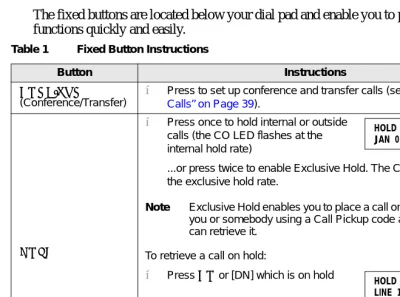
The fixed buttons are located below your dial pad and enable you to perform standard functions quickly and easily.
Table 1 Fixed Button Instructions
Button Instructions
&21)7516
(Conference/Transfer)
➤ Press to set up conference and transfer calls (see “Conference Calls” on Page 39).
+2/'
➤ Press once to hold internal or outside calls (the CO LED flashes at the internal hold rate)
...or press twice to enable Exclusive Hold. The CO LED flashes at the exclusive hold rate.
Note Exclusive Hold enables you to place a call on hold so that only you or somebody using a Call Pickup code at another station can retrieve it.
To retrieve a call on hold:
➤ Press &2 or [DN] which is on hold
...or if the call is on Exclusive Hold,
from another station dial plus your [DN], or dial plus the CO Line number (001~200) that the call is held on.
If a call is not retrieved by a certain time (set in system
programming), it recalls back to your phone. You hear repeated recall tone (or if you are on the phone, you hear recall tone twice).
HOLD LINE 10 JAN 01 SUN 12:19
Buttons
+2/'(continued)
If the held party hangs up, the call is released and the &2 provides a hold-release signal.
Note If your telephone is programmed for Automatic Hold, existing calls are automatically placed on hold when you answer a call or make another call. (“Automatic Hold” on Page 23.) A different call can be held on each [DN] or
&2 button on your phone. Each time you press 6&5/, a different [DN] or &2 is selected. The selected button’s LED flashes rapidly and your LCD displays information for the call holding on that button (samples shown at right).
0,&
(Microphone)
➤ Press to toggle the microphone ON/OFF while the telephone is in use. The LED indicates the status of the microphone.
Note
● The microphone and accompanying LED are always ON when
receiving “voice first” internal [DN] calls to enable Handsfree Answerback and OFF if you receive a ring-first call. 0,& may be ON/OFF when placing an on-hook CO Line or internal [DN] call.
● Each station’s 0,& can be set in system programming to switch
ON/OFF with one touch, to switch OFF only while pressed and held, or to be either ON/OFF at the start of handsfree dialing.
● 0,& functions on Handsfree Answerback and OCA calls for
privacy.
63.5
(Speaker)
➤ Press to toggle the speaker ON/OFF. The LED indicates the status of the speaker. Also selects a line or the internal [PDN] if
programmed for auto preference in system programming. Can be used to disconnect on-hook speakerphone calls.
92/ ➤ Slide to adjust volume levels (see “Volume Controls” on Page 11).
5,1* ➤ Slide to adjust the ring volume levels, and the voice levels of the caller (Handsfree Answerback operation). Table 1 Fixed Button Instructions (continued)
Button Instructions
CO LINE 02
HOLD
DN 202
Buttons
Flexible Buttons
All flexible buttons must be programmed for your telephone in system programming and vary for individual telephones. If a button does not appear on your display or telephone keystrip label, see your System Administrator for button assignments.
Line Buttons
You may have buttons designated as /LQH and/or 3/ which enable you to directly access outside Central Office (CO) lines. 3/ enables you to access available CO Lines from a group of lines appearing under one button.
If your telephone does not have a /LQH or 3/ button, and you want to access outside CO lines, you can use access codes. For a listing of these codes, see Table 11 on Page 108.
Directory Number [DN] Buttons
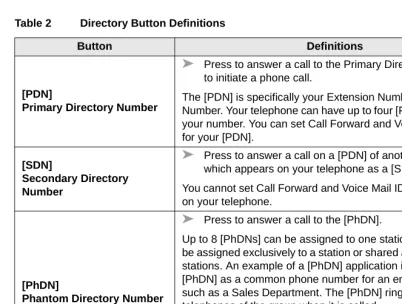
The [DN] buttons consist of: [PDNs], [SDNs], and [PhDNs]. They are used to make or answer a call and are known as your extension or intercom number. You can have multiple [DN] buttons on your telephone (see Figure 2 on Page 7), including [DNs] belonging to another [SDNs].
Incoming calls ring your telephone [PDNs] from the top down. For example, incoming calls to Station 10 [PDNs] first ring the “10-1” button, then “10-2,” and finally “10-3.” Your station is considered busy only when all of the [PDNs] are being used by your telephone or other telephones and/or when your telephone is on a call on any type of CO Line or [DN].
If you have an LCD telephone, you can find out the actual [DN] of a [DN] button by pressing the [DN] you want to display and dialing . The number (210) displays.
Buttons
Table 2 Directory Button Definitions
Button Definitions
[PDN]
Primary Directory Number
➤ Press to answer a call to the Primary Directory Number or to initiate a phone call.
The [PDN] is specifically your Extension Number or Intercom Number. Your telephone can have up to four [PDN] buttons with your number. You can set Call Forward and Voice Mail ID code for your [PDN].
[SDN]
Secondary Directory Number
➤ Press to answer a call on a [PDN] of another telephone which appears on your telephone as a [SDN].
You cannot set Call Forward and Voice Mail ID code for [SDNs] on your telephone.
[PhDN]
Phantom Directory Number
➤ Press to answer a call to the [PhDN].
Up to 8 [PhDNs] can be assigned to one station. A [PhDN] can be assigned exclusively to a station or shared among a group of stations. An example of a [PhDN] application is using the [PhDN] as a common phone number for an entire department, such as a Sales Department. The [PhDN] rings on all of the telephones of the group when it is called.
Buttons
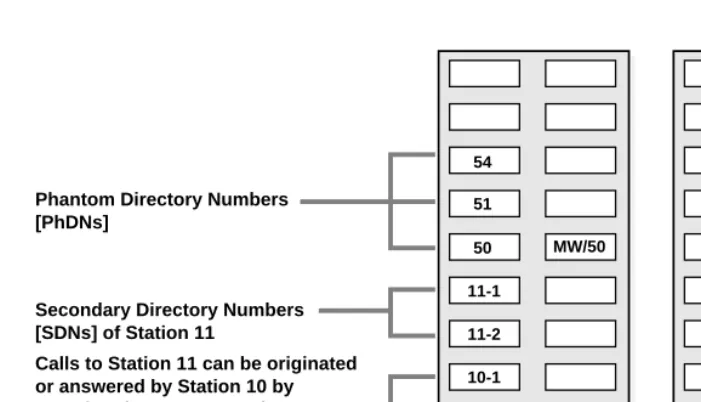
Figure 2 Multiple Directory Numbers Example
10-3 10-2 10-1 11-2 11-1
50 MW/50 51
54
Station 10's Primary Directory Numbers [PDNs]
Secondary Directory Numbers [SDNs] of Station 11
Calls to Station 11 can be originated or answered by Station 10 by pressing the 11-1 or 11-2 button. Phantom Directory Numbers [PhDNs]
Station 10
11-2 11-1 10-3 10-2 10-1 50 51 58
Station 11
LCD
Feature Buttons
Preprogrammed feature buttons can be assigned to your telephone and vary for individual telephones. See Table 7 on Page 64 for a list of all the possible feature buttons.
If a button does not appear on your display or telephone keystrip label, see your System Administrator for button assignments.
There are two available features that may not be programmed to buttons on your telephone – 6'6 and5'/. For the 6'6 feature, you can substitute the
key in any of the procedures. For the 5'/ feature, you can substitute the key for any of its referenced procedures.
LCD
In its idle state, the 32-character LCD feature of your EKT gives you an accurate desk clock and calendar combination. The LCD automatically provides a variety of information and feature prompts to make your call handling easier. When you have an outside call in progress, the elapsed time display shows the duration of the call. You can also send/receive short messages with other LCD telephones (see “Messages” on Page 86). All display functions occur automatically as call processing proceeds. A “+” next to the LCD readout (sample shown at right) on
your telephone indicates there is more data in memory. Press
6&5/ to advance through the information.
LCD Buttons
The three buttons to the right of the display provide various functions.
These functions are:
6&5/ which scrolls through:
♦ Message Waiting station numbers
CF-A 201-203+ JAN 01 TUE 12: 19
Scroll Button Page Button Mode Button
SCRL
PAGE
MODE
2549
LCD
♦ Speed dial digits (if more than 16 digits) when in Mode 8. 3$*( which:
♦ Changes Busy Field groups.
♦ Records a user NAME/NUMBER for another station (used by station 200).
Station 200 must be an LCD EKT to record a NAME/NUMBER display for any other station type.
♦ Changes displays (date/time, elapsed time, message, call forward, dialed number). ♦ Scrolls through speed dial numbers when using Mode 8.
02'( which:
♦ Enters or exits various mode functions (see Mode Definitions). ♦ Cancels the beeping tone when using timed reminders.
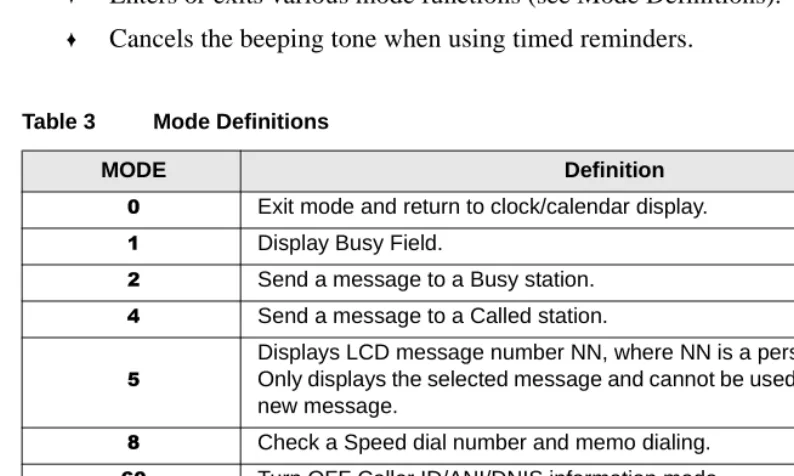
Table 3 Mode Definitions
MODE Definition
Exit mode and return to clock/calendar display.
Display Busy Field.
Send a message to a Busy station.
Send a message to a Called station.
Displays LCD message number NN, where NN is a personal or message. Only displays the selected message and cannot be used to edit or create a new message.
Check a Speed dial number and memo dialing.
Turn OFF Caller ID/ANI/DNIS information mode.
Turn ON Caller ID/ANI/DNIS information mode.
Display Caller ID/ANI/Lost Call stored information.
View Call Park Orbit list.
Send a message to a Remote called station.
LED Indicators
LED Indicators
Each line and feature button has a LED next to it which indicates the status of the line or feature associated with the button. Line LEDs light and/or flash at varying rates to indicate call status (see Table 4).
Table 4 LED Indicators
Use Your Station Other Station (Red)
Interval Rates CO In-Use
(access outside line)
2 seconds ON, 1/8 second
OFF— 1/8 second ON/OFF steady
Incoming Call
(while ringing)
1 second ON at 10 pulses/
second—1 second OFF one second ON/OFF
Hold (outside line)
If using Pooled Line, the hold indication is only at the station that places the call on hold.
4 pulses/second for 1/8
second ON/OFF 1/2 second ON/OFF
Hold – Consultation
(during consultation/transfer to another station)
10 pulses/second steady
Hold – Exclusive (outside line) 10 pulses/second steady
Hold – Recall
(when held call recalls your idle station)
1 second at 2 pulses/ second, 1 second at 10 pulses/second
flashes
Hold – Exclusive Recall
1 second at 2 pulses/ second, 1 second at 10 pulses/second
steady
Internal Call
(while station ringing)
Your [DN] flashes 10 pulses/second—1 second OFF
Busy Station Transfer
(outside call transferred to your busy station from a designated station or AA)
4 pulses/second, 1/8 second ON/OFF
3/4 second ON, 1/8 second OFF
After disconnecting first call... 10 pulses/second 2 pulses/second
Alert Signal .5 seconds 4 seconds
On-hook/Off-hook
On-hook/Off-hook
Some procedures in this user guide instruct you to perform a step while “on-hook” or “off-hook.” These terms refer to the position of the handset. “Off-hook” indicates that the handset should be lifted off of the telephone cradle. “On-hook” indicates that the handset should remain in the cradle and should not be lifted.
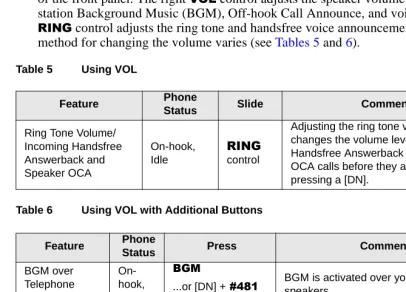
Volume Controls
Voice and ring volume levels are controlled by adjustable slides located at the bottom of the front panel. The right 92/ control adjusts the speaker volume for dial tone, station Background Music (BGM), Off-hook Call Announce, and voice. The left
5,1* control adjusts the ring tone and handsfree voice announcement levels. The method for changing the volume varies (see Tables 5 and 6).
Table 6 Using VOL with Additional Buttons Table 5 Using VOL
Feature Phone
Status Slide Comments
Ring Tone Volume/ Incoming Handsfree Answerback and Speaker OCA On-hook, Idle 5,1* control
Adjusting the ring tone volume also changes the volume level of incoming Handsfree Answerback and Speaker OCA calls before they are answered by pressing a [DN].
Feature Phone
Status Press Comments
BGM over Telephone Speakers On-hook, Idle %*0
...or [DN] + and 63.5
BGM is activated over your telephone speakers.
BGM Volume
On-hook, Idle
[DN] and slide the
92/ control
Features
Features
This chapter lists all the electronic telephone features in alphabetical order beginning on Page 17. These features apply to all EKTs connected to Strata DK Systems, but they do not apply to digital telephones (DKTs).
Features requiring a telephone equipped with a speakerphone are noted.
Before You Begin
If you are a new user of the Strata DK electronic telephone, you need to find out if your telephone has been set up for Automatic Line Selection and Ringing Line Preference. You also need to know if your telephone has Tone or Voice First signaling when you receive an internal call. The differences between Tone First and Voice First signaling are:
♦ Tone First signaling rings.
♦ Voice First signaling does not ring, but sends a long tone, then the caller’s voice.
Each of these features are enabled in system programming and determine how you make and answer calls on your telephone.
Automatic Line Selection
You have Automatic Line Selection, if you go off-hook and hear dial tone and the [DN], CO, or Pooled Line (PL) LED lights steady. The LCD displays the station number (201) and the seized CO Line (11).
➤ To make a call when you have Automatic Line Selection
➤ Lift the handset or press 63.5.
You do not have Automatic Line Selection, if you have to press an available [DN] or CO Line before dialing.
➤ To make a call when you do not have Automatic Line Selection
➤ Press the [DN] or &2 first before using the handset or 63.5.
Quick Reference
Ringing Line Preference
You have Ringing Line Preference, if you can answer a &2 ringing your station by lifting the handset or pressing 63.5.
You do not have Ringing Line Preference, if you have to press the button associated with the ringing call (flashing LED) to answer the call.
Signaling
If you hear a long tone, followed by a caller’s voice, you have Voice First Signaling. If you hear suasive ring tones, you have Tone Signaling.
➤ To answer a call if you have Voice First Signaling
➤ Talk in the direction of your telephone, or answer the call as you normally would using either the handset or 63.5.
➤ To answer a call if you have Tone First Signaling
➤ Lift the handset or press 63.5 or press the flashing button.
Note You can change to the alternate signaling method when making a call on a call-by-call basis by pressing after dialing an internal telephone number.
Quick Reference
The following is a quick reference chart for using your telephone’s standard features.
Making an Internal Call
1. Lift the handset ...or press 63.5 ...or a [DN] if you do not have Automatic Line Selection.
Quick Reference
Making an Outside Call
2. Dial a directory number (201).
Your LCD displays the called number and your number.
3. Hang up
...or press 63.5.
1. Lift the handset or press 63.5
...or press &2 if you do not have
Automatic Line Selection
You hear dial tone and your LCD displays the line number.
...or 3/
...or [DN], then enter a CO Line or line group access code.
Table 11 on Page 108.
2. Dial the telephone number.
The LED flashes and the digits are displayed as you dial (shown at right). The display automatically changes from dialed number to elapsed time after a programmed period. After you hang up, elapsed time is displayed for 15 seconds and then changes to date/time display.
3. Hang up
...or press 63.5.
NO. 203 201
NO. 203 USING LINE 6
NO. 203 5551374
Quick Reference
Making an Outside Call to an ISDN Trunk
On-Hook Dialing
Answering Calls
When you receive an incoming call, the LCD displays either the CO Line (10)
... or the station [PDN] (210). 1. Access an outside CO
line.
2. Dial the number.
3. Press 67$57. The dialed digits will not be sent until you press this button or until the timer expires. “ISDN Outgoing Calling” on Page 47 for more information on ISDN calls.
1. Press63.5if you have Automatic line selection.
2. Access an outside
&2 and dial a telephone number. 3. Lift the handset when
the called party answers.
Note If you have a full speakerphone, you do not have to lift the handset.
4. Hang up
...or press 63.5.
NO. 203 LINE 10 RINGING
Quick Reference
➤ To answer the incoming call
Incoming Call Notification
Muted ringing while you are on a call indicates an incoming call. If another call comes in during the first call, you can release, transfer, or place the call on hold, then answer the second call.
➤ To answer the incoming call
➤ Press 5/6$16, or hold down the hookswitch for about one second.
Calling a Forwarded [DN]
When you call a [DN] that is forwarded (203), the [DN] you called is shown first. The display changes to the [DN] where your call forwarded (210).
Receiving a Forwarded Call
When a call is forwarded to your [DN] (210), the calling [DN] (205) is displayed on the left and the [DN] called is displayed on the right (203).
➤ Lift the handset ...or press 63.5 ...or the flashing [DN], &2, or 3/ and lift the handset (if you do not have Ringing Line Preference).
The LED changes from incoming call rate to the in-use rate. Your LCD displays the answered line. For information on Caller ID/ANI/DNIS LCD displays for incoming calls, see “LCD Operation” on Page 79.
NO. 203 210
Account Code Calls
Account Code Calls
Entered before or after a call, Account Codes can be used for a variety of reasons including billing, tracking, and line restriction applications. Account Codes are recorded by the system and can, along with the details of the calls, be printed on a Station Message Detail Recording (SMDR) report.
Forced Account Codes (Verified/Non-Verified)
Some applications require that you enter a Forced Account Code before dialing a telephone number. There are Verified and Non-Verified Account Codes. If the system is set for Verified Account Codes, you must enter specific verified codes or the call does not execute. Verified Account Codes are established in system programming or by designated stations.
You can bypass Forced Account Code requirements with three emergency numbers, including 911. See your System Administrator for these numbers.
Voluntary Account Codes (Verified/Non-Verified)
Voluntary Account Codes are optional and are used to track calls for client billing purposes. They can be entered after accessing a CO Line or during a call. An exception is a code which is required to change the Toll Restriction classification of your station. This voluntary code gives you access to telephone numbers outside your usual dialing area and must be entered prior to dialing the telephone number. For example, if your station is restricted to local area calls, you can make out-of-state calls by using a Voluntary Account Code set in system programming.
1. Access a CO Line. You hear dial tone after accessing the line.
Note If you used LCR, you will not hear dial tone. 2. Enter the Forced
Account Code.
Dial tone stops after entering the first digit. If the account Code is valid, you hear dial tone again. If the code is invalid, you hear a busy tone.
Account Code Calls
If the system is set for Verified Account Codes, you must enter specific verified codes when entering the Voluntary Account Code or the code is not validated for the SMDR report.
1. After accessing a CO Line, press $&&17 ...or 6'6+ ...or 6'6+ (RCTU E/F) ...or
if your telephone does not have a 6'6 button.
Your conversation is not interrupted.
Note If the Voluntary Account Code is not required to dial out, the account code can be entered during a call.
2. Enter the Account Code.
When your station is set for Verified Account Codes, you hear a half-second confirmation tone if the code is valid.
The outside party is not able to hear any confirmation tones when the Account Code digits are being entered. If your station is programmed not to verify Account Codes, you do not hear a confirmation tone.
If the code is invalid, you hear two short tones.
3. Repeat Steps 1 and 2 to enter more codes.
The last code entered is recorded.
4. Dial a telephone number.
Any digits dialed after the code is entered in Step 2 is treated as part of a telephone number.
NO. 204 ENTER ACCT CODE
NO. 204 CODE VERIFIED
Alarm Reset
Alarm Reset
Your Strata DK system can be connected to a facility alarm system. All telephones produce a startling tone whenever this alarm is activated.
➤ To reset the alarm
➤ Press $/50.
Alert Signaling
Alert Signaling enables you to send an alert sound to a designated station or partner by pressing a single button. This feature is based on the “buzz” key, where, for example, a manager might alert an administrative assistant to enter the office.
You can have as many as four Alert Signals to send or receive to/from other
telephones. An Alert Signal is sent even if the alerted telephone is busy (on/off-hook) or in the DND or Call Forward mode.
➤ To send an Alert Signal
➤ Press $/(57 and an alert tone sounds at the designated station.
Attendant Console Calling
Up to four Attendant Consoles can be installed per system. There can be up to three ways to call the Attendant Console depending upon system programming.
1. Press a [DN] + . The call rings the Attendant Console button. 2. Dial . The calls rotate between the consoles, if more than
Automatic Busy Redial (ABR)
➤ To call a specific console
➤ To call all consoles for an emergency
Automatic Busy Redial (ABR)
After reaching a busy outside number, you can activate ABR so that the Strata DK system automatically redials the number at regular intervals. If the system redials an outside number that is still busy, ABR resets and tries again. This feature may not be allowed on some (or all) lines in your system—depending on the telephone line type connected.
ABR is not attempted while your station is busy, but continues to time-out. The system inserts a pause (P) on your LCD before redialing the number.
➤ Press a [DN] + the console [DN].
The call rings the console ,Q'1 (incoming [DN] button).
Note Your System Administrator can provide the Attendant Console ,Q'1s.
Press [DN] + . The call rings the (PJU button on all attendant consoles.
1. Press $%5 The LED flashes red. ...or &21)7516 +
.
You hear confirmation tone.
2. Hang up
...or press 63.5.
The system redials, up to 15 times, every 30 or 60 seconds depending on system programming. Your telephone receives ring tone, when ABR dials the number if it is available.
The [DN] or CO and SPKR LEDs flash.
NO. 202 P555 3700
NO. 202
All Call Voice Page
➤ To cancel ABR
➤ Press $%5 ...or [DN] + .
All Call Voice Page
You can make an All Call Page to electronic telephones assigned to the “All Call Page Group.” Stations are assigned to the “All Call Page Group” in system programming.
3. Lift the handset or press 63.5 and wait for the party to answer.
If you do not pick up the handset or press 63.5 within 30 seconds after a connection is made, you hear a muted ring for another 30 seconds, then the call disconnects.
1. Press $&
...or [DN] + .
The $&button pages “All Call Page” telephones, but does not access external page speakers.
Note may also Page external speakers as well as “All Call Page” telephones depending on system programming.
2. Make your
Automatic Callback (ACB)
Automatic Callback (ACB)
After reaching a busy/DND station, you can set ACB to have the system call you when the called station becomes available. You can also set ACB to place you in a queue for an available CO Line, if you reach a line group in which all lines are busy.
1. Press $&% ...or .
You hear a busy tone, followed by dial tone for two seconds, then busy tone. When you set ACB at a busy line group, its access code number (801) displays. 2. Hang up
...or press 63.5.
You can make other calls while waiting for the called station/line to become available.
Your telephone rings at a fast rate when the called station or CO Line is idle. The busy or DND station LED flashes (incoming call) and its number (210) displays when it is available.
The CO Line LED from which you attempted to first access the line flashes red (incoming call rate). The seized line number (3) is displayed.
3. Press [DN] to answer the call within three rings.
After you answer, you hear a single tone, and the LED flashes.
If you hear a busy tone after answering a callback, the called party is already on another call or the line has been seized. Your request is not cancelled. You are called again the next time the line is idle.
If the original call was made using LCR, the telephone number is automatically dialed. If you did not use LCR, you have to redial the telephone number.
NO. 204 INT 210 ACB SET
NO. 204 INT 801 ACB SET
NO. 204 210 ACB
Automatic Hold
➤ To cancel ACB to a busy or DND station
➤ Press $&% or [DN] + .
Automatic Hold
Automatic Hold enables you to automatically place a call on hold by pressing another outside &2 or [DN] button—there is no need to press +2/'. Your telephone must be programmed for this feature, otherwise existing calls drop if you do not press +2/' before answering or making another call.
➤ To switch between held calls
Background Music (BGM)
If BGM is enabled, you can turn it ON/OFF for your individual station speaker.
Note BGM over external speakers is controlled by the System Administrator.
➤ Press a &2 or [DN]. You can make or receive a new call while on another call. The LED of the accessed CO flashes (in-use), and your first call is put on hold (LED flashes on-hold).
➤ Press the &2 or [DN] of the held call.
The LED of the CO just accessed flashes (in-use). The LED of the CO or [DN] placed on hold flashes (on-hold).
➤ Press %*0 Toggles BGM ON/OFF. ...or [DN] + +
63.5.
Turns BGM ON.
➤ Press [DN] + +
63.5.
Turns BGM OFF.
Call Forwarding
Call Forwarding
If your telephone has been system programmed for a &DOO)RUZDUG button, you can use a &DOO)RUZDUG button to set the feature for a [PDN].
If your telephone has more than one [DN], you can assign Call Forward destinations for each [DN] on your telephone (one [PDN] and up to eight [PhDNs]). Each [DN] can be independently set for a different Call Forward feature.
Call Forward must be set before the call is received and has priority over the Station Hunt feature. To set call forward from a [PDN] or [PhDN], you must set the call forward from your telephone, and it must be programmed as the owner of the [PDN] or [PhDN].
Note If you hear a re-order tone when following any of the Call Forward steps, your telephone is not the owner of the [PDN]/[PhDN].
After Call Forward is set, the following calls to your station are forwarded except in Call Forward-External mode:
♦ Internal calls (handsfree and OCA calls optionally may or may not). ♦ Auto Attendant calls.
♦ CO Line calls that ring only on your station. ♦ Transferred CO Line or station calls.
Note CO lines that ring more than one station do not forward.
Access Codes
If your telephone has not been programmed for &DOO)RUZDUG buttons or you are forwarding a [PhDN], you must use access codes, such as , to set the Call Forward feature.
LCD Telephones
Call Forwarding
Call Forward–All Calls
This feature enables you to forward all calls automatically to another station. Your station does not ring.
➤ To cancel a Call Forward–All Calls
➤ Press &)$& + 63.5 ...or [PDN] + + 63.5.
Call Forward–Busy
Call Forward–Busy forwards calls immediately when your station, [PDN], or [PhDN] is busy or in the DND mode. On “Tone First” systems, if your [PDN] appears on more than one button on your telephone, Call Forward Busy forwards calls only when all [PDN] buttons are in use; if there is an idle [PDN], it flashes or rings when called. On “Voice First” systems, Call Forward Busy forwards all calls any time your telephone is in use.
1. Press &)$&
...or [PDN]/[PhDN] +
.
The LED flashes red. You hear confirmation tone after
is dialed.
2. Enter the destination [DN].
3. Press &)$&
...or 63.5 (if access code used).
The LED is steady red and calls forward to the stored directory number (203).
1. Press &)%
...or [PDN]/[PhDN] +
.
The LED flashes red. You hear confirmation tone after is dialed.
NO. 201 CALL FORWARD TO
NO. 201 CALL FORWARD TO 203
CF-A 201-203 JAN 01 TUE 12: 19
Call Forwarding
➤ To cancel a Call Forward–Busy
➤ Press &)% + 63.5. ...or [PDN] + + 63.5.
Call Forward–No Answer
This feature forwards all calls to your station if you fail to answer within a designated time (set by you when you enable the feature). Your station can be programmed to bypass Call Forward-No Answer when receiving Voice First (handsfree). Callers can activate ring first by dialing during their voice announcement.
2. Enter the destination [DN].
3. Press &)%
...or 63.5 (if access code used).
The LED is steady red and calls forward to the stored directory number (203).
1. Press &)1$
...or [PDN]/[PhDN] +
.
The LED flashes red. You hear confirmation tone after is dialed. 2. Enter the destination
[DN].
3. Press 6'6 ...or
if your telephone does not have the 6'6 button.
Skip this step, if you pressed &)1$ in step 1. The pre-set time delay for calls forwarding is 12 seconds.
NO. 201 CALL FORWARD TO 203
CF-B 201-203 JAN 01 TUE 12: 19
NO. 201 CALL FORWARD TO
NO. 201 CALL FORWARD TO 203
Call Forwarding
➤ To cancel a Call Forward–No Answer
➤ Press &)1$ + 63.5. ...or [PDN] + + 63.5.
Call Forward–Busy/No Answer
This feature forwards all calls to your station immediately whenever you are busy, in the DND mode, or after ringing and you do not answer the call within a designated time (set by you when you enable the feature). Your station can be programmed to bypass Call Forward/No Answer when receiving Voice First (handsfree). Callers can activate ringing and Call Forward by dialing during their voice announcement. On “tone-first” systems, if your [PDN] appears on more than one button on your telephone, Call Forward Busy forwards calls only when all [PDN] buttons are in use; if there is an idle [PDN], it flashes or rings when called. On “voice-first” systems, Call
4. Enter the time delay (a) seconds.
The LCD displays the amount of time entered (16).
Note Skip this step if you do not want to change the time. 5. Press &)1$
...or 5'/, then
63.5 (if access code was used in Step 1).
...or if your telephone does not have the 5'/ button.
The LED lights steady red and calls forward to the stored directory number (203).
NO. 201 L FORWARD TO 203*16
Call Forwarding
Forward Busy forwards all calls any time your telephone is in use and/or any time all of your [PDNs] are in use by other telephones.
1. Press &)%1$ ...or [PDN]/[PhDN] +
.
The LED flashes red. You hear confirmation tone after is dialed. 2. Enter the destination
[DN].
3. Press 6'6 ...press
if your telephone does not have the 6'6 button.
The pre-set time delay for calls to ring before forwarding is 12 seconds.
Note Skip this step, if you pressed &)%1$ in step 1.
4. Enter the time delay (a) seconds.
The LCD displays the amount of time entered (16).
Note Skip this step, if you do not want to change the time. 5. Press &)1$
...or 5'/, then
63.5
(if access code used in step 1).
...or if your telephone does not have an 5'/ button.
The LED lights steady red and calls forward to the stored directory number (203).
NO. 201 CALL FORWARD TO
NO. 201 ALL FORWARD TO 203
NO. 201 ALL FORWARD TO 203*
NO. 201 L FORWARD TO 203*16
Call Forwarding
➤ To cancel a Call Forward–Busy/No Answer
➤ Press &)%1$ + 63.5. ...or [PDN] + + 63.5.
Call Forward–Fixed
Call Forward–Fixed forwards calls immediately to a station or voice mail device set in system programming all internal, private or DID CO Line calls to your station. Your station does not ring when called. Your station must be assigned with a &)) button in system programming to activate this feature.
Call Forward–External
This feature forwards new incoming calls directed to your [PDN] to a destination outside of the system. [PhDNs] assigned to your telephone do not call forward to external destinations. Internal calls and transferred calls to your [PDN] also do not forward to external destinations.
Only incoming calls over CO lines dedicated to immediately ring your [PDN], the private &2 button, and/or DID line, call forward externally. Any of the other Call Forward modes can be set for your [PDNs] or [PhDNs] simultaneously with Call Forward-External.
➤ Press &)) The LED lights steady red and all calls forward to a station [PDN] or voice mail device set in system programming.
DKT2010
1. Store the destination number at Station Speed Dial location Code 49.
Call Forwarding
➤ To cancel a Call Forward–External
➤ Press &)²(;7
...or [PDN] + + 63.5. Only perform Step 1 the first time
CF-EXT is set or when you change the destination. It is not necessary to store the destination each time; it remains in system memory.
“Speed Dial– Advanced Features” on Page 62 for detailes.
When forwarding to an outside
destination include the CO line (or CO line group) access code before the telephone number, See Table 11 on Page 108 for CO Line/Line Group access codes. The LCR access code “9” cannot be used. 2. Press &)(;7
...or the [PDN]/ [PhDN] + .
Call Forwarding
Call Forward Remote Destination Change
If Call Forward-External mode is set at your station, you can change the forwarding destination from a telephone outside of the system.
1. Call into the DK system over a CO Line programmed for the DISA feature.
You hear ringback tone signal, then internal dial tone for 10 seconds.
Try again if you hear busy tone.
Note See the System Administrator for DISA telephone numbers.
2. Press then dial your [PDN] after you receive dial tone.
You hear a confirmation tone.
If a number is not dialed, the system automatically makes the DISA CO Line ring as a normal incoming call. Then, if the call is not answered within 15 seconds after the ringing starts, it disconnects. 3. Enter the Remote
Call Forward-External security code.
You hear a confirmation tone. See the System
Call Park Orbits
Call Park Orbits
The Call Park feature enables you to hold a call temporarily in an orbit (the area where the call is held). Anyone can retrieve the call from the orbit using the same or a different station. There are 20 General Park Orbits for the system and 1 Personal Park Orbit for each station.
Once you have parked a call in an orbit, you can:
♦ Hang up and retrieve the parked call at a later time.
♦ Originate another call.
♦ Access a voice paging device to announce the parked call for pickup from another station.
If you park a call, and it is not retrieved the following occurs:
♦ If your station is idle when the system Call Park recall timer expires, the parked call automatically recalls to your station.
4. Enter the new destination number. You can enter an internal number, Voice Mail number, or a CO Line access code plus an external telephone number. With some systems, you can dial a line group code instead of a CO Line number access code. (See Appendix A, “CO Line Access Codes” on Page 107.)
Notes
● LCR access code “9” cannot be used as the CO
Line access code.
● When entering CO line access codes (;;;),
enter ;;; instead of ;;;.
Call Park Orbits
♦ If your station is busy, the parked call camps-on.
If you have an LCD telephone, you can let the system automatically select an available orbit number which displays on your LCD. To monitor the calls parked at your station, see “Call Park Orbit List Display” in Chapter 2 – LCD Operation.
➤ To park a call
1. Press 3$5.while on a call
...or &21)7516 +
.
The LED flashes (consultation-hold).
2. Enter a General Orbit Number (~) ...or a valid [PDN]
The call is parked and the CO Line flashes (hold), or the [DN] LED turns OFF.
...or if you have an LCD, press .
The system parks the call on the lowest vacant Orbit Number.
3. Hang up. The calling extension or line number and the orbit number are shown.
If the parked call is not retrieved within a specified time, the call rings back to your phone.
When a parked call recalls your phone, the LCD shows the line or [DN] that is recalling and the orbit number.
ENTER ORBIT NO RTRN
6793 PK ORBIT 900
LN 2 ORBIT 900
Call Park and Page
➤ To retrieve a parked call
Call Park and Page
You can use the Park feature in conjunction with the Page feature. This operation can be programmed on a 6' button for one-touch activation (“Feature Access Codes” on Page 64.)
1. Press 3$5.
...or [DN] + . [DN] can be [PDN], [SDN] or [PhDN]. 2. Enter the Orbit
Number where the call is parked.
The [DN] LED flashes at the in-use rate when the call is retrieved.
1. Press &33* while on a call
...or &21)7516+
.
The LED flashes (consultation-hold).
2. Enter a General Orbit Number (~) or a valid [PDN]
The call is parked and the CO Line flashes (hold), or the [DN] LED turns OFF.
...or if you have an LCD, press .
The system parks the call on the lowest vacant Orbit Number.
3. Enter a [DN] or a Page Group or Zone access code (see
Tables 12 and 13 on Page 109).
After you enter an Orbit Number, a short burst of dial tone prompts you to enter the Page access code. The LCD shows the
Auto Park entry.
The LCD shows the line being held and its orbit number. Example: Line2 is held on orbit 900.
ENTER ORBIT NO. HOLD LINE 2
999 HOLD LINE 2
Call Pickup
Call Pickup
You can pick up a call that is ringing another station [PDN] or [PhDN], a call placed on hold at another station, and other types of calls.
When you pick up an internal call, the calling station (200) displays on the left and the called station (201) displays on the right.
If your call is picked up by another station, the LCD shows that your call to station (200) was picked up by station (201).
➤ To use call pickup
4. Make your announcement (include the Orbit Number).
5. Hang up to free the paging device.
If the parked call is not retrieved within a specified time, the call rings back to your phone.
When a parked call recalls your phone, the LCD shows the line or [DN] that is recalling and the orbit number.
➤ Press 3.83
...or [DN] + + [PDN]
...or [PhDN].
Picks up the [DN] or CO Line that has the ringing or held call. (This feature is not available on all systems.)
PARK ORBIT 900 HOLD
L 2 PK ORBIT 900
NO. 204 200 CALL 201
Group Pickup
➤ To pick up a ringing CO Line in a tenant system
Group Pickup
Stations can be assigned in system programming to pickup groups. As many as 20 groups can be created to enable easy pickup of incoming (new or transferred) or internal calls that are ringing stations in your group or in other groups. This feature does not pickup held calls. You may belong to more than one group. See your System Administrator for group assignments.
➤ To pickup calls ringing within your group
➤ Press *533.83or a [DN] + .
➤ To pickup calls ringing to other groups
➤ Press 3.83a ...or [DN] + .
You are connected to a incoming CO Line call for a Tenant Group (1~4).
Notes
● In non-tenant systems, 3.83picks up any
ringing CO Line.
● This feature does not pickup held lines or
transferred CO lines that are ringing; use Pickup.
1. Press [DN]. You hear dial tone. 2. Enter , then the
access code
(~) of the group to which the station belongs.
Call Transfer with Camp-on
Call Transfer with Camp-on
You can transfer calls to idle or busy [DNs], Hunt Group Numbers, ACD Group [DNs], etc. You cannot transfer (or camp-on) to a station [PDN] or [PhDN] if the station is in the DND mode, unless the station [PDN] or [PhDN] appears on other stations.
1. Press &21)7516. The CO or [DN] LED flashes (conference rate). You hear internal dial tone.
2. Dial the [DN] where the call is be
transferred.
The CO Line rings the called station. If you hear a single tone, you can then announce the call over the called telephone’s speaker. (If you hear ringing tone, the call was made with Tone Signaling.)
3. Announce the call and hang up if the station is idle
...or if the station is busy or does not answer, hang up
The CO LED flashes (on-hold). If you transferred the call from a [DN], the [DN]’s LED turns off. The CO Line or [DN] camps onto the called station and the called station receives a warning tone. The camped-on call rings when you hang up.
...or to reconnect to the transferred line before it is answered, press the flashing &2 or [DN] + .
The CO LED is a steady red when the called station answers the transferred call.
If the call is not answered after a specified Recall time set in system programming,
Camp-on is cancelled. The transferred call returns to your station if your station or [DN] is idle, sends a two-tone burst if your telephone is busy.
The LCD shows the CO Line number and the station
NO. 204 CAMP-ON 4
Call Waiting
Call Waiting
You can answer a call that is transferred to your station, even when your station is busy. When another call is camped onto your station, you hear two camp-on tone beeps and the [DN] or CO LED flashes red (on-hold).
If a call is sent to your station when busy, and your station does not have a [DN] or
&2 button available to receive the call, two camp-on tone beeps are sent to your telephone. You must disconnect or transfer the existing call to answer the waiting call.
➤ To answer a waiting call by placing the current call on hold
➤ To answer a waiting call by disconnecting or transferring the current call
➤ Press +2/' The existing call is placed on hold. The camped-on line rings your station (the CO LED flashes to indicate an incoming call).
...or if your telephone has the Auto Hold feature, just press the flashing [DN] or &2.
You are connected to the transferred call. The [DN] or CO LED flashes (in-use).
Note See your System Administrator to find out if you have Auto Hold.
➤ Hang up or transfer the existing call
The camped-on line rings your telephone, and the CO LED flashes (incoming call).
...or press the flashing [DN] or &2.
Conference Calls
Conference Calls
This feature enables you to add other parties to an existing call. The following conferencing configurations are possible:
♦ Up to two stations and two CO lines. ♦ Up to three stations and one CO Line. ♦ Up to four stations.
The new station is not conferenced unless its user lifts the handset or presses a [DN] to answer.
Date/Time/Day Adjustment
This feature is performed from a designated station. See the System Administrator’s
Guide for instructions.
1. Press &21)7516. You hear dial tone and the [DN] or line LED flashes (conference-rate).
2. Dial a [DN] or access a CO Line and dial the telephone number to be conferenced.
If you receive a busy tone or no answer, press &21)
7516 to return to the original connection.
3. Press &21)7516, when the called party answers.
All parties are conferenced. If the second call was placed on a [DN] or CO Line that appears on your telephone, the LED also flashes (in-use rate).
Direct Inward System Access (DISA)
Direct Inward System Access (DISA)
Outside callers with telephones that send Dual-tone Multi-frequency (DTMF) tones can call on CO lines programmed for DISA and dial a [DN] or outgoing CO Line without going through an attendant or operator. See the System Administrator for this number.
➤ To make an internal DISA Call
➤ To make an external DISA Call
1. Dial the DISA CO Line telephone number.
You hear a ringback tone signal, then an internal dial tone for 10 seconds.
If you do not dial within 10 seconds, the system automatically causes the DISA CO Line to ring a telephone or group of telephones designated in system programming. Then, if the call is not answered within 15 seconds after the ringing starts, it disconnects. 2. Dial a [DN]. You hear ring tone. When the station answers, you are
connected.
Note If the call is not answered after 6 rings or 24 seconds, (whichever comes first) you hear busy tone.
3. Press
anytime you hear busy tone and repeat Step 2 to make another call.
Note To call another station after completing a DISA station call, the internal party must transfer you. Station and System Page cannot be accessed on DISA calls.
1. Call the DISA CO Line telephone number.
You hear a ringback tone signal, then an internal dial tone for 10 seconds.
Direct Station Selection (DSS)
Direct Station Selection (DSS)
This optional feature enables you to use a '66 button to connect directly to another station. The LED of the button shows the status (idle/busy) of the station and/or the station’s [PDN].
For example, a station DSS LED shows busy (light steady red) when the station is:
♦ Busy on a call on any button or is in the DND mode.
♦ Idle, but all appearances of the [PDN] are in use by other stations.
➤ To connect directly to another station [PDN]
2. Dial a CO Line or CO Line access code when you hear dial tone
If you do not hear dial tone, you must also dial a DISA security code. See Table 7 on Page 64.
...or dial a CO Line or CO Line access code and then a DISA security code.
You hear dial tone.
Note See the System Administrator for the DISA security code number. If the correct code is not entered, the call disconnects.
3. Dial a telephone number.
If set in system programming, both parties hear a warning tone approximately 4, 10, or 20 minutes after the call was made. Press to reset the timer each time the tone sounds (for an additional 4, 10, or 20
minutes). If you do not press , the call disconnects approximately one minute after the tone.
1. Press '66, while connected to a CO Line or another station.
Do Not Disturb (DND)
Do Not Disturb (DND)
If your station is in the DND mode, internal, external and transferred calls do not ring your station and OCA calls are denied. You can continue to make calls while in the DND mode.
If your [PDN] or [PhDN] appears on other stations, the calls flash on your station and flash or ring the other stations. Other stations can answer your calls or you can, even while your station is in the DND mode.
Your “alert partner” telephone can override your DND and signal your telephone by pressing $/(57(a). Telephones with DND Override can also call your telephone.
Notes
● Calls forward from your station immediately, while in the DND mode, if
it is set for Call Forward-Busy or Call Forward-Busy/No Answer.
● If you press '1' while a call is ringing, the ringing stops, but the LED
continues to flash. 2. Announce the call
...or transfer the call by hanging up ...or transfer the call by pressing
5/6$16.
Note You can transfer the call to an idle or busy station.
➤ Press '1' The LED lights steady red and DND mode is activated.
Door Lock
Door Lock
Your telephone may have up to five '5/.(a) buttons, which enables you to unlock a door.
Door Phones
Door phones are used to call digital/electronic telephones selected in system programming. When a door phone calls, you hear a distinctive ringing tone, one or five times (set in system programming). You can also call a door phone and monitor the surrounding area. The number of possible door phones vary by Strata DK system, with up to 12 as the maximum for larger systems.
LCD telephones display the door phone ID when calls are made to/from door phones. This helps you identify the door phone [DN]. For example, door phone 1A corresponds to Door Phone [DN] , 1B to , etc.
➤ Press a door lock button:
The door unlocks for three or six seconds (set in system programming). The Unlock Door LED is lit while the door is unlocked.
Location
'5/. '5/. '5/. '5/. '5/.
Door Phones
➤ To answer a door phone call
➤ To pick up a door phone call ringing at another telephone
➤ To call/monitor a door phone
1. Lift the handset ...or lift the handset and press /,1(.
You hear dial tone.
2. Dial the door number:
Door Phone Location
1A
1B
1C
2A
2B
2C
3A
3B
3C
4A
4B
4C
➤ Press [DN] + . The [DN] LED flashes (in-use) and you are connected to the door phone.
Note access is a system option that may not be turned on for your system.
1. With the handset off-hook, press a [DN].
You hear dial tone and the LED flashes (in-use).
2. Dial the [DN] for the desired door location.
DTMF Tone Dialing with * and #
DTMF Tone Dialing with * and #
You may have to send
and DTMF tones to some devices or services, such as a voice mail device or computer output service. DTMF tones are automatically enabled on stations with 5'/ and 6'6. If you do not have 6'6 and 5'/, you must first dial , to enable these tones.
This feature disables the Speed Dial feature during the call. Speed Dial is restored when you complete the call or place it on hold.
➤ To output
and DTMF tones on a telephone without a SDS/RDLbutton
Emergency Ringdown/Hotline Service
The Emergency Ringdown or Hotline Service feature enables standard telephones to automatically ring a designated extension by going off-hook. Electronic telephones cannot perform this feature, but they can receive Emergency Ringdown or Hotline Service from standard telephones.
Emergency Ringdown is used in healthcare facilities, where it is used to assist callers who may not be able to complete a call by dialing. An example of an incoming Emergency Ringdown
call is shown on the right. The calling [DN] and “Ringdown” displays whether soft keys are ON or OFF.
This same feature is also known as Hotline Service and is often used for telephones in hotel/motel lobbies.
Note Door phone [DNs] can be stored on 6' buttons. “Speed Dial–Advanced Features” on Page 62.
➤ Press
, then You can now output
and , DTMF tones, and digits
~ for the duration of the outside call. This procedure must be repeated on each call when you require such output.
Group Listening
Group Listening
This feature enables you and people near your telephone to hear the called party over your speaker, but the called party cannot hear you. You can alternate between parties as long as the handset is off-hook.
➤ To deactivate group listening
Handsfree Answerback
You can talk back to internal or incoming Tie-line calls without lifting the handset.
➤ When your telephone is off-hook on a call, hold down 63.5.
The SPKR LED lights red.
The person to whom you are talking can be heard through the telephone speaker. The person cannot hear you.
➤ Release 63.5. The SPKR LED turns OFF. You can talk through the handset.
➤ Press 0,&. When the call comes into your station, do not lift the handset; speak toward the telephone in a normal voice level. You hear a single long tone, followed by the caller’s voice.
The LED flashes (incoming call). The MIC LED lights steady red, indicating your microphone is active. The SPKR LED flashes red.
If you have a speakerphone, the performance is better if you press the called [DN] button first.
Notes
● A [DN] must be pressed or the handset must be
Handsfree Monitoring
Handsfree Monitoring
Calls placed on hold by an outside party may be monitored handsfree. This feature frees you from having to hold the handset to your ear until the outside party returns to the call.
ISDN Outgoing Calling
This feature enables you to make outgoing calls using an Integrated Services Digital Network (ISDN) trunk, provided that you are connected to a Strata DK40i or a DK424 system with Release 4.0, or higher, software and that you subscribe to ISDN lines. ISDN trunks offer faster call connection setup, and they also provide more connection circuits.
Making an ISDN outgoing call will either be handled automatically with a timer or by
● You can press 92/ to control the volume of the
Handsfree Answerback caller’s voice and ring tone (see “Volume Controls” on Page 11 for more information).
1. Press and hold
63.5.
The SPKR LED lights red.
2. Place the handset on-hook.
The SPKR LED stays on and you can hear the other party through your telephone speaker.
3. Release 63.5. For privacy, press 0,& to turn the microphone off, otherwise, your conversations may be heard. 4. Lift the handset when
the party returns.
Note Your telephone’s 0,& can be set in system programming to switch ON/OFF with one touch, to switch OFF only while pressed and held, or to be either ON/OFF at the start of handsfree dialing. See your System