AT&T
MERLIN
®
II
COMMUNICATIONS SYSTEM
Feature Module 2
©1988 AT&T
All Rights Reserved Printed in USA
Issue 2 May, 1988
NOTICE
The information in this document is subject to change without notice. AT&T assumes no responsibility for any errors that may appear in this document.
MERLIN is a registered trademark of AT&T
Contents
Section 1: Introduction
What’s in This Guide 1-1
How to Use This Guide 1-2
Data Communications with the MERLIN II System 1-3
Section 2: Planning Data Options Planning Overview
Components of the MERLIN II System Identifying Line and Station Modules Reserving Line Jacks
Reserving Station Jacks for Voice and Data Workstations Reserving Jacks for Computer Access and Modem Pools Planning Data Hunt Groups
Master Planning Form Incoming Modem Pool Form Data Hunt Group Form
2-1 2-3 2-5 2-8 2-9 2-14 2-20 2-21 2-25 2-27
Section 3: Connecting Hardware and Setting Options
Installation Overview 3-1
Simultaneous Voice and Data at Digital Stations 3-2 Digital Stations for Data Communications Only 3-6 Simultaneous Voice and Data at Analog Stations 3-7
Local Host Computer Access 3-9
Modem Pools 3-12
Section 4: Administering Data Options
Administration Overview 4-1
Basic Administration for Analog Station Jacks 4.3
Modem Pools 4-4
Data Hunt Groups 4-6
The Local Host Interface Feature 4-8
Data Status Buttons for Digital Voice Terminals 4-9 Simultaneous Voice and Data at Analog Voice Terminals 4-10
Section 5: Using Data Equipment for Calls
Overview 5-1
Data Calls with Digital Voice and Data Equipment 5-3
Data Calls with an Analog Voice Terminal 5-10
Data Calls to Digital Stations from Other Locations 5-12
Special Information for Placing Data Calls 5-13
Voice Calls Dialed from a Computer or Data Terminal 5-15
What’s in This Guide
SECTION 1: INTRODUCTION
SECTION 2: PLANNING DATA OPTIONS
SECTION 3: CONNECTING HARDWARE AND SETTING OPTIONS
The information in this guide is divided into five sections, as described below.
This section tells what’s in the guide and how to use it. It also gives an overview of data communications with the MERLIN®
II Communications System. In addition, it defines basic terms.
This section helps system administrators make basic decisions about how to use the data options that the MERLIN II system provides. It includes forms for recording those decisions.
This section explains how to connect data hardware to the control unit and to other equipment in the MERLIN II system. It also provides information on setting option switches for data stands, data modules, and modems.
SECTION 4: This section shows administrators how to use the information on the planning
ADMINISTERING DATA forms to customize the system to meet specific data communications needs,
OPTIONS
SECTION 5: USING DATA This section explains how to handle internal and outside data calls and how
EQUIPMENT FOR CALLS to place voice calls from a computer or data terminal. It contains separate instructions for people with digitaI and analog ‘voice terminals.
How to Use This Guide
SETTlNG UP DATA OPTIONS FOR THE FIRST TIME?
MAKING CHANGES TO A SYSTEM WITH DIGITAL DATA CAPABILITY?
MAKING A DATA CALL FOR THE FIRST TIME?
This guide to data options is intended as a supplement to the MERLIN II
System Manual that you received with your system. How you should use the
guide at any particular time depends on what you want to do.
Use the information in Section 2, “Planning Data Options” to decide which options you want for your system and complete the appropriate forms. If your data equipment hasn’t been installed, follow the instructions in
Section 3, “Connecting Data Hardware and Setting Options.” (If you aren’t experienced in hardware installation, have someone else perform this step.) After the equipment is installed, perform the procedures in Section 4,
“Administering Data Options” that apply to your system.
Update your planning forms to reflect the changes you want to make. Then perform the appropriate procedure(s) in Section 4, “Administering Data Options.” If the change requires changing hardware or hardware option settings, see Section 3, “Connecting Hardware and Setting Options.”
See the relevant entries in Section 5, “Using Data Equipment for Calls."
Data Communications with the MERLIN II System
The MERLIN II system provides for simultaneous voice and data
communications using internal or outside telephone lines. A person with a data terminal or personal computer can make a data call to a host computer, for example, then place or receive voice calls without affecting the data connection.
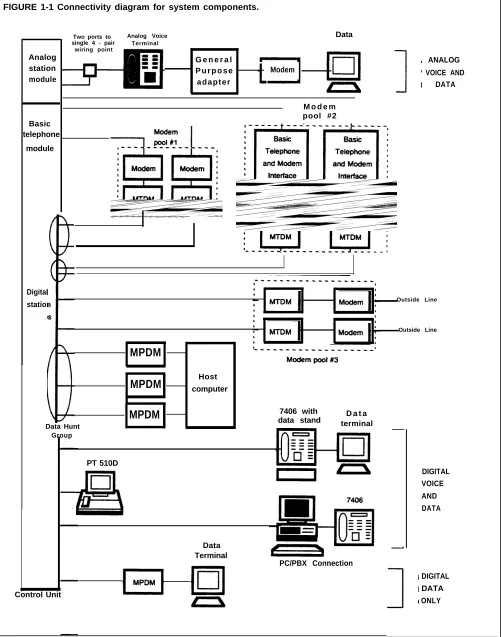
SYSTEM COMPONENTS Figure 1-1 shows how data and voice equipment is connected in the
MERLIN II system. As this illustration shows, the system can accommodate several different types of voice and data workstations. Two special features of the MERLIN II system, data hunt groups for local host computer access and modem pools, allow users to share the data communications equipment needed for internal and outside data calls.
NOTE: Compatibility with the PC/PBX Connection and other data products will be discussed in the documentation for those products.
Definitions of the terms used in Figure 1-1 and elsewhere in this guide are found in “Definitions of Basic Terms. ” Section 2 provides a detailed description of the basic components of the MERLIN II system.
FIGURE 1-1 Connectivity diagram for system components.
Two ports to Analog Voice Data
single 4 - pair Terminal wiring point
Analog station module
G e n e r a l P u r p o s e a d a p t e r
Modem
ANALOG
VOICE AND DATA
M o d e m pool #2 Basic
telephone
module
Digital
station Outside Line
Outside Line
MPDM
MPDM computerHost
MPDM data stand7406 with D a t a terminal
Data Hunt Group
PT 510D
DIGITAL VOICE AND
DATA
Data Terminal
PC/PBX Connection
DIGITAL DATA ONLY Control Unit
DEFINITIONS OF BASIC Analog TERMS Basic Telephone and Modem Interface (BTMI) Call Progress Messages Control Unit Data Communications Equipment (DCE)
Data Hunt Group
Data Metering
Data Module
Data Rate or Speed
Data Stand
Data Terminal Equipment (DTE)
Digital
Designed to transmit signals as continuous electrical waves. Analog voice terminals such as the 10-button and 34-button deluxe models can be directly connected only to analog jacks at the control unit.
Connects basic telephones and data communications devices, such as modems, to analog station jacks at the MERLIN II control unit.
Messages sent to a computer or data terminal from the control unit, data module, modem, or data stand. These messages tell the user how calls are proceeding. If a call can’t go through, an explanatory message such as Incompatible Far End appears.
The master component in the MERLIN II system. It manages all call traffic for the system and controls all system responses.
A device used to transmit binary data to and/or from a communication channel.
A group of digital station jacks that are assigned a common access number. When a call is placed to a data hunt group, the system checks the jacks in round-robin fashion and connects the call to the first one available.
A feature of a data stand that allows it to
communicate with another DCE or DTE (see Data Terminal Equipment below) device at a rate lower than the rate set for the terminal to which the data stand is connected.
A general term used in this guide to refer to the Modular Processor Data Module (MPDM) and the Modular Trunk Data Module (MTDM).
The rate at which digital data signals are sent between data communications equipment and/or data terminal equipment. For example, the data rate of a modem that transmits at 1200 bits per second (bps) is 1200.
A device that provides a DCE interface when
connected to a 7406 voice terminal for a data terminal or personal computer.
A device used to convert character information to and/or from binary data.
Designed to transmit signals as a sequence of separate electrical pulses. Digital voice terminals such as the 7406 model and digital personal terminals such as the PT51OO can be directly connected only to digital jacks at the control unit.
Digital Data Data communications equipment that receives and Endpoint transmits digital data signals to the control unit. The
7406 data stand, the Personal Terminal [PT) 51OD, the MPDM, and the MTDM are digital data endpoints.
Line Jack A jack that connects an outside line to the control unit.
Local Host A method of connecting digital station jacks to an on-Computer Access site computer for data only calls by MPDMs. Some or
all of these digital station jacks may be put in a data hunt group.
Modem The equipment that comprises a member of a modem
Configuration pool. A modem configuration is made up of a MTDM, a modem, and all required cables and cords. If it is connected to an analog station jack, it also
includes a BTMI.
Modem Pool A group of modems and associated equipment used to convert digital data to analog data or vice versa. Pooling makes it possible for users to share a limited number of modems. Calls come into incoming modem pools at the analog end of the modem configuration; calls come into outgoing modem pools at the digital end of the modem configuration.
Modular Processor A DCE device that converts digital data signals from Data Module the control unit switching facilities to EIA RS-232-C (MPDM) data signals for a computer or data terminal and vice
versa. MPDMs are used with data terminals or
computers for data only at digital stations and for local host computer access.
Modular Trunk Data Module (MTDM)
Outside Line
Station
Station Jack
A DTE device that serves as the interface between the control unit and a modem. Together with a modem, it changes digital data signals from the switching facilities to analog signals that can be transmitted over standard telephone lines or vice versa. MTDMs are used in modem pools.
The telephone lines that come from your local telephone company central office (CO) to your building. These lines may be connected to your MERLIN II control unit or to a modem for use in modem pools on dedicated outside lines.
Any location in the MERLIN 11 system where wires from the control unit end at a voice terminal and/or data device.
A jack that connects the wires from a voice terminal and/or a data device to the control unit.
DATA CONNECTIVITY FOR Figure 1-2 shows how one department of a typical business makes use of the
A TYPICAL BUSINESS data capabilities the MERLIN II system provides. At the brokerage firm of Bye, Loew, and Zelli, the staff of the commodities group use two types of digital workstations connected to the MERLIN II system. This arrangement allows them to:
• Communicate with others in the firm via electronic mail.
• Work with files from the firm’s minicomputer at their own terminals.
• Access the minicomputer or their own terminals from outside the office.
The consultants, research assistant and group secretary use a data hunt group to access the firm’s minicomputer. The consultants and the research assistant use an outgoing modem pool to place calls to the Porknbeans Line and other subscription information services for commodities traders.
FIGURE 1-2 Data connectivity for the commodities group at Bye, Loew, and Zelli.
M i n i
computer
Data hunt group for in - house computer
MPDM
MPDM
MPDM
FINANCIAL CONSULTANT
C o n t r o l unit
PT 51OD
Modem pool for
outgoing calls
Data hunt group for modem pool
7406 with
Data
7406 with
GROUP SECRETARY
Data
FINANCIAL CONSULTANT
Planning Overview
You can set up your MERLIN II system to provide:
• Simultaneous voice and data, voice only, or data only communications at digital and analog workstations
• Local host computer access
• Modem pools for incoming and outgoing data calls
• Data hunt groups for local host computer access and outgoing modem pools
The planning required to integrate data communications into your system includes:
-●
●
●
●
The Planning Forms
Making sure you have (or data options you want
Reserving the appropriate
have ordered) the components needed for the
station lacks on analog, digital, or basic telephone modules to connect the
control unit
Reserving the appropriate outside lines
components to the MERLIN II system
lines for modem pools on dedicated
Making sure you have enough AC power outlets (one for each modem or data module if you use stand-alone mountings, fewer if you use multiple mountings)
As you plan data options, you record your decisions on the Master Planning Form and the appropriate forms for the particular data options you select. The Master Planning Form is provided in both. the MERLIN 11 System Planning
Guide and the MERLIN 11 System Manual. You may record information about
data options on:
• The Data Hunt Group Form and Incoming Modem Pool Form provided with this guide
• Various forms provided with your MERLIN System Manual such as the Call Restriction and AIlowed Lists Forms and the System Speed Dial Form You use the Master Planning Form to reserve the jacks needed to connect both voice and data components to your control unit. To insure that you’ll have a fully integrated voice and data communications system, this section of the guide shows how to fill out the Master Planning Form for all the stations in your system, not just those with data capability.
How to Use this Section of the Guide
IF YOU’RE FILLING OUT FORMS FOR A NEW SYSTEM
This section provides:
• General information to help you decide how your system should operate
• Boxed instructions for recording your decisions on planning forms
How you use this section depends on whether you’re planning data options for a new MERLIN II system or for a system that has already been
administered.
If you’re planning data options for a system that hasn’t been administered yet, you need photocopies of the MERLIN II system planning forms. Make copies of the Data Hunt Group Form and the Incoming Modem Pool Form provided at the end of this section.
If you don’t have copies of the forms provided in either the MERLIN II System
Planning Guide or Section 2 of the MERLIN II System Installation and
Administration Manual, remove the originals and copy them. Make sure to
copy both sides of all two-sided forms and return the originals to their proper place. You won’t need all these forms for recording data options, but you’ll probably use them when you plan voice features for your system.
Read the explanations in this section of the guide, then follow the boxed instructions to record information on data options on your Master Planning Form and other forms. When you’ve finished, you can go to your MERLIN II
System Planning Guide or MERLIN II System Manual to finish planning your
MERLIN II system.
IF YOU'RE UPDATING THE If you’re adding data capability tO a MERLIN II system that has already been
FORMS FOR A RUNNING administered, get the existing forms for your system. Make copies of the
SYSTEM Data Hunt Group Form and the Incoming Modem Pool Form provided at the end of this section.
Follow the boxed instructions under “Identifying Line and Station Modules” to identify the modules being added to your system. To select data options, follow the boxed instructions in:
Reserving Station Jacks for Voice and Data Workstations"
• "Reserving Jacks for Computer Access and Modem Pools"
• "Planning Data Hunt Groups"
When you’ve finished planning data options, go on to Section 3 of this guide, "Connecting Hardware and Setting Options."
Components of the MERLIN II System
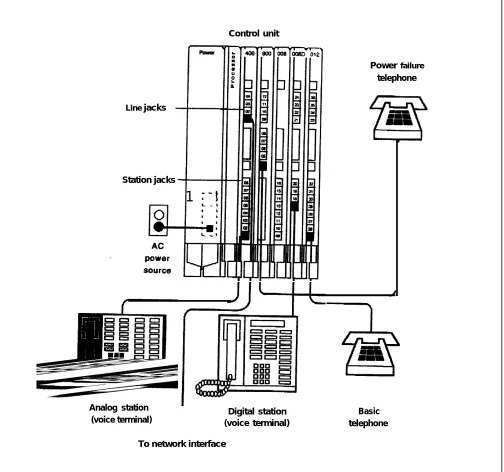
FIGURE 2-1 Basic MERLIN II System Components.
Control unit
Power
Line jacks
Station jacks
1
!
Power failure telephone
Analog station Digital station
(voice terminal) (voice terminal)
To network interface
Basic telephone
If you aren’t familiar with the MERLIN II system, study Figure 2-1. Then read the definitions of basic terms that follow,
• Control Unit: When the system is installed, modules containing a power source; a processor; and jack connection for outside lines, MERLIN II system telephones, and other devices are mounted on a carrier. The resulting assembly is called the control unit.
• Line Jacks: The line jacks on the control unit modules connect outside lines or optional paging or music equipment to the system. The system can accommodate up to 56 outside lines.
• Voice Terminal: A voice terminal is a programmable MERLIN II system telephone.
• Station: A station is the endpoint of any connection within the MERLIN II system. It can be a voice terminal, a basic telephone, a General Purpose Adapter (GPA), a modem, a data terminal, or a personal computer.
– Analog Station: An analog station is one with an analog voice terminal,
data device, and/or accessory. Analog voice terminals such as the 10-button, 22-10-button, and 34-button models can be directly connected only to analog station jacks on the control unit.
— Digital Station: A digital station is one with a digital voice terminal or
data device, Digital stations such as the 7406 voice terminal and the Personal Terminal (PT) 510D can be directly connected only to digital station jacks on the control unit.
— Basic Telephone: A basic telephone is a standard Touch-Tone or rotary
telephone. Basic telephones in regular use are connected to basic telephone jacks on the control unit. Basic telephones used exclusively as Power Failure Telephones are connected to power failure jacks on line modules on the control unit.
• Station Jacks: The station jacks are those jacks on the modules in the control unit that connect stations to the system. The system can accommodate up to 72 responding stations.
Identifying Line and Station Modules
During this first phase of planning you’ll be deciding how you want voice and data components connected to jacks on the MERLIN II system control unit and recording your decisions on the. Master Planning Form.
The jacks on the control unit modules provide points of connection for the system’s outside lines and stations.
The system’s outside telephone lines connect to line jacks, as do
loudspeaker paging equipment and the music source for Music-on-Hold, if your system has these options.
Data devices, voice terminals, and basic telephones connect to station jacks.
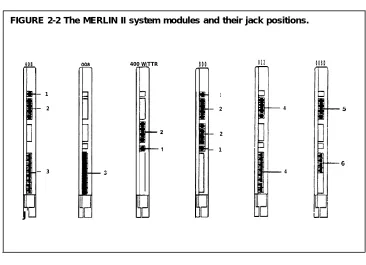
TYPES OF MODULES The first step in planning your system is to decide what line and station modules will appear in each slot in your control unit. The various types of modules are described below and shown in Figure 2-2. An explanation of how the MERLIN II system assigns numbers to lines and station jacks on modules is found under “Automatic Numbering of Jacks on Line and Station Modules. ”
The 4-Line/8-Analog Voice Terminal (408) Module has four line jacks near the top of the module and eight station jacks on the bottom portion of the module.
The 8-Analog Voice Terminal (008) Module has eight station jacks at the bottom.
The 4-Line with Touch-Tone Receivers (400 w/HTR) and &Line (800) modules have line jacks on their top portions.
The 12-Basic Telephone (012) Module has 12 station jacks— four at the top and eight at the bottom.
The digital Station (O08D) Module has four station jacks at the top and
four near the bottom. —
There is a power failure jack for every four outside line jacks on a module.
FIGURE 2-2 The MERLIN II system modules and their jack positions.
408
— 1 — 2
— 3
J
400 W/TTR 800
1 — 2
— 2
— 1
012
4
4
008D
LINE AND STATION JACK The numbers in Figure 2-2 correspond to the following list of jack functions:
FUNCTIONS
1
2
3
4 5
Power failure jacks: These jacks are used with basic telephones only. In
case of a power outage, basic telephones plugged into these jacks become operational. Do not use MERLIN II system voice terminals as power failure telephones.
Outside line jacks: These jacks are for the outside lines provided by the
telephone company. YOU can also connect an optional-loudspeaker paging
system and/or a music source to a line jack.
Analog station jacks: These jacks are for MERLIN II system analog voice terminals, analog data devices, or accessories only.
Basic telephone jacks: These jacks are for basic telephones only.
Digital Station jacks: These jacks are for digital voice terminals or data devices only.
Line and station modules must be installed in slots on the control unit sequentially, from left to right, with no empty slots left between modules. (Slots to the right of the last module can be left empty.) Figure 2-1 shows a typical module installation.
On the drawing labeled "Module Location” on the Master Planning Form, identify the type of module in each slot on your control unit by writing in the module type (such as 008D) above the slot number. Keep in mind that the module in slot 1 of the basic unit must be a 4-Line/8-Analog Voice Terminal (408) Module or an 8-Analog Voice Terminal (008) Module.
AUTOMATIC NUMBERING When you turn the power on at the power supply module, the system scans
OF JACKSON LINE AND the modules from left to right and from bottom to top. As it does so, it
STATION MODULES identifies the type of module installed in each slot in the control unit.
Beginning with line 01 and station 01, the system numbers the line jacks and station jacks from the bottom to the top of each module, and from left to right
Labels for the control unit jacks are provided with the system. The station jack labels are numbered 01 through 88. The line jack labels are numbered 01 through 56. Once the control unit is assembled and these labels affixed to the modules, you can teIl at a glance which jacks are for outside lines and which
NOTE: The administrator can assign different numbers to lines and stations. See “Flexible Numbering” in the MERLIN II 5ystem
If you later replace a module with one of a different type, the system continues to operate as though the original module were still in place. You must perform a speciaI administration procedure to change your system’s line and/or station numbers and relabel the jacks accordingly. Refer to Section 3
Reserving Line Jacks
OUTSIDE LINE CONNECTIONS
EQUIPMENT CONNECTIONS
You use the Master Planning Form to reserve line jacks for:
• Outside lines
• Music-on-Hold, if you use this feature
• Loudspeaker Page, if you use this feature
The “Line Jacks” section of the Master Planning Form has six columns. The first and fourth columns, headed “Line Jack, ” list all the possible line jack numbers (01 through 56). In the columns headed “Telephone No. or Equipment, ” you identify the outside telephone line or piece of equipment connected to each line jack on your control unit.
To simplify system administration, you should plan to connect your outside telephone lines to an unbroken sequence of line jacks, beginning with line jack 01. You should also plan to group your lines together according to type. Reserve the line jacks at the beginning of the sequence for your local lines, and reserve jacks later in the sequence for special-purpose lines such as WATS and foreign exchange (FX) lines.
If you know the telephone numbers for your system’s outside lines, do the following:
1 Match each outside line with a line jack on the control unit.
2 Under "Telephone No. or Equipment," enter the telephone number for each outside line next to the number for its line jack.
If you don’t yet know the telephone numbers for your system’s outside lines, do the following:
1 Enter the type of line (local, WATS, etc.) you plan to connect to each line jack next to the number for that line jack.
2 When you find out the telephone numbers for your outside lines, enter them next to the appropriate line jack numbers.
Now that you’ve reserved enough line jacks on the control unit for your outside telephone lines, you can reserve a line jack for any optional
equipment that requires one. If you use the Music-on-Hold feature, you need to reserve a line jack for a music source such as a radio, tape player, or stereo system. If your business has a loudspeaker paging system, you need to reserve a line jack for the paging equipment.
To make it easy to add outside lines in the future, use the last line jack(s) on
your control unit for the Music-on-Hold and/or Loudspeaker Page connection.
If your system has Music-on-Hold, write “music source” on the line next to the number of the line jack used to connect the music source to the system.
2-8 Reserving Line Jacks
Reserving
Statio n Jacks for Voice and Data Workstations
STATION JACK TYPE
You must reserve station jacks on the Master Planning Form for:
• Analog voice terminals
• Basic telephones
• Digital workstations used for voice and data or for data o n l y
communications
NOTE: You also reserve station jacks for any devices such as data modules, modems, and BTMIs that are used for local host computer access and outgoing and incoming modem pools. “Reserving Jacks for Computer Access and Modem Pools, ” which follows, explains how to plan for these data options.
The"Station Jacks" section of the Master Planning Form lists the numbers (01 through 88] for all possible station jacks on the control unit. You record the jack type for each station jack on the modules in your control unit: "A" for analog, "D" for digital, or "B” for basic telephone. Next you identify by person, location (such as "mail room"), or function (such as "incoming modem pool") the station connected to each station jack on your control unit.
The first step in filling out the "Station Jacks" section of the Master Planning Form is to identify the type of jack that each station number represents. The Module Location drawing shows the order in which modules containing analog, digital, and/or basic telephone station jacks are installed in your control unit. Keep in mind that station jacks on these modules are numbered from the bottom to the top of each module and from left to right across the control unit.
You’ll note that the first eight jacks are already identified with an "A" on the form. This is because the module in slot 1 must be a 4-Line/8-Analog Voice Terminal (408) module or an 8-Analog Voice Terminal (008) Module.
In the "Jack Type" column, record the jack type for each station jack o your control unit: "A" for analog, "D" for digital, or "B" for basic telephone.
Analog Stations
Filling out the "Station Jacks" section of the Master Planning Form for analog stations basically consists of assigning intercom numbers to stations by matching station jack numbers with people, locations, or functions. But the following analog stations require special consideration:
• Attendant stations
• Stations with the Simultaneous Voice and Data feature
• Stations with the Voice Announcement to Busy Voice Terminal feature
ATTENDANT STATIONS Attendant stations are voice terminals that are specially administered for call handling and other duties of telephone attendants such as receptionists. Only analog voice terminals can be attendant stations.
Station 10
In every system, the station connected to station jack number 01 is the primary attendant position and the central administration point. The voice terminal connected to station jack 01 is called the administrator/attendant console and is assigned intercom number 10.
On the row for station jack 01 on the Master Planning Form, identify the primary attendant station as follows:
1 In the "Station Jack" column, write "Att" next to the preprinted “01” identify this as an attendant station.
2 In the "Person, Location, or Function" column, write in the name or location of the primary attendant.
to
Other Attendant Stations
Certain stations in addition to station 01 can serve as attendant positions. They are the stations connected to every fourth analog station jack after number 01 on the control unit. For example, if the first 16 station jacks on your control unit are on analog station modules, the possible attendant stations (in addition to station 01) are those connected to jacks 5, 9, and 13. Your system can have as many as eight attendant stations, depending on the number of analog station modules you have.
Identify other possible attendant stations in your system as follows:
1 In the "Station Jack" column, write "Att" next to the number for every fourth analog station jack after station jack number 01.
2 Fill in the "Person, Location, or Function" column for the stations you know will be attendant stations when your system is up and running.
3 Remove the "Att" designation from those station jacks that you won’t use as attendant stations.
STATION JACK PAIRS Among the many optional features you can choose for one or more stations in your system are the following:
●
●
Voice Announcement to Busy Voice Terminal
A person whose voice terminal has this feature can hear an announcement through the speaker even though he or she is on a call. To provide this feature, you assign the voice terminal two station jacks, called a voice/voice pair, as explained below. (Digital 7406 voice terminals can’t use this feature, since they don’t receive voice announcements over their speakers.)
Simultaneous Voice and Data
A person whose station is administered for this feature can conduct voice and data calls at the same time. To provide this feature, you assign an analog voice terminal two station jacks, called a voice/data pair, as explained below. (Digital stations don’t need a second jack to provide simultaneous voice and data capability,)
An analog station with one of these options requires two consecutive analog station jacks on the control unit. The jacks are an odd-numbered analog station jack and the next higher (even-numbered) analog station jack. This requires special wiring. (See Section 3 of this guide, " Connecting Hardware and Setting Options.")
NOTE: You can assign either of these options to any of the analog stations in your system, but you cannot assign both options to the same station.
Voice/Voice Pairs
The first (odd-numbered) station jack in the pair provides the analog station’s
intercom number. Calls can’t be placed to the intercom number associated with the even-numbered jack.
To reserve pairs of jacks for analog stations that will have the Voice
Announcement to Busy Voice Terminal feature, do the following:
1 In the "Station Jack" column, draw a box around the pair of jack numbers that you plan to assign to each analog station with this feature.
NOTE: You can assign this feature to an attendant position.
2 In the "Person, Location, or Function" column, next to the first (odd) number of each boxed pair, identify the station by person or location.
3 In the "Person, Location, or Function" column, next to the second (even) number of each boxed pair, write “VVP” (for voice/voice pair).
Voice/Data Pairs
The first (odd-numbered) station jack of the pair assigned to an analog station equipped for Simultaneous
that station. Calls can’t be even-numbered jack.
Voice and Data provides the intercom number placed to the intercom number associated with
for the
Assign pairs of jacks to analog stations that will have the Simultaneous Voice and Data feature as follows:
1 In the "Station Jack" column, draw a box around each pair of numbers representing analog station jacks that you plan to assign to these stations.
NOTE: YoU can assign this option to an attendant station.
2 In the "Person, Location, or Function" column, next to the first (odd) number in each boxed pair, identify the station by person or location.
3 In the "Person, Location, or Function" column, next to the second (even) number in each boxed pair, write “VDP" for (voice/data pair).
REMAINING ANALOG Now that you’ve reserved station jacks on the control unit for stations that
STATIONS need special consideration, you can reserve station jacks on 4-Line/8-Analog Voice Terminal (408) Modules or on 8-Analog Voice Terminal (008) Modules for any other analog stations in your system.
To reserve station jacks for the remaining analog stations, do the following:
1 In the "Person, Location, or Function" column, identify each station in your system by person or location.
Note: You might not have an analog station for each analog jack on
your control unit. If so, just leave the spaces blank next to those
station numbers on the Master Planning form. You can't use the
station number associated with an analog staion jack for a digital
station or basic telephone.
Basic Telephones
If you have any basic telephones, reserve jacks for them on a 12-Basic Telephone (012) Module.
To
1
2
reserve station jacks for basic telephones, do the following: Locate station numbers with "B" in the "Jack Type" column.
In the "Person, Location, or Function” column, identify each basic telephone in your system by person or location.
Digital Workstations
You reserve jacks on 8-Digital Station (008D) Modules for digital workstations such as the:
• 7406 voice terminal with data stand for voice and data communications
• PT 510D for voice and data communications
• Modular Processor Data Module (MPDM) connected to a data terminal or personal computer for data communications only
NOTE: The 7406 voice terminal with data stand requires a local power supply. See Section 3 of this guide, "Connecting Hardware and Setting Options," for details.
To reserve station jacks for digital workstations, do the following:
1 Locate station numbers with "D" in the "Jack Type" column.
2 In the "Person, Location, or Function" column, identify each digital station in your system by person, location, or function. Add the notation "DO" (data only) for any digital stations used for data communications only.
NOTE: The MERLIN II System Installation and Administration Manual describes how to plan Flexible Numbering of lines and stations and how to assign alphanumeric labels. If you are considering using these features, see Section 2, "Planning the System, " for instructions on completing the Master Planning Form and completing the Flexible Numbering form.
Reserving Jacks for Computer Access and Modem Pools
If you want your system to have local host computer access or incoming or outgoing modem pools, you need to reserve station jacks for these data options.
Local Host Computer Access
Local host computer access is a method of connecting digital station jacks on the MERLIN II system control unit to the EIA RS-232-C ports of an on-site computer. This connection is made through Modular Processor Data Modules (MPDMs). MPDMs convert the digital data signals sent through the control unit to EIA RS-232-C data signals that the computer can receive, and vice versa.
Users access the computer by placing a data call to a station jack that you’ve designated for local host computer access. If you have as many computer access station jacks as users or if people need to be sure of having access to the computer at any time, you can give each person a different station number to call. However, if many people share a computer, you may prefer to assign some or all of the station jacks to a data hunt group with a single access number (see “Planning Data Hunt Groups” ).
To reserve jacks on digital station modules at the control unit for local host computer access, follow these steps:
1 Determine the total number of station jacks you’re going to use for access to a bcal host computer. Keep in mind that you need an MPDM for each jack.
2 On the "Station Jacks" section of the Master Planning Form, locate that nurnber of available digital station jacks.
3 In the "Person, Location, or Function" column for each jack number, write "LHCA - MPDM" (for local host computer access using a Modular Processor Data Module).
2-14 Reserving Jacks for Computer Access and Modem Pools
Modem Pools
Modem pools are groups of modems and associated equipment used to convert digital data signals to analog data signals or vice versa. Signals must be converted in this way for:
• Outside calls to and from digital stations
• Internal calls between digital and analog endpoints
Putting modems in pools makes it easier for users to share a limited number of modems. Each modem pool is used exclusively for either incoming or outgoing calls.
Each modem configuration in a modem pool consists of:
A Modular Trunk Data Module (MTDM) with an RS-232-C Interface.
A 2212C or other compatible modem.
Where required, a Basic Telephone and Modem Interface (BTMI). BTMIs are required if the modem connects to a jack on an analog module rather than to a jack on a basic telephone module or to a dedicated outside line.
Modem Pools Using MERLIN II System Lines
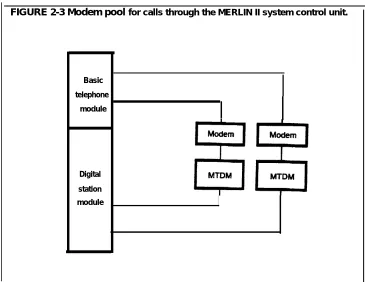
Typically, modem pools handle calls that are placed and received through the MERLIN II system control unit. The lines used for these calls maybe
assigned only to members of a modem pool or they may be shared with other stations in the MERLIN II system. As Figure 2-3 shows, these configuration require one station jack on a digital station module and one station jack on either an analog station module or a basic telephone module.
FIGURE 2-3 Modem pool for calls through the MERLIN II system control unit.
Basic
telephone
module
Digital
station
module
I
Modem Pools on Dedicated Outside Lines
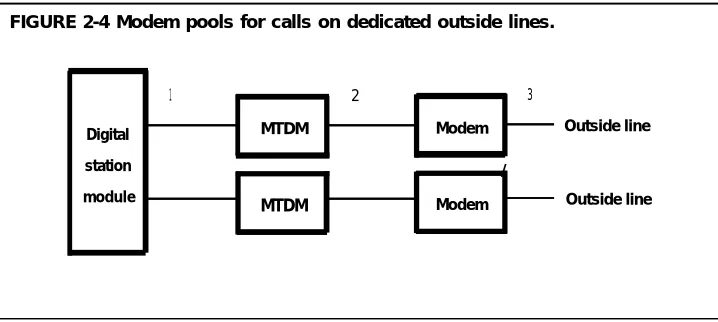
You can bypass the MERLIN II system control unit and connect an outside line directly to a modem for use with that modem only. Because the line isn’t connected to the MERLIN II system control unit, calls aren’t recorded by the Call Report (SMDR) feature. As Figure 2-4 shows, this type of modem configuration requires only one station jack, a jack on a digital station module.
FIGURE 2-4 Modem pools for calls on dedicated outside lines.
Digital
station
module
1 2 3
MTDM Modem
/
MTDM Modem
Outside line
Outside line
Instructions for planning different types of modem pools follow. Carry out the instructions that apply to your system.
NOTE: The people in your business need to know what modem pools to use for particular data calls and how to access those pools. When you’ve finished planning your modem pools, it’s a good idea to prepare a user information sheet on them. The sheet should list modem pool access numbers and describe any special considerations for using the modem pools you’ve set up.
OUTGOING MODEM POOLS ON MERLIN II SYSTEM LINES
INCOMING MODEM POOLS ON MERLIN II SYSTEM LINES
You need to pair digital station jacks with analog or basic telephone jacks to create modem configurations for outgoing calls on MERLIN II system lines. You can group into modem pools any modem configurations for outgoing calls that have the same station jack type, modem type, and speed.
TO reserve jacks for outgoing modem pool pairs, perform these steps: 1 In the "Person, Location, or Function" column on the Master Planning
Form, write "OMP #1 - MTDM" (for outgoing modem pool number 1, using an MTDM) next to an available station jack number marked "D" (digital).
2 Locate a jack marked "A" (analog) or "B" (basic telephone) to pair with the digital station jack. Write "OMP #1" in the "Person, Location, or Function" column if the jack is a basic telephone jack or write "OMP
#1 - BTMI" in the "Person, Location, or Function" column if the jack is for an analog telephone jack and a BTMI is required.
3 Repeat steps 1 and 2 for each modem configuration that has the same modern type, station jack type, and speed.
4 Repeat steps 1 through 3 for each group of modem pool pairs.
5 Record the station number of each analog or basic telephone jack in an outgoing modern configuration on a separate Station Configuration Form. The Station Configuration Forms are found in the MERLIN II
System Installation and Administration Manual. Cross out the words
"Voice Terminal" and write "Station" above the crossed-out words. On the spaces provided for identifying button assignments, record the lines or line pools to be assigned to the outgoing modem
configurations. Section 4, "Administering Data Options," explains how to assign lines to these station jacks.
You need to pair digital station jacks with analog or basic telephone jacks to create modem configurations for incoming calls on MERLIN II system lines. You can group into modem pools any modem configurations for incoming calls that have the same station jack type, modem type, and speed and record this information on the Incoming Modem Pool Form and Master Planning Form.
NOTE: See "Modem Pools on Dedicated Outside Lines" for
information on filling out the Incoming Modem Pool Form for modem pools that don’t use MERLIN II system lines.
Line Assignments
You need to assign lines or line pools to the analog or basic telephone jacks for modem pool members so that data calls can come into these jacks.
Keep these points in mind as you assign lines:
• It’s best not to assign the same lines or line pools to voice terminals and to incoming modern pools because the moderns will answer voice calls as data calls.
• Lines and line pools assigned to modem pools can also be assigned to other stations in the system. However, the line or line pool should be set to ring only at the jack for the modern pool member.
• If you want to permit simultaneous incoming data calls to a single telephone number, you can have your local telephone company supply a telephone line hunt group. With this arrangement, one number applies to several lines that you can assign to the members of the incoming modem pool.
Group Call Distribution
For efficient call handling, you may want to assign the same lines or line pools to all members of a modem pool, then assign the Group Call
Distribution feature to the modem pool members. Whenever a call comes in on one of the lines assigned to a modem pool with Group Call Distribution, the system scans the analog or basic telephone jacks for the members of the modem pool and connects the call to the first available station jack.
To reserve jacks for incoming modem pool pairs, perform these steps:
1 If you'll have more than two incoming modem pools,. make the required number of copies of the Incoming Modem Pool Form.
2 In the "Person, Location, or Function" column on the Master Planning Form, write "IMP #1 - MTDM" (for incoming modem pool number 1, using an MTDM) next to an available station jack number marked "D" (digital).
3 Locate a jack marked "A" (analog) or "B" (basic telephone) to pair with the digital station jack. Write "IMP # l" in the "Person, Location, or Function" column for a basic jack number or write "IMP # 1 - BTMI" in the "Person, Location, or Function" column for an analog telephone jack number to indicate that a BTMI is required.
4 Repeat steps 2 and 3 for each modem configuration that has the same modem type, station jack type, and speed.
5 Repeat steps 2 through 4 for each group of modem pool pairs.
6 Enter the number of the first modem pool (Modem Pool) on the
form. Check the appropriate box or fill in the blank to record modem type, jack type and speed to indicate whether the modem pool
uses the Group Distribution feature.
7 On the Master Planning Form, locate the pairs of station jacks that you plan to assign to Modem Pool 1. On the Incoming Modem Pool Form record each pair of station numbers on a separate line in the column headed "Station Jack Numbers."
8 In the column headed "Lines/Line Pools," record the numbers of the outside lines or line pools that should be assigned to the analog or basic telephone jack in each pair of station jacks.
9 Repeat steps 6 through 8 for each incoming modem pool. Number your additional pools in turn with 2, 3, etc.
MODEM POOLS ON DEDICATED OUTSIDE LINES
You may want to set up incoming or outgoing modem pools on dedicated outside lines if:
You have a large volume of data communications and want to keep the outside lines for your MERLIN II system available for voice calls.
You use specialized outside lines for data communications.
You don’t have sufficient analog or basic telephone jacks for all the modem pools you want to set up.
Identifying Station Jacks on the Master Planning Form
The first step in planning for modem pools on dedicated outside lines is to enter the appropriate information on the Master Planning Form.
Follow these steps to reserve digital station jacks for modem pools on dedicated outside lines:
1 In the "Person, Location, or Function" column on the Master Planning Form, locate an available jack marked "D" (digital). Next to the jack number, write "IMPP-DL-M" (for incoming modem pool pair on a dedicated line, using an MTDM) or "OMPP-DL-MTDM" (for outgoing modem pool pair on a dedicated line, using an MTDM).
2 Repeat step 1 for each modem configuration on a dedicated outside line.
Completing the Incoming Modem Pool Form
If you have incoming modem pools on dedicated lines, you need to enter information about those pools on the Incoming Modem Pool Form.
Follow these steps to complete the Incoming Modem Pool Form: 1 Determine the total number of incoming modem pools on dedicated outside lines that you have. Keep in mind that only modems of the same type and speed can make up a modem pool.
2 Record the number of the modem pool, the modem type, and the speed in the appropriate places. Don't check a jack type and check "No" to show that the modem pool doesn't have the Group Call Distribution feature.
3 Referring to the Master Planning Form, record the station numbers of all digital jacks marked "IMPP-DL-MTDM" that have modem configuartions with the modem type and speed marked. Write the jack
numbers on the consecutive lines.
4 On the crresponding line under "Lines/Line Pools," write the number of the outside line connected to the modem.
5 Repeat step 2 through 4 for each incoming modem pool on a dedicated line in your system.
Planning
Data Hunt Groups
Data hunt groups are groups of digital station jacks with a single access number. These jacks provide access, through a data module, to:
• A local host computer
• An outgoing modem pool
When someone dials the number for the data hunt group, the MERLIN II system checks the jacks in round-robin order and directs the call to the first available jack in the group. It generates a busy message if all the jacks in the group are in use.
CONSIDERATIONS FOR Keep these points in mind as vou plan data hunt groups:
SETTING UP DATA HUNT GROUPS
A
• The modem configurations in outgoing modem pools have to be interchangeable. They must have the same modem type and speed setting, since callers won’t know which station jack they are accessing when they dial the data hunt group number for the outgoing modem pool.
• You can set up data hunt groups for outgoing modem pools on dedicated outside lines. But you can't place outgoing modem configurations that use dedicated outside lines in the same data hunt group as modem
configurations that use standard MERLIN II system lines.
TO reserve jacks on digital station modules at the control unit for data hunt
groups, follow these steps:
1 On the Master Planning Form, identify each station jack that you’re assigning to a data hunt group. Write "DHG" (for data hunt group) in
the "Person, Location, or Function" column to the right of the existing entry. (The completed entry for a station jack in a data hunt group for local host computer access, for example, would be
"LHCA-MPDM-DHG.")
2 The default code numbers for datta hunt groups are listed on the Data
Hunt Group Form as *870 through *875. Those are the numbers users dial to reach the local host computer or modem pool, unless different numbers are assigned through Flexible Numbering. Follow these steps to identify the station jacks in each data hunt group, beginning with the first group:
a Complete the top of the column by checking the appropriate boxes for a local host curnputer or outgoing modem pool. If the data hunt group is for an outgoing modem pool, select the modem type and jack type. Record the data speed.
b Refer to the Master Planning Form and write in the number of each station jack that you want to assign to the data hunt group
(maximum of 16). Record each jack number on a separate line. NOTE: If you're assigning the station jacks for modem pools on dedicated outside lines to a data hunt group, record the telephone number of the line next to the station jack number.
Master Planning Form
Line Jack 01 02 03 04 05 06 07 08 09 10 11 12 13 14 15 16 17 18 19 20 21 Default Line N o . 801 802 803 804 805 806 807 808 809 810 811 812 813 814 815 816 817 818 819 820Telephone No. or Equipment
Default Line Line Jack No. 29 829 30 830 31 831 32 832 33 833 34 834 35 835 36 836 37 837 38 838 39 839 40 840 41 841 42 842 43 843 44 844 45 845
Telephone No. or Equipment
46 846
47 847
48 848
821 49 849
2 2 822 50 850
823 5 1 851
2 3
24 824 52 852
25 825 53 853
26 826 54 854
27 827 55 855
28 828 56 856
*Flexible numbering applies:
❑ Yes
❑ No
Master Planning Form
Module Location
Basic unit
I
I
I
Expansion unit
I
1
I
Power
slot identification:
Power 0 supply
slot
1 2 3 4 5
Power
Power 6 7 8 9 10 11
supply slot
Master Planning Form
Station Jacks
Person, Location, Label Face or Function
I
I
1
I
Jack DefaultStation Type Icom Jack (A,D,B) No.
01 A 10
02 A 11
03 A 12
04 A 13
05 A 14
06 A 15
07 A 16
08 A 17
09 18
10 19
1 1 20
12 21 13 22 14 23 15 24 16 25 17 26 18 27 19 28 20 29 21 30 22 31 23 32 24 33
25 34 55 64
26 35 56 65
27 36 57 66
28 37 58 67
29 38 59 68
30 39 60 69
Jack Default Person,
Station Type Icom Location, Jack (A,D,B) No. Label Face or Function
31 40 32 41 33 42 34 43 35 44 36 45 37 46 38 47 39 48 40 49 41 50 42 51 43 52 44 53 45 54 46 55 47 56 48 57 49 58 50 59 51 60 52 61 53 62 54 63
● Flexible numbering applies:
❑ Y E S
❑ N O
Station Jack
61
62
63 64 65 66 67 68 69 70 71 72 73 74
Station Jacks (Continued)
Jack Default Person, Jack Default Person,
Type Icom Location, Station Type Icom Location,
(A,D,B) No. Label Face or Function Jack (A,D,B) No. Label Face or Function
700 75 714
701 76 715
702 77 716
703 78 717
704 79 718
705 80 719
706 81 720
707 82 721
708 83 722
709 84 723
710 85 724
711 86 725
712 87 726
713 88 727
Incoming Modem Pool Form
Modem Pool
❑ 2212C Modem ❑ Other (Model ) Speed
❑ Analog Jack ❑ Basic Telephone Jack
Pool members in Call Distribution group? ❑ Yes ❑ No . .
Station Jack Numbers L i n e s / L i n e P o o l s
1 1 2 3 4 5 6 7 8 9 10
11 12 13 14 15 1 6
Modem Pool
❑ 2212C Modem ❑ Other (Model ) Speed
❑ Analog Jack ❑ Basic Telephone Jack
Pool members in Call Distribution group? ❑ Yes ❑ No
Station Jack Numbers Lines/Line Pools
1 2 3 4 5 6 7 8 9 10 11 1 2 1 3 1 4 15 1 6
Data Hunt Group Form
*870 *871 *872
❑ Local Host Computer
❑ Outgoing Modem Pool
❑ 2212C ❑ Other (Model )
❑ Analog Jack ❑ Basic Tel. Jack
Speed
❑ Local Host Computer
❑ Outgoing Modem Pool
❑ Local Host Computer
❑ Outgoing Modem Pool
❑ 2212C ❑ Other (Model )
❑ Analog Jack ❑ Basic Tel. Jack
S p e e d
❑ 2212C ❑ Other (Model )
❑ Analog Jack ❑ Basic Tel. Jack
S p e e d
1
2
3
4
5
6
7
8
9
1 0
1 1
1 2
1 3
1 4
1 5
1 6
1
2
3
4
5
6
7
8
9
1 0
1 1
1 2
1 3
1 4
1 5
1 6
1
2
3
4
5
6
7
8
9
1 0
1 1
1 2
1 3
1 4
1 5
1 6
* 873 *874 ’875
❑ Local Host Computer
❑ Outgoing Modem Pool
❑ 2212C ❑ Other (Model )
❑ Analog Jack ❑ Basic Tel. Jack Speed
❑ Local Host Computer
❑ Outgoing Modem Pool
❑ Local Host Computer
❑ Outgoing Modem Pool
❑ 2212C ❑ Other (Model )
❑ Analog Jack ❑ Basic Tel. Jack
❑ 2212C ❑ Other (Model )
❑ Analog Jack ❑ Basic Tel. Jack
1
2
3
4
5
6
7
8
9
1 0
1 1
1 2
1 3
1 4
1 5
1 6
1
2
3
4
5
6
7
8
9
1 0
1 1
1 2
1 3
1 4
1 5
1 6
1
2
3
4
5
6
7
8
9
1 0
1 1
1 2
1 3
1 4
1 5
1 6
Installation Overview
DIGITAL STATION The diagrams and descriptions below are typical hardware configurations for
CONNECTIVITY a MERLIN II system with voice and data capability. They include: A digital station equipped for simultaneous voice and data communications
• A 7406 voice terminal with a data stand (Z703A), connected to a data terminal
• A Personal Terminal (PT) 510D
A digital station equipped for data communications only
An analog station equipped for simultaneous voice and data communications
Local host computer access
Modem pools for:
• Data calls from a digital data endpoint
• Data calls to a digital data endpoint
• Data calls on dedicated outside lines
This section gives general instructions for connecting Data Terminal Equipment (DTE) and Data Communications Equipment (DCE) to the MERLIN II control unit. It also discusses setting data options to ensure that equipment throughout the system is compatible.
NOTE: Compatibility with the PC/PBX Connection and other data products will be provided with the documentation for that equipment.
HOW TO USE THIS SECTION
BEFORE YOU BEGIN
This. section of the guide provides guidelines for connecting data equipment to a MERLIN II system. It is intended to supplement, not replace, the documentation provided with the hardware. For detailed installation information, consult the appropriate hardware manual.
The Master Planning Form shows the station jacks on the control unit that
should be used for each data hardware configuration in your system. Keep the completed form handy for reference as you connect cords to jacks on station modules.
This section of the guide assumes that all the required station modules have been installed in your control unit. It also assumes that you have the components and cables required to assemble and connect the data hardware planned for your system. If you don’t have the equipment you need, contact your equipment supplier or technical consultant.
ABOUT THE NUMBERED Many of the figures in this section illustrate data connectivity for the
DIAGRAMS MERLIN II system. These diagrams, along with the Master Planning Form, the Data Hunt Group Form, and the Incoming Modem Pool Form, provide a guide for connecting data communications hardware to other equipment and to the control unit. The numbers in each connectivity diagram correspond to those of the explanatory notes beneath the figure.
Simultaneous Voice and Data at Digital Stations
Digital voice and data workstations are connected to jacks on the 8-Digital Station (008D) Modules in the control unit. These digital stations require only one control unit jack connection for simultaneous voice and data
communications. Descriptions of typical digital configurations follow. For information on the PC/PBX Connection, see the documentation for that system.
The 7406 Voice Terminal with Data Stand
You can add data capability to a station with a digital voice terminal such as the 7406 model by adding a data stand, local power, and a data terminal. The
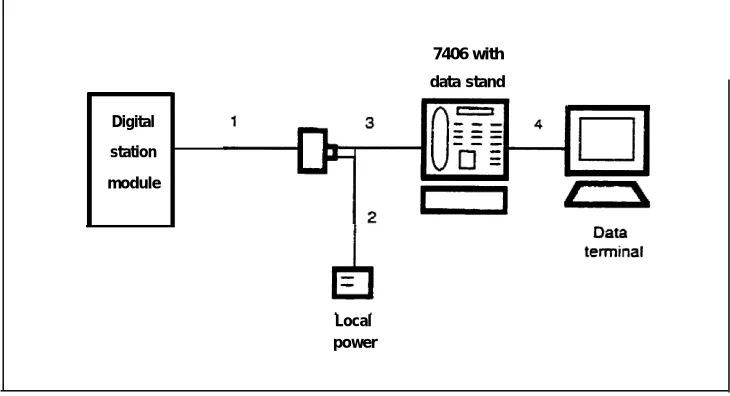
connectivity diagram seen in Figure 3-1 shows a typical configuration.
NOTE: Be sure to set the switches as shown, under "Option Switches on the Data Stand” before you connect the data stand to the MERLIN II system.
FIGURE 3-1 A digital voice terminal equipped for simultaneous voice and data.
Digital
station
module
7406 with
data stand
Local power
1 The 4-pair modular cord running from the jack on the 8-Digital Station
(008D) Module in the control unit terminates at a standard telephone wall jack at the voice terminal location. The maximum cable length is
1000 feet.
2 An ac power outlet provides required local power for the data stand. The power cord runs from the ac outlet equipped with a power supply to the standard telephone wall jack equipped with a power adapter.
NOTE: If you are using a KS-22911 L1 power supply, use a 400 B2 adapter.
3 The 4-pair modular cord runs from the local power adapter to the data stand.
4 Standard RS-232-C connectors and cable connect the data stand to the data terminal. The maximum cable length is 50 feet.
For more information on installing the data stand, see the instructions provided with it.
OPTION SWITCHES ON
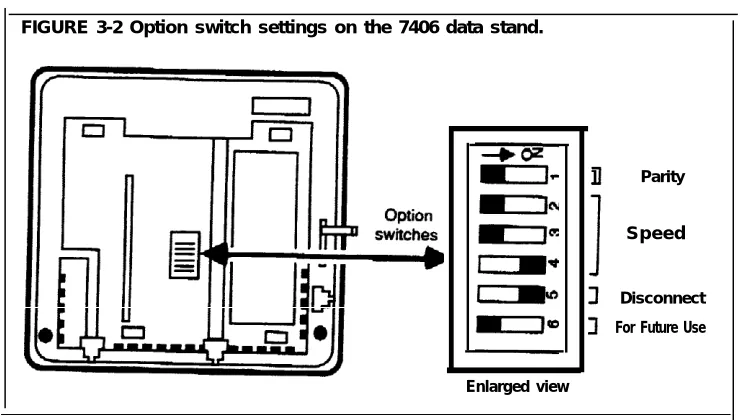
THE DATA STAND Before connecting the data stand to the MERLIN 11 system, you need to setthe switches on the bottom of the data stand to match those of the associated
data terminal. See Figure 3-2 for an example. The shaded portion of the switch shows the switch setting.
FIGURE 3-2 Option switch settings on the 7406 data stand.
Enlarged view
] Parity
Speed
Disconnect
For Future Use
Follow these steps to set data option switches:
1 Set the parity switch (switch 1) for even or odd parity to match the data terminal. (See the table below.) If the data terminal has no parity, the position of the switch doesn’t matter.
Terminal parity Set switch 1 to:
Even On
Odd Off
None On or Off
2 Set the speed switches (switches 2, 3, and 4) as shown in the table below. The speed should match the speed of the data terminal.
19200 9600 4800 2400 1200
300
Off
Off
Off
Off
On
On Off
Off
On
On
Off
Off Off
On
Off
On
Off
On
3 Set the disconnect sequence switch (switch 5) for escape or break.
4 Set option switch
The Personal Terminal (PT) 510D
Disconnect sequence Set switch 5 to
Escape, Escape On
Break, Break, Break Off
6 to off. (This switch reserved for future use).
The PT 510D is a smart data terminal with a built-in programmable telephone. .
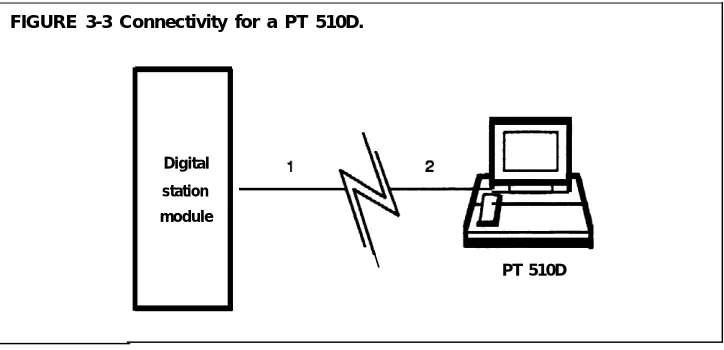
The connectivity diagram in Figure 3-3 shows a typical configuration for a PT 510D used in the MERLIN II system.
FIGURE 3-3 Connectivity for a PT 510D.
Digital
station
module
\ PT 510D
1 The 4-pair modular cord running from the jack on the 8-Digital Station (008D) Module in the control unit terminates at a standard telephone wall jack at the PT 510D location. The maximum cable length is 1000 feet.
2 The terminal line cord supplied with the M 510D connects the telephone line jack on the terminal to the wall jack.
3 The ac power cord supplied with the PT 510D connects the ac power outlet to the terminal.
For more installation information, see “Installation"in the User’s Guide: AT&’T Personal Terminal Model 510D.
The Personal Terminal (PT) 510D
TERMINAL OPTIONS The data communications options of the PT 510D can be set by Terminal
Setup A or B screens. You can also use options stored with the Directory entry or sent by a host computer. Initially, Terminal Setup A and B have factory-set values selected for the broadest applicability. Change these values, where necessary, to match the data devices the users will call. Possible speeds range from 300 to 19200 bits per second (bps).
You must standardize the basic settings for sending and receiving data for all PT 510D in the system. Other options, however, such as cursor and key-click settings, are a matter of individual user preference.
The PT 510D are marked. powered up,
user’s guide lists data communications options. You can change any of these options as soon as
Default settings the terminal is
CALL HANDLING FEATURES
Cover buttons (*40 and *50) cannot be programmed to any of the seven buttons located on the touch sensitive screen below the dial pad on the PT 510D. See the User’s Guide: 7406D and 7406B for specific call handling features.
Digital Stations for Data Communications Only
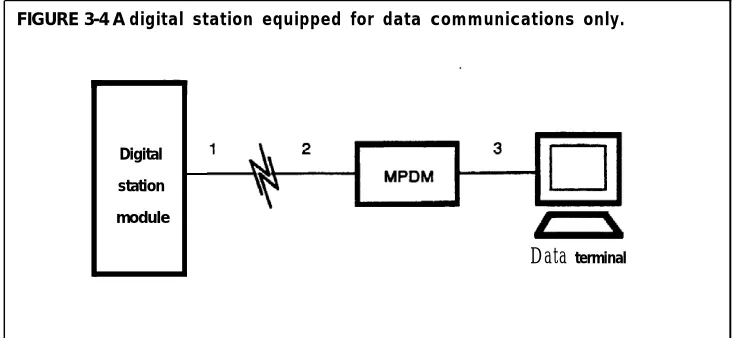
Your Master Planning Form identifies any stations where personal computers or data terrninals are connected to digital station jacks on the control unit through Modular Processor Data Modules (MPDMs) for data communications only. (The “Person, Location, or Function” column contains the phrase “DO-MPDM.") An MPDM is a device that converts digital data signals sent through the control unit to EI.A RS-232-C data signals that the computer can receive and converts the computer’s sending signals back to digital data.
The following equipment is required for a digital station equipped for data communications only:
• Modular Processor Data Module (MPDM) equipped with an RS-232-C Interface
• Data terminal or computer
• Cables and connectors for connecting the components
NOTE: Before you activate these stations, set the switches on the MPDM faceplate and the RS-232-C Interface (see "MPDM Option Switches" under "Local Host Computer Access").
Figure 3-4 is a connectivity diagram that shows a typical configuration for data communications only at a digital station.
FIGURE 3-4 A digital station equipped for data communications only.
Digital
station
module
Data terminal
1 The 4-pair modular cord runs from a jack on the 8-Digital Station (008D) Module at the control unit to a standard telephone wall jack at the data terminal location. The maximum cord length for this connection is 1000 feet.
2 A 4-pair modular cord connects the MPDM to the wall jack.
3 Standard RS-232-C connectors and cable connect the MPDM to the data terminal. The maximum cable length is 17 feet.
NOTE: If a number of MPDMs are to be connected at a common location, you can put as many as eight in one multiple mounting rather than installing each in a stand-alone mounting. A multiple mounting reduces the number of ac power sockets needed to power the MPDMs. See the documentation that came with your MPDM for information on the multiple mounting connections.
Simultaneous Voice and Data at Analog Stations
The Master Planning Form shows which analog stations should have simultaneous voice and data capability. The numbers of the station jacks to which each of these stations should be connected are boxed on the form.
Note that the jack pairs are consecutively numbered jacks on the same 4-Line/8-Analog Voice Terminal (408) Module or 8-Analog Voice Terminal (008) Module. Each pair includes an odd-numbered jack and the jack with the next higher even number, such as jacks 15 and 16.
The fundamental wiring scheme that joins the required pairs from each jack into one 4-pair cord is indicated in the wiring diagram of Figure 3-5.
FIGURE 3-5 Wiring diagram: 4-pair connection from odd/even adjacent ports.
6 5 4 3 2 I 8 7 6 5 4 3 2 1
5 4
Odd Even
0 0 0
At some point between the voice terminal and the odd/even jack pair, the voice pair (5 and 4) from the even jack is joined with the other three pairs (4 to 8, 5 to 7) to make a complete 4-pair connection to the voice terminal.
To equip an analog station for simultaneous voice and data communication, you need the following:
Analog voice terminal
General Purpose Adapter (GPA)
AT&T DATAPHONE®
II 2212C modem or other compatible modem with modular connection capability