IBM Maximo Asset Management
Version 7 Release 6
Installation Guide
(WebSphere Application Server, Microsoft SQL
Server, Microsoft Active Directory)
Note
Before using this information and the product it supports, read the information in “Notices” on page 159.
This edition applies to version 7, release 6, modification 0 of IBM Maximo Asset Management and to all subsequent releases and modifications until otherwise indicated in new editions.
Contents
Chapter 1. Preparing for installation
. . 1
Software installation images . . . 1
Before you begin . . . 1
Programmatically verifying prerequisites from the command-line.. . . 1
Checking port availability . . . 6
AIX tar command requirements . . . 6
AIX font requirements . . . 7
Verifying large page size support for AIX . . . . 7
Checking for required libraries on Linux . . . . 7
Configuring the JRE in Linux . . . 8
Setting the ulimit . . . 8
Setting the swap size . . . 8
Setting shared memory . . . 9
Remote configuration enablement . . . 9
Enabling SSL client authentication . . . 11
Microsoft SQL Server preparation . . . 11
System password policy settings . . . 12
Starting the launchpad . . . 12
Installation program overview . . . 13
Configuration program overview . . . 14
Chapter 2. Automatically configuring
middleware during deployment . . . . 17
Configuring SSL between Microsoft Active Directory and WebSphere Application Server Network Deployment . . . 18
Installing WebSphere Application Server Network Deployment v8.5 using the Maximo Asset Management version 7.6 installation program . . . 19
Preparing WebSphere Application Server Network Deployment v8.5 using the Maximo Asset Management configuration program . . . 20
Running the Maximo Asset Management 7.6 installation program . . . 21
Configuring Maximo Asset Management version 7.6 using the Maximo Asset Management version 7.6 configuration program. . . 22
Chapter 3. Automatically configuring
existing middleware during deployment 25
Configuring SSL between Microsoft Active Directory and WebSphere Application Server Network Deployment . . . 26Preparing WebSphere Application Server Network Deployment v8.5 using the Maximo Asset Management configuration program . . . 26
Running the Maximo Asset Management 7.6 installation program . . . 27
Configuring Maximo Asset Management version 7.6 using the Maximo Asset Management version 7.6 configuration program. . . 28
Chapter 4. Manually configuring
existing middleware during deployment 31
Maximo Asset Management installation with manual middleware configuration . . . 32Manual configuration of the database. . . 33
Manually configuring Microsoft SQL Server 2012 . . . 33
Manual configuration of the directory server . . 35
Manually configuring Microsoft Active Directory version 2012 . . . 36
Manual configuration of the J2EE server . . . . 38
Manually configuring WebSphere Application Server Network Deployment . . . 38
Running the Maximo Asset Management 7.6 installation program . . . 63
Configuring Maximo Asset Management version 7.6 with manually configured middleware . . . 64
Chapter 5. Deploying in a cluster
environment . . . 67
Configuring SSL between Microsoft Active Directory and WebSphere Application Server Network Deployment . . . 68
Installing DB2 v10.5 using the Maximo Asset Management version 7.6 installation program . . . 69
Installing WebSphere Application Server Network Deployment v8.5 using the Maximo Asset Management version 7.6 installation program . . . 70
Preparing WebSphere Application Server Network Deployment and configuring application server cluster profiles using the Maximo Asset Management configuration program . . . 71
Configuring cluster members on additional WebSphere Application Server Network Deployment nodes . . . 73
Running the Maximo Asset Management 7.6 installation program . . . 74
Configuring Maximo Asset Management in a cluster environment using the Maximo Asset Management configuration program. . . 75
Chapter 6. Silent installation . . . 77
Creating silent response files for installation . . . 77
Sample silent installation response files . . . . 78
Updating password values in silent response files 79 Silently installing the Installation Manager software 79 Silently installing Maximo Asset Management and related middleware . . . 80
Silently uninstalling Maximo Asset Management and related middleware . . . 81
Chapter 7. Silent configuration . . . . 83
Creating silent response files for middleware configuration . . . 83
Sample silent middleware configuration response
files . . . 83
Creating a response file for silent Maximo Asset Management configuration . . . 84
Silently configuring middleware . . . 85
Silently configuring Maximo Asset Management . . 85
Silently remove middleware configuration . . . . 86
Remove product configuration silently . . . 86
Chapter 8. Programmatically verifying
that the installation was successful . . 89
Chapter 9. Verifying the installation
manually . . . 93
Chapter 10. Configuring the HTTPOnly
attribute . . . 95
Chapter 11. Installation and
configuration programs log information 97
Chapter 12. Post installation tasks . . . 99
Accessing product documentation . . . 99
Installing help information in a new language . . . 99
Configuring initial data . . . 100
Synchronizing users and groups . . . 103
Adding sample data to the Maximo Asset Management database post configuration . . . . 103
Chapter 13. Installing Version 7.5
industry solutions . . . 107
Installing version 7.5 industry solutions from the launchpad . . . 107
Installing version 7.5 industry solutions from the command line . . . 107
Installing version 7.5 industry solutions silently 108
Chapter 14. Maintaining EAR files. . . 111
Building EAR files . . . 111
Manually uninstalling applications from WebSphere Application Server Network Deployment . . . 112
Manually installing applications in WebSphere Application Server Network Deployment . . . . 112
Chapter 15. Command line
configuration
. . . 115
Configuration parameter validation . . . 115
Input properties files . . . 116
Command line interface parameters . . . 117
Command line configuration program actions . . 124
action updateDatabaseConfiguration . . . . 124 action validateDatabaseConfiguration . . . . 124 action validateAndUpdateDatabaseConfiguration . . 125 action deployDatabaseConfiguration. . . 125 action removeDatabaseConfiguration . . . . 126 action enableDB2TextSearch . . . 126 action updateJ2eeConfiguration . . . 126 action validateJ2eeConfiguration . . . 126 action validateAndUpdateJ2eeConfiguration . . 126 action deployJ2eeConfiguration . . . 127 action removeJ2EEConfiguration . . . 127 action deployConfiguration. . . 127 action removeConfiguration . . . 127 action reapplyAppServerTuning . . . 128 action enableAppSecurity . . . 128 action disableAppSecurity . . . 128 action updateApplication . . . 128 action addLanguages . . . 128 action configureProducts . . . 129 action deployMiddlewareConfiguration . . . 129
Configuration program properties . . . 130
Chapter 16. Configuring your product
with performance analysis data
. . . 153
Chapter 17. Backup and restoration
155
Backing up the administrative workstation . . . 155Restoring the administrative workstation . . . . 156
Chapter 18. Uninstalling the product
157
Remove Maximo Asset Management configuration 157 Removing WebSphere Application Server Network Deployment configuration . . . 158Uninstalling Maximo Asset Management and middleware . . . 158
Notices . . . 159
Trademarks . . . 160
Chapter 1. Preparing for installation
These topics provide information about product media, preinstallation
considerations, overview of the installation procedure, and instructions on using the Maximo®Asset Management launchpad.
Use the planning information to familiarize yourself with the overall process of a Maximo Asset Management deployment before you use this information to conduct the installation.
Software installation images
You access the IBM®Maximo Asset Management product software from IBM Passport Advantage.
The installation images that you download from Passport Advantage can comprise multiple downloadable files. Download all files in the package to a single directory and extract the files for execution.
For instructions and a full list of installation images, see the IBM Maximo Asset Management 7.6 Download Document (http://www.ibm.com/support/
docview.wss?uid=swg24038431).
Before you begin
You must prepare your environment before you install Maximo Asset
Management. In some cases, to perform steps for preparation, you must be logged in as a user with administrator privileges on Windows or as root on UNIX. Some processes, such as anti-virus programs, can negatively affect Maximo Asset Management installation on the system. You must temporarily shut down any noncritical processes before running the Maximo Asset Management installation program.
Make a copy of the image of the system, database, and application server on which you are planning to install the product.
Ensure that you have adequate disk space for the future on the systems being used for the Maximo Asset Management deployment. Filling up the disk space on a Maximo Asset Management deployment system can cause problems with Maximo Asset Management operations.
Fully qualified host names provided to the installation programs must resolve between systems involved in the product deployment. Ensure all IP addresses configured for systems targeted for the product deployment are reachable using the ping command from the administrative workstation.
Programmatically verifying prerequisites from the
command-line.
You can use the prerequisite verification utility from the command-line to verify that installation program prerequisites are present on a system. Use this utility before you start the product installation programs.
About this task
When started from the command line, the prerequisite verification utility accepts various parameters. The prerequisite verification utility must be run on the system that hosts the prerequisite to check. You cannot use this utility to check
prerequisites on a remote system.
Table 1. System verification parameters
Parameters Details
-component Specifies the type of component to verify. At least one component must be used with the prerequisite verification utility.
j2eeserver
Use thej2eeserverparameter to have the prerequisite verification utility check for WebSphere®
Application Server Network Deployment prerequisites. pip
Use thepipparameter to have the prerequisite verification utility check for prerequisites that are required by Maximo Asset Management. Run the prerequisite verification utility with thepipparameter on the administrative workstation.
asset_mgt_upg
Use theasset_mgt_upgparameter to have the prerequisite verification utility check for prerequisites that are required to connect remotely during
configuration. . rxa
Use therxaparameter to have the prerequisite verification utility check for prerequisites that are required by Maximo Asset Management.
performance
Use theperformanceparameter to have the prerequisite verification utility check for prerequisites performance settings for Maximo Asset Management. Syntax example:
tpae_req_check.bat -component pip
If you do not use the-componentparameter, you are prompted to specify components when you use the utility.
Multiple components can be specified as comma-separated values.
-input The prerequisite verification utility can accept a property file as input. The utility verifies property values that are found in the file.
The default input property file istpae.properties, and is found on the middleware installation media in theSystemRequirementsdirectory. Several sample property files are found in theSystemRequirements\
sample_property_filesdirectory. These sample property files contain custom values that are defined for particular operating systems. You can copy these property files to the system and modify them, or create your own, before you run the prerequisite verification utility.
Syntax example:
tpae_req_check.bat -component dbserver -input path to the property file
If you do not use theinputparameter when you run the prerequisite verification utility, the utility is run in interactive mode. You are prompted for individual values to be verified.
Table 1. System verification parameters (continued)
Parameters Details
-mode The prerequisite verification utility can be run in silent or interactive mode. interactive
By default, the prerequisite verification utility is run in interactive mode. If you do not specify the-modeparameter, the utility defaults to running in interactive mode.
silent
If you use thesilentqualifier, you can also use theinputparameter and supply a property file. If an input file not provided, default property values are used. The output must also be directed to a file to view the results. Syntax example:
tpae_req_check.bat -component dbserver -mode silent
-input path to the property file > prereqresults.log
-trace Parameter that is used to specify trace output statements while the utility is running.
None
Selecting this qualifier results in no trace information that is generated while the utility is running.
Verbose
Selecting this qualifier results in detailed trace information that is generated while the utility is running.
Normal
Selecting this qualifier results in default trace information that is generated while the utility is running.
Syntax example: tpae_req_check.bat -component dbserver -trace None
Procedure
1. Log on to the system you are checking for prerequisites with a user ID that has permission to run scripts on the system. Ensure that the middleware
installation media is mounted or otherwise available to the system.
2. Open a command-line window and change directory to theSystemRequirements directory of the middleware installation media.
3. Run the prerequisite verification utility. Specify the component to check and the property file to use.
tpae_req_check.bat -component dbserver
-input d:\SystemRequirements\tpae.properties
In this example, thetpae.propertiesfile is in the same directory as the tpae_req_check.batscript.
Results
After the prerequisite verification utility successfully completes the verification task, results are printed to the screen.
CTGIN8117I : The Tivoli Pre-requisite Scanner has been launched.
CTGIN8118I : The Tivoli Pre-requisite Scanner exited with the return code IBM Prerequisite Scanner
Version : 1.0.34 Build : 20101109
OS Name : Microsoft Windows Server 2003, Enterprise Edition Service Pack 2 User Name: Administrator
Machine Info
Machine name : MYMACHINE Serial Number: KKKKKK0
OS Serial : 66666-666-6666666-66666
PAE [not defined] [version 07500000]:
Property Result Found Exp...
======== ====== ===== ===...
os.totalPhysicalMemory PASS 2.00GB 1.90GB
network.hasFQDN FAIL False True
Disk#1 (C:\ibm\tivoli\mwi\workspace) PASS 27.99GB 300MB
Disk#2 (C:\Temp\1) PASS 27.99GB 1000MB
Disk#3 (C:\Temp\1) PASS 27.99GB 250MB
network.availablePorts.db2 PASS 135,445,1025,2967,3389,5800,5900,139 50000 network.availablePorts.ctginst PASS 135,445,1025,2967,3389,5800,5900,139 50005 Disk#4 (C:\Program Files\IBM\SQLLIB) PASS 27.99GB 1.40GB
ALL COMPONENTS :
Property Result Found Exp... ======== ====== ===== ===...
C: PASS 27.99GB 2.91GB
Prereq Scanner Overall Result: FAIL prereq_checker.bat 1
These values can also be redirected to a file when you start the command from the command line.
If any of the verification steps report a failure, resolve the issue and rerun the verification utility before you install Maximo Asset Management components. The Table 2 table contains a list of the properties checked. Use this information to analyze prerequisite verification utility results.
Table 2. Prerequisite verification utility properties
Property Description
browser.Version Checks browser version.
CpuArchitecture Verifies that the machine architecture is supported. network.availablePorts.* Verifies that required ports are available.
network.dns Verifies that there is a DNS entry for the system on the DNS server. network.fqdn Verifies that the system host name is fully qualified.
os.architecture Verifies that the operating system architecture is supported. os.dir.tmp/home Verifies required permissions for the system directories
os.FreePagingSpace Verifies that adequate free paging space is available on the system. os.iodevicestatus Verifies the I/O device status of the system.
os.kernelversion Checks kernel version.
os.lib.* Verifies that a prerequisite library is available on the system. os.mountcheck Checks for the existence ofnosuidon the file system. os.MozillaVersion Checks browser version.
Table 2. Prerequisite verification utility properties (continued)
Property Description
os.package.atk Verifies a prerequisite library that is required for GTK on AIX®is available on the system.
os.package.cairo Verifies a prerequisite library that is required for GTK on AIX is available on the system.
os.package.expat Verifies a prerequisite library that is required for GTK on AIX is available on the system.
os.package.fontconfig Verifies a prerequisite library that is required for GTK on AIX is available on the system.
os.package.freetype2 Verifies a prerequisite library that is required for GTK on AIX is available on the system.
os.package.gettext Verifies a prerequisite library that is required for GTK on AIX is available on the system.
os.package.glib2 Verifies a prerequisite library that is required for GTK on AIX is available on the system.
os.package.gtk2 Verifies a prerequisite library that is required for GTK on AIX is available on the system.
os.package.libjpeg Verifies a prerequisite library that is required for GTK on AIX is available on the system.
os.package.libpng Verifies a prerequisite library that is required for GTK on AIX is available on the system.
os.package.libtiff Verifies a prerequisite library that is required for GTK on AIX is available on the system.
os.package.pango Verifies a prerequisite library that is required for GTK on AIX is available on the system.
os.package.pixman Verifies a prerequisite library that is required for GTK on AIX is available on the system.
os.package.rpm Verifies that prerequisite packages are available on the system.
os.package.xcursor Verifies a prerequisite library that is required for GTK on AIX is available on the system.
os.package.xft Verifies a prerequisite library that is required for GTK on AIX is available on the system.
os.package.xrender Verifies a prerequisite library that is required for GTK on AIX is available on the system.
os.package.zlib Verifies a prerequisite library that is required for GTK on AIX is available on the system.
os.RAMSize Reports system RAM available. os.SeaMonkeyVersion Checks browser version.
os.SELinux Determines whetherselinuxis enabled.
os.ServicePack Verifies that required service packs are installed on the system. os.shell.default Determines the default shell for users.
os.space.* Determines disk space availability for various file systems.
The following example shows the check that is made for the middleware installation program workspace.
os.space.var=[dir:root=/var,unit:MB]512
Table 2. Prerequisite verification utility properties (continued)
Property Description
os.ulimit Identifies user limits that are configured on the system. OS.Version Reports the operating system type and version.
Checking port availability
Before you use the product installation programs, you must ensure that certain ports in your environment are available for use with the middleware that you are installing. You can either use the prerequisite verification utility to check for port availability or you can check manually.
About this task
Default port values are assigned for the middleware that you deploy. Port 9060 or an alternative port must be made available for IBM WebSphere Application Server Network Deployment.
For a full list of port requirements, see the System requirements information on the Maximo Asset Management wiki.
Procedure
1. Check the available ports on the host system:
Option Description
Automatic Run the prerequisite verification utility. The network.availablePorts.*parameter indicates the availability of the required ports.
Manual Run the following command to see a list of
active connections: netstat -ao
2. If you find that a port is already assigned, specify the value of an open port when you are prompted to by the installation program.
AIX tar command requirements
Both the native UNIXtar command and the GNU version of thetarcommand are required by the installation and configuration programs. Because the native utility does not support long file names, ensure that GNU tarversion 1.14 or higher is installed. GNUtarversion 1.14 ensures that installation files can be extracted. Verify that the system path variable contains both native UNIXtar and GNUtar
paths. The GNUtar path must be defined before the native UNIX tar path. For example, the nativetar utility is installed in/usr/binand the GNU tar utility is installed in/opt/freeware/bin/tar.
If you have set a symbolic link to overwrite the native UNIXtar command with the GNU tarcommand an error occurs.
AIX font requirements
AIX requires specific fonts to produce reports.
About this task
When you produce reports from AIX systems, TrueType fonts must be available on the system.
Procedure
1. Install TrueType fonts on the AIX system.
2. Ensure the fonts-path environment variable refers to the location of the fonts.
Verifying large page size support for AIX
For Maximo Asset Management to function correctly, large page size support must be enabled on AIX servers that host WebSphere Application Server.
About this task
If you are deploying Maximo Asset Management on WebSphere Application Server hosted on an AIX system, that system must be configured to support large page sizes.
Large page usage is primarily intended to provide performance improvements to high performance computing applications. Typically this feature is enabled by default on AIX systems.
Procedure
1. Log on to the AIX system that hosts WebSphere Application Server and open a console window. You must have root authority to work with the AIX operating system commands.
2. Verify large page size support by running the following command: ps -Z
Output from the command includes 4 K and 64 K page sizes that are listed for processes, for example:
# ps -Z
PID TTY TIME DPGSZ SPGSZ TPGSZ CMD 311342 pts/4 0:00 4K 4K 4K ksh 397526 pts/4 0:00 4K 4K 4K ps 487558 pts/4 0:00 64K 64K 4K sleep
Checking for required libraries on Linux
The Maximo Asset Management deployment requires certain Linux system libraries.
Procedure
1. Locate thelibstdc++.so.5,libstdc++.so.6, andlibaio.so.1libraries in the /usr/lib64/directory. If these libraries are not installed, the Maximo Asset Management installation program produces an error when run in graphical mode. If you cannot locate this library on your system, locate the Red Hat Package Manager package for your system that contains these libraries and install the packages.
2. Ensure that you have thelibstdc++33-32bit-3.3.3-11.9.x86_64.rpmpackage that is installed before you run the product installation program. SUSE Linux Enterprise Server 10 64-bit systems that host manually configured middleware must host this package.
Configuring the JRE in Linux
In some cases, the Maximo Asset Management installation or configuration program fails on Red Hat Enterprise Linux systems, or other systems with Security-Enhanced Linux (SELinux) enabled.
About this task
In one scenario, the Maximo Asset Management installation or configuration program fails with an error that states that the Java™Runtime Environment (JRE) cannot be found. In another scenario, the Maximo Asset Management installation or configuration program fails stating that it cannot find the VM.
Procedure
1. Temporarily disable SELinux by using the setenforce 0command.
2. Run the Maximo Asset Management installation or configuration program. 3. Re-enable SELinux by using thesetenforce 1command.
4. Manually issue thechconcommand.
chcon -R -t textrel_shlib_t install_home/jvm/jre
Results
The Maximo Asset Management installation or configuration program is now able to locate the JRE. Alternatively, you can edit the /etc/selinux/configfile and set
SELINUX to eitherpermissiveordisabledfor a more permanent fix. This solution, however, affects the level of security for the entire system.
Setting the ulimit
Set the ulimit in Linux. The ulimit setting is used to define user system and process resource limits.
About this task
For Linux systems, you must set the ulimit for the system before you use the Maximo Asset Management installation program.
If you set the ulimit in.profilefor root, the ulimit setting applies to all processes.
Procedure
1. From a command line, type ulimit -f unlimited
2. From a command line, type ulimit -n 8192
Setting the swap size
Maximo Asset Management can be a resource-intensive application. Configure and tune your system for maximum performance. Set the size of the swap space that is used in Linux systems.
About this task
Typically, the swap size for Linux is set to twice the amount of physical RAM in the server. See the product documentation for your Linux distribution for more information.
More swap space can be made available to the system.
Procedure
v Increase the size of the existing swap partition. v Create a new, extra swap partition.
v Create a swap file.
Setting shared memory
Set a minimum shared memory value in Linux.
About this task
For Linux systems, you must set a minimum shared memory value for the system before you use the Maximo Asset Management installation program.
Procedure
1. From a command line, typesysctl kernel.shmmax and determine whether the value is less than 268435456 bytes (256 Mb).
2. If you must increase the value, from a command line, type sysctl -w kernel.shmmax=268435456.
3. Update the value in/etc/sysctl.conf.
Remote configuration enablement
The Maximo Asset Management configuration program can automatically configure middleware. You must enable a remote access protocol for each system on which you intend to configure the middleware.
Use SSH for accessing remote Linux and UNIX systems. Use Windows SMB accessing remote Windows systems. Windows SMB is a Windows protocol. The IBM JRE on the Maximo Asset Management administrative workstation includes SSH.
Before you start the Maximo Asset Management configuration program, ensure that you can log on to any remote servers with the protocols that you intend to use. Use the credentials that you plan to supply to the Maximo Asset Management configuration program.
For remote Windows systems, ensure that the following requirements are met before you configure the software.
v The user name that you provide to the Maximo Asset Management
configuration program must exist as a local account on the remote system. This user must be a member of the Windows Administrators group.
v The following Windows services must be started on the remote system before you begin a remote configuration:
– winmgmt (Windows Management Instrumentation) – RemoteRegistry(Remote Registry)
– lanmanserver(Service)
v The SMB protocol must be enabled and configured to send NetBIOS over TCP/IP, by choosing to use port 139. Alternatively, you can configure SMB to use TCP/IP as the transport protocol, without NetBIOS, by configuring it to use port 445.
v Ensure that any ports that you use for remote protocols are not blocked by firewall software or security policies, including ports 137 and 139. Port 139 is used if SMB is configured to run on NetBIOS over TCP/IP. Port 445 is used if SMB is run directly on TCP/IP, without NetBIOS.
v To disable simple file sharing, start Windows Explorer. ClickTools>Folder Options, and clear the Use Simple File Sharingcheck box.
v The Windows administrative share (C$) and the interprocess communications (IPC$) folder must be shared.
v For Microsoft Windows Server 2008 systems that support password-protected sharing, disable password-protection. Shares must be shared for the Guest or Everyone accounts.
v For Windows systems that have User Account Control (UAC) enabled, it must be disabled before software can be remotely installed and configured.
v If Cygwin is installed on the remote Windows system the SSH daemon (sshd) must be uninstalled or disabled.
For remote Linux or UNIX systems, ensure that the following requirements are met before you configure the software.
v For AIX systems, set the following SSH parameters in the/etc/ssh/sshd_config file.
– ClientAliveInterval 900 – ClientAliveCountMax 10
Stop the SSH daemon with thestopsrc -s sshdcommand and then restart it using thestartsrc -s sshd command.
v For AIX systems, set theTMOUTand TIMEOUTvariables in the user profile script to 0. This setting prevents the user from idling out and being logged off the remote system during the configuration.
v The user name that you provide to the Maximo Asset Management
configuration program must exist as a privileged account (for example, root) on the remote systems.
v Ensure that a current version of OpenSSH is installed and running. Do not use OpenSSH 4.7.0.5302.
v For Oracle Solaris systems, the remote access protocols require the use of internal shell scripts that must be run within the Korn (ksh) shell. The methods need ksh, even if the user ID that you use to log on to the remote system is configured to use a different shell. Oracle Solaris systems must have the ksh environment installed and properly configured.
v If you plan to remotely configure software on remote Linux or UNIX computers, ensure that SSH is installed.
Remote configuration does not support accessing network drives on the local or remote system.
Enabling SSL client authentication
The Maximo Asset Management configuration program produces an error if the client authentication feature of secure sockets layer (SSL) is enabled in the IBM HTTP Server. You can use a workaround to enable client authentication during configuration.
Before you begin
The Maximo Asset Management configuration programs use HTTP client requests for various configuration actions. The Maximo Asset Management configuration program does not configure WebSphere Application Server Network Deployment nor IBM HTTP Server to use SSL. However, they do function in environments where WebSphere Application Server Network Deployment and IBM HTTP Server are manually configured to use SSL. Maximo Asset Management configuration and standard deployment procedures do not work correctly when the client
authentication feature of SSL is enabled in IBM HTTP Server. As a result, the validation of product administration credentials or the import of data with Maximo Enterprise Adapter fails. Client authentication is enabled in the IBM HTTP Server, by using the SSLClientAuth Required directive in thehttpd.confconfiguration file.
About this task
If client authentication must be enabled for the IBM HTTP Server, use the following workaround procedure to install the product.
Procedure
1. Remove the SSLClientAuth Requireddirective in the httpd.confconfiguration file of the IBM HTTP Server.
2. Stop and restart the IBM HTTP Server.
3. Run the Maximo Asset Management configuration program. 4. Add theSSLClientAuth Required directive back to the httpd.conf
configuration file of the IBM HTTP Server. 5. Stop and restart the IBM HTTP Server.
Microsoft SQL Server preparation
Microsoft SQL Server must be configured using specific options before you can use it with Maximo Asset Management.
Ensure you have the following options set for the Microsoft SQL Server database you intend to use with Maximo Asset Management. These settings must be configured before you use the Maximo Asset Management configuration program to configure Maximo Asset Management.
v Use the SQL Server Configuration Manager to disable TCP/IP dynamic ports usage on the server.
v Verify that you enabled the Full-text Search setting during the installation of Microsoft SQL Server.
v Set Microsoft SQL Server Database Collation settings to the following options: – Dictionary order
– Case-insensitive
System password policy settings
Familiarize yourself with the password policies of systems you are using as part of a Maximo Asset Management deployment.
Your organization might have password policy regulations that are enforced on systems on your network. Before deploying Maximo Asset Management, be sure that you are familiar with the password policies of systems that are used in the deployment.
For example, Microsoft Windows Server 2008 systems have a stricter set of password requirements than previous versions configured by default. If you are not familiar with these stronger password requirements, you might experience an error during the installation of Maximo Asset Management. This error occurs when you create users on a Microsoft Windows Server 2008 system.
Password values that you provide during the Maximo Asset Management
installation and configuration must be compliant with the password policies set for the target system. Passwords are not validated against the password policies of target systems at the time you enter them on the installation and configuration program panels. If your passwords do not conform to the password policies, errors occur when the installation or configuration program attempts to create these passwords.
Starting the launchpad
The IBM Maximo Asset Management launchpad serves as a centralized interface for starting the product installation and configuration programs. The launchpad also contains links to product information.
Before you begin
Before you start the launchpad, ensure that you meet the middleware prerequisites. Ensure that you have the correct service pack levels for your environments.
The launchpad program uses the system default browser to run. If the default browser on AIX is Firefox, it is likely that the launchpad program does not run properly due to the ksh shell interface. If you must use the launchpad with the Firefox browser, follow these steps to modify it.
1. Download and extract the launchpad images which is described in the download document.
2. Modify th e/user_dir/launchpad/Firefox.shfile and remove the following lines
typeset +r LOGNAME 2>/dev/null LOGNAME=lp_user_$$; export LOGNAME
3. Run the launchpad from/user_dir.
About this task
The launchpad generates messages that are captured in a hidden log frame while the launchpad is running. To show the log frame on the launchpad panels, hold the Ctrl key and simultaneously click the banner frame of the launchpad. Messages that are generated while the launchpad is running are not automatically saved on the hard disk drive. You can save the messages from a session by clickingSave at the bottom of the log frame.
Always use fully qualified domain names when you enter values for the installation and configuration programs.
Procedure
1. Log on to an account with system administration privileges on the system where you want to install Maximo Asset Management.
2. Start the launchpad from the root directory of the installation image.
Option Description
Windows Start the launchpad by using the
launchpad64.exeprogram.
AIX and Linux Start the launchpad from the root directory by using thelaunchpad.shprogram, for example,
./launchpad.sh
Related information:
Software Product Compatibility Reports
Installation program overview
You use the Maximo Asset Management installation program to install Maximo Asset Management, IBM WebSphere Application Server, and IBM DB2®.
You must run the installation program on the target system to install the
component. For example, to install IBM WebSphere Application Server, you start the installation program locally on the system that is designated as the IBM WebSphere Application Server server.
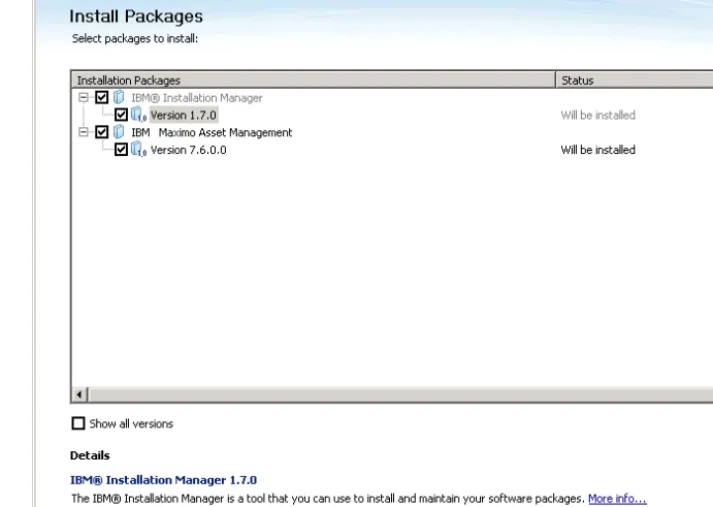
Use theCheck for Other Versions, Fixes, and Extensions button to search for fixes, updates, and extensions for the packages listed. The installation program downloads the latest version of the packages listed from IBM Fix Central.
Configuration program overview
You use the Maximo Asset Management configuration program to configure Maximo Asset Management and associated middleware.
The Maximo Asset Management configuration program is used to perform the following configuration tasks.
v Prepare IBM WebSphere Application Server for configuration of your product v Configure a new Maximo Asset Management deployment
v Update database access credentials
v Change the Maximo Asset Management security model v Change the database server host
v Update IBM WebSphere Application Server access credentials v Change IBM WebSphere Application Server host
v Update database and build and deploy application EAR files v Install product help information in another language
v Remove IBM WebSphere Application Server configuration v Remove Maximo Asset Management configuration
The Maximo Asset Management configuration program records configuration choices that you make about your Maximo Asset Management deployment and then deploys Maximo Asset Management based on the information that you entered.
Information that you enter for the Maximo Asset Management configuration program is stored in themaximo.propertiesand install.propertiesfiles. Some of this information is also written to the Maximo database. These values are
displayed in the panel fields of the Maximo Asset Management configuration program during an upgrade or fix pack application.
The Maximo Asset Management configuration program validates the values that you enter in configuration item fields. Some configuration item fields are validated as a pair, for example, user name and password fields.
In most cases, you can run the configuration program locally or remotely. You are required to run the configuration program locally on the IBM WebSphere
Application Server server when you are preparing it for Maximo Asset Management configuration.
If you choose not to have the Maximo Asset Management configuration program automatically configure middleware, you must configure that piece of middleware manually before the configuration of Maximo Asset Management.
Note: If you are using a directory server to secure Maximo Asset Management, be aware of the product-specific syntax rules for using special characters in LDAP strings that you enter. In most cases, special characters must be preceded by an escape character to make them readable by the directory server.
Many directory server products consider a blank space to be a special character in an LDAP string. If you enter an LDAP string with an unescaped blank character at the end of a field value, you encounter Maximo Asset Management errors.
For more information about special character usage in LDAP strings, see the product documentation for your directory server.
Chapter 2. Automatically configuring middleware during
deployment
Use the Maximo Asset Management installation and configuration programs to install and automatically configure a Maximo Asset Management deployment within your enterprise.
About this task
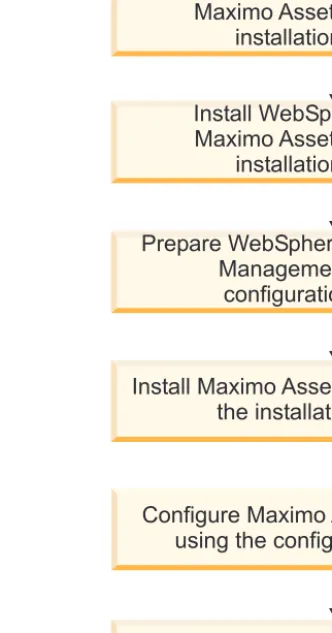
This information provides a high-level overview or road map of tasks you need to complete in order to deploy Maximo Asset Management with automatic
middleware configuration.
In this scenario, you use the Maximo Asset Management installation and
configuration programs to install and automatically configure new instances of the following components:
v WebSphere Application Server Network Deployment v Maximo Asset Management
You use the Maximo Asset Management installation program to install Maximo Asset Management and the middleware you want to use in your deployment. You then use the Maximo Asset Management configuration program to configure both middleware and Maximo Asset Management.
Configuring SSL between Microsoft Active Directory and WebSphere
Application Server Network Deployment
Configuring SSL between Microsoft Active Directory and WebSphere Application Server Network Deployment enables the Maximo Asset Management configuration program to automatically create users and groups in the directory. Users and groups must be created in the directory if you plan to use a directory server for Maximo Asset Management authentication and authorization. If you plan to use Maximo Asset Management application security for authentication and
authorization, you do not need configure SSL for a directory server.
About this task
To enable the configuration program to automatically create users and groups within Microsoft Active Directory, you must configure SSL communication between
Install Maximo Asset Management using
the installation program
Configure Maximo Asset Management
using the configuration program
Verify the installation
Perform post installation tasks
Prepare WebSphere for Maximo Asset
Management using the
configuration program
Install DB2 using the
Maximo Asset Management
installation program
Install WebSphere using the
Maximo Asset Management
installation program
Microsoft Active Directory and WebSphere Application Server Network Deployment. This procedure is only required if you choose to allow the
configuration program to automatically configure WebSphere Application Server Network Deployment. You also want the configuration program to automatically create users in Microsoft Active Directory.
You must enable SSL for Microsoft Active Directory, generate a certificate, and then add that certificate to WebSphere Application Server Network Deployment.
Changing the name or domain of the certificate authority at any point invalidates certificates previously issued from that authority.
Ensure that you have host name resolution setup properly in your
environment. Communication failures occur if the system hosting Microsoft Active Directory cannot resolve host names for systems that have been issued certificates.
Installing WebSphere Application Server Network Deployment v8.5
using the Maximo Asset Management version 7.6 installation program
Use the Maximo Asset Management version 7.6 installation program to install WebSphere Application Server Network Deployment v8.5.
Procedure
1. Log in to the target system as a user with administrative authority. If you are running the IBM Maximo Asset Management version 7.6 installation program from a Linux or UNIX terminal window, you must be logged in as the root user.
2. Start the IBM Maximo Asset Management version 7.6 installation program from the launchpad.
a. Start the launchpad. Windows
From the downloaded installation image, browse to the root directory and run the following command:launchpad64.exe. Linux and UNIX
From the downloaded installation image, browse to the root directory and run the following command:launchpad.sh. b. Select a language for the installation and clickOK.
c. In the launchpad navigation pane, click Install Product.
d. From theInstall Productpanel, selectIBM WebSphere Application Server Network Deployment v8.5.5and then clickInstall IBM Maximo Asset Management components. During the installation of WebSphere Application Server Network Deployment, install Java v7. When you install Java v7, the configuration program configures IBM Maximo Asset
Management to use Java v7.
3. In the package selection panel, click Next.
4. In the package prerequisite validation panel, review the results of the prerequisite check, and then click Next. If any errors are reported on this panel, resolve the issue and then clickRecheck Statusbefore continuing. 5. In the license agreement panel, review the license information for each
package that is to be installed, selectI accept the terms in the license agreements if you agree with the terms, and then clickNext.
6. In the Installation Manager installation location panel, specify the path information for the shared resources directory and the Installation Manager installation directory, and then click Next. Installation Manager is the installation framework that is used to install Maximo Asset Management version 7.6 components. The shared resources directory is a common workspace directory used by Installation Manager when installing packages. 7. In the package installation location panel, select a package group, specify path
information for its installation directory, and then click Next. Repeat this process for each package group that is listed.
8. In the package translations panel, specify language support for WebSphere Application Server Network Deployment, and then clickNext.
9. In the package features panel, leave all default options selected, and then click Next.
10. In the package configuration panel, specify configuration information for IBM HTTP Server, and then clickNext.
11. In the package summary panel, review the information for the planned installation, and then clickInstall.
12. After the installation is complete, select the option to start the Maximo Asset Management version 7.6 configuration program, and then click Finish.
What to do next
Use the Maximo Asset Management version 7.6 configuration program to prepare WebSphere Application Server Network Deployment for Maximo Asset
Management version 7.6 configuration.
Preparing WebSphere Application Server Network Deployment v8.5
using the Maximo Asset Management configuration program
Use the Maximo Asset Management version 7.6 configuration program to prepare WebSphere Application Server Network Deployment v8.5 for Maximo Asset Management configuration.
Procedure
1. If the Maximo Asset Management configuration program is not open, start it from the Maximo Asset Management launchpad. In the launchpad navigation pane, click Configure Productand then clickLaunch the Tivoli’s Process Automation Suite configuration program.
2. In the IBM Maximo Asset Management version 7.6 configuration operations page, clickPrepare WebSphere Application Server Network Deployment for configuration.
3. In the Configure the Application for WebSphere panel, specify the installation location and configuration information for WebSphere Application Server Network Deployment and associated components. Select the option to automate the configuration of IBM HTTP Server.
4. In the Configure Application Server Profiles panel, specify information to use to create the WebSphere Application Server Network Deployment deployment manager and application server profiles.
5. Optional: In the Configure Application Server Advanced Options panel, specify additional configuration information, if required.
6. If you chose to use a directory server for WebSphere Application Server Network Deployment administrative security, specify information about the directory server host, credentials and directory structure from the Configure Administrative Security panel.
7. In the Apply Deployment Operations panel, select all deployment operation options, and then click Finish.
Results
WebSphere Application Server Network Deployment v8.5 is ready for Maximo Asset Management.
Running the Maximo Asset Management 7.6 installation program
Use the Maximo Asset Management version 7.6 installation program to install Maximo Asset Management version 7.6.About this task
In order to install Maximo Asset Management version 7.6, run the Maximo Asset Management version 7.6 installation program on the Maximo Asset Management administrative system.
Procedure
1. Log in to the Maximo Asset Management administrative workstation. If you run the IBM Maximo Asset Management version 7.6 installation program from a Linux or UNIX terminal window, you must be logged in as the root user. 2. Launch the IBM Maximo Asset Management version 7.6 installation program
from the launchpad. a. Start the launchpad.
Windows
From the downloaded installation image, browse to the root directory and run the following command:launchpad64.exe. Linux and UNIX
From the downloaded installation image, browse to the root directory and run the following command:launchpad.sh. b. Select a language for the installation session and clickOK. c. In the launchpad navigation pane, click Install Product.
d. From theInstall Productpanel, selectIBM Maximo Asset Management v7.6and then clickInstall IBM Maximo Asset Management components. 3. In the package selection panel, click Next.
4. In the package prerequisite validation panel, review the results of the prerequisite check, and then click Next. If any errors are reported on this panel, resolve the issue and then clickRecheck Statusbefore continuing. 5. In the license agreement panel, review the license information for each
package being installed, select I accept the terms in the license agreementsif you agree with the terms, and then clickNext.
6. In the Installation Manager installation location panel, specify path
information for the shared resources directory and the Installation Manager installation directory, and then click Next. Installation Manager is the installation framework that is used to install Maximo Asset Management
version 7.6 components. The shared resources directory is a common workspace directory used by Installation Manager when installing packages. 7. In the package installation location panel, select the IBM Tivoli’s process
automation suite package group, specify the path information for the Maximo Asset Management version 7.6 installation directory, and then clickNext. 8. In the package features panel, leave all default options checked, and then click
Next.
9. In the package summary panel, review the information for the planned installation, and then clickInstall. If you install in a non-English environment, you might notice the environment summary is listed as English. You configure supported languages for Maximo Asset Management later with the Maximo Asset Management configuration program.
10. After the installation is complete, select the option to start the Maximo Asset Management version 7.6 configuration program, and then click Finish. The Maximo Asset Management version 7.6 installation program exits and the Maximo Asset Management version 7.6 configuration program is started automatically.
What to do next
Use the Maximo Asset Management version 7.6 configuration program to configure Maximo Asset Management version 7.6.
Configuring Maximo Asset Management version 7.6 using the Maximo
Asset Management version 7.6 configuration program
Use the Maximo Asset Management version 7.6 configuration program to configure Maximo Asset Management version 7.6.
Procedure
1. If the Maximo Asset Management version 7.6 configuration program is not open, start it from the Maximo Asset Management launchpad. In the launchpad navigation pane, clickConfigure Product, specify Maximo Asset Management installation location, and then clickLaunch the Tivoli’s Process Automation Suite configuration program.
2. In the IBM Maximo Asset Management configuration operations page, click Configure a New Deployment.
3. In the Define Deployment Environment panel, specify information about the your database and application server, in this example, DB2 and WebSphere Application Server Network Deployment servers that you installed and prepared. Select Create and configure the databaseto automatically configure WebSphere Application Server Network Deployment and DB2. After you define your deployment environment, click Finish.
4. In the Configure General Product Information panel, review summary details about the product components that you are installing. Specify the appearance and navigation features for your product, add an e-mail address to receive workflow messages, and choose whether or not to deploy sample data. 5. In the Configure the DB2 Instance panel, specify information about the DB2
instance to create for Maximo Asset Management.
6. In the Configure the DB2 Database panel, specify information about the DB2 database to create for Maximo Asset Management.
7. In the Configure the Application Server panel, specify information for the WebSphere Application Server Network Deployment server that you installed.
If you chose to persist messages, indicate whether you want to store JMS messages that originate from the integration adapter.
8. In the Configure Application Security panel, choose a security model for Maximo Asset Management. If you choose a security model that includes a directory server, specify information about the directory for the virtual
member manager. Enter the user names and passwords for users that must be created for Maximo Asset Management. Do not use the user name as a password value.
9. Choose the base language and any additional languages you want to install. 10. In the Apply Deployment Operations panel, select all available deployment
operations, and then clickFinish.
Results
Maximo Asset Management version 7.6 is installed and configured to use WebSphere Application Server Network Deployment and DB2.
Chapter 3. Automatically configuring existing middleware
during deployment
Use the Maximo Asset Management configuration program to automatically configure existing middleware within your enterprise for use with Maximo Asset Management
About this task
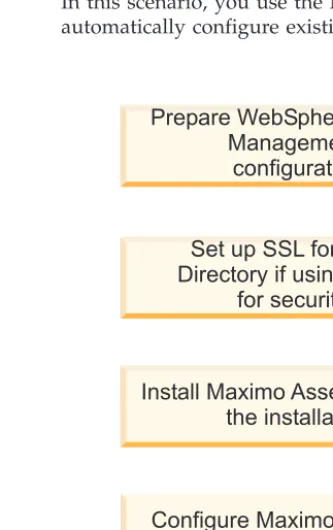
This information provides a high-level overview or roadmap of tasks you must complete to deploy Maximo Asset Management automatically. You use middleware that is already established in your enterprise.
In this scenario, you use the Maximo Asset Management configuration program automatically configure existing middleware resources.
Install Maximo Asset Management using
the installation program
Configure Maximo Asset Management
using the configuration program
Verify the installation
Perform post installation tasks
Set up SSL for Microsoft Active
Directory if using directory server
for security (optional)
Prepare WebSphere for Maximo Asset
Management using the
configuration program
Configuring SSL between Microsoft Active Directory and WebSphere
Application Server Network Deployment
Configuring SSL between Microsoft Active Directory and WebSphere Application Server Network Deployment enables the Maximo Asset Management configuration program to automatically create users and groups in the directory. Users and groups must be created in the directory if you plan to use a directory server for Maximo Asset Management authentication and authorization. If you plan to use Maximo Asset Management application security for authentication and
authorization, you do not need configure SSL for a directory server.
About this task
To enable the configuration program to automatically create users and groups within Microsoft Active Directory, you must configure SSL communication between Microsoft Active Directory and WebSphere Application Server Network
Deployment. This procedure is only required if you choose to allow the
configuration program to automatically configure WebSphere Application Server Network Deployment. You also want the configuration program to automatically create users in Microsoft Active Directory.
You must enable SSL for Microsoft Active Directory, generate a certificate, and then add that certificate to WebSphere Application Server Network Deployment.
Changing the name or domain of the certificate authority at any point invalidates certificates previously issued from that authority.
Ensure that you have host name resolution setup properly in your
environment. Communication failures occur if the system hosting Microsoft Active Directory cannot resolve host names for systems that have been issued certificates.
Preparing WebSphere Application Server Network Deployment v8.5
using the Maximo Asset Management configuration program
Use the Maximo Asset Management version 7.6 configuration program to prepare WebSphere Application Server Network Deployment v8.5 for Maximo Asset Management configuration.
Procedure
1. If the Maximo Asset Management configuration program is not open, start it from the Maximo Asset Management launchpad. In the launchpad navigation pane, click Configure Productand then clickLaunch the Tivoli’s Process Automation Suite configuration program.
2. In the IBM Maximo Asset Management version 7.6 configuration operations page, clickPrepare WebSphere Application Server Network Deployment for configuration.
3. In the Configure the Application for WebSphere panel, specify the installation location and configuration information for WebSphere Application Server Network Deployment and associated components. Select the option to automate the configuration of IBM HTTP Server.
4. In the Configure Application Server Profiles panel, specify information to use to create the WebSphere Application Server Network Deployment deployment manager and application server profiles.
5. Optional: In the Configure Application Server Advanced Options panel, specify additional configuration information, if required.
6. If you chose to use a directory server for WebSphere Application Server Network Deployment administrative security, specify information about the directory server host, credentials and directory structure from the Configure Administrative Security panel.
7. In the Apply Deployment Operations panel, select all deployment operation options, and then click Finish.
Results
WebSphere Application Server Network Deployment v8.5 is ready for Maximo Asset Management.
Running the Maximo Asset Management 7.6 installation program
Use the Maximo Asset Management version 7.6 installation program to install Maximo Asset Management version 7.6.About this task
In order to install Maximo Asset Management version 7.6, run the Maximo Asset Management version 7.6 installation program on the Maximo Asset Management administrative system.
Procedure
1. Log in to the Maximo Asset Management administrative workstation. If you run the IBM Maximo Asset Management version 7.6 installation program from a Linux or UNIX terminal window, you must be logged in as the root user. 2. Launch the IBM Maximo Asset Management version 7.6 installation program
from the launchpad. a. Start the launchpad.
Windows
From the downloaded installation image, browse to the root directory and run the following command:launchpad64.exe. Linux and UNIX
From the downloaded installation image, browse to the root directory and run the following command:launchpad.sh. b. Select a language for the installation session and clickOK. c. In the launchpad navigation pane, click Install Product.
d. From theInstall Productpanel, selectIBM Maximo Asset Management v7.6and then clickInstall IBM Maximo Asset Management components. 3. In the package selection panel, click Next.
4. In the package prerequisite validation panel, review the results of the prerequisite check, and then click Next. If any errors are reported on this panel, resolve the issue and then clickRecheck Statusbefore continuing. 5. In the license agreement panel, review the license information for each
package being installed, select I accept the terms in the license agreementsif you agree with the terms, and then clickNext.
6. In the Installation Manager installation location panel, specify path
information for the shared resources directory and the Installation Manager installation directory, and then click Next. Installation Manager is the
installation framework that is used to install Maximo Asset Management version 7.6 components. The shared resources directory is a common workspace directory used by Installation Manager when installing packages. 7. In the package installation location panel, select the IBM Tivoli’s process
automation suite package group, specify the path information for the Maximo Asset Management version 7.6 installation directory, and then clickNext. 8. In the package features panel, leave all default options checked, and then click
Next.
9. In the package summary panel, review the information for the planned installation, and then clickInstall. If you install in a non-English environment, you might notice the environment summary is listed as English. You configure supported languages for Maximo Asset Management later with the Maximo Asset Management configuration program.
10. After the installation is complete, select the option to start the Maximo Asset Management version 7.6 configuration program, and then click Finish. The Maximo Asset Management version 7.6 installation program exits and the Maximo Asset Management version 7.6 configuration program is started automatically.
What to do next
Use the Maximo Asset Management version 7.6 configuration program to configure Maximo Asset Management version 7.6.
Configuring Maximo Asset Management version 7.6 using the Maximo
Asset Management version 7.6 configuration program
Use the Maximo Asset Management version 7.6 configuration program to configure Maximo Asset Management version 7.6.
Procedure
1. If the Maximo Asset Management version 7.6 configuration program is not open, start it from the Maximo Asset Management launchpad. In the launchpad navigation pane, clickConfigure Product, specify Maximo Asset Management installation location, and then clickLaunch the Tivoli’s Process Automation Suite configuration program.
2. In the IBM Maximo Asset Management configuration operations page, click Configure a New Deployment.
3. In the Define Deployment Environment panel, specify information about the your database and application server, in this example, DB2 and WebSphere Application Server Network Deployment servers that you installed and prepared. Select Create and configure the databaseto automatically configure WebSphere Application Server Network Deployment and DB2. After you define your deployment environment, click Finish.
4. In the Configure General Product Information panel, review summary details about the product components that you are installing. Specify the appearance and navigation features for your product, add an e-mail address to receive workflow messages, and choose whether or not to deploy sample data. 5. In the Configure the DB2 Instance panel, specify information about the DB2
instance to create for Maximo Asset Management.
6. In the Configure the DB2 Database panel, specify information about the DB2 database to create for Maximo Asset Management.
7. In the Configure the Application Server panel, specify information for the WebSphere Application Server Network Deployment server that you installed. If you chose to persist messages, indicate whether you want to store JMS messages that originate from the integration adapter.
8. In the Configure Application Security panel, choose a security model for Maximo Asset Management. If you choose a security model that includes a directory server, specify information about the directory for the virtual
member manager. Enter the user names and passwords for users that must be created for Maximo Asset Management. Do not use the user name as a password value.
9. Choose the base language and any additional languages you want to install. 10. In the Apply Deployment Operations panel, select all available deployment
operations, and then clickFinish.
Results
Maximo Asset Management version 7.6 is installed and configured to use WebSphere Application Server Network Deployment and DB2.
Chapter 4. Manually configuring existing middleware during
deployment
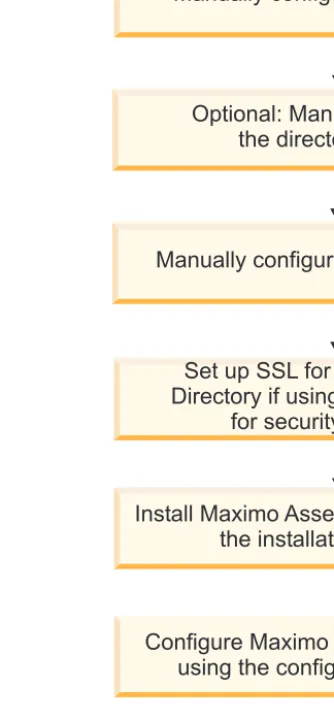
You can deploy Maximo Asset Management by reusing existing middleware servers and manually configuring them to work with Maximo Asset Management. This information provides a high-level overview or road map of tasks you need to complete in order to deploy Maximo Asset Management automatically, using middleware already established in your enterprise.
In this scenario, you manually configure existing middleware resources before running the Maximo Asset Management configuration program.
Maximo Asset Management installation with manual middleware
configuration
Manually configured installations involve configuring middleware components, the database server, the directory server, and the J2EE server, to work with Maximo Asset Management before you use the Maximo Asset Management installation and configuration programs.
You can automatically configure one or more Maximo Asset Management middleware components with the Maximo Asset Management configuration program. Alternatively, you can manually configure middleware servers to work with Maximo Asset Management before you run the Maximo Asset Management installation and configuration programs..
Before you begin, ensure that the following prerequisite conditions are met: v You designate a Windows or UNIX server to start the Maximo Asset
Management configuration program.
v For WebSphere Application Server Network Deployment, ensure that the Cell and all related nodes are active.
You must complete the manual configuration of each middleware server before you use the Maximo Asset Management configuration program to configure Maximo Asset Management to work with the servers.
Ensure that the middleware you intend to use with Maximo Asset Management is supported.
Manual configuration of the database
You can manually configure the database server that is used with Maximo Asset Management. You must manually configure the database server before you use the Maximo Asset Management installation and configuration programs.
Manually configuring Microsoft SQL Server 2012
You can manually configure Microsoft SQL Server for use with Maximo Asset Management.
Before you begin
Because Microsoft SQL Server does not support UTF-8, Maximo Asset Management does not have multilingual support when deployed with Microsoft SQL Server. Microsoft SQL Server Database Collation settings must be set to the following options:
v Dictionary order v Case-insensitive
v For use with 1252 Character set
About this task
To configure an existing Microsoft SQL Server for use with Maximo Asset Management, complete the following steps before you start the Maximo Asset Management installation and configuration programs:
Procedure
1. Configure the listener port.
If The default instance of the Microsoft SQL Server Database Engine listens on TCP port 1433. Named instances of the Microsoft SQL Server Database Engine and Microsoft SQL Server Compact Edition are configured for dynamic ports, which means they select any available port when the service starts. When you connect to a named instance across a firewall, configure the Database Engine to listen on a specific port, to open this port in the firewall.