SSL VPN User’s Guide for the Windows®
Platform
MENT MAY BE REPRODUCED OR TRANSMITTED IN ANY FORM OR BY ANY MEANS OR USED TO MAKE DERIVATIVE WORK (SUCH AS TRANSLATION, TRANSFORMA-TION, OR ADAPTATION) WITHOUT THE EXPRESS WRITTEN PERMISSION OF CITRIX SYSTEMS, INC.
ALTHOUGH THE MATERIAL PRESENTED IN THIS DOCUMENT IS BELIEVED TO BE AC-CURATE, IT IS PRESENTED WITHOUT WARRANTY OF ANY KIND, EXPRESS OR IM-PLIED. USERS MUST TAKE ALL RESPONSIBILITY FOR THE USE OR APPLICATION OF THE PRODUCT(S) DESCRIBED IN THIS MANUAL.
CITRIX SYSTEMS, INC. OR ITS SUPPLIERS DO NOT ASSUME ANY LIABILITY THAT MAY OCCUR DUE TO THE USE OR APPLICATION OF THE PRODUCT(S) DESCRIBED IN THIS DOCUMENT. INFORMATION IN THIS DOCUMENT IS SUBJECT TO CHANGE WITH-OUT NOTICE. COMPANIES, NAMES, AND DATA USED IN EXAMPLES ARE FICTITIOUS UNLESS OTHERWISE NOTED.
The following information is for FCC compliance of Class A devices: This equipment has been test-ed and found to comply with the limits for a Class A digital device, pursuant to part 15 of the FCC rules. These limits are designed to provide reasonable protection against harmful interference when the equipment is operated in a commercial environment. This equipment generates, uses, and can radiate radio-frequency energy and, if not installed and used in accordance with the instruction man-ual, may cause harmful interference to radio communications. Operation of this equipment in a res-idential area is likely to cause harmful interference, in which case users will be required to correct the interference at their own expense.
Modifying the equipment without Citrix' written authorization may result in the equipment no longer complying with FCC requirements for Class A digital devices. In that event, your right to use the equipment may be limited by FCC regulations, and you may be required to correct any interference to radio or television communications at your own expense.
You can determine whether your equipment is causing interference by turning it off. If the interfer-ence stops, it was probably caused by the NetScaler Request Switch™ 9000 Series equipment. If the NetScaler equipment causes interference, try to correct the interference by using one or more of the following measures:
Move the NetScaler equipment to one side or the other of your equipment. Move the NetScaler equipment farther away from your equipment.
Plug the NetScaler equipment into an outlet on a different circuit from your equipment. (Make sure the NetScaler equipment and your equipment are on circuits controlled by different circuit breakers or fuses.)
er Request Switch are trademarks of Citrix Systems, Inc. Linux is a registered trademark of Linus Torvalds. Internet Explorer, Microsoft, PowerPoint, Windows and Windows product names such as Windows NT are trademarks or registered trademarks of the Microsoft Corporation. NetScape is a registered trademark of Netscape Communications Corporation. Red Hat is a trademark of Red Hat, Inc. Sun and Sun Microsystems are registered trademarks of Sun Microsystems, Inc. Other brand and product names may be registered trademarks or trademarks of their respective holders. Software covered by the following third party copyrights may be included with this product and will also be subject to the software license agreement: Copyright 1998 © Carnegie Mellon University. All rights reserved. Copyright © David L. Mills 1993, 1994. Copyright © 1992, 1993, 1994, 1997 Henry Spencer. Copyright © Jean-loup Gailly and Mark Adler. Copyright © 1999, 2000 by Jef Pos-kanzer. All rights reserved. Copyright © Markus Friedl, Theo de Raadt, Niels Provos, Dug Song, Aaron Campbell, Damien Miller, Kevin Steves. All rights reserved. Copyright © 1982, 1985, 1986, 1988-1991, 1993 Regents of the University of California. All rights reserved. Copyright © 1995 Tatu Ylonen, Espoo, Finland. All rights reserved. Copyright © UNIX System Laboratories, Inc. Copyright © 2001 Mark R V Murray. Copyright 1995-1998 © Eric Young. Copyright ©
1995,1996,1997,1998. Lars Fenneberg. Copyright © 1992. Livingston Enterprises, Inc. Copyright © 1992, 1993, 1994, 1995. The Regents of the University of Michigan and Merit Network, Inc. Copyright © 1991-2, RSA Data Security, Inc. Created 1991. Copyright © 1998 Juniper Networks, Inc. All rights reserved. Copyright © 2001, 2002 Networks Associates Technology, Inc. All rights reserved. Copyright (c) 2002 Networks Associates Technology, Inc. Copyright 1999-2001© The Open LDAP Foundation. All Rights Reserved. Copyright © 1999 Andrzej Bialecki. All rights re-served. Copyright © 2000 The Apache Software Foundation. All rights rere-served. Copyright (C) 2001-2003 Robert A. van Engelen, Genivia inc. All Rights Reserved. Copyright (c) 1997-2004 Uni-versity of Cambridge. All rights reserved. Copyright (c) 1995. David Greenman. Copyright (c) 2001 Jonathan Lemon. All rights reserved. Copyright (c) 1997, 1998, 1999. Bill Paul. All rights reserved. Copyright (c) 1994-1997 Matt Thomas. All rights reserved. Copyright © 2000 Jason L. Wright. Copyright © 2000 Theo de Raadt. Copyright © 2001 Patrik Lindergren. All rights re-served.
Part No. VPN-UG-AX-61-1105 Last Updated: December 2005
Contents
Chapter 1 - SSL VPN Overview. . . 1-1
1.1 SSL VPN : Architecture . . . 1-1 1.2 SSL VPN : Key Features . . . 1-2
Chapter 2 - Getting Started with SSL VPN . . . 2-1
2.1 System Requirements . . . 2-1 2.1.1 Starting a SSL VPN Session . . . 2-1 2.2 Using the SSL VPN Browser Plug-in . . . 2-6 2.2.1 Accessing Services. . . 2-7 2.2.2 Using Portal Tools . . . 2-8 2.2.3 Configuring the SSL VPN Browser Plug-in . . . .2-20 2.2.4 File transfer . . . .2-29 2.2.5 Accessing Help . . . .2-29 2.2.6 Terminating the SSL VPN Session . . . .2-29
Chapter 3 - Using Advanced Plug-in Features . . . 3-1
3.1 Forward Proxy Support . . . 3-1 3.2 Client Computer Security Check . . . 3-2 3.3 Windows Client Cleanup . . . 3-3 3.3.1 Windows Client Cleanup Dialog . . . 3-3 3.3.2 Client Cleanup Item Listing Dialog . . . 3-5
Chapter 4 - Troubleshooting the SSL VPN Browser Plug-in. . . 4-1
4.1 Debugging the SSL VPN Browser Plug-in . . . 4-1 4.2 SSL VPN Session Error Codes. . . 4-1 4.3 Limitations . . . 4-8
SSL VPN Overview
The SSL VPN is a secure remote access solution that provides point-to-point communication between remote users, such as mobile employees, partners, or resellers, and a private enterprise network. It does so by creating a secure SSL-based tunnel between a user’s computer and the system. This allows authorized remote users to gain access to critical business resources such as corporate intranets, shared file systems, native client/server applications, and terminal services.
This chapter provides an overview of the SSL VPN features. The following top-ics are described in this chapter:
• SSL VPN : Architecture • SSL VPN : Key Features
1.1
SSL VPN : Architecture
When you log on to a web site that is secured by the SSL VPN, the SSL VPN browser plug-in is downloaded onto your computer. This plug-in is an ActiveX control that creates a secure channel of communication between the local sys-tem and the syssys-tem, and allows you to access resources on the intranet that you are authorized to use.
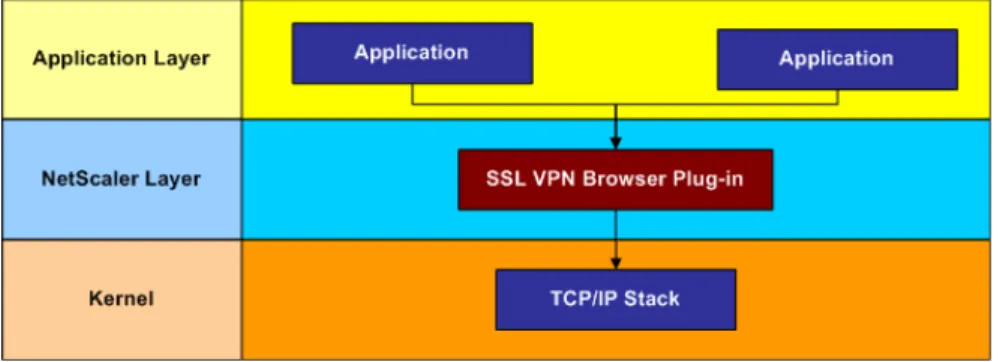
Once the SSL VPN browser plug-in is downloaded and permitted to execute, it will monitor all network activity on your machine. When a TCP or a UDP appli-cation, like Telnet or Microsoft Outlook, connects to a server in the company's private intranet network, the plug-in will intercept the connection, secure it using SSL encryption, and redirect it to the server through the secure SSL VPN tunnel. The routing decision is made based on the routes configured on the system. This process is illustrated in the following figure.
Figure 1-1 Interception of the SSL VPN browser plug-in
As shown in Figure 1-1, the plug-in inserts itself between the application layer and the kernel. It connects to the SSL VPN device using an SSL-encrypted connection.
1.2
SSL VPN : Key Features
The SSL VPN supports:
• SSL 2.0, SSL 3.0, and TLS 1.0 protocols • 2048 bit encryption
• All TCP/UDP-based applications
• CIFS file system access through NetBios/Web Interface
• Client computer security check, whereby the SSL VPN browser plug-in ensures that certain personal firewalls and antivirus applications are run-ning on the client computer
• Forward proxy and proxy authentication support
• Deletion of cached Internet files generated on a Windows® client, after an SSL VPN session
Getting Started with SSL VPN
The preceding chapter covered the architectural details of the SSL VPN
browser plug-in. In this chapter you will learn to use the plug-in. The following topics are described in this chapter:
• System Requirements
• Using the SSL VPN Browser Plug-in
2.1
System Requirements
The system requirements for the SSL VPN browser plug-in are:
Operating system: MicroSoft Windows 98, Windows 2000, Windows NT,
Win-dows ME, WinWin-dows XP, or WinWin-dows 2003 Server.
Web browser: Internet Explorer 5.5 or above.
NoteThe Windows version of the plug-in does not support LINUX or Mac OS. When using the SSL VPN with these platforms, your computer will automatically down-load and install the multi-platform version of the plug-in. For details on using the SSL VPN with these platforms, refer to the SSL VPN Users Guide for Windows, LINUX, Mac OS, and UNIX Platforms.
2.1.1
Starting a SSL VPN Session
The SSL VPN provides remote users access to authorized resources on a pri-vate intranet network, over a secure connection. To establish a secure connec-tion, you must first log on to the SSL VPN web site. Contact your system administrator for the URL to this web site, and the login credentials. The typical format for such a URL is as follows:
https://companyname.com
To log on to your company’s SSL VPN Web site
1. Type the URL of your company’s SSL VPN web site in the browser window. If your administrator has not configured a trusted SSL certificate that
iden-Figure 2-1 The Security Alert window.
The security alert indicates that there might be discrepancies in the certificate. For example:
• the certificate has expired.
• the domain name in the certificate does not match the domain name of the server.
• the certificate is not trusted.
Click the ‘No’ button and contact your VPN administrator before continuing to access the SSL VPN.
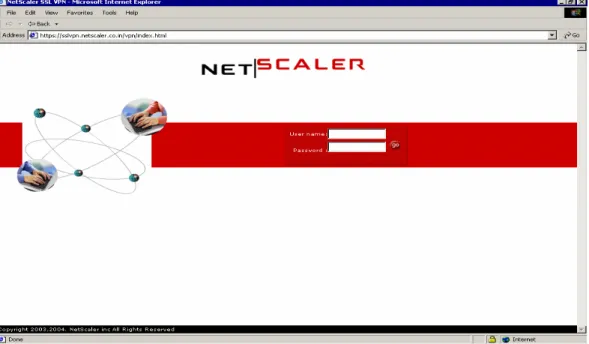
2. Open an Internet Explorer window and enter the URL of the SSL VPN web site. The SSL VPN login page is displayed.
Figure 2-2 SSL VPN Login page
3. Enter your username and password.
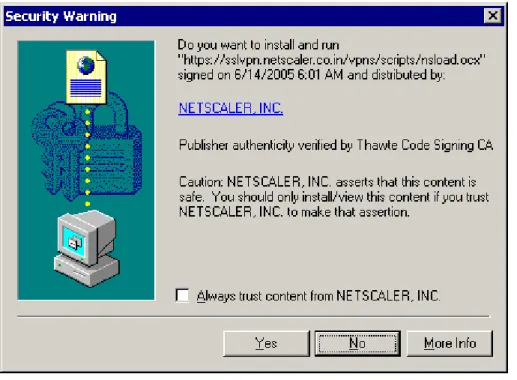
4. Click Go. When you log on to the SSL VPN system for the first time, a secu-rity warning is displayed as shown in the following figure. This warning prompts you to download the SSL VPN browser plug-in.
Figure 2-3 Security warning
5. Click Yes. The Secure Remote Access Session window is displayed as shown in the following figure, and the plug-in begins to download. A "Load-ing..." message is displayed in this window.
Figure 2-4 Session window with the “Loading..” message
6. When the download has completed, the Secure Remote Access Session window displays the following message: "Closing this window will exit SSL VPN Session". This indicates that the SSL VPN session is now active. The
Figure 2-5 Session window with the portal page in the background
NoteIf you are not automatically prompted to download the plug-in after successfully logging in, click the "Click here" hyperlink in the alternative page that is dis-played. This alternative page is shown below.
Figure 2-6 Download prompt page
NoteFor details on working with a pop-up blocker especially for a client system run-ning windows XP with service pack 2 installed, consult your system administra-tor.
2.2
Using the SSL VPN Browser Plug-in
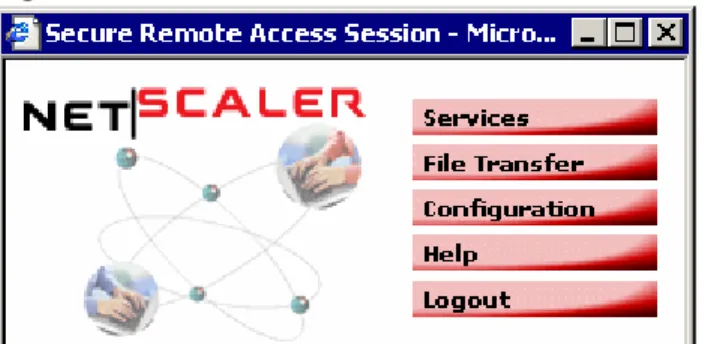
The Secure Remote Access Session window is the graphical user interface to the SSL VPN browser plug-in. It allows you to access intranet sites, file sys-tems, and other resources on the intranet. Closing the secure session window will end the session. As a result, you will be disconnected from the private net-work.
Figure 2-7 Secure Remote Access Session window.
The buttons on the Secure Remote Access Session window are described as follows:
• Services: Click this button to view the portal page. This page provides
links to commonly accessed web sites on the corporate network.
• File Transfer: Click this button to download/upload files, from different
locations on the network using the file transfer module.
• Configuration: Click this button to configure VPN settings on the plug-in.
• Help: Click this button to access the online help system.
• Logout: Click this button to log out of the SSL VPN session.
2.2.1
Accessing Services
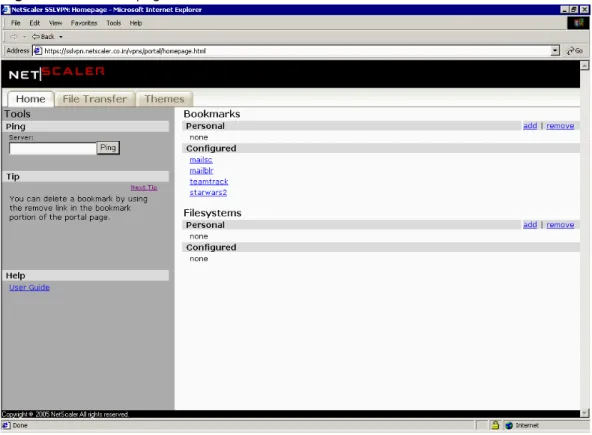
The Portal page is created based on the data configured by the administrator. The Portal page is shown in Figure 2-8. This page lists the most commonly accessed intranet web sites and file systems. The administrator configures the links visible under the ‘Configured’ sections on this page. You can create your own bookmarks to appear under the ‘Personal’ bookmark sections. The next section illustrates use of this feature.
NoteYour VPN administrator may have customized the Portal page. So the appear-ance of the page may vary from what is shown in this guide.
Figure 2-8 Portal page
2.2.2
Using Portal Tools
The Portal page has several built in tools to assist you in using the SSL VPN. These tools include a ping interface for checking the accessibility of network hosts, tips, the SSL VPN User’s guide, the SSL VPN file transfer utility and the SSL VPN themes utility.
These tools have been placed under the home, file transfer and themes tabs on the SSL VPN portal page.
2.2.2.1 Home
The tools under this tab help you navigate your way through the SSL VPN. This page can be customised by the SSL VPN adminstrator by providing themese that VPN users can apply for themselves. The individual tools are described below
The Ping Tool
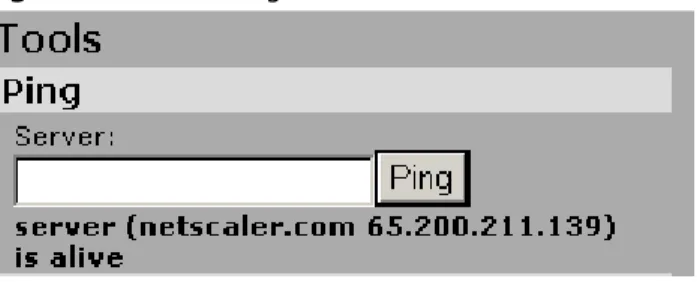
The ping tool is used to check the accessibility of other computers on your intranet and on the Internet. This feature can help you troubleshoot connectiv-ity issues if any, with your SSL VPN session in addition to determining availibil-ity of a server hosting a resource on the network.
Enter the IP address or hostname of the computer you which to ping and click the ‘Ping’ button. The result of the ping query will be displayed immediately below the entry box.
Figure 2-9 The Ping Tool
The Tip and Help Tools
The Tip tool offers helpful hints on using the SSL VPN and its various features. The Help tool is used to access the SSL VPN User’s Guide. The User’s Guide includes not only instructions on using the SSL VPN but also lists error code explanations and provides other troubleshooting assistance.
The Bookmarks tool
The SSL VPN Portal allows you to create your own set of links to commonly accessed resources. These bookmarks may be links to either intranet or Inter-net web sites or Inter-network accessible file systems on the intraInter-net.
Create a bookmark
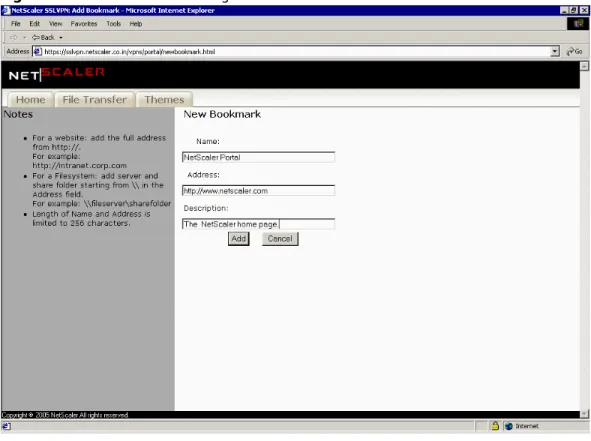
To create these bookmarks, click on the ‘add’ links on the right side of the page. The following figure shows the new page.
In the ‘Name’ field, enter the label to be used for your new link. In the ‘Address Field’ enter either the uniform resource locator (URL) of the website or the network path to the fileserver. In the ‘Description’ field, enter a short description for the created link. Once done, select the ‘Add’ button to apply the new link or ‘Cancel’ to exit the window without making any changes.
NoteA link to a website should contain the protocol specifier for example ‘http://’ for web pages, ‘https://’ for secure sites etc.
Figure 2-10 Add Bookmark Page
The bookmark added here will be listed under the personal bookmarks on the SSL VPN home page as shown below.
Figure 2-11 Personal bookmark
NoteThe system automatically differentiates between website addresses (URLs) and network file system paths based on the format in which they are entered. Hence you do not need to specify which type of resource your link is for when you cre-ate it.
Remove a bookmark
To remove a personal bookmark, click on the remove button on the right side of the page. The ‘Remove Bookmark’ page is displayed as shown in the figure. Select the bookmark you want to remove and click on the ‘Remove’ button to confirm removal or click on the ‘Cancel’ button to exit the window without making any changes.
Figure 2-12 Remove bookmark page
NoteYou can remove only bookmarks listed under the ‘Personal’ column and not those under the configured column
2.2.2.2 File Transfer
This page allows you to log on to the intranet and access shared resources. The following figure illustrates the various components of this page.
Figure 2-13 File Transfer page.
The following sections cover the various components of the File Transfer page.
Top Panel
The top panel of the browser window displays a number of buttons that will allow you to perform various tasks, pertaining to the storage and transfer of files.
Click this button to log on to the corporate network or a specific com-puter on that network.
Click this button to navigate to the preceding folder in the folder tree. Click this button to refresh the contents of the active folder.
Click this button to create a subfolder within the folder that is selected. Click this button to download the file from the remote server.
Click this button to delete the file from the remote machine. Click this button to change the name of a file or folder, which is selected.
Click this button to disconnect SSL VPN from the remote server.
Left Panel
The servers, their directories, and the directory structure are displayed in a tree format in the left panel as shown in the following figure. Click the + icon to view a subfolder.
Figure 2-14 Left panel
system, leave the Login Server field blank or click the Network Neighborhood link in the left panel.
To log on to a file server
1. Enter the IP address or the name of the server in the Address field.
NoteIf you leave this field blank, you will be logged on to the intranet and not any specific server. Alternately, if you type \\servername\c$, you can access the hid-den shared folders on the server.
2. Enter your Login ID in the Login field.
3. Enter your password in the Password field. If the remote server does not require a password, leave this field blank.
4. Enter a valid domain name. If the remote server has not been assigned a specific domain, leave the field blank.
The right panel now displays the subfolders and files as shown in the following figure. The location of the active folder is displayed in the Address field.
Figure 2-15 Right panel
To download a file from a remote server
1. Select the file.
2. Click the Download icon. The File Download window is displayed.
3. Click the Save button. The Save As dialog box is displayed as shown in the following figure.
Figure 2-16 Save As dialog box
4. Navigate to the appropriate folder, and click the Save button to save the file.
To upload a file to the remote server
1. Select the file in the local machine.
2. Click to upload the file to the remote server.
To remove a folder, subfolder, or file
1. Select the file, folder, or subfolder.
2. Click the Delete icon. The file is deleted from the remote machine.
NoteA parent folder that contains subfolders cannot be removed. To delete a parent folder with sub folders, you need to delete the sub folders first and then delete the parent folder.
2.2.2.3 Themes
You can select themes that have been made available by the SSL VPN admin-istrator for use with your SSL VPN session. The theme selected will be applied across all pages on the SSL VPN portal.
If there are no themes configured by the VPN administrator then, on the ‘Themes’ tab of the portal page, an error message is displayed as shown in the figure below.
Figure 2-17 No themes configured
Selecting a theme for the SSL VPN session
Under the ‘Themes’ tab on the SSL VPN portal, you can see the themes that the VPN administrator has made available for use. Click on the ‘Select’ button next to the theme name for the theme to be applied for your current VPN ses-sion and all further VPN sesses-sions.
Figure 2-18 Themes for the SSL VPN Portal
Customizing your theme
You can click on the customise button next to the theme name and change individual parameters used in the theme. The changes made are stored in a theme called ‘Current Custom Theme’ and applied to the current theme.
Figure 2-19 Customize your theme.
Select the colors you want for each item on the SSL VPN portal page, the font stye and size and then click the ‘Save Preferences’ button. The customized theme will now replace the old theme on the portal page.
NoteYou can restore the default theme for the portal page by clicking on the ‘Reset to site defaults’ button on the ‘Themes’ tab.
2.2.3
Configuring the SSL VPN Browser Plug-in
Use the Configuration window to configure the SSL VPN browser plug-in and monitor the status of the server.
Figure 2-20 General tab
The Configuration window is divided into several tabbed panes. The controls under each tab are described in the following sections.
2.2.3.1 General Tab
Runtime data pertaining to SSL VPN browser plug-in is displayed in the Gen-eral Tab. This tab consists of the following group boxes:
• General Information • Tunneled Connections
General Information
The fields within this group box are:
• Status: This label indicates whether SSL VPN browser plug-in is connected
• Idle Time: This label indicates the duration for which SSL VPN browser
plug-in has been idle. This duration is displayed in the hh:mm:ss format. • User name: This label reflects the user name logged in to the current
ses-sion.
• Bytes Sent: This label indicates the quantity of data, in bytes, that has
been uploaded from SSL VPN browser plug-in to the system.
• Bytes Received: This label indicates the quantity of data, in bytes, that
has been downloaded from the system through the SSL VPN browser plug-in.
Tunneled Connections
This panel provides a snapshot of various parameters such as process ID, Pro-cess name, IP address of the server, bytes sent, bytes received, and connec-tion duraconnec-tion time for a particular tunneled connecconnec-tion.
2.2.3.2 Tunnel Tab
This tab consists of the following group boxes: • Split Tunneling
• Domain/IP Conflict • Network Conflict
Figure 2-21 Tunnel Tab
Split Tunneling
For security reasons, some corporations require that all the traffic pertaining to the end user pass through the SSL VPN when the end-user is connected to the corporate network. This is to ensure that a hacker logged on to the client PC is disconnected as soon as the SSL VPN comes up. Without this feature the hacker would be able to use the violated PC as a jumping off point to attack the corporate network.
When Split Tunneling is enabled, the plug-in forces all intranet connections through the SSL VPN tunnel, while the Internet connections are directly routed to the external server. When Split Tunneling is disabled, the plug-in forces all connections -both internal and external - through the SSL VPN tunnel.
This group box consists of two buttons Enable and Disable, to control split tun-neling. If your administrator has disabled split tunneling, all items in this panel
ture. To disable Split Tunneling, click the Disable button and click the OK but-ton to save your changes.
Domain/IP Conflict
This group box consists of controls that can be set to prevent domain conflicts. All DNS lookups are performed locally. When the lookup fails, the system resorts to a remote lookup on the intranet via the SSL VPN tunnel. In such cases, a local domain name might conflict with a domain name within the intranet. Such conflicting domain name(s) can be configured on the plug-in using the Configuration window. This ensures that a remote intranet lookup is performed prior to looking up that domain name locally.
The following example illustrates this concept. A remote private network has a domain named "paris". A client, connecting to this network, also has a domain named "paris" in their local network. When you type http://paris in the
browser window, the plug-in performs a domain name lookup. The plug-in then routes the connection to the local domain if the configured network sub-net does not enforce the routing to the remote private sub-network. Alternately, if the remote domain "paris" is configured in the Configuration window, the plug-in performs the domain name lookup in the remote private network. The connection is then tunneled to the remote private network if the configured network subnet enforces similar tunneling. You can add wildcard intranet domain suffixes, such as "*.mycompany.com".
NoteWhen split tunneling is disabled, the local domain is not included during the lookup and the Domain/IP Conflict pane is disabled.
To add domain names/IP addresses that can be accessed in the remote private network
1. Enter the domain name/IP address of the host and click Add. 2. Click Apply to save the changes.
To remove a domain names/IP address from the list
1. Deselect the domain name/IP address from the list. 2. Click Apply to save the changes.
To remove all domain names/IP address from the list
1. Click Remove All.
2. Click Apply to save the changes
remote user's machine or network might have a network identity (host with an IP address or a network subnet) that conflicts with a host or subnet in the remote private network.
For example, consider a scenario where both the remote and local networks have a subnet IP address of 192.168.0.0 with a netmask of 255.255.0.0. The application needs to connect to the local network. To force this to happen, deselect the conflicting network subnet in the Configuration window. The plug-in routes all connections for that subnet to the local network.
To connect to the same subnet on the remote network (default behavior), select the network subnet again in the Configuration/Tunnel window.
NoteWhen split tunneling is disabled, access to the local network is disabled. This group box is unavailable when split tunneling is disabled.
To avoid Network Conflicts
1. Deselect the networks from the list of networks. 2. Click Apply to save the changes.
Trace Tab
You can debug the plug-in by studying the traces that it generates when it is active. The trace messages are stored in the file specified in the ‘Log Filename’ field.
The SSL VPN client side trace can have different levels of detail. You can select from one of four levels of detail as shown in the following figure.
Figure 2-22 Trace Tab
2.2.3.3 Compression Tab
The compression tab displays statistics about the current SSL VPN session’s TCP traffic compression rates, broken down by individual connections. The col-umns on this tab include the following statistics.
• Port: The port number the connection is communicating on. • UncmpDataSize: Size of the data before compression is applied. • CmpDataSize: The data size after compression is applied.
• Bandwidth Saving: The approximate bandwidth savings by the use of com-pression, expressed as a percentage. This is calculated by the compressed data size subtracted from the actual size, all divided by the actual data size.
NoteBandwidth savings may occasionally show as a negative value. This happens most frequently with applications such as Telnet where transmitted data is sent in very small pieces and other applications where data is precompressed .
Figure 17 below shows the Compression tab.
Figure 2-23 Compression Tab
2.2.3.4 About Tab
This window displays the version, supported features, web site and copyright information for this SSL VPN session and software.
Figure 2-25 About Tab - Copyright Information
2.2.4
File transfer
For details on using the SSL VPN file transfer utility, refer to File Transfer
2.2.5
Accessing Help
The Help window on the Secure Remote Session window displays the help sys-tem for the plug-in. To access this window, click the Help button.
2.2.6
Terminating the SSL VPN Session
To log off from the SSL VPN session, close the Secure Remote Access Session window or click the Logout button. This will disconnect all active connections. All in-memory session cookies are deleted. If Client Clean up is enabled, the Client Clean up window is displayed. For details, refer to the next chapter.
Using Advanced Plug-in Features
This chapter introduces you to some of the advanced features of the SSL VPN browser plug-in. The first section covers the forward proxy settings for the plug-in. This is followed by a section that covers the Client Computer Security Check feature of the plug-in. The last section covers the procedure for
enabling Client-side Cleanup. When enabled, this feature causes the plug-in to delete all the temporary files during the log off process. These files are gener-ated during an SSL VPN operation on the client machine, and may pose a security threat. The following topics are described in this chapter:
• Forward Proxy Support
• Client Computer Security Check • Windows Client Cleanup
3.1
Forward Proxy Support
Forward proxy servers support Internet access for a number of clients through a single server for security, caching, or filtering. If your network uses a For-ward Proxy server, you need to configure your Web browser to point to that Forward Proxy server when accessing SSL VPN.
When the plug-in runs on a computer, it begins to function as the Forward Proxy server. When the Forward Proxy server requires authentication, the fol-lowing window is displayed.
Figure 3-1 Forward proxy setting
You need to enter an appropriate login name and password in this window for further action. If you enter an incorrect login name or password, the window will be displayed again.
3.2
Client Computer Security Check
The SSL VPN administrator can configure the plug-in to enforce a security pol-icy on the client computer. A security polpol-icy is typically meant to ensure that security applications are installed and running. Security applications typically include personal firewalls, anti-virus packages, and customized applications or services. The plug-in performs a security check to ensure that the security pol-icy is adhered to.
These checks can be performed against numerous aspects of your computer’s operating system.system can also enforce the following security requirements: • Installed files on the client file system
• Administrator specified services and processes • Personal firewall software
• Anti-virus applications • Internet security suites
• Customized applications or services
These security checks can be performed once on login to the SSL VPN and also at periodic intervals during an active SSL VPN session as specified by the administrator.If a security check fails at any of these points, the plug-in will not be able to access the SSL VPN, even if successfully authenticated. If you are currently logged in and a security check fails, you will be disconnected from the SSL VPN. When a security check fails, the plug-in will alert you to the failure, including the cause along with an error code. If you receive an error
3.3
Windows Client Cleanup
The temporary files generated on the client computer during an SSL VPN ses-sion, could pose a security threat. These files can be misused to obtain confi-dential information. To eliminate this threat, the SSL VPN browser plug-in supports the cleanup of the files after the SSL VPN session is closed. This fea-ture, however, needs to be enabled by the system administrator. If the system administrator enables this feature, a client cleanup dialog window is displayed when you log off from the SSL VPN session. This feature is explained in this section.
3.3.1
Windows Client Cleanup Dialog
When you select the Logout button from the Secure Remote Session window, you may be presented with the Client Cleanup dialog discussed here. If your VPN administrator has configured the SSL VPN to not present this dialog, you will not see it when you log out.
Figure 3-2 Cleanup dialog box
The system administrator can also configure the system to delete some groups of files before this dialog box is displayed. In this scenario, the options corre-sponding to these configured groups are disabled when this dialog box is
dis-This dialog box provides four options.
• If you click the ‘Cleanup’ button, the plug-in opens another dialog box (which is detailed shortly) that allows you to select individual files for removal based on the check boxes you select along the left side of this dia-log box.
• If you click the ‘View logfile’ button, you will be presented with a log of the cleanup mechanism’s actions during this session.
• Selecting the ‘Launch browser and Exit’ button, the session will log out and the Login page is displayed again.
• If you click the ‘Exit’ button, the plug-in exits.
The following sections explain the check box options in this window.
Clean up browser cache, cookie, and temporary files
When you select this option and click the ‘Cleanup’ button, data that is stored in the browser cache is selected for deletion by the plug-in. Browser caching improves performance by storing local copies of data accessed via the Web. The system supports the deletion of all cached files, which have been accessed/created during the SSL VPN session, and does not differentiate between files cached from the intranet or internet web sites. The plug-in also supports the cleanup of temporary files and cookies.
Clean up history and browser typed URLs in the address bar
When you select this option , all the URLs stored by the browser and history data added during this session are deleted by the plug-in. This requires that all browser windows be closed in order to clean up this information.
Clean up password and auto complete information stored by IE
Selecting this option will add all of the auto complete data that Internet Explorer stored during your session. This auto complete data includes any user credentials, user names and passwords, credit card numbers and any other data entered while filling in forms on web sites.
Close file transfer browser window
When you select this option and click the Cleanup and Exit button, all the directory and file information, buffered by the File transfer browser, are deleted by the plug-in. This can also occur if the file transfer window is active when the SSL VPN session is terminated. Close this window before you exit the SSL VPN session.
Clean up ActiveX Browser Plug-in
When you select this option and click the Cleanup and Exit button, the plug-in is deleted from the hard disc of the client computer.
Clean up Client Authentication Certificate
If SSL Client Certificate Authentication was used during your session, you would use this option to select residual certificates stored on your system by the SSL authentication process.
Clean up application data created by IE
Selecting this option will allow the cleanup process to remove all non-roaming classified (not stored on an external server) application data such as user pref-erences, temporary files, application state information, etc. that were created locally during the session.
Close all applications, which have accessed the SSL VPN services
When you select this option and click the Cleanup and Exit button, the plug-in closes certain processes. These processes correspond to the applications that access the SSL VPN service during the SSL VPN session. This will prevent the leakage of sensitive information buffered by the application.
3.3.2
Client Cleanup Item Listing Dialog
When you select the Cleanup button from the Client Cleanup dialog, you will be presented with the window shown in the following figure. The items that populate this dialog are shown based on the options you select from the previ-ous Client Cleanup dialog.
The listing is broken up in to two sections. The upper listing section includes all the browser cache, cookies, and URL files marked for deletion. The lower sec-tion lists all the other items selected for removal which are WIndows Registry Entries.
Each item in these two listings has a checkbox before it that you may use to individually select and deselect items for clean up.
The buttons on this page perform the following actions.
• Check All: Clicking this button will mark all items in the listings for removal.
• Uncheck All: Using this button will unmark all the items in the listings. • Cleanup!: This button initiates the clean up procedure. Once you click this
• Exit: This button exits the dialog, returning you to the Client Cleanup
win-dow. If you have not selected the Cleanup! button, no items will be removed when you click the exit button.
Troubleshooting the SSL VPN
Browser Plug-in
This chapter covers the troubleshooting of the SSL VPN browser plug-in. The following topics are described in this chapter:
• Debugging the SSL VPN Browser Plug-in • SSL VPN Session Error Codes
• Limitations
4.1
Debugging the SSL VPN Browser Plug-in
You can configure the plug-in to run in debug mode. In this mode, the SSL VPN browser plug-in logs all of its major activities into an ASCII file. These ASCII files, also known as log files, are stored in the file system.
On Windows 95/98/ME, you need to specify the names of these files in the fol-lowing format:
• hooklog<num>.txt • nssslvpn.txt
Use the hooklog<num>.txt file for debugging the interception code and the nssslvpn.txt file for debugging the plug-in.
On Windows NT/2000/XP/2003, you can specify the file name. The default file-name is c:\nssslvpn.txt.
You can use these log files to debug and troubleshoot the plug-in. Kindly mail the log files to Support if you encounter any problems. To enable the creation of these files, select the Enable Client Trace option in the Trace pane of the Configuration window.
4.2
SSL VPN Session Error Codes
Table 4-1 Error codes
NoteAll the 2xxx and 3xxx error messages are displayed in black.
The following table lists the specific error codes displayed by the SSL VPN ses-sion. It also provides a description of these error codes.
Table 4-2 Specific error codes displayed by the SSL VPN session Error Code Description
0001-1000 Normal operation 1001-2000 Internal error
2001-3000 SSL VPN browser plug-in errors 3001-4000 Browser errors
4001-5000 Windows Client Side Cleanup errors
Codes Message Explanation Action
0001 "Loading ..." This message indicates that the plug-in is loading the configuration and the interception software before the SSL VPN session is ready to tunnel connections/data.
None
0002 “Closing this window will exit the SSL VPN session"
This message indicates that the plug-in is functioning and it is ready to tunnel connections/data to the system.
None
0003 "Closing this window will exit the SSL VPN session"
This message indicates that the plug-in is functioning and the client system has been secured with appropriate security software. (e.g. anti-virus packages and personal firewall). The message also indicates that the plug-in is ready to tunnel
connections/data to the
0004 "Exiting ..." This message is displayed when the user clicks the Logout button in the Secure Session window. The message indicates that the plug-in has begun to close the SSL VPN session.
None
1001 "Internal Error, please report to admin"
This message indicates that the plug-in has failed to open the interception file.
Reboot your computer, and log on to the windows account, which has administrative privileges. 1002 "Internal Error,
please report to admin"
This message indicates that the version of the plug-in and the version of the interception software do not match.
Log off from the SSL VPN session, cleanup the plug-in, and login again. Contact Support to obtain the correct version. 1003 "Internal Error,
please report to admin"
This message indicates that the plug-in failed to allocate memory.
Log off from the SSL VPN session and login again. Report this problem to Support.
1004 "Internal Error, please report to admin"
This message indicates that the plug-in is unable to call the windows library function successfully.
Report this problem to support.
1005 "Internal Error, please report to admin"
This message indicates that the plug-in failed to create the temporary interception file. This error occurs when the user does not possess Write permission in the Windows system directory.
Ensure that the windows account has been
configured with the write permissions in the Windows System Directory, which is c:\windows\system32 or c:\windows\system. Contact the system administrator. 1006 "Internal Error,
please report to admin"
This message indicates that the plug-in failed to obtain the list of running
applications when it tried to check whether a specific
Contact the system administrator.
1007 "Internal Error, please report to admin"
This message indicates that the plug-in in failed to check whether a particular security service was running. The security service could be a personal firewall or an anti-virus services.
Ensure that the security service is running.
1008 "Internal Error, please report to admin"
This message indicates that the SSL VPN client has a socket-handling problem.
Log off from the SSL VPN session and login again. 1009 Reserved error
code number
N/A N/A
1010 "Login failed." Pocket PC client failed to login to the SSL VPN.
Make sure the correct username/password is provided.
1011 "Failed to download configuration"
This error is displayed when the plugin fails to download the configuration form the VPN gateway after trying three times.
Make sure network is up and that the plugin has the same version as kernel. Refer to Appendix A at the end of this guide for instructions on manually uninstalling the plugin. Uninstalling the plugin will force the correct plugin version to be downloaded from the VPN gateway on next login.
1012 "Failed to initialize plugin (num)."
The Plugin failed to initialize. The ‘num’ value displays further error indicators.
Close other unneeded applications. If the error persists, contact your VPN administrator. 1013 1013(2 ) 1013(3 ) “Failed to parse
configuration” The configuration downloaded by the client from the kernel is incorrect.
Contact the system administrator.
2001 "SSL VPN session has been timed out"
This message indicates that your SSL VPN session has timed out.
Click the Logout button on the Secure Remote Access Session window to log off from the SSL VPN session and login again.
2002 "Please install dsclient.exe"
This message indicates that the plug-in has not been able to detect dsclient.exe on the client machine. This software, from Microsoft Corp., enables SSL encryption/decryption for some Windows platforms.
Contact the system administrator to download and install dsclient.exe on your Windows 98 or Windows 95 client computer. 2003 "SSLVPN configuration issue"
This message indicates that the CLI has not been configured correctly.
Contact the system administrator to configure SSL VPN correctly. 2004 "Need to install endpoint security software"
This message indicates that at least one of the required endpoint security software packages is not installed.
Contact the system administrator to install the required security software. 2005 "Need to
upgrade endpoint security software"
This message indicates that endpoint security software has not been upgraded.
Contact the system administrator to upgrade the required security software.
2006 "Required security software is not activated"
This message indicates that the an endpoint security software has not been activated.
Run the required security software.
2007 "Hook doesn't match plug-in version"
This message indicates that the interception code does not match the version of the plug-in.
Logout and login again.
2008 "Plug-in version mismatch"
This message indicates that the the plug-in, which was downloaded, does not match the version of the kernel.
Please log off from the Web site, remove the plug-in manually, and login again. Go to \Tools\Internet Options\Settings\View
2009 "Proxy requires unsupported authentication"
This message indicates that the plug-in has received an unsupported authentication method.
Report the problem to Support.
2010 "Proxy
authentication failed, need to relogin."
This message indicates that you clicked the Cancel button for proxy authentication.
Log off and log on again.
2011 "Failed to validate SSL Certification."
The plugin failed to validate
the SSL Certificate. The incorrect SSL certificate is bound on the VPN gateway.
2012 "Hook activation failed."
The plugin failed to activate the network socket
interception code.
Automatic installation of the plug-in requires
administrative privilege. For non-administrative windows accounts, the plug-in must be manually installed. 2013 "Failed to parse
forward proxy setting."
The plugin failed to parse the Internet Explorer forward proxy setting.
Correct the Internet Explorer configuration under Tools -> Internet Options -> Connections ' LAN Settings. Ensure that the correct configuration is in place.
2014 “Need to stop software "XYZ"“
The client security check detected that a disallowed software process is running. In the error message, the actual name of the detected software is displayed in place of ‘XYZ’.
Stop the detected software process before logging in to the SSL VPN again.
3001 "Another session is running"
This message indicates that the system has detected another session already running in the same client machine. The SSL VPN supports only one session
Close the other SSL VPN session and log on again.
3002 "You need to
login first" This message indicates that you have to provide authentication details to connect to the SSL VPN. This error message is displayed when you try to bypass the login process and directly access the plug-in.
Log on with authenticated account.
3003 "Support Microsoft IE4 and later only"
This message indicates that the system has not been able to detect the presence of Internet Explorer on the client machine. Alternately, this message could also indicate that the client machine has an older version of Internet Explorer. The SSL VPN supports Microsoft Internet Explorer version 4 and above.
Upgrade Internet Explorer and Login again.
3004 “Failed to load plugin, contact VPN admin “
This error message indicates that the plug-in could not load. The error may be due to any one of several reasons including settings on your PC or insufficient user privileges
Check your user privileges on your computer as well as your PC’s network
configuration. Contact your VPN administrator if the problem persists.
3005 "Invalid username or password"
This message indicates that username and password entered are incorrect. Another possible reason is the backend authentication server may not be available at login time.
Verify that the entered username and password are correct and re-enter them.
4001 "Internal Error" This message indicates that the plug-in did not forward cleanup information to the client software.
None
4.3
Limitations
The plug-in does not currently support:
• NetBios/UDP-based applications and TCP console type applications on Win-dows 95, 98, and ME.
• Browsing Network Neighborhood. • NetBios P-node Type.
• Traceroute, and Active FTP.
• Browsing of shared folders in the Windows 98 file system server through Web-based file transfer button.
FAQs
Why does the SSL VPN need a Windows account with administrative privileges?
The SSL VPN browser plug-in inserts a new layer between the application and Windows Kernel. This operation requires administrative privilege in a Windows account.
Why does SSL VPN not work with MS Windows 9x?
The MS Windows 9x operating system does not support encryption/ decryption for SSL/SSPI, which is required for SSL VPN. If the plug-in identifies that the encryption library is not installed, it will display an error message page. Click the hyperlink "Click Me" in the error message page to install the required encryption library (dsclient.exe). Please follow the instructions provided by the software to install the encryption library and reboot the machine after the installation. The dsclient.exe encryption library is provided by Microsoft.
Does SSL VPN use a client side IP address?
Unlike the traditional IPSec VPN, the SSL VPN does not set an IP address on the client machine. The plug-in uses the client machine's original IP address to connect to the SSL VPN Web site. This depends on the configuration of the system. If the USIP (use source IP) is enabled, the server will see the client IP address. Otherwise the server will not see the client IP address.
How does the SSL VPN browser plug-in make routing decisions?
The SSL VPN server forwards the configured static routing entries in the sys-tem to the remote user's plug-in. The plug-in then intercepts and tunnels all the connections to the SSL VPN server. These connections are tunneled to the SSL VPN server only if the destination IP matches with the downloaded routing entries/subnet. If the match is not found, then the connections are not tun-neled and are routed to the remote client machine's default router.
When is configured for split tunnel OFF, all traffic will be tunneled into the sys-tem.
Why doesn't the SSL VPN work when my Personal Firewall is enabled?
The SSL VPN opens a server port on the local PC. The default port number is 3128. If the port is used being by another application, the plug-in searches for the next available port. The last available port is 3138. If a port is not avail-able, the SSL VPN will not work. The SSL VPN connection also fails when a per-sonal firewall blocks the SSL VPN port that has been opened.
What should the client do when Windows crashes?
The client does not need to do anything in the event of a Windows crash. After the operating system reboots, you can log on to the SSL VPN again. The sys-tem inserts a layer into the operating syssys-tem dynamically. No sys-temporary files are left on the Windows file system.
There is one exception though. If you have configured forward proxy on the browser, you might lose configuration information. To prevent this, you need to reconfigure the browser after Windows is rebooted.
Why does NetBios not access data on my computer?
One reason could be that your computer operates on either Windows 95, 98, or ME. These operating systems do not support native NetBios. You need to access a Web-based File Transfer application to download/upload files.
If your computer does not run one of these operating systems, ensure that it is not set to P-node. You can run the following command to find out the node type:
C:> ipconfig /all
To modify it to H-node, run:
C:> regedit
Navigate to:
HKEY_LOCAL_MACHINE\System\CurrentControlSet\Services\Netbt\Parame-ters
Carefully make the following change:
Name: DhcpNodeType
Value Type: REG_DWORD - Number
Uninstalling the SSL VPN Browser
Plug-in
To uninstall the plug-in, perform the following procedure. 1. Launch Internet Explorer.
2. Select Internet Options from the Tools menu. The Internet Options dialog box is displayed.
Figure A-1 Internet Options dialog box
1. Click Settings near the center of the window. The Settings dialog box is dis-played.
2. Click View Objects. The Downloaded Program Files folder is displayed. This folder contains all of the Web browser plug-ins.
The plug-in
is labeled NsloadTo uninstall the plug-in, delete Nsload Control by right-clicking it and selecting the Remove option from the shortcut menu.