Please read these Operating
Instructions before using the unit
and save for future reference.
This model is designed to be
used only in the U.S.A.
FOR FAX ADVANTAGE ASSISTANCE: – (VOICE) CALL
1-800-HELP-FAX (1-800-435-7329) – E-MAIL TO
[email protected] for customers in the U.S.A. or Puerto Rico – REFER TO
www.panasonic.com
for customers in the U.S.A. or Puerto Rico
Flat-Bed Multi-Function Laser Fax
Operating Instructions
Attach your sales receipt here
Thank you for purchasing a Panasonic facsimile.
Copyright:
This manual is copyrighted by Panasonic Communications Co., Ltd. (PCC) and its licensee. Under the copyright laws, this manual may not be reproduced in any form, in whole or part, without the prior written consent of PCC and its licensee.
©
Panasonic Communications Co., Ltd. 2003Things you should keep a record of
For your future reference
Date of purchase Serial number
(found on the rear of the unit) Dealer’s name and address
Dealer’s telephone number
Caution:
●The Telephone Protection Act of 1991 requires the following information to be clearly stated either at the top or bottom margin of the first message page when transmitting messages via telephone facsimile:
— date and time of transmission,
— identification of the business, entity or person(s) sending the facsimile, and — telephone number of the business, entity or person(s).
To program this information into your unit, complete all the instructions on pages 18 to 21. ●Do not rub or use an eraser on the printed side of recording paper, as the print may smear.
Energy Star:
As an
E
NERGYS
TAR®Partner, Panasonic has determined that this product meets theE
NERGYS
TAR guidelines for energy efficiency.E
NERGYS
TAR is a U.S. registered mark.Trademarks:
●Microsoft, Windows and Windows NT are either registered trademarks or trademarks of Microsoft Corporation in the United States and/or other countries.
●Pentium is a registered trademark or trademark of Intel Corporation in the United States and/or other countries.
●3M is a trademark or registered trademark of Minnesota Mining and Manufacturing Company. ●Avery is a registered trademark of Avery Dennison Corporation.
●XEROX is a registered trademark of Xerox Corporation.
3
Important safety instructions
!
Safety instructions
When using this unit, basic safety precautions should always be followed to reduce the risk of fire, electric shock, or personal injury.
1. Read and understand all instructions. 2. Follow all warnings and instructions marked
on this unit.
3. Unplug this unit from power outlets before cleaning. Do not use liquid or aerosol cleaners. Use a damp cloth for cleaning. 4. Do not use this unit near water, for example
near a bathtub, wash bowl, kitchen sink, or the like.
5. Place the unit securely on a stable surface. Serious damage and/or injury may result if the unit falls.
6. Do not cover slots and openings on the unit. They are provided for ventilation and protection against overheating. Never place the unit near radiators, or in a place where proper ventilation is not provided.
7. Use only the power source marked on the unit. If you are not sure of the type of power supplied to your home, consult your dealer or local power company.
8. For safety purposes this unit is equipped with a grounded plug. If you do not have this type of outlet, please have one installed. Do not defeat this safety feature by tampering with the plug.
9. Do not place objects on the power cord. Install the unit where no one can step or trip on the cord.
10. Do not overload wall outlets and extension cords. This can result in the risk of fire or electric shock.
11. Never push any objects through slots in this unit. This may result in the risk of fire or electric shock. Never spill any liquid on the unit.
12. To reduce the risk of electric shock, do not disassemble this unit. Take the unit to an authorized service center when service is required. Opening or removing covers may expose you to dangerous voltages or other risks. Incorrect reassembly can cause electric shock when the unit is subsequently used.
13. Unplug this unit from the wall outlet and refer servicing to an authorized service center when the following conditions occur:
A. When the power supply cord or plug is damaged or frayed.
B. If liquid has been spilled into the unit. C. If the unit has been exposed to rain or
water.
D. If the unit does not work normally by following the operating instructions. Adjust only controls covered by the operating instructions. Improper adjustment may require extensive work by an authorized service center. E. If the unit has been dropped or
physically damaged.
F. If the unit exhibits a distinct change in performance.
14. During thunderstorms, avoid using telephones except cordless types. There may be a remote risk of an electric shock from lightning.
15. Do not use this unit to report a gas leak, when in the vicinity of the leak.
Safety instructions
INSTALLATION:
●After moving the unit from cold areas to warmer areas, let the unit adjust to the warmer temperature and do not connect the unit for about 30 minutes. If the unit is connected too soon after a sudden climate change, condensation may form inside the unit causing malfunction.
●Never install telephone wiring during a lightning storm.
●Never install telephone jacks in wet locations unless the jack is specifically designed for wet locations.
●Never touch uninsulated telephone wires or terminals unless the telephone line has been disconnected at the network interface. ●Use caution when installing or modifying
telephone lines.
WARNING:
●To prevent the risk of fire or electrical shock, do not expose this product to rain or any type of moisture.
OTHER INFORMATION:
●Keep the unit away from electrical noise generating devices, such as fluorescent lamps and motors.
●The unit should be kept free from dust, high temperature and vibration.
●The unit should not be exposed to direct sunlight.
5
CAUTION:
Laser radiation
●The printer of this unit utilizes a laser. Use of controls or adjustments or performance of procedures other than those specified herein may result in hazardous radiation exposure.
Toner cartridge
●Be careful of the following when you handle the toner cartridge.
— Do not leave the toner cartridge out of the protection bag for a long time. It will decrease the toner life.
— If you ingest any toner, drink several glasses of water to dilute your stomach contents, and seek immediate medical treatment.
— If any toner comes into contact with your eyes, flush them thoroughly with water, and seek medical treatment. — If any toner comes into contact with
your skin, wash the area thoroughly with soap and water.
Drum unit
●Read the instructions on pages 13 and 14 before you begin installation of the drum unit. After you have read them, open the drum unit protection bag. The drum unit contains a photosensitive drum. Exposing it to light may damage the drum.
Once you have opened the protection bag: — Do not expose the drum unit to light for
more than 5 minutes.
— Do not touch or scratch the green drum surface.
— Do not place the drum unit near dust or dirt, or in a high humidity area.
— Do not expose the drum unit to direct sunlight.
Static electricity
●To prevent static electricity damage to the interface connectors (parallel and USB), the ADF jack or other electrical
components inside the unit, touch a grounded metal surface, such as the metal part under the parallel interface connector before touching the components.
Fuser unit
Caution:
Do not touch the bottom of this cover. It is very hot.
DANGER-Invisible laser radiation when open and interlock defeated. AVOID DIRECT EXPOSURE TO BEAM.
Safety instructions
Metal part Fuser unit
●The fuser unit is inside of the unit and gets hot. Do not touch it when removing
Table of Contents
Initial Preparation
Accessories
Included accessories . . . 8Accessory information . . . 8
Help Button
Help function . . . 9Finding the
Overview . . . 10Controls
Location. . . 11Setup
Connecting the document cover. . . 12Unlocking the shipping lock . . . 12
Toner cartridge and drum unit . . . 13
Paper stacker and paper tray . . . 15
Recording paper . . . 16
Connections . . . 17
Date and time, your logo and facsimile telephone number . . . 18
Volume
Adjusting volume . . . 22Telephone
Automatic
Storing names and telephone numbers into one-touch dial . . . 23Dialing
Storing names and telephone numbers into navigator directory . . . . 24Editing a stored entry. . . 25
Erasing a stored entry . . . 25
Making a phone call using one-touch dial and navigator directory . . 26
Caller ID
Caller ID service from your phone company . . . 27Viewing and calling back using caller information . . . 28
Erasing caller information . . . 29
Storing caller information into one-touch dial and navigator directory . . 30
Fax
Sending Faxes
Sending a fax manually. . . 31Documents you can send . . . 33
Sending a fax using one-touch dial and navigator directory . . . 34
Broadcast transmission . . . 36
Receiving
Setting the unit to receive faxes . . . 40Faxes
TEL mode (answering all calls manually). . . 42FAX ONLY mode (all calls are received as faxes) . . . 43
Using the unit with an answering machine . . . 44
Extension telephone . . . 45
Distinctive Ring
Using two or more phone numbers in a single telephone line . . . 46Using three or more phone numbers in a single telephone line . . . . 47
Programming the ring pattern assigned for fax . . . 47
7
Error Messages
Reports. . . 66Display . . . 67
Operations
When a function does not work, check here before requesting help . . . 69If a power failure occurs . . . 72
Replacement
Replacing the toner cartridge and the drum unit . . . 73Jams
Recording paper jam. . . 75Document jams - sending . . . 77
Cleaning
White plate and glasses . . . 77Document feeder rollers . . . 79
General Information
Printed Reports
Reference lists and reports . . . 80FCC
List of FCC requirements and information . . . 81Information
Warranty
Limited Warranty. . . 82Customer
Customer Services directory . . . 83Services
Specifications
Technical data about this product . . . 84Index
Program index . . . 86Index . . . 87
Features
Programming . . . 60Summary
Basic features . . . 61Advanced features. . . 63
Multi-Function Station software
Help
Setup (PC)
Connecting to a computer . . . 50Installing Multi-Function Station software . . . 51
Activating Multi-Function Station software . . . 52
Printing (PC)
Using the fax machine as a printer . . . 53Scanning (PC)
Using the fax machine as a scanner . . . 56Remote
Operating the fax machine from your computer . . . 57Control (PC)
PC Fax
Fax sending/receiving using Multi-Function Station software . . . 58Accessories
For replacement, see page 73.
Included accessories
!
Power cord ...1 Telephone line cord...1 Handset...1
Part No. PFJA1030Z Part No. PQJA10075Z Part No. PFJXE0805Z Paper tray ...1
Part No. PFZXFLB751M
Handset cord...1
Part No. PQJA10126Z Operating instructions...1
Part No. PFQX1882Z Toner cartridge...1
(complementary starter toner cartridge)
This cartridge can print approx. 800 sheets of letter size paper with a 5% image area. Refer to image area on page 85. Please purchase a replacement toner cartridge Model No. KX-FA76 for continuous use of your unit. See below for accessory information.
Drum unit...1 Paper stacker ...1
Part No. PFZX1FL501M
CD-ROM...1
Part No. PFJKFLB756Z
Model No. KX-FA77D
See page 85.
See page 85. Specifications
Accessory information
!
KX-FA76 Model No.
Toner cartridge
Item Usage
KX-FA77D* Drum unit
For replacement, see page 73. ● If any items are missing or damaged, check with the place of purchase.
● Save the original carton and packing materials for future shipping and transportation of the unit. ● The part numbers listed above are subject to change without notice.
To order, see below.
*DO NOT purchase Model No. KX-FA77 (without “D”). It does not apply for this fax machine. ● To place an order:
Telephone:Call 1-800-332-5368.
Fax: Send a fax to 1-800-237-9080.
Include: — your name, shipping address and telephone number,
— credit card type, number, expiration date and your signature, — order model number/part number and quantity.
Internet: Visit our web site: http://www.panasonic.com/store (for customers in the U.S.A. or Puerto Rico ONLY) ● If you have any questions about internet orders, please contact us at:
E-mail: [email protected] Telephone:1-201-348-7292
9
Help Button
Help function
!
1
Press l.Display:
2
Press (or )until the desired item is displayed.1. How to set the date, time, your logo and fax number.
2. How to program the features.
3. How to store names in the directory and how to dial them.
4. Help with problems sending/receiving faxes.
5. How to use the copier function.
6. Frequently asked questions and answers.
7. Explanation of error messages shown on the display.
8. List of available reports.
9. How to use the Caller ID service.
3
Press w. PRINTINGCALLER ID
PRESS SET REPORTS
PRESS SET ERRORS
PRESS SET Q and A
PRESS SET COPIER
PRESS SET FAX SND/RCV
PRESS SET DIRECTORY
PRESS SET FEATURE LIST
PRESS SET QUICK SET UP
PRESS SET PRESS NAVI.[I H] & SET
HELP
SET Display
Finding the Controls
Overview!
Printer cover open button
Recording paper entrance
Recording paper guides
Paper tray
Document entrance
Recording paper exit Document cover
Paper stacker*
Document guides
ADF (Auto Document Feeder) cover
Paper stacker extender
Printer cover Document exit
Front view
* The paper stacker may not be shown in all illustrations.
Rear view
!
ADF (Auto Document Feeder) cable
External telephone jack
Telephone line jack USB interface connector
Parallel interface connector Power inlet
11
Finding the Controls
Finding the Controls
Location!
● To redial the last number dialed. ● To insert a pause during dialing.
● To mute your voice to the other party during a
conversation. Press this button
again to resume the conversation.
Display
● To use Caller ID service (p. 28, 30). ● To confirm a stored
telephone number (p. 28).
● To print a quick reference (p. 9).
● To initiate or exit programming.
● To make a collated copy (p. 49).
● To initiate copying
(p. 48).
● To turn on/off AUTO ANSWER (p. 40, 41).
● To change from pulse to tone temporarily during dialing when your line has rotary pulse services.
● To access special telephone
services such as call waiting or for transferring extension calls.
● To dial without lifting the handset.
● To select stations 7–12 for one-touch dial (p. 23, 26, 34).
● To use one-touch dial (p. 23, 26, 34).
● To transmit a document to multiple entries (p. 36, 39).
● To adjust volume (p. 22). ● To search for a stored
name (p. 26, 34). ● To select features or
feature settings during programming (p. 60). ● To navigate to the next
operation.
● To select a resolution (p. 31, 48).
● To scan the document into memory (p. 31, 32, 49). ● To use the fax machine as
a scanner when connected to a computer (p. 56).
● To initiate fax transmission or reception. ● To store a setting during programming.
Setup
1
Gently insert the two tabs on the document cover into the slots on the unit (#
), then close the document cover ($
).Slots Document cover
1 2
Tabs
2
Connect the ADF cable to the jack on the back of the unit.●The arrow ( ) on the ADF cable must be facing down.
ADF cable Arrow ( )
Connecting the document cover!
1
Press down the printer cover open button then open the printer cover.Printer cover
Printer cover open button
2
Slide the shipping lock down to unlock it.●The label for unlocking the shipping lock is attached to the unit. Remove and read it.
3
Close the printer cover by pushing down on both sides until locked.Printer cover
Unlocking the shipping lock!
Shipping lock
Unlocked position
Caution:
● Whenever transporting the unit, be sure to lock the shipping lock.
The shipping lock is to avoid damaging the scanner when transporting. Before using the unit, unlock the shipping lock.
13
Setup
Toner cartridge and drum unit!
Caution:
●Read the instructions below before you begin installation. After you have read them, open the drum unit protection bag. The drum unit contains a photosensitive drum. Exposing it to light may damage the drum. Once you have opened the protection bag: — Do not expose the drum unit to light for more than 5 minutes.
— Do not touch or scratch the green drum surface.
— Do not place the drum unit near dust or dirt, or in a high humidity area. — Do not expose the drum unit to direct sunlight.
●Do not leave the toner cartridge out of the protection bag for a long time. It will decrease the toner life.
4
Slide the tab on the toner cartridgeinto the slot of the drum unit. Tab
Slot
5a
Firmly press down on the right side of the toner cartridge to snap into position and...Toner cartridge
Red arrows
Drum unit Hold here.
Green drum surface
2
Remove the toner cartridge and drum unit from the protection bags.Peel off the seal from the toner cartridge (
#
).Remove the protection bar from the drum unit (
$
).Seal Protection bar
Drum unit Toner
cartridge
1 2
3
With “Panasonic” face up on the toner cartridge, match the red arrows on the cartridge and the drum unit.1
Before opening the protection bag ofSetup
5b
turn the two levers on the toner cartridge with firm pressure.Levers
6
The toner cartridge is installed when the triangles match.Triangles
Toner save feature
● If you want to save on toner consumption, set the toner save setting to on (feature #79 on page 65). The toner cartridge will last approx. 40% longer. This feature may lower the print quality.
7
Press down the printer cover open button then open the printer cover.Printer cover
Printer cover open button
8
Install the drum and toner unit by holding the tabs.●If the lower glass is dirty, clean it
with a soft and dry cloth. Drum and toner unit
9
Close the printer cover by pushing down on both sides until locked.Printer cover Lower glass
Caution:
15
Setup
Note for installation:
● Do not place the unit in an area where the paper tray may be obstructed (i.e. by a wall etc.). ● Recording paper will be ejected from the front of
the unit. Do not place anything in front of the unit.
Paper stacker and paper tray!
Insert the paper tray into the slot on the back of the unit.
Paper tray
Slot Line up the slots in the paper stacker with the
pegs on the bottom of the unit, then slide until locked.
Open the paper stacker extender when using legal size paper.
● The paper stacker can hold up to approx. 100 sheets of printed paper. Remove the printed paper before the paper stacker becomes full.
Pegs
Paper stacker
Paper stacker extender Slots
Setup
Right side of the recording paper guides
Pinch the upper part of the recording paper guide.
Recording paper!
1
Pinch the right side of the recording paper guides, then slide it open to its full width.2
Fan the stack of paper to prevent a paper jam.3
Insert the paper into the recording paper entrance.● The paper should not be over the tab. ● If the paper is not inserted correctly,
readjust the paper, or the paper may jam. Recording
paper entrance
Side to be printed face down
Tab Tab
Stack of paper
Correct Incorrect
Adding paper
1.Remove all of the paper.
2.Add paper to the stack of paper you removed and straighten.
3.Follow steps 1 to 4 above.
Letter, legal or A4 size recording paper can be used for fax messages. The unit can hold up to 150 sheets of 60 g/m2to 75 g/m2(16 lb. to 20 lb.) paper or 120 sheets of 90 g/m2(24 lb.) paper. See the note for paper specifications on page 85.
● The unit is set for letter size paper by default. If you want to use legal or A4 size paper, change the setting (feature #16 on page 62).
4
Adjust the width of the guides to the size of the recording paper by sliding the right side of the guides.17
Setup
Connections!
1
Connect the handset cord. ● The jack on the longer,uncoiled end of the handset cord should be connected to the unit.
2
Connect the telephone line cord.3
Connect the power cord.● When the power is turned on for the first time, the unit will print some basic information.
Note:
● The warranty does not cover damage due to power line surges or lightning. For additional equipment protection, we recommend the use of a surge protector.
● You can connect an answering machine or extension telephone to the external telephone jack (“EXT”) on this unit (p. 44, 45).
● When the power is turned on and the display shows the following, unlock the shipping lock (p. 12).
Display:
RELEASE SHIPPING LOCK CARRIAGE ERROR
Caution:
● When you operate this product, the power outlet should be near the product and easily accessible.
To use the fax machine and a computer modem on the same telephone line
● We recommend connecting the fax and computer to separate telephone wall jacks when possible. ● When the fax and modem are not connected to separate telephone wall jacks, and if the computer
modem provides a port for a connecting a telephone, connect the fax machine to this port. ● Set the fax machine to TEL mode (p. 42).
● The device which has the shortest ring setting will answer the call first. /
Handset cord
Telephone line cord Line surge
protector
( )
To the singletelephone line jack (RJ11C) To the power outlet
(120 V, 60 Hz)
Power cord
Power surge protector
( )
Connect to “LINE”.
Setup
Date and time, your logo and facsimile
telephone number!
You should program the date and time, your logo and facsimile telephone number. This information will be printed on each page transmitted from your unit.
Setting the date and time
Fax Correspondence
Your logo Your facsimile telephone number Date and time
FROM : Panasonic Fax Example:
FAX NO. : 1234567 Feb. 26 2003 09:02AM P 1
1
Press p.Display:
2
Press (or )until the following is displayed.3
Press w.Cursor
Example:
4
Enter the correct month/day/year by selecting 2 digits for each, using the dial keypad. Example: August. 10, 2003Press 08 10 03.
5
Enter the correct hour/minute by selecting 2 digits for each, using the dial keypad. Press *to select “AM” or “PM”. Example: 3:15PM1. Press 03 15.
2. Press *until “PM” is displayed. M:08/D:10/Y:03 TIME: 03:15PM M:08/D:10/Y:03 TIME: 03:15AM M:08/D:10/Y:03 TIME: 12:00AM M:01/D:01/Y:03 TIME: 12:00AM SET DATE & TIME
PRESS SET SYSTEM SET UP PRESS NAVI.[I H]
6
Press w.●The next feature will be displayed.
7
Press p.YOUR LOGO
PRESS SET
SET MENU
Display
To correct a mistake
● Press (or )to move the cursor to the incorrect number, and make the correction. Note:
● You can enter the number by pressing +or
-in steps 4 and 5. In this case, press )
to move the cursor.
● The accuracy of the clock is approximately ±60 seconds a month.
19
Setup
HANDSET MUTE
(Insert)
(Hyphen)
(Delete)
FLASH
STOP SET MENU
Display
1
Press p.Display:
2
Press (or )until the following is displayed.3
Press w.4
Enter your logo, up to 30 characters, using the dial keypad. See the next page for details. Example: “Bill”1. Press 22 times.
Cursor
2. Press 46 times.
3. Press 56 times.
4. Press )to move the cursor to the next space and press 56 times.
5
Press w.● The next feature will be displayed.
6
Press p.YOUR FAX NO. PRESS SET LOGO=Bill
LOGO=Bil LOGO=Bi LOGO=B LOGO=
AAAAAAAAA
YOUR LOGO
PRESS SET SYSTEM SET UP PRESS NAVI.[I H]
Setting your logo
To correct a mistake
● Press (or )to move the cursor to the incorrect character, and make the correction.
To delete a character
● Move the cursor to the character you want to delete and press {.
To insert a character
1. Press (or )to move the cursor to the position to the right of where you want to insert the character.
2. Press FGto insert a space and enter the character.
Note:
● You can enter your logo by pressing +or -(see the next page) in step 4. In this case, press ) to move the cursor.
The logo can be your company, division or name.
To change to capital or lower case letters
Pressing the #key will change to capital or lower case alternatively.
1. Press 22 times.
Display:
2. Press 43 times.
3. Press #.
4. Press 53 times.
Setup
0 ( ) < > ! " # $ % & ¥ ? @ ^ ’ →
FLASH
HANDSET/MUTE
STOP 1
2
3
4
5
6
7
8
9
0
Keys Characters
Hyphenbutton (To insert a hyphen.)
Insertbutton (To insert one character or one space.)
Deletebutton (To delete a character.)
"key (To move the cursor to the left.)
'key (To move the cursor to the right.)
To enter another character using the same number key, move the cursor to the next space.
1 [ ] { } + – / = , . _ ` : ; ? |
A B C a b c 2
D E F d e f 3
G H I g h i 4
J K L j k l 5
M N O m n o 6
P Q R S p q r s 7
T U V t u v 8
W X Y Z w x y z 9
To select characters with the dial keypad
Pressing the dial keys will select a character as shown below.
To select characters using +or
-Instead of pressing the dial keys, you can select characters using +or -.
1. Press +or -until the desired character is displayed.
2. Press )to move the cursor to the next space.
● The character displayed in step 1 is inserted.
3. Return to step 1 to enter the next character.
Display order of characters
Capital alphabet
Lower case alphabet Number
Symbol
: Pressing
: Pressing
To change capital or lower case letter.
21
Setup
Setting your facsimile telephone number
1
Press p.Display:
2
Press (or )until the following is displayed.3
Press w.4
Enter your facsimile telephone number, up to 20 digits, using the dial keypad.Example:
5
Press w.●The next feature will be displayed.
6
Press p.SENDING REPORT MODE=ERROR [±] NO.=1234567 NO.=
YOUR FAX NO. PRESS SET SYSTEM SET UP PRESS NAVI.[I H]
STOP SET MENU
Display
(Hyphen)
FLASH
(Delete)
Note:
● You can enter your facsimile telephone number by pressing +or -in step 4. In this case, press )to move the cursor.
● The *button replaces the digit with a “+” and the #button replaces it with a space.
Example(using the dial keypad): +234 5678 Press *234#5678.
● To enter a hyphen in a telephone number, press k.
To correct a mistake
● Press (or )to move the cursor to the incorrect number, and make the correction.
To delete a number
Volume
Adjusting volume
!
Ringer volume
4 levels (high/middle/low/off) are available. While the unit is idle, press +or -. To turn the ringer off:
1.Press -repeatedly until the following is displayed.
Display:
2.Press w.
● To turn the ringer back on, press +. While the ringer volume is set to off:
When a call is received, the unit will not ring and will display the following.
INCOMING CALL RINGER OFF RINGER OFF= OK? YES:SET/NO:STOP
SET
Display
Ringer pattern
●You can select one of three ringer patterns. Change the setting (feature #17 on page 62). The ringer pattern you selected will sound when the unit receives a call.
Handset receiver volume
5 levels (high to low) are available.While using the handset,press +or
-Monitor volume
8 levels (high to low) are available.
Automatic Dialing
For rapid access to frequently dialed numbers, the unit provides 12 entries for one-touch dial. ●Stations 1 to 3 can be used alternatively as broadcast keys (p. 36).
1
Press prepeatedly until the following is displayed.Display:
/
2
For stations 1–3:Press one of the station keys.
Example:
Press wto go to the next prompt.
For stations 4–6:
Press one of the station keys.
For stations 7–12:
Press o, then press one of the station keys.
3
Enter the name, up to 10 characters (see page 20 for instructions).Example:
4
Press w. Example:5
Enter the telephone number, up to 30 digits, using the dial keypad.Example:
●If you want to enter a hyphen, press
k.
6
Press w.!
/
●To program other entries, repeat steps 2 to 6.
7
Press {to exit the program.DIRECTORY SET PRESS NAVI.[I H] DIRECTORY SET PRESS STATION OR
REGISTERED <S01>=1114497 <S01>=
NAME=John
STORE:PRESS SET STATION 1
DIAL MODE [±] DIRECTORY SET PRESS NAVI.[I H] DIRECTORY SET PRESS STATION OR
Helpful hint:
●You can confirm the stored entries on the telephone number list (p. 80).
Note:
●A hyphen or a space entered in a telephone number counts as two digits.
To correct a mistake
●Press (or )to move the cursor to the incorrect character/number, and then make the correction.
To delete a character/number
●Move the cursor to the character/number you want to delete, and press {.
Storing names and telephone numbers
into one-touch dial!
Station keys
(Delete) STOP
SET MENU (Hyphen)
FLASH
Automatic Dialing
Storing names and telephone numbers
into navigator directory!
For rapid access to frequently dialed numbers, the unit provides the navigator directory (100 entries).
(Delete) STOP
SET MENU
(Hyphen) FLASH
Note:
● When the following is displayed in step 6, you can store only 5 more entries.
Display:
● If there is no space to store new entries, the following is displayed in step 6.
Erase unnecessary entries (p. 25).
● A hyphen or a space entered in a telephone number counts as two digits.
REGISTERED DIRECTORY FULL
REGISTERED SPACE= 5 DIRS.
Helpful hint:
● For your convenience, HELP-FAX (1-800-435-7329)
has been pre-programmed.
If you cannot solve a problem after trying the help function (p. 9), call using this entry (p. 26). If unnecessary, you can erase it (p. 25).
● You can confirm the stored entries on the telephone number list (p. 80).
1
Press prepeatedly until the following is displayed.Display:
/
2
Press (or ).3
Enter the name, up to 10 characters (see page 20 for instructions).Example:
4
Press w.5
Enter the telephone number, up to 30 digits, using the dial keypad.Example:
● If you want to enter a hyphen, press
k.
6
Press w.!
● To program other entries, repeat steps 3 to 6.
7
Press pto exit the program.NAME=
STORE:PRESS SET REGISTERED NO.=5552233 NO.= NAME=Alice STORE:PRESS SET NAME=
STORE:PRESS SET DIRECTORY SET PRESS NAVI.[I H] DIRECTORY SET PRESS STATION OR
To correct a mistake
● Press (or )to move the cursor to the incorrect character/number, and then make the correction.
To delete a character/number
● Move the cursor to the character/number you want to delete, and press {.
Automatic Dialing
STOP SET MENU
1
Press (or ). Display:2
Press +or -until the desired entry is displayed.Example:
!
!
3
Press p. Example:4
Press *to select “EDIT”. Example:● If you do not need to edit the name, skip to step 6.
NAME=Mary
STORE:PRESS SET NAME=Mary
EDIT=?DELETE=# Mary <S02> SEND:PRESS SET Mary <S02> EDIT:PRESS MENU Mary <S02> 0123456
DIRECTORY [+ -]
1
Press (or ). Display:2
Press +or -until the desired entry is displayed.Example:
!
!
Peter
SEND:PRESS SET Peter
EDIT:PRESS MENU Peter
9876543
DIRECTORY [+ -]
5
Edit the name (see page 20 for instructions).6
Press w. Example:● If you do not need to edit the telephone number, skip to step 8.
7
Edit the telephone number. For further details, see page 24.8
Press w.REGISTERED <S02>=0123456
You can erase an entry stored in one-touch dial and navigator directory.
Editing a stored entry!
You can edit a name or number that is stored in one-touch dial and navigator directory.
3
Press p. Example:4
Press #to select “DELETE”.● To cancel erasing, press {.
5
Press w.● The stored name and number are erased.
DELETED DELETE OK? YES:SET/NO:STOP NAME=Peter EDIT=?DELETE=#
Station key number for one-touch dial
Automatic Dialing
Making a phone call using one-touch dial
and navigator directory!
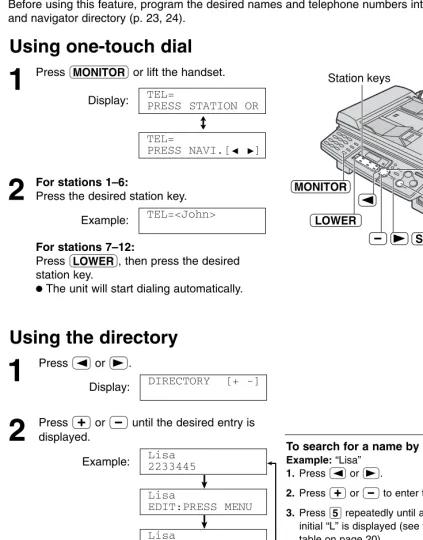
Before using this feature, program the desired names and telephone numbers into one-touch dial and navigator directory (p. 23, 24).
Using one-touch dial
Station keys
STOP MONITOR
LOWER
1
Press qor lift the handset.Display:
/
2
For stations 1–6:Press the desired station key.
Example:
For stations 7–12:
Press o, then press the desired station key.
●The unit will start dialing automatically.
TEL=<John> TEL=
PRESS NAVI.[I H] TEL=
PRESS STATION OR
Using the directory
1
Press (or ). Display:2
Press +or -until the desired entry is displayed.Example:
!
!
●If the desired name has not been stored, press {and dial the number manually.
3
Press qor lift the handset.●The unit will start dialing automatically.
Lisa
SEND:PRESS SET Lisa
EDIT:PRESS MENU Lisa
2233445
DIRECTORY [+ -]
To search for a name by initial Example: “Lisa”
1. Press (or ).
2. Press +or -to enter the directory.
3. Press 5repeatedly until any name with the initial “L” is displayed (see the character table on page 20).
● To search for symbols (not letters or numbers), press *.
4. Press +until “Lisa” is displayed.
● To stop the search, press {.
● To make a call, press qor lift the handset.
Caller ID
Caller ID service from your phone company!
This unit is compatible with the Caller ID service offered by your local telephone company. To use this feature, you must subscribe to the Caller ID service.
How Caller ID is displayed
Change the FAX ring setting (feature #06 on page 61) to 2 or more rings beforehand.
Note:
● If the unit is connected to a PBX (Private Branch Exchange) system, you may not receive the caller information. Consult your PBX supplier.
● If the unit cannot receive caller information, the following will be displayed.
The caller dialed from an area which does not provide Caller ID service.
The caller requested not to send caller information.
The caller made a long distance call.
LONG DISTANCE PRIVATE CALLER OUT OF AREA
The calling party’s name or telephone number will be displayed after the first ring. You then have the option of whether or not to answer the call depending on the caller.
The unit will automatically store the caller information (name, telephone number and the time of the call). You can view the caller information (see the next page) and print the Caller ID list (p. 80).
To confirm caller information using the Caller ID list
The unit will store information for the most recent 30 callers. — To print manually, see page 80.
Caller ID
Display while viewing
When the unit could not receive a name.
When no calls have been received.
To stop viewing
Press {after step 2.
NO CALLER DATA NO NAME RCVD
1
Press b.Example:
2
Press +to search from the most recent caller information.Press -to search from the oldest caller information.
● To send a fax using the scanner glass, see page 32.
3
Press qor lift the handset to call back the displayed party.● The unit will start dialing automatically.
● To send a fax using the auto document feeder – insert the document FACE DOWN into the feeder and press i (p. 31).
2 NEW CALLS PRESS NAVI.[+ -]
FACE DOWN
FACEDOWN
STOP FAX START
CALLER ID MONITOR
Viewing and calling back using caller information
!
You can easily view caller information and call back.
Important:
● Calling back will not be possible in the following cases:
— The telephone number includes data other than numbers (i.e. :or #). — The caller information does not include a telephone number.
To edit the telephone number for calling back
Press *repeatedly after step 2.
Each time you press *, the telephone number will be changed as follows:
2. Local telephone number (area code omitted)
1. 1 – Area code – Local telephone number (“1” added)
Area code – Local telephone number
1 – Local telephone number (“1” added and area code omitted)
4. 3.
To display the caller’s telephone number
Press brepeatedly after step 2.
Example: = 1-345-678-9012
Jul. 20 11:20AM √ SAM LEE
Jul. 20 11:20AM This means the caller has already been viewed or answered. (2 new calls are received)
Caller ID
STOP SET MENU
1
Press prepeatedly until the following is displayed.Display:
2
Press w.3
Press w.● To cancel erasing, press {, then
p.
4
Press w.5
Press {to exit the program.ERASE COMPLETED ALL ERASE OK? YES:SET/NO:STOP CALL LIST ERASE PRESS SET CALLER SET UP
PRESS SET
Caller ID
Station keys
SET MENU
LOWER
CALLER ID
Storing caller information into one-touch dial
and navigator directory
!
Important:
● This feature is not available in the following cases.
— The telephone number includes data other than numbers (i.e. :or #). — The caller information does not include a telephone number.
1
Press b.Example:
2
Press +or -until the desired entry is displayed.Example:
3
Press p. Example:/
4
For stations 1–3:Press the desired station key.
Example:
Press w. Example:
Press w. Example:
For stations 4–6:
Press the desired station key.
Example:
Press w. Example:
For stations 7–12:
Press o, then press the desired station key.
Example:
Press w.
Example: <S09>=134567890
NAME=SAM LEE STORE:PRESS SET <S04>=134567890 NAME=SAM LEE STORE:PRESS SET <S01>=134567890 NAME=SAM LEE STORE:PRESS SET STATION 1
DIAL MODE [±] SAM LEE
PRESS NAVI.[I H]
SAM LEE
PRESS STATION OR SAM LEE
Apr. 14 11:50AM 2 NEW CALLS PRESS NAVI.[+ -]
Note:
● You can confirm the stored entries on the telephone number list (p. 80).
● The unit can only store a name of up to 10 characters long.
● To edit a name and number, see page 25.
● If you enter a new entry into a station key, the previous entry will be overwritten.
● If you use stations 1–3 as broadcast keys, you cannot store caller information for
For navigator directory:
Press (or ). Example:
Press w. Example:
5
Press w.REGISTERED NO.=134567890 NAME=SAM LEE STORE:PRESS SET
Sending Faxes
To select the resolution
Select the desired resolution according to the type of document.
— STANDARD: For printed or typewritten originals with normal-sized characters.
— FINE: For originals with small printing.
— SUPER FINE: For originals with very small printing. This setting only works with other compatible fax machines.
— PHOTO: For originals containing photographs, shaded drawings, etc.
● Using the “FINE”, “SUPER FINE” or “PHOTO” setting will increase transmission time.
● If the resolution setting is changed during feeding, it will be effective from the next sheet.
Sending a fax manually
!
1
Adjust the width of the document guides to the size of the document.2
Insert the document (up to 15 pages) FACE DOWN into the feeder until the unit grasps the document and a single beep is heard.Display:
3
If necessary, press u repeatedly to select the desired setting (see below).4
Press qor lift the handset./
5
Dial the fax number. Example:6
When a fax tone is heard:Press i, and replace the handset if you are using it.
OR
When the other party answers your call: Lift the handset and ask them to press their start button. When the fax tone is heard, press
iand replace the handset.
CONNECTING... STANDARD
TEL=5678901
TEL=
PRESS NAVI.[I H] TEL=
PRESS STATION OR STANDARD
To transmit more than 15 pages at a time Insert the first 15 pages of the document. Add the other pages (up to 15 at a time) before the last page feeds into the unit.
Convenient way to send a fax You can dial the fax number first before inserting the document. This is convenient if the other party’s number is indicated on the document.
1. Enter the fax number.
●The handset must be on the cradle.
2. Insert the document.
3. Press i. Quick scan feature
This feature is helpful when you want to send the document, then take it for other uses.
1.Insert the document.
2.Enter the fax number.
3.Press ê.
●The document will be fed into the unit and scanned into memory. The unit will then transmit the data.
If the document exceeds the memory capacity (p. 84), sending will be canceled. Transmit the entire document manually.
Using the auto document feeder
FACEDOWN Document guides FAX START MONITOR RESOLUTION SCAN REDIAL/PAUSE
Note:
●Do not open the document cover when sending a fax with the auto document feeder.
● Confirm that there are no documents on the scanner glass.
To redial the last number Press RS.
● If the line is busy, the unit will automatically redial the number up to 2 times.
Sending Faxes
1
Open the document cover.2
Place the document FACE DOWN on the scanner glass, matching the top edge of the document to the “TOP” mark on the unit.3
Close the document cover.● If the original is a thick book, do not close the document cover.
4
If necessary, press u repeatedly to select the desired setting (p. 31).5
Enter the fax number. Example:● To send a single page, skip to step 9.
● To send multiple pages, go to next step.
6
Press êto scan the document into memory.Example:
!
7
Place the next page on the scanner glass.NEXT:PRESS SCAN SEND:PRESS START PAGES=01 01%
STANDARD NO.=5678901
Using the scanner glass
By using the scanner glass, you can send a page from booklets or small sized paper that cannot be sent with the auto document feeder.
● Confirm that there are no documents in the auto document feeder.
Document cover
Scanner glass
FAX START RESOLUTION
SCAN
STOP
TOP
To stop transmission Press {.
Sending report for confirmation
This report will provide you with a printed record of transmission results. To use this feature, activate feature #04 (p. 61). For the
communication message in the result column, see page 66.
8
Press ê.● To send more pages, repeat steps 7 and 8.
9
Press i.CONNECTING... NEXT:PRESS SCAN SEND:PRESS START
Journal report
The unit stores the 30 most recent fax communication results.
— To print manually, see page 80.
— To print automatically after every 30 new fax communications, activate feature #22 (p. 63). For the communication message in the result column, see page 66.
Note for the auto document feeder and the scanner glass
Sending Faxes
●Check that ink, paste or correction fluid has dried.
●Do not send the following types of documents: (Use copies for fax transmission.) — Paper with a faint image
— Paper with printing on the opposite side that can be seen through the other side (i.e. newspaper)
●To transmit the document with a width of less than standard letter size (216 mm), we recommend transmitting the document using the scanner glass.
Using the scanner glass
208 mm (83⁄16")
271 mm (1011⁄16")
4 mm 4 mm
Scanned area
4 mm
4 mm
202 mm (715⁄16")
288 mm (113⁄8")
5 mm 4 mm
Scanned area
4 mm
4 mm
Scanner glass Scanner glass
When the paper size is set to “LETTER”: When the paper size is set to “A4”:
TOP TOP
Note:
●Remove clips, staples or other similar fasteners.
●Do not send the following types of documents: (Use the scanner glass for fax transmission.) — Chemically treated paper such as carbon or carbonless duplicating paper
— Electrostatically charged paper — Badly curled, creased or torn paper — Paper with a coated surface
Documents you can send
!
Using the auto document feeder
600 mm (23
5⁄8
")
Document width 216 mm (81⁄2" )
Minimum size
128 mm (5" )
182 mm (7
3⁄16
")
Maximum size
216 mm
(81⁄2" ) 208 mm (83⁄16")
Effective scanning area
4 mm 4 mm 4 mm 4 mm Scanned
area
Document weight Single sheet:
45 g/m2to 90 g/m2
(12 lb. to 24 lb.) Multiple sheets:
60 g/m2to 80 g/m2
(16 lb. to 21 lb.)
Effective scanning area on the scanner glass
Effective scanning area is changed depending on the setting of the paper size (Feature #16 on page 62).
Sending Faxes
Sending a fax using one-touch dial and
navigator directory
!
1
Adjust the width of the document guides to the size of the document.2
Insert the document (up to 15 pages) FACE DOWN into the feeder until the unit grasps the document and a single beep is heard.● Confirm that there are no documents on the scanner glass.
Display:
3
If necessary, press urepeatedly to select the desired setting (p. 31).
4
Enter the fax number. Using stations 1–6:Press the desired station key. Using stations 7–12:
Press o, then press the desired station key.
Using navigator directory:
Press (or ), then press +or -to display the desired entry.
● For further details about using the directory, see page 26.
5
Press i.STANDARD
FACEDOWN
Document guides
Station keys
LOWER RESOLUTION SCAN FAX START
STOP
Before using this feature, program the desired names and telephone numbers into one-touch dial and navigator directory (p. 23, 24).
Note:
●Do not open the document cover when sending a fax with the auto document feeder.
Sending Faxes
To send a fax using the scanner glass
●Confirm that there are no documents in the auto document feeder.
1. Open the document cover.
2. Place the document FACE DOWN, then close the document cover.
3. Enter the fax number (see step 4 above).
● To send a single page, skip to step 7.
● To send multiple pages, go to next step.
4. Press êto scan the document into memory.
5. Place the next page.
6. Press ê.
● To send more pages, repeat steps 5 and 6.
7. Press i.
Fax auto redial
If the line is busy or if there is no answer, the unit will automatically redial the number up to 2 times.
● This feature is also available for delayed transmission (feature #25 on page 63).
● During redial, the following will be displayed. Display:
● To cancel redialing, press {.
If your unit does not send a fax
● Confirm the stored telephone number on the display and check that the number dialed is answered by the other party’s machine (p. 26).
● The connecting tone will be heard during dialing to tell you the status of the other party’s machine (feature #76 on page 65).
Sending Faxes
Note:
● If you program the wrong entry, press { after step 4 to erase the entry.
● Confirm the stored entries by printing a broadcast programming list (p. 80).
Broadcast transmission
!
This feature is useful for sending the same document to selected parties (up to 20 entries). First program the entries, then see page 39 for transmission.
● The broadcast function utilizes stations 1–3. The one-touch dial function will be canceled. ● akey 1 and 2 can accept one-touch dial and navigator entries.
HIkey can also accept manual dialing entries.
Programming entries into the broadcast memory
Station keys SET MENU LOWER MANUAL BROAD BROADCAST STOP Using the dial keypad (only for MANUAL BROAD):
Enter the fax number and press w.
Example:
!
● To program other entries, repeat this step (up to 20 entries).
5
Press wafter programming all of the desired entries.!
/
● To program another broadcast key, repeat steps 2 to 5.
6
Press {to exit the program. DIRECTORY SET PRESS NAVI.[I H] DIRECTORY SET PRESS STATION ORREGISTERED DIR=3456789 [01] NAVI.[+@-]@&@SET DIR=3456789
1
Press prepeatedly until the followingis displayed.
Display:
/
2
For BROADCAST 1–2:Press the desired akey.
Example:
Press +or -to select “BROADCAST”.
Example:
For MANUAL BROADCAST:
Press HI.
Press +or -to select “MANUAL BROAD”.
3
Press w.4
Program entries. Using stations 1–6:Press the desired station key.
Example:
Using stations 7–12:
Press o, then press the desired station key.
Using navigator directory:
Press +or -until the desired entry is displayed and press w.
DIR=ANN [01]
NAVI.[+@-]@&@SET
DIR= [00]
NAVI.[+@-]@&@SET STATION 3
MANUAL BROAD [±] STATION 3
DIAL MODE [±] STATION 1
BROADCAST [±] STATION 1
DIAL MODE [±] DIRECTORY SET PRESS NAVI.[I H] DIRECTORY SET PRESS STATION OR
Sending Faxes
Adding a new entry into the broadcast memory
1
Press (or ). Display:2
Press +or -until the following is displayed.Example:
/
3
Press p.4
Press *to select “ADD”.5
Press +or -until the desired entry you want to add is displayed.Example (Navigator):
Example (Station 2):
6
Press w.!
Example:
● To add other entries, repeat steps 5 and 6 (up to 20 entries).
7
Press {to exit the program. Nikki1-385-217-9365 REGISTERED Peter <S02> 1-926-553-2168 Mary
1-584-372-4123 <BROADCAST1> ADD=?DELETE=# <BROADCAST1> SEND:PRESS SET <BROADCAST1> EDIT:PRESS MENU DIRECTORY [+ -]
STOP SET MENU
Sending Faxes
Erasing a stored entry in the broadcast memory
1
Press (or ). Display:2
Press +or -until the following is displayed.Example:
/
3
Press p.4
Press #to select “DELETE”.5
Press +or -until the desired entry you want to erase is displayed.Example (Navigator):
Example (Station 3):
● To cancel erasing, press {.
6
Press w.7
Press w.!
Example:
● To erase other entries, repeat steps 5 to 7.
8
Press {to exit the program. Bob0123456 DELETED DELETE OK? YES:SET/NO:STOP Sam <S03> 1-987-654-3210 Dick
1-328-143-2968 <BROADCAST1> ADD=?DELETE=# <BROADCAST1> SEND:PRESS SET <BROADCAST1> EDIT:PRESS MENU DIRECTORY [+ -]
STOP SET
STOP SET MENU
Sending Faxes
Sending the same document to pre-programmed parties
1
Insert the document FACE DOWN into the feeder.● Confirm that there are no documents on the scanner glass.
● If necessary, press u repeatedly to select the desired setting (p. 31).
2
Press the desired a(1–2) orHI.
● You can also use navigator key.
Press (or ), then press +or
-until the desired key name is displayed, and
press i.
Example:
/
● The document will be fed into the unit and scanned into memory. The unit will then transmit the data to each entry, calling each number sequentially.
● After transmission, the stored document will be erased automatically, and the unit will automatically print a broadcast sending report.
<BROADCAST1> SEND:PRESS SET <BROADCAST1> EDIT:PRESS MENU
FACEDOWN
RESOLUTION STOP
SET MANUAL BROAD
BROADCAST
FAX START SCAN
To cancel the broadcast setting 1. Press {while the unit displays the
following.
Display:
● The display will show the following.
2. Press w.
SEND CANCELED? YES:SET/NO:STOP
@BROADCASTING To send the same document using the
scanner glass
●Confirm that there are no documents in the auto document feeder.
1. Open the document cover.
2. Place the document FACE DOWN, then close the document cover.
3. Press the desired a(1–2) or HI.
● To send a single page, skip to step 6. ● To send multiple pages, go to next step. 4. Place the next page.
5. Pressê.
● To send more pages, repeat steps 4 and 5.
6. Press i.
Note:
● Do not open the document cover when sending a fax with the auto document feeder. ● If you select the “FINE”, “SUPER FINE” or
“PHOTO” resolution, the number of pages that the unit can transmit will decrease. ● If the document exceeds the memory capacity
(p. 84), sending will be canceled. ● If one of the entries is busy or does not
Receiving Faxes
Setting the unit to receive faxes
!
You have a separate
telephone line just
for faxes.
FAX ONLY mode
(p. 43)
Turn AUTO ANSWER on by pressing PQ.
When receiving calls:
All incoming calls will be answered as faxes.
Use only as a fax
You want to use the
fax machine with an
answering machine.
Activating an answering
machine
(p. 44)
Connect an external telephone answering machine and change the ring setting of the answering machine to less than 4.
● Change the ring setting in FAX ONLY mode of the fax
machine to “5EXT.TAM”, if you use with AUTO ANSWER on.
When receiving phone calls:
The answering machine will record voice messages.
When receiving faxes:
The fax machine will disconnect the answering machine and receive documents.
External telephone answering machine (not included)
With answering machine
ON
How you
want the unit
to receive
calls
You have to
set this.
This is how
the unit will
operate.
Receiving Faxes
Other option
You need to subscribe
to Distinctive Ring
Service.
Activating the
Distinctive Ring
feature
(p. 46)
Set feature #31 to “ON”.
● If you are using three or more phone numbers in a single telephone line, see page 47.
To the same line 2-number example
Telephone No. (555-1111) Facsimile No.
(555-1333)
Voice mail service
(Distinctive Ring)
You plan to answer
the calls yourself.
TEL mode
(p. 42)
Turn AUTO ANSWER off by pressing PQ.
When receiving calls:
You have to answer all calls manually.
To receive a fax document, press ifor each fax you are receiving.
Ring Ring
Ring
Mostly phone calls
When the fax machine detects a call matching the Distinctive Ring pattern:
The fax machine will activate the fax function.
When the fax machine detects other ring patterns:
You have to answer calls manually.
Remote fax activation
You can also receive a fax using an extension telephone. While hearing a fax calling tone with an extension
telephone, press
*#9 (pre-selected fax activation code) to receive a fax (p. 45).
Receiving Faxes
1
When the unit rings, lift the handset to answer the call.2
When:— document reception is required,
— a fax calling tone (slow beep) is heard, or — no sound is heard,
press i.
3
Replace the handset.● The unit will start fax reception.
CONNECTING...
STOP
FAX START
OFF
To stop receiving
Press {.
Auto reduction feature
If the other party sends a document that is longer than your recording paper, your unit will reduce the receiving document to the proper size and print it. If you want to print the original size, set feature #37 to off (p. 64).
TEL mode
!
(answering all calls manually)
If the FAX ON light is on, turn it off by pressing
PQ.
Display: TEL MODE
Note:
● If you do not answer the call within 10 rings, the unit will temporarily switch to fax reception. The other party can then send a fax.
Fax reception in memory
When a printing problem is detected, the unit will temporarily store the received document into memory.
While the document is in memory:
— the display will show an error message and the following alternately,
Display:
— slow beeps will sound if feature #44 is set to on (p. 64).
● Follow the instructions on pages 67 and 68 to solve the problem.
● For memory capacity, see page 84.
FAX IN MEMORY
Activating TEL mode
Receiving a fax manually
Receiving Faxes
ON
SET
FAX ONLY mode
!
(all calls are received as faxes)
1
If the FAX ON light is off, turn it on by pressing PQ.● The display will show the number of rings before the unit answers a call in FAX ONLY mode.
Display:
2
If you wish to change the ring setting, press+or -until the desired number is displayed, and press w.
● When receiving calls, the unit will automatically answer all calls and only receive fax documents.
FAX ONLY MODE 3 RINGS [±]
Line 1 – Phone calls
Line 2 – Faxes
Only a fax machine is connected.
Activating FAX ONLY mode
Note:
● If the FAX ON light is already on and you wish to change the ring setting, turn it off once then on again by pressing PQand follow the instructions in step 2.
● This mode should not be used with a telephone line which is used for both phone calls and faxes. Fax communication will be attempted even if someone is trying to call you. We recommend the following setup: