AXE Operation & Maintenance Platform
Basic Operation Activities
Ericsson Telecom AB 1996, Stockholm, SwedenAll rights reserved. No part of this document may be reproduced in any form without the written permission of the copyright holder.
Target Audience
This book is preliminary intended to be used as a course manual in the Ericsson AXE Operation and Maintenance training program. The book is a training document and is not to be considered as a specification of any Ericsson language or system.
Identification
EN/LZT 101 105 /1, R1A
Responsibility
Training Supply
Table of Contents
1. Introduction
1
1.1 Module Objectives . . . 1
1.2 General . . . 2
2. Introduction to Operation and Maintenance
Activities
3
2.1 APT Source System . . . 32.2 Description of Operational Activities . . . 5
2.2.1 Maintenance Activities . . . 6
2.3 Chapter Summary . . . 8
3. Exchange Handling Basics
9
3.1 Overview of the Exchange Library. . . 93.1.1 AXE 10 Documentation Principles. . . 9
3.2 The Structure of the Exchange Library . . . 14
3.3 Handling the Exchange Library . . . 15
3.4 B-Module Overview . . . 15
3.5 Using the B-Module . . . 16
3.5.1 O&M Documentation Structure . . . 16
3.5.2 Locating the Documentation . . . 18
3.5.3 Accessing Information in the B-Module . . . 18
3.6 Using FIOL / DocView . . . 19
3.7 Using AXEUSE / Dynatext . . . 19
3.8 The Exchange Log Book . . . 20
3.9 The Command Language and Printouts . . . 20
3.9.1 Command Structure. . . 21
3.10 Chapter Summary . . . 24
4. Communication with the System
25
4.1 AXE Terminal Controls. . . 254.1.1 Making Contact with the System . . . 25
4.1.2 Seizure and Release of Terminal. . . 26
4.1.4 Ready Indicator . . . 27
4.1.5 End of Text Character . . . 27
4.1.6 The Check Printout . . . 27
4.1.7 Authority Check . . . 27
4.1.8 The Time-Out Printout . . . 28
4.1.9 Blocking and De-blocking of the Terminal . . . 28
4.1.10 Queue System . . . 28
4.2 Communication Program FIOL/DocView . . . 28
4.2.1 Basic Functions of FIOL/DocView . . . 28
4.2.2 Window Screen . . . 28
4.2.3 The Status Line . . . 29
4.2.4 The Command Line . . . 30
4.2.5 The Function Keys . . . 30
4.2.6 Practical Examples of Using FIOL . . . 32
4.3 Using the Communication Program FIOL / DocView. . . 33
4.3.1 The User Interface . . . 34
4.3.2 Loading a Document from a Database . . . 34
4.3.3 Searching Functions . . . 36
4.4 Using the Communication Program AXEUSE . . . 38
4.4.1 General . . . 38
4.4.2 The DynaText Browser. . . 38
4.4.3 The AXE Application Window . . . 38
4.4.4 Interactive Communication . . . 39
4.4.5 The Active Window . . . 40
4.4.6 The Command Line . . . 40
4.4.7 The Command History List . . . 41
4.4.8 Quick Commands . . . 41
4.4.9 Command Files - Recording and Transmission . . . 42
4.4.10 Logging Communication . . . 42
4.4.11 On Screen Documentation . . . 43
4.4.12 Interactive Access . . . 44
4.4.13 Access to Technology Based Training (TBT) Sessions . . . 44
4.4.14 Online Help and Tutorial . . . 44
4.5 Connection to TMOS . . . 45
4.5.1 MML Commands . . . 46
4.5.2 Delayed Responses. . . 46
4.5.3 Spontaneous Reports . . . 46
4.5.4 File Output from the AXE 10 Exchange. . . 46
4.5.5 File Information from TMOS to the AXE 10 Exchange . . . 46
5. Hardware Orientation
49
5.1 Mechanical Structure . . . 49
5.1.1 Introduction . . . 49
5.2 Development of the Packaging System . . . 50
5.2.1 BYB 101 and BYB 102 . . . 50
5.2.2 BYB 202. . . 50
5.2.3 The Building Module . . . 54
5.3 The Cabinet . . . 54
5.3.1 Magazines . . . 55
5.3.2 Magazine Devices . . . 58
5.3.3 Printed Circuit Boards (PCBs) . . . 58
5.4 Localization of hardware units . . . 60
1. Introduction
1.1 Module Objectives
Figure 1.1
Module Objectives
Module Objectives
After completing this module the participant will be able to:
• Describe what is meant by AXE 10 System Operation and Mainte-nance Activities
• Describe the general structure of the Exchange Library and main-tain the library through the use of the OPI “Handling of the Exchange Library”
• Describe the layout and contents of the B-Module and its use
• Understand the AXE 10 document numbering
• Understand the basic principles of AXEUSE, FIOL and DocView
• Describe the AXE 10 command structure
• Identify the operational activities that are to be performed based on information that is supplied in a specific work order and the con-tents of the associated B-module
• Understand the basic principles of operator-system communication and the role of I/O devices enabling such communication
• Understand the purpose of using communications programs FIOL and AXEUSE
• Communicate with the AXE system with the help of FIOL and AXEUSE
1.2 General
AXE 10 Operation and Maintenance training consists of three courses.
AXE 10, Operation and Maintenance Platform. .... LZU 108 1451 AXE 10, Operation Handling... LZU 108 1452 AXE 10, Hardware Maintenance ... LZU 108 1453
This document describes the basic operational and maintenance activities that are related toAXE 10 exchanges. The information included corre-sponds to the AXE 10, O&M Platform course, LZU 108 1451. The course is intended to be used as a platform for the majority of AXE job-catego-ries.
2. Introduction to Operation and
Mainte-nance Activities
Figure 2.1
Chapter Objectives.
2.1 APT Source System
This document deals with the new overall source system which is called APT 210 12.
The differences between APT 210 08/R5 and APT 210 12 are also pointed out when applicable.
APT 210 12 (see figure 1.2) contains the functionality of :
•
APT 210 08 R5 POTS (Plain Ordinary Telephone Service)•
4/APT 210 10 R3 ISDN (Integrated Services Digital Network)Chapter Objectives
After completing this chapter the participant will be able to:
Figure 2.2
APT 210 12
Three variants have been developed:
•
APT 210 12/1 R1 for France.•
APT 210 12/2 R1 for Norway and Spain.•
APT 210 12/3 R1 for the Netherlands and Switzerland. Note that the countries referred to above were the first to implement the system. Numerous other countries have subsequently selected AXE local exchanges.APT 210 12/1
APT 210 12/1 was originally developed for the French market. It is used when installing new local AXE exchanges or when upgrading existing local AXE switches requiring ISDN functionality integrated with POTS.
APT 210 12/2
APT 210 12/2 is a general application, developed initially for the Norwe-gian and Spanish markets. It is used when installing new local AXE exchanges or when upgrading existing local AXE exchanges requiring ISDN functionality integrated with POTS.
In terms of ISDN, both basic rate access (BA) and primary rate access (PRA) are provided.
APT 210 12/3
APT 210 12/3 is the latest release of the source system APT 210 12 mar-keted under the product name AXE Local 12.3. Close to complete
back-POTS
ISDN
APT 210 08 R5
4/APT 210 10 R3
APT 210 12/1-n
POTS/
ward compatibility with the earlier released source systems (APT 210 08 R1-R5 and APT 210 12 R1-R2) has been maintained.
2.2 Description of Operational Activities
Operation is the normal, everyday running of the exchange when
every-thing is working as it should. The purpose of the tasks included in the operational activities is to adapt the exchange to the continuously chang-ing demands placed on it.
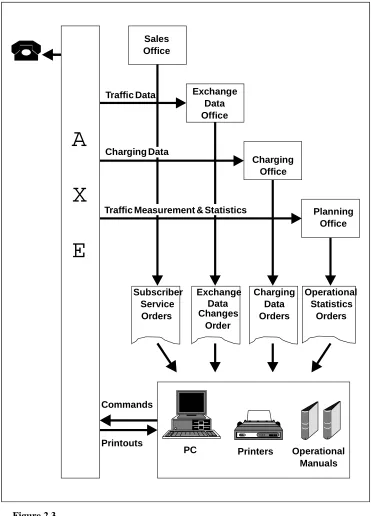
Figure 2.3 Operational Activities
A
X
E
PC Printers Commands Printouts Charging Data Orders Operational Statistics Orders Operational Manuals Sales Office Planning Office Traffic Data Charging DataOperational activities, (see figure 2.3), are normally initiated by work orders. Work orders may be the result of operator or subscriber demands.
In either case, a work order instructs the AXE staff to carry out modifica-tions to the exchange, that are required for its adaption to the newly arisen needs.
Work orders are executed in accordance with the procedures defined in the AXE B-Module exchange documentation.
Operation staff communicate with the exchange by means of the AXE Input/Output system.
The following are a number of examples of operational activities:
•
Changing subscriber data, e.g. activating a new subscriber line, provid-ing a new service or changprovid-ing the subscriber class of an existprovid-ing sub-scriber•
Changing routing data, e.g. initiating a new route•
Recording statistics, e.g. traffic recording, such as monitoring of traffic measurements for a period and reporting or, in some cases, evaluating the result.2.2.1 Maintenance Activities
The purpose of maintenance activities is essentially the prevention and correction of faults.
One can subdivide maintenance activities into two types:
1. Preventive Maintenance entails the performance of a set of routine
tasks that involves checking for suspected fault sources of faults and their neutralization before such sources give rise to serious system consequences.
2. Corrective Maintenance involves responding to actual faults by
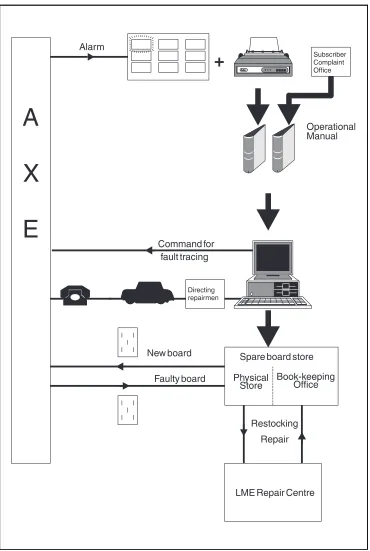
removing or repairing their immediate causes. Upon the occurrence of a fault, the system will notify the staff by generating an alarm and alarm printouts.
Staff may also be notified of the exsistence of a fault as a result of sub-scriber complaints. Information relating to faults external to the exchange may also be received from subscribers.
The Ericsson Maintenance Philosophy, Controlled Corrective
Mainte-nance (CCM), seeks to achieve a balance between these two types of
maintenance.
Figure 2.4
Maintenance Activities
The following are a number of examples of various maintenance tasks:
•
Fault-finding, testing and repair of subscriber lines•
Fault- finding, testing and repair of trunks•
Fault-finding, testing and repair of the GSS and SSS units•
Maintenance of the AXE power supply and power distribution system•
APZ Maintenance.2.3 Chapter Summary
APT 210 12/1
Used when existing local AXE switches requiring ISDN functionality inte-grated with POTS.
Only PRA, Primary Rate Access is provided..
APT 210 12/2
Used when existing local AXE switches requiring ISDN functionality inte-grated with POTS.
In terms of ISDN both BA and PRA are provided.
APT 210 12/3
Marketed under product name AXE Local 12.3.
Backward compatibility with APT 210 08 R1 - R5 and APT 210 12 R1- R2.
By Operational Activities is meant normal everyday running of the switch when everything is working as it should.
3. Exchange Handling Basics
Figure 3.1
Chapter Objectives
3.1 Overview of the Exchange Library
3.1.1 AXE 10 Documentation Principles
Before proceeding with the description of the exchange library and its con-tents, a summary of the main principles employed in AXE 10 documenta-tion are provided below.
The system employed for document identification is built on a close rela-tion between the products found in the system and the documents associ-ated with each product.
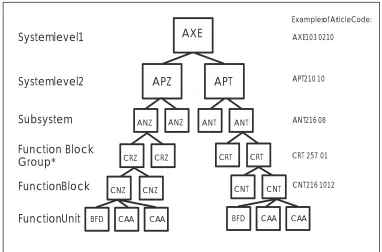
The system hierarchy defines the products found at the different levels. From the point of view of documentation identification, all products from the system level to the individual printed circuit board level are treated equally, (see figure 3.2).
Chapter Objectives
After completing this chapter the participant will be able to:
• Describe the general structure of the Exchange Library and main-tain the library through the use of the OPI “Handling of the Exchange Library”
• Describe the layout and contents of the B-Module and its use
• Understand AXE 10 document numbering
• Understand the basic principles of AXEUSE, FIOL and DocView
• Describe the AXE 10 command structure
Figure 3.2
System Structure
A product is identified by a unique Article Code. An individual Article
Code or individual identity consists of a number of letters and digits that are combined in accordance with the numbering system rules. The num-bering system classifies and groups the products and documents in accord-ance with their use, system association, their location in the product hierarchy and their factual contents. Pre-defined basic numbers and classes are registered in a database which is continuously updated to include new items.
Figure 3.2 illustrates the hierarchial construction of the system and dis-plays some examples of the logical construction of the identification sys-tem:
•
The AXE system has article codes including APT and APZ codes.•
All APT subsystems have article codes including ANT prefixes and all APZ subsystems have article codes including ANZ prefixes.•
The Function Block Group represents a recent addition to the product level structure in which Function blocks having related functionality are grouped together, (CRT and CRZ). The Function Block Group level does not exist in APT 210 08/R5.•
All APT function blocks have article codes including CNT prefixes and all function blocks in APZ have article codes including CNZ prefixes.•
All function blocks in subsystem ANT 216 xx have article codes CNT 216 yy zz.AXE
APZ APT
ANT ANT ANZ ANZ
CRZ CRZ CRT CRT
Systemlevel1 Systemlevel2 Subsystem Examplesof ArticleCode: AXE103 0210 APT210 10 ANT216 08 CNZ CNZ BFD CAA CAA
FunctionBlock
FunctionUnit
CNT CNT BFD CAA CAA
CNT216 1012
Function Block Group*
Note*: The product level Function Block Group does not exist in APT 210 08/R5.
Figure 3.3
AXE Product Number, includes APT and APZ codes
Different versions of the same product are distinguished by the Revision State. Revision states are advanced in accordace with a given set of rules and is related to an important product, namely interchangeability, e.g. Arti-cle Code: CNT 216 1012, Rev. State: R3.
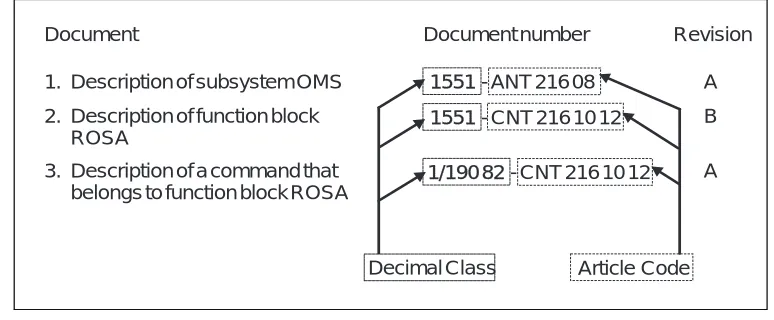
A document is identified by a prefix and an unique number. Different
ver-sions of the same document are distinguished by a revision letter. Docu-ment numbers for docuDocu-mentation relating to products usually consist of the decimal class and the article code.
The decimal class indicates the type of document, and the article code indicates the product associated with the document , (see figure 3.4).
Figure 3.4
Example of Document Numbering
{
AXE10 1
1
Example: AXE102 0108
{
{
APZ212 01 APT210 08xx
yy
03 04 05 06 APZ210 -"-05 06 07 08 APT210 -"-1 2 3 4 Document1. Description of subsystem OMS
Document number
A
B
A - ANT 216 08
1551
- CNT 216 10 12 1551
- CNT 216 10 12 1/190 82
2. Description of function block ROSA
3. Description of a command that belongs to function block ROSA
Revision
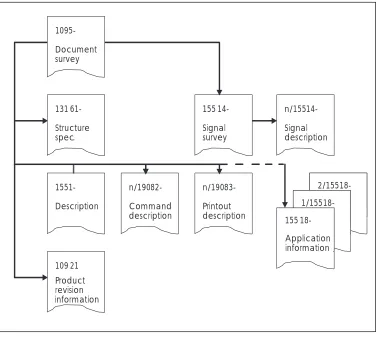
A document structure exists for each product category which specifically states the documentation required by the different product handling phases, i.e. design, manufacturing, etc.
Certain document types are mandatory for every product. Others are drafted when necessary, depending on the product’s functions, design and characteristics. Figure 3.5 shows an example of document structure for a function block.
Figure 3.5
Document Structure for a Function Unit
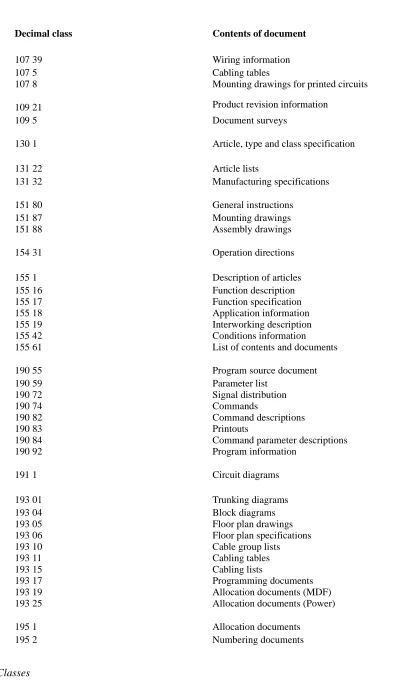
Table 3:1 ( shown on the next page) contains a list of the most frequently used decimal classes and their contents.
Table 3.1
Decimal Classes
Decimal class Contents of document
107 39 Wiring information
107 5 Cabling tables
107 8 Mounting drawings for printed circuits
109 21 Product revision information
109 5 Document surveys
130 1 Article, type and class specification
131 22 Article lists
131 32 Manufacturing specifications
151 80 General instructions
151 87 Mounting drawings
151 88 Assembly drawings
154 31 Operation directions
155 1 Description of articles
155 16 Function description
155 17 Function specification
155 18 Application information
155 19 Interworking description
155 42 Conditions information
155 61 List of contents and documents
190 55 Program source document
190 59 Parameter list
190 72 Signal distribution
190 74 Commands
190 82 Command descriptions
190 83 Printouts
190 84 Command parameter descriptions
190 92 Program information
191 1 Circuit diagrams
193 01 Trunking diagrams
193 04 Block diagrams
193 05 Floor plan drawings
193 06 Floor plan specifications
193 10 Cable group lists
193 11 Cabling tables
193 15 Cabling lists
193 17 Programming documents
193 19 Allocation documents (MDF)
193 25 Allocation documents (Power)
195 1 Allocation documents
3.2 The Structure of the Exchange Library
All documents relating to the exchange are gathered together to form the exchange library. The contents range from descriptions of the layout of the building and floor plans for the exchange equipment to instructions on how to trace and eliminate software faults. Such a wide range of material obviously requires some sort of structure so that the information is easily accessible by AXE staff.
The documents are distributed throughout a set of functionally defined modules, each of them being contained in one or more binders. Some of the longer, less frequently used modules may be stored in microfiche for-mat to save space. Today, it is all stored on CD-ROM.
With reference to the basic operation and maintenance of the exchange, the modules vary a great deal in terms of importance; some will be con-sulted daily, others never. With this in mind, we will now describe the modules to a degree of detail corresponding to their importance as regards the O&M job:
Four of the modules, likely to be used by AXE staff on daily basis, will be are fully described. They are:
A-Module Library Survey.
B-Module Operation and Maintenance Manuals (Operational Instructions, Command Descriptions, Printout Descrip-tions and Application Information).
C-Module Exchange Description (hardware, cabling etc.).
Another three modules are used occasionally by the O&M staff and hence are dealt with more briefly. They are:
D-Module Functional Product Documents (software descriptions and flowcharts).
E-Module Software Documents (source and assembly codes).
F-Module Hardware Documents (magazine and circuit layouts).
I-Module Exchange Data (MML commands configurating an exchange), also known as the Data Transcript.
Finally, there remain six modules which are practically never needed by the staff dealing with basic O&M. They are listed below:
G-Module Mounting Details.
H-Module Installation Test Instructions.
K-Module Power Supply Documents.
M-Module Signalling Inter-work Information.
S-Module Software Fault Location.
3.3 Handling the Exchange Library
The OPI “Handling of the Exchange Library” found in sub-module B01, deals with the procedures for:
•
Checking documents received•
Inserting and replacing documents•
Filing delivery notes•
Borrowing documents from the exchange library.Library maintenance may at first glance appear to be a trivial task. Reality is however quite the contrary. The complexity of the information coupled with the need for its frequent updating would quickly lead to complete chaos without the existence of and compliance with strict document main-tenance procedures.
Electronically stored information, (e.g. DocView, AXEUSE) allows the saving of countless hours of work each time the documentation requires updating. Instead of thumbing through reams of paper you simply load a new CD- ROM disk into your PC.
3.4 B-Module Overview
The B-Module (OPERATION AND MAINTENANCE MANUALS).
The B-Module is the most frequently consulted module in the library. It consists of instructions for administrative routines, product handling, man-machine communication, supervision, fault reporting, fault location and elimination, exchange data modification, spare-part handling, operational reporting, etc.
The information contained in this module is used both by O&M staff in their daily work and by the operator when, for example, modifying exchange data.
The major portion of the B-Module concerns the Operational Instructions (OPIs) which guide the staff in carrying out their various tasks.
Operational instructions generally refer the staff-member to Command and Printout Descriptions. Although the experienced user usually manages with the Operational Instructions alone, others require the help of the Command and Printout Descriptions.
Because the instructions and descriptions are of a comprehensive nature and handle a variety of different functions, the B-Module is subdivided into seven sub-modules. These are listed below:
B01 General Operational Instructions.
B02 Operations Instructions.
B03 Maintenance Instructions.
B11 Command Descriptions.
B13 Printout Descriptions.
B14 Adaptation Directions, Application Information.
Note: In certain instances the B-Module is subdivided as follows:
•
B03 contains B01 - B03•
B14 contains Adaptation Directions•
B15 contains Application Information.3.5 Using the B-Module
3.5.1 O&M Documentation Structure
We have mentioned earlier that the B-Module is divided into seven modules, B01 to B04, B11, B13 and B14. The major portion of these sub-modules is made up of Operational Instructions (OPIs). With the help of flow charts provided in the OPIs, the operator is guided through the opera-tion and maintenance tasks in a step-by-step fashion. The informaopera-tion included in each submodule is summarized as follows:
Submodule B01 (General Operational Instructions):
•
Administrative routines•
Product-handling instructions for magazines, printed board assemblies, cables, I/O devices and spare parts•
Man-machine Communications including operating instructions for panels, I/O devices and alarm system and command language rules.Submodule B02 (Operations Instructions):
•
Subscriber-associated changes•
Changes in the exchange data•
Collection of statistics•
Output of charging data•
Size alteration•
Functional changes.Submodule B03 (Maintenance Instructions):
•
Time schedule for inspectionsub-scriber line test-equipment
•
Procedure in event of alarm•
Procedure in event of fault-observation•
Instructions for fault-localization and repair.Submodule B04 (Test Instructions):
•
Testing the APT, APZ, and power equipment in an in-service exchange.Submodule B11 (Command Descriptions):
•
Functional descriptions of commands•
Brief descriptions of parameters•
Parameter combinations and formats•
Examples•
Expected types of printout after command input•
Fault codes and their interpretations•
Command category numbers.The commands are listed in alphabetical order.
Submodule B13 (Printout Descriptions):
•
Functional descriptions of printouts•
Print headings•
Interpretations of abbreviations•
Procedure to be followed upon the receipt of a printout•
Printout groups.The printouts are listed in alphabetical order.
Submodule B14 (Adaptation Directions):
•
Adaptation Directions•
Application Information•
Command Tables•
Various lists including parameter lists, subscriber categories, alarm cat-egories, size alteration events, end-of-selection codes (in both alpha-betic and numerical order).Adaptation Directions contain detailed functional descriptions of the com-mands and their parameters.
Application Information consists of documents which provide detailed information, for each function block, as to the allowable value ranges that may be assigned to parameters.
3.5.2 Locating the Documentation
As we know now, the B-Module fills a big part of the exchange library.
Each B-submodule consists of one or several binders. They are divided into sections (grey dividers). Each section is divided into subsections (green dividers) and sometimes the subsections are divided into parts (orange dividers). The dividers are numbered from 0 to 9.
The first binder of each sub-module contains a document list. This list pro-vides the contents of all the binders contained in the particular submodule.
3.5.3 Accessing Information in the B-Module
The steps involved in accessing information in the B-Module are as fol-lows:
1. Finding the Title of the Operational Instruction
There are two ways in which the operator is assigned a task and each way contains the relevant Operational Instruction.
•
If the task is a response to an alarm, the operational personnel is to access the OPI containing the same title as that found on the Alarm Printout.•
All other tasks are initiated as the result of Work Orders, the contents of which will indicate the name of the necessary OPI.Whatever the origin of the task, the OPI will be found in submodules B01 to B04:
Type of Task Submodule
Administrative activities B01 Handling I/O devices B01 Operational tasks B02 Maintenance B03
Testing B04
2. Finding Additional Information
Operational Instructions direct the staff to Command Descriptions
(CODs), found in B11, by listing the commands that may be needed. The Command Description usually suffices, but if more details are required, they are to be found in the Application Information document identified by the Command Receiving Block named in the COD.
3.6 Using FIOL / DocView
DocView is a document retrieval tool for EDML-based Ericsson docu-mentation, such as the Operation and Maintenance (O&M) documents. EDML stands for Ericsson Document Mark-up Language. EDML was developed by Ericsson and is an internal documentation standard. DocView replaces the printed document binders and offers features for browsing, searching and printing. The application is intended for any user (designer, test and maintenance personnel) requiring flexible access to the documents stored in the DocView databases.
The information stored in this document databases is easily accessed. There are several hierarchical levels and a possibility to use context sensi-tive searches. Hypertext and Find features are provided to speed up access to requested document. Any portion of the information may be accessed at speeds that far surpass manual look-ups in printed binders. AXEUSE / Dynatex will replace DocView and FIOL in the future.
Chapter 4 describes in detatailed the handling of DocView.
3.7 Using AXEUSE / Dynatext
Up to now, Ericsson has provided FIOL as the only standard communica-tion program for local AXE Operacommunica-tion and Maintenance. FIOL was origi-nally designed as a test tool for internal usage within Ericsson, no focus was originally placed on the needs of AXE 10 end-users.
AXEUSE (AXE USer Environment) is a Microsoft Windows application
that provides multi-channel communication with target systems. It is a successor to FIOL and is a communication program combined with a “Browser” for an On-screen Operation and Maintenance manual, running under the MS Windows Graphical User Interface, GUI.
The AXEUSE package includes a copy of the Dynatext Browser, an appli-cation which enables the user to view “electronic books”. Using the Dyna-text Browser, the user can read documentation pertaining to the
application system.
The approach used when designing AXEUSE was to create an environ-ment which would increase the productivity of the Operation and Mainte-nance personnel. This is achieved by a graphical user interface designed in accordance with current standards that meet known customer needs. The environment also includes on-line documentation retrieval , Dynatext, which provides context-linked information retrieval removing the tedious task of browsing through the pile of binders just to perform a maintenance task.
3.8 The Exchange Log Book
AXE Operation and Maintenance Staff use the Exchange Log Book to record all important events.
The following are examples of occurrences that should always be recorded:
•
High-priority alarms•
Operational disturbances•
Intervention and fault-repair performed on the APZ and common units of APT, e.g. the GSS•
Output of call-charging records and statistics•
Activation of new lines and extensions•
Activation of new traffic cases and routes•
Addition of new functions, programs or data.Some occurrences and actions, such as the repair of faults - especially those which were traced to the exchange itself - need to be entered into the log book after the exchange is returned to service.
The log book should always contain information concerning the latest dump, together with details of any changes made in connection with the dump, and any other information that could be useful in restoring the exchange after a breakdown.
The OPI for using the Exchange Log Book is entitled ”Keeping a Journal” and is located in submodule B01 of the B-Module.
3.9 The Command Language and Printouts
Communication between the AXE system and the AXE staff is carried out by means of commands and printouts.
The staff members enter commands to perform O&M tasks in the exchange and the exchange responds with printouts. In addition, the exchange will automatically generate printouts to indicate faults or other important events within the system.
3.9.1 Command Structure
In general, commands are structured in the following manner:
COMMAND CODE:PARAMETER NAME=PARAMETER VALUE;
Command Code
The command code defines the task to be executed. This code normally consists of 5 characters:
XXYYZ
XX indicates the function group, YY specifies the function, and Z is an abbreviation of the verb indicating which action will be taken, e.g. I for Initiate, P for Print etc.
Parameters
Parameters are supplied following the command code in order to specify how and where the order defined by the command code should be exe-cuted.
If more than one parameter is necessary, the parameters are separated by commas. The order in which different parameters within the same block are arranged is not significant.
Commands may be written:
•
Without parameters IOROP;•
With parameters (see below).Commands requiring parameters may be written as follows:
•
Without a value IODAC:ATT;•
With a single value EXRPP:RP=1; STDEP:DEV=LI2-5;•
With several values EXRPP:RP=1&3&5;STDEP:DEV=LI2-1&-3&-5;
•
With a range of values EXRPP:RP=1&&5;STDEP:DEV=LI2-1&&-5;
Square brackets [ ] denote optional parameters.
Braces { } enclose alternative parameters and indicate that one of the parameters must be entered when using the command.
Square brackets which enclose braces imply that it is not necessary to indi-cate any of the alternative parameters.
Printouts
There AXE system incorporates two types of printouts:
Automatically initiated printouts and command-initiated printouts:
1. Automatically Initiated Printouts
•
Alarm PrintoutsThese are initiated either by a fault in the system or by supervision limits having been exceeded due to disturbances. The printout usually follows visual, or visual and audible alarms, depending on the alarm level.
•
Alarm List PrintoutsAn alarm list printout is received automatically at intervals specified by command ALLTC. The alarm list output contains a list of all active alarms. The alarm list can be printed manually at any time by entering the com-mand ALLIP.
•
System Restart PrintoutsA system restart printout is received after each system restart. The mes-sage SYSTEM RESTART will be printed on all terminals.
2. Command-Initiated Printouts
This type of printouts can be divided into:
•
Check PrintoutsCheck printouts repeat the command exactly as it is entered by the techni-cian. The technician is required to confirm or inhibit the execution of the command. To confirm the command, a semi-colon (;) is entered. If any other characters are entered, the command will be inhibited. A check print-out is given primarily by commands that could affect the traffic and by commands that have been corrected by the technician.
Example:
<SYREI:RANK=rank; SYREI:RANK=rank;
•
Procedure PrintoutsA procedure printout is received immediately after entering a command.
Examples:
EXECUTED
or
ORDERED (F1 to release and wait for execution)
or
NOT ACCEPTED (followed by the reason)
The procedure output acknowledges a command input or a cancellation. A command is always acknowledged by a procedure output or by a result or answer printout.
•
Answer printoutsAnswer printouts are received directly after a print command.
Example:
EXEMP:RP=40,EM=0; (Print command)
EM DATA (Answer printout)
RP TYPE EM EQM TWIN CNTRL PP STATE
40 RPM6A 0 ET7-0&&-31 41 PRIM WO
END
•
Result PrintoutsResult printouts are given as a result of a command but normally at a later time and always on a new page. The result printout is always preceded by the procedure printout “ORDERED”.
Example:
ORDERED (F1 to release)
SIZE ALTERATION RESULT
SAE BLOCK NI FCODE UCODE
504 BT2 6
END
3.10 Chapter Summary
•
A product within the AXE system is identified by a unique article code e.g. ANT, CNT, CRZ etc.•
The decimal class indicates the type of document, and the article code indicates the the product associated with the document•
The function group CRZ is a new addition to the product level structure in AXE Local 12.4.•
A, B and C-modules are normally used by the AXE- staff on daily basis.•
D, E, F and J modules are used occasionally.•
G, H, K, M, S, and the T modules are practically never used by the O & M staff..•
If the task is a response to an alarm the operational staff is to access the OPI with the same title as that found on the alarm printout•
The log book should always contain the latest activities within the exchange and any other information that could be useful in restoring the exchange after a breakdown4. Communication with the System
Figure 4.1
Chapter objectives
4.1 AXE Terminal Controls
4.1.1 Making Contact with the System
The I/O system handles data to and output from the AXE system.
Examples of input data to the exchange include:
•
Commands to change exchange data•
Commands to change exchange hardware•
Commands to generate statisticsExamples of outputs from the exchange include:
•
Printouts in reply to commands•
Alarm printouts indicating faults in the exchange•
Alarm indications displayed on an alarm panel.The I/O system consists of various types of hardware. These may include Hard Disks, Floppy Disks, Magnetic Tapes, Alpha Numerical Teminals, Visual Display units, Printers, Personal Computers, Alarm Panels and Data Links.
Chapter Objectives
After completing this chapter the participant will be able to:
• Understand the basic principle of how to communicate with the system with the help of I/O devices
• Understand the use of the communication programs FIOL and AXEUSE
4.1.2 Seizure and Release of Terminal
When not in use, the terminal is normally in an idle state and data can nei-ther be sent to nor received from the exchange.
The process of establishing a link between the terminal and the AXE sys-tem is called seizure.
The process of disconnecting the link between a seized terminal and the AXE system is called release.
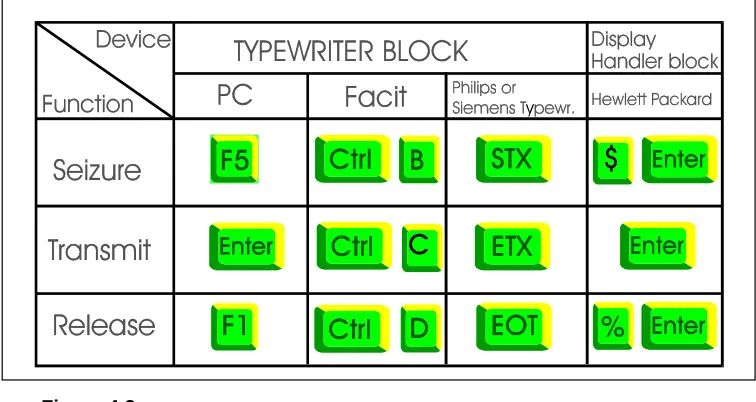
Seizure and release can be performed manually or automatically. Manual seizure and release are performed either by using special keys or charac-ters. Figure 4.2 illustrates a number of examples:
Figure 4.2
Examples of Seizure and Release
4.1.3 The Label Printout
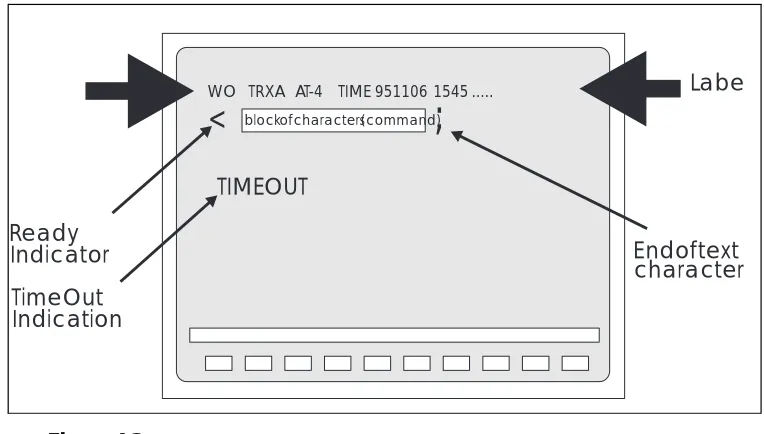
Immediately after manual seizure of a terminal, the system transmits a standard printout called Label Printout (also called the Header). As seen in figure 4.3, this Label Printout contains:
•
The operational state of the processor, in the figure: WO means the cen-tral processors are working in parallel•
The exchange identity, in the figure: TRX A, i.e. Training Exchange A.•
The terminal identity, in the figure: AT-4Figure 4.3
Label Printout
4.1.4 Ready Indicator
Immediately after the Label, the left bracket which is called Ready
Indica-tor (also called Cursor or Prompt) is transmitted by the system to indicate
that it is ready to receive a command.
4.1.5 End of Text Character
The end of a block of characters, i.e. the command, is indicated by the semicolon “;” which is called End of Text Character.
4.1.6 The Check Printout
When the AXE system receives a critical command, it sends the command back to the terminal where it is presented as a Check Printout. The staff member who entered the command can then confirm or inhibit it. The command is confirmed by a semi-colon.
4.1.7 Authority Check
Sometimes access is allowed to the system only by authorized persons. This is performed via the use of Passwords.
If an authority check is required, the system will automatically order the operator to enter a password.
Even if the check is not required, it may not be possible for everybody to use all existing commands. Each terminal can be given a key which limits the number of possible commands to certain groups. Only authorized per-sons will be allowed to change the key. An attempted execution of a restricted command results in the message “COMMAND RESTRICTED”.
WO TRXA AT-4 TIME 951106 1545 ...
<
;
TIMEOUT Ready
TimeOut Indication
Endoftext character
Label
blockofcharacters(command)
4.1.8 The Time-Out Printout
When a seized terminal is not used for a certain time (typically five min-utes), the system releases the terminal automatically and transmits a
Time-Out Printout.
4.1.9 Blocking and De-blocking of the Terminal
If the AXE system detects a fault in the I/O path, the terminal is automati-cally blocked, and an alarm is issued. The system will normally de-block the terminal when the fault is cleared.
Manual removal of the block is also possible from the blocked terminal by entering a character and then pressing ENTER. The character may be dif-ferent for difdif-ferent terminals. For example, for the HP264 terminal, the character is a question mark “?”.
Blocking may also be performed manually, via command. This is done e.g. before testing a terminal. After the test, the terminal has to be manually de-blocked.
4.1.10 Queue System
Some requested printouts are not generated immediately. In such cases, the system compiles the information and puts it in a queue for later output. Output of a queue starts automatically when the I/O device is released. Output may also be ordered when in command mode by sending a special character. Printouts may be sent to more than one terminal if needed.
4.2 Communication Program FIOL/DocView
4.2.1 Basic Functions of FIOL/DocView
FIOL is a program which makes it possible to use a personal computer as a terminal for communication with the AXE system. The main advantage of FIOL is that it simplifies command handling.
FIOL is an abbreviation of the program name, “FIle transfer and online editor”.
DocView replaces the printed document binders and offers features for browsing, searching and printing the documents. This application is intended for any user needing a flexible access to the documents stored in DocView databases (CD-ROM).
4.2.2 Window Screen
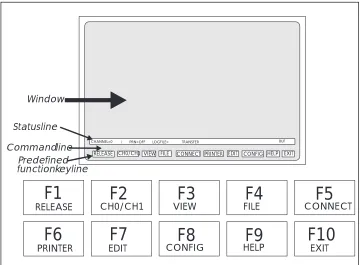
A window appears on the screen when the program is started. Three lines are found at the bottom of the screen (see figure 4.4).
•
The status line•
The command lineFigure 4.4
The FIOL Window
The window consists of a maximum of 22 lines which can be divided into two windows when the user is communicating with two channels at the same time.
4.2.3 The Status Line
The status line consists of the following information:
•
Active channel CH0/CH1•
Text mode INSERT(i)/ OVERWRITE(o)•
Printer status ON/OFF•
Name of the log file•
Name of the transmit-file•
Communication mode BUF/TTYCommunication may either be performed in BUFFER mode (BUF) or in ONLINE mode (TTY). In BUF mode it is possible to edit the command on the command line before it is sent into the system. In the TTY mode the characters are sent immediately to the system when entered.
RELEASE CH0/CH1 VIEW FILE CONNECT PRINTER EDIT CONFIG HELP EXIT
CHANNEL=0 i PRN=OFF LOGFILE= TRANSFER BUF
Statusline
Commandline Predefined functionkeyline
Window
F2
CH0/CH1 VIEW
F3
FILEF4
F7
EDIT CONFIG
F8
HELPF9
F10
EXITF5
CONNECT
F1
RELEASE
F6
4.2.4 The Command Line
The command line is a combined command and error-message line. All commands are entered from this line. The twenty latest commands sent are stored in a circular buffer. The commands can be reached with the up and down keys, and will be presented on the command line when they are stepped.
The function “END OF TEXT” is implemented in FIOL for entering com-mands by just pressing the ENTER key.
4.2.5 The Function Keys
The function keys are pre-defined in the main menu as follows:
F1: Release. This is the “END OF TRANSMISSION” function when it is implemented in FIOL. This function releases the terminal, i.e. marks a seized terminal as idle.
F2: This function key works as a switch between channel window 0 and window 1. The STATUS LINE displays the active channel. FIOL allows concurrent communication with two connected systems.
F3: Entrance to the VIEW MENU.
−
Scroll up/down on the screen−
Page up/down−
Short commands−
Save−
Print, for further information use “help”.F4: Entrance to the FILE MENU. File menu functions are:
−
Log and transmit file-handling−
Execution of DOS commands. Pre-defined function keys in FILE MENU:F1-DOS Makes it possible to temporarily leave FIOL to execute DOS commands.
F2-CH0/CH1 Indicates which channel is active.
F3-LOGFILE Supply name and start a log file.
F4-CLOSE Close active log file.
F5- No function.
F6-TRANSMIT Transmits a file.
F8-PAUSE Pause. Active file transmission.
F9-HELP
F10-RETURN
F5: Connect is the “START OF TEXT” function when it is imple-mented in FIOL, i.e terminal seizure. This function returns the the LABEL and activates the READY INDICATOR.
F6: Printer ON/OFF, which is shown on the STATUS LINE.
F7: EDIT is a full-screen editor. This online editor allows you to:
−
Create and save command files−
Edit command files−
Transmit complete command files or sections of them to the AXE system.The editor can only handle ASCII-files. If you temporarily leave the EDI-TOR, the cursor will be positioned where you left it.
Pre-defined function keys in EDIT mode:
F1-BLOCK Mark beginning of a block. ACTION
F2-PRINT Print the contents of the edit buffer.
F3-STOP Stop transmission of edit buffer.
F4-SEND Send edit buffer, the contents in the EDITOR will be sent as a transmit file.
F5-SENDLINE You will automatically be returned to the main menu and the line pointed to by the cursor will be sent to the connected system.
F6-LOAD Load a file to the edit buffer.
F7-SAVE Save the contents of the edit buffer to a file. The file will be added to existing contents of the buffer.
F8-CLEAR All lines from the top line to the bottom line will be deleted.
F9-HELP
F10-RETURN
Pre-defined function keys in CONFIG MENU:
F1-COLOUR
F2-CH0/CH1
F4-PROTOCOL Select parameters from the protocol list.
F5-FILES Select parameters from the files list.
F7-SAVECNF Save configuration parameters to a file.
F9-HELP
F10-RETURN
F9: HELP gives you access to information about FIOL.
F10: EXIT allows you to exit from FIOL.
4.2.6 Practical Examples of Using FIOL
1. Transmitting a Command File
Perform the following to transmit a command file:
a) Press the F4(FILE) key to enter the FILE menu
b) Press the F6(TRANSMIT) key to transmit a command file c) Enter the name of the file to be transmitted
d) Press the F7 key to close the file and stop the transmission.
2. Creating a Log file
Perform the following to create a log file:
a) Press the F4(FILE) key to access the file menu b) Press the F3(LOGFILE) key
c) Enter the name and location of a file e.g. A:EXCHDATA d) Enter the commands to be stored in the log file by transmitting
a command file or by entering a number of commands from the main FIOL menu
4.3 Using the Communication Program FIOL /
DocView
The DocView application is designed to replace the paper document bind-ers in much the same way as does AXEUSE .
Any documentation available in EDML (Ericsson Document Markup Lan-guage) format can be handled electronically with DocView.
The DocView Browser allows one to easily browse through and search for information contained in Operation and Maintenance documents (B-Mod-ules). Savings in time and effort are remarkable when using DocView in comparison with the handling of paper documents.
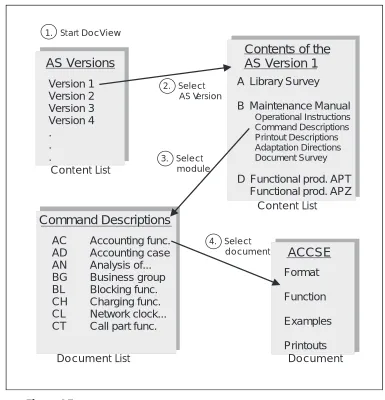
Figure 4.5 shows the hierarchy of the document information levels that are used in the DocView databases for an Application System, AS.
Figure 4.5
DocView Information Levels
Recent configuration changes make it possible to run DocView in a Win-dows environment. This way, you can have other tools (PlexView, FIOL etc.) running at the same time and maintain the adequate speed of operat-ing. CD-ROM drives enable it to change the database beeing used quickly.
Content List Version 1 Version 2 Version 3 Version 4 . . . AS Versions
Contents of the AS Version 1
A Library Survey
B Maintenance Manual
Operational Instructions Command Descriptions Printout Descriptions Adaptation Directions Document Survey
D Functional prod. APT Functional prod. APZ
Command Descriptions AC AD AN BG BL CH CL CT Accounting func. Accounting case Analysis of... Business group Blocking func. Charging func. Network clock... Call part func.
ACCSE Format Function Examples Printouts Content List
Document List Document
1. Start DocView
2. Select AS Version
4. Select document 3. Select
4.3.1 The User Interface
The following image is displayed when DocView is started, (figure 4.6):
Figure 4.6
DocView User Interface
The DOS view only allows keyboard control. Help is available through the Help key <F1>. Pressing the <Alt> or the <Ctrl> keys will display the code executed by the function keys.
There are several pop-up windows that provide DocView operational information such as document information, previous documents, book-marks and printing options.
4.3.2 Loading a Document from a Database
All documents are loaded for view directly or indirectly through an index (document list). The background is changed on a colour monitor when viewing the main (Content List) or another index for easy identification.
A document index is handled by DocView as an ordinary document except when a line containing a valid document or database reference is recog-nized. The line contents are then highlighted (Inverted) and act as a cursor.
Name of the current section
Document number Page number
and total number of pages
Pressing the <Enter> key when the cursor is positioned to a requested doc-ument will cause the docdoc-ument to be loaded for viewing. If a database is selected, the corresponding index file is loaded. Any number of document databases can easily be accessed from DocView. The database files can be updated independently of each other. The maximum number of simultane-ously loaded document files is set to 10.
<Shift> - Displays index of previously viewed documents
Pressing the <shift F10> keys will cause a pop-up menu to be displayed which contains references to previously viewed documents. The menu will display document title (as given in the document index), page reference and document type. Document type usually consists of two to three char-acters, e.g. COD=Command Description.
The display below is an example of the contents of the pop-up menu fol-lowing the load of five database documents:
Figure 4.7
List of Previously Opened Documents
Enter the number of a document or use the arrow keys <↑↓> to make a selections from the menu. Then press the <Enter> key and the selected document is loaded and displayed.
<Shift-Home/End> - Switch to previously viewed documents
Pressing the <Shift-Home> or the <Shift-End> key-combinations will switch the currently displayed document to a previously viewed document, found in the list of currently loaded documents, i.e. previous/next docu-ment in the list. The current position in the docudocu-ment is retained when switching from document to document.
However, this function does not switch back to a directly accessible docu-ment index. These indexes are always easily accessed through function keys <F5...F10>.
<F10> - Return to main document index for the databases
4.3.3 Searching Functions
Page Search Using the Content List
When viewing a document with a content list, the list is recognized by DocView and can be used as a fast way of jumping to the correct page in a document. A cursor (inverted line), see figure 4.8, is visible on a line with a page reference. A direct jump to the page is launched with the <Enter> key.
Figure 4.8
Page Search
Search for a String in a Document
A search is started by pressing <F3> and typing the search string into the search text field. Pressing the <Enter> key will initiate the search.
Note: a search for a string can only be performed inside one document at a time.
Remember the following rules when searching for document strings:
•
The Search feature is not case sensitive•
The Search is started from the line following the current cursor position on the viewed page and continued until the end of the document is reacheding the <Enter> key to change search direction.
•
The last ten strings searched are kept in a circular buffer and can be used again with the arrow keys <↑↓>•
The Search can also be started from the beginning of any directly acces-sible document index by selecting the appropriate index using the <F5> - <F10> function keys.Find a Document from a Document Index
This feature is used for finding a specific document from one of the directly accessible document indexes. When a requested document title is known, the document title can be rapidly searched for in a selected docu-ment index.
The Search is performed as follows:
First press <F4> and type the searched title into the search text field. Then press <Enter> to search inside the current index or select the appropriate index using the <F5> - <F10> function keys.
When using the Search feature, keep in mind that:
•
The search is started in a selected document index from the page fol-lowing the Content List and continues until the end of the document is encountered•
The Find feature differs from the Search feature in that the Find feature skips the Content List and only the beginning of the line is matched with the string in the search text field.<A...Z> - Find line in content list
The alphanumeric keys (A...Z) can be used in the content list as a fast search forward on a line starting with the same character(s) as pressed. Also the numeric keys (0...9) can be used when the find feature is acti-vated.
4.4 Using the Communication Program AXEUSE
4.4.1 General
AXEUSE is a Microsoft Windows application that provides
multi-exchange communication to target systems, such as the Ericsson AXE 10 exchange. It offers the following communication features:
•
Interactive communication through the use of command line, command history buffer and quick command files•
A facility for the recording and transmission of command files•
On-screen and printer logging of communications, and a communica-tion log file recording facility.In addition, AXEUSE provides the following range of support services:
•
Access to on screen documentation using the included DynaText Browser application•
Access to TBT (Technology Based Training) sessions from within the application•
Online help and online tutorial.4.4.2 The DynaText Browser
The AXEUSE package includes a copy of the DynaText Browser, an application which enables you to view “electronic books”. If requested, the Browser is loaded on to your PC as part of the AXEUSE installation process. If installed, the Browser application will be loaded whenever you start AXEUSE. It runs in background mode until you select it.
Using the DynaText Browser, you can read documentation regarding your application systems, which is stored on the On-Screen Documentation CD-ROM.
4.4.3 The AXE Application Window
After you have started AXEUSE (double-clicked on AXEUSE ), the appli-cation window will open and occupy part of your Windows desktop (see figure 4.9.).
Figure 4.9
The AXEUSE Application Window
Beneath the Menu bar is the Toolbar, a series of icons providing fast access to the most commonly used AXEUSE functions.
The Quick Commands icon is used to display the current quick command file.
Pressing the Connect/Release icon will cause the application to transmit the connect character to the AXE 10 system. Pressing the same icon while the exchange is connected will release the connection.
Along the bottom of the application window is the Status Line, which dis-plays a range of information regarding the currently active exchange win-dow.
The Command Line may be used for direct entery of commands to the AXE 10 system.
The Command History List button recalls commands previously entered on the command line. Up to 40 commands may be stored in the history list.
4.4.4 Interactive Communication
Interactive communication with the AXE 10 system is performed via
Exchange Windows (see figure 4.10). You may have up to nine exchange
windows opened at the same time, one window for each of the ports COM 1-9.
After opening an exchange window you can then connect that window to the AXE 10 system, so that commands may be sent to that exchange port. When finished, you may release and close the relevant exchange windows Menu bar
Toolbar Quick Commands icon
Connect/Release icon
Status Line
individually.
Exchange windows can be re-sized, re-positioned and minimized to icons if required.
4.4.5 The Active Window
Although multiple exchange windows are opened and simultaneously con-nected to the AXE system, only one of them can be the active window, (see figure 4.10). The active exchange window is the one which may initi-ate exchange-reliniti-ated commands or actions.
Figure 4.10
The Exchange Windows
You activate an exchange window by clicking on any part of it. The title bar with the exchange name will then be highlighted.
4.4.6 The Command Line
AXEUSE allows you to type in commands and parameters, and send them directly to the AXE 10 system. You input these on the command line of the active exchange window, (see figure 4.11). Press the ENTER key to trans-mit them. Command-line editing features are provided. The most recently entered command is highlighted and can be copied to the command line. Active exchange
Figure 4.11
The Command Line
4.4.7 The Command History List
A Command History List is associated with a command line. The list is made up of a buffer which contains the last 40 commands you have entered on the command line.(see figure 4.12).
To open the command history list, click on the Command History List
But-ton (see figure 4.9) at the bottom right hand corner of the exchange
win-dow. You can access the history list at any stage, and recall and re-transmit any previously entered command.
Figure 4.12
The Command History List
4.4.8 Quick Commands
The Quick Commands function enables you to store the most commonly used commands and parameters in one or a number of files. To access the quick commands function, click on the Quick Commands Icon
(see figure 4.9).
Each file could represent a different task or job. While performing that job, you can pre-load the appropriate file into the quick commands dialog box. The file may be edited within the quick command dialog window.
4.4.9 Command Files - Recording and Transmission
AXEUSE enables you to record command files - ASCII files containing one or a sequence of AXE commands and any associated parameters - for transmission to the AXE 10 system.
Transmitting a command file to the AXE 10 system is faster and more con-venient than typing the relevant commands and their parameters a second time on the command line of an exchange window.
You can create and edit command files within AXEUSE, or you can use a word processor or text editor which offers the option to save files in ASCII format code.
A command file is always transmitted from a connected exchange win-dow, and the window responds to the transmission in the same way as it would had the contents of the command file been typed on the command line.
If the situation so requires, you can temporarily interrupt command file transmission to the AXE 10 system.
To facilitate automatic testing, command files can be created and sent to the AXE 10 system.
4.4.10 Logging Communication
AXEUSE offers three different options when logging communication with the AXE 10 system. In each case it is irrelevant how the communication takes place. Whether a command is entered on the command line, recalled from the command history list, selected from the quick commands file or transmitted from a command file, the full details of the communication are logged by AXEUSE.
Options for logging communications are briefly described below.
The Exchange Window
All commands sent from AXEUSE to AXE 10 pass via an open and con-nected exchange window, and that window always displays full details of the communication. (see figure 4.13).
Figure 4.13.
Exchange Window
Entered command
Vertical and horizontal scroll bars are provided with the exchange window to enable you to move through a list of communication details, particulary useful when the entire area of text does not fit within the window.
Printer Logging
At any stage of communication between an exchange and the AXE sys-tem, you can log details of the communication to a print spool. The infor-mation may then be printed directly.
Communication Logs
You can create a communication log file for recording the commands sent to the AXE system and the feedback generated by the system in response. The log file will record all commands and feedback, regardless of whether the commands are entered directly on the command line, recalled from the command history list, sent as quick commands, or transmitted within com-mand files.
You can temporarily interrupt the recording at any stage and resume it again when appropriate (see figure 4.14 ).
It is recommended that you add the file extension .log to the name of your log file when saving it.
Once you have recorded and saved a communication log, you can display the log on the screen or output it to a printer.
Figure 4.14
Open a Log File Dialog Box
4.4.11 On Screen Documentation
Whenever you start AXEUSE on your PC, the browser application is also started. It runs in the background until you select it.
application system. This is stored on the CD-ROM which you will have received from your supplier. Of course, the on-screen documentation CD-ROM must be loaded via your PC’s CD-CD-ROM drive in order to enable AXEUSE to access the information that it contains.
You can access the Browser from within AXEUSE, or you can simply switch between AXEUSE and the Browser using the Windows task-switching facility.
4.4.12 Interactive Access
AXEUSE provides the user with interactive access to the DynaText Browser.
Whenever feedback containing a command-related fault code is displayed in the exchange window, the program can automatically retrieve and dis-play the relevant Command Description.
4.4.13 Access to Technology Based Training (TBT) Sessions
TBT sessions may be accessed from within AXEUSE, there is therefor no need to terminate the current application when entering a training session.
AXEUSE is, at the moment, supplied with three TBT courses: C7 Signal-ling in AXE, C7 in the Telecommunications Network and IOG11 Hard-ware.
Future additions on TBT will include operator aids applicable to the han-dling of emergency situations.
4.4.14 Online Help and Tutorial
In addition to printed documentation, AXEUSE offers on-line help for all commands and commonly performed functions. You can access this mate-rial at any stage by pressing the standard Windows help key, F1.
4.5 Connection to TMOS
Communication with TMOS, (Telecommunication Management and
Operation Support) presupposes a standard for the sending and receiving
of information. TMOS uses several different standard communication pro-tocols to communicate with AXE 10.
•
X.25 for the link communication (Layer 3)•
MTP for application communication (Layer 4 - 7).The physical connection to TMOS is performed via one of the physical ports in the IOEXT magazine located in the IOG11 (Input / Output Sys-tem).
Communication between the AXE 10 and TMOS, (see figure 4.15), can be divided into the following five traffic cases:
•
MML- Commands•
Delayed Responses•
Spontaneous Reports•
File output from the AXE 10 Exchange•
File information from TMOS to the AXE 10 Exchange.Figure 4.15
Traffic Cases
AXE 10
IOG11
TMOS
File Information MML-Commands Delayed Response
The MML language used for normal handling of AXE 10 Exchanges can also be used for communication via TMOS.
Immediate Response
All MML commands result in some sort of immediate response from the AXE 10 Exchange. Immediate responses are received as ASCII characters and may therefore be displayed via character terminals.
TMOS designates immediate output as an immediate response. There are four types of immediate responses:
•
Procedure Printouts•
Interactive Printouts•
Answer Printouts•
Check Printouts.4.5.2 Delayed Responses
A response is often delayed due to the fact that the action requested requires the AXE system to collect data (traffic recording etc.), which takes a varying amount of time.
4.5.3 Spontaneous Reports
This report category represents reports produced by the AXE system that were not solicited by the TMOS system. Alarm situations are examples of situations resulting in such reports.
4.5.4 File Output from the AXE 10 Exchange
File outputs from AXE 10 are binary ASCII files and are converted by the TMOS system (statistic measurement etc.).
4.5.5 File Information from TMOS to the AXE 10 Exchange
4.6 Chapter Summary
•
FIOL/Docview is using EDML, Ericsson Document Mark-up Lan-guage•
FIOL is a program witch makes it possible to use a personal computer as a terminal for communication with AXE•
FIOL can be used for e.g. transmitting a command file, creating a log file•
AXEUSE is a Microsoft Window application that provides multiex-change communication with the AXE system•
Only documentation available in SGML, Standard General Mark-up Language can be handled by AXEUSE•
Communication with TMOS is performed via the X.25 protocol con-nected to IOG 11 (IOEXT magazine)5. Hardware Orientation
Figure 5.1
Chapter Objectives
5.1 Mechanical Structure
5.1.1 Introduction
The mechanical organization of the AXE system is based on a concept called the Packaging System or the BYB-Structure. This system offers a high degree of flexibility which is well suited to the AXE system’s overall modularity. Packaging system size standardization contributes to the sim-plification of the handling required during the variousd phases of design, manufacture, documentation, installation, and operation and maintenance activities related to the AXE system.
The AXE equipment is delivered in Magazines equipped with Printed
Board Assemblies. These magazines are the basic building blocks of the
packaging system.
The magazines are installed on Shelves housed in Racks or Cabinets. The racks or cabinets are arranged in Rows in the exchange room.
Chapter Objectives
After completing this chapter the participant will be able to:
• Locate Hardware units in the exchange through the use of com-mands
5.2 Development of the Packaging System
5.2.1 BYB 101 and BYB 102
The first packaging structure developed was called BYB 101. Certain objectives were particularly considered during the design of this package:
•
The structure was to be suited to electronic equipment units made up of integrated circuits, miniaturized electromechanical components and power supply units.•
It was to be possible to use computerized aids to facilitate the design, production and documentation of the system.•
The processing time and cost were to be kept as low as possible.•
The structure should not to restrict the use of existing and future com-ponents.•
Cooling was to be achived by natural air circulation (selfconvection) for most of the cabinets, (With the exeption of the IOG a