BITSTREAMER II BOARD
Revision 1
USER'S MANUAL
Revision A
January 1, 198121
Vector Graphic Bi tstreamer II Board
REPAIR llGR.EEMEN1'
'Ihe Bitstreamer II Board sold hereunder is sold "as is", with all faults and without any warranty, either expressed or implied, including any implied warranty of fitness for intended use or merchantability. However, the above notwithstanding, VECTOR GRAPHIC, INC., will, for a period of ninety (90) days following delivery to customer, repair or replace any Bitstreamer II Board that is found to contain defects in materials or workmanship, provided:
1. Such defect in material or ~rkmanship existed at the time the Bitstreamer II Board left t.,,"e VECTOR GRAPHIC, INC., factoryi
2. VECTOR GRAPHIC, INC., is given notice of the precise defect claimed within ten (10) days after its discoveryi
3. The Bi tstreamer II Board is prOOlptly returned to VECTOR GRAPHIC, INC., at customer's expense, for examination by VECTOR GRAPHIC, INC., to confirm the alleged defect, and for subsequent repair or replacement if found to be in order.
Repair, replacement or correction of any defects in material or workmanship which are discovered after expiration of the period set forth above will be performed by VECTOR GRAPHIC, INC., at Buyer's expense, provided the Bitstreamer II Board is returned, also at Buyer's expense, to VECTOR GRAPHIC, INC., for such repair, replacement or correction. In performing any repair, replacement or correction after expiration of the period set forth above, Buyer will be charged in addition to the cost of parts the then-current VECTOR GRAPHIC, INC., repair rate. At the present time t.,,"e applicable rate is $35.00 for the first hour, and $18.00 per hour for every hour of work requi red the reafte r. Prior to commencing any repai r, replacement or correction of defects in material or workmanship discovered after expiration of the period for no-cost-to-Buyer repairs, VECTOR GRAPHIC,
IOC., will submit to Buyer a written estimate of the expected charges, and VECTOR GRAPHIC, INC., will not commence repair until such time as the written estimate of charges has been returned by Buyer to VECTOR GRAPHIC, INC., signed by duly authorized representative authorizing VECTOR GRAPHIC, INC., to commence wit.1-t the repair work involved. VECTOR GRAPHIC, INC., shall have no obligation to repair, replace or correct any Bitstreamer II Board until the written estimate has been returned with approval to proceed, and VECTOR GRAPHIC, INC., may at its option also require prepayment of the estimated repair charges prior to commencing work.
Repair Agreement void if the enclosed card is not returned to VECTOR GRAPHIC, INC. within ten (10) days of end consumer purchase.
Vector Graphic Bi tstreamer I I Board
AlXJience
SCope
Organization
Rev. I-A 1/1/80
This manual is intended for computer distributors, or others with at least a moderate technical knowledge of small computers.
It will describe what the Vector Graphic Bitstreamer II Board does in the context of a computer system, how to use the board both in Vector Graphic and in other 5-100 systens, and how the board circuitry works.
Each section is written at a unifonn level of technical depth. "Perspective" describes WHAT the board does and requires only a moderate knowledge of computer design. Most other sections tell HOW to make it do things and assumes the same level of
knowledge, plus the ability to solder jumpers and flip switches. "Theory of Operation" discusses WHY the board works and assumes a knolwedge of digital
Vector Graphic Bi tstreamer II Board
II. User's Guide
2.1 Board addressing •••••.•••.•••••••••••.•••...••••.•••.•••••• 2-1
Table 1 - Board Address Jumpers •••••••••••••••••••••••••••• 2-2 Table 2 - Functions of I/O Addresses and Connectors Used ••• 2-2
2.2 Asynchronous serial baud rate selection •••••••••••••••••••• 2-3 2.3 How to connect most RS-232C serial terminals and printers •• 2-4 2.4 . How to connect many low speed asynchronous acoustic
couplers and modems .••••••••••••••••••.•••.•••••••••••••••• 2-7
2.5 Connecting additional RS-232C handshaking lines •••••••••••• 2-S
Table 3 - RS-232C and Connections on Bitstreamer II Board •• 2-9 Table 4 - Jumper Areas for Each Serial Channe1 ••••••••••••• 2-11 Table 5 - 8251 Pins in Jumper Areas •••••••••••••••••••••••• 2-11 Table 6 - RS-232C Lines Available in Jumper Areas, and
Pads Connected to +12 VDC •••••••••••••••••••••••• 2-12 Table 7 - Installing a 1488 Quad Line Driver or a
1489 Quad Line Receiver, in a Spare Socket ••••••• 2-14
2.6 How to connect 2~ rnA current loop •••••••••••••••••••••••••• 2-15 2.7 How to modify the board to generate interrupts ••••••••••••• 2-15
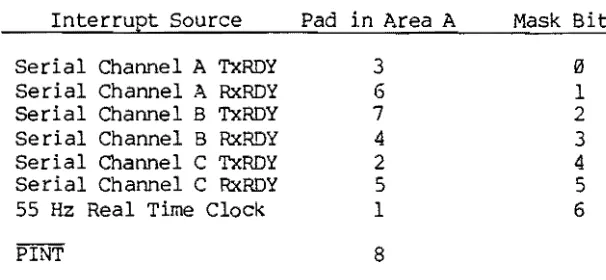
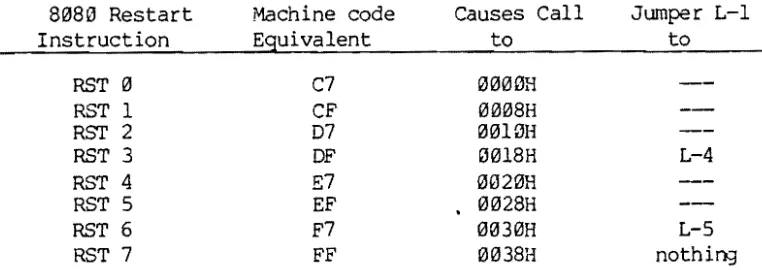
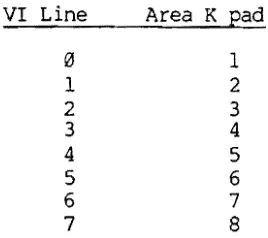
Table 8 - Interrupt Jumper Pads and Mask Bits •••••••••••••• 2-15 Table 9 - 8~80 Restart Instructions and Jumpering •••••••••• 2-17 Table 1~- Data Bus Bytes Generated by a Jumper in Area L ••• 2-1S Table 11- VI Lines Available in Area K ••••••••••••••••••••• 2-19
2.8 Using the parallel channe1s •••••••••••••••••••••••••••••••• 2-20
Table 12- 34-pin Connectors for Parallel Channels •••••••••• 2-20
2.9 Spare chips and patch areas •••••••••••••••••••••••••••••••• 2-21
Table 13- Spare Inverters in U21 ••••••••••••••••••••••••••• 2-21 Table 14- Spare Open Collector NAND Gates in Chip U10 •••••• 2-21
III. Theory of Operation
3.1 Serial channels •••..•.•••..••••••••••.•.•••..•••••.•••••••• 3-1
3.2 Parallel input channels •••••••••••••••••••••••••••••••••••• 3-1 3.3 Parallel output channels ••••••••••••••••••••••••••••••••••• 3-2
3.4 Interrupts •••••.••••••••••••••••••.••.•••.•.•••.••••••••••• 3-2
Board layout Schematic errata Schematic
Vector Graphic Bitstreamer II Board
TABLE OF
a:mmrs
Section
Table of Contents
Specifications
I. Perspective
1.1 1.2 1.3 1.4 1.5 1.6 1.7 1.S 1.9 1.10 l.ll
Introduction •.•.•.•••.•••••••••••••.••••••••••••.•••••••••• 1-1
Serial channels generally ••.•.••.•••••••••••••••••••••••••• l-l
Serial asynchronous communication ••••••••••••••••••••.•••.• 1-2
Serial synchronous cornmunication ••••••••••••••••••••••••••• 1-2
Interrupt driven serial channels .••••••••••••••••••••••••••• 1-3
RS-232C theory ...•...•.••.•..•••...•...••..•...• 1-4
RS-232C on the Bitstreamer 11 •••.•••••.•••••••••••••••••••• 1-5
20 rnA current loop ••••••••••••••••••••••••••••••••••••••••• 1-7
Real time clock interrupts ••••••.••••••••••••••••••••.••••• 1-7
Interrupt vectors and priority ••••••••••••••••••••••••••••• l-S
Parallel channels •••••••••••••••••••••••••••••••••••••••••• 1-9
Continued
Vector Graphic Bitstreamer II Board
SPEX:IFICATI(};IS
Purpose Multiple serial and parallel input/ouput.
Compatibility S-100 systems.
Serial channels 3, using 8251 controller chips.
Channel addresses x2 and x3, x4 and x5, x6 and x7 where x is any digit
o
to 7. Prewired x is 0. (Each serial channel uses two I/O addresses.)Signal levels EIA RS-232C, or 20~ current loop on one channel only.
RS-232 handshaking Lines 5, 6, and 8 are held high.
Asynchronous
Rates
Data bits
Stop bits
Parity
Synchronous
Rates
Synch detect
Clock
Parity
Data bits
Sync character
Rev. I-A 1/1/80
Other handshaking lines are not connected. Jumper pads are provided to connect them.
There is one spare recevier and one spare driver for handshaking lines on board that can be connected by
jumper. There are two spare slots if more are needed.
110-9600 baud (switch selectable for each channel).
5 - 8, programmable for each channel.
1, 1 1/2, or 2, programmable for each channel.
Even, odd, or none, programmable for each channel.
OC-56K.
Can be wired for internal or external synch. 8251 SYNDET line is not connected.
Not now connected to the external world as required for synchronous operation.
Even, odd, or none, programmable for each channel.
5 - 8, programmable for each channel.
Parallel Channels
Latching
Signal level
Number of lines
Data transfer
Cable
Dedicated use
Interrupts
Masking
Reset clock line
r'1odes
Vectoring
Vector Graphic Bitstreamer II Board
2, with separate 34-pin connectors.
OUtput latched, input not latched.
TTL (input
=
1 TTL load; output drives 5 TTL loads).8 input, 8 output for each channel.
+5 VDC, +12 VDC, -12 VDC, and GND are also provided for each channel.
OVer 10m< bytes/second.
Optional. Has 34-pin female connector and 34-line ribbon cable. No connector is at the other end, allowing user to configure as required. Must be ordered separately'.
If you are using the USARTs on the board as sources of interrupts, you cannot use the output side of Parallel Channel A for normal parallel output.
Interrupts can be generated from any cambinaton of the 3 USART RxRDY's, 3 TxRDY's, and a 55 Hz real time clock. Jumper pads provided. None prewi red.
OUtput to parallel channel A selects (masks) interrupt sources previously wired in.
Dummy input from Parallel Channel B resets 55 Hz real time clock interrupt line during an interrupt service routine. However, Parallel Channel B can be used for normal input (and output) as well.
Can use 8080, Z80 Mode 13, Z813 t10de 1, or Z8!3 Mode 2
A Bitstreamer II board can generate one of 9 possible bytes in response to an interrupt, including
three of the restart instructions for use wi th 8080 and z80 Mode 0 interrupts. Software polls to
determine which possible source on a Bitstreamer II board is the actual source of the interrupt.
8-11313 interrupt bus Pads are provided for jumpering interrupt sources to the 8-1013 VI lines.
Power consumption
Availabili ty
+8 Vdc @ 7213 rnA typical. +16 Vdc @ 313 rnA typical. -16 Vdc @ 313 rnA typical.
Shipped assembled, tested, burned in; no kits.
Vector Graphic Bitstreamer II Board
I. PmsPB:TIVE
1.1 Introduction
The Vector Graphic Bitstreamer II Board is an all-purpose input/output board for S-lC0 systems. It offers three serial I/O channels and 2 8-bit parallel input/output channels for interfacing with multiple peripheral devices such as printers, modems, and terminals. It also offers a 55 Hz real-tUne clock which can interrupt the CPU for functions such as sharing of the CPU by several users or peripherals.
We will use the term "channel" rather than "port" to avoid confusion caused by the fact that each serial channel makes use of two I/O addresses, which are often called I/O "ports."
The CPU sends data to the serial and pa'ra11e1 channels via I/O addresses. The I/O addresses used by the board can be changed as a group. The board uses the eight I/O address x2 to x9 (in hexadecimal notation), where x is any digit from 0 to 7. You specify the value of x by jumper, as listed in Table 1 in Section 2.1. Table 2 in Section 2.1' lists the function of each of the eight I/O addresses, which are fixed relative to one another.
The Bitstreamer II Board does not come with any software for specific applications, though Vector Graphic supplies certain items of software that make use of its featues.
1.2 Serial channels generally
The three serial channels center around three industry standard 8251 USART (Universal Synchronous/Asynchronous Receiver/Transmitter) chips. Much of the flexibility of the Bitstreamer II board derives from the flexibility of these chips, which can be nndified via software. You, through software, can control the rate of transmission, and the format of the transmitted data. Data is transmitted as ASCI I code having between 5 and 8 bi ts per character, with an optional added-on parity bit (choice of even or odd), and with one start bit and a choice of one, one and a half, or two stop bits per character. Further, using the 8251's, the board can handle either asynchronous or synchronous communication. Each serial channel is entirely independent of the others. Baud ratesl format, handshaking, and whether
communication is asynchronous or synchronous, is specified independently for each serial channel through software and in some cases hardware
modifications. '
It is not wi thin the scope of this manual to detail the functioning of the 8251 USART chip, nor to teach the theory of serial communication. In order to write your own communications software or to nndify the Bitstreamer II serial channels, you will need to be thoroughly familiar with this chip. You can refer to Intel's Application Note U6, entitled "Using The 8251 Universal Synchronous/Asynchronous Receiver/Transmitter," which Intel will provide. This Note is also an excellent reference on basic communications.
Vector Graphic Bitstreamer II Board
theory. More readily available references on the 8251, but ones that have less to say about communication theory, are the "INTEL 8080 Microcomputer Systems User's Manual," available either fran Intel or roost computer retail stores, and Adam Osborne's "An Introduction to Microcomputers, Volume II -Some Real Products," also available in many computer stores.
1.3 Serial asynchronous communication
Separately for each serial channel, you can select the rate of transmission and reception from a choice of 110, 150, 300, 600, 1200, 2400, 4800, or 9600 bits/second. You choose the rate using small dip-switches on the board.
If you are writing custom software, there is in addition a simple way in software to divide the chosen rate of a desired channel by 4, allowing some control of the rate without physically opening up the computer. For example, if you have a modern that is switch selectable for either 1200 bits/second or 300 bits/second, you can write a program that enables the operator usifl3 the keyboard to change the computer's rate of communication to match that of the roodem at any given time.
Separately for each serial channel, you can select via software the number of data bits in each ASCII character, selecting either 5, 6, 7, or 8. You can also select the number of stop bits in each character, selecting either I, 1 1/2, or 2. Finally, you can select whether or not a parity bit is included for each character, and if chosen, whether or not it is even or odd parity. For how to do this in software, see the references given earlier for the 8251 USART.
1.4 Serial synchronous communication
You can enable one or more serial channels to communicate in synchronous mode. Modifications to the board will be required to accompl ish this. In brief, the 8251 SYNDET pin and the TXC and RxC clock pins must be connected to the outside world, which is not the case in the standard configuration of the board.
Once set up for synchronous communication, you can select separately for each such channel the rate of communication, by using an external clock between 0 and 56K bits/second. As with asynChronous corrurunication, you can select via software the character length, selecting either 5, 6, 7, or 8 • bits. You can also select via software whether or not a parity bit is
included for each character, and if chosen, whether or not it is even or odd parity. Also via software, you can select separately for each channel whether you are using internal or external synchronization, and whether one or two synch characters are used.
Vector Graphic Bitstrearner II Board
1.5 Interrupt driven serial channels
Interrupts can be generated from each of the three 8251 RxRDY pins, and each of the three 8251 TxRDY pins. You can choose to generate interrupts from one or any combination of these six signals. Jumper pads are provided for wiring up the interrupt capability for each of these signals, as described in Section 2.7.
The board requires that you specify in software Yklich of the signals so wired are to actually generate interrupts. This enables you to wire up several of them, and then to dynamically control which ones generate interrupts at any given time. This procedure is called "interrupt masking" and uses an I/O address known as the "inter~ )t masking register."
For example, assume you are creating a software routine that outputs a character to an 8251 whenever that 8251 is ready to transmit it, but you do not want to poll the 8251 to determine'when it is ready. Assume instead that you want to arrange for the 8251 to interrupt some other routine whenever the 8251 is ready to transmit. To do thiS, you would connect the TxRDY pin of that 8251 to the interrupt line, as described in Section 2.7. Now, as soon as you receive an interrupt, your software will branch to an interrupt service routine Yklich transmits a character. When it is finished transmitting a character, you do not want to re-enable interrupts until you are ready to transmit the next character, because otherwise, the 8251 will tie up the CPU wi th TxRDY interrupts. The problem is that you do not want to leave interrupts disabled because you want other peripherals such as the keyboard to be able to interrupt. The way you solve this is to enable interrupts, but also mask out the TxRDY interrupt using the interrupt masking register until software is ready to transmit another character.
You must use the interrupt masking register whenever you are using the 825l's to generate interrupts. Even if you do not want to disable some of the interrupt sources, you must enable them at the outset by initializing the interrupt masking register appropriately.
The interrupt masking register is the output side of Parallel Channel A on the Bitstreamer II Board. The parallel channels are discussed later in Perspective. The precise way that the interrupt masking register is used by software is discussed in Section 2.7. If you are using the 8251's as interrupt sources, you cannot use the output side of Parallel Channel A for any other purpose.
Vector Graphic Bi tstreamer II Board
1.6 RS-232C theory
This manual cannot describe the RS-232C protocol in detail. For a full description, obtain a copy of the RS-232C EIA STANDARD document, published by E1ectonic Industries Association, Engineering Department, 2001 Eye Street, N.W., Washington, D.C. 20006. Alternately, i f you have access to Data Pro or Auerbach reports on communications, they contain thorough articles describing the protocol and its implications. The following infoLmation, however, will be of i~ediate re1evence in this manual:
An RS-232C signal can either be POSITIVE (+12 Vdc) or NEJ3ATIVE (-12 Vdc). Positive is ON or SPACING, Negative is OFF or MARKING. RS-232C line drivers typically invert these signals when they are converted to and from TTL signa Is. Hence, RS-232C POSITIVE co rresp:mds to TIL low (about 0 Vdc) and RS-232C NEJ3ATIVE corresp:mds to TTL high (about 5 Vdc) • (TTL is the kind of signal used within the computer.)
An RS-232C cable consists of 25 lines. An RS-232C transmit or receive data line carries a serial sequence of POSITIVE and NEGATIVE pulses that correspond with the characters you want to transmit or receive. There is also associated formating and parity information attached to the information by the communication device such as an 8251. In addition to the transmit and receive data lines, there are 9round lines, (lines 1 and 7), and there are handshaking lines that are used by communication, terminal, and computer equipment to inform each other of their status (lines 4, 5, 6, 8, 20, 22, and a few others that are rarely used). The full RS-232C protocol also specifies a set of rarely used "secondary" lines which have the same definitions as some of the primary lines, but carry an independent set of signals. Altogether there are 25 RS-232C lines defined, but most applications use only a few of them.
In the real world, very few devices require "full RS-232C" protocol. In fact, very few devices even require all of the handshaking lines mentioned above. Many require one or even none. Further, many devices use handshaking lines differently than defined by RS-232C, violating the protocol. In short, it is confusing at this time to say that a given device requires "full RS-232C." You must specify exactly what signals it sends and expects to receive on each line.
It is important to understand that most of the RS-232C 1 ines are directional, that is, the protocol specifies which direction the signal travels on each line, relative to the ends of the cable. Therefo re, the protocol specifies that at one end of an RS-232C cable there must be a device of the type called "Data Communications Equil?ffient", or "DCE" for shor t, and at the other end there must be a device of the type "Data Terminal Equi.i:ment, or "DTE" for short. '!'he direction of the signal on a given line can be determined once you decide which end of your cable has which kind of device.
Vector Graphic Bi tstreamer I I Board
The tenns Data Communication Equipnent and Data Terminal Equipnent derive from the original purpose for RS-232C - to connect a terminal with a communication device such as a modem. A computer does not have to be involved at all. Since a computer can either play the part of a terminal, when connected to a modern, or it can play the part of communication equipment, when connected to a terminal, a computer serial channel can be used either as DeE or DTE. However, a given serial channel can only be wired up as one or the other at anyone time. If the channel happens to be wired up to look like DCE, and you want to connect it to another DCE such as a modem, then the RS-232C connection will not work. Both ends would be transmitting on the same lines and receiving on the same lines. Before G~e
R8-232C connection can be made, in this case, you must rewire the computer's serial channel so that it receives and transmits on the lines specified for DTE.
1.7 RS-232C on the Bitstreamer I I
The Bitstreamer II Board is shipped with one RS-232C Serial I/O Cable. To enable one of the serial channels to communicate over an RS-232C line, you will connect one end of this line to one of the three serial channel sockets on the board, and the other end, having an RS-232C standard DB-25 female connector, to the back panel of the computer. The cable is designed so that appropriate signals from the board are directed to the RS-232C lines at the D8-25 connector as if it were Data Communications Equipment. Thus, the resulting DB-25 socket at the rear of the computer is a DCE RS-232C channel.
Additional Bitstreamer II Serial I/O Cables are available from Vector Graphic for the second and third serial channels on the board.
Drivers are provided for each serial channel to enable the 8251 Transmit Data and Receive Data lines to input or output at RS-232C voltage levels. These receivers and drivers are already connected on the board, requiring no jumpering. When a serial I/O cable is installed for a given serial channel, these signals are connected to RS-232C lines 3 and 2 respectively.
In addition, for each of the 8251's, three of the RS-232C control lines are pulled up to +12V (lines 5, 6, and 8). This is the ON state in RS-232C.
(Normally, this will ENABLE equipment that requires such a signal.) When a serial I/O cable is installed for a given channel, these signals are available on the cable's 08-25. These signals are always ON if the board is used without modification. However, you can install jumpers and RS-232C line drivers to enable the 8251 to dynamicallx control any two of them via software.
Vector Graphic Bi tstreamer I I Board
Further, a number of other RS-232C lines are available on the board using the standard serial I/O cable mentioned above. These are both input and output lines, but they are not connected to anything other than pads on the board, nor are drivers and receivers connected to them. Including all the lines mentioned previously, the RS-232C lines which are available on the board for each of the three serial channels using a standard serial I/O cable are 1 to 8 and 14 to 21. Table 3 in Section 2.5 lists the functions of each of these lines.
'Any RS-232C line can be connected to +12 VOC on the board. In addi tion, for each channel, the 8251 can be used to monitor in software anyone RS-232C handshaking line, and the 8251 can be used to control from software the output of any two RS-232C handshaking lines, and lastly, the 8251's transmitter can be disabled or enabled by anyone RS-232C incoming handshaking line. There is one spare RS-232C receiver and one spare RS-232C driver available on the board which can be,used to connect one input and one output handshaking line. There are two spare slots on the board for any additionally required receivers or drivers.
For the large majority of applications, no additional RS-232C lines will be required other than those already connected to active components on the Bitstreamer II board, (connected either to drivers, receivers or +12V). Thus the serial channels can very often be used as OCE RS-232C input/output channels without modification. Most serial printers, and terminals, can be connected with little or no difficulty.
To connect to a modem, acoustic coupler, or other kind of Data Communications Equipment, a serial channel must be converted into a DTE RS-232C channel. This can either be done by changing the board wiring slightly, as described in Section 2.4, or by attaching a Vector Graphic Null Modem Cable to the external 08-25, which accomplishes the same thing. However, if RS-232C handshaking is required, other than a constant +12 VOC on certain lines, then additional modifications to the board will be necessary as explained in Section 2.5.
Of course, software is necessary in order to operate specific devices connected to specific serial channels. The three serial channels on the 8i tstreamer II board are called "Serial Channel
,a...,"
"Serial Channel B," and "Serial Channel C. II Table 2 gives the corresp:mdence between these channelsand specific machine language I/O addresses. Other documents from Vector Graphic describe the particular I/O addresses and peripheral devices which each Vector Graphic software product controls.
Vector Graphic Bi tstreamer I I Board
In general,. Vector Graphic software has been written so that different types of devices are controlled by different serial channels on the Bitstreamer II board. For example, at the time of this writing, any Extended Systems Monitor having option C enables a standard serial terminal to be plugged directly into serial channel A. The Version 4 Extended Systems t1onitor (any option) contains a program that enables the operator to communicate to a time share service via a modem connected via an RS-232C cable to serial channel B, which has to be converted to a DTE channel first. Lastly, operating systems such as MOOS and CP/M from Vector Graphic, and Vector Graphic's WOrd Managagment System, output to printers via serial channel C, and in some cases, if you desire, via channel A instead.
1.8 28 rnA. current loop
Serial Channel C can be IOOdified wit..~ a jumper to communicate using 213 rnA
current loop. Details are given in Sectioh 2.6.
1.9 Real time clock interrupts
The board has a 55 Hz (pulses per second) real-time clock. Connected to this clock is a component (called the "real-time clock latch") which becomes active and stays active as soon as it receives a pulse from the clock. The output of this latch can then be connected to the interrupt line, along with or instead of the 8251 lines. Jumpers pads are provided. This enables you to create software Which responds to interrupts arriving every 1/55 of a second, such as multi-user or multi-tasking software.
Your interrupt service routine, the routine that is called in response to the interrupt, must deactivate (reset) the real-time clock latch before re-enabling interrupts. If it does not do this, the latch will Lmmediately cause another interrupt, even though the clock has not produced another pulse. To do this, execute an input instruction from Parallel Channel B on the Bitstreamer II Board. (Parallel channels are discussed later in Perspective.) You do not use the inputted data, you only input it and then ignore it. The action of inputting from this channel resets the real-time clock latch. If you are using the real-time clock on the Bitstreamer II as a source of interrupts, you can still use the input side of Parallel Channel B for real inputting of data at other tLmes.
Details of wiring and using real tLme clock interrupts with this board are given in Section 2.7.
Vector Graphic Bitstreamer II Board
1.18 Interrupt vectors and priority
We have explained above that interrupts can be generated from any combination of the three 8251 RxRDY lines, the three 8251 TxRDY 1 ines, and the 55 Hz real-time clock. You can use any of the 8080 or 280 interrupt modes. If the ITK>de you are using requires hardware to place a byte on the data bus, you have a choice of nine different bytes, as shown in Table 10 in Section 2.7. You specify the byte by installing jumpers in pads provided, as described in Section 2.7.
The same byte is generated no matter what the interrupt source on the board. However, if there are more than one Bitstreamer II Boards in the system, each of them can be wired to generate a different byte. Therefore, software can determine which board is the source of the interrupt, but it must p:>11 the I:X>tential sources wi thin that board to determine which one is the actual source. Alternately, you can wire all the boards to put the same byte on the data bus, and have software Poll all the boards to find the source of the interrupt.
If you would like to build more sophisticated interrupt handling or prioritizing circuitry, the interrupt signals from the Bitstreamer II Board can be passed to such a custom board over the S-100 VI lines. Pads are provided, as described in Section 2.7.
Vector Graphic Bitstreamer I I Board
1.11 Parallel channels
The 8i tstreamer I I has two independent parallel input/output channels, called Parallel Channels A and 8. Each channel has its own 34-pin edge connector. Vector Graphic supplies an optional 34-line ribbon cable that connects to this edge connector. The other end of this cable has no connector on it, allowing you to configure it as desired. Many of the 34 lines are not used, as discussed below.
Each parallel channel has eight pins for output and eight pins for input. Additional pins provide +5 VDC, +12 VDC, -12 VDC, and GND. Exact pin assignments are given in Table 12 in Section 2.8. Input and output is accomplished using IN and OUT machine language instructions within software prepared for specific applications. Output is latched on the board, so that after an OUT instruction is executed, the eight bits of data remain available to the external device until the computer changes it. Input is NOT latched, so that software must be written to sense in some way that data is available and to input that data. There are no interrupt lines connected to the parallel channels. Table 2 gives the specific machine language I/O addresses assigned to each parallel channel.
We repeat a points made earlier: If you are using the 8251s on the board as sources of interrupts, you cannot use the output side of Parallel Channell A for normal parallel output. It is used instead as the interrupt masking register.
Vector Graphic Bitstreamer II Board
II. USER'S GUIDE
To determine the physical location on L~e board of a particular jumper area, refer to the assembly drawing near the end of this manual.
2.1 Board addressing
The Bitstreamer II occupies eight I/O addresses. They are x2 to x9 where x can be any digit between 0 and 7. (Note that all I/O addresses in this manual are given in hexadecimal notation, which is base 16.) The lowest address assigned to a Bitstreamer II board is called its nbase addr:ess." For example, if a board's base address is 02, the board occupies I/O addresses 02 - 09. Thus, in this example, I/O addresses 00, 01, and 10 - FF are available for other boards in the system to use •
.
Since x can be any digit between 0 and 7, the lowest base address is 02 and there are eight allowed base addresses: 02, 12, 22, 32, 42, 52, 62, and 72. It should be clear that the left hand digit of the base address will be the same as the left hand digit of each of the board's I/O addresses. For example, if the base address is 42, the board occupies I/O addresses 42 -49.
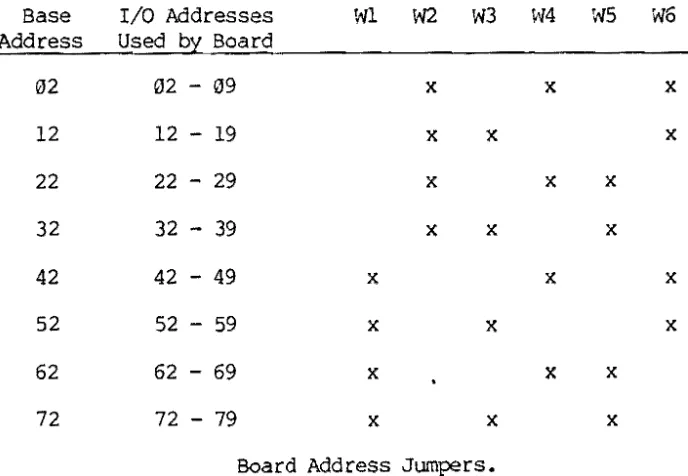
You determine what base address a particular board has by soldering jumpers in Area W, which is labeled nAddress Selectn on the board itself. Rather than giving names to the pads within Area W, the board gives a name to each ~ of pads. The names given are ~ll, W2, W3, W4, W5, and W6. To specify any given base address, you connect one or more of these pairs, as specified by the x marks in Table 1, below. First check the back side of the board, where some of these connections may already be made by way of metallic traces or previously installed jumpers. Cut the traces and jumpers that are not needed, and solder on jumpers that are needed, as per Table 1:
Vector Graphic Bitstreamer II Board
Base I/O Addresses WI i>l2 W3 ~'i4 WS W6
Address Used by Board
02 02 - 09 x x x
12 12 - 19 x x x
22 22 - 29 x x x
32 32 - 39 x x
42 42 - 49 x x x
52 52 - 59 x x x
62 62 - 69 x x x
72 72 - 79 x x x
Board Address Jumpers.
Table 1.
You cannot alter the functions of the I/O addresses relative to one another. In other wurds, on a Bi tstreamer II board wi th a base address of 02, I/O address 07 has the same function as address 47 on a Bitstreamer II board having base address of 42. The following table gives the function of each I/O address:
I/O address ExamEle Name of Channel Connector on the Board
x2 02 Serial Channel A J3 (bottom l6-pin socket
x3 03 on board's right side)
x4 04 Serial Channel B J2 (middle l6-pin socket
xS 05 on board's right side)
x6 06 Serial Channel C Jl (top l6-pin socket
x7 07 on board's right side)
/ ' - ,
~' x8 08 Parallel Channel A J4 (left 34-pin connector
c:
2\ ,I, ( 0 f1,' <:. ''/f)(' ~at top of board)
~Q r-. ... .~ ...J' '
x9 139 Parallel Channel B JS (right 34-pin connector at top of board)
Functions of I/O Addresses and Connectors Used
Table 2
Vector Graphic Bitstreamer II Board
2.2 ~ronous serial baud rate selection
Independently for each serial channel, you select the desired baud rate through a combination of hardware switches and software. If you are using the standard operating systems and Extended Systems Monitors for Vector Graphic Systems, however, you need only be concerned with the hardware switches.
The hardware switch for each serial channel is located in the upper left hand corner of the board. They are labeled as a group "Baud Rate Select" and f.,pdividually as "Chan-C," "Chan-B," and "Chan-A," from left to right. For'each serial channel, the switch contains eight rockers labeled "I" to "8" and also labr'_ed "96010," "4800," "2400," "1200," "600," "300," "150," and "110." The switches are in addition labeled "OPEN" on the left side.
To select one of the labeled baud rates for a particular serial channel, press the desired rocker down on the right'side, i.e. on the side opposite the "OPEN" designation. Then press all other rockers within the same switch down on the left side, i.e. toward the "OPEN" designation. The result must be that one rocker is down toward the right, and all others are down toward the left. Otherwise the serial channel will not work at all.
If you are not using a particular serial channel, do not worry about the position of its baud rate switch.
The labeled baud rates assume that the corresponding 8251 will be initialized for a clock factor of 16. (It creates the baud rate by dividing the clock input by 16.) This initialization is handled in software, as described in the 8251 references given in Perspective. All standard Vector Graphic software, unless otherwise documented, use a clock factor of 16, and therefore the labeled baud rates are correct.
However, custom software can use a clock factor of 64. If this is the case, the actual baud rate will be 1/4 of the baud rate selected on the switch. (The only two asynchronous clock factors allowed by the 825l's are 16 and 64.) Further, it may be desired to create software which allows the operator to choose between two ooud rates that differ by a factor of 4. For example, the software may be designed in conjunction with a modem that can accept signals at either 300 or 1200 baud. In this case, you would create the software so that the operator's input determines whether the 8251 is initialized with a clock rate factor of 64 or 16, respectively.
Remember, if you are using standard Vector Graphic software, do not worry about this software option. You simply set the baud rate for a desired serial channel by setting the baud rate select switch on the Bitsreamer II board.
Vector Graphic Bitstreamer II Board
2.3 How to connect most RS-232C serial terminals and printers
To connect a serial channel to an external peripheral, plug the male l6-pin connector of a 8itstreamer II serial I/O cable into the l6-pin socket of the desired serial channel, on the right side of the board. Then, in most cases connect the OB-25 socket at the end of this cable to the peripheral, using a 25-wire flat ribbon cable. Details (and exceptions) are as follows:
Table 2 names the l6-pin socket corresponding to each channel. Always insert the connector so that the ribbon cable emerges toward the top of the boa rd. You can double check this by checking that the "1" on the connector corresponds with the "1" printed on the board next to the socket. Then install the 08-25 at the other end of the cable into one of the available sockets at the rear of the computer, or wherever convenient.
The board comes with one serial I/O cable. Vector Graphic will supply additional cables when ordered.
Many RS-232C serial terminals and printers, particularly those working at 1200 baud or less, require none of the RS-232C handshaking lines. Some require that one of these handshaking lines be held at +12 VOC. In either case, you can plug these peripherals directly into the OB-25 at the end of the serial I/O cable without modifying the board at all, because the board holds the most common handshaking lines at +12 VDC - lines 5, 6, and 8. Note that the Bitstreamer II does not require any handshaking signals from
the peripheral in order to operate.
-If you are not sure whether the board will work without modification, try it before attempting to add additional handshaking signals. Generally, to make sure that you are connecting all the necessa ry lines, use a 2 5-wi re ribbon cable between the D8-25 at the end of the serial I/O cable and the
D8-25 connected to the peripheral. The 8itstreamer II board does not
generate undesired inhibiting signals on any of the lines.
If a 25-wire cable is not possible, then attempt the connection using three wires, connecting RS-232C lines 2, 3, and 7 from the 08-25 at the end of the serial I/O cable to the same pins on the 08-25 which plugs into the peripheral. (Receive-only printers that do not generate acknowledgement signals, such as Teletype or Decwriters, do not require connecting line 2.
It is never necessary to connect line 1 - protective ground - because the Bitstreamer I does not ground it.) If this does not work, then the peripheral may require one of the RS-232C handshaking lines. The tv~ most common R8-232C handshaking lines required by serial peripherals are Clear to Send (line 5) and Data Set Ready (line 6).
on
some occasions, Received Line Signal Detector (line 8) may be required. These three lines are held at +12 VDC by the Bitstreamer II board. The manual for your peripheral should specify if any are required. To connect one or more, simply connect a wire between the corresponding desired pin numbers on the DB-25's at both ends of your external cable, in addition to the three lines (2, 3, and 7) given above. Remember that you do not have to worry about this if you simply use a 25-wire ribbon cable.Vector Graphic Bitstreamer II Board
Many peripherals hold either or both lines 4 and 20 at +12 VOC. This allows an alternate method of providing the peripheral with +12 VDC on lines 5, 6, and/or 8. Simply make the appropriate connection(s) at the back of the peripheral. This can be done by soldering jumpers within the 08-25 connector or external to it. For example, to provide +12 VDC on lines 5 and 6, you can connect pin 4 to 5, and pin 6 to 20. This eliminates ~~e need for the extra wires in your external cable, though it is a less elegant solution. Again, this is only necessary if you are not using a 25-wire ribbon cable.
The following describes the external cabling required by three commonly used peripherals. In each case, we are referring to the serial interface version of the peripheral. In each case, do not forget to set the appropriate channel (usually Channel C) on the Bitstreamer II board to the same baud rate that your are setting the printer.
(1) Hazeltine 1400 Video Display Terminal or equivalent:
Use a 25-wire ribbon cable. Alternately, create a 3-wire cable connecting lines 2, 3, and 7 straight through.
Ignore the instruction in the Hazeltine 1400 Video Display Tenninal Reference Manual (May 1978) in Section 5.5 which direct you to cross lines 2 and 3 if connecting directly to a computer. (That instruction assumes you are connecting to a computer channel configured as Data Terminal Equipment.) Also ignore the instruction to connect line 1 and ignore the absence of an
instruction to connect line 7.
Other Hazeltine tenninals are usually connected in the same way.
(2) Diablo 1610 or 1620 printers, NEe Spinwriter with Diablo protocol, Qume Sprint 5, or DataProducts letter quality printer with Diablo protocol:
Use a 25-wire ribbon cable.
Alternately, you can create a 6~ire cable connecting lines 2, 3, 5, 6, 7, and 8 straight through. However, if you are not using the ASCII acknowledgement signals sent by these printers and you are not using a keyboard built into the printer, you do not have to connect lines 2 and 5. Since most Vector Graphic software makes use of the acknowledgement signals (emulating the Diablo protocol), you should connect these two lines when using a Vector Graphic computer.
With at least the Qume, you can use a 3-wire cable connecting only lines 2, 3, and 7 if you connect pins 5, 6, and 8 to pin 20 at the back of the printer.
Note that some models of these printers have female sockets in their rear, in which case you will have to configure a cable with male connectors at both ends.
Vector Graphic Bitstreamer II Board
(3) T1 8lS Receive-Only Printer
1200 baud or less:
Use a 2~ire ribbon cable, with male 08-25 connectors at both ends. (TI 810 has a female connector at its rear, as does the Bitstreamer II Serial I/O cable.) On both ends of this male-to-male cable, pin 1 is the upper left-hand pin when looking toward the connector's pins and holding the connector so that the longer rON of pins is on top.
Alternately, you can create a 2 wire cable connecting lines 3 and 7 straight through, and using a male 08-25 at both ends, as described above. In addition, you MUST solder a jumper between pins 6, 8, and 9 at the printer end of the cable, in order to enable the pr inter. (The pr inter provides +12 VDC on line 9, and requires +12 VOC on lines 6 and 8.)
2400 baud or more:
Since the TI 810 printer can print no faster than 150 characters per second, fNhich corresponds to 1500 baud, transmitting at a rate of 2400 baud is too fast for the printer using the cable connection described above. However, the TI 810 can receive at up to 9600 baud. This is feasible if the computer monitors line 11 coming from the printer. The printer pulls li~e
11 down to -12 VDC when it cannot accept any more characters, and otherwise holds line 11 at +12 VOC. Line 11 is called "printer busy status." Since RS-232C line 11 is not brought onto the board by ~,e Bitstreamer II Serial I/O cable, you have to string a wire from the RS-232C connector to the
Bitstrea~er II board. Connect this line to ~he input of the spare RS-232C line receiver (U26 pin I) and connect the output of this receiver (U26 pin 3) to pad 1 of jumper area P, 0, or N (depending on whether you are using serial channel A, 8, or C respectively.) Then cut the trace which leads from this jumper pad to ground, on the back side of the board.
Wnat the above accomplishes is to connect the printer busy status line to the CTS input of the 8251 so that when the printer signals it cannot accept more characters, CTS is pulled up, which disables the 8251 transmit circuit which in turn prevents software from sending characters to the 8251. This assumes the software polls the 8251 TxRDY status bit or is interrupt driven by the TxRDY line. The former true for all serial printer drivers from Vector Graphic at the time of this writing.
Note:
When the computer is sending a great deal of data to the TI 810 directly fran memory without any pauses at all, even 1200 baud is too fast. The result will be occasional loss of a line of output. This will not happen with most business software or program assembly, because there are many pauses for disk access and/or calculation. It may happen however when printing editor or word processor text directly from memory. If you expect to encounter this, install the modification given above under "2400 baud or more" if the printer is used at 1200 baud.
Vector Graphic Bitstreamer II Board
2.4 How to connect many low speed asynchronous acoustic couplers and IOOdems
This section is applicable to many acoustic couplers and modems which carry out asynchronous communications at rates of 1200 baud or less. It is almost always applicable for asynchronous couplers and modems operating at 300 baud or less. Specifically, it is applicable to modems and couplers which require only three RS-232C lines coming from the computer: Transmit Data (line 2), Receive Data (line 3), and Signal Ground (line 7).
Because the Bitstreamer II board is wired for direct connection to a terminal, you cannot simply connect the Bitstreamer II serial I/O cable to the modem. This is because both the modern and the Bitstre~ner II serial channels in their normal configuration are Data Communication Equipment, and therefore they both expect to receive data on line 2 and to transmit data on line 3. Another problem is that most modems and couplers have female sockets, and the DB-25 connector at the end of the Bitstrearner II serial I/O cable is also a female socket.
One solution: create a three line cable with male 08-25 connectors at both ends. Wire line 7 straight across, and cross lines 2 and 3. In other words, connect pin 2 of one connector to pin 3 of the other, and vica versa. Such a cable will work with any modern or coupler requirin:::J only three lines. Connect one end of the cable to the DB-25 of the Bitstre~ner II Serial I/O cable and the other end to ~he modern or coupler.
Another solution: order a "Null f10dem Cable" from Vector Graphic, or make one yourself. This is a very short cable with a male DB-25 connector at both ends. Lines 2 and 3 are crossed (as well as other pairs of lines not relevent here). Plug one end of this cable into the DB-25 at the end of the 8i tstreame r II serial I/O cable and plug the other one into the female connector at t..'1e end of an RS-232C extender cable corning from the modern or coupler.
We strongly suggest that you do not modify the Bitstreamer II board itself or the Bitstreamer II Serial I/O cable, in order to cross lines 2 and 3. By modifying or adapting the external cabling instead, the computer itself remains standard, and the serial channels can easily be used for connecting to a terminal or other kind of peripheral if every required.
Vector Graphic Bitstreamer II Board
2.5 Connecting additional RS-232C handshaking lines
If you are using a terminal which requires handshaking over and above the +12 VDC supplied on lines 5, 6, and 8, or if you are using a modem or coupler which requires any handshaking at all, that is, requires loore than a three line connection (lines 2, 3 and 7), then continue reading this section.
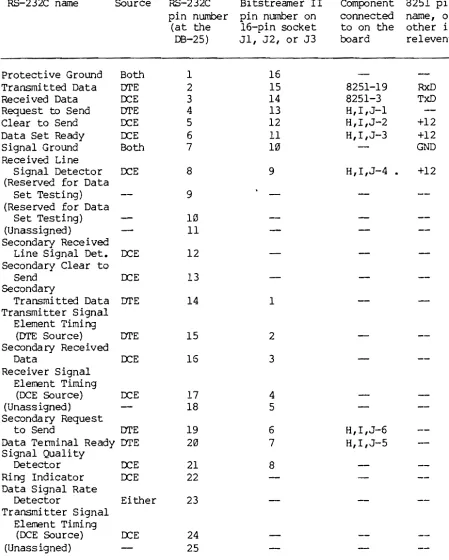
Table 3 lists all 25 RS-232C lines by name, number, and source, and indicates what subset of these are connected to the Bitstreamer II board via the Bitstreamer II Serial I/O cable. For this subset, the table specifies each line's pin number on the 16-pin socket connected to the end of the Bitstreamer II Serial I/O cable. The table also lists th~se lines which are connected to components or jumper pads, in the factory configuration of the board, and what they are connected to. "8251-n" means it is connected to pin "nil of an 8251. "H,I,J-ntt means it is connected to pad "n" in jumper
Areas H, I, or J, depending on which channel you are concerned with. (Area H is for Serial Channel C, Area I for Serial Channel 8, and Area J for Serial Channel A.) +12 means the line is connected to +12 VDC in the factory configuration. "GND" indicates the line is connnected to Ground in the factory configuration. This table applies equally to all three serial channels.
Vector Graphic Bitstreamer II Board
RS-232C name Source RS-232C Bitstreamer II Component 8251 pin pin number pin number on connected name, or (at the l6-pin socket to on the other i f
DB-25) Jl, J2, or J3 board reI event
Protective Ground Both 1 16
Transmitted Data DTE 2 15 8251-19 RxD
Received Data OCE 3 14 8251-3 TxD
Request to Send DTE 4 13 H,I,J-l
Clear to Send OCE 5 12 H,I,J-2 +12
Data Set Ready OCE 6 11 H,I,J-3 +12
Signal Ground Both 7 10 GND
Received Line
Signal Detector OCE 8 9 H, I,J-4 • +12
(Reserved for Data
Set Testing) 9
(Reserved for Data
Set Testing) 10
(Unassigned) 11
Secondary Received
Line Signal Det. OCE 12 Secondary Clear to
Send OCE 13
Secondary
Transmitted Data lJl'E 14 1 Transmitter Signal
Element Timing
(DTE Source) DTE 15 2
Secondary Received
Data OCE 16 3
Receiver Signal Elerrent Timing
(OCE Source) OCE 17 4
(Unassigned) 18 5
Secondary Request
to Send DTE 19 6 H,I,J-6
Data Terminal Ready DTE 20 7 H,I,J-5
Signal Quality
Detector OCE 21 8
Ring Indicator OCE 22 Data Signal Rate
Detector Either 23
Transmitter Signal Element Timing
(OCE Source) OCE 24
(Unass igned) 25
RS-232C and Connections on Bitstreamer II Board
Table 3
Vector Graphic Bitstreamer II Board
It is important to note here that in the RS-232C protocol, any given line has one name, regardless of your point of view. For example, although a modem, which is a kind of Data Communications Equipment ("DCE"), receives its data on line 2, line 2 is still called Transmitted Data. Notice that
G~e names of the lines are more meaningful if you look at them from the point of view of a terminal at the other end of the line, that is from G~e
point of view of the Data Terminal Equipnent (nOTEn). Accordin:j to RS-232C, Data Terminal Equipment transmits on the Transmitted Data line and receives on the Received Data line.
The Bitstreamer II board is wired to behave as if it were Data Communications Equipment. This is reasonable because the board is most commonly connected to printers, CRT'S, and other kinds of Data Terminal Equipment. This explains why RS-232C line 2 - Transmitted Data - is connected to the 8251 RxD (Receive Data) line, and why line 3 - Received Data - is connected to the 8251 TxD (Transmit Data) line, in the factory configuration.
If you want to connect the board to a modem, that is, you want the board to behave like Data Terminal Equipment, you have to reverse lines 2 and 3 somewhere. The result ~uld be that RS-232C Transmitted Data is connected to the 8251 TxD pin and RS-232C Received Data is connected to the 8251 RxD pin, which is exactly the way Data Terminal Equipnent should behave.
To make the board look like Data Terminal Equipment, you also should eliminate the +12 VDC signals on lines 5, 6, and 8, unless you are absolutely sure that the Data Communications Equipment you are connecting to does not send handshakin:j signals on one or more of these lines. (Many low speed acoustic couplers do not use these lines.) The reason is that if the Data Communications Equipment has an RS-232C line driver connected to one of these lines, the +12 VDC could blow it out.
To send handshaking signals: Data Communication Equipment connected to the boa rd may requi re a +12 VDC on some other line (most often line 4 or line 20). Similarly, a piece of Data Terminal Equipment connected to the board may require +12 VDC on some line other than 5, 6, or 8, though this is rare. You can supply +12 VDC as a constant enabling signal, by connecting the desired RS-232C line(s) to +12 VDC through a pull-up resistor.
Alternately, you can connect the required line(s) via an RS-232C line driver to the 8251 and thus a11m.". your software to control the +12 VDC enabling signal(s), if desired. The 8251 has two pins that can be controlled by software. They are pin 23 (IUS) and pin 24 (DI'R). Software controls the status of these pins by outputtin:j a command instruction byte to the 8251, as described in the 8251 references mentioned in the Perspective section of this manual. Note that by sendin:j a binary 1 to one of these status lines, the line is turned ON, which is converted by ~~e RS-232C line driver into +12 VDC.
To receive handshaking signals: Data Communications Equipment connected to the board may send +12 VDC handshakin:j signals on one or more lines, most often RS-232C lines 5, 6, 8 and/or 22. Similarly, Data Terminal Equipment
Vector Graphic Bitstreamer II Board
connected to the board may send +12 VDC on one or more lines, most often RS-232C lines 4 and/or 20. You do not have to monitor these lines, necessarily. If you choose to, you can connect one or two of these lines to the 8251 via an RS-232C line receiver. The 8251 has two pins that can be
used to receive handshaking signals: pin 17 (~) and pin 22 (DSR). Software can monitor the status of
DSR
by monitoring the appropriate bit in the 8251 status byte. The RS-232C line receiver causes +12vee
to make this bit a binary 1 (ON). Software cannot monitor the CTS status. Rather, if the input to CTS is OFF, the 8251 will not transmit anything. Software can tell that the 8251 is ready to transmit by monitoring the TxRDY bit in the status byte, or by being interrupted by the TxRDY 8251 output (pin 15). For information on the 8251 status byte, refer to one of the 8251 references mentioned in the Perspective section of this manual.Detailed instructions for installing the appropriate jumpers and chips (if necessary) follow:
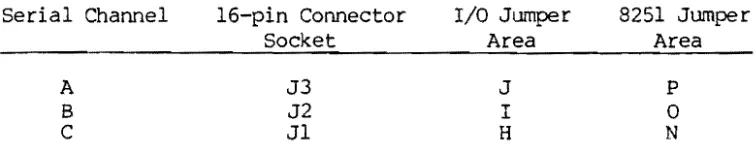
Most RS-232C handshaking lines are available on the board, as shown by Table 3, in jumper areas H, I, or J (depending on which channel you are connecting to). 8251 pins 17, 22, 23, and 24 are available in jumper areas N, 0, or P (depending on which channel you are connectin'~ to.) For convenience, Table 4 below lists the jumper areas associated with each of the serial channels:
Serial Channel
A B C
16-pin Connector Socket
J3 J2 J1
I/O Jumper Area
J
I H
Jumper Areas for Each Serial Channel
Table 4
8251 Jumper Area
P
a
N
Table 5 lists which 8251 pin is available at each pad in Areas N, 0, and P:
8251 Pin Name
Rev. I-A 1/1/8"
8251 Pin Nl..llllber
17 22 23 24
Pad in Area N, 0, and P
1 2 3 4
8251 pins in Jumper Areas
Table 5
Direction from 8251
In In Out Out
Vector Graphic Bitstreamer I I Board
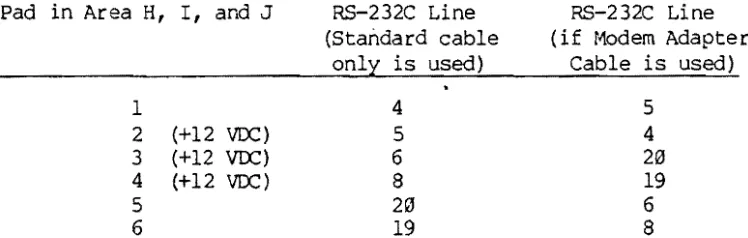
Table 6 lists the RS-232C line available at ~ach pad in Area H, I, and J. The first set of RS-232C lines in the table apply if a standard 25-line RS-232C cable is used. The second set of RS-232C lines apply if Vector Graphic's Null Modem Cable is attached to the end of the Bitstrearner II Serial I/O cable, and then a standard RS-232C cable running to the peripheral is attached to the other end of the Null Modem Cable. In the Null Modem Cable, several pairs of RS-232C lines are crossed, so that RS-232C lines leaving the peripheral arrive at the Serial I/O cable on different pins. The table also shows the three lines which are connected to +12 VDC on the board, through a pull up resistor.
Pad in Area H, I, ard J
1
2 (+12 VOC) 3 (+12 VOC)
4 (+12 VOC) 5
6
RS-232C Line (Standard cable
onll is used)
4
5 6 8
2"
19
RS-232C Line (if Modem Adapter
Cable is used)
5 4 20 19 6 8
R8-232C Lines Available in Jumper Areas, and Pads Connected to +12 VOC
Table 6
Table 6 gives an idea of what the Null Modem Cable does, in addition to the fact that it crosses lines 2 and 3. A complete des~ription is as follows: The Null Modem Cable has 25 lines, with a male 08-25 at each end. The pairs of lines which are crossed are 2 and 3, 4 and 5, 6 and 20, and 8 and 19. All other lines are wired straight through.
If you are connecting an RS-232C handshaking line to some point on the board, refer to Table 6 to detennine where in Area H, I, or J you can access the line. If you need access to an RS-232C line which is not available either in Area H, I, or J, or at one of the pins of sockets Jl, J2, or J3, then you bring it to the board using a separate wire running from the 08-25 at the other end of the Serial I/O Cable.
To connect an RS-232C line directly to +12 VDC, simply install a jumper on the back of the board from the desired pad in Area H, I, or J to the closest end of the pull up resister R9, Rl0, or Rll respectively. DO NOT CONNEcr IT DIRECTLY TO +12 VOC ON T'dE BOARD. Each resistor is found just above its corresponding jumper area.
Remember that if you are connecting a serial channel to a modem or other Data Communications Equipment, and you are not using the Null Modem Cable, you should disconnect RS-232C lines 5, 6, and 8 from the +12 VDC source on the board, unless you are positive it poses no danger to the Data Communications Equipnent. You can cut these connections on the back of the
Vector Graphic Bi tstreamer II Board
board, right next to the corresponding pads in Areas H, I, or J (dependin3 on which channel you are concerned with).
I f you ME using a Null Modem Cable, the +12 VDC signals are routed to RS-232C lines 4, 20, and 19 respectively, on which the Data Communications Equipment CAN receive +12 VDC without harm. Therefore, when using a Null Modem Cable, you do not have to disconnect a line from +12 VDC unless you want to control the status of that line from software.
To control an RS-232C handshaking line from software, it must pass from an 8251 output pin to the input of one of L~e driver circuits in a 1488 quad line driver. It must then pass from the output of this 1488 driver circuit to the RS-232C line, (using one of the pads in Area H, I, or J, if possible. )
To respond to an incoming RS-232C handshaking line, it must pass (from one of the pads in Area H, I, or J, if possible) to the input of one of the receiver circuits in a 1489 quad line receiver. It must then pass from the output of this 1489 receiver circuit to one of the 8251 input pins, (using one of the pads in Area N, 0, or Pl.
For refererence:
1488
=
a quad line driver. 1489=
a quad line receiver.There is one spare receiver circuit and one spare driver circuit on the board. The RS-232C input to the spare receiver is U26 pin 1 and its output is U26 pin 3. The input to the spare driver is U22 pin 2 and its RS-232C output is U22 pin 3. Wire your jumpers directly to these pins, when required.
If additional receiver and/or driver circuits are required, they can be added to the board, using the two spare sockets U25 and U28. Note that these are l6-pin sockets, though a 1488 and 1489 are 14 pin chips. Insert the chip with its notch uj;Mard in the TOP 14 holes in the socket. It does not matter which of the two spare sockets is used for a 1488 and which is used for a 1489. Both a 1488 and a 1489 have four circuits in each, which should be more than enough to handle all required handshaking for at least one channel. Next to socket U25 there are two jumper areas, Area C and Area D. Next to socket U28 there are two more jumper areas, Area E and Area F. Use a pad in one of the jumper areas rather than jumpering directly to the sockets.
Vector Grapi!ic Bi tstreamer II Board
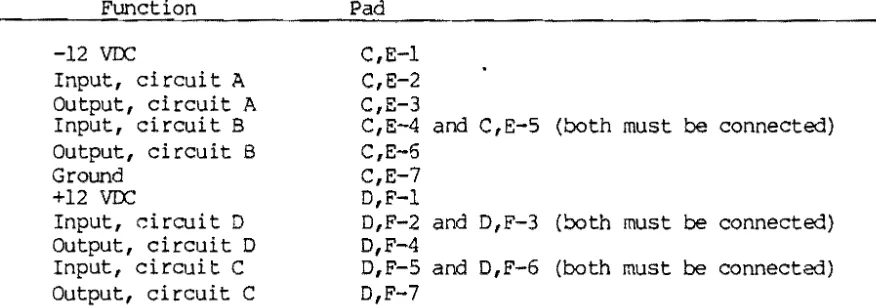
If you install a 1488 driver in socket U25 or U28, then the functions of the various jumper pads are described in Table 7. Analogously, if you install a 1489 receiver in socket U25 or U28, then the functions of the va rious jumper pads are also described in Table 7. nC,E-n" means pad n of either Area C or Area E, depending on whether you are using socket U25 or U28. The same is true for "D,F-n". If tW'O pads are listed for a function, they must be jumpered together and then jumpered to the input source. (Such a circuit will not accept an input unless it appears on both pads simultaneously.) Connect the pads requiring voltage and ground to the voltage and ground jumper areas on the board, found just below Areas E and F.
2-14
Function
-12
vrc
Input, circuit A Output, circuit A Input, circuit B Output, circuit B Ground
+12
vrc
Input, circuit D Output, circuit D Input, circuit C Output, circuit C
Pad
C,E-l C,E-2 C,E-3
C,E-4 and C,E-5 (both must be connected) C,E-6
C,E-7 D,F-l
D,F-2 and D,F-3 (both must be connected) D,F-4
D,F-5 and D,F-6 (both must be connected) D,F-7
Installing a 1488 Quad Line Driver in a Spare Socket
Function
Input, circuit A Output, circuit A Input, circuit B Output, circuit B Ground
+5 VDC
Input, circuit D Output, circuit D Input, circuit C Output, circuit C
Pad C,E-l C,E-3 C,E-4 C,E-6 C,E-7 D,F-l D,F-2 D,F-4 D,F-5 D,F-7
Installing a 1489 Quad Line Receiver in a Spare Socket
Table 7
Vector Graphic Bitstreamer II Board
2.6 How to connect 29 rnA current loop
Serial Channel C can be used for 20 rnA current loop communication rather than RS-232C. To convert it, install a jump