Preface
This publication i s a reference manual that provides specific information about the use of the IBM 5100 Portable Computer, the APL language, and installation planning and procedures. It also provides information about forms insertion and ribbon replacement for the 5103 printer. This publication i s intended for users of the 5100 and the APL language.
Prerequ isite Pub1 icat ion
IBM 5100 APL Introduction, SA21-9212
Related Publications
IBM 5100 APL Reference Card, GX21-9214 APL Language, GC26-3847
IBM 5100 Communications Reference Manual, SA2 1-92 15
First Edition (August
1979)
Changes are continually made t o the specifications herein; any such changes will be reported in subsequent revisions or technical newsletters.
Requests for copies of IBM publications should be made to your IBM represen- tative or the IBM branch office serving your locality.
A form for reader's comments is a t the back of this publication. If the form has been removed, address your comments to IBM Corporation, Publications, Dept. 245, Rochester, Minnesota 55901.
@ Copyright International Business Machines Corporation, 1975
0
0
0
Contents
CHAPTER 1
.
OPERATION. . .
1I 8 M 5100 Overview
. . .
1Display Screen
. . .
1Power On or Restart Procedures
. . .
4Display Screen Control 5 Keyboard
. . .
6Attention
. . .
6Hold
. . .
6Execute
. . .
7Command
. . .
7Positioning the Cursor and Information on the Display Screen
. . .
7Copy Display
. . .
9Indicator Lights
. . .
9Process Check
. . .
9In Process
. . .
10.
Switches. . .
4(-.
i
. . .
CHAPTER 2.
SYSTEM COMMANDS System Overview. . . .
System Command Descriptions The )CLEAR Command.
The )CONTINUE Command ThelCOPYCommand. .
The)DROPCommand. .
The )ERASE Command.
The IFNSCommand.
.
The )LIB Command. .
The )LOAD Command. .
The )MARK Command. .
The )MODE Command. .
The IOUTSEL Command.
The )PATCH Command.
The IPCOPY Command.
The IREWIND Command.
The)SAVECommand.
.
The IS1 Command. . .
ThelSIVCommand. .
The )SYMBOLS Command The )VARSCommand. .
The I W S I D Command.
.
. .
. .
. .
. .
. .
. .
. .
. .
. .
. .
. .
. .
. .
. .
. .
. .
. .
. .
. .
. .
. .
. .
. . .
11. . .
11. . .
1 1. . .
14. . .
14. . .
15. . .
16. . .
16. . .
17. . .
17. . .
19. . .
19. . .
21. . .
21. . .
22. . .
25. . .
26. . .
26. . .
27. . .
27. . .
28. . .
28. . .
29CHAPTER 3
.
DATA. . .
30,
Variables. . .
30..
Data Representation. . .
30Numbers
. . .
30Scaled Representation (Scientific Notation) 31 Character Constants
. . .
31Logical Data
. . .
32Scalar
. . .
32,
Generating Arrays. . .
33Finding the Shape of An Array
. . .
34Empty Arrays 36 Catenation
. . .
37Indexing
. . .
39c
(1
.. . . .
.
Arrays. . .
32. . .
CHAPTER 4
.
PRIMITIVE (BUILT-IN) FUNCTIONS.
Primitive Scalar Functions. . .
The + Function: Conjugate. Plus
. . .
The- Function: Negation. Minus. . .
The x Function: Signum. Times. . .
The+
Function: Reciprocal. Divide. . .
Ther
Function: Ceiling. Maximum. . .
TheI
Function: Magnitude. Residue. . . .
The *Function: Exponential. Power. . . .
The @ Function: Natural Log. Logarithm. . .
The OFunction: Pi Times. Circular. . .
The ! Function: Factorial. Binomial. . .
The ? Function: Roll. . .
The A Function: And. . .
The V Function: Or. . .
The =Function: Not. . .
The :Function: Nand. . .
The VFunction: Nor. . .
The >Function: Greater Than. . .
The = Function: Equal To. . .
The < Function: Less Than. . .
The t Function: Greater Than or Equal To. . .
The 5 Function: Less Than or Equal To. . .
The #Function: Not Equal To. . .
Primitive Mixed Functions. . .
The p Function: Shape. Reshape (Structure).
.
The. Function: Ravel. Catenate. Laminate. . .
The / Function: Compress. . .
The\
Function: Expand. . .
The4
Function: Grade Up. . .
The 1. Function: Take. . .
The J. Function: Drop. . .
The .I Function: Index Generator. Index of.
.
The0
Function: Reverse. Rotate. . .
The @ Function: Transpose. Generalized Transpose The ? Function: Deal. . .
The 1 Function: Decode (Base Value). . . .
The T Function: Encode(Representati0n). . .
The 6 Function: Membership. . .
The Function: Matrix Inverse. Matrix Divide.
The P Function: Execute
. . .
The T Function: Format. . .
TheL
Function: Floor. Minimum. . .
The TFunction: GradeDown
. . .
APL Operators
. . .
Reduction Operator (/I. . .
Inner Product Operator (.
1Outer Product Operator ( 0
.
1Scan Operator ( \ I
. . .
Special Symbols. . .
Assignment Arrow f. . .
Branch Arrow+
. . .
Quad0
. . .
QuadQuotem. . .
CommentA. . .
Parentheses ( 1. . .
. . .
. . .
. 4 3 . 4 3 . 4 4 . 4 5 . 4 6 . 4 8 . 5 0 . 5 1 . 5 2 . 5 4 . 5 5 . 5 6 . 5 9 . 6 1 . 6 2 . 6 3 . 6 4 . 6 5 . 6 6 . 6 7 . 6 8 . 6 9 . 7 0 * 7 1 . 7 2 . 7 3 . 7 5 . 7 7 . 8 1 . 8 2 . 8 3 . 8 4 . 8 6 . 8 7 . 8 8 . 8 9 . 9 3 . 9 5 . 9 6 . 9 9 . 1 0 4
.
105 . 1 0 7 . 1 0 8 . 1 1 1 . 1 1 1 . 1 1 3 . 1 1 6 . 1 1 8 . 1 2 0 . 1 2 0 . 1 2 0 . 1 2 0 . 1 2 1 . 1 2 1 . 1 2 2... 111
CHAPTER 5
.
SYSTEM VARIABLES A N D SYSTEMFUNCTIONS
. . .
123System Variables
. . .
123Comparison Tolerance:
0
CT. . .
124Index Origin:
0
10. . .
125Printing Precision:
0
PP. . .
125Print Width:
0
PW. . .
126Random Link: O R L
. . .
126Line Counter:
0
LC. . .
126Workspace Available:
0
WA. . .
126Latent Expression:
0
L X. . .
126Atomic Vector:
0
A V. . .
126System Functions
. . .
128The O C R Function: CanonicallRepresentation
. .
128The
0
F X Function: F i x. . .
129The
0
EX Function: Expunge. . .
132The ONL Function: Name Lisp
. . .
132The
0
NC Function: Name Claisification. . . .
133CHAPTER6
.
USER-DEFINEDFUNCTIONS. . . .
134Mechanics of Function Definition
. . .
134Function Header
. . .
135Branching and Labels
. . .
137Local and Global Names
. . .
139Interactive Functions
. . .
144Requesting Keyboard Input during Function Execution
. . .
145Arranging the Output f r o m a User-befined Function
. .
146Bare Output
. . .
146Locked Functions
. . .
147Function Editing
. . .
148Displayinga User-Defined Function
. . .
148Reopening Function Definition
. . .
150151 Trace and Stop Controls
. . .
152Trace Control
. . .
152Revising a User-Defined Function
. . .
148A n Example of Function Editing
. . .
StopControl. . . . . . .
154CHAPTER 7
.
SUSPENDED FUNCTION EXECUTION.
155 Suspension. . .
155State Indicator
. . .
155CHAPTER 8
.
TAPE AND PRINTaR INPUT AND OUTPUT. . .
Establishing a Variable t o be Shared. . .
Opening a Data File or Specifying printer Output.
Transferring Data. . .
Transferring Data t o Tape (OUT or A D D Transferring Data from Tape (IN Operation).
Transferring Data t o the Printer (PRT Operation) Operation). . .
Closing a Data File or Terminating the Printer Output Return Codes. . .
A n Example Using Tape and Printer lnput/Output.
Retracting the Variable Name Being Shared. . .
. .
. .
. .
. .
. .
. .
. .
. .
. .
. .
. .
158 158 1 59 163 163 163 164 164 164 165 1 66I
CHAPTER 9.
MORE THINGS TO KNOW ABOUT THE 5100. . .
170 ~Data Security
. . .
1705100 Storage Capacity
. . .
171Storage Considerations
. . .
172Tape Data Cartridge Handling and Care
. . .
173CHAPTER 10
.
THE 5103 PRINTER. . .
174How t o Insert Forms
. . .
175How t o Adjust the Copy Control Dial for Forms Thickness
. . .
177How to Replace a Ribbon
. . .
177.
CHAPTER 11
.
ERROR MESSAGES. . .
180APPENDIX A
.
INSTALLATION PROCEDURES AND INSTALLATtON PLANNING INFORMATION. . .
188Installation Planning 188 188 Installation Procedures
. . .
1915100 Installation Procedure
. . .
191Auxiliary Tape Unit Installation Procedure
. . . .
196Printer lnstallatlon Procedure
. . .
198. . .
. . . .
IBM 5100 Portable Computer 50 I b (24 kg) APPENDIX 6.
APL CHARACTER SET AND OVERSTRUCK CHARACTERS. . .
200APPENDIX C
.
ATOMIC VECTOR. . .
201APPENDIX D
.
5100 APL COMPATIBILITY WITH IBMAPLSV. . .
205GLOSSARY
. . .
209INDEX
. . .
214IBM 5100 PORTABLE COMPUTER OVERVIEW
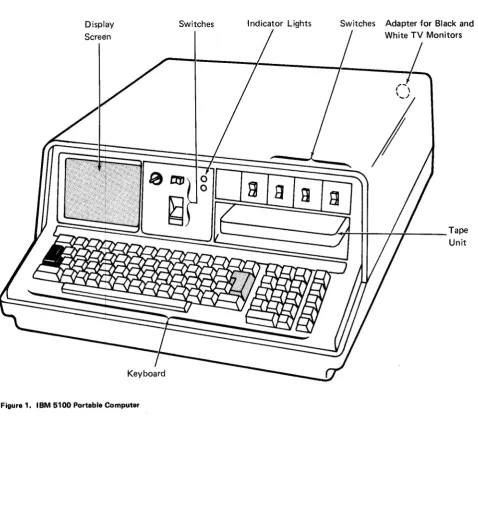
The 5100 (Figure 1) i s a portable computer. The 5100 has a display screen, key- board, a tape unit, switches, indicator lights, and an adapter for black and white TV monitors. The display screen and indicator lights communicate information to the user. The keyboard and switches allow the user to control the operations the system will perform. Figure 2 shows the 5100 console.
_-.
(\..
:j
Features available for the 5100 are an auxiliary tape unit, a printer, and a com- munications adapter.
DISPLAY SCREEN
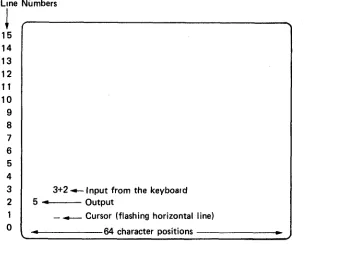
The display screen (Figure 3) can display 16 lines of information a t a time, with up to 64 characters in each line. Input (information supplied by the user) as well as output (processed information) is displayed. The bottom two lines (lines 1 and 0) of the display contain information entered from the keyboard. The cursor (flashing horizontal line) indicates where the next input from the keyboard will be displayed. If the cursor is moved to a position that already contains a charac- ter, the flashing line i s replaced by the flashing character. As the 5100 processes input, a l l lines of the display are moved up so that information can be entered on the two bottom lines again. The top lines of the display are lost as the lines are moved off of the display screen.
Display Scredn
Switches lndicat
/
r Ligh s Switch s Adapter for Black and White TV Monitors
I
[image:6.612.78.557.177.699.2]Tape Unit
Figure 1. IBM 5100 Portable Computer
0
( 1 1 - 1
2 %
Page of SA21-92130 I
Issued 15 September 1975 I
By TNL: SN21-0247
1
[image:7.613.101.488.50.712.2]- Figure 2. The 51 00 Console
Line Numbers
1
15 14 13 12 11 10 9 8 7 6 5 4 3 2 1 0
3+2 4- Input from the keyboard
-
+ Cursor (flashing horizontal line)5
-
output4 64 character positions -
*
[image:8.619.160.502.54.307.2]Normally, to distinguish input from output, input from the keyboard is indented and output is displayed starting a t the left edge of the display screen.
Figure 3. The 6100 Display Screen
SWITCHES
The switches on the 5100 console (Figure 2) are used for turning power on, re- starting the system, and controlling how information is displayed.
Power On
or
Restart Procedures
The following switches are used when turning power on to the system or re- starting the system operation.
BAS1 C/APL
Only dual-language machines have this switch. The switch setting determines which language will be in operation when power is turned on or after RESTART is
pressed. If the switch setting i s changed after power is turned on or after RESTART is pres$ed, the language in operation will not be changed.
Power ON/C)FF
When this switch is in the ON position, power is supplied to the system. The system performs internal checks and becomes ready in 15-20 seconds. When the
switch i s put in the OFF position, no power is supplied to the system.
7,
i
Note: The message CLEAR WS is displayed when the system becomes ready. If this message i s not displayed after
20
seconds, restart the system operation (the RESTART switch is discussed next).RESTART
This switch restarts the system operation. When it is pressed, the system performs internal checks and becomes ready in
15-20
seconds. The message CLEAR WS is displayed when the system is ready. I f the system does not display the message after 20 seconds, press RESTART again. I f the system does not become ready after several attempts, call your service representative.The primary uses of this switch are to restart the system operation after a system malfunction has occurred and to change the language in operation on dual- language machines.
Note: Any information you had stored in the active workspace (see Chapter
2)
will be lost when RESTART is pressed.
Display
Screen Control
The following switches are used to control how the information on the display screen is displayed.
L32 64 R32
This three-position switch (positions 64,
L32,
andR32)
operates as follows: 064
-
Characters are displayed in adjacent positions, and up to64
characterscan be shown on each line.
0 L32
-
Characters are displayed in alternate positions (blanks between); only the left32
characters of the 64-character lines are shown.R32
-
Characters are displayed in alternate positions (blanks between); only the right32
characters of the 64-character lines are shown.REVERSE DISPLAY
This switch determines whether the display screen will display light characters on a dark background or dark characters on a light background. The brightness control may have to be adjusted when the switch setting i s changed.
DISPLAY REGISTERS
This switch i s for the service representative’s use when servicing your
51
00.
Note: When you use your
5100,
this switch must be in the NORMAL position.5
I
I
KEYBOARD
6
The 5100 keyboard (Figure 2) has alphameric and numeric keys. The alphameric keys are grouped together and are similar to those on a typewriter keyboard. When the keys are pressed, the characters entered appear in the input line (one of the bottom two lines) on the display screen. If either shift key i s pressed and held, the upper symbol on the key pressed i s entered. The top row of alphameric keys ban be used to enter numbers; however, numbers can be conveniently en- tered using the numeric keys on the right side of the keyboard. The arithmetic symbols (+
-
f x) located on the top row of the alphameric keyboard can alsobe entered using keys to the right of the numeric keys.
The keyboard contains some keys that perform operations in addition to those performed by a typewriter. These keys are discussed in the following text. Uses of the APL language symbols on the keyboard are discussed in the APL language chaptier (Chapter 4) of this manual.
Pressihg ATTN (attention) when entering information from the keyboard erases everything from the cursor to the end of line 0.
Pressing ATTN during execution of any expression or user-defined function stops system operation a t the end of the statement currently being processed. To re- start the execution of a user-defined function, enter -toLC.
Output that was being generated before the system operation stopped may not be displayed because there is a delay between the execution of the statement that causes the output and the actual display of the output.
When ATTN i s pressed twice during the execution of a statement (either inside or outside a user-defined function), the execution of that statement stops im- medidtely. Also, the message INTERRUPT, the statement, and a caret ( A ) that indicates where the statement was interrupted are displayed.
When pressed once, HOLD causes all processing to stop; when pressed again, it allows processing to resume. The primary purpose of HOLD is to permit reading the display information during an output operation, when the display i s changing rapidlb. When the hold is in effect (HOLD pressed once), only the COPY DISPLAY key is active.
Notes;
1. Holding down the CMD key and pressing HOLD i s restricted to use by the service personnel.
2. When the hold is in effect (HOLD pressed once), the use of the arithmetic keys (+
-
fx)
on the right side of the keyboard are restricted to use byservice personnel.
Iv
When this key i s pressed, the input line of information on the display screen is processed by the system. This key must be pressed for any input to be processed.
When this key i s pressed and held, pressing an alphameric key in the top row causes the APL command keyword or character above that key to be entered in the input line. The command keywords are: )LOAD, )SAVE, ICONT, )LIB,.
IFNS, IVARS, )COPY, IWSID, )OUTSEL, and )REWIND.
Note: Holding down the CMD key and pressing HOLD is restricted to use by the service personnel.
Positioning the
Cursor
and Information on the Display Screen
The following keys are used to position the cursor and information on the display screen:
n
Forward Space
When this key is pressed once, the cursor moves one position to the right. When this key is held down, the cursor continues to move to the right. When the cursor reaches the last position on one input line (line 1 or 0), it wraps around to the first position on the other input line.
(1
When the CMD key i s held down and the forward space key i s pressed once, the characters a t and to the right of the cursor position (flashing character) are moved to the right one position, and a blank character i s inserted a t the cursor position. The cursor does not move. For example:
/ -, F l a s h i n
g character
Before the insert operation: After the insert operation:
When these keys are both held down, the characters continue to move to the right and blank characters continue to be inserted.
Note: I f there i s a character in position 64 of line 0, the insert operation will not work.
When this key is pressed once, the cursor moves one position to the left. When it is held down, the cursor continues to move to the left. When the cursor reaches position 1 on one input line (line 1 or
01,
it wraps around to the last position on the other input line.am
Delete
When the CMD key i s held down and the backspace key i s pressed once, the character a t the cursor position (flashing character) is deleted and all characters to the right are moved over one position to the left to close up the space. The cursor is not moved. For example:
Before the delete operation: 1234456
\
After the delete operation: 123456
-Flashing character
f
I\
<-
This key (located above the numeric keys) can be used only in execution mode. When this key i s pressed once, each displayed line i s moved up to the next line. As the lines are moved up, the top line i s lost as it i s moved off the display screen. When this key i s held down, the lines continue to move up.
This key (located above the numeric keys) can be used only in execution mode. When the key i s pressed once, each displayed line i s moved to the next lower line.
As the lines are moved down, the bottom line i s lost as it i s moved off the display screen. When this key i s held down, the lines continue to move down.
1;1
Copy Display
\U
If there i s a 5103 Printer, when the CMD key i s held down and this kev i s pressed once, a l l the information presently on the display screen i s printed. COPY DISPLAY i s operational even when the system i s in the hold state (the HOLD key has been pressed once).
Note: The L32 64 R32 switch has no effect on what will be printed.
INDICATOR
LIGHTS
The 5100 console (Figure 2) has the following indicator lights:
Process
Check
When on, this light indicates that a system malfunction has occurred. In this case, press the RESTART switch to restart the system operation. If the system opera- tion cannot be successfully restarted after several attempts, call your service repre- sentative.
c;
In
Process
When the system is processing input, generally the display screen is blank and the IN PROCESS light is on. After the input i s processed, the light goes off, the out- put and flashing cursor are displayed, and the system waits for input.
Notes:
1. For some expressions or user-defined functions (see Chapter 51, output is generated before the expression or function has completed execution. In such cases, even though the system is still processing data, the IN PROCESS light goes off and the output is displayed. The flashing cursor is again displayed wheD the system has finished processing the input (the expression or function has completed execution).
brightness control before calling your service representative.
2. If the display screen is blank and the IN PROCESS light i s off, check the
10
-
-.Chapter
2.
System Commands
SYSTEM OVERVIEW
(I,
i
The 5100 contains an active workspace, which is the part of internal storage where the user’s data and user-defined functions (programs) are stored. When the power is turned off or the RESTART switch is pressed on the 5100, all the data in the active workspace is lost. However, the contents of the active workspace can be saved on tape (stored workspace) and then read back into the active workspace for use a t a later time (see System Command Descriptions in this chapter). The contents of the active workspace then exist in both the active workspace and on tape.
The tape i s your library; that is, it i s a place where you can store data for later use. Before a tape can be used, it must be formatted. A formatted tape contains one or more files where data can be stored. Each file has a file header, which con- tains information about the file. See the )LIB system command in this chapter for a description of the file header.
The system commands, which are used to control and provide information about the system, are discussed next.
SYSTEM COMMAND DESCRIPTIONS
The following l i s t shows how system commands are used to control and provide information about the various parts of the system. Each system command i s described in detail later in this chapter.
Commands that Control the Active Workspace
Corn mand Meaning
)CLEAR Clear the active workspace.
)COPY Copy stored objects (see note 1) into the active workspace. )ERASE Erase global objects (see note 1) from the active workspace. )LOAD Replace the active workspace with a stored workspace.
) PCOPY Copy stored objects (see note 1) into the active workspace and pro- tect objects in the active workspace from being destroyed.
)SYMBOLS Change the number of symbols allowed in the active workspace. )WSID Change the active workspace ID.
Commands that Control the Library (Tape)
Command Meaning
)CONT I N UE Write the contents of the active workspace on tape. The active workspace can contain suspended functions.
)DROP Drop a file from the tape.
)MARK Format the tape.
)SAVE Write the contents of the active workspace on tape. The active workspace cannot contain suspended functions.
Commands that Provide Information About the System
Commahd Meaning
)FNS Display the names of the user-defined functions. )LIB Display workspace file headers.
IS1
Display the state indicator.)SI
v
Display the state indicator and local names.)SYMBOLS Display the number of symbols allowed in the active workspace. )VARS Display the names of the global variables.
)WSID Display the active workspace ID.
Other Commands that Control the System
Command Meaning
)MODE
)OUTS6 L Select printer output.
Place the 5100 in communications mode.
)PATCH Apply IMFs (internal machine fix) t o the system or recover data after a tape error.
)REWIND Rewind the tape. Notes:
1. O b i e m refers t o both user-defined functions and variables.
2. The System commands )CONTINUE, )COPY, )PCOPY, )DROP, )LOAD, )MARK, )REWIND, and )SAVE will blank the top 8 or 9 lines on the display screen when they are used.
All system commands (and only system commands) have as their first character a right parenthesis. Each system command must begin on a new line. Para- meters (required or optional information) for the system commands must be separated by blanks. System commands cannot be used within APL instructions and cannot be used as part of a function definition (function definition is dis- cussed in Chapter 6).
System commands can be entered two ways:
1.
2.
The system command can be entered one character a t a time from the key board
.
The system commands )LOAD, )SAVE, ICONT, )LIB, IFNS, )VARS, )COPY, IWSID, )OUTSEL and )REWIND can be entered in one operation by holding the CMD key while pressing the top-row key just below the label of the command you want.
The parameters, if required, must be entered and the EXECUTE key pressed before any operation will take place. Following is an explanation of terms and symbols used as parameters for system commands:
0 Device/file number specifies the tape unit and file to be used. The built-in tape unit i s tape unit 1 and the auxiliary tape unit is tape unit 2. If the value speci- fied i s less than four digits, tape unit 1 is assumed and the value specified re- presents only the file number. If the value specified i s four digits, the right- most three digits specify the file number and the leftmost digit specifies the tape unit. For example:
Device/File Number Meaning
1 Tape 1, file 1
02
Tape 1, file 22002 Tape 2, file 2
0 Workspace ID i s any combination of up to 11 alphabetic or numeric characters (with no blanks); however, the first character must be alphabetic. I f more than 11 characters are entered, only the first 11 are used.
0 Password is any combination of up to eight alphabetic or numeric characters (with no blanks). If more than eight characters are entered, only the first eight are used.
O&t i s a user-defined function or variable name.
0 Parameters enclosed in brackets can be optional in certain cases.
The ICLEAIR Command
14
The )CLEAR command clears the active workspace and closes all open files. A cleared 'workspace has no valid name, contains no user-defined variables or functions, and no data. The workspace attributes are set to:
IndeK origin - 1
Worbspace identification
-
CLEAR WS Comparison tolerance-
1E-13Printing width
-
64Printing precision
- 5
Random number seed-
16807Data1 printed
-
ALLWhen the command is successfully completed, CLEAR WS is displayed.
Syntax
There are no parameters.
The ICONltINUE Command
The )CONTINUE command writes the contents of the active workspace onto tape without changing the contents of the active workspace. This command is primarily used when the entire stored workspace is to be loaded back into the active workspace. Workspaces are stored and loaded back into the active work- space fister using the )CONTINUE command than using the )SAVE command. When the command i s successfully completed, CONTiNUED device/file number workspace ID is displayed.
Notes:
1. A cl4ar workspace cannot be written on tape.
2. A wbrkspace with suspended functions can only be written on tape using the )COhTINUE command (it cannot be written to tape using the )SAVE com- mand).
3.
)CORY and )PCOPY commands cannot specify stored workspaces that were written on tape using the )CONTINUE command.4. A stQred workspace written to tape using the )CONTINUE command cannot be loaded into a 5100 active workspace that i s smaller than the original active worlqspace.
5. I f a Stored workspace that was written to tape using the )CONTINUE command is loaded into another 5100 with a larger active workspace, the workspace available (see the IJWA system variable in Chapter 5) i s the same as when the worKspace was written to tape.
interrupted and the file i s set t o unused.
6. If AfTN is pressed during a )CONTINUE operation, the system operation i s
I
__-- _-.Syntax
)CONTINUE [device/file number1 [workspace ID1 [:password1 where:
device/file number (optional) is the number of the tape unit and file on the tape where the contents of the active workspace are to be written. If no de- vice/file number i s specified, the device/file number from which the active workspace was loaded or specified by a previous IWSID command i s used. worksoace ID (optional) is the name of the workspace to be stored. This name must match the workspace ID of both the active workspace and the file to be used on the tape, unless the file is marked unused. If the file is marked unused, the active workspace ID and tape file workspace ID are changed to this workspace ID. If no name is specified in the command, the name of the active workspace i s used.
:password (optional) i s any combination of up to eight alphabetic or numeric characters (without blanks), preceded by a colon. This sequence of characters must be matched when the stored workspace i s to be read back into the active workspace. If no workspace ID or password i s entered, the password associa- ted with the active workspace (if any) i s assigned to the workspace being
stored. If just the workspace ID and no password i s entered, any password associated with the active workspace is not used.
The )COPY Command
The )COPY command copies
all
or specified global objects from a stored work- space to the active workspace. Only objects in stored workspaces that were written on tape with the )SAVE command can be copied. When the command is successfully completed, COPIED device/file number worksoace ID i s displayed. Notes:1. If the active workspace contains suspended functions, objects cannot be copied into it.
2. If the ATTN key is pressed during a )COPY operation, the system operation is interrupted and the amount of information copied into the active workspace i s unpredictable.
Syntax
)COPY device/file number workmace, ID :nassword [obiect name(s)] where:
device/file number is the number of the tape unit and workspace file the ob- jects are copied from.
workmace ID i s the name of the stored workspace on tape.
:pagsword i s the security password assigned by a previous )WSID or )SAVE command. If no password was assigned previously, a password cannot be specified by this command.
object name(s) (optional) is the name of the global object(s) to be copied from the designated stored workspace. If this parameter is omitted, a l l global ob- jects in the designated stored workspace are copied.
The
)DROP Command
The )C)ROP command marks a specified file unused. After the file has been marked unused, the data in the file can no longer be read from the tape. When the command i s successfully completed, DROPPED device/file number file ID i s displayed.
Syntax
)DeOP device/file number [ f K D ] where:
dev,ice/file number i s the number of the tape unit and the file on the tape. file, ID (optional) is the name of the stored workspace file to be marked unused. I f the file number specified is a data file, any file ID specified i s ignored.
The
)ERASE Command
The )@RASE command erases the named global objects from the active work- space.' There is no message displayed a t the successful completion of the com- mand.
Motes:,
1. When a pendent function (see Chapter 7) i s erased, the response SI DAMAGE 2. I f dhe object being erased i s a shared variable (see Chapter 8), the shared vari- 3. Even after the object i s erased, the name remains in the symbol table (the
i s iSsued.
able will be retracted.
part of the active workspace that contains a l l the symbols used).
Syntax 1
)ERASE obiect name(s1 where:
obilect name(s1 are global names separated by blanks.
(I
The
)FNS Command
The )FNS command displays the names of all global user-defined functions in the active workspace. The functions are listed alphabetically. If the character para- meter i s specified, the names are displayed beginning with the specified character or character sequence.
Note: You can interrupt the )FNS command by pressing the ATTN key.
Syntax
FNS [character(s)] where:
characterk) (optional) is any sequence of alphabetic and numeric characters that starts with an alphabetic character and contains no blanks. This sequence of characters determines the starting point for an alphabetic listing.
The
)LIB Command
The )LIB command displays the file headers of the files on tape (library). The file header contains the following information:
0 File number. The files on tape are numbered sequentially, starting with 1.
0 File ID. The file ID can be from 1 to 17 characters. I f the f i l e contains a stored workspace, the file ID i s the same as the stored workspace ID.
0 File type. The file type is a 2-digit code; the following chart gives the mean- ing of each code:
File Type 00
01
02 03
04 05 06
07
Description Unused file
Interchange data file ,(see Chapter 8 )
General interchange data file (see Chapter 8)
BASIC source file BASIC workspace file BASIC keys file
APL continued file (see )CONTINUE command in this chapter)
APL saved file (see )SAVE command in this chapter)
File Type Description 0%
14
17 Diagnostic file
19 IMF file
72 Storage dump file
APL internal data format file (see Chapter 8) Patch and tape recovery file
Size of the file. The files are formatted in increments of 1024-byte blocks of storage.
0 Number of unused contiguous 1024-byte blocks of storage in the file. Nu ber of defective records (512-byte blocks) in the file; an asterisk
rl
displayed i f there are more than nine defective records.
Note:
This value can indicate when you should relocate a file to avoid Idata due to defective areas on the tape. Following is an example of a file header:
11
0
6
F'
1:
L..E:rj0
'7
(I
1.
0
>0
0
:1
0
*) i s
ISS of
-File ID
File number
The )LIB command operation can be interrupted by pressing the ATTN key.
Syntax
)LIB [device/file number
I
where:Page of SA21-9213-0
Issued 15 September 1975
By TNL: SN21-0247
The )LOAD Command
The )LOAD command loads the contents of a stored workspace from the tape into the active workspace, completely replacing the contents that were in the active workspace. When the command is successfully completed, LOADED device/file number workspace ID is displayed.
Note: If the ATTN key is pressed during a load operation, the system operation i s interrupted and the active workspace i s cleared.
Syntax
)LOAD device/file number workspace ID :Dassword where:
device/file number is the number of the tape unit and the number of the file on the tape.
workspace ID is the name of the stored workspace.
:password i s the security password assigned to the stored workspace by a pre- vious )WSID, )CONTINUE, or )SAVE command. I f no password was pre- viously assigned, a password cannot be specified. I f a password was assigned to the stored workspace but i s not specified, or if it is incorrectly specified for this command, the error message WS LOCKED is displayed.
The )MARK Command
The )MARK command formats the tape so that the active workspace or data can be saved on it. Each )MARK command formats a certain number of files to a specified size. Additional files of different sizes can be formatted by using additional )MARK commands.
When the operation is successfully completed, MARKED
number of the last file marked size of the last file mar ked is displayed. Notes:
1. The ATTN key i s not operative during the )MARK command operation. 2. If the message ALREADY MARKED is displayed after a )MARK command
was issued, the specified file already exists on the tape. To re-mark the specified file, enter GO. If the file is not to be re-marked, press EXECUTE to continue.
CAUTION
If an existing file on tape i s re-marked, the original information in the re-marked file and the existing files following the re-marked file cannot be used again.
Syntax
)MARIK
size
number of files to mark starting file number [device] where:-
size i s an integer specifying the size of each file in 1024-byte (1 K) blocks of storage.
The folbwing formulas can be used to determine what size a file should be marked. The formula for a workspace f i l e (the contents of the active workspace written to tape with a )SAVE or )CONTINUE command) i s
MAXSl ZIE= 3+
r
(CLEAR-ACTIVE)+1024, where:I
. I
0 MAX$IZE is the maximum amount of tape storage (number of 1024-byte blocks) that would be required to write the contents of the active workspace to tape.
0 CLEAR i s the value of DWA (see Chapter
5)
in a clear workspace.ACTIVE is the value of C]WA just before the contents of the active workspace are written to tape.
The formula for a data file (data written to tape using an APL shared variable -see Ch’apter 8) when all of the data i s contained in the active workspace is MAXSIZE=
r
(WITHOUT-WITH)+
1024, where:0 MAXSIZE i s the maximum amount of tape storage (number of 1024-byte blocks) required to write the data to tape.
0 WITH is the value of OWA (see Chapter 5) with the data in the active work- space, ‘
0 WITHOUT i s the value of OWA before any data to be written to tape was stored in the active workspace.
There is no formula for determining what size to mark a data file when the data is writtdn to tape as it is entered from the keyboard. The amount of tape storage required depends upon how much data is entered from the keyboard and what type of data is used. For information on how many bytes of storage are required by the iarious types of data, see
Storage
Considerations in Chapter 9.q e r of files to ma rk is an integer specifying the number of files of the specified size to format.
starting file number i s an integer specifying the file number where formatting is to start.
deviqe (optional) specifies the tape unit that contains the tape to be formatted. An entry of 1 specifies tape unit 1 and 2 specifies tape unit 2. If no entry is made, tape unit 1 is assumed.
To format a tape for four 12K files, two 16K files, and three 10K files, the following commands are required:
)MARK
)MARK )MARK
12 16 10
The
)MODE Command
5
--Starting file number 7 /! I
The )MODE command is used to load the 5100 communications program from a tape mounted in tape drive 1 and to place the system in communications mode (see IBM 5100 Communications Reference Wnual, SA21-9215). When the system is in communications mode, APL is no longer available.
Syntax
)MODE COM
The )OUTSEL Command
The )OUTSEL command specifies which data on the display will go to the printer.
Syntax
IOUTSEL [ o ~ t i o n ] where:
option is one of the following:
0 When ALL is specified, all subsequent information that is displayed will be printed.
8 When OUT is specified, only the output is sent to the printer; input is dis- played, but it does not go to the printer.
0 When
OFF
is specified, none of the information displayed i s printed, unless it is assigned to an APL shared variable used by the printer (see Chapter 7).I f no parameter is specified, ALL is assumed. After a )LOAD or )CLEAR com- mand or when the machine is first turned on, the ALL option is active.
Page of SA21-9213-0
Issued 15 September 1975
By TNL: SN21-0247
The )PATCH Command
The following is a list of the uses of this command. This command is used in con- junction with specially devised programs on a tape cartridge supplied with the 5100. The uses are described in detail, following the list:
Copy IMFs (internal machine fix), the Copy IMF program, and the Load IMF program onto another tape cartridge.
0 Load IWFs for the system program into the active workspace, then make the APL language available again.
Display the EC version of each interpreter module.
Recover data on tape when tape read errors (ERROR 007 ddd-see Chapter 1 1 ) occur during use of one of the following files:
1. Interchange (file type 01)
2.
3.
4.
Copy
the
contents of one tape cartridge to another tape cartridge. The supplied tape cartridge contains the following files:0 File 1.
General interchange (file type 02) BASIC source (file type 03)
APL internal data format (file type 08)
The programs that copy or load IMFs and the program that displays interpreter module EC versions.
File 2. The IMFs for the 5100. File 3. The Tape Recovery program.
0 File 4. The Tape Copy program.
0 File 5. APL aids. This i s a saved workspace file (WSID=APLAIDS) that con- tains the following four functions:
1. 2.
AATRACE-Traces all the statements in a specified user-defined function. AATRACEALL-Traces the first executable statement of each user- defined function currently in the active workspace.
3. AATRACEOFF-Turns off a l l tracing.
4. AASHARED-Displays the shared variable names currently in the active workspace.
The AATRACE function requires as i t s right argument the name of the user- defined function to be traced enclosed in single quotes. The other functions do not require any arguments.
‘ i
Page of SA21-9213-0
Issued 15 September 1975
By TN L: SN21-0247
This workspace file also contains the following five variables that describe the func- tions in the workspace:
1. DESCRIBE
2. DESCRIBEAATRACE 3. DESCRIBEADTRACEALL 4. DESCRIBEAATRACEOFF
* 5. DESCRIBEAASHARED
These functions and variables can be copied into the active workspace using the )COPY command. For example, t o copy the AATRACE function into the active wor kspace:
Note: The )PATCH command is not required for using the functions in f i l e 5. When the )PATCH command i s used with the tape cartridge inserted in tape drive 1, the following options are displayed:
ENTER OPTION NO. 1. COPY IMF TAPE 2. LOAD IMF’S 3. DlSP EC VER. 5. ENDOFJOB 6. TAPE RECOVERY 7. TAPE COPY PGM 4. KEY-ENTER IMF
Flashing Cursor
-
22.1
-I
To select an option, enter an option number (1 through 7). I f an option number other than those displayed i s entered, the options will be displayed again. Once the option number has been entered, additional prompting messages might be dis- played for the selected option.
Option 1. Copy IMF Tape
The Copy IMF Tape option allows the following files to be copied from the tape: File 1, which contains the Copy IMF program, Load IMF program, and Display EC Version program.
File
2,
which contains the IMFs for the 5100. The IMFs can be copied from the file as follows:1. Copy all IMFs that apply to APL.
2.
3.
Copy all IMFs for APL that apply to the 5100 being used. Copy specific IMFs by problem number.
4. Copy specified IMFs by problem numbers that apply to the 5100 being used. (If a problem number is specified that does not apply to the 5100 being used, it is not copied.)
Nore: The tape onto which files 1 and
2
are to be copied must be marked before the copy operation is done. Use the )LIB command to determine what size the files should be marked.The Copy IMF Tape program will issue prompting messages and wait for the user to respond to each message.
Copying IMFs allows tape cartridges containing only the IMFs that apply to your 51 00 to be created.
Option 2. Load IMFs
The Load IMFs option allows IMFs to be loaded into the system program and then makes the APL language available again. IMFs can be loaded as follows:
Load all IMFs that apply to the 5100 being used.
Load specified IMFs by problem numbers that apply to the 5100 being used. (If a problem number is specified that does not apply to the 5100 being used, it is not loaded.)
The Load IMFs program will issue prompting messages and wait for the user to respond to each message.
1
Nore: The IMFs occupy storage (space) in the active workspace and can also reduce the performance of your 5100 significantly; therefore, IMFs should not be applied to your 5100 if the problem does not affect your operation or if the problem can be circumvented by an APL statement or command. The IMFs will remain in the active workspace until the power is turned off or RESTART is pressed.
i
i
Option
3.
Oitp EC Ver.The Disp EC Ver. option is primarily for your service representative's use. This option will display a 4-digit code for each interpreter module. The first two digits are the module identification and the next two digits are the EC version.
The EC Version program will issue prompting messages and wait for the user to respond to each message.
Option 4. Key-Enter IMF
This option allows the service representative to enter IMFs from the keyboard. The IMF is1 then written to file 2 on the tape containing the IMFs. The IMF can then be loaded or copied from the tape.
Option 5. End of Job
This option causes the APL language to be available again.
Option 6. Tape Recovery
The Tape Recovery option allows the user to recover data from a file or files on which tape read errors (ERROR 007 ddd) are occurring. The Tape Recovery Pro- gram dan be used on the following files:
0 Interchange (file type 01)
0 General interchange (file type 02)
0
BASIC
source (file type03)
0 APL internal data format (file type 08)
The Tape Recovery program will issue prompting messages and wait for the user to respond to each message.
The Tfpe Recovery program will recover as much data as possible in the file; some of the data in the record where the tape read errors occur is not recoverable; some of the data that precedes and follows that record may also not be recoverable.
Option 7. Tape Copy Program
The Tape Copy option allows you t o copy the contents (up t o the end o f marked tape) of one cartridge t o another cartridge. Tape copy can utilize the auxiliary tape drive, if available. Tape copy also marks the tape being copied to.
Tape copy issues prompts and waits for you t o respond t o each prompt.
Syntax
)PATCH
There are no parameters.
The )PCOPY Command
The )PCOPY command copies all or specified global objects from a stored work- space into the active workspace. It is the same as the )COPY command, except that if the object name already exists i n the active workspace, it i s not copied from a stored workspace. Therefore, the object in the active workspace is protected from being overlaid and destroyed. Only objects in stored workspaces that were written on tape with the )SAVE command can be copied.
When the command i s successfully completed, COP1 ED device/file number workspace ID is displayed.
Notes:
I f the active workspace contains suspended functions, objects cannot be copied into it.
If the ATTN key is pressed during a )PCOPY operation, the system operation is interrupted and the amount of information copied into the active workspace is unpredictable.
I f the specified object name already exists in the active workspace, the message NOT C0PIED:obiect name is also displayed.
Syntax
)PCOPY device/file number workspace ID :password [object name(s)] where:
device/file number i s the number of the tape unit and the stored workspace file. workspace ID i s the name of the stored workspace on the tape.
:password is the security password assigned by the previous IWSID or )SAVE command. I f no password was assigned, a password cannot be specified by this command.
obiect name(s) (optional) is the name of the global object(s1 to be copied from the designated stored workspace. If omitted, all global objects in the designated stored workspace are copied, except those already in the active workspace (if any).
The )REWIND Command
The IFEWIND command rewinds the specified tape. There i s no message displayed a t the successful completion of this command.
Syntax
IREWIND [device number] where:
device number (optional) is the tape (on drive 1 or 2) to be rewound. I f the para- meter i s omitted, tape 1 i s rewound.
The )SAVE Command
The )SAVE command writes the contents of the active workspace onto tape with- out changing the contents of the active workspace. This command is used when objects will be copied from the stored workspace back into the active workspace. When this command is successfully completed, SAVED device/file number workspace ID is displayed.
Notes:
A clear workspace or a workspace with suspended function cannot be written on tape using the )SAVE command; however, a workspace with suspended functions can be written to tape using the )CONTINUE command.
The )COPY and )PCOPY commands can specify stored workspaces that were written on tape only if the )SAVE command was used.
Depending on the amount of data in the stored workspace, a stored workspace that was written to tape using the )SAVE command can be loaded into another 51 00 with a smaller active workspace.
If ATTN i s pressed during a )SAVE operation, the system operation i s interrupted and the f i l e is set to unused.
c.
Syntax
)SAVE [device/file number] [workspace ID]
[
gassword] where:device/file number (optional) i s the number of the tape unit and file on the tape where the contents of the active workspace are to be written. If no device/file number i s specified, the device/file number from which the active workspace was loaded or which was specified by a previous )WSID command
is used.
workspace ID (optional) is the name of the workspace to be stored. This name must match the workspace ID of both the active workspace and the file to be used on the tape unless the file is marked unused. If the file i s marked unused, the active workspace and tape file workspace ID will be changed t o this workspace ID. If no name is specified in the command, the name of the active workspace i s used.
:password (optional) is any combination of up to eight alphabetic or numeric characters (without blanks), preceded by a colon. This sequence of characters must be matched when the stored workspace i s to be read back into the active workspace. If no workspace ID or password i s entered, the password associated with the active workspace (if any) is assigned to the workspace being stored.
If just the workspace ID and no password i s entered, any password associated with the active workspace is not used.
The
)SI
Command
The )SI command displays the names of the suspended and pendent user-defined functions (see State lndicator in Chapter 7 ) . The suspended functions are indicated by an
*,
with the most recently suspended function listed first, followed by the next most recently suspended function, and so on.Syntax
There are no parameters.
The
)SIV
Command
The )SIV command displays the names of the suspended and pendent user- defined functions (see State lndicator in Chapter 7 ) and the names local to each function. The suspended functions are indicated by an
*,
with the most recently suspended function listed first, followed by the next most recently suspended function, and so on.I
I
27
-_-.
Page of SA21-9213-0 Issued 15 September 1975 By TNL: SN21-0247
Syntax
There are no parameters.
The )SYMBOLS Command
The )SYMBOLS command i s used to change or display the number of symbols (variable names, function names, and labels) allowed in the active workspace. The number of symbols allowed can only be changed immediately after a )CLEAR com- mand has been issued. In a clear workspace, the number of symbols allowed is initially set to 125 by the 5100. When the command is used to display the number of symbols allowed, IS the number of symbols allowed i s displayed. When the com- mand is used t o change the number of symbols allowed, WAS the former number of symbols a(1owed is displayed.
Note: When a stored workspace is loaded into the active workspace, the number of symbols allowed in the active workspace will be the same as when the stored workspace was written to tape.
Syntax
)SYMBOLS
[n]
where:
n(optiona1) is an integer equal t o or greater than 26 that specifies the number of symbol$ allowed in the active workspace; however, the number of symbols specified cannot exceed the active workspace size (see Storage Considerations in Chapter 9.) Note: The number of symbols allowed is assigned in blocks of 21; therefore the actual number allowed can be larger than the number specified.
The WARS
Command
The )VARS command displays the names of all global variables in the active work- space. The variables are displayed alphabetically. If the character parameter is included, the names are displayed beginning with the specified character sequence.
Syntax
IVARS [~haracter(s)] where:
The IWSID
Command
The IWSID (workspace ID) command is used to change or display the tape device/ file number and workspace ID for the file where the active workspace contents will be written if either a )SAVE or a )CONTINUE command i s used. The )WSID com- mand i s also used to change or assign the security password. When the )WSID com- mand is issued without any parameters, device/file number workspace ID is dis- played. When the IWSID command i s issued with parameters, WAS device/file number workspace ID is displayed.
Note: The IWSID command only affects the active workspace; it cannot be used to change any information on tape.
Syntax
IWSID [device/file number] [workspace ID] [:password] where:
device/file number (optional) is an integer that specifies the device/file number where the active workspace will be stored when either the )SAVE or )CONTINUE command i s issued.
Note: If this parameter is omitted, the device/file number is cleared; a )SAVE or )CONTINUE command will not work unless a device/file number is specified in that )SAVE or )CONTINUE command.
workmace
ID
(optional) will be the new name for the active workspace. This parameter must be entered if any other parameter is used.:oassword(optional) is any combination of up to eight alphabetic or numeric characters (without blanks), preceded by a colon. These characters will become the security password for the tape file when the active workspace i s written on tape.
Chapter
3.
Data
VARIABLES
You can store data in the 5100 by assigning it to a variable name. These stored items &re called variables. Whenever the variable name is used, APL supplies the data associated with that name. A variable name can be up to 77 characters in length with no blanks; the first character must be alphabetic and the remaining characters can be any combination of alphabetic and numeric characters. Variable names longer than 77 characters can be used, but only the first 77 characters are significant to APL. The
+
(assignment arrow) is used to assign data to a variable:To display the value of a variable, enter just the variable name:
I.., 1,
N
G
'I'
H
w
1:
D
7'
ki
A R E A
b
8
1.1.8
DATA R QPR ESENTATION
Numbers
The decimal digits 0 through 9 and the decimal point are used in the usual way. The character
-,
called the negative sign, is used to denote negative numbers. It appears as the leftmost character in the representation of any number whose value is less than zero:-
The negative sign,
,
is distinct from-
(the symbol used to denote subtraction) and can be used only as part of the numeric constant.30
I
Scaled Representation (Scientific Notation)
You can represent numbers by stating a value in some convenient range, then mul- tiplying it by the appropriate power of ten. This type of notation i s called scaled representation in APL. The form of a scaled number is a number (multiplier) followed by E and then an integer (the scale) representing the appropriate power of 10. For example:
Number
66700 .00284
Scaled Form
6.67E4 2.84 E
3
t
-
-
MultiplierScale
The E ( E can be read times ten to the) in the middle indicates that this is scaled form; the digits to the right of the E indicate the number of places that the decimal point must be shifted. There can be no spaces between the E and the numbers on either side of it.
Character Constants
Zero or more characters enclosed in single quotes, including overstruck characters (see Appendix
B)
and blank characters (spaces), i s a character constant. The quotes indicate that the characters keyed do not represent numbers, variable names, or functions, but represent only themselves. When character constants are displayed, the enclosing quotes are not shown:When a quote is required within the character constant, a pair of quotes must be entered to produce the single quote in the character constant. For example:
'
U O N '
"I'
G I V E :
Tlili':
ANSWEli
AWAY
'D O N ' T
cxvti:
THE
ANSWER
A W A Y
Logical Data
Logical (Boolean) data consists of only ones and zeros. The relational functions ( > 2 < <+) generate logical data as their result; the result i s 1 if the condition was true ahd 0 if the condition was false. The output can then be used as arguments to the logical functions
( A Z d - 1
to check for certain conditions being true or false.SCALAR
A single item, whether a single number or single character constant, is called a scalar. It has no coordinates; that is, it can be thought of as a geometric point. The follow- ing are examples of scalars:
Scalars can be used directly in calculations or can be assigned to a variable name. The variable name for the scalar can then be used in the calculations:
ARRAYS
Array is the general term for a collection of data, and includes scalars (single data items), vectors (strings of data), matrices (tables of data), and arrays of higher dimensions (multiple tables). All primitive (built-in) functions are designed to handle arrays. Some functions are designed specifically to handle arrays rather than scalars. Indexing, for example, can select certain elements from an array for processing. One of the simplest kinds of arrays, the vector, has only one dimension; it can be thought of as a collection of elements arranged along a horizontal line. The num- bers that indicate the positions of elements in an array are called indices. An element can be selected from a vector by a single index, since a vector has only one dimen- sion. The following example shows assigning a numeric and a character vector to two variable names, N and C; the names are then entered to display the values they re- present:
10
i
Generating Arrays
c:
The most common way to generate an array is to specify the following: the shape the array i s to have-that is, the length of each coordinate; the values of the ele- ments of the new array. The APL function that forms an array is the reshape function. The symbol for the reshape function i s p. The format of the function used to generate an array i s XpY, where X is the shape of the array and Y represents the values for the elements of the array. For the left argument (X), you enter a number for each coordinate to be generated; this number indicates the length of the coordinate. Each number in the l e f t argument must be separated by a t least one blank. The values of the elements of the new array are whatever you enter as the right argument (Y). The instruction 7 p A means that the array to be generated has one dimension ( i s a vector) seven elements in length, and that seven values are to be supplied from whatever values are found stored under the name A. It does not matter how many elements A has, as long as it has a t least one element. If A has fewer than seven elements, i t s elements are repeated as often as needed to provide seven entries in the new vector. I f A has more than seven elements, the first seven are used. The following examples show generation of some vectors:
'7
p1.
2 3
:I.
2
3
d
2
3
:I.
2
p
:I.
2
3
I.
2
3
:I.
2
3
,.! ("
1.
I3
1.
I;3
1.
,
3
:I.
,3
1.
I3
:I.
13
t:.
An array with two coordinates (rows and columns) i s called a matrix.
Columns
-
" )
1 2 3
5
6 7 9>
Rows 9 10 11 12I
To generate a matrix, you specify X (left argument) as two numbers, which are the lengths of the two coordinates. The first number in X i s the length of the first co- ordinate, or number of rows, and the second number is the length of the second coordinate, or number of columns. The following example shows how a matrix is generated:
Note that the values in the right argument are arranged in row order in the arrays. I f the right argument has more than one row, the elements are taken from the right argument in row order.
The rank of an array is the number of coordinates it has, or the number of indices required t o locate any element within that array. Vectors have a rank of 1, mat- rices have a rank of 2, and N-rank arrays have a rank from 3 to 63 (where N i s equal to the rank). N-rank arrays, like matrices, are generated by providing as the l e f t argument a number indicating the length for each coordinate (planes, rows, and columns). The following examples show how t o generate 3-rank arrays. Note that the elements taken from the right argument are arranged in row order:
\
2-plane, %ow, 4-column arrayMN(I13
BRST
ISVWX
A
H
I::
xs
I+
3
2
('A
4-plane, 3-row, 2-column array
1
:
F'
M
N
C)
P
Q R
Finding the Shape
of
An Array
Once you have generated an array, you can find i t s shape (number of elements in each coordinate) by specifying p (shape function) with only a right argument which i s the name of the array. If A is a vector with six elements and you enter pA, the re- sult i s one number because A i s a one-dimensional array. The number i s 6, the length (number of elements) of A's one dimension. The result of the shape function i s always a vector:
The shape of a matrix or N-rank array is found the same way:
In some cases, it might be necessary to know just the rank, the number of coordi- nates (or indices) of an array. The rank can be found by entering pp (shape of the shape) and a right argument, which i s the name of the array:
The following table shows what the shapes and ranks