Alan Simpson's Windows XP Bible
by Alan Simpson ISBN: 0764548603
Hungry Minds © 2001, 902 pages
This book covers both the Personal and Professional editions of the Microsoft Windows XP.
Table of Contents
Alan Simpson’s Windows XP Bible Preface
Part I Know This or Suffer
Chapter 1 - What Is Windows XP? - 7
Chapter 2 - Getting Around Like a Pro - 22
Chapter 3 - Opening Programs and Documents - 55
Chapter 4 - Shortcuts and Other Cool Tricks - 67
Part II Becoming an Internet Guru Chapter 5 - Connecting to the Internet - 74
Chapter 6 - Browsing the World Wide Web - 89
Chapter 7 - Maximum Web - 107
Chapter 8 - Internet E-Mail - 120
Chapter 9 - Participating in Usenet Newsgroups - 170
Chapter 10 - Windows Messenger, Games, and Such - 178
Chapter 11 - Online Conferencing with NetMeeting - 187
Part III Have It Your Way
Chapter 12 - General Housekeeping (Copying, Deleting, and So On) - 203
Chapter 13 - Organizing Your Virtual Office - 227
Chapter 14 - Personalizing the Screen - 248
Chapter 15 - Speech, Handwriting, Joysticks, and More - 262
Part IV Growth, Maintenance, and General Tweaking Chapter 16 - Installing and Removing Programs - 280
Chapter 17 - Installing and Removing Hardware - 287
Chapter 18 - Disaster Prevention and Recovery - 301
Chapter 19 - Updates, Maintenance, and Monitoring - 312
Chapter 20 - Managing Multiple Users - 326
Chapter 21 - Road Warrior Tools and Techniques - 332
Part V Work and Play
Chapter 22 - Numbers, Text, and Pictures - 347
Chapter 23 - Cameras, Scanners, and Faxes - 357
Chapter 24 - Sounds, Music, Video, and DVD - 370
Chapter 25 - Fun with Windows Movie Maker - 401
Chapter 26 - Create Your Own LAN - 414
Chapter 27 - Sharing Resources on a LAN - 423
Chapter 28 - Cool LAN Tricks - 432
Chapter 29 - Beefing Up Security - 437
Part VII Advanced Stuff
Chapter 30 - File Icons, Associations, and Properties - 445
Chapter 31 - Partitions, Volumes, and NTFS - 455
Chapter 32 - Advanced Security Administration - 459
Chapter 33 - Dealing with the Windows XP Registry - 468
Chapter 34 - Special Features of Windows XP Professional - 481
Part VIII Appendices
Appendix A - Installing Windows XP - 487
Appendix B - What’s New in Windows XP - 491
Appendix C - Special Folders and Shortcut Keys - 499
Back Cover
With a new kernel, a new interface, and loads of new multimedia and connectivity features, Windows XP is the most significant Windows upgrade since Windows 95. Written by renowned Windows guru Alan Simpson, this soup-to-nuts guide is just what you need to master XP, whether you want to customize your system so you can work faster, harness the digital media features so you can experience music or movies, or make the most of remote connectivity and networking so you can stay in touch.
About the Author
Alan Simpson is a computer guru and bestselling author with over 2 million books in print. Many of his works -- including Understanding dBASE IV, Mastering WordPerfect for Windows, Mastering WordPerfect 5.1, and Understanding Microsoft Access -- are considered classics in the computer book industry.
Alan Simpson’s Windows XP Bible
Published by909 Third Avenue New York, NY 10022
www.hungryminds.com
Copyright © 2001 Hungry Minds, Inc. All rights reserved. No part of this book, including interior design, cover design, and icons, may be reproduced or transmitted in any form, by any means (electronic, photocopying, recording, or otherwise) without the prior written permission of the publisher.
Library of Congress Control Number: 2001092883
ISBN: 0-7645-4860-3
Printed in the United States of America
10 9 8 7 6 5 4 3 2 1
1B/QU/QZ/QR/IN
Distributed in the United States by Hungry Minds, Inc.
Distributed by CDG Books Canada Inc. for Canada; by Transworld Publishers Limited in the United Kingdom; by IDG Norge Books for Norway; by IDG Sweden Books for Sweden; by IDG Books Australia Publishing Corporation Pty. Ltd. for Australia and New Zealand; by TransQuest Publishers Pte Ltd. for Singapore, Malaysia, Thailand, Indonesia, and Hong Kong; by Gotop Information Inc. for Taiwan; by ICG Muse, Inc. for Japan; by Intersoft for South Africa; by Eyrolles for France; by International Thomson Publishing for Germany, Austria, and Switzerland; by Distribuidora Cuspide for Argentina; by LR
International for Brazil; by Galileo Libros for Chile; by Ediciones ZETA S.C.R. Ltda. for Peru; by WS Computer Publishing Corporation, Inc., for the Philippines; by Contemporanea de Ediciones for
Venezuela; by Express Computer Distributors for the Caribbean and West Indies; by Micronesia Media Distributor, Inc. for Micronesia; by Chips Computadoras S.A. de C.V. for Mexico; by Editorial Norma de Panama S.A. for Panama; by American Bookshops for Finland.
For general information on Hungry Minds’ products and services please contact our Customer Care department within the U.S. at 800-762-2974, outside the U.S. at 317-572-3993 or fax 317-572-4002.
For sales inquiries and reseller information, including discounts, premium and bulk quantity sales, and foreign-language translations, please contact our Customer Care department at 800-434-3422, fax 317-572-4002 or write to Hungry Minds, Inc., Attn: Customer Care Department, 10475 Crosspoint
Boulevard, Indianapolis, IN 46256.
For information on licensing foreign or domestic rights, please contact our Sub-Rights Customer Care department at 212-884-5000.
For information on using Hungry Minds’ products and services in the classroom or for ordering
examination copies, please contact our Educational Sales department at 800-434-2086 or fax 317-572-4005.
For press review copies, author interviews, or other publicity information, please contact our Public Relations department at 317-572-3168 or fax 317-572-4168.
For authorization to photocopy items for corporate, personal, or educational use, please contact Copyright Clearance Center, 222 Rosewood Drive, Danvers, MA 01923, or fax 978-750-4470. LIMIT OF LIABILITY/DISCLAIMER OF WARRANTY: THE PUBLISHER AND AUTHOR HAVE USED THEIR BEST EFFORTS IN PREPARING THIS BOOK. THE PUBLISHER AND AUTHOR MAKE NO REPRESENTATIONS OR WARRANTIES WITH RESPECT TO THE ACCURACY OR
COMPLETENESS OF THE CONTENTS OF THIS BOOK AND SPECIFICALLY DISCLAIM ANY IMPLIED WARRANTIES OF MERCHANTABILITY OR FITNESS FOR A PARTICULAR PURPOSE. THERE ARE NO WARRANTIES WHICH EXTEND BEYOND THE DESCRIPTIONS CONTAINED IN THIS PARAGRAPH. NO WARRANTY MAY BE CREATED OR EXTENDED BY SALES
OTHER COMMERCIAL DAMAGES, INCLUDING BUT NOT LIMITED TO SPECIAL, INCIDENTAL, CONSEQUENTIAL, OR OTHER DAMAGES.
Trademarks: Hungry Minds and the Hungry Minds logo are trademarks or registered trademarks of Hungry Minds, Inc. Windows is a trademark or registered trademark of Microsoft Corporation. All other trademarks are the property of their respective owners. Hungry Minds, Inc., is not associated with any product or vendor mentioned in this book.
Hungry Minds is a trademark of Hungry Minds, Inc.
About the Author
Alan Simpson is a freelance computer/Internet consultant and veteran author of digilit (digital
literature). He’s the author of more than 80 computer books, published in many languages throughout the world. Alan is best known for his light, conversational writing style and clear jargon-free approach to dealing with technical topics. Prior to writing books full time, Alan taught introductory and advanced computer programming courses at San Diego State University and University of California, San Diego Extension. He also worked as a freelance programmer and computer consultant. He maintains the
www.coolnerds.com Web site (when time permits), and can be reached at [email protected].
Brian Underdahl is the best-selling author of more than 50 computer books, including several current titles from IDG Books Worldwide: Pocket PCs For Dummies, Opera Web Browser For Dummies, Windows 98 One Step at a Time, Internet Bible, 2nd Edition, Teach Yourself Office 2000, Teach Yourself Windows 2000 Professional, and Teach Yourself Windows Me. Brian spends most of his time at the keyboard, writing about personal computing. When he finds the time, he enjoys taking in the view from the home he and his wife, Darlene, built in the mountains 2,000 feet above Reno, Nevada. He tries to find the time to attend Mensa meetings whenever possible, and he has become a fairly decent gourmet cook in the recent years, too.
Credits Acquisitions Editor Terri Varveris Project Editor Keith Cline Technical Editor Greg Guntle Editorial Manager Kyle Looper Project Coordinator Nancee Reeves
Graphics and Production Specialists
Jackie Nicholas, Jill Piscitelli, Kendra Span, Erin Zeltner
Quality Control Technicians
Carl W. Pierce, Marianne Santy, Robert Springer
Proofreading and Indexing TECHBOOKS Production Services To Susan, Ashley, and Alec, as always
Preface
Welcome to Alan Simpson’s Windows XP Bible.
Professional Edition versus Home Edition
Microsoft Windows XP is the latest version of the widely used Windows operating system. This book covers both the Professional edition and Home edition of Windows XP. On the surface, the two editions are virtually identical. Skills you learn on one edition will carry right over to the other edition. The Professional edition offers some extra tools that are of interest to professional corporate system
administrators and network administrators. The Professional edition is the only one to support the use of multiple monitors, however, which might be of interest to home and small business users as well. If you’re wondering which version to buy, you might want to review Chapter 34, which covers the features of the Professional edition that aren’t available in the Home edition.
Who Should Read This Book
job,” which isn’t necessarily computer science. I think it’s safe to say that about 99 percent of the jobs in this world fall into that non-computer science category.
Of course, plenty of people just enjoy using their PCs at home. Or, at least, would like to start enjoying that PC at home. This book is certainly not “all work and no play.” You can do tons of fun and creative things with Windows XP. And this book covers them all in considerable depth. So if you’re just looking to get the most from your home PC, you’ve definitely come to the right place.
No Experience Required
This book is not an “upgrade” book for people who already know some earlier version of Windows by heart. Even if you’re new computers and don’t know a megabyte from a turtle dove, you’ll do just fine.
Features of This Book
Like most books, this one has the standard table of contents in the front and an index at the back to help you find information on an as-needed basis. Within chapters, lots of pictures and step-by-step instructions are provided to speed your learning and help you get the most from your PC as quickly as possible. The chapters are grouped into parts dealing with specific features, as follows:
Part I: Know This or Suffer
This part covers all the basics of opening and closing things, finding stuff, navigating your computer, getting instant help, creating shortcuts, and more. If you’re a newbie, this is the stuff you really need to know to get started.
Part II: Becoming an Internet Guru
The first chapter in this part tells you everything you need to get online and start using the Internet. Then you learn to use all the most popular features of the Internet, including the World Wide Web, e-mail, newsgroups, conferencing, gaming, and instant messages.
Part III: Have It Your Way
In this part, you learn how to customize your work environment to suit your needs. Some important basic skills covered here include creating folders; moving, copying, and deleting files; and personalizing Windows XP to your tastes, and using the new speech and handwriting recognition features.
Part IV: Growth, Maintenance, and General Tweaking
This part helps you perform routine maintenance tasks to keep your PC running at maximum speed. You also learn how to install new programs and eliminate old ones, protect your computer, keep Windows up-to-date, create and manage user accounts, and take advantage of a notebook computer.
Part V: Work and Play
In this part, you discover general techniques for working with text, numbers, and graphic images (pictures), music, video, movies, and DVD. Create your own custom audio CDs and movies, get pictures from digital cameras and scanners, and so forth.
Part VI: Local Area Networks
Here, you find out how to set up a local area network using the Home Networking Wizard. Learn how to share a single Internet connection and account, as well as share disk drives, printers, files, and folders. If you’re already a member of a network, you’ll learn how to take advantage of its features here.
Part VII: Advanced Stuff
This part covers some of the more advanced topics that may not be relevant to everyone. Also, I go deeper into some of the more technical stuff that normally stays hidden behind the scenes — such as the Registry, file associations, and advanced features of Windows XP Professional.
Tip Tip icons indicate a useful trick, technique, or other tidbit worth calling special attention to so that you don’t miss it.
Caution Caution icons point out a technique you need to think about before you act. Tread carefully because if you make a mistake, it’ll be difficult — or impossible — to undo.
Cross-Reference Cross-reference icons refer to a source of additional information on a topic (just in case I didn’t already tell you enough to bore you to tears). Note Note icons identify a piece of information that’s especially noteworthy for some
reason. New
Feature New Feature icons point out something that’s “new” in Windows XP. Of course, how “new” a feature is depends on where you’re coming from, so I’ve had to wing it a bit. As a general rule, if a feature wasn’t available in Windows 2000 or Windows Millennium Edition, I’ve flagged it as “new.”
Acknowledgments
Even though only the authors’ names appear on the cover, every book is actually a team effort. Many people were involved in the creation of this book. My sincere thanks to all the people whose skills and talents helped to make this book a reality.
First of all, many, many thanks to everyone at Hungry Minds, Inc. who made this book happen. You were all very supportive, very professional, and very patient. In particular, I’d like to thank Kyle Looper (Editorial Manager), Terri Varveris (Acquisitions Editor), Keith Cline (Project Editor), and Nancee Reeves (Production Coordinator).
Many thanks to everyone at Microsoft for helping me get an early start on this great product and for all the support and answers provided along the way.
To Matt Wagner and everyone at Waterside: Thanks for getting this opportunity to me and for making the deal happen.
And, of course, to my family: Thank you, thank you, thank you for your patience and understanding. I really had to concentrate on this one and I appreciate all of your support.
— Alan Simpson
Many special thanks to Walt Bruce, Andy Cummings, and David Mayhew at Hungry Minds, Inc. for keeping me busy.
— Brian Underdahl
Part I:
Know This or Suffer
Chapter List
Chapter 1: What Is Windows XP? Chapter 2: Getting Around Like a Pro
Chapter 3: Opening Programs and Documents Chapter 4: Shortcuts and Other Cool Tricks
As the title of this part implies, these chapters cover all the “basic skills” you’ll need to use Windows XP successfully. These skills apply to using your computer in general, and will also apply to virtually everything you ever do at your computer. No matter what your long-term goal is — be it to work with photographs, create a Web site, become a programmer, manage your business, or just have fun — the essential skills you’ll learn here in Part I will provide the foundation on which you’ll build your more advanced skills.
Chapter 1:
What Is Windows XP?
What Is Windows XP?
Windows XP is the latest and greatest version of the ubiquitous Windows operating system. The XP stands for experience (as in “The Jimi Hendrix . . .” for those of you who were around back then). This version of Windows is certainly going to offer a new experience for those of you coming from earlier versions of Windows. Part of Microsoft’s goal in this new version was to create a smoother, frictionless work environment. After many weeks of using this new product, I think it’s safe to say that they’ve accomplished that goal. It’s difficult to isolate any one new feature that provides for this new experience. It’s really about the new interface in general, and how easy it is to tweak things to be as you want them to be.
Cross-Reference If you’re an experienced Windows user and want some specifics on what’s new in Windows XP, see Appendix B. For those of you who are new to the game, let’s start by pointing out that Microsoft Windows XP is a computer program. Specifically, it’s a type of program known as an operating system, often abbreviated OS. You may have heard of some of the other operating systems out there, such as DOS, the Mac OS used on Macintosh computers, and Linux and UNIX, used mainly in large businesses.
One thing that makes the OS different from all other programs available for PCs is that an OS is required to make your system work. A computer without an OS is like a car without an engine. Turning on a computer that has no operating system installed leads to nothing but a message on the screen telling you there is no operating system installed.
One reason that an operating system is required on all computers is that it plays the important role of making all the things that make up a computer system — the screen, mouse, keyboard, the programs you use, the hard disk, and all that other stuff — work in harmony. And thankfully, it does all that in the background, without your even being aware of it. And without your having to know how it does it.
The operating system also provides the user interface for the computer. That is, it determines what you see on your screen and how you interact with those things. To that extent, learning to use your
computer is really a matter of learning to use its operating system. In fact, learning Windows XP is probably the most important first step in learning to use your computer. That’s partly because you need to learn to use Windows just to start any other programs you plan to use. In addition, many of the skills you acquire while learning to use Windows will apply to just about anything you do with your computer, be that word processing, making custom CDs, working with digital photographs, creating Web pages . . . whatever. So every moment spent learning Windows is actually an investment in learning to use your entire computer and all the amazing things that it is capable of doing.
You might be aware that Windows XP comes in several different flavors, two of which are client-side products: the Windows XP Home Edition, and the Windows XP Professional Edition. This book covers both those products. The differences between these two products are so few, they’re barely noticeable. When they do arise during the course of this book, however, I’ll be sure to point them out.
The other versions are server-side products, named Windows XP Server and Windows XP Advanced Server. This book doesn’t address those products specifically, because they’re not the kinds of products the typical computer user would ever get involved with. Rather, they’re products that corporate network administrators and other highly technical computer professions use to build servers for the Internet and large networks.
If you’re a newbie, and if I’ve already gotten ahead of you here with this client/server business, I apologize for that. Frankly, it’s not terribly important anyway. All that matters at this point is that you understand that this book is for people using either Windows XP Home Edition or Windows XP Professional Edition. With that out of the way, we can get back to the absolute basics.
Hardware and Software Basics
For those of you who are new to computers, this section discusses some basic terminology. Computer hardware is the stuff you can see and touch; if you throw it off the roof of a building, it will probably break. Your basic PC consists of the hardware components shown in Figure 1-1. Each component plays some role in helping you use the computer:
Monitor: The big TV-like thing. Probably has its own on/off switch as well as brightness, contrast, and other buttons for fine-tuning the onscreen display.
Screen: The part of the monitor where all the action takes place — similar to a TV set screen.
System unit: The main body of the computer. Houses the main on/off switch plus access to the floppy disk and CD-ROM drives.
Keyboard: Laid out like a standard typewriter, the keyboard is used for typing and, in some cases, can also be used as an alternative to the mouse.
Figure 1-1: Basic PC hardware
Computer software refers to the somewhat invisible stuff that makes the computer do whatever it is you want it to do. Any program that you purchase or download, as well as any pictures, music, or other stuff you put “in your computer” is software. Software is information that’s recorded to some kind of disk, such as a floppy disk, CD-ROM, or the hard disk that resides permanently inside your computer.
So with the basic concepts of hardware and software covered, let’s start talking about how you use that stuff.
Mouse Basics
The one piece of hardware you need to get comfy with right off the bat is the mouse. To use the mouse, rest your hand comfortably on it, with your index finger resting (but not pressing) on the left mouse button, as shown in Figure 1-2. When the computer is on, you’ll see a little arrow, called the mouse pointer, on the screen. As you roll the mouse around on a mouse pad or on your desktop, the mouse pointer moves in the same direction as you move the mouse.
Figure 1-2: Rest your hand comfortably on the mouse, with your index finger near the button on the left. The following list explains basic mouse terminology you need to know:
Mouse button (or primary mouse button): Usually the mouse button on the left — the one that rests comfortably under your index finger when you rest your right hand on the mouse.
Right mouse button (or secondary mouse button): The mouse button on the right.
Point: To move the mouse so that the mouse pointer is touching, or “hovering over,” some object on the screen.
Click: To point to an item and then press and release the primary mouse button.
Double-click: To point to an item and then click the primary mouse button twice in rapid succession — click click!
Right-click: To point to an item and then press and release the secondary mouse button.
Drag: To hold down the primary mouse button while moving the mouse.
Right-drag: To hold down the secondary mouse button while moving the mouse.
Windows XP is geared toward two-button mouse operation. If your mouse has a little wheel in the middle, you can use that for scrolling, as discussed in Chapter 2. If your mouse has three buttons on it, you can ignore the button in the middle for now. I’ll show you how you can get some hands-on
experience using your mouse in a moment.
over the primary mouse button). Chapter 15 provides instructions for switching your mouse buttons around for left-handed use.
Starting Windows XP
If Windows XP is already installed on your PC, starting Windows XP is a simple task. Follow these steps:
Caution If Windows XP has not been installed on your PC already, refer to the instructions that came with your Windows XP package (or Appendix A in this book) for installation instructions.
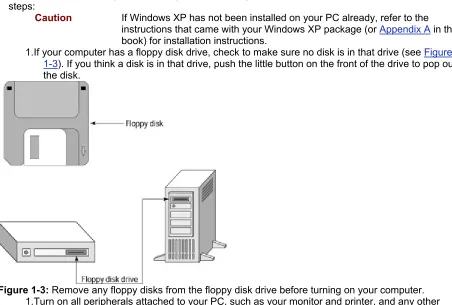
1. If your computer has a floppy disk drive, check to make sure no disk is in that drive (see Figure 1-3). If you think a disk is in that drive, push the little button on the front of the drive to pop out the disk.
Figure 1-3: Remove any floppy disks from the floppy disk drive before turning on your computer. 1. Turn on all peripherals attached to your PC, such as your monitor and printer, and any other
connected device that has its own on/off switch. 2. Turn on the main power on the system unit.
3. To ensure that your computer doesn’t attempt to boot from a CD-ROM, open the CD-ROM drive and remove any CD that might be in there.
4. Wait a minute or so for your computer to boot up (start itself and load Windows XP for you).
You might see some weird, highly technical information whiz by on the screen. That phase of the startup is called the Power-On Self-Test (POST), and you can pretty much ignore it. What happens next
depends on how your copy of Windows XP is set up. So just continue to read along and ignore anything that doesn’t appear on your own screen.
Logging on
[image:10.595.59.511.131.436.2]Figure 1-4: The logon screen for XP computers configured for multiple users Why No Floppy Disk?
Floppy disks and CD-ROMs are used to transport software, like CDs and cassette tapes are used to transport music, from the factory to your PC. Software that you use all the time, such as Windows XP, is stored on the hard disk inside your computer. You never see this hard disk directly because it cannot be removed from the computer.
When you first turn on a computer, it may check to see whether a floppy disk is in drive A (the floppy drive). If there is a disk in that drive, the PC attempts to boot up (load the operating system) from that floppy. If the floppy doesn’t contain an operating system, the PC won’t start. Instead, some message such as Non-System disk or disk error. Replace and press any key when ready
appears onscreen.
If that happens, remove the floppy disk from the floppy disk drive. On most computers, just push the little button on the front of the drive and the disk will pop out (if a disk is in the floppy drive). Then press any key on the keyboard (such as the spacebar, the Enter key, or some letter) to resume startup. Your PC will then automatically go to your hard drive (drive C, as it’s called) and load the operating system from that drive.
If you then see a prompt requesting a password, go ahead and type your password. Note that
passwords are case-sensitive. So if your company network administrator gave you a password, be sure to type it using exactly the same upper- and lowercase letters provided. Be aware that whenever you type a password, the letters you type won’t appear onscreen. Instead, you’ll just see a dot or asterisk for each character you type. The purpose of the dots or asterisks is to prevent someone from peeking over your shoulder to learn your password (technically known as shoulder surfing).
If this is the first time you’ve started Windows on this computer, and you don’t want to assign yourself a password, you can leave the password box empty. If you do assign yourself a password, be sure to write that password down on a piece of paper and keep it in a secure place, using the same upper- and lowercase letters you use to type in the password. It would be a shame to forget your own password and then be locked out of your own computer!
Note If you work in a company that requires a user name and password to log on, contact your company’s network administrator to get an account.
To the desktop
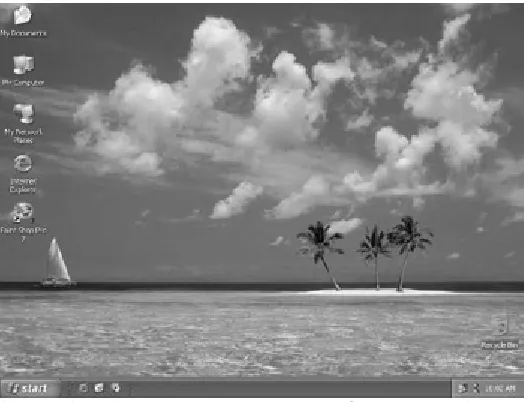
Figure 1-5: The Windows XP desktop, from which all your journeys begin.
The desktop will be your home base for everything you do on the computer. Any other programs you start might temporarily cover the desktop. When you exit such a program, however, you’ll be taken right back to the desktop. The desktop is always there, even if it’s currently covered by something else.
The desktop gets its name from the fact that it plays the same role as your “real” desktop. If your real desktop looks anything like mine, it might be so covered with junk that you can hardly even see it. But that doesn’t mean your desk has ceased to exist. Once you clear off some of the junk and put away some of the papers, your real desktop will still be there. The same holds true for the Windows desktop that’s now (hopefully) visible on your screen.
The Windows XP Desktop
Throughout the rest of this book, we’ll be showing the Windows desktop with a simple gray background rather than any fancy pictures. The reason being that the pictures in this book are quite a bit smaller than your screen, not to mention grayscale (black and white). So a plain gray background will make it easier to see the pictures in this book.
Cross-Reference You can easily adjust the look and feel of your own Windows XP desktop to your liking, as you’ll learn in Chapter 14. With that in mind, take a look at Figure 1-6. This figure shows the names of the various doodads that appear on the Windows desktop. Becoming familiar with those names is a good idea, as you’ll come across them constantly in your work with Windows XP. The sections that follow describe each item in some detail.
[image:12.595.57.321.55.256.2] [image:12.595.56.323.526.763.2]The desktop
The desktop, proper, is the large area of the screen. Everything else you see on the screen is actually resting on top of this virtual desktop. As mentioned, from the moment you start your computer, to the moment you turn it off, the desktop is always there — when it’s completely covered by some large program window.
The mouse pointer
The mouse pointer is the little indicator that moves when you move the mouse. As mentioned, to point to something, you rest this mouse pointer on it. Sometimes the mouse pointer appears as a hollow arrow. Other times, it has a different shape, depending on where it’s currently resting. When the computer is busy doing something, the mouse pointer turns to a little hourglass symbol. That means “Wait — the computer is doing something.” Wait until the mouse pointer changes back to a little arrow (or some other symbol) before you try clicking anything else on-screen.
The desktop icons
Each little picture on the desktop is an icon. Each icon, in turn, represents some program you can run, or some location on your computer where things are stored. The desktop icons on your computer probably won’t match the ones shown in the figure, because different computers have different
programs installed. And all Windows users (including you) can easily add new desktop icons, and delete unused ones, to their liking.
To open an icon, you either click or double-click it, depending on how your copy of Windows XP is currently configured. If you click a desktop icon and it doesn’t open up into a window, your computer is set up for double-clicking. You’ll have to double-click icons to open them for the time being. The section “To Single-Click or Double-Click” later in this chapter shows you how to choose one method or the other.
The taskbar
The taskbar is the colored strip along the bottom of the desktop. In a sense, the taskbar is like the center desk drawer of a real desk. It provides quick access to frequently used programs and features of Windows. Even when some large program window is covering the Windows desktop and its icons, the taskbar can remain visible on the screen so that you can get to the things if offers. As discussed in the sections that follow, the taskbar contains the Start button, the Quick Launch toolbar, and the
Notifications area.
If you don’t see the taskbar at all, it’s probably hidden (out of the way for the moment). Typically, to bring the taskbar into view, you must move the mouse pointer down to the very bottom of the screen. If the taskbar doesn’t slide into view automatically, you may have to drag it up. To do so, move the mouse button to the very bottom of the screen, hold down the primary (left) mouse button, drag the mouse pointer upward a half inch or so, and then release the mouse button. Chapter 13 explains how you can customize the appearance and behavior of the taskbar.
The Start button
The Start button, as the name implies, is where you can start any program on your computer. When you click the Start button, the Start menu opens (see Figure 1-7). The Start menu is divided into two
Figure 1-7: Click the Start button to open the Start menu.
As mentioned, the left half of the Start menu provides access to frequently used programs. To gain access to all the programs installed on your computer, click the All Programs button on the Start menu.
The Quick Launch toolbar
The Quick Launch toolbar (also called the application launcher) provides one-click access to commonly used programs. It provides an alternative to going through the Start menu to start these programs (and can be handy when your desktop icons are covered by some large program window). When you point to an icon in the Quick Launch toolbar, you’ll see the name of the program or service that the icon
represents.
The Show Desktop icon on the Quick Launch toolbar provides a service I wish I had on my real desktop. When you click it, all open windows on the desktop are instantly swept out of view, so you can see your desktop again. Clicking that button a second time brings all the clutter back onto the desktop. As discussed later, you can also bring items back onto the desktop one at a time, by clicking their taskbar buttons, which will be visible whenever you have programs open on the desktop.
The Notifications area
The Notifications area contains the clock, and icons that keep you posted as to the status of various programs or services running on your computer. Pointing to the current time reveals the current date. Double-clicking the current time brings up a dialog box that lets you set the current date, in case it’s wrong. (As you’ll learn, a dialog box is a window that pops up on the screen and provides options from which you can choose.)
When you point to an icon in the Notifications area, a brief message displays describing what the icon means. Although this varies from one program to the next, clicking an icon in the Notifications area will display options for that item. Double-clicking the icon will display more information and options for that item.
You also might see an occasional message pop up from the Notifications area. Sometimes these are messages from Windows and inform you of some feature you might have overlooked. If your computer is connected to the Internet, you also might receive messages regarding updates that are available at Microsoft’s Web site, to keep your system up-to-date. These messages are always self-explanatory — you just have to follow the instructions provided by the message.
You’re Not Helpless
If you’re thinking you’re too stupid, you’re dead wrong, The very fact that you can read these words proves that you’re smart enough. Unlike the olden days of computing, when you practically had to be an electrical engineer just to use the darn thing, modern-day computing is a simple matter of pointing and clicking. Granted, you weren’t just born knowing how to work a computer. But neither was anyone else. If Albert Einstein came back to life and was placed in front of a computer, he wouldn’t have a clue as to how to work it either. We all have to learn the things we weren’t just born knowing — which is pretty much, everything!
The second big bugaboo that plagues newbies is the feeling of helplessness that comes from not knowing what to do next. “If only there were someone sitting right here to answer all my questions.” Well, paying someone to sit there and answer all your questions can be a bit expensive — and also quite unnecessary, because there are lots of ways to get help and information as you go. The sections provide all the proof that you’re really not as helpless as you may feel from time to time.
Backing out of jams
Sometimes, especially as a beginner, you might open some item and then not know what to do with it. In this case, you’ll probably want to back out of that selection until you get to more familiar territory. When you find yourself in unfamiliar territory, try any of these techniques to back out of your current situation gracefully:
Click somewhere on the desktop, or some other neutral looking area of the screen. Doing so will often undo whatever your last click did.
Press the Escape key (labeled Esc or Cancel) on the keyboard. This key is so named because it enables you to escape from unfamiliar territory. And it’s a darn good key to become familiar with.
Look for any of the buttons shown in Figure 1-8. If you see one, click it. You’ll be taken back to wherever you were before without a hitch.
Figure 1-8: The Escape key, and any of these buttons, will help you back out of unfamiliar territory.
If all else fails, press Alt+F4. (On the keyboard, hold down the key labeled Alt, press and release the key labeled F4, and then release the Alt key.) This key combination closes whatever window is currently open.
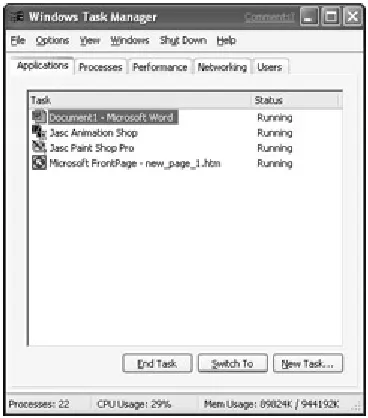
If you can remember these techniques, you should be able to back your way out of any jam, no matter how lost you feel. If you really, really, really get stuck and none of the previous techniques work, and the computer appears to be hung (not responding normally to your keystrokes and mouse clicks), you might have to use the Windows Task Manager to locate and kill the offending task. This is the least desirable approach because it doesn’t give you a chance to save any work you’ve completed. If all else fails, however, it might be your last resort.
Figure 1-9: The Windows Task Manager
The Task Manager will list all running programs. The hung program (if any) will have the words not responding after the program name in the Status column of the display. Click the name of that errant program, and then click the End Task button. The program should close, and things should return to normal. To close the Windows Task Manager, click the Close (large red X) button in its upper-right corner.
Again, only use the Windows Task Manager as a last resort. As you’ll learn later, there are far better and safer ways to end “normally” running programs.
Using the Help and Support Center
Windows XP offers a wide range of Help and Support options. You can see what’s available by doing either of the following:
Click the Start button, and then click Help and Support.
Press the Help key (labeled F1 near the upper-left corner of your keyboard).
Tip The Help key (F1) is almost universal. You can press it in just about any program to get help for whatever program you’re working with at the moment.
[image:16.595.55.239.55.264.2]The Help and Support Center will open (see Figure 1-10). Some options on the screen are updated automatically from time to time, via the Internet. So yours may not look exactly like the one shown. To use this, just click any blue text that looks interesting. The Windows basics help topic provides instructions for specific tasks (although not in any particular order).
Figure 1-10: Windows XP Help and Support Center window
Buttons across the top of the Help and Support Center window help you get around within Help, as follows:
Back: After you go to a new page, you can press the Back button to return you to the page you just left.
Forward (right-pointing arrow): The forward-pointing arrow to the right of the Back button enables you to return to the page that you just backed out of (if any.)
Home: Takes you back to the first page of Help and Support Center, shown in Figure 1-10.
Index: Takes you to the Help system index, which is the same as the index at the back of a book. For more information, see the section “Using Help’s Search and Index features” later in this chapter.
Favorites: Lists Help topics you have added to your list of favorites, as discussed in the section “Using Help’s Search and Index features.”
History: Displays a list of Help pages you have already visited.
Support: Provides an overview of Support options available from Microsoft.
Those buttons alone will enable you to explore the Help system on your own. When looking for help with specific questions, however, the Search and Index features will be your best bet.
Using Help’s search and index features
The Search box is always available in the Help and Support Center window. To use it, just click the text box titled Search. If there’s already some text in that box that you want to get rid if, just drag the mouse pointer through that text. Whatever you type replaces that selected text. Type in a word or phrase that describes what you need help with, and then click the button just to the right of where you typed the word or phrase. In Figure 1-11, for example, I typed Make a CD and then clicked the button. The Help window splits into two panes. The left pane displays topics relevant to my search. To see the help for any of those listed topics, just click the topic. The right pane will display the help.
Figure 1-11: Results of searching for “Make a CD” and clicking the Copy files and folders to a CD topic What’s with the Internet Connection Wizard?
Some of the choices within the Help system will attempt to access the Internet to provide you with the most current information. If your computer isn’t connected to the Internet, you’ll end up at an Internet Connection Wizard dialog box rather than at the appropriate Internet page. As discussed in Chapter 5, you need some kind of modem and an account with an Internet service provider (ISP) to get beyond the Internet Connection Wizard to the Help page you were actually supposed to see. Part II of this book tells you everything you need to know. For now, if you just want to close the Internet Connection Wizard without setting up an account, click the Cancel button near the lower-right corner of the Internet Connection Wizard dialog box.
The right pane offers help on the topic you clicked, usually in the form of step-by-step instructions. To see the definition of any green underlined term, just click the term. Buttons above the right pane offer the following:
Add to Favorites: Adds the Help topic to your list of favorites. At any time in the future, you can quickly jump back to this topic by clicking the Favorites button near the top of the screen.
Print: Prints the current Help page.
If the amount of text available in the window is longer than what can display on the Help screen, a scroll bar will appear to the right of the text. You can scroll through the text by clicking the buttons at the top and bottom of the scroll bar. Or, if your mouse has a wheel, click anywhere within the text and spin the wheel on your mouse to scroll up or down.
Tip You’ll learn more about using scroll bars in Chapter 2.
The Help index, which appears when you click the Index button near the top of the page, displays an index to the Help system, similar to the index at the back of a book. You can scroll through the index using the scroll bar at its right edge. Optionally, click in the text box below Type in the keyword to find and start typing some word that best describes the information you’re looking for. As you type, you’ll automatically be taken to the part of the index that matches what you have typed so far. If you locate an index entry that matches what you’re looking for, click it. Then click the Display button below the index. If several topics are available, a Topics Found dialog box displays. Click whichever topic in that dialog box best describes what you’re looking for, and then click the Display button.
Figure 1-12 shows an example where I searched for the word volume. When I got to that section of the index, I chose adjusting speaker volume to display the help you see in the right pane.
Figure 1-12: The Help index in the left pane of Window’s Help and Support window
Whether you use Search or the Help index to get help on specific topics is entirely up to you. I do recommend trying Search first, however, as it’s easier and often produces better results. If you can’t find what you’re looking for using Search, then try the Help index.
Closing Help
The Windows Help and Support Center window is like any other window. You can size it and move it like any other. You’ll learn specific techniques for doing so in Chapter 2. But one thing you’ll want to learn right now is that you can close any open window on the screen by clicking the Close (X) button in the upper-right corner of the window. So when you’re done with Help and want to close its window, to uncover the desktop once again, just go ahead and click the Close button.
Tip For an overview of Windows XP, click the Start button and choose Tour Windows XP. Alternatively, if you don’t see that option on the Start menu, click the All Programs option and choose Accessories, and then choose Tour Windows XP from the menu.
ToolTips, right-clicks, and the “What’s This?” button
Although the Help system provides extensive help, you can get to a couple of simple “quick and dirty” types of help without going through the Help system. For starters, be aware that just about everything you see on your screen has a small hidden ToolTip. This is really no more than the name of the item in most cases. However, when you cannot figure out what the heck some icon is supposed to represent, you can just point to the item for a moment to reveal its tiny ToolTip.
Figure 1-13: You can right-click just about anything on the screen to see a menu of options relevant to that item.
If the item you right-clicked can be customized in any way, shape, or form, you’ll see a Properties option in the menu. An item’s properties are its characteristics, such as color, size, shape, and so forth.
Choosing the Properties option will take you to the dialog box for changing that item’s properties.
If the item you right-clicked can be moved, renamed, deleted, and so forth, you’ll see appropriate options. You can never do any harm by right-clicking an item, so don’t be afraid to try it. If, for whatever reason, the item you right-clicked has no shortcut menu, nothing will happen when you right-click. If you right-click an item, and then decide not to make a selection from the shortcut menu, just click some neutral area outside the shortcut menu, or press the trusty Escape key, to close the menu without making a selection.
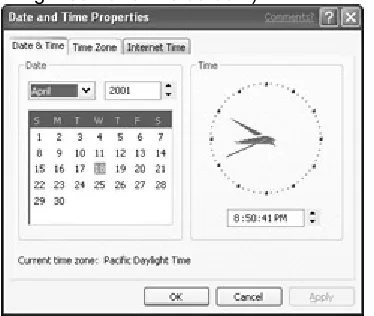
Caution Never, ever delete something just because you don’t know what it is! You should delete only items you recognize and are sure you want to get rid of. Otherwise, you might delete a file that’s important to the proper functioning of Windows, which would make your computer perform erratically, or not at all! Finally, if you’re in a program or dialog box, look to the upper-right corner of its window to see whether there’s a button with a question mark on it. For example, the Date and Time Properties dialog box shown in Figure 1-14 has one. (To open the dialog box, I double-clicked the current time in the lower-right corner of the screen.)
Figure 1-14: A “What’s This?” button, identified by a question mark (?), is available in this sample dialog box. The button with the question mark is called the What’s This? button. As the name implies, it answers the question “What the heck is that thing?” that’s likely to pop into your mind from time to time. To use the button, click it. The mouse pointer gains a question mark. Next, within the dialog box, click the item you’re wondering about. An extra large ToolTip appears, giving you more information about the item.
To Single-Click or Double-Click
Before we close this chapter, I want to take you through your first complete practical use of the Start menu, a dialog box, and some other features discussed in this chapter. Here you’ll decide whether you want to click or double-click icons to open them. To give it a whirl, follow these steps:
1. Click the Start button in the lower-left corner of the screen.
2. Click the Control Panel option. The Control Panel opens, looking something like Figure 1-15.
Figure 1-15: The Control Panel, in Category view
Note If you see a bunch of icons in your Control Panel, rather than the categories shown in the figure, click Switch to Category View in the left pane of the window.
3. Click Appearance and Themes.
4. Click Folder Options near the bottom of the window that opens. The Folder Options dialog box displays (see Figure 1-16).
Figure 1-16: The Folder Options dialog box
5. To make sure your open windows resemble the ones shown in this book, click Show Common Tasks in Folders to select that option (as in the figure).
6. Under Click Items As Follows, choose either the Single-Click To Open . . . or Double-Click To Open option, depending on which you prefer. (I always use single click).
7. If you opted for single-clicking, you can choose to have clickable items underlined all the time (consistent with your Web browser), or only when you point to them.
8. Click the OK button at the bottom of the dialog box. Your selections are saved and the dialog box closes. You’re back at the Control Panel window.
9. To close the Control Panel window, click the Close (X) button in its upper-right corner. You’re back at the desktop now.
To test your selection, click any desktop icon. If it opens, you’ve selected single-clicking. If it doesn’t open, you must have selected double-clicking. In that case, try double-clicking any icon to open it. To close whatever window the icon opens, do the usual thing. Click the Close (X) button in the upper-right corner of the window.
Logging Off, Shutting Down
Your computer is not a TV. One of the most common mistakes newbies make when using a PC is simply to turn off the PC when they’re done. This is not good because it doesn’t give you, or your computer, a chance to save any changes you made or any work you accomplished. The first thing you want to do when you plan to shut down your computer — or even just plan to walk away from it for a while — is save any work in progress. In this chapter, you haven’t created anything, so there’s nothing to save. But for future reference, bear in mind that anything left unsaved on your screen is likely to go bye-bye forever if you don’t remember to save your work before shutting down your computer.
Tip As you’ll learn in Chapter 3, you can easily save your work at any time. In fact, it’s a good idea to save your work every few minutes, just to make sure you don’t
accidentally lose it.
You can end your session at the computer a few different ways. If you share this computer with others, and want to leave it on for them, you can just log off. Doing so will allow others to log on immediately, but they won’t be able to see or change any of your stuff. To log off, follow these steps:
1. Click the Start button.
2. Click the Log Off button near the bottom of the menu. 3. Click the Log Off button that appears.
The Welcome screen shown back near the beginning of this chapter reappears. The computer is still running, so another user can log on simply by clicking his or her user name.
To shut down the computer altogether, or put it to sleep so to speak, so that it consumes little or no electricity, follow these steps:
1. Click the Start button.
2. Click the Turn Off Computer button near the bottom of the menu. The Turn Off Computer dialog box displays (see Figure 1-17, although your options may vary)
Figure 1-17: The Turn Off Computer dialog box 3. Choose one of the following options (as available):
Hibernate: Saves everything on the screen and puts the computer into a minimal power-consumption state. When you restart the computer, the desktop will look exactly as you left it (hopefully).
Standby (if available): Puts the computer into a minimal power-consumption state, but does not save current settings. Restart will be quicker than if you had turned off. But you’ll be returned to an empty desktop.
Restart: Briefly shuts off the computer, and then instantly restarts it. Also known as rebooting. Required after certain kinds of hardware and software installations, and also after a serious “crash” when something has caused your computer to start acting weird.
Your computer might show additional instructions at this point. Most likely, however, the computer will just shut down (or go to sleep.) Note that if you selected Turn Off, chances are your computer will indeed shut itself off. So you don’t need to press the Power button on the system unit to finish the job. However, some older computers don’t have this capability, in which case you will need to press the main Power button to complete the shutdown procedure. As a safety device, to prevent accidental shutdown, some computers require that you press the Power button and hold it there for four or five seconds before the computer actually shuts down.
Summary
In this chapter, you learned the most important of Windows XP basic skills. My goal in this chapter has been to help those of you who are new to this program become comfortable with using the mouse and get a sense for the way things work. Chapter 2 rounds out what you have learned here and hopefully answers any questions that might have popped into your mind as you read this chapter. Here’s a quick recap of the important points covered in this chapter:
Windows XP is an operating system — the mandatory program that makes everything work behind the scenes, and also determines how you, the user, will interact with the computer to get things done.
To start Windows XP, just turn on your computer. (First make sure there is no floppy disk in the floppy drive.)
After Windows XP has successfully started, you are taken to the Windows desktop, your “home base” from which you’ll start all projects, and where you’ll end up when you’ve finished.
To point to an item (or hover over an item) means to move the mouse pointer (using your mouse) so that it’s touching the item.
To click an item means to point to it and then press and release the primary (left) mouse button. Double-click means to do the same, but you press and release the primary mouse button twice in rapid succession.
To right-click an item means to point to it and then press and release the secondary (mouse) button.
If you find yourself in unfamiliar territory, try clicking some neutral area of the desktop, or pressing the trusty Escape key (sometimes labeled Esc or Cancel on your keyboard) to back out of the situation.
To get help in Windows, press the F1 key or click the Start button and choose Help and Support.
To close any window that’s taking up space on your screen, click its Close button (marked with an X and always in the upper-right corner of the window.)
Before leaving your PC for any length of time, you should either log off or shut down the computer using options available at the bottom of the Start menu.
If you’re asked about saving any work in progress while logging off or shutting down, choose Yes unless you’re sure you haven’t completed any work worth saving.
Chapter 2:
Getting Around Like a Pro
Managing Icons
Imagine a desk with all the usual accoutrements: telephone, calculator, calendar, pens and pencils, the documents you’re using, and a big stack of bills. Now imagine you have the power to touch any one of those objects and shrink it to the size of a pea, just to get it out of the way temporarily. That power would certainly help unclutter your desktop. When you need to use one of those pea-sized objects, you could tap it with your finger, and bingo: The object would open in its natural size.
Of course, no real-world desktop works this way. The Windows XP desktop, however, works exactly that way. You can make things grow and shrink, appear and disappear, just by clicking them with your mouse.
A pea-sized object on your computer screen is called an icon. As you saw back in Chapter 1, there are probably some icons right on top of your desktop, as well as some smaller icons in the Quick Launch toolbar and Notifications area of the taskbar. Icons also appear within many of the program windows you open on your desktop.
The appearance of an icon often gives you some clue about what kind of stuff is inside the icon and what is likely to appear when you open the icon. The following list summarizes the main types of icons you’ll come across:
Folder icon: Represents a folder, a place on the computer where files are stored. Opening a folder icon displays the contents of that folder. For example, in Figure 2-1 the My Documents, My Music, My Pictures, XP Bible on Max, and 01Chap desktop icons are all folder icons. Two of those folders, My Pictures and 01Chap are currently open in the desktop. Each of those folders contains still more icons.
Figure 2-1: Various icons displayed on the Windows desktop, and within a couple of open windows
Program icon: Represents a program. When you open a program icon, you start the program it represents. For example, opening the Internet Explorer icon launches the Microsoft Internet Explorer program. There’s no real consistency to program icons. Each is just a “logo” of the underlying program.
Document icon: Represents a document; typically this is something you can change and print. The icon usually has a little dog-ear fold in the upper-right corner to resemble a paper
document. For example, inside the 01Chap window in the lower-right corner of Figure 2-1, many of the icons represent Microsoft Word documents (hence the letter W in the icon). The Grandmom icon in the upper My Pictures window is also a document icon. It represents a picture stored on disk. I’m currently viewing the contents of that folder in Thumbnails view, which, as you’ll learn later, displays a small thumbnail-sized image of the actual photo, as opposed to some generic icon.
You also will come across icons that don’t fall into any of these categories. Some icons represent disk drives, printers, help files, settings, and so on. Don’t worry, however, you can manipulate virtually all icons by using the set of basic skills in the following list:
As you know, you can open any icon by double-clicking it. If you’ve opted to switch to the single-click approach, you also can open the icon with a single-click. Whatever the icon represents will open in a window atop the desktop, as discussed in a moment.
To move an icon, drag it to any new location on the screen. To move a bunch of icons, first select the icons you want to move by dragging the mouse pointer. Then drag the whole selection to a new place on the screen.
Tip Remember, to drag something means to rest the mouse pointer on the item you want to move, and then to hold down the mouse button as you move the mouse pointer to the new location. To drop the item at the new location, just release the mouse button.
To see all the options available for an icon, right-click the icon to open its shortcut menu.
To organize all the icons on the desktop, right-click an empty part of the desktop and choose Arrange Icons By on the shortcut menu that appears. Then click whichever option you prefer (Name, Type, and so forth). Choosing Name will arrange the icons into (roughly) alphabetic order (although some icons, such as My Documents, My Computer, and Recycle Bin, tend to stay near the upper-left corner of the screen).
To have Windows XP automatically arrange icons for you, right-click an empty part of the desktop or the window and choose Arrange Icons By from the menu, and then choose Auto Arrange from the submenu that appears. After you have done this, however, you cannot move icons, because they will immediately jump back into their original place. To turn off the
automatic arrangement, repeat this step. When Auto Arrange has a check mark next to it, that feature is currently turned on.
If you prefer to put icons into your own order, and want them neatly arranged, choose Arrange Icons By → Align to Grid. After you do so, the icons will align on an invisible grid, creating a neater appearance.
As mentioned, when you open an icon, a window appears. Learning how to work those windows is an important part of using your PC. As you learn in the next section, you have quite a bit of control over the size and shape of every window that appears on your screen.
Managing Open Windows
In the olden days of computers, when you ran a program, that program took over the entire screen. To use a different program, you had to exit the one you were in and then start the other program. That program, in turn, hogged the entire screen. With WindowsXP, you can pretty much run as many programs as you want. Instead of hogging the entire screen, each program occupies only a window on the screen. That’s where the name Windows comes from in Microsoft Windows. In Figure 2-2, for example, I currently have two open windows on the screen: one titled My Computer, the other titled Windows Media Player. You can see the title (name) of each window in its upper-left corner.
What’s with the → ?
Throughout this book, I use the symbol → to separate options you choose in a series. For example, “Click the Start button and choose All Programs → Accessories → Notepad” is a shortcut way of saying “Click the Start button, choose the All Programs option, choose the Accessories option, and then click the Notepad option.”
Window dressing
Every window that you open on your desktop will have certain elements in common. What’s inside the window will vary a lot, because all programs display within windows. If you look closely, however, you may notice the frames surrounding those windows are similar. The reason for this similarity is simple: All the tools you use to manage the window are in this frame. Because of this arrangement, you need to learn only one set of skills to manage windows. Those skills then apply to any and all open windows. Figure 2-3 points out the tools that are common to most windows.
Figure 2-3: Features available on most windows that open on your desktop
Most windows have all the tools shown in Figure 2-3. The following sections describe how you work with each tool. (If you want to open the WordPad window on your own screen, click the Start button and choose All Programs → Accessories → WordPad.)
Title bar
The title bar shows the System Menu icon, the title of the window or name of the program being run in the window, and the buttons for resizing and closing the window. The title bar alone offers some handy features:
To expand a window to full-screen size or to shrink it back to its original size, double-click its title bar.
To move a window to some new location on the screen, drag the window by its title bar. Tip Remember, to drag something means to put the mouse pointer on it and then to
hold down the mouse button while moving the mouse. You can move a window only if it’s smaller than the entire screen.
Minimize button
When you click the Minimize button, the window disappears and shrinks to a button in the taskbar. Doing so gets the window out of the way for the moment so that you can see the desktop behind that window. To reopen a minimized window, click its button in the taskbar.
To instantly minimize all open windows on your screen, thereby showing the desktop, click the Show Desktop button in the Quick Launch toolbar. Doing so instantly clears all the clutter from your desktop, but only by hiding — not closing — all the open windows. To redisplay all open windows, click that button a second time.
Tip As an alternative to using the Show Desktop button, you can right-click some neutral area of the taskbar, perhaps just to the left of the Notifications area. Then choose Show the Desktop from the menu that appears. To restore the windows to their previous size, right-click the same area again and choose Show Open Windows.
Maximize/Restore button
Clicking the Maximize button expands the window to full-screen size (a quick way to hide other windows that may be distracting you). When the window is full-screen size, the Maximize button turns into the Restore button. To return the window to its previous size, click the Restore button.
Closing versus Minimizing a Window
Think of minimizing a window as taking some document on a real desktop and sliding it into a desk drawer. The document is not cluttering your desk anymore, but it is within easy reach. Just click the document’s taskbar button, and you’re back in action. Closing a window, on the other hand, is more like putting a real folder back in the file cabinet. You still can get back to the document when you want it, but you’ll need to restart the program from scratch, at which point it opens up with no document. Then you need to open the document you want to work with using options on the program’s File menu, as discussed in Chapter 3.
From a technical standpoint, closing a window has two advantages: It frees the memory (RAM) the program was using, and it gives you an opportunity to save your work. Minimizing a window does neither of those; it just shrinks the window to a taskbar button to get it out of the way for the moment.
Tip You also can double-click an open window’s title bar to maximize or restore it.
Close button
Clicking the Close button closes the window, taking it off the screen and out of the taskbar as well. To restart the program in the future, you’ll need to go through whatever procedure you usually perform to start that program.
Caution When you start creating your own documents, be aware that closing a program closes the document as well. If you don’t save your work before closing the program, all that work will be lost! You’ll learn about creating and saving documents in Chapter 3.
Sizing pad
The sizing pad in the lower-right corner of the window enables you to size the window. Just point to the sizing pad, and then drag it outward to enlarge the window, or inward to shrink the window. You can actually size a window by dragging any edge or any corner of the window. The sizing pad just provides for a slightly larger target on which to rest the mouse pointer.
Menu bar
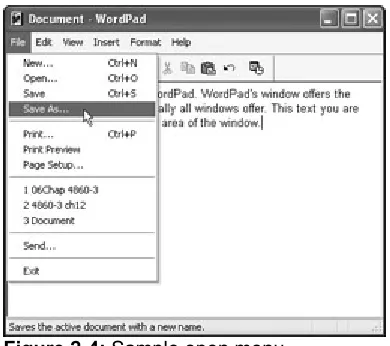
Figure 2-4: Sample open menu
After you’ve opened a menu, you can point to any item on the menu to highlight it, or to display any submenus that might be available. If a menu option has a submenu to offer, you’ll see a right-pointing triangle at the right edge of the option. Pointing to the option will instantly display the submenu. If ever you open a menu by accident, or change your mind after the fact, you can back out gracefully by pressing the trusty Esc key, or by clicking some neutral area outside the menu.
To select an option on the menu, click it. After you’ve opened a menu, you also can move the cursor across the menu bar (without holding down any mouse buttons) to open those menus.
Shortcut Keys (Key+Key)
Many keyboard shortcuts are actually combination keystrokes, expressed as Key+Key. These involve holding down the first key, tapping the second key, and then releasing the first key. For example, Ctrl+A means hold down the Ctrl key, press and release the letter A, and then release the Ctrl key. Shift+F1 means hold down the Shift key, press and release the function key labeled F1, and then release the Shift key. Alt+Enter means hold down the Alt key, press and release the Enter key, and then release the Alt key.
As you’ll eventually discover, most combination keystrokes start with one of the following special keys: Ctrl (Control), Alt (Alternate), or Shift. That’s partly because those keys never actually type any
characters on the screen. Most keys offer Ctrl, Alt, and Del keys on both the left and right side of the keyboard, so you can use either hand to press the combination keystroke.
Many menu options display shortcut keys. These are keystrokes you can use as an alternative to going through the menus. If you look to the right of the Save option in the File menu shown in Figure 2-4, for example, you’ll notice the shortcut option Ctrl+S. So let’s say you’re working on a document and you want to save your work. Your hands are on the keyboard rather than on the mouse. Instead of going through the menu and choosing File → Save, you can just press Ctrl+S on the keyboard if you prefer. If you don’t know the shortcut key for performing a task, but would still prefer to use the keyboard rather than the mouse, you can work the menus right from the keyboard. Just press and release the Alt key. You’ll notice that each option in the menu suddenly sports one underlined letter. After you press the Alt key, for example, the letter F in the File option will be underlined. After the underline appears, you can just type that underlined letter to open the corresponding menu.
When the menu is open, you can use the ←,→,Ç, and ↓ arrow keys on the keyboard to move the selection highlight about the menus. To choose the currently highlighted option, press Enter. Optionally, you can just type the underlined letter of the option you want.
Tip Remember, shortcut keys and other keyboard alternatives are just an alternative for people who prefer the keyboard to the mouse. You can always use the mouse to work the menus.
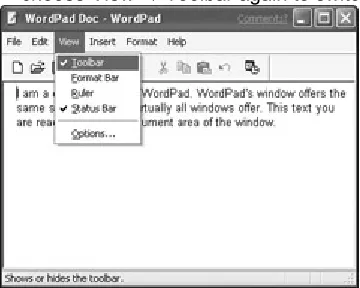
[image:27.595.55.250.54.227.2]option is turned off, which makes the toolbar disappear from the screen. To turn the toolbar back on, choose View → Toolbar again to switch that option back on.
Figure 2-5: The View menu in WordPad is open.
Toolbar
Some windows also have a toolbar just below the menu bar. The toolbar provides one-click access to the most frequently used menu commands. Most toolbars provide ToolTips, a brief description that appears on the screen after you rest the mouse pointer on the button for a few seconds. Other
programs, including WordPad, might show the descriptive text for the button you’re pointing to down in the status bar.
Toolbars are optional in most programs. You can turn them on and off using options from that program’s View menu. Some programs even offer customizable toolbars (although WordPad isn’t one of them). If a toolbar can be customized, right-clicking the toolbar and choosing Customize from its shortcut menu will take you to the options for customizing the toolbar. For future reference, keep in mind that if you’re looking to learn more about the toolbars in a specific program, you can open that program’s help system and search for the word toolbar.
Status bar
The status bar along the bottom of a window plays different roles in different programs. However, a common role is to display helpful information. For example, the status bar at the bottom of the WordPad window often displays the helpful message For Help, press F1 to let you know that help is
available for the program. When you point to a toolbar button in WordPad, the status bar message changes to describe the purpose of that button.
Tip Virtually any program you use will also offer a Help option in its menu bar, which you can choose to get help with that particular program.
Like toolbars, a program’s status bar is often optional. You can usually turn it on and off by choosing View → Status Bar from the program’s menus.
Document area
Programs designed to help you create and edit things generally offer a large document area where your work appears. The document might be a photograph, drawing, spreadsheet, written text . . . whatever. It all depends on what the specific program you’re using at the moment is designed to do. We’ll get deeper into the concepts of working with documents in Chapter 3. For now, let’s continue to look at tools and techniques for managing open windows on your desktop.
System menu
[image:28.595.57.237.78.222.2]Moving a window without the title bar