BMC Impact Integration Developer’s Kit
Web Services Server Developer Guide
Supporting
BMC Impact Integration Developer’s Kit v. 7.1
BMC Impact Integration Web Services Server v. 7.1
Contacting BMC Software
You can access the BMC Software website at http://www.bmc.com. From this website, you can obtain information about the company, its products, corporate offices, special events, and career opportunities.
United States and Canada
Address BMC SOFTWARE INC 2101 CITYWEST BLVD HOUSTON TX 77042-2827 USA
Telephone 713 918 8800 or 800 841 2031
Fax 713 918 8000
Outside United States and Canada
Telephone (01) 713 918 8800 Fax (01) 713 918 8000
© Copyright 2003–2008 BMC Software, Inc.
BMC, BMC Software, and the BMC Software logo are the exclusive properties of BMC Software, Inc., are registered with the U.S. Patent and Trademark Office, and may be registered or pending registration in other countries. All other BMC trademarks, service marks, and logos may be registered or pending registration in the U.S. or in other countries. All other trademarks or registered trademarks are the property of their respective owners.
IBM and AIX are registered trademarks of International Business Machines Corporation. Linux is the registered trademark of Linus Torvalds.
Java, Sun, JRE, and Solaris are trademarks or registered trademarks of Sun Microsystems, Inc., in the U.S. and several other countries. UNIX is a registered trademark of The Open Group.
BMC Software considers information included in this documentation to be proprietary and confidential. Your use of this information is subject to the terms and conditions of the applicable End User License Agreement for the product and the proprietary and restricted rights notices included in this documentation.
Restricted rights legend
U.S. Government Restricted Rights to Computer Software. UNPUBLISHED -- RIGHTS RESERVED UNDER THE COPYRIGHT LAWS OF THE UNITED STATES. Use, duplication, or disclosure of any data and computer software by the U.S. Government is subject to
restrictions, as applicable, set forth in FAR Section 52.227-14, DFARS 252.227-7013, DFARS 252.227-7014, DFARS 252.227-7015, and DFARS 252.227-7025, as amended from time to time. Contractor/Manufacturer is BMC SOFTWARE INC, 2101 CITYWEST BLVD, HOUSTON TX 77042-2827, USA. Any contract notices should be sent to this address.
Customer support
You can obtain technical support by using the BMC Software Customer Support website or by contacting Customer Support by telephone or e-mail. To expedite your inquiry, see “Before contacting BMC.”
Support website
You can obtain technical support from BMC 24 hours a day, 7 days a week at http://www.bmc.com/support_home. From this website, you can
■ read overviews about support services and programs that BMC offers ■ find the most current information about BMC products
■ search a database for issues similar to yours and possible solutions ■ order or download product documentation
■ download products and maintenance ■ report an issue or ask a question
■ subscribe to receive proactive e-mail alerts when new product notices are released
■ find worldwide BMC support center locations and contact information, including e-mail addresses, fax numbers, and telephone numbers
Support by telephone or e-mail
In the United States and Canada, if you need technical support and do not have access to the web, call 800 537 1813 or send an e-mail message to [email protected]. (In the subject line, enter SupID:<yourSupportContractID>, such as SupID:12345). Outside the United States and Canada, contact your local support center for assistance.
Before contacting BMC
Have the following information available so that Customer Support can begin working on your issue immediately: ■ product information
— product name
— product version (release number)
— license number and password (trial or permanent) ■ operating system and environment information
— machine type
— operating system type, version, and service pack or other maintenance level such as PUT or PTF — system hardware configuration
— serial numbers
— related software (database, application, and communication) including type, version, and service pack or maintenance level
■ sequence of events leading to the issue ■ commands and options that you used
■ messages received (and the time and date that you received them) — product error messages
— messages from the operating system, such as file system full — messages from related software
License key and password information
If you have questions about your license key or password, contact BMC as follows:■ (USA or Canada) Contact the Order Services Password Team at 800 841 2031, or send an e-mail message to [email protected].
■ (Europe, the Middle East, and Africa) Fax your questions to EMEA Contracts Administration at +31 20 354 8702, or send an e-mail message to [email protected].
Contents
Chapter 1 Introduction 13
BMC Impact Integration Developer’s Kit overview . . . 14
Overview to BMC Impact Integration Web Services Server . . . 14
BMC Impact Integration Web Services Server . . . 16
BMC II C APIs . . . 16
WSDL file and SOAP messages. . . 16
Toolkits and client-side interfaces. . . 17
Features available to clients . . . 17
Compatible programming languages. . . 18
Features of the BMC II Web Services Server . . . 18
mcell.dir . . . 18
WSCELL event listener . . . 18
Support overview. . . . 19
Intended audience for web services APIs. . . 19
Chapter 2 Installation 21 Installation package contents . . . 22
Supported operating systems and other resources. . . 22
BMC IM support matrix . . . 22
Compilers . . . . 23
Compatible web services toolkits . . . 23
OpenSSL compatibility . . . 23
Disk space requirements . . . 24
Installing the web services server package . . . 24
Installation directory contents . . . 29
Post-installation . . . 31
Setting environment variables under Microsoft Windows . . . 31
Setting environment variables under Solaris, Linux, HP-UX, and AIX . . . 32
Uninstalling the web services server package . . . 34
Chapter 3 Configuration 37 Required configuration tasks . . . 38
How to synchronize BMC II Web Services Server and BMC IM cell connections. . 38 Troubleshooting tip: BMC II Web Services Server fails to reconnect . . . 44
Defining Propagate rules or event propagation policies for BMC IM cells . . . 45
Configuring HA cells for BMC II Web Services Server in the BMC Performance
Manager environment . . . 54
Updating default port numbers post installation . . . 55
Configuring Attributes in the BMC II Web Services Server . . . 57
Modifying the default BMC II Web Services Server log . . . 58
Starting and stopping the BMC II Web Services Server . . . 59
Microsoft Windows . . . 60
UNIX . . . 60
Connecting to BMC II Web Services . . . 62
Installing multiple instances of the BMC II Web Services Server . . . 62
When to assign a unique server instance name. . . 63
Administering the BMC II Web Services Server . . . 64
Chapter 4 Securing web services 65 Secure Sockets Layer (SSL) security. . . 65
Security implementation advisory . . . 66
Compatible OpenSSL toolkit . . . 66
Guidelines for implementing SSL . . . 66
Obtaining the OpenSSL source files . . . 67
About certificate generation . . . 68
Generating the BMC II Web Services Server certificate (Microsoft Windows). . . 68
Generating the BMC II Web Services server certificate (UNIX or Linux) . . . 69
Replacing nonsecure transport parameters with SSL parameters in the servercfg.xml file . . . 70
Chapter 5 Guidelines for choosing client interfaces 73 Client components . . . . 74
Programming language. . . 74
Available web services client features . . . 74
Guidelines for building a client interface . . . 75
Preparing the WSDL source-code generator . . . 75
Generating the client proxy code (client stubs) . . . 75
Systinet WASP Server for C ++ toolkit sample . . . 76
.NET C# toolkit sample . . . 76
Apache Axis toolkit sample . . . 77
Using the NO_INOUT operations to return single elements for the Axis toolkit 78 Deciding which stub operations to use. . . 78
Compiling the client code . . . 81
Maximum number of open outgoing connections . . . 81
Implementing the send feature. . . 81
How a send request is processed. . . 82
Sequence of operations to use . . . 82
Implementing the query features . . . 83
How a query is processed . . . 83
Polling interface . . . 90
Publish-subscribe interface . . . 90
Reliable versus non-reliable subscription . . . 91
Polling client (non-reliable subscription) . . . 91
Polling client (reliable subscription) . . . 94
Listener client (reliable or non-reliable subscription) . . . 95
Using multiple subscription calls (bmciiws_subscribe_reliable) . . . 96
Registering and receiving service component state change events . . . 98
Workaround: multiple clients and state change events. . . 99
Implementing the Secure WASPC client . . . 101
Appendix A BMC Impact Integration Web Services Server Administration 105 Starting server instances . . . 106
Selector file overview . . . 106
How the BMC II Web Services Server reads selector files and parameters . . . 106
Selector file description . . . 107
Characteristics . . . 107
Format . . . . 109
Editing the selector file . . . 120
Supplemental message selector files . . . 121
Editing the supplemental message selector files . . . 122
Configuration file . . . . 123
Configuration file parameters . . . 123
Editing the configuration file . . . 136
Trace file . . . 137
Editing the trace configuration file . . . 138
mcell.dir file . . . 139
Editing the Integration mcell.dir file . . . 139
Appendix B Error Messages and Codes 141 BMC II Web Services Server error messages . . . 141
BMC II C APIs and core communications errors . . . 144
Errors listed By error code . . . 144
Error descriptions . . . 146
Core communications errors . . . 157
Errors listed by error code . . . 157
Error descriptions . . . 158
Appendix C Sample Client Files 163 List of sample client files. . . 163
Event Listener Web Services Description Language (WSDL) file . . . 165
Event listener server . . . 166
Event dispatcher . . . 166
Namespaces . . . 166
Data types . . . 167
Bindings. . . . 170
Service . . . 171
Listenercfg.xml file . . . . 172
Adding SSL parameters to the listenercfg.xml file . . . 173
Index 175
Figures
Components of BMC Impact Integration Web Services . . . 15
mcell.dir example: BMC II Web Services Server . . . 40
mcell.dir example: BMC IM cell . . . 40
mcell.dir example: BMC II Web Services Server . . . 41
mcell.dir example: BMC IM cell . . . 42
Event propagation: many instances to one server . . . 46
Event propagation: many instances to many servers . . . 47
HA implementation scenario: primary cell server and web server on same system 52 HA implementation scenario: primary cell server and web server on different systems . . . 53
HA implementation scenario for BPM and BMC II Web Services Server . . . 55
servercfg.xml file: default declaration . . . 56
Servercfg.xml with openSSL parameters added and transport section removed . . . 71
Runtime directory folders for stub files . . . 78
bmciiws_queryClassDefinitions code sample . . . 87
Class definition array . . . . 88
Structure of message selector set file . . . 110
Sample message selector set header . . . 111
Sample message selector set header . . . 113
Sample trace configuration file . . . 138
Tables
Wasp library files . . . 16
Supported operating systems . . . 22
BMC IM support matrix . . . 22
Tested compilers . . . 23
Compatible toolkits . . . . 23
UNIX distribution files . . . 28
Directory contents . . . 30
Required configuration tasks . . . 38
Location of mcell.dir Files . . . 39
mcell.dir configurations for queries . . . 40
mcell.dir configurations for sending events . . . 40
mcell.dir configurations for receiving events . . . 41
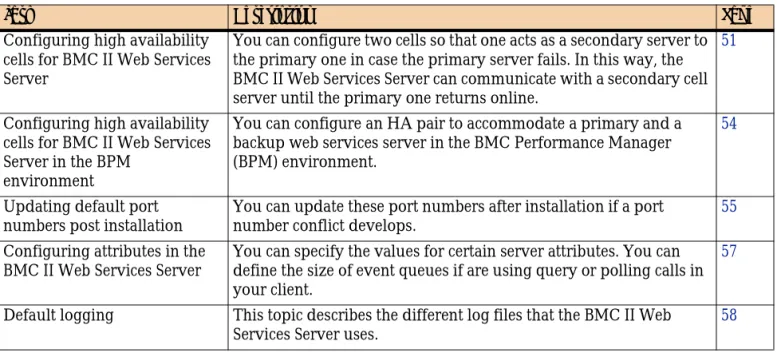
Optional configuration tasks . . . 51
Default port numbers . . . 55
Summary of Available Operations . . . 79
Components that support a receive interface . . . 89
Event selectors for subscription requests . . . 89
SIM_NOTIFICATION_REGISTRY message class: required slots . . . 99
Message selector set header contents . . . 111
Message selector header contents . . . 112
Message selector functions . . . 114
Message selector operators . . . 117
Keyword descriptions . . . 120
Supplemental message selector files . . . 121
Configuration file parameters . . . 124
BMC II C APIs Impact Integration Error Codes . . . 144
Core Communications Error Codes . . . 157
Sample client files: Systinet C++ queries . . . 163
Sample client files: Systinet C++ listener client . . . 164
Sample client files: Axis Java implementations . . . 164
Namespaces: EventListener.wsdl . . . 166
Message Parts: Dispatch_Request . . . 167
C h a p t e r
1
1
Introduction
This chapter introduces the BMC Impact Integration Developer’s Kit and the BMC Impact Integration Web Services Server APIs. It describes the following topics:
BMC Impact Integration Developer’s Kit overview . . . 14
Overview to BMC Impact Integration Web Services Server . . . 14
BMC Impact Integration Web Services Server . . . 16
BMC II C APIs . . . 16
WSDL file and SOAP messages. . . 16
Toolkits and client-side interfaces. . . 17
Features available to clients . . . 17
Compatible programming languages. . . 18
Features of the BMC II Web Services Server . . . 18
mcell.dir . . . 18
WSCELL event listener . . . 18
Support overview. . . . 19
BMC Impact Integration Developer’s Kit overview
BMC Impact Integration Developer’s Kit
overview
The BMC Impact Integration Developer’s Kit (BMC II Developer’s Kit) enables developers to build applications that can integrate with BMC Impact Manager events and data.
The BMC II Developer’s Kit includes:
■ BMC Impact Integration C APIs—a toolkit that provides functions to interact with the BMC Impact Manager product and its components. This API can be used in C or C++ environments. These APIs offer developers the ability to quickly integrate and set up the bidirectional flow of events and data between their applications and the BMC Impact Manager product.
■ BMC II Web Services APIs—a toolkit that exposes an open-standards web services interface with which to implement loosely coupled BMC Impact Manager
integrations, to build client applications that utilize BMC Impact Manager data, and to remotely access an BMC Impact Manager network through standard Web protocols. The web services interface is defined through the Web Services
Description Language that serves as the contract between the web service and the client application.
These APIs offer developers the ability to quickly build integrations that share events and data with the BMC Impact Manager product or to display BMC Impact
Integration information in Web-based applications.
Overview to BMC Impact Integration Web
Services Server
The BMC Impact Integration (BMC II) Web Services Server APIs enable you, as a web services developer, to build a platform-independent web services client that
exchanges events and data with a BMC Impact Manager instance.
NOTE
The BMC Impact Integration Developer’s Kit does not include the BMC Impact Manager product. You must purchase this product separately or have it already installed.
Overview to BMC Impact Integration Web Services Server
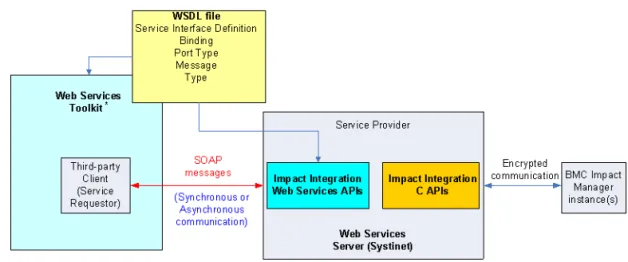
Your web service client communicates with the BMC Impact Manager instance (cell) by connecting to the BMC II Web Services Server and accessing BMC II Web Services. Figure 1 depicts the components of the BMC II Web Services Server and their
interaction with a third-party client.
Figure 1 Components of BMC Impact Integration Web Services
The BMC Impact Integration Web Services Server package includes ■ XML to describe message content
■ Web Services Description Language (WSDL), an XML document that defines the data types, messages, operations, and binding protocol of this web service
■ Simple Object Access Protocol (SOAP) over HTTP as a transport mechanism between Impact Integration Web Services Server and Impact Integration Web Services client
■ a web services server that can process callbacks and forward events to subscribing clients through an event dispatcher
■ sample client code
NOTE
The BMC Impact Integration Web Services Server APIs contains a pre-built web service. The web services developer is responsible for building the client.
NOTE
The BMC II Web Services Server does not include a Universal Description Discovery, and Integration (UDDI) registry.
BMC Impact Integration Web Services Server
BMC Impact Integration Web Services Server
The BMC II Web Services Server is already programmed to exchange event information between your web service client and BMC Impact Manager cells. The BMC II Web Services Server also supports listener libraries. This component enables a client to receive BMC Impact Manager events through callbacks.
The BMC II Web Services Server contains the Wasp library file of the Systinet™ WASP server. Table 1 lists the names and extensions of the library file in the different operating systems.
BMC II C APIs
The BMC II Web Services Server contains the runtime libraries of the BMC II C APIs.
WSDL file and SOAP messages
The BMC II Web Services Server package includes a static, read-only Web Service Descriptive Language file (.wsdl) called ImpactManager.wsdl. The ImpactManager.wsdl
file is in XML format. It points to three schema definition files: ■ Event.xsd
■ BasicTypes.xsd
■ ImapiTypes.xsd
NOTE
The current release of BMC II Web Services does not support the porting of the BMC II Web Services Server to other web servers.
Table 1 Wasp library files
Operating system Name of Wasp library file Microsoft Windows waspc.dll
Solaris™ and Linux® libwasp.so.4
HP-UNIX libwasp.sl
Toolkits and client-side interfaces
The BMC II Web Services Server exposes its APIs through its ImpactManager.wsdl file. It uses the document/literal style of SOAP messaging format to communicate with client programs.
Toolkits and client-side interfaces
To create a web service client, BMC recommends that you choose from among the compatible toolkits (see “Compatible web services toolkits” on page 23).
Use the toolkit that supports your programming language (C# , Java™, C++, and so forth) to process the ImpactManager.wsdl and generate the client-side stubs. These stubs contain classes and interfaces that are used by the client code. The stubs define how the methods or functions are called. When a client request is initiated, the toolkit serializes the call into a SOAP message and sends it to the server. The server
deserializes the SOAP message into a format that the underlying Systinet libraries can understand and processes it accordingly.
Features available to clients
The BMC II Web Services Server APIs enable you to implement clients that use one or more of the following features:
■ sends events and data
■ queries for events, data, class definitions, and service model information ■ receives events through subscription requests and callbacks
■ receives events through subscription requests and polling calls
The APIs let you customize your queries and subscription requests so that, for example, you can specify which data you want to retrieve and which events to receive.
NOTE
See the BMC Impact Integration Developer’s Kit Web Services Server Reference Guide for a detailed description of the WSDL and schema definition files.
NOTE
The BMC II Web Services Server uses encrypted communications. User authentication is not available.
Compatible programming languages
Compatible programming languages
You can build a client using the C++, C# , or Java programming language.
Features of the BMC II Web Services Server
This section describes the BMC II Web Services Server’s unique requirement for the
mcell.dir file, and it summarizes the different ways in which the BMC II Web Services Server handles client interfaces.
mcell.dir
After you install the BMC II Web Services Server, an mcell.dir file is generated with two default entries. In addition to the local cell entry, which most BMC Impact Manager users are familiar with, it also includes an entry for the event listener component called WSCELL. The following example shows the entries with the default port numbers.
In the standalone BMC II Web Services Server installation, the mcell.dir file is installed under the drive:\installDirectory\mcell or installDirectory/mcell directory.
WSCELL event listener
An essential component of the BMC II Web Services Server, the WSCELL is an event listener that accepts connections and messages from BMC Impact Manager instances. It is enabled when the BMC II Web Services Server starts. The WSCELL receives events and messages from BMC Impact Manager instances and stores them in a buffer. The BMC II Web Services Server receives the BMC Impact Manager events through the WSCELL event listener.
The WSCELL defaults to the local host system (IP address of 127.0.0.1) of the BMC II Web Services Server and listens for events on port number 19999.
For each BMC IM cell that sends events to the BMC II Web Services Server, you
cell local mc localhost:1828
Support overview
Support overview
You request the BMC Impact Integration Developer’s Kit through the BMC
Developer Network website at http://developer.bmc.com. To obtain general support information, such as finding out how to extend the tools in the kit and develop integration applications, you can go to the BMC Developer Connection. It provides developers with moderated peer support and offers a free, supportive Web site where you can get answers to your questions about developing integrations with the BMC Impact Manager product. For more information on joining, go to the BMC Developer Connection Web site at: http://devcon.bmc.com/.
If you have found a bug in the toolkit or an error in the documentation, please report it to BMC Customer Support. (See the Customer Support contact information in the front matter of this guide just after the title page.)
Intended audience for web services APIs
The audience of the web services APIs is experienced developers who are
knowledgeable about web services technologies: XML; Simple Object Access Protocol (SOAP); Web Services Description Language (WSDL); and Universal Description and Discovery Interface (UDDI). The web services audience should be acquainted with BMC Impact Manager, but it does not need to be as familiar with the BMC Impact Manager product as does the C developer audience. The web services audience should have experience in
■ writing code in one or more programming languages ■ building client applications for web services interfaces ■ working with client proxy code (client stubs)
■ generating secure sockets layer (SSL) certificate requests
The audience of the web services APIs also includes systems or applications administrators who are responsible for managing the BMC Impact Manager environment. These administrators should be knowledgeable about BMC Impact Manager administrative tasks, especially the tasks of maintaining the configuration, trace, selector, and the mcell.dir files. The administrator should also be familiar with defining filter criteria that specify the events that pass to and from BMC Impact Manager. It would be helpful if the administrator were also familiar with web
NOTE
At the time of publication, BMC intends to eventually migrate the content of the BMC Developer Connection website to the BMC Developer Network website at
C h a p t e r
2
2
Installation
This chapter presents the following topics:
Installation package contents . . . 22
Supported operating systems and other resources. . . 22
BMC IM support matrix . . . 22
Compilers . . . . 23
Compatible web services toolkits . . . 23
OpenSSL compatibility . . . 23
Disk space requirements . . . 24
Installing the web services server package . . . 24
Installation directory contents . . . 29
Post-installation . . . 31
Setting environment variables under Microsoft Windows . . . 31
Setting environment variables under Solaris, Linux, HP-UX, and AIX . . . 32
Installation package contents
Installation package contents
The BMC II Web Services Server package consists of the following components: ■ server binaries and server executable
■ configuration, selector, mapping, and mcell.dir files
■ Web Services Description Language (WSDL) files and schema definition (XSD) files
■ runtime library files of the BMC II C APIs ■ sample client code
Supported operating systems and other
resources
Table 2 lists the operating systems that are compatible with this release:
BMC IM support matrix
Table 3 lists the versions and features of BMC Impact Manager (BMC IM) that the BMC II Web Services Server supports. Versions 5.1 and later provide language support for Simplified Chinese, Traditional Chinese, Korean, and Japanese languages.
Table 2 Supported operating systems
Operating system Version or Service pack
Windows 2003 Server, 32-bit SP1 Red Hat Enterprise Linux Advanced Server (Intel, 32-bit) 3.0, 4.0 SUSE Linux Enterprise Server (Intel, 32-bit) 9.0, 10.0
Sun™ Solaris (SPARC) 9, 10
IBM® AIX (POWER) 5.2, 5.3
HP-UX (PA-RISC) 11i, v1, v2
Table 3 BMC IM support matrix (part 1 of 2)
BMC IM version Event and data exchange Service model queries Language support
Compilers
Compilers
You are free to choose your own compiler to build your client.
Refer to the following table for a list of compilers that the client sample code has been tested against.
Compatible web services toolkits
The BMC II Web Services Server package has been tested against and found compatible with the following web services toolkits:
OpenSSL compatibility
The BMC II Web Services Server is compatible with version 0.9.6 of OpenSSL.
7.0.x Yes Yes Yes
7.1 Yes Yes Yes
Table 4 Tested compilers
Platform Compiler
Microsoft Windows Microsoft Visual Studio, version 6.0 Linux GNU Complier Collection (GCC) 2.96 Solaris SPARCWorks CC 5.0
HP-UX HP aCC 3.3x
Table 5 Compatible toolkits
Vendor Toolkit
Systinet WASP Server for C++ 4.6 Microsoft Visual C# .NET 2003 Apache Axis 1_3, Axis 1_4
OpenSSL OpenSSL 0.9.6
Table 3 BMC IM support matrix (part 2 of 2)
Disk space requirements
Disk space requirements
The BMC II Web Services Server package requires minimal disk space. For Windows-based systems, you need approximately 40 MB of disk space; for UNIX®-Windows-based systems, you need approximately 30 MB of disk space.
Installing the web services server package
This section describes how to install the BMC II Web Services Server using the executable that you have downloaded from the BMC Developer Network (BMCDN) website at http://developer.bmc.com.
Your installation tasks consist of the following options:
■ defining an installation directory on the target system if not using the default ■ specifying port numbers for the BMC II Web Services Server and the WSCELL
event listener
■ choosing which component or components (server, sample client code, or both) to install
■ installing the component files into the installation directory ■ defining environment variables
This task describes how to install the BMC Impact Integration Web Services Server package on the following operating systems:
■ Windows ■ Linux ■ Solaris ■ HP-UX ■ AIX
NOTE
The BMC II Web Services Server is also installed automatically with the v. 7.1 BMC Impact Solutions Installation package when you select the Enable Web Services for Event Integration check box. The BMC II Web Services Server is installed with the BMC Impact Administration Server.
Installing the web services server package
Before you begin
■ Uninstall any earlier version of the BMC Impact Integration Web Services Server. See “Uninstalling the web services server package” on page 34 for the procedure. Before uninstalling an earlier version, you may want to save any customized
mcell.dir, iiws.conf, or iiws.selector files.
■ By default, the BMC II Web Services Server (by means of the HTTP transport server) and the WSCELL event listener connect to BMC IM cells through port numbers 6070 and 19999, respectively. To verify that these ports are available, perform the following procedure.
1. In a Command Prompt or in a terminal window, enter the following command:
netstat -a -n
It returns output that displays all connections and listening ports, together with their addresses and port numbers.
2. If the default ports are in use, determine which port numbers you will use and change the defaults when prompted to do so during the installation.
You can also change the port numbers after installation by editing the server configuration file. See “Updating default port numbers post installation” on page 55.
■ Windows users must install the package under an administrator account or an account with administrator privileges.
■ Linux, Solaris, HP-UX, and AIX users can install under a local account.
■ Know the location of your Java Runtime Environment (JRE™). The installation program tries to locate it in certain directories. If it does not find it, the installation program exits.
■ On UNIX platforms, you can enter the whereis command (for example, whereis java) to locate your Java home directory. Or you can use the find . | grep or a variation of the find command to locate the JRE. You should change directory to the Java home directory to make sure that it contains the JRE.
On UNIX platforms, to instruct the installation script to use a particular JRE, enter the following command:
NOTE
Linux, Solaris, HP-UX, and AIX users. The server connects through port number 6070 by default. If you intend to use a reserved port (port number 1024 or lower), you should install under the root account to ensure that you can access the selected reserved port.
Installing the web services server package
■ On Windows platforms, you can verify your Java version by entering
java -version from a Command Prompt window. You may need to edit your Windows PATH variable by adding the file path to your JRE in the Windows PATH definition. You may also need to define a Java_Home and a ClassPath system variable.
■ AIX users. Your AIX system requires the XLC runtime libraries 6.0.0.11. If your AIX system does not contain these libraries, you must download and install these libraries before trying to install the BMC II Web Services Server package.
To install the Web Services package on Microsoft Windows
1
Access the login page of the BMC Developer Network (BMCDN) website athttp://developer.bmc.com.
2
After you log in, from the main menu choose Developer Centers => BMCInfrastructure Management.
You can navigate to the web page where you can download the toolkit or toolkit component that you want. Refer to the release notes of the Web Services Server component for the latest download instructions.
The MS Windows downloadable file is IIWS71_00.exe. It is a zipped file from which you must extract the setupwin32.exe file.
3
After you extract the files, double-click setupwin32.exeto launch the installation. The InstallShield Wizard is opened, and the Welcome screen is displayed.4
Click Next to continue. BMC Software—SDK License Agreement is displayed. For the text of this agreement, see the back matter in this guide.5
Read the license agreement, and click the radio box to indicate that you accept the terms.6
Click Next to continue. The installation directory window is displayed.7
Perform any one of the following actions:■ Accept the default directory in the Directory Name field.
■ Click Browse to search for another directory path on the file system ■ Enter a custom directory path in the Directory Name text field.
Installing the web services server package
9
Click Next to continue. The next window asks whether you want to install the BMC II Web Services as a system service. By default, it is installed as a system service. If you accept the default value, go to 10 on page 27.Clear the check box if you intend to start the service manually. Skip to 11 on page 27.
10
Click Next to continue. Specify the name of the service. You can accept the default name (IIWS) or enter your own. If you have more than one BMC II Web Services Server installation of the same version on the host, enter a service name different from the existing service name.11
Click Next to continue. Decide whether to choose a typical or a custom installation. The typical installation installs both the server and the sample client code in the specified installation directory. The custom installation option lets you choose to install the server, the sample client code, or both.12
Click Next to continue. The summary window is displayed, showing your installation selections.13
Click Install to start the installation process.The program extracts the files and installs them in the specified installation
directory. When the installation is complete, a window displays to tell you that the installation is successful or that the program encountered errors during
installation.
14
Click Finish if the installation is successful. If the installation encountered errors, review the log file to locate the relevant error.15
See “Installation directory contents” on page 29 to review the installation directory structure and contents, and see “Post-installation” on page 31 to decide your next step.If you installed the server as a service (IIWS is the default name), the service is started automatically when the installation is complete.
To Install the Web Services package on Linux, Solaris, AIX, or HP-UX (X Window
System)
If you are installing on a remote system, be sure the $DISPLAY variable is set to the
NOTE
Installing the web services server package
Contact your system administrator if you have questions regarding instructions and command syntax for running X Window System.
1
Verify that the X Window System is running. If the X Window System is not running, enter the startup command.2
Access the login page of the BMC Developer Network (BMCDN) website athttp://developer.bmc.com.
3
After you log in, from the main menu choose Developer Centers => BMCInfrastructure Management.
You can navigate to the web page where you can download the toolkit or toolkit component that you want. Refer to the release notes of the Web Services Server component for the latest download instructions.
The UNIX or Linux downloadable file for the BMC II Web Services Server is
IIWS71_00.tar.gz. The MS Windows downloadable file is IIWS71_00.exe. It is a
zipped file that also contains the UNIX and Linux distribution files that you can deploy from a Windows system.
4
After you extract the files into the current working directory, locate and execute the appropriate distribution file for your operating system. See Table 6 on page 28.5
Follow the online instructions in the InstallShield wizard. See “To install the Web Services package on Microsoft Windows” on page 26 for the sequence ofinstallation windows.
If you choose to install the BMC II Web Services as a daemon, you must manually start the BMC II Web Services Server for its first-time startup. Thereafter it will run automatically in the background. See “Starting and stopping the BMC II Web
Table 6 UNIX distribution files
File name Operating system Command
setupaix.bin AIX ./setupaix.bin
setupHP11.bin HP-UX 11 ./setupHP11.bin
setupLinux.bin Linux ./setupLinux.bin
setupSolaris.bin Solaris ./setupSolaris.bin
NOTE
You can omit the dot-slash (./) if the directory in which the distribution file resides is defined in your system’s $PATH variable.
Installation directory contents
To install the web services package on Linux, Solaris, HP-UX, or AIX (console
option)
To install the web services package in a non-graphical mode, launch the installation using the console command. For example, if you are running the installation from a remote host and do not have access to the X Window System on the remote host, use the console command to launch the installation in non-graphical mode.
Contact your system administrator if you have questions regarding instructions and command syntax for running the console command.
1
Follow Steps 2 through 5 under “To Install the Web Services package on Linux, Solaris, AIX, or HP-UX (X Window System)” on page 27 to find and launch the installation script.2
Follow the prompts in the installation script. You must accept the license agreement to proceed with the installation.Installation directory contents
Table 7 on page 30 describes the directory contents of the installation package:
TIP
Note the name of the installation directory. You will need to enter it later when you define environment variables.
NOTE
You can omit the dot-slash (./) if the directory in which the distribution file resides is defined in the $PATH variable.
Installation directory contents
The installation directory also includes the following files:
■ log.txt – installation log file that is generated if errors are recorded during installation
Table 7 Directory contents
Directory Description
bin contains the ImpactManager.wsdl file along with its accompanying schema definition files, library files, and the executable files for the web services server. UNIX users already have execute permissions on the server executable files.
cache maintains a record on the BMC II Web Services Server of persisted events that were requested by the client through the bmciiws_subscribe_reliable() operation. The cache director is empty until events are received. The size of the cache directory is controlled by the RecvBufferSize parameter defined in the iiws.conf file.
conf contains XML configuration files including those for the BMC II Web Services Server, http server, and openSSL components
locale contains the language support message catalog files and the
iiws.load file. Do not modify these files.
mcell contains the default configuration, selector, and trace files that define the communication parameters between the C APIs and the BMC Impact Manager instances. It also contains the mcell.dir file, which identifies the
■ BMC Impact Manager instances that the BMC II Web Services component communicates with
■ name of the event listener (WSCELL) that connects with and receives events from BMC Impact Manager instances
openssl contains the script for generating the server OpenSSL certificate. It also includes a sample private key and a sample public key, along with self-signed trusted certificates that can be shared by client and server.
samples contains the sample client configuration files for C++, C# , and Java in waspc, .NET, and AXIS directories. It also includes the EventListener.wsdl and listenercfg.xml files, both of which are required to build a listener client. The samples directory is not included in the BMC Portal installation of the BMC II Web Services Server.
_uninst uninstall directory containing the uninstaller executable and related files
Post-installation
Post-installation
To troubleshoot installation errors, refer to the output written to the InstallShield or terminal window.
If you are using Windows, go to “Setting environment variables under Microsoft Windows” on page 31. If you are using Solaris, Linux, HP-UX, or AIX, go to “Setting environment variables under Solaris, Linux, HP-UX, and AIX” on page 32.
Setting environment variables under Microsoft Windows
You can edit the system %PATH% environment variable to add the following directory links:■ installDirectory ■ installDirectory\bin
Before you begin
The exact steps for defining environment variables vary from one Windows
operating system to another. Refer to your Windows documentation or online help for information on defining environment variables in your version of Windows.
To set environment variables (Windows)
1
Open the Environment Variables dialog box either from your desktop or from the Start menu2
Under System Variables, select the %PATH% variable, and click Edit.3
In the dialog box, add the following links to the path string:installDirectory;installDirectory\bin.
NOTE
After you start the BMC II Web Services Server, log and tmp directories are created under the drive:\installDirectory or $installDirectory path. The log directory stores events on the BMC II Web Services Server during non-reliable subscription connections established by clients. The persist.dat file acts as a persistent buffer for outgoing events and the uniqueId.dat file acts as a counter for the events. The tmp directory stores a server log file.
Setting environment variables under Solaris, Linux, HP-UX, and AIX
Include the drive letter to specify the disk drive where the BMC Impact Integration Web Services Server package is installed, and use a trailing semicolon to separate entries.
For example, if the installDirectory is called imws, and the installation is on the C drive, your entries would appear as follows:
C:\imws\; C:\imws\bin
4
Click OK to close the dialog box and return to the Environment Variables dialog box. Continue to click OK in the succeeding dialog boxes to end the task.Where to go from here
Go to Chapter 3, “Configuration,”to begin configuring the BMC II Web Services Server.
Setting environment variables under Solaris, Linux, HP-UX,
and AIX
You can
■ add directory paths to the $PATH environment variable You must add the library path to the
■ $LD_LIBRARY_PATH environment variable under Solaris and Linux ■ $SHLIB_PATH environment variable under HP-UX
■ $LIBPATH environment variable under AIX
To add directory paths to the $PATH
Open a terminal window, and enter the appropriate command syntax depending on your shell script:
NOTE
You can define these variables in your .profile file under the Bourne or Korn shell, in your .cshrc file under C shell, or in your .bashrc file under Bash shell. You can source the file to set the variables.
Setting environment variables under Solaris, Linux, HP-UX, and AIX
Bourne, Korn, or Bash Shell
PATH=$PATH:/installDirectory:/installDirectory/bin;export PATH
C Shell
setenv PATH $PATH:installDirectory:installDirectory/bin
To define the $LD_LIBRARY_PATH variable (Solaris and Linux)
Open a terminal window, and enter the appropriate syntax for your shell:
Bourne, Korn, or Bash Shell
LD_LIBRARY_PATH=/installDirectory/bin;export LD_LIBRARY_PATH
C Shell
setenv LD_LIBRARY_PATH /installDirectory/bin
To define the $SHLIB_PATH variable (HP-UX)
Open a terminal window, and enter the appropriate syntax for your shell:
Bourne, Korn, or Bash Shell
SHLIB_PATH=/installDirectory/bin;export SHLIB_PATH
C Shell
setenv SHLIB_PATH /installDirectory/bin
To define the $LIBPATH variable (AIX)
Open a terminal window, and enter the appropriate syntax for your shell:
Bourne, Korn, or Bash Shell
LIBPATH=/installDirectory/bin;export LIBPATH
C Shell
Uninstalling the web services server package
Where to go from here
Go to Chapter 3, “Configuration” for information on how to configure your BMC II Web Services Server.
Uninstalling the web services server package
Before you begin
On UNIX platforms, ensure that the BMC II Web Services Server is stopped. On Windows platforms, remove the BMC II Web Services Server service by running the
removeservice.bat file from a Command Prompt window. The removeservice.bat file is located in your BMC II Web Services Server installDirectory, from which you can execute it.
To uninstall the web services package on Microsoft Windows
1
From the task bar, choose Start => Settings => Control Panel.2
In the Control Panel window, choose Add/Remove Programs.3
In the Add/Remove Programs window, scroll down until you locate the Impact Integration Web Services entry.4
Select the Impact Integration Web Services entry, and click Change/Remove. The Uninstaller wizard is opened.5
Click Next to continue.6
Follow the prompts in the Uninstaller wizard.NOTE
The exact steps for uninstalling a product vary somewhat among the different supported Windows operating systems. This procedure describes the general steps that are true across all supported Windows operating systems.
NOTE
If you have created multiple instances of the web services server or client on the same host and have changed their directory location to a folder outside the original installation
directory, the Uninstaller is not going to remove the component. You have to delete the folder manually.
Uninstalling the web services server package
The next window lists the results of the operation, indicating whether the uninstallation is successful.
7
If successful, click Finish.The components are removed from the specified installation directory.
8
Manually remove the remaining folders and files.To uninstall the web services package on Linux, Solaris, HP-UX, or AIX
1
Change directory to the uninstall directory -uninst.2
Run the following command:./uninstaller.bin
3
Follow the steps as directed and manually remove any remaining files.NOTE
If you have created multiple instances of the web services server and placed them in different directory paths, you have to manually remove them also.
C h a p t e r
3
3
Configuration
This chapter describes both the required configuration tasks that enable your BMC II Web Services Server connection and the optional tasks, such as establishing high availability cells. It also describes basic operations, such as starting and stopping the server, and it provides an overview of administrative tasks.
Required configuration tasks . . . 38 How to synchronize BMC II Web Services Server and BMC IM cell connections. .
38
Troubleshooting tip: BMC II Web Services Server fails to reconnect . . . 44 Defining Propagate rules or event propagation policies for BMC IM cells . . . 45 Optional configuration tasks . . . 51 Configuring high availability cells for the BMC II Web Services Server . . . 51 Configuring HA cells for BMC II Web Services Server in the BMC Performance
Manager environment . . . 54 Updating default port numbers post installation . . . 55 Configuring Attributes in the BMC II Web Services Server . . . 57 Modifying the default BMC II Web Services Server log . . . 58 Starting and stopping the BMC II Web Services Server . . . 59 Microsoft Windows . . . 60 UNIX . . . 60 Connecting to BMC II Web Services . . . 62 Installing multiple instances of the BMC II Web Services Server . . . 62 When to assign a unique server instance name . . . 63 Administering the BMC II Web Services Server . . . 64
Required configuration tasks
Required configuration tasks
Configuring the BMC II Web Services Server consists of the following required tasks:
How to synchronize BMC II Web Services Server and BMC IM
cell connections
Both your BMC Impact Integration Web Services Server installation and its connected BMC Impact Manager instances reference their distinct versions of the mcell.dir files. In the BMC Impact Integration Web Services Server installation, the mcell.dir file has two types of cell entries:
■ one for its WSCELL event listener
■ the other for any BMC IM cells with which it communicates In the BMC Impact Manager instance, its mcell.dir file must specify ■ other cells that it connects with
■ the WSCELL event listener entry of the BMC II Web Services Server to which it sends or propagates events
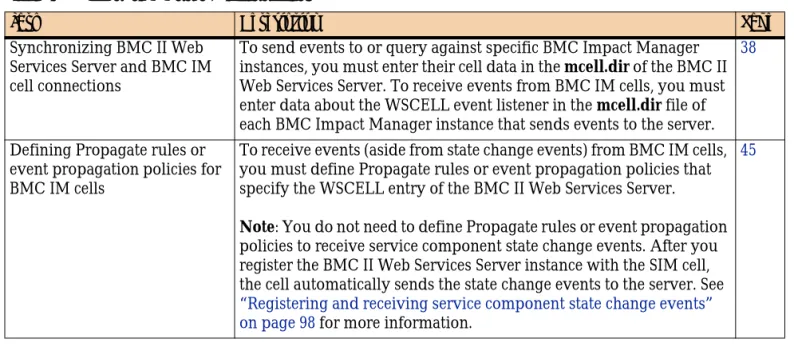
Table 8 Required configuration tasks
Task Description Page
Synchronizing BMC II Web Services Server and BMC IM cell connections
To send events to or query against specific BMC Impact Manager instances, you must enter their cell data in the mcell.dir of the BMC II Web Services Server. To receive events from BMC IM cells, you must enter data about the WSCELL event listener in the mcell.dir file of each BMC Impact Manager instance that sends events to the server.
38
Defining Propagate rules or event propagation policies for BMC IM cells
To receive events (aside from state change events) from BMC IM cells, you must define Propagate rules or event propagation policies that specify the WSCELL entry of the BMC II Web Services Server.
Note: You do not need to define Propagate rules or event propagation policies to receive service component state change events. After you register the BMC II Web Services Server instance with the SIM cell, the cell automatically sends the state change events to the server. See
“Registering and receiving service component state change events” on page 98 for more information.
45
How to synchronize BMC II Web Services Server and BMC IM cell connections
Table 9 on page 39 shows the default directory location of the mcell.dir file in the BMC Impact Manager and in BMC Impact Integration Web Services Server installations.
mcell.dir entries for multiple cells that comprise a service
model
To ensure consistent communication among multiple cells containing components of a service model, BMC recommends that you make all cell entries uniform. That is, if a service model is published across cells A, B, C, and D, then the mcell.dir file of each cell should reference all cells in the model. For example, the mcell.dir file of cell A would contain the following entries:
Similarly, each subsequent cell’s mcell.dir would also reference the other cells in the service model.
mcell.dir configurations for different server
implementations
You configure the mcell.dir files of the BMC II Web Services Server and its connected BMC IM cells differently depending on the purpose of the BMC II Web Services Server instance:
■ to query events, data, or a service model ■ to send events
■ to receive events
Queries
Table 10 on page 40 lists the mcell.dir configuration entries of a BMC II Web Services
Table 9 Location of mcell.dir Files
Operating System BMC Impact Manager instance
BMC Impact Integration Web Services Server instance Windows %MCELL_HOME%\etc drive:\installDirectory\mcell Solaris, Linux, HP-UX,
AIX
$MCELL_HOME/etc installDirectory/mcell
<Type> <Name> <EncryptionKey> <IPAddress:Port>
cell cellA MC myIMComputer:1828
cell cellB MC myIMComputer1:1828
cell cellC MC myIMComputer2:1828
How to synchronize BMC II Web Services Server and BMC IM cell connections
Figure 2 on page 40 depicts an example mcell.dir configuration of a BMC II Web Services Server that is used to query a service model which is distributed across three BMC IM cells. The mcell.dir file contains entries for all the cells that comprise the service model.
Figure 2 mcell.dir example: BMC II Web Services Server
Figure 3 on page 40 shows an example mcell.dir configuration of a cell that comprises part of the service model. The other cells in the service model are also included. The WSCELL entry denoting the BMC II Web Services Server is omitted because no events are being sent from the cell.
Figure 3 mcell.dir example: BMC IM cell
Sending events
Table 11 on page 40 lists the mcell.dir configuration entries of a BMC II Web Services Server implementation that sends events. The mcell.dir entries for both the BMC II Web Services Server and the BMC IM instances are identical to those of a query implementation.
Table 10 mcell.dir configurations for queries
Purpose of BMC II Web Services Server instance
mcell.dir entries: BMC II Web Services
Server instance mcell.dir entries: BMC IM instances To query events, data, or a
service model
■ its local WSCELL entry ■ the cell or cells that it
communicates with, including all cells that comprise a service model
■ the local cell entry
■ all cells that it communicates with, including all cells that comprise a service model
<Type> <Name> <EncryptionKey> <IPAddress:Port>
cell WSCELL MC myWSComputer:19999
cell cellConnect MC myIMComputer:1828
cell cellConnect 1 MC secondIMComputer:1828
cell cellConnect 2 MC thirdIMComputer:1828
<Type> <Name> <EncryptionKey> <IPAddress:Port>
cell cellConnect MC myIMComputer:1828
cell cellConnect 1 MC secondIMComputer:1828
cell cellConnect 2 MC thirdIMComputer:1828
Table 11 mcell.dir configurations for sending events
Purpose of BMC II Web Services Server instance
mcell.dir entries: BMC II Web Services
Server instance mcell.dir entries: BMC IM instances To send events ■ its local WSCELL entry ■ the local cell entry
How to synchronize BMC II Web Services Server and BMC IM cell connections
Receiving events
Table 12 on page 41 lists the mcell.dir configuration entries of a BMC II Web Services Server implementation that receives events. Whenever a BMC IM cell sends events to a BMC II Web Services Server instance, its mcell.dir must contain the WSCELL entry that points to the server that receives the events.
Figure 4 on page 41 continues with the example shown in Figure 2 on page 40, in which the mcell.dir of the BMC II Web Services Server contains the three cells that comprise the service model to which the server is connected. You can follow this example to list cells that the server
■ queries
■ sends events to ■ receives events from
Figure 4 mcell.dir example: BMC II Web Services Server
Figure 5 on page 42 shows an example mcell.dir configuration of a cell that comprises part of the service model and which sends events to the BMC II Web Services Server. You must include the WSCELL entry to specify the server that receives the events.
Table 12 mcell.dir configurations for receiving events
Purpose of BMC II Web Services Server instance
mcell.dir entries: BMC II Web Services
Server instance mcell.dir entries: BMC IM instances To receive events, including
state change events, from connected cells
■ its local WSCELL entry ■ the cell or cells that it
communicates with, including all cells that comprise the service model
■ the WSCELL entry identifying the BMC II Web Services Server instance to which it is sending events
■ the local cell entry
■ all cells that it communicates with, including all cells that comprise the service model
NOTE
Except for state change events, you must define a Propagate rule or an event
propagation policy for each cell from which the server receives events. See “Defining Propagate rules or event propagation policies for BMC IM cells” on page 45 and also for more information.
<Type> <Name> <EncryptionKey> <IPAddress:Port>
cell WSCELL MC myWSComputer:19999
cell cellConnect MC myIMComputer:1828
cell cellConnect 1 MC secondIMComputer:1828
How to synchronize BMC II Web Services Server and BMC IM cell connections
Figure 5 mcell.dir example: BMC IM cell
If your BMC II Web Services Server implementation serves multiple purposes, one of which is receiving events, then follow the mcell.dir examples for receiving events.
Before you begin
To verify whether the default port numbers are available, run the netstat -a -n command. See “Installing the web services server package” on page 24 for more information.
To add WSCELL entries to BMC IM mcell.dir files
Follow these steps if the cells are propagating events to the BMC II Web Services Server.
1
In a text editor, open the mcell.dir file of the BMC Impact Manager cell that is sending the events to the server.The file is located under the drive:\MCELL_HOME\etc orMCELL_HOME/etc directory.
2
If the BMC IM cell is sending events to a single BMC II Web Services Server, add the WSCELL entry as shown in the following figure. Include the host name or IP address and the port number. The lookup combination of event listener name/host name/port number must be unique for each WSCELL instance.3
If the cell is sending events to multiple BMC II Web Services Server instances, then add the corresponding WSCELL entries. Specify a unique combination of name, IP address (or host name), and port number for each WSCELL entry.<Type> <Name> <EncryptionKey> <IPAddress:Port>
cell WSCELL MC myWSComputer:19999
cell cellConnect MC myIMComputer:1828
cell cellConnect 1 MC secondIMComputer:1828
cell cellConnect 2 MC thirdIMComputer:1828
<Type> <Name> <EncryptionKey> <IPAddress:Port>
cell cellConnect MC myIMComputer:1828
How to synchronize BMC II Web Services Server and BMC IM cell connections
For example, if the server instances are on different systems, you can make the WSCELL entries as shown in the following figure:
Because each BMC II Web Services Server instance is on a different host system, you do not have to specify a distinct port number for each WSCELL event listener. If the server instances are on the same system, your WSCELL entries might be written as in the following figure:
Because the server instances reside on the same system, the WSCELL entries must have a unique port number. See “To Change the Port Number of the WSCELL event listener” on page 57 for the procedure.
4
Save and close the file.5
Restart the BMC Impact Manager cell.6
Repeat Steps 1 through 5 in the mcell.dir file of each BMC Impact Manager instance that is sending events to the server.7
To enable the BMC II Web Services Server to receive events from the connected cell, you must add a Propagate rule that specifies its WSCELL to the Knowledge Base (KB) of the BMC Impact Manager instance. See “Defining Propagate rules or event propagation policies for BMC IM cells” on page 45. Alternatively, you can add a Propagate policy through the BMC Impact Explorer GUI.To add BMC Impact Manager instance entries to the BMC II Web Services
Server’s mcell.dir file
For each BMC IM cell with which your BMC IM Web Services Server communicates, you must make a corresponding entry in the server’s mcell.dir file.
<Type> <Name> <EncryptionKey> <IPAddress:Port>
cell cellConnect MC myIMComputer:1828
cell WSCELL MC myWSComputer:19999
cell WSCELL1 MC secondWSComputer:19999
cell WSCELL2 MC thirdWSComputer:19999
<Type> <Name> <EncryptionKey> <IPAddress:Port>
cell cellConnect MC myIMComputer:1828
cell WSCELL MC myWSComputer:19999
cell WSCELL1 MC myWSComputer:20000
Troubleshooting tip: BMC II Web Services Server fails to reconnect
1
In a text editor, open the mcell.dir file located under drive:\installDirectory\mcell or installDirectory/mcell.2
Add the cell data for each BMC Impact Manager cell that you intend to connect to, as in the following example:Guidelines
■ Do not change the local host IP address of 127.0.0.1 of the WSCELL entry in the
mcell.dir file of the BMC II Web Services Server.
■ If you intend to query or communicate with a service model, include all cells that comprise the service model in the mcell.dir file.
3
Save and close the file.4
Start or restart the server. If you have other configuration changes to make, you can start or restart the server when you are finished. See “Starting and stopping the BMC II Web Services Server” on page 59.Troubleshooting tip: BMC II Web Services Server fails to
reconnect
When you stop and restart the BMC II Web Services Server on UNIX platforms, the WSCELL event listener may fail to reconnect immediately through the listener port that is defined in the BMC II Web Services Server’s mcell.dir file. You will receive an error message similar to the following: Error: IIAPI: BMC-IDK012156E: Unable to setup server, 12:Service endpoint could not be bound. The cause of this error is that the UNIX operating system does not immediately release the port number after you stop the BMC II Web Services Server daemon. To resolve this problem, you can either
■ wait a few minutes before you restart the BMC II Web Services Server; or
■ change the listener port number defined in the server’s mcell. dir file to some other <Type> <Name> <EncryptionKey> <IPAddress:Port>
cell WSCELL MC 127.0.0.1:19999
cell cellConnect MC myIMComputer:1828
cell cellConnect1 MC myIMComputer1:1828
cell cellConnect2 MC myIMComputer2:1828
Defining Propagate rules or event propagation policies for BMC IM cells
If you change the WSCELL port number entry in the server’s mcell.dir file, remember also to change it in the mcell.dir files of all cells that send events to the server.
Defining Propagate rules or event propagation policies for
BMC IM cells
To enable the BMC II Web Services Server to receive events from a BMC IM cell and pass the events on to a subscribing client, you must do one of the following:
■ add one or more Propagate rules to the KB of the BMC Impact Manager instance that is sending the events
■ define a event propagation policy in the BMC Impact Explorer that specifies the event criteria
The Propagate rule or event propagation policy specifies that the BMC Impact Manager instance sends events to the WSCELL event listener residing on the BMC II Web Services Server.
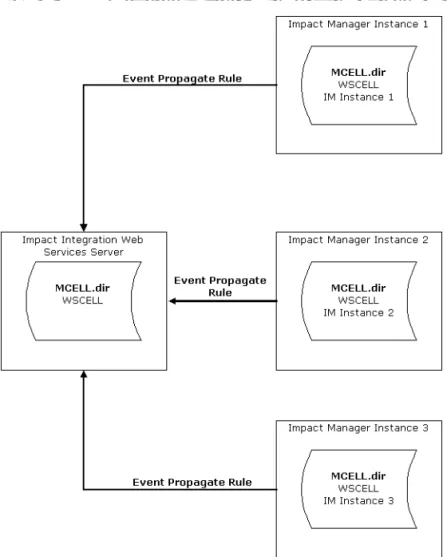
For example, if one WSCELL event listener is receiving events from three BMC Impact Manager instances, then each instance must specify a Propagate rule or an event propagation policy.
Figure 6 on page 46 depicts three BMC Impact Manager instances that are sending events to the WSCELL event listener. You define a Propagate rule or an event propagation policy for each instance, specifying the WSCELL event listener as the destination of the event.
NOTE
You do not need to define a Propagate rule or event propagation policy to receive service component s state change events. See “Registering and receiving service component state change events” on page 98 for more information.
Defining Propagate rules or event propagation policies for BMC IM cells
Figure 6 Event propagation: many instances to one server
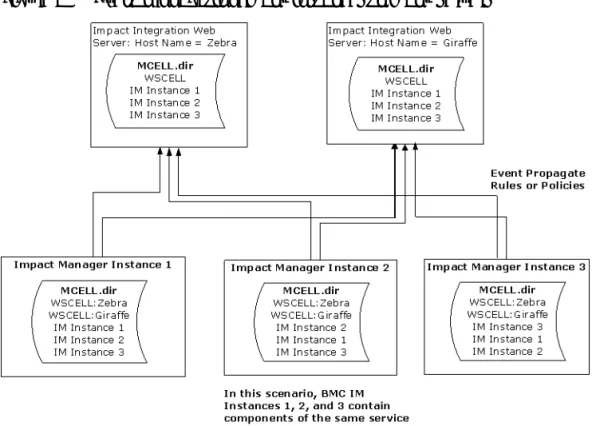
If multiple WSCELL listeners are receiving events from multiple Impact Manager instances, then for each WSCELL listener you add a Propagate rule or specify an event propagation policy. Figure 7 on page 47 depicts this example.
Defining Propagate rules or event propagation policies for BMC IM cells
Figure 7 Event propagation: many instances to many servers
In Figure 7, two BMC II Web Services Servers, Zebra and Giraffe, receive events from three BMC Impact Manager instances, all of which contain components of the same service model. Each instance must have a Propagate rule or an event propagation policy that specifies the WSCELL event listener or listeners that receive the events. In this example, each instance has to define a rule or policy for both servers. In addition, because all of the cells belong to the same service model, each cell’s mcell.dir file must list the other cells.
Example Propagate rules
This section describes sample Propagate rules and describes how to manually add a Propagate rule to the cell’s KB. Refer to the BMC Impact Solutions:Knowledge Base
Development for additional information about Propagate rules. (For information on creating an event propagation policy, see the BMC Impact Solutions:Administration guide.)
TIP
When defining your Propagate rule or event propagation policy, be sure to specify the name of the WSCELL entry exactly as it is defined in the mcell.dir file.