1-800-4 NORTEL www.nortel.com/norstar
Norstar is a trademark of Northern Telecom. P0886602 Issue 1.0
Printed in Canada
Norstar is a trademark of Northern Telecom © Copyright Northern Telecom 1998
Norstar Voice Mail 4.0
Reference Guide
COPYRIGHT NOTICE
This Nortel documentation is protected by copyright. It may not
be copied in any form or medium except pursuant to the Nortel
License to Copy Documentation ("License"). If a License has
been purchased, it will be enclosed with this copy of Nortel
documentation.
Contents
Chapter 1 How to use this guide 1 Introduction 1
Conventions and symbols used in this guide 2 Prerequisites 2
Chapter 2 Using Norstar Voice Mail 3 Introduction 3
Norstar telephones 3
Single-line display telephones 3 Two-line display telephones 4 Alternate DNs 4
Analog Terminal Adapter (ATA) 5
Entering characters on the Norstar dialpad 5 Norstar Voice Mail voice prompts 6
Interrupting a voice prompt 6 Automated Attendant 6
Types of mailboxes 7 Personal mailbox 7 Information mailbox 8 Special mailboxes 8
Exiting Norstar Voice Mail 8 Chapter 3 Setting up your mailbox 9
Introduction 9
Initializing your mailbox 9 Opening your mailbox 11
Opening a mailbox after it has been initialized 11 Opening your mailbox remotely 11
Mailbox Password 12
Changing your mailbox password 12 Company Directory 13
Recording or changing your name in the Company Directory 13 Assigning a Target Attendant 14
Chapter 4 Feature codes and mailbox options 15 Introduction 15
Feature codes 15
Determining custom feature codes 17
ii
Mailbox options 18
Main Mailbox menu and options 19 Mailbox Administration menu 19 Chapter 5 Greetings 21
Introduction 21
Types of mailbox greetings 21 Personal mailbox greetings 21 Information mailbox greetings 23
Recording the Primary or the Alternate mailbox greeting 23 Choosing the Primary or the Alternate mailbox greeting 25 Recording a Personalized mailbox greeting 26
Deleting a Personalized mailbox greeting 27 Recording an Information mailbox greeting 28 Chapter 6 Accessing your messages 29
Introduction 29 Receiving calls 29
Norstar Voice Mail Never Full mailbox feature 29 Listening to your mailbox messages 30
About erased messages 32 Call Screening 33
Chapter 7 Sending messages 35 Introduction 35
Types of messages 35 Broadcast messages 35 Personal messages 35
About recording and sending a message 36 Using the Company Directory 36
Voice Activated Dialing (ƒ·°°) 38 Message delivery options 39
Assigning message delivery options using the Open Mailbox feature 40
Assigning message delivery options using the Leave Message feature 41
Recording and sending a message using the Open Mailbox feature 41 Recording and sending a message using the Leave Message feature 42 Replying to messages 43
iii
Copying a message to other recipients 45
Forwarding a copy of a message to one or more recipients 45 Chapter 8 Call Forwarding your calls 47
Introduction 47
Call Forwarding your calls to Norstar Voice Mail 47 Setting up Call Forward remotely 47
Call Forward with Caller ID (CLID) 48 Chapter 9 Transfering calls 51
Introduction 51
Transfering calls to a Norstar Voice Mail mailbox 51
Transfering a mailbox owner’s call to Norstar Voice Mail 52 Transfering calls from your mailbox to the Operator 53
Transfering calls from your mailbox to the Automated Attendant 53 Transfering a call to Custom Call Routing (CCR) 53
Outbound Transfer 54
Adding special characters to the destination number 54 Optimizing Outbound Transfer 56
Programming an Outbound Transfer telephone number when Norstar Voice Mail is behind PBX or Centrex+ 56
Setting up Outbound Transfer to a phone number 57
Setting up Outbound Transfer to a directory number (DN) 57 Changing the Outbound Transfer parameters 58
Turning Outbound Transfer on and off 59 Chapter 10 Off-premise Message Notification 61
Introduction 61
About Off-premise Message Notification 61
Setting up Off-premise Message Notification to a phone number 62 Setting up Off-premise Message Notification to a Directory Number 64
Setting up Off-premise Message Notification to a pager number 66 Changing Off-premise Message Notification 68
Changing Off-premise Message Notification parameters 68 Changing the destination type from a pager to a telephone or extension 69
Changing the destination type from phone or extension to a pager 70 Setting up Off-premise Message Notification to more than one
destination 71
Deleting an Off-premise Message Notification destination number 73 Inserting an Off-premise Message Notification destination number 74 Turning Off-premise Message Notification on and off 75
iv
Chapter 11 Recording a call 77 Introduction 77 Using Call Record 77
Chapter 12 Norstar Voice Mail Tips 79 Introduction 79
Norstar Voice Mail Tips 79 Chapter 13 Troubleshooting 81
Introduction 81
Appendix A: Default values and tone commands 85
Default mailbox numbers for the General Delivery mailbox 85 DTMF tone commands for setting up Off-premise Message Notification 85
Glossary 87 Index 93
Introduction
The Norstar Voice Mail Reference Guide is to be used with the Norstar Voice Mail Quick Reference Guide. The Norstar Voice MailReference Guide gives more detailed information to a user about using the Norstar Voice Mail system. This chapter describes:
• How the Reference Guide is organized • Conventions and symbols used in this guide • Prerequisites
How the Reference Guide is organized
The Norstar Voice Mail Reference Guide contains the following chapters:
How to use this guide
1
Chapter Description
1. How to use this guide Describes the contents and conventions of this guide. 2. Using Norstar Voice Mail Describes Norstar telephones, how Alternate sets
work, the Analog Terminal Adapter (ATA), entering characters on the Norstar dialpad, Norstar Voice Mail voice prompts, the Automated Attendant, types of mailboxes and exiting Norstar Voice Mail. 3. Setting up your mailbox Shows how to initialize and open your mailbox.
Explains passwords, the Company Directory and Assigning a Target Attendant.
4. Feature codes and mailbox options Describes feature codes and mailbox options. 5. Greetings Describes Primary, Alternate, Personalized and
Information mailbox greetings. Shows how to record and choose greetings.
6. Accessing your messages Describes Receiving Calls, the Norstar Voice Mail Never Full mailbox feature, listening to your mailbox messages, and Call Screening.
7. Sending messages Explains types of messages, using the Company Directory, message delivery options, recording and sending a message, replying to messages and how to send a message to more than one recipient.
8. Call Forwarding your calls Describes Call Forwarding your calls.
9. Transfering calls Describes Transfering calls and Outbound Transfer. 10. Off-premise Message Notification Explains what Off-premise Message Notification is and shows how to set up and change Off-premise Message Notification.
11. Recording a call Describes the Call Record feature.
2 How to use this guide
Conventions and symbols used in this guide
The following conventions and symbols are used for describing features and their operation:
Prerequisites
If you are a new user, make sure you are familiar with the operation of Norstar single-line and two-line display telephones. Refer to "Norstar telephones" on page 3 and read the Norstar Telephone User Card that came with your telephone. For more information about Norstar Voice Mail, ask your System Coordinator.
13. Troubleshooting Provides helpful procedures for problems that might occur while operating Norstar Voice Mail.
Appendix A: Default values and tone commands
Provides a list of default values and tone commands.
Glossary Defines terms used in this guide.
Index Provides an alphabetical list of information contained in this guide.
Convention Example Used for
Word is in a special font (shows top line of display) Pswd:
Command line prompts. Used on single-line and two-line display telephones.
Underlined word in capital letters (shows bottom line of a two-line display telephone)
PLAY Display button option. Available on two-line
display telephonesonly. You can press the button directly below the option on the display to proceed.
Dial pad buttons £ Represents the buttons you press on the dial pad to select a particular option.
Introduction
Norstar Voice Mail works with the Norstar Business Communication System, providing an automated receptionist service. Norstar Voice Mail answers incoming calls, routes them to directory numbers (DNs) and mailboxes within the system, and provides message taking capability.
This chapter describes: • Norstar telephones • Alternate DNs
• Analog Terminal Adapter (ATA)
• Entering characters on the Norstar dialpad • Norstar Voice Mail voice prompts
• Automated Attendant • Types of mailboxes
• Exiting Norstar Voice Mail
Norstar telephones
Single-line display telephones
Norstar single-line display telephones can be used for most Norstar Voice Mail sessions. If you are a using a single-line display telephone, the display shows the Norstar Voice Mail display command line. The single-line display telephone does not show the display button options.
On a single-line display telephone, all options are given immediately by the voice prompts. Selections are made using the dialpad only. You do not need to wait for the voice prompt to complete the option list. You can interrupt the voice prompt and make your selection immediately.
4 Using Norstar Voice Mail
Two-line display telephones
Norstar two-line display telephones show you Norstar Voice Mail commands and options. All system administration tasks, such as setting up a Group List, require a two-line display telephone.
The two-line display can show up to three display button options at a time. In cases where there are more options, wait for the voice prompt to state the other available options. If you know the corresponding dialpad number for the option you want, you can enter it at any time during the voice prompt.
Press • to return to the previous display prompt.
An example of the Norstar Voice Mail two-line display is shown in the following Norstar two-line display illustration.
Norstar two-line display
Alternate DNs
You can have up to two Alternate DNs for your mailbox. When a caller dials the main DN (a DN that has Alternate DNs assigned), the call rings at the main DN only.
If the call is not answered and a message is left, a message indicator appears at the main DN and at the Alternate DN(s). You can access the message from the Alternate DN(s) with ƒ·°⁄, the same way that you usually access messages from your main DN telephone.
When an Alternate DN is assigned to a telephone that has Caller ID (CLID) and Display Caller enabled, CLID information is displayed and an audible tone occurs at all telephones when the call goes to Norstar Voice Mail. (For information on enabling Display Caller refer to "Call Forward with Caller ID (CLID)" on page 48.) The message can be intercepted using the Interrupt Feature, ƒ·°‡ , at all telephones as long as the caller is still leaving a message.
Pswd:
OTHR RETRY OK
Display command line Display button options Display buttons
Using Norstar Voice Mail 5
Analog Terminal Adapter (ATA)
A single-line Norstar telephone can be used for most Norstar Voice Mail sessions. However, you cannot use a single-line telephone attached to an ATA for Norstar Voice Mail System Administration tasks.
There is no Message Waiting Notification when you are using an ATA.
Although the single-line telephone does not have a feature button, you can access Norstar Voice Mail features.
To access Norstar Voice Mail features, such as the Leave Message feature or the Open mailbox feature, call Norstar Voice Mail and follow the voice prompts. The Norstar Voice Mail directory number is determined by using Feature 985 on a Norstar telephone.
If you have an Enhanced ATA, you can also press: • ˚•·°⁄ to open your mailbox
or
• ˚•·°‚to leave a message, and follow the voice prompts.
Entering characters on the Norstar dialpad
The buttons on your Norstar telephone dialpad act as both numbers and letters. Each button represents a number and also represents letters of the alphabet.
You can enter a maximum number of 16 characters on the command line of the Norstar dialpad. The display shows 16 characters at a time. The prompt remains on the display when fewer than ten characters are entered.
In some situations, the prompt and the information to be entered total fewer than 16 characters, and you can see both the prompt and the information you entered. An example of a display with less than 16 characters, where the command line prompt remains on the display is the Pswd command line prompt.
The prompt disappears for the following command line prompts: • Name:
• Log: • Dest ph:
Pswd:1111
6 Using Norstar Voice Mail
For instance, the following display shows the Name: command line prompt:
When you begin to enter the last name, the Name: command line prompt disappears. For example, if you are entering the name Partridge, you press the dialpad button ‡ for P, and the display drops the Name: prompt.
The command line prompt is still not shown on the display after you have entered the entire name, although the name is only nine characters.
Norstar Voice Mail voice prompts
All Norstar telephones provide voice prompts.
The voice prompt tells you the dialpad button to press to use different Norstar Voice Mail options. Voice prompts provide the same options as display buttons. Prompts also provide options that do not appear on the display. If you are using a two-line display telephone, you can use either the display button or the dialpad button to access the option.
On a Norstar single-line display telephone the voice prompt plays immediately. If you do not choose an option after four seconds, the voice prompt replays the options. If you still do not choose an option, Norstar Voice Mail ends the session. On a Norstar two-line display telephone, the voice prompt plays after a five-second delay. If you do not choose an option, Norstar Voice Mail ends the session. Interrupting a voice prompt
A voice prompt can be interrupted by selecting any option on the display or dialpad. A voice prompt can also be interrupted by pressing £. You cannot interrupt a voice prompt that is informing you of an error.
Automated Attendant
The Automated Attendant acts as a receptionist for incoming calls. When enabled, the Automated Attendant answers your company’s incoming telephone lines
Name:
RETRY BKSP OK
P
RETRY BKSP OK
PARTRIDGE
Using Norstar Voice Mail 7
The Automated Attendant provides callers with voice prompt commands associated with each of the following options:
• entering a mailbox number • entering the directory number • using the Company Directory • leaving a message
• reaching the Operator
• selecting an Alternate Language* (not a voice prompt)
* If your Norstar Voice Mail system was installed with bilingual capabilities, the caller can press· to listen to the Automated Attendant in the Alternate Language. When an option has been selected, the Automated Attendant responds to the command either by routing the call to a DN or mailbox within your company, or directing the caller to the Company Directory or the Operator.
The caller listens and then presses the option they want to use.
Types of mailboxes
A mailbox is a storage place for messages. A Norstar Voice Mail system can have 1000 mailboxes. There are three types of mailboxes:
• Personal • Information • Special
Most users have personal mailboxes. Personal mailbox
A personal mailbox is assigned by the System Coordinator and is maintained by the mailbox owner. A personal mailbox can be a user or a guest mailbox.
User mailbox
A user mailbox can be assigned to each mailbox owner who has an operating Norstar DN.
Guest mailbox
Guest mailboxes provide temporary employees and guests with access to internal messaging and call routing features. Guest mailboxes do not have an operating DN. They are assigned a number that looks and works like a DN . This allows the guest mailbox owner to access Norstar Voice Mail in the same way a mailbox owner accesses their mailbox from another DN or telephone. Refer to "Opening a mailbox after it has been initialized" on page 11. Ask the System Coordinator for a guest mailbox.
8 Using Norstar Voice Mail
Information mailbox
An Information mailbox is designed to provide an informative message to a caller. These mailboxes do not have an operating Norstar DN, and the caller cannot leave a message in them. A voice prompt provides a caller with access to Information mailboxes. An Information mailbox is reached through the Automated Attendant, Custom Call Routing (CCR) or the Operator. For more information, refer to
"Information mailbox greetings" on page 23.
Information mailboxes are created by the System Coordinator, and are either maintained by the System Coordinator or a mailbox owner.
Special mailboxes
Special mailboxes are set up automatically when the Norstar Voice Mail system is initialized.
The Special mailboxes include: • General Delivery mailbox • System Coordinator mailbox General Delivery mailbox
The General Delivery mailbox is used:
• to collect messages from callers who use a rotary dial telephone • for individuals in your company who do not have personal mailboxes
• for mailbox owners whose mailboxes are full. For more information, refer to the
"Norstar Voice Mail Never Full mailbox feature" on page 29.
The receptionist or System Coordinator sends messages left in the General Delivery mailbox to the appropriate mailbox owner. For more information about the General Delivery mailbox, refer to "Default mailbox numbers for the General Delivery mailbox" on page 85.
System Coordinator mailbox
This mailbox is used by your System Coordinator as a personal mailbox. You can leave messages for your company’s System Coordinator in this mailbox.
Ask your System Coordinator for the mailbox number. Exiting Norstar Voice Mail
To exit Norstar Voice Mail: • replace the receiver
• press an alternate line button • press ®
Introduction
This chapter shows you how to set up your mailbox and describes the following topics:
• Initializing your mailbox • Opening your mailbox • Mailbox Password • Company Directory
• Assigning a Target Attendant
Initializing your mailbox
Initializing your mailbox prepares your mailbox to receive messages. Your mailbox cannot receive and store messages until it has been initialized.
Initializing your mailbox involves:
• choosing a password from four to eight digits long that does not start with zero • changing the Norstar Voice Mail default password to your new password • recording your name in the Company Directory (refer to "Recording or
changing your name in the Company Directory" on page 13)
To initialize your mailbox, follow the steps in "Initializing and opening your mailbox for the first time" on page 10.
10 Setting up your mailbox
Initializing and opening your mailbox for the first time To initialize and open your mailbox for the first time:
After your mailbox is initialized, record your Personal mailbox greetings. If you do not record any Personal greetings, your Company Directory name recording plays to callers who reach your mailbox.
1. Press ƒ·°⁄.
2. Press ‚‚‚‚ (the default password) and press OK or £.
Note: If you are at another Norstar set, press OTHR or
• to access the Log: display prompt. From the Log: prompt, enter your mailbox number and password as a continuous number. Your mailbox number is normally the same as your directory number. Your default password is ‚‚‚‚.
3. This display appears briefly to indicate that you must change your password.
4. Choose a password from four to eight digits long that does not start with zero. Enter your new mailbox password and press OK or £.
5. Enter your new mailbox password again and press OK or £.
6. At the tone, record your name in the Company
Directory. Press OK to end your name. Press RETRY or ¤ to erase and re-record your name.
Note: It is a good idea to include your mailbox
number in your Company Directory recording. For example “Paul Wayne, mailbox 5813”. 7. Press OK or £ to accept the recording. Press PLAY or
⁄ to listen to the recording. Press RETRY or ¤ to erase and re-record your name.
8. Press ® to end the session.
Pswd:
OTHR RETRY
Must change pswd
Pswd:
RETRY
Again:
RETRY
Record name: RETRY
Accept name? RETRY PLAY
0 new 0 saved PLAY REC ADMIN
Setting up your mailbox 11
Opening your mailbox
Your mailbox can be opened from: • your own directory number (DN) • another Norstar Voice Mail DN
• an outside telephone (as shown in Opening your mailbox remotely) Opening a mailbox after it has been initialized
This section describes how to open: • your mailbox from your own telephone • your mailbox from another Norstar DN • a Guest mailbox
After a mailbox is initialized, follow these steps to open it:
Opening your mailbox remotely
If you are calling your Norstar Voice Mail mailbox from an outside telephone, press •• during your greeting to open your mailbox. At the voice prompt, enter your mailbox number, password and press £. Follow the voice prompts.
1. Press ƒ·°⁄.
2. Enter your mailbox password and press OK or£.
Note: If you are at another Norstar DN, or if you are
using a Guest mailbox, press OTHR or • to access the Log: display prompt. From the Log: prompt, enter your mailbox number and password as a continuous number. Your mailbox number is normally the same as your DN.
Pswd:
12 Setting up your mailbox
Mailbox Password
Your password is from four to eight digits long and cannot start with zero. When you initialize Norstar Voice Mail, the default mailbox password is four zeros (0000). You are prompted to change this password.
It is recommended that you change your password every 30 days. By changing your password regularly, you decrease the chance that someone will discover your password and gain access to your system.
Keep a written copy of your password in a safe place, and avoid giving it to your co-workers. Your mailbox password is used to keep your voice messages private and confidential. For security reasons, it is a good idea to choose an uncommon password (not a predictable password like 1234 or 1111). If someone else knows your password, they can access your mailbox and listen to or delete your messages. They may also be able to access your Norstar Voice Mail system and use it fraudulently or disrupt service.
Changing your mailbox password
You can change your mailbox password at any time. Remember to choose a password from four to eight digits long that does not start with zero.
To change your password:
1. Press ƒ·°⁄ to open your mailbox. 2. Enter your mailbox password and press OK or£. 3. Press ADMIN or ° .
4. Press PSWD or › .
5. Enter your new mailbox password and press OK or £. 6. Enter your new mailbox password again and press OK
or £.
7. Press ® to end the session.
Pswd:
OTHR RETRY
0 new 0 saved PLAY REC
Mailbox admin
GREET QUIT
Pswd:
RETRY
Again:
RETRY
Mailbox admin
Setting up your mailbox 13
Company Directory
The Company Directory is a list of mailbox owners on the Norstar Voice Mail system. Before your mailbox can be used to receive messages, you must record your name in the Company Directory. It is a good idea to include your mailbox number in your Company Directory recording. For example “Paul Wayne, mailbox 5813”. This establishes your “voice” name in a directory that is used by other Norstar Voice Mail users and outside callers who use the Company Directory.
If you do not want your name in the Company Directory, ask your System Coordinator. The Company Directory feature can be disabled by the System Coordinator. If you are unsure whether or not you have this feature, ask your System Coordinator.
Recording or changing your name in the Company Directory
Names included in the Company Directory can be changed at any time. To change your name in the Company Directory:
1. Press ƒ·°⁄ to open your mailbox. 2. Enter your mailbox password and press OK or £. 3. Press ADMIN or °.
4. Press ⁄.
Note: This is a voice prompt option. It does not
appear as a display button option on a two-line display telephone.
5. At the tone, record your name. Press OK or £to end your recording. The recording of your name is automatically placed in the Company Directory. 6. Press OK or £ to accept your recording. Press PLAY
or ⁄ to listen to the recording. Press RETRY or ¤ to erase and re-record your name in the Company
Directory.
7. Press ® to end the session.
Pswd:
OTHR RETRY
0 new 0 saved PLAY REC
Mailbox admin GREET PSWD QUIT
Record name: RETRY
Accept name? RETRY PLAY
Mailbox admin GREET PSWD QUIT
14 Setting up your mailbox
Assigning a Target Attendant
The person that you assign to answer your telephone is your Target Attendant. Once you have assigned your Target Attendant, a caller who reaches your mailbox can press ‚ to speak with the Target Attendant. If the Target Attendant does not answer, the call goes to your mailbox. If your personal mailbox is not available, the call goes to the General Delivery mailbox.
Remember to tell callers in your greetings that if they need assistance they can press ‚ to speak to Target Attendant. For example, “Please press ‚to speak to my
assistant.” The Target Attendant can be any valid DN. The default Target
Attendant is the person assigned as the Norstar Voice Mail Operator. To assign your personal Target Attendant:
1. Press ƒ·°⁄ to open your mailbox. 2. Enter your mailbox password and press OK or£. 3. Press ADMIN or°.
4. Press fi.
5. Press CHNG or ⁄ to change the Target Attendant. The Atdt ext:oper prompt indicates that the current Target Attendant is the Norstar Voice Mail Operator. 6. Enter the DN number of your new Target Attendant.
Press OPER or ‚ to change the Target Attendant back to the Norstar Voice Mail Operator.
7. The Atdt ext:xxx prompt appears, where xxx represents the DN you entered. Press QUIT to accept the number of the Target Attendant. Press CHNG or ⁄ to change the Target Attendant.
Press ® to end the session.
Pswd:
OTHR RETRY
0 new 0 saved PLAY REC
Mailbox admin GREET PSWD QUIT
Atdt ext: oper QUIT
Ext:
RETRY OPER
Atdt ext: <xxx> CHNG
Introduction
This chapter describes the Norstar Voice Mail feature codes and mailbox options, and includes the following topics:
• Feature codes
• Determining custom feature codes
• Programing a memory button with a feature code • Mailbox options
Feature codes
The table "Description of feature codes" on page 17 explains the purpose of each Norstar Voice Mail feature code.
Feature codes are assigned during installation. The feature codes in this guide are the default feature codes. If your company is using custom feature codes, you need to find out what the custom feature codes are. To determine the Norstar Voice Mail custom feature codes, refer to "Determining custom feature codes" on page 17. Once you know the feature codes that your company is using (default feature codes or custom feature codes), you can program the feature codes onto memory buttons. For information, refer to "Programing a memory button with a feature code" on page 18.
16 Feature codes and mailbox options
Note: When a caller leaving a message in a mailbox is interrupted, the part of the
message that was recorded before the interruption remains in the mailbox. Delete this message. If Off-premise Message Notification is turned on, the interrupted message causes Norstar Voice Mail to call the Off-premise Message Notification number immediately. For information on Off-premise Message Notification, refer to "About Off-premise Message Notification"
on page 61.
If Outbound Transfer is turned on, you cannot interrupt the call unless you interrupt it before the caller gets transferred to your Outbound Transfer destination number by pressing ‡. For information on Outbound Transfer, refer to "Outbound Transfer" on page 54.
Feature Code Name Default feature
code Description
Leave Message ƒ·°‚ Used to leave a message in a mailbox. No password is required.
Open Mailbox ƒ·°⁄ Used to open your Personal mailbox to listen to your messages and access Norstar Voice Mail options. Your personal
password is required.
Operator Status ƒ·°¤ Not a user feature. Used by the System Coordinator, receptionist, or Operator to set the Operator Status.
Norstar Voice Mail
directory number (DN) ƒ·°fi
Used to determine the Norstar Voice Mail DN. You need to know what the Norstar Voice Mail DN is when you forward your DN to Norstar Voice Mail.
Call Forward to
Norstar Voice Mail ƒ·°›
Used to forward all incoming calls to Norstar Voice Mail.
Transfer ƒ·°fl Used to transfer calls to a mailbox.
Interrupt ƒ·°‡ Used to interrupt Norstar Voice Mail when a caller is listening to your personal mailbox greeting or leaving a message. This allows you to speak with a caller who has reached your mailbox. (Refer to the Note that follows this table.)
Voice Activated
Dialing ƒ·°°
The Voice Activated Dialing feature gives you the ability of directing your own calls by speaking the name of the person you want to reach. The Speech Recognition Automated Attendant option must be installed on the Norstar Voice Mail system before this feature can be accessed. Call Record ƒ·°· Used to record a telephone call from your
Norstar telephone. The resulting message will be deposited in your mailbox.
Feature codes and mailbox options 17
Determining custom feature codes
If your company is using custom feature codes, you need to find out what the custom feature codes are. To determine the Norstar Voice Mail custom feature codes, use a Norstar two-line display telephone.
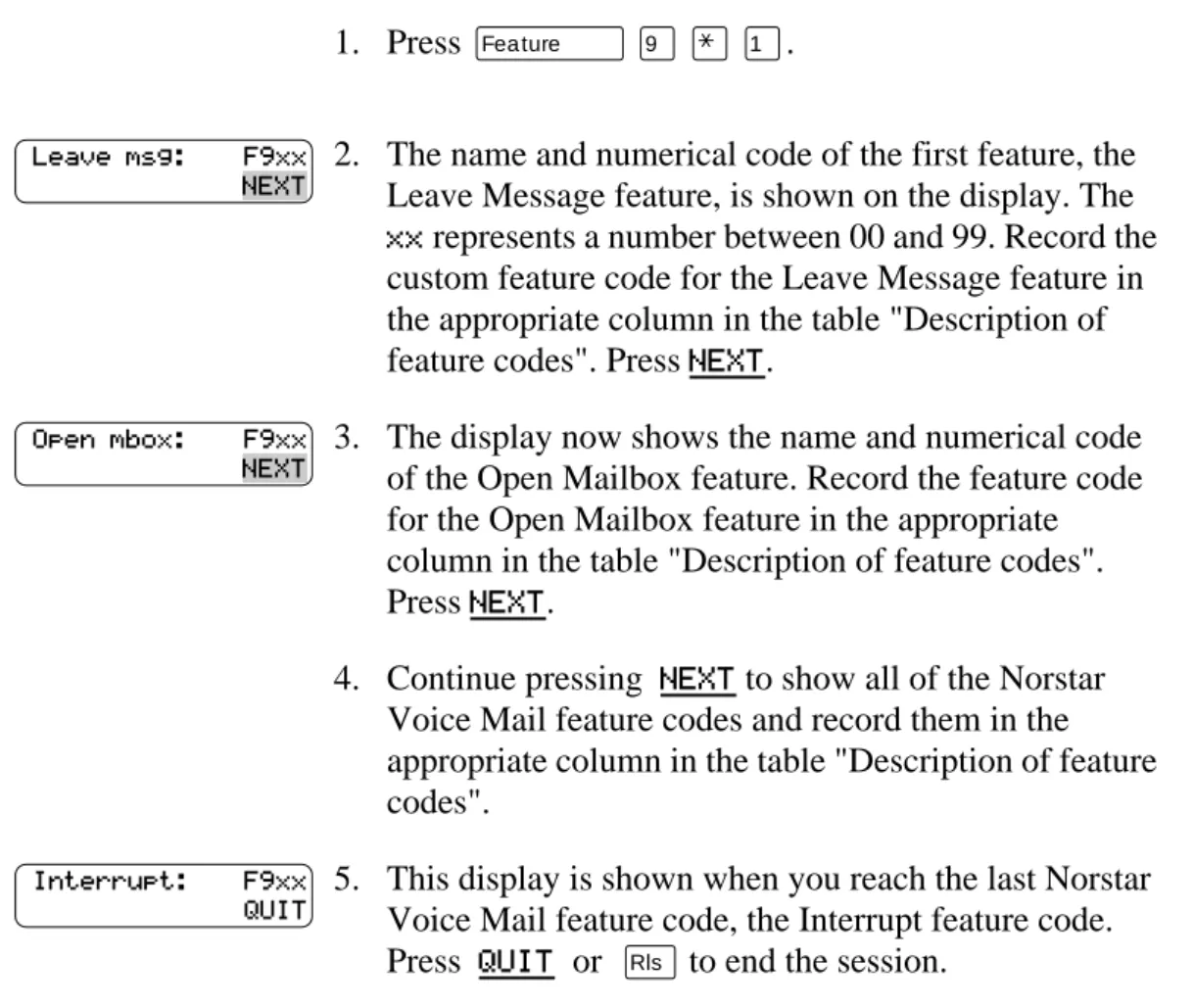
To determine the Norstar Voice Mail feature codes:
Once you have determined the custom feature codes, make sure that you record the custom feature codes in the appropriate column in the table "Description of feature codes".
Table 1 Description of feature codes
1. Press ƒ·•⁄.
2. The name and numerical code of the first feature, the Leave Message feature, is shown on the display. The xx represents a number between 00 and 99. Record the custom feature code for the Leave Message feature in the appropriate column in the table "Description of feature codes". Press NEXT.
3. The display now shows the name and numerical code of the Open Mailbox feature. Record the feature code for the Open Mailbox feature in the appropriate column in the table "Description of feature codes". Press NEXT.
4. Continue pressing NEXT to show all of the Norstar Voice Mail feature codes and record them in the appropriate column in the table "Description of feature codes".
5. This display is shown when you reach the last Norstar Voice Mail feature code, the Interrupt feature code. Press QUIT or ® to end the session.
Feature Code name Default feature code
Custom feature code
Leave Message ƒ·°‚ ƒ· ___ ___
Open Mailbox ƒ·°⁄ ƒ· ___ ___
Operator Status ƒ·°¤ ƒ· ___ ___
Call Forward to Norstar Voice Mail ƒ·°› ƒ· ___ ___
Transfer ƒ·°fl ƒ· ___ ___
Interrupt ƒ·°‡ ƒ· ___ ___
Voice Activated Dialing ƒ·°fl ƒ· ___ ___
Record Call ƒ·°· ƒ· ___ ___
Leave msg: F9xx
Open mbox: F9xx
Interrupt: F9xx QUIT
18 Feature codes and mailbox options
Programing a memory button with a feature code
Each Norstar Voice Mail feature code can be programed to a single memory button. To program a memory button:
Use one of the paper labels that came with your Norstar telephone to identify the programed button. To use the feature, press the labeled button.
Mailbox options
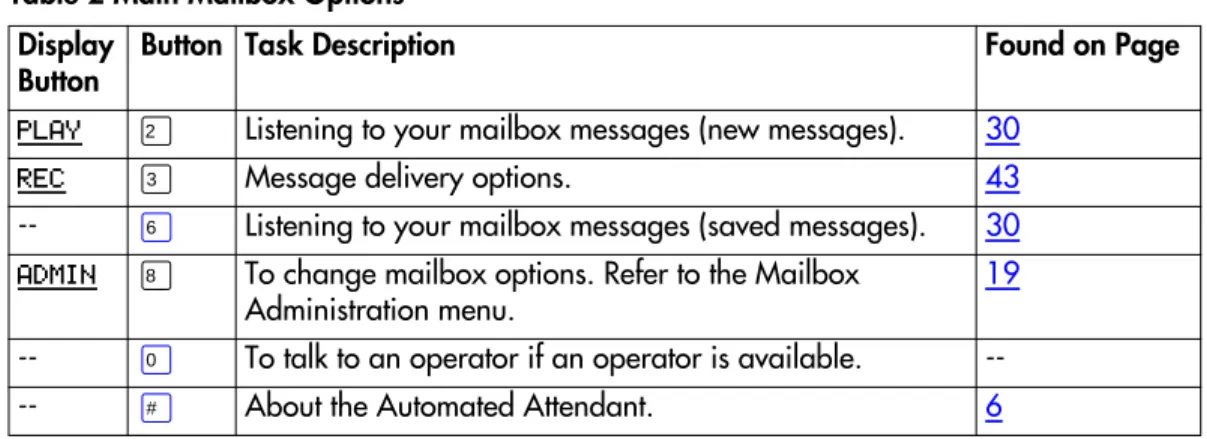
To access the main mailbox menu, refer to the table "Main Mailbox menu and options". The main mailbox menu options are described in the table "Main Mailbox Options".
To access the mailbox administration menu, refer to "Mailbox Administration menu" on page 19. The mailbox administration options are described in the table
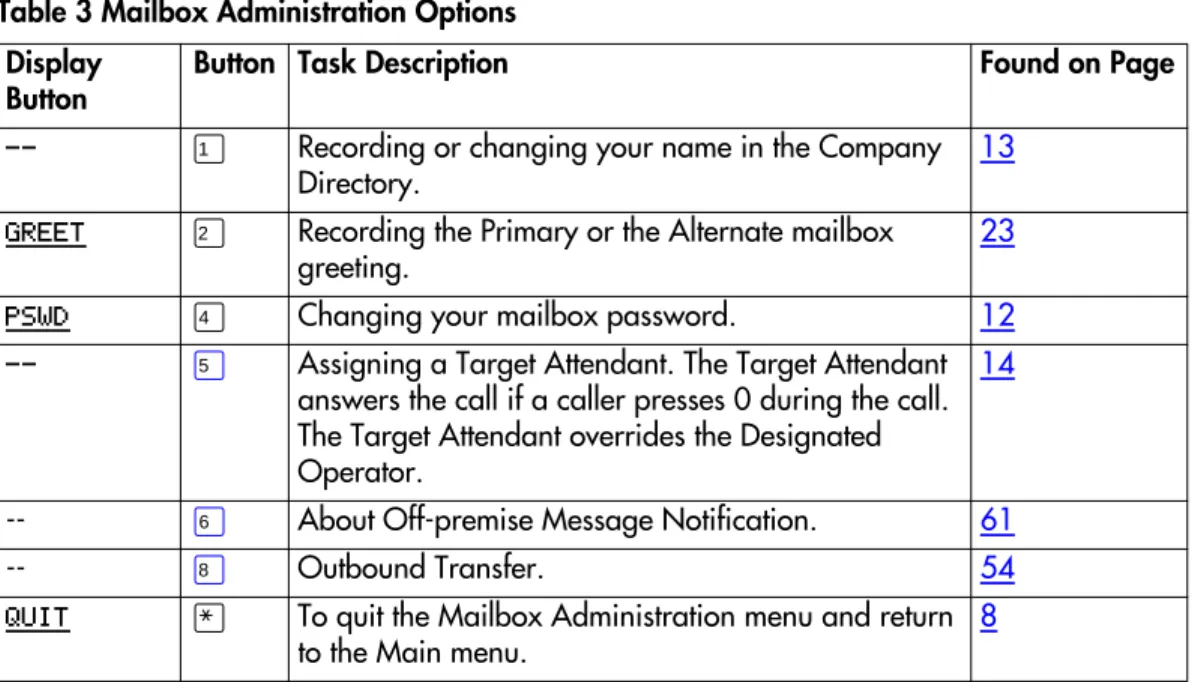
"Mailbox Administration Options" on page 20.
1. Do not lift your receiver. Press ƒ•‹.
2. There is a transient display which shows Program Features.
3. Press a programable button. 4. Press ƒ.
5. Enter the feature code number you want to program. For example, enter ·°‚ to program the Leave Message feature code. For a list of frequently used feature codes, refer to the table "Description of feature codes" on page 17.
The display shows that the button has been programed. Repeat steps 1 to 4 for each Norstar Voice Mail feature code you want to program.
Program Features
Press a button QUIT
Feature code: QUIT
F_
QUIT CLEAR
Feature codes and mailbox options 19
Main Mailbox menu and options To access the main mailbox menu:
Table 2 Main Mailbox Options
Mailbox Administration menu
To access the Mailbox Administration menu:
1. Press ƒ·°⁄ to open your mailbox. 2. Enter your mailbox password and press OK or £. 3. The main mailbox menu options appear. Choose one
of the options shown in the table below.
Display Button
Button Task Description Found on Page
PLAY ¤ Listening to your mailbox messages (new messages). 30
REC ‹ Message delivery options. 43
-- fl Listening to your mailbox messages (saved messages). 30
ADMIN ° To change mailbox options. Refer to the Mailbox
Administration menu.
19 -- ‚ To talk to an operator if an operator is available.
---- £ About the Automated Attendant. 6
1. Press ƒ·°⁄ to open your mailbox. 2. Enter your mailbox password and press OK or £. 3. Press ADMIN or °.
4. Choose one of the options shown in the table ’Mailbox Administration Options’.
Pswd:
OTHR RETRY
0 new 0 saved PLAY REC
Pswd:
OTHR RETRY
0 new 0 saved PLAY REC
Mailbox admin GREET PSWD QUIT
20 Feature codes and mailbox options
Table 3 Mailbox Administration Options Display
Button
Button Task Description Found on Page
-- ⁄ Recording or changing your name in the Company Directory.
13
GREET ¤ Recording the Primary or the Alternate mailbox
greeting.
23
PSWD › Changing your mailbox password. 12
-- fi Assigning a Target Attendant. The Target Attendant answers the call if a caller presses 0 during the call. The Target Attendant overrides the Designated Operator.
14
-- fl About Off-premise Message Notification. 61
-- ° Outbound Transfer. 54
QUIT • To quit the Mailbox Administration menu and return
to the Main menu.
Introduction
This chapter describes the mailbox greetings and how to record them. This chapter includes:
• Types of mailbox greetings
• Recording the Primary or the Alternate mailbox greeting • Choosing the Primary or the Alternate mailbox greeting • Recording a Personalized mailbox greeting
• Deleting a Personalized mailbox greeting • Recording an Information mailbox greeting
Types of mailbox greetings
The two types of greetings are:
• Personal mailbox greetings (which includes Primary, Alternate, and Personalized greetings)
• Information mailbox greetings Personal mailbox greetings
Personal mailbox greetings are played to callers who reach your mailbox. Greetings inform callers that they have reached the correct mailbox and give callers any necessary information or instructions. You can change the greetings at any time. After you have initialized your mailbox, you can record your greetings. If you do not record any Personal greetings, your Company Directory name recording plays to callers who reach your mailbox. Refer to "Recording or changing your name in the Company Directory" on page 13.
There are three types of Personal mailbox greetings: Primary, Alternate and Personalized.
Recording technique for personal mailbox greetings
When recording your Personal greetings, remember to speak clearly and at a pace that is easy to understand. After recording a greeting, you can replay it before accepting it. You can record or change a greeting from any Norstar telephone or, if you are away from the office, from any touch tone phone. When you record a greeting, do not use the Handsfree feature. You will have better results if you speak directly into the receiver.
22 Greetings
Primary mailbox greeting
Your Primary mailbox greeting is recorded for everyday use. This greeting should include your name and a brief message explaining to callers that you are unable to answer their calls. For example:
“Hi. This is Paul Wayne. I’m not able to take your call right now. Please leave me a message at the tone and I will return your call as soon as possible.”
If you are a new mailbox owner, you should record your Primary mailbox greeting immediately.
Alternate mailbox greeting
The Alternate mailbox greeting is normally used for special circumstances. For example:
“Hi. This is Paul Wayne. I am out of the office until Thursday, the 17th of December. Although I am out of the office, I do check my mailbox daily. Please leave me a message at the tone and I will return your call as soon as possible. Thank you.”
Once it is recorded, you must choose which greeting you want Norstar Voice Mail to play. You can change the selection at any time, and as often as needed.
Personalized mailbox greeting
Personalized mailbox greetings are available only if your company subscribes to the Caller ID (CLID) service from your local telephone company. For more
information about CLID, ask your System Coordinator.
A Personalized mailbox greeting plays to callers based on the caller’s phone number. Norstar Voice Mail recognizes the assigned incoming phone number and plays the Personalized mailbox greeting. For example:
“Hi Susan. I may have missed your call, but I don’t want to miss meeting you for lunch. See you at noon.”
Greetings 23
Information mailbox greetings
Information mailboxes greetings provide messages and announcements to callers. A caller is automatically disconnected after listening to an Information mailbox greeting. Information mailboxes can be used to:
• announce sales • provide product lists • announce special events For example:
“Paddy’s Dance Studio proudly presents an extravaganza of dance. The
entertainment begins at 8:00 p.m. on the fourth of July. Toddlers tap is in the White Room. Folk dance is in the Green Room. Classical ballet is in the Pink Room. Contemporary jazz is in the Blue Room. The Studio and Recital Rooms are located at 222 Main Street.”
You should make Information mailboxes easy for a caller to find. Do this by using your company Operator, or the Automated Attendant Company greetings to route the caller. For details, ask your System Coordinator.
Information mailboxes are different from Custom Call Routing (CCR) Information Mailboxes. Callers must use the CCR Tree to access a CCR Information mailbox. For more information about CCR Information Mailboxes, ask your System Coordinator.
Recording the Primary or the Alternate mailbox greeting
This procedure shows you how to record your Primary or Alternate mailbox greetings. To start using Norstar Voice Mail, only a Primary mailbox greeting is necessary. If you do not record any Personal mailbox greetings, your Company Directory name recording plays to callers who reach your mailbox.
If you record both Primary and Alternate mailbox greetings, you must choose which greeting is to be played. If you do not choose a greeting, the Primary mailbox greeting automatically plays. For information on how to choose a greeting, refer to
24 Greetings
To record your Primary or Alternate mailbox greeting:
1. Press ƒ·°⁄ to open your mailbox. 2. Enter your mailbox password and press OK or £.
Note: If you are recording a mailbox greeting from a
telephone that has not been assigned to your Personal mailbox, press OTHR. The display shows the Log:prompt. When this prompt appears, enter your mailbox number and password.
If you are using a single-line display telephone, press • at the Pswd:prompt to show the Log:prompt.
3. Press ADMIN or °. 4. Press GREET or ¤.
5. Press REC or ⁄.
6. Press PRIME or ⁄to record the Primary mailbox greeting. Press ALT or ¤ to record the Alternate mailbox greeting.
Note: If you are changing your greeting, your current
recorded Primary mailbox greeting begins to play.
7. Press YES or ⁄ and record your greeting at the tone. 8. Press OK or £ to end your recording.
9. Press OK or £ to accept the greeting. Press PLAY or ⁄ to listen to the greeting. Press RETRY or ¤ to erase and re-record the greeting.
10. Press ® to end this session.
Pswd:
OTHR RETRY
0 new 0 saved PLAY REC
Mailbox admin PSWD QUIT
Greeting options CHOOSE CFWD
Greeting:
ALT PERS
Record new?
NO QUIT
Record greeting: RETRY
Accept greeting? RETRY PLAY
Mailbox admin PSWD QUIT
Greetings 25
Choosing the Primary or the Alternate mailbox
greeting
Primary mailbox greeting
You record a Primary mailbox greeting after initializing your mailbox. If you record a Primary and an Alternate mailbox greeting, you need to choose which greeting plays. If you do not choose a greeting, the Primary mailbox greeting plays automatically.
Alternate mailbox greeting
If you choose the Alternate mailbox greeting, you are asked whether the mailbox should accept messages. If you choose Y (yes) your mailbox will receive messages in the normal way.
If you choose N (no) the following occurs: • messages cannot be left in the mailbox
• the Alternate mailbox greeting takes precedence over all other greetings • if a caller presses a button to cut the message short, they hear a voice prompt
that says this is a special greeting
• if a caller presses a button to send a fax, the fax will go to the general delivery mailbox (not your personal mailbox)
If you choose the Alternate mailbox greeting, remember to change back to the Primary mailbox greeting at the appropriate time.
To choose a Primary or Alternate mailbox greeting:
1. Press ƒ·°⁄ to open your mailbox. 2. Enter your mailbox password and press OK or£. 3. Press ADMIN or° .
4. Press GREET or ¤.
5. Press CHOOSE or ¤ to choose a greeting.
6. Press PRIME or ⁄to choose the Primary mailbox greeting. Press ALT or ¤to choose the Alternate mailbox greeting.
Note: If you choose the Alternate mailbox greeting,
go to step 7. If you choose the Primary mailbox greeting, go to step 8.
Pswd:
OTHR RETRY
0 new 0 saved PLAY REC
Mailbox admin PSWD QUIT
Greeting options
REC CFWD
Use greeting: PRIME ALT QUIT
26 Greetings
Note: If you have chosen a greeting that is not yet recorded, you are transfered back
to the greeting options menu to record the greeting.
Recording a Personalized mailbox greeting
If your company subscribes to a CLID service, you have the option of recording a Personalized mailbox greeting. For more information about CLID, ask your System Coordinator. The Personalized mailbox greeting is played only for a person calling from the phone number that you designate. For the Personalized mailbox greeting to be played, the phone number you enter must match the caller’s phone number exactly.
Up to three Personalized mailbox greetings can be recorded, but each greeting can be assigned only to one phone number.
Note: Personalized mailbox greetings will not be played if you have recorded and
chosen the Alternate mailbox greeting. The Alternate mailbox greeting takes precedence over all other greetings.
To record a Personalized mailbox greeting:
7. If you choose the Alternate mailbox greeting, you are asked whether the mailbox should accept messages. Press CHNG to toggle from yes to no. If you choose Y (yes) then messages will be received. If you choose N (no) messages cannot be left in the mailbox. Press OK. 8. Press ® to end the session.
1. Press ƒ·°⁄ to open your mailbox. 2. Enter your mailbox password and press OK or £. 3. Press ADMIN or ° .
4. Press GREET or ¤ . 5. Press REC or ⁄.
6. Press PERS or ‹ to record a Personalized mailbox greeting.
Accept msgs:Y OK
Mailbox admin GREET PSWD QUIT
Pswd:
OTHR RETRY
0 new 0 saved PLAY REC
Mailbox admin PSWD QUIT
Greeting options CHOOSE CFWD
Greeting: PRIME ALT
Greetings 27
Deleting a Personalized mailbox greeting
If you have programed Norstar Voice Mail with a Personalized mailbox greeting that you no longer need, you can delete the Personalized mailbox greeting. To delete a Personalized mailbox greeting:
8. Press CHNG or ⁄.
9. Enter the phone number (maximum 10 digits) to which you are assigning the Personalized mailbox greeting. Press OK or £ to accept the phone number.
10. At the tone, record the greeting. Press OK or £ to end the recording.
11. Press OK or £ to accept the recording. Press PLAY or ⁄ to listen to the recording. Press RETRY or ¤ to erase and re-record the greeting.
12. To record another Personalized mailbox greeting, repeat steps 3 to 11. Press ® to end the session.
1. Press ƒ·°⁄ to open your mailbox. 2. Enter your mailbox password and press OK or£. 3. Press ADMIN or ° .
4. Press GREET or ¤ . 5. Press REC or ⁄ .
6. Press PERS or ‹ to choose a Personalized mailbox greeting.
7. Enter the Personalized greeting number (1, 2, or 3) that you want to delete.
8. Press DEL or ¤ to delete the greeting. Press ® to end the session.
Ph: <none>
OK
Ph:
RETRY
Record greeting: RETRY
Accept greeting? RETRY PLAY
Pswd:
OTHR RETRY
0 new 0 saved PLAY REC
Mailbox admin PSWD QUIT
Greeting options CHOOSE CFWD
Greeting: PRIME ALT
Greeting:
RETRY OK
Ph: XXXXXXX
28 Greetings
Recording an Information mailbox greeting
Before you record your Information mailbox greeting, you must determine what the greeting will include. When preparing your greeting, be sure to include important times and dates. Write the greeting and practice reading it aloud. When you are confident the greeting includes everything you want it to, record the greeting. If you are using a Norstar Voice Mail system with bilingual capability, the Information mailbox greeting must be recorded in both languages.
An Information mailbox greeting can be either a Primary or an Alternate mailbox greeting. Perform the steps in "Recording the Primary or the Alternate mailbox greeting" on page 23 to record an Information mailbox greeting.
Introduction
This chapter describes accessing your messages and explains the following related topics:
• Receiving calls
• Norstar Voice Mail Never Full mailbox feature • Listening to your mailbox messages
• Call Screening
Receiving calls
Norstar Voice Mail can be used by any outside caller and by other mailbox owners in your company. Away from the office, Norstar Voice Mail can be used with any touch tone phone. Inside your office, Norstar Voice Mail can be used from any Norstar telephone connected to your company’s Norstar Voice Mail system. Even outside callers using a rotary dial telephone are able to use Norstar Voice Mail. When a caller uses Norstar Voice Mail from a rotary dial telephone, the system transfers the call to your company receptionist or the Operator. If a
receptionist or the Operator is not available to answer the call, the call is transfered to the General Delivery mailbox.
Norstar Voice Mail Never Full mailbox feature
The Never Full mailbox feature allows external callers to leave a message in your mailbox, even if the mailbox is technically “full”. The message is stored in your mailbox, but cannot be accessed until you delete at least one existing message to allow space for the new message. If you attempt to listen to any new messages before deleting an existing message, you hear this voice announcement:
“Your mailbox is full. You must erase some messages before you can listen to new messages.”
You are not able to leave a message in another mailbox, create a new message, Copy, Send, or Reply to a message, until you delete at least one existing message. The Never Full mailbox feature is not available to internal callers. Internal callers cannot leave messages in mailboxes that are technically “full”.
30 Accessing your messages
Listening to your mailbox messages
To listen to your messages:
A number of options are available to you during and after listening to a message. The table “Listening to your mailbox messages” shows the options and when they are available.
1. Press ƒ·°⁄ to open your mailbox. 2. Enter your mailbox password and press OK or £. 3. Press PLAY to listen to your messages. For options,
refer to the table "Listening to your mailbox messages".
4. Press ® to end the session.
Listening to your mailbox messages Option Button Available
while listening to a message Available after listening to a message Description Backup ⁄ or < <<
X Rewinds the message nine seconds and resumes playing it from that point.
Copy fi
or
COPY
X X Sends a copy of the message to one or more mailboxes. When you record the introduction to the forwarded message, the introduction must be more than three seconds long. End of
Message ‹or ‹
> >> > >>
X Skips to the end of the message.
Envelope ‡ X X Plays the information on the message envelope. Envelope information includes the date and time the message was sent and, if the message was internal, the directory name of the sender. This option is not shown on the display.
Erase °
or
ERASE
X X Deletes the message currently being played or, if no messages are playing, deletes the message just played. Deleted messages remain in your mailbox until the session is ended. (Refer to Notes 1. and 2.)
Forward ‹ X Advances the message nine seconds and
Pswd:
OTHR RETRY
2 new 0 saved REC
Accessing your messages 31
Next fl
or
££
X X Plays the next message in your mailbox. If used while a message is playing, it stops playing the current message and plays the next message in your mailbox. This option is not shown on the display.
Pause/
Continue ¤or
STOP/ PLAY
X Stops a message temporarily. When you stop the message, you have the option to play the previous message, continue playing the current message, or skip to the next message.
Previous › X X Stops playing the current message and begins playing the previous message. This option is not shown on the display.
Quit • X Stops playing the message and plays the
Mailbox main menu options.
Replay ⁄⁄
or
< << < <<
X Goes back to the beginning of the message and plays the message again.
Replay ⁄ X Replays the last message. This option is not
shown on the display.
Reply ·
or
REPLY
X X Reply to a message. (Refer to Note 3.) Reply to a message can be either:
- a message to an internal sender’s mailbox - a telephone call to an internal or external party (Refer to Note 4.)
Save
Message ‡or ‡
SAVE
X Saves the message being played. (If you do not delete a message, it is automatically saved). This option is not shown on the display unless you erase a message. If you erase a message, and play the message again, you are given the option to press SAVE on a two-line display
telephone. (Refer to Note 2.) Volume
Control •
X Adjusts the volume of the message that is playing. The volume increases each time you press•. After four consecutive presses, the volume returns to the lowest level. This option is not shown on the display.
Listening to your mailbox messages Option Button Available
while listening to a message Available after listening to a message Description
32 Accessing your messages
Notes:
1. Because your mailbox has limited message storage space, you should delete any messages you no longer need. After a certain time period, your saved messages may be erased automatically. Ask your System Coordinator about this.
2. You can retrieve a deleted message only if you have not quit the session in which you deleted it. Locate the deleted message. Then play (press⁄⁄) and save (press ‡‡ or SAVE) the message. For further information about
retrieving deleted messages refer to About erased messages. 3. Applies only if the Reply feature is enabled.
4. You can reply to an outside caller by dialing them back if your company subscribes to Caller ID (CLID) service. For further information about replying to an outside caller refer to "Replying to an external message sender" on page 44.
About erased messages
After listening to your messages and exiting Norstar Voice Mail, all messages that you do not erase are automatically saved. Since message storage space is limited, we recommend that you erase messages that are no longer needed.
You can retrieve an erased message provided you are still in the Norstar Voice Mail session. An erased message remains in your mailbox until you end the current Norstar Voice Mail session.
When you erase a new or saved message, the number of new or saved messages shown on the display will be decreased by one. Even though the display may show 0 new 0 saved, you can still play and retrieve your erased messages. Press PLAY or ¤to listen to your erased message. Refer to the table "Listening to your mailbox messages" on page 30.
After you play your erased message, you are given the option to save it. If you end the current session without saving the erased message, it is permanently deleted from Norstar Voice Mail.
Accessing your messages 33
Call Screening
Call Screening allows you to determine who is calling before you accept the call. It applies only to external calls transfered from the Auto Attendant or from Custom Call Routing (CCR). See your System Coordinator for information on CCR. Call Screening can be useful in the following circumstances:
• when CLID not available
• when CLID is not a reliable indication of the caller identity • when your Norstar telephone does not have display capabilities
The System Coordinator enables the Call Screening feature for your Norstar Voice Mail system.
Call Screening is unavailable, and the call is transfered immediately for the following types of calls:
• internal calls
• external calls placed directly to your phone number
• external calls for which you have established a Personalized greeting How to use Call Screening
To use the Call Screening feature:
1. You receive an external call that is transfered from the Automated Attendant or from Custom Call Routing (CCR).
2. Norstar Voice Mail announces the caller’s name to you. If the caller chooses not to record their name, the voice prompt says, “Unknown caller.”
3. You have the option of accepting the call or having the caller leave a message in your Norstar Voice Mail mailbox:
press ANS or ⁄ to accept the call
press QUIT or • to transfer the call to your Norstar Voice Mail mailbox (and the caller is informed that you are not available)
When Call Screening is enabled, Norstar Voice Mail asks the caller to record their name after the tone. (If the caller presses • when they are asked to record their name, the call goes back to the Automated Attendant.) The caller hears a hold tone while they wait. If you do not answer, the caller is informed that you are not available, and the call is transfered to your mailbox.
Since some callers may not like recording their name and waiting for service, this feature should be used with discretion.
Introduction
This chapter describes sending messages and explains the following topics: • Types of messages
• About recording and sending a message • Using the Company Directory
• Message delivery options
• Recording and sending a message using the Open Mailbox feature • Recording and sending a message using the Leave Message feature • Replying to messages
• Sending a message to more than one recipient
Types of messages
There are two types of messages, Broadcast messages and Personal messages. Broadcast messages
There might be times when you open your Personal mailbox and a message plays immediately. This is a Broadcast message left by your System Coordinator. This type of message can be sent only by your System Coordinator. Make sure you listen to the entire message. After it plays, the message is automatically erased from your mailbox.
Personal messages
Sending personal messages to a mailbox
To send a message, refer to "About recording and sending a message" on page 36. To send a message when you do not know the person’s mailbox number, use the Company Directory. Refer to "Using the Company Directory" on page 36. Personal messages addressed to a Group List
You can send a message to a group of people by addressing a message to a Group List. For more information, refer to "Sending a message using a Group List" on page 44.
36 Sending messages
About recording and sending a message
Messages can be recorded and sent using:
• the Open Mailbox feature (ƒ·°⁄) • the Leave Message feature (ƒ·°‚)
When you use the Open Mailbox feature, you open your personal mailbox and enter your password. Then you record your message and enter the directory number (DN) of the message recipient.
The Leave Message feature prompts you to enter the DN of the message recipient immediately. Then you record your message. No password is required because you do not open a mailbox.
Both features allow you to:
• use the Company Directory (refer to Using the Company Directory) • assign message delivery options (refer to "Message delivery options" on
page 39)
• send a message to more than one recipient (refer to "Sending a message to more than one recipient" on page 44)
Using the Company Directory
You can find any initialized mailbox by searching the Company Directory. Use the Company Directory if you do not know the mailbox number of someone you want to send a message to. You can access the Company Directory when:
• the display shows DIR
• the voice prompt announces, “Press £ to use the Directory.” • you are prompted to choose a mailbox
The Company Directory option is available from both the Open Mailbox feature and the Leave Message feature.
Note: If the Voice Activated Dialing feature (ƒ·°°) is enabled,
refer to the "Voice Activated Dialing (ƒ·°°)" on page 38 for information on using the Company Directory.
Sending messages 37
To access the Company Directory using the Leave Message feature: 1. Press DIR or £ to use the Company Directory. 2. Use the dialpad buttons associated with the first three
or four letters of the mailbox owner’s name to locate and select the person’s mailbox. (Enter the last name, first name or both names depending on how your system is set up. This display shows an example of a prompt for a mailbox owner’s last name.) You do not need to enter a comma. Press OK or £.
For example, to enter the letters “Wayn”
press ·¤·fl. If the mailbox owner has fewer than four letters in their last name, press the buttons on the dialpad to spell out the entire last name, and press OK or £. For more information, refer to "Entering characters on the Norstar dialpad" on page 5.
3. In this example, the name of the mailbox owner, Paul Wayne appears on the display and is announced. To accept the mailbox owner, press OK or £.
If you do not want the person who is shown, press
NEXT or ⁄ to see the next matching name. 4. The greeting of the mailbox owner plays. If the
mailbox owner you selected does not have a Personal greeting recorded and selected, you hear their
Company Directory recording.
Mbox:
QUIT
Last name:
Wayne, Paul RETRY NEXT
38 Sending messages
Voice Activated Dialing (
ƒ·°°
)
The Voice Activated Dialing feature gives you the ability of directing your own calls by using the Company Directory and speaking the name of the person you want to reach. The Voice Activated Dialing feature is accessed by pressing ƒ ·°° . Voice Activated Dialing can be accessed from any Norstar set, including analog sets attached via an Analog Terminal Adapter (ATA).
Note: Voice Activated Dialing is an optional feature. If this feature is not
available, refer to "Using the Company Directory" on page 36 for information on using the Company Directory.
Voice Activated Dialing works the following way:
• After the user presses ƒ ·°° , a tone is heard at which point the user speaks the name of the person they want to contact. No Matches found is displayed if the user fails to provide a name, or provides an invalid name. • If a voice match is not found, you are routed directly to the regular Company
Directory.
• The DIR softkey or the £ key can be used to transfer out of the Voice Activated Dialing feature and into the regular Company Directory.
• Confirm a voice match by pressing OK or the £ . If you not confirm the voice match, the Voice Activated Dialing feature proceeds as if OK was pressed. You can decline the voice match by pressing RETRY or the • key. After a selection is declined, Voice Activated Dialing presents the next homonym (if there is one) or re-prompts the you to say the name again.
To access the Voice Activated Dialing feature: 1. Press ƒ·°°.
2. At the tone, speak the first and last name of the person you want to reach.
3. Press OK to accept the name and be transfered. Press RETRY to re-speak the name.
Speak name DIR
Wayne, Paul RETRY ∫∫∫∫
Sending messages 39
Message delivery options
Norstar Voice Mail provides you with five possible message delivery options: • Normal
• Certified • Urgent • Private
• Timed Delivery
Normal, Certified, and Private messages are played in the order in which they are received. Urgent messages play before other messages left in the mailbox, except for Broadcast messages. (Refer to "Broadcast messages" on page 35.) The Certified and Timed delivery options are available only if you are calling from a telephone that has a mailbox associated with it. Messages sent with the Timed delivery option are played at the time that you specify.
When you usethe Timed delivery option, you first enter the time, including a.m. or p.m. You are then prompted to accept or change the date, which defaults to today or tomorrow, and you can accept the date that corresponds to the next occurrence of the specified time. Dates are shown by month and day, and the year is infered. If the month and day are earlier than the current date, the next year is assumed. When the specified time and date occurs, the message is sent. You cannot cancel the message prior to delivery.
Option DisplayButton Button Description
Send SEND £ or ® Sends a message with Normal delivery
option.
Certified CERT ⁄ Sends you notification that your message
has been received and played.
Urgent URGENT ¤ Messages marked Urgent play before
other messages left in the mailbox. Urgent messages are preceded by the voice prompt, “This message is urgent”.
Other OTHR Press OTHR to access the Private and
Timed delivery options. If PRIV appears
instead of OTHR, the Timed delivery
option is not available.
Private PRIV ‹ Private messages cannot be forwarded to
another mailbox.
Timed TIME › Timed delivery allows you to assign the
40 Sending messages
Assigning message delivery options using the Open Mailbox feature To assign message delivery options using the Open Mailbox feature:
4. Press CERT or ⁄ to assign the Certified delivery option.Press URGENT or ¤to assign the Urgent delivery option. Press OTHR to assign the Private or
Timed delivery options. If PRIV appears instead of
OTHR, the Timed delivery option is not available.
Note: The OTHR display button is not available or
required for single-line display telephones. You can access the Private and Timed Delivery options by pressing the dialpad buttons on either a two-line or a single-line display telephone.
5. Press PRIV or ‹ to send a message with a Private delivery option. If you pressPRIV or ‹, go to step 14. If you want to send a message with the Timed delivery option press TIME or ›. If you press TIME or › , continue with step 10.
6. Enter the time that you want to send a message using the Timed delivery option.
Note: This is a four digit field. Any single-digit hour
or minute must be preceded by a zero. For example, enter 0800 for eight o’clock. 7. Press AM or ⁄or PM or ¤.
8. Press OK or £to accept the time you entered or press RETRY or •to change the time.
9. Press CHNG or ⁄ to change the date shown to a different date. Press NXTDAY to change the date to the next day (the day after the date that is shown). Press OK or £to accept the date shown, which defaults to today or tomorrow, and select the one that corresponds to the next occurrence of the specified time.
10. Press SEND or £ to send this message now. Press • to cancel all delivery options.
Delivery options CERT URGENT
Delivery options PRIV
Time hhmm: RETRY
hh:mm
RETRY AM PM
hh:mm am/pm
RETRY OK
Tu mm dd
CHNG NXTDAY OK
Wayne, Paul OPTS CC