FUJITSU Software ServerView Suite
ServerView Operations Manager
V7.10
Installing ServerView Operations Manager Software under Windows (Operations Manager, Update Manager, Event Manager)
The User Documentation Department would like to know your opinion of this manual. Your feedback helps us optimize our documentation to suit your individual needs.
Feel free to send us your comments by e-mail to
Certified documentation according to DIN EN ISO
9001:2008
To ensure a consistently high quality standard and user-friendliness, this documentation was created to meet the regulations of a quality
management system which complies with the requirements of the standard DIN EN ISO 9001:2008.
cognitas. Gesellschaft für Technik-Dokumentation mbH
www.cognitas.de
Copyright and trademarks
Copyright © 1998 - 2015 Fujitsu Technology Solutions. All rights reserved.
Delivery subject to availability; right of technical modifications reserved. All hardware and software names used are trademarks of their respective manufacturers.
1 Introduction 9
1.1 Target groups and objectives 10
1.2 Technical requirements 11
1.2.1 Last-minute changes/corrections 11
1.2.2 Management console 11
1.2.3 Central management station (CMS) 11
1.3 Changes since the previous version 13
1.4 ServerView Suite link collection 13
1.5 Documentation for the ServerView Suite 15
1.6 Typographic conventions 16
1.7 Product names - conventions 17
2 PRIMERGY server management 21
2.1 Architecture 21
2.2 Installation on the central management station 25
2.3 Installation on the managed servers 25
2.4 Integration options of Operations Manager 26
3 Installing ServerView Operations Manager 29
3.1 ServerView Operations Manager components 30
3.2 JBoss Web server 32
3.2.1 Calling and ports used 34
3.2.2 Role-based user administration 35
3.2.3 Managing certificates 35
3.3 Web browser 36
3.4 Administrative user "svuser" 36
3.5 ServerView Status gadget for Windows Vista and Windows 7 37 3.6 Preparations and important steps before you start the installation 41
3.6.1 Install the SNMP service 42
3.6.2 Installing Java Runtime Environment 43
3.7 Installation options for SQL Server 43
3.7.1 Locally on the management station 47
3.7.3 Installing SQL Server on a domain controller 49
3.8 Setting SQL Server memory option 50
3.9 SQL Server 2014 51
3.9.1 Hardware and software requirements 52
3.9.1.1 Hardware requirements 52
3.9.1.2 Software requirements 52
3.9.2 Editions 53
3.9.3 Setting up a service account 53
3.9.4 Installing SQL Server 2014 Express edition 53 3.9.5 Installing SQL Server 2014 Express Management Studio 56 3.9.6 Installing SQL Server 2014 Enterprise/Standard edition 57 3.9.7 Adding a user account with SQL Server administrator rights 60
3.10 SQL Server 2012 61
3.10.1 Hardware and software requirements 61
3.10.1.1 Hardware requirements 61
3.10.1.2 Software requirements 61
3.10.2 Editions 62
3.10.3 Setting up a service account 63
3.10.3.1 Operations Manager service accounts 63
3.10.3.2 SQL Server service accounts 63
3.10.4 Installing SQL Server 2012 Express edition 65 3.10.5 Installing SQL Server 2012 Express Management Studio 68 3.10.6 Installing SQL Server 2012 Enterprise/Standard edition 69 3.10.7 Adding a user account with SQL Server administrator rights 72
3.11 SQL Server 2008 (R2) 73
3.11.1 Software requirements 73
3.11.2 Editions 74
3.11.3 Setting up a service account 74
3.11.3.1 Operations Manager service accounts 74
3.11.3.2 SQL Server service accounts 75
3.11.4 Installing SQL Server 2008 (R2) Express edition 76 3.11.5 Installing SQL Server 2008 R2 Express Management Studio 79 3.11.6 Installing SQL Server 2008 (R2) Enterprise/Standard/Workgroup
3.11.7 Adding a user account with SQL Server administrator rights 83
3.12 SQL Server 2005 84
3.12.1 Editions 85
3.12.2 Preparing for installation 85
3.12.3 Installing SQL Server 2005 Express edition 86 3.12.4 Installing SQL Server 2005 Enterprise/Standard/Workgroup edition 89
3.13 Configuring a remote SQL Server 92
3.13.1 Troubleshooting for Remote SQL Server 97
3.13.1.1 Messages after clicking Next in the Remote DB dialog 98 3.13.1.2 Messages after the “Ready to Install the Application” dialog
during execution of SQL Script ExecDefRecBcp.sql 99 3.13.1.3 Messages after the “Click Install to begin installation” dialog during execution of SQL Script ServerConfig.sql or SVSQLDbCreation.sql 99
3.13.1.4 Messages after the “Click Install to begin installation” dialog
during execution of GrantLoginJBoss.sql 100
3.14 Operations Manager installation without SQL Server "sysadmin"
access 100
3.14.1 Overview of Windows accounts and access rights 101
3.14.2 Configuration steps 104
3.14.2.1 Tasks to be performed by the Windows Administrator on the
CMS 105
3.14.2.2 Select the SQL Server 105
3.14.2.3 Tasks to be performed by the SQL Server Administrator 106 3.14.3 Further configuration steps for a remote SQL Server 109 3.14.4 Further procedure on the management station 109
3.15 Upgrade installations of SQL Server 110
3.15.1 Upgrading to later SQL Server versions 110
3.15.1.1 Upgrading the SQL Server instance 111
3.15.1.2 Moving the ServerView database 117
3.15.2 Upgrading SQL Server 2012/2014 Express to SQL Server
2012/2014 123
3.15.3 Upgrading SQL Server 2008 Express to SQL Server 2008 127 3.15.4 Upgrading SQL Server 2005 Express to SQL Server 2005 130
3.16 Installing Operations Manager on Windows Terminal
Server/Remote Desktop Services 133
3.17 Installation check list 135
3.18 Installation process 138
3.19 Menu-driven installation of Operations Manager software 140 3.20 Modify installation of Operations Manager software 161 3.21 Upgrade installation of Operations Manager 163 3.22 Uninstalling the Operations Manager software 165
3.23 ServerView services 167
3.24 Collecting diagnostics data 169
4 ServerView database 171
4.1 Configuration file ServerViewDB.ini 171
4.2 Connection to the ServerView database is interrupted 173
4.3 Managing the ServerView database 174
4.4 Backing up the ServerView database 175
4.4.1 Backup jobs for the ServerView database 176
4.4.2 Requirements for executing jobs 177
4.4.3 Editing and tracking the progress of the backup jobs 178
4.4.4 Checking the existence of backup files 181
4.4.5 Checking the contents of the backup files 184
4.5 Restoring the ServerView database 185
4.5.1 Restoration via SQL Server Management Studio 185
4.5.2 Checking the database backup 191
4.6 SQL Server Express - database limit 191
4.6.1 Monitoring measures in Operations Manager 192
4.6.2 Measures for solving the problem 192
4.7 Moving the ServerView database from local to remote SQL Server 193
4.7.1 Requirements on the remote server 194
4.7.2 Configuration steps 194
4.8 Changing the load distribution 198
4.9 Error diagnostic 200
4.9.1 Log file 200
4.9.2 Important information in the event of an error 201 4.9.3 Growth of the ServerViewDB_log.LDF file 202
4.9.4 Exporting the ServerView database 207
5 Command Line Interface 209
5.1 Installing Operations Manager software via the command line 209
5.2 Database management via sqlcmd 211
5.2.1 Checking the product version and language of SQL Server 211
5.2.2 Restoring the ServerView database 211
5.3.1 Backing up the ServerView database 213
5.3 Backing up/Restoring the ServerView database via command line
tool 213
5.3.2 Restoring the ServerView database 214
6 Fujitsu Technology Solutions Software License Agreement for
ServerView Operations Manager (Operations Manager for short) is a free server management module of the Fujitsu ServerView Suite. It is used for central administration of industry-standard servers which run the operating systems Windows and Linux (SUSE and Red Hat) or which serve as hosts for virtual machines (VMs) that use hypervisors such as VMware ESXi, Citrix XenServer or Hyper-V.
The standardized management of all servers occurs via one or more central management stations, which you can access from any workstation in the network that has a popular Web browser and the Java Runtime Environment. Operations Manager controls the individual systems, including critical hardware components such as processors, RAM, hard disks, fans and power supply. It monitors and controls the power consumption, analyzes the performance and utilization data and updates the server configuration.
The security concept of Operations Manager includes role-based user management based on three underlying concepts:
l Global user management via an LDAP directory service (Lightweight
Directory Access Protocol)
l Role-Based Access Control (RBAC)
l Single Sign-On (SSO) based on a Centralized Authentication Service (CAS)
With RBAC you can tailor your security concept to the organizational structure of your company by assigning a task-oriented authorization profile to each role. SSO means that you only need to authenticate yourself once. Once you have done this successfully, you are given access to all ServerView components without having to sign on to any of them again.
Server management with Operations Manager offers important benefits to operators of a comprehensive server network:
l Higher productivity thanks to high failsafety of the servers
l Reduced costs through automated monitoring of the IT infrastructure l Flexible expansion possibilities for the servers, as Operations Manager can
be easily adjusted to changed conditions
l Shorter downtimes thanks to simplified error analysis
l Guarantees energy-efficient and, where possible, uninterruptible server
operation
l Quicker response times in the event of errors
l Reduction in total cost of ownership (TCO) through efficient use of network
components and their resources
l Very easy operation thanks to ergonomic software: clearly laid out,
intelligent user guidance and supportive help system
1.1
Target groups and objectives
This manual is intended for system administrators, network administrators and service technicians that have a basic knowledge of hardware and software. The manual documents the requirements for the use of Operations Manager that are specific to the operating system and describes the installation of the products ServerView Operations Manager, ServerView Update Manager and ServerView Event Manager.
1.2
Technical requirements
1.2.1
Last-minute changes/corrections
Any last-minute changes/corrections of the technical requirements can be found in the Readme file on the ServerView Suite DVD 2. You have the following options:
l On the DVD switch to the directorySVSSoftware–Software–ServerView
–Windows–ServerView_S2.
l Start the DVD and selectServerView Software Productsin the Welcome
dialog. In the Web browser window selectServerView-Operations Manager-Info.
1.2.2
Management console
l Standard PC, LAN with http access
l Microsoft Windows with Internet Explorer V9/V10 or Mozilla Firefox V16/V17
or higher. For use with JRE 1.7.0_45 or higher, Firefox as of V25 is required.
l SUSE/Red Hat Linux with default Web browser released with distribution l Java Runtime Environment (JRE) V1.7.0_40 or higher, Java Runtime
Environment (JRE) V1.8.x
1.2.3
Central management station (CMS)
Hardware
l PRIMERGY server
l Only for PRIMEQUEST: PRIMEQUEST server l Processors with at least two cores
l Main memory: at least 4 GB RAM l 100 MBit-LAN
l At least 100 GB free disk space
Software
l Microsoft Windows® Server 2012 all editions
(but no Server Core installation)
l Microsoft Windows® Server 2012 R2 all editions
(but no Server Core installation)
l Microsoft Windows® Server 2008 all editions
(but no Server Core installation)
l Microsoft Windows® Server 2008 R2 all editions
(but no Server Core installation) Database
l Local under Windows:
Included with the ServerView package: Microsoft SQL Server 2008 R2 Express SP2 and Microsoft SQL Server 2005 Express SP4
Additionally supported:
o Microsoft SQL Server 2005 Standard, Workgroup, Enterprise
o Microsoft SQL Server 2008 Standard, Workgroup, Enterprise, Express o Microsoft SQL Server 2008 R2 Standard, Workgroup, Enterprise, Express o Microsoft SQL Server 2012 Standard, Enterprise, Express
o Microsoft SQL Server 2014 Standard, Enterprise, Express
l Remote under Windows
o Microsoft SQL Server 2005 Standard, Workgroup, Enterprise o Microsoft SQL Server 2008 Standard, Workgroup, Enterprise o Microsoft SQL Server 2008 R2 Standard, Workgroup, Enterprise o Microsoft SQL Server 2012 Standard, Enterprise
o Microsoft SQL Server 2014 Standard, Enterprise Java Runtime Environment
1.3
Changes since the previous version
This edition of the manual applies to ServerView Operations Manager as of V7.10 and replaces the online manual "ServerView Operations Manager V7.00 -Installation under Windows", edition October 2014.
The manual features the following changes and enhancements:
l Support for SQL Server 2014, see"SQL Server 2014" on page 51. l The internal directory service is now ApacheDS instead of OpenDJ.
The sections"Architecture" on page 21and"Menu-driven installation of Operations Manager software" on page 140have been updated.
l Modified SSL/TLS configuration of JBOSS and ApacheDS. By default, the TLS
v1.1, TLS v1.2, and SSLv2Hello protocols are supported. See section "Menu-driven installation of Operations Manager software" on page 140.
l As of Installation Manager V11.14.09 there are two ServerView Suite DVDs:
o DVD 1: Installation (Installation Manager)
o DVD 2: Management and Serviceability (e.g. ServerView Operations Manager Software)
Therefore the section"ServerView Suite link collection" on page 13" has been updated.
1.4
ServerView Suite link collection
Via the ServerView Suite link collection, Fujitsu provides you with numerous downloads and further information on the ServerView Suite and PRIMERGY servers.
For ServerView Suite, links are offered on the following topics:
l Forum l Service Desk l Manuals
l Product information l Security information
l Software downloads l Training
The downloads include the following:
o Current software statuses for the ServerView Suite as well as additional Readme files.
o Information files and update sets for system software components (BIOS, firmware, drivers, ServerView Agents and ServerView Update Agents) for updating the PRIMERGY servers via ServerView Update Manager or for locally updating individual servers via ServerView Update Manager Express.
o The current versions of all documentation on the ServerView Suite. You can retrieve the downloads free of charge from the Fujitsu Web server.
For PRIMERGY servers, links are offered on the following topics:
l Service Desk l Manuals
l Product information l Spare parts catalogue
Access to the ServerView Suite link collection
You can reach the link collection of the ServerView Suite in various ways: 1. Via ServerView Operations Manager.
l SelectHelp–Linkson the start page or on the menu bar.
This opens the start page of the ServerView Suite link collection.
2. Via the start page of the online documentation for the ServerView Suite on the Fujitsu manual server.
You access the start page of the online documentation via the following link:
http://manuals.ts.fujitsu.com
l On the right, clickPRIMERGY ServerView LinksunderSelected
documents.
This opens the start page of the ServerView Suite link collection. 3. Via the ServerView Suite DVD 2.
l In the start window of the ServerView Suite DVD 2, select the option
ServerView Software Products.
l On the menu bar selectLinks.
This opens the start page of the ServerView Suite link collection.
1.5
Documentation for the ServerView Suite
The documentation can be downloaded free of charge from the Internet. You will find the online documentation athttp://manuals.ts.fujitsu.comunder the linkx86 Servers.
For an overview of the documentation to be found underServerView Suiteas well as the filing structure, see the ServerView Suite sitemap (ServerView Suite –Site Overview).
1.6
Typographic conventions
The following typographic conventions are used:Convention Explanation
Indicates various types of risk, namely health risks, risk of data loss and risk of damage to devices.
Indicates additional relevant information and tips. bold Indicates references to names of interface elements.
monospace Indicates system output and system elements, e.g., file names
and paths.
monospace
semibold Indicates statements that are to be entered using the keyboard.
blue continuous text
Indicates a link to a related topic.
pink continuous text
Indicates a link to a location you have already visited.
<abc> Indicates variables which must be replaced with real values. [abc] Indicates options that can be specified (syntax).
[key] Indicates a key on your keyboard. If you need to enter text in uppercase, the Shift key is specified, for example, [SHIFT] + [A] for A. If you need to press two keys at the same time, this is indicated by a plus sign between the two key symbols.
Screenshots
Some of the screenshots are system-dependent, so some of the details shown may differ from your system. There may also be system-specific differences in menu options and commands.
1.7
Product names - conventions
In the document, product names used in the text are abbreviated as follows: Windows Server 2012 and 2012 R2
Linux
2
PRIMERGY server management
2.1
Architecture
The architecture of ServerView Operations Manager is based on a management console, a central management station (CMS) and the managed servers.
Management console
A browser-based console allows you to manage the servers and display the determined data. The following can be used as a browser:
l Microsoft Windows with Internet Explorer or Mozilla
Firefox
l SUSE/Red Hat Linux with default Web browser released
with distribution
The Java Runtime Environment must also be installed. Central management station (CMS)
On the central management station the ServerView
Operations Manager is installed. The optional components of the ServerView Suite, such as Virtual IO-Manager, are also installed on the central management station and integrated in Operations Manager.
The central management station (and thus the ServerView Operations Manager with its components) may also run on a Windows or Linux virtual machine (VM).
The global user management of the ServerView Suite and of the iRMC each centrally stores users for all Central
Management Stations (CMS) / iRMC in the directory of an LDAP directory service. This enables you to manage the users on a central server. The users can therefore be used by all the CMS and iRMC that are connected to this server in the
network.
The ServerView Suite currently supports the following directory services:
l ApacheDS (running on JBoss 7). l Microsoft Active Directory
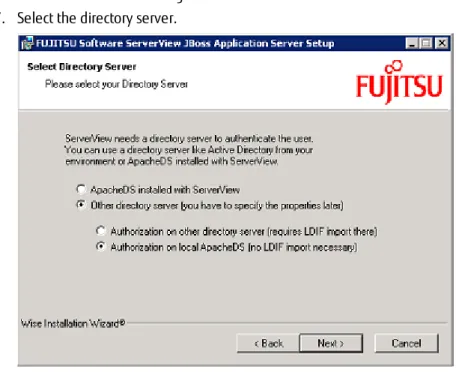
During the installation of ServerView Operations Manager you have the option to choose ServerView’s internal directory service (ApacheDS). For further information about the use of directory services with ServerView, refer to the manual ’’User Management in ServerView’’ (see"Documentation for the ServerView Suite" on page 15).
The data which ServerView creates and uses is stored in an SQL database within an SQL Server. The following SQL Server are part of the ServerView Operations Manager installation:
l SQL Server 2008 R2/2005 Express under Windows Server l PostgreSQL under Linux
However, other Microsoft SQL Server databases can be used under Windows.
The Java Runtime Environment is required on the central management station.
How to install the ServerView Operations Manager is explained in the following manuals:
l Installing ServerView Operations Manager Software
under Windows
l Installing ServerView Operations Manager Software
Managed servers
On the managed servers, ServerView Agents, ServerView CIM Providers, or ServerView Agentless Service should be
installed, which supply the information to the central management station. ServerView RAID Manager and ServerView Update Agent should be also installed on the managed servers.
The installation of ServerView Agents on virtual machines (VMs) is not released.
l The ServerView Agents are available for Windows, Linux,
and Citrix XenServer.
l ServerView CIM Providers are available for Windows,
Linux, and VMware ESXi.
ServerView Operations Manager currently only supports ServerView CIM providers for VMware ESXi.
How to install them is explained in the following manuals:
l ServerView Agents for Windows l ServerView Agents for Linux
l Installing ServerView ESXi CIM Provider
l ServerView CIM Providers for Windows, Linux, and
2.2
Installation on the central management station
You have to install Operations Manager (incl. ServerView Update Manager) on a management station and thus of monitoring the PRIMERGY servers via PC or notebook with a standard Web browser. Furthermore you can install the Event Manager on the central management station or on its own on another server. To display CIM indications from VMware vSphere Hypervisor server (ESXi-Server) in Event Manager, you have to install Operations Manager on the same server. You can install the Operations Manager on the following operating systems:l Windows, SUSE Linux and Red Hat Linux
The Operations Manager software is supplied on the ServerView Suite DVD 2.
l An Installation Wizard is provided for installation under Windows. This covers
the installation of Operations Manager, Update Manager, and Event Manager. In addition, the Wizard permits separate installation of the Operations Manager software on different servers.
Installation can also occur in the Windows command line mode.
A description of the installations on the management station can be found in"Installing ServerView Operations Manager" on page 29and in"Installing Operations Manager software via the command line" on page 209.
l Installation under Linux is script-based and involves the installation of
Operations Manager, Update Manager, and Event Manager. For a description of the installations, see the ServerView Operations Manager Installation Guide for Linux.
2.3
Installation on the managed servers
The following components must be installed on the managed servers, which supplies information to the central management station:
l ServerView Agents, ServerView CIM Providers, or ServerView Agentless
Service
The ServerView Agents are available for Windows, Linux, and Citrix XENServer. CIM providers are available for Windows, Linux, and VMware
ESXi. The installation is described in the "ServerView Agents for Windows", "ServerView Agents for Linux", "ServerView CIM Providers for Windows, Linux, and VMware ESXi" installation and user guides.
ServerView Agentless Service is available for Windows and Linux. The installation is described in the "ServerView Agentless Management" overview.
The ServerView System Monitor is installed automatically (via the
ServerView Agents installation) and allows you to monitor and check some server information locally on the server. A detailed description can be found in the "ServerView System Monitor" user guide.
l ServerView update agent
To keep the managed servers up-to-date by Update Management functions the ServerView update agent must be installed on the managed servers. How to do this is described in the "ServerView Update Management" user guide.
l ServerView RAID Manager
The ServerView RAID is used to monitor and manage the RAID controllers integrated in PRIMERGY servers. A detailed description can be found in the "RAID Management" user guide.
Additional installations
l ServerView Online Diagnostics
During installation of the ServerView Agents for Windows, Online Diagnostics is also installed. You can use Online Diagnostics to perform a series of hardware tests on a managed PRIMERGY server from the remote workstation.
l When installing the ServerView Agents (for Windows) in Expert mode, you
can choose whether to install additional components, including Asset CLI, Configuration Tools, Prime Collect and ServerView System Monitor.
2.4
Integration options of Operations Manager
The use of standardized protocols and interfaces means that Operations Manager can easily be integrated into other management systems. The Operations Manager integration modules ensure the output of detailed
information on the status of the PRIMERGY servers on the console of the
connected management system. PRIMERGY servers can thus be managed with a central enterprise management console (Single Point of Administration). Additional management functions such as network management, application management and software distribution can also be used without any problem for PRIMERGY servers.
Integration modules are available for the following management systems:
l IBM Tivoli TME 10™ Framework TE/C l IBM Tivoli NetView
l HP OpenView Network Node Manager l HP Operations Manager
l Microsoft MOM and SCOM 2007 l Microsoft SMS and SCCM 2007 l Nagios and BMC Patrol l VMWare vCenter 5.1
l PRIMEPOWER ServerView Suite
Some integration modules (e.g. Microsoft SMS, MOM) are provided on the ServerView Suite DVD 2 and can be automatically installed on the management station when the Operations Manager software is installed. This is provided that the relevant management software is already installed on the system. The description of this is provided in"Menu-driven installation of Operations Manager software" on page 140.
The other integration modules (e.g. HP Operations Manager, IBM Tivoli TME NetView) are available on the special ServerView Integration CD.
For more information on the integration modules, see the corresponding integration manuals and the data sheet "ServerView Integration".
Manager
This chapter describes how to install Operations Manager (including ServerView Update Manager) and Event Manager on the management station under Windows operating systems.
l If Update Manager (up to version 4.71) is already installed on the
management station, it must be uninstalled before installation of the Operations Manager software, otherwise the installation will abort.
l If ServerView Agents are installed on the management station,
you must install the current ServerView Agents before installing Operations Manager.
The relevant software is supplied on the ServerView Suite DVD 2.
The products can be installed together on a central management station, or separately on different computers.
An upgrade installation is only supported from an existing Operations Manager version 6.00.06.
All Operations Manager versions < 6.00.06 must first be upgraded to version 6.00.06.
Installation under Windows is user-friendly and menu-driven and is based on the Microsoft Windows Installer Technology (see"Menu-driven installation of Operations Manager software" on page 140).
Installation can also occur in the Windows command line mode. An editable script for installation without a dialog - silent installation - is provided for this purpose (see"Installing Operations Manager software via the command line" on page 209).
3.1
ServerView Operations Manager components
ServerView Operations Manager installation
When you install ServerView Operations Manager, the following ServerView components are also automatically installed:ServerView Configuration Manager
With ServerView Configuration Manager, you can make system-dependent configurations on a managed server. (Only supported for servers on which the ServerView Agents are installed.)
ServerView Archive Manager
With Archive Manager you can record system and operating data of PRIMERGY servers and store it centrally. This data can then be checked and evaluated.
ServerView Inventory Manager
With Inventory Manager you can retrieve data of a managed server or multiple servers and display it on the screen. You can also export the data from Operations Manager and store it in various formats (e.g. CSV, ODBC). ServerView Performance Manager
With Performance Manager you can monitor the performance of specific server components. Performance Manager works on the basis of rules. The centrally created rules can be executed on any number of servers.
ServerView Threshold Manager
With Threshold Manager you can monitor one or more managed PRIMERGY servers and any virtual machines running on them centrally from the management station on the basis of threshold values.
ServerView Remote Management Frontend
ServerView Remote Management Frontend provides a Web-based work environment for the remote management of PRIMERGY servers.
ServerView Update Manager installation
When you install Update Manager, the following ServerView Operations Manager components are also installed:Update Manager
With Update Manager you can install and update software across an entire domain via a central management station.
Repository Manager
With Repository Manager you can manage the update repository. Download Manager
With Download Manager you can conveniently obtain the latest statuses of firmware, BIOS, drivers and ServerView Agents for your servers.
Configuration
With Configuration you can set global parameters for Update Manager.
ServerView Event Manager installation
When you install Event Manager, the following ServerView Operations Manager components are also installed:
Alarm Monitor
Alarm Monitor displays all incoming alarms for the selected servers and server groups in the Operations Manager main window.
Alarm Configuration
The Alarm Configuration component lets you define settings for alarm handling. You can define alarm rules, filter rules and general settings.
3.2
JBoss Web server
As of ServerView Operations Manager version 5.0, the Microsoft Web server (MS Internet Information Server) and the ServerView Web server (based on Apache for Windows) are no longer supported.
As of ServerView Operations Manager version 5.0, the Web server used is JBoss. The necessary files for JBoss are automatically installed when the Operations Manager software is installed. JBoss is configured as a standalone service ServerView JBoss Application Server 7, which you can start and stop via the Windows start menu:
SelectAdministrative Tools–Services
You can also start and stop the service via the following command:
%WINDIR%\system32\net.exe start "ServerView JBoss Application Server 7"
%WINDIR%\system32\net.exe stop "ServerView JBoss Application Server 7"
Automatic deletion of JBoss access logs
Log fileslocalhost_access_log.<YYYY-MM-DD>.logare written in the directory <installation_path>/jboss/standalone/log. A separate log is created for each day. In previous versions they were never deleted.
As of version 5.10, JBoss now includes automatic deletion. In the directory <installation_path>/jboss/standalone/svconfthesv-com-config.xml configuration file describes the parameters:
<ns0:fileNamePrefix>localhost_access_log.</ns0:fileNamePrefix> List of file name prefixes, qualifying the files that are to be checked for deletion. The default is a list with the single entry"localhost_access_log.". <ns0:testInterval>12:00</ns0:testInterval>
Test interval, measured in minutes. The test interval can range between 1 minute and 24 hours. The behavior of the automated file deletion depends on the specified value:
Number [1...1439]
File checking begins when JBoss starts up, and is repeated at the specified time interval.
Time [hh:mm]
The test interval is 24 hours and the file checking occurs every day at the specified time. (The values forhhrange from 00 till 23.) The default is 12:00, i.e. files are checked every day at noon. <ns0:maxAge>10080</ns0:maxAge><!-- one week -->
Maximum age of a log file, measured in minutes. Any file matching an entry in thefileNamePrefixlist which is older than this value is deleted. The default is 10080, i.e. seven days. If no value is specified in the configuration file, the value 4320, i.e. three days, is used.
3.2.1
Calling and ports used
The entry address of the Operations Manager begins with the prefixhttps.
Port Used for
3169 http (When trying to access this port, Operations Manager versions older than V4.92 are
automatically redirected to port 3170.)
3170 https (The port must be unlocked in the firewall.) By default, TLS v1.1, TLS v1.2, and SSLv2Hello are supported.
3171 Update Management (The port must be unlocked
in the firewall to allow Update Management.) 3172 Remote Connector Service (Server Configuration
Manager, Power Monitor, etc.) (The port must be unlocked in the firewall.)
3173 ServerView RAID Manager
1325, 9999
Some additional ports are used for dynamical assignment of system components.
JBoss (only used for internal socket connections)
1473 non-SSL port of ServerView’s directory service (ApacheDS)
1474 LDAPS, if ApacheDS is configured as directory service.
9212 PostgreSQL database server (only for Linux) 9363 used by the Operations Manager to contact XEN
daemons
16509, 16514 used by the KVM service
For detailed security information see the White Paper “Secure PRIMERGY Server Management“.
To gather information, Operations Manager accesses the following ports of all network nodes of a subnet which is specified on ServerBrowser and managed servers.
Port Used for
80 Citrix
135 Hyper-V
161 SNMP
443 VMware
623 BMC (iRMC)
3172 ServerView Remote Connector
5988 VMware
5989 VMware
9363 XEN
16509 KVM
16514 KVM
3.2.2
Role-based user administration
JBoss also enables role-based user administration. For further information on managing certificates, see "User Management in ServerView" user guide.
3.2.3
Managing certificates
To communicate with the JBoss Web server, Web browsers always use an HTTPS connection (i.e. a secure SSL connection). Therefore, the JBoss Web server needs a certificate (X.509 certificate) to authenticate itself at the Web browser. The X.509 certificate contains all the information required to identify the JBoss Web server plus the public key of the JBoss Web server.
For further information on managing certificates, see "User Management in ServerView" user guide.
3.3
Web browser
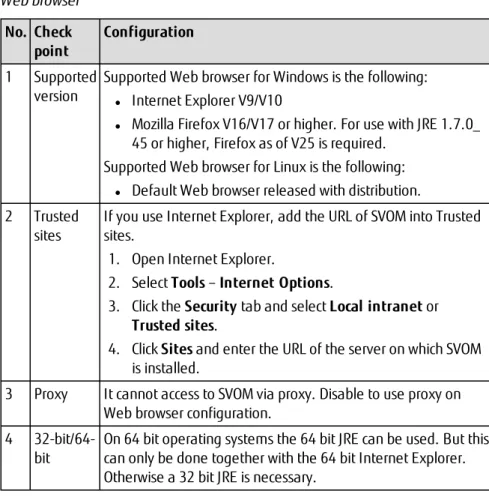
A Web browser is required to display the data. This means that the data can be transmitted via a LAN to any other computer that has a Web browser and displayed there. The browser must be able to interpret HTML V3.2 and Javascript V1.1.
If you should experience problems when accessing the Web server, make the following settings in the browser:
l Disable the access option for the use of a proxy entirely in the browser, or l Enter the IP address at an appropriate position to specify that no proxy is to
be used for the host on which the Web server is running.
3.4
Administrative user "svuser"
The password for the special administrative usersvusercannot be changed by the ApacheDS user interface. You can only change it locally in the Operations Manager Installation Wizard:
l During a new installation, enter the password in theAdministrative User
Passwordwindow,"Menu-driven installation of Operations Manager software" on page 140.
l For an existing installation execute a modify installation (see"Modify
installation of Operations Manager software" on page 161) and change the password in theApacheDS Administrative Userwindow,"Menu-driven installation of Operations Manager software" on page 140.
3.5
ServerView Status gadget for Windows Vista and
Windows 7
If Windows Vista or Windows 7 is installed on a standard PC, a ServerView status gadget is offered. This gadget allows you to display the number of servers in the different status situations. Via a link you can start the ServerView Operations Manager.
Installation
You can install the gadget in one of the following ways:
l Double-click theStatusGadget.gadgetfile.
This file is located on the ServerView Suite DVD 2 in the following directory: SVSSoftware/Software/ServerView/Windows/ServerView_
S2/StatusGadget
l Via the ServerView Suite DVD 2.
Execute the fileStatusGadget.gadget.
This file is located underServerView Suite–Operations Manager. If the status gadget is already installed, you will be asked whether you want to replace the current version.
Configuration
Figure 1: ServerView status gadget - start dialog
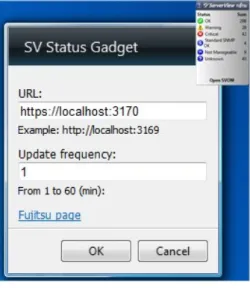
For connecting to a ServerView Operations Manager installation (on a central management station) you need to enter the corresponding URL. By clicking the tool icon (see figure above) you start theSV Status Gadgetdialog to enter the URL.
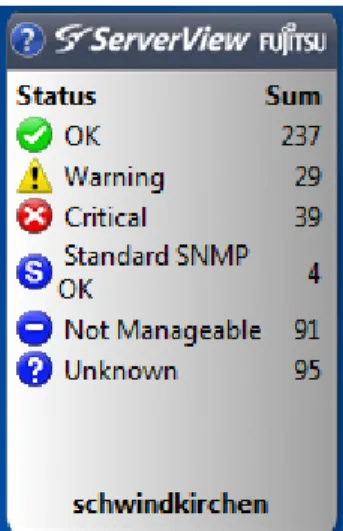
After this, the name of the central management station is displayed as a link in the status gadget, see figure below. Via this link you can start the ServerView Operations Manager which is located on this central management station.
Figure 3: ServerView status gadget
The icons identifies the status of the servers. The meaning of the icons is explained in the "ServerView Operations Manager" user guide.
Opening the status gadget
If you have closed the gadget, you can reopen it as follows: 1. Right-click anywhere on the desktop.
2. SelectGadget.
3. On the displayed gadget overview, select the ServerView status gadget. 4. SelectAddfrom the context menu.
After reopening the gadget, you will need to configure it again, see
"Configuration" on page 37. Opening multiple status gadgets
You can open more than one status gadget. This allows you to display the number of servers in the different status situations from different central management stations.
Uninstalling the status gadget
To uninstall the gadget proceed as follows: 1. Right-click anywhere on the desktop. 2. SelectGadget.
3. On the displayed gadget overview, select the ServerView status gadget. 4. SelectUninstallfrom the context menu.
3.6
Preparations and important steps before you
start the installation
Make sure that the following tasks have been completed before you start installing the Operations Manager software:
l Install a Windows operating system (Windows Server 2008 or Windows
Server 2012) on the management station.
l Service Pack Application: Apply Service Pack to all servers and computers in
which ServerView components are installed if necessary. It is recommended to apply Service Pack 2 for Windows Server 2008 and Service Pack 1 or later for Windows Server 2008 R2.
Make sure to apply the Service Pack. If the Service Pack is not applied, the operation is not guaranteed. If the Service Pack has been already applied, it does not need to reapply.
Before applying the Service Pack, make sure that the SNMP service is installed.
l Set up the SNMP service on the management station. Therefore you must
specify which communities and servers (IP addresses) the management station is to receive traps from, see"Install the SNMP service" on page 42.
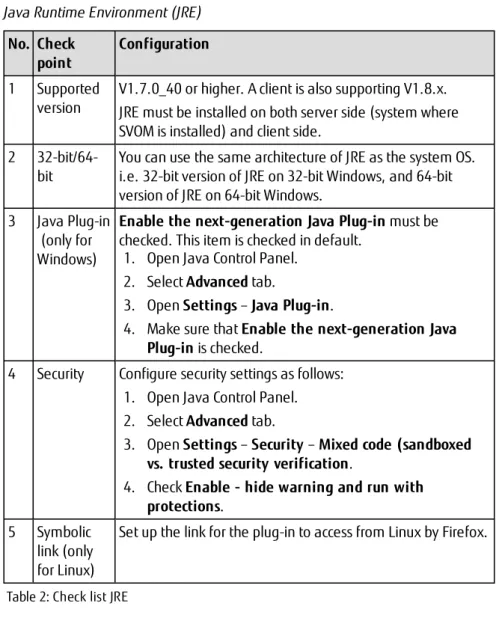
l Install Java Runtime Environment on the management station, see
"Installing Java Runtime Environment" on page 43.
l Set up a non-administrative user account for the JBoss application server
which is installed with the ServerView Operations Manager. During the installation you have to specify the account in theJBoss Service Logon Informationwindow.
l ServerView Operations Manager requires an SQL Server in which to install its
SQL database, see"Installation options for SQL Server" on page 43. Operations Manager checks whether a suitable SQL Server instance is installed. If no suitable SQL Server instance is found, you can install SQL Server 2008 R2 or SQL Server 2005 Express automatically with Operations Manager.
3.6.1
Install the SNMP service
Windows Server 2008/2012
1. Install the SNMP service on the server: 1. Start theServer Manager.
2. OnWindows Server 2012start theAdd Roles and Features Wizard. OnWindows Server 2008click in the left windowFeaturesand then selectAdd Features.
3. Select the optionSNMP Services. 4. ClickNextand thenInstall.
2. Configure the SNMP service on the server as follows:
The default community name ispublic. This default entry is used by most SNMP services. For security reasons, we recommend that you change this entry. In principle you can define an individual community for each server or server group. Remember to make corresponding changes on the manager. If you want to use the entire range of ServerView functions, you must assign read-write rights to the community. You can restrict access to certain functions by assigning (read-only) access rights to them.
1. SelectAdministrative Tools–Services–SNMP Service. 2. SelectPropertiesfrom the context menu.
3. ClickTraps.
4. Enter the community name underCommunity Name, e. g.public. 5. Clickadd to list.
6. ClickAdd.
7. Enter the IP address of the management station for the chosen community and then click theAddbutton. Traps are only sent to the management stations entered here.
8. ClickSecurityand set theRightsfor the specified community to e.g. READ WRITE. Confirm your new settings withOK.
9. Specify the computer from which SNMP packets will be accepted by selecting the relevant option.
10. ClickOKto finish the configuration.
3.6.2
Installing Java Runtime Environment
You can install JRE via the ServerView Suite DVD 2. Proceed as follows:
1. Place the ServerView Suite DVD 2 in the DVD-ROM drive. If the DVD does not start automatically, click thestart.htmlfile in the DVD’s root directory. 2. Mark the optionSelect ServerView Software Products.
3. ClickStart.
4. Select the desired language in the displayed window. 5. SelectJava.
6. Now click the appropriate*.exeto install.
You can also download the latest version of JRE via the Oracle Software Downloads website.
If the messageJava has discovered application components that could indicate a security concernappears, after starting a Operations
Manager component, answer withNo. To avoid this, set the following in the Java Control panel:
1. SelectControl Panel–Java.
2. In theJava Control Paneldialog box change to theAdvancetab.
3. UnderMixed code (sandboxed vs. trusted) security verificationactivate theEnable - hide warning and run with protectionsoption.
3.7
Installation options for SQL Server
Operations Manager requires an SQL Server in which to install its SQL database ServerViewDB.
During the installation of Operations Manager, an SQL Server can, under certain conditions, be installed automatically. But in some cases, which are described in the following sections, you must install SQL Server yourself before installing Operations Manager.
Optionally, an SQL Server that is already on the system and is suitable for Operations Manager, can be used and selected during the installation. In any case, a number of important installation requirements and constraints must be observed.
Microsoft SQL Server Express edition is suited for monitoring less than 200 servers.
To monitor 200 or more servers, we recommend you to install a full edition of Microsoft SQL Server.
Parallel (side-by-side) installation of SQL Server
SQL Server can be installed up to 16 times in parallel, always under a different instance name, in any edition on the same system.
Suitable instances for ServerView Operations Manager must comply with the following restrictions:
l For SQL Server full editions, any instance name is valid.
l For SQL Server free (Express) editions, the instance name must be
“SQLSERVERVIEW”.
An SQL Server instance can contain several databases.
Operations Manager will install its database “ServerViewDB” in the SQL Server instance selected by you during the Operations Manager installation.
The name of the ServerView Operations Manager database is always ServerViewDB.The database name is fixed and cannot be selected during the ServerView Operations Manager setup. As the database name is always unique, it is not possible to install Operations Manager on multiple local management stations and to use the same remotely installed SQL Server instance for each.
CAUTION!
The name of the ServerView Operations Manager database must never be changed.
Otherwise, Operations Manager applications cannot access the database anymore and installation errors may occur in subsequent upgrade or new installations.
Instances of different SQL Server versions may be installed side-by-side on the same system.
For general information regarding side-by-side installation of all versions, please also refer to the corresponding chapter in SQL Server Books Online from
Microsoft: "Work with multiple instances and versions of SQL Server". For SQL Server 2008 and 2008 R2, some additional hints apply, which are documented in the article "Considerations for side-by-side instances of SQL Server 2008 and SQL Server 2008 R2". Both articles mention internal version numbers used by SQL Server which are useful for understanding side-by-side concepts. The following internal version numbers are used by SQL Server versions that are supported by ServerView Operations Manager:
l SQL Server 2005: 9.00 l SQL Server 2008: 10.00 l SQL Server 2008 R2 : 10.50 l SQL Server 2012: 11.00 l SQL Server 2014: 12.00
Installations of different language versions of SQL Server instances on the same system are not supported:
Example
SQL Server 2005 (English) and SQL Server 2005 (German) as side-by-side installations on the same system are not supported. If a non-English SQL Server instance is already installed on the system, Operations Manager cannot automatically install the standard English SQL Server in parallel. In this case a dialog box opens, prompting you to manually install an SQL Server in the appropriate language version.
Displaying the existing instances
You can display existing instances of SQL Server as follows: 1. Open the input prompt.
2. Enter the following command:
All installed SQL Server instances on the system<computer_name>are displayed. Bear in mind that it can take several minutes for this command to execute.
You can install Operations Manager if there are fewer than 16 instances on the system.
The version and language of the instances can be queried via commands, see
"Important information in the event of an error" on page 201. General information on SQL Server instance names
A single instance does not require an instance name and is designated the default instance. This default instance appears in the selection lists under the name (local) or, for a remote server, under that server’s computer name. The other 15 instances require unique instance names. They are referred to as named instances. SQL Server Express is often installed with an instance name that appears in selection lists under the name<server_name>\<instance_ name>.
Language version and operating system language of SQL Server
SQL Server is available in various language versions. You must install an SQL Server version whose language is compatible with that of the operating system.
l The English version of SQL Server can be installed on all supported operating
systems. We suggest installing English SQL Server on western European Windows operating systems.
l Alternatively you can install SQL Server in the same language as your
operating system.
Verify that the disk where the SQL Server will be installed is uncompressed. Authentication mode
l Operations Manager uses only Windows authentication mode to connect to
SQL Server.
l If not otherwise needed, it is recommend to install SQL Server with Windows
Authentication mode only. This is the default setting in the SQL Server setup and is also recommended by Microsoft.
l If you choose mixed mode (Windows Authentication and SQL Server
authentication), please read the hints from Microsoft regarding authentication mode in SQL Server.
3.7.1
Locally on the management station
SQL Server can be installed locally on the management station or automatically by Operations Manager.
Suitable SQL Server instances for Operations Manager are:
l SQL Server Express editions with instance nameSQLSERVERVIEW.
SQL Server 2008 R2 Express can be installed as part of the ServerView Operations Manager installation on Windows Server 2012.
SQL Server 2005 Express can be installed as part of the ServerView Operations Manager installation on Windows Server 2008.
l SQL Server full editions (Enterprise/Standard or Workgroup where available)
with any instance name or as an unnamed instance.
The Workgroup Edition was discontinued by Microsoft for SQL Server 2012 and higher.
Side by Side installations of different SQL Server versions on the system are supported as defined by Microsoft.
For general information regarding side-by-side installation of all versions, please also refer to the corresponding chapter in SQL Server Books Online from Microsoft: "Work with multiple instances and versions of SQL Server".
Recognition of SQL Server instances during Operations Manager installation
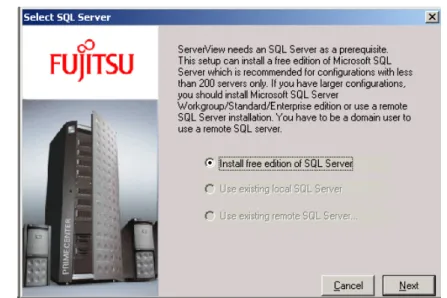
An SQL server is provided on the ServerView Suite DVD 2. You can automatically install this SQL Server instance as well during installation of the Operations Manager software if no or no suitable SQL Server instance is installed on the system.
The automatically installed SQL Server is given the SQL Server instance name SQLSERVERVIEW.
If a suitable SQL Server instance for Operations Manager is already available, the automatic installation of SQL Server is not offered. You can choose one of the existing SQL Server instances from a selection list and install the ServerView database there.
For more information on installing SQL Server 2014 or SQL Server 2014 Express, see"SQL Server 2014" on page 51.
For more information on installing SQL Server 2012 or SQL Server 2012 Express, see"SQL Server 2012" on page 61.
For more information on installing SQL Server 2008(R2) or SQL Server 2008 (R2) Express, see"SQL Server 2008 (R2)" on page 73.
For more information on installing SQL Server 2005 or SQL Server 2005 Express, see"SQL Server 2005" on page 84.
3.7.2
Remotely on a different system
You can also use a remotely installed SQL Server instance to install the ServerView database into it.
l Operations Manager must not be simultaneously installed locally
on the remote server.
l It is not possible to install Operations Manager on multiple local
management stations and use the same remotely installed SQL Server instance for each.
Requirements
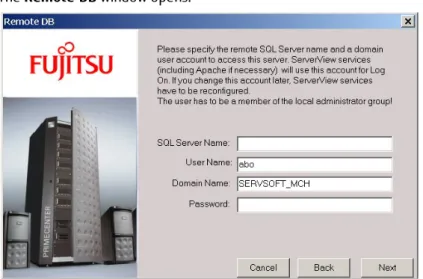
The local management station and the remote system must belong to the same domain or to two domains with a two way trust relationship. You need at least one domain user account in theDomain Usersgroup.
A suitable SQL Server instance is SQL Server 2014, SQL Server 2012, SQL Server 2008 R2, or SQL Server 2008/2005 in Standard, Workgroup (where available) or Enterprise Edition. It must be installed and configured on the remote server before Operations Manager is installed.
For more information on configuring SQL Server for use as a remote SQL Server, see"Configuring a remote SQL Server" on page 92.
l Side by Side installations of different SQL Server versions on the
system are supported as defined by Microsoft.
For general information regarding side-by-side installation of all versions, please also refer to the corresponding chapter in SQL Server Books Online from Microsoft: "Work with multiple instances and versions of SQL Server".
l SQL Server Express is not supported.
Microsoft SQL Server 2012/2014 Command Line Utilities
The use of a remote SQL Server requires the SQL Server command line tools sqlcmdandbcpon the management station.
If these commands are not available, theMicrosoft SQL Server 2012 Command Line Utilitiessoftware is automatically installed.
As a prerequisite the Microsoft SQL Server 2012/2014, Native Client is installed beforehand.
3.7.3
Installing SQL Server on a domain controller
For security reasons, whenever possible, do not install SQL Server on a domain controller.
SQL Server installation is not supported on a Read Only Domain Controller.
Please note the order of installation:
1. First promote the server to a domain controller.
2. Then install SQL Server and ServerView Operations Manager. Proceed as follows:
1. Assign a static IP address to this computer. 2. Log on as a local administrator.
3. SelectStart–Run.
4. UnderOpen, typedcpromoand then clickOK. Run the Active Directory Installation Wizard.
6. Install SQL Server, for example Workgroup/Standard/Enterprise Edition. SQL Server service accounts should run as Windows domain user accounts. Run separate SQL Server services under separate Windows accounts. On a domain controller the SQL Server services cannot run asLocal Serviceor Network Service. You can also install SQL Server service accounts to run as Local System. This option is not recommended.
7. Install ServerView Operations Manager.
You can still change the service-account assignment after the installation using the SQL Server Configuration Manager, for example for the Express Edition.
Do not change the role of the server after you have installed SQL Server.
For example, if you install SQL Server on a member server, do not use the Active Directory Installation Wizard (dcpromo.exe) tool to promote the server to a domain controller.
Or, if you install SQL Server on a domain controller, do not use the Active Directory Installation Wizard to demote the server to a member server. Changing the role of a server after you install SQL Server can cause loss of functionality and is not supported.
3.8
Setting SQL Server memory option
On Windows, ServerView Operations Manager uses Microsoft SQL Server as the database server. Microsoft SQL Server has a server propertymax server memory which defines the upper limit of memory used by the buffer pool of the Microsoft SQL Server Database Engine.
By default, this value is set to 2147483647 MB and Microsoft SQL Server will change its memory requirements dynamically based on available system resources.
But you can also set SQL Server memory options manually and restrict the amount of memory that SQL Server can access to a lower limit. This may be desirable when system administrators want to configure an instance of SQL Server in conjunction with the memory requirements of other applications that run on the same computer.
For this purpose, therefore, ServerView Operations Manager offers a Windows batch file as a utility tool. The batch file sets themax server memoryoption in the Microsoft SQL Server instance that Operations Manager uses according to customer input.
l Open a command prompt window.
l Find out<DllPath>and switch to the directory:
type %windir%\ServerViewDB.ini | findstr -i DllPath= cd /d <DllPath>\Tools
l Execute the tool:
SVConfigSQLMaxMemSize.bat
The max server memory value may be set within a range of 32 to 2147483647 MB. These limits are offered and checked by the tool. The default value if nothing is specified is 64 MB.
Please be aware that the server propertymax server memoryshould only be changed with care and with regard to system and application load. From test observations, a setting of 64 MB seems to be enough when there are about ten normally-running servers registered in the server list.
Please observe the required permissions in MS SQL Server, especially when the ServerView Operations Manager was installed without SQL Server “sysadmin” access:
Changing themax_server_memoryoption requires permissions held by the sysadmin (or serveradmin) fixed server roles. It is therefore required to execute the utility tool from an account which is a member of the "sysadmin" server role in MS SQL Server.
3.9
SQL Server 2014
You can install the ServerView database into an SQL Server 2014 instance on a Windows Server 2008 or later operating system version.
SQL Server 2014 must be installed before installing Operations Manager.
3.9.1
Hardware and software requirements
3.9.1.1 Hardware requirements
For a detailed overview of the hardware requirements for installing SQL Server 2014, please refer tohttp://msdn.microsoft.com, and quick-search the website for "Hardware and Software Requirements for installing SQL Server 2014" 3.9.1.2 Software requirements
l Operating systems supported for SQL Server 2014:
Windows Server 2012 R2 Windows Server 2012 Windows Server 2008 R2 SP1 Windows Server 2008 SP2
l Microsoft .NET Framework 3.5 SP 1 and .NET Framework 4.0
For details on how to acquire these packages for the relevant operating system, please refer tohttp://msdn.microsoft.com, and quick-search the website for "Hardware and Software
Requirements for installing SQL Server 2014".
l Windows PowerShell 2.0 is required for installing Database Engine
components and SQL Server Management Studio, which is a database administration software.
For details on how to install and enable SQL Management Studio, please refer to the website mentioned above.
o On Windows Server 2008 R2 SP1 PowerShell 2.0 comes with the operating system. You find it inAll Programs–Accessories–Windows PowerShell.
o For Windows Server 2008 SP2 search in Microsoft Download Center for Windows PowerShell 2.0and download it. Two different packages exist. For a 32-bit system, download the x86 package, or for a 64-bit system, download the x64 package. Install the required package.
o In case of Windows Server 2012:
Windows Power Shell 3.0 is part of the Windows Server 2012 installation.
o In case of Windows Server 2012 (R2):
Windows Power Shell 4.0 is part of the Windows Server 2012 installation.
3.9.2
Editions
You can use the following editions, among others, depending on your performance requirements and budget:
l Express Edition
SQL Server 2014 Express is the successor to SQL Server 2012 Express. SQL Server 2014 Express is free and available from the Microsoft Download Center. The database size limit for SQL Server 2014 Express is 10 GB. The full versions are:
l Standard Edition l Enterprise Edition
SQL Server is available in 32-bit and 64-bit editions.
Please note limitations and recommendations for using SQL Server Express editions with ServerView Operations Manager (see"Installation options for SQL Server" on page 43).
3.9.3
Setting up a service account
If you want to execute an "Operations Manager installation without SQL Server "sysadmin" access", see"Overview of Windows accounts and access rights" on page 101and"Setting up a service account" on page 53.
For more information of setting up a service account see the section"Setting up a service account" on page 74under"SQL Server 2008 (R2)" on page 73.
3.9.4
Installing SQL Server 2014 Express edition
SQL Server 2014 Express is a free edition of SQL Server. You can download these editions from the Microsoft Download Center. More information on installing SQL
Server 2014 Express is available from the Microsoft Download Center. It is recommended that you always use the latest service pack. Downloading the files from the Microsoft Download Center
1. Go to the Microsoft Download Center:
http://www.microsoft.com/downloads
2. In the fieldSearch Download CenterenterMicrosoft SQL Server 2014 Expressand pressEnteror click theSearchbutton. You can sort the downloads by release date.
3. In the displayed list, click the linkMicrosoft SQL Server 2014 Express. 4. UnderChange language, select the appropriate language version. 5. For a 32-bit system, download the x86 package, or for a 64-bit system,
download the x64 package.
6. The required packages are listed underInstructions: Download the packages and install them.
7. Optional: Installation of Microsoft SQL Server 2014 Management Studio Express. In Microsoft Download Center search forMicrosoft SQL Server 2014 Management Studioand download it.
Eventually check all installation requirements as specified by Microsoft. Installation
1. Log onto the system as administrator. 2. Execute the relevant*.exefile, e.g.:
l SQLEXPR_x64_ENU.exe l SQLEXPR_x86_ENU.exe
The installation is interactive. Only the entries required for Operations Manager are described below. Operations Manager only recognizes an SQL Server 2014 Express instance under the instance nameSQLSERVERVIEW.
1. If you have a 64-bit operating system, select the entryOptionsin the left window pane, followed by the processor typex64.
2. SelectInstallation.
3. Select the entryNew SQL Server stand-alone installation or add features to an existing installation.
4. In theFeature Selectionwindow, leave the optionDatabase Engine Serviceselected, and deselect the optionsSQL Server replication and SQL Client Connectivity SDK.
5. In theInstance Configurationwindow, enter the instance name SQLSERVERVIEWunderNamed instanceandInstance ID.
6. Specify the Windows user account under which you want SQL Server to run. Select a suitable account as described in"Setting up a service account" on page 74.
7. In theServer Configurationwindow, select the startup typeAutomaticfor theSQL Server Browser service.
8. In theDatabase Engine Configurationwindow, click theAdd Current Userbutton.
This action adds SQL Server administrator rights to the current Windows user account.
You can start the Operations Manager installation under this account later. If you want to execute an "Operations Manager installation without SQL Server "sysadmin" access, at least one account must hold the sysadmin server role in the SQL Server. Use this account for administration of the SQL Server.
9. In theDatabase Engine Configurationwindow, click theAddbutton if installation is done with SQL Server "sysadmin" access. Add SQL Server administrator right to the following Windows user accounts:
In to execute an "Operations Manager installation without SQL Server "sysadmin" access, skip this step, follow the instructions as described in"Overview of Windows accounts and access rights" on page 101, and then return to step 11 here in this section.
1. The user account in the Operations Manager installation dialogUpdate Management Logon Information.
2. The account of the SQL Server and the SQL Server Agent (if in the previous dialogServer ConfigurationtheLocal Systemaccount has not been set).
3. TheLocal systemaccount. Otherwise you will receive the following error message in the SQL Server error logs:
Login failed for user 'NT AUTHORITY\SYSTEM'. Reason: Failed to open the explicitly specified database 'ServerViewDB'.
Do not add the account of dialogJBoss Service Logon Information. This account will be granted permission during Operations Manager installation automatically.
You find the details for the required users for a local SQL Server 2014 in section"Setting up a service account" on page 74and for a remote SQL Server 2014 in section"Configuring a remote SQL Server" on page 92. 10. By default, the TCP/IP network protocol is not activated for SQL Server
Express editions. This protocol is, however, necessary for the Operations Manager database accesses. When you have installed SQL Server Express, therefore, you still need to activate this protocol before you start the Operations Manager installation.
Proceed as follows to activate the TCP/IP network protocol: 1. Start the SQL Server Configuration Manager.
2. UnderSQL Server Network Configuration, select the SQL Server instance name of your previously installed SQL Server instance. 3. Set the TCP/IP protocol toenabled.
You will need to restart the SQL Server service for this change to become effective.
3.9.5
Installing SQL Server 2014 Express Management Studio
OnWindows Server 2012proceed as follows:
1. Call Server Manager and add feature.NET Framework 3.5 SP1. This will require the Windows Server 2012 installation media (folder \sources\sxs). 2. Start theSQLManagementStudioinstallation executable.
3. ClickInstallationon the left side of the wizard.
4. SelectNew installation or add features to an existing installationand click theOKbutton
5. ClickNew installation or add shared featuresin theInstallation Type dialog.
7. LetManagement Tools – Basicselected on theFeature Selection page.The remaining installation dialogs are self-explanatory.
3.9.6
Installing SQL Server 2014 Enterprise/Standard edition
The packages Microsoft .NET Framework and Windows Power Shell will be installed automatically, if the management station is currently connected to the internet. Otherwise, you have to install the Microsoft .NET Framework and -optionally - the Windows PowerShell before installing the SQL Server. On Windows Server 2012, PowerShell 3.0 is already installed.
To install Windows PowerShell as of version 2.0 on Windows Server 2008, proceed as follows:
1. SelectStart–Server Manager.
2. In the left window pane, selectFeatures. 3. SelectAdd Features.
4. Select the optionWindows PowerShell. 5. ClickNextand thenInstall.
Installation
1. Log onto the system as administrator. 2. Insert the installation medium (DVD). 3. Click thesetup.exefile in the root directory.
The installation is interactive. Only the entries required for Operations Manager are described below. For the instance name you can use the default instance name or any other.
If the Microsoft .NET Framework is not yet installed:
l In theWelcome to Setupwindow, accept the license agreement. l In theSetup Completewindow, clickExitto start the update.
After the automatic installation of the required packages, theSQL Server Installation Centerstarts.
1. If you have a 64-bit operating system, selectOptionsin the left window pane, followed by the processor typex64.