Web Application
Developer’s Guide
V E R S I O N 8
Borland Software Corporation
100 Enterprise Way, Scotts Valley, CA 95066-3249 www.borland.com
Borland
®Refer to the file deploy.html located in the redist directory of your JBuilder product for a complete list of files that you can distribute in accordance with the JBuilder License Statement and Limited Warranty.
Borland Software Corporation may have patents and/or pending patent applications covering subject matter in this document. Please refer to the product CD or the About dialog box for the list of applicable patents. The furnishing of this document does not give you any license to these patents.
COPYRIGHT © 1997–2002 Borland Software Corporation. All rights reserved. All Borland brand and product names are trademarks or registered trademarks of Borland Software Corporation in the United States and other countries. All other marks are the property of their respective owners.
For third-party conditions and disclaimers, see the Release Notes on your JBuilder product CD. Printed in the U.S.A.
JBE0080WW21002webapps 3E3R1002 0203040506-9 8 7 6 5 4 3 2 1
i
Chapter 1
Introduction
1-1
Documentation conventions . . . 1-4 Developer support and resources . . . 1-5 Contacting Borland Technical Support. . . . 1-5 Online resources . . . 1-6 World Wide Web . . . 1-6 Borland newsgroups . . . 1-7 Usenet newsgroups . . . 1-7 Reporting bugs . . . 1-7
Chapter 2
Overview of the web application
development process
2-1
Servlets . . . 2-2 JavaServer Pages (JSP). . . 2-3 InternetBeans Express . . . 2-5 Struts . . . 2-5 JavaServer Pages Standard Tag
Library (JSTL). . . 2-6 Applets . . . 2-6 Deciding which technologies to use in
your web application . . . 2-7 The basic web application development
process. . . 2-8 Web applications vs. distributed
applications . . . 2-9
Chapter 3
Working with WebApps and
WAR files
3-1
The WebApp . . . 3-1 Web archive (WAR) files . . . 3-2 Tools for working with WebApps and
WAR files . . . 3-2 Creating a WebApp with the Web
Application wizard . . . 3-3 The WebApp and its properties . . . 3-5 Root directory. . . 3-5 Deployment descriptors . . . 3-6
WebApp properties . . . . 3-7 The WebApp page . . . . 3-7 The Directories page. . . . 3-8 The Classes page . . . 3-10 The Dependencies page . . . 3-12 The Manifest page . . . 3-13 The WAR file . . . 3-13 Applets in a WAR file . . . 3-15
Chapter 4
Working with servlets
4-1
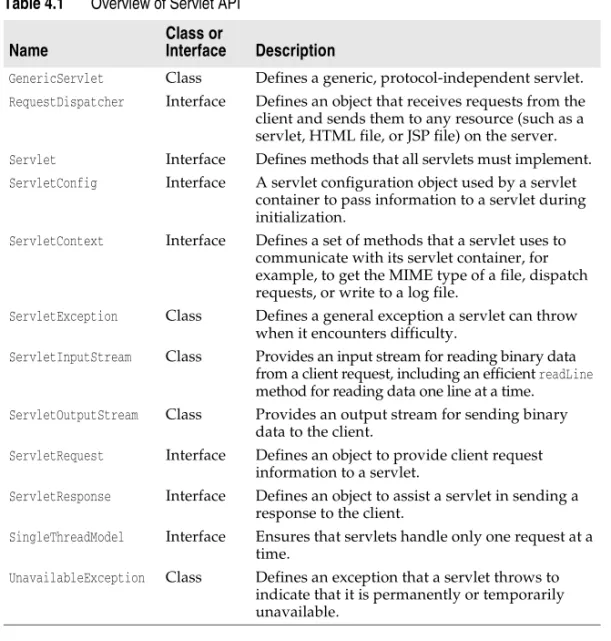
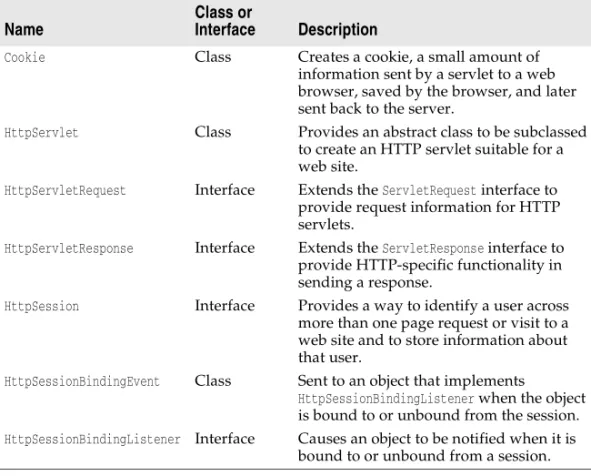
Servlets and JSPs . . . . 4-2 Servlets and web servers . . . . 4-3 The servlet API . . . . 4-3 The servlet.HTTP package . . . . 4-4 The servlet lifecycle . . . . 4-5 Constructing and initializing the servlet . . . 4-6 Handling client requests . . . . 4-6 Servlets and multi-threading. . . . 4-6 Destroying a servlet . . . . 4-6 Servlet-aware HTML . . . . 4-7 HTTP-specific servlets . . . . 4-7 How servlets are used . . . . 4-8 Deploying servlets . . . . 4-8
Chapter 5
Creating servlets in JBuilder
5-1
Servlet wizard options . . . . 5-1 Choose Servlet Name and Type page . . . . . 5-1 Enter Standard Servlet Details page. . . . 5-3 Generate Content Type option . . . . 5-4 Implement Methods options . . . . 5-5 SHTML File Details options . . . . 5-6 Enter WebApp Details page . . . . 5-6 Enter Servlet Request Parameters page . . . . 5-8 Enter Listener Servlet Details page . . . . 5-9 Define Servlet Configuration page . . . 5-10 Invoking servlets . . . 5-11
Invoking a servlet from a browser
window . . . 5-11 Calling a servlet from an HTML page. . . . 5-12 Internationalizing servlets . . . 5-12 Writing a data-aware servlet. . . 5-13
Chapter 6
Developing JavaServer Pages
6-1
JSP tags . . . 6-3 JSP tag libraries and frameworks . . . 6-4 JSPs in JBuilder . . . 6-5
Working with JSP tag libraries and
frameworks in JBuilder . . . 6-5 Using the Configure Libraries dialog
box to manage user-defined
frameworks . . . 6-6 Developing a JSP . . . 6-9 The JSP wizard . . . 6-9 Compiling a JSP . . . . 6-11 Web Running a JSP . . . . 6-12 Web Debugging a JSP . . . . 6-12 Deploying a JSP. . . . 6-12 Additional JSP resources . . . . 6-13
Chapter 7
Using InternetBeans Express
7-1
Overview of InternetBeans Express classes . . . 7-2 Using InternetBeans Express with servlets . . . 7-3
Displaying live web pages with
servlets using InternetBeans Express . . . . 7-3 Posting data with servlets using
InternetBeans Express . . . 7-5 Parsing pages . . . 7-5 Generating tables . . . 7-6 Using InternetBeans Express with JSPs . . . 7-6 Table of InternetBeans tags . . . 7-8 Format of internetbeans.tld . . . 7-9
Chapter 8
Using the Struts framework
in JBuilder
8-1
Struts 1.0 and 1.1 beta releases . . . 8-3 JBuilder tools for Struts . . . 8-3 Struts framework support . . . 8-3 Struts-enabled Web Application wizard . . . 8-5 Struts-enabled JSP wizard . . . 8-6 ActionForm wizard . . . 8-6
Web Application And Class Info
For Action Form page . . . 8-7 Field Definition For ActionForm page . . 8-7 Select Additional Options page . . . 8-8
Action wizard . . . . 8-8 WebApp And Name For Action page . . . 8-9 Configuration Information page . . . . 8-9 JSP From ActionForm wizard . . . 8-10 WebApp, JSP And ActionForm page . . 8-10 Tag Types For ActionForm Fields In
JSP page . . . 8-11 Specify The Options For Creating
This Struts JSP page . . . 8-11 Struts Conversion wizard . . . 8-12
Specify The Pages To Convert To
Struts page . . . 8-12 Tags To Convert page . . . 8-13 Specify The Options For Converting
Tags To Struts page . . . 8-13 Struts Config Editor . . . 8-14 Struts framework implementations
in JBuilder . . . 8-14 Creating a Struts-enabled web application
in JBuilder . . . 8-16
Chapter 9
Configuring your web server
9-1
Viewing Tomcat configurations . . . . 9-1 Configuring other web servers . . . . 9-3 Selecting a server for your project. . . . 9-4 Configuring the IDE for web run/debug . . . . 9-7
Chapter 10
Working with web applications in
JBuilder
10-1
Creating a runtime configuration . . . 10-2 Creating a runtime configuration with
the wizards . . . 10-2 Creating an applet runtime
configuration . . . 10-3 Creating a server runtime
configuration . . . 10-5 How URLs run servlets . . . 10-9 Setting run properties . . . 10-12 Compiling your servlet or JSP . . . 10-13 Web running your servlet or JSP . . . 10-14 Starting your web server . . . 10-14 Web view . . . 10-15 Web view source . . . 10-16 Stopping the web server . . . 10-17 Web debugging your servlet or JSP . . . 10-17
iii
Chapter 11
Deploying your web application
11-1
Overview . . . . 11-1 Archive files. . . . 11-1 Deployment descriptors . . . . 11-2 Applets . . . . 11-2 Servlets . . . . 11-2 JSPs. . . . 11-3 Testing your web application . . . . 11-3 Editing deployment descriptors . . . . 11-4
Editing vendor-specific deployment
descriptors. . . . 11-4 More information on deployment
descriptors. . . . 11-5
Chapter 12
Editing the web.xml file
12-1
WebApp DD Editor context menu . . . . 12-2 WebApp Deployment Descriptor page . . . . . 12-2 Context Parameters page . . . . 12-3 Filters page . . . . 12-4 Listeners page . . . . 12-6 Servlets page . . . . 12-7 Tag Libraries page . . . 12-10 MIME Types page . . . 12-11 Error Pages page . . . 12-12 Environment Entries page . . . 12-12 EJB References page . . . 12-13 Local EJB References page . . . 12-14 Resource Manager Connection Factory
References page . . . 12-14 Resource Environment References . . . 12-14 Login page . . . 12-15 Security page . . . 12-16 Security constraints . . . 12-16 Web resource collections. . . 12-17
Chapter 13
Editing the struts-config.xml file
13-1
Choosing a page of the Struts Config Editor . . 13-2 The Struts Config Editor context menu . . . 13-2 Data Sources page . . . . 13-3 Data Sources page context menu . . . . 13-5 Configuring property attributes . . . . 13-5 Form Beans page . . . . 13-5 Form Beans page context menu. . . . 13-8 Configuring property attributes . . . . 13-8
Global Forwards page . . . 13-8 Global Forwards page context menu . . . .13-11 Configuring property attributes . . . .13-11 Action Mappings page . . . .13-11 Action Mappings page context menu . . . 13-15 Configuring property attributes . . . 13-15
Chapter 14
Working with applets
14-1
How do applets work? . . . 14-2 The <applet> tag . . . 14-2 Sample <applet> tag . . . 14-2 <applet> tag attributes . . . 14-3 Common mistakes in the <applet> tag . . . 14-4 Browser issues. . . 14-5 Java support . . . 14-5 Getting the preferred browser to the
end user. . . 14-5 Supporting multiple browsers . . . 14-6 Differences in Java implementation . . . 14-6 Solutions to browser issues. . . 14-7 Additional tips for making applets work . . . 14-8 Security and the security manager . . . 14-10 The sandbox . . . 14-10 Applet restrictions. . . 14-10 Solutions to security problems . . . .14-11 Using third-party libraries . . . 14-12 Deploying applets . . . 14-12 Testing applets . . . 14-13 Basic testing steps . . . 14-14 Testing in the browsers . . . 14-15 JBuilder and applets . . . 14-15
Creating applets with the Applet
wizard. . . 14-16 Running applets . . . 14-19
JBuilder’s AppletTestbed and
Sun’s appletviewer. . . 14-20 Running JDK 1.1.x applets in
JBuilder . . . 14-20 Running JDK 1.2 applets in
JBuilder . . . 14-21 Debugging applets . . . 14-21
Debugging applets in the Java
Plug-in. . . 14-22 Deploying applets in JBuilder . . . 14-23
Chapter 15
Launching your web application
with Java Web Start
15-1
Considerations for Java Web Start
applications . . . . 15-2 Installing Java Web Start . . . . 15-3
Modifying JBuilder’s Web Start library
definition . . . . 15-4 Web Start and JDK 1.3 or 1.2 . . . . 15-4 Java Web Start and JBuilder. . . . 15-4 The application’s JAR file . . . . 15-6 The application’s JNLP file and
homepage . . . . 15-6
Chapter 16
Tutorial: Creating a simple servlet
16-1
Step 1: Creating the project . . . . 16-2 Step 2: Selecting a server . . . . 16-2 Step 3: Creating the WebApp . . . . 16-2 Step 4: Creating the servlet with the
Servlet wizard . . . . 16-3 Step 5: Adding code to the servlet . . . . 16-7 Step 6: Compiling and running the servlet . . . 16-7
Chapter 17
Tutorial: Creating a servlet that
updates a guestbook
17-1
Step 1: Creating the project . . . . 17-2 Step 2: Selecting a server . . . . 17-2 Step 3: Creating the WebApp . . . . 17-3 Step 4: Creating the servlets . . . . 17-4 Step 5: Creating the data module. . . . 17-9 Step 6: Adding database components to
the data module . . . 17-10 Step 7: Creating the data connection to the
DBServlet . . . 17-13 Step 8: Adding an input form to
FormServlet . . . 17-14 Step 9: Adding code to the DBServlet
doPost() method . . . 17-15 Step 10: Adding code to render the
Guestbook SIGNATURES table. . . 17-16 What the doGet() method does . . . 17-17 Step 11: Adding business logic to the
data module . . . 17-18 Step 12: Compiling and running your
project . . . 17-19
Chapter 18
Tutorial: Creating a JSP using
the JSP wizard
18-1
Step 1: Creating a new project . . . 18-2 Step 2: Selecting a server . . . 18-2 Step 3: Creating a new WebApp. . . 18-2 Step 4: Creating the JSP. . . 18-3 Step 5: Adding functionality to the
JavaBean . . . 18-5 Step 6: Modifying the JSP code . . . 18-5 Step 7: Running the JSP . . . 18-6 Using the Web View. . . 18-8 Debugging the JSP . . . 18-8 Deploying the JSP . . . 18-8
Chapter 19
Tutorial: Creating a servlet with
InternetBeans Express
19-1
Step 1: Creating a new project . . . 19-2 Step 2: Selecting a server . . . 19-2 Step 3: Creating a new WebApp. . . 19-2 Step 4: Creating the servlet. . . 19-3 Step 5: Creating the data module . . . 19-5 Step 6: Designing the HTML template
page. . . 19-6 Step 7: Connecting the servlet to the
DataModule . . . 19-8 Step 8: Designing the servlet. . . 19-9 Step 9: Editing the servlet . . . .19-11 Step 10: Setting dependencies for the
WebApp . . . 19-12 Step 11: Running the servlet . . . 19-12 Deploying the servlet . . . 19-13
Chapter 20
Tutorial: Creating a JSP with
InternetBeans Express
20-1
Step 1: Creating a new project . . . 20-2 Step 2: Selecting a server . . . 20-2 Step 3: Creating a new WebApp. . . 20-2 Step 4: Using the JSP wizard. . . 20-3 Step 5: Designing the HTML portion of
the JSP . . . 20-5 Step 6: Adding the InternetBeans
database tag . . . 20-6 Step 7: Adding the InternetBeans query tag . . 20-7
v Step 8: Adding the InternetBeans
table tag . . . . 20-7 Step 9: Adding the InternetBeans
control tags . . . . 20-8 Step 10: Adding the InternetBeans
submit tag . . . . 20-9 Step 11: Adding the submitPerformed()
method . . . . 20-9 Step 12: Adding code to insert a row . . . 20-10 Step 13: Adding the JDataStore Server
library to the project . . . 20-10 Step 14: Running the JSP . . . 20-11 Deploying the JSP . . . 20-12
Chapter 21
Tutorial: Running the
CheckBoxControl sample
application with Java Web Start
21-1
Step 1: Opening and setting up the project. . . 21-2 Step 2: Creating the application’s WebApp . . 21-3 Step 3: Creating the application’s JAR file . . . 21-4 Step 4: Creating the application’s
homepage and JNLP file . . . 21-5 Step 5: Creating a server runtime
configuration . . . 21-8 Step 6: Launching the application. . . 21-9
1.1 Typeface and symbol conventions . . . 1-4 1.2 Platform conventions . . . 1-5 2.1 Web application technologies . . . 2-1 3.1 JBuilder WebApp and WAR file tools . . . 3-2 4.1 Overview of Servlet API . . . 4-4 4.2 Commonly used servlet package
classes and interfaces . . . 4-5 5.1 Servlet type options . . . 5-2 6.1 Common JSP tags . . . 6-3 7.1 InternetBeans Express classes . . . 7-2 7.2 InternetBeans Express tags . . . 7-8 9.1 Configure Server dialog box settings
for Tomcat . . . 9-3 10.1 URI trees . . . . 10-8 10.2 URL patterns . . . 10-10 12.1 WebApp Deployment Descriptor
page of WebApp DD Editor . . . . 12-2 12.2 Filters page of WebApp DD Editor . . . . 12-4 12.3 Individual Filter page of WebApp
DD Editor. . . . 12-5
12.4 Individual Servlet page of WebApp
DD Editor . . . 12-8 12.5 Web Resource Collection page of
WebApp DD Editor. . . 12-18 13.1 Data Source attributes . . . 13-4 13.2 Data Sources page context menu . . . 13-5 13.3 Form Bean attributes . . . 13-7 13.4 Form Beans page context menu . . . 13-8 13.5 Forward attributes . . . 13-10 13.6 Global Forwards page context menu . . .13-11 13.7 Action attributes . . . 13-13 13.8 Action Mappings page context menu . 13-15 14.1 <applet> tag attributes . . . 14-3 15.1 Overview of JNLP API . . . 15-2 15.2 Archive Builder options . . . 15-5 15.3 Web Start Launcher wizard options . . . 15-5 16.1 Servlet wizard parameter options . . . . 16-6
vii 3.1 Web Application wizard . . . 3-4 3.2 Project pane showing a WebApp node . . 3-5 3.3 WebApp page of WebApp Properties
dialog box . . . 3-8 3.4 Directories page of WebApp
Properties dialog box . . . 3-9 3.5 Classes page of WebApp Properties
dialog box . . . . 3-11 3.6 Dependencies page of WebApp
Properties dialog box . . . . 3-12 3.7 Manifest page of WebApp
Properties dialog box . . . . 3-13 3.8 WAR file node open in JBuilder IDE . . . 3-14 3.9 WAR file properties dialog. . . . 3-14 5.1 Servlet wizard — Choose Servlet
Name and Type page . . . 5-3 5.2 Servlet wizard — Enter Standard
Servlet Details page. . . 5-3 5.3 Servlet wizard — Standard servlet,
Enter WebApp Details page . . . 5-7 5.4 Servlet wizard — Filter servlet, Enter
WebApp Details page . . . 5-8 5.5 Servlet wizard — Enter Servlet
Request Parameters page . . . 5-9 5.6 Servlet wizard — Enter Listener
Servlet Details page. . . 5-9 5.7 Servlet wizard — Runtime
configuration page . . . . 5-10 8.1 Struts — before and after . . . 8-2 8.2 Struts framework in Configure
Libraries . . . 8-4 8.3 Web Application wizard . . . 8-5 8.4 Edit JSP File Details page — JSP
wizard . . . 8-6 8.5 Web Application And Class Info
For Action Form page — ActionForm wizard . . . 8-7 8.6 Field Definition For ActionForm
page — ActionForm wizard . . . 8-7 8.7 Select Additional Options page —
ActionForm wizard . . . 8-8 8.8 WebApp And Name For Action
page — Action wizard . . . 8-9 8.9 Configuration Information page —
Action wizard . . . . 8-10
8.10 WebApp, JSP And ActionForm
page — JSP From ActionForm wizard. . 8-10 8.11 TagTypes For ActionForm Fields
In JSP page — JSP From
ActionForm wizard . . . 8-11 8.12 Specify The Options For Creating
This Struts JSP page — JSP From
ActionForm wizard . . . 8-11 8.13 Specify The Page To Convert To
Struts page — Struts Conversion
wizard. . . 8-12 8.14 Tags To Convert page — Struts
Conversion wizard . . . 8-13 8.15 Specify The Options For Converting
Tags To Struts page — Struts
Conversion wizard . . . 8-13 8.16 Struts Config Editor . . . 8-14 10.1 Tomcat messages. . . 10-15 10.2 Web view output. . . 10-16 10.3 Web view source . . . 10-16 12.1 WebApp Deployment Descriptor
page of WebApp DD Editor . . . 12-3 12.2 Context Parameters page of
WebApp DD Editor . . . 12-4 12.3 Filters page of Webapp DD Editor . . . . 12-5 12.4 Individual filter node in Webapp
DD Editor . . . 12-6 12.5 Listeners page of Webapp DD Editor . . 12-7 12.6 Servlets page of WebApp DD Editor . . 12-8 12.7 Individual servlet node in WebApp
DD Editor . . . 12-9 12.8 Tag Libraries page in WebApp DD
Editor . . . 12-10 12.9 MIME Types page in WebApp DD
Editor . . . .12-11 12.10 Error Pages page in WebApp DD
Editor . . . 12-12 12.11 Environment page in WebApp DD
Editor . . . 12-13 12.12 EJB References page in WebApp
DD Editor . . . 12-13 12.13 Resource Manager Connection
Factory References page in
WebApp DD Editor . . . 12-14 12.14 Resource Environment References
page in WebApp DD Editor . . . 12-15
12.15 Login page in WebApp DD Editor . . . 12-15 12.16 Security page in WebApp DD Editor . . 12-16 12.17 Security constraint in WebApp DD
Editor. . . 12-17 12.18 Web resource collection node in
WebApp DD Editor. . . 12-18 13.1 Data Sources overview page. . . . 13-3 13.2 Data Sources attribute page . . . . 13-4 13.3 Form Beans overview page . . . . 13-6 13.4 Form Bean attribute page . . . . 13-6 13.5 Global Forwards overview page . . . . . 13-9 13.6 Forward attribute page. . . . 13-9
13.7 Action Mapping overview page . . . . 13-12 13.8 Action attribute page . . . 13-12 15.1 Web view for Java Web Start . . . 15-7 15.2 External browser for Java Web Start . . . 15-7 16.1 Servlet running in the web view . . . 16-8 16.2 Servlet running after name submitted. . 16-8 18.1 WebApp node in project pane . . . 18-3 18.2 JSP in web view . . . 18-7 19.1 WebApp node in project pane . . . 19-3 20.1 WebApp node in project pane . . . 20-3 20.2 JSP running in the Web View . . . 20-12
ix Creating a simple servlet . . . . 16-1 Creating a servlet that updates a guestbook . . 17-1 Creating a JSP using the JSP wizard . . . . 18-1 Creating a servlet with InternetBeans
Express . . . . 19-1
Creating a JSP with InternetBeans Express. . . 20-1 Running the CheckBoxControl sample
application with Java Web Start . . . 21-1
I n t r o d u c t i o n 1-1
C h a p t e r
1
Chapter1
Introduction
Web Development is a feature of JBuilder Enterprise. Applet development is a feature of all editions of JBuilder
The Web Application Developer’s Guide presents some of the technologies available for developing web-based multi-tier applications. A web application is a collection of HTML/XML documents, web components (applets, servlets and JavaServer Pages), and other resources in either a directory structure or archived format known as a web archive (WAR) file. A web application is located on a central server and provides service to a variety of clients.
This book details how these technologies are surfaced in JBuilder and how you work with them in the IDE and the editor. It also explains how these technologies fit together in a web application. Choose one of the following topics for more information:
• Chapter 2, “Overview of the web application development process”
Introduces the technologies discussed in this book, including servlets, JavaServer Pages (JSPs), InternetBeans Express, Struts, and applets. • Chapter 3, “Working with WebApps and WAR files”
Explains how to create a web application and archive it into a WAR file in JBuilder. This chapter also discusses general WebApp concepts and structure.
• Chapter 4, “Working with servlets”
I n t r o d u c t i o n
• Chapter 5, “Creating servlets in JBuilder”
Explains the Servlet wizard options, how to run servlets, how to internationalize them, and how to create data-aware servlets. • Chapter 6, “Developing JavaServer Pages”
Introduces JSPs and the JSP API. Explains how to use the JSP wizard to create a JSP.
• Chapter 7, “Using InternetBeans Express”
Explains the InternetBeans library and how to use the components with servlets and JSPs.
• Chapter 8, “Using the Struts framework in JBuilder”
Explains the Struts framework and how to create a Struts-enabled web application.
• Chapter 9, “Configuring your web server”
Explains how to configure your web server for running in JBuilder. • Chapter 10, “Working with web applications in JBuilder”
Explains how to compile, run, and debug servlets and JSPs. • Chapter 11, “Deploying your web application”
Explains web application deployment issues. • Chapter 12, “Editing the web.xml file”
Explains how to use the WebApp DD Editor to edit the web.xml file. • Chapter 13, “Editing the struts-config.xml file”
Explains how to use the Struts Config Editor to edit struts-config.xml. • Chapter 14, “Working with applets”
Explains how to create applets in JBuilder. Discusses the main issues involved in applet development and deployment and presents solutions.
• Chapter 15, “Launching your web application with Java Web Start”
Explains how to use Web Start to launch non-web applications from a web browser.
I n t r o d u c t i o n 1-3
I n t r o d u c t i o n The following web application tutorials are available:
• Chapter 16, “Tutorial: Creating a simple servlet”
Takes you through the steps of writing a simple servlet that accepts user input and counts the number of visitors to a site.
• Chapter 17, “Tutorial: Creating a servlet that updates a guestbook”
Takes you through the steps of writing a servlet that connects to a JDataStore database, accepts user input, and saves data back to the database.
• Chapter 18, “Tutorial: Creating a JSP using the JSP wizard”
Takes you through the steps of writing a JSP that accepts and displays user input and counts how many times a web page has been visited. • Chapter 19, “Tutorial: Creating a servlet with InternetBeans Express”
Takes you through the steps of writing a servlet that uses InternetBeans components to query a database table and display its contents, accept user input, and save it back to the database.
• Chapter 20, “Tutorial: Creating a JSP with InternetBeans Express”
Takes you through the steps of writing a JSP that uses InternetBeans components to query a database table and display its contents, accept user input, and save it back to the database.
• Chapter 21, “Tutorial: Running the CheckBoxControl sample application with Java Web Start”
Walks you through the steps of launching a Swing-based sample application with Web Start.
This document contains many links to external web sites. These web addresses and links were valid as of this printing. Borland does not maintain these web sites and can not be responsible for their content or longevity.
If you have questions specific to developing web application applications in JBuilder, you can post them to the Servlet-JSP newsgroup,
borland.public.jbuilder.servlet-jsp, by browsing to http://www.borland.com/newsgroups/.
D o c u m e n t a t i o n c o n v e n t i o n s
Documentation conventions
The Borland documentation for JBuilder uses the typefaces and symbols described in the following table to indicate special text.
Table 1.1 Typeface and symbol conventions
Typeface Meaning
Monospaced type Monospaced type represents the following: • text as it appears onscreen
• anything you must type, such as “Type Hello World in the
Title field of the Application wizard.” • file names
• path names
• directory and folder names
• commands, such as SET PATH
• Java code
• Java data types, such as boolean, int, and long.
• Java identifiers, such as names of variables, classes, package names, interfaces, components, properties, methods, and events
• argument names • field names
• Java keywords, such as void and static
Bold Bold is used for java tools, bmj (Borland Make for Java), bcj
(Borland Compiler for Java), and compiler options. For example:
javac, bmj, -classpath.
Italics Italicized words are used for new terms being defined, for book titles, and occasionally for emphasis.
Keycaps This typeface indicates a key on your keyboard, such as “Press
Esc to exit a menu.”
[ ] Square brackets in text or syntax listings enclose optional items.
Do not type the brackets.
< > Angle brackets are used to indicate variables in directory paths,
command options, and code samples.
For example, <filename> may be used to indicate where you need
to supply a file name (including file extension), and <username> typically indicates that you must provide your user name. When replacing variables in directory paths, command options, and code samples, replace the entire variable, including the
angle brackets (< >). For example, you would replace <filename>
with the name of a file, such as employee.jds, and omit the angle
brackets.
Note: Angle brackets are used in HTML, XML, JSP, and other tag-based files to demarcate document elements, such as <font color=red> and <ejb-jar>. The following convention describes how variable strings are specified within code samples that are already using angle brackets for delimiters.
I n t r o d u c t i o n 1-5
D e v e l o p e r s u p p o r t a n d r e s o u r c e s
JBuilder is available on multiple platforms. See the following table for a description of platform conventions used in the documentation.
Developer support and resources
Borland provides a variety of support options and information resources to help developers get the most out of their Borland products. These options include a range of Borland Technical Support programs, as well as free services on the Internet, where you can search our extensive
information base and connect with other users of Borland products.
Contacting Borland Technical Support
Borland offers several support programs for customers and prospective customers. You can choose from several categories of support, ranging from free support on installation of the Borland product to fee-based consultant-level support and extensive assistance.
Italics, serif This formatting is used to indicate variable strings within code samples that are already using angle brackets as delimiters. For
example, <url="jdbc:borland:jbuilder\\samples\\guestbook.jds">
... In code examples, an ellipsis (...) indicates code that has been
omitted from the example to save space and improve clarity. On a button, an ellipsis indicates that the button links to a selection dialog box.
Table 1.2 Platform conventions
Item Meaning
Paths Directory paths in the documentation are indicated with a
forward slash (/).
For Windows platforms, use a backslash (\).
Home directory The location of the standard home directory varies by platform
and is indicated with a variable, <home>.
• For UNIX and Linux, the home directory can vary. For
example, it could be /user/<username> or /home/<username>
• For Windows NT, the home directory is C:\Winnt\Profiles\
<username>
• For Windows 2000 and XP, the home directory is
C:\Documents and Settings\<username>
Screen shots Screen shots reflect the Metal Look & Feel on various
platforms.
Table 1.1 Typeface and symbol conventions (continued)
D e v e l o p e r s u p p o r t a n d r e s o u r c e s
For more information about Borland’s developer support services, see our web site at http://www.borland.com/devsupport/, call Borland Assist at (800) 523-7070, or contact our Sales Department at (831) 431-1064.
When contacting support, be prepared to provide complete information about your environment, the version of the product you are using, and a detailed description of the problem.
For support on third-party tools or documentation, contact the vendor of the tool.
Online resources
You can get information from any of these online sources:
World Wide Web
Check www.borland.com/jbuilder regularly. This is where the Java Products Development Team posts white papers, competitive analyses, answers to frequently asked questions, sample applications, updated software, updated documentation, and information about new and existing products.
You may want to check these URLs in particular:
• http://www.borland.com/jbuilder/ (updated software and other files) • http://www.borland.com/techpubs/jbuilder/ (updated documentation and
other files)
• http://community.borland.com/ (contains our web-based news magazine for developers)
World Wide Web http://www.borland.com/
FTP ftp://ftp.borland.com/
Technical documents available by anonymous ftp. Listserv To subscribe to electronic newsletters, use the online
form at:
http://info.borland.com/contact/listserv.html or, for Borland’s international listserver, http://info.borland.com/contact/intlist.html
I n t r o d u c t i o n 1-7
D e v e l o p e r s u p p o r t a n d r e s o u r c e s
Borland newsgroups
You can register JBuilder and participate in many threaded discussion groups devoted to JBuilder. The Borland newsgroups provide a means for the global community of Borland customers to exchange tips and
techniques about Borland products and related tools and technologies. You can find user-supported newsgroups for JBuilder and other Borland products at http://www.borland.com/newsgroups/.
Usenet newsgroups
The following Usenet groups are devoted to Java and related programming issues:
• news:comp.lang.java.advocacy • news:comp.lang.java.announce • news:comp.lang.java.beans • news:comp.lang.java.databases • news:comp.lang.java.gui • news:comp.lang.java.help • news:comp.lang.java.machine • news:comp.lang.java.programmer • news:comp.lang.java.security • news:comp.lang.java.softwaretools
Note These newsgroups are maintained by users and are not official Borland sites.
Reporting bugs
If you find what you think may be a bug in the software, please report it in the Support Programs page at http://www.borland.com/devsupport/namerica/. Click the “Reporting Defects” link to bring up the Entry Form.
When you report a bug, please include all the steps needed to reproduce the bug, including any special environmental settings you used and other programs you were using with JBuilder. Please be specific about the expected behavior versus what actually happened.
If you have comments (compliments, suggestions, or issues) for the JBuilder documentation team, you may email [email protected]. This is for documentation issues only. Please note that you must address support issues to developer support.
JBuilder is made by developers for developers. We really value your input.
O v e r v i e w o f t h e w e b a p p l i c a t i o n d e v e l o p m e n t p r o c e s s 2-1
C h a p t e r
2
Chapter2
Overview of the web application
development process
Web Development is a feature of JBuilder Enterprise. Applet development is a feature of all editions of JBuilder
This section introduces web application technologies, presents some of the differences between them, and discusses how to decide which
technologies to use. It begins with a basic summary of the technologies presented in this book:
Table 2.1 Web application technologies
Technology Description
Servlets A server-side Java application which can process
requests from clients.
JavaServer Pages (JSP) An extension of servlet technology. JavaServer Pages
use custom tag libraries and essentially offer a simplified way to develop servlets. They appear to be different during development, but when first run, they are compiled into servlets by the web server.
InternetBeans Express A set of components and a tag library provided by
Borland, used for easy presentation and manipulation of data from a database. This technology is used in conjunction with servlet or JSP technology and simplifies development of data-aware servlets or JSPs.
Struts An open source framework provided by the Jakarta
Project that is used for building web applications. Struts provides a flexible control layer based on standard technologies like Servlets, JSPs, JavaBeans, ResourceBundles, and XML.
JavaServer Pages Standard Tag Library (JSTL)
A tag library provided by Sun that is part of the Java Web Services Development Pack 1.0 (WSDP). It provides a set of tags that allow developers to do common tasks in a standard way. The JSTL consists of four areas, each with its own TLD (tag library descriptor) and namespace.
S e r v l e t s
The summary gives you some idea about the nature of each of these technologies, but how do you know which ones to use? What are the advantages and disadvantages of each of these technologies? We’ll answer these questions and more in the following discussion.
Servlets
Servlets are Java programs that integrate with a web server to provide server-side processing of requests from a client browser. They require a web server that supports JavaServer technology, such as the Tomcat web server that ships with JBuilder. (Tomcat can also be integrated with web servers that don’t support JavaServer technology, thus allowing them to do so. One example of this is IIS.) Java servlets can be used to replace Common Gateway Interface (CGI) programs, or used in the same situations where you might have previously used CGI. There are some advantages to using servlets over CGI:
• Reduced memory overhead • Platform independence • Protocol independence
You use a client program written in any language to send requests to the servlet. The client can be as simple as an HTML page. You could also use an applet for the client, or a program written in a language other than Java. On the server side, the servlet processes the request, and generates dynamic output which is sent back to the client. Servlets usually don’t have a UI, but you can optionally provide one on the client side.
Cocoon A servlet-based, Java publishing framework for XML
that is integrated into JBuilder. Cocoon allows separation of content, style, and logic and uses XSL transformation to merge them. It can also use logic sheets, Extensible Server Pages (XSP), to deliver dynamic content embedded with program logic written in Java. For more information on the Cocoon framework, see “Presenting XML with Cocoon” in the
XML Developer’s Guide.
Applets A specialized kind of Java application that can be
downloaded by a client browser and run on the client’s machine.
Table 2.1 Web application technologies (continued)
O v e r v i e w o f t h e w e b a p p l i c a t i o n d e v e l o p m e n t p r o c e s s 2-3
J a v a S e r v e r P a g e s ( J S P ) Servlets have some advantages over applets:
• You don’t need to worry about which JDK the client browser is running. Java doesn’t even need to be enabled on the client browser. All the Java is executed on the server side. This gives the server
administrator more control.
• After the servlet is started, requests from client browsers simply invoke the service() method of the running servlet. This means that clients don’t experience a performance hit while waiting for the servlet to load. This is much faster than downloading an applet.
Deployment of a servlet to the web server can be tricky, but it’s certainly not impossible. JBuilder provides some tools which make deployment easier. These are discussed in Chapter 11, “Deploying your web application.”
For more information on Java servlets, see Chapter 4, “Working with servlets,” and Chapter 5, “Creating servlets in JBuilder.”
JavaServer Pages (JSP)
JavaServer Pages (JSP) are an extension of servlet technology. They are essentially a simplified way of writing servlets, with more emphasis on the presentation aspect of the application.
The main difference between servlets and JSPs is that with servlets, the application logic is in a Java file and is totally separate from the HTML in the presentation layer. With JSPs, Java and HTML are combined into one file that has a .jsp extension. JSPs are evolving toward containing no Java code at all and using tag libraries only. For example, JSTL has tags for conditions and loops, which would replace Java code.
When the web server processes the JSP file, a servlet is actually generated, but you as a developer are not going to see this generated servlet. In fact, when you are compiling and running your JSP within the JBuilder IDE, you may see exceptions or errors which are actually occurring in the generated servlet. This can be a bit confusing, because it can be somewhat difficult to tell which part of your JSP is causing a problem when the error message refers to a line of code which is actually part of the generated code. (Note that JBuilder’s debugger allows you to view the original source or the generated source.)
JSPs also allow the use of tag libraries. A tag library is a collection of related custom tags. A custom tag invokes a custom action, also known as a reusable JSP module. JBuilder’s JSP wizard supports the automatic integration of the following tag libraries into your JSP:
• InternetBeans Express 1.1: A tag library provided by Borland, used for easy presentation and manipulation of data from a database.
J a v a S e r v e r P a g e s ( J S P )
• JSTL 1.0: A tag library provided by Sun that includes a set of tags to allow developers to do common tasks in a standard way.
• Struts 1.0: An open source tag library provided by the Jakarta Project that is used for building web applications.
Note You can also define your own tag libraries and use them in JBuilder. Additionally, third parties may provide more advanced tag library support or other frameworks through OpenTools.
JSPs have some advantages and some disadvantages compared to servlets. These are some of the advantages:
• Less code to write.
• Easy to incorporate existing JavaBeans.
• Deployment is easier. More of the deployment issues are automatically taken care of for you, because JSPs map to a web server in the same way that HTML files do.
• You can use tags only, and don’t need to embed HTML code in your JSP. This means that page authors don’t have to know Java at all. (Of course, you can still embed HTML code in your JSP. With careful planning, the HTML code can be cleanly separated from the Java code, making the JSP more readable.)
These are some of the disadvantages of JSPs:
• Invisible generated servlet code can be confusing, as previously mentioned.
• Since the HTML and Java are not in separate files, a Java developer and a web designer working together on an application must be careful not to overwrite each other’s changes.
• The combined HTML and Java in one file can be hard to read, and this problem intensifies if you don’t adhere to careful and elegant coding practices.
• The JBuilder designer does not support designing .jsp files. JSPs are very similar to ASPs (Active Server Pages) on the Microsoft platform. The main differences between JSPs and ASPs are that the objects being manipulated by the JSP are JavaBeans, which are platform
independent. Objects being manipulated by the ASP are COM objects, which ties ASPs completely to the Microsoft platform.
For more information on JSP technology, see Chapter 6, “Developing JavaServer Pages.”
O v e r v i e w o f t h e w e b a p p l i c a t i o n d e v e l o p m e n t p r o c e s s 2-5
I n t e r n e t B e a n s E x p r e s s
InternetBeans Express
JBuilder’s InternetBeans Express technology integrates with servlet and JSP technology to add value to your application and simplify servlet and JSP development tasks. InternetBeans Express is a set of components and a JSP tag library for generating and responding to the presentation layer of a web application. It takes static template pages, inserts dynamic content from a live data model, and presents them to the client; then it writes any changes that are posted from the client back into the data model. This makes it easier to create data-aware servlets and JSPs.
InternetBeans Express contains built-in support for DataExpress DataSets and DataModules. It can also be used with generic data models and EJBs. For more information on InternetBeans Express, see Chapter 7, “Using InternetBeans Express.”
Struts
The Struts open source framework is based on the Model 2, or Model-View Controller, approach to software design. In this framework, the model contains the data, the view is the presentation of the data, and the controller controls the interaction between the model and the view. • The view is typically a JSP page.
• The model can be any data access technology, from JDBC to an EJB. • The controller is a Struts servlet called ActionServlet.
This framework, which is a collection of classes, servlets, JSP tags, a tag library, and utility classes, cleanly divides the HTML from the Java code and the visual presentation from the business logic.
The major advantage of using Struts is the division between Java code and HTML tags. With Struts, your web application becomes easier to
understand. A web designer doesn’t have to search through Java code to make changes to the presentation, and a developer doesn’t have to recompile code when redesigning the flow of the application. Other than its complexity, the Struts framework provides few
disadvantages for the Java developer. JBuilder provides a robust set of tools that simplify the complexity and help keep classes and xml files in sync.
For more information about Struts in JBuilder, see Chapter 8, “Using the Struts framework in JBuilder.” For more information about Struts, see “The Jakarta Project: Struts” at http://jakarta.apache.org/struts/ index.html.
J a v a S e r v e r P a g e s S t a n d a r d T a g L i b r a r y ( J S T L )
JavaServer Pages Standard Tag Library (JSTL)
The JSTL is a tag library from Sun that is part of the Java Web Services Development Pack 1.0 (WSDP). It provides a set of tags that allow developers to do common tasks in a standard way. For example, instead of using different iteration tags from numerous vendors, JSTL defines a standard tag that works the same everywhere. This standardization lets you learn a single tag and use it on multiple JSP containers.
The JSTL is divided into four areas, each with its own TLD (tag library descriptor) and namespace. These four areas are Core, XML processing, internationalization, and database access.
For more information on JSTL, see the JavaServer Pages Standard Tag Library at http://java.sun.com/products/jsp/jstl/.
Applets
There was much ado about applets when the Java language first became available. Web technology was less developed then, and applets promised solutions to some of the problems faced by developers at that time. In fact, applets became so popular that to this day, developing an applet is often one of the first assignments given in beginning Java courses. As a result, a common mistake among Java developers is to rely too much on applets. Applets certainly have their place, but they are not a magic solution to your web development problems.
Some of the disadvantages of applets are: • Deployment and testing can be difficult.
• You are relying on the client machine having Java enabled in its browser.
• Different browsers support different versions of the JDK, and usually not the latest version.
• The applet can be slow to start the first time, because it needs to be downloaded by the client.
Some of these problems do have solutions, which are discussed in more detail in Chapter 14, “Working with applets.” When considering using an applet, it is best to think about whether some other Java technology can better serve your purposes.
O v e r v i e w o f t h e w e b a p p l i c a t i o n d e v e l o p m e n t p r o c e s s 2-7
D e c i d i n g w h i c h t e c h n o l o g i e s t o u s e i n y o u r w e b a p p l i c a t i o n There are some advantages to using applets. These include:
• Applets can provide more complex user interfaces (UI) than servlets or JSPs.
• Since applets are downloaded and run on the client side, the web server doesn’t need to support Java. This can be important if you are writing a web application for a site where you don’t have control over the web server (such as a site hosted by an outside ISP).
• Applets can locally validate data entered by the user, instead of validating it on the server side. You could also accomplish this with JavaScript in conjunction with a servlet or JSP.
• After the initial download of the applet, the number of requests from the browser to the server can be reduced, since a lot of processing can be accomplished on the client machine.
For more information about applets and solving applet issues, see
Chapter 14, “Working with applets.”
Deciding which technologies to use in your web application
Now that you’ve seen an overview of the various web technologies, how do you decide which to use in your web application? The following tips may help you make this decision:
• Do you need a very complex UI? If your UI is more complex than just data entry components (such as text fields, radio buttons, combo boxes or list boxes, submit buttons, etc.) and images, you may want to use an applet.
• If you want to do a lot of server-side processing, you should use a servlet or JSP.
• If you want to avoid making your users download a lot of code and speed up application startup, you should use a servlet or a JSP. • If you want control over the version of the JDK for the application
(without downloads), or you are concerned about users who have Java disabled in their browsers, you should use a servlet or a JSP.
• If you are looking for a replacement for CGI, with less memory overhead, you should use a servlet or JSP.
• If you need something similar to an ASP, but you prefer it to be platform independent, you should use a JSP.
T h e b a s i c w e b a p p l i c a t i o n d e v e l o p m e n t p r o c e s s
• If you need a complex UI, but you also want some of the features of servlets or JSPs, consider combining an applet and a servlet. You can have an applet on the browser (client) side talk to a servlet on the server side.
• If you want to use a servlet or JSP, and you want to make it data-aware, you should use InternetBeans Express.
• If you’re thinking of developing a tag library of standard routines, such as control structures or date and number formatting, look at JSTL first to see if it already has the routines you need.
• If you want to separate the HTML from the Java code, use a Struts web application.
Note that servlets and JSPs are similar enough that deciding between them is largely a matter of personal preference. Also, keep in mind that many web applications will use some combination of two or more of these technologies.
The basic web application development process
Whichever web technologies you choose, you are still going to have to follow the same basic steps to develop your web application and get it working on the web server. These are the steps:
Step Description
Design your application
Decide how you are going to structure your application and what technologies you will use. Decide what the application will accomplish, and how it will look.
Configure your web server in the JBuilder IDE
You can optionally set up your web server to work in the JBuilder IDE, so you can compile, run, and debug your application with the same web server you intend to use for deployment. You can also use Tomcat, the web server that ships with JBuilder, for compiling, running, and debugging. Develop your
application
Create a WebApp, then write the code for the application. Whether your application is composed of applets, servlets, JavaServer Pages or Struts classes, using JBuilder’s many tools simplifies development tasks.
Compile your application
Compile the application in the JBuilder IDE. Web run your
application
Run the application in the JBuilder IDE. This gives you a working preview of the application, without the need to deploy it first. You should do some local testing of the application at this stage.
O v e r v i e w o f t h e w e b a p p l i c a t i o n d e v e l o p m e n t p r o c e s s 2-9
W e b a p p l i c a t i o n s v s . d i s t r i b u t e d a p p l i c a t i o n s
Web applications vs. distributed applications
You might be considering using a distributed application for your program rather than a web application. Both handle client/server programming. However, there are some differences between the two technologies.
Web applications require a browser on the client side and a web server on the server side. For example, applets are downloaded to multiple client platforms where they are run in a Java Virtual Machine (JVM) provided by the browser running on the client machine. Servlets and JSPs run inside a Java-enabled web server that supports the JSP/Servlet specifications. Web applications can be made available to anyone who has access to the Internet, or you can put them behind a firewall and use them only within your company’s intranet.
A web application can be part of a larger distributed application, which, in turn, can be part of an enterprise, or J2EE, application. For a J2EE
application example and supporting documentation, see the Java 2 Platform, Enterprise Edition Blueprints at http://java.sun.com/j2ee/ blueprints/.
In general, distributed applications manage and retrieve data from legacy systems. The legacy system may exist on numerous computers running different operating systems. A distributed application uses an application server, such as the Borland Enterprise Server, for application
management. Distributed applications do not have to be Java-based; in fact, a distributed application can contain many different programs, regardless of what language they are written in or where they reside.
Deploy your application
Edit the web.xml and struts-config.xml files and deploy your application to the web server. (If you use JBuilder tools, you might not have to edit these files.) The specifics of your approach to this step depends largely on which web server you are using.
Test your application
Test your application running on the web server. This helps you find any problems with deployment, or with the application itself. You should test from a client browser on a different machine than the web server. You may also want to try different browsers, since the application may appear slightly different in each one.
W e b a p p l i c a t i o n s v s . d i s t r i b u t e d a p p l i c a t i o n s
Distributed applications are usually confined to a network within a company. You could make parts of your distributed application available to customers over the Internet, but then you would be combining a distributed application with a web application.
Technologies used in a distributed application include the Common Object Request Broker Architecture (CORBA) and Remote Method Invocation (RMI):
• CORBA’s primary advantage is that clients and servers can be written in any programming language. This is possible because objects are defined with the Interface Definition Language (IDL) and
communication between objects, clients, and servers are handled through Object Request Brokers (ORBs). For more information on CORBA, see “Exploring CORBA-based distributed applications” in the Enterprise JavaBeans Developer’s Guide.
• Remote Method Invocation (RMI) enables you to create distributed Java-to-Java applications, in which the methods of remote Java objects can be invoked from other Java virtual machines, possibly on different hosts. For more information about RMI, see the RMI sample in the <jbuilder>/samples folder.
W o r k i n g w i t h W e b A p p s a n d W A R f i l e s 3-1
C h a p t e r
3
Chapter3
Working with WebApps and
WAR files
Web Development is a feature of JBuilder Enterprise
JBuilder provides some important features for managing the structure of your web application. There are two key concepts you need to understand to make effective use of these features: WebApps and web archive (WAR) files.
The WebApp
A WebApp describes the structure for a web application. It is essentially a directory tree containing web content used in your application. It maps to a ServletContext. A deployment descriptor file called web.xml is always associated with each WebApp. This deployment descriptor contains the information you need to provide to your web server when you deploy your application.
Using a WebApp is required if you have servlets or JSPs in your project. Although you probably wouldn’t use a WebApp if your web application contains only an applet, you must use one in a web application which contains an applet and a servlet or JSP. That way, you can store the whole WebApp in a single WAR file. You might have several WebApps in one web site. JBuilder supports this notion by allowing you to have multiple WebApps in one project.
W e b a r c h i v e ( W A R ) f i l e s
It’s important to think about the structure of your web applications during the planning stages. How many WebApps does it have? What are their names? Will you store these WebApps in WAR files? Do your WebApps require any framework support? By planning the structure from the beginning, you make deployment easier later on. JBuilder does support the notion of a default WebApp, rooted in the <projectdirectory>/ defaultroot directory. If you don’t specify WebApps for your web applications, they go into the default WebApp.
For more information on how JBuilder works with WebApps, see
“Creating a WebApp with the Web Application wizard” on page 3-3, and
“The WebApp and its properties” on page 3-5.
Web archive (WAR) files
A WAR file is an archive file for a web application. It’s similar to a JAR file. By storing your entire application and the resources it needs within the WAR file, deployment becomes easier. You copy just the WAR file to your web server, instead of making sure many small files get copied to the right place. JBuilder can automatically generate a WAR file when you build your project, when you build your WebApp, or when you build both. You can also choose never to create a WAR file, which might be useful during the initial stages of development, before you are ready to test deployment.
For more information on how JBuilder works with WAR files, see “The WAR file” on page 3-13.
Tools for working with WebApps and WAR files
Here is a list of the tools that JBuilder provides for working with WebApps and WAR files:
Table 3.1 JBuilder WebApp and WAR file tools
Tool Description
Web Application wizard
A simple wizard for creating a WebApp. It allows you to specify the WebApp name, the root directory for the web application’s documents, when to build a WAR file, which JSP/Servlet frameworks the WebApp should support, and a default launch URI.
WebApp node A node in the project pane of the JBuilder IDE representing
the WebApp. This node has a properties dialog box for configuring the WebApp. Contained within the WebApp node are other nodes for the deployment descriptors, the root directory, and an optional WAR file.
W o r k i n g w i t h W e b A p p s a n d W A R f i l e s 3-3
C r e a t i n g a W e b A p p w i t h t h e W e b A p p l i c a t i o n w i z a r d
Creating a WebApp with the Web Application wizard
The Web Application wizard creates a new WebApp. Before you can use the Web Application wizard, you must have a server selected for your project. To create a WebApp:
1 Select File|New. Click the Web tab of the object gallery.
2 Select Web Application. Click OK.
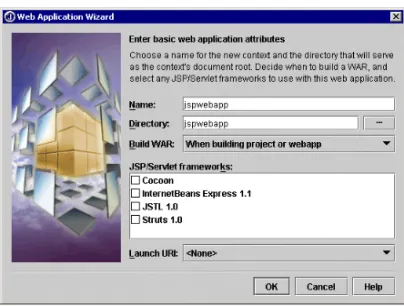
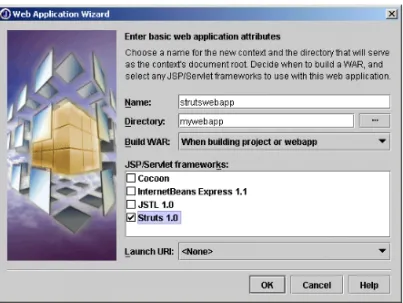
3 Enter a Name for your WebApp. The Directory field is automatically filled in as you type.
4 Enter the Directory location that will be your WebApp’s document root. This field is automatically filled in as you type the name. The directory name creates a subdirectory of the project directory. You can also click the ellipsis button to browse and create a new directory, or choose an existing directory. Choosing the project root or the src directory isn’t recommended.
5 Specify when to build a WAR file by selecting one of the following settings from the Build WAR drop-down list.
• When Building Project Or WebApp • When Building WebApp Only • When Building Project Only • Never
Whenever a WAR file is generated, it will have the same name as the WebApp and be placed in the directory that contains the document root directory. If you select Never here, don’t worry. You can always change your mind later on. This drop-down list corresponds to a setting in the WebApp properties dialog box.
WAR file node A node in the project pane of the JBuilder IDE representing
the WAR file. It has a properties dialog box and a viewer for the contents of the WAR file.
WebApp DD Editor A user interface and editor for the web.xml deployment
descriptor file that is required for each WebApp. You can also edit server-specific deployment descriptors, such as
WebLogic’s weblogic.xml, in JBuilder. Deployment
descriptors are discussed in detail in “Editing deployment
descriptors” on page 11-4.
Struts Config Editor A user interface and editor for the struts-config.xml
deployment descriptor file that is required to support the Struts framework.
Table 3.1 JBuilder WebApp and WAR file tools (continued)
C r e a t i n g a W e b A p p w i t h t h e W e b A p p l i c a t i o n w i z a r d
6 Select the JSP/Servlet Frameworks you want your WebApp to support. The following frameworks are included with JBuilder.
• Cocoon — a servlet-based Java publishing framework for XML. See “Presenting XML documents” in the XML Developer’s Guide.
• InternetBeans Express — a component library that makes it easier to create data-aware servlets and JSPs. See Chapter 7, “Using
InternetBeans Express.”
• JSTL (JavaServer Pages Standard Tag Library) — JSTL provides a standard way to accomplish common coding tasks using simple tags. More information is available at http://java.sun.com. • Struts — an open source framework known as the Model 2, or
Model-View Controller, approach to software design. See Chapter 8, “Using the Struts framework in JBuilder.”
You can also make user-defined JSP tag libraries available in this wizard by adding them in the Configure Libraries dialog box. For more information, see “Using the Configure Libraries dialog box to manage user-defined frameworks” on page 6-6.
7 Specify a default Launch URI, if desired. This field might be filled in for you, if the selected framework supports a default launch URI. For example, if you choose the Cocoon framework, the Launch URI is set to index.xml. If a Launch URI is specified, the Web Run, Web Debug, and Web Optimize commands are available on the context menu for the WebApp node in the project pane.
8 Click OK to close the wizard and create the WebApp.
Figure 3.1 Web Application wizard
You can also use the Web Application wizard to import an existing web application. Fill in the Name field and use the Directory field to point to the location of the directory containing your existing web application. If
W o r k i n g w i t h W e b A p p s a n d W A R f i l e s 3-5
T h e W e b A p p a n d i t s p r o p e r t i e s the web application is valid and the deployment descriptor(s) are correct for the currently configured web server, it can be run from within the JBuilder IDE immediately.
The WebApp and its properties
A Java-enabled web server locates a web application by its ServletContext, which maps to the WebApp. A WebApp is represented in the JBuilder IDE by a WebApp node. This is a node in the tree of the project pane which has the name of the WebApp.
Figure 3.2 Project pane showing a WebApp node
The WebApp node has two or three child nodes; a Root Directory for the application, a Deployment Descriptors node representing the WEB-INF directory for the WebApp, and an optional WAR file node.
You should place web content files (such as HTML, SHTML, and JSP files) in the WebApp’s root directory or one of its subdirectories. Web content files are files which can be accessed directly by the client browser. Java resources used by the WebApp (such as servlets or JavaBeans) should have their source files in the source directory for the project. These files are not directly accessible by the client browser, but are called by something else, such as a JSP file. JBuilder’s Servlet wizard, JSP wizard, and Web Start Launcher wizard make it easy to create web applications that follow these rules. Make sure to specify an existing WebApp when using these wizards.
Root directory
The root directory defines the base location for the web application. Every part of the web application will be located relative to the root directory. Web content files, such as HTML, SHTML, JSP, or image files, should be placed in this directory. Web content files are files which can be accessed directly by the client browser.
T h e W e b A p p a n d i t s p r o p e r t i e s
The files in the WebApp’s root directory (and any subdirectories of the root directory) are automatically displayed in the Root Directory node of the project pane. Only files of the types you specify on the WebApp page of the WebApp Properties dialog box are displayed. The default file types are the ones you typically work with in a web application. This allows you to work with HTML files or image files using your favorite tools for working with those file types. Save these files in the WebApp’s root directory, or one of its subdirectories. Then just click the project pane’s Refresh button to see the current file set in JBuilder.
Deployment descriptors
Each WebApp must have a WEB-INF directory. This directory contains information needed by the web server when the application is deployed. This information is in the form of deployment descriptor files. These files have .xml extensions. They are shown in the Deployment Descriptors node in the project pane. The WEB-INF directory is actually a subdirectory of your WebApp’s root directory. It isn’t shown under the Root Directory node of the project pane because it is a protected directory that cannot be served by the web server. You can change this with the Directories page of the WebApp Properties dialog box.
The WebApp’s Deployment Descriptors node always contains a deployment descriptor file called web.xml. This is required by all Java-enabled web servers and is created by JBuilder when you create the WebApp. If you are using the Struts framework in your WebApp, the struts-config.xml file will also be located in the Deployment Descriptors node.
Your web server may also require additional deployment descriptors which are unique to that particular web server. These can be edited in JBuilder and are created if they are listed as required by the currently configured web server plug-in. Check your web server’s documentation to find out which deployment descriptors it requires.
JBuilder provides a deployment descriptor editor for editing the web.xml file. You can also edit server-specific deployment descriptors in JBuilder. Some mappings in the web.xml file are required for the WebApp to work as desired within the JBuilder IDE. These mappings will be written for you when you use JBuilder’s wizards to create the pieces of your web application. Other mappings may be required when you deploy your application. For more information on deployment descriptors and the WebApp DD Editor, see “Editing deployment descriptors” on page 11-4.”
W o r k i n g w i t h W e b A p p s a n d W A R f i l e s 3-7
T h e W e b A p p a n d i t s p r o p e r t i e s
WebApp properties
The WebApp node in the project pane has various properties you can edit. To edit the WebApp node’s properties, right-click the node and select Properties from the menu. The WebApp Properties dialog box has five pages:
• WebApp • Directories • Classes • Dependencies • Manifest
The WebApp page
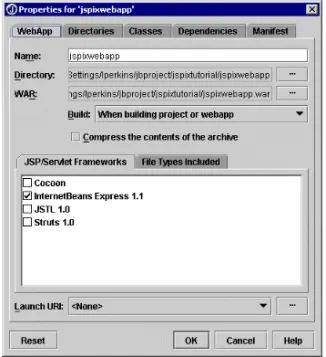
The WebApp page of the WebApp Properties dialog box indicates the name of the WebApp, the directory location of the WebApp, and the directory location of the WAR file. There is a drop-down list indicating when to generate (or update) the WAR file, and a checkbox indicating whether or not to compress the archive. The setting for creating the archive corresponds to the “Build WAR” drop-down list in the Web Application wizard. You may wish to turn WAR generation off during development, and only enable it before you build the project for the final time prior to deployment.
The bottom of the WebApp page is divided into two tabbed pages: JSP/ Servlet Frameworks and File Types Included.
The JSP/Servlet Frameworks page allows you to select JSP/Servlet Frameworks to be used in the WebApp. The page automatically contains four frameworks that ship with JBuilder; Cocoon, InternetBeans Express, JSTL (JavaServer Pages Standard Tag Library), and Struts. If you use the Configure Libraries dialog box to add user-defined frameworks, these frameworks will also be available in this list.
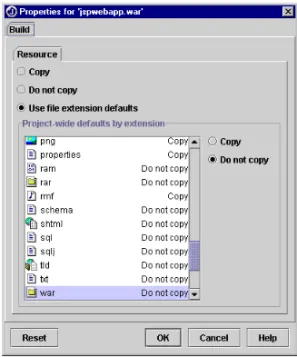
The File Types Included page contains a list of file types to include for both file browsing and WAR generation. Only the file types which are checked will be included, based on file extension. The file extensions associated with each file type can be viewed or changed in the IDE Options dialog box, available from the Tools menu.
The Launch URI drop-down list is used to specify a URI to launch when running the WebApp. If a WebApp has a specified Launch URI, you can Web Run/Debug/Optimize directly from the context menu of the WebApp node in the project pane. Some frameworks, like Cocoon, have a preferred Launch URI, which is set automatically when the framework is chosen. This preferred Launch URI can be overridden. If the desired URI