Programmable Terminals
NS-Series
Ladder Monitor
OPERATION MANUAL
Cat. No. V082-E1-10
Ladder Monitor
Notice
OMRON products are manufactured for use according to proper procedures by a qualified operator and only for the purposes described in this manual.
OMRON Product References
All OMRON products are capitalized in this manual. The word "Unit" is also capitalized when it refers to an OMRON product, regardless of whether or not it appears in the proper name of the product.
The abbreviation "Ch," which appears in some displays and on some OMRON products, often means "word" and is abbreviated "Wd" in documentation in this sense.
The abbreviation "PLC" means Programmable Controller.
The abbreviation "host" means a controller, such as an IBM PC/AT or compatible computer, that controls a PT (Programmable Terminal).
Visual Aids
The following headings appear in the left column of the manual to help you locate different types of information.
Note Indicates information of particular interest for efficient and convenient operation of
the product.
Reference Indicates supplementary information on related topics that may be of interest to the user.
1, 2, 3... 1. Indicates lists of one sort or another, such as procedures, checklists, etc.
CS1G-CPU@ @-V1 Boxes in model numbers indicate variable characters. For example, "CS1G-CPU@ @-EV1" indicates the following models: CS1G-CPU42-EV1,
CS1G-CPU43-EV1, CS1G-CPU44-EV1, and CS1G-CPU45-EV1.
OMRON, 2004
All rights reserved. No part of this publication may be reproduced, stored in a retrieval system, or transmitted, in any form, or by any means, mechanical, electronic, photocopying, recording, or otherwise, without the prior written permission of OMRON.
No patent liability is assumed with respect to the use of the information contained herein. Moreover, because OMRON is constantly striving to improve its high-quality products, the information contained in this manual is subject to change
Related Manuals
The following manuals are used for NS-series PTs. (The boxes at the end of the catalog numbers indicate the revision code.)
NS Series -V1/-V2 Setup Manual...V083-E1-
@
This manual describes installation and connection procedures, general
specifications, and other hardware information for NS-V1/V2-series PTs (NS15-V2, NS12-V1/V2, NS10-V1/V2, NS8-V1/V2, and NS5-V1/V2).
Refer to the NS Series Programming Manual (V073-E1-@) for information on PT
functions and specific operating procedures.
NS Series Setup Manual...V072-E1-
@
Provides information on NS Series PTs prior to V1 (i.e., NS12, NS10, and NS7). Describes how to connect the PT to the host and peripheral devices, methods to setup communications and operation, and procedures for maintenance.
Refer to the NS Series Programming Manual (V073-E1-@) for information on PT
functions and specific operating procedures.
NS Series Programming Manual...V073-E1-
@
Describes the screen configurations, object functions, and host communications for the PT.
CX-Designer User’s Manual ...V099-E1-
@
The screens displayed on the PT can be created in the CX-Designer and transferred between the CX-Designer and PT. This manual describes the installation and features of the CX-Designer. For details on CX-Designer operations, refer to the CX-Designer’s Online Help.
Terminology
The following terminology is used in this manual.
PT In this manual, indicates an NS-series Programmable Terminal.
NS Series Indicates products in the OMRON NS@ @ Series of Programmable Terminals. PLC Indicates a Programmable Controller in the OMRON SYSMAC CS/CJ Series of
Programmable Controllers.
CS/CJ Series Indicates Programmable Controllers in the OMRON SYSMAC CS/CJ Series of Programmable Controllers: CS1G, CS1H, CS1G-H, CS1H-H, CJ1G, CJ1G-H, CJ1H-H, CJ1M, CP1H, CP1L, CJ2H, CJ2M.
In this manual, “CJ1H-H” indicates the CJ1H-CPU@@H-R and CJ1H-CPU@@H CPU Units. “CJ1H-H-R” is used to indicate only the CJ1H-CPU @@H-R CPU Units.
The “CP Series” is used to indicate only the CP1H and CP1L.
Serial Communications Unit Indicates a Serial Communications Unit for an OMRON CS/CJ-series PLC. Serial Communications Board Indicates a Serial Communications Board for an OMRON CS/CJ-series PLC. CPU Unit Indicates a CPU Unit in the OMRON SYSMAC CS/CJ Series of Programmable
Controllers.
CX-Designer Indicates the OMRON CX-Designer (NS-CXDC1-V@).
Host Indicates the PLC, IBM PC/AT or compatible computer, or personal computer functioning as the control device and interfaced with the NS-series PT. Programming Manual Indicates the NS Series Programming Manual (V073-E1-@).
Introduction
• Intended AudiencesThis manual is intended for the following personnel, who must also have knowledge of electrical systems (an electrical engineer or the equivalent).
• Personnel in charge of introducing FA systems into production facilities. • Personnel in charge of designing FA systems.
• Personnel in charge of installing and connecting FA systems. • Personnel in charge of managing FA systems and facilities. • General Precautions
• This manual provides information for connecting and setting up an NS-series PT. Be sure to read this manual before attempting to use the PT and keep this manual close at hand for reference during installation and operation.
Read and Understand this Manual
Please read and understand this manual before using the product. Please consult your OMRON representative if you have any questions or comments.
Warranty and Limitations of Liability
WARRANTY
OMRON's exclusive warranty is that the products are free from defects in materials and workmanship for a period of one year (or other period if specified) from date of sale by OMRON.
OMRON MAKES NO WARRANTY OR REPRESENTATION, EXPRESS OR IMPLIED, REGARDING NON-INFRINGEMENT, MERCHANTABILITY, OR FITNESS FOR PARTICULAR PURPOSE OF THE PRODUCTS. ANY BUYER OR USER ACKNOWLEDGES THAT THE BUYER OR USER ALONE HAS DETERMINED THAT THE PRODUCTS WILL SUITABLY MEET THE REQUIREMENTS OF THEIR INTENDED USE. OMRON DISCLAIMS ALL OTHER WARRANTIES, EXPRESS OR IMPLIED.
LIMITATIONS OF LIABILITY
OMRON SHALL NOT BE RESPONSIBLE FOR SPECIAL, INDIRECT, OR CONSEQUENTIAL DAMAGES, LOSS OF PROFITS OR COMMERCIAL LOSS IN ANY WAY CONNECTED WITH THE PRODUCTS, WHETHER SUCH CLAIM IS BASED ON CONTRACT, WARRANTY, NEGLIGENCE, OR STRICT LIABILITY.
In no event shall the responsibility of OMRON for any act exceed the individual price of the product on which liability is asserted.
IN NO EVENT SHALL OMRON BE RESPONSIBLE FOR WARRANTY, REPAIR, OR OTHER CLAIMS REGARDING THE PRODUCTS UNLESS OMRON'S ANALYSIS CONFIRMS THAT THE PRODUCTS WERE PROPERLY HANDLED, STORED, INSTALLED, AND MAINTAINED AND NOT SUBJECT TO CONTAMINATION, ABUSE, MISUSE, OR INAPPROPRIATE MODIFICATION OR REPAIR.
Application Considerations
SUITABILITY FOR USE
OMRON shall not be responsible for conformity with any standards, codes, or regulations that apply to the combination of products in the customer's application or use of the products.
At the customer's request, OMRON will provide applicable third party certification documents identifying ratings and limitations of use that apply to the products. This information by itself is not sufficient for a complete determination of the suitability of the products in combination with the end product, machine, system, or other application or use.
The following are some examples of applications for which particular attention must be given. This is not intended to be an exhaustive list of all possible uses of the products, nor is it intended to imply that the uses listed may be suitable for the products:
• Outdoor use, uses involving potential chemical contamination or electrical interference, or conditions or uses not described in this manual.
• Nuclear energy control systems, combustion systems, railroad systems, aviation systems, medical equipment, amusement machines, vehicles, safety equipment, and installations subject to separate industry or government regulations.
• Systems, machines, and equipment that could present a risk to life or property. Please know and observe all prohibitions of use applicable to the products.
NEVER USE THE PRODUCTS FOR AN APPLICATION INVOLVING SERIOUS RISK TO LIFE OR PROPERTY WITHOUT ENSURING THAT THE SYSTEM AS A WHOLE HAS BEEN DESIGNED TO ADDRESS THE RISKS, AND THAT THE OMRON PRODUCTS ARE PROPERLY RATED AND INSTALLED FOR THE INTENDED USE WITHIN THE OVERALL EQUIPMENT OR SYSTEM.
PROGRAMMABLE PRODUCTS
OMRON shall not be responsible for the user's programming of a programmable product, or any consequence thereof.
Disclaimers
CHANGE IN SPECIFICATIONS
Product specifications and accessories may be changed at any time based on improvements and other reasons.
It is our practice to change model numbers when published ratings or features are changed, or when significant construction changes are made. However, some specifications of the products may be changed without any notice. When in doubt, special model numbers may be assigned to fix or establish key
specifications for your application on your request. Please consult with your OMRON representative at any time to confirm actual specifications of purchased products.
DIMENSIONS AND WEIGHTS
Dimensions and weights are nominal and are not to be used for manufacturing purposes, even when tolerances are shown.
PERFORMANCE DATA
Performance data given in this manual is provided as a guide for the user in determining suitability and does not constitute a warranty. It may represent the result of OMRON's test conditions, and the users must correlate it to actual application requirements. Actual performance is subject to the OMRON Warranty and Limitations of Liability.
ERRORS AND OMISSIONS
The information in this manual has been carefully checked and is believed to be accurate; however, no responsibility is assumed for clerical, typographical, or proofreading errors, or omissions.
Safety Precautions
Notation Used for Safety Information
The following notation is used in this manual to provide precautions required to ensure safe usage of the product.
The safety precautions that are provided are extremely important to safety. Always read and heed the information provided in all safety precautions. The following notation is used.
! WARNING
Indicates a potentially hazardous situation which, if not avoided, will result in minor or moderate injury, or may result in serious injury or death. Additionally there may be significant property damage. ! Caution Indicates a potentially hazardous situation which, if not avoided, may result in minor or moderate injury, or property damage.
Symbols
Prohibition
Indicates a general prohibition Caution
Indicates general cautionary, warning, or danger level information
!
WARNING
Always ensure that the personnel in charge confirm that installation, inspection, and maintenance were properly performed for the PT. “Personnel in charge” refers to individuals qualified and responsible for ensuring safety during machine design, installation, operation,
maintenance, and disposal.
Ensure that installation and post-installation checks are performed by personnel in charge who possess a thorough understanding of the machinery to be installed.
Do not use the input functions of the PT, such as the function switches or switches on the touch panel, in applications that involve human life, in applications that may result in serious injury, or for emergency stop switches.
Do not attempt to disassemble, repair, or modify the PT. Doing so may impair the safety functions.
Do not attempt to take the Unit apart and do not touch any internal parts while the power is being supplied. Doing either of these may result in electrical shock.
!
Caution
Turn OFF the +5 V power supply before connecting or disconnecting the RS-232C cable. The +5 V circuit in the RS-232C equipment may be destroyed by the inrush current from the conversion unit.
Precautions for Safe Use
• When unpacking the Units, check carefully for any external scratches or other damage. Also, shake the Units gently and check for any abnormal sound.
• The PT must be installed in a control panel.
• The mounting panel must be between 1.6 and 4.8 mm thick. Tighten the Mounting Brackets evenly to a torque of between 0.5 and 0.6 N·m to maintain water and dust resistance. Make sure the panel is not dirty or warped and that it is strong enough to hold the Units.
• Do not let metal particles enter the Units when preparing the panel. • Do not connect an AC power supply to the DC power input terminals.
• Use a DC power supply with minimal voltage fluctuation that provides a stable output even if the power supply input is interrupted for 10 ms. The DC power supply must also have reinforced or double insulation.
Rated power supply voltage: 24 VDC (Allowable range: 20.4 to 27.6 VDC) Capacity: NS15: 45 W min.
NS12, NS10, or NS8: 25 W min. • Do not perform a dielectric voltage test.
• Use a twisted-pair cable with a cross-sectional area of at least 2 mm2 to connect to the power terminals and always use M3.5 crimp terminals. Tighten the terminal screws to a torque of 0.8 N·m. Make sure the screws are properly tightened.
• Ground the Unit correctly to prevent operational errors caused by noise.
• Do not touch the surface of the circuit board or the components mounted on it you’re your bare hands. Discharge any static electricity from your body before handling the board.
• Confirm that the current capacity of the connected device is 250 mA or less before using the 5-V power supply from pin 6 of the RS-232C connector. The 5-V output from the PT is 250 mA max. at 5 V ±5%.
• Turn OFF the power supply before connecting or disconnecting cables. • Always tighten the connector screws after connecting communications cables. • The maximum tensile load for cables is 30 N. Do not apply loads greater than this. • Confirm the safety of the system before turning ON or OFF the power supply or before
pressing the reset button.
• The whole system may stop depending on how the power supply is turned ON or OFF. Turn ON or OFF the power supply according to the specified procedure.
• After changing the settings of the DIP switch, always turn the power supply OFF and ON or reset the PT.
• Do not perform the following operations while the Memory Card is being accessed: • Turning OFF the power supply to the PT
• Pressing the PT’s reset switch • Removing the Memory Card
• Do not remove the Memory Card while power is being supplied to it. Always follow the specified procedure when removing the Memory Card.
• To ensure system safety, incorporate a program that periodically calls PT operation bits from the host side to check that the PT is properly operating.
• Start actual system application only after sufficiently checking screen data, macros, and the operation of the program in the host.
• Do not press a touch switch with a force greater than 30 N. • Do not operate a touch switch using a screwdriver or other tool.
switches consecutively without pausing in between. If touch switches are pressed consecutively at high speed, the PT may not be able to detect the inputs. Confirm that the PT has detected the input of a touch switch before pressing any other touch switch.
• Do not accidentally press touch switches when the backlight is not lit or when the display does not appear. Confirm the safety of the system before pressing touch switches.
• To ensure safety when using numeral input functions, set the upper and lower limits for the input value.
• Before initializing screen data, confirm that existing data is backed up at the CX-Designer.
• When changing the password with the system menu, do not reset or turn OFF the power supply until writing is finished.
• When using the device monitor or the Ladder Monitor, confirm the safety of the system before performing the following operations.
• Changing monitor data • Changing operation modes • Forced setting or resetting
• Changing present values or set values
If unspecified persons may start the Ladder Monitor, use a password to prevent incorrect operation. Refer to 3-14 Using a Password for details on the password function.
• Dispose of any battery that has been dropped on the floor or otherwise subjected to excessive shock.
• Do not connect an USB connector to any device that is not applicable.
• Before connecting an USB connector to a device, make sure that the device is free of damage.
• Commercially available USB hubs and the recommended USB hub do not necessarily have the same general specifications as the PT, and may not function properly if used in environments subject to static electricity or other forms of noise. When using a USB hub, take sufficient measures to prevent static electricity and other forms of noise, or do not install the PT in an environment subject to such noise.
• Do not perform the following operations while downloading or uploading screen data or system program. Doing so may corrupt the screen data or system program.
• Turning OFF the power supply to the PT • Pressing the PT’s reset switch
• When mounting the Battery, be sure to use the correct Battery and mount it correctly. • Do not disassemble or short-circuit the battery.
• Dispose of the Units and batteries according to local ordinances as they apply.
• Never use volatile solvents, such as benzene or thinners, or chemical dusters to clean the PT.
• The backlight in the NS-series PT contains mercury. Do not dispose of the PT together with waste to be processed at disposal plants. Dispose of the PT according to
Precautions for Correct Use
• Do not install the Unit in the following places:
• Locations subject to severe changes in temperature. • Locations subject to direct sunlight
• Locations subject to temperatures or humidity outside the range specified in the specifications
• Locations subject to condensation as the result of high humidity • Locations subject to corrosive or flammable gases
• Locations subject to shock or vibration
• Outdoor locations directly subject to wind or rain • Locations subject to strong ultraviolet light
• Take appropriate and sufficient countermeasures when installing systems in the following locations:
• Locations subject to static electricity or other forms of noise • Locations subject to strong electromagnetic fields
• Locations close to power supplies
NS Series Ladder Monitor
OPERATION MANUAL
LADDER MONITOR
Table of Contents
NS SERIES LADDER MONITOR ... 13
SECTION 1 INTRODUCTION ... 17
1-1 OVERVIEW AND FEATURES... 18
1-1-1 Overview ... 18
1-1-2 Features ... 18
1-1-3 Functions Added in Version 2.0... 19
1-1-4 Functions Added in Version 2.7... 19
1-1-5 Functions Added in Version 2.8... 19
1-1-6 Functions Added in Version 2.9... 20
1-1-7 Functions Added in Version 3.0... 20
1-1-8 Functions Added in Version 3.1... 21
1-1-9 Functions Added in Version 3.2... 21
1-2 CHECKING THE PACKAGE... 22
1-3 MEMORY CARDS... 24
1-4 SPECIFICATIONS... 25
1-5 SYSTEM CONFIGURATION... 27
SECTION 2 INSTALLATION ... 29
2-1 STARTING THE LADDER MONITOR... 30
2-2 EXITING LADDER MONITOR... 40
SECTION 3 BASIC OPERATION ... 41
3-1 MAIN SCREEN... 42
3-1-1 Ladder Display Area ... 42
3-1-2 Multiple I/O Monitor Area ... 45
3-1-3 I/O Comment Display Area and Error Display Area ... 45
3-1-4 Button Area ... 46
3-1-5 Inputting Addresses and Numbers ... 47
3-2 QUICK REFERENCE... 49
3-3 DISPLAYING THE DESIRED PROGRAM SECTION... 51
3-3-1 Searching for Step Numbers... 52
3-3-2 Searching for Specified Addresses... 52
3-3-3 Searching for Specified Addresses Used for Sequence Output Instructions ... 53
3-3-4 Searching for Specified Instructions ... 54
3-3-5 Searching for the Address at the Cursor Position ... 55
3-3-6 Searching for Output Instructions from Input Bits... 56
3-3-7 Searching for Input Bits from Output Instructions... 57
3-3-8 Returning to Previous Search Positions ... 57
3-3-9 Displaying the Previous/Next Program Section... 57
3-3-10 Displaying Hidden Program Lines ... 57
3-3-11 Jumping from a PT User Screen to Where an Alarm Occurs... 58
3-3-12 Back Searching... 61
3-4 DISPLAYING I/O COMMENTS... 64
3-4-1 Displaying I/O Comments ... 64
3-4-2 Switching the I/O Comment Display ... 65
3-4-3 Displaying the Entire I/O Comment ... 65
3-5 MONITORING I/O STATUS... 67
3-5-1 Monitoring I/O Status ... 67
3-5-2 Stopping I/O Status Monitoring... 67
3-5-3 Changing the Present Value Display Format ... 68
3-6 MULTIPLE I/O MONITORING... 69
3-6-1 Specifying the I/O to Monitor ... 69
3-7 CHANGING ADDRESS STATUS/CONTENTS... 71
3-7-1 Force-setting/Resetting or Setting/Resetting Specified Bits... 71
3-7-2 Cancelling Forced Status for All Bits ... 72
3-7-3 Changing Present Values of Specified Words... 74
3-8 CHANGING TIMER/COUNTER SET VALUES... 76
3-9 CHANGING THE PLC OPERATING MODE... 79
3-10 DISPLAYING CURRENT ERRORS IN THE PLC... 80
3-10-1 Clearing Current Errors in the PLC... 81
3-11 CAPTURING SCREENS... 82
3-12 STARTING THE PROGRAMMING CONSOLE... 84
3-12-1 Ports That Support the Programming Console Function... 84
3-12-2 Starting the Programming Console Function... 85
3-12-3 Prohibiting Programming Console Startup ... 87
3-13 CHANGING THE HOST (PLC) ... 88
3-14 USING A PASSWORD... 89
SECTION 4 TROUBLESHOOTING... 91
4-1 TROUBLESHOOTING... 92
4-1-1 Ladder Monitor Does Not Start ... 92
4-1-2 FINS Command and System File Error Messages ... 92
4-1-3 Operation, Input, and Other Error Messages ... 95
4-1-4 Error Message When Using Programming Console Function ... 97
APPENDICES ... 99
A-1 COMPARISON BETWEEN NS-SERIES PTS AND CX-PROGRAMMER... 100
A-1-1 Ladder Program Display ... 100
A-1-2 Monitoring I/O Status of Ladder Program... 101
A-1-3 Search Program Section Function... 101
A-1-4 Multiple I/O Monitor... 102
Section 1
1-1 Overview and Features
1-1-1 Overview
The Ladder Monitor (NS-EXT01) is an application that monitors the ladder program in a SYSMAC CS/CJ-series PLC. The Ladder Monitor enables monitoring the execution status of the ladder program in a connected PLC from a NS-series PT without using a Programming Device (e.g., the CX-Programmer or a Programming Console). Just by switching to the Ladder Monitor from RUN Mode of the PT, the user can monitor the ladder program and I/O in the PLC without changing the system configuration between the NS-series PT and the PLC.
Just connect the NS-series PT to a CS/CJ-series PLC with a 1:N NT link, an Ethernet connector, or a Controller Link connection to a registered host, download the project data to the PT, place a Memory Card containing the Ladder Monitor program in the PT, and select Ladder Monitor from the system menu of the PT. The application will start, will monitor the ladder program and I/O of the PLC, and will display the results on the NS-series PT screen.
Note: The Ladder Monitor only monitors the ladder program. It does not have functionality to change or edit the program. (Force-setting/resetting bits, changing present values, and changing timer/counter set values are enabled for the I/O memory.) In addition, I/O comments can be displayed but symbol names cannot be displayed. Refer to Appendix A-1 Comparison between NS-series PTs and CX-Programmer (page 100)for the differences from CX-Programmer.
Note: The following PT functions will stop when the Ladder Monitor is used.
• System memory communications with the host • Macros
• Data log • Alarms • Operation log
1-1-2 Features
1. The user program can be displayed in ladder form on an NS-series PT (up to 17 rows and 16 columns for the NS12).
2. CS/CJ-series PLCs and NSJ Controllers can be monitored. A CS/CJ-series PLC that is connected to either serial (RS-232C) port A or B of the PT in 1:N NT Link serial communications mode or a PLC connected to the Ethernet port or Controller Link Board of the PT can be monitored.
3. The bit ON/OFF status (i.e., the execution conditions) and present values (words) of the operands of special instructions can be monitored.
4. The desired program section can be specified using the Search Button.
Searching is possible for step numbers (program addresses), instructions (selected from a list, including immediate refreshing and differentiation), and instructions with addresses.
5. Jumping from an input bit (“contact”) to the output instruction with the same address (i.e., to a sequence output instruction) is possible (JUMP Search). By repeating this, it is also possible to identify the input bits causing outputs to turn ON and OFF. 6. It is possible to search for input bits that are using the address in an output
7. In addition to searching for output instructions from input bits and input bits from output instructions, it is also possible to return to the results of up to 30 previous searches.
8. With NS-series PT system version 8.0 or higher, the places where an address specified as an alarm is used can be automatically found by starting the Ladder Monitor from the Alarm/Event Summary and History on the PT screen.
9. The Multiple I/O Monitor operation can be used to monitor up to 20 (for the NS15) specified addresses (bits or words).
10. Force-setting/resetting or setting/resetting of a specified bit address can be performed on the Multiple I/O Monitor Screen.
11. The present value of a specified word address can be changed.
12. Word present values can be displayed and input in hexadecimal, decimal, or signed decimal.
13. Timer and counter set values can be changed.
14. The operating mode of the PLC (CPU Unit) can be changed.
15. Current errors (non-fatal errors and fatal errors) in the PLC (CPU Unit) can be displayed. Errors can also be cleared.
16. I/O comments can be read from the PLC. If the I/O comments have been changed, the change will be automatically detected when the Ladder Monitor is started, and it can be selected whether the I/O comments are to be read from the PLC.
17. I/O comments can be displayed in three lines or one line, or not displayed at all. A maximum of five characters can be displayed per line. In addition, comments for addresses selected on the screen can be displayed at the bottom of the screen (up to 71 characters for the NS15, 43 characters for the NS12, or 23 characters for the NS10/8).
18. Ladder Monitor screens can be captured and saved on Memory Cards as bit map files.
1-1-3
Functions Added in Version 2.0
The following functions have been added for Ladder Monitor version 2. 1. Programming Console Function for CS/CJ-series PLCs
The ladder program can be changed, such as changing/adding input bits and changing set values.
2. Binary TIM/CNT instructions can be monitored on the ladder diagram.
3. Pulse control instructions, interrupt instructions, and table comparison instructions, which were added for the CJ1M PLCs, can be monitored using ladder diagrams. 4. Duplex error messages can be displayed for CS1D (Duplex System) PLCs. 5. The following function was added in version 2.5:
Operation support for NS-V1 Series PTs.
1-1-4
Functions Added in Version 2.7
The following functions have been added for Ladder Monitor version 2.7. An Ethernet or Controller Link port can be used to connect to the PLC.
PTs and NSJ Controllers with system version 6.6 or higher (except for the NS5-V2 and NSJ5).
• The NS-series PT does not have to be restarted when starting or stopping the Ladder Monitor (with NS system version 6.6 or higher).
• The Ladder Monitor can be started from user screens (with NS system version 6.6 or higher).
• The Controller Section of an NSJ Controller can be monitored (Controller host). • Support has been added for the new CS/CJ-series string Instructions and SFC
instructions.
1-1-6
Functions Added in Version 2.9
The following functions have been added for Ladder Monitor version 2.9. • Scrolling buttons have been added (ScrUp and ScrDown).
• Program section in which two or more wraps occur can now be displayed.
• The following instructions, which were added for the CJ1H-H-R, are now supported: SINQ, COSQ, TANQ, MOVF, TIMU, TIMUX, TMUH, TMUHX, and FIORF
1-1-7
Functions Added in Version 3.0
The following functions have been added for Ladder Monitor version 3.0.
• With NS system version 8.0 or higher, the places where an address that is specified as an alarm is used can be automatically found by starting the Ladder Monitor from the Alarm/Event Summary and History on the PT screen.
• I/O comments can be read from a symbol table stored in the PLC, so I/O comment files no longer have to be created in advance using the I/O Comment Extracting Tool.
• I/O comments can be displayed in one or three lines, or not at all.
• Step searches, address searches, and output instruction searches are all supported to provide for different applications. It is also possible to search for input conditions that use output communications addresses.
• It is possible to return to a maximum of 30 previously searched program sections. • The cursor is now displayed in the program section. The communications address
at the cursor position can be searched and the present value can be changed. • Timer and counter set values can be changed.
• The maximum numbers of rows and columns that can be displayed on a screen have been increased. Up to 13 rows and 13 columns can be displayed for the NS10/8, or 17 rows and 16 columns for the NS12, when I/O comments and the Multiple I/O Monitor are not both displayed.
• The maximum number of communications addresses that can be registered to the Multiple I/O Monitor has been increased to 16 for the NS12 and 12 for the NS10/8. • Communications addresses registered to the Multiple I/O Monitor are remembered even after exiting the Ladder Monitor, so the same communications addresses can be monitored when the Ladder Monitor is next started.
• The Ladder Monitor is started in I/O Monitoring Mode, and it can be exited while executing I/O monitoring or multiple I/O monitoring.
• Ladder Monitor screens can be captured and saved to a Memory Card as bit map files.
• Word present values can be displayed and input in hexadecimal, decimal, or signed decimal.
• Up to 65,535 global comments and 65,535 local comments can be displayed as I/O comments.
• A Memory Card removal function has been added. • The current program name can be displayed.
• Forced status can be checked when starting and stopping the Ladder Monitor.
1-1-8
Functions Added in Version 3.1
The following functions have been added for Ladder Monitor version 3.1.
• Monitoring is now supported for CJ2 CPU Units. (Tag names, however, are not displayed.)
• EtherNet/IP can be used to connect to a PLC.
• The following new instructions for CJ2 CPU Units are now supported: TRSET, GRAY_BIN, GRAY_BINL, BIN_GRAY, BIN_GRAYL, MAXD, MAXF, MAXL, MIND, MINF, MINL, RECV2, SEND2, CMND2, PMCR2, and tracking instructions (RSRCH and RSORT).
• A password function has been added. A password can be required before the following operations: Changing present values, changing timer/counter set values, changing the operating mode, and starting the Programming Console function. The operation will be disabled if the password is incorrect.
1-1-9
Functions Added in Version 3.2
The following functions have been added for Ladder Monitor version 3.2.
• Support was added for the high-speed data exchange instructions for certain Special I/O Units and CPU Bus Units that were added to unit version 1.1 of the CJ2 CPU Units.
1-2
Checking the Package
The Ladder Monitor is provided with the CX-Designer CD-ROM in the locations given below. For version-2 NS-series PTs and NSJ Controllers with system version 6.6 or higher, the Ladder Monitor is built into the system program for version-2 NS-series PTs and NSJ Controllers with system version 6.6 or higher (except for the NS5-V2 and NSJ5).
CD-ROM Location on CD-ROM
CX-Designer \Utility\English\LadderMonitorFunc
• CD-ROM: The following software is provided.
Software Folder name in CD-ROM File name Usage
Plcmon Winmgr Spydidmn Aptextexecldrmt.sh Aptextchkldrmt.sh Checklist Plcmon.ini ldrmttbl.ini Fun.bin Procs watchtask dir attr \ldrmt grep
Copy the files directly to the Memory Card.
For version-1 and version-2 NS-series PTs and NSJ Controllers, all the files listed in this table are required. For version-2 NS-series PTs and NSJ Controllers with NS system version 6.6 or higher, the Ladder Monitor is built into the system program (except for the NS5-V2 and NSJ5) and thus a Memory Card is not required.
For pre-version-1 NS-series PTs, the files in the shaded folders are not required on the Memory Card. Aptvmod Attr Checklist Dir FONTS Grep Plcmon Procs Winmgr Plcmon_E Plcmon_J \ldrmt_v1 Spydidmn Procon Pbtc_4832_0101 Pbts_4832_0101 Plcd_1616_0102 \procon Plcd_1616_0202 \procon_v1 Procon Ladder Monitor Application \ldrsetup
\ldrdata This folder is empty by default.
Location for I/O comment file extracted using the I/O Comment Extracting Tool and copied to the Memory Card
Software Folder name in CD-ROM File name Usage
I/O Comment Extracting Tool
\iocmttool Setup.exe Install the I/O Comment Extracting Tool on the computer. Operation Manual In PDF format - Ladder Monitor I/O Comment Extracting Tool
Read PDF files using Adobe Acrobat.
1-3 Memory Cards
A Memory Card is required to operate the Ladder Monitor. Prepare the Memory Card before operating the Ladder Monitor.
• Recommended Memory Cards
Model Capacity Memory type
HMC-EF183 128 MB Flash Memory HMC-EF283 256 MB Flash Memory HMC-EF583 512 MB Flash Memory
Note: The above Memory Cards cannot be used for the NS7-SV00/01(B) with lot number 0852 or earlier.
1-4 Specifications
The specifications of the Ladder Monitor are given below. Applicable PLC (host) SYSMAC CS/CJ Series, NSJ Series
Applicable NS-series PT ports
• Serial port A or B (RS-232C ports)
• Ethernet port (for PTs with an Ethernet port)
• Controller Link (Using an NS-CLK21 Controller Link Interface Unit)
• NSJ Controller Section ports
Communications modes between PLC and PT
• Serial port A or B: 1:N NT Link
• Ethernet port/Controller Link port: Settings to enable communications are made in both the PLC and PT.
Port selection method
Setting screen of the Ladder Monitor (Only ports registered in CX-Designer can be selected.)
Destination PLC selection method
Setting screen of the Ladder Monitor (Only hosts registered in CX-Designer can be selected.)
Startup method From the System Menu of the PT or from user screens Number of rows
• NS15: 22 max.
• NS12: 17 max.
• NS10/8: 13 max.
The number depends on whether comment displays and Multiple I/O Monitor are used.
Note: You can scroll one row at time when there are more than the above number of rows in one program section.
Number of columns
• NS15: 21 max.
• NS12: 16 max.
• NS10/8: 13 max.
Note: Columns cannot be scrolled.
No. of TR bits: 8 max. (A program section using TR8 to TR15 cannot be displayed; a program section error will occur. Limitations
per program
section No. of lines: 22 max. (A program section with more than 22 lines cannot be displayed and the error message “This program section cannot be shown” will be displayed.) I/O comments
• In the ladder display area, I/O comments can displayed in one line, three lines, or not at all.
• Up to five characters per line can be displayed for an I/O comment for a particular address.
• Specified addresses can be displayed in the I/O comment area (up to 71 characters for the NS15, 43 characters for the NS12, or 23 characters for the NS10/8).
Section breaks: Displayed as “- [SECTION].”
Rung comments, comment boxes, and rung annotation are not displayed.
Displaying ladder program section
Block program: [BPRG] is displayed. (Mnemonics are not displayed in block programs.)
Function blocks: -[FB] is displayed. (Function block contents are not displayed.)
I/O comments I/O comments can be read from a symbol table in the PLC and displayed. This I/O comment data is saved in the PT, so it does not need to be read from the tables the next time.
Program addresses (step numbers), addresses, instructions, instructions and addresses, searching from input bit to output instruction or searching from sequence output instruction to input bit (JUMP Search)
Searches for specified alarms/events from a PT user screen (Alarm/Event Summary and History).
Searching
Up to 30 search results can be remembered, and previously searched program sections can be read again.
Multiple I/O Monitor Number of monitored points:.
• NS15: 20 max.
• NS12: 16 max.
• NS10/8: 12 max.
Changing the present values of words, force-setting/resetting bits, and setting/resetting bits can be performed for the monitored points.
Specified bits can be set/reset, force-set/reset, or force-cancelled. Present values of specified words can be changed. Present values can be input in hexadecimal, decimal, or signed decimal.
Changing present values and set values
Set values can be changed for specified timers and counters.
Changing mode PLC operating mode can be changed.
Error display PLC errors (non-fatal errors and fatal errors) can be displayed and cleared.
Programming Console function
The Programming Console function of CS/CJ-series PLCs can be used on the Ladder Monitor when the PLC is connected to serial port A or B. This function is not supported for CJ2 CPU Units.
Monitor screen hard copies
Monitor screens can be captured and saved to a Memory Card as bmp files.
The number of Ladder Monitor rows depends on the number of I/O comment lines displayed and whether or not Multiple I/O Monitor is used, as shown in the following tables.
Multiple I/O Monitor Not Used PT model No I/O comments
displayed
I/O comments: 1 line I/O comments: 3 lines
NS15 22 rows, 21 columns 14 rows, 21 columns 8 rows, 21 columns NS12 17 rows, 16 columns 11 rows, 16 columns 6 rows, 16 columns NS10/8 13 rows, 13 columns 8 rows, 13 columns 5 rows, 13 columns
Multiple I/O Monitor Used PT model No I/O comments
displayed
I/O comments: 1 line I/O comments: 3 lines
NS15 19 rows, 21 columns 12 rows, 21 columns 7 rows, 21 columns NS12 13 rows, 16 columns 9 rows, 16 columns 5 rows, 16 columns NS10/8 10 rows, 13 columns 6 rows, 13 columns 4 rows, 13 columns
1-5 System Configuration
The Ladder Monitor can be started using the Special Screen Tab Page in the PT System Menu when the system is configured with an NS-series PT connected to the host PLC by RS-232C, Ethernet, or Controller Link communications. For pre-version-1 and version-1 NS-series PTs, however, a Memory Card containing the Ladder Monitor application must be mounted at the back of the PT, as shown in the following diagram.
I/O comments can be read from a symbol table in the PLC. There is no need to copy I/O comment files to a Memory Card when a symbol table is downloaded to a connected PLC.
Pre-version-1 and Version-1 NS-series PTs
1:N NT Link RS-232C
CD-ROM
NS-series PT
I/O Comment File for Ladder Monitor CX-Programmer CXT File Ladder Monitor Application I/O Comment Extracting Tool Install Screen capture data Ethernet CS/CJ-series PLC (host)
Ladder Monitor (Started form the System Menu)
ER 0002.00 0000.01 0000.00 LAMP01 ER SW2 SW1
Copy the ldrdrmt folder.
Copy the file to the
ldrdata folder. Serial Port A or B Controller Link Interface Unit Controller Link Ethernet Port Memory Card
Version-2 NS-series PTs
For version-2 NS-series PTs (except for the NS5-V2) with system version 6.6 or higher, the Ladder Monitor is built into the system program and thus a Memory Card is not required except for the following operations:
Creating hard copies of screens (i.e., screen captures).
Displaying I/O comment files that were created using the I/O Comment Extracting Tool.
1:N NT Link RS-232C
CD-ROM
NS-series PT
I/O Comment File for Ladder Monitor CX-Programmer CXT File I/O Comment Extracting Tool Install Screen capture data Ethernet CS/CJ-series PLC (host)
Ladder Monitor (Started form the System Menu)
Copy the file to the
ldrdata folder. Serial Port A or B Controller Link Interface Unit Controller Link Ethernet Port Memory Card
NSJ Controllers
For NSJ Controllers (except for the NSJ5) with NS system version 6.6 or higher, the Ladder Monitor is built into the system program and thus a Memory Card is not required except for the following operations.
Creating hard copies of screens (i.e., screen captures).
Displaying I/O comment files that were created using the I/O Comment Extracting Tool.
NSJ-series PT
SW1 SW2 SW3 LAMP01
0000.00 0000.01 ER 0002.00 Ladder Monitor (Started form the System Menu.) CS/CJ-series PLC (host) Ethernet Port Serial Port A or B Ethernet RS-232C 1:N NT Link
Copy the file to the
ldrdata folder. Install
I/O Comment File for Ladder Monitor CX-Programmer CXT File I/O Comment Extracting Tool CD-ROM Memory Card Screen capture data
Manuals
Name Cat. No.
Programmable Terminal NS Series (-V1/-V2) Setup Manual/Programming Manual
V083-E1-01 V073-E1-01 SYSMAC One NSJ Series NSJ Controller Operation Manual W452-E1-01 SYSMAC CX-Programmer User Manual Ver. 7.2
CX-Server User Manual W446 SYSMAC CS/CJ Series Programming Console Operation Manual W341
Caution
Turn OFF the +5 V power supply before connecting or disconnecting the RS-232C cable.The +5 V circuit in the RS-232C equipment may be destroyed by the inrush current from the conversion unit.
Note After connecting a communications cable, always secure it with the screws.
Otherwise, the cable may disconnect, causing operation to fail.
Note A Memory Card containing the Ladder Monitor application is required for version-2
NS-series PTs and NSJ Controllers with system version 6.5 or lower.
Note The entire system may stop depending on how the power is turned ON/OFF. Follow
the correct procedure when turning the power ON/OFF. Otherwise, the system may operate unpredictably.
Section 2
2-1 Starting the Ladder Monitor
Use a Memory Card to start the Ladder Monitor with the following procedure for pre-version-1 NS-series PTs and version-1 NS-series PTs, or when NS system version 6.5 or lower is used. The Ladder Monitor has been built into the system program for version-2 NS-series PTs and NSJ Controllers with system version 6.6 or higher (except for the NS5-V2 and NSJ5), and the setup procedure is thus not required. Proceed to Starting the Ladder Monitor on page 32.
In addition, the Ladder Monitor cannot read I/O comments from the PLC in the following cases.
• When the symbol table has not been downloaded to the PLC • When the CPU Unit does not support symbol table downloads
In these cases, use the I/O Comment Extracting Tool to create an I/O comment file.
Setting Up the Ladder Monitor
1. Prepare a Memory Card (HMC-EF@@@) beforehand. Copy the folders from the
CX-Designer CD-ROM to the Memory Card placed in the PC card slot in the computer using the following steps 1 and 2.
Copy [ldrrmt] [Idrdata] [procon]
folders Memory Card
CD-ROM
Ladder Monitor Application
1) Copy the ldrmt, ldrdata, and procon folders from under the ldrsetup folder in the CD-ROM to the root directory of the Memory Card.
2) To display I/O comments on the screen while monitoring the program, extract the I/O comments from the CXT file of CX-Programmer using the I/O Comment Extracting Tool. Then copy the I/O comment file to the ldrdata folder in the Memory Card. (Refer to the I/O Comment Extracting Tool Operation Manual for details on operating the I/O Comment Extracting Tool.)
This operation is not required when I/O comments are read from the PLC. 3) After copying the folders, the folders in the Memory Card will be as follows:
(The Memory Card is treated as drive F in the following table.)
Folder name File name
Plcmon Winmgr Spydidmn Aptextexecldrmt.sh Aptextchkldrmt.sh Checklist Plcmon.ini ldrmttbl.ini Fun.bin Procs Watchtask Dir Attr F: \ldrmt Grep
Folder name File name Aptvmod Attr Checklist Dir FONTS Grep Plcmon Procs Winmgr Plcmon_E Plcmon_J \ldrmt_v1 Spydidmn Procon Pbtc_4832_0101 Pbts_4832_0101 Plcd_1616_0102 \procon Plcd_1616_0202 \procon_v1 Procon F:
\ldrdata This folder is empty by default. Store the I/O comment file ([email protected] and [email protected]) created using the I/O Comment Extracting Tool in this folder.
Note 1: There must be 6.2 MB or more of free space in addition to the space required for the I/O comment file in the Memory Card to use the Ladder Monitor.
Note 2: The following are supported: Pre-version-1 NS-series PTs, version-1 NS-series PTs, version-2 NS-series PTs, and NSJ Controllers.
Note 3: When using pre-version-1 NS-series PTs, shaded folders and files in the table do not need to be copied to the Memory Card.
2. Turn OFF the power to the PT and place the Memory Card in the connector at the back of the PT.
NS-series PT
Memory Card
Note
• Before inserting or removing the Memory Card, make sure that the PT is turned OFF. • Confirm system safety before turning the power ON/OFF or resetting. Otherwise, the
system may operate unpredictably.
• Do not turn OFF the power supply and do not remove the Memory Card when the Memory Card is being read or written.
Note
The Ladder Monitor has been built into the system program for version-2 NS-series PTs and NSJ Controllers with system version 6.6 or higher (except for the NS5-V2 and NSJ5), and a Memory Card is thus not required.
Starting the Ladder Monitor
There are three methods that can be used to start the Ladder Monitor. 1. Select Ladder Monitor from the Special Screen of the PT System Menu 2. Start the Ladder Monitor from a user screen.
• Set $SW0 to 4036 from a user screen.
• Press a Multifunction Object set for the Ladder Monitor.
3. Start the Ladder Monitor from the Alarm/Event Summary and History on a user screen.
Note
• The Ladder Monitor can be started from user screens when using an NS-series PT with system version 6.6 or higher and Ladder Monitor version 2.8 or higher. • With NS-series PT system version 8.0 or higher, addresses set as alarms/events are
searched for automatically when the Ladder Monitor is started if alarms/events are selected in the Alarm/Event Summary and History.
Starting the Ladder Monitor from the System Menu
1. Turn ON the power to the PT and use one of the following methods after the PT enters RUN mode to display the System Menu.
• NS15
Press one of the four corners of the touch panel twice in a row.
Press one corner twice in a row.
• NS12/10/8
Press two of the four corners of the PT touch panel simultaneously.
2. Press the Special Screen Tab. Special Screen Alarm Hist.(Sort by Occurr.)
Alarm Hist.(Sort by Freq.) Operation Log (Sort by Occurr.)
Operation Log (Sort by Freq.) Error Log (Sort by Occurr.) Error Log (Sort by Freq.)
System Version Special Function START Device Monitor Comm.Test Ladder Monitor Exit
3. If Ladder Monitor is displayed in the list box of the Special Function, the Memory Card is connected correctly. (If Ladder Monitor is not displayed below the Special Function, check the folders in the Memory Card and perform the step 1, above, again.)
4. Select Ladder Monitor from the Special Function List and press the START Button. 5. The Ladder Monitor will start and Main Screen will appear.
Note 1: With system version 6.5 or lower, the PT is reset when the Ladder Monitor is started. It takes 30 seconds to display the ladder diagram after starting up.
Note 2: The PT reads I/O comments data if I/O comments are set. Up to 131,070 comments (65,535 maximum each for global comments and local comments) can be displayed. The comments exceeding 131,070 will not be displayed.
Note 3: Pre-version-1 NS-series PTs are supported through Ladder Monitor version 2.5. If you attempt to start Ladder Monitor version 3.0 or higher for a pre-version-1 NS-series PT, Ladder Monitor version 2.5 will be started.
• Starting the Ladder Monitor from a User Screen Setting Procedure
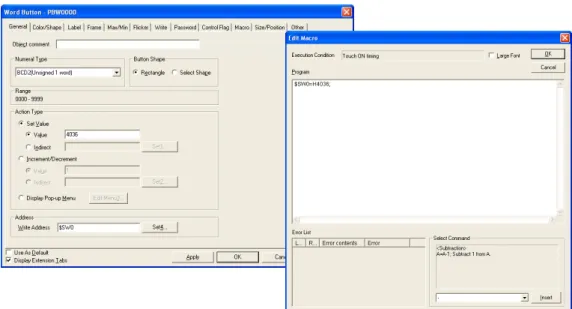
Use a macro, word button, or other object to set $SW0 to 4036 BCD (FC4 binary). (See Fig. 1 below.) Alternatively, press the Switch Screen Button and selectDisplay System Menu in the Multifunction Window, and then select Ladder Monitor in the Switch to field. (See Fig. 2 below.)
Fig. 1: When the Value Set for $SW0 Is Stored in BCD
Fig. 2: When A Multifunction Object Is Used
Operation on the PT Screen
1. Activate the object with setting 1 on the PT. 2. The Ladder Monitor will be started.
Note To set $SW0, use the data type (binary/BCD) set in the Initial Value for System
Memory. (Select PT – System Settings and then click the System Memory List Button on the Initial Tab Page in the CX-Designer).
• Starting from the Alarm/Event Summary and History
With NS-series PT system version 8.0 or higher, the Ladder Monitor can be started from the Alarm/Event Summary and History.
1. Turn ON the power to the PT and use one of the following methods after the PT enters RUN mode to display the System Menu.
• NS15
Press one of the four corners of the touch panel twice in a row.
• NS12/10/8
Press two of the four corners of the PT touch panel simultaneously. 2. Press the PT Settings Tab to display the PT Settings Tab Page.
3. For the NS8, NS10, and NS12, press the Left Arrow and Right Arrow Buttons to display page 3/3.
4. Set Start upLadder Monitor from Alarm/Event Summary & History to ON. • NS15
• NS12/10/8
5. Press the Write Button.
2. One of the following messages will be displayed depending on the Event/Alarm Summary and History setting.
• When Switching the Screen to the Page Specified in the Alarm/Event Registration Is Not Selected
• When Switching the Screen to the Page Specified in the Alarm/Event Registration Is Set
Click either the OK Button or the Start up Ladder Monitor Button, depending on the message.
3. The Ladder Monitor will start.
Note • Confirm system safety before turning the power ON/OFF or resetting the PT.
Otherwise, the system may operate unpredictably.
• When using the Ladder Monitor, CX-Programmer, or Programming Console while the Ladder Monitor is working, carefully check that the system is safe before performing the following actions.
- Changing monitored data - Changing the operating mode - Force setting/resetting bits
- Changing set values or present values
If unspecified persons may start the Ladder Monitor, use a password to prevent incorrect operation. Refer to 3-14 Using a Password for details on the password function.
Using I/O Comments
Use the following procedure to read I/O comments from the PLC. 1. Download the symbol table to the PLC in advance.
2. Press the Menu Button in the Ladder Monitor.
3. Select I/O Comment Reading from the menu. The I/O comments will be read from the PLC and displayed.
4. Press the I/O Cmt Button to switch the I/O comments display to three lines, one line, or not at all.
Note • To display an I/O comment file that was created using the I/O Comment Extracting
Tool, use the same project file as the source for the CXT file and as the source of the program transferred to the PLC for which the Ladder Monitor is to be used. If the source project file is not the same, I/O comments and addresses may not correspond correctly.
• To display an I/O comment file that was created using the I/O Comment Extracting Tool, the I/O comment file for the Ladder Monitor must be saved in the Memory Card (or, for version-2 NS-series PTs and NSJ Controllers, it must be saved in the PT in advance).
• If there is an I/O comment file with the same name in both the PT and the Memory Card when using a version-2 NS-series PT or NSJ Controller, the I/O comment file in the PT will be used.
• Do not register more than one symbol for the same address in the symbol tables. If two or more symbols with the same address are registered, an unintended I/O comment may be displayed for the address displayed by the Ladder Monitor (i.e., a different I/O comment for the same address).
Note • I/O comment data that has been read is saved in the PT. Once the data has been
read it does not have to be read from the PLC.
• I/O comment data that has been read is saved in the PT under the file names “G-host name.ioc” and “L-host name.ioc.” If there is already a file in the PT with the same file name, it will be overwritten.
• Use only alphanumeric characters (A to Z, a to z, and 0 to 9), underscores (_), and dollar signs ($) in host names. If any other characters are used in host names, you will not be able to read I/O comments from the PLC.
• In the following cases a message will be displayed to confirm whether I/O comments are to be read from the PLC when the Ladder Monitor is started. If Yes is selected, I/O comments will be read from the PLC.
• When I/O comments have not been read from the PLC (when there is no comment file in the PT or on the Memory Card)
• When the PLC symbol table has been changed
• I/O comments cannot be read from the PLC if the symbol table is not downloaded to the PLC. In that case, I/O comments created using the I/O Comment Extracting Tool can be displayed.
• The Ladder Monitor searches the PLC Memory Card, EM file memory, and comment memory in order, and reads the I/O comment data from the first symbol table that is found.
• If the PLC symbol table is cleared after the Ladder Monitor reads I/O comments from the PLC, the next time the Ladder Monitor is started, a message will be displayed to check whether the previously created I/O comment file is to be deleted.
Start the Ladder Monitor. Communications will start with the PLC and Ladder Monitor will start. The port through which to monitor must be selected in the following cases.
• To monitor the PLC connected to port B when PLCs are connected to both port A and B
• When the PLC to be monitored is not the one that was monitored the last time the Ladder Monitor was used
• When the PLC to be monitored is to be changed while using the Ladder Monitor Use the following procedure to select the PLC to monitor.
1. Press the Menu Button in the Ladder Monitor screen and select Change Hostfrom the menu.
2. Select either serial PortA or PortB as the Comms. Method from the Change Host dialog box and click the OK Button. If the Change Host Dialog Box is displayed, press the Connecting Button.
Ladder Monitor When Connecting PT to PLC through Ethernet or
Controller Link Port on PT
Connect the Ethernet or Controller Link port on the PT to the PLC and enable communications.
Start the Ladder Monitor and select the port using the following procedure.
1. Press the Menu Button on the Ladder Monitor screen and select Change Host from the menu.
2. Select Ethernet/CLK as the Comms. Method from the Change Host Dialog Box and click the OK Button.
3. Select the host name of the host connected via either the Ethernet or Controller Link port and click the OK Button. The main menu screen will return. If the Change Host Dialog Box is displayed, press the Connecting Button.
Using the Ladder Monitor for the Controller Section of an NSJ
Controller
Start the Ladder Monitor and set the host using the following procedure.
1. Press the Menu Button in the Ladder Monitor screen and select Change Host from the menu.
2. The Change Host Dialog Box will appear. Select Controller as the Comm. Method. 3. Select the host name of the Controller Section for the Host name and click the OK Button. The Main Screen will appear. If the Change Host Dialog Box is displayed, press the Connecting Button.
Note • The communications path that was being used for the Ladder Monitor will be saved
when the Ladder Monitor is exited. This communications path will be used by default the next time the Ladder Monitor is started.
• If the communications path that was last used for the Ladder Monitor is not saved when the Ladder Monitor is started, a search will be automatically made in the following order for PLCs to be monitored.
Serial A, Serial B, Ethernet, Controller Link, and Controller. (For Ethernet or Controller Link, monitoring will be performed for the first PLC registered in as a host. “Controller” is used only for an NSJ PLC.)
• If a PLC that can be monitored is not found when the Ladder Monitor is started or the host is being changed, the Change Host Dialog Box will appear. Select the Comms. Method to connect to the PLC.
2-2 Exiting Ladder Monitor
1. Press the Menu Button on the Main Screen.2. The Exit Ladder Monitor Dialog Box will appear. Press the OK Button.
3. The Ladder Monitor will be ended, the PT will return to RUN mode, and the screen that was displayed before the Ladder Monitor was started will appear.
Note: If the PT system version is 6.5 or lower, the PT will be reset and the initial screen will appear.
Note Confirm system safety before turning the power ON/OFF or resetting. Otherwise, the system may operate unpredictably.
Section 3
3-1 Main Screen
The following Main Screen will appear when the Ladder Monitor is started.
Ladder Display Area (I/O monitoring OFF) Ladder Display
Area (I/O monitoring ON)
Button Area
I/O Comment Detail Display Area Error Display Area Multiple I/O Monitor Area I/O Comment
I/O comment (5 characters per line)
Address Step No.
Mode Cursor
Display setting I/O comment (Displays 71 characters max. for
the NS15, 43 characters max. for the NS12, or 23 characters max. for the NS10/8. Touch an address once to display the details.)
Program name, task number, and the cyclic task currently being executed are displayed in green.
The Main Screen is configured of the areas described in the following sections.
3-1-1
Ladder Display Area
Ladder programs are displayed in the ladder display area. The numbers of rows and columns that can be displayed depend on the PT model, whether Multiple I/O Monitor is ON or OFF, and whether comments are displayed.
• When Multiple I/O Monitor Is OFF PT model I/O comments not
displayed
I/O comments displayed in 1 line
I/O comments displayed in 3 lines
NS15 22 rows, 21 columns 14 rows, 21 columns 8 rows, 21 columns NS12 17 rows, 16 columns 11 rows, 16 columns 6 rows, 16 columns NS10/8 13 rows, 13 columns 8 rows, 13 columns 5 rows, 13 columns
• When Multiple I/O Monitor is ON PT model I/O comments not
displayed
I/O comments displayed in 1 line
I/O comments displayed in 3 lines
NS15 19 rows, 21 columns 12 rows, 21 columns 7 rows, 21 columns NS12 13 rows, 16 columns 9 rows, 16 columns 5 rows, 16 columns NS10/8 10 rows, 13 columns 6 rows, 13 columns 4 rows, 13 columns
Comments can be displayed in one line or three lines. In either case, a maximum of five characters can be displayed per line.
Examples
Comment not displayed One line Three lines
Monitor, the Up Scroll Arrow and Down Scroll Arrow Buttons will be displayed in the Button Area. Pressing these buttons will scroll the program section up and down. • Instructions are displayed as shown below.
Examples
Input bits OUTPUT instructions Timers
0000.00 I/O comment *2 Address (operand) *3 Switch Address (operand) *3 0100.00 Lamp 1 I/O comment *2 0100 [TIM 0001#0100]
Timer No. Present value (See note.) Set value Set time Mnemonic I/O comment *2
Special instructions Data 1 001A 001A [MOV D00000 D00100] (Present value) *1 Address (operand) Data 2
Mnemonic I/O comments *2
Function code
(021)
*1: Present values are displayed only during I/O status monitoring.
*2: I/O comments can be displayed in one line, three lines, or not at all. A maximum of five characters can be displayed per line.
*3: If the address consists of more than 8 characters, the line will be wrapped. The entire address can be displayed by pressing the instruction display area in the ladder program section. Note I/O comments can be read from the PLC when the symbol table is saved in the PLC.
If the symbol table cannot be transferred to the PLC, the I/O Comment Extracting Tool can be used to extract I/O comment data from CX-Programmer CXT files. For details, refer to the I/O Comment Extracting Tool Operation Manual.
Note Up to 22 lines per program section (a group of instructions for which the bus bar is divided) can be displayed on the Ladder Monitor. Line 23 and onwards will not be displayed. They will also not be displayed if the number of lines exceeds 22 as a result of wrapping. A program section including 9 or more TR Bits will also not be displayed.
Note 1: Displaying Wrapped Rows
When displaying a program section including more the maximum number of columns (21 for the NS15, 16 for the NS12, or 13 for the NS10/8), the next row is automatically started using the element as shown below.
NS15: 21 columns (e.g., 21 input columns, 1 output column) NS12: 16 columns (e.g., 16 input columns, 1 output column) NS10/8: 13 columns (e.g., 13 input columns, 1 output column)
The row is automatically wrapped when the program section has more than the maximum number of columns that can be displayed.
section break (-[SECTION]) is displayed on the divided part in the middle of the program section as shown below.
0000.0 1 [SECTION] 0000. 08 0000. 06 0000. 05 0000. 04 0000. 03 0000. 00 0000.0 2 0000.07 SW3 SW2 SW1 SW4 SW5 SW6 SW7 SW8 SW9 Shows the split of the section. 0100.0 0 LAMP 0100.0 1 0000.1 0 0001.01 0000. 15 0000. 14 0000. 13 0000. 12 0000. 09 0000.1 1 0001.00 SW12 SW11 SW10 SW13 SW14 SW15 SW16 SW17 SW18 LAMP
Note 3: Displaying Block Programming Areas
When using block programming, “----[BPRG]” is displayed with the block number at the beginning of the block programming area. The mnemonics inside of the block programming area are not displayed. The programming can be displayed using ladder diagrams. However, if the program contains instruction that cannot be displayed in a ladder diagram, the message “This program section cannot be shown “ will appear. “---- [BEND]” is displayed at the end of block program.
0000.01 [BPRG] 0000.00 SW2 SW1 Indicates block programming area. [BEND]
Note 4: Displaying Rung Comments, Comment Boxes, and Rung Annotations
Rung comments, comment boxes, are rung annotations created on the CX-Programmer cannot be displayed.
Note 5: Displaying Function Blocks
3-1-2
Multiple I/O Monitor Area
The present values of the specified addresses (20 points maximum for the NS15, 16 points maximum for the NS12, or 12 points maximum for the NS10/8) are displayed in the Multiple I/O Monitor Area as shown below. Word present values can be displayed in hexadecimal, decimal, or signed decimal by pressing the Dec/Hex Button.
Example: Multiple I/O Monitor
3-1-3
I/O Comment Display Area and Error Display Area
When the address (operand) is touched in the ladder area, up to 71 characters of an I/O comment will be displayed in the I/O Comment Display Area for the NS15, up to 43 will be displayed for the NS12, or up to 23 will be displayed for the NS10/8.
If errors (non-fatal or fatal) occur in the connected PLC (CPU Unit), one error name will be displayed. If multiple errors occur, only the most serious error will be shown. (See note.)
In addition, if an error occurs when displaying I/O comments, the error display will take first priority.
Note: When multiple errors occur, press the Menu Button and select PLC Errors from the menu to display a current error list. Refer to Displaying Current Errors in the PLC (page 80) for details.
3-1-4 Button
Area
The following buttons are used for executing the functions of the Ladder Monitor.
Displays the previous program section.
Switches I/O comment displays in the ladder display area to 3 rows, 1 row, or no display.
Displays the next program section.
Switches present value displays for I/O status monitoring and multiple I/O monitoring to hexadecimal, decimal, or signed decimal.
Displays the following search items in a pop-up menu.
• Search address
• Jump
• Search Output Instr. Searches for the address currently indicated by the cursor.
Displays the following menu items.
• Monitor Hard Copy
• Remove the Memory Card
• Ladder Monitor Start/Stop
• I/O Comment Reading
• Change Host
• PLC Error
• Check Force Bits
• Mode Change
• Prog Console Start
• Various Settings
• Programming Console Setting
• Address Search Setting
• Search Timeout Watch Time Setting
• I/O Comment File Setting Re-reads program sections
that were previously searched. Can go back a maximum of 30 searches.
Exits the Ladder Monitor and returns to the user screens. (If the Ladder Monitor was started from the System Menu, the display will return to the user screen displayed prior to moving to the System Menu.)
Displays or hides the Multiple I/O Monitor. (20 addresses maximum can be displayed for the NS15, 16 maximum for the NS12, or 12 maximum for the NS10/8.)
Scrolls up one row if the program section that was found exceeds the screen display area. This button is displayed only when scrolling is required.
Used to change the present value or the set value for the address currently indicated by the cursor. A bit set/reset, force-set/ reset, force-cancel, word PV change, or timer/ counter SV change can be executed.
Scrolls down one row if the program section that was found exceeds the screen display area. This button is displayed only when scrolling is required.