3.3
Quest
®
Single Sign-On
FOR TOMCAT
This guide contains proprietary information protected by copyright. The software described in this guide is furnished under a software license or nondisclosure agreement. This software may be used or copied only in accordance with the terms of the applicable agreement. No part of this guide may be reproduced or transmitted in any form or by any means, electronic or mechanical, including photocopying and recording for any purpose other than the purchaser's personal use without the written permission of Quest Software, Inc.
If you have any questions regarding your potential use of this material, contact: Quest Software World Headquarters
LEGAL Dept. 5 Polaris Way
Aliso Viejo, CA 92656 USA
www.quest.com
email: [email protected]
Refer to our Web site for regional and international office information. TRADEMARKS
Quest, Quest Software, the Quest Software logo, Aelita, Benchmark Factory, Big Brother, DataFactory, DeployDirector, ERDisk, Fastlane, Final, Foglight, Funnel Web, I/Watch, Imceda, InLook, InTrust, IT Dad, JClass, JProbe, LeccoTech, LiveReorg, NBSpool, NetBase,
PerformaSure, PL/Vision, Quest Central, RAPS, SharePlex, Sitraka, SmartAlarm, Speed Change Manager, Speed Coefficient, Spotlight, SQL Firewall, SQL Impact, SQL LiteSpeed, SQL Navigator, SQLab, SQLab Tuner, SQLab Xpert, SQLGuardian, SQLProtector, SQL Watch, Stat, Stat!, Toad, T.O.A.D., Tag and Follow, Vintela, Virtual DBA, and XRT are trademarks and registered trademarks of Quest Software, Inc. in the United States of America and other countries. All other trademarks and registered trademarks used in this guide are property of their respective owners.
Disclaimer
The information in this document is provided in connection with Quest products. No license, express or implied, by estoppel or otherwise, to any intellectual property right is granted by this document or in connection with the sale of Quest products. EXCEPT AS SET FORTH IN QUEST'S TERMS AND CONDITIONS AS SPECIFIED IN THE LICENSE AGREEMENT FOR THIS PRODUCT, QUEST ASSUMES NO LIABILITY WHATSOEVER AND DISCLAIMS ANY EXPRESS, IMPLIED OR STATUTORY WARRANTY RELATING TO ITS PRODUCTS INCLUDING, BUT NOT LIMITED TO, THE IMPLIED WARRANTY OF MERCHANTABILITY, FITNESS FOR A PARTICULAR PURPOSE, OR NON-INFRINGEMENT. IN NO EVENT SHALL QUEST BE LIABLE FOR ANY DIRECT, INDIRECT, CONSEQUENTIAL, PUNITIVE, SPECIAL OR INCIDENTAL DAMAGES (INCLUDING, WITHOUT LIMITATION, DAMAGES FOR LOSS OF PROFITS, BUSINESS INTERRUPTION OR LOSS OF INFORMATION) ARISING OUT OF THE USE OR INABILITY TO USE THIS DOCUMENT, EVEN IF QUEST HAS BEEN ADVISED OF THE POSSIBILITY OF SUCH DAMAGES. Quest makes no representations or warranties with respect to the accuracy or completeness of the contents of this document and reserves the right to make changes to specifications and product
descriptions at any time without notice. Quest does not make any commitment to update the information contained in this document.
Quest® Single Sign-On 3.3 for Tomcat Reference Guide
C
ONTENTS
PREFACE. . . .VII WHO SHOULDREAD THISMANUAL? . . . VIII
CHAPTER 1 INTRODUCTIONTO SINGLE SIGN-ONFOR TOMCAT . . . . 1
OVERVIEW . . . 2
ABOUT KERBEROS . . . 3
ABOUT ACTIVE DIRECTORY . . . 5
ACTIVE DIRECTORY GROUPS . . . 6
Groups and the Logon Process . . . 8
Groups and Single Sign-On for Tomcat . . . 8
ACTIVE DIRECTORY SITES. . . 9
MAPPINGS AND OBJECTS . . . 9
Names and Mappings . . . 10
Active Directory Objects . . . 10
SINGLE SIGN-ONFOR TOMCATAND ACTIVE DIRECTORY . . . .11
SPNEGO AND INTERNET EXPLORER. . . .11
KERBEROS DELEGATION EXTENSIONS. . . .12
WHY DELEGATE? . . . .12
Delegation “trust” in Authentication . . . 13
DELEGATION OPTIONS. . . .13
UNCONSTRAINED DELEGATION . . . .14
CONSTRAINED DELEGATION (S4U2PROXY) . . . .14
PROTOCOL TRANSITION (S4U2SELF) . . . .15
HOW DOES SINGLE SIGN-ON FOR TOMCAT WORK? . . . .18
EXAMPLE DOMAIN. . . .19
CHAPTER 2 PREPARINGFOR SINGLE SIGN-ONFOR TOMCAT. . . .23
PRE-INSTALLATION OVERVIEW . . . .24
NETWORK INFRASTRUCTURE. . . .24
ACTIVE DIRECTORYENVIRONMENT. . . .24
DOMAIN NAME SERVICE (DNS) . . . .25
TIME SYNCHRONIZATION SERVICE. . . .26
CONFIGURING ACTIVE DIRECTORY . . . .26
Setup Using Active Directory Tools . . . 27
Setup with Authentication Services . . . 32
ENABLING DELEGATION . . . .35
Delegation Configuration in Different Systems . . . 35
SETTINGUP A JAVAAPPLICATIONSERVER HOST. . . .43
CREATING KEYTAB FILES . . . .43
SETTING UP A CLIENT MACHINE. . . .45
OPERATING SYSTEM . . . .45
BROWSERSAND AUTHENTICATION. . . .46
SETTINGUP INTERNET EXPLORERFOR SSO . . . .46
Windows Integrated Authentication . . . 46
NTLM Authentication . . . 47
SETTING UP FIREFOX FOR SSO . . . .47
CHAPTER 3 DEPLOYING SINGLE SIGN-ON FOR TOMCAT. . . .49
GETTING STARTEDWITH SINGLE SIGN-ON FOR TOMCAT . . . .50
USING ANT . . . .50
DEPLOYING TOMCAT . . . .50
OBTAINING ALICENSE FOR SINGLE SIGN-ONFOR TOMCAT. . .50
DEPLOYMENT. . . .51
JAAS CONFIGURATION. . . .51
JAAS Environment Setting . . . 51
Tomcat HTTP Header Size Limits . . . 52
CONFIGURINGTHE SINGLE SIGN-ONFOR TOMCAT EXAMPLES .52 Building the Examples. . . 54
DEPLOYING WEB COMPONENTS. . . .54
SETTING UP LOGGING . . . .55
CHAPTER 4 SINGLE SIGN-ONFOR TOMCAT FEDERATION AND ADFS57 FEATURESOF SINGLE SIGN-ONFOR TOMCAT FEDERATION . . . .58
PREREQUISITESFOR SINGLE SIGN-ON FOR TOMCAT FEDERATION .58 SINGLE SIGN-ONFOR TOMCAT FEDERATION INSTALLATION. . . .59
USING ANT . . . .59
DEPLOYING TOMCAT . . . .59
OBTAINING ALICENSE . . . .59
SINGLE SIGN-ONFOR TOMCAT FEDERATION DEPLOYMENT . . . .60
CONFIGURING SINGLE SIGN-ON FOR TOMCAT FEDERATION . . . . .60
CHAPTER 5 SECURITY ISSUES. . . .63
BASIC RECOMMENDATIONS . . . .64 DEPLOYMENT RISKS . . . .64 SERVICE UNAVAILABILITY . . . .64 TIME SYNCHRONIZATION . . . .65 REPLICATION INTERRUPTIONS. . . .65 RESOURCE SECURITY. . . .65
CLIENT ISSUES WITH SECURITY. . . .65
COOKIES. . . .65
CACHINGOF PASSWORDSFOR BASIC FALLBACK . . . .66
SPNEGO/WINDOWS AUTHENTICATION. . . .66
LIFETIMEOF AUTHENTICATION . . . .66
SESSION IDS . . . .67
ACTIVE DIRECTORY PERMISSIONS . . . .68
BASIC FALLBACK . . . .70
KEYTABSAND PASSWORDS . . . .71
AUTHORIZATION. . . .72
DO YOU NEED AUTHORIZATION? . . . .72
SECURING LDAP . . . .72
USINGTHE PRINCIPLEOF LEAST PRIVILEGE . . . .72
DENIALOF SERVICE . . . .73 BASIC FALLBACK . . . .73 SESSION STATE. . . .73 AUDITING . . . .74 NTLM AUTHENTICATION . . . .74 WHATIS NTLM? . . . .74 DIFFERENT VERSIONSOF NTLM . . . .75
NTLM AND INTERNET EXPLORER. . . .75
CHAPTER 6 MAINTENANCEAND TROUBLESHOOTING . . . .77
MAINTENANCE. . . .78
NEW USERS AND GROUPS. . . .78
ACCOUNT SETTINGS . . . .78
NETWORK TOPOLOGY CHANGES . . . .78
TROUBLESHOOTING. . . .79
GENERAL. . . .79
ACTIVE DIRECTORY. . . .80
BROWSERS. . . .80
Internet Explorer Browsers . . . 80
Non-Internet Explorer Browsers . . . 81
AUTHENTICATION. . . .82
KEYTABS . . . .84
NETWORK CONNECTIONS . . . .85
CREDENTIAL DELEGATION. . . .85
DEBUGGING . . . .86
APPENDIX A: CONFIGURATION PARAMETERS. . . .87
SINGLE SIGN-ONFOR TOMCAT CONFIGURATION PARAMETERS. . . .88
SYSTEM PROPERTIES. . . .95
APPENDIX B: USINGTHE JKTOOLS . . . .97
TOOL DETAILS. . . .98 JKINIT. . . .98 jkinit examples. . . 101 JKLIST. . . 102 jklist examples . . . 105 JKTUTIL. . . 107 jktutil example . . . 110
APPENDIX C: MANUAL DEPLOYMENT . . . 113
SINGLE SIGN-ONFOR TOMCAT. . . 114
FEDERATION. . . 114
Preface
As the use of distributed systems increases, users need to access resources that are remotely located. Traditionally, as a user of these remote resources, you have had to sign-on to each one of them in turn. Often, each resource you sign- on to requires a different username, password and authentication technique — as if you don’t already have enough passwords and identities to remember! The much more friendly alternative to these arrangements is a Single Sign-On (SSO) system. On the ideal system of this kind, you need only authenticate once, and then have your authenticated identity securely carried across the network to reach all the resources you need to access.
Two trends in system development have now come together to make this ideal feasible:
• the extending use of the Java Enterprise Edition, (Java EE) for development work; and
• the widespread availability of Microsoft’s Active Directory system for user authentication.
Java EE is a platform for developing Internet, intranet and extranet applications. It provides a standardized architecture that makes reuse possible. Many enterprises have deployed Java EE applications.
In addition, many enterprises are moving to support a standardized
authentication infrastructure. In particular, Microsoft's Active Directory provides an environment based on Kerberos and LDAP, supplying Identity Management services including SSO, a centralized store for identity information.
It makes a lot of sense to reuse this infrastructure where possible.
Unfortunately, however, Java EE alone does not provide tight integration with Kerberos, nor with the infrastructure provided by Microsoft’s Active Directory which is already deployed or being deployed in many organizations.
That is where Quest® Single Sign-On for Tomcat comes into the picture.
Single Sign-On for Tomcat fills the gap between development platform and operating system security. It provides SSO and access management for Java EE applications using Active Directory as their identity store.
It delivers an enterprise-wide method of identification and authorization that can be administered in a consistent and transparent manner.
It allows you access to information systems for which you are authorized — and only those systems.
Who should read this manual?
The Single Sign-On for Tomcat Reference Manual is intended for developers of Single Sign-On for Tomcat solutions for integrated SSO applications.
You should have a good knowledge of Java programming, and a sound understanding of how Active Directory works in your environment.
Introduction to Single
Sign-On for Tomcat
• Overview
• About Kerberos
• About Active Directory
• SPNEGO and Internet Explorer
• Kerberos Delegation Extensions
• How Does Single Sign-On for Tomcat Work?
• Example Domain
This chapter introduces the concepts involved in Single Sign-On for Tomcat and its associated protocols.
Overview
Single Sign-On for Tomcat provides a mechanism for integrating Java EE applications into a Single Sign-On infrastructure, based on Active Directory. Once deployed, it can be integrated with your application environment so that it sits between clients registered in your Active Directory system and the
Active-Directory-registered services they want to access.
Importantly, all of this occurs without your Java application code having to concern itself with the complex issues of access details and permissions. Single Sign-On for Tomcat becomes the mediator in the processes of handling web browser information requests directed at your Java application servers, and in the checking of user identity and access rights for these requests. This is possible even when the browser requests may require a complex series or a chain of server accesses — for example, when a web page on one server offers email despatch services directed to another server and, perhaps also requests information from a protected database on a third server.
Without a centralized Single Sign-On system, different applications may require a series of user/password exchanges before access is given. With Single Sign-On for Tomcat, the authorization process is conducted as part of the web browsing process: only one initial sign-on is needed, even where quite complex server requests are involved.
Single Sign-On for Tomcat allows Java EE applications to authenticate users using Kerberos. To do this, it supports the SPNEGO protocol with Internet Explorer and Firefox/Mozilla. And it can support “delegated” credentials to access other Kerberized services within an enterprise domain, as in cases of “chained” access requests.
Active Directory features such as groups and Active Directory sites are supported in a Single Sign-On for Tomcat-based system, and existing groups and sites can be integrated into it. By specifying which users belong to which Active Directory groups, and which Active Directory groups are allowed to access an application, you can apply granular management of access control for large numbers of users.
Single Sign-On for Tomcat uses Active Directory sites to support replication and failover.
By using the Single Sign-On for Tomcat solution you will be able to provide: • End-to-end authentication between users and backend services • Authorization of users by using Active Directory groups
• Integration of Java EE applications in an Active Directory/Kerberos-based SSO environment
• A cross-platform solution which supports most operating systems and Java application servers
as well as:
• Delegation of credentials to selected services (S4U2Proxy), and • Secure credentials for clients signing on from non-Kerberos
authentication processes (S4U2Self)
where these are supported by your Active Directory host (Windows Server 2003 and Windows Server 2008).
About Kerberos
Kerberos is the underlying network authentication protocol that Single Sign-On for Tomcat and Active Directory use to provide secure communications.
Kerberos is designed to provide authentication for client-server applications across insecure network connections, using strong secret-key cryptography. It allows entities communicating over networks to prove their identity to each other while preventing eavesdropping or replay attacks. Kerberos also provides checks for data stream integrity (detection of modification) and secrecy (preventing unauthorized reading) using cryptographic ciphers such as DES, RC4 and AES.
Kerberos works by providing “principals” (users or services) with tickets that they can use to identify themselves, and secret cryptographic keys for secure communication with other principals. A ticket is a sequence of a few hundred bytes. Each ticket can then be used to secure virtually any other network protocol, thereby allowing the processes implementing that protocol to be sure about the identity of the principals involved.
Kerberos provides for mutual authentication and secure communication between principals on an open network by manufacturing secret keys for any requester, then providing a mechanism for these secret keys to be safely propagated through the network.
Kerberos does not, strictly speaking, provide for authorization or accounting, although applications may use their secret keys to perform those functions securely. The Kerberos emphasis is on authentication and opening of
communication channels. Once a principal is authenticated, its details can be checked to see if it is authorized to access the resource requested.
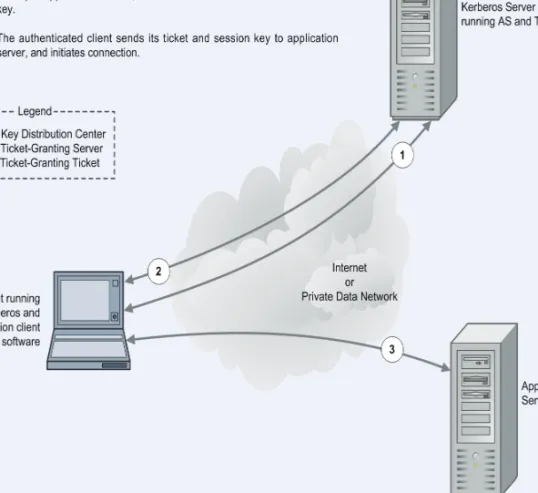
Figure 1 shows how the Kerberos protocol works.
A principal authenticates itself in Kerberos by using a principal name of the form principal-name@realm and a password. This is typically used to send an encrypted message to the Authentication Service (AS).
The Authentication Service can then authenticate the principal (in Windows, it can check its details in Active Directory) and send back a session key and Ticket Granting Ticket (TGT).
Figure 1: Kerberos Protocol
The TGT is like a certificate of identity which allows the principal to gain later access to one or more services. Once the user has supplied a password and obtained the TGT from the AS, authentication to any other service can proceed automatically without the user having to resupply the password. For this reason, Kerberos is sometimes called a Single Sign-On (SSO) service.
A ticket is a credential that enables a principal to gain access to a service. A principal obtains tickets from the Ticket Granting Service (TGS) using the TGT obtained from the AS as described above. The ticket is used to create an authenticator, which is then sent to the service being requested to authenticate the user.
The authenticator is used to establish a session key for secure communication. Optionally, the user can also request to authenticate the server. If this happens, the server uses information in the user's authenticator to send back a server authenticator, which the user can use to verify the server's authenticity. The Kerberos protocol has been widely analyzed and is supported by many vendors including Sun, Microsoft and Oracle.
About Active Directory
The Active Directory service is a core component of the Microsoft Windows operating system. It provides a directory service supporting the Lightweight Directory Access Protocol (LDAP), and has an integrated Kerberos key distribution center to authenticate users.
It allows organizations to share and manage information about network resources and users and provides an SSO environment that integrates with the standard Windows desktop login. In addition, it acts as a single point of management for Windows-based user accounts, clients, servers and applications.
The directory is arranged hierarchically, allowing the division of enterprise resources into different domains. Each resource (that is, user, application), is represented as an object with a number of attributes (for example, the organizational group to which the resource belongs).
The directory may be browsed hierarchically for resources, or each resource can be individually addressed by providing its Distinguished Name. The
Distinguished Name is simply a group of attributes that uniquely identify an object within the Active Directory hierarchy (for example, “Conjoin Doe, DC=example, DC=com”).
The directory also provides fine-grained security mechanisms to allow
administrators to determine exactly what information may be accessed. Users can be restricted to specific objects, or even specific attributes within the directory.
The main benefits of using Active Directory are that it simplifies the management of user accounts, and provides an SSO infrastructure to users. Its support for standard protocols such as LDAP and Kerberos means that it can be used as, or with, a cross-platform solution.
The Kerberos support in Active Directory has been tested to ensure interoperability with the MIT Kerberos implementation used by many UNIX vendors. However, it is worth noting some differences between the Microsoft and MIT implementations:
• Support for Privilege Attribute Certificates (PACs)
Microsoft's Kerberos implementation uses the AuthorizationData field of the Kerberos ticket to pass Privilege Attribute Certificates (PACs) to Kerberized applications. Applications that support Microsoft's PAC format can use this information to provide fine-grained access control to services.
• Integration with LDAP
Active Directory's Kerberos features are tightly integrated with its LDAP server. This means that user information, such as groups, can be retrieved using standard tools and APIs.
• Windows Native Credential Cache
Unlike the MIT implementation, the Windows Kerberos implementation uses an in-memory credential cache to store Kerberos tickets and TGTs (the MIT implementation uses a disk file). The implementation is stored in non-paged memory so it is never written to disk. Microsoft provides routines to obtain credentials from this cache through their Local Security Authority API (LSA API).
• Smartcard / PKI Support
Microsoft supports a version of the PKINIT protocol which allows the initial authentication to the directory to be performed using a private key or smartcard.
Active Directory Groups
In large organizations, managing the authorization permissions of hundreds or even thousands of users creates a significant problem. One way that Active Directory addresses this issue is through the use of groups. These groups pro-vide a way to classify users according to their roles or activities, and can be used as the basis for authorization permissions.
Group Types
Active Directory defines two types of groups: security groups and distribution groups. Distribution groups are mainly used for activities such as sending bulk email, and do not allow permissions and audit settings to be associated with them. Security groups on the other hand are primarily designed for authoriza-tion, so are most interesting for Single Sign-On for Tomcat. Microsoft Windows does not use distribution groups internally, although they are available for use by other directory-enabled applications.
Group Scopes
Each group has a scope which describes both its visibility to other users and applications throughout the enterprise, and the types of principals that can be included in the group. The three group scopes are listed below:
• Domain Local — visible only within a domain, and to sub-domains. Domain local groups can include any other type of group, but cannot be included in any of the other groups. Commonly, Domain local groups are used to define the groups and users allowed to access a given local resource.
• Global — visible throughout the enterprise, but can only include other users and groups within the same domain (or a parent domain). Global groups should be used to divide users within a domain into categories according to their roles or job functions.
Universal — visible throughout the entire enterprise. Universal groups may include both other Universal groups, and global groups from any domain in the enterprise. For reasons described below, Universal groups are expensive to use, so try to limit the number of these groups. You should use a Universal group wherever it is necessary to create a group that spans one or more domains.
Active Directory allows nested groups (groups that contain other groups), which can be nested to arbitrary levels. This is convenient, as it provides a way to hierarchically manage users. For example you can have a group for each type of manager in a department, and then create a group called Managers that includes all of these sub-groups.
If you are using Active Directory in mixed mode (that is, with both Active Directory and Windows NT domains) the rules for scoping are more restrictive, and you cannot use Universal groups. See your Active Directory documentation for more details.
Groups and the Logon Process
When a Microsoft Windows user logs on to an Active Directory domain, Active Directory builds a token called a Privilege Attribute Certificate (PAC). The PAC contains the list of all the groups the user is a member of, and that are visible in the login domain. This list is a “transitive closure”, meaning it includes any groups which the user is a member of due to nesting of other groups. For example, supposing we have the following global groups which contain the users “Alice” and “Bob”:
• Group1: contains Alice, Bob
• Group2: contains Group1
• Group3: contains Group2
Then the PAC for Alice will contain Group1, Group2 and Group3.
Computing this group membership can take some time and Active Directory may have to query several LDAP servers to determine membership. In addition, Universal groups require a full search of the global catalog, which stores information about every Active Directory object. For this reason, the number of Universal groups should be limited to ensure that logon times do not become too long.
The PAC exists for the lifetime of the initial TGT obtained at logon time (typically 10 hours). For this reason, if a user is added to a new group, the user must log off and then log back on for this group to be used.
Groups and Single Sign-On for Tomcat
When a user accesses an application protected with Single Sign-On for Tomcat, Internet Explorer contacts Active Directory to obtain a service ticket for the server which it needs to contact, or retrieves it from the cache if it is available there.
This service ticket contains a PAC containing all the Universal and Global groups from the user's existing PAC, plus any Domain Local groups defined in the server’s domain.
Single Sign-On for Tomcat can then use the groups defined in the PAC to authorize access to a particular resource. Because the group membership is securely authenticated in the PAC, Single Sign-On for Tomcat can trust this information.
Using the PAC also saves time associated with the LDAP lookups needed to recursively resolve group membership, resulting in a more scalable solution.
Active Directory Sites
Sites represent the physical topology of your Active Directory infrastructure based on sub-nets of TCP/IP addresses. They allow for replication, redundancy and load balancing across your Active Directory deployment.
By defining sites in Active Directory, you effectively tell it what your underlying physical network looks like. This allows domain controllers to utilize the underlying network in the most efficient manner possible. It allows Active Directory to conserve bandwidth that is required for other applications within your organization.
However, sites are not related to the structure of the domain, nor do they have to maintain the same namespace — a site may span multiple domains and, conversely, a domain may span multiple sites. While no formal relationship exists between a site and a domain, a site may be given the same boundaries as a domain.
To ensure rapid and reliable network communication, Active Directory offers methods of regulating inter-sub-net, or inter-site, traffic.
The Active Directory physical structure governs when and how replication takes place. As users log on to the network, they are able to reach the closest domain controller site through the previous assignment of sub-net information. The system administrator uses the Active Directory Sites and Services snap-in to manage the topology of replication services.
Single Sign-On for Tomcat supports replication and failover using Active Directory sites.
Mappings and Objects
Single Sign-On for Tomcat makes use of a number of Active Directory constructs and objects in its Kerberos-related operations.
These involve:
• Objects representing users, groups, organizations, computers, resources and services as registered in Active Directory account records
• Mappings or unique name references to these objects, including properties held in the accounts themselves.
Names and Mappings
User Principal Names and Service Principal Names are recorded in Active Directory and can be used as a way of referring to a client or a service within Kerberos. Active Directory can find full user account details for a UPN or SPN by searching its records for the account that has that name property listed as one of its object attributes.
User Principal Names (UPNs)
A UPN provides a name of a user and is used as the Kerberos client principal name. It consists of an RFC822 or Email-style name and domain, separated by an '@' symbol (thus, [email protected]).
The UPN must be unique throughout the Active Directory forest.
The UPN is the name that appears in the Kerberos Ticket Granting Ticket (TGT) returned by Active Directory for a client.
Service Principal Names (SPNs)
Most often, an SPN is of the form: <service type>/<host>. For example: HTTP/appservhost1.example.com
The SPN is used when requesting a Kerberos ticket for a particular service. The client browser uses the hostname from the request URL to construct this SPN value. This SPN value is used to request a service ticket from Active Directory. You will typically need to map an SPN to an Active Directory account using the setspn tool.
Active Directory Objects
SPNs may be mapped to two different types of objects in Active Directory:
• Computer Objects and
• User Objects
Computer Objects refer to computers which have been joined to a given Active Directory domain (for example, a Microsoft Windows machine joined using the Network Identification Wizard, or a UNIX machine joined using Quest
Authentication Services).
When the Computer Object is created, a corresponding SPN in the form
HOST/<machine_name> is mapped to that computer object. It is also possible to
An Active Directory User Object may refer to an actual physical person, or a Service Account which is an object created for the purposes of running a particular service. In the latter case, you would map the SPN to the service account using the setspn tool.
One service account of this kind is in an account set up for Single Sign-On for Tomcat.
Single Sign-On for Tomcat and Active
Directory
Single Sign-On for Tomcat has been specifically designed to work optimally with Microsoft's Active Directory. It will use the default configuration to discover the services, hosts and port numbers necessary to integrate with Active Directory. To fine-tune your deployment you can configure Single Sign-On for Tomcat to use Active Directory configuration for items such as sites and services, domain controller servers, etc.
SPNEGO and Internet Explorer
In addition to support for Kerberos through its Active Directory service, Microsoft has also provided extensions to Internet Explorer that allow it to participate in a Kerberos-based SSO environment. When a Web server receives a request from an Internet Explorer browser, it can request that the browser use the SPNEGO protocol to authenticate itself. SPNEGO in effect is a way of negotiating what protocol is appropriate for Internet Explorer (and now, other browsers) to use to establish initial credentials with a server running a Kerberos-based service. SPNEGO performs a Kerberos authentication which is tunneled over HTTP, allowing the browser application to pass a delegated credential (acting for the Windows user running the IE instance) so that a Web application can log in to subsequent Kerberized services on the user's behalf.
When an HTTP server wants to perform SPNEGO, it returns a “401 Unauthorized” response to the HTTP request with the “WWW-Authenticate: Negotiate” header. Internet Explorer then contacts the Ticket Granting Service (TGS) to obtain a service ticket. It chooses a special Service Principal Name for the ticket request, which is:
The returned ticket is then used to construct an SPNEGO token which is encoded and sent back to the server in the HTTP headers. The token is unwrapped and the ticket is authenticated. If mutual authentication is required, the Web server can return an additional SPNEGO token for the client to verify. Once
authenticated, the page corresponding to the requested URL is returned. SPNEGO provides a useful mechanism for extending an SSO environment to Web applications. It is already supported in Microsoft IIS for authentication to ASP or Web pages. In addition, the ability to delegate credentials means that a Web application can log in to further services transparently on the user's behalf, providing full end-to-end authentication. Lastly, SPNEGO and HTTP can be used for authentication with Microsoft .NET SOAP clients, and the HTTP Negotiate extension of SPNEGO is supported in browsers such as Mozilla and Firefox.
Kerberos Delegation Extensions
Changes in Windows Server 2003 introduced extended features for the use of delegated credentials in Active Directory operations. These extensions, referred to as S4U2Proxy and S4U2Self, are also included in Windows Server 2008. They apply only if the Windows Server 2003 domain functional level or the Windows Server 2008 domain functional level is applied to Active Directory and are supported in Single Sign-On for Tomcat.Why Delegate?
When a user requests information in a web page from a browser, more than one application or server may be involved. It may not be possible for the first server receiving the request to provide all details for the page requested. That first server, for example, may have to seek some information from a database on a second server.
Any dependency pattern of this kind then has implications for the process of Kerberos authentication. A Kerberos requirement is that at each stage of the requesting process, the parties involved have to be able to authenticate with each other. In practical terms, without use of a “shortcut” such as delegation, this could be very difficult to achieve.
For example, the original client may have no knowledge at all of any secondary stages in the request process: it just knows that it is supposed to get information from the first server it approaches, and relies on a single request (for example, for a web page).
Theoretically, one approach might be for the client to have to directly and separately authenticate with every information source: but that approach is clearly impractical and may be impossible.
Delegation “trust” in Authentication
In order to deal with the problems involved when multiple points of authentication of this kind may be needed, Active Directory allows you to establish a form of trust between clients and services. What this means is that a client may be prepared to permit one or more services to act on its behalf to establish authentication. There are configuration options on each account which handle permissions of this kind, and which can allow for a form of “delegated identity”.
A client can specify that other services can act on its behalf, as its “delegate” in establishing authentication. It may do this in a general sense with a setting saying the client’s identity may be delegated -- that is, generally, other services may “impersonate” it for authentication purposes. This is known as
“unconstrained” delegation.
In some circumstances, however, the client can set more refined limits on delegation, and can specify a list of those services that it allows to act on its behalf in the course of authentication processes, thereby establishing that those not specified are not given such permission.
Delegation Options
The limits that can be configured for delegation now involve two or three basic configuration options, varying with the domain functional level:
For Windows 2000 Server, Windows Server 2003 and Windows Server 2008 domain functional levels:
• Delegation disallowed — a Kerberos service is not to be trusted for delegation at all
• Delegation allowed for all services — use the Unconstrained option for Kerberos using a TGT
and, for Windows Server 2003 and Windows Server 2008 domain functional levels:
• Delegation only allowed for a limited set of services — delegation to specified services only (the Constrained option), with sub-options for either using Kerberos only, or allowing any authentication protocol (the Protocol transition option).
For the last of these, further configuration permits a selection of Service Principal Names (SPNs) for the services for which delegation is allowed.
Unconstrained Delegation
In this form of delegation, known as Unconstrained delegation, a client which has established its identity can transmit that identity to other entities, asking them to act on its behalf in the authentication process.
As far as the Active Directory domain controller is concerned, each server which has received such a delegation from a client is assumed to be the client, because it can present the client’s Ticket Granting Ticket, or TGT. At the authentication level, the server is indistinguishable from the client itself.
Unconstrained delegation of this kind can imply multiple security risks and the possibility of unlimited “spoofing” of the client if a server which acts as a delegate and holds a TGT falls vulnerable to a security attack.
Kerberos Delegation extensions introduced with Windows Server 2003 and included in Windows Server 2008 now make it feasible to avoid these risks, by choosing the appropriate domain functional level and Single Sign-On for Tomcat supports the new “Constrained” form of delegation as an additional option, known as the S4U2Proxy extension.
Constrained Delegation (S4U2Proxy)
In versions of Active Directory that support constrained delegation, delegation can be refined so that it works through the use of a series of “service tickets” instead of the transmission of the user's TGT. Using these tickets, it permits delegation of the client’s identity directed to one or more servers, but only to those specifically selected by configuration as being permitted to be
authentication delegates.
In constrained delegation, the client does not send the TGT, it simply sends the service ticket. The server can then present this service ticket, along with the server's own TGT, to Active Directory in order to request a service ticket using constrained delegation to another service. Active Directory will only grservice tickets from the server to a specific list of services that have been previously configured.
Constrained delegation may be repeated through multiple tiers. For each tier, a domain controller is responsible for issuing a new service ticket and checking whether the authenticated server is permitted to perform constrained delegation to the next server.
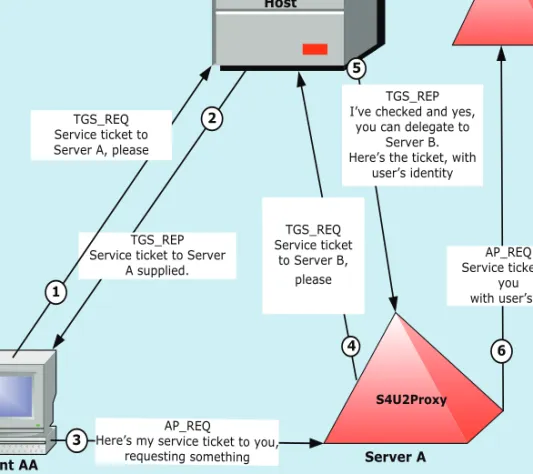
Figure 2 is a simplified summary of the sequence of events involved in the Constrained delegation (S4U2Proxy) processes.
Figure 2: Constrained Delegation with S4U2Proxy
Protocol Transition (S4U2Self)
Clients that need access to Active Directory services can include external clients, which for a variety of reasons do not have immediate access to facilities for a full exchange of credentials under Kerberos. Some clients may use alternative authentication methods by choice or design (for example, certificate-based or HTTP digest authentication, NTLM Authentication, or Federation (see Single Sign-On for Tomcat Federation and ADFS)). Some external clients may operate through a firewall, where Kerberos operations are generally considered
inappropriate, but where the client is still required to authenticate, and there is a need for Single Sign-On access to internal services. Such external clients might
Client AA Active Directory Host S4U2Proxy Server B 6 AP_REQ Service ticket to you with user’s id 4 TGS_REQ Service ticket to Server B, please 2 TGS_REP Service ticket to Server
A supplied. 1 TGS_REQ Service ticket to Server A, please 5 TGS_REP I’ve checked and yes,
you can delegate to Server B. Here’s the ticket, with
user’s identity
AP_REQ
Here’s my service ticket to you, requesting something 3
Server A S4U2Proxy
be able to be granted access via Active Directory's Kerberos environment if the internal server were to be passed the client's full logon details or its TGT. However, this is not a preferred approach, and on a strict application of security principles, might be seen as serious breach of the trust rules for a secure system. For Windows Server 2003 and Windows Server 2008 domain function levels, above there is a solution for this: the “protocol transition” (S4U2Self) extension. This allows the server itself to collect sufficient information about the client to establish a logon token which clears it for access without the need for a user password.
Under this arrangement, the server, rather than the client, requests a Kerberos ticket for itself, on behalf of the “otherwise-authenticated” client.
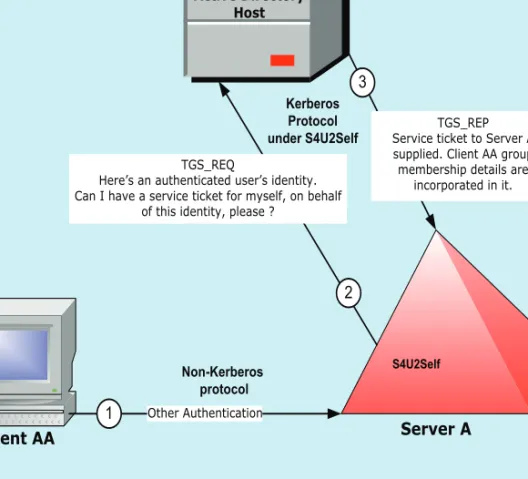
Figure 3 illustrates the event sequence involved (in simplified terms).
Figure 3: Protocol transition and S4U2Self
The ticket returned to the server is a service ticket for the server concerned, but it contains the user's authorization data, and it is of a form capable of being used for the S4U2Proxy extension — that is, a ticket to be used for delegated credentialing on other servers.
Single Sign-On for Tomcat now provides support for S4U2Self as well as S4U2Proxy, and for the use of both extensions in conjunction with each other.
Client AA Kerberos Protocol under S4U2Self Active Directory Host 3 TGS_REP Service ticket to Server A supplied. Client AA group
membership details are incorporated in it.
Server A S4U2Self
2 TGS_REQ
Here’s an authenticated user’s identity. Can I have a service ticket for myself, on behalf
of this identity, please ?
Other Authentication 1
Non-Kerberos protocol
How Does Single Sign-On for
Tomcat Work?
Single Sign-On for Tomcat provides Windows Integrated Authentication support (SPNEGO and NTLM) for Java web applications by using Tomcat Valves and Tomcat Login Modules to integrate with Tomcat application server.
On startup:
A Tomcat Valve examines the vsj.properties file to determine the default realm, service principal name (SPN), password or keytab, etc. and then calls
initAuthenticator, which gets a server Ticket-Granting Ticket (TGT).
For each request:
If the request is not yet authenticated:
Single Sign-On for Tomcat performs the appropriate authentication for the mechanism specified (that is, in the 'Authorization' header of the request). It may attempt, in preferred order:
• SPNEGO:
The mechanism name given for this is “Negotiate”, and the mechanism token is a SPNEGO token.
SPNEGO handshake occurs; the SPNEGO token in the request is processed, and SPNEGO tokens may be returned to the browser in the “WWW-Authenticate” field of the response.
Eventually, if authentication succeeds, credentials are obtained. The session state is updated with the obtained credentials and other user information.
• NTLM (if configured):
The mechanism name is “NTLM” or “NEGOTIATE”, and its mechanism token is an NTLM token. (See What is NTLM?)
An NTLM handshake occurs, with messages exchanged between the client and server. These include negotiate, challenge and authenticate packets.
Once authentication occurs, a credential is obtained and stored in the session state for future authentication requests.
The mechanism name here is “Basic”, and its mechanism token consists of a base64-encoded username and password.
It works by converting username and password to a Kerberos principal and Kerberos password, requesting a TGT from the Active Directory domain controller’s in-built key distribution service. It also requests a service ticket from the same source.
It stores credentials in the session state data for future authentication requests.
The Valve passes the Authenticated User details to a Tomcat LoginModule that will create a JAAS Subject during the login process using the information provided.
Example Domain
Single Sign-On for Tomcat supports complex Active Directory environments with multiple domains including both cross-realm and cross-forest scenarios. However, the examples in this manual illustrate a single Active Directory domain called EXAMPLE.COM, whose DNS domain is example.com.
The example application servers in this domain have the hostnames
appservhost1 (with fully qualified domain name appservhost1.example.com), appservhost2, etc.
Given this:
• as a convention we will use vsj_appservhost1 as the name of the
service account for Single Sign-On for Tomcat running on the host
appservhost1
• HTTP/appservhost1.example.com is an SPN for appservhost1
• Single Sign-On for Tomcat's idm.principalAtRealm configuration
parameter should be set to the value
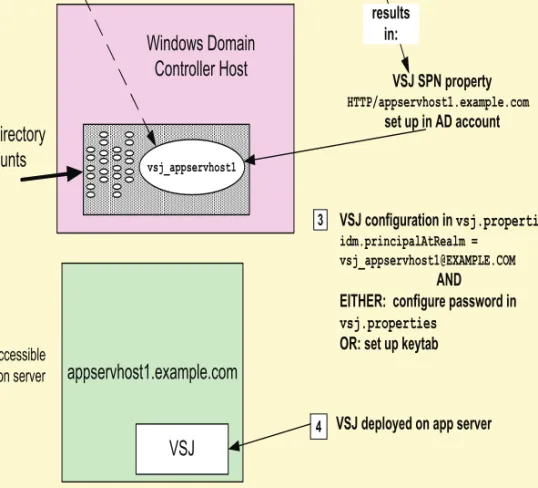
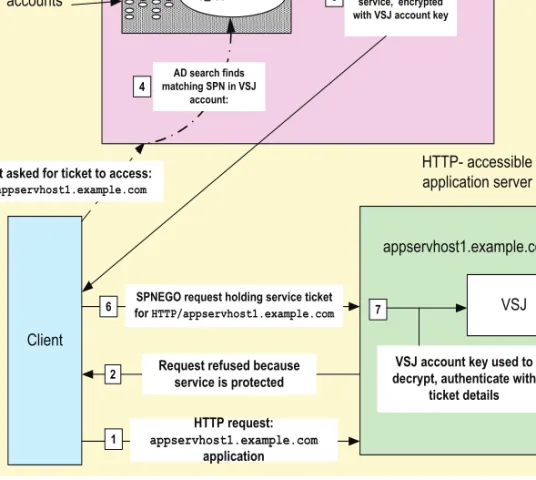
Figure 5 illustrates a simplified version of the initial process involved when a client requests a URL from a service under Single Sign-On for Tomcat, showing the use of naming conventions outlined above.
Figure 4: Overview: Active Directory and Single Sign-On for Tomcat configuration and terminology
Active Directory
accounts
Windows Domain
Controller Host
appservhost1.example.com
HTTP- accessible application serversetspn -A HTTP/appservhost1.example.com vsj_appservhost1
SPN Commands: VSJ SPN property HTTP/appservhost1.example.com set up in AD account vsj_appservhost1 results in: Active Directory – Create new
User (VSJ service account)
1
2
VSJ
4 VSJ deployed on app server
3 VSJ configuration in vsj.properties:
idm.principalAtRealm = [email protected]
AND EITHER: configure password in
vsj.properties
Figure 5: Access to a URL via Single Sign-On for Tomcat (simplified)
Client
Request refused because service is protected
HTTP request:
appservhost1.example.com
application AD host asked for ticket to access:
HTTP/appservhost1.example.com Active Directory accounts HTTP- accessible application server VSJ Windows Domain Controller Host vsj_appservhost1 AD search finds matching SPN in VSJ account: 1 2 3 4
AD host creates and sends back ticket for service, encrypted with VSJ account key
6 SPNEGO request holding service ticket
for HTTP/appservhost1.example.com 7
VSJ account key used to decrypt, authenticate with
ticket details
appservhost1.example.com
Preparing for Single
Sign-On for Tomcat
• Pre-Installation Overview
• Network infrastructure
• Configuring Active Directory
• Setting up a Java application server host
• Setting Up a Client Machine
This chapter discusses the environment needed for a Single Sign-On for Tomcat deployment. It includes requirements relating to setup of Active Directory, Java application server hosts and client machines.
Pre-Installation Overview
Before you install Single Sign-On for Tomcat successfully there are a number of conditions that must be met. You will need:
• A network architecture which:
• provides host and client machines suitable for Active Directory operations (see Active Directory environment).
• includes a Domain Name Service (see Domain Name Service
(DNS) ), and
• provides reliable time synchronization throughout (Time Synchronization Service).
• Installation and configuration of Active Directory on your Windows servers (Configuring Active Directory), including Setting up the Service Account. If you opt to allow delegation, you should also refer to the section on Enabling Delegation.
• A Java application server supported by Single Sign-On for Tomcat (see the Release Notes and application-specific documentation), and relevant port access on any firewall between the application server and the Active Directory machine. For production systems, creation of a keytab file on your application server (Creating Keytab Files) is a recommended option.
• At least one working client capable of supporting SPNEGO or NTLM authentication (see Setting Up a Client Machine). This may involve installation of a supported web browser (see the Release Notes), and its configuration for SPNEGO or NTLM authentication (see Browsers and Authentication).
Network infrastructure
Active Directory environment
In order to work with Single Sign-On for Tomcat you will need:
• An Active Directory domain.
• See the release notes (HTML) for a comprehensive list of application servers and versions supported.
• A client machine joined to the Active Directory domain and with a supported web browser installed.
All machines must have access to a Domain Name Service and a Time Synchronization Service, as outlined in detail below.
Note that:
• The client should be a different host than the application server host; if they are the same, Internet Explorer will perform NTLM instead of SPNEGO.
• As general rule, you should not run Single Sign-On for Tomcat on the same host as Microsoft IIS because it is difficult to configure SPNEGO to work to both of them.
Domain Name Service (DNS)
Single Sign-On for Tomcat uses DNS lookups to retrieve import information about Active Directory domains and hosts, for example: a DNS SRV query for
“_ldap._tcp.EXAMPLE.COM” to find all the domain controllers for the EXAMPLE.COM domain.
If you are running Single Sign-On for Tomcat on a Windows machine joined to Active Directory, or on UNIX or Linux with Quest Authentication Services, DNS should already be configured correctly.
Otherwise, check whether the DNS server that the machine is using supports SRV resource records such as:
• For locating the domain controller(s) for a given domain (EXAMPLE.COM): _ldap._tcp.EXAMPLE.COM
• For locating the domain controller(s) for a given domain (EXAMPLE.COM) in a given Active Directory Site (Brisbane): _ldap._tcp.Brisbane._sites.EXAMPLE.COM
• For locating the global catalog(s) for a given domain (EXAMPLE.COM): _ldap._tcp.gc._msdcs.EXAMPLE.COM
• For locating the global catalog(s) for a given domain (EXAMPLE.COM) in a given Active Directory Site (Brisbane):
_ldap._tcp.Brisbane._sites.gc._msdcs.EXAMPLE.COM
Note: If Single Sign-On for Tomcat is unable to locate the DNS servers automatically, use the jcsi.kerberos.nameservers system property to
explicitly specify one or more of the DNS servers that Single Sign-On for Tomcat should use. See Appendix A: Configuration Parameters for more information.
Time Synchronization Service
The Kerberos protocol requires that the system clocks on all machines — Active Directory domain controllers, clients, and Single Sign-On for Tomcat-enabled application servers — be within the allowable Active Directory Kerberos clock skew (5 minutes by default).
Time synchronization may be provided automatically if Single Sign-On for Tomcat is running either:
• on a Windows machine joined to Active Directory, or
• on a UNIX or Linux machine running Quest Authentication Services Otherwise, application server clocks will need to be kept within the allowable clock skew (for example, 5 minutes) of the Active Directory domain controller. Note: Clock drift can be particularly severe for hosts running in virtual machines.
Configuring Active Directory
Before you deploy Single Sign-On for Tomcat, you will need to have access to an Administrator account on Active Directory to establish the required Single Sign-On for Tomcat-specific configuration.
Setting up the Service Account
In order for Single Sign-On for Tomcat to authenticate clients, Single Sign-On for Tomcat must be represented as an object in Active Directory. There are two ways to create this object:
• If you are running Single Sign-On for Tomcat on a UNIX or Linux machine that also has Quest Authentication Services installed, you have the option of using Authentication Services to help with the setup process for Single Sign-On for Tomcat. This alternative setup method is outlined in the Setup with Authentication Services section. • Otherwise, setup involves configuration using the Active Directory
Users and Computers interface and the use of Active Directory’s setspn tool on your Active Directory domain controller.
The following sections describe the steps for setting up the service account in Active Directory.
Setup Using Active Directory Tools
Creating a Service AccountTo create an Active Directory account for Single Sign-On for Tomcat
1. Log onto a domain controller for the Active Directory domain. 2. Click the Start menu, navigate to Programs | Administrative
Tools.
3. Click Active Directory Users and Computers.
4. Click the Users folder to display a list of users, on the Action menu, point to New, and then click User.
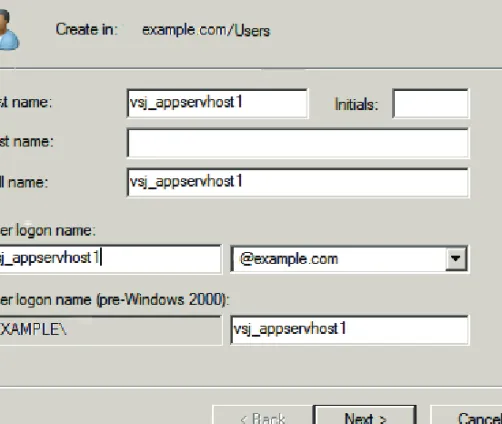
This opens the New Object-User window.
Figure 1: New Object-User window (Windows Server 2008 example)
6. The user name should consist of standard alphanumeric characters and no whitespace, as it needs to be entered in a command prompt later.
7. On the next screen, enter a password for the service. Ensure that User must change password at next logon is not selected, and Password Never Expiresis selected. Click Next, and then Finish. 8. Right-click the user you just entered in the User folder list, and then
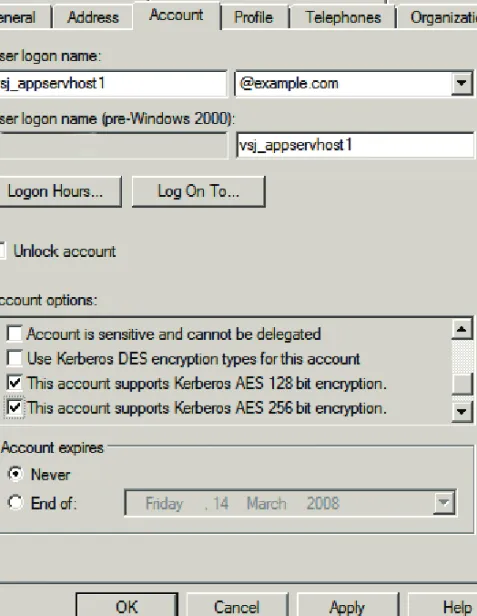
click Properties. A dialog box displays. 9. Select the Account tab.
10. In the Account options area, scroll down to review the available encryption options for Kerberos operations. (See notes on options available below).
11. When option choices are finalized here, click OK.
Kerberos Encryption Types for Active Directory
The default Kerberos encryption type used by Active Directory is RC4.
Single DES (56 bit) encryption is available for compatibility with other Kerberos implementations, but not recommended as the preferred method.
If the Domain Controller you are configuring is running at the Windows Server 2008 domain functional level, the newer and stronger AES 256 bit and AES 128 bit Kerberos encryption types are available, and appear in your configuration panel. The Kerberos AES encryption types are not available in Windows 2000 Server and Windows Server 2003 environments.
When more than one Kerberos encryption is configured for your system, the strongest form is generally preferred. So turning on Kerberos AES 256 encryption will make it the type of choice.
In general, the recommended order of suitability and strength of Kerberos encryption types for Single Sign-On for Tomcat is:
1. AES 256
2. AES 128
3. RC4
4. DES
Setting Service Principal Name (SPN) Mappings
For a client (for example, Internet Explorer) to be able to authenticate to Single Sign-On for Tomcat, it needs to locate the service account for Single Sign-On for Tomcat that has been configured in Creating a Service Account. A browser for example, does this by looking up a Service Principal Name (SPN) in a form like
HTTP/appservhost1.example.com. In order for that to succeed, you must map
the SPN to the service account. This action is taken on your domain controller.
To create a mapping between the service account and an SPN
1. Obtain the setspn utility and ensure it is available on the command PATH.
For Windows 2000, this tool is available from a separate download from Microsoft with the Windows 2000 resource Kit.
For Windows Server 2003, it is included in the installation CD under browse to the /Support/Tools/ directory on the installation CD and run the SUPTOOLS.MSI installation file, which sets up setspn on the PATH. It is installed on the command PATH by default with Windows Server 2008.
For more information on the availability and installation of this utility, check the Microsoft site at http://support.microsoft.com.
2. Launch a command prompt on your domain controller. Run setspn with arguments based on the following format:
setspn -A HTTP/appservhost1.example.com vsj_appservhost1 setspn -A HTTP/appservhost1 vsj_appservhost1
where:
• appservhost1.example.com is the fully-qualified hostname of
the application server where Single Sign-On for Tomcat is to be installed.
• appservhost1 is the unqualified hostname (short name) of the
server where Single Sign-On for Tomcat is to be installed. • vsj_appservhost1 is the name of the user account you have
previously created for Single Sign-On for Tomcat.
Note: The “setspn -A” command does not check existing mappings before
creating a new one, and may silently create duplicates. An error message in the form “Server not found in Kerberos database” may then appear if you
attempt to access a duplicated mapping, as though the specified SPN doesn’t exist. You will need to eliminate duplicated entries before a mapping will work. If running a Windows Server 2008 domain, you can substitute commands in the form “setspn -S” or “setspn -F -S” for “setspn -A”.
“setspn -S” checks for duplicate SPN mappings within the current domain
before adding a new mapping. “setspn -F -S” checks over the entire forest. SPN Mapping and DNS Aliases
If you use multiple hostnames to refer to the Java application server (for example, if you use name-based virtual hosting), you should use setspn to create an SPN mapping for each hostname involved.
For example, assume that:
• you have an application server on appservhost1.example.com, and
• that application server also has a DNS alias,
appservhost1alias.example.com.
For each of those hostnames, you should map both its fully qualified domain name and its unqualified hostname (short name). If you have a DNS canonical name and one or more DNS aliases, you should set up SPN mappings both for the alias(es) and for the canonical name.
Thus, for the vsj_appservhost1 account, you should map the following SPNs: HTTP/appservhost1.example.com
HTTP/appservhost1
HTTP/appservhost1alias.example.com HTTP/appservhost1alias
Setup with Authentication Services
As an alternative to the steps outlined above, Single Sign-On for Tomcat supports integration with Quest Authentication Services to allow you to simplify installation on Authentication Services-enabled UNIX or Linux hosts. The following sections describe how to perform this setup.
Quest Authentication Services
The Quest Authentication Services system allows UNIX and Linux users to be authenticated using Active Directory. It provides integration with the UNIX Pluggable Authentication Modules (PAM) and Name Service Switch (NSS) systems.
A system administrator enables Quest Authentication Services on a UNIX host by joining it to the Active Directory domain using the vastool utility. This
creates a computer account object in Active Directory along with a host principal and keytab that can be used to authenticate service tickets that are presented to Kerberos/Authentication Services-enabled applications.
Quest Authentication Services Keytabs
Quest Authentication Services keytab files are created in the
/etc/opt/quest/vas directory. Each keytab file is named according to the
service that uses it. For example, the host principal keys are stored in the
/etc/opt/quest/vas/host.keytab file. Authentication Services keytab files are
stored using the standard Kerberos keytab file format and may be used by third party applications including Single Sign-On for Tomcat.
vastool
vastool is a command line program that allows you to configure various
components of Quest Authentication Services, access information stored in Active Directory, and perform a variety of tasks such as the creation of user accounts and keytabs.
vastool is located at /opt/quest/bin/vastool. In order to run vastool, you
must specify vastool options, a command to run, and the options for that
specific command.
While vastool supports a wide variety of commands, the following are of most
use when installing Single Sign-On for Tomcat with Quest Authentication Services or adjusting its configuration:
• service — manage service accounts in Active Directory
• info domain — display the Active Directory domain to which this host
is joined
• info site — display the name of the local Active Directory site Configuring the Authentication Services HOST SPN
One of the simplest ways to configure Single Sign-On for Tomcat to run on a Quest Authentication Services enabled host is to set up your configuration so that Single Sign-On for Tomcat can authenticate using the HOST principal installed when you join a Authentication Services-enabled machine to the Active Directory domain.
To configure Single Sign-On for Tomcat to run on a Authentication Services enabled host
1. Run the application server with sufficient permissions to access the host keytab /etc/opt/quest/vas/host.keytab (usually root
permissions).
2. When you configure Single Sign-On for Tomcat, set:
• idm.keytab to the path of the Authentication Services HOST
keytab -- for example: /etc/opt/quest/vas/host.keytab
• idm.ad.site to the Active Directory site (if any) as determined
by a vastool info site command
• idm.principalAtRealm to
HOST/[email protected]
Configuring the Authentication Services HTTP Service Principal It is also possible to use vastool to add an HTTP service account for Single
Sign-On for Tomcat rather than using the HOST principal. The major benefit of this approach is that it allows you to run the application server as an unprivileged user.
Note: if the host is joined to a Windows Server 2008 domain, this process requires Quest Authentication Services version 3.3.1.48 or higher.
To use vastool to add an account for Single Sign-On for Tomcat
1. Run the following command to create the service:
vastool -u <Adminuser> service create HTTP/appservhost1.example.com
where
<Adminuser> is a domain user with sufficient permissions to create accounts.
This generates output similar to the following:
Successfully created service
HTTP/[email protected]
and generates the keytab:
/etc/opt/quest/vas/HTTP.keytab
2. Update the permissions on the service keytab so that the application using the service has appropriate access to it. For example, modify the permissions on
/etc/opt/quest/vas/HTTP.keytab
so it is readable by the process running the application server. Thus:
chown appserverowner /etc/opt/quest/vas/HTTP.keytab
3. When you configure Single Sign-On for Tomcat, set:
• idm.keytab to the path of the Authentication Services HTTP
keytab created above — for example:
/etc/opt/quest/vas/HTTP.keytab
• idm.ad.site to the Active Directory site (if any) as determined
by a vastool info site command
• idm.principalAtRealm to the account created above, in a format
which follows this pattern:
Enabling Delegation
If you want to allow operations via Single Sign-On for Tomcat to use delegated credentials on behalf of clients, you will need to enable delegation operations for all relevant service accounts in Active Directory.
Delegation Configuration in Different Systems
Depending on the functional level of your domain, there are various delegation options which may be available and presented to you for configuration.
Windows 2000 Server
Under Windows 2000 Server domain functional level, a delegation option can be configured using a relatively simple toggle in the Properties pane of the service account.
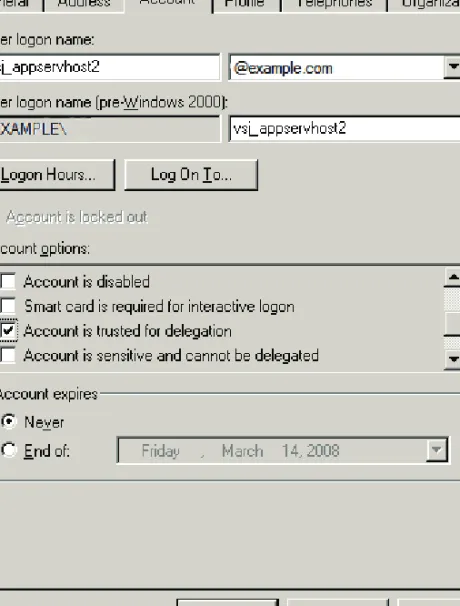
The “Account is trusted for delegation” option, if selected, means that the service account can be used for Unconstrained delegation. Otherwise, no delegation occurs.
Delegation operations require that:
1. If you want a client’s request to be able to use services with delegated cre-dentials, the “Account is sensitive and cannot be delegated” option or its equivalent must be turned off on the client’s account.
2. Where Constrained Delegation or Protocol Transition operations are required, the Single Sign-On for Tomcat configuration parameter
idm.allowS4U must have a value set to true. (See Appendix A:
For access to delegation configuration at the Windows 2000 Server domain functional level, right-click the service account in the Active Directory tree, and select Properties — then click the Account tab and make selections in the Account options area:
Note that the “Account is sensitive and cannot be delegated” option in this screen has no application to the service account and no effect in configuring it (as contrasted with the same setting in a client account).
Windows Server 2003 and Windows Server 2008 Delegation Before you can configure delegation options for these domain functional levels, you must have set up at least one SPN mapping in the account. Option choices for delegation configuration are not available in the Windows interface until a mapping has been set.
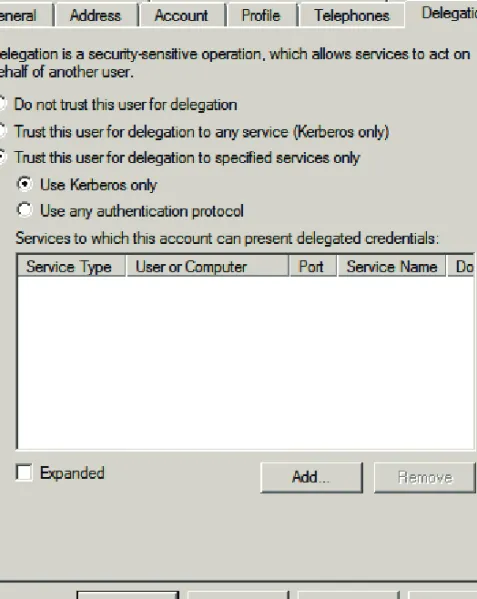
Delegation options here are more extensive than for Windows 2000 Server domain functional level. They are configured from the separate Delegation tab in the Properties pane for the service account. Options here include:
• Delegation Disallowed (“Do not trust this user for delegation”) — Single Sign-On for Tomcat is not to be trusted for delegation at all. If you select this option, any existing (separate) delegation setting is toggled off.
• Delegation Allowed (for all services) (“Trust this user for delegation to any service (Kerberos only)”) — the Unconstrained delegation option for Kerberos operations, using a TGT.
• Delegation to specified services only (“Trust this user for delegation to specified services only”) — Constrained delegation (S4U2Proxy) option involving service tickets.
The Constrained delegation choice has further configuration sub-options to either permit the Protocol transition (S4U2Self) extension (“Use any authentication protocol”), or exclude it (“Use Kerberos only”).
Figure 4: Configuration options in Delegation tab
The first two options under the Delegation tab work the same way as their equivalents in Windows 2000 Server, and if selected, require no further configuration action.
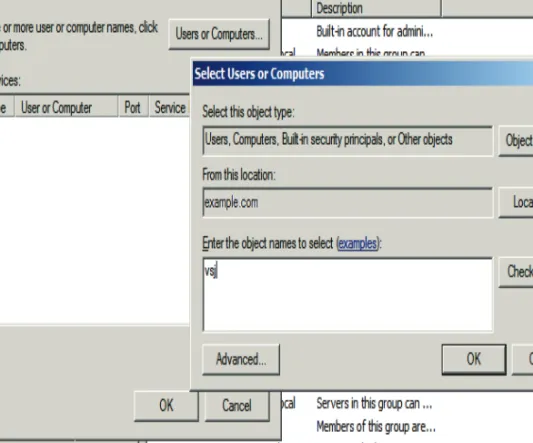
The Constrained delegation option however, requires further action: to select all the Active-Directory services and computers to which the service account is permitted to delegate. To start this process, press the Add button. An Add Services window opens, holding a list box for Available Services. Above that, a Users and Computers choice leads to a further search and selection window (Select Users or Computers).
The search panel Check Names button permits a “begins with...” type of name searching, while an Advanced button opens a sub-panel with more complex facilities for pattern search options.
Figure 6: Nominating a host with services to delegate to
Figure 7: Selecting a service account object for its mapped services
You are returned to the Add Services window, populated with a listing of the services which are available for you to delegate to on the computer host or service account chosen. Make a selection from the Add Services list, and press OK, to return to your Delegation tab in the Properties window, where your selections have been collected in a list panel.
Note: If you have configured more than one SPN for a service (for example, using both a fully-qualified hostname and an unqualified hostname), the list in the panel initially displays only one instance of that service, even though both are actually selected. To view all instances selected, set the Expanded option in this window. (See Figure 9)
Figure 9: Expanded selection of services for delegation
If you need to, you can remove one or more services from this display of selected services. When satisfied that your selected list is correct, press OK to finalize your configuration.
Setting up a Java application server
host
See the release notes (HTML) for a comprehensive list of application servers supported by Single Sign-On for Tomcat. It is presumed here that you have installed one such server using standard procedures laid down for the server concerned.
If your application server and Active Directory are separated by a firewall, you need to open the following ports on the firewall to allow Kerberos to work properly:
• Ticket requests: (88/TCP, 88/UDP),
• LDAP to Directory Service: (389/TCP, 389/UDP),
• DNS: (53/TCP, 53/UDP)
• LDAP to Global Catalog (3268/TCP)
Creating Keytab Files
Single Sign-On for Tomcat supports two mechanisms for storing key information required to authenticate users — setting a password and using keytabs. In general, use of keytabs is to be preferred for production systems, but for ease of initial setup and evaluation, the password approach is probably more convenient.
See Keytabs and Passwords for more information on each method.
To create a keytab file
1. First, generate keytab files for each service that requires
authentication. This can be done with the tools included with the Single Sign-On for Tomcat release (see Appendix B: Using the JKTools>. From the bin/ directory of your Single Sign-On for Tomcat
distribution, run the jktutil tool and take the following steps:
2. Create keytab entries using the RC4 and DES encryption types. The commands below will create keytab entries with a key version number of 255 (a value which acts as a wildcard):
jktutil (type '?' for help): add_entry -password -p [email protected] -k 255 -e rc4-hmac Password for [email protected]: jktutil (type '?' for help): addent -password -p