This file provided by
Switch to Infinity Data Corp for your processing
needs! Infinity offers great rates, excellent customer
support and a wide range of payment processing
solutions.
http://www.infinitydata.com/
Call Today!
V
x
670
Installation Guide
All rights reserved. No part of the contents of this document may be reproduced or transmitted in any form without the written permission of VeriFone, Inc.
The information contained in this document is subject to change without notice. Although VeriFone has attempted to ensure the accuracy of the contents of this document, this document may include errors or omissions. The examples and sample programs are for illustration only and may not be suited for your purpose. You should verify the applicability of any example or sample program before placing the software into productive use. This document, including without limitation the examples and software programs, is supplied “As-Is.”
Vx670 Installation Guide © 2006 VeriFone, Inc.
VeriFone, the VeriFone logo, Omni, VeriCentre, Verix, and ZonTalk are registered trademarks of VeriFone. Other brand names or trademarks associated with VeriFone’s products and services are trademarks of VeriFone, Inc.
All other brand names and trademarks appearing in this manual are the property of their respective holders.
Comments? Please e-mail all comments on this document to your local VeriFone Support Team.
WARNING
Do not dispose of the Vx670 Li-ion smart battery in a fire. Li-ion batteries must be recycled or disposed of properly. Do not dispose of Li-ion batteries in municipal waste sites.
C
ONTENTS
P
R E F A C E . . . 5Audience. . . 5
Organization . . . 5
Related Documentation . . . 5
Conventions and Acronyms . . . 6
Document Conventions. . . 6
Acronym Definitions . . . 6
C
H A P T E R1
Terminal Overview
Features and Benefits . . . 10Exceptional Ease of Use. . . 10
Performance and Durability . . . 10
True Multi-Application Capability . . . 11
Expandable Communication Capabilities . . . 11
Wireless Connectivity . . . 11
Security . . . 11
C
H A P T E R2
Terminal Setup
Selecting Terminal Location . . . 13Environmental Factors . . . 13
Electrical Considerations . . . 14
Unpacking the Shipping Carton . . . 14
Examining Terminal Features. . . 15
Front Panel . . . 15
Examining Connection Ports . . . 16
Power Adapter Cable . . . 17
USB Host Cable . . . 17
Multiport Adapter. . . 18
USB Modem Dongle . . . 18
USB Serial Dongle (RS232 UART). . . 18
Establishing Telephone Line Connections . . . 19
Installing the Paper Roll . . . 20
Installing/Replacing MSAM Cards . . . 23
Installing/Replacing SIM Card (GSM/GPRS Models Only). . . 24
Using the Smart Battery . . . 25
Smart Battery Features. . . 25
Battery Behavior (No Power Cord) . . . 26
Manual Startup . . . 26
Manual Shutdown . . . 27
Installing the Smart Battery . . . 27
Removal . . . 27
Connecting the Terminal Power Pack . . . 28
Charging the Smart Battery . . . 29
CONTENTS
Using the Base Station . . . 30
Standard Base Station . . . 30
Full-Feature Base Station . . . 30
Powering Up the Base Station . . . 31
Placing the Terminal Onto the Base Station. . . 32
Attaching the USB Dongles to the Base Station. . . 32
Charging the Spare Battery on the Base Station . . . 33
Conducting Wireless Transactions . . . 34
Conducting Smart Card Transactions . . . 34
Using the Magnetic Card Reader . . . 35
C
H A P T E R3
Specifications
Power . . . 37 DC Power Pack . . . 37 Temperature . . . 37 External Dimensions. . . 37C
H A P T E R4
Maintenance
Cleaning the Terminal . . . 39Terminal Contacts . . . 39
Smart Card Reader . . . 39
C
H A P T E R5
VeriFone Service
and Support
Returning a Terminal or Smart Battery for Service. . . 41Accessories and Documentation . . . 42
Power Pack. . . 42
Thermal Printer Paper. . . 42
VeriFone Cleaning Kit . . . 42
Spare Battery . . . 43
AVX Host Cable . . . 43
Modem Dongle . . . 43
Serial Dongle . . . 43
Telephone Line Cord . . . 43
Documentation . . . 43
C
H A P T E R6
Troubleshooting
Guidelines
Terminal Does Not Start . . . 45Terminal Display Does not Show Correct/Readable Info . . . 45
Smart Battery Will Not Charge . . . 46
Spare Battery in Base Station Will Not Charge . . . 46
Blank Display . . . 46
Terminal Does Not Dial Out . . . 46
Printer Does Not Print. . . 47
Printer Paper Jam. . . 47
Keypad Does Not Respond . . . 47
P
REFACE
This guide is your primary source of information for setting up and installing the Vx670 terminal.
Audience
This guide is useful for anyone installing and configuring a Vx670 terminal. Basic descriptions of the terminal features are also provided.Organization
This guide is organized as follows:Chapter 1, Terminal Overview. Provides an overview of the Vx670 terminal.
Chapter 2, Terminal Setup. Explains how to set up and install the Vx670 terminal.
It tells you how to select a location, establish power and telephone line connections, and how to configure optional peripheral devices.
Chapter 3, Specifications. Discusses power requirements and dimensions of the Vx670 terminal.
Chapter 4, Maintenance. Explains how to maintain your Vx670 terminal.
Chapter 5, VeriFone Service and Support. Provides information on contacting your local VeriFone representative or service provider, and information on how to order accessories or documentation from VeriFone.
Chapter 6, Troubleshooting Guidelines. Provides troubleshooting guidelines, should you encounter a problem in terminal installation and configuration.
Related
Documentation
To learn more about the Vx670 terminal, refer to the following set of documents:
Vx670 Certifications and Regulations Sheet VPN 24000 Vx670 Quick Installation Guide VPN 24001
Vx670 Reference Manual VPN 24004
Vx670 Base and Dongle Quick Installation Guide VPN 24005 Vx670 Standard Base Quick Installation Guide VPN 24006 Verix V Operating System Programmer’s Manual VPN 23230 Verix V Tools Programmer’s Manual VPN 23231
PREFACE
Conventions and Acronyms
Conventions and
Acronyms
This section describes the conventions and acronyms used in this guide.
Document
Conventions
Various conventions are used to help you quickly identify special formatting. Table 1 describes these conventions and provides examples of their use.
Acronym Definitions
Various acronyms are used in place of the full definition. Table 2 presents acronyms and their definitions.Table 1 Document Conventions
Convention Meaning Example
Blue Text in blue indicates terms that are cross referenced.
See Conventions and Acronyms.
Italics Italic typeface indicates book titles or emphasis.
You must install a roll of thermal-sensitive paper in the printer.
Courier The courier type face is
used while specifying onscreen text, such as text that you would enter at a command prompt, or to provide an URL.
http://www.verifone.com
The pencil icon is used to highlight important information.
RS-232-type devices do not work with the PINpad port.
The caution symbol
indicates possible hardware or software failure, or loss of data.
The terminal is not waterproof or dustproof, and is intended for indoor use only.
The lightning symbol is used as a warning when bodily injury might occur.
Due to risk of shock do not use the terminal near water.
NOTE
CAUTION
WARNING
Table 2 Acronym Definitions
Acronym Definitions
AC Alternating Current
ATM Automated Teller Machine CDMA Code Division Multiple Access
PREFACE
Conventions and Acronyms
LCD Liquid Crystal Display
LED Light Emitting Diode
MRA Merchandise Return Authorization
MSAM Micromodule-Size Security Access Module
PED PIN-Entry Devices
PIN Personal Identification Number
RJ45 Registered Jack 45
RS-232 Recommended Standard 232
SAM Security Access Module
SIM Subscriber Identity Module
UART Universal Asynchronous Transmitter/Receiver
USB Universal Serial Bus
VPN VeriFone Part Number
Wi-Fi Wireless Fidelity
Table 2 Acronym Definitions (continued)
PREFACE
C
HAPTER
1
Terminal Overview
This chapter provides a brief description of the Vx670 terminal. The Vx670 terminal represents a revolution for e-payment. The Vx670 device uses a bold
ergonomic design that is sleek and stylish, offering countertop power and 32-bit performance in an integrated terminal that can be handed to the consumer for input, making it ideal for pay-at-table usage.
The Vx670 terminal is a portable, battery-powered device that uses wireless technologies, including Wi-Fi with 802.11g technology and GSM/GPRS. It also features a 128-by-128 pixel display and a speedy thermal printer.
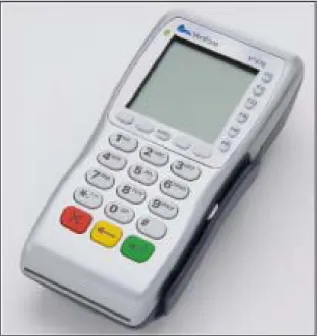
Figure 1 The Vx670 terminal.
NOTE VeriFone ships variants of the Vx670 terminal for different markets. Your terminal
may have a different configuration. The following devices may or may not be present: a smart card reader, zero or three MSAM cardholders, and/or a SIM cardholder.
TERMINAL OVERVIEW
Features and Benefits
Features at a glance
Features and
Benefits
Vx670 terminals provide the right combination of features and functions. This
includes a triple-track magnetic-stripe card reader, smart card reader, integrated PINpad, and a quiet yet fast internal thermal printer (ITP).
Exceptional Ease of
Use
•
Lightweight (less than 1 pound), tapered design is compact and stylish and the ergonomic balance allows for convenient terminal hand-off to the consumer for PIN entry or other input.•
128-by-128 pixel display with anti-glare, adjustable contrast, dimmingcapability, intuitive ATM-style interface, and oversized menu prompts simplify training and reduce calls to the helpdesk.
•
Large, well-placed, blue backlit keys provide improved tactile response to simplify usage and minimize finger slips.•
Integrated high-speed thermal printer prints quickly and silently, and simplified paper loading virtually eliminates paper jams.•
Triple-track, high-coercivity card reader handles most magnetic stripe cards.•
Optional Base Station with battery charger supports connectivity to a UART module or a 14,400 bps modem via USB dongles.•
Accepts all types of payments – including debit.Performance and
Durability
•
32-bit processing and multi-tasking capabilities make short work of payment, payment-related, and value-added applications.•
Exceptional graphics-handling capabilities of display and printer quickly render• 32-bit ARM9 processor delivers
power and usability in a convenient
“hand-over” design.
• Securely supports and runs payment
and value-added applications.
• Multi-application operating environment.
• Offers unsurpassed performance on
EMV smart card transactions. • 32-bit processing and multi-tasking
capabilities.
• Security architecture meets specifications for PCI-PED and sophisticated file authentication. • USB support for VeriFone peripheral
devices.
• Max UI design provides large display
on small footprint. • Backward compatibility with
VeriFone solutions reduces development costs.
• Designed to meet the needs of
TablePAY, DeliveryPAY, and CarsidePAY markets. • Drop resistant design minimizes
breakage.
• Spill resistant design forces liquid down and off the front of the terminal.
TERMINAL OVERVIEW
Features and Benefits
•
Sealed MSR blade locks out moisture for excellent spill resistance.•
Innovative design resists spills by forcing liquid down and off the front of the terminal•
Integrated PINpad offers added convenience to handle PIN-based applications.•
Uncompromising reliability from VeriFone, the worldwide leader in e-payment.•
Complies with RoHS (Restriction of Hazardous Substances) directive of the European Union.True
Multi-Application
Capability
•
6 MB of memory and the Verix V OS dynamic memory allocation support two or three typical-sized applications on a single terminal.•
Primary smart card reader and MSAMs safeguard sensitive financial data and support multiple smart card schemes.•
Vx670 series of terminals and SoftPay EMV software have received EMV Level 1 and Level 2 Type approval for smart card solutions. Verix EMV Library provides efficient development of other EMV-compliant applications.•
VeriShield security architecture meets published specifications for PCI-PED and provides sophisticated file authentication to prevent execution of unauthorized software on Vx670 terminals.Expandable
Communication
Capabilities
•
USB Host Port•
USB Device Port for application debugging•
RS-232, Serial Port•
14,400 bps Modem•
Universal Asynchronous Receiver/Transmitter (UART) portWireless
Connectivity
•
Customers are not tied to a fixed location with the Vx670 wireless terminals –the point of payment can be almost anywhere.
•
“Always-on” wireless connection uses the latest wireless technologies, including GSM/GPRS and Wi-Fi with 802.11g technology for faster transmission and enhanced compatibility with access points and routers.Security •
WPA-PSK (pre-shared keys) protects Wi-Fi transactions.•
Other security features include tamper-resistant construction, adoption of SSL protocols, and VeriShield file authentication.TERMINAL OVERVIEW
C
HAPTER
2
Terminal Setup
This chapter describes the terminal setup procedure. You will learn about:
•
Selecting Terminal Location.•
Unpacking the Shipping Carton.•
Examining Terminal Features.•
Examining Connection Ports.•
Establishing Telephone Line Connections.•
Installing the Paper Roll.•
Installing/Replacing MSAM Cards.•
Installing/Replacing SIM Card (GSM/GPRS Models Only).•
Using the Smart Battery.•
Battery Behavior (No Power Cord).•
Installing the Smart Battery.•
Charging the Smart Battery.•
Connecting the Terminal Power Pack.•
Using the Base Station.•
Placing the Terminal Onto the Base Station.•
Attaching the USB Dongles to the Base Station.•
Charging the Spare Battery on the Base Station.•
Conducting Wireless Transactions.•
Conducting Smart Card Transactions.•
Using the Magnetic Card Reader.Selecting
Terminal
Location
Use the following guidelines when selecting a location for your Vx670 terminal.
Environmental
Factors
•
The Vx670 is a portable terminal. Select a flat support surface, such as acountertop or table, to keep the terminal safe in between uses.
•
Do not use the terminal where there is high heat, dust, humidity, moisture, or caustic chemicals or oils.TERMINAL SETUP
Unpacking the Shipping Carton
•
Keep the terminal away from direct sunlight and anything that radiates heat, such as a stove or motor.•
Do not use the terminal outdoors.Electrical
Considerations
•
Avoid using this product during electrical storms.•
Avoid locations near electrical appliances or other devices that cause excessive voltage fluctuations or emit electrical noise (for example, airconditioners, electric motors, neon signs, high-frequency or magnetic security devices, or computer equipment).
•
Do not use the terminal near water or in moist conditions.Unpacking the
Shipping Carton
Open the shipping carton and carefully inspect its contents for possible tampering or shipping damage. The Vx670 is a secure product and any tampering may
cause the terminal to cease to function properly.
To unpack the Shipping Carton
1
Remove and inspect the following items:•
Terminal•
Power pack•
Telephone line cord•
Power cord•
Battery pack•
Paper roll2
Remove all plastic wrapping from the terminal and other components.3
Remove the clear protective film from the LCD screen.4
Save the shipping carton and packing material for future repacking or moving the terminal.CAUTION
The terminal is not waterproof or dustproof, and is intended for indoor use only. Any damage to the unit from exposure to rain or dust may void any warranty.
CAUTION Do not use a terminal that has been damaged or tampered with. The
Vx670 terminal comes equipped with tamper-evident labels. If a label or component appears damaged, please notify the shipping company and your VeriFone representative or service provider immediately.
TERMINAL SETUP
Examining Terminal Features
Examining
Terminal
Features
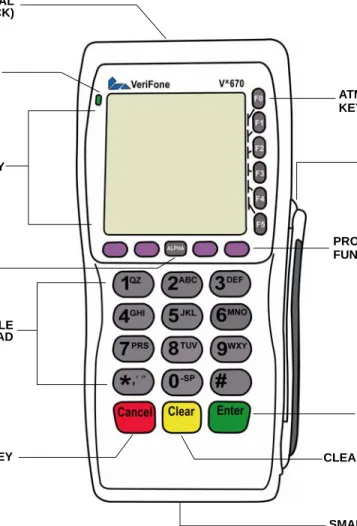
Before you continue the installation process, notice the features of the Vx670 terminal (see Figure 2).
Figure 2 Vx670 Terminal Features (Front Panel)
Front Panel
The front panel includes the following features:•
A terminal display, backlit LCD screen.•
Five types of keys:a
A 12-key, telephone-style keypad (keypads may vary in style).b
Six ATM-style function keys, labeled F0 to F5, to the right of the LCD screen.c
Four programmable function keys above the keypad.d
Three color-coded function keys below the keypad (icons at right; from left to right: CANCEL, CLEAR, ENTER).e
An ALPHA key centered at the top of the keypad.TERMINAL DISPLAY
MAGNETIC CARD
TELEPHONE-STYLE KEYPAD
CANCEL KEY CLEAR KEY ENTER KEY PROGRAMMABLE
ATM-STYLE FUNCTION
ALPHA KEY
SMART CARD READER INDICATOR LED
INTERNAL THERMAL PRINTER (AT THE BACK)
FUNCTION KEYS KEYS
TERMINAL SETUP
Examining Connection Ports
•
A magnetic card reader, built into the right side. Swipe the card using the proper direction, with the magnetic stripe down and facing inward, toward the keypad.•
A green indicator LED indicates power is ON.•
An internal thermal printer at theback of the terminal.•
A smart card reader, built into the front of the terminal. For directions on how to use a smart card, see Conducting Smart Card Transactions.•
A SAM (security access module) compartment, built into the bottom of the terminal. The Vx670 terminal contains MSAM cardholders to support multiplestored-value card programs or other merchant card requirements.
Examining
Connection
Ports
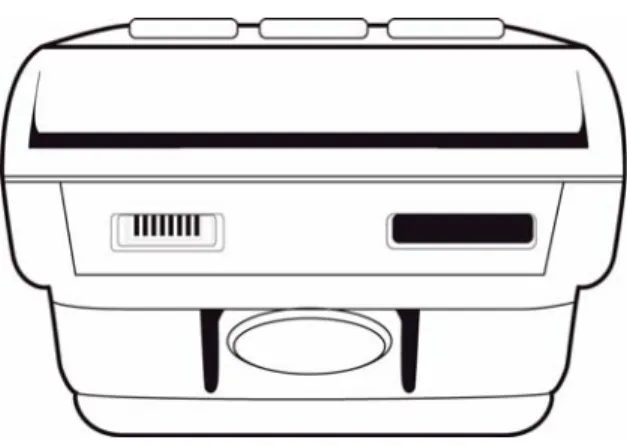
The Vx670 terminal has one primary port that supports different peripherals through the use of various cables.
Figure 3 The Vx670 Primary Port (Bottom View)
NOTE VeriFone ships variants of the Vx670 terminal for different markets. Your terminal
may have a different configuration. The following devices may or may not be present: a smart card reader, or zero or three MSAM cardholders. However, the basic processes described in this guide remain the same, regardless of terminal configuration.
TERMINAL SETUP
Examining Connection Ports
Power Adapter
Cable
Each Vx670 terminal comes with a power adapter cord that completes the connection between the power pack and the terminal.
Figure 4 Power Adapter Cable Connection to a Vx670 Terminal
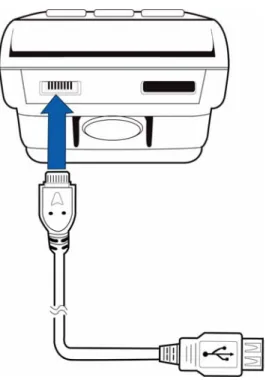
USB Host Cable
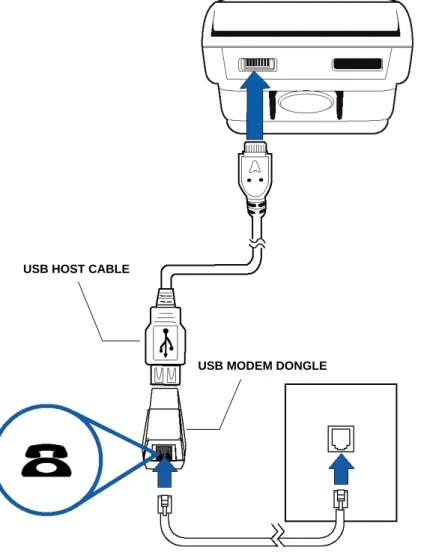
A 2-Wire USB Host port for external peripherals. A connector adaptor provides for standard USB host connection for the Modem Dongle or the RS232 UART Dongle.TERMINAL SETUP
Examining Connection Ports
Multiport Adapter
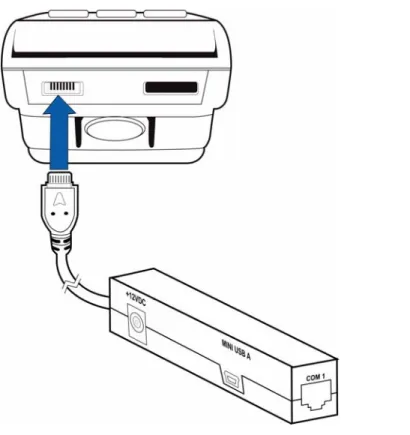
An adapter that provides connectivity for power, USB Host, USB Device, and COM1 (RS232 UART). This cable is used primarily for deployment ordevelopment purposes.
Figure 6 Multiport Adapter Connection to a Vx670 Terminal
USB Modem Dongle
A modem in the form of a USB Modem Dongle may be provided with the Vx670 terminal. The USB Modem Dongle provides communication via a telephone line at speeds of up to 14,400 bps. It can also be connected to the full-feature Base Station when the terminal is in the station (see Attaching the USB Dongles to the Base Station).USB Serial Dongle
(RS232 UART)
The USB Serial Dongle may be provided with the Vx670 terminal. It is designed to accommodate the RJ45 connector. The USB Serial Dongle can also be
connected to the full-feature Base Station when the terminal is placed in the station (see Attaching the USB Dongles to the Base Station).
NOTE
Other cables are available for development purposes. Check with your local VeriFone representative for further information.
TERMINAL SETUP
Establishing Telephone Line Connections
Establishing
Telephone Line
Connections
To connect a telephone line:
1
Connect one end of the telephone cord to the USB Modem Dongle.2
Connect the USB Modem Dongle to the terminal using the AVX Connector (VPN 24223-01-R).3
Route the other end of the telephone cord directly to a telephone wall jack.Figure 7 Vx670 USB Modem Dongle Connection
CAUTION The Modem Dongle and Serial Dongle are intended for use with the Vx670 terminal and Base Station only. They should not be installed or used with any equipment other than the Vx670 terminal or Base Station.
WARNING
To reduce the risk of fire, use only No. 26 AWG or larger UL Listed or CSA Certified Telecommunication Line Cord.
USB HOST CABLE
TERMINAL SETUP
Installing the Paper Roll
Installing the
Paper Roll
A fast, quiet thermal printer is built into the Vx670 terminal. Before you can process transactions that require a receipt or record, you must install a roll of thermal-sensitive paper in the printer.
The ITP uses a roll of single-ply, thermal-sensitive paper 57 millimeters (2.24 inches) wide and 38 millimeters in diameter. A pink out-of-paper indicator line appears on the edge of the paper approximately 18 inches before the end of the roll. After this line appears, there is enough paper remaining on the roll to
conclude at least one transaction.
To Install a Paper Roll
1
Gently pull the latch located on the bottom of the terminal to unlock the paper roll cover.Figure 8 Unlocking the Printer Cover
CAUTION Poor-quality paper can jam the printer and create excessive paper dust. To order high-quality VeriFone paper, refer to Accessories and Documentation.
Store thermal paper in a dry, dark area. Handle thermal paper carefully: impact, friction, temperature, humidity, and oils affect the color and storage
characteristics of the paper.
Never load a roll of paper with folds, wrinkles, tears, or holes at the edges in the print area.
TERMINAL SETUP
Installing the Paper Roll
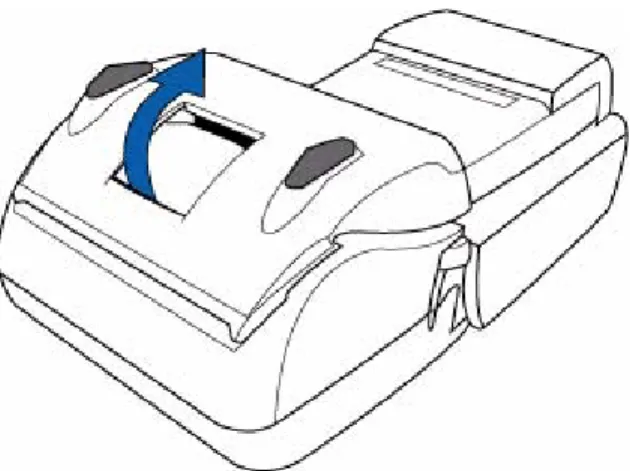
2
Lift the printer cover up and back.Figure 9 Opening the Printer Cover
3
Remove any partial roll of paper in the printer tray by lifting it up (see Figure 10).4
Loosen the glued leading edge of the paper or remove the protective strip from the new roll of paper. Unwind the paper roll past any glue residue.Figure 10 Removing Partial Paper Roll
5
Hold the roll so the paper feeds from the bottom of the roll when the terminal is inverted (see Figure 12).TERMINAL SETUP
Installing the Paper Roll
6
Drop the paper roll into the printer tray.Figure 11 Loading Paper Roll
7
Pull paper up past the glue residue on the paper roll.8
Close the paper roll cover by gently pressing directly on the cover until it clicks shut, allowing a small amount of paper past the glue residue to extend outside the printer door.CAUTION
To prevent damaging the print roller, always gently press down on the paper roll cover to close it.
TERMINAL SETUP
Installing/Replacing MSAM Cards
9
Tear the paper off against the serrated plastic strip in the printer.Installing/
Replacing MSAM
Cards
When you first receive your Vx670 terminal, you may need to install one or more MSAM cards or you may need to replace old cards.
To Install/Replace MSAMs
1
Power off the terminal.2
Place the terminal upside down on a soft, clean surface to protect the lens from scratches.3
Remove the battery.Figure 13 Removing the Smart Battery
4
After removing the battery, the MSAM compartments are exposed.5
Remove any previously installed MSAM card by sliding the card from the MSAM cardholder.CAUTION Observe standard precautions when handling electrostatically sensitive devices. Electrostatic discharges can damage this equipment. VeriFone recommends using a grounded anti-static wrist strap.
CAUTION
TERMINAL SETUP
Installing/Replacing SIM Card (GSM/GPRS Models Only)
6
Install an MSAM card by aligning the card and carefully sliding it within the guides on the cover until it is fully inserted (see Figure 14). The MSAM card holders are labeled MSAM1, MSAM2, and MSAM3.Figure 14 Installing MSAM Card
7
Install the battery (see Figure 17).Installing/
Replacing SIM
Card
(GSM/GPRS
Models Only)
The Vx670 terminal supports the installation of a SIM (Subscriber Identity Module)
card. Use the following procedure to replace or install a SIM card.
1
Place the terminal upside down on a soft, clean surface to protect the lens from scratches.2
Remove the battery.NOTE Before inserting the MSAM card, position it as shown in Figure 14, with the card’s gold contacts facing the smart card reader end of the terminal. The cardholder connector base has a set of contacts and a notch on one corner to ensure the MSAM card is positioned correctly. The MSAM card has a notch on one corner to ensure that it fits into the connector base in only one way. The MSAM
compartment door will not close properly if the MSAM cards are installed incorrectly.
TERMINAL SETUP
Using the Smart Battery
4
Insert the SIM into the cardholder.Figure 16 Inserting SIM Card
5
Install the battery (see Figure 17).Using the Smart
Battery
The Vx670 terminal uses an Li-ion smart battery (see Accessories and
Documentation for ordering information). The internal logic of the smart battery prevents both overcharging and undercharging (a fault condition in which the battery level goes well below the minimum acceptable charge and the battery becomes unusable).
Smart Battery
Features
The following are features of the smart battery:
•
Two Li-ion cells•
A fuel gauge module that:•
monitors state of charge (voltage and percentage of capacity),•
communicates with the terminal (charge parameters and status),•
determines full charge capacity (on charge cycle and uninterrupted discharge cycle), and•
automatically shuts down when cell voltage is extremely low.•
A safety circuit that:•
prevents cell damage from overcharge, over-discharge, or overheating, andNOTE
There is only one SIM slot, but there are multiple SAM slots. Make sure you insert the SIM card into the SIM slot, as shown in Figure 16.
NOTE The Vx670 terminal will operate on battery power or on power pack power. The smart battery charger in the terminal will be active whenever the power pack is connected.
TERMINAL SETUP
Battery Behavior (No Power Cord)
•
activates when the battery is left in an unused terminal for extended periods.Battery Behavior
(No Power Cord)
If you connect the Vx670 to a non-battery power source, the terminal shifts to
corded power mode and starts up automatically, regardless of the battery charge state.
Manual Startup
Hold the green key down for about 4 seconds until the terminal displays the startup screen.When the terminal has power, the terminal lights are activated and the green LED indicator remains lit.
NOTE
•
Lithium-ion batteries are not affected by shallow charging. Furthermore, when the terminal has no external power source or battery the coin cell battery provides power to the security circuit.•
Uninstalling the battery and unplugging the terminal power pack reduce the life of the coin cell battery, which does not recharge and must be replaced if drained.•
Conserve battery power by turning the Vx670 terminal off when not in use. Ifthe terminal is not to be used for an extended period of time, keep the Lithium-ion battery inserted in the terminal, and power up the terminal periodically to check the battery charge. Do not let the battery charge fall below 10% for extended periods of time as this may permanently diminish the battery capacity. Recharge the battery by attaching the power cord to the terminal and plugging the power pack into a wall outlet.
NOTE The 4-second power-up delay is for preventing terminal startup if the green key is accidentally held down. The time required to hold the green key down to power up the terminal is configurable (for more information, see the Vx670 Reference Manual – VPN 24004).
NOTE If an application is loaded in the terminal, it starts after the initial VeriFone
copyright screen and usually displays a unique copyright screen. If no application is loaded in the terminal, DOWNLOAD NEEDED appears on screen after the initial VeriFone copyright screen.
TERMINAL SETUP
Installing the Smart Battery
Manual Shutdown
Hold the red key down for about 4 seconds until the terminal displays the shutdown verification screen. Keep holding the red key until the Vx670 terminalshuts down.
Installing the
Smart Battery
The Vx670 smart battery fits in a slot on the back of the Vx670 terminal, as shown in Figure 17. The locking tab clicks when the battery is in place. The slot is keyed, so that there is only one way to insert the battery.
Figure 17 Installing the Smart Battery
Removal
To remove the Vx670 smart battery, press the locking tab and pull the smart battery from its slot.Figure 18 Detaching the Smart Battery from the Vx670 Terminal
NOTE
•
The 4-second shutdown delay is for preventing terminal shutdown if the red key is accidentally held down. The time required to hold the red key down to shut down the terminal is configurable (for more information, see the Vx670 Reference Manual – VPN 24004).•
When the terminal has no power, the screen is blank and the green LED indicator is not lit.TERMINAL SETUP
Connecting the Terminal Power Pack
Connecting the
Terminal Power
Pack
When you have finished installing the smart battery, you are ready to connect the Vx670 terminal to the provided power source for initial charging.
The Vx670 unit comes with a universal input power pack capable of operating from voltages of 100VAC to 240VAC.
To Connect the Terminal Power Pack
1
Insert the round barrel connector into the power port in the connector, as shown in Figure 19.Figure 19 Vx670 Power Pack Connection
2
Insert the AC power cord into the power pack.3
Plug the AC power cord into a wall outlet or powered surge protector.CAUTION Using an incorrectly rated power supply may damage the terminal or cause it not
to work as specified. Before troubleshooting, ensure that the power supply being used to power the terminal matches the requirements specified on the bottom of the terminal. (See Chapter 3, Specifications, for detailed power supply
specifications.) Obtain the appropriately rated power supply before continuing with troubleshooting.
WARNING Do not plug the power pack into an outdoor outlet or operate the terminal
outdoors.
During a transaction, disconnecting the power by removing the battery or unplugging the terminal from a wall power while at very low battery charge may cause transaction data files not yet stored in the terminal memory to be lost.
NOTE
To protect against possible damage caused by lightning strikes and electrical surges, consider installing a power surge protector.
TERMINAL SETUP
Charging the Smart Battery
If an application is loaded in the terminal, it starts after the initial VeriFone
copyright screen and usually displays a unique copyright screen. If no application is loaded in the terminal, DOWNLOAD NEEDED appears on screen after the initial VeriFone copyright screen.
Charging the
Smart Battery
After unpacking your Vx670 terminal, install the battery and connect the power pack to the unit for 6 hours or until fully charged.
The smart battery has a safety circuit to protect the Li-ion cells from overcharging and over-discharging. If the battery is over-discharged, the safety circuit shuts down the battery. The battery must then be recharged to restore operation.
Battery Life
The Vx670 smart battery can be charged and discharged hundreds of times, butwill eventually wear out. When operating times are noticeably shorter than usual, it is time to buy a new battery (see Accessories and Documentation for ordering information).
NOTE The Vx670 terminal’s smart battery is also charged when the terminal is in the Base Station. For more information, see Placing the Terminal Onto the Base Station.
NOTE The Vx670 terminal automatically shuts off when the smart battery reaches the
critically low charge state. If this occurs, the smart battery must be recharged for a minimum of 1/2 hour before it can power the terminal. It may take several
recharge attempts to reset the safety circuit when charging a smart battery that has been discharged below this critical state.
WARNING Do not dispose of batteries in a fire. Li-ion batteries must be recycled or disposed of properly. Do not dispose of Li-ion batteries in municipal waste sites.
TERMINAL SETUP
Using the Base Station
Using the Base
Station
The primary purpose of the Base Station is to charge the terminal battery and provide a docking station for the terminal after being used in pay-at-table
environments. The Base Station can be positioned on a countertop or mounted to the wall.
There are two types of Base Stations, the standard model and the full-feature model.
Standard Base
Station
The standard Base Station can charge the Vx670 terminal. However, it does not have any external ports and has a single LCD to indicate power status.
Figure 20 The Vx670 Standard Base Station
Full-Feature Base
Station
The full-feature Base Station can charge the Vx670 terminal while charging an extra battery pack. In addition, it has two USB ports for external dongles, together with one LED for power indication and another LED for the charger status.
TERMINAL SETUP
Using the Base Station
For more information on charging the spare battery on the full-feature Base Station and connecting external dongles to the USB ports, see Charging the Spare Battery on the Base Station and Attaching the USB Dongles to the Base Station.
Powering Up the
Base Station
Use the procedure in this section to connect the Vx670 Base Station to a power source.
1
Insert the round barrel connector of the power pack into the power port at the back of the Base Station.Figure 22 Connecting the Base Station to a Power Source
2
Insert the AC power cord into the power pack.3
Plug the AC power cord into a wall outlet or power surge protector.4
Confirm that the Base Station is powered up as indicated by the solid green LED.TERMINAL SETUP
Placing the Terminal Onto the Base Station
Placing the
Terminal Onto
the Base Station
The Vx670 terminal can be placed on the Base Station when not in use or to charge the battery. External peripherals can also be attached to the terminal via USB dongles while it is on the Base Station (see Attaching the USB Dongles to the Base Station).
Figure 23 Placing the Vx670 onto the Base Station
Attaching the
USB Dongles to
the Base Station
While the Vx670 terminal is resting on the Base Station, you can drive external peripherals through the use of USB dongles. Only one Modem Dongle and one Serial Dongle can be connected to the Base Station. A second Modem Dongle or a second Serial Dongle will be ignored by the terminal.
NOTE The full-feature Base Station can also charge a spare battery while it charges the battery attached to the terminal (see Charging the Spare Battery on the Base Station).
To protect against possible damage caused by lightning strikes and electrical surges, consider installing a power surge protector.
WARNING Do not plug the power pack into an outdoor outlet or operate the terminal
outdoors.
Disconnecting the power during a transaction may cause transaction data files not yet stored in terminal memory to be lost.
NOTE
The full-feature Base Station has USB ports for two external dongles. The standard Base Station does not have USB ports.
TERMINAL SETUP
Charging the Spare Battery on the Base Station
1
Insert the USB dongle into the USB port located at the back of the Base Station.Figure 24 Inserting External Dongle Into USB Port
2
After inserting the external dongle into the USB port, place the Vx670 terminal onto the Base Station (see Powering Up the Base Station).3
Connect the peripheral to the external dongle.Charging the
Spare Battery on
the Base Station
The full-feature Base Station can charge the Vx670 terminal while charging an extra battery pack.
1
Connect the Base Station to a power source (see Powering Up the Base Station)2
Place the spare battery pack onto the Base Station as shown in Figure 25.TERMINAL SETUP
Conducting Wireless Transactions
3
Place the Vx670 terminal onto the Base Station to charge both the spare and installed battery packs at the same time.Figure 26 Charging the Spare and Installed Battery Simultaneously
Conducting
Wireless
Transactions
To conduct a wireless transaction:
•
Ensure the terminal is in an optimal position for transmitting.•
Follow the on-screen instructions provided with your application.Conducting
Smart Card
Transactions
The smart card transaction procedure may vary from one application to another. Verify the procedure with your application provider before performing a smart card transaction.
To Conduct a Smart Card Transaction
1
Position a smart card with the contacts facing upward (see Figure 27).2
Insert the smart card into the smart card reader slot in a smooth, continuous motion until it seats firmly.TERMINAL SETUP
Using the Magnetic Card Reader
3
Remove the card only when the application indicates the transaction is complete.Figure 27 Inserting a Smart Card
Using the
Magnetic Card
Reader
The Vx670 terminal supports credit/debit card transactions.
To Conduct a Credit/ Debit Card Transaction
1
Position a magnetic card with the stripe in the card reader and facing inward, toward the keypad.2
To ensure a proper read of the magnetic swipe card, the user should insert the magnetic card from the top of the unit, as shown in Figure 28.CAUTION
Leave the smart card in the card reader until the transaction is complete. Premature card removal will invalidate the transaction.
TERMINAL SETUP
Using the Magnetic Card Reader
3
Swipe the card through the magnetic card reader.C
HAPTER
3
Specifications
This chapter discusses power requirements, dimensions, and other specifications of the Vx670 terminal.
Power
Vx670 terminal: 12V DC 2.0 ADC Power Pack
UL, ITE listed, Class 2 power supply:a
Input rated: 100 - 240V AC, 50/60 Hzb
Output rated: 12V DC 2.0 A Barrel connector polarity:Temperature
•
Operating temperature: 0° to 40° C (32° to 104° F)•
Storage temperature: -30° to + 60° C (-22° to 140° F)•
Relative humidity: 5% to 90%; non-condensingExternal
Dimensions
For Vx670 Terminals:•
Length: 169 mm (6.7 in)•
Width: 81 mm (3.2 in)•
Depth: 60 mm (2.4 in)SPECIFICATIONS
C
HAPTER
4
Maintenance
The Vx670 terminal and base stations have no user-maintainable parts.
Cleaning the
Terminal
To clean the terminal and base station, use a clean cloth slightly dampened with water and a drop or two of mild soap. For stubborn stains, use alcohol or an alcohol-based cleaner.
Terminal
Contacts
Gently swab the contacts with alcohol or contact cleaner to remove the dirt. It is important that the exposed contacts of the Vx670 battery stay clean and unbent.
Smart Card
Reader
Do not attempt to clean the smart card reader. Doing so may void any warranty. For smart card reader service, contact your VeriFone distributor or service provider.
CAUTION Never use thinner, trichloroethylene, or ketone-based solvents – they may cause
deterioration of plastic or rubber parts.
Do not spray cleaners or other solutions directly onto the keypad or terminal display.
CAUTION Avoid touching the contacts of the Vx670 battery and the recessed area on the
terminal. Finger oils tarnish contacts, causing bad connections. When operating on battery power and experiencing a high occurrence of bad or incomplete data transfers, clean the contacts.
MAINTENANCE
C
HAPTER
5
VeriFone Service and Support
For Vx670 terminal problems, contact your local VeriFone representative or service provider.
For Vx670 product service and repair information:
•
USA – VeriFone Service and Support Group, 1-800-VeriFone (837-4366), Monday - Friday, 8 A.M. - 8 P.M., Eastern time•
International – Contact your VeriFone representativeReturning a
Terminal or
Smart Battery
for Service
Before returning a Vx670 terminal, smart battery, or base station to VeriFone, you
must obtain an MRA number. The following procedure describes how to return one or more Vx670 terminals, smart batteries, or base stations for repair or
replacement (U.S. customers only).
To Return a Terminal for Service
1
Get the following information from the printed labels on the bottom of eachVx670 terminal, smart battery, or sled module to be returned:
•
Product ID, including the model and part number. For example, “Vx670” and “M267-XXX-XXX-xxx.”•
Serial number (S/N nnn-nnn-nnn)2
Obtain the MRA number(s) by completing one of the following:a
Call VeriFone toll-free within the United States at 1-800-VeriFone and follow the automated menu options.•
Select the MRA option from the automated message. The MRA department is open Monday to Friday, 8 A.M.–8 P.M., Eastern Time.•
Give the MRA representative the information you gathered in Step 1. If the list of serial numbers is long, you can fax the list, along with the information gathered in Step 1, to the MRA department at 727-953-4172 (U.S.).b
Address a fax to “VeriFone MRA Dept.” with the model and part number(s)•
Include a telephone number where you can be reached and your fax number.NOTE Customers outside the United States are advised to contact their local VeriFone representative for assistance regarding service, return, or replacement of terminals or batteries.
VERIFONE SERVICEAND SUPPORT
Accessories and Documentation
c
Complete the Inquiry Contact Form at http://www.verifone.com/aboutus/ contact/contact_form.cfm.•
Address the Subject box with to “VeriFone MRA Dept.”•
Reference the model and part number in the Note box.3
Describe the problem(s).4
Provide the shipping address where the repaired or replacement unit must be returned.5
Keep a record of the following items:•
Assigned MRA number(s).•
VeriFone serial number assigned to the Vx670 terminal, smart battery, orbase station you are returning for service or repair (terminal serial numbers are located on the bottom of the unit.
•
Shipping documentation, such as air bill numbers used to trace the shipment.•
Model(s) returned (model numbers are located on the VeriFone label on the bottom of the Vx670 terminal).Accessories
and
Documentation
VeriFone produces the following accessories and documentation for the
Vx670 terminal. When ordering, please refer to the part number in the left column.
•
VeriFone online store atwww.store.verifone.com•
USA – VeriFone Customer Development Center, 800-VeriFone (837-4366), Monday - Friday, 7 A.M. - 8 P.M., Eastern time•
International – Contact your VeriFone representativePower Pack
Contact your local VeriFone distributor to determine which power pack or power cord fits your needs.Thermal Printer
CRM0047-20 Thermal paper in 20-roll bulk packageNOTE
One MRA number must be issued for each Vx670 terminal you return to VeriFone, even if you are returning several of the same model.
CPS11224-3B-R DC power pack (universal) 21973-01 AC power cord (US)
VERIFONE SERVICEAND SUPPORT
Accessories and Documentation
Spare Battery
24016-01-R Vx670 spare batteryAVX Host Cable
24223-01-R Vx670 AVX Host CableModem Dongle
24123-01-R Vx670 Modem DongleSerial Dongle
24122-01-R Vx670 Serial DongleTelephone Line
Cord
00124-17 2.1-meter (7-foot) telephone line cord, black, with modular RJ11-type connectors
Documentation
For Vx670Terminals:
Vx670 Certifications and Regulations Sheet VPN 24000 Vx670 Quick Installation Guide VPN 24001
Vx670 Reference Manual VPN 24004
Vx670 Base and Dongle Quick Installation Guide VPN 24005 Vx670 Standard Base Quick Installation Guide VPN 24006
VERIFONE SERVICEAND SUPPORT
C
HAPTER
6
Troubleshooting Guidelines
The troubleshooting guidelines provided in the following section are included to help you install and configure your Vx670 terminal successfully. Typical examples
of malfunction you may encounter while operating your Vx670 terminal and steps you can take to resolve them are listed in this chapter.
If the problem persists even after performing the outlined guidelines or if the problem is not described below, contact your local VeriFone representative for assistance.
Terminal Does
Not Start
•
Ensure that the smart battery charge state is not below the critically low level.•
Recharge or replace the smart battery.•
Ensure that you pressed the green ENTER/ON key for approximately 4 seconds, until the unit lights up.Terminal Display
Does not Show
Correct/Readable
Info
•
Recharge or replace the battery.•
Connect the Vx670 terminal into a known-good power supply (if you have one)to see if this clears the problem.
•
If the problem persists, contact your local VeriFone representative for assistance.NOTE The Vx670 terminal comes equipped with tamper-evident labels. The Vx670 unit
contains no user serviceable parts. Do not, under any circumstance, attempt to disassemble the terminal. Perform only those adjustments or repairs specified in this guide. For all other services, contact your local VeriFone service provider. Service conducted by parties other than authorized VeriFone representatives may void any warranty.
CAUTION Use only a VeriFone-supplied power pack. Using an incorrectly rated power
supply may damage the terminal or cause it not to work as specified. Before troubleshooting, ensure that the power supply being used to power the terminal matches the requirements specified on the bottom of the terminal. (See Chapter 3, Specifications, for detailed power supply specifications.) Obtain the
TROUBLESHOOTING GUIDELINES
Smart Battery Will Not Charge
Smart Battery
Will Not Charge
The Vx670 smart battery must initially receive a full charge to ensure proper operation.
Spare Battery in
Base Station Will
Not Charge
When the spare battery is installed in the base for charging, the Base LED will flash amber if the battery is charging, or stay solid green if the battery is fully charged. If the battery is not charged and the LED does not flash amber, check the contacts on the battery and in the terminal base to make sure they are clean. Also, try charging a known good battery to see if the problem is with the base or with the battery. If the problem persists, contact your local VeriFone
representative.
Blank Display
When the Vx670 terminal display screen does not show correct or clearly readable information:•
Check terminal power connection.•
Remove and reapply power to the terminal.•
If the problem persists, contact your local VeriFone service provider.NOTE
•
Allow the Vx670 terminal to remain connected to the power pack for 6 hours to ensure the battery receives a full charge.•
Lithium-ion batteries are not affected by shallow charging. Furthermore, when the terminal has no external power source or battery the coin cell battery provides power to the security circuit.•
Uninstalling the battery and unplugging the terminal power pack reduce the life of the coin cell battery, which does not recharge and must be replaced if drained.•
Conserve battery power by turning the Vx670 terminal off when not in use. If the terminal will not be used for an extended period of time, keep the Lithium-ion battery inserted in the terminal, and power up the terminal periodically to check the battery charge. Do not let the battery charge fall below 10% for extended periods of time as this may permanently diminish the battery capacity. Recharge the battery by attaching the power cord to the terminal and plugging the power pack into a wall outlet.•
The Vx670 terminal automatically shuts off when the smart battery reaches the critically low charge state. If this occurs, the smart battery must recharge a minimum of 1/2 hour before it can power the terminal. It may take several recharge attempts to reset the safety circuit when charging a smart battery that has been discharged below this critical state.TROUBLESHOOTING GUIDELINES
Printer Does Not Print
•
Replace the telephone cable that connects the terminal with a cable you know is working correctly.•
If the problem persists, contact your local VeriFone service provider.Printer Does Not
If the printer does not work properly:
•
Make sure the battery is properly installed in the terminal. The printer will not print if there is no battery in the terminal.•
Check battery status or terminal power connection. The printer will not print if there is an insufficient charge remaining in the battery to complete the print operation.•
Check if the printer is out of paper (slow red blinking light) and that the roll is properly installed. Open the paper roll cover and install a new roll of printer paper or ensure that the roll is feeding correctly. A solid red indicator light indicates a printer error.•
Verify that the printer door is properly latched.•
If the problem persists, contact your VeriFone distributor or service provider.Printer Paper
Jam
If paper jams inside the printer:
•
Press the button at the bottom of the terminal to unlatch the paper roll cover, then open the cover.•
Remove the damaged paper from the paper roll and clear the feed mechanism.•
Install a roll of printer paper, as described in Installing the Paper Roll.•
If the problem persists, it may be due to poor paper quality. Install a new roll of higher-quality paper.Keypad Does
Not Respond
If the keypad does not respond properly:
•
Check the terminal display. If it displays the wrong character or nothing at all when you press a key, follow the steps outlined in Transactions Fail To Process.•
If pressing a function key does not perform the expected action, refer to the user documentation for that application to ensure you are entering data correctly.•
If the problem persists, contact your local VeriFone representative.Transactions
Fail To Process
There are several reasons why the terminal may not be processing transactions. Use the following steps to troubleshoot failures.
WARNING
Poor-quality paper may jam the printer. To order high-quality VeriFone paper, refer to Accessories and Documentation.
TROUBLESHOOTING GUIDELINES
Transactions Fail To Process
Check the Magnetic Card Reader
•
Perform a test transaction using one or more different magnetic stripe cards to ensure the problem is not a defective card.•
Ensure that you are swiping cards properly. With the Vx670 card reader, the black magnetic stripe on the card should face down and inward, toward the keypad and must be inserted from the top of the terminal (see Figure 28).•
Process a transaction manually, using the keypad instead of the card reader. If the manual transaction works, the problem may be a defective card reader.•
Contact your VeriFone distributor or service provider.•
If the manual transaction does not work, proceed to Check the Telephone Line.Check the Smart Card Reader
•
Perform a test transaction using several different smart cards to ensure the problem is not a defective card.•
Ensure that the card is inserted correctly and that the card is not removed prematurely.•
Ensure the MSAM cards are properly inserted in the cardholders and that the cardholders are properly secured (see Installing/Replacing MSAM Cards).•
Contact your VeriFone distributor or service provider.•
If the manual transaction does not process, proceed to Check the Telephone Line.Check the Telephone Line
•
Disconnect the telephone line from the Vx670 terminal and connect it to a working telephone to check for a dial tone. If there is no dial tone, replace the telephone cable.•
If the problem appears to be with the telephone line, check with the party you are trying to call to see if their system is operational. If they are notexperiencing difficulties with their line, contact the telephone company and have your line checked.
•
If the telephone line works, contact your local VeriFone representative for assistance.I
NDEX
A
accessories 42 documentation 43 ordering 43 power packs 42telephone line cord 43
thermal printer paper 42
VeriFone cleaning kit 42
AVX host cables 43
B
Base Station 30
batteries
extending the battery life 29
See also smart battery battery mode Vx670 26
C
cleaning kit 42 cleaning kits ordering 42 connection ports 16 contact VeriFone 41D
dial out problems troubleshooting 46 displays troubleshooting 45, 46 documentation 42 acronym definitions 6 conventions 6 ordering 43
E
electrical considerations 14, 23 electrostatic discharges 23 prevention 23 environmental factors 13F
full-feature Base Station 30
I
installation 9
connecting the terminal power pack 28
connecting the terminal to a telephone line 19
MSAM cardholders 23
MSAM cards 23
terminal location 13
unpacking the shipping carton 14
K
keypads
troubleshooting 47
M
maintenance
cleaning the terminal 39
cleaning the terminal contacts 39
returning a battery for repair or replacement 41
returning a terminal for repair or replacement 41
MSAM cardholders 23 MSAM cards 23 multiport adapters 18
P
paper jams troubleshooting 47 paper rollsfor thermal printers 20, 47
installation 20
power adapter cables 17
power packs AC version 42 connecting 28 DC version 42 ordering 42 printer paper ordering 42 printers
INDEX R troubleshooting 47
R
RS232 UART 18S
servicereturning a battery for repair or replacement 41
returning a terminal for repair or replacement 41
SIM cards for GSM models 24 smart battery 29 battery life 29 charging 29 conserving power 26 disposal 29 features 25 installation 27 recharging 29 removal 27 troubleshooting 46 spare batteries
charging on the Full-Featured Base Station 33
ordering 43
specifications
DC power pack 37
power 37
temperature 37
standard Base Station 30
T
technical support
contacting VeriFone 41
returning a battery for repair or replacement 41
returning a terminal for repair or replacement 41
telephone line connections 19
telephone line cords ordering 43 terminal features general 15 environmental factors 13 features 15 repair 41 replacement 41
service and support 41
troubleshooting 45, 46
thermal paper ordering 42
thermal printer paper storage 20
thermal printers
about the thermal printer paper 20, 47
paper jams 47 troubleshooting 47 transactions smart cards 34 wireless 34 troubleshooting batteries 46 displays 45, 46 guidelines 45 keypads 47 printers 47 terminal transactions 47 terminals 45, 46
U
USB dongles modem 18 serial 18USB host cables 17
USB modem dongles 18
ordering 43
USB serial dongles 18
ordering 43
V
VeriCentre Appliance Management Suite simultaneous downloads 10
INDEX W
W
wireless connection CDMA 11 GSM/GPRS 11 Wi-Fi 11 wireless transactions 34V
x
670
VeriFone, Inc.
2099 Gateway Place, Suite 600 San Jose, CA, 95110 USA Tel: (800) VeriFone (837-4366)