Exploring Microsoft
Office Word 2010
by Robert Grauer, Michelle
Hulett, and Mary Anne
Poatsy
Chapter 1
Objectives
•
Understand how word processors
work
•
Customize Microsoft Word
•
Use features that improve
readability
•
Check spelling and grammar
Objectives (continued)
•
Display a document in different
views
•
Prepare a document for
distribution
Word Processing
The Word Window
Rulers
Scroll bar
Word Wrap
Copyright © 2011 Pearson Education, Inc. Publishing as Prentice 6
Hard returns
Soft returns
Keyboard Shortcuts
Keys
Moves Insertion Point
Left arrow
One character left
Right arrow
One character right
Up arrow
Up one line
Down arrow
Down one line
Home
Beginning of the line
End
End of line
Toggle Switches
Copyright © 2011 Pearson Education, Inc. Publishing as Prentice 8
Show/Hide
Hard return
Tab
Page Breaks
Page Numbers
Copyright © 2011 Pearson Education, Inc. Publishing as Prentice 10
Format Page Numbers
Placement options
Page Numbers
(continued)
Cover Page
Copyright © 2011 Pearson Education, Inc. Publishing as Prentice 12
Cover Page
Customize Word
Categories
Headers and Footers
Copyright © 2011 Pearson Education, Inc. Publishing as Prentice 14
Display options
Fields to insert
Header area
Footer area
Sections
Section Breaks
Sections (continued)
Copyright © 2011 Pearson Education, Inc. Publishing as Prentice 16
Link to
Previous active
Previous
Next
Watermarks
Watermark
Watermark
Spelling and Grammar
Copyright © 2011 Pearson Education, Inc. Publishing as Prentice 18
Contextual spelling error
Document Views
Draft
Zoom
Copyright © 2011 Pearson Education, Inc. Publishing as Prentice 20
Percent
Magnification
Page view layout
Save a Document
Compatibility Mode
Copyright © 2011 Pearson Education, Inc. Publishing as Prentice 22
Compatibility Checker
Backup Options
Copyright © 2011 Pearson Education, Inc. Publishing as Prentice 24
Check to enable AutoRecover
Time between AutoRecover saves
Backup Options
(continued)
Advanced
Document Inspector
Copyright © 2011 Pearson Education, Inc. Publishing as Prentice 26
Inspect
Inspectors
Printing Options
Select printer
Number of copies
Settings
Document Properties
Copyright © 2011 Pearson Education, Inc. Publishing as Prentice 28
Document Properties panel
Close
Summary
•
Word processors have features that
make it easy to create documents.
•
Consider both the content and look
of the document.
•
Create copies of documents and
Questions
Copyright
All rights reserved. No part of this publication may be
reproduced, stored in a retrieval system, or transmitted, in
any form or by any means, electronic, mechanical,
32 Copyright © 2011 Pearson Education, Inc. Publishing as Prentice
Exploring Microsoft
Office Word 2010
by Robert Grauer, Michelle
Hulett, and Mary Anne
Poatsy
Chapter 2
Document
Objectives
•
Apply font attributes through the
Font dialog box
•
Control word wrapping
•
Set off paragraphs with tabs,
borders, lists, and columns
Objectives (continued)
•
Understand styles
•
Create and modify styles
•
Format a graphical object
•
Insert symbols into a document
Typography
Typeface or font
•
Serif
•
Sans serif
•
Monospaced
•
Proportional
Type Style
•
Regular
•
Bold
•
Italic
Font Attributes
Copyright © 2011 Pearson Education, Inc. Publishing as Prentice 36
Font Attributes
(continued)
Character Spacing
Copyright © 2011 Pearson Education, Inc. Publishing as Prentice 38
Advanced
Spacing
Change Text Case
•
Sentence case
•
lowercase
•
UPPERCASE
•
Capitalize Each Word
Text Highlighting
Copyright © 2011 Pearson Education, Inc. Publishing as Prentice 40
Word Wrapping
Date wrapping
Phone number
wrapping
Paragraph Formatting
•
Alignment
•
Indentation
•
Tab stops
•
Line spacing
•
Pagination
•
Borders
•
Shading
Tab Selector Icon Type of Tab
Left tab
Center tab
Right tab
Set Tabs
Tab selector
Tab position
Show or hide ruler
L
Leaders Characters
Copyright © 2011 Pearson Education, Inc. Publishing as Prentice 44
Paragraph Dialog Box Launcher
Borders and Shading
Borders tab
Line style
Preview
Line color
Line width
Borders and Shading
(continued)
Copyright © 2011 Pearson Education, Inc. Publishing as Prentice 46
Shading tab
Preview
Fill color
Bullets and Numbers
Bullets
Numbering
Multilevel List
Columns
Copyright © 2011 Pearson Education, Inc. Publishing as Prentice 48
Preset columns
Number of columns
Spacing between
columns
Nonprinting Formatting
Marks
Regular space
Nonbreaking space
Regular hyphen
Text Alignment
Paragraph Indents
Hanging indent
First line indent
Line and Paragraph
Spacing
Copyright © 2011 Pearson Education, Inc. Publishing as Prentice 52
Line spacing
Paragraph spacing
Before the paragraph
Widows and Orphans
Lines and Page Breaks tab
Widow/Orphan Control
Keep with next
Styles
Copyright © 2011 Pearson Education, Inc. Publishing as Prentice 54
Styles (continued)
Show Preview
Modify Styles
Copyright © 2011 Pearson Education, Inc. Publishing as Prentice 56
Style name
Preview
Format specifications
Style Pane Options
Outline View
Copyright © 2011 Pearson Education, Inc. Publishing as Prentice 58
Outline
Paragraph expanded
Graphical Objects
Sizing handles
Original size graphic
Size group
Scale
Text Wrapping
Copyright © 2011 Pearson Education, Inc. Publishing as Prentice 60
Picture Quick Styles
Pictures Styles
More arrow
Original
Cropping
Copyright © 2011 Pearson Education, Inc. Publishing as Prentice 62
Cropping handles
Contrast and Brightness
Presets
Brightness
Symbols
Copyright © 2011 Pearson Education, Inc. Publishing as Prentice 64
Symbol
Symbol gallery
Summary
•
Typography gives your document a
polished, professional look.
•
Alignments, indentation, and line
spacing make the document readable.
•
Styles provide consistency.
Questions
Copyright
All rights reserved. No part of this publication may be
reproduced, stored in a retrieval system, or transmitted, in
any form or by any means, electronic, mechanical,
68 Copyright © 2011 Pearson Education, Inc. Publishing as Prentice
Exploring Microsoft
Office Word 2010
by Robert Grauer, Michelle
Hulett, and Mary Anne
Poatsy
Chapter 3
Objectives
•
Insert comments in a document
•
Track changes in a document
•
Acknowledge a source
•
Create and modify footnotes and
Objectives (continued)
•
Insert a Table of Contents and
Index
•
Add other reference tables
•
Create cross-references
Inserting Comments
Comment
Reviewing Pane
Copyright © 2011 Pearson Education, Inc. Publishing as Prentice 72
Reviewing Pane
Show Markup
Tracking Changes
Copyright © 2011 Pearson Education, Inc. Publishing as Prentice 74
Track Changes active
Reviewer’s name,
date and time of
revision
Changed lines
Markup Views
Original: Show Markup selected
Deleted text
Inserted text
Customize Track
Changes
Copyright © 2011 Pearson Education, Inc. Publishing as Prentice 76
Acknowledging a Source
Insert Citation
Type of Source
Share and Search for
Source
Copyright © 2011 Pearson Education, Inc. Publishing as Prentice 78
Bibliography
Writing Styles
Copyright © 2011 Pearson Education, Inc. Publishing as Prentice 80
Footnotes and Endnotes
Footnote text
Footnote number
Footnotes and
Endnotes
Copyright © 2011 Pearson Education, Inc. Publishing as Prentice 82
Table of Contents
Fancy
Formal
Index
Copyright © 2011 Pearson Education, Inc. Publishing as Prentice 84
Fancy
Formal
Exploring Microsoft
Office Word 2010
by Robert Grauer, Michelle
Hulett, and Mary Anne
Poatsy
Objectives
•
Insert a table
•
Format a table
•
Sort and apply formulas to table
data
•
Convert text to a table
Objectives (continued)
•
Select a main document
•
Select or create recipients
•
Insert merge fields
•
Merge a main document and data
Tables
Copyright © 2011 Pearson Education, Inc. Publishing as Prentice 88
Column
Row
Insert a Table
Insert Table
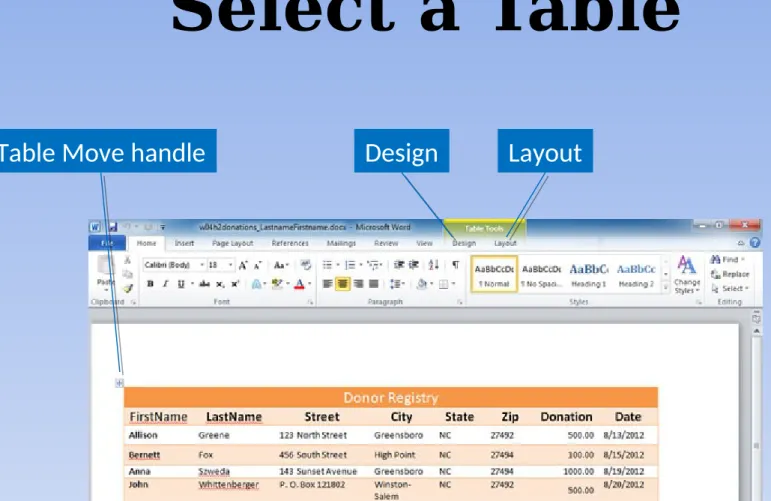
Select a Table
Copyright © 2011 Pearson Education, Inc. Publishing as Prentice 90
Insert and Delete
Layout
Insert commands
Merge and Split Cells
Copyright © 2011 Pearson Education, Inc. Publishing as Prentice 92
Merge Cells
Split Cells
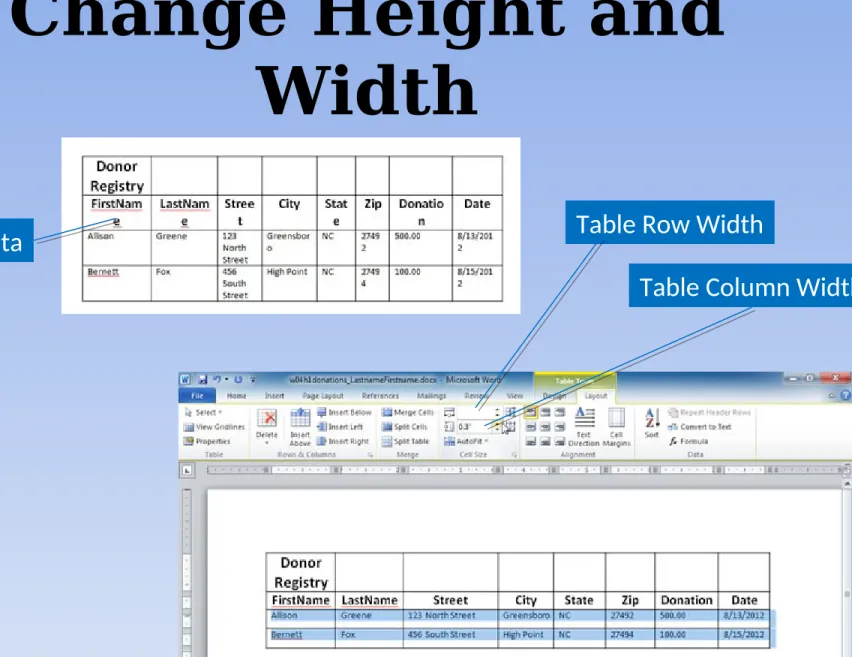
Change Height and
Width
Wrapped data
Formatting a Table
Copyright © 2011 Pearson Education, Inc. Publishing as Prentice 94
More
Table Tools Design
Styles
Shading
Borders
Table Position and
Alignment
Properties
Table alignment
options
Custom indent
Text wrapping
options
Sorting and Applying
Formulas
Copyright © 2011 Pearson Education, Inc. Publishing as Prentice 96
Calculate with Table
Formulas
G3
G12
Formula to calculate total
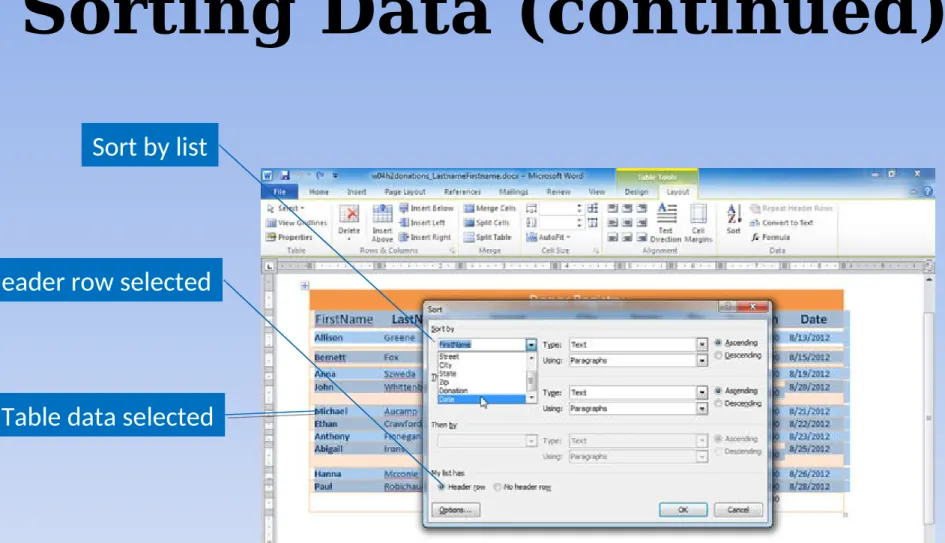
Sort Data
Copyright © 2011 Pearson Education, Inc. Publishing as Prentice 98
Sorting Data (continued)
Sort by list
Header row selected
Convert Text to Table
Copyright © 2011 Pearson Education, Inc. Publishing as Prentice 100
Mail Merge
Mail Merge (continued)
Copyright © 2011 Pearson Education, Inc. Publishing as Prentice 102
Selecting a Main
Document
Copyright © 2011 Pearson Education, Inc. Publishing as Prentice 104
Wizard
Using the Wizard
Selecting Recipients
Copyright © 2011 Pearson Education, Inc. Publishing as Prentice 106
Record
Fields
Create a Data Source
New Entry
New record
Editing a Data Source
Copyright © 2011 Pearson Education, Inc. Publishing as Prentice 108
Name of Data Source
Edit Recipient List
Using an Excel
Worksheet
Select Recipients
Using an Access
Database
Copyright © 2011 Pearson Education, Inc. Publishing as Prentice 110
Field names
Database Tables and
Queries
Query results
Match Fields with
Database
Copyright © 2011 Pearson Education, Inc. Publishing as Prentice 112
Match Fields
Sorting and Filter Records
Sort
Filter
Remove check to omit recipient
Sorting the Data Source
Copyright © 2011 Pearson Education, Inc. Publishing as Prentice 114
Available fields
Inserting Merge Fields
Merge field
Merging
Copyright © 2011 Pearson Education, Inc. Publishing as Prentice 116
Merging to E-mail
Summary
•
Tables organize information, making
it easy to read and understand.
•
Mail merges save time and energy
when preparing personalized
documents.
Copyright
Copyright © 2011 Pearson Education, Inc. Publishing as Prentice 120
All rights reserved. No part of this publication may be
reproduced, stored in a retrieval system, or transmitted, in
any form or by any means, electronic, mechanical,
Figure Captions
Numbering
Insert Caption
Table of Figures
Copyright © 2011 Pearson Education, Inc. Publishing as Prentice 122
Insert Table of Figures
Tab leader style
Table of Authorities
Selected
text
Mark the
selected
entry
Mark all entries
to the same case
in document
Cross-References
Copyright © 2011 Pearson Education, Inc. Publishing as Prentice 124
Insertion point where page number will display
Cross-reference
Reference type
Hyperlink
Summary
•
Collaboration features enable you to
insert comments and track changes in
a document.
•
Tools, such as footnotes, endnotes,
and bibliographies, enable you to
acknowledge sources.
•
Supplemental document components
Questions
Copyright
All rights reserved. No part of this publication may be
reproduced, stored in a retrieval system, or transmitted, in
any form or by any means, electronic, mechanical,