SmartNode 4634 and 4638 Series
VoIP Gateway Routers
Quick Start Guide
Approval—This device is approved for connection to the public ISDN telecommunication network, over BRI/S0-ISDN interfaces.
Zulassung—Zugelassen für die Anschaltung an das öffentliche ISDN Telekommunikationnetz an BRI/S0-ISDN Schnittstellen.
Aprobación—Este aparato está aprobado para conexión a red publica ISDN sobre interfaz BRI/S0. Approbation—Cet appareil est approuve pour la connexion au reseau ISDN public avec les interfaces BRI/S0.
1.0 Power up the SmartNode
1. Connect the SmartNode to the mains (AC) power source with the power cable.
2. Wait until the Power LED stops blinking and remains constantly lit. Now the SmartNode is ready to configure.
2.0 Connecting the SmartNode to your laptop PC
• This device contains no user serviceable parts. The equipment shall be returned to Patton Electronics for repairs, or repaired by qualified ser-vice personnel.
• Mains Voltage: Do not open the case the when the power cord is attached. Line voltages are present within the power supply when the power cords are connected. The mains outlet that is utilized to power the devise shall be within 10 feet (3 meters) of the device, shall be eas-ily accessible, and protected by a circuit breaker.
• Ensure that the power cable used meets all applicable standards for the country in which it is to be installed, and that it is connected to a wall outlet which has earth ground.
• For units with an external power adapter, the adapter shall be a listed Limited Power Source.
• Hazardous network voltages are present in WAN ports regardless of whether power to the unit is ON or OFF. To avoid electric shock, use caution when near WAN ports. When detaching the cables, detach the end away from the device first.
• Do not work on the system or connect or disconnect cables during peri-ods of lightning activity.
The interconnecting cables shall be acceptable for external use and shall be rated for the proper application with respect to voltage, current, anticipated temperature, flam-mability, and mechanical serviceability.
WARNING
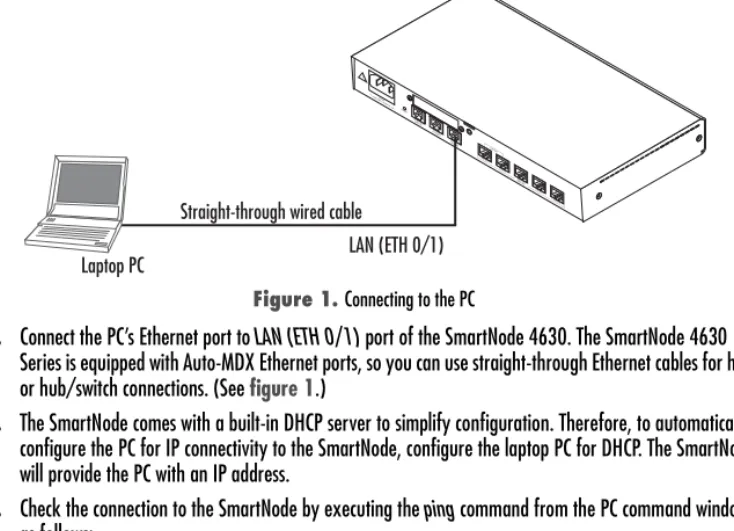
Figure 1. Connecting to the PC
1. Connect the PC’s Ethernet port to LAN (ETH0/1) port of the SmartNode 4630. The SmartNode 4630 Series is equipped with Auto-MDX Ethernet ports, so you can use straight-through Ethernet cables for host or hub/switch connections. (See figure 1.)
2. The SmartNode comes with a built-in DHCP server to simplify configuration. Therefore, to automatically configure the PC for IP connectivity to the SmartNode, configure the laptop PC for DHCP. The SmartNode will provide the PC with an IP address.
3. Check the connection to the SmartNode by executing the ping command from the PC command window as follows:
ping 192.168.1.1
3.0 Configuring the desired IP address
3.1 Factory-default IP settingsThe factory default configuration for the Ethernet interface IP addresses and netmasks are listed in table 1. Both Ethernet interfaces are activated upon power-up. LAN interface ETH 0/1 (LAN) provides a default DHCP server. The WAN interface uses DHCP client to get the IP address and netmask automatically from the service provider.
If these addresses match with those of your network, go to section 4.0 “Connecting the SmartNode to the network” on page 4. Otherwise, continue with the following sections to change the addresses and
network masks.
Table 1. Factory default IP address and network mask configuration
Item IP Addresss Network Mask
WAN interface Ethernet 0 (ETH 0/0) DHCP DHCP
LAN interface Ethernet 1 (ETH 0/1) 192.168.1.1 255.255.255.0
DHCP server address range (LAN) 192.168.1.10-192.168.1.19 255.255.255.0 Straight-through wired cable
LAN (ETH 0/1) Laptop PC
3.2 Login
1. To access the SmartNode, start the Telnet application on your PC. Type the default IP address into the address field: 192.168.1.1. Accessing your SmartNode via a Telnet session displays the login screen. Type the factory default login: administrator and leave the password empty. Press the Enter key after the password prompt.
login:administrator password:<Enter> 192.168.1.1>
2. After you log in, your SmartNode will be running in operator execution mode (indicated by > character in the command line prompt). To enter configuration mode, use the commands enable and configure. 192.168.1.1>enable
192.168.1.1#configure 192.168.1.1(cfg)#
3.3 Changing the WAN IP address
1. To modify IP configuration settings, you must enter context IP mode. Enter the following command: 192.168.1.1(cfg)#context ip router
192.168.1.1(ctx-ip)[router]#
2. Now you can set your IP address and network mask for the interface ETH 0/0(WAN). In this example a network 172.16.1.0/24 is assumed. The IP address in example is set to 172.16.1.99. (You should set it to the IP address that the network provider has given you.)
Note The examples in this guide use a private IP network with the network address 172.16.1.0/24. 192.168.1.1(ctx-ip)[router]#interface eth0
192.168.1.1(if-ip)[eth0]#ipaddress 172.16.1.99 255.255.255.0 2002-10-29T00:09:40 : LOGINFO : Link down on interface eth0. 2002-10-29T00:09:40 : LOGINFO : Link up on interface eth0. 172.16.1.99(if-ip)[eth0]#
3. Copy this modified configuration to your new start-up configuration. This will store your changes in non-volatile memory. On the next start-up the system will initialize itself using the modified configuration. 172.16.1.99 (if-ip)[eth0]#copy running-config startup-config 172.16.1.99 (if-ip)[eth0]#
The SmartNode can now be connected to your network.
4.0 Connecting the SmartNode to the network
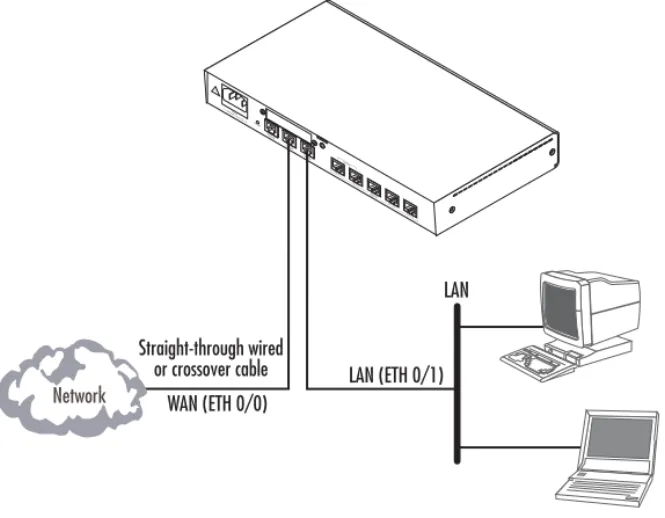
The interconnecting cables shall be acceptable for external use and shall be rated for the proper application with respect to voltage, current, anticipated temperature, flam-mability, and mechanical serviceability.In general, the SmartNode will connect to the network via the WAN (ETH 0/0) port. This enables the SmartNode to offer routing services to the PC hosts on LAN (ETH 0/1) port. The SmartNode 4630 Series provides an auto-MDX feature for both Ethernet ports, so you can use a straight-through or cross-over cable to connect to a host or a switch (see figure 2).
Figure 2. Connecting the SmartNode to the network
1. You can check the connection with the ping command from the SmartNode to another host on the local LAN.
172.16.1.99(if-ip)[eth0]#ping <IP Address of the host>
Note If the WAN address is not set to DHCP, to ping a device outside your local LAN you must first configure the default gateway. (For information on configuring the default gateway, refer to section “Set IP addresses” in Appendix C, “Command Summary” of the SmartNode Series SmartWare Software Config-uration Guide.)
Straight-through wired
or crossover cable LAN (ETH 0/1) LAN
WAN (ETH 0/0)
5.0 Loading the configuration (optional)
Patton provides a collection of configuration templates on the support page at www.patton.com/smart-node—one of which may be similar enough to your application that you can use it to speed up configuring the SmartNode. Simply download the configuration note that matches your application to your PC. Adapt the config-uration as described in the configconfig-uration note to your network (remember to modify the IP address) and copy the modified configuration to a TFTP server. The SmartNode can now load its configuration from this server.Note If your application is unique and not covered by any of Patton’s configuration templates, you can man-ually configure the SmartNode instead of loading a configuration file template. In that case, refer to the SmartNode Series SmartWare Software Configuration Guide for information on configuring the SmartNode device.
In this example we assume an TFTP server resides on the host with the IP address 172.16.1.11 and the configu-ration file named SN.cfg resides in the root directory of the TFTP server.
172.16.1.99(if-ip)[eth0]#copy tftp://172.16.1.11/SN.cfg startup-config
Download...100%
172.16.1.99(if-ip)[eth0]#
After you reboot the SmartNode the new startup configuration will become active.
172.16.1.99(if-ip)[eth0]#reload
Running configuration has been changed.
Do you want to copy the 'running-config' to the 'startup-config'? Press 'yes' to store, 'no' to drop changes : no
Press 'yes' to restart, 'no' to cancel : yes The system is going down
6.0 Additional Information
For detailed information about configuring and operating guidance, set up procedures, and troubleshooting, refer to the SN4630 Series User Manual available online at www.patton.com/manuals/SN4630.pdf and the SmartWare Software Configuration Guide available online at www.patton.com/smartnode.
When you issue the reload command, the SmartNode will ask if you want to copy the running configuration to the startup configuration. Since you just downloaded a con-figuration file to the startup concon-figuration you must answer this question with NO. Otherwise, the downloaded configuration will be overwritten and lost!
A.0 Customer and Technical Support
Toll-Free VoIP support: call sip:[email protected] with a VoIP SIP clientOnline support: www.patton.com
E-mail support: [email protected]—answered within 1 business day Telephone support:
• Standard: +1 (301) 975-1007 (USA), Monday–Friday: 8:00 am to 5:00 pm EST (1300 to 2200 UTC/GMT)
• Alternate: +41 (0)31 985 25 55 (Switzerland), Monday–Friday: 8:00 am to 5:00 pm CET (0900 to 1800 UTC/GMT)
Fax: +1 (253) 663-5693 (USA) or +41 (0)31 985 25 26 (Switzerland)
B.0 Compliance Information
B.1 Compliance EMC Compliance: • FCC Part 15, Class A • EN55022, Class A • EN55024 Safety Compliance: • UL60950-1/CSA C22.2 No. 60950-1 • IEC/EN 60950-1 • AS/NZS 60950-1 PSTN Regulatory Compliance: • TBR3 • AS/ACIF S031B.2 Radio and TV interference
The SmartNode router generates and uses radio frequency energy, and if not installed and used properly—that is, in strict accordance with the manufacturer’s instructions—may cause interference to radio and television reception. The SmartNode router have been tested and found to comply with the limits for a Class A computing device in accordance with specifications in Subpart B of Part 15 of FCC rules, which are designed to provide rea-sonable protection from such interference in a commercial installation. However, there is no guarantee that interference will not occur in a particular installation. If the SmartNode router does cause interference to radio or
television reception, which can be determined by disconnecting the unit, the user is encouraged to try to correct the interference by one or more of the following measures: moving the computing equipment away from the receiver, re-orienting the receiving antenna and/or plugging the receiving equipment into a different AC outlet (such that the computing equipment and receiver are on different branches).
B.3 ISDN compliance
This device is approved for connection to the public ISDN telecommunication network.
B.4 CE Declaration of Conformity Product Description: SmartNode 4630 Series
This equipment conforms to the requirements of Council Directive 1999/5/EC on the approximation of the laws of the member states relating to Radio and Telecommunication Terminal Equipment and the mutual recognition of their conformity.
The signed Declaration of Conformity can be downloaded from www.patton.com/certifications/. B.5 Authorized European Representative
D R M Green
European Compliance Services Limited. Avalon House, Marcham Road Abingdon,
Oxon OX14 1UD, UK B.6 Zulassung
Zugelassen fur die Anschaltung an das öffentliche ISDN Telekommunikationnetz an BRI/S0-ISDN Schnittstellen. When this device is used in North America, it shall be connected to a Network Termina-tion Device and not connected directly to an outside POTS line.
The safety advice in the documentation accompanying the products shall be obeyed. The conformity to the above directive is indicated by the CE sign on the device. CAUTION
Copyright statement
Copyright © 2012, Patton Electronics Company. All rights reserved.
The information in this document is subject to change without notice. Patton Electronics assumes no liability for errors that may appear in this document.
Trademarks statement
The term SmartNode is a trademark of Patton Electronics Company. All other trademarks presented in this docu-ment are the property of their respective owners.
Warranty, Trademark, & Compliance Information
For warranty, trademark and compliance information, refer to the SmartNode 4630 Series User Manual located online atwww.patton.com/manuals.
In accordance with the requirements of council directive 2002/96/EC on Waste of Electrical and Electronic Equipment (WEEE), ensure that at end-of-life you separate this product from other waste and scrap and deliver to the WEEE collection system in your country for recycling.
Notes ____________________________________________________________________ ____________________________________________________________________ ____________________________________________________________________ ____________________________________________________________________ ____________________________________________________________________ ____________________________________________________________________ ____________________________________________________________________ ____________________________________________________________________ ____________________________________________________________________ ____________________________________________________________________ ____________________________________________________________________ ____________________________________________________________________ ____________________________________________________________________ ____________________________________________________________________ ____________________________________________________________________ ____________________________________________________________________ ____________________________________________________________________
Notes ____________________________________________________________________ ____________________________________________________________________ ____________________________________________________________________ ____________________________________________________________________ ____________________________________________________________________ ____________________________________________________________________ ____________________________________________________________________ ____________________________________________________________________ ____________________________________________________________________ ____________________________________________________________________ ____________________________________________________________________ ____________________________________________________________________ ____________________________________________________________________ ____________________________________________________________________ ____________________________________________________________________ ____________________________________________________________________
Notes ____________________________________________________________________ ____________________________________________________________________ ____________________________________________________________________ ____________________________________________________________________ ____________________________________________________________________ ____________________________________________________________________ ____________________________________________________________________ ____________________________________________________________________ ____________________________________________________________________ ____________________________________________________________________ ____________________________________________________________________ ____________________________________________________________________ ____________________________________________________________________ ____________________________________________________________________ ____________________________________________________________________ ____________________________________________________________________ ____________________________________________________________________