Abstract
This manual describes how to install and configure MySQL Connector/ODBC, the driver that enables ODBC applications to communicate with MySQL servers, and how to use it to develop database applications.
For notes detailing the changes in each release of Connector/ODBC, see MySQL Connector/ODBC Release Notes.
Table of Contents
Preface and Legal Notices ... v
1 Introduction to MySQL Connector/ODBC ... 1
2 Connector/ODBC Versions ... 3
3 General Information About ODBC and Connector/ODBC ... 5
3.1 Connector/ODBC Architecture ... 5
3.2 ODBC Driver Managers ... 7
4 Connector/ODBC Installation ... 9
4.1 Installing Connector/ODBC on Windows ... 10
4.1.1 Installing the Windows Connector/ODBC Driver Using an Installer ... 11
4.1.2 Installing the Windows Connector/ODBC Driver Using the Zipped DLL Package ... 14
4.2 Installing Connector/ODBC on Unix-like Systems ... 16
4.2.1 Installing Connector/ODBC Using the MySQL Yum Repository ... 16
4.2.2 Installing Connector/ODBC from a Binary Tarball Distribution ... 16
4.2.3 Installing Connector/ODBC from an RPM Distribution ... 17
4.3 Installing Connector/ODBC on OS X ... 17
4.4 Building Connector/ODBC from a Source Distribution on Windows ... 18
4.5 Building Connector/ODBC from a Source Distribution on Unix ... 19
4.6 Building Connector/ODBC from a Source Distribution on OS X ... 21
4.7 Installing Connector/ODBC from the Development Source Tree ... 22
5 Configuring Connector/ODBC ... 25
5.1 Overview of Connector/ODBC Data Source Names ... 25
5.2 Connector/ODBC Connection Parameters ... 26
5.3 Configuring a Connector/ODBC DSN on Windows ... 32
5.3.1 Configuring a Connector/ODBC 5.x DSN on Windows ... 34
5.3.2 Configuring a Connector/ODBC 5.x DSN on Windows, Using the Command Line ... 39
5.3.3 Troubleshooting ODBC Connection Problems ... 39
5.4 Configuring a Connector/ODBC DSN on OS X ... 40
5.5 Configuring a Connector/ODBC DSN on Unix ... 43
5.6 Connecting Without a Predefined DSN ... 44
5.7 ODBC Connection Pooling ... 45
5.8 Getting an ODBC Trace File ... 45
5.8.1 Enabling ODBC Tracing on Windows ... 45
5.8.2 Enabling ODBC Tracing on OS X ... 46
5.8.3 Enabling ODBC Tracing on Unix ... 47
5.8.4 Enabling a Connector/ODBC Log ... 47
6 Connector/ODBC Examples ... 49
6.1 Basic Connector/ODBC Application Steps ... 49
6.2 Step-by-step Guide to Connecting to a MySQL Database through Connector/ODBC ... 51
6.3 Connector/ODBC and Third-Party ODBC Tools ... 51
6.4 Using Connector/ODBC with Microsoft Access ... 52
6.4.1 Exporting Access Data to MySQL ... 53
6.4.2 Importing MySQL Data to Access ... 54
6.4.3 Using Microsoft Access as a Front-end to MySQL ... 54
6.5 Using Connector/ODBC with Microsoft Word or Excel ... 58
6.6 Using Connector/ODBC with Crystal Reports ... 62
6.7 Connector/ODBC Programming ... 68
6.7.1 Using Connector/ODBC with Visual Basic Using ADO, DAO and RDO ... 69
6.7.2 Using Connector/ODBC with .NET ... 73
7 Connector/ODBC Reference ... 77
7.1 Connector/ODBC API Reference ... 77
MySQL Connector/ODBC Developer Guide
7.3 Connector/ODBC Error Codes ... 82
8 Connector/ODBC Notes and Tips ... 85
8.1 Connector/ODBC General Functionality ... 85
8.1.1 Obtaining Auto-Increment Values ... 85
8.1.2 Dynamic Cursor Support ... 86
8.1.3 Connector/ODBC Performance ... 86
8.1.4 Setting ODBC Query Timeout in Windows ... 86
8.2 Connector/ODBC Application-Specific Tips ... 86
8.2.1 Using Connector/ODBC with Microsoft Applications ... 86
8.2.2 Using Connector/ODBC with Borland Applications ... 89
8.2.3 Using Connector/ODBC with ColdFusion ... 90
8.2.4 Using Connector/ODBC with OpenOffice.org ... 91
8.2.5 Using Connector/ODBC with Sambar Server ... 91
8.2.6 Using Connector/ODBC with Pervasive Software DataJunction ... 91
8.2.7 Using Connector/ODBC with SunSystems Vision ... 91
8.3 Connector/ODBC Errors and Resolutions (FAQ) ... 91
9 Connector/ODBC Support ... 97
9.1 Connector/ODBC Community Support ... 97
9.2 How to Report Connector/ODBC Problems or Bugs ... 97
9.3 How to Submit a Connector/ODBC Patch ... 98
A Licenses for Third-Party Components ... 99
A.1 GNU Libtool License ... 99
Preface and Legal Notices
This manual describes how to install, configure, and develop database applications using MySQL Connector/ODBC, the driver that allows ODBC applications to communicate with MySQL servers.
Legal Notices
Copyright © 2005, 2014, Oracle and/or its affiliates. All rights reserved.
This software and related documentation are provided under a license agreement containing restrictions on use and disclosure and are protected by intellectual property laws. Except as expressly permitted in your license agreement or allowed by law, you may not use, copy, reproduce, translate, broadcast, modify, license, transmit, distribute, exhibit, perform, publish, or display any part, in any form, or by any means. Reverse engineering, disassembly, or decompilation of this software, unless required by law for interoperability, is prohibited.
The information contained herein is subject to change without notice and is not warranted to be error-free. If you find any errors, please report them to us in writing.
If this software or related documentation is delivered to the U.S. Government or anyone licensing it on behalf of the U.S. Government, the following notice is applicable:
U.S. GOVERNMENT RIGHTS Programs, software, databases, and related documentation and technical data delivered to U.S. Government customers are "commercial computer software" or
"commercial technical data" pursuant to the applicable Federal Acquisition Regulation and agency-specific supplemental regulations. As such, the use, duplication, disclosure, modification, and adaptation shall be subject to the restrictions and license terms set forth in the applicable Government contract, and, to the extent applicable by the terms of the Government contract, the additional rights set forth in FAR 52.227-19, Commercial Computer Software License (December 2007). Oracle USA, Inc., 500 Oracle Parkway, Redwood City, CA 94065.
This software is developed for general use in a variety of information management applications. It is not developed or intended for use in any inherently dangerous applications, including applications which may create a risk of personal injury. If you use this software in dangerous applications, then you shall be responsible to take all appropriate fail-safe, backup, redundancy, and other measures to ensure the safe use of this software. Oracle Corporation and its affiliates disclaim any liability for any damages caused by use of this software in dangerous applications.
Oracle is a registered trademark of Oracle Corporation and/or its affiliates. MySQL is a trademark of Oracle Corporation and/or its affiliates, and shall not be used without Oracle's express written authorization. Other names may be trademarks of their respective owners.
This software and documentation may provide access to or information on content, products, and services from third parties. Oracle Corporation and its affiliates are not responsible for and expressly disclaim all warranties of any kind with respect to third-party content, products, and services. Oracle Corporation and its affiliates will not be responsible for any loss, costs, or damages incurred due to your access to or use of third-party content, products, or services.
This document in any form, software or printed matter, contains proprietary information that is the exclusive property of Oracle. Your access to and use of this material is subject to the terms and conditions of your Oracle Software License and Service Agreement, which has been executed and with which you agree to comply. This document and information contained herein may not be disclosed, copied, reproduced, or distributed to anyone outside Oracle without prior written consent of Oracle or as specifically provided below. This document is not part of your license agreement nor can it be incorporated into any contractual agreement with Oracle or its subsidiaries or affiliates.
Legal Notices
This documentation is NOT distributed under a GPL license. Use of this documentation is subject to the following terms:
You may create a printed copy of this documentation solely for your own personal use. Conversion to other formats is allowed as long as the actual content is not altered or edited in any way. You shall not publish or distribute this documentation in any form or on any media, except if you distribute the documentation in a manner similar to how Oracle disseminates it (that is, electronically for download on a Web site with the software) or on a CD-ROM or similar medium, provided however that the documentation is disseminated together with the software on the same medium. Any other use, such as any dissemination of printed copies or use of this documentation, in whole or in part, in another publication, requires the prior written consent from an authorized representative of Oracle. Oracle and/or its affiliates reserve any and all rights to this documentation not expressly granted above.
For more information on the terms of this license, or for details on how the MySQL documentation is built and produced, please visit MySQL Contact & Questions.
For help with using MySQL, please visit either the MySQL Forums or MySQL Mailing Lists where you can discuss your issues with other MySQL users.
For additional documentation on MySQL products, including translations of the documentation into other languages, and downloadable versions in variety of formats, including HTML and PDF formats, see the MySQL Documentation Library.
Chapter 1 Introduction to MySQL Connector/ODBC
The MySQL Connector/ODBC is the name for the family of MySQL ODBC drivers (previously called MyODBC drivers) that provide access to a MySQL database using the industry standard Open Database Connectivity (ODBC) API. This reference covers Connector/ODBC 5.2, which includes the functionality of the Unicode driver and the ANSI driver, which formerly were split between Connector/ODBC 5.1 and Connector/ODBC 3.51.
MySQL Connector/ODBC provides both driver-manager based and native interfaces to the MySQL database, with full support for MySQL functionality, including stored procedures, transactions and, with Connector/ODBC 5.1 and higher, full Unicode compliance.
For more information on the ODBC API standard and how to use it, refer to http://support.microsoft.com/ kb/110093.
The application development section of the ODBC API reference assumes a good working knowledge of C, general DBMS, and a familiarity with MySQL. For more information about MySQL functionality and its syntax, refer to http://dev.mysql.com/doc/.
Typically, you need to install Connector/ODBC only on Windows machines. For Unix and OS X, you can use the native MySQL network or named pipes to communicate with your MySQL database. You may need Connector/ODBC for Unix or OS X if you have an application that requires an ODBC interface to communicate with the database. Applications that require ODBC to communicate with MySQL include ColdFusion, Microsoft Office, and Filemaker Pro.
For notes detailing the changes in each release of Connector/ODBC, see MySQL Connector/ODBC Release Notes.
Key connector/ODBC topics include:
• Installing Connector/ODBC: Chapter 4, Connector/ODBC Installation.
• The configuration options: Section 5.2, “Connector/ODBC Connection Parameters”.
• An example that connects to a MySQL database from a Windows host: Section 6.2, “Step-by-step Guide to Connecting to a MySQL Database through Connector/ODBC”.
• An example that uses Microsoft Access as an interface to a MySQL database: Section 6.4, “Using Connector/ODBC with Microsoft Access”.
• General tips and notes, including how to obtain the last auto-increment ID: Section 8.1, “Connector/ ODBC General Functionality”.
• Application-specific usage tips and notes: Section 8.2, “Connector/ODBC Application-Specific Tips”.
• A FAQ (Frequently Asked Questions) list: Section 8.3, “Connector/ODBC Errors and Resolutions (FAQ)”.
Chapter 2 Connector/ODBC Versions
These are the versions of Connector/ODBC that are currently available:
• Connector/ODBC 5.3 series, now in GA status, is suitable for use with any MySQL version since 4.1 (it will not work with 4.0 or earlier releases). It conforms to the ODBC 3.8 specification and contains key ODBC 3.8 features including self-identification as a ODBC 3.8 driver, streaming of output parameters (supported for binary types only), and support of the SQL_ATTR_RESET_CONNECTION connection attribute (for the Unicode driver only). Connector/ODBC 5.3 also introduces a GTK+-based setup library, providing GUI DSN setup dialog on some Unix-based systems. The library is currently included in the Oracle Linux 6 and Debian 6 binary packages. Other new features in the 5.3 series include file DSN and bookmark support; see the release notes for the 5.3 series for details.
• Connector/ODBC 5.2 upgrades the ANSI driver of Connector/ODBC 3.51 to the 5.x code base. It also includes new features, such as enabling server-side prepared statements by default. At installation time, you can choose the Unicode driver for the broadest compatibility with data sources using various character sets, or the ANSI driver for optimal performance with a more limited range of character sets. It works with MySQL versions 4.1.1 and higher.
• Connector/ODBC 5.1, is a partial rewrite of the of the 3.51 code base, and is designed to work with MySQL versions 4.1.1 and newer.
Connector/ODBC 5.1 also includes the following changes and improvements over the 3.51 release:
• Improved support on Windows 64-bit platforms.
• Full Unicode support at the driver level. This includes support for the SQL_WCHAR data type, and support for Unicode login, password and DSN configurations. For more information, see Microsoft Knowledgebase Article #716246.
• Support for the SQL_NUMERIC_STRUCT data type, which provides easier access to the precise definition of numeric values. For more information, see Microsoft Knowledgebase Article #714556
• Native Windows setup library. This replaces the Qt library based interface for configuring DSN information within the ODBC Data Sources application.
• Support for the ODBC descriptor, which improves the handling and metadata of columns and parameter data. For more information, see Microsoft Knowledgebase Article #716339.
• Connector/ODBC 3.51, also known as the MySQL ODBC 3.51 driver, is a 32-bit ODBC driver. Connector/ODBC 3.51 has support for ODBC 3.5x specification level 1 (complete core API + level 2 features) to continue to provide all functionality of ODBC for accessing MySQL.
The manual for versions of Connector/ODBC older than 5.3 can be located in the corresponding binary or source distribution.
Note
Versions of Connector/ODBC earlier than the 3.51 revision were not fully compliant with the ODBC specification.
Note
From this section onward, the primary focus of this guide is the Connector/ODBC 5.3 driver.
Note
Version numbers for MySQL products are formatted as X.X.X. However, Windows tools (Control Panel, properties display) may show the version numbers as XX.XX.XX. For example, the official MySQL formatted version number 5.0.9 may be displayed by Windows tools as 5.00.09. The two versions are the same; only the number display formats are different.
Chapter 3 General Information About ODBC and Connector/
ODBC
Table of Contents
3.1 Connector/ODBC Architecture ... 5 3.2 ODBC Driver Managers ... 7
ODBC (Open Database Connectivity) provides a way for client programs to access a wide range of databases or data sources. ODBC is a standardized API that enables connections to SQL database servers. It was developed according to the specifications of the SQL Access Group and defines a set of function calls, error codes, and data types that can be used to develop database-independent applications. ODBC usually is used when database independence or simultaneous access to different data sources is required.
For more information about ODBC, refer to http://support.microsoft.com/kb/110093.
Open Database Connectivity (ODBC) is a widely accepted application-programming interface (API) for database access. It is based on the Call-Level Interface (CLI) specifications from X/Open and ISO/IEC for database APIs and uses Structured Query Language (SQL) as its database access language.
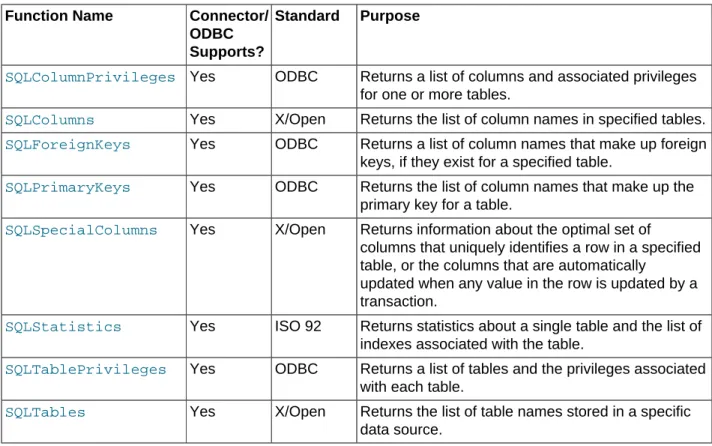
A survey of ODBC functions supported by Connector/ODBC is given at Section 7.1, “Connector/ODBC API Reference”. For general information about ODBC, see http://support.microsoft.com/kb/110093.
3.1 Connector/ODBC Architecture
Connector/ODBC Architecture
• Application:
The Application uses the ODBC API to access the data from the MySQL server. The ODBC API in turn communicates with the Driver Manager. The Application communicates with the Driver Manager using the standard ODBC calls. The Application does not care where the data is stored, how it is stored, or even how the system is configured to access the data. It needs to know only the Data Source Name (DSN).
A number of tasks are common to all applications, no matter how they use ODBC. These tasks are: • Selecting the MySQL server and connecting to it.
• Submitting SQL statements for execution. • Retrieving results (if any).
ODBC Driver Managers
• Committing or rolling back the transaction enclosing the SQL statement.
• Disconnecting from the MySQL server.
Because most data access work is done with SQL, the primary tasks for applications that use ODBC are submitting SQL statements and retrieving any results generated by those statements.
• Driver manager:
The Driver Manager is a library that manages communication between application and driver or drivers. It performs the following tasks:
• Resolves Data Source Names (DSN). The DSN is a configuration string that identifies a given database driver, database, database host and optionally authentication information that enables an ODBC application to connect to a database using a standardized reference.
Because the database connectivity information is identified by the DSN, any ODBC-compliant
application can connect to the data source using the same DSN reference. This eliminates the need to separately configure each application that needs access to a given database; instead you instruct the application to use a pre-configured DSN.
• Loading and unloading of the driver required to access a specific database as defined within the DSN. For example, if you have configured a DSN that connects to a MySQL database then the driver manager will load the Connector/ODBC driver to enable the ODBC API to communicate with the MySQL host.
• Processes ODBC function calls or passes them to the driver for processing. • Connector/ODBC Driver:
The Connector/ODBC driver is a library that implements the functions supported by the ODBC API. It processes ODBC function calls, submits SQL requests to MySQL server, and returns results back to the application. If necessary, the driver modifies an application's request so that the request conforms to syntax supported by MySQL.
• DSN Configuration:
The ODBC configuration file stores the driver and database information required to connect to the server. It is used by the Driver Manager to determine which driver to be loaded according to the definition in the DSN. The driver uses this to read connection parameters based on the DSN specified. For more information, Chapter 5, Configuring Connector/ODBC.
• MySQL Server:
The MySQL database where the information is stored. The database is used as the source of the data (during queries) and the destination for data (during inserts and updates).
3.2 ODBC Driver Managers
An ODBC Driver Manager is a library that manages communication between the ODBC-aware application and any drivers. Its main functionality includes:
• Resolving Data Source Names (DSN). • Driver loading and unloading.
ODBC Driver Managers
Most ODBC Driver Manager implementations also include an administration application that makes the configuration of DSN and drivers easier. Examples and information on ODBC Driver Managers for different operating systems are listed below:
• Windows: Microsoft Windows ODBC Driver Manager (odbc32.dll). It is included in the Windows operating system. See http://support.microsoft.com/kb/110093 for more information.
• OS X: ODBC Administrator is a GUI application for OS X. It provides a simplified configuration
mechanism for the iODBC Driver Manager. You can configure DSN and driver information either through ODBC Administrator or through the iODBC configuration files. This also means that you can test ODBC Administrator configurations using the iodbctest command. See http://support.apple.com/kb/DL895 for more information.
• Unix:
• unixODBC Driver Manager for Unix (libodbc.so). See http://www.unixodbc.org, for more information.
Chapter 4 Connector/ODBC Installation
Table of Contents
4.1 Installing Connector/ODBC on Windows ... 10
4.1.1 Installing the Windows Connector/ODBC Driver Using an Installer ... 11
4.1.2 Installing the Windows Connector/ODBC Driver Using the Zipped DLL Package ... 14
4.2 Installing Connector/ODBC on Unix-like Systems ... 16
4.2.1 Installing Connector/ODBC Using the MySQL Yum Repository ... 16
4.2.2 Installing Connector/ODBC from a Binary Tarball Distribution ... 16
4.2.3 Installing Connector/ODBC from an RPM Distribution ... 17
4.3 Installing Connector/ODBC on OS X ... 17
4.4 Building Connector/ODBC from a Source Distribution on Windows ... 18
4.5 Building Connector/ODBC from a Source Distribution on Unix ... 19
4.6 Building Connector/ODBC from a Source Distribution on OS X ... 21
4.7 Installing Connector/ODBC from the Development Source Tree ... 22
This section explains where to download Connector/ODBC, and how to run the installer, copy the files manually, or build from source.
Where to Get Connector/ODBC
You can get a copy of the latest version of Connector/ODBC binaries and sources from our Web site at http://dev.mysql.com/downloads/connector/odbc/.
For more information about Connector/ODBC, visit http://www.mysql.com/products/myodbc/.
For more information about licensing, visit http://www.mysql.com/company/legal/licensing/.
Choosing Unicode or ANSI Driver
Connector/ODBC offers the flexibility to handle data using any character set through its Unicode-enabled driver, or the maximum raw speed for a more limited range of character sets through its ANSI driver. Some users postponed their upgrade to Connector/ODBC 5.1, remaining with the older 3.51 version to keep this performance edge. As of Connector/ODBC 5.2, both kinds of drivers are available based on the 5.x code base: you can choose either a Unicode-enabled driver or an ANSI driver on the download page. The Unicode-enabled driver, recommended for most users, has no special qualifier in the download filename. The ANSI driver includes -ansi- in the download filename.
Note
You can install either the Unicode driver on a Windows system, or the ANSI driver, or both. The drivers are distinguished in the list of installed software and in the names of libraries and directories by a w (for “wide characters”) for the Unicode driver, and a in the ANSI driver.
Choosing Binary or Source Installation Method
You can install the Connector/ODBC drivers using two different methods:
• The binary installation is the easiest and most straightforward method of installation. You receive all the necessary libraries and other files pre-built, with an installer program or batch script to perform all necessary copying and configuration.
Supported Platforms
• The source installation method is intended for platforms where a binary installation package is not available, or in situations where you want to customize or modify the installation process or Connector/ ODBC drivers before installation.
If a binary distribution is not available for a particular platform, and you build the driver from the original source code, you can contribute the binaries you create to MySQL by sending a mail message to
<[email protected]>, so that it becomes available for other users.
Supported Platforms
Connector/ODBC can be used on all major platforms supported by MySQL. You can install it on: • Windows XP, 2003, Vista and 7.
• All Unix-like Operating Systems, including: Amiga, BSDI, DEC, FreeBSD, HP-UX 10/11, Linux, NetBSD, OpenBSD, OS/2, SGI Irix, Solaris, SunOS, SCO OpenServer, SCO UnixWare, Tru64 Unix.
• OS X and OS X Server.
Note
On all non-Windows platforms except OS X, the driver is built against unixODBC
and is expecting a 2-byte SQLWCHAR, not 4 bytes as iODBC is using. For this reason, the binaries are only compatible with unixODBC; recompile the driver against iODBC to use them together. For further information, see Section 3.2, “ODBC Driver Managers”.
For further instructions, consult the documentation corresponding to the platform where you are installing and whether you are running a binary installer or building from source:
Platform Binary Installer Build from Source
Windows Installation Instructions Build Instructions Unix/Linux Installation Instructions Build Instructions
OS X Installation Instructions
4.1 Installing Connector/ODBC on Windows
Before installing the Connector/ODBC drivers on Windows:
• Make sure your Microsoft Data Access Components (MDAC) are up to date. You can obtain the latest version from the Microsoft Data Access and Storage Web site.
• Make sure you have the Microsoft Visual C++ 2010 Redistributable Package installed on your system. The package is available at the Microsoft Download Center. Use the version of the package that
matches the system type of your Connector/ODBC driver: use the 64-bit version (marked by “x64” in the package's title and filename) if you are running a 64-bit driver, and use the 32-bit version (marked by “x86” in the package's title and filename) if you are running a 32-bit driver.
There are different distribution types to use when installing for Windows. The software that is installed is identical in each case, only the installation method is different.
• The zipped installer consists of a zipped package containing a standalone installation application. To install from this package, unzip the installer, and then run the installation application.
The MSI installer is an installation file that can be used with the installer included in Windows 2000, Windows XP and Windows Server 2003.
Installing the Windows Connector/ODBC Driver Using an Installer
See Section 4.1.1, “Installing the Windows Connector/ODBC Driver Using an Installer” for the steps to complete the installation with either of these installers.
• The zipped DLL package contains DLL files that must be manually installed. See Section 4.1.2, “Installing the Windows Connector/ODBC Driver Using the Zipped DLL Package” for the steps to complete this type of installation.
Note
An OLEDB/ODBC driver for Windows 64-bit is available from Microsoft Downloads.
4.1.1 Installing the Windows Connector/ODBC Driver Using an Installer
The zipped or MSI installer packages offer a very simple method for installing the Connector/ODBC drivers. If you have downloaded the zipped installer, extract the installer application. The basic installation process is identical for both installers.
Follow these steps to complete the installation:
1. Double-click the standalone installer that you extracted, or the MSI file you downloaded.
2. The MySQL Connector/ODBC Setup Wizard starts. Click the Next button to begin the installation process.
Installing the Windows Connector/ODBC Driver Using an Installer
3. Choose the installation type. The Typical installation provides the standard files needed to connect to a MySQL database using ODBC. The Complete option installs all the available files, including debug and utility components. Oracle recommends choosing one of these two options to complete the installation. If you choose one of these methods, click Next, then proceed to step 5.
You can also choose a Custom installation, where you select the individual components to install. If you choose this method, click Next, then proceed to step 4.
4. If you have chosen a custom installation, use the pop-ups to select which components to install, then click Next to install the necessary files.
Installing the Windows Connector/ODBC Driver Using an Installer
5. Once the files are copied to their final locations, the installation is complete. Click Finish to exit the installer.
Installing the Windows Connector/ODBC Driver Using the Zipped DLL Package
Now that the installation is complete, configure your ODBC connections using Chapter 5, Configuring
Connector/ODBC.
4.1.2 Installing the Windows Connector/ODBC Driver Using the Zipped DLL
Package
If you have downloaded the zipped DLL package:
1. Unzip the installation files.
2. Run the included batch file to perform an installation to the default locations.
3. Alternatively, install the individual files required for Connector/ODBC operation manually.
Note
The following instructions only work for 32-bit Windows systems. If you have a 64-bit Windows system, use the MSI installer, which installs both the 32-64-bit and 64-64-bit drivers to the correct locations.
To install using the batch file:
Installing the Windows Connector/ODBC Driver Using the Zipped DLL Package
2. Open a command prompt.
3. Change to the directory created when you unzipped the Connector/ODBC zipped DLL package.
4. Run Install.bat:
C:\> Install.bat
This copies the necessary files into the default location, and then registers the Connector/ODBC driver with the Windows ODBC manager.
Note
Changing or adding a new DSN (data source name) may be accomplished using either the GUI, or from the command-line using myodbc-installer.exe.
Although Oracle recommends installing these files in the standard location, you can also copy the files by hand to an alternative location - for example, to run or test different versions of the Connector/ODBC driver on the same machine. To copy the files to a location of your choice, use the following steps:
1. Unzip the Connector/ODBC zipped DLL package.
2. Open a command prompt.
3. Change to the directory created when you unzipped the Connector/ODBC zipped DLL package.
4. Copy the library files to a suitable directory. The default location is the default Windows system directory \Windows\System32:
C:\> copy lib\myodbc5S.dll \Windows\System32
C:\> copy lib\myodbc5S.lib \Windows\System32
If installing the Unicode-enabled driver: C:\> copy lib\myodbc5w.dll \Windows\System32
C:\> copy lib\myodbc5w.lib \Windows\System32
If installing the ANSI driver:
C:\> copy lib\myodbc5a.dll \Windows\System32
C:\> copy lib\myodbc5a.lib \Windows\System32
5. Copy the Connector/ODBC tools. These must be placed in a directory that is in the system %PATH%. The default is to install these into the Windows system directory \Windows\System32:
C:\> copy bin\myodbc-installer.exe \Windows\System32
6. Optionally, copy the help files. For these files to be accessible through the help system, they must be installed in the Windows system directory:
C:\> copy doc\*.hlp \Windows\System32
7. Finally, register the Connector/ODBC driver with the ODBC manager:
For Unicode-enabled driver:
C:\> myodbc-installer -a -d -t"MySQL ODBC 5.2 Driver;\ DRIVER=myodbc5w.dll;SETUP=myodbc5S.dll"
For ANSI driver:
Installing Connector/ODBC on Unix-like Systems
DRIVER=myodbc5a.dll;SETUP=myodbc5S.dll"
If you installed these files into a non-default location, change the references to the DLL files and command location in the above statement
4.2 Installing Connector/ODBC on Unix-like Systems
There are three methods available for installing Connector/ODBC on a Unix-like system from a binary distribution. For most Unix environments, you will use the tarball distribution. For Linux systems, RPM distributions are available, through the MySQL Yum repository (for some platforms) or direct download.
Note
Installing Connector/ODBC 5.x on Unix requires unixODBC 2.2.12 or later to be installed.
4.2.1 Installing Connector/ODBC Using the MySQL Yum Repository
For EL5, EL6, or EL7-based platforms and Fedora 19 or 20, you can install the Connector/ODBC using the MySQL Yum repository. You must have the MySQL Yum repository on your system's repository list (see Adding the MySQL Yum Repository for details). Make sure your Yum repository setup is up-to-date by running:
shell> su root
shell> yum update mysql-community-release
You can then install Connector/ODBC by the following command:
shell> yum install mysql-connector-odbc
See Installing Additional MySQL Products and Components with Yum for more details.
4.2.2 Installing Connector/ODBC from a Binary Tarball Distribution
To install the driver from a tarball distribution (.tar.gz file), download the latest version of the driver for your operating system and follow these steps, substituting the appropriate file and directory names based on the package you download (some of the steps below might require superuser privileges):
1. Extract the archive:
shell> gunzip mysql-connector-odbc-5.2.2-i686-pc-linux.tar.gz
shell> tar xvf mysql-connector-odbc-5.2.2-i686-pc-linux.tar
2. The extra directory contains two subdirectories, lib and bin. Copy their contents to the proper locations on your system (we use /usr/local/bin and /usr/local/lib in this example; replace them with the destinations of your choice):
shell> cp bin/* /usr/local/bin shell> cp lib/* /usr/local/lib
The last command copies both the Connector/ODBC ANSI and the Unicode drivers from lib into / usr/local/lib; if you do not need both, you can just copy the one you want. See Choosing Unicode or ANSI Driver for details.
3. Finally, register the driver version of your choice (the ANSI version, the Unicode version, or both) with your system's ODBC manager (for example, iODBC or unixodbc) using the myodbc-installer tool
Installing Connector/ODBC from an RPM Distribution
that was included in the package under the bin subdirectory (and is now under the /usr/local/bin
directory, if the last step was followed); for example, this registers the Unicode driver with the ODBC manager:
shell> myodbc-installer -a -d -n "MySQL ODBC 5.2 Driver" -t "Driver=/usr/local/lib/libmyodbc5w.so"
This registers the ANSI driver:
shell> myodbc-installer -a -d -n "MySQL ODBC 5.2 Driver" -t "Driver=/usr/local/lib/libmyodbc5a.so"
4. Verify that the driver is installed and registered using the ODBC manager, or the myodbc-installer
utility:
shell> myodbc-installer -d -l
Next, see Section 5.5, “Configuring a Connector/ODBC DSN on Unix” on how to configure a DSN for Connector/ODBC.
4.2.3 Installing Connector/ODBC from an RPM Distribution
To install or upgrade Connector/ODBC from an RPM distribution on Linux, simply download the RPM distribution of the latest version of Connector/ODBC and follow the instructions below. Use su root to become root, then install the RPM file.
If you are installing for the first time:
shell> su root
shell> rpm -ivh mysql-connector-odbc-5.2.2.i386.rpm If the driver exists, upgrade it like this:
shell> su root
shell> rpm -Uvh mysql-connector-odbc-5.2.2.i386.rpm
If there is any dependency error for MySQL client library, libmysqlclient, simply ignore it by supplying the --nodeps option, and then make sure the MySQL client shared library is in the path or set through
LD_LIBRARY_PATH.
This installs the driver libraries and related documents to /usr/local/lib and /usr/share/doc/ MyODBC, respectively. See Section 5.5, “Configuring a Connector/ODBC DSN on Unix” for the post-installation configuration steps.
To uninstall the driver, become root and execute an rpm command:
shell> su root
shell> rpm -e mysql-connector-odbc
4.3 Installing Connector/ODBC on OS X
OS X is based on the FreeBSD operating system, and you can normally use the MySQL network port for connecting to MySQL servers on other hosts. Installing the Connector/ODBC driver lets you connect to MySQL databases on any platform through the ODBC interface. If your application requires an ODBC interface, install the Connector/ODBC driver. Applications that require or can use ODBC (and therefore the Connector/ODBC driver) include ColdFusion, Filemaker Pro, 4th Dimension and many other applications.
Building Connector/ODBC from a Source Distribution on Windows
On OS X, the ODBC Administrator, based on the iODBC manager, provides easy administration of ODBC drivers and configuration, allowing the updates of the underlying iODBC configuration files through a GUI tool. The tool is included in OS X v10.5 and earlier; users of later versions of OS X need to download and install it manually.
There are two ways to install Connector/ODBC on OS X. You can use either the package provided in a compressed tar archive that you manually install, or use a compressed disk image (.dmg) file, which includes an installer.
To install using the compressed tar archive (some of the steps below might require superuser privileges):
1. Download the compressed tar archive.
2. Extract the archive:
shell> tar xvzf mysql-connector-odbc-5.x.y-osx10.z-x86-(32|64)bit.tar.gz
3. The directory created contains two subdirectories, lib and bin. Copy these to a suitable location such as /usr/local:
shell> cp bin/* /usr/local/bin shell> cp lib/* /usr/local/lib
4. Finally, register the driver with iODBC using the myodbc-installer tool that was included in the package:
shell> myodbc-installer -a -d -n "MySQL ODBC 5.2 Driver" -t "Driver=/usr/local/lib/libmyodbc5w.so"
To verify the installed drivers, either use the ODBC Administrator application or the myodbc-installer
utility:
shell> myodbc-installer -d -l
4.4 Building Connector/ODBC from a Source Distribution on
Windows
You only need to build Connector/ODBC from source on Windows to modify the source or installation location. If you are unsure whether to install from source, please use the binary installation detailed in Section 4.1, “Installing Connector/ODBC on Windows”.
Building Connector/ODBC from source on Windows requires a number of different tools and packages:
• MDAC, Microsoft Data Access SDK from http://support.microsoft.com/kb/110093.
• Suitable C compiler, such as Microsoft Visual C++ or the C compiler included with Microsoft Visual Studio.
Microsoft Visual Studio 7 and 8 are preferred, and well-tested.
• Connector/ODBC 5.2: cmake.
• MySQL client libraries and include files from MySQL 4.0.0 or higher. (Preferably MySQL 4.0.16 or higher). This is required because Connector/ODBC uses calls and structures that exist only starting from this version of the library. To get the client libraries and include files, visit http://dev.mysql.com/ downloads/.
Build Steps
Build Steps
Set the environment variables for the Visual Studio toolchain. Visual Studio includes a batch file to set these for you, and installs a Start menu shortcut that opens a command prompt with these variables set.
Set MYSQL_DIR to the MySQL server installation path, while using the short-style file names. For example:
C:\> set MYSQL_DIR=C:\PROGRA~1\MySQL\MYSQLS~1.0
Build Connector/ODBC using the cmake command-line tool by executing the following from the source root directory (in a command prompt window):
C:\> cmake -G "Visual Studio 8 2005"
This produces a project file that you can open with Visual Studio, or build from the command line with either of the following commands:
C:\> devenv.com MySQL_Connector_ODBC.sln /build Release
C:\> devenv.com MySQL_Connector_ODBC.sln /build RelWithDebInfo
By default, Connector/ODBC is linked statically with the MySQL client library mysqlclient.lib. If you want to link dynamically or to another MySQL client library, use the MYSQLCLIENT_LIB_NAME option to supply the client library's name:
C:\> cmake -G "Visual Studio 8 2005" -DMYSQLCLIENT_LIB_NAME=client_lib_name_with_extension
To compile a debug build, set the cmake build type so that the correct versions of the MySQL client libraries are used:
C:\> cmake -G "Visual Studio 8 2005" -DWITH_DEBUG=1
C:\> devenv.com MySQL_Connector_ODBC.sln /build Debug
Upon completion, the executables are in the bin/ and lib/ subdirectories.
See Section 4.1.2, “Installing the Windows Connector/ODBC Driver Using the Zipped DLL Package” for the
copy commands to complete the installation.
4.5 Building Connector/ODBC from a Source Distribution on Unix
You need the following tools to build MySQL from source on Unix:
• A working ANSI C++ compiler. GCC 4.2.1 or later, Sun Studio 10 or later, Visual Studio 2008 or later, and many current vendor-supplied compilers are known to work.
• cmake.
• MySQL client libraries and include files from MySQL 4.0.0 or higher (preferably 4.0.16 or higher). This is required because Connector/ODBC uses calls and structures that exist only starting from that version of the library. To get the client libraries and include files, visit http://dev.mysql.com/downloads/.
• A compatible ODBC manager must be installed. Connector/ODBC is known to work with the iODBC and
Typical cmake Parameters and Options
• If you are using a character set that is not compiled into the MySQL client library, install the MySQL character definitions from the charsets directory into SHAREDIR (by default, /usr/local/mysql/ share/mysql/charsets). These should be in place if you have installed the MySQL server on the same machine. See Character Set Support for more information on character set support.
Once you have all the required files, unpack the source files to a separate directory, then run cmake with the following command:
shell> cmake -G "Unix Makefiles"
Typical
cmake
Parameters and Options
You might need to help cmake find the MySQL headers and libraries by setting the environment variables
MYSQL_INCLUDE_DIR, MYSQL_LIB_DIR, and MYSQL_DIR to the appropriate locations; for example:
shell> export MYSQL_INCLUDE_DIR=/usr/local/mysql/include
shell> export MYSQL_LIB_DIR=/usr/local/mysql/lib
shell> export MYSQL_DIR=/usr/local/mysql
When you run cmake, you might add options to the command line. Here are some examples:
• -DODBC_INCLUDES=dir_name: Use when the ODBC include directory is not found within the system
$PATH.
• -DODBC_LIB_DIR=dir_name: Use when the ODBC library directory is not found within the system
$PATH.
• -DWITH_UNIXODBC=1: Enables unixODBC support. iODBC is the default ODBC library used by Connector/ODBC. Alternatively, unixODBC may be used by setting this option to “1”.
• -DMYSQLCLIENT_LIB_NAME=client_lib_name_with_extension: By default, Connector/ODBC is linked statically with the MySQL client library libmysqlclient.a. If you want to link dynamically or to another MySQL client library, use this option to supply the client library's name.
• -DMYSQL_CONFIG_EXECUTABLE=/path/to/mysql_config: Specifies location of the utility
mysql_config, which is used to fetch values of the variables MYSQL_INCLUDE_DIR, MYSQL_LIB_DIR,
MYSQL_LINK_FLAGS, and MYSQL_CXXFLAGS. Values fetched by mysql_config can be overridden by values provided directly to cmake as parameters.
• -DMYSQL_LINK_FLAGS=MySQL link flags • -DMYSQL_CXXFLAGS=MySQL C++ linkage flags
• -DMYSQL_CXX_LINKAGE=1: Enables C++ linkage to MySQL client library. By default,
MYSQL_CXX_LINKAGE is enabled for MySQL 5.6.4 or later. For MySQL 5.6.3 and earlier, this option must be set explicitly to 1.
Build Steps for Unix
To build the driver libraries, execute make:
shell> make
If any errors occur, correct them and continue with the build process. If you are not able to finish the build, see Section 9.1, “Connector/ODBC Community Support”.
Installing Driver Libraries
Installing Driver Libraries
To install the driver libraries, execute the following command:
shell> make install
For more information on build process, refer to the BUILD file that comes with the source distribution.
Testing Connector/ODBC on Unix
Some tests for Connector/ODBC are provided in the distribution with the libraries that you built. To run the tests:
1. Make sure you have an odbc.ini file in place, by which you can configure your DSN entries. A sample odbc.ini file is generated by the build process under the test folder. Set the environment variable ODBCINI to the location of your odbc.ini file.
2. Set up a test DSN in your odbc.ini file (see Section 5.5, “Configuring a Connector/ODBC DSN on Unix” for details ). A sample DSN entry, which you can use for your tests, can be found in the sample
odbc.ini file.
3. Set the environment variable TEST_DSN to the name of your test DSN.
4. Set the environment variable TEST_UID and perhaps also TEST_PASSWORD to the user name and password for the tests, if needed. By default, the tests use “root” as the user and do not enter a password; if you want the tests to use another user name or password, set TEST_UID and
TEST_PASSWORD accordingly.
5. Make sure that your MySQL server is running.
6. Run the following command:
shell> make test
4.6 Building Connector/ODBC from a Source Distribution on OS X
To build the driver on OS X (Darwin), make use of the following configure example:
shell> ./configure --prefix=/usr/local
--with-unixODBC=/usr/local
--with-mysql-path=/usr/local/mysql
--disable-shared
--enable-gui=no
--host=powerpc-apple
The command assumes that the unixODBC and MySQL are installed in the default locations. If not, configure accordingly.
On OS X, --enable-shared builds .dylib files by default. You can build .so files like this:
shell> make
shell> cd driver
shell> CC=/usr/bin/gcc \
$CC -bundle -flat_namespace -undefined error
Installing Connector/ODBC from the Development Source Tree
-L/usr/local/mysql/lib/
-L/usr/local/iodbc/lib
-liodbcinst -lmysqlclient -lz -lc To build the thread-safe driver library:
shell> CC=/usr/bin/gcc \
$CC -bundle -flat_namespace -undefined error
-o .libs/libmyodbc3-3.51.01.so *.o
-L/usr/local/mysql/lib/
-L/usr/local/iodbc/lib
-liodbcinst -lmysqlclienti_r -lz -lc -lpthread
Make sure to change the -liodbcinst to -lodbcinst in case of using unixODBC instead of iODBC
and configure the libraries path accordingly.
By default, Connector/ODBC is linked statically with the MySQL client library libmysqlclient.a. If you want to link dynamically or to another MySQL client library, use the mysqlclient_lib_name option to supply the client library's name.
In Apple's version of GCC, both cc and gcc are actually symbolic links to gcc3. Copy this library to the $prefix/lib directory and symlink to libmyodbc3.so. You can cross-check the output shared-library properties using this command:
shell> otool -LD .libs/libmyodbc3-3.51.01.so
4.7 Installing Connector/ODBC from the Development Source Tree
CautionThis section is only for users who are interested in helping us test our new code. To just get MySQL Connector/ODBC up and running on your system, use a standard release distribution.
To obtain the most recent development source tree, first download and install Bazaar from the Bazaar VCS Web site. Bazaar is supported by any platform that supports Python, and is therefore compatible with any Linux, Unix, Windows, or OS X host. Instructions for downloading and installing Bazaar on the different platforms are available on the Bazaar Web site.
The most recent development source tree is available on LaunchPad at https://code.launchpad.net/ myodbc.
To check out the Connector/ODBC sources, change to the directory where you want the copy of the Connector/ODBC tree to be stored, then use the following command:
shell> bzr branch lp:myodbc/5.2
You should now have a copy of the entire Connector/ODBC source tree in the directory connector-odbc5. To build and then install the driver libraries from this source tree on Unix or Linux, use the same steps outlined in Section 4.5, “Building Connector/ODBC from a Source Distribution on Unix”.
If you have gotten to the make stage and the distribution does not compile, please report it to
Installing Connector/ODBC from the Development Source Tree
On Windows, make use of Windows Makefiles WIN-Makefile and WIN-Makefile_debug in building the driver. For more information, see Section 4.4, “Building Connector/ODBC from a Source Distribution on Windows”.
After the initial checkout operation to get the source tree, run bzr pull periodically to update your source according to the latest version.
Chapter 5 Configuring Connector/ODBC
Table of Contents
5.1 Overview of Connector/ODBC Data Source Names ... 25 5.2 Connector/ODBC Connection Parameters ... 26 5.3 Configuring a Connector/ODBC DSN on Windows ... 32 5.3.1 Configuring a Connector/ODBC 5.x DSN on Windows ... 34 5.3.2 Configuring a Connector/ODBC 5.x DSN on Windows, Using the Command Line ... 39 5.3.3 Troubleshooting ODBC Connection Problems ... 39 5.4 Configuring a Connector/ODBC DSN on OS X ... 40 5.5 Configuring a Connector/ODBC DSN on Unix ... 43 5.6 Connecting Without a Predefined DSN ... 44 5.7 ODBC Connection Pooling ... 45 5.8 Getting an ODBC Trace File ... 45 5.8.1 Enabling ODBC Tracing on Windows ... 45 5.8.2 Enabling ODBC Tracing on OS X ... 46 5.8.3 Enabling ODBC Tracing on Unix ... 47 5.8.4 Enabling a Connector/ODBC Log ... 47
Before you connect to a MySQL database using the Connector/ODBC driver, you configure an ODBC Data Source Name (DSN). The DSN associates the various configuration parameters required to communicate with a database to a specific name. You use the DSN in an application to communicate with the database, rather than specifying individual parameters within the application itself. DSN information can be user-specific, system-user-specific, or provided in a special file. ODBC data source names are configured in different ways, depending on your platform and ODBC driver.
5.1 Overview of Connector/ODBC Data Source Names
A Data Source Name associates the configuration parameters for communicating with a specific database. Generally, a DSN consists of the following parameters:
• Name
• Host Name
• Database Name
• Login
• Password
In addition, different ODBC drivers, including Connector/ODBC, may accept additional driver-specific options and parameters.
There are three types of DSN:
• A System DSN is a global DSN definition that is available to any user and application on a particular system. A System DSN can normally only be configured by a systems administrator, or by a user who has specific permissions that let them create System DSNs.
• A User DSN is specific to an individual user, and can be used to store database connectivity information that the user regularly uses.
Connector/ODBC Connection Parameters
• A File DSN uses a simple file to define the DSN configuration. File DSNs can be shared between users and machines and are therefore more practical when installing or deploying DSN information as part of an application across many machines.
DSN information is stored in different locations depending on your platform and environment.
5.2 Connector/ODBC Connection Parameters
You can specify the parameters in the following tables for Connector/ODBC when configuring a DSN:
• Table 5.1, “Connector/ODBC DSN Configuration Options”
• Table 5.2, “Connector/ODBC Option Parameters”
Users on Windows can use the Options and Advanced panels when configuring a DSN to set these parameters; see Table 5.1, “Connector/ODBC DSN Configuration Options” for information on which options are related to which fields and check boxes. On Unix and OS X, use the parameter name and value as the keyword/value pair in the DSN configuration. Alternatively, you can set these parameters within the InConnectionString argument in the SQLDriverConnect() call.
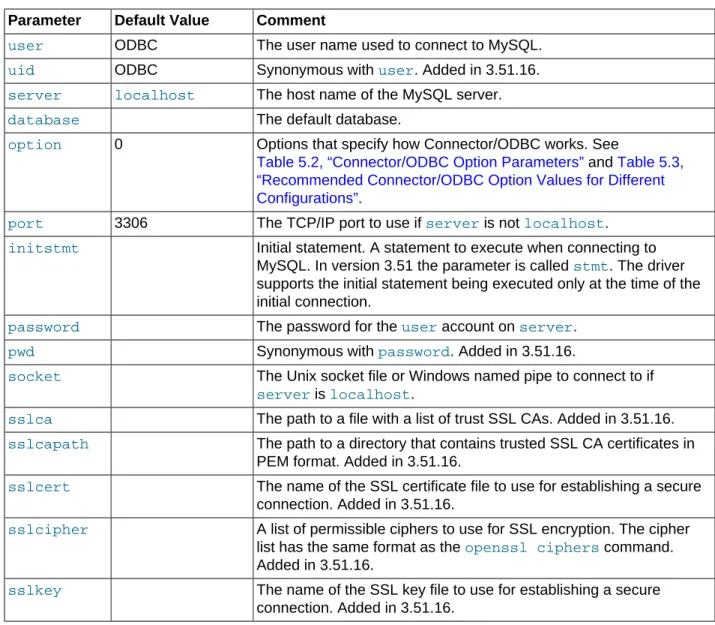
Table 5.1 Connector/ODBC DSN Configuration Options Parameter Default Value Comment
user ODBC The user name used to connect to MySQL.
uid ODBC Synonymous with user. Added in 3.51.16.
server localhost The host name of the MySQL server.
database The default database.
option 0 Options that specify how Connector/ODBC works. See
Table 5.2, “Connector/ODBC Option Parameters” and Table 5.3, “Recommended Connector/ODBC Option Values for Different Configurations”.
port 3306 The TCP/IP port to use if server is not localhost.
initstmt Initial statement. A statement to execute when connecting to MySQL. In version 3.51 the parameter is called stmt. The driver supports the initial statement being executed only at the time of the initial connection.
password The password for the user account on server.
pwd Synonymous with password. Added in 3.51.16.
socket The Unix socket file or Windows named pipe to connect to if
server is localhost.
sslca The path to a file with a list of trust SSL CAs. Added in 3.51.16.
sslcapath The path to a directory that contains trusted SSL CA certificates in PEM format. Added in 3.51.16.
sslcert The name of the SSL certificate file to use for establishing a secure connection. Added in 3.51.16.
sslcipher A list of permissible ciphers to use for SSL encryption. The cipher list has the same format as the openssl ciphers command. Added in 3.51.16.
sslkey The name of the SSL key file to use for establishing a secure connection. Added in 3.51.16.
Connector/ODBC Connection Parameters
Parameter Default Value Comment
rsakey The full-path name of the PEM file that contains the RSA public key for using the SHA256 authentication plugin of MySQL. Added in 5.3.4.
charset The character set to use for the connection. Added in 3.51.17.
sslverify If set to 1, the SSL certificate will be verified when used with the MySQL connection. If not set, then the default behavior is to ignore SSL certificate verification.
readtimeout The timeout in seconds for attempts to read from the server. Each attempt uses this timeout value and there are retries if necessary, so the total effective timeout value is three times the option value. You can set the value so that a lost connection can be detected earlier than the TCP/IP Close_Wait_Timeout value of 10 minutes. This option works only for TCP/IP connections, and only for Windows prior to MySQL 5.1.12. Corresponds to the
MYSQL_OPT_READ_TIMEOUT option of the MySQL Client Library. Added in 3.51.27.
writetimeout The timeout in seconds for attempts to write to the server. Each attempt uses this timeout value and there are net_retry_count
retries if necessary, so the total effective timeout value is
net_retry_count times the option value. This option works only for TCP/IP connections, and only for Windows prior to MySQL 5.1.12. Corresponds to the MYSQL_OPT_WRITE_TIMEOUT option of the MySQL Client Library. Added in 3.51.27.
interactive If set to 1, the CLIENT_INTERACTIVE connection option of
mysql_real_connect is enabled.
prefetch 0 When set to a non-zero value N, causes all queries in the connection to return N rows at a time rather than the entire result set. Useful for queries against very large tables where it is not practical to retrieve the whole result set at once. You can scroll through the result set, N records at a time.
This option works only with forward-only cursors. It does not work when the option parameter MULTI_STATEMENTS is set. It can be used in combination with the option parameter NO_CACHE. Its behavior in ADO applications is undefined: the prefetching might or might not occur.
no_ssps 0 In Connector/ODBC 5.2, by default, server-side prepared
statements are used. When this option is set to a non-zero value, prepared statements are emulated on the client side, which is the same behavior as in 5.1 and 3.51. Added in 5.2.
can_handle_exp_pwd0 Indicates that the application can deal with an expired password, which is signalled by an SQL state of 08004
(“Server rejected the connection”) and a native error code
ER_MUST_CHANGE_PASSWORD_LOGIN (1862). The connection is “sandboxed”, and can do nothing other than issue a SET PASSWORD
statement. To establish a connection in this case, your application must either use the initstmt connection option to set a new password at the start, or issue a SET PASSWORD statement immediately after connecting. Once the expired password is reset,
Connector/ODBC Connection Parameters
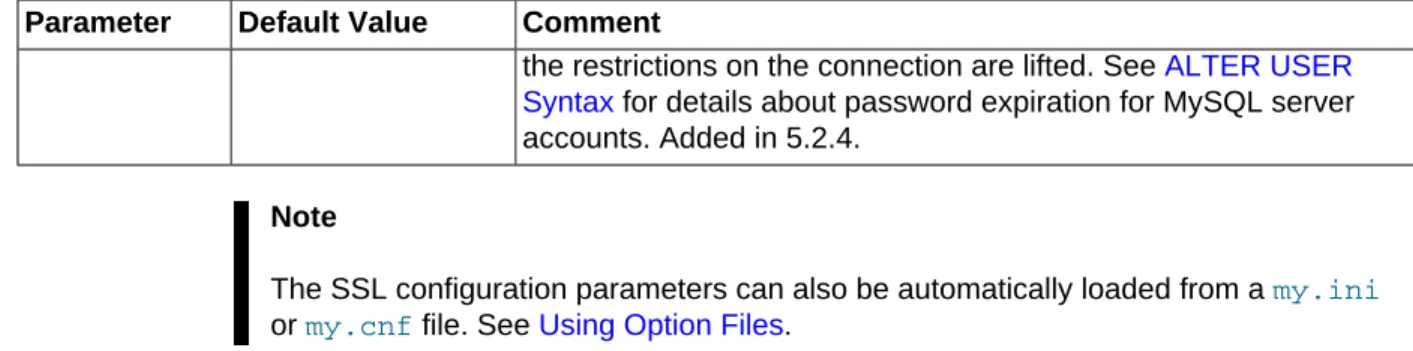
Parameter Default Value Comment
the restrictions on the connection are lifted. See ALTER USER Syntax for details about password expiration for MySQL server accounts. Added in 5.2.4.
Note
The SSL configuration parameters can also be automatically loaded from a my.ini
or my.cnf file. See Using Option Files.
The behavior of Connector/ODBC can be modified by using special option parameters listed in Table 5.2, “Connector/ODBC Option Parameters”, specified in the connection string or through the GUI dialog box. Most of the connection parameters also have their own numeric constant values, which can be added up as a combined value for the option parameter for specifying those options. However, the numerical
option value in the connection string can only enable, but not disable parameters enabled on the DSN, which can only be overridden by specifying the option parameters using their text names in the connection string.
Note
While the combined numerical value for the option parameter can be easily constructed by addition of the options' constant values, decomposing the value to verify if particular options are enabled can be difficult. We recommend using the options' parameter names instead in the connection string, because they are self-explanatory. Also notice that not every option parameter has a constant value.
Table 5.2 Connector/ODBC Option Parameters
Parameter Name GUI Option Constant
Value
Description
FOUND_ROWS Return matched rows instead of affected rows
2 The client cannot handle when MySQL returns the true value of affected rows. If this flag is set, MySQL returns “found rows” instead. You must have MySQL 3.21.14 or newer for this to work.
BIG_PACKETS Allow big result set 8 Do not set any packet limit for results and bind parameters. Without this option, parameter binding will be truncated to 255 characters.
NO_PROMPT Don't prompt when connecting
16 Do not prompt for questions even if driver would like to prompt.
DYNAMIC_CURSOR Enable Dynamic Cursors
32 Enable or disable the dynamic cursor support.
NO_SCHEMA Ignore schema in column specifications
64 Ignore use of database name in db_name.tbl_name.col_name.
NO_DEFAULT_CURSOR Disable driver-provided cursor support
128 Force use of ODBC manager cursors (experimental).
Connector/ODBC Connection Parameters
Parameter Name GUI Option Constant
Value
Description
NO_LOCALE Don't use setlocale() 256 Disable the use of extended fetch (experimental).
PAD_SPACE Pad CHAR to full length with space
512 Pad CHAR columns to full column length.
FULL_COLUMN_NAMES Include table name in SQLDescribeCol()
1024 SQLDescribeCol() returns fully-qualified column names.
COMPRESSED_PROTO Use compression 2048 Use the compressed client/server protocol.
IGNORE_SPACE Ignore space after function names
4096 Tell server to ignore space after function name and before “(” (needed by PowerBuilder). This makes all function names keywords.
NAMED_PIPE Named Pipe 8192 Connect with named pipes to a
mysqld server running on NT.
NO_BIGINT Treat BIGINT columns as INT columns
16384 Change BIGINT columns to
INT columns (some applications cannot handle BIGINT).
NO_CATALOG Disable catalog support
32768 Forces results from the catalog functions, such as SQLTables, to always return NULL and the driver to report that catalogs are not supported.
USE_MYCNF Read options from
my.cnf
65536 Read parameters from the
[client] and [odbc] groups from my.cnf.
SAFE Enable safe options 131072 Add some extra safety checks.
NO_TRANSACTIONS Disable transaction support
262144 Disable transactions.
LOG_QUERY Log queries to %TEMP% \myodbc.sql
524288 Enable query logging to
c:\myodbc.sql(/tmp/
myodbc.sql) file. (Enabled only in debug mode.)
NO_CACHE Don't cache results of forward-only cursors
1048576 Do not cache the results locally in the driver, instead read from server (mysql_use_result()). This works only for forward-only cursors. This option is very important in dealing with large tables when you do not want the driver to cache the entire result set.
FORWARD_CURSOR Force use of
forward-only cursors
2097152 Force the use of Forward-only cursor type. In cases of applications setting the default static/dynamic cursor type and
Connector/ODBC Connection Parameters
Parameter Name GUI Option Constant
Value
Description
one wants the driver to use noncache result sets, this option ensures the forward-only cursor behavior.
AUTO_RECONNECT Enable automatic reconnect
4194304 Enables auto-reconnection functionality. Do not use this option with transactions, since an auto-reconnection during a incomplete transaction may cause corruption. An auto-reconnected connection will not inherit the same settings and environment as the original connection. Added in 3.51.13.
AUTO_IS_NULL Enable
SQL_AUTO_IS_NULL
8388608 When AUTO_IS_NULL is set, the driver does not change the default value of sql_auto_is_null, leaving it at 1, so you get the MySQL default, not the SQL standard behavior.
When AUTO_IS_NULL is not set, the driver changes the default value of SQL_AUTO_IS_NULL to 0 after connecting, so you get the SQL standard, not the MySQL default behavior.
Thus, omitting the flag disables the compatibility option and forces SQL standard behavior.
See IS NULL. Added in 3.51.13.
ZERO_DATE_TO_MIN Return
SQL_NULL_DATA for zero date
16777216 Translates zero dates
(XXXX-00-00) into the minimum date values supported by ODBC,
XXXX-01-01. This resolves an issue where some statements will not work because the date returned and the minimum ODBC date value are incompatible. Added in 3.51.17.
MIN_DATE_TO_ZERO Bind minimal date as zero date
33554432 Translates the minimum ODBC date value (XXXX-01-01) to the zero date format supported by MySQL (XXXX-00-00). This resolves an issue where some statements will not work because the date returned and the
Connector/ODBC Connection Parameters
Parameter Name GUI Option Constant
Value
Description
minimum ODBC date value are incompatible. Added in 3.51.17.
MULTI_STATEMENTS Allow multiple statements
67108864 Enables support for batched statements. Added in 3.51.18.
COLUMN_SIZE_S32 Limit column size to signed 32-bit range
134217728 Limits the column size to a signed 32-bit value to prevent problems with larger column sizes in applications that do not support them. This option is automatically enabled when working with ADO applications. Added in 3.51.22.
NO_BINARY_RESULT Always handle binary function results as character data
268435456 When set, this option disables charset 63 for columns with an empty org_table. Added in 3.51.26.
DFLT_BIGINT_BIND_STR [This option is not on the GUI dialog box]
536870912 Causes BIGINT parameters to be bound as strings. Microsoft Access treats BIGINT as a string on linked tables. The value is read correctly, but bound as a string. This option is used automatically if the driver is used by Microsoft Access. Added in 5.1.3.
NO_INFORMATION_SCHEMA Don't use
INFORMATION_SCHEMA for metadata
1073741824 Tells catalog functions not to use
INFORMATION_SCHEMA, but rather use legacy algorithms. The trade-off here is usually speed for information quality. Using
INFORMATION_SCHEMA is often slow, but the information obtained is more complete. Added in 5.1.7.
INTERACTIVE Interactive Client - Makes the client interactive and uses interactive_timeout
instead of wait_timeout. Added in 5.1.7.
CAN_HANDLE_EXP_PWD Can Handle Expired Password
- Enables handling of expired password. Added in 5.2.4.
ENABLE_CLEARTEXT_PLUGIN Enable Cleartext Authentication
- Enables cleartext authentication. Added in 5.1.13 and 5.2.5.
NO_SSPS Prepare statements on the client
- Prepares statements on the client instead of the server. Added in 5.2.0.
PREFETCH Prefecth from server by N rows at a time
- Specifies the number of rows (N) to prefetch from the server for queries without LIMIT. It turns, for example, SELECT * FROM table into SELECT *
Configuring a Connector/ODBC DSN on Windows
Parameter Name GUI Option Constant
Value
Description
FROM table LIMIT 0, N. If the client wants to read more rows than specified in the PREFETCH parameter, the driver runs another query SELECT * FROM table LIMIT N+1, N*2. Added in 5.1.11.
Table 5.3, “Recommended Connector/ODBC Option Values for Different Configurations” shows some recommended parameter settings and their corresponding option values for various configurations:
Table 5.3 Recommended Connector/ODBC Option Values for Different Configurations
Configuration Parameter Settings Option Value
Microsoft Access, Visual Basic FOUND_ROWS=1; 2 Microsoft Access (with improved
DELETE queries)
FOUND_ROWS=1;DYNAMIC_CURSOR=1; 34
Microsoft SQL Server COLUMN_SIZE_S32=1; 134217728 Large tables with too many rows COMPRESSED_PROTO=1; 2048 Sybase PowerBuilder IGNORE_SPACE=1;FLAG_SAFE=1; 135168 Query log generation (Debug mode) LOG_QUERY=1; 524288 Large tables with no-cache results NO_CACHE=1;FORWARD_CURSOR=1; 3145728 Applications that run full-table
"SELECT * FROM ... " query, but read only a small number (N) of rows from the result
PREFETCH=N Not Applicable
5.3 Configuring a Connector/ODBC DSN on Windows
The ODBC Data Source Administrator within Windows lets you create DSNs, check driver installation and configure ODBC systems such as tracing (used for debugging) and connection pooling.
Different editions and versions of Windows store the ODBC Data Source Administrator in different locations depending on the version of Windows that you are using.
To open the ODBC Data Source Administrator in Windows Server 2003:
Tip
To identify whether a DSN was created using the 32-bit or the 64-bit driver, include the driver being used within the DSN identifier. This will help you to identify the right DSN to use with applications such as Excel that are only compatible with the 32-bit driver. For example, you might add Using32bitCODBC to the DSN identifier for the 32-bit interface and Using64bitCODBC for those using the 64-bit Connector/ODBC driver.
1. On the Start menu, choose Administrative Tools, and then click Data Sources (ODBC). To open the ODBC Data Source Administrator in Windows 2000 Server or Windows 2000 Professional:
Configuring a Connector/ODBC DSN on Windows
1. On the Start menu, choose Settings, and then click Control Panel. 2. In Control Panel, click Administrative Tools.
3. In Administrative Tools, click Data Sources (ODBC). To open the ODBC Data Source Administrator on Windows XP: 1. On the Start menu, click Control Panel.
2. In the Control Panel when in Category View click Performance and Maintenance and then click Administrative Tools.. If you are viewing the Control Panel in Classic View, click
Administrative Tools.
3. In Administrative Tools, click Data Sources (ODBC).
Irrespective of your Windows version, you should be presented the ODBC Data Source Administrator window:
Within Windows XP, you can add the Administrative Tools folder to your Start menu to make it easier to locate the ODBC Data Source Administrator. To do this:
Configuring a Connector/ODBC 5.x DSN on Windows
2. Select Properties. 3. Click Customize....
4. Select the Advanced tab.
5. Within Start menu items, within the System Administrative Tools section, select Display on the All Programs menu.
Within both Windows Server 2003 and Windows XP, consider permanently adding the ODBC Data Source Administrator to your Start menu. To do this, locate the Data Sources (ODBC) icon using the methods shown, then right-click on the icon and then choose Pin to Start Menu.
The interfaces for the 3.51 and 5.x versions of the Connector/ODBC driver are different, although the fields and information that you need to enter remain the same.
To configure a DSN using Connector/ODBC 5.2, see Section 5.3.1, “Configuring a Connector/ODBC 5.x DSN on Windows”.
5.3.1 Configuring a Connector/ODBC 5.x DSN on Windows
Due to the native Unicode support within Connector/ODBC, you do not need to specify the initial character set to be used with your connection.
To add or configure a Connector/ODBC 5.x DSN on Windows, use either the command-line, or the ODBC Data Source Administrator GUI.
1. Open the ODBC Data Source Administrator.
2. To create a System DSN (which will be available to all users), select the System DSN tab. To create a User DSN, which will be unique only to the current user, click the Add... button.