Dell Remote Support Center
Dell Remote Support Center 2.6.5
Release Notes
5/12/2014
• These release notes provide information about the Dell™ Remote Support Center release.
• About Dell™ Remote Support Center
• Resolved issues
• Known issues
• System requirements
• Product licensing
• Getting started with Remote Support Center 2.6.5
• Globalization
• About Dell
About Remote Support Center
Remote Support Center (RSC) is a comprehensive system designed to enable network administrators to remotely manage and control computers regardless of their location.
RSC allows you to remotely connect to any Microsoft Windows-based computer be it in the LAN, WAN, or any external network supporting TCP/IP. The administrator does not have to worry about direct access to a remote computer from their current location. Once configured, the management product automatically takes the responsibility of routing your requests to a remote computer creating an experience of working on the remote computer interactively. Once logged into RSC, the administrator can remotely connect to a desired computer. RSC allows you to gain access to many of the helpful Remote Support Center Client tools such as desktop remote-control, file transfer protocol (FTP) for downloading and uploading files, configuration of the remote computer, remote-to-local printing, advanced scripting, and dozens of other features. All communications are encrypted and all hosts are authenticated using x.509 digital certificates to ensure a secure environment for all remote management operations.
Using this technology, an administrator is able to assist users wherever they may be. RSC 2.6.5 is a maintenance release with no new functionality. See Resolved issues. RSC incorporates ExpertAssist version 8.5.9.31
About ExpertAssist 8.5.9
ExpertAssist is the perfect choice for anyone who has ever needed to access and control a PC or server from elsewhere, be it from down the hall or from halfway around the world. All that is required to control a PC or server is a web browser or WAP-enabled wireless device.
ExpertAssist is a remote administration tool that lets you control and administer Microsoft® Windows®-based computers over a local area network or the Internet. Originally designed for network administrators, the ExpertAssist has evolved to offer a wide variety of remote computing solutions for an equally wide variety of users. Today, the ExpertAssist provides many useful capabilities such as Java-based desktop remote control, file transfer protocol (FTP) for downloading and uploading of files, configuration of the host computer, remote-to-local printing, advanced scripting, and dozens of other features.
ExpertAssist acts as the host software on the machine that is to be controlled or accessed. The client (the remote computer that is used to access the host) requires no special software. The client software is any Java-enabled web browser, such as Internet Explorer (IE versions 9.0 or above) and others. Many Remote Control features can also be accessed and controlled using such client software as that found in handheld PDAs and WAP-enabled mobile telephones.
Dell Remote Support Center
Enhancements
Table 1. ExpertAssist enhancements Resolved issue
Added support for Internet Explorer 11. Added support for Windows 8.1.
Added support for Windows Server 2012 R2. Added support for Google Chrome.
Added support for Mozilla Firefox.
Added ability to remotely manage User Account Control settings, Windows Vista and above.
The Application and Services Logs are now available in the Event Viewer section, Windows Vista and above.
Values of any type can now be modified via the Registry Editor.
New type of logs, Change-protected and Digitally signed SLOG files, are added to track activities performed during remote management sessions (via the User Management Log page of the Security section).
An option to add Windows Firewall exceptions for ExpertAssist during EA setup is introduced.
A scrollbar and copy-paste capabilities are added to the command line interface of the Command Prompt section to increase EA usability characteristics.
Migration to new OpenSSL1.0.1g, adds support for FIPS on x64, TLS1.1/1.2 secure protocols, SHA-2 hashing algorithms and other security and functional features. Load time improvements by adding more caching and compression for pages resources.
Resolved issues
The following is a list of issues addressed in this release. Table 2. General resolved issues
Resolved issue Issue ID
Getting a 404 error when trying to access the tree when remoted to a machine. 6628 It is impossible to open last grid page in the selected tree node. 6700 Sometimes RSC Management Console menu item is absent in Windows Start menu. 4699 An error occurs when we try to use "Allow inheritable permissions…" checkbox for the
domain. 6547
Grid filtering works for the current page only. 6506
Sometimes RSC Console combo boxes are not available in Internet Explorer 10. 6557 Sometimes RSC showed the status of pushed EA incorrectly and didn’t allow host to
be managed. 6712 6720
Sometimes there are problems with the management session initiation. When you
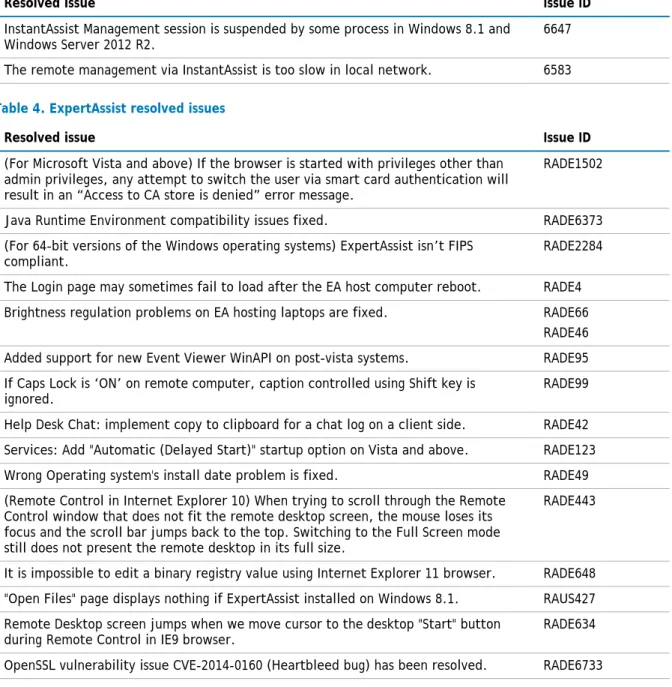
Table 3. InstantAssist resolved issues
Resolved issue Issue ID
InstantAssist Management session is suspended by some process in Windows 8.1 and
Windows Server 2012 R2. 6647
The remote management via InstantAssist is too slow in local network. 6583 Table 4. ExpertAssist resolved issues
Resolved issue Issue ID
(For Microsoft Vista and above) If the browser is started with privileges other than admin privileges, any attempt to switch the user via smart card authentication will result in an “Access to CA store is denied” error message.
RADE1502
Java Runtime Environment compatibility issues fixed. RADE6373
(For 64-bit versions of the Windows operating systems) ExpertAssist isn’t FIPS
compliant. RADE2284
The Login page may sometimes fail to load after the EA host computer reboot. RADE4 Brightness regulation problems on EA hosting laptops are fixed. RADE66
RADE46 Added support for new Event Viewer WinAPI on post-vista systems. RADE95 If Caps Lock is ‘ON’ on remote computer, caption controlled using Shift key is
ignored. RADE99
Help Desk Chat: implement copy to clipboard for a chat log on a client side. RADE42 Services: Add "Automatic (Delayed Start)" startup option on Vista and above. RADE123
Wrong Operating system's install date problem is fixed. RADE49
(Remote Control in Internet Explorer 10) When trying to scroll through the Remote Control window that does not fit the remote desktop screen, the mouse loses its focus and the scroll bar jumps back to the top. Switching to the Full Screen mode still does not present the remote desktop in its full size.
RADE443
It is impossible to edit a binary registry value using Internet Explorer 11 browser. RADE648 "Open Files" page displays nothing if ExpertAssist installed on Windows 8.1. RAUS427 Remote Desktop screen jumps when we move cursor to the desktop "Start" button
during Remote Control in IE9 browser. RADE634
OpenSSL vulnerability issue CVE-2014-0160 (Heartbleed bug) has been resolved. RADE6733
Known issues
The following is a list of issues, including those attributed to third-party products, known to exist at the time of release.
Table 5. General known issues
Known issue Issue ID
Installation may fail if there is not enough free disk space on the LAN Server. WORKAROUND:
Please ensure that there is at least 350 MB of free space available on the system drive.
2169
Installation of the RSC Internet Gateway to the root of the system drive on the DMZ
Dell Remote Support Center WORKAROUND:
Please install the Internet Gateway to the program files folder.
The RSC Internet Gateway port is not released immediately after you remove the component from DMZ Server.
WORKAROUND:
Wait for about 2 minutes until the port gets released by the operating system.
3351
Failure to download IA or EA package to MS Windows 2003 SP2 x64/x86 with the default Internet Explorer 6 browser.
WORKAROUND:
Always use the Internet Explorer 9 or above browser for any RSC relevant operations. 3454
If answering “No” to security warnings when starting IA/EA management session, the current management session connection gets lost. Further attempts to reinitiate the session before closing the browser window will fail.
WORKAROUND:
Always confirm the security warnings showing on EA/IA management session startup. To resume the session terminated due to the security warnings issues:
1. Close all browser windows.
2. Start the session again and answer “Yes” to the security warnings that display when loading the browser window.
3624
Configurations where the IIS Default Web Site is set to listen for connections on a dedicated IP address are not supported.
WORKAROUND:
Please ensure that the IIS server is configured to listen for incoming connections on all IP addresses. Right click the web site and verify that the IP address drop-down list on the Web Site tab is set to (All unassigned).
3711
ExpertAssist manual installation/upgrade will fail if it is performed under the account of a domain user without local admin rights on the target machine.
WORKAROUND:
Perform ExpertAssist installation/upgrade with local administrative privileges.
4003
When starting EA remote management session for the first time from browser other than the one running on the RSC Server localhost, a new window opens and shows a “Certificate Error”.
WORKAROUND:
The error does not present a security issue. Click “Continue to this website…” to proceed with opening the management session window.
4729
(For MS Windows Server 2003 R2) When installing to a server running Windows Firewall, Windows Security Alert appears.
WORKAROUND:
Ignore the alert by closing the dialog.
4230
Sorting is not available in Find Users and Groups window. 6542
Sometimes there are problems with management session initiation. When you click Manage the following error occurs “RSC Console sessions has expired…”.
WORKAROUND:
RSC Server rebooting solves the problem
6591
Sometimes host states are not up-to-date in the grid. For example, you may see Manage link after uninstallation for a while
WORKAROUND:
State will be updated within 30 minutes at latest
6590 6560
process. WORKAROUND:
You may need to reboot the computer in order to complete the installation process successfully.
Sometimes it is impossible to manage a host after upgrade from previous RSC version. The connection performance slows down and ends with 404 error.
WORKAROUND:
Restart management session.
6595
Upgrade problem. If Expert Assist client (version 2.5) was previously installed using invitation then the installation package of Expert Assist client (version 2.6) may fail to run.
WORKAROUND:
Uninstall Expert Assist client (version 2.5) manually via Add/Remove Programs, reboot, then start new installation of Expert Assist (version 2.6).
6598
It is impossible to download DMZ installer because of incorrect name via IE9 version
9.0.8112.16421 update version: 9.0.2.12 6510
Table 6. Client Gateway known issues
Known issue Issue ID
Sending command prompt works extremely slow when Browser connects to RSC
Server and RSC Client connects to Internet Gateway or vice versa. 1769 Remote Management may fail following the installation of JRE 1.6.0 Update 3 on a
client computer which already has JRE 1.4 installed. WORKAROUND:
Before starting a remote management session via RSC, reboot your computer following the installation JRE 1.6 Update 3.
2296
The 0x102 The wait operation timed out error shows in the logon page if starting EA management session using https://[ComputerName]:2000 link when RSC Server is down.
WORKAROUND:
To run EA management session using https://[ComputerName]:2000 link, requires that RSC Server is functioning properly and accessible by EA Client Computer.
4743
ExpertAssist doesn't get Internet Explorer proxy settings, so it can be unavailable for management via RSC Management Console.
WORKAROUND:
Use connection which does not require proxy to access LAN/Internet Gateways from EA Client Computer.
4803 4804 4805 In some network configurations, Java applets (Remote Control, File Transfer, Help
Desk Chat, Command Prompt, Monitor Host Screen) experience delay on startup up to 2 minutes after management was started via RSC Management Console.
4815
Table 7. ExpertAssist known issues
Known issue Issue ID
(For Windows Internet Explorer 8 with Java versions 1.5.0.5 through 1.5.0.11 and 1.6.0 through 1.6.1) When starting the File Transfer, the ExpertAssist browser window hangs.
Dell Remote Support Center WORKAROUND:
Close the browser window via Task Manager. Open ExpertAssist, and attempt the File Transfer again.
Or, install the latest Java version.
User authentication fails during login to ExpertAssist computer if:
1. user tries to manage ExpertAssist computer accessing RSC via localhost;
2. the user account has not been granted permissions with RSC (e.g. a domain user granted permissions within ExpertAssist tries to log into ExpertAssist and receives the
“The user does not have the required permissions to login” error). WORKAROUND:
User should be granted with permissions to manage ExpertAssist computer. Or grant the RSC Administrator rights to the user.
4732 4867
If you upgrade the previous version of ExpertAssist (previously installed via Invite) via Invite then the upgrade process may not be completed successfully.
WORKAROUND:
Uninstall old version prior to the new version installation
6596
(For Windows 7 and Windows 2008 R2) If logging on without providing domain name on login page, the user will be logged into the remote management session as domain user only in case the local user with the same user name and password isn’t found on the remote computer.
The defect is caused by the Windows behavior described in the 1st paragraph of the Microsoft’s KB article: http://support.microsoft.com/kb/245683
DE1581 & DE409
Connection to a target machine containing underscores “_” in the name renders an
error message. DE98 & DE2080
(For Windows 2000) The "Ask for permission from interactive user" window appears
even if there is no interactive user logged on target computer. DE407 & DE4320 (For ExpertAssist client computers running Microsoft Windows XP 86- or 64-bit
edition) The remote printing function doesn't work during the remote control session (Preferences-> Remote Control, enable the Remote Printing function).
DE406 & DE4967 (For Microsoft’s Windows Vista, Windows Server 2008, Windows 7 with User Account
Control enabled) The “Cannot write <PATH>. Access is denied.” message shown in File Transfer when copying files from remote computer to the root of the local hard drive, if the browser has been initially started without elevated privileges.
DE100 & DE4983
(Applicable only for Microsoft Windows 7 and Windows Server 2008 R2 with the “change wallpaper” function enabled) The slide show mode in wallpaper is deactivated after Remote Control management.
DE101 & DE4984
Table 8. InstantAssist known issues
Known issue Issue ID
Remote control operations don't work when you are managing a remote computer using InstantAssist and there is a console application open and active on the remote computer.
(OS: Vista, Windows 2008, Windows 7) WORKAROUND:
Ask the user on the remote computer to start the InstantAssist executable with elevated privileges by selecting “Run as administrator” from the InstantAssist context menu. Alternatively, ask the remote user to minimize the console application.
3467
RSC System requirements
Before installing Remote Support Center, ensure that your system meets the following minimum hardware and software requirements.
Hardware requirements
Table 9. Hardware requirementsRequirement Details
Memory 1GB
Hard Disk Space 350 MB disk space
Operating System Microsoft Windows Server 2003 Standard Edition (32-bit or 64-bit) Service Pack 1 or above
Microsoft Windows Server 2008 Standard (32-bit or 64-bit) Service Pack 1 or above
Microsoft Windows Server 2008 R2 (32-bit or 64-bit) All Service Packs
Microsoft Windows Server 2012R2
NOTE:RSC is not compatible with Windows security update KB977377. Use the Add/Remove Programs
applet to check if the RSC Server is installed with the update and remove it. Restart your server after the update removal. The update removal will not cause the security issues (see
http://support.microsoft.com/kb/977377 for details).
Database requirements
Table 10. Database requirementsRequirement Details
Database Server Microsoft SQL Server 2005 Enterprise, Standard, Express or Developer Editions (32-bit or 64-bit)
Microsoft SQL Server 2008 Enterprise, Standard or Express Editions (32-bit or 64-bit)
Microsoft SQL Server 2012
SQL Server Authentication SQL Server and Windows Authentication mode.
Software requirements
Table 11. Software requirementsRequirement Details
NET Framework .NET Framework 3.5 Service Pack 1 or later versions
IIS 6.0 or above With Metabase compatibility enabled and prerequisite
Dell Remote Support Center (Optional) IIS Web Server SSL Certificate
Browser requirements
Table 12. Browser requirementsRequirement Details
Internet Explorer Version 9, 10, 11
Fire Fox Latest Version
RSC Clients (InstantAssist/ExpertAssist) system
requirements
Table 13. RSC Clients system requirements
Requirement Details
Operating System Microsoft Windows Server 2003 (32-bit or 64-bit) Service Pack 1 or above
Microsoft Windows Server 2008 (32-bit or 64-bit) Microsoft Windows Server 2008 R2 (32-bit or 64-bit) Microsoft Windows Server 2012
Microsoft Windows Server 2012 R2
Microsoft Windows 7 (32-bit or 64-bit) Service Pack 1 or later
Microsoft Windows 8 (32-bit or 64-bit) Microsoft Windows 8.1 (32-bit or 64-bit)
Microsoft Windows Vista (32-bit or 64-bit) Service Pack 2 or later
Microsoft Windows XP (32-bit or 64-bit) Service Pack 3 or later
ExpertAssist System requirements
Table 14. ExpertAssist Operating system requirementsRequirement
Microsoft Windows Server 2003 (32-bit or 64-bit) Service Pack 1 or above Microsoft Windows Server 2008 (32-bit or 64-bit) any Service Packs Microsoft Windows Server 2008 R2 (32-bit or 64-bit) any Service Packs Microsoft Windows Server 2012
Microsoft Windows Server 2012 R2
Microsoft Windows 8 (32-bit or 64-bit) Microsoft Windows 8.1 (32-bit or 64-bit)
Microsoft Windows Vista (32-bit or 64-bit) Service Pack 2 or later Microsoft Windows XP (32-bit or 64-bit) Service Pack 3 or later
Table 15. ExpertAssist Web browser system requirements Requirement
Windows Internet Explorer 9 or above (Java-enabled) Mozilla Firefox latest desktop version (Java-enabled) Google Chrome latest desktop version (Java-enabled)
Table 16. ExpertAssist additional software requirements Requirement
Java Runtime Environment version 1.5.0.5 or above
Upgrade and compatibility
Upgrade compatible with RSC 2.6.3.3116.Product licensing
After installing Remote Support Center, save the license file that is attached to your licensing email, run Remote Support Center, and apply the license file.
Getting started with RSC 2.6.5
The Remote Support Center release package contains the following products:1. Remote Support Center version 2.6.5.23 2. ExpertAssist version 8.5.9.31
3. InstantAssist version 2.6.5.4 4. Internet Gateway version 2.6.5.5 5. EA Client Gateway version 2.6.5.5 6. LAN Gateway version 2.6.5.6 5. Product Documentation, including:
• Product Help
• RSC Administrator Guide
• RSC Installation Guide
Dell Remote Support Center
Upgrade and installation instructions
For further installation details, refer to Remote Support Center Installation Guide.
Globalization
This release supports any single-byte character set. Double-byte or multi-byte character sets are not supported. In this release, all product components should be configured to use the same or compatible character encodings and should be installed to use the same locale and regional options. This release is targeted to support operations in the following regions: North America, Western Europe and Latin America, Central and Eastern Europe, Far-East Asia, Japan. It supports bidirectional writing (Arabic and Hebrew). The release supports Complex Script (Central Asia – India, Thailand).
About Dell
Dell listens to customers and delivers worldwide innovative technology, business solutions and services they trust and value. For more information, visit www.software.dell.com.
Contacting Dell
Technical support:Online support
Product questions and sales: (800) 306-9329
Email:
Technical support resources
Technical support is available to customers who have purchased Dell software with a valid maintenance contract and to customers who have trial versions. To access the Support Portal, go to
http://software.dell.com/support/.
The Support Portal provides self-help tools you can use to solve problems quickly and independently, 24 hours a day, 365 days a year. In addition, the portal provides direct access to product support engineers through an online Service Request system.
The site enables you to:
• Create, update, and manage Service Requests (cases)
• View Knowledge Base articles
• Obtain product notifications
• Download software. For trial software, go to Trial Downloads.
• View how-to videos
• Engage in community discussions
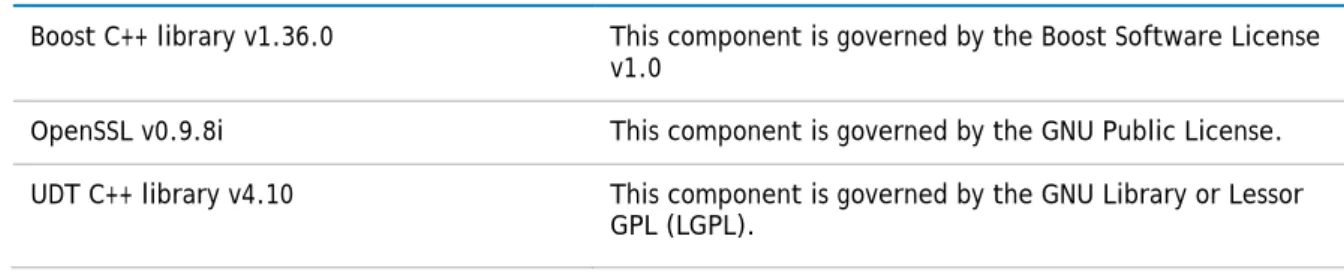
Third-party contributions
This product contains the third-party components listed below. For third-party license information, go to
http://software.dell.com/legal/license-agreements.aspx. Source code for components marked with an asterisk (*) is available at http://opensource.dell.com.
Table 10. List of third-party contributions
Component License or acknowledgement
Boost C++ library v1.36.0 This component is governed by the Boost Software License v1.0
OpenSSL v0.9.8i This component is governed by the GNU Public License.
UDT C++ library v4.10 This component is governed by the GNU Library or Lessor GPL (LGPL).
Dell Remote Support Center © 2014 Dell Inc.
ALL RIGHTS RESERVED.
This guide contains proprietary information protected by copyright. The software described in this guide is furnished under a software license or nondisclosure agreement. This software may be used or copied only in accordance with the terms of the applicable agreement. No part of this guide may be reproduced or transmitted in any form or by any means, electronic or mechanical, including photocopying and recording for any purpose other than the purchaser’s personal use without the written permission of Dell Inc.
The information in this document is provided in connection with Dell products. No license, express or implied, by estoppel or otherwise, to any intellectual property right is granted by this document or in connection with the sale of Dell products. EXCEPT AS SET FORTH IN THE TERMS AND CONDITIONS AS SPECIFIED IN THE LICENSE AGREEMENT FOR THIS PRODUCT, DELL ASSUMES NO LIABILITY WHATSOEVER AND DISCLAIMS ANY EXPRESS, IMPLIED OR STATUTORY WARRANTY RELATING TO ITS PRODUCTS INCLUDING, BUT NOT LIMITED TO, THE IMPLIED WARRANTY OF MERCHANTABILITY, FITNESS FOR A PARTICULAR PURPOSE, OR NON-INFRINGEMENT. IN NO EVENT SHALL DELL BE LIABLE FOR ANY DIRECT, INDIRECT, CONSEQUENTIAL, PUNITIVE, SPECIAL OR INCIDENTAL DAMAGES (INCLUDING, WITHOUT LIMITATION, DAMAGES FOR LOSS OF PROFITS, BUSINESS INTERRUPTION OR LOSS OF INFORMATION) ARISING OUT OF THE USE OR INABILITY TO USE THIS DOCUMENT, EVEN IF DELL HAS BEEN ADVISED OF THE POSSIBILITY OF SUCH DAMAGES. Dell makes no representations or warranties with respect to the accuracy or completeness of the contents of this document and reserves the right to make changes to specifications and product descriptions at any time without notice. Dell does not make any commitment to update the information contained in this document.
If you have any questions regarding your potential use of this material, contact: Dell Inc.
Attn: LEGAL Dept 5 Polaris Way Aliso Viejo, CA 92656
Refer to our web site (software.dell.com) for regional and international office information. Trademarks
Dell, the Dell logo are trademarks of Dell Inc. and/or its affiliates. Other trademarks and trade names may be used in this document to refer to either the entities claiming the marks and names or their products. Dell disclaims any proprietary interest in the marks and names of others.
Legend
CAUTION:A CAUTION icon indicates potential damage to hardware or loss of data if instructions are not followed.
WARNING:A WARNING icon indicates a potential for property damage, personal injury, or death.