EMC Corporation Corporate Headquarters: Hopkinton, MA 01748
-
9103 1-
508-
435-
1000 www.EMC.comModule for Microsoft Applications
Release 2.3
Installation Guide
P/N 300-011-101
REV A02
EMC believes the information in this publication is accurate as of its publication date. The information is subject to change without notice.
THE INFORMATION IN THIS PUBLICATION IS PROVIDED “AS IS.” EMC CORPORATION MAKES NO
REPRESENTATIONS OR WARRANTIES OF ANY KIND WITH RESPECT TO THE INFORMATION IN THIS PUBLICATION, AND SPECIFICALLY DISCLAIMS IMPLIED WARRANTIES OF MERCHANTABILITY OR FITNESS FOR A PARTICULAR PURPOSE.
Use, copying, and distribution of any EMC software described in this publication requires an applicable software license. For the most up-to-date regulatory document for your product line, go to the Technical Documentation and Advisories section on EMC Powerlink.
For the most up-to-date listing of EMC product names, see EMC Corporation Trademarks on EMC.com. All other trademarks used herein are the property of their respective owners.
EMC NetWorker Module for Microsoft Applications Release 2.3 Installation Guide 3
Preface
Chapter 1
Preinstallation Information
Preinstallation requirements ... 16
License information... 16
Privileged user-level access... 16
Hardware requirements ... 17
Software requirements... 17
Installation services ... 17
Supported NetWorker server hosts ... 18
Windows operating system support ... 18
Microsoft hotfixes required for NMM 2.3 ... 19
Preinstallation checklists... 26
Generic checklist... 27
CLARiiON checklist... 30
Symmetrix checklist ... 32
SQL checklist ... 34
Microsoft SharePoint checklist ... 35
Microsoft Exchange checklist... 36
Supported configurations... 38
Simple LAN-based configuration ... 38
LAN-based configuration with a proxy client ... 39
LAN-free configuration ... 40
LAN-free dedicated storage node configuration... 41
Chapter 2
Installing the Software
Installing NMM... 46Prerequisites ... 46
Access the installation files ... 46
Install the software ... 47
Installing NMM in a MSCS environment... 48
Installing NMM on Windows 2008 server core... 49
Verifying the installation... 50
Maintaining the installation ... 50
Removing the software... 51
Upgrading the software ... 52
Moving from an existing NetWorker VSS client or NMM setup to the NMM 2.3 release ... 52
Moving from NetWorker support for Microsoft Exchange 2010 interim solution to the NMM 2.3 release... 52
Upgrading to NMM 2.3 storage node ... 53
Installing Microsoft Office SharePoint Server service pack ... 53
Chapter 3
Silent Installation of the Software
Overview ... 56Silent installation of NMM... 56
Commands for silent installation of NMM ... 56
PowerSnap and Replication Manager command line properties ... 57
Sample command for silent installation of NMM... 58
Silent removal of NMM... 59
Commands for silent removal of NMM ... 59
Upgrading the software ... 60
Sample scripts for installation and removal of NMM ... 60
The install_nmm_silent_sample.cmd script... 60
Installing the NMM software using the default installation path ... 61
Installing and removing NMM by using SCCM 2007 Server ... 61
Troubleshooting the installation ... 63
Errors in installation of Replication Manager... 63
Using non-English characters in installation path ... 63
Chapter 4
Postinstallation Tasks
Using NMM with a VSS hardware provider... 66Hardware array configuration... 66
NMM configuration for hardware provider support... 67
Configurations specific to PowerSnap ... 68
Adding username for account that is logged in the server... 68
Running a backup with CLARiiON array LUNs ... 68
Configurations specific to CLARiiON ... 68
CLARiiON SnapView snapshots and clones ... 69
Updating the CLARiiON configuration file... 70
Updating the SYMCFG authorization list ... 70
Updating the Navisphere Privileged Users list... 71
Configuring NMM backup settings in a virtual machine... 71
Configurations specific to Symmetrix... 72
Setting up the TimeFinder/Mirror (BCV) configuration for Symmetrix . 72 Setting up the TimeFinder/Snap (VDEV) configuration for Symmetrix . 77 Setting up the TimeFinder/Clone configuration for Symmetrix... 81
Configurations specific to VMware ESX guest environment ... 82
Prerequisites... 82
Configuring NMM backups with EMC VSS hardware providers for CLARiiON LUNs ... 83
EMC NetWorker Module for Microsoft Applications Release 2.3 Installation Guide 5
Changing Replication Manager port settings... 85
Configuring NetWorker SharePoint services... 86
Matching NetWorker SharePoint Service credentials with credentials of SharePoint Server administrator ... 86
Specifying temporary storage location... 86
Specifying the restore lock type ... 87
Updating SharePoint credentials ... 87
Configuring Windows firewall settings ... 87
Windows firewall exception error for irccd.exe... 88
Configurations specific to Exchange server... 89
Updating and modifying Exchange credentials ... 89
Setting up Exchange permissions for user accounts ... 90
Configuring IIS settings on Exchange 2010 Mailbox Server before performing backup ... 91
Configuring a storage node as a dedicated storage node... 91
Configuring dedicated web front-end crawling ... 92
EMC NetWorker Module for Microsoft Applications Release 2.3 Installation Guide 7
Title Page
1 Simple LAN-based configuration... 38
2 LAN-based configuration with a proxy client... 39
3 LAN-free configuration... 40
4 LAN-free configuration with a dedicated storage node ... 42
5 Output of verify the group command... 74
6 Output of query the mirror state command... 75
7 Output of mirror query rerun command... 76
8 Output of verifying contents in a group... 79
9 Output of querying the snap state command ... 80
10 Output of running the snapshot query command again ... 80
EMC NetWorker Module for Microsoft Applications Release 2.3 Installation Guide 9
Title Page
1 Access privileges needed for NMM ... 17
2 Installation services... 17
3 Hotfixes required for NMM 2.3 ... 19
4 Checklist overview... 26
5 Generic checklist... 27
6 CLARiiON checklist ... 30
7 Symmetrix checklist... 32
8 SQL checklist... 34
9 SharePoint checklist... 35
10 Exchange checklist ... 36
11 Commands for silent installation of NMM ... 56
12 PowerSnap and Replication Manager command line properties ... 57
EMC NetWorker Module for Microsoft Applications Release 2.3 Installation Guide 11 As part of its effort to continuously improve and enhance the performance and capabilities of its product lines, EMC periodically releases revisions of its hardware and software. Therefore, some functions may not be supported by all revisions of the software or hardware currently in use. For the most up-to-date information on product features, refer to the product release notes.
If a product does not function properly or does not function as described in this document, please contact your EMC representative.
Audience This guide is part of the EMC NetWorker Module for Microsoft Applications
documentation set. It is intended for use by system administrators during installation and setup of the product.
Readers should be familiar with the following technologies used in backup and recovery:
◆ EMC NetWorker software
◆ EMC NetWorker Snapshot management
◆ Microsoft Volume Shadow Copy Service (VSS) technology
◆ Storage subsystems, such as EMC CLARiiON or Symmetrix, if used Related
documentation Related documents include:
◆ EMC NetWorker Module for Microsoft Applications Release 2.3 Administration Guide ◆ EMC NetWorker Module for Microsoft Applications Release 2.3 Applications Guide ◆ EMC NetWorker Module for Microsoft Applications Release 2.3 Release Notes ◆ NetWorker Module for Microsoft Applications and EMC CLARiiON Implementing
Proxy Node Backups 2.3 Technical Note
◆ NetWorker Module for Microsoft Applications and EMC Symmetrix Implementing Proxy Node Backups 2.3 Technical Note
◆ EMC NetWorker Licensing Guide
◆ EMC Information Protection Software Compatibility Guide
◆ EMC NetWorker License Manager Installation and Administration Guide ◆ EMC Solutions Enabler Symmetrix CLI Version 6.3 Quick Reference ◆ EMC NetWorker Release 7.6 SP1 documentation
Conventions used in
this document EMC uses the following conventions for special notices.
Note: A note presents information that is important, but not hazard-related. CAUTION
!
A caution contains information essential to avoid data loss ordamage to the system or equipment.
Typographical conventions
EMC uses the following type style conventions in this document:
Normal Used in running (nonprocedural) text for:
• Names of interface elements (such as names of windows, dialog boxes, buttons, fields, and menus)
• Names of resources, attributes, pools, Boolean expressions, buttons, DQL statements, keywords, clauses, environment variables, filenames, functions, utilities
• URLs, pathnames, filenames, directory names, computer names, links, groups, service keys, file systems, notifications
Bold: Used in running (nonprocedural) text for:
• Names of commands, daemons, options, programs, processes, services, applications, utilities, kernels, notifications, system call, man pages Used in procedures for:
• Names of interface elements (such as names of windows, dialog boxes, buttons, fields, and menus)
• What user specifically selects, clicks, presses, or types Italic: Used in all text (including procedures) for:
• Full titles of publications referenced in text • Emphasis (for example a new term) • Variables
Courier: Used for:
• System output, such as an error message or script
• URLs, complete paths, filenames, prompts, and syntax when shown outside of running text
Courier bold: Used for:
• Specific user input (such as commands)
Courier italic: Used in procedures for:
• Variables on command line • User input variables
< > Angle brackets enclose parameter or variable values supplied by the user
[ ] Square brackets enclose optional values
| Vertical bar indicates alternate selections - the bar means “or”
{ } Braces indicate content that you must specify (that is, x or y or z)
EMC NetWorker Module for Microsoft Applications Release 2.3 Installation Guide 13 Where to get help EMC support, product, and licensing information can be obtained as follows.
Product information —For documentation, release notes, software updates, or for information about EMC products, licensing, and service, go to the EMC Powerlink website (registration required) at:
http://Powerlink.EMC.com
Technical support —For technical support, go to Powerlink and select Support. On the Support page, you will see several options, including one for making a service request. Note that to open a service request, you must have a valid support
agreement. Please contact your EMC sales representative for details about obtaining a valid support agreement or with questions about your account.
Your comments Your suggestions will help us continue to improve the accuracy, organization, and overall quality of the user publications. Please send your opinion of this document to:
If you have issues, comments, or questions about specific information or procedures, please include the title and, if available, the part number, the revision (for example, A01), the page numbers, and any other details that will help us locate the subject that you are addressing.
Preinstallation Information 15 Invisible Body Tag
This chapter includes the following sections:
◆ Preinstallation requirements... 16
◆ Microsoft hotfixes required for NMM 2.3... 19
◆ Preinstallation checklists ... 26
◆ Supported configurations ... 38
Preinstallation
Information
Preinstallation requirements
This section describes the preinstallation requirements for EMC® NetWorker®
Module for Microsoft Applications (NMM) 2.3. Ensure to review and adhere to the checks and requirements described in this section thoroughly before attempting a NMM installation. Failure to adhere to these checks and requirements will result in failure to successfully protect the application data and will require significant effort to troubleshoot and resolve.
This section provides the following information:
◆ “License information” on page 16 ◆ “Privileged user-level access” on page 16 ◆ “Hardware requirements” on page 17 ◆ “Software requirements” on page 17 ◆ “Installation services” on page 17
◆ “Supported NetWorker server hosts” on page 18 ◆ “Windows operating system support” on page 18 IMPORTANT
Do not use any other VSS requester when NMM is installed. Data loss may occur if other VSS requestor backup solutions delete shadowcopies created by NMM. Additionally, restoring an application by using another vendor’s VSS requestor backup solution may prevent the same application from being restored with NMM.
License information
The following licenses are required for NetWorker and NMM installations:
◆ NetWorker® base enabler ◆ NMM license add-on enabler
The NMM software requires a specific license: NetWorker Module for Microsoft
Applications. This license must be installed on the NetWorker server.
◆ NetWorker client enabler
The EMC NetWorker Licensing Guide provides more information about licensing.
Privileged user-level access
NMM requires access to the protected data and system files. Hence, ensure that users who run or configure NMM backups and recoveries have the appropriate level of privileges for all resources that they will access.
Preinstallation requirements 17
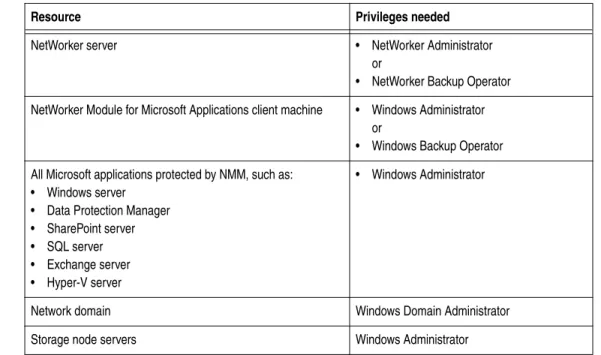
Table 1 on page 17 describes the required privilege levels.
Hardware requirements
You require the following hardware before installation:
◆ CPU: 2.0 GHz
◆ Physical memory: 1 GB
◆ Host architecture: x86 and x64 systems only
Software requirements
“Preinstallation checklists” on page 26 and the EMC Information Protection Software
Compatibility Guide provide information on the software requirements for NMM 2.3.
Installation services
Table 2 on page 17 lists the installation services for the NetWorker software, and EMC PowerSnapTM and Replication Manager services.
Table 1 Access privileges needed for NMM
Resource Privileges needed
NetWorker server • NetWorker Administrator
or
• NetWorker Backup Operator NetWorker Module for Microsoft Applications client machine • Windows Administrator
or
• Windows Backup Operator All Microsoft applications protected by NMM, such as:
• Windows server • Data Protection Manager • SharePoint server • SQL server • Exchange server • Hyper-V server
• Windows Administrator
Network domain Windows Domain Administrator
Storage node servers Windows Administrator
Table 2 Installation services
Service names
(in service control manager) Service nicknames (use with the ‘net start’ command) Process names
NetWorker PowerSnap Service nsrpsd nsrpsd.exe
Replication Manager client for RMAgentPS rmagentps irccd.exe
Supported NetWorker server hosts
The NMM client is supported with:
◆ NetWorker server:
• 7.5 SP3 or later • 7.6 SP1 or later
◆ NMM client:
• 7.5 SP3 or later • 7.6 SP1 or later
◆ NetWorker storage node:
• 7.5 SP3 or later • 7.6 SP1 or later
◆ The NetWorker server and NetWorker client that are required for Data Domain:
• NetWorker server 7.6 SP1 or higher • NetWorker client 7.6 SP1 or higher
◆ The NetWorker server and NetWorker client that are required for Windows
Disaster Recovery:
• NetWorker server 7.6 SP2 • NetWorker client 7.6 SP2
The EMC Information Protection Software Compatibility Guide provides the latest information.
Windows operating system support
NMM client supports the following versions of Windows and Windows-related features:
◆ Windows server 2008 R2 (x64),—Web, Standard, Enterprise, and DataCenter
Editions, including server core installation options
◆ Windows server 2008 SP2 (x86, x64), 2008 SP1 (x86, x64) — Standard, Enterprise,
DataCenter Editions, including server core installation options
◆ Windows server 2003 SP2 R2 (x86, x64), 2003 SP2 (x86, x64), 2003 R2 (x86, x64),
2003 (x86, x64) —Standard, Enterprise, DataCenter Editions
◆ Windows storage server 2003, 2003 SP2, and 2003 R2
◆ System state recovery, file servers, and operating system roles including Active
Directory, DHCP, and Terminal Services
◆ GUID Partition Table disks:
• No disk size limit on Windows environments with EMC CLARiiON® storage
(EMC SnapView™ clone, EMC SnapView snap, and EMC SAN Copy™ technologies only)
Microsoft hotfixes required for NMM 2.3 19
In addition, the following Windows features are not supported:
◆ BitLocker encryption
◆ LAN-based proxy client or LAN-free backups, if dynamic disks are used ◆ VSS hardware providers with Windows dynamic disks
◆ Software Shadow Copy provider to perform persistent snapshots of clustered
disks
◆ Windows Automated System Recovery (ASR) ◆ Single Instance Storage (SIS)
The EMC Information Protection Software Compatibility Guide contains additional and the most up-to-date information about NMM compatibility.
Microsoft hotfixes required for NMM 2.3
In addition to the specific Microsoft Windows updates mentioned in this guide: 1. Keep NMM client machine current with Microsoft Windows updates for the
operating system.
2. Keep NMM client machine current with updates and hotfixes for each installed Microsoft application protected by NMM.
3. Download the hotfixes from the Microsoft website.
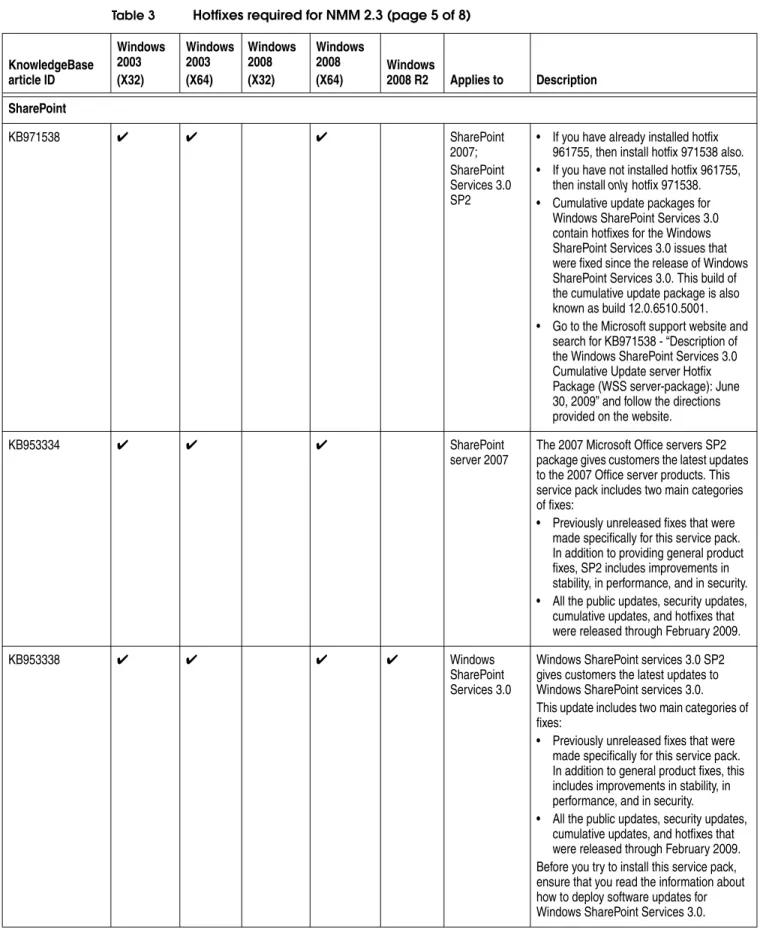
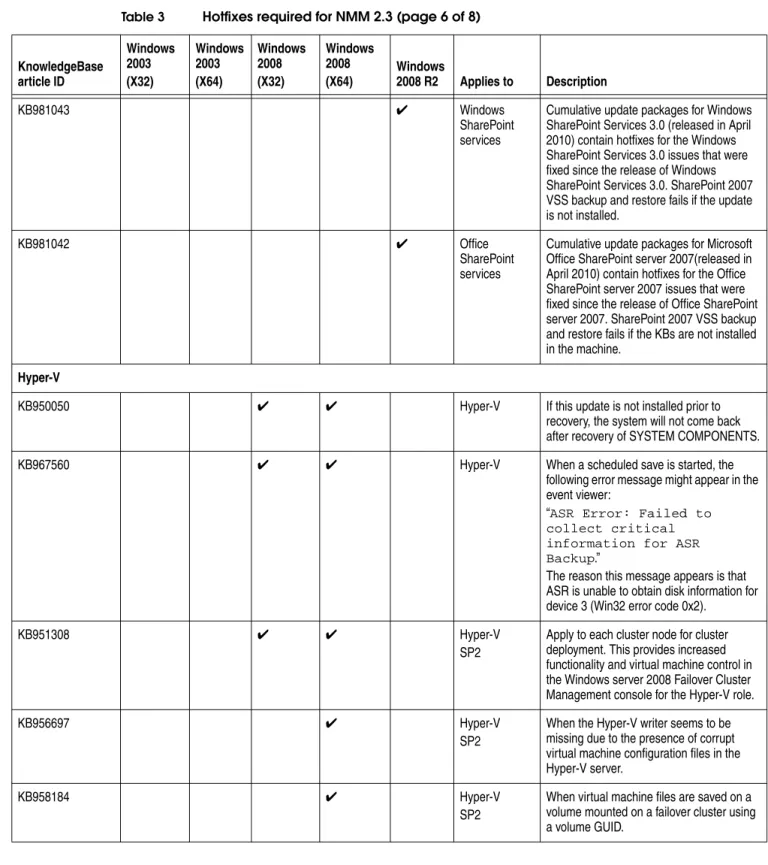
Table 3 on page 19 lists the hotfixes required for NMM 2.3.
Table 3 Hotfixes required for NMM 2.3 (page 1 of 8)
KnowledgeBase article ID Windows 2003 (X32) Windows 2003 (X64) Windows 2008 (X32) Windows 2008
(X64) Windows 2008 R2 Applies to Description Volume shadowcopy service (VSS)
KB975832 ✔ ✔ VSS You cannot perform certain disk-related
operations after a VSS hardware provider fails to create a snapshot on a computer that is running Windows server 2008.
KB940349 ✔ ✔ VSS VSS update rollup package for Windows
server 2003 to resolve some VSS snapshot issues.
KB951568 ✔ VSS VSS-based backup operations may fail if
VSS tracing is enabled on a Windows server 2003-based computer that has hotfix 940349 applied.
KB949391 ✔ ✔ VSS When VSS tries to delete hardware support
snapshots on a computer that is running Windows server 2003 or an x64 version of Windows XP, the operation may fail.
KB943545 ✔ ✔ VSS This hotfix corrects the error displayed by
the IOCTL_SCSI_GET_INQUIRY_DATA operation on a Windows server 2003-based computer:
"STATUS_INVALID_DEVICE_REQU EST"
KB939315 ✔ ✔ VSS
Note: Only apply this hotfix if needed. When you shut down a computer that is running the Microsoft Storport storage driver (Storport.sys) on Windows server 2003 SP2, you may receive a “Stop 0x0000009C” error message that resembles the following:
“*** STOP: 0x0000009C (parameter1, parameter2, parameter3, parameter4) MACHINE_CHECK_EXCEPTION” This error occurs because of a problem in the version of Storport that is included in Windows server 2003 SP2 and in update 932755. These versions of Storport incorrectly forward interrupts to the miniport after the PCI bus is in the “device off” state (D3).
Exchange
KB930800 ✔ ✔ Exchange
server 2007 If encountering VSS_E_WRITERERROR_RETRYABLE errors, take corrective action documented in this knowledgebase article.
KB927673 ✔ ✔ Exchange
server 2007 SP2
Windows server 2003 Post-SP1 COM+ 1.5 Hotfix Rollup Package 11 for Exchange 2007 CCR environments.
KB971534 ✔ ✔ Exchange
server 2007 SP2
Microsoft has released Update Rollup 1 for Exchange Server 2007 Service Pack 2 (SP2).
KB903650 ✔ ✔ Windows
server 2003 SP1, when used with Windows server 2003 x32 or Windows server 2003, Enterprise x64 Edition.
Extended maintenance mode functionality for cluster physical disk resources in Windows server 2003.This update provides an extended functionality when you use the maintenance mode to perform
administrative and maintenance tasks in a clustered environment.
KB919117 ✔ ✔ Windows
server 2003 x32 and x64 edition
A hotfix is available that adds support for GUID partition table (GPT) volumes that are larger than 2 terabytes on a Windows server 2003-based server cluster. Table 3 Hotfixes required for NMM 2.3 (page 2 of 8)
KnowledgeBase article ID Windows 2003 (X32) Windows 2003 (X64) Windows 2008 (X32) Windows 2008
Microsoft hotfixes required for NMM 2.3 21
Storage arrays
KB908980 ✔ ✔ EMC
CLARiiON Storport Drivers
For Windows server 2003 configurations running STORport drivers with CLARiiON storage arrays.
Note: This hotfix is part of SP2 and need not be installed separately.
KB916048 ✔ ✔ EMC
Symmetrix /CLARiiON
Hotfix for any host running Windows server 2003/SP1 or Windows server 2003/R2 and connected to Symmetrix or CLARiiON storage.
Note: This hotfix are part of SP2 and need not be installed separately.
KB903081 ✔ ✔ Symmetrix
Storport Drivers
Hotfix
Windowsserver2003-KB903081-x86-ENU.e xe available for Windows server 2003 configurations running STORport drivers with Symmetrix storage arrays.
Note: This hotfix are part of SP2 and need not be installed separately.
Replication Manager SP1
KB898790 ✔ ✔ RM SP1 Microsoft hotfix
Windowsserver2003-KB898790-x86-ENU.e xe for Replication Manager SP1.
This hotfix is required because the volume mount points on disks in a server cluster may intermittently become unavailable after you install Windows server 2003 SP1.
KB912063 ✔ ✔ RM SP1 Microsoft hotfix
WindowsServer2003-KB912063-x86-ENU. exe for Replication Manager SP1. This hotfix is required because a Windows server 2003-based computer stops responding when you perform a backup of an Exchange server database.
KB891957 ✔ ✔ RM SP1 Microsoft hotfix
WindowsServer2003-KB891957-x86-ENU. exe for Replication Manager SP1. This update fixes various Volume Shadow Copy Service issues in Windows server 2003. Table 3 Hotfixes required for NMM 2.3 (page 3 of 8)
KnowledgeBase article ID Windows 2003 (X32) Windows 2003 (X64) Windows 2008 (X32) Windows 2008
Server cluster
KB898790 ✔ Windows
server 2003, Enterprise x64 edition or Windows server 2003 SP1 on a server cluster
Volume mount points on disks in a server cluster may intermittently become unavailable after you install Windows server 2003 SP1.
KB932465 ✔ ✔ Windows
server 2003 x86 SP2 (SP2)
A new physical disk resource does not successfully move to another cluster node on a Windows server 2003-based server cluster
KB919117 ✔ ✔ Windows
server 2003 x86 (32-bit architecture) and x64 SP1 (SP1) and Service pack 2 (SP2)
A hotfix is available that adds support for GUID partition table (GPT) volumes that are larger than 2 terabytes on a Windows server 2003-based server cluster.
SQL server
KB956854 ✔ ✔ ✔ ✔ SQL server
2005 SP2 To take a writer-level backup of SQL server 2005 SP2 that has a SQL snapshot, install the cumulative update package 10 for Knowledgebase article KB956854.
KB983329 ✔ ✔ ✔ ✔ SQL server
2005 SP 3 To take a writer-level backup of SQL server 2005 SP 3 that has a SQL snapshot, install the SQL 2005 Cumulation Update from Knowledgebase article KB983329. Note: The article KB983329 contains a number of downloads. Ensure to install all.
KB934396 ✔ ✔ ✔ ✔ SQL server
2005 • Install SQL hotfix KB934396 on the client to successfully backup and restore SQL server 2005 data. To apply this hotfix, SQL server 2005 SP2 must be installed.
• Installation of SQL server 2005 SP 3 includes this hotfix.
KB955706 ✔ ✔ ✔ ✔ SQL server
2005 (64-bit), Version
Provides information about the bugs that were fixed in SQL server 2005 SP 3. Table 3 Hotfixes required for NMM 2.3 (page 4 of 8)
KnowledgeBase article ID Windows 2003 (X32) Windows 2003 (X64) Windows 2008 (X32) Windows 2008
Microsoft hotfixes required for NMM 2.3 23
SharePoint
KB971538 ✔ ✔ ✔ SharePoint
2007; SharePoint Services 3.0 SP2
• If you have already installed hotfix 961755, then install hotfix 971538 also. • If you have not installed hotfix 961755,
then install only hotfix 971538. • Cumulative update packages for
Windows SharePoint Services 3.0 contain hotfixes for the Windows SharePoint Services 3.0 issues that were fixed since the release of Windows SharePoint Services 3.0. This build of the cumulative update package is also known as build 12.0.6510.5001. • Go to the Microsoft support website and
search for KB971538 - “Description of the Windows SharePoint Services 3.0 Cumulative Update server Hotfix Package (WSS server-package): June 30, 2009” and follow the directions provided on the website.
KB953334 ✔ ✔ ✔ SharePoint
server 2007 The 2007 Microsoft Office servers SP2 package gives customers the latest updates to the 2007 Office server products. This service pack includes two main categories of fixes:
• Previously unreleased fixes that were made specifically for this service pack. In addition to providing general product fixes, SP2 includes improvements in stability, in performance, and in security. • All the public updates, security updates,
cumulative updates, and hotfixes that were released through February 2009.
KB953338 ✔ ✔ ✔ ✔ Windows
SharePoint Services 3.0
Windows SharePoint services 3.0 SP2 gives customers the latest updates to Windows SharePoint services 3.0. This update includes two main categories of fixes:
• Previously unreleased fixes that were made specifically for this service pack. In addition to general product fixes, this includes improvements in stability, in performance, and in security.
• All the public updates, security updates, cumulative updates, and hotfixes that were released through February 2009. Before you try to install this service pack, ensure that you read the information about how to deploy software updates for Windows SharePoint Services 3.0. Table 3 Hotfixes required for NMM 2.3 (page 5 of 8)
KnowledgeBase article ID Windows 2003 (X32) Windows 2003 (X64) Windows 2008 (X32) Windows 2008
KB981043 ✔ Windows SharePoint services
Cumulative update packages for Windows SharePoint Services 3.0 (released in April 2010) contain hotfixes for the Windows SharePoint Services 3.0 issues that were fixed since the release of Windows SharePoint Services 3.0. SharePoint 2007 VSS backup and restore fails if the update is not installed.
KB981042 ✔ Office
SharePoint services
Cumulative update packages for Microsoft Office SharePoint server 2007(released in April 2010) contain hotfixes for the Office SharePoint server 2007 issues that were fixed since the release of Office SharePoint server 2007. SharePoint 2007 VSS backup and restore fails if the KBs are not installed in the machine.
Hyper-V
KB950050 ✔ ✔ Hyper-V If this update is not installed prior to
recovery, the system will not come back after recovery of SYSTEM COMPONENTS.
KB967560 ✔ ✔ Hyper-V When a scheduled save is started, the
following error message might appear in the event viewer:
“ASR Error: Failed to collect critical information for ASR Backup.”
The reason this message appears is that ASR is unable to obtain disk information for device 3 (Win32 error code 0x2).
KB951308 ✔ ✔ Hyper-V
SP2
Apply to each cluster node for cluster deployment. This provides increased functionality and virtual machine control in the Windows server 2008 Failover Cluster Management console for the Hyper-V role.
KB956697 ✔ Hyper-V
SP2
When the Hyper-V writer seems to be missing due to the presence of corrupt virtual machine configuration files in the Hyper-V server.
KB958184 ✔ Hyper-V
SP2
When virtual machine files are saved on a volume mounted on a failover cluster using a volume GUID.
Table 3 Hotfixes required for NMM 2.3 (page 6 of 8)
KnowledgeBase article ID Windows 2003 (X32) Windows 2003 (X64) Windows 2008 (X32) Windows 2008
Microsoft hotfixes required for NMM 2.3 25
KB959962 ✔ Hyper-V
SP2
Hyper-V writer update if the backup fails for one of the following reasons:
• Retryable VSS error.
• VSS application writer provider is moving to a bad state.
• If recovery of a virtual machine is failing because it has legacy network adaptors attached.
After performing this update, you must update the integration services on each of the virtual machines running on the server by inserting the Integration Services Disk from the Action menu in the virtual machine's management console. This will require a restart of virtual machine.
KB960038 ✔ ✔ Hyper-V
SP2
Apply to all Hyper-V hosts. This update for Windows server 2008 fixes a crash of the Hyper-V host server, which you might experience when backups are made by using the Hyper-V writer.
KB959978 ✔ ✔ Hyper-V
SP2
Apply when you back up a Windows server 2003-based virtual machine on a Windows server 2008 Hyper-V-based computer and get the following message:
“GetWriterStatus FAILED for Selected writer [Microsoft Hyper-V VSS Writer], writer is in state [9] [VSS_WS_FAILED_AT_FREEZE]” Data Protection Manager
KB959605 ✔ ✔ ✔ ✔ DPM • DPM support in NMM requires the
installation of System Center Data Protection Manager 2007 SP1. Otherwise, replicas may not successfully recover.
• The System Center Data Protection Manager 2007 SP1 download is available from Microsoft website.
KB940349 ✔ ✔ DPM This update should be installed on the DPM
server and DPM client. This VSS update rollup package for Windows server 2003 resolves some VSS snapshot issues. General
KB948699 ✔ ✔ Windows
server 2003 Service Pack 1 or Windows server 2003 Service Pack 2
The Virtual Disk Service crashes when it tries to close on a Windows Server 2003-based computer.
To apply this hotfix, you must have Windows Server 2003 Service Pack 1 (SP1) or Windows Server 2003 Service Pack 2 (SP2) installed.
Table 3 Hotfixes required for NMM 2.3 (page 7 of 8)
KnowledgeBase article ID Windows 2003 (X32) Windows 2003 (X64) Windows 2008 (X32) Windows 2008
Preinstallation checklists
You can manually check if your setup for backing up and restoring an application is configured correctly. This section provides the preinstallation checklists that you can refer to either before or after installing NMM 2.3.
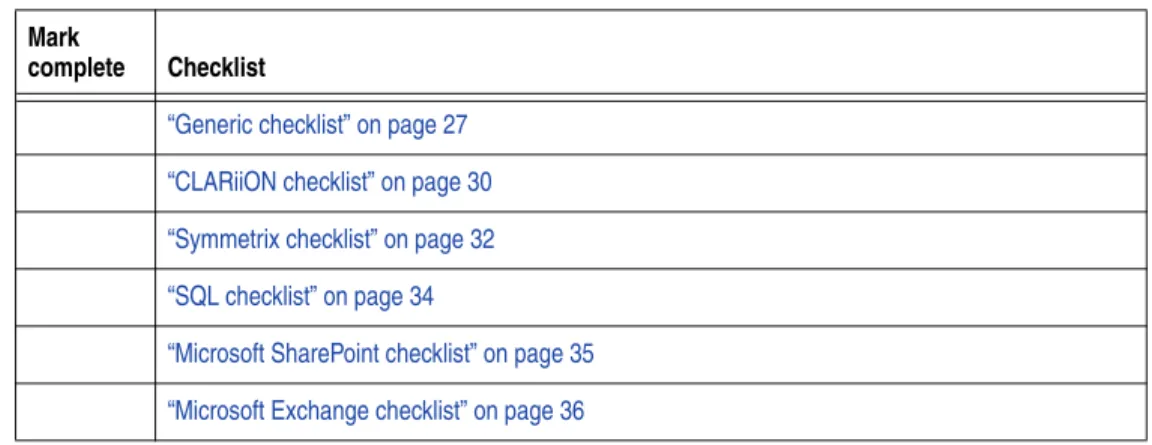
As each checklist is completed, indicate it by using the checklist provided in Table 4 on page 26.
KB936008 ✔ ✔ Windows
server 2003 SP1, SP2, R2, and R2 SP2
Volume GUIDs become invalid in Windows server 2003 when the disk layout changes outside the context of the Virtual Disk Service and of the APIs.
KB978897 ✔ Windows
server 2008 SP2
On Windows 2008, during NMM backups, Virtual Disk Service (VDS) crashes while applying retention because VDS incorrectly accesses some providers that are unloaded, when VDS is in the exit process. Apply this Microsoft hotfix to resolve the issue.
KB949001 ✔ Windows
server 2003 SP2
On Windows 2003, during NMM backups, Virtual Disk Service (VDS) crashes while applying retention because VDS incorrectly accesses some providers that are unloaded, when VDS is in the exit process. Apply this Microsoft hotfix to resolve the issue.
Table 3 Hotfixes required for NMM 2.3 (page 8 of 8)
KnowledgeBase article ID Windows 2003 (X32) Windows 2003 (X64) Windows 2008 (X32) Windows 2008
(X64) Windows 2008 R2 Applies to Description
Table 4 Checklist overview
Mark
complete Checklist
“Generic checklist” on page 27 “CLARiiON checklist” on page 30 “Symmetrix checklist” on page 32 “SQL checklist” on page 34
“Microsoft SharePoint checklist” on page 35 “Microsoft Exchange checklist” on page 36
Preinstallation checklists 27
Generic checklist
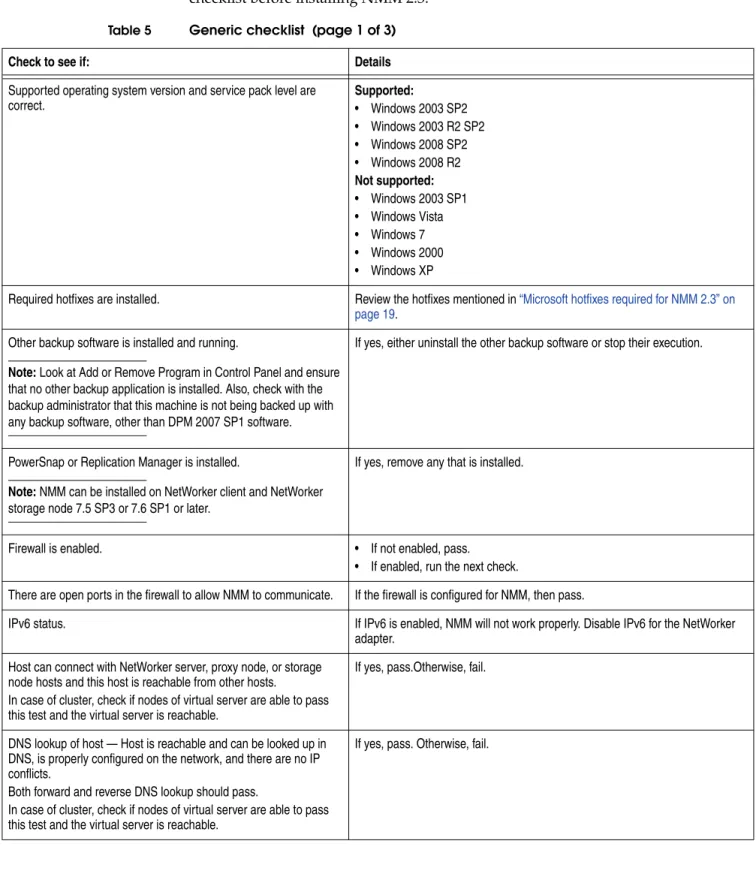
Table 5 on page 27 provides the generic checklist for NMM 2.3. Review the following checklist before installing NMM 2.3.
Table 5 Generic checklist (page 1 of 3)
Check to see if: Details
Supported operating system version and service pack level are
correct. Supported:• Windows 2003 SP2
• Windows 2003 R2 SP2 • Windows 2008 SP2 • Windows 2008 R2 Not supported: • Windows 2003 SP1 • Windows Vista • Windows 7 • Windows 2000 • Windows XP
Required hotfixes are installed. Review the hotfixes mentioned in “Microsoft hotfixes required for NMM 2.3” on page 19.
Other backup software is installed and running.
Note: Look at Add or Remove Program in Control Panel and ensure that no other backup application is installed. Also, check with the backup administrator that this machine is not being backed up with any backup software, other than DPM 2007 SP1 software.
If yes, either uninstall the other backup software or stop their execution.
PowerSnap or Replication Manager is installed.
Note: NMM can be installed on NetWorker client and NetWorker storage node 7.5 SP3 or 7.6 SP1 or later.
If yes, remove any that is installed.
Firewall is enabled. • If not enabled, pass.
• If enabled, run the next check.
There are open ports in the firewall to allow NMM to communicate. If the firewall is configured for NMM, then pass.
IPv6 status. If IPv6 is enabled, NMM will not work properly. Disable IPv6 for the NetWorker adapter.
Host can connect with NetWorker server, proxy node, or storage node hosts and this host is reachable from other hosts.
In case of cluster, check if nodes of virtual server are able to pass this test and the virtual server is reachable.
If yes, pass.Otherwise, fail.
DNS lookup of host — Host is reachable and can be looked up in DNS, is properly configured on the network, and there are no IP conflicts.
Both forward and reverse DNS lookup should pass.
In case of cluster, check if nodes of virtual server are able to pass this test and the virtual server is reachable.
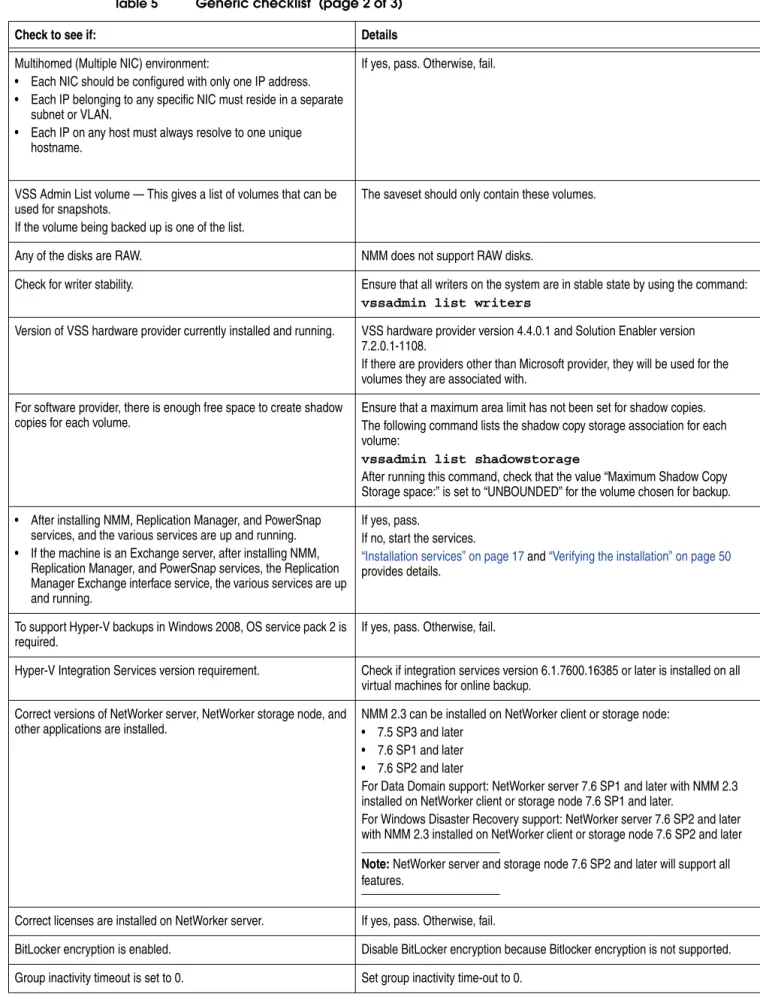
Multihomed (Multiple NIC) environment:
• Each NIC should be configured with only one IP address. • Each IP belonging to any specific NIC must reside in a separate
subnet or VLAN.
• Each IP on any host must always resolve to one unique hostname.
If yes, pass. Otherwise, fail.
VSS Admin List volume — This gives a list of volumes that can be used for snapshots.
If the volume being backed up is one of the list.
The saveset should only contain these volumes.
Any of the disks are RAW. NMM does not support RAW disks.
Check for writer stability. Ensure that all writers on the system are in stable state by using the command: vssadmin list writers
Version of VSS hardware provider currently installed and running. VSS hardware provider version 4.4.0.1 and Solution Enabler version 7.2.0.1-1108.
If there are providers other than Microsoft provider, they will be used for the volumes they are associated with.
For software provider, there is enough free space to create shadow
copies for each volume. Ensure that a maximum area limit has not been set for shadow copies.The following command lists the shadow copy storage association for each volume:
vssadmin list shadowstorage
After running this command, check that the value “Maximum Shadow Copy Storage space:” is set to “UNBOUNDED” for the volume chosen for backup. • After installing NMM, Replication Manager, and PowerSnap
services, and the various services are up and running. • If the machine is an Exchange server, after installing NMM,
Replication Manager, and PowerSnap services, the Replication Manager Exchange interface service, the various services are up and running.
If yes, pass.
If no, start the services.
“Installation services” on page 17 and “Verifying the installation” on page 50
provides details.
To support Hyper-V backups in Windows 2008, OS service pack 2 is
required. If yes, pass. Otherwise, fail.
Hyper-V Integration Services version requirement. Check if integration services version 6.1.7600.16385 or later is installed on all virtual machines for online backup.
Correct versions of NetWorker server, NetWorker storage node, and
other applications are installed. NMM 2.3 can be installed on NetWorker client or storage node:• 7.5 SP3 and later • 7.6 SP1 and later
• 7.6 SP2 and later
For Data Domain support: NetWorker server 7.6 SP1 and later with NMM 2.3 installed on NetWorker client or storage node 7.6 SP1 and later.
For Windows Disaster Recovery support: NetWorker server 7.6 SP2 and later with NMM 2.3 installed on NetWorker client or storage node 7.6 SP2 and later Note: NetWorker server and storage node 7.6 SP2 and later will support all features.
Table 5 Generic checklist (page 2 of 3)
Preinstallation checklists 29 Client retries is set to 0 in group properties. Set client retries to 0.
Software and hardware providers are being used at the same time. Use either software provider or hardware provider. Using both will cause backup to fail.
Install path is English only. Only English path is supported. Application host and proxy host have same OS, same service pack,
same platform, and similar patch level. If application host and proxy host do not match backups would not work fine Cluster type and cluster requirements. When hardware provider is used — If MSDTC is required or not:
• SQL 2005 on Windows 2003 Cluster: Yes • SQL 2005 on Windows 2008 Cluster: No • SQL 2008 on Windows 2008 Cluster: Yes Windows 2003 (32-bit and 64-bit) MSCS cluster:
• SP1 and R2 require Microsoft hotfixes described in KnowledgeBase articles KB903650 and KB919117.
• SP2 and R2 SP2 require Microsoft hotfix described in KnowledgeBase article KB919117.
Note: MSDTC is not required for Window 2008 (Exchange). Dynamic disks are not supported in an MSCS cluster.
The appropriate snapshot software for the array is installed and licensed:
• For EMC CLARiiON: — EMC SnapView Clone — EMC SnapView Snapshots • For EMC Symmetrix DMXTM:
— EMC TimeFinder®/Mirror
— EMC TimeFinder/Snap
“Configurations specific to Symmetrix” on page 72 provides details. • For EMC Celerra: Celerra® Snapshots
• For Dell EqualLogic PS Series: EqualLogic Snapshots • For IBM System Storage DS6000/DS8000: IBM FlashCopy
If yes, pass. Otherwise, fail.
The appropriate VSS hardware provider on the Windows server hosting the application is installed:
• EMC VSS Common Provider for EMC Symmetrix and CLARiiON arrays:
— The EMC VSS Common Provider is available on Powerlink at
http://Powerlink.EMC.com.
— The release notes for the EMC VSS Common Provider can be found on Powerlink at http://Powerlink.EMC.com.
• EMC Celerra VSS Provider for Celerra arrays — The EMC Celerra VSS Provider is available on Powerlink at
http://Powerlink.EMC.com.
• Dell/EqualLogic Integration ToolKit for EqualLogic PS Series arrays — The Dell documentation provides information on access and support.
• IBM DS6000 and DS8000 arrays — The IBM System Storage DS Open API Package is available at the IBM support website. • Windows Unified Data Storage Server (WUDSS) — The
Microsoft documentation provides information on access and support.
If yes, pass. Otherwise, fail. Table 5 Generic checklist (page 3 of 3)
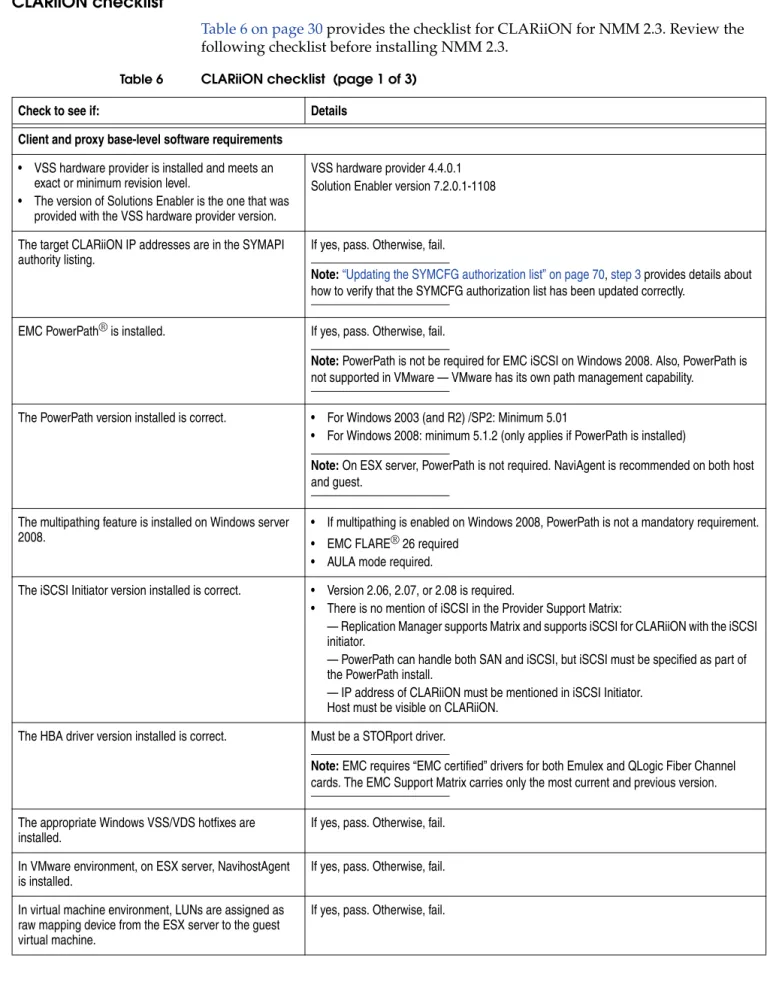
CLARiiON checklist
Table 6 on page 30 provides the checklist for CLARiiON for NMM 2.3. Review the following checklist before installing NMM 2.3.
Table 6 CLARiiON checklist (page 1 of 3)
Check to see if: Details
Client and proxy base-level software requirements • VSS hardware provider is installed and meets an
exact or minimum revision level.
• The version of Solutions Enabler is the one that was provided with the VSS hardware provider version.
VSS hardware provider 4.4.0.1 Solution Enabler version 7.2.0.1-1108
The target CLARiiON IP addresses are in the SYMAPI
authority listing. If yes, pass. Otherwise, fail.
Note:“Updating the SYMCFG authorization list” on page 70, step 3 provides details about how to verify that the SYMCFG authorization list has been updated correctly.
EMC PowerPath® is installed. If yes, pass. Otherwise, fail.
Note: PowerPath is not be required for EMC iSCSI on Windows 2008. Also, PowerPath is not supported in VMware — VMware has its own path management capability.
The PowerPath version installed is correct. • For Windows 2003 (and R2) /SP2: Minimum 5.01
• For Windows 2008: minimum 5.1.2 (only applies if PowerPath is installed)
Note: On ESX server, PowerPath is not required. NaviAgent is recommended on both host and guest.
The multipathing feature is installed on Windows server
2008. • If multipathing is enabled on Windows 2008, PowerPath is not a mandatory requirement.• EMC FLARE® 26 required • AULA mode required.
The iSCSI Initiator version installed is correct. • Version 2.06, 2.07, or 2.08 is required.
• There is no mention of iSCSI in the Provider Support Matrix:
— Replication Manager supports Matrix and supports iSCSI for CLARiiON with the iSCSI initiator.
— PowerPath can handle both SAN and iSCSI, but iSCSI must be specified as part of the PowerPath install.
— IP address of CLARiiON must be mentioned in iSCSI Initiator. Host must be visible on CLARiiON.
The HBA driver version installed is correct. Must be a STORport driver.
Note: EMC requires “EMC certified” drivers for both Emulex and QLogic Fiber Channel cards. The EMC Support Matrix carries only the most current and previous version. The appropriate Windows VSS/VDS hotfixes are
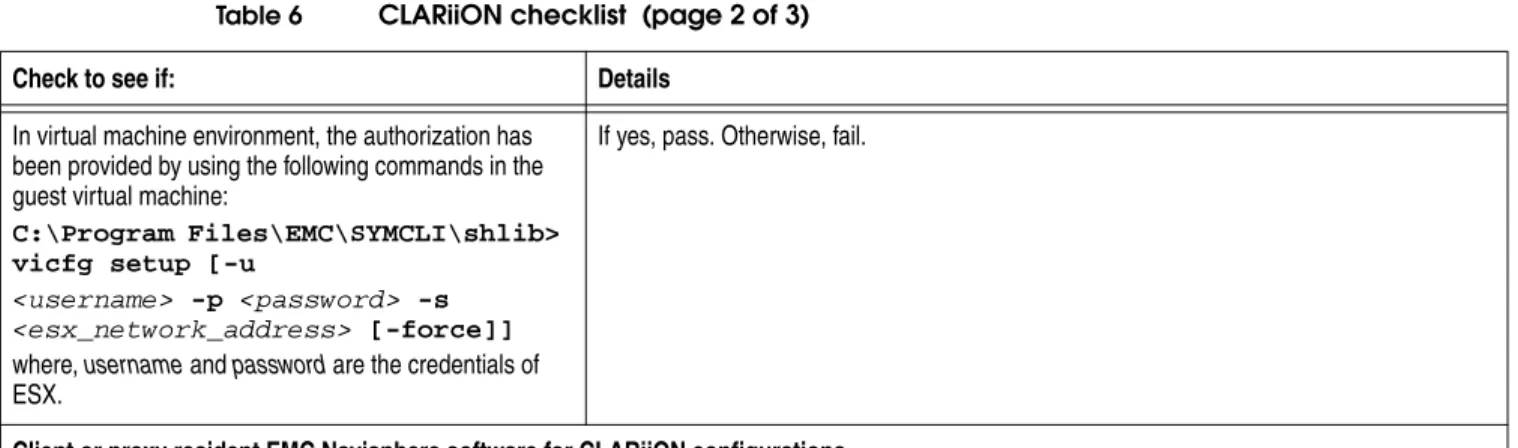
Preinstallation checklists 31 In virtual machine environment, the authorization has
been provided by using the following commands in the guest virtual machine:
C:\Program Files\EMC\SYMCLI\shlib> vicfg setup [-u
<username> -p <password> -s <esx_network_address> [-force]]
where, username and password are the credentials of ESX.
If yes, pass. Otherwise, fail.
Client or proxy resident EMC Navisphere software for CLARiiON configurations NaviCLI and NaviSecCLI are installed and their location
are in system environment variable. If installed and in location is in system environment variable, then pass. Otherwise, fail. Admsnap is installed and its location is in system
environment variable. If installed and in location is in system environment variable, then pass. Otherwise, fail. The Admsnap version installed is correct. • For Windows 2003 with FLARE 19: minimum Admsnap 2.9.0.0.7
• For Windows 2003 with FLARE 20: minimum Admsnap 2.9.0.0.7 • For Windows 2003 with FLARE 22: minimum Admsnap 2.9.0.0.7 • For Windows 2003 with FLARE 24: minimum Admsnap 2.9.0.0.7 • For Windows 2003 with FLARE 26: minimum Admsnap 2.24.0.0.0 • For Windows 2003 and 2008 FLARE 28: minimum Admsnap 2.28.0.0.2
• For Windows 2003, 2008 and 2008 R2 FLARE 29: minimum Admsnap 2.29.0.0.0-1 • For Windows 2003, 2008 and 2008 R2 FLARE 30: minimum Admsnap 2.29.0.0.0-1 The SPA and SPB belong to the same CLARiiON. If yes, pass. Otherwise, fail.
The FLARE operating environment version installed on the CLARiiON arrays is correct.
The following CLARiiON arrays running FLARE are supported: 19, 22, 24, 26, 28, 29 or 30
If the release of the CLARiiON is in the list, then pass. Otherwise, fail.
EMC Access Logix™ is active. If yes, pass. Otherwise, fail.
SNAPVIEW enabler installed on CLARiiON If enabler is present, pass. Otherwise, fail. CLARiiON setup
The host's NaviCLI version is compatible with CLARiiON
array release. • If host NaviCLI version is the same or higher than CLARiiON release version, pass. • If host NaviCLI version is lower than CLARiiON release version, fail. There are LUNs in the reserved LUN pool. If there are LUNs in the reserved LUN pool, pass. Otherwise, fail.
Note: Ensure that the number of LUNs in the LUN pool are sufficient to cover the number of snapshots at any given time.
The array is capable of creating clones. If clones are enabled, pass. Otherwise, fail. There are clone private LUNs. If clones are private clones, pass. Otherwise, fail. The failover mode settings for the CLARiiON are set:
• The CLARiiON failover mode or trespassing must be set to 1.
• For iSCSI, the connectivity is 4.
If yes, pass. Otherwise, fail.
The specified username and password works for that
CLARiiON. If yes, pass. Otherwise, fail.
Table 6 CLARiiON checklist (page 2 of 3)
Symmetrix checklist
Table 7 on page 32 provides the checklist for Symmetrix for NMM 2.3. Review the following checklist before installing NMM 2.3.
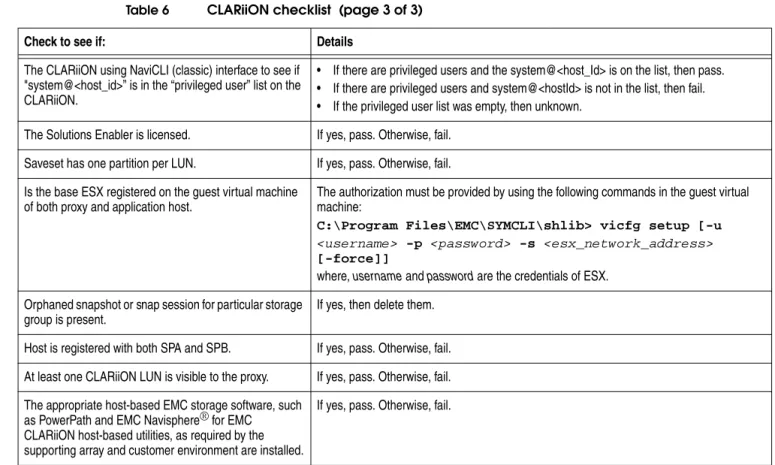
The CLARiiON using NaviCLI (classic) interface to see if "system@<host_id>” is in the “privileged user” list on the CLARiiON.
• If there are privileged users and the system@<host_Id> is on the list, then pass. • If there are privileged users and system@<hostId> is not in the list, then fail. • If the privileged user list was empty, then unknown.
The Solutions Enabler is licensed. If yes, pass. Otherwise, fail. Saveset has one partition per LUN. If yes, pass. Otherwise, fail. Is the base ESX registered on the guest virtual machine
of both proxy and application host. The authorization must be provided by using the following commands in the guest virtual machine: C:\Program Files\EMC\SYMCLI\shlib> vicfg setup [-u
<username> -p <password> -s <esx_network_address>
[-force]]
where, username and password are the credentials of ESX. Orphaned snapshot or snap session for particular storage
group is present. If yes, then delete them.
Host is registered with both SPA and SPB. If yes, pass. Otherwise, fail. At least one CLARiiON LUN is visible to the proxy. If yes, pass. Otherwise, fail. The appropriate host-based EMC storage software, such
as PowerPath and EMC Navisphere® for EMC CLARiiON host-based utilities, as required by the supporting array and customer environment are installed.
If yes, pass. Otherwise, fail. Table 6 CLARiiON checklist (page 3 of 3)
Check to see if: Details
Table 7 Symmetrix checklist (page 1 of 3)
Check to see if: Details
VSS hardware provider is installed and meets an exact or minimum revision level.
Note: The version of Solutions Enabler is the one that was provided with the VSS hardware provider version.
VSS hardware provider 4.4.0.1 Solution Enabler version 7.2.0.1-1108
EMC PowerPath is installed. If yes, pass. Otherwise, fail.
Note: PowerPath is not supported in VMware.
The PowerPath version installed is correct. • For Windows 2003, 2003 R2 or 2003 SP2: Minimum 5.01 • For Windows 2008: Minimum 5.1.2 (only applies if PowerPath is
installed)
Preinstallation checklists 33 The HBA driver version installed is correct. Must be a STORport driver.
Note: EMC requires “EMC certified” drivers for both Emulex and QLogic Fiber Channel cards. The EMC Support Matrix carries only the most current and previous version.
In virtual machine environment, LUNs are assigned as raw mapping device from the ESX server to the guest virtual machine.
If yes, pass. Otherwise, fail.
In virtual machine environment, the authorization has been provided by using the following commands in the guest virtual machine:
C:\Program Files\EMC\SYMCLI\shlib> vicfg setup [-u
<username> -p <password> -s <esx_network_address> [-force]] where, username and password are the credentials of ESX.
If yes, pass. Otherwise, fail.
The Solutions Enabler is licensed. If yes, pass. Otherwise, fail. Save set has one partition per LUN. If yes, pass. Otherwise, fail. Ensure that appropriate front-end ports are zoned to the production machine
and to the proxy host. At least two ports to the host should be zoned. Note: PowerPath is required for dual zoning.
If yes, pass. Otherwise, fail.
When assigning LUNs to a Windows machine, ensure that both front-end ports are presented (visible to the SCSI bus on the system) to the Windows. Otherwise, backups may fail with a configuration error.
If yes, pass. Otherwise, fail.
For the proxy mount host, ensure that at least one LUN from each Symmetrix (if multiple are used) is permanently zoned and masked to the machine. This is required for reliable import/deport of snapshots.
If yes, pass. Otherwise, fail.
When using the EMC VSS Provider with Symmetrix storage arrays, enable these flags on all the directors to which the VSS host is connected:
• VCM director flag, which enables the Volume Logix software on Symmetrix so that the VSS Provider can perform device masking. Failure to enable this flag results in the VSS Provider failing to create and import snapshots, due to the lack of device masking capabilities.
• SPC-2 director flag, which forces Symmetrix to report its device identifiers in a way that VSS recognizes.
Note: Failure to enable this flag results in the VSS service failing all snapshots before the EMC VSS Provider is called.
If yes, pass. Otherwise, fail.
If PowerPath software is installed, launch PowerPath and verify that all
Symmetrix LUNs are displayed with the state “Alive”. If yes, pass. Otherwise, fail. Verify Solutions Enabler connectivity by running SYMCLI command symcfg
discover. If yes, pass. Otherwise, fail.
Ensure to assign GateKeeper devices to the production and proxy nodes. Note: It is recommended that the number of gatekeepers for a single host with few applications running be kept as 8. However, the minimum is 6.
If yes, pass. Otherwise, fail. Table 7 Symmetrix checklist (page 2 of 3)
SQL checklist
Table 8 on page 34 provides the checklist for SQL for NMM 2.3. Review the following checklist before installing NMM 2.3.
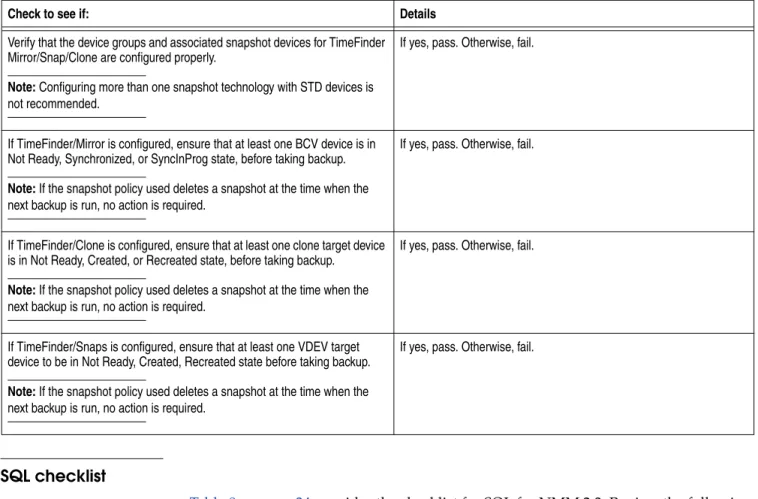
Verify that the device groups and associated snapshot devices for TimeFinder Mirror/Snap/Clone are configured properly.
Note: Configuring more than one snapshot technology with STD devices is not recommended.
If yes, pass. Otherwise, fail.
If TimeFinder/Mirror is configured, ensure that at least one BCV device is in Not Ready, Synchronized, or SyncInProg state, before taking backup. Note: If the snapshot policy used deletes a snapshot at the time when the next backup is run, no action is required.
If yes, pass. Otherwise, fail.
If TimeFinder/Clone is configured, ensure that at least one clone target device is in Not Ready, Created, or Recreated state, before taking backup.
Note: If the snapshot policy used deletes a snapshot at the time when the next backup is run, no action is required.
If yes, pass. Otherwise, fail.
If TimeFinder/Snaps is configured, ensure that at least one VDEV target device to be in Not Ready, Created, Recreated state before taking backup. Note: If the snapshot policy used deletes a snapshot at the time when the next backup is run, no action is required.
If yes, pass. Otherwise, fail. Table 7 Symmetrix checklist (page 3 of 3)
Check to see if: Details
Table 8 SQL checklist
Check to see if: Details
Check if SQL instance version for each instance installed: • SQL 2005 needs SP4
• SQL 2008 SP1 • SQL 2008 R2
If yes, pass. Otherwise, fail.
Check if SQL virtual server is online in case of clustered
instance. If yes, pass. Otherwise, fail.
Check if SQL services for each instance are up and running:
• SQL server • SQL browser
If yes, pass. Otherwise, fail.
Check if SQL server writer status is stable. If yes, pass. Otherwise, fail. Is SQL server running in single user mode? If yes, fail.
Preinstallation checklists 35
Microsoft SharePoint checklist
Table 9 on page 35 provides the checklist for SharePoint for NMM 2.3. Review the following checklist before installing NMM 2.3.
Table 9 SharePoint checklist
Check to see if: Details
• SharePoint server 2010 RTM.
• Microsoft Office SharePoint Server 2007 (for x86 and x64) Standard or Enterprise editions with SP2 or later and Windows SharePoint Services 3.0 with SP2.
• SharePoint server 2003 (for x86) Standard or Enterprise editions with SP2 and Windows SharePoint Services 2.0 with SP2.
If yes, pass. Otherwise, fail.
All essential SharePoint services are up and running:
• SQL server Writer (running and set to automatic) for SQL databases
• SharePoint Services Writer (running and set to automatic) for SharePoint 2007 and SharePoint 2010.
• SharePoint Search Writer for SharePoint 2007 or SharePoint 2010 Search — If not running, then it is a warning to check if role is enabled. Ensure that the services are started. Note: The service should be running only if the role is enabled.
• Microsoft Office Server Search Writer for Microsoft Office Server search — If not running, then it is a warning to check if role is enabled. Ensure that the services are started. Note: The service should be running only if the role is enabled.
If yes, pass. Otherwise, fail.
NMM client is installed on all machines participating in a farm for VSS backup. If yes, pass. Otherwise, fail. SharePoint VSS writer is registered on at least one web front-end within a farm. If yes, pass. If no, run stsadm -o
registerwsswriter. Else, it is a warning. Either SQL server writer or MSDE writer-SQL2000 is enabled for SharePoint server 2003. If yes, pass. Otherwise, fail.
The SharePoint environment is stable or not using the SharePoint server Administration tool. If yes, pass. Otherwise, fail. Staging area space requirements are fulfilled.
Note: More free space may be required if the staging is slow.
If requirements are fulfilled, pass.
For optimized backup — The number of processors on web front-end must be the size of largest site-collection.
SharePoint 2007 Shared Service Provider (SSP) is properly configured or not. If yes, pass. Otherwise, fail. For SharePoint 2007 and SharePoint 2010, the user should have administrator rights for
SharePoint, that is, the user should be the SharePoint administrator. If yes, pass. Otherwise, fail. If all components of Sharepoint are on the same machine, the machine might not be part of a
domain. If it is distributed than system should be part of domain. If a distributed farm is in domain, pass. Otherwise, fail. Check SharePoint, OSearch, SPSearch, SQL writers are in stable state. If yes, pass. Otherwise, fail.
Verify whether SharePoint VSS Writer is running under SharePoint farm administrator account. Otherwise, the writer will not be able to connect to the configuration database to obtain list of SharePoint components, and consequently SharePoint VSS backup will fail.
If SharePoint VSS writer is running under SharePoint farm administrator account, pass. Otherwise, fail.
In SharePoint 2010, if SPSearch is enabled in multiple servers of a farm, Sharepoint services and
search writers are not reported. If SPSearch is enabled only on a single server in the farm, pass. Otherwise, fail. In SharePoint 2010, check if SharePoint self privilege is enabled in configured database. If not
Microsoft Exchange checklist
Table 10 on page 36 provides the checklist for Exchange for NMM 2.3. Review the following checklist before installing NMM 2.3.
Table 10 Exchange checklist (page 1 of 2)
Check to see if: Details
• Exchange server 2003 (for x86) Standard and Enterprise editions with SP2 or later is installed. • Exchange server 2007 (for x64) Standard and Enterprise Edition with SP3 with Rollup1 or later is
installed.
• Exchange Server 2010 (for x64) Standard and Enterprise Edition with SP1 Rollup 2 or later is installed.
If yes, pass. Otherwise, fail.
Cluster is installed, then check the state of the cluster service. For WSFC or MSCS, pass if cluster in healthy. Message API (MAPI) and Collaboration Data Object (CDO) kits are installed and are version 1.2.1 or
later for Exchange 2007 and Exchange 2010. If yes, pass. Otherwise, fail.
Credentials of user of Exchange server are correct. The entered credentials must be that of Exchange administrator or the user who will start the backup. Otherwise, fail.
Exchange server is a part of domain. If yes, pass. Otherwise, fail.
Essential Exchange Services are up and running: • Exchange Information Store
• Exchange Attendant • Exchange Resource Agent • Message Transfer Agent (MTA)
• Replication Service for cluster environment Note: No services are checked for Exchange 2010.
If yes, pass. Otherwise, fail.
Following conditions are met:
• System path and the log path are in the same location.
• In normal backup of Exchange, the database files and transaction log files are in different volumes.
• In hardware scenario, the database files and log files are in different LUNs.
If yes, pass. Otherwise, fail.
For Exchange 2007 — The writer for both the active node and passive node in the CCR environment is stable.
For Exchange 2010 — DAG Exchange IS writer and Exchange replication writer are healthy.
If yes, pass. Otherwise, fail.
For Exchange 2007 Exchange storage groups locale should be the same as the Exchange server
locale. If yes, pass. Otherwise, fail.
The save set contains only Exchange writer and that no other writer is included during backup. If yes, pass. Otherwise, fail. The group are properly mounted, else the whole backup will fail. If yes, pass. Otherwise, fail. For Exchange 2007 — The CCR of active node and passive node is consistent, that is, check the
health of CCR before taking backup.
For Exchange 2010 — Ensure that the databases under the DAG are healthy and mounted state before running the backup.
Preinstallation checklists 37 Exchange management tools are installed on proxy client. If yes, pass. Otherwise, fail.
For Exchange 2010 — In IIS Manager console, Windows Authentication should be enabled. If yes, pass. Otherwise, fail. For Exchange 2010 — ensure that the Kernel Mode Authentication is clear.
Go to IIS Manager > Expand Your Host > Expand Sites > Expand Default Web Site >Powershell: 1. On the right hand side pane, double-click on Authentication and Enable Windows Authentication. 2. On Windows Authentication, right-click and check if Kernel Mode authentication is clear.
If yes, pass. Otherwise, fail.
For Exch2010 — Ensure that the client resource created for DAG is with FQDN. If yes, pass. Otherwise, fail. For Exchange 2010 — During recovery in DAG, check whether the database is mounted in only the
active node and recovery is taking place only in active node.
The database, which is restored is in mounted state. Passive copies of the databases are in suspended state.
If yes, pass. Otherwise, fail.
For Exchange 2010 — Ensure that the Logged in user has a mailbox for RDB recovery. If yes, pass. Otherwise, fail. For Exchange 2010 — During recovery in DAG environment, replication should be in suspended
state. If yes, pass. Otherwise, fail.
For Exchange 2010 — Check if user can ping DAG name. If yes, pass. Otherwise, fail. For Exchange 2010 — Check if the database to be restored is in overwritable state. If yes, pass. Otherwise, fail. For Exchange 2010 — Check that the user credential entered for Exchange has send-as and
receive-as permissions to browse RSG and RDB mailbox.
1. On the Exchange Server, select the Start > All Programs > Exchange Management Shell. 2. Enable Send-As and Receive-As permissions.
For example:
get-ExchangeServer <Exchange Server name> |
Add-AdPermission -user <username> -extendedrights
Receive-As, Send-As
If yes, pass. Otherwise, fail.
Before starting backup ensure that the path provided for NSR_ALT_PATH is valid. If yes, pass. Otherwise, fail. For Exchange 2007 and Exchange 2010 — For RSG or RDB item level browsing, at least one public
folder database is needed. If yes, pass. Otherwise, fail.
Table 10 Exchange checklist (page 2 of 2)
Supported configurations
This section describes the basic configurations in which the NMM is supported:
◆ “Simple LAN-based configuration” on page 38
◆ “LAN-based configuration with a proxy client” on page 39 ◆ “LAN-free configuration” on page 40
◆ “LAN-free dedicated storage node configuration” on page 41
Simple LAN-based configuration
Figure 1 on page 38 shows a simple LAN-based configuration with a storage area network. In a LAN-based configuration, the production data is stored on a storage area network (SAN) or direct-attached storage (DAS). The data path to the
NetWorker storage node devices is over a LAN. The application server that is being protected has the NMM installed.
The data moves as follows:
1. The NetWorker server, which must be release 7.5 SP3 or later, initiates the process by contacting the application server where the NMM software is installed. 2. The application server creates a snapshot of the data on the storage volume, using
the NMM software.
Note: In Figure 1 on page 38, snapshots are represented by S1 through S5.
3. The application server with the NMM software uses a snapshot in primary storage to transfer the data over the LAN and into a conventional backup medium such as a file type disk, advanced file type disk, tape, or Data Domain device.
LAN
NetWorker Storage Node 7.5.3 or 7.6.1
Traditional storage NetWorker Server
7.5.3 or 7.6.1
Application server (NMM 2.3 and NetWorker client 7.5.3 or 7.6.1)
Supported configurations 39
LAN-based configuration with a proxy client
Figure 2 on page 39 shows a LAN-based configuration with a storage area network and a proxy client. Both the application server and the proxy client have the NMM installed. Install the proxy client software by using the NMM software package.
Note: The application server and the proxy client must use the same NMM version, operating system version, NetWorker version, and VSS Provider version. If NMM 2.3 is installed on either the application server or the proxy client machine, then the other machine must also use NMM 2.3. Backup and recovery will fail if NMM 2.3 is used on one of these machines, and an earlier version of NMM is used on the other.
A proxy client is a host that acts as a remote data mover (DM) when snapshots are rolled over to a conventional backup medium. A proxy client frees resources on the application server. When a backup operation uses a proxy client, it is known as a serverless backup.
The data moves as follows:
1. The NetWorker server initiates the process by contacting the application server where the NMM software is installed.
2. The application server creates a snapshot of the data on the storage volume by using the NMM software.
Note: In Figure 2 on page 39, snapshots are represented by S1 through S5.
3. The snapshot is made visible to the proxy client.
4. The proxy client uses a snapshot in primary storage to transfer the data over the LAN and into a conventional backup medium such as a file type disk, advanced file type disk, tape, or Data Domain device.
Figure 2 LAN-based configuration with a proxy client LAN
NetWorker Storage Node
7.5.3 or 7.6.1 Primary storage
(CLARiiON or Symmetrix)
Traditional storage
S1 S2
S3 S4 S5
NetWorker Server
7.5.3 or 7.6.1
Application server (NMM 2.3 and NetWorker client 7.5.3 or 7.6.1)
Proxy client (NMM 2.3 and NetWorker client 7.5.3 or 7.6.1)
SAN
LAN-free configuration
Figure 3 on page 40 shows a LAN-free configuration with a storage area network. The NMM is installed on the application server. The proxy client is installed on the NetWorker storage node.
You can set up a NetWorker storage node 7.5 SP3 or later as a proxy client to avoid the network traffic that is generated when a snapshot is rolled over to a conventional backup medium. Network traffic is avoided because both the conventional backup device and the snapshot are directly attached to the storage node.
The data moves as follows:
1. The NetWorker server initiates the process by contacting the application server where the NMM software is installed.
2. The application server creates a snapshot of the data on the storage volume, using the NMM software.
Note: In Figure 3 on page 40, snapshots are represented by S1 through S5.
3. The snapshot is made visible to the proxy client.
4. The proxy client, in this case the storage node, uses a snapshot in primary storage to transfer the data into a conventional backup medium such as a file type disk, advanced file type disk, tape, or Data Domain device.
The NetWorker server and the application server communicate through the LAN. However, the data itself is not transferred across the LAN because the
conventional backup medium is attached directly to the NMM proxy node, which has NetWorker storage node software and backup media configured. The NMM proxy node acts as a NetWorker storage node.
LAN
Primary storage
Traditional storage S4
NetWorker Server 7.5.3 or 7.6.1
Application server (NMM 2.3 and NetWorker client 7.5.3 or 7.6.1)
Proxy client
(NMM 2.3 and NetWorker Storage Node 7.5.3 or 7.6.1)