Innominate Security
Configuration Manager
Quick Installation Guide /
Working with
Innominate mGuard
ISCM Release 3.x.x
Document Rev. 1.7
Innominate Security Technologies AG Albert-Einstein-Straße 14
12489 Berlin, Germany Tel.: +49 (0)30-6392 3300 [email protected] http://www.innominate.com
October 2005
"Innominate” and "mGuard” are registered trade names of Innominate Security Technologies AG. The mGuard technology is protected by Patent No. 10138865, which was granted by the German Patent Office. Additional patents are pending. This document may not be copied or transferred in whole or in part without prior written approval.
Innominate AG reserves the right to modify this document at any time without notice. Innominate provides no warranty for the contents of this document. This disclaimer shall also apply to any implicit warranty of marketability or suitability for a specific purpose.
Furthermore, Innominate assumes no liability for errors in this manual or for accidental or consequential damages in connection with the delivery, performance or utilization of this document.
This manual may not be photocopied, duplicated or translated into another language in whole or in part without the prior written approval of Innominate Security Technologies AG.
The Solsoft product described in this document is protected by French patent number FR97/13254 and may be protected by other US patents, foreign patents or pending applications.
Solsoft™, Solsoft NP™ and Network Policy Engine™ are trademarks of Solsoft. Cisco, Cisco Systems, PIX are trademarks of Cisco Systems.
SSH®, SSH Secure Shell™ are trademarks of SSH Communications Security. Windows®, Windows NT®,and Windows Server™ are trademarks of Microsoft ® Corporation.
All other products mentioned in this manual are trademarks of the respective owners.
1
Introduction ... 5
2
Installation ... 6
2.1 Requirements ... 6
2.2 Installation of the Innominate Security Configuration Manager ... 6
2.3 Install or update the Innominate technology package ... 7
2.4 Migrate from previous versions of the Security Configuration Manager (ISCM enterprise
only) 8
2.5 Start or stop the policy server (ISCM enterprise only) ... 9
2.6 Set the adminstrator password (ISCM enterprise only) ... 9
2.7 Configure the Security Designer (ISCM enterprise only) ... 11
2.8 Configure the devices ... 11
3
Example project ... 12
3.1 Create a new project ... 13
3.2 Draw the topology of your network ... 13
3.3 Create classes to represent objects with special functionality in your topology ... 17
3.4 Create metaclasses ... 17
3.5 Design your NAT rules ... 17
3.6 Design your VPNs ... 18
3.7 Implement your firewall rules (permissions) ... 20
3.8 Options for large scale networks ... 25
3.9 Use the audit function to verify your policy ... 26
3.10 Compile the policy ... 26
3.11 Deploy the rules / Rollback ... 27
4
NAT ... 28
4.1 Overview ... 28
4.2 Create masquerading rules ... 30
4.3 Create port forwarding rules ... 31
4.4 Create 1:1 NAT rules ... 35
5
VPN ... 38
5.1 Configuring VPNs in Stealth mode ... 40
5.1.1 Configure „Tunnel“ mode VPNs ... 40
5.1.2 Configure „Transport“ mode VPNs ... 43
5.2 Using certificates for authentication ... 44
6
The Properties Window ... 48
6.1 Stealth mode configuration ... 53
7
Generic PEP Actions ... 57
7.1 Device Update ... 57
7.2 Roll Out support ... 57
7.3 Check Device connectivity ... 58
8
Advanced configuration ... 60
8.1 Configure application servers (NTP, DNS and Syslog) ... 60
8.2 Define remote access rules through a tunnel ... 62
8.3 Configure VLANs ... 63
8.4 Learning mode ... 64
8.5 Router redundancy ... 67
8.5.1 Configure redundant devices operated in Router Mode ... 67
8.5.2 Configure redundant devices operated in Stealth Mode ... 70
10.1 VPN ... 73
10.2 NAT ... 75
10.3 Network Modes ... 76
1
Introduction
Thank your for choosing Innominate Security Configuration Manager 3.x.x Please read this document for information on
• the installation process
• an overview of how to implement your security policies
• the procedures specific to the Innominate mGuard security appliances. For detailed information about the usage of the Security Configuration Manager please refer to the documents listed below ("Related documentation").
Overview The Innominate Security Configuration Manager enables the convenient network-wide configuration of security settings for mid-sized and large networks in which Innominate mGuard security appliances are integrated. The tool offers state-of-the-art management of security policies via a graphical interface based on Solsoft technology. Using Innominate Security Configuration Manager VPN connections between Innominate mGuard appliances and VPN gateways from other major manufacturers (e.g. Cisco, Netscreen, etc.) can be configured and managed.
With a click of your mouse you can generate the desired firewall rules, VPN configurations, NAT settings, etc. and upload the generated rule set to the devices in the network, deploying in an instant your desired security policies. Supported devices ISCM 3.0 supports all Innominate mGuards Release >= 2.0.
Supported features of the mGuard
The current version of the Innominate Security Configuration Manager supports the following features of the mGuard:
• Router mode / Stealth mode / PPPoE mode • Stealth modes: automatic, static and multi • VPN (tunnel and transport mode)
• Support of X.509 certificates • VLAN configuration
• Firewall rules with connection tracking for ftp, irc and pptp • NAT: Masquerading, Port forwarding and 1:1 NAT
• Router redundancy (cluster)
• Server configuration: Syslog, NTP and DNS • Roll-out support
Related
documentation
Detailed information on the Security Configuration Manager and the Innominate mGuard can be found in the following documents:
• Solsoft Release Notes
• Solsoft Getting Started Guide (ISCM enterprise only) • Solsoft Policy Server User Guide (ISCM enterprise only) • Solsoft Policy Server Reference Manual (ISCM enterprise only) • Solsoft Policy Server Working with VPNs (ISCM enterprise only) • Solsoft Policy Server Administration Guide (ISCM enterprise only) • Solsoft Firewall Manager User Guide (ISCM professional only) • Solsoft Firewall Manager Quick Start Guide (ISCM professional only) • Innominate mGuard manual
• Application notes „Roll-out support“ and „Learning mode“ Version Info ISCM 3.x.x is based on
• Solsoft Policy Server 7.x and Solsoft Firewall Manager 1.x respectively • Innominate technology package 3.x.x
2
Installation
2.1 Requirements
Hardware • A minimum of 512 MB RAM
• 4 GB free hard disk space
• Monitor displaying 32K colors at 1024 x 768 resolution minimum Software • Windows 2000 SP 2 (or higher) / Windows XP
• For the ISCM enterprise version you need to install the Solsoft Policy Server
(sps-7.1-suite-windows.exe or sps-7.1-clients-windows.exe)
For the ISCM professional version you need to install the Solsoft Firewall Manager (sfm-1.0.1-windows.exe).
• The Innominate technology package
(sps-ddk-7.1-Innominate-mGuard-3.x.x-windows.jar) • Valid license file (license.dat)
Download Please contact the Innominate Sales Department ([email protected]) to obtain information how to download the software packages and the license file.
2.2 Installation of the Innominate Security Configuration Manager
This section describes the installation of the Innominate Security Configuration Manager.
Migration from previous versions
In case you have previous versions of the Security Configuration Manager installed, do not uninstall these versions prior to the new installation! First install the new version, then migrate your projects from the old version to the new version (see Chapter 2.4) and after the migration you might uninstall any old version.
Installation process ISCM is installed in 2 steps:
1. Installation of the Solsoft Policy Server (ISCM enterprise edition) or the
Solsoft Firewall Manager (ISCM professional edition)
(Depending on your license you can install either the Standard version or the Enterprise version of the Solsoft Policy Server. The Enterprise version additionally contains the Web Services - SDK and you are able to choose a different Java Virtual Machine). Please refer to the corresponding manuals to get installation instructions.
2. Installation of the Innominate technology package (Chapter 2.3)
)
For the next steps "<ISCMRoot>" is used as a placeholder for the installation directory of the Security Configuration ServerInstallation of the license
Please install your license file which you received from Innominate: 1. Copy the file license.dat to the directory "<ISCMRoot>\FlexLM\"
)
Please note that if the server is installed on the Windows OS it will not start, in case the server is not connected to a network. If Windows does not detect an active network connection it does not return a MAC address to the FlexLM manager. Therefore ISCM can not be started. To circumvent this, please follow these steps:- Edit the registry entry
"HKEY_LOCAL_MACHINE\System\CurrentControlSet\Services\ Tcpip\Parameters"
- Add the following entry:
Name: DisableDHCPMediaSense Type: REG_DWORD
Value: 1
2.3 Install or update the Innominate technology package
To install or update the Innominate specific components please follow the steps below:
1. Make certain the Policy Server is not running (see Chapter 2.4 for more information on how to stop the server).
2. Copy the technology package file to a directory of your choice (e.g. C:\temp)
3. Open a Windows command window
(All Programs->Accessories->Command Prompt) and change to the directory "<ISCMRoot>\bin“ by using the cd-command.
4. Run the device packaging tool:
„DevicePackaging.exe -upgrade=C:\temp\<device package name.jar>“ When running the tool, substitute <device package name.jar> in the command above with the real name of the package file, e.g.
sps-ddk-7.1-Innominate-mGuard-3.0.0-windows.jar
It is also possible to rollback to a previous version of the technology package, in case there are problems with the new version. For detailed information on how to use the device packaging tool, please refer to Chapter „Managing Devices“ of the Solsoft Administration Guide.
2.4 Migrate from previous versions of the Security Configuration
Manager (ISCM enterprise only)
To migrate your data from old installations, use the command-line tool
ServerVersionUpdate.exe that is located in the <ISCMRoot>\bin directory of the new server. This tool copies and adapts all the previous server data to the new server. The old server data will not be deleted. Before migrating please make sure you have enough disk space to replicate the Solsoft Policy Server database. Procedure 1. Make certain the Policy Server is not running (see Chapter 2.4 for more
information on how to stop the server). 2. Open a Windows command window
(All Programs->Accessories->Command Prompt) and change to the directory "<ISCMRoot>\bin“ using the cd-command.
3. The syntax of the command is:
ServerVersionUpdate [[-help] [-list] [-path]] source_path [target_path] [project_name_list]
Without any option, the command takes as single parameter the old server installation path to migrate all projects, e.g.:
ServerVersionUpdate.exe "C:\Program Files\Solsoft\<OldVersion>“
The tool will prompt you to acknowledge the transfer.
Depending on the amount of data, the transfer can take a while. The tool will transfer all the data but will maintain the new administrator password that was set up during the new installation.
)
Attention: The migration tool will erase all data in the new installation and replace the data by those imported from the old installation. Log File When the script is finished a complete migration log file can be found in the<ISCMRoot>/log directory. The file name is xxxxx_migration.log
Check this file for potential error messages. In general warning messages can be ignored. In case an error message was produced, please contact the Innominate support and report the message.
)
The log file will be only generated if you do not specify the -path or -list options.Reset the License Allocation
Use the command line interface to reset the license allocation: ServerVersionUpdate -resetLicense <ISCMRoot>
e.g.: ServerVersionUpdate -resetLicense "C:\ProgramFiles\Solsoft\PolicyServer7.1“
)
The next server startup may take more time than usual, since the server will re-allocate the license for all migrated projects. Once this is done, the new server can be restarted again.Test the Migration Start the server (see Chapter 2.5). Open the client as an administrator and check whether the Solsoft Policy Server projects and the configuration are as expected. Verify that the changes introduced by the migration process are correct.
2.5 Start or stop the policy server (ISCM enterprise only)
The Solsoft Server will start automatically during the start-up of MS Windows. After installation you can either reboot, stop or start the server manually by following the steps below:
1. To start the Solsoft Policy Server Launcher select
Start->All Programs->Solsoft ->PolicyServer7.1->Solsoft Policy Server Launcher in the Windows Start menu.
Remark: Depending on the current version of ISCM or your specific settings the path above may differ.
2. Choose the action (e.g. Start the Server, Restart the Server or Stop the Server) from the drop-down list
Figure 1: Policy Server Launcher 3. Press Go
2.6 Set the adminstrator password (ISCM enterprise only)
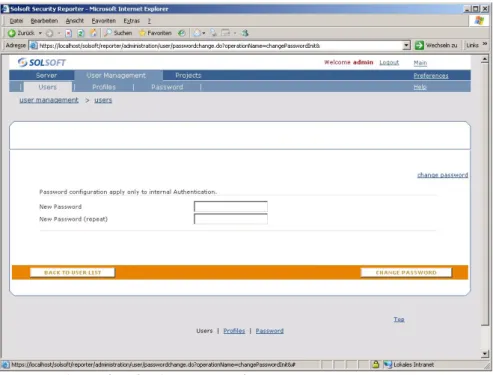
In case you did not set the administrator password during the installation we recommend to set the password immediately after the installation using the web interface.
1. To open the web interface open a browser of your choice. Enter the URL http://localhost
Login to the interface.
2. Select the tab User Management 3. Click on the user admin
4. Click on the button Change password on the bottom of the page 5. Enter the password and click on the button Change password.
Figure 2: Web interface for the server configuration 6. Click on the link Logout at the top of the page.
2.7 Configure the Security Designer (ISCM enterprise only)
Starting the Security Designer
The Security Designer is the graphical user interface used to design your security policies and to start the compilation and deployment process.
After installation the Security Designer has to be configured to use the server: 1. To start the Security Designer select
Start->All Programs->Solsoft->SecurityDesigner7.1->Solsoft Security Designer
in the Windows Start Menu.
Remark: Depending on the current version of ISCM or your specific settings the path above may differ.
2. Click on the -symbol to configure the server parameters:
Server: The name or IP-address of the computer running the server
Port: Please insert the port number of the server (the standard port number is: 14001)
3. Click on OK. The Innominate Security Configuration Manager has now been successfully installed.
2.8 Configure the devices
Please follow the steps described in the device manual for starting up and configuring the device (IP-addresses of the interfaces etc.).
Enable SSH access The configuration file containing the firewall rules and the NAT and VPN configuration is copied from the Security Configuration Manager to the mGuards using SSH. Therefore SSH traffic has to be permitted first on the mGuard if ISCM is using the external (untursted) interface to upload the configuration. Select Access->SSH in the menu of the Web user interface and enable SSH remote access. For more detailed information on SSH remote access please consult the user manual.
In case you are using devices from other vendors in your network, please refer to the respective user manual to set up your devices appropriately.
3
Example project
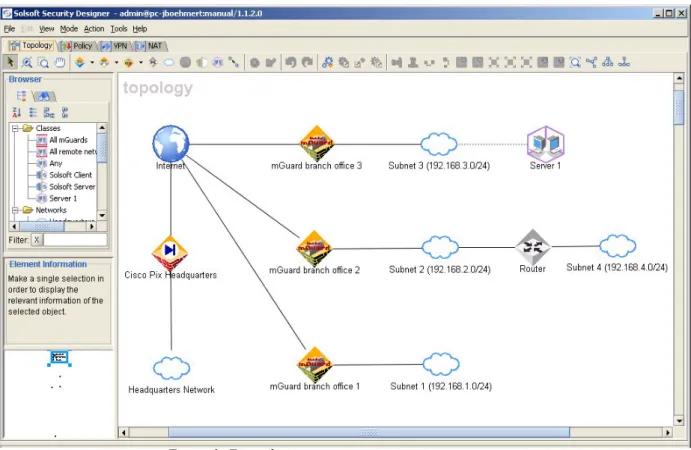
Example project This chapter presents an example project which is used throughout the remaining chapters. The example project is shown in the figure below:
Figure 3: Example project
The example project consists of a headquarters network connected to 3 branch office networks via the Internet. The branch offices are secured using Innominate mGuard security appliances. The headquarters network is connected to the Internet using a Cisco PIX. All networks use the private address range 192.168.0.0.
The following chapters provide an overview on how to • create a project
• draw the topology • setup NAT rules • setup VPNs
• setup the permissions (firewall rules) • compile your project and finally • deploy your policy
General procedure for implementing security policies
When implementing security policies with the Security Configuration Manager you should perform the following steps:
1. Create a new project
2. Draw the topology of your network
3. Create classes to represent objects with special functionality in your topology
4. Create metaclasses 5. Design your NAT rules 6. Design your VPNs
7. Implement your permissions (firewall rules) 8. Optional: Structure your project into folders 9. Use the audit function to verify your policy 10.Compile the policy
11.Deploy the rules
For a more detailed description on how to perform the following steps, please refer to the Solsoft User Guide.
)
To perform the following steps, you must first install the Security Configuration Manager (including the license-file) as described in Chapter 2.3.1 Create a new project
• To start the Security Designer (ISCM enterprise edition) select
Start-> All Programs->Solsoft->SecurityDesigner7.1->Solsoft Security Designer from the Windows Start menu.
To start the Firewall Manager (ISCM professional edition) select
Start-> All Programs->Solsoft->FirewallManager1.0->Solsoft Firewall manager from the Windows Start menu.
• Click on the -symbol in the project manager to create a new project. • Name the project, e.g. "Example project", click on OK to open the project
with an empty workspace.
3.2 Draw the topology of your network
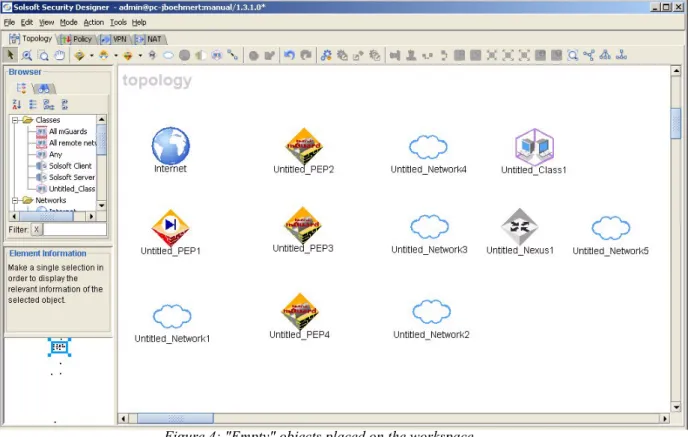
Create the objects • Select the Topology tab and place the objects of your network on the workspace as shown in Figure 4:
Create networks • To create a network on your workspace, click on the - symbol and click on an empty place in the workspace
Create managed
devices • To create a device, click on the(e.g. Innominate mGuard) and click on an empty place in the symbol, select the device type workspace
Create a
representation of
Create unmanaged devices
• To create a device which is not managed by the Security Configuration Manager (e.g. a router), click on the Nexus -symbol and click on an empty place in the workspace.
Figure 4: "Empty" objects placed on the workspace Name and
configure the objects
• Name the objects, set the address range of the networks and add interfaces to the devices:
• To name an object on the workspace, click on it once and place the cursor on the name to edit it
• To add an address range to a network, double-click on the network symbol, click on Add and specify the address range of the network. To get help on the address-syntax, simply click on Help. Please specify the address ranges of the networks as shown in Figure 3. • To add interfaces to the devices double-click on the device, click on
the -symbol. Place the cursor on the name of the interface and change it. It is recommended to use consistent interface names for all devices, e.g. internal for the internal interface and external
for the external interface.
Configure the interfaces
• Add an address to the interface in the window on the right side by clicking on the -symbol. The address must be contained in the address range of the network to be connected. Please specify also the network mask of the attached network in the interface address, e.g. „192.168.1.1/24“.
For the mGuards, set the interface property Security Zone of the internal interface to Trusted
Figure 5: Interface properties for mGuard
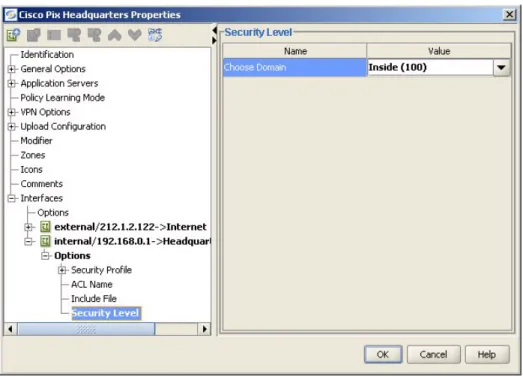
For the Cisco PIX, the property Security Level must be set to inside for the internal interface:
Figure 6: Interface properties for Cisco PIX
Before uploading your policy to the devices you have to specify which of the interfaces is to be used as the upload target. Depending on the configuration of your network this could be either an external or internal interface. In the
example project the upload target of the Cisco Pix is the internal interface since the Security Configuration Manager is part of the Headquarters Network. The upload target of the Innominate mGuards, which are securing the remote networks, is the external interface. To access the property Upload Target, select Interface->Options in the property window of the device. Set this property to the proper value for each interface in the network.
Add connections • Connect the objects by using the Connected To option in the properties window (upper right, see below)
Figure 7: Connection option of the interfaces
or by right-clicking on a device to open its popup menu and then selecting Auto-Connect. The Auto-Connect feature can only be used in cases where the assignment of the interface to the network is unambiguous.
Specify the Default Gateway
To specify the Default Gateway of a network, double-click on a network in the workspace and then click on Gateway in the menu of the left side of the window. In the right window select the Default Gateway and click on OK.
3.3 Create classes to represent objects with special functionality in
your topology
If you need to represent objects with a special functionality, e.g. an ftp-server or an web-server etc., click on the -symbol to create a new class. In the example project there is a ftp-server in Subnet3. Please create a new class and configure it with an address from the address range of Subnet3 and connect it to
Subnet3 (see Figure below).
Figure 8: Classes as representation of objects with a special functionality
3.4 Create metaclasses
Group objects In networks with lots of devices it could be a very time-consuming task to define the policies for each of the devices individually. To group devices, which are treated the same in certain cases, use metaclasses. Metaclasses simplify the design of firewall rules and VPNs, since the rule can be applied to the whole group [class] and does not have to be applied to each device individually. To create a metaclass All mGuards in the example project, select all of the mGuards by clicking on each mGuard while pressing <Ctrl> and <Alt>. Right-click on one of the selected devices to open the popup menu, choose Create MetaClass from selection and then place the class on the workspace with a left-click. Name the class All mGuards.
Additionally create a metaclass All remote subnets with the class members Subnet1, Subnet2 and Subnet3. The metaclasses will be used later in the example.
3.5 Design your NAT rules
3.6 Design your VPNs
Tunnel / Transport mode
In the following example the VPN-“tunnel” mode is explained. Please refer to Chapter 5 to learn more about the VPN-“transport” mode and about restrictions on the VPN management with ISCM.
The trust zone First select the VPN tab to design your VPNs. If no objects are displayed, select View->Show all objects from the menu.
To configure VPNs, you must define a trust zone for all objects (networks, objects and devices) using the VPN. By definition, all communication between two objects within a trust zone takes place via a path which remains inside this zone, i.e. traffic between two objects in the trust zone will never leave the zone. In the example project, we will define a VPN between
Headquarters Network and Subnet1. First let us put all of the objects that are supposed to be part of the VPN in a trust zone:
Create a trust zone 1. To open the Zone Editor select Tools->Zone Editor in the main menu of the Security Designer.
2. Click on the -symbol to create a new zone. With the Zone Editor you can change the colour of the zone or the type of the zone (there are also "limited path zones"). Please leave the configuration unchanged and click on OK.
3. Now select the objects that are going to be part of the zone: Hold the
<Ctrl> -and <Alt>-keys while clicking on each object. In our example the objects Headquarters Network, Cisco Pix Headquarters,
mGuard branch office1 and Subnet1 must be selected. Add objects to the
trust zone
4. To add the objects to the zone right-click on one of the selected objects and choose Zones->Zone 1 in the popup menu. After adding the objects to the zone, the workspace will look like this:
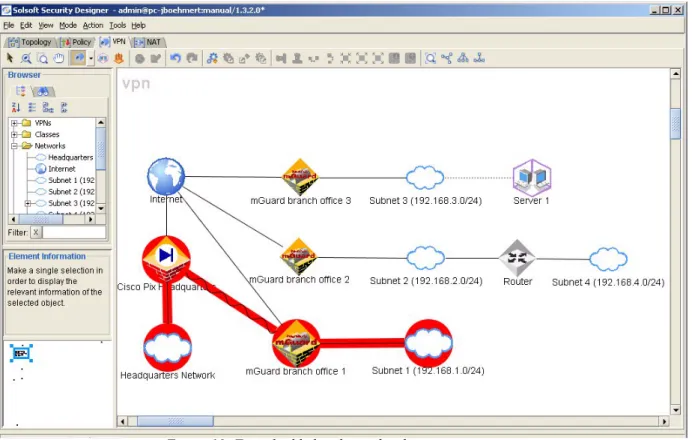
Add a tunnel 5. To add a tunnel between the Cisco Pix and the mGuard click on the -symbol in the Security Designer tool bar, left-click on one of the devices and then draw - with the mouse button pressed down - a line between the Cisco Pix and the mGuard. The tunnel will be initialized with a PSK and will be shown on the workspace:
Figure 10: Tunnel added and initialized Configuration of the
tunnel
6. To check or change the tunnel configuration double-click on the tunnel to open the Tunnel Properties window.
)
To generate VPN rules during compilation, you must define the permissions (see Chapter 3.7) between the networks of the VPN. Use the metaclass(tunnel groups)
For creating a VPN between all mGuards and the headquarters network use the tunnel goup feature.
)
Please note that you must have a valid ISCM license for the tunnel group feature.For the tunnel group use metaclass All mGuards created in Chapter 3.4. First delete the tunnel created in step 7, insert all objects into the trust zone, except for
Internet, Router and Subnet4 and draw the tunnel between the Cisco Pix and All mGuards. Afterwards your workspace will look similar to the following illustration:
Figure 11: Create multiple tunnels using metaclasses
)
Important: Subnet4 can not be part of the trust zone, for more details see Chapter 5, Figure 30.3.7 Implement your firewall rules (permissions)
First change to the Policy tab. If no objects are displayed, select View->Show all objects from the menu.
To allow e.g. http-traffic from Headquarters Network to Internet
search for http in the service window on the left, select http (left click on the entry), select the -icon, click on Headquarters Network and then draw a line between Headquarters Network and Internet while keeping the left mouse button pressed. The permission will show up on the workspace as an arrow between the objects.
Activate the log for a permission
To activate the log for a permission open the Property window by double-clicking on the permission. Select Actions->Log in the menu tree and check Enter the logging level and set the logging level to a value != 0. Select the devices for which the log should be activated (see Figure 12).
Figure 12: Avtivate the log for permissions
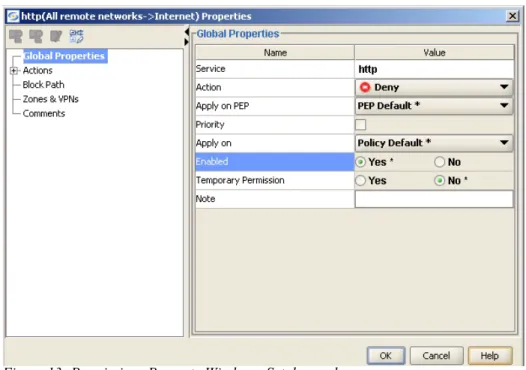
Set deny rules To switch from a permit-rule to a deny-rule open the permissions Property Window by double clicking on the permission. Select Global Properties in the menu-tree on the left and set the parameter Action to Deny.
)
Deny permissions are not allowed insed a tunnel.Figure 13: Permissions Property Window - Set deny rules Set the order of the
permissions
To influence the order in which the permissions are generated, set the priority for a permission. Open the permissions Property Window by double clicking on the permission (see Figure 13), check Priority and enter a priority value: -9999 is the highest priority and +9999 corresponds to the lowest priority.
Permissions with ’Ignore tunnel’ option
In certain configurations it is necessary that a flow that is usually routed through a tunnel, has to be routed outside of the tunnel. In this case open the Permission Property window, by double-clicking on the permission. Select Zone&VPNs in the menu on the left. Enable the option Ignore all VPNs for the permission.
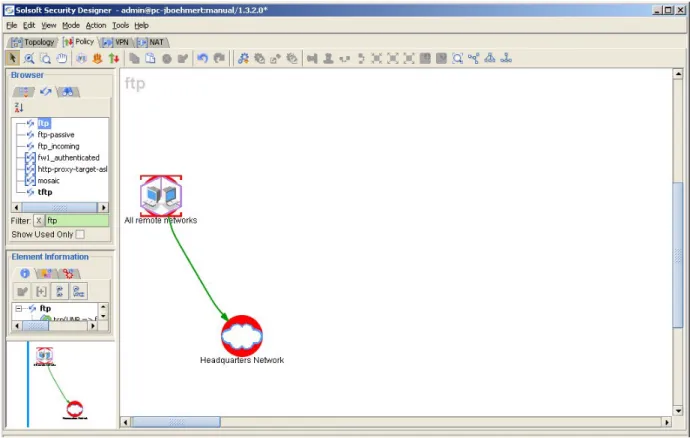
Use the metaclass To allow http-traffic from all remote networks to Internet use the metaclass
All remote networks (see Chapter 3.4). Draw a permission from
All remote networks to Internet. Also allow internal traffic (e.g. ftp) between the remote networks and Headquarters Network by drawing the permission between All remote networks and
Headquarters network. Your workspace should look similar to the following figure (the security designer displays only the relevant objects unless you select View->Show all objects from the menu):
Figure 14: Creating multiple permissions using metaclasses
)
The mGuard supports „connection tracking“ for certain protocols (services). Please refer to Chapter 6 for more information on this feature.Stealth mode For a detailed description of the Stealth mode and the Stealth options see Chapter 6.1.
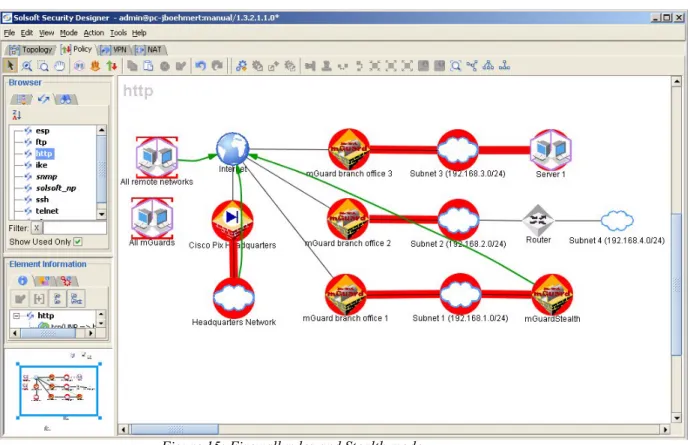
In stealth mode without management IP the permissions are drawn directly to / from the mGuard. See the device mGuard Stealth in the following figure:
Figure 15: Firewall rules and Stealth mode
All permissions except for the administrative permissions (SSH, HTTPS, SNMP) are automatically recognized as permissions to/from the client.
Administrative permissions (SSH , HTTPS, SNMP) from the remote network to the mGuard are applied as remote access rules to the mGuard. Therefore it is not possible to access the client using these protocols in the standard configuration. See Chapter 6 on how to change the remote access rules for the mGuard, in case you would like to access the client via SSH, HTTPS or SNMP.
Allow remote configuration via HTTPS
The rules for SSH access are generated without explicitly specifying a
permission for SSH (an implicit rule for SSH access is predefined in the Security Configuration Manager). To allow remote HTTPS configuration you must add a permission for HTTPS from the originating network to the mGuard (not to the network connected to the interal interface of the mGuard) as shown in the next illustration.
Figure 16: Permission for HTTPS remote configuration
)
Permissions originating on the mGuard are ignored, since traffic originating on the mGuard can not be restricted.)
In Router or PPPoE mode all permissions to the mGuard itself will be ignored, except for SSH, SNMP, HTTPS and depending on the ICMP settings (see Chapter 6) the ICMP permissions.3.8 Options for large scale networks
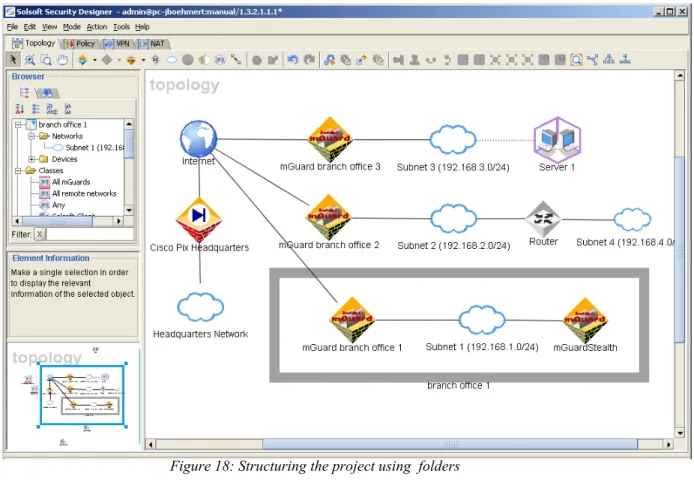
In large scale networks with many devices you can structure your projects in hierarchical folders and subfolders to gain a better overview.
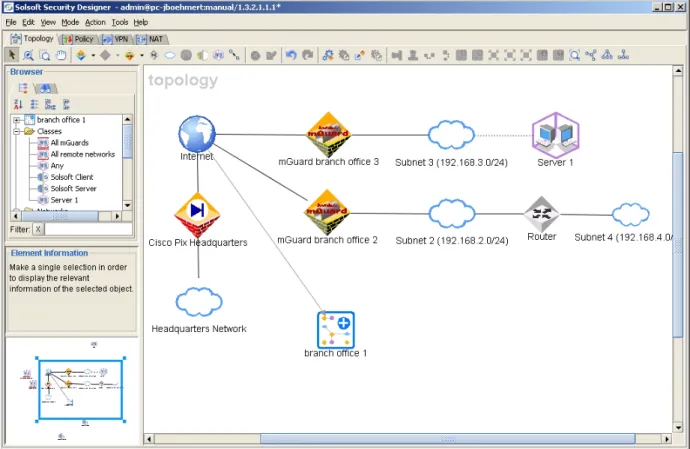
To put the networks and devices of Branch Office 1 in one folder select all objects that belong to branch office 1. Then click on the -icon (make sure that the Topology tab is active) to put all objects in one folder. You can rename the folder to branch office 1 (see Figure 17).
To see the contents of the folder in the context of the project double-click on the folder again:
Figure 18: Structuring the project using folders
To collapse the folder select it and click on the -icon. To see only the contents of the folder select the folder and click on the -icon. To see the folder in the context again click on the -icon. To delete the folder select the folder and click on the -icon.
3.9 Use the audit function to verify your policy
The Security Configuration Manager offers an audit function to allow you to review and verify your completed setup for a device.
Verify, that the output of the policy audit is what you expect. To access the audit, right-click on the device and select Policy Audit in the popup menu. For more information on how to interpret the output of the audit refer to the Solsoft User
3.11 Deploy the rules / Rollback
After successfully compiling your project and setting the parameters for deployment, you can deploy your policy.
Deployment parameters
The Security Configuration Manager copies the configuration file to the mGuard using SSH. Therefore you have to specify the admin login and password for each device to enable the Security Configuration Manager to login to the devices. Open the properties window by double-clicking on a device, select
Upload Configuration->Authentication and enter the login and the password for admin (this is mandatory).
)
For mGuard version 2.0 and 2.1 you have to specify the root login! To be able to deploy the policy set the project status to Approved fordeployment. Select File->Save in the Security Designer menu, enter a comment in the dialog box (this is mandatory) and then click on OK. Open the Project Manager by selecting File->Projects. If it is not already selected, select your project with a left-click. The versions of your projects are shown in the lower window of the Project Manager. A new version is created each time the project is saved. Right-click on the latest version and select Set version status. Set the version status to Approved for deployment. Close the Project Manager. The
-icon will now be accessible in the Security Designer. Click on this symbol to deploy your policy.
)
Please note that the -icon will be deactived as soon as a class on the workspace is selected. To activate the icon again, deselect the class by clicking on an empty place on your workspace.Save the original configuration
Before uploading the very first time, the configuration of the mGuard is saved by default in a file on the server. To disable this feature uncheck the box in the menu Upload Configuration->Advanced Configuration->Save Original
Configuration at first upload.
You can save the current configuration of the mGuard any time as „original configuration“ by opening the context menu with a right click on the device and by selecting Get Original Configuration.
Rollback to original configuration
To rollback to the original configuration open the context menu by right-clicking on a device and select Rollback->To original configuration. This option is only available after a „original configuration“ was saved.
Rollback to previous configuration
To rollback to the previous configuration open the context menu by right-clicking on a device and select Rollback->To previous configuration.
4
NAT
Supported NAT-methods
The Innominate mGuard supports the following network address translation (NAT) methods:
• Masquerading • Port forwarding • 1:1 NAT
Please refer to the device manual for a detailed description of these features. TheSecurity Configuration Manager provides a convenient graphical user interface for handling the administration of NAT rules for your network.
)
In Stealth mode the NAT feature can not be used.Enable NAT-view Before designing your NAT rules, please make certain that NAT-view is enabled in the Security Designer: Select the NAT tab in the workspace.
4.1 Overview
To create NAT rules, you have two options: You can either use the NAT Editor or draw the NAT rule directly in your network map. The following overview describes the usage of the NAT Editor.
To open the NAT Editor please choose Tools->NAT Editor in the Security Designer main menu. The following window will open:
Figure 19: NAT Editor Create new NAT
rules To create a new NAT rule, click on the -symbol, select the service (protocol, port) to be translated and the source and destination of your NAT rule.
)
The source and destination objects must already be part of your network map.After specifying those parameters, the NAT rule will be displayed in the NAT Editor:
Parameters of a NAT rule
A NAT rule contains the following information: Traffic to be translated
• ID (internal use only) • Src:
Source of the traffic to be translated (e.g. a network or a single computer) • Dst:
Destination of the traffic to be translated (e.g. a network or a single computer)
• Service:
The service (protocol, port) to be translated (e.g. "any" or "ftp") Translation Parameters
• Method (Src)
The translation method to be used on the source address. • Src After NAT
The source address after the NAT rule has been applied. • Method (Dst)
The translation method to be used on the destination address. • Dst Before NAT
The destination address, before the NAT rule has been applied. • Service
The service (port, protocol) after translation (if desired). • Application Point
The device where the NAT rule is to be applied.
If no translation is desired, you can specify the value same (see Figure 20) for any of the translation methods (src, dst, service).
The NAT Editor supports the specification of destination and source translation parameters in one rule, as shown in Figure 20. For the Innominate mGuard, only one translation method per rule is supported - either source or destination translation. For masquerading, the source address is translated. For port
forwarding, the service (port) or the destination address or both will be translated. Since all of the networks in the example project (see Chapter 3) use private addressing, address masquerading is needed to connect the networks to the Internet. In Chapter 4.2 you can find a description of how to configure the correct masquerading rules for the example network. Information on how to create a port forwarding rule to access a ftp-server in Subnet3 of our example project can be found in Chapter 4.3.
No permission ->
4.2 Create masquerading rules
In our example project private addresses are used for the subnets, i.e. the mGuards (and the Cisco) have to use NAT to connect to the Internet. To create a masquerading rule for Subnet1 of our example project, please specify the following parameters in the NAT Editor:
Parameters for masquerading
Traffic to be translated
• ID: is automatically assigned by the NAT Editor
• Src:Subnet1
Source of the traffic to be translated: subnet1 in our example • Dst:Any
Since the mGuard does not support destination addresses in masquerading, this parameter must be set to any. To create a representation of the value
any, create a class, name it Any and set the address of the class to *, i.e. to the full address range (please refer to Chapter 3.3 on how to create classes). Any other value than any will cause a compiler warning.
• Service:any
The mGuard does not support service translations in masquerading rules. Therefore the service parameter must be set to any or there will be a compilation error.
Translation Parameters • Method (Src):Masq
We would like to masquerade the traffic leaving Subnet1. • Src After NAT: empty
Since masquerading implies, that the source address is translated to the address of the external interface of the device applying this rule, this field is empty.
• Method (Dst): same
As described in the previous chapter, the mGuard does not support the translation of destination addresses and source addresses in one rule. Any value other than same will cause either an error message in the NAT Editor or a compiler error, when you compile your policy.
• Dst Before NAT: empty
• Service:any (see comments to the parameter Service in Traffic to be translated)
• Application Point:mGuard branch office1
The device applying the NAT rule is mGuard branch office1 in the example project.
When finished the completed NAT rule will be displayed in the NAT Editor and the workspace:
Figure 22: Completed NAT rule in workspace
4.3 Create port forwarding rules
The class symbol in Subnet3 of our example project represents an ftp-server. Since the server has a private IP-address, you must create a port forwarding rule to make the server accessible from the Internet.
mGuard Parameters for port forwarding
The mGuard needs the following parameters for a port forwarding rule: • Protocol: tcp, icmp, udp
• Incoming address: the IP-address to which requests are sent by the "outside" world (this address must be one of the addresses of the external interface of the mGuard)
• Incoming port number: the port the requests are sent to by the "outside" world (not used for icmp)
• Outgoing address: the internal address of the server receiving the request • Outgoing port: the internal port on which the server accepts requests (not
Services TheSecurity Configuration Manager uses "services" as a high level abstraction for protocols and ports. If the Policy tab is selected, a list of the available services is shown in the left window:
Figure 23: List of services (left window)
A service contains the specification of a protocol, the flows of the data and the source and destination ports.
Service Editor To view the definition of a service, please open the Service Editor. Select Tools->Service Editor. To view the definition of a service, double-click on its name in the left window. The figure below shows the definition of the service "ftp":
The service "ftp" contains two flows: • The initiating request (master flow)
with the following parameters: tcp, source port numbers: 1024-65535, destination port: 21
• The data flowing back in response to the request
with the following parameters (not shown in the figure above): tcp, source port numbers: 1024-65535, destination port 20
)
In the current version of the Security Configuration Manager, the port forwarding rules only support services with a single flow!)
The mGuard supports „connection tracking“ for certain protocols. Please refer to Chapter 6 for more information on this feature.To create a port forwarding rule for ftp, you must, therefore, first create a service which only contains single flows.
Create a new service
Begin by selecting Tools->Service Editor toopen the Service Editor. In the Service Editor click on the - symbol to create a new service. Choose IP-Service from the menu. Name the service, e.g. ftp-incoming. Some protocols like ftp contain IP-data in the payload (e.g. address information). To make the Security Configuration Manager aware of this, select the tab Advanced and set Contains IP-data in payload to Yes. This information is needed by the Security Configuration Manager when performing checks on your projects. When creating a new service one default protocol is already created for the service. Now configure this protocol, set the parameters to the following values:
• IP-protocol:TCP
• Src port: UNP(1024-65535)
• Dst port:21
• Direction: (flows with an arrow pointing to the left are back-flows) • Master: leave Master unchecked, since there is only one flow in the service.
Services with more than one flow need a "master" flow, indicating the initiating flow.
After creating the new service, you can specify the port forwarding rule. The internal ftp-server in our example accepts ftp-requests on port number 21, i.e. you can also use the new service ftp-incoming to specify the flow from the mGuard, which is applying the port forwarding rule, to the internal ftp-server. If the internal server accepts ftp-requests on another port you must create another service, e.g. ftp-outgoing with the corresponding port number.
)
When creating a new service one default protocol is already created for the service. In case you need to add additional protocols to the service click on the -icon.Parameters for port forwarding rules
The parameters of the port forwarding rule for ftp are: Traffic to be translated
• ID: is assigned by the NAT Editor • Src: Any
ISCM currently does not support this parameter, the value must be any or a warning will be shown during compilation. To create a representation of the value any, create a class, name it Any and set the address of the class to *, i.e. to the full address range (refer to Chapter 3.3 on how to create classes). • Dst: Server1
The traffic is terminated by the ftp-Server in Subnet3, this parameter corresponds to the mGuard parameter outgoing address
• Service: ftp-incoming
Select the new service you just created with the Service Editor, this parameter corresponds to the mGuard parameter incoming port.
Please keep in mind: The current version only supports services with one single protocol!
Translation Parameters • Method (Src):same
No translation of the source address is desired. Any value other than same
will result in an error message from the NAT Editor or an error message during compilation.
• Src After NAT: empty
Source addresses are not translated • Method (Dst):Static ->
The only translation method for destination addresses supported by the Innominate mGuard is "Unistatic". Any other value will result in an error message from the NAT Editor.
• Dst Before NAT: address of the external interface of
mGuard branch office3
This value must be one of the (public) external addresses of the device applying the rule, in this case mGuard branch office3. This parameter corresponds to the mGuard parameter incoming address. If the address specified in the rule does not match one of the external addresses, the compilation will stop with an error message. If dynamic addresses are used, the Security Configuration Manager will use %extern as a value for the address, no matter what you specified in the port forwarding rule.
• Service:ftp-incoming
In our example incoming port has the same value as outgoing port. If the internal server accepts requests on another port, you must create a new service with the corresponding port, if it is not already in the service list. Please keep in mind: The current version only supports services with single flows.
• Application Point:mGuard branch office3
This is the device applying the port forwarding rule.
After the port forwarding rule is completed, it will be displayed in the NAT Editor and in the workspace:
Figure 26: Completed port forwarding rule in the workspace Enable the log for
port forwarding
Please refer to Chapter 6 to get information on how to enable the log for port forwarding rules. A log for single rules is not supported. The Security Configuration Manager can either enable the log or disable it for all port forwarding rules.
4.4 Create 1:1 NAT rules
The class symbol in Subnet3 of our example project represents an ftp-server. Since the server has a private IP-address, you must create either a port
forwarding rule to make the server accessible from the Internet or as alternative a 1:1 NAT rule. The nat rule can either be configured for Subnet3 or only for the ftp-server.
Parameters for port forwarding rules
The parameters of the port forwarding rule for ftp are: Traffic to be translated
• ID: is automatically assigned by the NAT Editor
• Src:Server 1
Source of the traffic to be translated: Server 1 in our example. It is also possible to create a 1:1 NAT rule for the whole Subnet3. In this case all traffic coming from Subnet3 will be natted.
• Dst:Any
Since the Innominate mGuard does not support destination addresses for 1:1 NAT rules, this parameter must be set to any. To create a representation of the value any, create a class, name it Any and set the address of the class to *, i.e. to the full address range (please refer to Chapter 3.3 on how to create classes). Any other value than any will cause a compiler warning.
• Service:any
The mGuard does not support service translations in 1:1 NAT rules. Therefore the service parameter must be set to any or there will be a compilation error.
Translation Parameters
• Method (Src):Static <->
We would like to create a 1:1 NAT Rule (static bidirectional NAT) for
Server 1.
• Src After NAT: the public address for Server 1
It is important that the netmask of this adress is identical to the netmask specified as Src in Traffic to be translated. In our example Server 1 has a single IP-Address. In case you configure a rule for Subnet3 then the netmask of Subnet3 and the netmask of the address for Src After NAT have to match.
• Method (Dst): same
As described in the previous chapter, the mGuard does not support the translation of destination addresses and source addresses in one rule. Any value other than same will cause either an error message in the NAT Editor or a compiler error, when you compile your policy.
• Dst Before NAT: empty
• Service:any (see comments to the parameter Service in Traffic to be translated)
• Application Point:mGuard branch office3
The device applying the NAT rule is mGuard branch office3 in the example project.
After the 1:1 NAT rule is completed, it will be displayed in the NAT Editor and in the workspace:
5
VPN
VPN Transport mode
How to use VPN-tunnel mode is explained in Chapter 3.6. When creating a tunnel, the tunnel is set to “tunnel”mode by default. To enable transport mode open the Tunnel properties window (see Figure 29) by double-clicking on an existing tunnel. Double-click on Primary Tunnel and select one of the VPN gateways in the submenu. Then select Transport for the parameter VPN mode. Configure the other VPN gateway in the same manner. For „transport“ mode VPNs please bear the following restrictions in mind:
)
Transport mode is supported only for the Innominate mGuard. Other devices can not be used as hosts in transport mode VPNs.)
Both mGuards have to use „transport“ mode)
There is no reasonable topology when combining „router“ mode with „transport“ mode VPNs since a „transport“ mode is a host-to-host connection and not a network-to-network connection. When using „transport“ mode VPNs the devices have to be switched to Stealth mode.For more information refer to Chapter 5.1.
Enabling VPN view Please make certain that the VPN view is enabled: Select the VPN tab in the workspace.
General remarks To configure VPNs with ISCM you should take a few things into account (see also Chapter 10):
• NAT and VPN:
NAT has to be disabled for flows entering a VPN tunnel. Double click on the tunnel and use the menu options Disable NAT in tunnel and Disable NAT for to configure the use of NAT in the VPN. For the mGuard all NAT has to be disabled for VPN flows, because NAT in a tunnel is not supported by the mGuard.
• Tunnel Scope:
The property Tunnel Scope may only take the value Trust Zone or by IP-Address. To access the property Tunnel Scope, double-click on an existing tunnel and select Primary Tunnel->Tunnel Options in the Tunnel
Properties window.
Figure 29: Tunnel Properties window
• When using by IP-Address as the value for Tunnel Scope, the tunnel permissions must not originate from two different objects in a single network, as shown in the following figure:
For this type of configuration, the property Tunnel Scope must be set to Trust Zone or the flows must originate from the network (in Figure 30:
Subnet1).
• In order to set up working VPN's, you must define permissions between the networks that are part of the VPN.
• Implicit ESP and IKE permissions are not generated by the Security Configuration Manager (mGuard natively allows them for VPNs).
5.1 Configuring VPNs in Stealth mode
For a general description of the Stealth mode and the Stealth options refer to Chapter 6.1.
)
VPNs are not supported in ’Multi Stealth Mode’.5.1.1
Configure „Tunnel“ mode VPNs
To use an mGuard in Stealth mode as VPN-gateway, first a local network has to be simulated, that does not overlap the existing networks on the workspace (see the mGuard manual for more details).
To create this „virtual“ local network, create a network as described in
Chapter 3.2. Then add an additional network interface without IP-address to the device and set the value of the parameter Security Zone of this network interface (see Chapter 6) to Virtual VPN interface. Assign an IP address with a
255.255.255.255 (/32) netmask to the virtual VPN network and connect the virtual VPN network to the virtual network interface. Do not assign an address to the virtual VPN interface. The IP-address used for the virtual network must not be used in the remote network of the VPN. For an overview on the required interfaces settings for the different scenarios please refer to Chapter 9.
Figure 32: VPN and Stealth mode
The client protected by the device in Stealth mode will be addressed with the virtual address. The mGuard will automatically „translate“ this virtual IP-address to the real IP-IP-address of the client, i.e. there is no need to configure the client.
VPNs and Stealth mode with
management IP
When configuring tunnels for devices that use Stealth mode with management interface one thing has to be kept in mind: Contrary to the configuration without management interface (see Chapter 6.1) the interface with Security
Zone=Untrusted Stealth must have an IP address for VPN configurations, that corresponds to the IP-address of the client. This will result in a warning by the Solsoft server that the address of the interface Untrusted Stealth is contained in the network connected to the interface Trusted Stealth. This warning can be ignored. For an overview on the required interfaces settings for the different scenarios please refer to Chapter 9.
Firewall rules within the „tunnel“ mode VPN
Firewall rules within the VPN have to be drawn between the two networks belonging to the VPN. For non-VPN firewall rules in Stealth mode see Chapter 3.7. (Please not that in the scenario in Figure 33 the definition of port forwarding rules is necessary to enable the SAP-permission since
mGuard branch office 1 and Cisco Headquartes are
5.1.2
Configure „Transport“ mode VPNs
mGuard operatedwithout
management IP
Since a „transport“ mode VPN is a host-to-host connection the virtual network (and the virtual interface) described in the previous sections is not needed. The trust zone for the „transport“ mode VPN contains only the mGuards (see Figure 34) if the mGuard is operated in Stealth mode without management IP. That means that also all permissions are drawn between the two mGuards. In the following example one mGuard in Subnet 1 and another one in Subnet 2
(both operated in Stealth mode without management IP) are connected via a transport mode VPN. (Please note that in the scenario in Figure 34 the definition of port forwarding rules is necessary to enable the SAP-permission since
mGuard branch office 1 and Cisco Headquartes are
NAT-devices)
Figure 34: Firewall rules within transport mode VPN (Stealth mode without management IP)
mGuard operated with management IP
In contrary to the previous section the permission are drawn between the two networks connected to the trusted interface, if the mGuard is operated in Stealth mode with management IP. The networks have to be part of the Trust Zone (see Figure 35).
)
Important: For this scenario the corresponding client IP has to be assigned to the ’untrusted’ interface of the VPN gateways!Figure 35: Firewall rules within transport mode VPN (Stealth mode with management IP)
5.2 Using certificates for authentication
To use certificates for authentication a PKI has to be defined on your workspace. This is required by the Solsoft server, although the Innominate mGuard will not need or use the PKI-information (CA-server, CRL-Distribution-Server etc.). For detailed information on how to configure the PKI in ISCM please refer to the Solsoft document Working with VPNs.
Create and store the certificates
ISCM will not create certificates, the certificates have to be exported by the CA and placed in a user defined directory on the ISCM server. Since the Innominate mGuard does not support a PKI (CRL, CA-online-enrollment, CA root
certificates) the devices have to be manually enrolled at the CA to subsequentially export the certificates. Please refer to the manual of the
respective CA how to enroll devices and export certificates. Examples for using a CA can be found in the document Interoperability Guide, Setting up a VPN connection between mGuard and Cisco VPN 3000 Series Concentrator on the Innominate web site.
Otherwise ISCM is not able to find the corresponding certificates. Enroll the
non-Innominate devices
In case you are using a CA and devices that support enrollment via SCEP, please refer to the manual of the devices and the CA respectively or to the Solsoft document Working with VPNs.
Solsoft supports the use of certificates for the following non-Innominate devices: • FW1
• Cisco VPNSM • Netfilter • Cisco PIX • Cisco VPN 3000 Add a CA-server to
your project
First add an CA-server to your project. How to configure servers is explained in Chapter 8.1. There are 3 CA-server types available:
• SCEP • Offline • TFTP
If you use Innominate mGuard together with other non-Innominate devices, then choose the CA required for the non-Innominate devices. If you have only Innominate mGuards in your project, then use an ’Offline’ CA server. In this case you have to create an additional CRL-Distribution point to your project and assign this CRL-Distribution point to your CA-server (please refer to the Solsoft document Working with VPNs).
)
The parameters required to configure these objects (relative path, IP-addresses etc.) will not be used by the mGuard, since they do not support PKI. The Solsoft server requires the definition of a PKI for the use of certificates.)
Please note that the Solsoft server will create implicit permissions (e.g. an HTTP-permission to the CRL-distribution point) that will be included in the mGuard firewall rules!Assign the CA-server to the devices
After creating the CA server you have to configure your devices to use the CA-server. To do this open the Property Window of the device by double-clicking on the device. Select the Application Servers -> Certificate/Registration Authority Servers entry and click on the the -icon (in the upper menu of the Property Window), select the CA-server and leave the dialog-box with OK.
Figure 36: Assign a CA-server to a device Configure your
devices
Depending on the device type it might be necessary to configure the device (please refer to the documentation of the device or the Solsoft documentation). To configure the Innominate mGuard open the Property Window (if it is not already open) and select VPN Options - > Certificate options.
Add and configure the tunnel
After configuring the devices, define your tunnels (see Chapter 3.6).
To configure the tunnel to use certificates for authentication, open the Tunnel Property Window by double clicking on the tunnel, click on Primary Tunnel -> Tunnel Policy -> Select, select IPSec/RSA-Sig-Default and close both windows by clicking on OK.
Figure 38: Select a tunnel with certificate authentication
Now you are ready to compile. When compiling ISCM will create the configuration for the use of certificates.
6
The Properties Window
Please double-click on an mGuard in your workspace to open the Properties window. Use this window to configure the parameters of an device:
Figure 39: mGuard properties window
)
Only the options relevant for the current setting will be shown. E.g. General Options -> Stealth mode configuration will only be shown if Stealth mode is enabled. Also only the features available for the device version (see Figure 39) will be accessible in the Properties Window. Double-click on General Options to access the parameters specific to the Innominate mGuard:Update options The update parameters (General Options->Update options) are available for mGuard version >= 2.1.
• Name of package set:
Use this input field to specify the name of your update package, i.e.
update-2.0.0-2.0.2
• Update Protocol:
Choose either http or https. • Location of package set:
Use this input field to specify the address of your update server. Please refer to Chapter 7.1 on how to initiate an update or to the mGuard user manual for detailed information on the update feature.
Configuration pull options
These settings (General Options->Configuration pull options) are available for mGuard Release >= 3.0.
• Pull intervall:
Choose the intervall in which the mGuard should check for a new configuration.
• Server:
Enter the URL of the configuration server. • Login for remote update:
Password for remote update:
Please enter the appropriate authentication information. The default value is „anonymous“ for both parameters.
• Load server certificate from Policy Server:
You can store the certificate of the HTTPS-configuration server in a
directory on the Policy Server. If you enable this option it will be imported in the configuration.
• Location of certificate:
Please specify the location (full filename) where you stored the certificate of the configuration server.
Hostname ISCM offers you to use the name of the device in the workspace as hostname for the device (this is the default setting). Optionally you can specify a custom hostname or you can use the hostname in the FQDN (only available if FQDN is enabled, seel below section ’FQDN’). In this case ISCM extracts the hostname from the the FQDN (e.g. mGuard1 from the FQDN
mGuard1.innominate.com)
)
Only the characters ’A-Z’, ’a-z, ’0-9’ or ’-’ are allowed in the hostname! Network mode /Security zone
ISCM supports the configuration of the 3 different network modes for the Innominate mGuard. In the PEP menu this parameter can be configured via General options -> Network mode.
Please consult the device user manual for a detailed description of these modes. For an overview on the required interfaces settings for the different scenarios please refer to Chapter 9.
)
When switching between the network modes or mGuard versions all interfaces will be reset to their default configuration(Security Zone=Untrusted) and therefore have to be reconfigured again.
There are special configuration options for each of the modes:
Router mode
Security Zone
For the proper generation of firewall rules and VPN rules, the parameter Security Zone must be initialized for each of the mGuard interfaces. Set Security Zone for the internal interface to Trusted and for the external interface to Untrusted. Double-click on an interface (if existing) in the properties window and select Options to access the parameter Security Zone.
PPPoE mode
PPPoE configuration
Please enter your user name and your password in General options -> PPPoE configuration to enable the PPPoE access.
Security Zone
For the proper generation of firewall rules and VPN rules, the parameter Security Zone must be initialized for each of the mGuard interfaces. Set Security Zone for the internal interface to Trusted and for the external interface