1
MaxDB
Database Administration
(Version 7.6/7.7)
© SAP 2007 / MaxDB AdminClass-All / Page 2
MaxDB Overview
Internal Database Structure
Administration
Monitoring and Error Analysis
Installation of MaxDB software
Installation of a MaxDB instance
Fail-Over Solutions
Further Information
3 © SAP 2007 / MaxDB AdminClass-All / Page 3
MaxDB Overview
Internal Database Structure
Administration
Monitoring and Error Analysis
Installation of MaxDB software
Installation of a MaxDB instance
Fail-Over Solutions
Further Information
© SAP 2007 / MaxDB AdminClass-All / Page 4
Learning Objectives
Which tools can be installed for MaxDB Short introduction of the mainly used tools Hard disk footprint of a MaxDB instance Most important log files of a MaxDB instance
5 © SAP 2007 / MaxDB AdminClass-All / Page 5
MaxDB Kernel
Installation Manager Database Manager DBMGUI(Windows) DBMCLI DBAnalyzer SQL Studio(Windows) SQLCLI Loader Sync Manager WebDAV Database Studio (7.7) SQLDBC ODBC 3.5 JDBC 3.0 Perl Python PHPDBA Tools
Developer Tools Interfaces
The Database Manager is a tool for managing MaxDB databases. You can use it to create, control, monitor, backup, and if necessary restore database instances on the local host or on remote hosts. The Database Manager consists of a server part and a client part. The following clients, providing similar functions, are available, depending on your operating system and your requirements:
Database Manager GUI for Microsoft Windows operating systems The command line oriented Database Manager CLI
The server is called DBM Server.
The MaxDB query tools enable easy access to application data and the database catalog of a MaxDB database instance. You can use the query tools to create, execute and manage any number of SQL statements.
SQL Studio provides a user friendly graphical interface for Microsoft Windows operating systems. The SQLCLI is a command line oriented tool which can be used on UNIX/Linux and Windows systems.
The Database Analyzer is a database tool for analyzing the performance of MaxDB database instances. If problems occur with the database instance, you can use this tool to simplify your search for the cause of the problems.
You can use the Database Analyzer regardless of the MaxDB version. This tool can also access a database instance on a remote host.
The Loader is a database tool for unloading and loading data and for formatting (transforming) data between different data sources and data targets. The Loader can execute commands and SQL statements for these purposes.
The Loader consists of a Loader Server and a client part. A possible client is the command line-oriented Loader CLI. A script interface (such as for Perl, Python, or Java) is available. If you want to react to Loader return codes, you must use one of the script interfaces.
As of MaxDB version 7.7, Database Studio replaces the Database Manager GUI, SQL Studio and Synchronization Manager tools. It also provides new functions, such as a graphical user interface for the Loader tool. With Database Studio, you can create and configure databases, define database objects (data model), monitor databases, backup and restore databases, import and export data, and much more. Database Studio is platform independent – it can run on UNIX/Linux as well as on Windows.
© SAP 2007 / MaxDB AdminClass-All / Page 6
Database Manager GUI
Presented above is the main screen of the Database Manager GUI.
To administer a database instance with the Database Manager GUI you have to register the server and the database instance in the Database Manager GUI.
On the upper left side you see all servers registered in the Database Manager GUI. On the upper right side you see all registered database instances installed on the selected server.
On the left side you see all possible actions. They are grouped by command types. On the right side you see the information selected: in this example the filling level of data and log volumes and the cache hitrates.
7 © SAP 2007 / MaxDB AdminClass-All / Page 7
Connecting to a database instance:
dbmcli -d <db_name> -n <db_server> -u <dbm_user>,<password>
-d: specifies the database instance name -n: specifies the hostname
-u: specifies the database manager user and password
dbmcli –h shows all possible options
In a dbmcli session type help for a list of all possible commands.
The database system distinguishes between the following user classes: Database Manager operator (DBM operator)
DBM operators can work with the Database Manager to administer database instances. They cannot log on to the query tools.
They can log on to the Database Manager more than once. E.g. they can query operating parameters while functions that take a long time are still running.
You define the first DBM operator when you install a database instance. This operator can then create more DBM operators, which may have some or all of the authorizations of the first operator.
The Database Manager stores the name and password of the DBM operators in uppercase characters.They can have a maximum length of 18 characters (nine characters in UNICODE). Special characters are not permitted.
Database user
Database users can work with the query tools, for example to send SQL statements to the database. They cannot log on to the Database Manager.
The database system uses several different database user classes. The most important are: Database system administrator (SYSDBA user)
Database administrator (DBA user)
Database System Administrator (SYSDBA user)
The SYSDBA user is the initial database user. You create this user when you install the database instance. The SYSDBA user can then use the query tools to define other database users. This user can define database objects and grant other database users privileges for these database objects.
The SYSDBA user also has the following properties:
The SYSDBA user is the owner of system tables. When system tables are uploaded, the upload tool logs on to the database instance as SYSDBA.
The SYSDBA user is the only database user who also has the authorizations of a Database Manager operator. Database Administrator (DBA user)
A DBA user must be created by the SYSDBA user. DBA users themselves can create database users of the classes RESOURCE and STANDARD. The DBA user can also define database objects and grant other database users all or some privileges for these database objects.
© SAP 2007 / MaxDB AdminClass-All / Page 8
9 © SAP 2007 / MaxDB AdminClass-All / Page 9
Connecting to a database instance:
sqlcli -d <db_name> -n <db_server> -u <sql_user>,<password>
-d: specifies the database instance name -n: specifies the hostname
© SAP 2007 / MaxDB AdminClass-All / Page 10
Essential SQLCLI Commands
connecting to a database:
\c[onnect] -n <database_server>[:<port>] -d <database_name>
-u <user_name,password> print out currently used
host, database, user etc.: \s[tatus]
list columns: \dc [PATTERN]
list procedures: \dp [PATTERN]
list tables: \dt [PATTERN]
list users: \du [NAME]
list views: \dv [PATTERN]
11 © SAP 2007 / MaxDB AdminClass-All / Page 11
Presented above is the Database Studio.
To administer a database instance with the Database Studio you have to register the server and the database instance in the Database Studio.
You can order your systems in different landscapes.
On the lower left side you see all servers registered in the Database Studio.
The opened applications are displayed in the upper right part – e.g. an administration window, the SQL editor, a log file, …
The context menu (right mouse click on an item) is essential for the usage of Database Studio.
© SAP 2007 / MaxDB AdminClass-All / Page 12
Hard Disk Footprint
Log Volumes Data Volumes
Database Software and Configuration Data
bin env lib misc pgm sap symbols
bin pgm programs config <db_name> wrk data Temporary data Data
Volume 3 Volume 2Log Data Volume 2 Data Volume 1 Log Volume 1 <db_name> sapdb db
clusterdemo doc support
…
The term volume means a whole physical disk or one part of a physical disk. A database instance uses three disk areas:
Data volumes Log volumes and
Database software and configuration data.
The data volumes contain the user data (tables, indexes), the SQL catalog and the converter pages. Because of the database internal striping the data of each table is distributed on all data volumes evenly. In the log volumes all changes of data are stored in the form of redo log entries, which are used in case of restoring to redo all changes not being part of a full database backup.
To assure savety the disks of the log volumes should be mirrored physically or by the operating system. If it is not possible to mirror the log volumes physically or by the operating system, they can be mirrored
13 © SAP 2007 / MaxDB AdminClass-All / Page 13
The independent data directory contains the configuration data and rundirectories of MaxDB database instances and MaxDB applications.
The independent programs directory contains the programs and libraries shared by the MaxDB database instances and MaxDB applications. These programs are downwards compatible.
The default location of the independent data directory is
/sapdb/data/ on UNIX/Linux C:\sapdb\data on Windows
The default location of the independent programs directory is
/sapdb/programs/ on UNIX/Linux C:\sapdb\programs on Windows
© SAP 2007 / MaxDB AdminClass-All / Page 14
The Independent Directories 2/2
The location of these directories is specified during the first installation of MaxDB software
If you don’t know the locations of these directories you can determine them with:
dbmcli dbm_getpath indepprogpath dbmcli dbm_getpath indepdatapath
15 © SAP 2007 / MaxDB AdminClass-All / Page 15
Contains the server software that depends on the database version (e.g. kernel) Several dependent directories can exist alongside each other
Every database instance should be assigned to its own dependent directory – that is two database instances should not share one dependent directory
The location of this directory is specified during the installation of MaxDB software, the default is:
/sapdb/<db_name>/db (on UNIX/Linux) C:\sapdb\<db_name>\db (on WINDOWS)
If you don’t know the location of this directory you can determine it with:
© SAP 2007 / MaxDB AdminClass-All / Page 16
The Rundirectory
By default most log and status files are stored in the rundirectory Every database instance has its own rundirectory
The default location of the rundirectory is
/sapdb/data/wrk/<db_name>/ on UNIX/Linux C:\sapdb\data\wrk\<db_name> on Windows
The rundirectory location is specified by the database parameter RUNDIRECTORY If you don’t know the location of the rundirectory you can determine it with:
17 © SAP 2007 / MaxDB AdminClass-All / Page 17
The location of the data volumes is specified by the database parameters DATA_VOLUME_NAME_<#>
The location of the log volumes is specified by the database parameters LOG_VOLUME_NAME_<#>
The default locations for SAP installations are: C:\sapdb\<db_name>\data\DISKD0001
C:\sapdb\<db_name>\log\DISKL0001 The data/log volumes contain binary data
The data/log volumes are exclusively managed by the database kernel Client programs don’t access the data/log volumes directly
The client programs establish a connection to the database kernel and then send requests as SQL queries
© SAP 2007 / MaxDB AdminClass-All / Page 18
Status and Log Files
By default all status and log files are located in the rundirectory Files that are written by the database kernel:
Version 7.6: knldiag, knldiag.err, dbm.utl, dbm.knl
Version 7.7: KnlMsg, KnlMsg.old, KnlMsgArchive, dbm.knl
Files that are written by the Database Manager:
dbm.prt, dbm.ebp, dbm.ebl
All log files of version 7.6 are files which can be read with any text editor.
As of version 7.7 the files written by the database kernel are written in pseudo XML. The dbmserver converts them into readable files.
19 © SAP 2007 / MaxDB AdminClass-All / Page 19
Most important status file:knldiag
Contains status and error messages
Has a fixed size (database parameter KERNELDIAGSIZE) and is written cyclically
A header with the startup messages is persistent
Is always created during startup
© SAP 2007 / MaxDB AdminClass-All / Page 20
Database Message Log – Version 7.7
Most important status file:KnlMsg
Replaces file knldiag, contains status and error messages Consists of three parts:
startup messages runtime information
shutdown/crash messages
The biggest part (runtime information) is written cyclically and has a fixed size (database parameter KERNELDIAGSIZE)
Is always created during startup
The previous KnlMsg content is copied to KnlMsg.old
In directory DIAGHISTORY\History_KnlMsg up to KNLMSG_HISTORY_NUM copies of file KnlMsg
(called KnlMsg_<date>_<time>) are kept
File KnlMsg can be displayed with dbmcli:
dbmcli -d <dbname> -u <dbmusr>,<pwd> -nohold file_getfirst KNLMSG
To view the files in directory History_KnlMsg use:
dbmcli -d <dbname> -u <dbmusr>,<pwd> -nohold file_getfirst DIAGDIR#History_KnlMsg/KnlMsg_<date>_<time>
21 © SAP 2007 / MaxDB AdminClass-All / Page 21
knldiag.err
All error messages occuring during operation are also written to the error log As the entries in this file are not overwritten, this file is important for extended error analysis
When the database state changes from OFFLINE to ADMIN the message ’Starting’ is written to this file
© SAP 2007 / MaxDB AdminClass-All / Page 22
The Kernel Administration Log – Version 7.6
dbm.utl
Contains administrative commands sent to the database kernel (e.g. SHUTDOWN, BACKUP, CHECK DATA) including their return code(s)
23 © SAP 2007 / MaxDB AdminClass-All / Page 23
KnlMsgArchive
Replaces files knldiag.err and dbm.utl Contains
all error messages written into file KnlMsg
and messages concerning
all configuration changes (add and drop volume) all initializations and restore operations
all consistency checks
Is not overwritten cyclically, but can be truncated by dbmserver (contains maximal the data of one year)
File KnlMsgArchive can be displayed with dbmcli:
© SAP 2007 / MaxDB AdminClass-All / Page 24
The Database Manager Log File
dbm.prt
25 © SAP 2007 / MaxDB AdminClass-All / Page 25
Backup history:dbm.knl
Contains information about all backups with label, date, time, size, returncode
External backup log:dbm.ebp, dbm.ebl
dbm.ebp contains information about backups created using external backup tools (like Networker, ADSM, Backint,...)
dbm.ebp is overwritten when a new request is sent to an external backup tool (using a new dbmserver)
dbm.ebl contains a history of dbm.ebp files – the size depends on the dbmserver parameterDBM_EBLSIZE
© SAP 2007 / MaxDB AdminClass-All / Page 26
The X-Server Log File
X-Server log file:xserver_<hostname>.prt
Contains error messages concenring remote communication. If network problems occur, error messages are logged in this file.
The first part contains information about operating system settings and the user envronment in which the x_server was started (e.g. limits concerning heap usage or number of open files).
27 © SAP 2007 / MaxDB AdminClass-All / Page 27
Kernel Dump File:knldump
Contains the global memory, e.g. :
lock list, Data Cache, Catalog Cache, ...
This file is created:
during a database crash
using the tool x_diagnose: by a DBA user using dbmcli: db_stop –dump
This file can get very large. It is written in binary format and can only be evaluated using x_diagnose.
This file is mainly needed in case of database crashes. The developer will request access to this file if necessary.
UNIX: If the database crashes because of UNIX signal, no knldump file is written.
File knldumpis created in the rundirectory. If necessary the location and filename can be changed using database parameter _KERNELDUMPFILE – e.g. if more space is needed to store this file.
© SAP 2007 / MaxDB AdminClass-All / Page 28
The RTE Dump
RTE Dump File:rtedump
Contains the status of the runtime environment in case of a crash
x_cons <SID> show all helps to identify active tasks
contains detail information of the tasks
contains information about regions, suspend reasons, counter statistics
Used in addition to the KnlMsg file to analyze a database crash This file is created in the rundirectory
29 © SAP 2007 / MaxDB AdminClass-All / Page 29
Dump Files:*.bad, *.cor
Dump of corrupted pages
check sum error: *.bad
problem with page content: *.cor
These files are created in the rundirectory. They have to be evaluated using x_diagnose.
© SAP 2007 / MaxDB AdminClass-All / Page 30
DIAG_HISTORY
To save relevant log files in case of a database crash, these logfiles are saved to directory DIAGHISTORY – a sub-directory of the rundirectory.
The location of this directory can be changed using database parameter DIAG_HISTORY_PATH.
The number of stored histories is specified by database parameter DIAG_HISTORY_NUM.
31 © SAP 2007 / MaxDB AdminClass-All / Page 31
MaxDB Overview
Internal Database Structure
Administration
Monitoring and Error Analysis
Installation of MaxDB software
Installation of a MaxDB instance
Fail-Over Solutions
Further Information
© SAP 2007 / MaxDB AdminClass-All / Page 32
Learning Objectives
Know how to use SDBSETUP to
install the MaxDB software and the database instance upgrade the MaxDB software and the database instance drop the database instance and uninstall the MaxDB software
Know how to use SDBINST to
install the MaxDB software
Know how to use SDBUPD to
upgrade the MaxDB software and the database instance
Know how to use SDBUNINST to
33 © SAP 2007 / MaxDB AdminClass-All / Page 33
When you install an SAP system, the MaxDB Software is installed automatically during the SAP installation with SAPINST.
However, when you would like to set up a standby instance or create a system copy, you might want to install just the database software – without an SAP system.
In this case you can use either SDBSETUP or SDBINST.
For updating an existing database instance to a newer Build of the same major database version, use SDBUPD.
For upgrading the database instance to a new major release, please follow the instructions in the upgrade guide.
© SAP 2007 / MaxDB AdminClass-All / Page 34
Installation Manager
SDBSETUP (= Installation Manager) can be used to install, upgrade and uninstall the database software.
The Installation Manager allows also to install (and drop) a database instance and to load demo data into this database instance.
The Installation Manager is a graphical user interface which is available for Windows, Linux and UNIX systems.
35 © SAP 2007 / MaxDB AdminClass-All / Page 35
© SAP 2007 / MaxDB AdminClass-All / Page 36
Installation Manager: What Should be Installed
In the first step you have to specify which part of the database software you‘d like to install.Server+Clientis the complete software package which you need on the database sever.
The Clientpackage needs to get installed on other application servers. This software is required to connect from the application server to the remote database instance.
In the next step you can decide if you would like to install just the database software or if also a database instance should be created. You can also upgrade an existing
37 © SAP 2007 / MaxDB AdminClass-All / Page 37
If you choose to install a database instance, SDBSETUP provides different
configuration templates. Using one of these templates, most parameters are predefined. However, you still have to specify the installation directory, the database name and users and passwords for the database users.
© SAP 2007 / MaxDB AdminClass-All / Page 38
Installation Manager: Database Configuration
Adjust or confirm the values for the data and log volumes.
Adjust or confirm the amount of memory and the number of CPUs the database should use as well as the max. number of parallel database sessions.
39 © SAP 2007 / MaxDB AdminClass-All / Page 39
Settings
In the next step you can activate some automatic features for your database instance. If the summary is correct, start the installation.
© SAP 2007 / MaxDB AdminClass-All / Page 40
Installation with SDBINST 1/3
Prerequisites on Windows
You have administration rights for your host.
Download the MaxDB software from the Service Marketplace.
Use SAPCAR to unpack the software package to a local directory of your choice. In this local directory, the system creates a subdirectory
maxdb-server-<OS>-<32/64-Bit>-<PA>-<Build>
and stores the MaxDB software there.
Prerequisites on UNIX/Linux: 1. You are in a root shell
2. Download the MaxDB software from the Service Marketplace.
3. Use SAPCAR to unpack the software package to a local directory of your choice. In this local directory, the system creates a subdirectory
maxdb-server-<OS>-<32/64-Bit>-<PA>-<Build>
and stores the MaxDB software there.
Preparations on UNIX/Linux:
The installation program enters the required services sql6 and sapdbni72 in the file /etc/services if they do not already exist there. If these services are managed centrally for your system on the network (NIS), you must enter them there as follows.
sql6 7210/tcp sapdbni72 7269/tcp
41 © SAP 2007 / MaxDB AdminClass-All / Page 41
Installation Procedure on Windows
Open the Command Prompt or the Windows Explorer and navigate to the local directory that contains the installation files:
maxdb-server-<OS>-<32/64-Bit>-<PA>-<Build>
Enter SDBINST or double-click this program to start the installation program. Confirm the installation profile all.
If MaxDB software installations already exist on your server, a list of these installations is displayed.
If you want to install new database software in parallel with an existing installation, enter none. Specify an installation path that is different from the existing installations. Define an installation path in parallel with the existing installation paths.
Installation Procedure on UNIX/Linux Go to the directory
maxdb-server-<OS>-<32/64-Bit>-<PA>-<Build>, into which you unpacked the installation package. Enter ./SDBINST to start the installation program. Confirm the installation profile all.
Enter the user/group information:
Special operating system user sdb (owner of the MaxDB database software) Administrator group sdba
If the group and the owner have not yet been created, the system asks whether you want to create them. Then the group and the owner are created locally on your server.
If MaxDB software installations already exist on your server, a list of these installations is displayed. If you want to install new database software in parallel with an existing installation, enter none. Specify an installation path that is different from the existing installations. Define an installation path in parallel with the existing installation paths.
© SAP 2007 / MaxDB AdminClass-All / Page 42
Installation with SDBINST 3/3
Installation Procedure on Windows - continued
If there are no MaxDB installations on your host, enter the following paths:
Path for storing the data, configuration, and run directories of MaxDB database instances and MaxDB applications (change the system default C:\Program Files\sdb\data to a path without blanks)
Path for storing the programs and libraries shared by the MaxDB database instances and MaxDB applications (change the system default C:\Program Files\sdb\programs to a path without blanks)
Path for storing the server software that depends on the database version(change the system defaultC:\Program Files\sdb\<version>to a path without blanks)
You see a success message about the installation.
If there was no MaxDB installation on your host until now, shutdown and restart your host to make the independent program path known to the system.
Installation Procedure on UNIX/Linux – continued
If there are no MaxDB installations on your host, enter the following paths:
Path for storing the data, configuration, and run directories of MaxDB database instances and MaxDB applications (the system default value is /var/opt/sdb/data – for SAP installations we recommend /sapdb/data)
Path for storing the programs and libraries shared by the MaxDB database instances and MaxDB applications (the system default value is /opt/sdb/programs – for SAP installations we recommend /sapdb/programs)
Path for storing the server software that depends on the database version.
This path must be unique. Multiple directories with different versions can exist alongside each other (the system default value is /opt/sdb/7500 – for SAP installations we recommend /sapdb/<db_name>/db) You see a success message about the installation.
43 © SAP 2007 / MaxDB AdminClass-All / Page 43
Prerequisites for Using SDBUPD or SDBSETUP
Program SDBINST or SDBSETUP (or SAPINST) was used to install the existing software. Download the MaxDB software from the Service Marketplace.
Unpack the software package to a local directory of your choice. In this local directory, the system creates a subdirectory
maxdb-server-<OS>-<32/64-Bit>-<PA>-<Build>
and stores the MaxDB software there. On Windows: Stop all database instances.
The database parameters of the database instance you want to upgrade must not have been changed since the last restart.
The database instance that you want to upgrade is the only instance that refers to the installation path of the software you want to update.
Each time you upgrade database instances, we recommend that you watch out for any errors. Make sure that you have made complete backups of all data of the relevant database instances, and that the database software of the source version is at hand. Only then can you return to the source version straight away, if necessary, and avoid long periods of system downtime.
On Windows no remote communication is possible between the database instances and applications during the upgrade, since the X Server software may have to be
substituted, depending on the source and target version of the upgrade. Therefore, stop all database instances, so that SDBUPD can stop the X Server program that is still running. Alternatively, you can stop the X Server program yourself before the upgrade. On UNIX/Linux systems the X Server can be substituted online, i.e. without stopping the X Server and other database instances.
© SAP 2007 / MaxDB AdminClass-All / Page 44
Upgrade Procedure with SDBSETUP
If you use SDBSETUP for a database upgrade, choose
“Start Installation/upgrade” “Server + Client”
“Install software and upgrade existing database instance”
Select the database instance to be updated and enter the Database System Administrator (dba).
SDBSETUP performs the upgrade and displays a success message if the upgrade is completed successfully. It then flags the installation as complete.
45 © SAP 2007 / MaxDB AdminClass-All / Page 45
To use SDBSETUP for a database upgrade, go to the directory
maxdb-all-<os>-32|64bit-<arch>-<version>_<build>,
into which you unpacked the installation package.
Start the SDBUPD program with the following command:
UNIX/Linux:
./SDBUPD –d <db_name> -u <dbm_user>,<password> Microsoft Windows:
sdbupd –d <db_name> -u <dbm_user>,<password>
SDBUPD performs the upgrade and displays a success message if the upgrade is completed successfully. It then flags the installation
© SAP 2007 / MaxDB AdminClass-All / Page 46
Uninstall Procedure
If you use SDBSETUP to uninstall the MaxDB software, choose
“Remove MaxDB components”
Select the components to be uninstalled
“Base” to uninstall the database instance and all MaxDB software
“Database Kernel <db_name>” to drop the database instance <db_name> and to uninstall the database kernel software (dependent directory)
Confirm the drop database dialog and enter the Database System Administrator (dba).
SDBSETUP performs the uninstall and displays a success message if it is completed successfully.
47 © SAP 2007 / MaxDB AdminClass-All / Page 47
All installation tools writes their log files into directory <indep_data_path>\wrk The name of the log file depends on the kind of installation and contains the timestamp:
© SAP 2007 / MaxDB AdminClass-All / Page 48
MaxDB Overview
Internal Database Structure
Administration
Monitoring and Error Analysis
Installation of MaxDB software
Installation of a MaxDB instance
Fail-Over Solutions
Further Information
49 © SAP 2007 / MaxDB AdminClass-All / Page 49
© SAP 2007 / MaxDB AdminClass-All / Page 50
Instance Installation
Instance installation steps in the Database Manager GUI:
Selecting an installation template Specifying a database name and server Selecting the software version
Specifying the Database Manager Operator Choosing parameter initialization mode Specifying the instance type
Adjusting parameter settings
Specifying the data and log volumes Specifying backup media
Specifying the Database System Operator
51 © SAP 2007 / MaxDB AdminClass-All / Page 51
Starting the Installation Wizard
The Database Manager (as of version 7.5) is designed to support the most important processes by special wizards. These are the installation, backup and recovery wizards. The Add... feature serves to bind database instances to this Database Manager.
To install a database instance enter the installation wizard by choosing Create.... The initial welcome popup can be suppressed for further use.
© SAP 2007 / MaxDB AdminClass-All / Page 52
Instance Installation 2/12
Selecting Installation Template, DB Name and Server
First you have to select an installation template. According to the selcted template the database paramters are initialized with reasonable values for a demo database or a database for the tutorial data. With template Blank the parameters are initialized with the default values. However, the parameter values can be changed later during the installation.
Enter the name of your new database instance.
If you install a local instance, server and related fields have to be left free. Otherwise the server name and the adminstration user together with his/her password have to be specified.
53 © SAP 2007 / MaxDB AdminClass-All / Page 53
Selecting the Software Version
A list of all installed MaxDB and SAP DB software versions is presented. Select the database version for your instance.
© SAP 2007 / MaxDB AdminClass-All / Page 54
Instance Installation 4/12
Specifying the Database Manager Operator
The Database Manager user ‘dbm‘ with password ‘dbm‘ is presented for quick set-up but of course user and password can be changed.
55 © SAP 2007 / MaxDB AdminClass-All / Page 55
Choosing Parameter Initialization and Instance Type
There are 4 possibilities to initialize the parameters:
You can use ‘Initialize parameters with default values‘ for a new installation. You can copy the parameters from another (existing) database
You can restore the values from a backup medium.
You can use the current values if you reinstall an existing database
It is possible to install different types of database instances: An OLTP database which is the ‘normal‘ instance type, A liveCache instance which is used for APO (SAP only)
© SAP 2007 / MaxDB AdminClass-All / Page 56
Instance Installation 6/12
Adjusting Parameter Settings
On this screen you can change the initial parameter values. A short explanation for every parameter can be found in the column ‘description‘.
The ‚General‘ view shows only the standard and thus most significant parameters. The ‚Extended‘ view offers many more parameters that normally do not have to be changed except for support cases.
To change a parameter value, double-click on the parameter name. The maintenance window with additional information will appear.
57 © SAP 2007 / MaxDB AdminClass-All / Page 57
Changing Database Parameters
If you have to change a database parameter after you have finished the installation, select the menu ‚Configuration Parameters‘.
Select the parameter by double-clicking the parameter name. Specify the new value and press ‚OK‘.
The change will become visible in the ‚New Value‘ Column of the DBMGUI display. The new parameter value will become valid only after a database restart.
After you have changed parameters, you have to stop the database to mode ‚ADMIN‘ or ‚OFFLINE‘ and then restart the database to ‚ONLINE‘ mode.
© SAP 2007 / MaxDB AdminClass-All / Page 58
Instance Installation 7/12
Specifying the Data Volumes
The next installation step is to specify the database volumes for Data and Log. Select the tab strip (Data or Log).
Click on the create asterisk to enter the size, device type and location or on the Properties button to change the proposed values.
Location specifies the path (complete path is recommended) to the volume. If only the file name is specified, the file is created in the rundirectory.
59 © SAP 2007 / MaxDB AdminClass-All / Page 59
Specifying the Log Volumes
© SAP 2007 / MaxDB AdminClass-All / Page 60
Instance Installation 9/12
Specifying Backup Media
Now you are requested to set up your first backup medium. A backup medium is assigned to every backup you carry out. Backup media include files, tapes, and pipes. The media for all types of backup and recovery operations can be reused under this logical name. You can define a single backup medium or a group of several backup media.
You can choose any name for the medium name.
Besides the medium name you have to specify a location. You have to enter the complete path of the medium. If you specify only a file name this file will be created in the rundirectory of the database.
61 © SAP 2007 / MaxDB AdminClass-All / Page 61
Specifying DB System Admin / Starting the Installation
At this point, all data that is required to run the installation has been collected, except for the database user name and password, which has to be entered now.
For quick processing the user ‚dbadmin‘ with password ‚secret‘ is preset but of course this can be modified.
Before the installation starts, the installation summary is shown. Select the ‚Start‘ button to start the installation.
© SAP 2007 / MaxDB AdminClass-All / Page 62
Instance Installation 11/12
Waiting for Completion
During installation a progress bar and the steps of the installation are displayed. The loading of the sytem tables is the final step.
When the installation is finished the wizard window shows the database overview.
You can save the details you entered when you install or initialize a database instance in a template. The Installation Wizard proposes a path and name for the template. You can use this template to install and initialize other database instances.
63 © SAP 2007 / MaxDB AdminClass-All / Page 63
Database Manager GUI Overview
Now the instance has been registered and can be administered with the database manager. You can easily assign your whole landscape of MaxDB database instances to the Database Manager by simply registering them with the menu option Instance
Add.
Presented above is the main screen of the Database Manager
On the left side you see all possible actions. They are grouped by command types. On the right side you see the information selected: in this example the filling level of data and log devspaces and the cache hit rates.
© SAP 2007 / MaxDB AdminClass-All / Page 64
MaxDB Overview
Internal Database Structure
Administration
Monitoring and Error Analysis
Installation of MaxDB software
Installation of a MaxDB instance
Fail-Over Solutions
Further Information
65 © SAP 2007 / MaxDB AdminClass-All / Page 65
Knowing the internal task structure of MaxDB
© SAP 2007 / MaxDB AdminClass-All / Page 66
MaxDB Kernel
Anatomy of a MaxDB Instance
Application Log Volume Log Volume MaxDB Instance Data VolumeData VolumeData VolumeData Volume
67 © SAP 2007 / MaxDB AdminClass-All / Page 67
Clients/applications can run on a local or a remote computer Separate computers can have different operating systems
ODBC Win TCP/IP JDBC TCP/IP Unix Client computers MaxDB database computer
MaxDB kernel process
Client process Client process Shared Memory TCP/IP
© SAP 2007 / MaxDB AdminClass-All / Page 68
Processes/Threads
The database kernel runs as one process which is divided in threads.
The following slides show the process/thread structure and the function of the different threads.
69 © SAP 2007 / MaxDB AdminClass-All / Page 69
Memo
ry
lev
el
Memo
ry
Memo
ry
lev
el
lev
el
Pro
ce
ss
lev
el
Pro
ce
ss
Pro
ce
ss
lev
el
lev
el
Runtime Runtime Environment Environment (RTE) (RTE)User-Kernel-Threads (UKT) Coordinator
Console (Clock) (Async0) Asdev<i> Dev0 Dev<i> User-Kernel-Threads (UKT) Tasks: Log W ri ter U tilit y T im e out T ra ce Writ er Gar b ag e-Coll e c otor U s er Ser v er D at a Writ er
File Dir Sequence Cache
Catalog Cache Log Queue I/O Buffer Cache
Hard
dis
ks
Hard
Hard
dis
ks
dis
ks
Data DATA LOG© SAP 2007 / MaxDB AdminClass-All / Page 70
Process structure
Asdev 0 - n Dev 0 - n (IOWorker 0 - n)
User Kernel Thread (UKT) Tasks Log Writer Utility Server Data Writer Trace Writer Garbage Col User Timeout Event Coordinator Requestor Console Timer Dev 0 - n (IOWorker 0 - n) Asdev 0 - n Special Threads
The database kernel runs as one process which is divided into threads.
On UNIX there are two processes – the database kernel forks itself after initialization to be able to clean up after termination (watchdog process).
Inside the operating system several threads can be active in parallel. Different threads perform different functions.
User Kernel Threads (UKT) contain several tasks, which perform different functions. This tasking allows a more effective coordination of the functions as the operating system would do with several threads.
71 © SAP 2007 / MaxDB AdminClass-All / Page 71
Coordinator Coordinator Requestor Requestor Console Console Timer Timer
User Kernel Process (UKT) Tasks
User Kernel Thread (UKT) Tasks Log Writer Utility Server Data Writer Trace Writer Garbage Col User Timeout Event Dev 0 - n Dev 0 - n (IOWorker 0 - n) (IOWorker 0 - n) Asdev 0 - n Asdev 0 - n DBMCLI Restart
Client
-Connect
Client
-Connect
knldiagDuring startup of the RTE, i.e. during start of the database instance into admin state, the Coordinator Thread is created first. It has a special meaning.
The Coordinator Thread uses database parameters during the start to get to know the memory and process configuration of the database instance. For this reason changed database parameters mostly become active only after the following start of the database instance (restart).
The Coordinator Thread coordinates the starting of the other threads and controls them during the runtime of the database instance.
In case of errors, the Coordinator Thread is able to stop other database threads. The Requestor Thread receives connect requests from client tasks to the database. The connect request is attached to a task in a User Kernel Thread.
The Console Thread allows to monitor database kernel internal states while it is connected to the x_cons program.
© SAP 2007 / MaxDB AdminClass-All / Page 72
Threads II
User Kernel Process (UKT) Tasks
User Kernel Thread (UKT) Tasks Log Writer Utility Server Data Writer Trace Writer Garbage Col User Timeout Event Coordinator Coordinator Requestor Requestor Console Console Timer Timer Dev 0 - n Dev 0 - n (IOWorker 0 - n) (IOWorker 0 - n) Asdev 0 - n Asdev 0 - n Queue DATA
Several Dev Threads (Dev is short form of devspace, formerly used where now the word volume is used) are responsible for handling the read and write calls (sent by the corresponding tasks) to and from data and log volumes. MaxDB supports asynchronous I/O calls. With Windows NT/2000 the asynchronous I/O of the operating system is used.
The number of Dev Threads mainly depends on the number of volumes in the database installation. Usually for every log and data volume there are two and for writing the database trace there is one Dev Thread activated. If the asynchronous I/O of the operating system is used, only one Dev Thread per volume is started.
Thread dev0 has a special function:
dev0 is responsible for coordinating and controlling the Dev Threads. If, for example, a mirrored log volume fails during working (bad volume), dev0 will stop the corresponding Dev Threads. If a new data volume is added to the database instance during database activities, dev0 is responsible for creating new Dev Threads.
73 © SAP 2007 / MaxDB AdminClass-All / Page 73
Coordinator Coordinator Requestor Requestor Console Console Timer Timer Dev 0 - n Dev 0 - n (IOWorker 0 - n) (IOWorker 0 - n) Asdev 0 - n Asdev 0 - n
User Kernel Thread User Kernel Thread
Tasks UKT 2 UKT 2 user user user Parameter: MAXUSERTASKS Parameter: MAXCPU user user user execute
SELECT * FROM tab WHERE col1 = 5
Each user respectively each application process/thread is assigned to exactly one User Task when handling the connect request. The maximum number of User Tasks available depends on the database parameter MAXUSERTASKS. This parameter therefore sets the upper limit for the number of parallel sessions for the database.
The parameter _MAXTASK_STACK defines the stack usage of the User Tasks.
The database parameter MAXCPU defines, how many User Kernel Threads are created for the User Tasks. The other tasks as well as the global threads do not need much CPU time. So the parameter MAXCPU defines how many processors the database may permanently use in parallel.
With version 7.5 each user task can be combined with one thread (database parameter
USE_COROUTINES = NO). Several threads are bundled in one UKT. Therefore the possibility to restrict the number of CPUs used in parallel (parameter MAXCPU) remains.
Furthermore there is the chance for user tasks to switch to another UKT if the UKT used so far is overloaded with work.
© SAP 2007 / MaxDB AdminClass-All / Page 74
Server Tasks
UKT 3 UKT 3 server server server DATA Coordinator Coordinator Requestor Requestor Console Console Timer Timer Dev 0 - n Dev 0 - n (IOWorker 0 - n) (IOWorker 0 - n) Asdev 0 - n Asdev 0 - nUser Kernel Thread User Kernel Thread
Tasks UKT 2 UKT 2 user user user user user user
Server Tasks mainly are used for backups. Some Server Tasks read from the data volumes, others write onto the backup devices.
During CREATE INDEX commands multiple Server Tasks read the data of the table from disk concurrently.
With DROP TABLE commands Server Tasks delete the data of the table asynchronously. The user does not have to wait for all data being deleted.
The database system calculates the number of Server Tasks automatically during configuration of the database instance, taking the number of data volumes and planned backup media into account.
75 © SAP 2007 / MaxDB AdminClass-All / Page 75
Dev 0 - n Dev 0 - n UKT 4 UKT 4 DATA timeout session timeout datawriter Data Writer Coordinator Coordinator Requestor Requestor Console Console Timer Timer (IOWorker 0 - n) (IOWorker 0 - n) Asdev 0 - n Asdev 0 - n UKT 3 UKT 3 server server server Coordinator Coordinator Requestor Requestor Console Console
User Kernel Thread User Kernel Thread
Tasks UKT 2 UKT 2 user user user user user user
Data Writer Tasks are responsible for writing data from the I/O buffer cache onto data volumes. They become active when a SAVEPOINT has to be done.
The number of Data Writer Tasks is calculated automatically by the database system. It depends mainly on the size of the I/O buffer cache and the number of data volumes. The Timer Task is used for the handling of timeout situations (for example: Session Timeout, Lock Request Timeout).
© SAP 2007 / MaxDB AdminClass-All / Page 76
Log Writer and Event Tasks
LOG Dev 0 - n Dev 0 - n UKT 4 UKT 4 timeout datawriter Data Writer Coordinator Coordinator Requestor Requestor Console Console Timer Timer (IOWorker 0 - n) (IOWorker 0 - n) Asdev 0 - n Asdev 0 - n UKT 3 UKT 3 server server server Coordinator Coordinator Requestor Requestor Console Console
User Kernel Thread User Kernel Thread
Tasks UKT 2 UKT 2 user user user user user user UKT 5 UKT 5 Log Writer UKT 6 UKT 6 Data garbage collector event event DATA Event Dispatcher
The Log Writer Task is responsible for writing after images onto the log volumes. Event Tasks allow to wait for events in the database (filling of database above xy
percent and so on). For example the Event Dispatcher connects to the Event Task to be informed if an event occurs. The Event Dispatches starts so called Event Handler if an event occurs. This allows f.i. to add a data volume automatically if necessary.
The messages are written to the file knldiag.evt as well.
77 © SAP 2007 / MaxDB AdminClass-All / Page 77
Dev 0 - n Dev 0 - n UKT 4 UKT 4 timeout datawriter Data Writer Coordinator Coordinator Requestor Requestor Console Console Timer Timer (IOWorker 0 - n) (IOWorker 0 - n) Asdev 0 - n Asdev 0 - n UKT 3 UKT 3 server server server Coordinator Coordinator Requestor Requestor Console Console
User Kernel Thread User Kernel Thread
Tasks UKT 2 UKT 2 user user user user user user UKT 5 UKT 5 Log Writer UKT 6 UKT 6 garbage collector event event UKT 7 UKT 7 Trace Writer
knltrace
UKT 9 UKT 9 utility db_activate ... ADD VOLUME ...MaxDB allows to write a database trace. If this writing is enabled, the Trace Writer Task becomes active.
Active tasks write trace into a buffer. The Trace Writer Task then writes these buffers into the file knltrace if requested.
The Utility Task is the only one for managing the database instance.
As there is only one Utility Task per database instance, managing duties can not be done in parallel. Conflicts are therefore prevented.
The automatic log backup can be done in parallel to some other managing duties because it does not need the Utility Task any more once started.
As of version 7.5 administrative tasks can also be performed by User Tasks. The database kernel prohibits the concurrent execution of conflicting activities. The Database Manager still uses the Utility Task.
© SAP 2007 / MaxDB AdminClass-All / Page 78
Remote SQL Server
Dev 0 - n Dev 0 - n Coordinator Coordinator Requestor Requestor Console Console Timer Timer (IOWorker 0 - n) (IOWorker 0 - n) Asdev 0 - n Asdev 0 - n Coordinator Coordinator Requestor Requestor Console Console xserver xserver X Server UKT 1UKT 1 UKT 2UKT 2
user user user user user user
When you start the X Server on UNIX to enable remote database accesses, an
additional process is created. It is named vserver. For every application process with a remote connection a new vserver process is created. The ‘old’ process works for the new application, the ‘new’ vserver process waits for the next remote connection. On Windows platforms an additional thread is started for the application connection. On Windows platforms the X Server is a service.
79 © SAP 2007 / MaxDB AdminClass-All / Page 79
When the database instance is started there are always two processes in UNIX. The process with process ID 1 as its father is the listener who starts the second process.
The second process is the actual worker process
$ ps -afe | grep kernel
sdb 445002 1 0.0 Oct 28 ?? 0:01.47 /sapdb/<db_name>/db/pgm/kernel <db_name>
sdb 446847 445002 0.0 Oct 28 ?? 0:01.37 /sapdb/<db_name>/db/pgm/kernel <db_name>
© SAP 2007 / MaxDB AdminClass-All / Page 80
Processes on Windows
When the database instance is started there is always one process on Windows named kernel.exe
81 © SAP 2007 / MaxDB AdminClass-All / Page 81
Common /sharedmemory areas:
CACHE_SIZE
SHAREDSQL_COMMANDCACHESIZE CAT_CACHE_SUPPLY
LOG_IO_QUEUE Thread level areas:
n *MAXTASKSTACK
Database kernel
Client p Connection
Thread 2 Connection Client p+1
• • • Connection Client m • • • Thread 1 Threadn Client 2 Conn ection Client 1 Connec tion • • • Communication Buffer: m * PACKET_SIZE m <= MAXUSERTASKS
The following parameters specify also some memory requirements: TRACE_PAGES_TI
Size (in pages) of memory used for kernel trace for each task of type Timer.
TRACE_PAGES_GC
Size (in pages) of memory used for kernel trace for each task of type garbage collector. TRACE_PAGES_BUP
Size (in pages) of memory used for kernel trace for each task of type backup. TRACE_PAGES_LW
Size (in pages) of memory used for kernel trace for each task of type log writer.
TRACE_PAGES_PG
Size (in pages) of memory used for kernel trace for each task of type data writer. TRACE_PAGES_US
Size (in pages) of memory used for kernel trace for each task of type user. TRACE_PAGES_UT
Size (in pages) of memory used for kernel trace for each task of type utility.
TRACE_PAGES_SV
Size (in pages) of memory used for kernel trace for each task of type server. TRACE_PAGES_EV
© SAP 2007 / MaxDB AdminClass-All / Page 82
I/O Buffer Cache
I/O Buffer Cache
DATA 2 DATA 1
To avoid time-critical disk I/O read and write accesses to volume buffers are used. The corresponding main memory structures are named caches. Their sizes are defined by the database administrator. The I/O Buffer Cache (Data Cache) contains those pages of the data volumes, which where read or written recently (that includes data and index pages). All active tasks use it concurrently.
I/O buffer cache is static memory; it is allocated in full size when the MaxDB is started. The size is configured by MaxDB configuration parameter CACHE_SIZE, in page units (1 paqe = 8 KB).
The hit rate, i.e. the number of successful accesses compared to the number of all accesses in the I/O Buffer Cache is decisive for the performance of the database instance. It should exceed 98%. An access is called successful if the wanted data is found in the cache without need for I/O.
As well as data pages the I/O Buffer Cache contains Converter pages. Converter pages are stored on data volumes like data pages. In these pages the link between the logical page numbers and their
83
© SAP 2007 / MaxDB AdminClass-All / Page 83
Log Queue I/O Buffer Cache
Catalog Cache Shared SQL Cache Catalog entries for table kna1
Table kna1: ID 3421; Node p15714
Column Type Length
mandt NUMCHAR 3 kunnr NUMCHAR 8 . . name1 CHAR 20 . tel1 CHAR 20 .
Select * from kna1 select * from bkpf where …
LOG
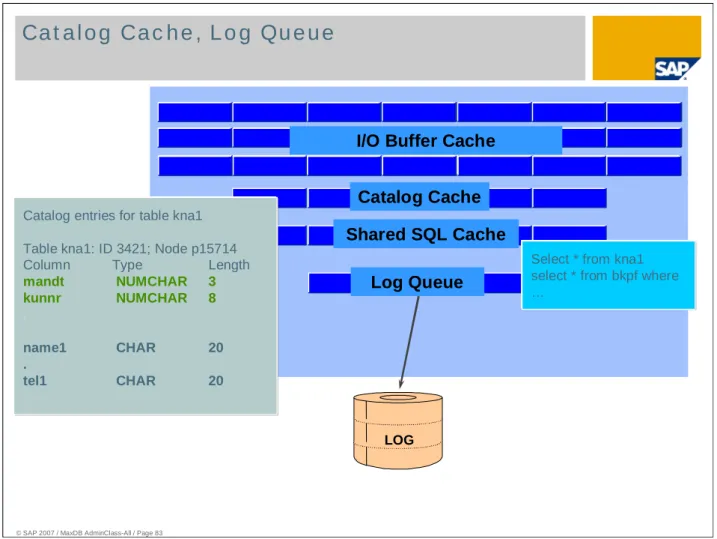
The Catalog Cache contains user specific and global catalog objects. Data displaced from the catalog cache is put into the I/O Buffer Cache. The hit rate of the Catalog Cache should exceed 85%.
The size of the Catalog Cache is specified using the kernel parameter CAT_CACHE_SUPPLY.
All DML statements and their execution plans are stored in the Shared SQL Cache. The data of all users is stored in the same Shared SQL Cache – each executed statement is inserted just once. If Shared SQL is switched off (parameter SHAREDSQL), the statements are stored for each user in the Catalog Cache.
The Shared SQL Cache contains also the text of the executed statements – so you can determine at any time the currently running statements. Furthermore runtime information of these statements (like accessed pages, runtime, qualified rows, …) are stored in the Shared SQL Cache which can be used for performance analysis.
The Log Queue is used as a buffer to store data changed by the application (after images of records) that needs to be transferred to log volume before the application can successfully perform a commit.
The log queue is organized in pages. Several applications can write their changed data (log entries) to the same log page. Whenever a log page is full, it will be written to the log volume by the Log Writer task.
While the Log Writer task writes a log page to disk, other pages in the log queue can be filled. If several pages are used, the Log Writer will write up to eight pages using just one physical I/O.
© SAP 2007 / MaxDB AdminClass-All / Page 84
File Directory, Sequence Cache
File Dir
Table ID root Table ID root
Log Queue
File Dir Sequence
Cache I/O Buffer Cache
Catalog Cache
INSERT INTO T100 (col1) VALUES (seq.nextval)
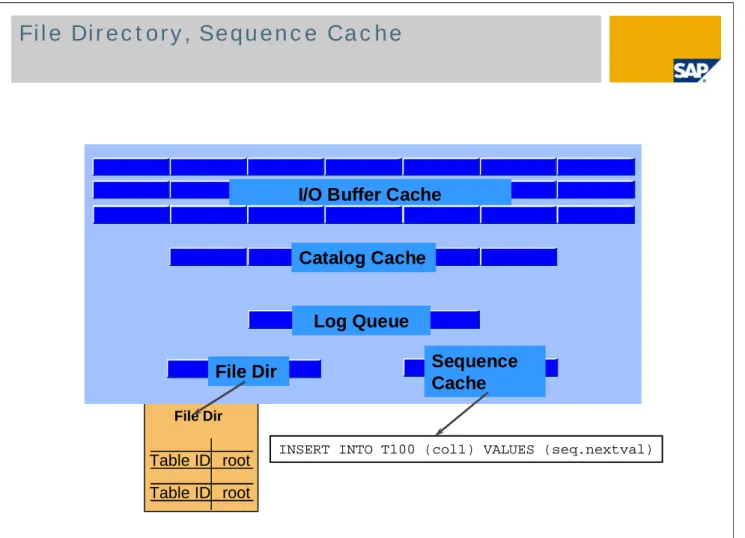
The File Directory is for internal management of the database instance. In it at least the page numbers of the root pages for all data trees are managed.
85
© SAP 2007 / MaxDB AdminClass-All / Page 85
File Dir Sequence
Cache I/O Buffer Cache
Catalog Cache
Log Queue
Critical sections in memory are protected by synchronization mechanisms (Regions)
Share SQL Cache
Accesses to caches can be synchronized over one or more regions. Depending on its size, the data cache is comprised of 8 to 64 segments of the same size, each of which is protected by exactly one region.
If a task or thread accesses a critical section, the region locks this session for all other tasks or processes. Other main memory structures are also managed via synchronization mechanisms provided by the database. Reader-writer locks are used to synchronize the shared SQL cache. Reader-writer locks are used in version 7.5 and up. In contrast to regions, reader-writer locks make it possible to distinguish between shared and exclusive locks.
© SAP 2007 / MaxDB AdminClass-All / Page 86
MaxDB Overview
Internal Database Structure
Administration
Monitoring and Error Analysis
Installation of MaxDB software
Installation of a MaxDB instance
Fail-Over Solutions
Further Information
87 © SAP 2007 / MaxDB AdminClass-All / Page 87
Know how to
start and stop the database instance using DBMGUI and DBMCLI create backups
perform a recovery with/without initialization check the database structure
add volumes
alter the log settings create and use snapshots
© SAP 2007 / MaxDB AdminClass-All / Page 88
Startup and Shutdown 1/2
The database always shuts down (offline) when it is switched from online to admin mode, you can either switch to offline and then to admin or switch directly to admin. There is no difference!
89 © SAP 2007 / MaxDB AdminClass-All / Page 89
Shutdown:
dbmcli –d <db_name> -u <dbm_user>,<password> db_offline
Restart:
dbmcli –d <db_name> -u <dbm_user>,<password> db_online
If you want to perform some administrative tasks and no user should be connected to the database instance, you can put the database into state ADMIN:
© SAP 2007 / MaxDB AdminClass-All / Page 90
Backup Basics 1/2
Backups are performed by the database process.
Online backups of the volumes made with operating system tools (e.g. dd, copy) can not be used.
There are three backup types :
Complete Data Backup: All data pages, configuration and parameter information.
Incremental Data Backup: Backs up all data pages changed since the last complete data backup.
Log Backup: All pages of log (in units of log segments) that have not already been backed up. Additionally ‚Set AutoLog On‘ automatically backs up the log as soon as a log segment is completed.
91 © SAP 2007 / MaxDB AdminClass-All / Page 91
You should keep several generations of backups. For example tapes containing data or log backups should not be directly overwritten with the next backup.
When the log writing is not disabled:
The automatic log backup (autosave log mechanism) should always be active.
If automatic log backup is not active, you must regularly check whether there is enough storage space available in the log area.
You should regularly archive the version files written during a log backup to a medium of your choice.
Due to the database converter concept, MaxDB does not support backup / restore of single tables/schemas. However, single tables/schemas can be extracted/loaded using the MaxDB loader.
If you retain, say, the last four backup generations, it may be possible to use an older backup if a media failure occurs.
Note that in case of a restore a more up-to-date data backup means that fewer log entries need to be redone. Therefore, perform data backups as often as possible.
Perform a complete data backup on each day of production.
If you cannot or do not want to perform a data backup every day, you should at least perform an incremental data backup on each day of production.
While a complete data backup is active, incremental data and log backups cannot be started. You can perform data backups in parallel to reduce the time required for the backups.
Complete and incremental data backups are also possible while the automatic log backup is active.
If new log entries cannot be written to the log area because there is not enough storage space, the database stops. If necessary, back up the log area immediately by starting an interactive log backup.
© SAP 2007 / MaxDB AdminClass-All / Page 92
External Backup Tools
MaxDB supports three kinds of external backup tools:
Tivoli Storage Manager Networker
Tools which support the Interface BackInt for Oracle or Backint for MaxDB
To use one these tools you have to choose the device type Pipe for your backup medium. Furthermore you have to specify, which backup tool should be used: ADSM, NSR or BACK.
For Windows NT media location must be specified as ’\\.\<PipeName>‘ where
<Pipename> stands for any name. On a UNIX/Linux platform the location can be any file name of a non existing file.
93 © SAP 2007 / MaxDB AdminClass-All / Page 93
A complete backup saves all occupied pages of the data volume. In addition, the MaxDB parameter file is written to the backup.
The complete backup as well as the incremental backups are always consistent on the level of transactions since the before images of running transactions are stored in the data area; i.e. they are included in the backup.
Each backup gets a label reflecting the sequence of the backups. This label is used by the administrative tools to distinguish the backups. A mapping from the logical backup medium name to the backup label can be found in the file dbm.mdf in the Rundirectory of the database instance.
© SAP 2007 / MaxDB AdminClass-All / Page 94
Complete Backup 2/3
For a complete or incremental backup you can choose one of the three device types ‘file’, ‘tape’ or ‘pipe’.
After you have selected a backup medium the backup process has all the information needed for the backup. The wizard responds with a summary and the ‚start‘ request to crosscheck the backup action before starting.
medium_put syntax for dbmcli:
medium_put <media_name> <location> <FILE/TAPE/PIPE> <backup_type> [<size> <blocksize> <owerwrite> <autoloader> <os_command>]
Defining a File as Overwritable Medium for a Complete Data Backup (named completeF)
dbmcli -d <db_name> -u <dbm_user>,<password> medium_put completeF /usr/maxdb/complete FILE DATA 0 8 YES Defining a Tape Device as Medium for a Complete Data Backup (named completeT)
dbmcli -d <db_name> -u <dbm_user>,<password> medium_put completeT /dev/rft0 TAPE DATA 64000 8 NO Media Change
If the capacity of the medium is insufficient for the entire backup, you must carry out a media change. In other words, the backup is written to the first medium until this is full, and then a succeeding medium is used. If you foresee this occurring, call up the Database Manager CLI in session mode, because you must not interrupt the session during the backup operation.
95 © SAP 2007 / MaxDB AdminClass-All / Page 95
During backup, a progress bar is displayed.