
March 2011
Bag-and-Dump: Design and Evaluation
of a User Interface for manipulating
items across multiple contexts.
A thesis submitted in partial fulfilment of the requirements
for the Degree of Master of Science in Computer Science
in the University of Canterbury by
Dominic Winkler
Supervisor: Professor Dr. Andy Cockburn
The copy-and-paste paradigm is a fundamental operation in graphical user interfaces.
However, existing copy-and-paste techniques have limitations, in particular in terms of
efficiency and robustness against interruptions. This thesis is focusing on improving the
user interface used to copy-and-paste objects across different contexts, such as a series
folders. To improve this fundamental operation, a new copy-and-paste technique, called
Bag-and-Dump, is proposed, implemented and evaluated. Bag-and-Dump aims to
sub-stantially reduce mouse movement by allowing the user to gather up (‘bag’) source
data across different folders before ‘dumping’ the whole load at the destination.
Ad-ditionally, Bag-and-Dump provides constant visual feedback in the form of a bag-like
semantic cursor to increase robustness against interruptions. Bag-and-Dump was
eval-uated against two standard copy-and-paste techniques (Keyboard Shortcuts and
Drag-and-Drop) under a different number of contexts (folders) and with and without
inter-ruptions. Results from the experiment not only showed that Bag-and-Dump indeed
significantly reduces mouse movement, it also confirmed that Bag-and-Dump was 9%
faster than Keyboard Shortcuts, one of the most popular copy-paste techniques among
“expert users”.
Abstract i
List of Figures vi
List of Tables ix
Acknowledgements x
Chapter 1 Introduction 1
Chapter 2 Related Work 5
2.1 Copy-and-Paste Paradigm . . . 5
2.2 Standard Copy-and-Paste Techniques . . . 6
2.2.1 Selection . . . 7
2.2.2 Auxiliary Tasks . . . 8
2.2.3 Command Invocation . . . 9
2.2.3.1 Keyboard Shortcuts . . . 9
2.2.3.2 Menus . . . 10
2.2.3.3 Drag-and-Drop . . . 12
2.3 Underlying Human Factors . . . 14
2.3.1 Human Motor Skills . . . 15
2.3.1.1 Fitts’ Law . . . 15
2.3.1.2 Control-Display Gain . . . 17
2.3.2 Cognitive Information Processing . . . 18
2.3.2.1 Memory . . . 18
2.3.2.2 Decision Making . . . 23
2.3.2.3 Visual Search . . . 25
2.3.2.4 Interruptions . . . 27
2.4 Extensions of Standard Techniques . . . 30
2.4.1 Clipboard Extensions . . . 30
2.4.2 X Window Copy-and-Paste . . . 33
2.4.3 Intelligent Copy-and-Paste . . . 34
2.4.4 Drag-and-Drop Extensions . . . 37
2.5 Summary . . . 46
Chapter 3 Bag-and-Dump 49 3.1 Scenario . . . 49
3.2 Design Principles . . . 51
3.3 Design Idea . . . 52
3.4 Selection Mode . . . 54
3.4.1 Modes . . . 55
3.4.2 Quasimodes . . . 56
3.4.3 Across Context Selection Mode . . . 57
3.5 Visual Feedback and Interaction . . . 60
3.5.1 Bagging (Selecting) . . . 61
3.5.1.1 Semantic Cursor . . . 62
3.5.1.3 Bagging Interaction . . . 68
3.5.2 Dumping (Pasting) . . . 68
3.6 Summary . . . 71
Chapter 4 Experiment 72 4.1 Apparatus . . . 76
4.2 Participants . . . 76
4.3 Experimental Design . . . 77
4.4 Method and Procedure . . . 78
4.5 Treatment and Training . . . 82
4.6 Results . . . 83
4.6.1 Empirical Results . . . 83
4.6.1.1 Completion Time . . . 84
4.6.1.2 Error . . . 87
4.6.1.3 Mouse Travel Distance . . . 89
4.6.1.4 Selection Modes . . . 92
4.6.1.5 Bi-Manual Interaction . . . 94
4.6.2 Qualitative Results . . . 96
4.6.3 Copy-and-Paste Practices . . . 97
Chapter 5 Discussion and Future Work 101 5.1 Summary of Findings . . . 101
5.2 Experimental Concerns . . . 102
5.2.1 Inconsistency of DND . . . 102
5.2.3 Inconsistency in the experiment’s user interface design . . . 104
5.3 What succeeded with BND? . . . 105
5.4 What did not work with BND? . . . 106
5.4.1 Participants’ individual performance . . . 106
5.4.2 Why variance correlates with performance . . . 109
5.4.3 Why participants were faster with DND . . . 113
5.4.4 Why BND’s selection mode increased cognitive load . . . 114
5.4.5 Summary . . . 117
5.5 How can BND be improved? . . . 117
5.5.1 Selection (Bagging) mode . . . 118
5.5.2 Adding items to the bag . . . 121
5.5.3 X copy-paste (Dumping) Pasting . . . 122
5.5.4 Other future work . . . 124
Chapter 6 Conclusion 125
2.1 State diagram of standard selection modes . . . 7
2.2 Performing copy-and-paste via Menus . . . 11
2.3 Examples of a drag-and-drop interaction [Brewster, 1998] . . . 13
2.4 Atkinson-Shiffrin model adaptation [Atkinson and Shiffrin, 1968]. . . . 19
2.5 Alan Baddeley’s Model of Working Memory taken from [Baddeley, 2000]. 20
2.6 The relationship an item’s serial position and probability of recall
[Matlin, 2008] . . . 23
2.7 Logarithmic increase in Hick-Hyman reaction time as the number of
possible choices increases [Sanders and McCormick, 1993b] . . . 24
2.8 Feature search on the left side: The red X as well as the O differ each in
one dimension from the distractors and therefore "pop-out". Conjunc-tion search on the right side: The orange square differs in two
dimen-sions (colour and shape) from the distractors. . . 27
2.9 Microsoft’s Office Clipboard in action . . . 31
2.10 Extending the desktop environment’s clipboard with a malleable physi-cal interface to manage multiple clips [Block, Villar, and Gellersen, 2008] 33
2.11 Citrine walkthrough [Stylos, Myers, and Faulring, 2004] . . . 35
2.12 The Stretchable Selection Tool [Apperley, Fletcher, and Rogers, 2000] . 36
2.13 Drag-and-Guess in action [Nishida and Igarashi, 2007] . . . 37
2.14 Drag-and-Pop: Here the user drops a file located to the right into the
recycle bin [Collomb, Hascoët, Baudisch, and Lee, 2005] . . . 39
2.15 Push-and-Throw: The user is dropping the image located in the bottom left into the “My Pictures” folder located at the top right [Collomb et al., 2005] . . . 41
2.16 Push-and-Pop: The user drags the homepage icon to the tip icon of the recycle bin in the take-off area and drops it. [Collomb et al., 2005] . . . 42
2.17 Boomerang: (a) Throwing the icon suspends the drag-and-drop interac-tion and (b) the thrown object flies out of the screen. [Kobayashi and Igarashi, 2007] . . . 44
2.18 Fold-and-Drop: Pushing a fold and dropping the object [Dragicevic, 2004]. . . 45
3.1 Scenario: Creating a photo slideshow out of photos from the last five years using copy-and-paste. . . 50
3.2 Mouse movement of traditional copy-and-paste vs Bag-and-Dump . . . 52
3.3 A state-diagram representing the action sequence of the copy-paste paradigm with the additional green arrow illustrating the ability of Bag-and-Dump to go from context to context before invoking the copy-command. . . 54
3.4 Standard selection modes + across context selection modes state diagram 60 3.5 Bag-and-Dump is based on the “shopping bag metaphor” . . . 63
3.6 Bag-like Semantic Cursor . . . 65
3.7 Visualisation of Semantic Cursor’s content . . . 65
4.1 Screenshot of the experiment’s GUI. . . 78
4.2 Screenshot of the experiment after completion of the first trial. . . 80
4.3 Interruption screen overlay with mathematical problem. . . 82
4.5 Mean trial completion times for DND, BND, and KEY over the three
different items modes. Error bars±1 s.e.m. . . 86
4.6 Mean trial completion times for DND, BND, and KEYwith and without
interruptions. Error bars±1 s.e.m. . . 86
4.7 Average number of errors and duplicate errors per trial for DND, BND,
and KEY. Error bars±1 s.e.m. . . 88
4.8 Average number of errors and duplicate errors per trial for DND, BND,
and KEYat each item mode. . . 89
4.9 Mean mouse movement of one trial for DND, BND, and KEY. Error
bars±1 s.e.m. . . 90
4.10 Mean mouse movement of one trial for DND, BND, and KEYat different
items modes. . . 91
4.11 Mean mouse movement of one trial for DND, BND, and KEYwith and
without interruptions. . . 91
4.12 The top graph shows the preference of copy-paste techniques stated by the participants in the interview, while the bottom graph shows the
tech-niques used in the copy-paste task. . . 99
5.1 Average trial completion times of each participant. . . 107
5.2 Each participants’ time difference of average completion times across
all three techniques compared with their overall average completion time. 108
5.3 Average Ctrl-C times of each participant. . . 110
5.4 Each participants’ average Ctrl-C time compared to their overall overall
2.1 Comparison of all existing techniques . . . 48
4.1 Percental usage of selection modes in trials across different item modes
and techniques (empty cells are equivalent to 0%). . . 92
4.2 Mean responses (Standard Deviation) to 5 point Likert-scale questions. . 96
I would like to thank Andy (my supervisor), Hugo-and-James-and-Tommy (my
proof-reader gang), my parents and sister, Jessie, and all the other people (whose names I
might not remember but have helped me in some aspect) for their support and love
CHAPTER
1
Introduction
Selecting multiple objects and then manipulating them is a common interaction used
by millions of computer users several times a day. The copy-and-paste paradigm is
one example of this generic select-manipulation interaction. It enables the replication
of a part of a document in the same or another document and provides the ability to
re-organise files in the computer’s filesystem. The copy-and-paste paradigm, which
became available in early systems such as Sketchpad or Xerox Star, is still considered
to be one of the fundamental services provided by graphical user interfaces today.
Modern operating systems usually offer three different standard techniques for
copy-and-paste:Keyboard Shortcuts,MenusandDrag-and-Drop. These techniques follow a
four-step-procedure: select, copy, specify, paste; whereas all three use the same methods
to select objects and specify the destination, they use different means to invoke the
copy-paste commands. Even though copy-and-pasting plays an essential role in the
creativity and productivity of today’s computer users, these interaction techniques reveal
limitations, in particular in terms of efficiency and robustness against interruptions.
Imagine, that you want to compile a slideshow of the best photos of the last five
years. All of your photos are organised in a hierarchical file structure, ordered by their
year. Your task involves choosing photos from various folders and organising them
into one shared destination folder. For this you require the copy-and-paste paradigm.
Regardless of which technique you decide to use, to copy-and-paste all desired photos
you have to go back and forth between the source folders of each year and the destination
folder, giving a path of2n-1 nodes, wherenis the number of different source folders.
This is necessary because selections do not carry across multiple selection contexts
(such as folders). But can this long and potentially frustrating path be shortened? What
if you could select the best photos of each year in one go and then copy-and-paste all
of them at the same time into the destination folder. This would reduce your mouse
movement to a path ofnnodes.
Long iteration paths reduce efficiency, but copy-and-paste is also susceptible to
er-rors due to interruptions. For example, imagine you are in the middle of compiling
the above slideshow, when the phone rings. You answer, but then after the call you
realise you have forgotten what you were doing. Your workflow has been interrupted,
a common concurrence in today’s working life. To complete the interrupted task you
have to perform additional operations re-orientating yourself to the task. This is
neces-sary because existing standard copy-and-paste techniques do not provide a method for
identifying relevant information to complete the disrupted task. But can these additional
operations also be avoided? What if additional visual feedback was provided, informing
you of the relevant information to complete the disrupted task. This would spare you
This research focuses on improving the user interface used to copy-and-paste
ob-ject(s) across multiple contexts, such as a series of folders. To improve this fundamental
operation, a new copy-and-paste technique, calledBag-and-Dump, is proposed,
imple-mented and evaluated. Bag-and-Dump reduces the path length tonby allowing the user
to gather up (‘bag’) source data across different folders before ‘dumping’ the whole
load at the destination. To be able to do this, Bag-and-Dump introduces a new selection
mode that enables the user to selected items from different contexts in one go. The
se-lected items are displayed in a ‘bag’-like semantic cursor that provides constant visual
feedback to inform the user of the system’s current copy-paste status. In case of
inter-ruptions, the user can regain relevant information to complete the disrupted copy-paste
task from the displayed ‘bag’.
To evaluate this new copy-and-paste technique, Bag-and-Dump is compared to two
standard copy-and-paste techniques (Keyboard Shortcuts and Drag-and-Drop) under a
different number of contexts with and without interruptions. Results from this
experi-ment show that Bag-and-Dump significantly reduces mouse moveexperi-ment. Bag-and-Dump
was also the preferred technique and was 9% faster than Keyboard Shortcuts, one of the
most popular copy-paste techniques among “expert users”.
Chapter 2 of this thesis discusses different underlying human factors that impact the
capabilities and limitations when executing copy-paste operations. The same Chapter
also reviews the standard copy-and-paste techniques as well as extensions of them and
analyses the relative merits of these techniques. Chapter 3 describes Bag-and-Dump, an
improvement designed to overcome limitations of existing copy-and-paste techniques
especially when copy-and-pasting across multiple contexts. Chapter 4 details an
experi-ment and its results comparing Bag-and-Dump to two standard copy-paste techniques as
and implications are discussed in detail in Chapter 5 and solutions addressing problems
identified in the experiment are proposed. Finally, Chapter 6 summarises the findings
CHAPTER
2
Related Work
This chapter presents previous work related tocopy-and-paste. Section 2.1 introduces
the generalcopy-and-paste paradigmin more detail. Then existing standard techniques
to perform copy-and-paste operations are presented in Section 2.2. Section 2.3 discusses
underlying human factors that impact the human capabilities and limitations (physically
as well as mentally) when executing copy-and-paste operations. Section 2.4 presents
ex-isting extensions of the standard copy-and-paste techniques and discusses their strengths
and weaknesses. The final section compares all previously mentioned techniques.
2.1 Copy-and-Paste Paradigm
Copy-and-pasteis a basic interaction that most of us probably learnt in kindergarten, using scissors and tubs of glue to cut out existing snippets and glue them together to
create a new “piece of art” [Renard, 1999]. As adults, however,copy-and-pastebecame
words that we associated with the process of gathering and organising data from various
sources. This ability to manipulate data is one of the most practical and essential tools
for today’s computer users [Shneiderman, 2000].
With the introduction of Sketchpad [Sutherland, 1963] and later on Xerox Star
[Johnson, Roberts, Verplank, Smith, Irby, Beard, and Mackey, 1989], the concept of
data exchange between multiple documents or applications has become a fundamental
operation in graphical user interfaces. Bothcut-and-paste and copy-and-pastefollow
the same four-step action sequence [Faure, Chapuis, and Roussel, 2009]: (1) Selecting
one or more object(s) by using an input device (e.g. the mouse), (2) activate either the
copy or cut command, (3) specify the destination (which could be in the same window
or another), and (4) finally, activate the paste command.
Although this thesis mainly focuses on copy-and-paste, the only difference between
copy-and-paste and cut-and-paste is that after invoking the cut mode the selected objects
are copied and then deleted from their original location.
2.2 Standard Copy-and-Paste Techniques
There are three different standard techniques that support this four-step action sequence:
Keyboard Shortcuts, (pop-up)MenusandDrag-and-Drop.
The first step of the action sequence of all three techniques is similar – selecting one
or multiple items. From that point onwards techniques differ in the way users execute
2.2.1 Selection
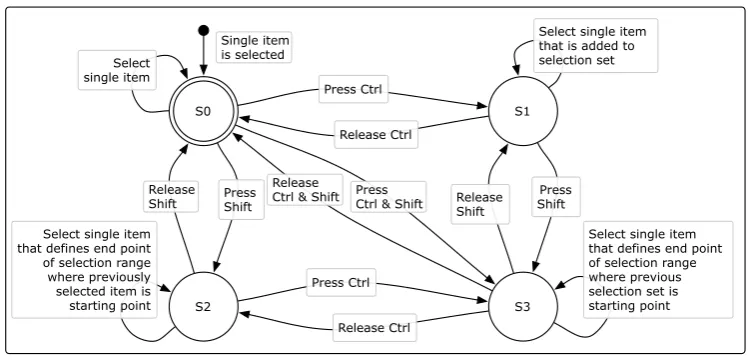
Single item is selected S0 S1 S3 S2 Press Ctrl Release Ctrl Press Shift Release Shift ReleaseCtrl & Shift PressCtrl & Shift
Release Ctrl Press Ctrl Press Shift Release Shift
Select single item that is added to selection set Select
single item
Select single item that defines end point of selection range where previously selected item is starting point
[image:19.595.111.486.165.346.2]Select single item that defines end point of selection range where previous selection set is starting point
Figure 2.1: State diagram of standard selection modes
Regardless of the technique used, selecting the target item(s) is the first step of the
action sequence. By using an input device, e.g. the mouse, the user moves the cursor
onto the item to be copied. Then by clicking on the left mouse button, the desired
item gets highlighted and selected. This is the single item selection mode represented
in State S0 in Figure 2.1. To be able to select more objects, the user needs to change
the selection mode, which is done via modifier keys, e.g. Shift and Ctrl when using
Microsoft Windows. Pressing Ctrl, as shown in State S1 of Figure 2.1, enables the user
to select further single items, adding one at a time to the selection set. When pressing
Shift the user can add a range of items to the selection set by first selecting the start
item of the range and then the last object (State S2). By pressing Shift as well as Ctrl
(State S3) the user can add a range of items to a previously selected selection set. The
previously selected items define the starting point while the last item defines the end
1. State S1– Single item selection mode;
2. State S2– Multiple single items selection mode;
3. State S3– Range of multiple items selection mode;
4. State S4– Additive range of multiple items selection mode.
2.2.2 Auxiliary Tasks
Auxiliary tasks, in particular in the form of window management tasks, are becoming
more and more important due to the increasing number of windows users have open
[Hutchings, Smith, Meyers, Czerwinski, and Robertson, 2004]. Since the average
num-ber of simultaneously opened windows increases with available display space and large
monitors as well as multi-monitor setups are becoming increasingly popular, the
num-ber of open windows will increase [Smith, Baudisch, Ronum-bertson, Czerwinski, Meyers,
Robbins, and Andrews, 2003]. These open windows are filled with objects to copy and
destinations to paste them to, which imposes time-consuming and complex navigation
tasks between or inside windows [Chapuis and Roussel, 2007]. This, in turn, leads
to an increase in the number of auxiliary tasks users might want to perform between
copying and pasting objects. For example, regardless of which technique is being used,
a copy-and-paste operation between two different overlapping windows requires users
to perform additional window management tasks. These tasks are usually carried out
when specifying the destination location for the copied objects during the third step of
the action sequence.
The importance and frequency of window switching, also while copy-and-pasting,
Opera-tion systems offer a variety of interacOpera-tion techniques such asExposéunder Mac OS X andAlt+Tabunder Windows to support window management. To specifically facilitate window management during copy-and-paste operations, restack and roll [Chapuis and
Roussel, 2007] as well as desk pop and stack leafing [Faure et al., 2009] were
devel-oped. In general though, regardless of which copy-and-paste technique is being used,
users should be able to perform window management and other auxiliary tasks
dur-ing copy-and-paste operations. Consequently, the way these auxiliary interactions are
performed should be independent from the actual copy-and-paste technique.
2.2.3 Command Invocation
2.2.3.1 Keyboard Shortcuts
Sketchpad and the Xerox Star already had specific Delete, Copy and Move keys that
in combination with the pointing device could be used to copy-and-paste [Chapuis and
Roussel, 2007]. For example, pressing the Copy-key on the Xerox Star attached the
pre-viously marked objects to the cursor and another mouse click at the destination pasted
the items there. Today’s computer systems do not have specific keys for these functions
but instead use keyboard shortcuts.
Keyboard shortcuts are an efficient method to invoke common commands [Lane,
Napier, Peres, and Sandor, 2005; Tak, 2007]. They expedite common operations by
re-ducing input sequences to a few keystrokes, hence the term ‘shortcut’. Most keyboard
shortcuts require the user to hold down a modifier key and then press one or even
mul-tiple other key(s) simultaneously. In principle, the research community [Nielsen, 1994;
are a way for expert users to increase their level of efficiency while at the same time
the learnability for novel users is not compromised. However, as studies show, even
expert users often do not use available keyboard shortcuts [Lane et al., 2005; Peres, nad
F. P. Tamborello II, Yang, and Paige-Smith, 2005]. This is due to users satisficing in
their computer use because other methods are good enough for them [Tak, 2007].
Nev-ertheless, the copy-and-paste keyboard shortcuts, holding down the modifier key ‘Ctrl’
(‘Control’ on Windows) and simultaneously pressing the ‘c’-key (Ctrl-C) to copy and
Ctrl-V to paste, are well known.
The copy command Keyboard Shortcut Ctrl-C copies the selected objects to the
system clipboard. The system clipboard is a temporary storage that is limited to one
single clip at a time and invisible at all times. A single clip can consist of one or more
objects. Whenever a new clip is copied to the clipboard, the previously stored clip
is replaced by the new clip. Generally speaking, the system clipboard is universally
accessible by the dedicated Keyboard Shortcuts Ctrl-C (to replace the previous clip of
the clipboard with a new one) and Ctrl-V (to recall the latest clip from the clipboard).
2.2.3.2 Menus
To perform copy-and-paste via Menus the user can choose one of three different options
of executing the commands [Chapuis and Roussel, 2007]:
1. The ‘Edit’-menu of the standard menu bar of an application;
2. icons in palettes and toolbars;
All three options require an input device, like the mouse, to move the cursor onto the
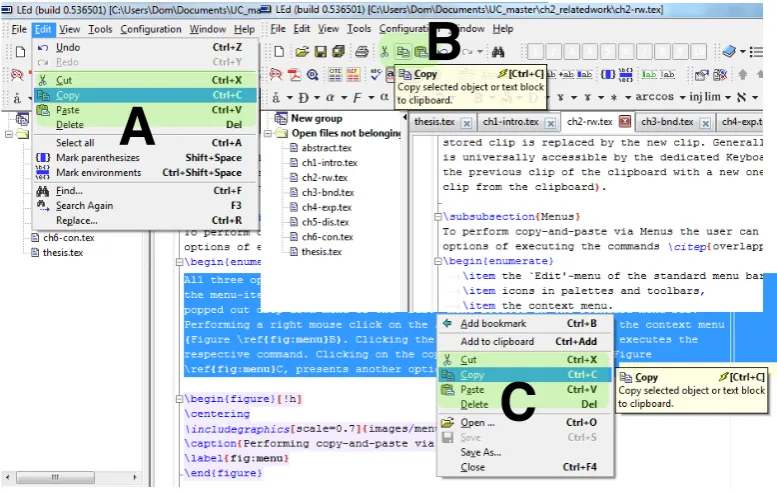
menu-item or icon to perform the commands. Figure 2.2 A shows the popped out drop
down menu of the ‘Edit’-menu located in the standard menu bar. Performing a right
mouse click on the selected object(s) pops out the context menu (Figure 2.2 C). Clicking
the ‘Copy’-item in these menus executes the respective command. Clicking on the copy
icon in a toolbar as in Figure 2.2 B, presents another option to copy selected item(s).
A
[image:23.595.103.492.256.503.2]C
B
Figure 2.2: Performing copy-and-paste via Menus
As with Keyboard Shortcuts, performing the copy command via menus causes the
selected objects to be copied to the hidden system clipboard. To recall the stored clip
via menus, the user performs the same actions as when copying but instead of clicking
the ‘Copy’-item (s)he clicks ‘Paste’ (Figure 2.2).
Since the user has to move the mouse cursor to reach menu bars, palettes and toolbar
icons, these are not in-place techniques. Even the right mouse button activated context
Therefore, in comparison to Keyboard Shortcuts, menu based command operations
im-pose additional mouse travel to activate the commands.
2.2.3.3 Drag-and-Drop
Another way of executing a copy-and-paste operation is the mouse-based drag-and-drop
technique that avoids the use of the hidden clipboard all together [Wagner, Curran, and
O’Brien, 1995]. The user simply has to press and hold down the left mouse button on
one of the previously selected items, drag the mouse pointer (which has the selected
object(s) attached to it) to the destination and release the mouse button to drop the
object(s) there. Drag-and-drop combines the last three steps of the copy-paste action
sequence in one single, continuous, direct manipulation interaction technique [Faure
et al., 2009; Gayer, 1989].
This continuous interaction provides clear visual feedback in terms of dragging the
object(s), which is reinforced by the tension of the finger holding down the mouse
but-ton. “This tension reminds the user that (s)he is in a temporary state and makes syntax
and mode errors virtually impossible" [Faure et al., 2009]. Moreover, most systems give
additional feedback in the sense that the destination target, e.g. a folder, highlights when
the mouse cursor is over it to indicate that the dragged objects can be dropped (Figure
2.3 A & B).
While drag-and-drop’s continuous feedback is a great strength it also poses a great
disadvantage. The necessity to apply continuous pressure on the mouse button while
dragging an object is the technique’s most obvious drawback. Holding down a mouse
button is not only fatiguing and error-prone but it also seriously limits the interaction
make up for these limitations, users often end up performing a far more complex
‘work-around’ to be able to drag-and-drop object(s) towards a partially or totally hidden
win-dow [Dragicevic, 2004].
Furthermore, when dragging it can be quite difficult to hit the initial dropping target
with the mouse, especially if the target is small (and occluded by the dragged object(s))
[Brewster, 1998]. This problem occurs in particular when the destination target is not
highlighted because the dragged object(s), but not the mouse cursor, are positioned over
it (Figure 2.3 D) [Gayer, 1989]. Since the object(s) almost fully obscure the destination
target, it makes it difficult for the user to see if the target is highlighted, which
gener-ally indicates whether the target is going to accept the object(s) or not. Dropping the
object(s) in such a situation, does not copy the object(s) into the destination target, but
instead positions them directly on top of the target and obscures it even further (Figure
[image:25.595.240.359.434.583.2]2.3 C).
Figure 2.3: Examples of a drag-and-drop interaction [Brewster, 1998]
Dropping errors also occur frequently because the semantics of dropping an object
are not always clear and differ from application to application [Dykstra-Erickson and
Curbow, 1997]; a drop action might in some instances simply copy the objects, yet in
Another cause of dropping errors is clutching – the act of lifting up the mouse and
repositioning it to avoid running out of input area [MacKenzie and Oniszczak, 1998].
Studies have shown dropping errors are more frequent when dragging tasks require
clutching because it is harder to maintain the dragging state (holding down the left
mouse button) while lifting up and repositioning the mouse [MacKenzie, Sellen, and
Buxton, 1991].
Another specific drag-and-drop problem is the so calleddrag vs. subselection
prob-lem [Chapuis and Roussel, 2007]. This occurs when users make a text selection that
is too large and try to correct it by pressing the mouse button inside the selected text.
This initiates a drag-and-drop interaction instead of starting a new selection process
[Shneiderman, 2000].
In contrast to drag-and-drop, keyboard shortcuts and menus ‘dissociate’ the four
steps of the copy-paste action sequence, allowing them to be intertwined with other
ac-tions like navigation tasks. Nevertheless, and despite the many drag-and-drop problems
described above, drag-and-drop ‘outperforms’ the other options in terms of feedback.
2.3 Underlying Human Factors
Human factors deal with the psychological, social, physical, and biological
character-istics of a user in relation to the particular system that is being used. The idea is to
use this knowledge of human behaviour, abilities, limitation, and other characteristics
to apply it “to the design of tools, machines, systems, tasks, jobs, and environments
for productive, safe, comfortable, and effective human use” [Sanders and McCormick,
funda-mental operation like copy-and-paste, it is pivotal to take the underlying human factors
into consideration. Being aware of the human capabilities and limitations leads to better
system design.
The underlying human factors influencing the user’s performance in a
copy-and-paste interaction can be grouped into two main categories: human motor skills
(point-ing, dragg(point-ing, and key pressing) and human cognitive information processing (memory,
decision making, visual search and interruptions).
2.3.1 Human Motor Skills
A common task in much of human-computer interaction is the need to position a
cer-tain entity in space. This may involve (physically) moving a hand or finger to touch an
object or (virtually) moving a cursor to a specific object on a computer display using an
input device. This task is commonly referred to as pointing [Baber, 1996]. In the case
of copy-and-paste pointing plays an important role when selecting objects, defining the
destination target and even when invoking copy-paste commands. Characteristics of a
pointing task can be closely described (modelled) with the help of Fitts’ Law (Section
2.3.1.1). For pointing tasks on a Graphical User Interface (GUI) with an input device
(e.g. the mouse) the Control-Display gain plays an important role as described in
Sec-tion 2.3.1.2.
2.3.1.1 Fitts’ Law
Fitts’ law [Fitts, 1954] is an effective quantitative method to model user performance in
specific start position, and moves to rest within a target area) [Mackenzie, 1991]. Fitts’
law is the fundamental tool used to design and evaluate interaction techniques and input
devices for pointing tasks in GUIs [MacKenzie, 1992; Soukoreff and MacKenzie, 2004].
It describes the movement time taken to acquire, or point to, a visual target on the screen.
The movement in Fitts’ law is analogous to the transmission of information, which is
originally derived from the information theorem [Shannon and Weaver, 1963]. This
means for a small, distant target a person needs to transmit more information through
the human motor system than for a large, close target. Consequently, it takes longer
to acquire the smaller, more distant target. The movement time (MT) (in seconds) to
acquire a target of width (W) that lies at distance (or amplitude) (A) is modelled by
Shannon’s formula (Equation 2.1) [MacKenzie, 1992], whereaandbare two constants
determined empirically by linear regression, depending on factors such as input device
and population of users [Chapuis, Labrune, and Pietriga, 2009].
MT=a+b log2A W +1
| {z }
ID
(2.1)
Fitts’ law has been shown to hold up for pointing tasks in a variety of conditions,
with many different limbs (hands, feet, head-mounted sights, eye gaze), input devices,
physical environments (including underwater), and user populations (young, old, special
educational needs, and drugged participants). In addition to pointing tasks the Fitts’ law
also models dragging tasks [MacKenzie et al., 1991]. Dragging, however, has a lower
Index of Performancethan normal pointing, because the increased muscle tension makes dragging slower as well as more error prone.
In conclusion, Fitts’ law reveals the somewhat intuitive speed-accuracy tradeoff in
vice versa: the more severe the constraints are, the slower we move” [Accot and Zhai,
1997]. Taking this into account, the key factor is to reduce the required travel distance
from the starting location to the destination while maintaining a proper target size for
clicking.
2.3.1.2 Control-Display Gain
When dragging (e.g. while performing copy-and-paste via drag-and-drop) clutching –
the need to lift and reposition the mouse to avoid running out of input area – has been
shown to be responsible for dropping errors [MacKenzie et al., 1991]. Clutching is
be-coming more frequent because the size of displays is increasing rapidly, while the input
area remains fixed [Casiez, Vogel, Pan, and Chaillou, 2007]. A way to reduce clutching
and therefore dropping errors while dragging is to adjust Control-Display (CD) gain.
The CD gain is the mapping between the physical displacement of an indirect mapped
pointing device and the corresponding movement of the cursor on the screen
[Macken-zie and Riddersma, 1994]. It defines the distance the mouse (or any other input device)
has to cover in the physical world to move the cursor on the screen by a specific distance
[Blanch, Guiard, and Beaudouin-Lafon, 2004]. The CD gain is a unit free coefficient
that can therefore be computed by taking the ratio of the on-screen pointer velocity to
the input device velocity (Equation 2.2).
CDgain=Vpointer
Vdevice (2.2)
One of the most popular techniques to modify CD gain is pointer acceleration (PA)
function depending on the input device velocity. Besides PA there are various other
dynamic CD gain adaptions, such as expanding targets [McGuffin and Balakrishnan,
2002], bubble cursor [Grossman and Balakrishnan, 2005], semantic pointing [Blanch
et al., 2004] and sticky icons [Mandryk and Gutwin, 2008]. All of which are
tech-niques to increase target acquisition performance and reduce clutching by influencing
the motor-space through which the input device travels.
2.3.2 Cognitive Information Processing
2.3.2.1 Memory
Imagine you are writing an article. In fact you have written all the individual paragraphs
but they still need to be organised and merged together into one complete article. To
do this, you copy-and-paste the paragraphs into the right order in a new document. You
have just selected a paragraph, copied it to the clipboard and you are about to go back
to your target document to paste it at the right place. At this juncture a friend interrupts
you and starts talking to you. Afterwards you realise that you have forgotten what
you copied to the clipboard only moments ago. The copied snippet has literally been
‘bumped out’ of your memory. The memory, that is the ability to store information,
plays an important role when copy-pasting.
Human memory refers to the processes of the human’s brain that are used to
ac-quire, store, retain and later retrieve information. Memory is extremely complicated
and above all attempting to investigate it under uncontrolled real-world conditions is
frustratingly hard [Baddeley, 1997]. Nonetheless, in recent decades researchers in
controlled experiments conducted in laboratories. It is agreed that memory is not just
one unitary system, rather it consists of many systems (Figure 2.4). In fact, according to
the Atkinson-Shiffrin model [Atkinson and Shiffrin, 1968] there is substantial evidence
that there are at least three very different types of memory storage: sensory memory,
working memory and long-term memory.
Sensory memory
Short-term memory (working memory)
Long-term memory Lost from
sensory memory
Lost from short-term
memory
Lost from long-term
memory
[image:31.595.164.436.229.495.2]External input
Figure 2.4: Atkinson-Shiffrin model adaptation [Atkinson and Shiffrin, 1968].
To apply the computer metaphor to memory, you could say working memory
consti-tutes the general register (CPU’s cache) of the cognitive processor (CPU) where all
men-tal operations obtain their operands and leave their outputs [Card, Moran, and Newell,
1980]. Long-term memory, on the contrary, fulfils at most the task of a hard-disk, a large
(in theory unlimited) storage unit, where data is stored semantically for later retrieval.
Thus, particular limitations of working memory, such as capacity and duration, hold
Therefore, out of these three very distinct types of storage, working memory is the one
of greatest relevance for the realisation of a new copy-and-paste technique.
Working memorycan be understood with the help of the multicomponent model
in Figure 2.5, proposed by Baddeley and Hitch [Baddeley and Hitch, 1974;
Badde-ley, 1986, 1992, 2000]. This model replaces the concept of Atkinson-Shiffrin’s
uni-tary working memory system, with specific, active components. It includes a central
component, the central executive, and three sub-systems; the phonological loop, the
visuospatial sketchpad and the episodic buffer.
Long-Term Memory
Phonological Loop Episodic
Buffer Visuospatial
Sketchpad
[image:32.595.169.430.319.546.2]Central Executive
Figure 2.5: Alan Baddeley’s Model of Working Memory taken from [Baddeley, 2000].
The central executive component serves as the attentional control system that
co-ordinates cognitive executive processes of the three subsystems. It directs attention to
relevant information as well as suppresses attention from irrelevant information. The
vi-suospatial sketchpad holds information in an analog spatial form (e.g. visual imagery),
while the phonological loop maintains verbal information in an acoustical form by
information in a unitary, episodic representation (in chronological order). Many
prac-tical observations can be explained with this model especially with respect to working
memory’s limitations of capacity and time.
Capacity In 1956, George Miller published one of the most famous articles in
cogni-tive psychology titled “The Magical Number Seven, Plus or Minus Two: Some Limits
on Our Capacity for Processing Information” [Miller, 1956]. This article received
con-siderable attention and is known to almost all psychology students. Miller defined the
upper limit of capacity of working memory to be around 7±2 chunks of information.
A chunk of information is the unit of working memory space. One chunk can be a
single letter, a single numeral or it can consist of several letters and numerals
(compo-nents) that are strongly associated with one another by their physical as well as cognitive
properties. People use this process of chunking information into meaningful entities to
expand the capacity of working memory. For example when memorising a telephone
number such as 0711446747, the digits can be chunked into the area code (0711), the
company’s extension (44) and the remaining four digits separately (6 7 4 7). Hence,
in-stead of having to memorise ten chunks, that is each individual digit, this phone number
consists of only six chunks (0711-44-6-7-4-7). This means the entire telephone number
can be kept in working memory at once. Therefore, chunking reduces the number of
items in working memory and subsequently increases the capacity of working memory
storage.
Duration Another limitation of working memory closely linked to the capacity is
du-ration – the limit of how long information can remain in working memory. The strength
of information in working memory decays over time unless it is periodically rehearsed
phonological loop, each (acoustic) item is essentially subvocally articulated. In this
way, items will re-enter working memory and will be retained for a further period. The
interval of re-activating items thereby depends on the pronunciation time of each item;
obviously it takes longer to pronounce a long word than a shorter one. This is also
re-ferred to as the word-length effect [Baddeley, Thomson, and Buchanan, 1975]. Thus,
the longer words are, the longer it will take to cycle through all the words in
mainte-nance rehearsal, and the more likely it will be that words have decayed. In addition
to the word-length effect, similar speech sounds can also make words more difficult to
recall. This is called phonological similarity effect [Janet D. Larsen, 2000]. Besides
the acoustic properties of words, the semantics (meaning) also have an effect on the
capacity of working memory. Previously stored words can interfere with the recall of
new words that are similar in meaning [Matlin, 2008].
Researchers have used the serial position effect to examine the recall of items in
working memory [Rundus, 1971]. The serial position effect refers to the U-shaped
relationship between an item’s position in the list and its probability of recall.
When asked to recall a list of items in any order, people tend to begin by recalling
the last heard or read items from the list. As displayed in Figure 2.6, the curve shows a
better recall for items at the end of the list. This is called the recency effect. These items
are still present in working memory and therefore people recall them easiest. However,
if there is a delay between ‘remembering’ and recalling items of the list, the recency
effect decreases [Card et al., 1980]. Typically such a curve also shows a strong primacy
effect with good recall for items at the beginning of the list. Due to a lower number of
items in working memory, more processing time can be devoted to early items. Also,
Figure 2.6: The relationship an item’s serial position and probability of recall [Matlin, 2008]
to long-term memory. Items in the middle of the list benefit from neither the primacy
nor recency effect and thus have the worst recall ratio.
In short, it is crucial to keep working memory load to a minimum. One way to
achieve this is to provide cognitive aids in form of visual feedback or visual echoes of
relevant information to minimise cognitive overhead during an interaction.
2.3.2.2 Decision Making
Before executing any action with a multiplicity of choices, the user must first choose
the action. With regards to copy-and-paste, the user first needs to decide what to copy
Making decisions is time consuming. Making complex decisions is even more time
consuming than making simple ones [Raskin, 2000]. The speed with which a person
makes a decision is strongly influenced by the number of possible choices (s)he has and
the complexity of these choices. The Hick-Hyman Law [Hick, 1952; Hyman, 1953]
describes the human decision time T required to choose among C equally probable
choices when optimally prepared (Equation 2.3):
T =a+b log2(C) (2.3)
The coefficientsaand bare empirically derived constants that strongly depend on
conditions, such as how the choices are presented and how familiar the choices are. The
decision time increases proportionally (logarithmic) to the number and complexity of
choices as Figure 2.7 below shows.
Figure 2.7: Logarithmic increase in Hick-Hyman reaction time as the number of possi-ble choices increases [Sanders and McCormick, 1993b]
Hick-Hyman Law is of logarithmic form because it holds up for cases in which
the choices each step, similar to ‘binary search’. In contrast, when considering each
and every choice one-by-one, a linear decision time is required and not Hick-Hyman
decision time.
The Hick-Hyman Law can be applied to the selection process of copy-and-paste
if the user knows the name of the items (s)he is looking for and the items (whether
PDFs, pictures, or other files) are ordered alphabetically. If this is the case sub-dividing
strategies can be used, which is the key to Hick-Hyman decision time. If this is not
the case, and the user has to visually scan each single item individually (visual search),
linear decision time is required.
When modelling decision times, a speed-accuracy tradeoff can occur [Sanders and
McCormick, 1993b]. For example, the faster we execute actions, the faster we are forced
to make decisions, which is likely to lead to errors. In situations where the consequences
of errors are critical, we have to be cautious, and as a result, we will be slower. This is
obviously an example of the speed-accuracy tradeoff.
2.3.2.3 Visual Search
Every day from time we get up until the time we go to bed, we spend a great deal
of time searching our surrounding environment for information. Whatever tasks we
happen to be carrying out require certain information [Peterson, Kramer, Wang, Irwin,
and McCarley, 2001]. For example, while driving a car we scan the roadway for other
automobiles, traffic signs and pedestrians; in the office, we may look for a specific pen
on our desk or for a document we were working on. When performing a copy-and-paste
interaction, we may need to visually search for the object we want to copy among a
picture library that the user wants to copy to another location. In such a case the user
may know the picture’s general characteristics or even the picture’s content but is not
aware of the picture’s file name. Hence, the only way of finding the picture is by visually
searching the entire library.
Visual search is the process of actively scanning the visual environment for
pre-defined objects or features (targets) among a variable number of competing objects or
features (distractors) [Wolfe, Horowitz, and Kenner, 2005]. Search efficiency is an
im-portant, often crucial factor. The reaction time taken to respond, whether the target item
is present or not, is used as a measurement of search speed. One of the most common
factors affecting reaction time relates to the number of visual distractors present in the
visual search task. The number of distractors is called the display size. An increase
in display size often leads to an increase in reaction time. Therefore plotting the slope
of the RT function over the display size gives us a measure for the search efficiency
[Kunar, Flusberg, and Wolfe, 2008].
If the target item is identified right away, the search slope, independently of the
display size and therefore independent of the number of present distractor items, stays
shallow or flat. This is characteristic of feature search [Treisman, 1980]. In feature
search, a target item differs from distractors by means of a simple but unique and salient
visual feature, like colour, size, orientation, shape or motion. A simple feature may be,
for example, a horizontal line among vertical lines (orientation) or a red X among black
Xs (colour)( Figure 2.8 on the left). Since the target item differs only in one feature, it
has a visual ‘pop-out’ effect.
In contrast, in a conjunction search task, the target items are defined not only by a
Figure 2.8: Feature search on the left side: The red X as well as the O differ each in one dimension from the distractors and therefore "pop-out". Conjunction search on the right side: The orange square differs in two dimensions (colour and shape) from the distractors.
orange square among blue squares and orange triangles, Figure 2.8 on the right). As a
result the target item does not pop out immediately and the reaction time is significantly
slower. In fact, the time to complete a conjunction search task increases linearly with
the number of distractors added.
2.3.2.4 Interruptions
Consider a scenario where a user wants to cite a part of a text from a webpage in a new
article, (s)he is writing. To do this the user selects the text part and executes the copy
command, which stores the selected text in the invisible clipboard. Then the phone
rings and the user answers the call. After hanging up the phone the user has
com-pletely forgotten the initial plan and does not even remember what item is stored in the
clipboard – the user’s workflow has been interrupted. Situations like this are a
com-mon concurrence, especially as modern communication technologies, like phone calls
and email notifications, tend to foster frequent task interruptions [Harr and Kaptelinin,
people switch tasks or are interrupted every 12 minutes [Mark, Gonzalez, and Harris,
2005].
According to Mark et al. [2005], there are two basic types of interruptions: On
the one hand there external interruptions that originate from events in the environment
(external sources), such as a phone ringing, a friend entering your room/office, or
noti-fications signalling a received email or instant message (e.g. a pop-up window on the
screen). An internal interruption, on the other hand, is when you stop a task yourself
on your own volition. Studies show that almost 50% of observed task switches in
stud-ies are initiated by the users themselves [Mark et al., 2005; Czerwinski, Horvitz, and
Wilhite, 2004].
Interruptions can be beneficial or detrimental depending on the context they occur
in. Interruptions that concern the current working sphere are often considered helpful
as they might give a positive impulse to the current thinking process [Mark et al., 2005].
Also, people interrupting themselves to take a break in order to ‘regain energy’ can
potentially lead to increases in productivity [Jin and Dabbish, 2009]. In addition,
inter-ruptions through email notifications and the like can increase awareness of peripheral
information and give direct access to important information.
However, because interruptions divert people’s attention away from the task at hand
they mostly have a negative impact on the task [Jin and Dabbish, 2009]. This is
es-pecially true when interruptions occur outside of one’s current working sphere context
(not relevant to the current task) or when the task the user was performing at the time
in-volves a high cognitive load, interruptions are considered to be intrusive and disruptive
[Mark et al., 2005]. The main problem is the cognitive overhead involved in a context
interrup-tion, (s)he needs to load the context of the new task into working memory. This can be
cognitively demanding and time consuming [Cellier and Eyrolle, 1992], but far worse
because due to the limited capacity of working memory (Chapter 2.3.2.1), information
of the interrupted task gets pushed out of working memory [Y. and D, 1986]. Therefore,
when users finally return to the disrupted task, they need to re-load the context of the
original task into their working memory. This means they need to recall not only their
exact position in the disrupted task, but also all the relevant information to perform the
task [Cutrell, Czerwinski, and Horvitz, 2000]. This process of re-orienting to the
in-terrupted task involves a high cognitive cost that requires extra time and can result in a
resumption lag [Jin and Dabbish, 2009; Cutrell et al., 2000; Y. and D, 1986].
According to studies, 41% of the time an interrupted task is not resumed right away
[O’Conaill and Frohlich, 1995]. However, more than 50% of interrupted tasks are
re-sumed at a later point during the day [Mark et al., 2005]. Tasks that are externally
interrupted are more likely resumed and are typically resumed faster than internally
in-terrupted tasks [Mark et al., 2005]. Often people forget at exactly what point in a task
they got interrupted. As a result they might resume at a different point from where
they had left off. To recall their exact position people rely heavily on cues [Mark et al.,
2005]. Cognitive aids, such as ‘ToDo-lists’, ‘Post-it notes’ and tying knots in
hand-kerchiefs are common reminding strategies, external cues so to speak, that grab our
attention at a time relevant to the task that needs to be performed [Sharp, Rogers, and
Preece, 2007]. Therefore, it is essential that systems provide such cues/information
sys-tematically about the status of a task. Constant feedback is crucial, especially when
users are distracted from the task at hand. The system should be able to inform the
users of where they were in a task and what other information is relevant to complete
2.4 Extensions of Standard Techniques
Copy-and-paste has been studied in many domains, such as programming environments
[Kim, Bergman, Lau, and Notkin, 2004; Wallace, Biddle, and Tempero, 2001;
Jablon-ski, 2007] and in graphical [Citrin, Broodsky, and McWhirter, 1994] as well as text
editors [Kerr and Stuerzlinger, 2008]. Implications from studies like these have led
to numerous attempts to improve copy-and-paste’s standard techniques. This section
presents these existing extensions and analyses the relative merits of them.
2.4.1 Clipboard Extensions
Keyboard shortcuts and menus are means to access the system clipboard, which has
be-come a standard mechanism across all operating systems to copy-and-paste one single
clip between applications. One of the major drawbacks is that, in order to keep it
sim-ple, the system clipboard is limited to manage one single item at a time [Stylos et al.,
2004]. To counter this limitation numerous third-party clipboard managers have been
introduced to extend the standard clipboard’s functionality. These extensions serve the
sole purpose of allowing the user to manage multiple objects at the same time.
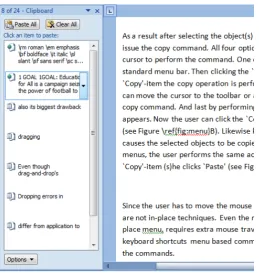
The most widely used clipboard extension is Mircosoft’s Office Clipboard1. The
Office Clipboard works alongside all Microsoft Office applications. As long as an
Of-fice program is running, this extension allows the user to copy up to 24 different clips
from Office documents or other programs onto the Office Clipboard. When copying
multiple clips, the last copied clip is also stored in the system clipboard. The clips on
the Office Clipboard can only be pasted into Office documents. To paste one or more
clips the user needs to specify the destination in the target document and then select the
desired clip(s) from the list of copied clips displayed in the Office Clipboard pane. The
Office Clipboard pane, when enabled, is usually displayed on one side of the screen
of the running Office application (Figure 2.9). As long as the user stays in that Office
[image:43.595.172.432.252.526.2]application it gives constant visual feedback of the clips copied to the clipboard.
Figure 2.9: Microsoft’s Office Clipboard in action
Having to deal with more than one clip at a time requires more complex interaction
techniques than simple two-keystroke keyboard shortcuts like Ctrl-C/V. When using the
Office Clipboard, the user can still copy clips to it via keyboard shortcuts or menus.
However, to paste a clip other than the last one, the user needs to select the desired
clip from the displayed list. To do so, the user needs to move the mouse cursor from
the selected insertion point in the document to the Office Clipboard pane and click on
Clipboard pane constitutes additional motor operations. Furthermore, shifting the focus
to the Office Clipboard pane inevitably brings the clipboard extension to the foreground
of attention. Such a shift can have a similar effect on a user as an interruption does,
as it often disrupts the user’s workflow [Faure et al., 2009]. This might be the reason,
as a study of daily copy-paste practices suggests, that the Office Clipboard as well as
other clipboard managers, such as ClipX2, Clipdiary3or Ditto4(that essentially work in
a similar way as the Office Clipboard), remain rarely used [Faure et al., 2009].
In contrast to purely software based clipboard managers, Block et al. [2008] have
introduced a malleable physical interface that works alongside the mouse and keyboard.
This new physical input device gives the user the ability to assign a basic shortcut to each
single clip. Hence it preserves the ease of use of a single-item clipboard by maintaining
the one-to-one relationship between keyboard shortcut and clip, while allowing the user
to manage multiple clips [Block et al., 2008]. As a result, the user needs to have this
extra input device (Figure 2.10), which in a physical sense clutters your desk space and
in a cognitive sense clutters your brain with the need to memorise which shortcut key
is dedicated to which clip. Even if you do memorise each shortcut for each single clip,
which will save you from performing certain motor operations, you still need to move
your hand to the malleable clipboard to press the respective button.
Figure 2.10: Extending the desktop environment’s clipboard with a malleable physical interface to manage multiple clips [Block et al., 2008]
2.4.2 X Window Copy-and-Paste
The X Window system [Scheifler and Gettys, 1986] implements an additional basic
copy-and-paste technique, known as X copy-paste, that uses the middle mouse button.
In X window systems the user starts an X copy-paste interaction by selecting, for
exam-ple, a text snippet. Then by clicking on another window with the middle mouse button,
that window is not only brought to the foreground, but also the last selected text part is
pasted at the insertion point of that window. Essentially this technique minimises the
four step action sequence of the copy-and-paste paradigm to only two steps. It works
as if the copy command is implicitly executed after each selection and specifying the
destination also pastes the selection at the same time [Chapuis and Roussel, 2007]. In
addition, under X Window it is possible simultaneously to use the standard clipboard
based copy-and-paste functionality accessible via keyboard shortcuts or menus.
Obvi-ously X copy-paste minimises motor operations, since the user does not have to press
any keyboard shortcuts nor access any menus with the mouse to perform copy/paste
commands. Furthermore, in between copying and pasting, it is possible to perform all
However, on the downside, X copy-paste is not implemented consistently across all
applications. For example, some applications may decide to move the insertion point
under the mouse cursor before pasting [Chapuis and Roussel, 2007]. Another
compli-cation is the inconsistency of input devices. Whereas nowadays most mice have three or
more mouse buttons or a clickable scroll wheel that can be used as a middle mouse
but-ton, other systems with touch/stylus input or trackpads might not have a physical third
button. The middle mouse button then has to be simulated by, for example, pressing a
modifier key, which ultimately defeats the purpose of the simple X copy-paste.
X copy-paste’s biggest drawback though, is the volatility of the primary selection
[Chapuis and Roussel, 2007]. In a scenario, a user selects a URL to paste it into the
address field of a web browser. The field of the web browser holds a previous URL,
which the user wants to get rid of by highlighting it and pressing the Delete key. Here,
pressing the middle mouse button does not paste the originally selected URL, it just
‘undoes’ the previous delete action and the deleted URL re-appears. Therefore, X
copy-paste is only suitable for rather basic copy-copy-paste tasks.
2.4.3 Intelligent Copy-and-Paste
Much of the previous research on copy-and-paste is concerned with making it ‘smarter’.
Citrine[Stylos et al., 2004] is an application that emerged from this research that uses
intelligent transformations to extend copy-and-paste. When copy-pasting an address
from a webpage/email into a contact manager with conventional copy-and-paste
tech-niques, the user needs to switch windows back and forth for each different data field.
Citrine allows the user to paste the structured information in multiple form fields in one
text via numerous parsing techniques. The parsers decide if the copied text contains
relevant information. It then adds the copied text in its parsed format to the clipboard
and the user can paste it from the clipboard (e.g. into the form of a contact manager) in
one single go. To be able to parse and then later on paste information correctly, Citrine
often needs to be trained before it works as desired [Bier, Ishak, and Chi, 2006]. Users
can teach by example how Citrine should copy and paste certain data [Stylos et al.,
2004]. In cases where Citrine parses the information correctly, the user is able to paste
information in a single operation and thus mouse movement is reduced significantly.
In terms of feedback (as shown in Figure 2.11 b) Citrine displays a little bubble above
the taskbar when information is parsed and copied to the clipboard. However, during
copying the additional feedback is placed out of focus, so that the user needs to shift
focus to see it. There is also no feedback when pasting information.
Figure 2.11: Citrine walkthrough [Stylos et al., 2004]
Entity Quick Click[Bier et al., 2006] and theStretchable Selection Tool
[Apper-ley et al., 2000] are two other systems that make use of an intelligent backend. Both
extensions reverse the order of the traditional copy-and-paste action sequence. First
users have to define the target location and then select the information to be copied.
en-tities, like single words or phrases, that could be of interest to the user. By clicking on
them they get pasted at the previously defined target location. Entity Quick Click only
improves copy-and-paste if the algorithm used to extract entities actually highlights the
words or phrases that the users want to copy. Hence the whole system is dependent on
the intelligence of its algorithm. The Stretchable Selection Tool (SST) [Apperley et al.,
2000] uses the metaphor of a ‘flexible pipe’ to extend copy-and-paste. One end of this
pipe is connected to the target location and the other end is dragged with the cursor until
connected to the information to be copied. If the user wants to copy, for example, a fax
number into a data field of a form, (s)he first clicks into the data field and activates SST.
(S)he then moves the cursor, which is connected to the data field via a band and has a
text underneath the cursor prompting ‘fax’ (Figure 2.12), to the desired fax number. By
clicking on the fax number, the number gets copied into the data field. The system then
automatically jumps to the next data entry field and the text below the cursor changes to
the data type of that data field. SST only works in specific scenarios where a form with
data entry fields is customised to work with it. Only then can SST jump to the next data
field and infer its data type.
Figure 2.12: The Stretchable Selection Tool [Apperley et al., 2000]
Another intelligent system isDrag-and-Guess[Nishida and Igarashi, 2007], which
uses smart predictions to accelerate the dropping task in a drag-and-drop interaction. As
the user starts dragging an object, Drag-and-Guess predicts the drop target destination
target is hidden in a closed folder or beneath another window, Drag-and-Guess makes
it temporarily visible. To accept the prediction the user simply needs to release the
mouse button and the object flies to the target. If the prediction is incorrect and the user
wants to drop the object somewhere else, (s)he can do so by ignoring the prediction
and continuing the initial drag-and-drop operation. As soon as the cursor moves away
from the predicted target, the line disappears allowing the user a smooth transition to
the standard drag-and-drop. Drag-and-Guess saves the user from tedious pointing tasks
and complex auxiliary tasks such as making the target visible [Nishida and Igarashi,
2007]. Once again, its effectiveness is completely dependent on the intelligence of the
[image:49.595.201.400.355.483.2]prediction system.
Figure 2.13: Drag-and-Guess in action [Nishida and Igarashi, 2007]
2.4.4 Drag-and-Drop Extensions
The Human-Computer Interaction community has proposed several techniques to
im-prove the usability as well as the functionality of drag-and-drop interactions.
Drag-and-drop is a direct manipulation technique. In combination with direct input pointing
devices, such as touch/pen input, drag-and-drop interactions require users to physically
is out of reach, e.g. the target is located too high to reach or on a display that does not
support touch/pen input. Also, targets can be located far away from the user, which may
even require the user to physically walk over, ending up with a target acquisition time
roughly linear to the distance [Guiard, Bourgeois, Mottet, and Beaudouin-Lafon, 2001].
In addition, drag interactions become more error-prone with distance and can be even
further complicated by bezels separating screen units [Rekimoto, 1997].
Pick-and-Drop [Rekimoto, 1997] allows users to drag-and-drop data objects in
multi-screen and multi-computer environments with pen input. By tapping on an
ob-ject on the screen with the pen and then lifting the pen off the screen, the user picks
up the tapped object and the pen virtually holds the object. Then, the user moves the
pen to the desired target destination on the same monitor or another without contacting
the display surface. When the pen comes closer to the display surface a shadow of the
copied object appears on the screen as a visual feedback. By tapping the screen with
the pen the object gets dropped from the pen at the tapped location. According to
Reki-moto [1997], this metaphor of Pick-and-Drop is much closer to the real life scenario
of picking up an object and dropping it off than the drag-and-drop metaphor of sliding
something along a surface. Pick-and-Drop also creates the illusion that the pen is
capa-ble of storing objects. However, in reality the storage capability of a pen is ‘faked’ with
a combination of a unique pen-id and a pen-manager server, that manages the transfer
of the data-objects over the local network.
Drag-and-Pop[Baudisch, Cutrell, Robbins, and Czerwinski, 2003] provides access
to screen content that would otherwise be impossible or hard to reach. As the user starts
dragging an object towards a target icon (e.g. a program), tip icons (of compatible type
and located in the initial direction of the users drag motion) ‘pop-out’ at the user’s
a ‘rubber band’, allowing the user to re-identify each tip icon with their original icon
(Figure 2.14 (2)). By dropping the dragged object onto one of the temporarily moved
tip icons, the respective action (such as deleting the object when dropped on the recycle
bin icon) is performed and all tip icons disappear. Therefore, Drag-and-Pop not only
allows the user to interact with icons that are hard (e.g. on another display unit) or
im-possible (e.g. with a pen on an external monitor without touch sensors) to reach, it also
minimises overall mouse movement significantly. According to Baudisch et al. [2003],
in comparison to traditional drag-and-drop, Drag-and-Pop is superior, particularly on
[image:51.595.181.417.328.581.2]large screens or multiple display unit setups.
Figure 2.14: Drag-and-Pop: Here the user drops a file located to the right into the recycle bin [Collomb et al., 2005]
Drag-and-Throw [Hascoet, 2003] uses a metaphor of throwing to improve
drag-and-drop’s ability to move objects between two displays. Previous throwing models
[Geissler, 1998] suffered from bad precision in target acquisition and high error rates.
![Figure 2.3: Examples of a drag-and-drop interaction [Brewster, 1998]](https://thumb-us.123doks.com/thumbv2/123dok_us/9997302.499801/25.595.240.359.434.583/figure-examples-drag-drop-interaction-brewster.webp)
![Figure 2.4: Atkinson-Shiffrin model adaptation [Atkinson and Shiffrin, 1968].](https://thumb-us.123doks.com/thumbv2/123dok_us/9997302.499801/31.595.164.436.229.495/figure-atkinson-shiffrin-model-adaptation-atkinson-shiffrin.webp)
![Figure 2.5: Alan Baddeley’s Model of Working Memory taken from [Baddeley, 2000].](https://thumb-us.123doks.com/thumbv2/123dok_us/9997302.499801/32.595.169.430.319.546/figure-alan-baddeley-model-working-memory-taken-baddeley.webp)
![Figure 2.6: The relationship an item’s serial position and probability of recall [Matlin,2008]](https://thumb-us.123doks.com/thumbv2/123dok_us/9997302.499801/35.595.172.422.107.356/figure-relationship-item-serial-position-probability-recall-matlin.webp)
![Figure 2.13: Drag-and-Guess in action [Nishida and Igarashi, 2007]](https://thumb-us.123doks.com/thumbv2/123dok_us/9997302.499801/49.595.201.400.355.483/figure-drag-and-guess-action-nishida-and-igarashi.webp)
![Figure 2.14: Drag-and-Pop: Here the user drops a file located to the right into therecycle bin [Collomb et al., 2005]](https://thumb-us.123doks.com/thumbv2/123dok_us/9997302.499801/51.595.181.417.328.581/figure-drag-drops-le-located-right-therecycle-collomb.webp)
![Figure 2.15: Push-and-Throw: The user is dropping the image located in the bottom leftinto the “My Pictures” folder located at the top right [Collomb et al., 2005]](https://thumb-us.123doks.com/thumbv2/123dok_us/9997302.499801/53.595.161.438.112.348/figure-throw-dropping-located-leftinto-pictures-located-collomb.webp)
