5: Relationships Between Variables
5.1. Data Entry
Data entry for correlation, regression and multiple regression is straightforward because the data can be entered in
columns. So, for each variable you have measured, create a variable in the spreadsheet with an appropriate name, and enter each subject’s scores across the spreadsheet. There may be occasions where you have one or more categorical
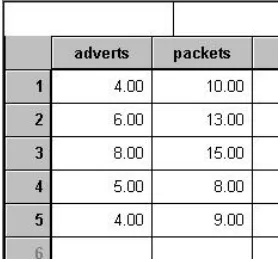
variables (such as gender) and these variables can be entered in the same way but you must define appropriate value labels. For example, if we wanted to calculate the correlation between the number of adverts (advertising crisps!) a person saw and the number of packets of crisps they subsequently bought we would enter these data as in Figure 5.1.
Figure 5.1: Data entry for correlation. The spreadsheet tells us that subject 1 was shown 4 adverts and subsequently purchased 10 packets of crisps.
We are going to analyse some data regarding undergraduate exam performance. The data for several examples are stored on my web page (http://www.cogs.susx.ac.uk/users/andyf/teaching/) in a single file called ExamAnx.sav. If you open this data file you will see that these data are laid out in the spreadsheet as separate columns and that gender has been coded appropriately. We will discover to what each of the variables refer as we progress through this chapter.
5.2. Preliminary Analysis of the Data: the Scatterplot
Before conducting any kind of correlational analysis it is essential to plot a scatterplot and look at the shape of your data. A scatterplot is simply a graph that displays each subject’s scores on two variables (or three variables if you do a
3-D scatterplot). A scatterplot can tell you a number of things about your data such as whether there seems to be a relationship between the variables, what kind of relationship it might be and whether there are any cases that are markedly different from the others. A case that differs substantially from the general trend of the data is known as an
outlier and if there are such cases in your data they can severely bias the correlation coefficient. Therefore, we can use a scatterplot to show us if any data points are grossly incongruent with the rest of the data set.
Drawing a scatterplot using SPSS is dead easy. Simply use the menus as follows: Graphs⇒⇒Scatter …. This activates the dialogue box in Figure 5.2, which in turn gives you four options for the different types of scatterplot available. By default a simple scatterplot is selected as is shown by the black rim around the picture. If you wish to draw a different
scatterplot then move the on-screen arrow over one of the other pictures and click with the left button of the mouse.
Figure 5.2:
Main scatterplot dialogue box
Simple scatterplots are used to look at just two variables. For example, a psychologist was interested in the effects of exam stress on exam performance. So, she devised and validated a questionnaire to assess state anxiety relating to
exams (called the Exam Anxiety Questionnaire, or EAQ). This scale produced a measure of anxiety scored out of 100. Anxiety was measured before an exam, and the percentage mark of each student on the exam was used to assess the
exam performance. Before seeing if these variables were correlated, the psychologist would draw a scatterplot of the two variables (her data are in the file ExamAnx.sav and you should have this file loaded into SPSS). To plot these two
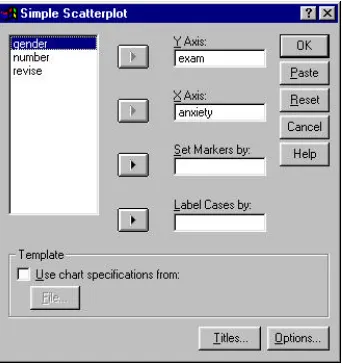
variables you can leave the default setting of simple in the main scatterplot dialogue box and click on . This process brings up another dialogue box, which is shown in Figure 5.3. In this dialogue box all of the variables in the spreadsheet are displayed on the left -hand side and there are several empty spaces on the right hand side. You simply
click on a variable from the list on the left and move it to the appropriate box by using one of the buttons.
Figure 5.3: Dialogue box for a simple scatterplot
• Y Axis: Specify the variable that you wish to be plotted on the y axis (ordinate) of the graph. This should be the dependent variable, which in this case is exam performance. Use the mouse to select exam from the list (which
will become highlighted) and then click on to transfer it to the space under where it says Y Axis.
• X Axis: Specify the variable you wish to be plotted on the x axis (abscissa) of the scatterplot. This should be the independent variable, which in this case is anxiety. You can highlight this variable and transfer it to the space underneath where it says X axis. At this stage, the dialogue box should look like Figure 5.3.
two variables for different age groups. In the current example, we have data relating to whether the student was male and female, so it might be worth using the variable gender in this option. If you would like to display the
male and female data separately on the same graph, then select gender from the list and transfer it to the appropriate space.
• Label Cases by: If you have a variable that distinguishes each case, then you can use this function to display that label on the scatterplot. So, you could have the subject’s name, in which case each point on the scatterplot will be labelled with the name of the subject who contributed that data point. In situations where there are lots of data
points this function has limited use.
When you have completed these options you can click on , which displays a dialogue box that gives you space to
type in a title for the scatterplot. You can also click on , which allows you decide how you want to treat missing
values.
Exam Anxiety
100 80
60 40
20 0
E
x
am
p
er
fo
rm
a
nc
e
(%
)
120
100
80
60
40
20
0
Gender Female Male
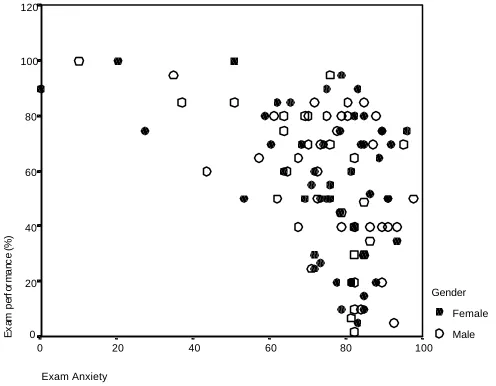
Figure 5.4:
Scatterplot of Exam performance against Exam Anxiety
The resulting scatterplot is shown in Figure 5.4. The scatterplot on your screen will display the male and female data in
different colours, but unfortunately this book isn’t colour and so I have replaced the markers with different symbols.
The scatterplot shows is that the majority of students suffered from high levels of anxiety (there are very few cases that had anxiety levels below 60). Also, there are no obvious outliers in that most points seem to fall within the vicinity of
other points. There also seems to be some general trend in the data such that higher levels of anxiety are associated with lower exam scores and low levels of anxiety are almost always associated with high examination marks. The gender
markers show that anxiety seems to affect males and females in the same way (because the • and ο symbols are fairly evenly interspersed). Another noticable trend in these data is that there were no cases having low anxiety and low exam
performance — in fact, most of the data are clustered in the upper region of the anxiety scale. Had there been any data points which obviously didn’t fit the general trend of the data then it would be necessary to try to establish if there was a good reason why these subjects responded so differently, and also consider what to do with these outliers. Sometimes
outliers are just errors of data entry (i.e. you mistyped a value) and so it is wise to double-check the data in the spreadsheet for that case. If an outlier can’t be explained by incorrect data entry, then it is important to try to establish
anxiety, but it may be specific anxiety about the exam that interferes with performance. Hence, this subject’s unrelated anxiety did not affect their performance. If there is a good reason why a subject responds differently to everyone else
then you can consider eliminating that subject from the analysis in the interest of building an accurate model. However, subjects’ data should not be eliminated because they don’t fit with your hypotheses — only if there is a good
explanation of why they behaved so oddly.
5.3. Bivariate Correlation
Once a preliminary glance has been taken at the data, we can proceed to conducting the actual correlation. Pearson’s
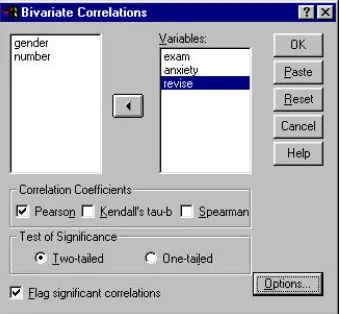
Product Moment Correlation Coefficient and Spearman’s Rho should be familiar to most students and are examples of a bivariate correlation. The dialogue box to conduct a bivariate correlation can be accessed by the menu path
Analyze⇒⇒Correlate⇒⇒Bivariate … and is shown in Figure 5.5.
Using the dialogue box it is possible to select which of three correlation statistics you wish to perform. The default setting is Pearson’s product moment correlation, but you can also do Spearman’s correlation and Kendall’s correlation
— we shall see the differences between these correlation coefficients in due course. In addition, it is possible to specify whether or not the test is one- or two-tailed. The variables in the spreadsheet are listed on the left -hand side of the
dialogue box and there is an empty box labelled variables on the right-hand side. You can select any variables from the list using the mouse and transfer them to the variables box by clicking on . SPSS will create a correlation matrix,
which is just a table of correlation coefficients for all of the combinations of variables. For our current example, select the variables exam, anxiety and revise and transfer them to the variable list (as has been done in Figure 5.5). Having selected the variables of interest you can choose between three correlation coefficients: Pearson’s product moment
correlation coefficient, Spearman’s Rho, and Kendall’s Tau. Any of these can be selected by clicking on the appropriate tick-box with a mouse.
Figure 5.5:
Dialogue box for conducting a bivariate correlation
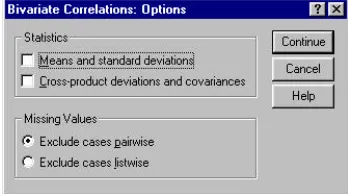
Figure 5.6: Dialogue box for bivariate correlation options
The statistics options are enabled only when Pearson’s correlation is selected, if Pearson’s correlation is not selected then these options are disabled (they appear in a light grey rather than black and you can’t activate them). This is
because these two options are meaningful only for parametric data. If you select the tick-box labelled means and standard deviations then SPSS will produce the mean and standard deviation of all of the variables selected for correlation. If you activate the tick-box labelled Cross-product deviations and covariances then SPSS will give you the values of these statistics for each of the variables being correlated (for mo re detail see Field, 2000).
5.3.1.
Pearson’s Correlation Coefficient
For those of you unfamiliar with basic statistics (which shouldn’t be any of you … !), it is not meaningful to talk about means unless we have data measured at an interval or ratio level. As such, Pearson’s coefficient requires parametric
data because it is based upon the average deviation from the mean. However, in reality it is an extremely robust statistic. This is perhaps why the default option in SPSS is to perform a Pearson’s correlation. However, if your data are nonparametric then you should deselect the Pearson tick-box. The data from the exam performance study are parametric
and so a Pearson’s correlation can be applied. The dialogue box (Figure 5.5) allows you to specify whether the test will
be one- or two-tailed. One-tailed tests should be used when there is a specific direction to the hypothesis being tested,
and two tailed tests should be used when a relationship is expected, but the direction of the relationship is not predicted. Our researcher predicted that at higher levels of anxiety exam performance would be poor and that less anxious students would do well. Therefore, the test should be one-tailed because she is predicting a relationship in a particular direction.
What’s more, a positive correlation between revision time and exam performance is also expected so this too is a one
tailed test. To ensure that the output displays the one-tailed significance click on and then click .
SPSS Output 5.1 provides a matrix of correlation coefficients for the three variables. It also displays a matrix of
significance values for these coefficients. Each variable is perfectly correlated with itself (obviously) and so
r
=
1
. Exam performance is negatively related to exam anxiety with a correlation coefficient of r =−0.441 which is significant at p< 0.001 (as indicated by the ** after the coefficient). This significance value tells us that the probability of this correlation being a ‘fluke’ is very low (close to zero in fact). Hence, we can have confidence that thisrelationship is genuine and not a chance result. Usually, social scientists accept any probability value below 0.05 as being statistically meaningful and so any probability value below 0.05 is regarded as indicative of genuine effect. The output also shows that exam performance is positively related to the amount of time spent revising, with a coefficient of
3967 . 0
=
r , which is also significant at p < 0.001. Finally, exam anxiety appears to be negatively related to the amount of time spent revising (r = -0.7092, p < 0.001).
In psychological terms, this all means that as anxiety about an exam increases, the percentage mark obtained in that exam decreases. Conversely, as the amount of time revising increases, the percentage obtained in the exam increases.
1.000 -.441** .397 **
-.441 ** 1.000 -.709 **
.397** -.709** 1.000
. .000 .000
.000 . .000
.000 .000 .
103 103 103
103 103 103
103 103 103
Exam performance (%) Exam Anxiety Time spent revising Exam performance (%) Exam Anxiety Time spent revising Exam performance (%) Exam Anxiety Time spent revising Pearson Correlation Sig. (1-tailed) N Exam performance (%) Exam Anxiety Time spent revising Correlations
Correlation is significant at the 0.01 level (1-tailed). **.
SPSS Output 5.1: Output from SPSS 7.0 for a Pearson’s correlation
5.3.1.1. A Word of Warning about Interpretation: Causality
A considerable amount of caution must be taken when interpreting correlation coefficients because they give no
indication of causality. So, in our example, although we can conclude that exam performance goes down as anxiety about that exam goes up, we cannot say that high exam anxiety causes bad exam performance. This is for two reasons:
• The Third Variable Problem: In any bivariate correlation causality between two variables cannot be assumed because there may be other measured or unmeasured variables effecting the results. This is known as the ‘third variable’ problem or the ‘tertium quid’. In our example you can see that revision time does relate significantly to
both exam performance and exam anxiety and there is no way of telling which of the two independent variables, if either, are causing exam performance to change. So, if we had measured only exam anxiety and exa m performance
we might have assumed that high exam anxiety caused poor exam performance. However, it is clear that poor exam performance could be explained equally well by a lack of revision. There may be several additional variables that influence the correlated variables, and these variables may not have been measured by the researcher. So, there
could be another, unmeasured, variable that affects both revision time and exam anxiety.
• Direction of Causality: Correlation coefficients say nothing about which variable causes the other to change. Even if we could ignore the third variable problem described above, and we could assume that the two correlated variables were the only important ones, the correlation coefficient doesn’t indicate in which direction causality
operates. So, although it is intuitively appealing to conclude that exam anxiety causes exam performance to change, there is no statistical reason why exam performance cannot cause exam anxiety to change. Although the latter conclusion makes no human sense (because anxiety was measured before exam performance), the correlation does
not tell us that it isn’t true.
5.3.1.2. Using r2 for Interpretation
Although we cannot make direct conclusions about causality, we can draw conclusions about variability by squaring the
variable is explained by the other. For example, if we look at the relationship between exam anxiety and exam performance. Exam performances vary from subject to subject because of any number of factors (different ability,
different levels of preparation and so on). If we add all of this variability (rather like when we calculated the sum of squares in chapter 1) then we would get an estimate of how much variability exists in exam performances. We can then
use r2 to tell us how much of this variability is accounted for by exam anxiety. These variables had a correlation of
-0.4410. The value of r2 will therefore be (−0.4410)2=0.194
. This tells us how much of the variability in exam
performance that exam anxiety accounts for. If we convert this value into a percentage (simply multiply by 100) we can say that exam anxiety accounts for 19.4% of the variability in exam performance. So, although exam anxiety was highly correlated to exam performance, it can account for only 19.4% of variation in exam scores. To put this value into
perspective, this leaves 80.6% of the variability still to be accounted for by other variables. I should note at this point
that although r2is an extremely useful measure of the substantive significance of an effect, it cannot be used to infer causal relationships. Although we usually talk in terms of ‘the variance in Y accounted for by X’ or even the variation
in one variable explained by the other, this says nothing of which way causality runs. So, although exam anxiety can account for 19.4% of the variation in exam scores, it does not necessarily cause this variation.
5.3.2.
Spearman’s Rho
Spearman’s correlation coefficient is a nonparametric statistic and so can be used when the data have violated parametric assumptions and/or the distributional assumptions. Spearman’s tests works by first ranking the data, and then
applying Pearson’s equation to those ranks. As an example of nonparametric data, a drugs company was interested in
the effects of steroids on cyclists. To test the effect they measured each cyclist’s position in a race (whether they came
first, second or third etc.) and how many steroid tablets each athlete had taken before the race. Both variables are nonparametric, because neither of them was measured at an interval level. The position in the race is ordinal data because the exact difference between the ability of the runners is unclear. It could be that the first athlete won by several
metres while the remainder crossed the line simultaneously some time later, or it could be that first and second place was very tightly contested but the remainder were very far behind. The Spearman correlation coefficient is used because one of these variables is ordinal not interval. The data for this study are in the file race.sav.
The procedure for doing the Spearman correlation is the same as for the Pearson’s correlation except that in the
bivariate correlations dialogue box (Figure 5.5), we need to select and deselect the option for a Pearson correlation. At this stage, you should also specify whether you require a one- or two-tailed test. For the example above, we predict that the more drugs an athlete takes, the better their position in the race. This is a directional hypothesis and so we should perform a one tailed test.
SPSS Output 5.2 shows the output for a Spearman correlation on the variables position and tablets. The output is very
simple, first a correlation matrix is displayed that tells us that the correlation coefficient between the variables is -0.599.
Underneath is a matrix of significance values for the correlation coefficient and this tells us that the coefficient is
significant at p < 0.01. Therefore, it can be concluded that there is a significant negative relationship between the number of tablets an athlete took and their position in the race. Therefore, cyclists who took high numbers of tablets had
numerically low positions (i.e. 1, 2, 3), which in real terms means that they did better in the race (because 1 is first place, 2 is second place and so on). Finally, the output tells us the number of observations that contributed to each
correlation coefficient. In this case there were 18 athletes and so N = 18. It is good to check that the value of N
corresponds to the number of observations that were made. If it doesn’t then data may have been excluded for some
1.000 -.599 **
-.599** 1.000
. .004
.004 .
18 18
18 18
Position In race No. of Steroid tablets taken Position In race No. of Steroid tablets taken Position In race No. of Steroid tablets taken Correlation Coefficient
Sig. (1-tailed)
N Spearman's rho
Position In race
No. of Steroid tablets taken
Correlations
Correlation is significant at the .01 level (1-tailed). **.
SPSS Output 5.2: Output from SPSS 7.0 for a Spearman Correlation.
5.3.3.
Kendall’s Tau (nonparametric)
Kendall’s tau is another nonparametric correlation and it should be used rather than Spearman’s coefficient when you
have a small data set with a large number of tied ranks. This means that if you rank all of the scores and many scores have the same rank, the Kendall’s tau should be used. Alt hough Spearman’s statistic is more popular of the two
coefficients, there is much to suggest that Kendall’s statistic is actually a better estimate of the correlation in the population (see Howell, 1992, p.279). As such, we can draw more accurate generalis ations from Kendall’s statistic than from Spearman’s. To carry out Kendall’s correlation on the race data simply follow the same steps as for the Pearson
and Spearman correlation but select and deselect the Pearson option. The output is much the same as for
Spearman’s correlation.
You’ll notice from SPSS Output 5.3 that although the correlation is still highly significant, the actual value of it is less than the Spearman correlation (it has decreased from - 0.599 to - 0.490). We can still interpret this as a highly significant result, because the significance value is still less than 0.05 (in fact, the value is the same as for the Spearman
1.000 -.490 **
-.490** 1.000
. .004
.004 .
18 18
18 18
Position In race No. of Steroid tablets taken Position In race No. of Steroid tablets taken Position In race No. of Steroid tablets taken Correlation Coefficient
Sig. (1-tailed)
N Kendall's tau_b
Position In race
No. of Steroid tablets taken
Correlations
Correlation is significant at the .01 level (1-tailed). **.
SPSS Output 5.3: Output for Kendall’s tau