QUICK REFERENCE GUIDE
Using the Search for an Asset Page
December 4, 2015
Use the Search for an Asset Page
This topic covers searching for an asset and selecting an Asset Management component (page) to work with. Steps to complete:
• Step 1: Enter Search Criteria on the Search for an Asset page
• Step 2: Optionally, Enter Additional Search Criteria
• Step 3: Optionally, Enter ChartField Search Criteria
• Step 4: Enter Search Results Selections in the Retrieve Section
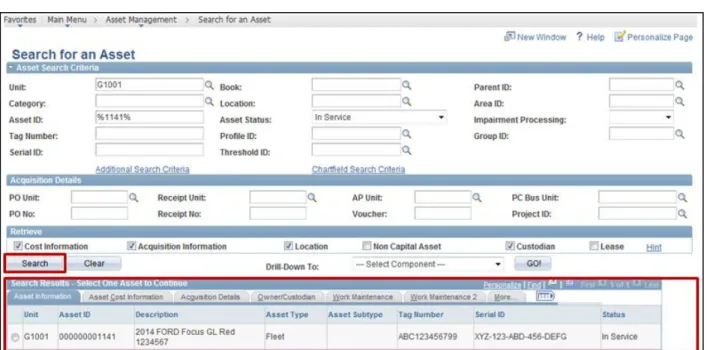
• Step 5: View Search Results
• Step 6: Select an Asset and Component to Work With
Step 1: Enter Search Criteria on the Search for an Asset page
You can search for an asset based on the specified criteria on the Search for an Asset page. After you have performed the search, you can also use links to quickly access other Asset Management pages to review or enter asset information for the selected asset, such as review asset depreciation or change the funding string for an asset.
Begin by navigating to the Search for an Asset page.
1. Navigation Links: Asset Management, Search for an Asset.
Note: The Asset Status criteria field is initially set to “In Service”. If you are searching for assets with other statuses, such as “Received (Not in Service)”, you’ll need to make sure to change this search field.
2. Enter information in the Asset Search Criteria section as described below.
Note: The percent sign (%) can be used as a wild card to replace one or more characters of a field.
Field FieldDescription
Unit (display only) Accept the default BusinessUnit
select a different BusinessUnit.
or click on the Lookup icon and
Category Click on the Lookup icon and select an asset Category
search (such as Equipment, Furniture and Fixtures).
to limit your
Asset ID Enter an Asset ID to limit your search. The percent sign % can be used to replace one or more characters.
Tag Number Enter a Tag Number if your agency uses asset tags.
Serial ID Enter a SerialID to limit your search.
Book Minnesota only uses one book “MINN”.
Location Click on the Lookup icon and select the Location.
Asset Status Accept the default “In Service” or select a different AssetStatus from the drop-down list. Commonly used options include:
• Disposed: Asset has been disposed of.
• In Service: Asset is in service and depreciating (when applicable)
• Received (Not in Service): Asset has been received but not yet placed in service.
• Transferred: The asset has been transferred to a different business unit.
Profile ID Click on the Lookup icon and select a ProfileID to limit your search.
Threshold ID State of Minnesota does not use.
Parent ID If you select a value in the ParentID field, SWIFT will retrieve the parent asset and any child assets associated with it.
Area ID State of Minnesota does not use.
Field FieldDescription
Group ID State of Minnesota does not use.
3. Optionally, search for purchased assets by entering search criteria in the Acquisition Details section as described below.
Field FieldDescription
PO Unit Enter the PurchaseOrder Unit (same as your BusinessUnit.) Note: if you do not enter additional criteria, all purchased assets for the Purchase Order Unit will be returned in the search results.
PO No. Enter
used.
a PO Number (“3000000107”). The percent sign % wild card can be
Receipt Unit Enter the ReceiptUnit (same as BusinessUnit.) Note: if you do not enter additional criteria, all receipted assets for the ReceiptUnit will be returned in the search results.
Receipt No Enter a Receipt
can be used.
Number (“0000000031”). The percent sign % wild card
AP Unit Enter the AccountsPayableUnit (same as BusinessUnit.)
Voucher Enter a Voucher ID. The percent sign % wild card can be used.
Field FieldDescription
Project ID Click on the Lookup icon and select a ProjectID.
Note: Multiple rows often display for purchased assets. You may see a row for the receipt and voucher transactions, and you may see additional rows if multiple funding sources were used. You only need to select one of the rows before selecting a component in Step 6.
Step 2: Optionally, Enter Additional Search Criteria
Optionally, click on the AdditionalSearch link to search by additional asset fields, such as Asset Type, Custodian, or Manufacturer.
1. Click on the Additional Search Criteria link to further limit your search. The More Filter Options
page displays.
2. Enter search criteria as described below.
Field FieldDescription
AssetType Select an Asset Type from the drop-down listing (such as “Equipment”, “Facility”, “Fleet”, “Furniture”).
Asset Subtype If your agency uses Asset Subtypes, you can click on the Lookup and select an AssetSubtype to limit your search. An AssetType must be selected first.
Component of State of Minnesota does not use.
Clustered Asset State of Minnesota does not use.
Employee ID Click on the Lookup icon and select an EmployeeID for a custodian to limit your search.
Custodian Enter a Custodian to limit your search. The format is “Last Name, First Name”. The comma is required.
Manufacturer ID Click on the Lookup icon and select a Manufacturer ID to limit your search.
Manufacturer Name Click on the Lookup icon and select a Manufacturer Name to limit your search.
Model Click on the Lookup icon and select a Model to limit your search.
• Options in the Asset Resource Information and Other Information sections are not used or are not recommended for use.
3. Click on the OK button to return to the Search for Asset page and your criteria will be used to limit your search results.
• If you no longer want to use the optional filters, click on the Clear button.
Step 3: Optionally, Enter ChartField Search Criteria
Use the ChartField Search Criteria link to search for assets related to a specific funding. 1. Click on the ChartField Search Criteria link in the Asset Search Criteria section.
2. Enter search criteria as described below.
Field FieldDescription
Fund Code Click on the Lookup icon to select a valid Fund. Fund is the building block of Government Accounting. All transactions in the system must have a valid Fund.
Financial Department ID
Click on the Lookup icon to select a valid FinancialDepartmentID. The FinDeptID (Financial Department Identifier) represents the organizational function to which revenues and other activities must be applied. Combined with other ChartField values, Fin Dept ID’s form the basis of department budgets that track revenues and expenditures.
Statewide Cost (Prog) Optionally, click on the Lookup icon to select a StatewideCost code.
Sub Account (Class) Optionally, click on the Lookup icon to select a Sub Account.
Project Optionally, click on the Lookup icon and select a ProjectID.
Agency Cost 1 (CF1) Agency Cost 2 (CF2)
Optionally, click on the Lookup icon and select an AgencyCost1
or AgencyCost2 code. AgencyCost2 code. Agency Cost 1
and Agency Cost 2 are agency specific fields that are used at the agency's discretion.
Appropriation ID (CF3)
3. From the More Filter Options page, click on the OK button to return to the Search for Asset page and your criteria will be used to limit your search results.
• If you no longer want to use the optional filters, click on the Clear button.
Step 4: Enter Search Results Selections in the Retrieve Section
You can use the Retrieve section to indicate what type of information will be retrieved about assets that meet your search criteria.
1. Complete the Retrieve section as described below.
• If you entered search criteria that relate to cost information, acquisition details, location, or custodian, it is not necessary to check the option; the information will be retrieved automatically.
• The AssetInformation tab information is always retrieved (Asset ID, Description, Asset Type, Tag Number, etc.)
Checkbox Description
Cost Information Click on the Cost Information checkbox to
view AssetCostInformation tab information in the search results such as Fund, FinDeptID, and AppropID.
Acquisition Information Click on the Acquisition Information checkbox to view Acquisition Details tab information in the search results, such as PO Number
and Voucher ID.
Location Click on the Location checkbox to view asset Location Codes in the search results on the More tab.
Non Capital Asset The NonCapitalAsset check box is used only when Acquisition
and Cost check boxes are active or a search field having value for both Acquisition and Cost is used.
Custodian Click on the Custodian checkbox to view Owner/Custodian tab information in the search results.
Lease State of Minnesota does not use.
Hint link Click on the Hint link to display information about what each checkbox in the Retrieve section will return when you search for an asset.
Step 5: View Search Results
After selecting your search criteria, you are ready to launch your search and view the results.
1. Click on the Search button. The assets meeting your criteria display in the SearchResults listing.
Note: Multiple rows often display for purchased assets. You may see a row for the receipt and voucher transactions, and you may see additional rows if multiple funding sources were used. You only need to select one of the rows before selecting a component in Step 6.
2. View the Search Results. Information on the tabs include:
Tab Description
Asset Information Displays Unit, Asset ID, Description, Asset Type, Asset Subtype, Tag Number, Serial ID and Status.
Asset Cost Information Displays Fund, Fin DeptID, SW Cost, Sub Acct, Project, Agcy Cost 1 and 2, Approp Id, Category, Cost Type, Quantity, Cost, and Currency.
Acquisition Details Displays PO Unit, PO No., BU Recv, Receipt No., AP Unit, Voucher ID, PC Bus Unit, Project ID, and Activity.
Owner/Custodian Displays Employee ID, Custodian, Asset Custodian DeptID, and
Offsite flag.
Work Maintenance Displays Capitalized Asset flag.
Work Maintenance 2 Displays VIN number, Linear flag, and Non-owned Asset flag.
More Displays Profile ID, Parent ID, Location, Manufacturer ID, Model number, and Replacement Cost.
Step 6: Select an Asset and Component to Work With
Now you can select an asset listed in the search results and select a component from the Drill-Down To listing to work with the asset.
1. Select an asset in the search results by clicking on the corresponding button.
Note: Multiple rows often display for purchased assets. You may see a row for the receipt and voucher transactions, and you may see additional rows if multiple funding sources were used. You only need to select one of the rows before selecting a component.
2. After selecting an asset in the search results, select a component from the Drill-Down To listing and click on the GO! button. Options include.
Component Description
Asset Accounting Entries Opens the Review Financial Entries page in a new window. Refer to the “Viewing Financial (Accounting) Entries” topic in the Asset Management User Guide (AM1- Part 2).
Asset Basic Information Opens the BasicAdd pages in a new window where you can view and update the asset record. Refer to the “Creating (or Updating) Assets with Basic Add” topic.
Asset Cost Adjust/Transfer Opens the Cost Adjust/Transfer Asset page in a new window. Refer to Lesson 2: Maintaining Asset Financials in the Asset Management User Guide (AM1 - Part 2).
Asset Cost History Opens the Review Cost pages in a new window. Refer to the “Viewing Cost History” topic.
Component Description
Asset Depreciation Opens the Asset Depreciation pages in a new window. Refer to the “Running Depreciation Calculation Between Transactions” topic and the “Viewing Depreciation Information” topic in the Asset Management User Guide (AM1- Part 2).
Asset Retirements This option is not used.
Audit Logs This option is not used.
Copy Asset Opens the Create Asset Copies pages in a new window. Refer to “Creating Assets with Copy Asset” topic in the Asset
Management User Guide (AM1 - Part 2).
Define Tax/Depr Criteria Opens the Define Tax/Depr Criteria pages which display the Book Depreciation settings for the asset.
Print an Asset Opens the Printable View of Asset page. Refer to the “Printing an Asset” topic in the Asset Management User Guide (AM1 - Part 2).