© 2012 EMS Database Management Solutions
Data Comparer for PostgreSQL
User's Manual
All rights reserved.
This manual documents EMS Data Comparer for PostgreSQL
No parts of this work may be reproduced in any form or by any means - graphic, electronic, or mechanical, including photocopying, recording, taping, or information storage and retrieval systems - without the written permission of the publisher.
Products that are referred to in this document may be either trademarks and/or registered trademarks of the respective owners. The publisher and the author make no claim to these trademarks.
While every precaution has been taken in the preparation of this document, the publisher and the author assume no responsibility for errors or omissions, or for damages resulting from the use of information contained in this document or from the use of programs and source code that may accompany it. In no event shall the publisher and the author be liable for any loss of profit or any other commercial damage caused or alleged to have been caused directly or indirectly by this document.
Use of this documentation is subject to the following terms: you may create a printed copy of this documentation solely for your own personal use. Conversion to other formats is allowed as long as the actual content is not altered or edited in any way.
Document generated on: 13.11.2012
Data Comparer for PostgreSQL - User's Manual 3
© 2012 EMS Database Management Solutions
Table of Contents
Part I Welcome to EMS Data Comparer!
6
...7 What's new ...8 System requirements ...9 Installation ...10 Registration ...12 How to register EMS Data Comparer
...13 Version history
...17 EMS Data Comparer FAQ
Part II Using Wizard Application
20
...21 Getting started
...22 Step 1 - Setting connection properties
... 25 Selecting databases
... 26 Selecting schem as for refreshing
...27 Step 2 - Setting tables and fields correspondence
... 31 Using the context m enus
...32 Step 3 - Browsing data comparison results
... 35 View ing BLOB data
... 38 Exporting com parison results
...40 Step 4 - Specifying data synchronization options
...43 Step 5 - Setting synchronization order
...44 Step 6 - Editing synchronization script
... 46 Using the Find Text dialog
... 48 Using the Replace Text dialog
...51 Step 7 - Specifying additional scripts
...52 Step 8 - Start of synchronization process
Part III Using Configuration Files (Templates)
55
...56 Saving templates
...58 Loading templates
...59 Using Console Application
Part IV Setting Program Preferences
61
...62 General ...65 Directories ...66 Language ...67 Data font
...68 Interface
Part V Appendix
70
...70 SSH tunneling options ...71 HTTP tunneling options ...72 Configuration file formatPart
1
Welcome to EMS Data Comparer!
EMS Data Comparer for PostgreSQL is a powerful and easy-to-use utility for data comparison and synchronization. You can view all the differences in the tables being compared and execute an automatically generated script to eliminate these differences. With flexible customization of the comparison and synchronization process you can select tables and fields for comparison and tune many other options. Data Comparer for PostgreSQL includes a graphical wizard guiding you through the data comparison and synchronization process step by step, and a command-line service for synchronizing data in one-touch.
Visit our web-site: http://www.sqlmanager.net/ for details.
Key features:
· User-friendly wizard interface
· Several interface languages available: English, German, Russian and French
· Data comparison of several tables simultaneously
· Automatic and manual selection of data being compared
· Wide range of synchronization parameters
· Unicode data support
· Partial data synchronization
· Saving data synchronization script to a file for future use
· The ability saving all the parameters specified within the current wizard session
· The command-line utility to compare and synchronize data with a template used
· The possibility to compare data using filters
Product information:
Homepage: http://www.sqlmanager.net/en/products/postgresql/datacomparer
Support Ticket System:
http://www.sqlmanager.net/support
Data Comparer for PostgreSQL - User's Manual 7
© 2012 EMS Database Management Solutions
1.1
What's new
Version Release date
Data Comparer for PostgreSQL 3.5.0.1 November 15, 2012
What's new in Data Comparer 3.5?
· Added the possibility to manually set a list of synchronized records.
· Now it is possible to check for active triggers in the synchronized tables. If there are triggers in the target table, you will be prompted to disable them.
· Added the possibility to set filters on the basis of the LIKE operator.
· Now at the "Setting tables correspondence" step a filter can be viewed as the pop-up window.
See also: Version history
1.2
System requirements
System requirements for Data Comparer for PostgreSQL
· 300-megahertz (MHz) processor; 600-megahertz (MHz) or faster processor recommended
· Microsoft® Windows NT4 with SP4 or later, Microsoft® Windows 2000, Microsoft® Windows 2000 Server, Microsoft® Windows XP, Microsoft® Windows 2003 Server, Microsoft Windows 2008 Server, Microsoft® Windows Vista, Microsoft® Windows 7, Microsoft® Windows 8
· 64MB RAM or more; 128MB or more recommended
· 20MB of available HD space for program installation
· Super VGA (800x600) or higher-resolution video adapter and monitor; Super VGA (1024x768) or higher-resolution video adapter and monitor recommended
· Microsoft® Mouse or compatible pointing device
· Possibility to connect to any local or remote PostgreSQL server
Data Comparer for PostgreSQL - User's Manual 9
© 2012 EMS Database Management Solutions
1.3
Installation
If you are installing Data Comparer for PostgreSQL for the first time on your PC:
· download the Data Comparer for PostgreSQL distribution package from the
download page available at our site;
· unzip the downloaded file to any local directory, e.g. C:\unzipped;
· run PgDataComparerSetup.exe from the local directory and follow the instructions of the installation wizard;
· after the installation process is completed, find the Data Comparer shortcut in the corresponding group of Windows Start menu.
If you want to upgrade an installed copy of Data Comparer for PostgreSQL to the latest version:
· download the Data Comparer for PostgreSQL distribution package from the
download page available at our site;
· unzip the downloaded file to any local directory, e.g. C:\unzipped;
· close Data Comparer application if it is running;
· run PgDataComparerSetup.exe from the local directory and follow the instructions of the wizard.
See also:
1.4
Registration
To make it easier for you to purchase our products, we have contracted with share-it! registration service. The Share-it! order process is protected via a secure connection and makes online ordering by credit/debit card quick and safe. The following information about Share-it! is provided for your convenience.
Share-it! is a global e-commerce provider for software and shareware sales via the Internet. Share-it! accepts payments in US Dollars, Euros, Pounds Sterling, Japanese Yen, Australian Dollars, Canadian Dollars or Swiss Franks by Credit Card (Visa, MasterCard/ EuroCard, American Express, Diners Club), Bank/Wire Transfer, Check or Cash.
If you have ordered EMS software online and would like to review your order information, or if you have questions about ordering, payments, or shipping procedures, please visit our Customer Care Center, provided by Share-it!
Please note that all of our products are delivered via ESD (Electronic Software Delivery) only. After purchase you will be able to immediately download the registration keys or passwords and download links for archives of full versions. Also you will receive a copy of registration keys or passwords by e-mail. Please make sure to enter a valid e-mail address in your order. If you have not received the keys within 2 hours, please contact us at
Product distribution
Data Comparer for PostgreSQL (Business license) + 1-Year Maintenance*
Register Now! Data Comparer for PostgreSQL (Business license) + 2-Year Maintenance*
Data Comparer for PostgreSQL (Business license) + 3-Year Maintenance*
Data Comparer for PostgreSQL (Non-commercial license) + 1-Year Maintenance*
Data Comparer for PostgreSQL (Non-commercial license) + 2-Year Maintenance*
Data Comparer for PostgreSQL (Non-commercial license) + 3-Year Maintenance*
Data Comparer for PostgreSQL (Trial version) Download Now!
*EMS Maintenance Program provides the following benefits:
· Free software bug fixes, enhancements, updates and upgrades during the maintenance period
· Free unlimited communications with technical staff for the purpose of reporting Software failures
· Free reasonable number of communications for the purpose of consultation on operational aspects of the software
After your maintenance expires you will not be able to update your software or get technical support. To protect your investments and have your software up-to-date, you
Data Comparer for PostgreSQL - User's Manual 11
© 2012 EMS Database Management Solutions
Maintenance Reinstatement/Renewal Interface. After reinitiating/renewal you will receive a confirmation e-mail with all the necessary information.
See also:
1.5
How to register EMS Data Comparer
To register your newly purchased copy of EMS Data Comparer for PostgreSQL, perform the following:
· receive the notification letter from Share-it! with the registration info;
· enter the Registration Name and the Registration Key from this letter into the
Register Data Comparer for PostgreSQL form at the Welcome Step;
· make sure that the registration process has been completed successfully – check the registration information at the startup page.
See also: Registration
Data Comparer for PostgreSQL - User's Manual 13
© 2012 EMS Database Management Solutions
1.6
Version history
Product name Version Release date
Data Comparer for PostgreSQL Version 3.4.0.1 March 7, 2012 Data Comparer 2011 for PostgreSQL Version 3.3.0.1 August 29, 2011 Data Comparer 2011 for PostgreSQL Version 3.2.0.1 March 21, 2011 Data Comparer 2010 for PostgreSQL Version 3.1.0.1 November 01,
2010
Data Comparer 2010 for PostgreSQL Version 3.0.0.1 May 04, 2010 Data Comparer 2010 for PostgreSQL Version 2.3.0.1 March 10, 2009 Data Comparer 2007 for PostgreSQL Version 2.2.0.1 October 2, 2008 Data Comparer 2007 for PostgreSQL Version 2.1.0.1 December 19,
2007
Data Comparer 2007 for PostgreSQL Version 2.0.0.1 February 5, 2007 Data Comparer 2005 for PostgreSQL Version 1.2.0.1 May 30, 2006 Data Comparer 2005 for PostgreSQL Version 1.1.0.1 March 14, 2006 Full version history is available at http://www.sqlmanager.net/products/postgresql/ datacomparer/news.
Version 3.4.0.1
· Now the comparison results can be exported to MS Excel 2007.
· The progress window now displays the time remaining and the number of records per second.
· Data Filter. Added the OR and AND operations.
· When selecting text fields as key fields, the table comparison speed significantly increased.
· Added the possibility to save a template at any step of the wizard.
· Some other improvements and bugfixes.
Version 3.3.0.1
· Added the possibility to compare data using filters;
· Added the "Trim CHAR Fields" option, which allows to trim spaces in CHAR and NCHAR fields while comparing and synchronizing data;
· Added the Jump List with a list of templates for Windows 7;
· If while synchronizing data, the number of records returned from the server is
smaller than the expected amount to be synchronized (i.e. because of triggers), now a warning is written to the log-file;
· Added the path parameter to the log file in the console version;
· Some other improvements and bugfixes.
Version 3.2.0.1
· RAM usage is optimized. Now the product consumes less memory when working with large tables.
· Added the new option - ‘Fill correspondence automatically’ for the console version. When enabled, new tables in the database (created after generating a template) are also synchronized and compared when databases are compared.
· When loading a template, the application can now ask for a password for the database if necessary.
· Added the possibility to encrypt passwords in the template.
· Sometimes table data were sorted incorrectly when displaying comparison results. Fixed now.
· When synchronizing databases located on one server, it is now possible to generate synchronization scripts containing table data.
· Added hints for options located on the application forms.
· Other minor improvements and bugfixes.
Version 3.1.0.1
· Added the ‘Disable foreign keys’ option on the Step 4 - Specifying data synchronization options which allows disabling foreign keys when inserting or modifying data.
· Added the ‘Disable triggers’ option on the Step 4 - Specifying data synchronization options which allows disabling triggers when inserting or modifying data (for Data Comparer for PostgreSQL).
· The ‘Before synchronization script’ and ‘After synchronization script’ on the Step 7 -Specifying additional scripts are now executed in the same connection context where the synchronization is performed.
· Script Editor. When saving and re-opening the editor, the character set chosen in the previous session is saved.
· If any database errors occur during the comparison process, the program informs about errors and offers to continue. The error texts are displayed as a hint in the Summary dialog.
· BLOB Editor. Added the possibility to view texts in Unicode.
· The process of selecting tables to compare has become more convenient.
· Added the possibility to disable the code folding in editors.
· Added the possibility to export comparison results of all tables at once.
· Added the possibility to use filters during the code completion.
· Some other small bugfixes and improvements.
Version 3.0.0.1
1. The comparison and synchronization algorithm is significantly improved and is optimized for working with large databases:
· The comparison speed is considerably increased, in some cases up to 5 times.
· The synchronization speed is increased, especially in cases when compared tables are located on one server.
· The amount of the consumed RAM is reduced, now it does not depend on the number of records in compared tables which allows avoiding the Out of Memory error.
· The speed of auto-fill in tables and fields is increased. 2. Added the possibility to synchronize BLOB fields in InterBase.
3. Added the option for viewing the Summary for the compared objects at the Step 3 - Browsing data comparison results.
Data Comparer for PostgreSQL - User's Manual 15
© 2012 EMS Database Management Solutions Version 2.3.0.1
· Added the Commit after synchronization option allowing to rollback all changes if an error occurs during the synchronization process.
· Added the possibility to define table synchronization order manually.
· Added the possibility to generate a summary report with table comparison results.
· It is now possible to sort and filter comparison results.
· Fields of the domain-based type could not be selected as comparison keys. Fixed now.
· Encrypted passwords within templates created with older versions of the utility could not be read properly. Fixed now.
· Some other small bugfixes and improvements.
Version 2.2.0.1
· Added tools for exporting comparison results to HTML and RTF
· Implemented support of PostgreSQL 8.3
· Optimized the array processing algorithm
· The new enhanced Script Editor
· Added the possibility to output the detailed error description in the console application
· Optimized the script generation mechanism: now only different fields are added to the synchronization script
· Added tools for printing synchronization logs
· Other minor improvements and bug-fixes
Version 2.1.0.1
· Now you are able to set up SQL statement batches which will be executed before and/or after the synchronization process
· The possibility to select DB schemas for data comparison is added
· Fields of the 'serial' type are set to 'nextval' after synchronization is complete
· Tables for which the set of key fields differs from primary key fields are synchronized significantly faster now
· Table lists are sorted by table and schema name now
· The possibility to save synchronization logs to a file is implemented
· The number of DB connections coincides with the number of selected threads
· Other minor improvements and bug-fixes
Version 2.0.0.1
· Multi-threading for data comparison
· Implementation of Private Key support for SSH authentication
· Boosted synchronization speed
· A more convenient way of browsing differences in compared data
· Implementation of the Find Text dialog in Script editor
· Processing of Foreign keys implemented
· An opportunity to select tables after data comparison
· Export of comparison results to MS Excel documents
· The ‘Detailed error messages’ option at the synchronization step
· Encrypted passwords storage
Version 1.2.0.1
· Viewing/editing synchronization script with Script editor
· The 'Drop and create indexes' synchronization option added
· For the fields which are not in comparison the default values will be applied now (in previous versions NULL values were used)
· Now it is possible to abort synchronization on error with the help of corresponding option
· The console version of Data Comparer for PostgreSQL now allows running the application in background mode
Version 1.1.0.1
· New BLOB viewer
· Higher speed of comparing process
· The ability to view the connection information is added
· The "Use only compare key for where clause" option is available at the specifying data synchronization options step now
· The "Add computed and read-only fields to the new table" option is added
· The ability to specify the appropriate client library is implemented
· Primary key auto-setting for the fields to be compared
· Color highlight for non-identical records is implemented
· The "Commit after records" option is added
See also: What's new
Data Comparer for PostgreSQL - User's Manual 17
© 2012 EMS Database Management Solutions
1.7
EMS Data Comparer FAQ
Please read this page attentively if you have questions about EMS Data Comparer for PostgreSQL.
Table of contents
· What is EMS Data Comparer?
· What do I need to start working with EMS Data Comparer?
· What is the easiest way to configure the template files for Data Comparer console application?
· How can I register the application?
· Are there any limitations implied in the trial version as compared with the full one?
· How can I automate comparison and synchronization process?
Question/answer list
Q: What is EMS Data Comparer?
A: EMS Data Comparer for PostgreSQL is a powerful and easy-to-use utility for data comparison and synchronization which allows you to view differences in tables and execute an automatically generated script to synchronize data between these tables. Data Comparer for PostgreSQL includes a GUI wizard which guides you through the data comparison and synchronization process step by step, and a command-line version for synchronizing data in one-touch.
Q: What do I need to start working with EMS Data Comparer for PostgreSQL?
A: First of all, you must have a possibility to connect to some local or remote PostgreSQL server to work with Data Comparer. You can download PostgreSQL database server from http://www.postgresql.org/download/. Besides, you need your workstation to satisfy the system requirements of Data Comparer for PostgreSQL.
Q: What is the easiest way to configure the template files for Data Comparer console application?
A: You can configure the template files visually using the Data Comparer Wizard. Set all the necessary options in each step of the wizard and click the Tools | Save template
button. All the options will be saved to the template file which can be used afterwards in the console application.
Q: How can I register the application?
A: If you have already purchased Data Comparer for PostgreSQL, you can register the product by entering the appropriate registration information. Please refer to
Registration and How to register EMS Data Comparer for details.
Q: Are there any limitations implied in the trial version as compared with the full one?
A: The trial version of the utility allows to compare and synchronize no more than 10 tables. As for the rest, the functionality of the trial version does not differ from the full one. You can test the features implemented in Data Comparer for PostgreSQL within the 30-day trial period for free.
Q: How can I automate comparison and synchronization process?
A: First go through all steps of the wizard setting the necessary options and save the template at the last step of the wizard. The template can be run with the console version
of the utility from the command line. You can schedule the launch of the console with the template name as a parameter using native Windows Scheduler tool.
Scroll to top
Part
2
Using Wizard Application
Data Comparer for PostgreSQL Wizard guides you through the entire comparison and synchronization process and provides an easy-to-use graphical interface allowing you to set all data comparison parameters visually.
Navigation through the steps of the wizard is performed with the help of the Next> and the <Back buttons.
Use the Tools button for calling the Preferences dialog or to load/save a template. Go through the steps of the wizard and follow the wizard instructions to tune all necessary comparison options according to your needs.
Getting started
Step 1 - Setting connection properties
Step 2 - Setting tables and fields correspondence Step 3 - Browsing data comparison results
Step 4 - Specifying data synchronization options Step 5 - Setting synchronization order
Step 6 - Editing synchronization script Step 7 - Specifying additional scripts Step 8 - Start of synchronization process
See also:
Using console application Using templates
Data Comparer for PostgreSQL - User's Manual 21
© 2012 EMS Database Management Solutions
2.1
Getting started
This is how Data Comparer for PostgreSQL application wizard looks when you first start it.
This page allows you to view registration information. If you have not registered Data Comparer for PostgreSQL yet, you can do it by pressing the Enter Registration Code...
button and specifying your registration information.
2.2
Step 1 - Setting connection properties
At this step you should specify necessary settings to establish connection to PostgreSQL databases.
Connection settings
First select the connection type: local or remote.
Local connection is used to connect to PostgreSQL server launched on the same machine where Data Comparer for PostgreSQL is running.
The Remote mode allows you to connect to PostgreSQL server launched on another computer in the network.
By default the program uses local connection. It is indicated by switch Local selected. If you wish to establish remote connection, you should select the Remote switch. For remote connection you should also enter PostgreSQL host name in the Host field. For both types you should enter PostgreSQL port to connect through in the Connection port
field.
Afterwards you should specify authorization settings: Login and Password.
The default superuser name is 'postgres' with the password specified during PostgreSQL server installation.
If necessary, use the drop-down list to specify the preferable Client charset to be used by the application.
After that it is necessary to specify the database you are going to work with: type in its name in the Database field or use the ellipsis button to select one from the Select database list.
Please note that you need to have sufficient privileges to be able to write to the destination database on PostgreSQL server.
Data Comparer for PostgreSQL - User's Manual 23
© 2012 EMS Database Management Solutions Tunneling settings
To setup the connection via SSH tunnel proceed to the Tunneling tab and input the following values in the corresponding fields:
· SSH host name is the name of the host where SSH server is running
· SSH port indicates the port where SSH server is activated
· SSH user name stands for the user on the machine where SSH server is running (
Note: it is a Linux/Windows user, not a user of PostgreSQL server)
· SSH password is the Linux/Windows user password
To use HTTP tunneling, just upload the tunneling script to the webserver where
PostgreSQL server is located, or to any other webserver from which direct connections to your PostgreSQL server are allowed. This script exposes the PostgreSQL API as a set of web-services which is used by Data Comparer for PostgreSQL.
For details see HTTP tunneling options.
Repeat the steps above for the target PostgreSQL connection or just check the Both databases on the same server option for comparing data from databases located on the same server.
When you are done, press the Next button to proceed to the selecting schemas for refreshing or directly to Step 2 (if the Select schemas... dialog is disabled in the program preferences).
Data Comparer for PostgreSQL - User's Manual 25
© 2012 EMS Database Management Solutions
2.2.1
Selecting databases
When the server connection settings are specified, you should select databases for data comparison using the Select database dialog.
To call this dialog, click the ellipsis button of the Database control at Step 1.
2.2.2
Selecting schemas for refreshing
Before you proceed to the Setting tables and fields correspondence step of the wizard, you are offered to specify the schemas to be refreshed using the Select schemas for refreshing... dialog.
Hint: For your convenience the context menu is available in both the Source schemas
and Target schemas lists. Using the context menu you can Check all, Uncheck all
and Invert items selection in the lists.
Refresh all schemas and don't show this window in the future
Set this option to specify all of your PostgreSQL schemas for refreshing and skip this dialog in the future sessions of the wizard.
Note: To activate/deactivate this dialog, use the Show select schemas window option in the General section of the Preferences dialog.
Data Comparer for PostgreSQL - User's Manual 27
© 2012 EMS Database Management Solutions
2.3
Step 2 - Setting tables and fields correspondence
At this step you should select objects for data comparison.
Setting table correspondence
The upper grid allows you to set correspondence between tables of the source and the target databases. If you wish to setup correspondence between tables (as well as between their fields) automatically on the basis of equivalence of their names, press the
Autofill tables and fields button. If no correspondence is set for a table, it will not be included in the data comparison process.
For your convenience the Mask for autofill of object names is added. The filter is intended for excluding unnecessary tables from auto filling. You can use standard
wildcards like asterix (*) or percent sign (%) which are the same, or the question mark (?
). To exclude the object names set in the filter, use the exclamation mark (!) at the beginning, e.g. the result for !T* stands for all objects except the object names starting with T. If any of these symbols presents the name of the object and you do need to apply filter to them, just double that symbol, e.g. the result for!!T* will result in all objects with names that start with !T.
Data filter
Click the button in the Data Filter column to set filter for comparing data. Only data within specified condition will be compared and synchronized.
Use \ buttons to Add\Remove conditions and drop-down lists to select column names and operators.
Note: You can apply either OR or AND operator between conditions.
Setting field correspondence
The lower grid allows you to set correspondence between table fields of the source and the target databases. If you wish to setup correspondence between table fields
automatically on the basis of equivalence of their names, press the Autofill fields button. Please note that you can set field correspondence for fields of identical data types only. If no correspondence is set for a field, it will not be included in the data comparison process.
Tick off the checkboxes in the Key Field column for those fields which will be used as key columns to determine appropriate records in the tables being compared. Please keep in mind that you can define a key field only after a correspondence has been set for this field.
Note: you can define options for multiple tables/fields at a time by using the context menus implemented for your convenience in the Setting table correspondence and the
Setting field correspondence grids.
Attention! You should define at least one key field for each pair of tables, otherwise they will be painted red, and you will be unable to proceed.
Data Comparer for PostgreSQL - User's Manual 29
© 2012 EMS Database Management Solutions
Set this option to compare the content of BLOB fields.
Trim CHAR fields
Set this option to trim CHAR fields on synchronization. Note, that if data only contains spaces it will be regarded as empty string (''). If the option is off data is processes as is (including spaces at the end of the string).
Due to implementation of multithreaded comparison it is now possible to specify the
Number of comparison threads.
When table comparison is complete the Summary dialog appears. This dialog provides you with common information about the result of table(s) comparison. The number of
identical, different, missing and additional records for each pair of tables can be found at the corresponding columns of this report.
Check the Do not show summary option if there is no need in this dialog. The Show summary dialog after comparison option at the preferences dialog allows you to manage this dialog appearance. You can sort data in a column by clicking the column caption.
Data Comparer for PostgreSQL - User's Manual 31
© 2012 EMS Database Management Solutions
2.3.1
Using the context menus
For your convenience the context menus are implemented in the Setting table correspondence and the Setting field correspondence grids within Step 2 of the wizard.
To call a context menu, use standard Windows means (right-click the grid or use the
Shift+F10 shortcut).
The context menu of the Setting table correspondence grid allows you to:
· clear all table correspondences;
· clear the selected table correspondences (Hint: selection of two or more rows in the grid is performed with the Ctrl or the Shift key pressed);
· find the matching table name in the list of available tables and set the table into correspondence with the selected one.
The context menu of the Setting field correspondence grid allows you to:
· clear all field correspondences for the selected table;
· clear the selected field correspondences (Hint:selection of two or more rows in the grid is performed with the Ctrl or the Shift key pressed);
· set all fields of the table as key fields for the comparison process;
2.4
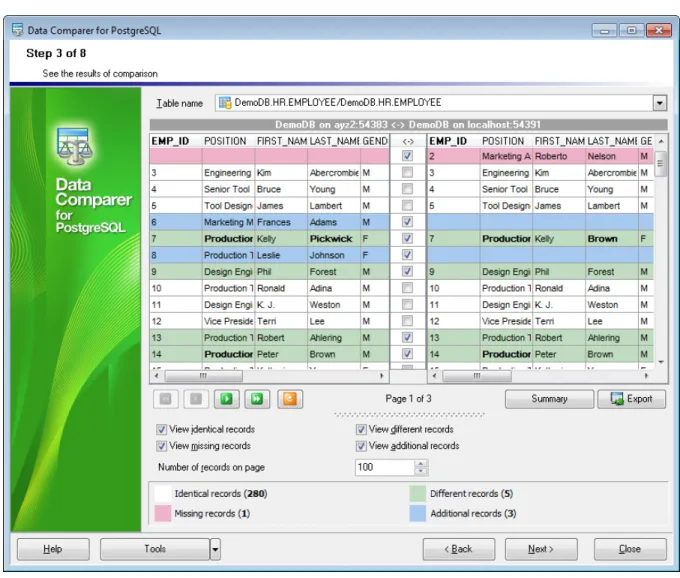
Step 3 - Browsing data comparison results
At this step the results of data comparison are represented. You can set options for each of the tables being compared.
Table name
The drop-down list of available tables allows you to select a pair of tables to view their data comparison results.
Data Comparer for PostgreSQL - User's Manual 33
© 2012 EMS Database Management Solutions
All data records are divided into several groups distinguished by different colors in the data comparison result grid:
identical records are the same in both tables;
different records are those having different data in one or more fields (text of different records is marked out with bold font);
missing records are the records found in the table of the source database, but not in the table of the target one;
additional records are the records found in the table of the target database, but missing in the table of the source one.
Note: To view the BLOB data, you can use internal BLOB viewer. To learn more, see
Viewing BLOB data.
Use the check boxes column to filter records that you want to synchronize. If the record is checked then it will be changed in the target table.
You can sort data by the needed column. Simply click a column title to sort the data. Use the following options to filter data:
View identical records
Select this option to view records which are identical in source dataset and target one.
View different records
Select this option to view records which vary from the source dataset to the target dataset.
Missing records
Use this option if records missing from the source dataset should be displayed at the comparison result list.
Additional records
Enable this option to view records missing from the target dataset.
Number of records on page
This value determines the quantity of records displayed as one page in the grid.
Use the buttons for navigation through the pages.
To apply changes in filtering or Number of records on page options, you should use the
Refresh result list button. Summary
If an error occurs, the line is highlighted red. The error type is displayed in the hint that appears when moving the cursor over the error.
If necessary, you can export comparison results to MS Excel, HTML, RTF or MS Excel 2007 using the corresponding dialog. See the Exporting comparison results page to learn more about this feature.
Data Comparer for PostgreSQL - User's Manual 35
© 2012 EMS Database Management Solutions
2.4.1
Viewing BLOB data
Data Comparer for PostgreSQL provides a BLOB viewer for browsing the content of BLOB (Binary Large Object) fields being compared.
The tool can be invoked from the data grid at Step 3 by clicking the ellipsis button next to a record of the BLOB field. Use the combo-box control in the upper area of the viewer to specify the field for viewing.
Please note that BLOB Viewer is only available if the Compare BLOB values option has been checked at Step 2 of the wizard.
When working with the BLOB viewer, you can use the drop-down list in the top left corner of the window for quick navigation.
The drop-down list allows you to switch the source/target fields easily.
Switch between the BLOB viewer tabs to explore the field content.
The Hexadecimal tab allows you to view the BLOB data as hexadecimal dump.
Specify text encoding in the Encoding drop-down list.
The Rich Text tab allows you to view the BLOB data in Rich Text format (RTF).
The Image tab allows you to view the BLOB data as an image.
The HTML tab allows you to view the BLOB data as HTML (Hyper-Text Markup Language format) - in the way this data would be displayed by your Internet browser.
Data Comparer for PostgreSQL - User's Manual 37
© 2012 EMS Database Management Solutions
The Multimedia tab allows you to view the BLOB data as a multimedia (audio/video) file. Use the Play , Pause , Stop buttons to navigate within the multimedia content.
Having finished browsing the BLOB data, you can close the editor and continue browsing data comparison results in the grid.
See also:
2.4.2
Exporting comparison results
When the comparison process is finished, you can export comparison results using the corresponding dialog.
To open the dialog, use the Export result list button which is available under the grid, on the right.
Export type
Current table - export comparison results for the current table only.
All Tables - export comparison results for all tables.
Export directory
Type in or use the button to specify the output directory name and its location using the standard Save As... dialog.
Export format
This group allows you to select format of the output file:
MS Excel RTF HTML
MS Excel 2007
Record types
Use this group to define which records should be exported to the specified file:
Identical records (colored in the grid)
Data Comparer for PostgreSQL - User's Manual 39
© 2012 EMS Database Management Solutions
If necessary, you can check the Open output file after export option to open the result file with the associated program.
Click the Export button to perform the operation. For your convenience the progress bar displays the operation progress.
2.5
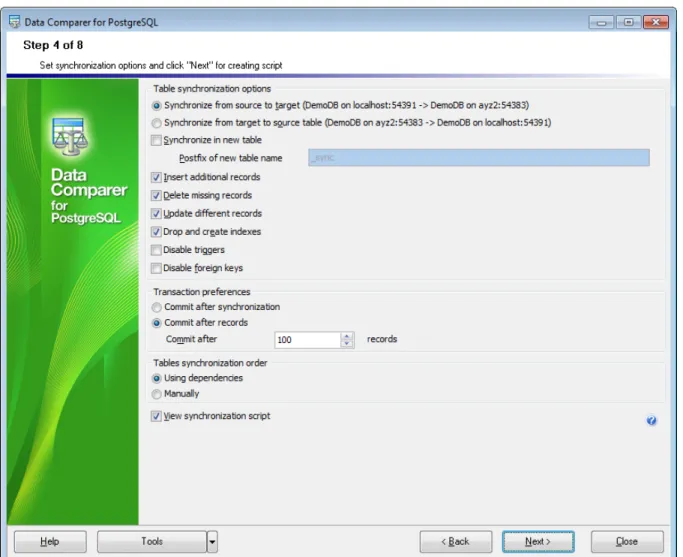
Step 4 - Specifying data synchronization options
At this step you can specify advanced data synchronization parameters.
Table synchronization options
These options define the direction of synchronization: from the source to the target or vice versa.
Synchronize in new table
Check this option to create a new table with the synchronization applied. In this case the name of the new table will be composed of the name of the source table and the user-defined postfix (_sync by default).
Insert additional records
Set this option to insert additional records to the destination tables.
Delete missing records
Set this option to delete missing records from the destination tables.
Update different records
Set this option to correct different records during the synchronization process.
Drop and create indexes
This option forces dropping and subsequent creation of indexes by using corresponding SQL statements in the target script. This option increases synchronization speed.
Note: Turn off the Synchronize in new table option to enable this option.
Disable triggers
By setting this option you can disable triggers to avoid undesirable effects during data synchronization.
Note: Turn off the Synchronize in new table option to enable this option.
Disable foreign keys
By setting this option you can disable foreign keys to avoid undesirable effects during data synchronization.
Data Comparer for PostgreSQL - User's Manual 41
© 2012 EMS Database Management Solutions Transaction preferences
Commit after synchronization
Use this option to commit transaction only when the entire synchronization process is complete. If an error occurs during synchronization, it will be possible to rollback all the changes made.
Commit after ... records
Define the number of records in each block of the synchronization script to be supplemented with the COMMIT statement.
Table synchronization order Using dependencies
If this option enabled, synchronization order will be defined automatically according to table dependencies.
Manually
View synchronization script
If you select this option you will be able to view/edit the synchronization script at Step 6. Otherwise the next step will be skipped, and you will be forwarded to Step 7 upon
pressing the Next button.
Data Comparer for PostgreSQL - User's Manual 43
© 2012 EMS Database Management Solutions
2.6
Step 5 - Setting synchronization order
Use this step of the wizard to set table synchronization order. It is available only if the
manual table synchronization order option was selected at the previous step.
Use the up and down buttons or drag and drop move the selected table pair in the list.
2.7
Step 6 - Editing synchronization script
This step of Data Comparer wizard allows you to view and edit the synchronization script. This step is only available if the View synchronization script option has been
selected at Step 4.
Using the Script Editor area you can perform basic editing operations and / or toggle comments.
If necessary, you can save the result synchronization script to an external *.sql file using the Shift+Ctrl+S shortcut or the Save as... toolbar button.
For your convenience the syntax highlight, code completion and a number of other features for efficient SQL editing are implemented.
text-Data Comparer for PostgreSQL - User's Manual 45
© 2012 EMS Database Management Solutions
Implementation of the Find Text / Replace Text dialogs and Incremental search bar contributes to more efficient work with the SQL code.
2.7.1
Using the Find Text dialog
The Find Text dialog is provided for quick and flexible searching for specified text within the Script Editor working area.
To open this dialog, use the Ctrl+F shortcut or press the corresponding Find Text
button on the toolbar. This item is also available in the context menu of the Script Editor
area.
Text to find
Enter a search string in this box. The Arrow-Down button which can be found next to the input box allows you to select any of the previously entered search strings.
Options
Case sensitive
This option can be used to differentiate uppercase characters from lowercase ones during the search process.
Whole words only
Use this option to search for words only (with this option off, the search string might be found within longer words.)
Regular expressions
Recognizes regular expressions in the search string.
Data Comparer for PostgreSQL - User's Manual 47
© 2012 EMS Database Management Solutions Backward
Searches from the current position to the beginning of the Script Editor area.
Scope Global
Searches within the entire Script Editor working area, in the direction specified by the
Direction setting.
Selected text
Searches only within the currently selected text, in the direction specified by the
Direction setting. You can use the mouse or block commands to select a block of text.
Origin
From cursor
The search starts at the cursor's current position, and then proceeds either forward to the end of the scope, or backward to the beginning of the scope depending on the
Direction setting.
Entire scope
The search covers either the entire block of selected text or the entire script (no matter where the cursor is in the Editor area) depending upon the Scope options.
Mark search result with stack marker
The option toggles marking search results. If this option is selected, stack markers are set at all search positions - this makes it possible to jump from one marker (search result) to another within the text.
Click the Show All button to highlight every occurrence of the search string.
See also:
2.7.2
Using the Replace Text dialog
The Replace Text dialog is provided for searching and replacing text within the Script Editor working area.
To open this dialog, use the Ctrl+R shortcut or press the corresponding Replace Text
button on the toolbar. This item is also available in the context menu of the Script Editor
area.
Text to find
Enter a search string in this box. The Arrow-Down button which can be found next to the input box allows you to select any of the previously entered search strings.
Text to replace
This box allows you to enter a string to replace the search string. The Arrow-Down button which can be found next to the input box allows you to select any of the previously entered strings. To replace the search string with an empty string, leave this input box blank.
Options
Case sensitive
This option can be used to differentiate uppercase characters from lowercase ones during the search process.
Whole words only
Use this option to search for words only (with this option off, the search string might be found within longer words.)
Regular expressions
Recognizes regular expressions in the search string.
Replace with template
This option requires the Regular expressions option selection.
Enable this option to use regular expressions in the Text to replace field. Expression used in this field will be applied to each string that matches the Text to find expression.
Note: The syntax of regular expressions that can be used in the Text to find and the Text to replace fields is similar to that used in Perl regular expressions. Comprehensive
information about it can be found at http://perldoc.perl.org/perlre.html#Regular-Expressions.
Prompt on replace
Check this option if you wish to be prompted before replacing upon each occurrence of the search string. When this option is off, the search string is replaced automatically.
Data Comparer for PostgreSQL - User's Manual 49
© 2012 EMS Database Management Solutions Scope
Global
Searches and replaces within the entire Script Editor working area, in the direction specified by the Direction setting.
Selected text
Searches and replaces only within the currently selected text, in the direction specified by the Direction setting. You can use the mouse or block commands to select a block of text.
Direction Forward
Searches and replaces from the current position to the end of the Script Editor area.
Backward
Searches and replaces from the current position to the beginning of the Script Editor
area.
Origin
From cursor
The search and replace process starts at the cursor's current position, and then proceeds either forward to the end of the scope, or backward to the beginning of the scope
Entire scope
The search and replace process covers either the entire block of selected text or the entire script (no matter where the cursor is in the Editor area) depending upon the Scope
options.
Mark search result with stack marker
The option toggles marking search results. If this option is selected, stack markers are set at all search positions - this makes it possible to jump from one marker (search result) to another within the text.
Click the Replace All button to replace every occurrence of the search string. If you have checked the Prompt on replace option, the confirmation dialog box appears upon each occurrence of the search string.
See also:
Data Comparer for PostgreSQL - User's Manual 51
© 2012 EMS Database Management Solutions
2.8
Step 7 - Specifying additional scripts
This step allows you to specify additional scripts to be executed for the source database before and/or after the main synchronization script execution.
Use the respective editors to create scripts: Before synchronization script and After synchronization script.
The statements can be typed in directly or pasted from the clipboard (use the context menu of the editing area for this purpose).
The Save and Load buttons provide saving/loading script file operations for the current editor window. The Clear button erases the text and clears the current editor window.
2.9
Step 8 - Start of synchronization process
This step is intended to inform you that all the synchronization parameters have been set, and you can now start the synchronization process itself.
Abort synchronization on error
If this option is selected, the synchronization process is stopped upon any execution error.
Detailed error messages
Tick off the checkbox to get the detailed error log displayed on the screen. The statements for which the execution resulted in errors will be listed in the Data synchronization log area.
If everything is correct, press the Synchronize button to start the process. If you want to change any options, you can return to any of the wizard steps using the Back button.
Data Comparer for PostgreSQL - User's Manual 53
© 2012 EMS Database Management Solutions
Note: When you press the print button, the utility saves the current log text as a temporary *.rtf file to open it with the editor that is associated with this file extension in OS and then print.
Please do not forget to save comparison templates if you need to repeat the synchronization process with the same or similar settings later.
Part
Data Comparer for PostgreSQL - User's Manual 55
© 2012 EMS Database Management Solutions
3
Using Configuration Files (Templates)
Data Comparer for PostgreSQL allows you to store its comparison and synchronization settings in external template (*.edc) files if you need to perform the data comparison/ synchronization process repeatedly.
You can load a previously saved template to the application wizard if you need to make some changes before data comparison, or you can run it with the console application for quicker comparison/synchronization.
· Saving templates
· Loading templates
Additionally to the GUI version which is implemented in the form of a wizard application, the installation package of Data Comparer for PostgreSQL includes the console version
which is intended for being run from Windows command line with a template file name used as the execution parameter.
Data Comparer for PostgreSQL command line utility is intended for quick and powerful data comparison of PostgreSQL tables.
· Using the console application
See also:
Using application wizard Setting program preferences
3.1
Saving templates
Data Comparer templates are saved within the Save template options dialog. To open this dialog, press the Tools button and select the Save template popup menu item.
Templates can be saved at every step of the wizard.
Save template options File name
Type in or use the button to specify the template file name and its location using the standard Save As... dialog.
Comment
Data Comparer for PostgreSQL - User's Manual 57
© 2012 EMS Database Management Solutions
file, specify the script file name and select its location using the button.
Execute script after creating
If this option is checked, after the script is generated it will be immediately executed by the console version of Data Comparer for PostgreSQL (console-only option).
Note that this option is only available for deselection if you have checked the Save script to file option.
Fill correspondence automatically
If this option is checked, the console ignores correspondence set at Step 2, and sets it automatically.
Password options
Save password in template
Set this option to remember the password(s) for accessing the database(s). If this option is disabled, the password is prompted upon template load.
Encrypt password
The option enables/disables encryption of your passwords stored in template file. Please note that this option is only available if the Remember password option has been selected.
See also:
3.2
Loading templates
Data Comparer templates are loaded within the Open template dialog. To open this dialog, press the Tools button and select the Load template popup menu item.
Please note that you can reopen a template at any step of the wizard using the corresponding popup menu item of the Tools menu.
You can Clear template list and Clear not existing templates using corresponding menu items.
When the template file is loaded, you are immediately forwarded to the Editing synchronization script step of the wizard. If necessary, you can return to any of the previous steps to make appropriate changes, or proceed to the last step of the wizard to start the synchronization process.
See also:
Data Comparer for PostgreSQL - User's Manual 59
© 2012 EMS Database Management Solutions
3.3
Using Console Application
All the comparison options are set in template (*.edc) files. A template can be also used in the Console version of Data Comparer for PostgreSQL.
To create a template file, follow the instructions below:
· start Data Comparer for PostgreSQL Application wizard;
· set all the required options in all steps of the wizard;
· test the comparison and synchronization process at the last step;
· save all comparison and synchronization options in the template.
The easiest way to start Data Comparer for PostgreSQL console application is to double-click the generated *.edc template. The other way is to enter the command line and type the appropriate command.
Usage:
<path to Data Comparer for PostgreSQL console application>\PgDataComparerC.exe TemplateFile [-L] [-B]
TemplateFile
Stands for the *.edc template file to be used as the console version execution parameter
[-L]
Selects current localization set in Wizard Application (GUI)
[-B]
Use this parameter in the command line to run the console version of Data Comparer for PostgreSQL in the background mode
[-LOG]
This parameter sets path to the log file. By default the log is written to the program's folder.
Example:
"C:\Program Files\EMS\Data Comparer for PostgreSQL\PgDataComparerC.exe" "C: \EMS\DataComparer\1st_sync.edc" -L -LOG"C:\Logs\datacomparer.log"
Note: The result of the latest task performed by Data Comparer for PostgreSQL can be found in the system variable '%ERRORLEVEL%'.
0 - successful completion;
1 - error(s) occurred during task performing;
See also:
Using GUI application Configuration file format
Part
Data Comparer for PostgreSQL - User's Manual 61
© 2012 EMS Database Management Solutions
4
Setting Program Preferences
Data Comparer for PostgreSQL provides full customization of the program by setting various options within the Preferences dialog. This chapter is intended to inform you how to use all these options.
General
These options define general behavior of Data Comparer for PostgreSQL.
Directories
On this page you can specify the directory into which cache will be loaded.
Language
On this page you can select a language to be applied to the GUI for your copy of Data Comparer for PostgreSQL.
Data font
On this page you can specify the fonts to be used to display data in grid at Step 3 of the wizard.
Interface
This branch contains several pages with a number of options allowing you to customize the application interface style according to your liking.
See also:
Using application wizard Using templates
4.1
General
GeneralRemember password
Set this option to remember the password(s) for accessing the database(s).
Encrypt password in registry
The option enables/disables encryption of your passwords stored in Windows Registry. Please note that this option is only available if the Remember password option has been selected.
Show table definition hints
This option enables/disables popup definition hints for the tables upon moving the cursor on their aliases (the Set tables and fields correspondence step of the wizard).
Save current options on exit
Setting this option allows you to save all the comparison options automatically upon closing the application.
Show summary dialog after comparison
If this option is enabled, comparison summary report will be displayed at Step 2.
Disable code folding in editors - disable the feature of the hierarchical script structure that allows hiding sub-objects in editors (Code folding).
Show schema selection dialog
If this option is checked, the list of PostgreSQL database schemas is displayed before you proceed to Step 2 of the wizard. The list allows you to select schemas to be refreshed.
Data Comparer for PostgreSQL - User's Manual 63
© 2012 EMS Database Management Solutions Messages
Confirm exit
Enables/disables confirmation upon exiting the program.
Show complete message
If this option is selected, the application returns the complete message when data synchronization process is completed at the Start of synchronization process step of the wizard.
Show all identical tables warning
Toggles displaying the warning message in case the compared tables are identical.
Confirm re-compare
If this option is selected, on attempt to re-compare data (e.g. when you need to return to Step 2 to change tables and/or fields correspondence) you will be prompted to confirm this action.
Show trigger disabling dialog
If this option is checked then the warning message asking about disabling triggers on synchronization is appeared after Step 4.
Directories Language Data fonts Interface
Data Comparer for PostgreSQL - User's Manual 65
© 2012 EMS Database Management Solutions
4.2
Directories
Use custom directory for cache
If this option is enabled, cache is loaded into user's folder specified at "Cache directory". Recommended if no free space is left on the system disk. If it's off, cache is loaded into Temp folder of the current user.
See also: General Language Data fonts Interface
4.3
Language
The Language page is provided for managing Data Comparer localization files.
You can specify your own localization file by creating *.lng file similar to those available in the %program_directory%\Languages folder and place it there. After it your language will be added to the list of available languages.
In the Languages area the list of available languages and the names of the
corresponding localization (*.lng) files is displayed. Here you can choose the preferable language. See also: General Directories Data fonts Interface
Data Comparer for PostgreSQL - User's Manual 67
© 2012 EMS Database Management Solutions
4.4
Data font
The Data font page is provided for setting up the fonts for displaying data in grid at Step 3 of the GUI wizard.
Use the drop-down lists to select the preferable font and charset.
See also: General Directories Language Interface
4.5
Interface
The Interface section of the Preferences dialog allows you to choose the application interface style according to your liking.
Use the Scheme name drop-down list to select an interface scheme according to your liking: Office 11, Office XP, Office 2kWindows XP and Classic styles.
Below the Scheme name drop-down list you can view sample controls of the chosen scheme.
Part
5
Appendix
5.1
SSH tunneling options
To setup the connection via SSH tunnel, input the following values in the corresponding fields:
· SSH host name is the name of the host where SSH server is running
· SSH port indicates the port where SSH server is activated
· SSH user name stands for the user on the machine where SSH server is running (
Note: it is a Linux/Windows user, not a user of PostgreSQL server)
· SSH password is the Linux/Windows user password
Please note that PostgreSQL host name should be set relatively to the SSH server in this case. For example, if both PostgreSQL and SSH servers are located on the same
computer, you should specify localhost as host name instead of the server external host name or IP address.
Use Private Key for authentication
If the SSH encryption is enabled on the SSH server, a user can generate a pair of cryptographic keys (the Private key and the Public key). The Public key is placed on the SSH server, and the Private key is the part you keep secret inside a secure box that can only be opened with the correct passphrase (or an empty string as the passphrase). When you wish to access the remote system, you open the secure box with your
passphrase (if any), and use the private key to authenticate yourself with the Public key on the remote Linux computer.
SSH Key file
Specify the location (the secure box) of the Private key file on your local machine. Supported Private Key file formats are:
OpenSSH Putty SSH.com
Note that you need to trust your local machine not to scrape your passphrase or a copy of your Private key file while it is out of its secure box.
Data Comparer for PostgreSQL - User's Manual 71
© 2012 EMS Database Management Solutions
5.2
HTTP tunneling options
To use HTTP tunneling, just upload the tunneling script to the webserver where
PostgreSQL server is located, or to any other webserver from which direct connections to your PostgreSQL server are allowed. This script exposes the PostgreSQL API as a set of web-services used by Data Comparer for PostgreSQL.
In case of using this connection method the response will be slower as compared to the direct connection or the SSH Tunneling method, since the data are XML encoded and HTTP is stateless by nature. However, all the features of Data Comparer for PostgreSQL are available.
Note that the emsproxy.php script file is included into the distribution package and can be found in Data Comparer installation directory.