Course Manager Version 2
User Guide
(Delegates)
Version 1.0
October 2015
1 OVERVIEW ... 4
2 GETTING STARTED ... 5
2.1 ACCESSING THE SYSTEM... 5
2.2 CBMSHOME SCREEN ... 6
3 REGISTER FOR A DELEGATE ACCOUNT ... 8
4 SEARCHING FOR COURSES ... 11
4.1 COURSES ... 11
5 BOOKING ON A COURSE ... 14
5.1 MULTI-PERSON BOOKINGS ... 15
6 ADMINISTRATION OF DELEGATE ACCOUNT ... 16
6.1 MY ACCOUNT ... 16 6.2 MY PERSONAL DETAILS ... 18 6.3 MY COURSES ... 19 6.4 MY REQUIREMENTS ... 21 6.5 MY COURSE EVALUATIONS ... 22 6.6 MY CPDCALCULATOR ... 23 6.7 MY CERTIFICATES ... 23 7 OTHER FEATURES ... 24
Version Control
Title EoE Delegate Course Manager User Guide – Version 2
Version 1.0
Date of first issue: October 2015 Next Review Date:
Directorate: Education and Quality Location
Author Liz Hope
Abbreviations
Abbreviation
Explanation
GDC
General Dental Council
CPD
Continuing Professional Development
1 OVERVIEW
As part of their registration requirements with the General Dental Council (GDC), Dentists and Dental Care Professionals are required continually to develop themselves within their professional sphere and provide evidence of such development to their relevant professional bodies on annual basis to the GDC.
Health Education East of England (HEEoE) provides funding for courses which contribute towards Continuing Professional Development (CPD) for the Dental Team and oversees the quality and standards of dental education throughout the east of England.
To promote and achieve these requirements, HEEoE liaises with 12 Education Centres throughout the east of England. These Centres are hosted by the relevant NHS Trust in the area they are located.
The Dental Tutor together with the dental administrative staff based in the Postgraduate Education Centres (PEC) plan and deliver a programme of CPD courses for Dentists and their Team. The Centres also determine expenses and costs for delivery of courses as part of the planning process.
These course plans are submitted to HEEoE for approval. HEEoE evaluates each course plan and, if the course plan is approved, assigns funding for the delivery of the programme calendar over the year.
Events are published online at the following link:
https://secure.intrepidonline.co.uk/coursemanager/eoe
.
Delegates who wish to undertake CPD courses should refer to the relevant PEC to attend the published events. Delegates will book onto a course via the Course Management System. They should send payment to the Centre Administrators at the earliest time possible. Upon receipt of payment, the Centre Administrator updates the delegate’s booking to confirmed. An automatic email is sent to the delegate as a receipt of payment.2 GETTING STARTED
2.1 Accessing the System
When first accessing the System you will be presented with the CBMS login page, where you can search for specific Course prior to logging on.
The CBMS login screen is displayed.
Fig 2.1 CBMS login screen
From this screen you can do the following:
Login to CBMS by entering your email and password into the fields located within the
Sign In panel on the left-hand side, in the area outlined in red in Fig 2.1 above.
Register for an account, in the area outlined in orange in Fig 2.1 above. For further details see section 3.
View available Courses by clicking on the hyperlinks and searching for a
Course/Conference by name or browse Events by expanding the required month, for further details see section 4.
When you click on forgotten your password you are taken to the reset password screen, as shown in Fig 2.2 below. Enter your email address and click on Reset password. You will be emailed a new password.
Fig 2.2 Reset password screen
2.2 CBMS Home Screen
When you have logged onto the system there are numerous functions that will be available to you, which will be covered in this section.
Once you have an account and logged into CBMS you will be taken to the CBMS home screen.
The CBMS Home Screen is displayed.
At the top of the Home screen is the Notification Bar, in the area outlined in red in Fig 2.3 above. This displays the currently logged in user on the left and number of unread messages on the right.
On the left hand side are the menu items. These direct you to the various pages within the system. As you click on an option from the left hand menu, the menu on the left may change to reflect additional sub-menu items within. To direct back to the original menu, click either ‘cancel’, ‘back’ or ‘Home’.
From the Home Screen you can perform the following actions:
View available Courses by clicking on the hyperlinks and searching for a Course by name or browse Courses by expanding the required month.
Access your Personal account information by selecting the relevant sub-category from the left-hand menu.
3 REGISTER FOR A DELEGATE ACCOUNT
If you need to create an account, from the CBMS login page select register here as shown in Fig 2.1, in the area outlined in orange.
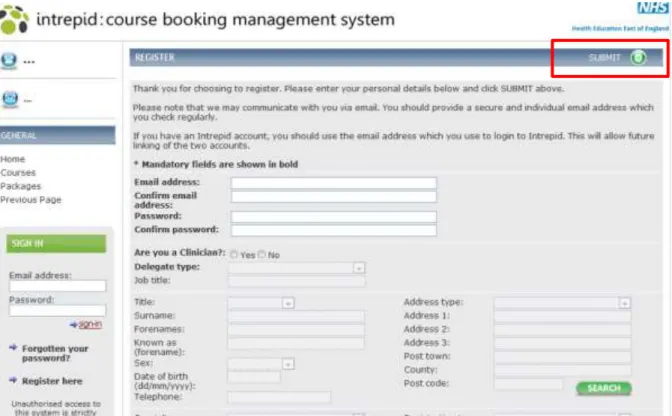
The Register screen is displayed.
Fig 3.1 Register screen
The first section of the screen is where you can set up your account credentials. Enter and confirm your Email address and Password.
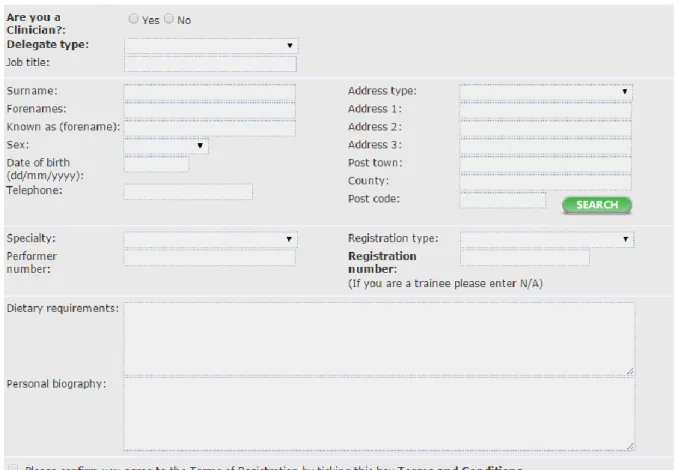
The rest of the register screen is for you to enter personal details and any specific requirements that you may have, as shown in Fig 3.2 below.
Fig 3.2 Continuation - register screen Complete the details as follows:
New delegate accounts
Select Yes only to Are you a Clinician, whether you are a clinician or not because due to the settings on the system if you select no you will not be able to select the correct delegate type and consequently not be able to view any courses on the system.
Delegate type
There is only one delegate type to be selected which is ‘Dental’. Please ensure you select the ‘Dental’ delegate type which will enable you to view all available courses in the east of England.
Existing delegate accounts
Please note that Are you a Clinician and Delegate type have been pre-set on all existing delegate accounts and cannot be and must not be changed.
Enter your personal details and any relevant details with regards to Dietary requirements
and Personal biography.
Select and read the Terms and Conditions and if in agreement click in the tick-box alongside.
Once all details have been completed scroll to the top of the screen and click on Submit, in the area outlined in red in Fig 3.1 above. This will then create your delegate account.
Please keep a note of your password which is case sensitive but this can be reset using the
The Registration Successful screen is displayed.
Fig 3.3 Registration successful
4 SEARCHING FOR COURSES
Courses are grouped by category for ease of searching or alternatively an instance of a Course, can be viewed by month. All Courses can be viewed in a list format by clicking on ‘Courses’. These pages contain options at the top of the page allowing filtering of the lists to show specific Courses based on their location or content.
Note, you can search for a course when you are not Signed In.
4.1 Courses
There are two ways in which you can search for a Course, from the left-hand menu and from the home screen.
From the General menu on the left-hand side select Courses.
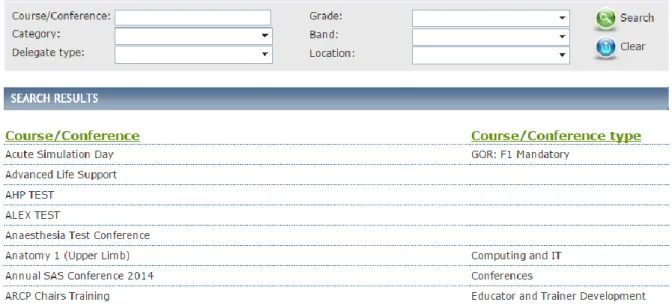
The Course search screen is displayed.
Fig 4.1 Course search screen
From this screen you can do the following:
Use the search criteria to narrow the results
Within the search results view a list of the Courses available to you
View a specific Course by clicking on the name - on doing so the Course screen will be displayed as shown in Fig 4.2 below.
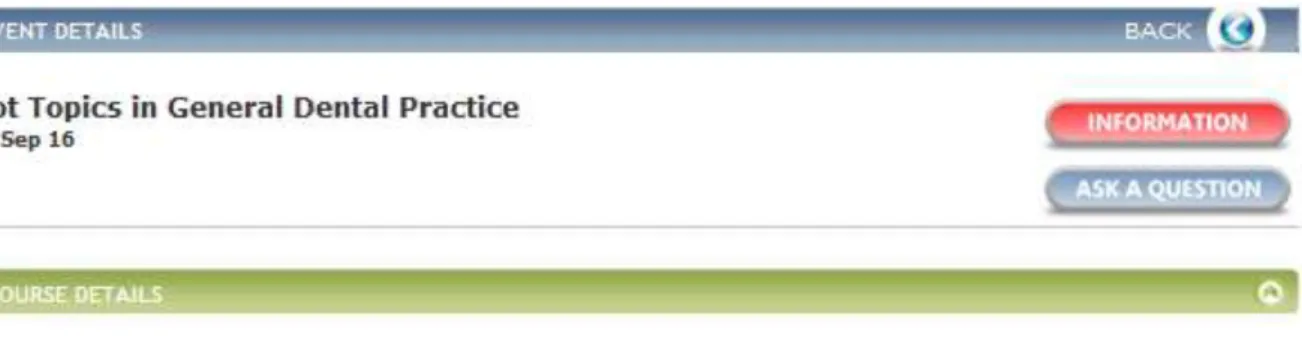
The Course details screen is displayed.
Fig 4.2 Course details screen
This screen has all the information that you will need to know about the Course including the Course Programme, Information, Aims and Learning outcomes. Once clicked on these will download in a PDF format.
The following information is visable in the Course details section:
The Aims for the course
The Learning outcomes for the course
Course Speaker
For other information for a Course click on each tab in-turn to see the following:
Requirements
Target Audience as to who this course is designed for
5 BOOKING ON A COURSE
Follow the steps in section 4 and locate the specific course that you want to book onto. From the CourseDetails screen click on the Book Now Tab.
BookNow tab screen is displayed.
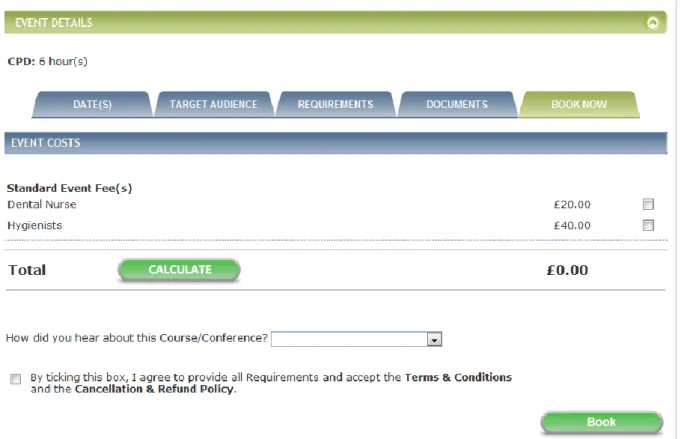
Fig 5.1 Book now screen
Complete the details as follows:
Click in the tick-box for the appropriate course fees.
Select Accommodation and Subsistence if available along with any Other items such as, literature for event or permit parking.
You can Calculate the Total cost of the course.
Select from the drop-down as to how did you hear about this course.
Confirm that you agree to the terms & conditions along with cancellation & refund policy by select the tick-box alongside.
Click ‘Book’
A booking confirmation message will then appear as per Fig 5.2 below:
5.1 Multi-Person Bookings
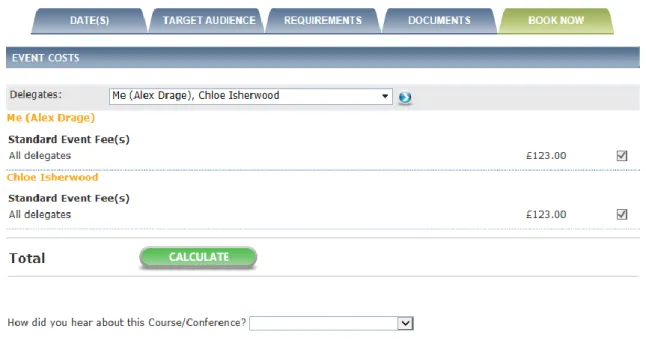
There is also the ability to book multiple other delegates on to an event. There is
some setup needed by Hicom initially and then your PEC administrator. To enable
this function, your administrator will need to set you up as a
‘representative’ of the
other delegates within their ‘person’ record.
Once this is done, on the booking screen you will now see a drop down to allow you
to book those other delegates on to an event. You can then select multiple delegates
to book on to the event the same as in the above section.
Fig 5.2 Multi-book now screen
Note,
if the other delegates do not have a fee and delegate type associated with the
event then they will have a message saying that they cannot be booked on.
6 ADMINISTRATION OF DELEGATE ACCOUNT
From the CBMS Home screen under the Personal left-hand menu you will see a list of options available to you, which will enable you to manage your account and bookings.
6.1 My Account
This is where you can change your email address and password.
Changing your Email Address
From the Personal menu on the left-hand side select My Account.
The Account Credentials screen is displayed.
Fig 6.1 Account credentials
To change or amend your Email address, click on the link Change Email Address.
The Change Email Address screen is displayed.
Fig 6.2 Change email address screen Complete the details as follows:
Enter and Confirm your email address
Click on Save.
A pop-up will display advising that your email address has been changed successfully, click on ok.
You are returned to the AccountCredentials screen.
Changing your Password
From the Personal menu on the left-hand side select My Account.
Fig 6.3 Account credentials
To change or amend your Password, click on the link Change Password.
The Change Password screen is displayed.
Fig 6.4 Change password screen Complete the details as follows:
Enter your Current password, New password and then Confirm
Click on Save
A pop-up will display advising that your password has been changed successfully, click on OK.
6.2 My Personal Details
This is where you can make amendments to your personal details.
From the Personal menu on the left-hand side select My Personal Details.
The Personal Details screen is displayed.
Fig 6.5 Personal details screen
From this screen you can make changes to your name, job title, address, specialty,
dietaryrequirements and personalbiography.
To return to the Home screen without making any changes click on Cancel and if changes have been made then click on Save & Back.
You are returned to the CBMSHome screen.
6.3 My Courses
This section contains a list of your courses or events that you have ever booked on. From the Personal menu on the left-hand side select My Courses.
The Courses/Conferences screen is displayed.
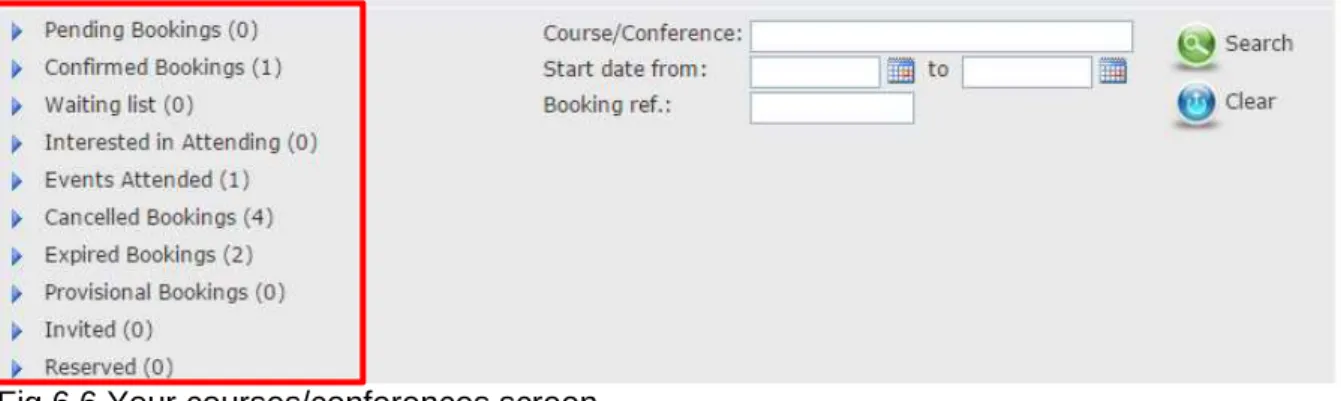
Fig 6.6 Your courses/conferences screen
The first section of this screen allows you to see an overview of your bookings in the area outlined in red in Fig 6.6 above and search for a specific booking using the search criteria. The rest of the screen will display a list of your current bookings as shown in Fig 6.7 below.
Fig 6.7 Your bookings
From this screen you can do the following:
See an overview of the course along with all other available options such as,
accommodation, requirement and documents associated with the course.
Click on Programme, on doing so it will download a PDF document with the course itinerary.
6.4 My Requirements
The Course Manager System allows Centre administrators to record
pre-course-attendance requirements for all delegates. When completing the booking process,
delegates are presented with the requirement(s) which must be provided before they
are able to attend.
This section will show you what Requirements are outstanding and which items need
to be provided before you are able to attend.
The
Requirements
screen is displayed.
Fig 6.8 Requirements screen
From this screen you can do the following:
Use the search criteria to narrow results
See the specific details of the Requirements, the due date and if it has been
received by the administrator
Note
, you cannot submit Requirements to the administrator via CBMS this will need
to be done via other means.
6.5 My Course Evaluations
After you have attended and paid for a course you will receive an Evaluation for the Course for you to complete and it will be displayed within the My Course Evaluations section.
From the Personal menu on the left-hand side select My Evaluations.
The Evaluations screen is displayed.
Fig 6.9 My evaluations
From this screen you can do the following:
Use the search criteria to narrow results
See your Evaluations that are yet to be submitted
View and complete outstanding Evaluations
To view and complete a specific Evaluation, click on the arrow-icon alongside. The Evaluation screen is displayed.
Fig 6.10 Evaluation screen
Once you have completed the Evaluation click on Submit.
6.6 My CPD Calculator
This section shows total of hours you have accumulated. Each course will have CPD hours and will build up as you do more.
From the Personal menu on the left-hand side select My CPD Calculator. The CPD Calculator screen is displayed.
Fig 6.11 CPD calculator screen
From this screen you can do the following:
Us the search crtiria to narrow results
See all your accumulated CPD Hours
6.7 My Certificates
This section is where you can view any certificate(s) that have been issued to you after attending an course and once you have completed the evaluation for the course.
From the Personal menu on the left-hand side, select My Certificates. The Certificates screen is displayed.
Fig 6.12 My certificates screen
From this screen you can do the following:
Use the search criteria to narrow results
See all Certificates that have been issued to you
Select and view a specific Certificate
To select and view a specific certificate, click Certificate alongside the relevant one within the Search Results.
7 OTHER FEATURES
About Us: This info is administrated by the administrators and just provides info about Health Education East of England.
Contact Us: Details of administrators and how to contact them.
FAQs: Frequently asked questions with answers as to what to do if… Terms & Conditions: Terms & Conditions of use of the application.
Cancellation & Refund Policy: How to request a refund if you have paid for a course or event and then cannot make it.