IPCC Inventory Software
User Manual Version 2.10
Compiled by: SPIRIT Inc., Bratislava, Slovak Republic, January 2013
Supervised by: Technical Support Unit of the IPCC Task Force on National Greenhouse Gas
Inventories
Contents
1 BACKGROUND AND PURPOSE ... ‐ 4 ‐ 2 GETTING STARTED WITH THE SOFTWARE ... ‐ 5 ‐ 2.1 FIRST RUN ... ‐ 5 ‐ 2.1.1 Define Superuser ... ‐ 5 ‐ 2.1.2 Choose country ... ‐ 5 ‐ 2.1.3 Create Inventory Year ... ‐ 5 ‐2.2 CHECK AND MODIFY INVENTORY PREFERENCES ... ‐ 6 ‐
2.3 CHECK AND SET DEFAULT CO2 EQUIVALENTS ... ‐ 6 ‐
2.3.1 Fixed CO2 Equivalent types ... ‐ 7 ‐ 2.3.2 Adding custom CO2 Equivalent type ... ‐ 7 ‐ 2.3.3 Deleting custom CO2 Equivalent type ... ‐ 7 ‐ 2.3.4 Setting default CO2 Equivalent type ... ‐ 7 ‐ 2.4 DEFINE USERS ... ‐ 7 ‐ 2.4.1 List of Users ... ‐ 8 ‐ 2.4.2 Selected User Details ... ‐ 8 ‐ 2.4.3 Adding new user ... ‐ 8 ‐ 2.4.4 Editing existing user ... ‐ 9 ‐ 2.4.5 Deleting existing user ... ‐ 9 ‐ 2.4.6 Resetting password of existing user ... ‐ 9 ‐ 2.5 DISTRIBUTE DATABASE ... ‐ 9 ‐ 2.5.1 Saving database ... ‐ 9 ‐ 2.5.2 Share one database vs. maintaining multiple databases ... ‐ 9 ‐ 2.5.3 Using the software in an inventory team ... ‐ 9 ‐ 3 WORKING WITH THE SOFTWARE ... ‐ 11 ‐ 3.1 MAIN WINDOW ... ‐ 11 ‐
3.2 MAIN MENU STRUCTURE ... ‐ 11 ‐
3.2.1 Application menu ... ‐ 11 ‐ 3.2.1.1 Preferences ... ‐ 11 ‐ 3.2.1.2 Language ... ‐ 16 ‐ 3.2.1.3 Exit ... ‐ 16 ‐ 3.2.2 Database menu ... ‐ 16 ‐ 3.2.2.1 Open/Close Database ... ‐ 16 ‐ 3.2.2.2 Save as ... ‐ 17 ‐ 3.2.2.3 Properties ... ‐ 17 ‐ 3.2.2.4 Logout ... ‐ 18 ‐ 3.2.3 Inventory Year menu ... ‐ 18 ‐ 3.2.3.1 Choosing Inventory Year ... ‐ 18 ‐ 3.2.3.2 Creating new Inventory Year ... ‐ 18 ‐ 3.2.3.3 Efficient data entry using Inventory Year menu ... ‐ 18 ‐ 3.2.4 Worksheets menu ... ‐ 19 ‐ 3.2.5 Reports menu ... ‐ 19 ‐ 3.2.5.1 Summary table ... ‐ 19 ‐ 3.2.5.2 Short Summary table ... ‐ 19 ‐ 3.2.5.3 Sectoral tables ... ‐ 19 ‐ 3.2.5.4 Background tables ... ‐ 20 ‐ 3.2.5.5 Reporting Table 7a – Uncertainties ... ‐ 20 ‐ 3.2.6 Tools ... ‐ 20 ‐ 3.2.6.1 Uncertainty Analysis ... ‐ 20 ‐ 3.2.6.2 Reference Approach ... ‐ 21 ‐ 3.2.6.3 Key Category Analysis ... ‐ 21 ‐ 3.2.7 Export/Import ... ‐ 22 ‐ 3.2.7.1 Export Worksheet Data ... ‐ 22 ‐ 3.2.7.2 Export CO2 Equivalents ... ‐ 22 ‐ 3.2.7.3 Export F‐Gases data ... ‐ 23 ‐ 3.2.7.4 Export NAI Reporting Tables ... ‐ 23 ‐
3.2.7.5 Import Worksheet Data ... ‐ 23 ‐ 3.2.7.6 Import CO2 Equivalents ... ‐ 24 ‐ 3.2.7.7 Import F‐Gases Data ... ‐ 25 ‐ 3.2.8 Administrate ... ‐ 25 ‐ 3.2.8.1 Users ... ‐ 25 ‐ 3.2.8.2 CO2 Equivalents ... ‐ 25 ‐ 3.2.8.3 Delete inventory ... ‐ 26 ‐ 3.2.8.4 AFOLU Land Type Manager ... ‐ 26 ‐ 3.2.8.5 AFOLU Livestock Manager ... ‐ 27 ‐ 3.2.8.6 Guidelines Information Texts ... ‐ 30 ‐ 3.2.9 Window ... ‐ 32 ‐ 3.2.10 Help ... ‐ 32 ‐ 4 WORKING WITH THE WORKSHEETS ... ‐ 33 ‐
4.1 BASIC LAYOUT OF THE WORKING AREA ... ‐ 33 ‐
4.2 WORKING WITH WINDOWS AND AREAS ... ‐ 33 ‐
4.2.1 Undocking windows ... ‐ 33 ‐ 4.2.2 Docking floating windows ... ‐ 34 ‐ 4.2.3 Auto‐hiding docking windows ... ‐ 34 ‐ 4.2.4 IPCC 2006 Categories Navigation Window (tree) ... ‐ 34 ‐ 4.2.5 IPCC 2006 Guidelines window ... ‐ 35 ‐ 4.2.6 Worksheet Remarks window ... ‐ 35 ‐ 4.2.7 Time series window ... ‐ 35 ‐
4.3 WORKING WITH THE GRID ... ‐ 36 ‐
4.3.1 Row Status column ... ‐ 37 ‐ 4.3.2 Adding new row ... ‐ 37 ‐ 4.3.3 Canceling adding new row ... ‐ 37 ‐ 4.3.4 Editing existing row ... ‐ 37 ‐ 4.3.5 Canceling editing existing row / Undoing cell changes ... ‐ 37 ‐ 4.3.6 Deleting rows ... ‐ 37 ‐ 4.3.7 Value List cells ... ‐ 38 ‐ 4.3.8 Notation Keys ... ‐ 38 ‐
4.4 TIME SERIES DATA ENTRY ... ‐ 39 ‐
4.4.1 Parameters ... ‐ 39 ‐ 4.4.2 Row Indentifiers ... ‐ 39 ‐ 4.4.3 Export to Excel ... ‐ 39 ‐ 4.4.4 Import from Excel ... ‐ 40 ‐ 4.4.5 Copy and Paste functions ... ‐ 40 ‐ 4.4.6 Chart ... ‐ 40 ‐ 5 WORKSHEET TYPES ... ‐ 41 ‐
5.1 SINGLE‐ACTIVITY WORKSHEET WITH DYNAMIC ROWS ... ‐ 41 ‐
5.1.1 Uncertainties ... ‐ 41 ‐
5.1.2 Example IPCC categories ... ‐ 41 ‐
5.2 SINGLE‐ACTIVITY WORKSHEET WITH STATIC ROW(S) ... ‐ 41 ‐
5.2.1 Uncertainties ... ‐ 41 ‐
5.2.2 Example IPCC categories ... ‐ 41 ‐
5.3 MULTI‐ACTIVITY WORKSHEET ... ‐ 41 ‐
5.3.1 Uncertainties ... ‐ 41 ‐
5.3.2 Example IPCC categories ... ‐ 41 ‐
5.4 MULTI‐CATEGORY WORKSHEET ... ‐ 42 ‐
5.4.1 Uncertainties ... ‐ 42 ‐
5.4.2 Example IPCC categories ... ‐ 42 ‐
5.5 WORKSHEETS MISSING NOTATION KEYS ... ‐ 42 ‐
5.6 WORKSHEETS MISSING UNCERTAINTIES ... ‐ 42 ‐
6 EXAMPLE WORKSHEETS ... ‐ 42 ‐
6.1 FUEL COMBUSTION ACTIVITIES ... ‐ 42 ‐
6.1.1 Fuel Type ... ‐ 43 ‐
6.1.3 Conversion Factor Type ... ‐ 44 ‐
6.1.4 Entering data ... ‐ 44 ‐
6.1.5 Road Transport ... ‐ 45 ‐
6.2 CH4 AND CO2 EMISSIONS FROM COAL MINING AND HANDLING ... ‐ 45 ‐
6.2.1 Gas ... ‐ 46 ‐
6.2.2 Entering data ... ‐ 46 ‐
6.3 CH4 EMISSIONS FROM ABANDONED UNDERGROUND COAL MINES ... ‐ 47 ‐
6.3.1 Entering data ... ‐ 47 ‐
6.3.2 Uncertainties ... ‐ 48 ‐
6.4 CO2 EMISSIONS FROM CH4 FLARING ... ‐ 48 ‐
6.4.1 Entering data ... ‐ 48 ‐
6.5 UNCONTROLLED COMBUSTION AND BURNING COAL DUMPS ... ‐ 49 ‐
6.6 OIL AND NATURAL GAS ... ‐ 49 ‐
6.6.1 Entering data ... ‐ 49 ‐
6.6.2 Uncertainties ... ‐ 50 ‐
6.7 CO2 TRANSPORT, INJECTION AND STORAGE ... ‐ 50 ‐
6.7.1 Entering data ... ‐ 51 ‐
7 SPECIAL WORKSHEETS ... ‐ 51 ‐
7.1 WORKSHEET FOR OTHER CATEGORIES ... ‐ 51 ‐
7.1.1 Entering data ... ‐ 52 ‐
7.2 AFOLU AREA ENTRY TABLE ... ‐ 52 ‐
7.3 AFOLU ANNUAL AREA TABLE ... ‐ 53 ‐
7.4 AFOLU REGION, LIVESTOCK, MMS ASSOCIATIONS ... ‐ 55 ‐
7.5 ORGANIC N APPLIED TO MANAGED SOILS ... ‐ 55 ‐
- 4 -
1 Background
and
Purpose
IPCC National Greenhouse Gas Inventories Programme and its Technical Support Unit located at IGES in Hayama, Japan, initiated the development of new GHG Inventory Software (“IPCC Inventory Software”). The purpose of this software is to implement Tier1 and Tier2 methodologies in the 2006 IPCC Guidelines for National Greenhouse Gas Inventories for the preparation of national GHG inventories according to 2006 IPCC
Guidelines either for complete inventories or for separate categories or groups of categories. The primary
target groups of users are inventory compilers who wish to apply default 2006 IPCC Guideline methods, trainers and trainees on national GHG inventory compilation, and Parties not included in Annex I of the Convention having limited resources without their own inventory systems.
The basic inventory data model looks like Figure 1.1
Figure 1.1 ‐ Basic data relations
The basic approach of the software is to enable filling out the 2006 IPCC Guielines category worksheets with the activity and emission factor data. In addition it also supports many other functions related to database administration, Quality Control, data export / import as well as data reporting, as shown on the Figure 1.2.
Figure 1.2 ‐ Basic software modules
- 5 -
2 Getting started with the software
The following chapters describe the steps necessary to initialize the software and the database. After performing these steps, the database is ready for distribution and sharing among inventory compilers participating in the national inventory, if desired, maintaining consistency among users.
2.1 First
run
After installing the IPCC Inventory Software you are ready to launch the software for the first time. You will be asked to perform several mandatory actions described in the following sections to initialize the software and the database.
2.1.1 Define Superuser
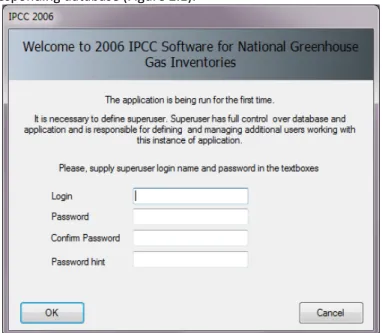
It is necessary to define a Superuser that is responsible for defining additional users and has full control over the application and corresponding database (Figure 2.1). Figure 2.1‐ Define Super User 2.1.2 Choose country In this step it is necessary to choose desired Region and Country/Territory following Figure 2.2 below. Country is relevant for F‐Gases, AFOLU and Waste worksheets. Selected country has no direct impact on other worksheets (Energy, IPPU). Please note that this country list is based on the UN list, which is available at
http://unstats.un.org/unsd/methods/m49/m49regin.htm.
Figure 2.2 ‐ Choose Country
2.1.3 Create Inventory Year
In this step it is necessary to create initial Inventory Year (Figure 2.3). After creating Inventory Year, software is successfully initialized and prepared for use or for additional tuning described in the next chapters.
- 6 -
Figure 2.3 – Creating Inventory Year
2.2 Check and modify Inventory Preferences
Use Application / Preferences menu to access Application preferences (Figure 2.4). Switch to Inventory Year
tab as shown in the picture below. Figure 2.4 – Setting Inventory Preferences Check and modify following values, if necessary: 1) Use Start inventory year numeric box to set starting inventory year. Default is 1990. 2) Use End inventory year numeric box to set ending inventory year. Default is current year. 3) Use Base Year for assessment of uncertainty in trend numeric box to define Base Year for assessment of uncertainty in trend. Default is 1990.
After setting the start inventory year to lower value (e.g. 1980), it is recommended to create new inventory for that year before starting working with the worksheets (menu Inventory Year / Create New…) or before
distributing the database to other compilers.
After lowering start inventory year and creating new inventory for that year, you can delete default empty 1990 Inventory created in step 2.1.3 using Administrate / Delete inventory menu, if necessary.
2.3 Check and set default CO
2Equivalents
Currently active (default) CO2 Equivalent Type is indicated in the status bar located at the bottom of the main
software window.
- 7 -
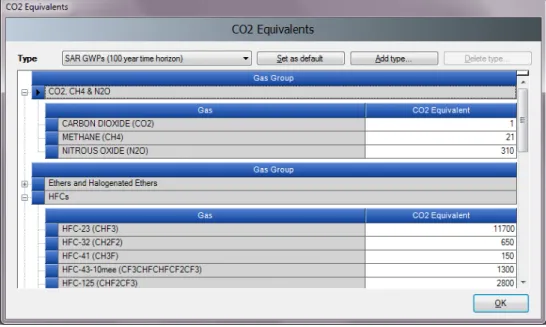
Figure 2.5 – CO2 Equivalents
2.3.1 Fixed CO2 Equivalent types
The Type list contains 3 fixed types with fixed CO2 Equivalent values, that cannot be changed or deleted: SAR GWPs – these are set as default
TAR GWPs AR4 GWPs
2.3.2 Adding custom CO2 Equivalent type To add custom CO2 Equivalent type, follow the next steps:
1) Click Add type… button
2) Enter the unique name of the new type when asked and click OK ‐ new custom CO2 Equivalent type will appear within the Type list.
3) Use grid to go through all gases within all Gas groups and enter desired CO2 Equivalent Values
2.3.3 Deleting custom CO2 Equivalent type To delete custom CO2 Equivalent type, follow the next steps:
1) Use Type list to select custom CO2 Equivalent type to be deleted 2) Click Delete type button and commit or cancel deletion when asked
2.3.4 Setting default CO2 Equivalent type
To set the default CO2 Equivalent type to be used for calculations within the whole software, follow the next steps:
1) Use Type list to select desired CO2 Equivalent type
2) Click Set as default button to set it as default – new default CO2 Equivalent type will be indicated in the status bar located at the bottom of the main software window.
2.4 Define
users
Use Administrate / Users menu to access User Management system which is designated for adding new users
- 8 -
Figure 2.6 – User Management 2.4.1 List of Users This section contains the list of all users defined in the database divided into two groups: Superusers – contains the list of all Superusers. User marked blue represents currently logged in user. Following restrictions apply for Superusers: - Currently logged in user is prohibited to remove itself from the Superusers group for security reasons. - Currently logged in user is prohibited to delete itself - All worksheets are allowed automatically without possibility to change the list of allowed worksheets Users – contains the list of ordinary users. Following restrictions apply: - Access to Administrate section of the software is prohibited - Can see and edit only worksheets specified as Allowed Worksheets2.4.2 Selected User Details
Login – represents the login name. Login name must be unique within one particular database.
Superuser – defines the user as a Superuser (if checked)
Allowed Worksheets – defines the list of worksheets user can see and edit (applies to ordinary users only)
2.4.3 Adding new user
Take following steps to define new user: 1) Enter the desired unique login name into the Login textbox 2) Use Superuser checkbox to define user as a Superuser (checked) or ordinary user (unchecked) 3) In case of ordinary user define Allowed Worksheets for the user to work with 4) Click Set password button to explicitly set password for new user 5) Click Add new button to save new user into database
- 9 -
2.4.4 Editing existing user
Take following steps to edit existing user:
1) Click on the desired user within List of users 2) Change desired user details
3) Click Save button to save changes into database
2.4.5 Deleting existing user
Take following steps to delete existing user:
1) Click on the desired user within List of users 2) Click Delete button to delete user
3) Commit or cancel deletion when asked
2.4.6 Resetting password of existing user
Take following steps to reset existing user’s password: 1) Click on the desired user within List of users 2) Click Set password to reset password to new one 3) Enter and confirm new password when asked
2.5 Distribute
database
After performing all steps described in the previous chapters, the database is ready to be used or distributed to additional inventory compilers participating on national inventory, if necessary. 2.5.1 Saving database Use Database / Save As… menu to save currently open database to a new file: 1) Select destination folder and file 2) Choose whether to remove password protection (see note below)3) Decide whether to compress (ZIP) database file (compressed database file must be uncompressed (unzipped) before opening it in the software).
NOTE: Do not remove password protection in case saved database is about to be used within the software. Removing the password protection will prevent the database from opening in the software. (Software strictly accepts password protected database only for security reasons).
2.5.2 Share one database vs. maintaining multiple databases
Now you can decide how you would prefer the database to be distributed. There are the following possibilities: 1) Share database file on a network drive – copy your database file created in chapter 2.5.1 to some
shared folder on the network, where other inventory compilers have read/write access. This alternative is strongly recommended, because after making administrative changes, all compilers are automatically affected.
2) Send a copy of database file created in chapter 2.5.1 to each of the inventory compilers (e.g. via e‐ mail). Administrative changes must be performed within each copy of the database to maintain consistency across inventory compilers. This approach can easily lead to inconsistency amongst compilers and therefore is not recommended.
2.5.3 Using the software in an inventory team
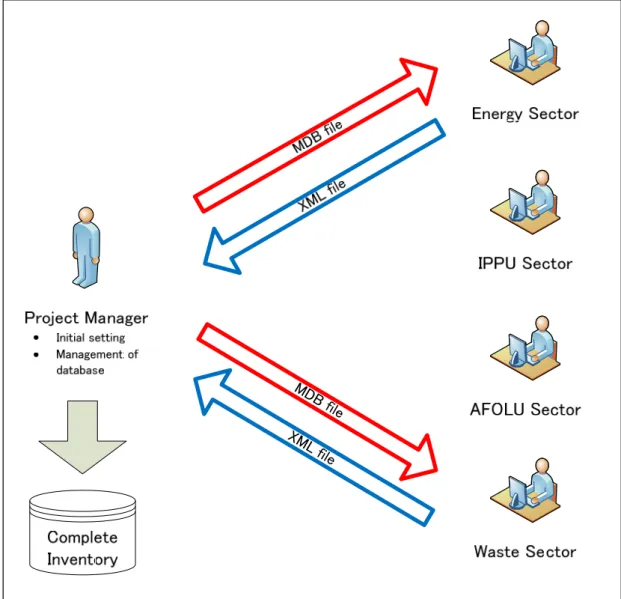
The safe and simple way to share the data between users is to share one database. The following steps, 2) through 4) should be performed iteratively. Figure 2.7 shows the data‐flow in an inventory team.
1) The project manager should initialize the database as described in Chapter 2.1 – 2.4. 2) The project manager provides the database (MDB file) to each user.
3) After users update the data to their database, this data should be exported as XML file (see Chapter 3.2.7).
4) The manager imports the XML file to update the database.
This will reduce the chances of losing or overwriting the data unintentionally.
- 10 -
MDB file XM L file Figure 2.7 – Using the software in an inventory team- 11 -
3 Working with the Software
3.1 Main
window
Main window is a Multiple Document Interface window which acts as a container for all other software dialogs and windows. Figure 3.1 – Main window It consists of: Window title – Main software title followed by the login name of currently logged in user and optionally name of the currently active child window. Main menu (top) – for accessing all of the software functions / modules Working area (center) – place where all dialogs and child windows are displayed Status bar (bottom) – bar that contains useful information related to currently open database, currently chosen Inventory Year, etc.3.2 Main menu structure
3.2.1 Application menu
3.2.1.1 Preferences
This opens dialog window that allows the user to adjust preferred working area settings, like appearance of dialogs, database related preferences and backup, default number of decimal places shown in worksheets and reports, range of inventory years and coloring and other properties of grids.
- 12 -
GeneralFigure 3.2 – General preferences
Start main application window maximized – if checked, main application window size will be
automatically scaled to fit the whole available screen after starting the software.
Prompt user on application exit – if checked, user is always prompted whether to really exit
application or not.
Show login dialog after logout – if checked, new login dialog will appear automatically after currently
logged in user logs out.
Show choose inventory year dialog after login – if checked, user is prompted to choose inventory year
to work with. If unchecked, previously used inventory year will be activated automatically.
Show informative message box after choosing Inventory Year – if checked, user is informed of
currently active inventory year after activating particular inventory year (activated automatically or by user action).
- 13 -
Database Figure 3.3 – Database preferences Open last used database at application startup – if checked, previously database will be open automatically at startup; otherwise user will have to explicitly open the desired database. Show login dialog after opening database – if checked, login dialog will be displayed automatically after opening the database file; otherwise user will have to explicitly open login dialog via menu. Show database properties dialog after opening database – if checked, dialog containing currently open database details will be shown automatically after opening database file. Show Open Database dialog after closing current database – if checked, Open Database dialog will be automatically shown after closing current database. Prompt before closing current database – if checked, user will be asked to confirm the closing of the current database; otherwise the database will be closed without warning. Prompt for backup if last backup older than N day(s) – user is automatically asked to make a backup of the database if last backup is older than N day(s). Always prompt for backup after opening database – if checked, user is asked to make a backup of the database every time the database is open, no matter how old the last backup.- 14 -
Worksheets Figure 3.4 – Worksheet preferences Open worksheets window after login – if checked, window containing worksheets will be automatically open after user logs in; otherwise user will have to open worksheets window via menu. Open worksheets window maximized – if checked, worksheets window will automatically scale to fit main application window. Expand full IPCC 2006 category structure by default – if checked, tree containing 2006 IPCC hierarchy will be expanded automatically to show the whole hierarchy; otherwise only main sectors will be shown initially. Automatically navigate to last visited IPCC 2006 Category – if checked, last visited IPCC category will be automatically selected upon opening the Worksheet window. Maximum numbers of decimal places – defines maximum numbers of decimal places for numbers to be displayed in calculation sheets (worksheet grids). Zero padding – if checked all decimal numbers in grids will be zero‐aligned. E.g. 0.1 will become 0.10000 ‐ padded with zeros up to the maximum number of decimal places – 5 in this case.- 15 -
Reports Figure 3.5 – Reports preferences Default number of decimal places – numbers in reports will be automatically rounded according to defined number of decimal places here. Zero padding – if checked all decimal numbers in grids will be zero‐aligned. E.g. 0.1 will become 0.100 ‐ padded with zeros up to the maximum number of decimal places – 3 in this case Open report windows maximized ‐ if checked, reporting windows will automatically scale to fit main application window. Inventory Year Figure 3.6 – Inventory Year preferences- 16 -
Start inventory year – defines starting inventory year. Default is 1990. End inventory year – defines ending inventory year. Default is current year. Base Year for assessment of uncertainty in trend – defines base year used in Uncertainty Analysis. Default is 1990. Grid Figure 3.7 – Grid Look preset – provides the user with the set of standard predefined look presets to choose from Header ‐ defines the look of the grid header Selected row – defines the look of the selected grid row Computed cells – defines the look of grid cells that are computed (calculated) Use thousands separator – if checked, thousand separator will be used to separate thousands in all numbers in grids. Thousands separator follows the operating system’s Control Panel / Regional Settings. 3.2.1.2 LanguageThis allows the user to switch between different languages. Default language is English. Supplementary software called Translation Editor (which is included in setup) can be used to define other languages and translate texts. 3.2.1.3 Exit Exits the software. 3.2.2 Database menu 3.2.2.1 Open/Close Database If database is open, use this menu item to close the current database. Current logged‐ in user will be logged out automatically. All database related functions and modules of the software will become disabled.
- 17 -
If database is closed use this menu item to browse for and open new database. All database related functions will become available again after valid user logs in. Automatic database upgrade Starting from version 2.10 software supports automatic conversion of databases coming from the previous versions of the software (versions 2.00 and later are supported). This means users can comfortably use their existing databases from previous versions without putting any extra effort to transfer existing data. When database from older version of the software is open in new version of the software user will be prompted to start automatic database conversion. After database is successfully converted it will become fully compatible with the new version of the software. 3.2.2.2 Save asThis menu item allows the user to save database under a different file name to a different location. It is possible to compress (ZIP) saved database file to save space. This opens the possibility to maintain several independent versions of the database. Database is password protected, however it is possible to remove password protection during saving. Database with password protection removed cannot be opened by the software. 3.2.2.3 Properties This menu item can be used to display dialog window containing properties of the currently open database. Figure 3.8 – Database properties Following information is available: Database file – full path to currently open database file (MDB) Database version – version of the database file Database size – size of the database file in bytes Date created – the date when the database was created Date modified – the date of the last modification of data in the database Last backup – the date of the last database backup CO2 Equivalents – currently selected GWP type. GWP types can be managed using the Administrate / CO2 Equivalents menu. Inventory Years – the list of inventory years in the currently open database Users – the list of defined users in the currently open database
- 18 -
Button Compact & Repair can be used to compact (to reduce size on disk) or repair the database file (in case it is corrupted).3.2.2.4 Logout
This menu item logs out currently logged in user.
3.2.3 Inventory Year menu
This menu allows the user to choose current inventory year as well as to create new inventory year.
3.2.3.1 Choosing Inventory Year
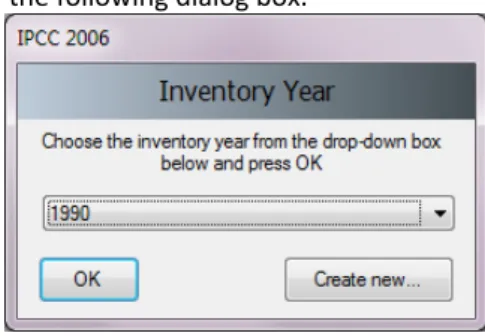
Click Choose… menu item to display the following dialog box. Figure 3.9 – Choose Inventory Year After choosing the desired Inventory Year and pressing the OK button, all related software modules will update their current information and data corresponding to new Inventory Year.
3.2.3.2 Creating new Inventory Year
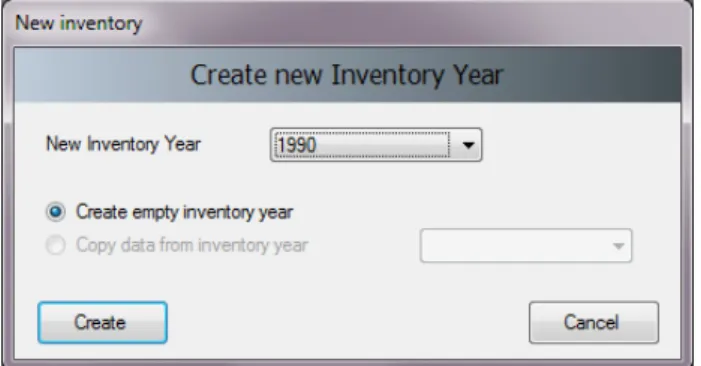
Click Create new… menu item to display the following dialog box. Figure 3.10 – Create new Inventory Year Take the following steps to create new Inventory Year: 1) Choose available Inventory Year from the New Inventory Year list. The list does not contain years that were already created and interval is from Start inventory year to End inventory year as defined in Application / Preferences / Inventory year tab. 2) Decide whether to create empty inventory year or copy of existing inventory year using the appropriate radio button. 3) In case of copy, choose the source inventory year from the corresponding list of available inventory years. 4) Click Create button to create new inventory year. After creating new year it will be automatically set as current Inventory Year.
3.2.3.3 Efficient data entry using Inventory Year menu
The efficient and optimal way to enter data is: 1) Complete inventory for one basic year at first 2) Create additional years by copying data (see 3.2.3.2) from existing year containing completed inventory which created in Step 1 3) Use time series data entry to make adjustments to data across years
- 19 -
3.2.4 Worksheets menu This menu item opens the Worksheets window containing worksheets as defined in 2006 IPCC Guidelines1. See Chapter 3.3 for detailed information. 3.2.5 Reports menu This menu item allows the user to calculate 2006 IPCC Guidelines Reporting Tables. The reporting tables include the possibility to select number of decimal places of the emissions reported, the possibility to write and save text into documentation box of the report as well as function to export tables to Excel.3.2.5.1 Summary table
This report displays all Greenhouse Gas emissions divided into 2006 IPCC Guidelines Categories (up to level 3). The values are calculated from sectoral tables.
Figure 3.11 – Example of Summary Table
3.2.5.2 Short Summary table
This reporting table displays all Greenhouse Gas emissions divided into 2006 IPCC Guidelines Sub‐sectors (up to level 2). The values are aggregated from Summary table.
Figure 3.12 – Example of Short summary table
3.2.5.3 Sectoral tables
This set of reporting tables is available for each sector and displays Greenhouse Gas emissions divided into detailed 2006 IPCC Guidelines categorization (up to the most disaggregated level). The values are taken from the Background tables. Energy sectoral table contains additional functionality regarding Precursors (NOx, CO, NMVOCs, SO2). These can be manually edited here. Figure 3.13 – Example of Energy Sectoral Table 1 2006 IPCC Guidelines for the National Greenhouse Gas Inventories
- 20 -
3.2.5.4 Background tables
This set of reporting tables displays activity rates, fuel types (if applicable) and Greenhouse Gas emissions divided into detailed 2006 IPCC Guidelines categorization (up to the most disaggregated level). The values are taken from the Worksheets. There is a special Reporting Table 1.4b for category 1.C CO2 transport and storage
which is editable.
Figure 3.14 – Example of Energy Background Table 1.1
3.2.5.5 Reporting Table 7a – Uncertainties
This Reporting Table is an aggregated version of Uncertainty Analysis Table 3.2. The list of aggregated categories is based on Table 4.1 of Volume 1, Chapter 4 of 2006 IPCC Guidelines. Uncertainties from disaggregated levels are combined by multiplication according to Equation 3.1 of Volume 1, Chapter 3 of 2006 IPCC Guidelines. Figure 3.15 – Example of Reporting Table 7a ‐ Uncertainties 3.2.6 Tools 3.2.6.1 Uncertainty Analysis
This menu item allows creating uncertainty Reporting Table 3.2 as defined in the 2006 IPCC Guidelines. The values are entered in each Worksheet. User should enter uncertainty values for every activity and Emission Factor. Default uncertainty values are applied when the user does not enter any uncertainty values.
There is no limit and no check for uncertainty range, i.e. it is the responsibility of the user to define the appropriate values. Default uncertainty values presented in the 2006 IPCC Guidelines for almost all the default EFs and AD are preloaded as default upper and lower limits.
The procedure of calculation uncertainty in Table 3.2 is explained on page 3.29 of Chapter 3 in Volume 1 of the
2006 IPCC Guidelines. More information on how to enter Uncertainties within each type of worksheet can be
found in Chapter 3.3 of this document.
To perform Uncertainty Analysis, click the Refresh Data button.
- 21 -
3.2.6.2 Reference Approach
The Reference Approach is a top‐down approach, using a country’s energy supply data to calculate the emissions of CO2 from combustion of mainly fossil fuels. The Reference Approach is a straightforward method that can be applied on the basis of relatively easily available energy supply statistics. Figure 3.17 – Example of Reference Approcah table
3.2.6.3 Key Category Analysis
It is good practice for each country to identify its national key categories in a systematic and objective manner, by performing a quantitative analysis of the relationships between the level and the trend of each category’s emissions and removals and total national emissions and removals. Two Approaches for performing the key category analysis have been developed. Both Approaches identify key categories in terms of their contribution to the absolute level of national emissions and removals and to the trend of emissions and removals. The methods are described in Chapter 4.3, Volume 1 of 2006 IPCC Guidelines. To perform Key Category Analysis, click the Refresh Data button.
Figure 3.18 – Key Category Analysis
- 22 -
3.2.7 Export/Import
3.2.7.1 Export Worksheet Data
This menu item opens dialog box that allows selecting and exporting part of the current inventory year, i.e. one or more sectors, sub‐sectors or categories into an XML file. Figure 3.19 – Exporting worksheet data Take the following steps to export part of an inventory year: 1) Select one or more category of interest. Categories containing worksheets (data) are marked blue. 2) Click the Export button and supply the destination XML file when asked.
3.2.7.2 Export CO2 Equivalents
This menu item opens dialog box that allows exporting of custom (not fixed) CO2 Equivalents into an XML file. The structure of hierarchy is: Custom CO2 Equivalent Type / Gas groups / Gases.
- 23 -
Figure 3.20 – Exporing custom CO2 Equivalents Take the following steps to export custom CO2 Equivalents: 1) Select the desired Custom GWP type of interest or just the particular Gases within gas groups. 2) Click the Export button and supply the destination XML file when asked.3.2.7.3 Export F-Gases data
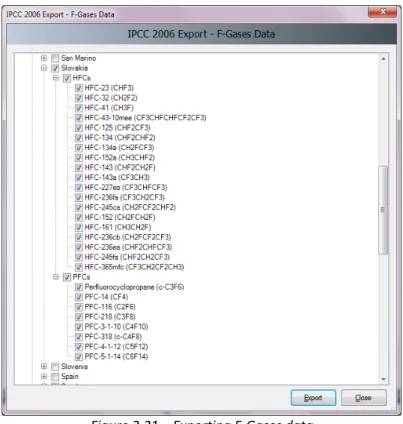
This menu item opens the dialog box that allows exporting of F‐Gases country specific data (year of introduction, etc.) into an XML file. The structure of hierarchy is: Region / Country / Gas group / Gases. Currently active country (as indicated in the status bar of the main software window) is automatically preselected. Figure 3.21 – Exporting F‐Gases data Take the following steps to export F‐Gases data: 1) Select one or more countries of interest to export all F‐Gases data or just select the particular F‐Gases of interest. 2) Click the Export button and supply the destination XML file when asked.
3.2.7.4 Export NAI Reporting Tables
This menu item opens the window that allows calculating and exporting of the national communication table for Parties not included in Annex I to the Convention.
Figure 3.22 – Example of NAI Reporting Table
3.2.7.5 Import Worksheet Data
This menu item opens the dialog window that allows importing an XML file containing a part of an inventory, i.e. one or more sectors, sub‐sectors or categories into the currently open database and currently chosen Inventory Year.
- 24 -
Figure 3.23 – Importing Worksheet Data Take the following steps to import worksheet data: 1) Click the Open button to browse for XML file to be imported. 2) Check the details such as XML Import Version, Source inventory year, Number of records and decide whether this import file suits your needs. 3) Section Categories to import contains the list of all categories included in the source XML file. Select the categories of interest to be imported. All categories are selected by default. 4) Click the Import button to begin import. Progress bar will be shown to indicate the progress of import. TIP: Button Vie XML file can be used to display the contents of the source XML file in Internet browser.3.2.7.6 Import CO2 Equivalents
This menu item opens the dialog window that allows importing of custom CO2 Equivalents from an XML file.
- 25 -
Take the following steps to import custom CO2 Equivalents: 1) Click the Open button to browse for XML file to be imported. 2) Section GWP Types to import contains the list of all custom GWP types included in the source XML file. Select the custom GWP type of interest or just particular gases of interest to be imported. 3) Click the Import button to begin import. Progress bar will be shown to indicate the progress of import. TIP: Button Vie XML file can be used to display the contents of the source XML file in Internet browser.3.2.7.7 Import F-Gases Data
This menu item opens the dialog window that allow importing of country specific F‐Gases Data. Figure 3.25 – Importing F‐Gases Data Take the following steps to import country specific F‐Gases Data: 1) Click the Open button to browse for XML file to be imported. 2) Section F‐Gases Data to import contains the list of all country specific F‐Gases included in the source XML file. Select the F‐Gases of interest to be imported. 3) Click the Import button to begin import. Progress bar will be shown to indicate the progress of import. TIP: Button Vie XML file can be used to display the contents of the source XML file in Internet browser. 3.2.8 Administrate Functions in this menu section are available to administrators (Superusers) only. 3.2.8.1 Users
This menu item opens dialog window that allows managing login names, passwords and rights to work with particular worksheets. See Chapter 2.4 for detailed information.
3.2.8.2 CO2 Equivalents
This menu item opens the dialog window that allows the administrator to manage CO2 Equivalents. Except for predefined SAR, TAR and AR4 Equivalents, it is possible to define custom types. Default type of CO2 Equivalents currently selected is indicated in the status bar and also in Database Properties dialog box. See Chapter 2.3 for detailed information.
- 26 -
3.2.8.3 Delete inventory
This menu item opens the dialog window that allows deleting existing inventories. USE THIS FUNCTION WITH
CAUTION!
Figure 3.26 – Deleting inventory
3.2.8.4 AFOLU Land Type Manager
This menu item opens a dialog window which allows managing Land Use Subcategories for AFOLU category 3.B – Land. This window is also accessible from relevant worksheets under category 3.B – Land. Parameters defined here are used in all relevant worksheets. Figure 3.27 – Land Type Manager Land Type Manager window consists of the following sections:
- 27 -
Navigation section – contains the list of Land Use Subcategories divided into corresponding main Land Type categories (Forest, Cropland, …). Activation of the particular Land Use Subcategory shows relevant details. Common Land Type Data – contains data that is common for all Land Types (Country, Climate Region, …) Particular Land Use Subcategory data – contains details of the particular Land Use Subcategory that is selected in the navigation section. Adding new Land Use Subcategory Take the following steps to define new Land Use Subcategory: 1) Select one of the main Land Use Categories in the Navigation section. 2) Click the Add button located at the bottom of the navigation section. New Land Use Subcategory will be created with the default name. 3) Enter desired details of the new Land Use Subcategory 4) Click the Save button to save new Land Use Subcategory into database Editing existing Land Use Subcategory Take the following steps to edit existing Land Use Subcategory: 1) Select the Land Use Subcategory of interest in the navigation section 2) Edit data as desired 3) Click the Save button to save changes into database or click the Undo button to discard all changes. Making copy of existing Land Use Subcategory It is possible to make a copy of existing Land Use Subcategory. Follow the next steps: 1) Select the Land Use Subcategory of interest in the navigation section 2) Click the Copy button located at the bottom of the navigation section. 3) New copy of selected Land Use Subcategory will be created with the new name 4) Edit data as desired 5) Click the Save button to save new Land Use Subcategory into database. Deleting existing Land Use Subcategory 1) Select the Land Use Subcategory of interest in the navigation section 2) Click the Delete button located at the bottom of the navigation section 3) Confirm or cancel deletion when prompted3.2.8.5 AFOLU Livestock Manager
This menu item opens a dialog window which allows managing Livestock for AFOLU category 3.A – Livestock. This window is also accessible from relevant worksheets under category 3.A – Livestock. Livestock manager is divided into several tabs. Parameters defined here are used in all relevant worksheets.
Livestock
- 28 -
Figure 3.28 – Livestock Subcategories This tab allows defining custom Livestock subcategories under each 2006 IPCC Guidelines main Livestock category. Adding new Livestock Subcategory 1) Expand the desired main Livestock Category 2) Use last (add template) row to add new Livestock Subcategory. Enter Livestock Subcategory name, annual average population N(T), typical animal mass TAM(T), excretion rate per mass per day ER and optionally remark. Excretion rate per animal per year Nex(T) will be computed automatically. Repeat for other main categories as desired. 3) Click the Save button to save new defined Livestock Subcategories into database Editing existing Livestock Subcategory 1) Click on the existing Livestock Subcategory under main Livestock Category of interest. 2) Edit name, annual average population N(T), typical animal mass TAM(T), excretion rate per mass per day ER and remark as desired. Repeat for other Livestock Subcategories as desired. 3) Click the Save button to save changes into database; or click the Undo button to discard all changes. Deleting existing Livestock Subcategory 1) Click on the existing Livestock Subcategory under main Category of interest. 2) Click the iconic delete button located in the last cell of active row. Repeat for other subcategories if necessary. 3) Click the Save button to commit delete operation into database or click Undo to undelete all subcategories marked for deletion. Manure Management System- 29 -
Figure 3.29 – Manure Management Systems This tab allows choosing manure management systems to be used in computation of N2O emissions from Manure Management Systems. The list contains the predefined set of default Manure Management Systems as defined in the 2006 IPCC Guidelines Additionally it allows the user to define user‐defined Manure Management Systems. Choosing the Manure Management Systems 1) Use left column containing checkboxes to mark all desired Manure Management Systems that are relevant for your case and that will be used for computation of N2O emissions from Manure Management Systems 2) Chosen Manure Management Systems are highlighted green for better visual feedback Adding new user‐defined Manure Management System 1) Use last (add template) row to add new user‐defined Manure Management System. Enter System and optionally Definition. Repeat for other user‐defined Manure Management Systems as desired. 2) Click the Save button to save new defined user‐defined Manure Management Systems into database Editing existing user‐defined Manure Management System 1) Click on the existing user‐defined Manure Management System. 2) Edit System and Definition as desired. Repeat for other user‐defined Manure Management Systems as desired. 3) Click the Save button to save changes into database; or click the Undo button to discard all changes.Only user‐defined Manure Management Systems can be modified
- 30 -
Deleting existing user‐defined Manure Management System 1) Click on the existing user‐defined Manure Management System. 2) Click the iconic delete button located in the last cell of active row. Repeat for other user‐defined Manure Management Systems if necessary. 3) Click the Save button to commit delete operation into database or click Undo to undelete all user‐defined Manure Management Systems marked for deletion. Only user‐defined Manure Management Systems can be deletedRegions Figure 3.30 – Regions This tab allows defining regions and thus dividing country into smaller parts which differ by average temperature. Adding new Region
1) Use last (add template) row to define new Region. Enter region name, average temperature and optionally remark. Repeat to add more regions. 2) Click the Save button to save new regions into database Editing existing Region 1) Click on the existing Region 2) Edit name, average temperature, remark. Repeat for other existing regions as necessary.
3) Click the Save button to save changes into database; or click the Undo button to discard all changes. Deleting existing Region 1) Click on the existing Region 2) Click the iconic delete button located in the last cell of active row. Repeat for other regions if necessary. 3) Click the Save button to commit delete operation into database or click Undo to undelete all regions marked for deletion.
3.2.8.6 Guidelines Information Texts
This menu item opens a special dialog where rich‐text can be edited for each of the 2006 IPCC Guidelines Categories. Such texts will then be displayed for currently active 2006 IPCC Guidelines Category in the “IPCC 2006 Guidelines Window” within Worksheets window.
- 31 -
Figure 3.31 – Guidelines Information Texts Editing text for particular Category 1) Use „IPCC 2006 Categories“ navigation window to select desired IPCC 2006 Category. Text mapped to this category will be displayed in the large text area on the right 2) Click Edit button to open rich‐text editor and edit text as necessary. Use formatting options (font, color, ...) of rich‐text editor as desired Figure 3.32 – Rich‐text editor 3) Click OK to save changes or Cancel to discard all changes. In both cases the editor will close itself automatically.- 32 -
Defined texts will be automatically displayed in the “IPCC 2006 Guidelines Window” for IPCC 2006 Category that is currently activated in the IPCC 2006 Categories navigation tree. Figure 3.33 – Example of IPCC 2006 Guildelines Window content 3.2.9 Window Use this menu to: Minimize all – minimizes all windows to display main working area. Close all – closes all open windows Windows list – quickly activate the particular window by selecting it from the window list 3.2.10 Help User manual ‐ this file About ‐ Important information about the Version of IPCC Inventory Software installed. Figure 3.34 – About Box- 33 -
4 Working with the Worksheets
4.1 Basic layout of the working area
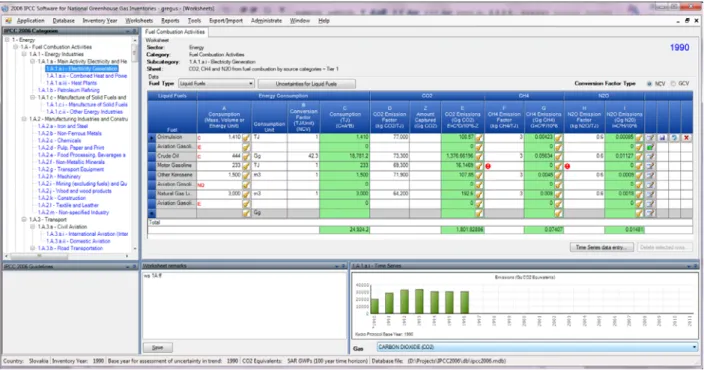
Figure 4.1 ‐ Basic layout of the screen ‐ Navigation window top ‐ left enabling browsing the IPCC 2006 Category structure ‐ Worksheet grid area top ‐ right enabling editing the activity and emission factor data ‐ IPCC 2006 Guidelines area below ‐ left providing current information from the Guidelines ‐ Worksheet Remarks area below ‐ middle enabling to edit and save Worksheet remarks ‐ Time Series chart area below ‐ right displaying CO2 equivalent time series for selected category
4.2 Working with windows and areas
Windows containing top bar with "pin" and "down‐arrow" icons are dockable windows. It is possible to reorder such windows and completely change the layout of the screen to suit users’ needs or preferences. In the next chapters, information on how to use dockable windows is provided.
4.2.1 Undocking windows
Dockable windows can be undocked. Undocked window is called "floating window". Floating window can be placed anywhere within the screen and it always stays on top of other forms within the application. There are several ways to make docked window floating:
1. Double‐clicking the top bar of the dockable window
2. Holding the left mouse button down over top bar and moving it to the desired location
3. Clicking on down‐arrow icon in the top bar displays the menu containing "Floating" menu item. Clicking this item undocks window. (Figure 4.2)
Figure 4.2 ‐ Dockable window menu
HINT: Double‐click on the top bar of floating window docks the window to the place where it was docked
- 34 -
4.2.2 Docking floating windows
While dragging the floating window, docking indicators appear within each docking area guiding the user to choose where to dock the window. It is necessary to place mouse cursor over one of the arrows within docking indicator. The box then will be displayed to show the user where the window being dragged will be placed after releasing the mouse. Figure 4.3 ‐ Docking the floating window
4.2.3 Auto-hiding docking windows
Docking windows can be switched to auto‐hide mode using the "pin" icon located in top bar. This is useful if there is a need for more space for main working area. Windows switched to auto‐hide mode hide themselves when inactive.
HINT: Placing the mouse cursor over "strip" containing the name of the hidden window automatically scrolls
window into view.
Clicking the "pin" icon of auto‐hidden window switches the auto‐hide mode off.
4.2.4 IPCC 2006 Categories Navigation Window (tree)
This window contains full 2006 IPCC Guidelines Category tree structure (Figure 4.4). The navigation tree is useful to select the worksheet to work with. Worksheets are available within IPCC categories marked blue. The worksheet relevant to selected IPCC Category will be displayed in the main working area on the right. If there are more worksheets available within selected IPCC Category, they are organized in the "tabbed" working area where each tab represents the particular worksheet. Clicking on the "Sector/ Sub‐sector" level of the tree which is marked with gray color, will show the CO2 equivalent time series graph of the "Sector/ Sub‐sector".
- 35 -
Figure 4.4 ‐ IPCC 2006 Category tree
4.2.5 IPCC 2006 Guidelines window
This window contains the information relevant to currently selected IPCC 2006 Category. Such information can be defined using “Guidelines Information Texts” dialog accessible from Administrate menu (Chapter 3.2.8.6)
Figure 4.5 ‐ IPCC 2006 Guidelines window
4.2.6 Worksheet Remarks window
This bottom ‐ middle window can be used to enter additional textual information or reference for whole selected worksheet within currently chosen inventory year.
Figure 4.6 ‐ Remark window
4.2.7 Time series window
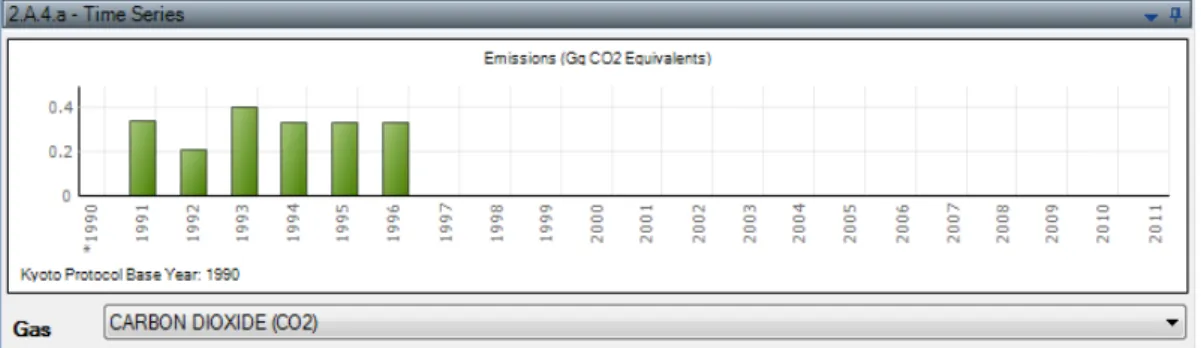
This window contains the chart with emission time series across all inventory years for the particular gas expressed in Gg CO2 Equivalents calculated according to CO2 Equivalent type that is set as default.
- 36 -
Figure 4.7 – Time Series window
4.3 Working with the grid
Figure 4.8 ‐ Worksheet grid The worksheet grid represents a powerful tabular tool comprising of: Worksheet identification text on top with indication of currently chosen Inventory Year (top‐right) Worksheet specific parameters (Gas, fuel type, calculation type, parameters, etc.). Top header of the grid ‐ column headers are not editable by user. Navigation/Row status column (left‐most) – indicates the active row that is selected and its status if it is in edit mode, if it is a new row, or if it is just selected. Rows of the grid containing data (e.g. activity data, emission factors, emissions, …). Each row represents one particular activity. There are different types of cells in the row like editable cells, calculated value cells and text cells. The different types of cells are distinguished by different color. There could be additional icon placed in the cell to highlight some warning to the user.
Small button with the key icon which allows setting the Notation Key for related parameter.
Editable cells (white background) ‐ fields enabling to edit activity data, emission factors and other parameters.
Calculated cells (green background) – e.g. emissions calculated from activity data and emission factors using the relevant formula. These are not editable but automatically calculated.
Column containing iconic action buttons:
o ‐ this action button can be used to edit remark for currently selected record. If record already contains some remark, the action button will be coloured green .
o ‐ this action button saves current row changes into database. o ‐ this action button undoes all current row changes.
- 37 -
Summary row on the bottom showing totals of activity data and emissions in the worksheet whereapplicable.
4.3.1 Row Status column
Left‐most column of the grid is the Row Status column that indicates the current activity being performed within selected row. There are several icons indicating the status as follows:
‐ indicates active row. This row is just selected ‐ not in edit mode.
‐ Currently selected row is in edit mode. Edit mode is activated as soon as a value in any cell is changed by user.
‐ indicates that the row is an "add‐new" row that is used as a "template" for new row.
‐ "add‐new" row in edit mode. Edit mode is activated as soon as user starts to enter values into cells of "add‐new" row.
4.3.2 Adding new row
If the worksheet allows the user to add new rows, the "add‐new" row can be found as the last row of the grid marked with Status Row icon. This row acts as a "template" for the new row.
As soon as the user starts entering data in cells of an "add‐new" row, edit mode is activated and Status Row icon changes to . After filling all the required cells, new row is saved into database automatically after navigating to another row or after pressing the button or after grid looses focus. Validation of entered data is performed before the new row is stored into database. In case of any error in the supplied data, user will be informed to correct it.
4.3.3 Canceling adding new row
Adding of new row can be canceled anytime using the ESC (Escape) key or or action buttons.
In case of using ESC key the behavior is as follows:
If the active cell is in edit mode, hitting ESC cancels editing of that cell and undoes changes on that cell. New row remains in edit mode.
Pressing ESC again (while none of the cells is in edit mode) cancels adding new row removing it from the worksheet.
In case of using iconic action buttons the new row will be cancelled immediately no matter if any cell is in edit mode.
4.3.4 Editing existing row
Edit mode ( ) is activated as soon as the user starts modifying data in editable cells. Modified row is saved into database as soon as the user leaves the row being edited or by pressing the button or after grid looses focus. Validation of entered data is performed before the row is updated in the database. In case of any error in the supplied data, user will be informed to correct it.
4.3.5 Canceling editing existing row / Undoing cell changes
ESC key or action button can be used to undo row changes. In case of using ESC key the behavior is as follows: If the active cell is in edit mode, hitting ESC cancels edit mode of that cell and undoes changes made to cell data (if any). o If there are no more cells changed in edited row this also cancels row editing.
o If there are more cells that have been changed while editing row hitting ESC again undoes changes in all changed cells and cancels row editing returning it to its original state.
In case of using action button changes in all cells will be undone automatically at once and edit operation
on row will be canceled.
4.3.6 Deleting rows
Pressing the Delete selected rows button or hitting the DEL key deletes all rows selected. More rows can be selected at the same time using mouse or Shift key function within Row Status column of the gird. Iconic
- 38 -
In all cases user is provided with the confirmation dialog.
Figure 4.9 ‐ Deleting multiple rows
4.3.7 Value List cells
Some of the cells contain Value List where user can choose from the predefined set of values or nomenclature data (e.g. emission factors). Such cells have the Value List indicator which when clicked will provide the user with the predefined set of nomenclature data. Some of the Value Lists are fixed and user cannot enter data other than that in the list (e.g. Fuels). Some are editable (e.g. emission factors Value Lists) and user is able to enter custom data that are not contained in the value list.
Figure 4.10 ‐ Value List containing emission factors
4.3.8 Notation Keys
Notation Keys can be set by clicking the button of the particular cell. This enables to set Activity Data and Emissions Notation Keys. Activity Data Notation Keys Can be one of: IE, NE, C IE – Activity is included elsewhere ; all Activity Data and Emission Factor related columns will be blank and not editable in this case. NE – the same as for IE C – Activity data are confidential ; they will not be exposed in reporting tables. Emissions Notation Keys Can be NE: this means that emissions are not estimated. All Emission Factor related cells will be blank and not editable. Activity Data remain editable.
- 39 -
4.4 Time Series Data Entry
Majority of worksheets supports time series data entry. This means that parameters of worksheets can be edited across existing inventory years. Time series data entry worksheet can be activated by pressing the Time Series Data Entry button located under the grid. This will open the following window. Figure 4.11 – Time Series Data Entry 4.4.1 Parameters
Parameter list contains the list of all editable parameters contained in the worksheet. By choosing the particular parameter the grid wil display the selected parameter values across existing inventory years grouped by all available combinations of row identifiers. Values in white cells are editable.
4.4.2 Row Indentifiers
Grid columns preceding years are so called „Row Identifiers“ that uniquely identify the Worksheet rows across all existing years representing all existing combinations of identifiers across years. In case parameter value is not editable within the particular row (shaded), this means that the combination of relevant row identifiers does not occur in that particular year. For example, according to Figure 4.11, there is no existing record for combination of Lignite and Consumption unit Gg in years 1990 and 1995.
4.4.3 Export to Excel
It is possible to export the selected parameter data into Excel by clicking the Export to Excel button. Data for that parameter then can be modified in Excel and imported back into the software. Example of exported XLS is in the following figure.