PDF Creation Date: August 4, 2008
bb
c
Document Security User Guide
for Acrobat 9.0 and Adobe Reader 9.0
Acrobat® and Adobe® Reader®
Version 9.0
© 2008 Adobe Systems Incorporated. All rights reserved.
Document Security User Guide for Adobe® Acrobat 9.0 and Adobe® Reader 9.0 on Windows® and Macintosh®. If this guide is distributed with software that includes an end user agreement, this guide, as well as the software described in it, is furnished under license and may be used or copied only in accordance with the terms of such license. Except as permitted by any such license, no part of this guide may be reproduced, stored in a retrieval system, or transmitted, in any form or by any means, electronic, mechanical, recording, or otherwise, without the prior written permission of Adobe Systems Incorporated. Please note that the content in this guide is protected under copyright law even if it is not distributed with software that includes an end user license agreement.
The content of this guide is furnished for informational use only, is subject to change without notice, and should not be construed as a commitment by Adobe Systems Incorporated. Adobe Systems Incorporated assumes no responsibility or liability for any errors or inaccuracies that may appear in the informational content contained in this guide.
Please remember that existing artwork or images that you may want to include in your project may be protected under copyright law. The unauthorized incorporation of such material into your new work could be a violation of the rights of the copyright owner. Please be sure to obtain any permission required from the copyright owner.
Any references to company names in sample templates are for demonstration purposes only and are not intended to refer to any actual organization.
Adobe, Acrobat, Reader, and the Adobe logo are either registered trademarks or trademarks of Adobe Systems Incorporated in the United States and/or other countries.
Windows®, Windows NT®, and Windows XP® are registered trademarks of Microsoft® Corporation registered in the United States and/or other countries. Mac® and Macintosh® are registered trademarks of Apple Computer®, Inc. in the United States and other countries. All other trademarks are the property of their respective owners.
Adobe Systems Incorporated, 345 Park Avenue, San Jose, California 95110, USA. Notice to U.S. Government End Users. The Software and Documentation are “Commercial Items,” as that term is defined at 48 C.F.R. §2.101, consisting of “Commercial Computer Software” and “Commercial Computer Software Documentation,” as such terms are used in 48 C.F.R. §12.212 or 48 C.F.R. §227.7202, as applicable. Consistent with 48 C.F.R. §12.212 or 48 C.F.R. §§227.7202-1 through 227.7202-4, as applicable, the Commercial Computer Software and Commercial Computer Software Documentation are being licensed to U.S. Government end users (a) only as Commercial Items and (b) with only those rights as are granted to all other end users pursuant to the terms and conditions herein. Unpublished-rights reserved under the copyright laws of the United States. Adobe Systems Incorporated, 345 Park Avenue, San Jose, CA 95110-2704, USA. For U.S. Government End Users, Adobe agrees to comply with all applicable equal opportunity laws including, if appropriate, the provisions of Executive Order 11246, as amended, Section 402 of the Vietnam Era Veterans Readjustment Assistance Act of 1974 (38 USC 4212), and Section 503 of the Rehabilitation Act of 1973, as amended, and the regulations at 41 CFR Parts 60-1 through 60-60, 60-250, and 60-741. The affirmative action clause and regulations contained in the preceding sentence shall be incorporated by reference.
3
Contents
1
Getting Started ...7
1.1 What’s in this Guide? ...7
1.2 Who Should Read This Guide? ...7
1.3 How Should You Use This Guide? ...8
1.4 Roadmap to Security Documentation...8
2
Getting and Using Your Digital ID...10
2.1 Digital ID Basics...10
2.1.1 What is a Digital ID? ...10
2.1.2 Digital ID Storage Mechanisms ...11
2.1.3 Registering a Digital ID for Use in Acrobat...12
2.1.4 Digital ID Management and the Security Settings Console...13
2.1.5 Setting Identity Information...13
2.2 Generic ID Operations ...14
2.2.1 Specifying Digital ID Usage...14
2.2.2 Sharing (Exporting) a Digital ID Certificate ...15
2.2.3 Viewing All of Your Digital IDs ...15
2.2.4 Customizing a Digital ID Name ...16
2.2.5 Viewing Digital ID Certificates in the Certificate Viewer ...16
2.3 Managing PKCS#12 Digital ID Files ...17
2.3.1 Logging in to a Digital ID File...18
2.3.2 Finding an Existing Digital ID in a PKCS#12 File ...18
2.3.3 Adding and Removing Digital ID Files from the File List...19
2.3.4 Changing an ID File’s Password ...19
2.3.5 Changing a PKCS#12 File’s Password Timeout...20
2.3.6 Logging in to PKCS#12 Files ...21
2.3.7 Creating a Self-Signed Digital ID...21
2.3.8 Deleting a PKCS#12 Digital ID...24
2.4 Managing Windows Digital IDs ...25
2.4.1 Finding a Digital ID in a Windows Certificate Store File ...25
2.4.2 Deleting a Digital ID from the Windows Certificate Store ...25
2.5 Managing Roaming ID Accounts and IDs...25
2.5.1 Adding a Roaming ID Account to Get a Roaming ID...26
2.5.2 Logging in to a Roaming ID Account ...26
2.6 Managing IDs Accessible via PKCS#11 Devices...27
2.6.1 Adding an ID that Resides on External Hardware...27
2.6.2 Changing Passwords ...28
2.6.3 Logging in to a Device...29
3
Managing Certificate Trust and Trusted Identities ...30
3.1 What is a Trusted Identity? ...30
3.2 Adding Someone to Your Trusted Identity List...32
3.2.1 Adding a Certificate From a Signature ...32
3.2.2 Requesting a Digital ID via Email ...33
Acrobat 8 Family of Products
Security Feature User Guide 4
3.2.4 Searching for Digital ID Certificates...34
3.3 Certificate Trust Settings...36
3.3.1 Setting Certificate Trust...37
3.3.2 Setting Certificate Policy Restrictions ...39
3.3.3 Using Certificates for Certificate Security (Encryption)...40
3.4 Using Directory Servers to Add Trusted Identities ...40
3.4.1 Manually Configuring a Directory Server...41
3.4.2 Editing Directory Servers Details ...42
3.4.3 Deleting a Directory Server...42
3.4.4 Specifying a Default Directory Server ...43
3.4.5 Importing and Exporting Directory Server Settings ...43
3.5 Managing Contacts...43
3.5.1 Viewing and Editing Contact Details...43
3.5.2 Emailing Certificate or Contact Data ...44
3.5.3 Saving Certificate or Contact Details to a File ...44
3.5.4 Associating a Certificate with a Contact...45
3.5.5 Changing a Trusted Identity’s Certificate Association ...45
3.5.6 Deleting Contacts and Certificates...46
4
Document Security Basics...48
4.1 Security Method Basics ...48
4.1.1 Choosing a Security Method Type ...49
4.1.2 Security Policies...50
4.1.3 Security Methods and Encryption ...50
4.1.3.1 Encryption Workflow...50
4.1.3.2 Choosing What to Encrypt ...51
4.1.3.3 Choosing an Algorithm ...51
4.1.4 Security Methods and Permissions ...52
4.1.4.1 Permissions Workflow...53
4.1.4.2 Permissions Options ...53
4.1.5 Associating Batch Processing with a Security Method ...54
4.2 Changing and Viewing Security Settings ...55
4.2.1 Viewing Document Encryption and Permission Settings...55
4.2.2 Viewing Document Restrictions...56
4.2.3 Viewing Security Settings in a Browser ...57
4.2.4 Changing the Security Method Type ...57
4.2.5 Editing Security Method Settings...58
4.2.6 Removing Document Security...58
4.3 Security Policies: Reusable Security Settings ...59
4.3.1 Creating Security Policies with Policy Manager ...60
4.3.2 Applying a Security Policy to a Document...60
4.3.3 Viewing a Security Policy ...61
4.3.4 Copying a Security Policy ...61
4.3.5 Editing a Security Policy ...61
4.3.6 Making a Security Policy Favorite...62
4.3.7 Refreshing the Security Policy List ...62
4.3.8 Deleting a Security Policy ...62
4.4 Envelopes ...63
5
Password Security ...65
Acrobat 8 Family of Products
Security Feature User Guide 5
5.1.1 Creating a Reusable Password Security Policy...66
5.1.2 Creating Password Security for One-Time Use ...69
5.2 Opening a Password-Protected Document ...72
5.3 Removing Password Security ...72
5.4 Changing Document Collection Passwords...72
5.5 Password Recovery ...73
6
Certificate Security...74
6.1 Setting up the Certificate Security Environment ...75
6.1.1 Accessing the Windows Certificate Store ...75
6.1.2 Selecting a Certificate to Use for Encryption...76
6.2 Working with Groups of Contacts ...77
6.2.1 Creating a Group ...77
6.2.2 Adding or Removing Group Contacts...77
6.2.3 Deleting a Group ...78
6.3 Creating Certificate Security Settings...78
6.3.1 Creating a Reusable Certificate Security Policy ...78
6.3.2 Creating Certificate Security for the Current Document...82
6.3.3 Applying a Certificate Security Policy ...87
6.3.4 Applying a Certificate Security to a Group...87
6.3.5 Opening a Certificate-Protected Document...88
7
LiveCycle Rights Management Server Security ...90
7.1 Configuring Servers...90
7.1.1 Importing ALCRMS Settings from an FDF file ...91
7.1.2 Importing ALCRMS Settings with a Security Settings Import ...91
7.1.3 Configuring ALCRMS Settings Manually...91
7.1.4 Managing your ALCRMS Account ...92
7.2 Working with Documents and ALCRMS Policies ...92
7.2.1 Creating an ALCRMS Security Policy ...92
7.2.2 Applying ALCRMS Security ...93
7.2.3 Refreshing the Security Policy List ...93
7.2.4 Synchronizing a Document for Offline Use...94
7.2.5 Revoking a Document ...94
7.2.6 View a Document’s Audit History...94
8
External Content and Document Security...95
8.1 Enhanced Security ...95
8.1.1 Enabling Enhanced Security...96
8.1.2 Changes in FDF Behavior...97
8.1.3 Interaction with Trust Manager...98
8.1.4 Make Privileged Folder Locations Recursive ...98
8.2 Controlling Multimedia ...98
8.2.1 Configuring Multimedia Trust Preferences...99
8.2.2 Controlling Multimedia in Certified Documents... 100
8.3 Setting JavaScript Options... 101
8.3.1 High Privilege JavaScript Defined ... 101
8.3.2 Javascript and Certified Documents... 102
8.4 Adobe Trusted Identity Updates ... 103
8.5 Working with Attachments ... 103
Acrobat 8 Family of Products
Security Feature User Guide 6
8.5.2 Adding Files to the Black and White Lists... 107
8.5.3 Resetting the Black and White Lists ... 108
8.5.4 Allowing Attachments to Launch Applications... 108
8.6 Controlling Access to Referenced Files and XObjects... 109
8.7 Internet URL Access ... 109
8.7.1 Turning Internet Access Off and On ... 110
8.7.2 Allowing and Blocking Specific Web Sites ... 111
9
Migrating and Sharing Security Settings ... 112
9.1 Security Setting Import and Export... 112
9.1.1 Exporting Security Settings to a File... 112
9.1.2 Importing Security Settings from a File... 113
9.1.3 Importing Security Settings from a Server ... 115
9.2 Sharing Settings & Certificates with FDF ... 115
9.2.1 FDF Files and Security ... 117
9.2.2 Exporting Application Settings with FDF Files ... 118
9.2.2.1 Distributing a Trust Anchor or Trust Root... 118
9.2.2.2 Setting the Certificate Trust Level ... 121
9.2.2.3 Exporting Your Certificate ... 121
9.2.2.4 Emailing Your Certificate ... 122
9.2.2.5 Saving Your Digital ID Certificate to a File ... 123
9.2.2.6 Requesting a Certificate via Email ... 124
9.2.2.7 Emailing Server Details ... 125
9.2.2.8 Exporting Server Details... 126
9.2.3 Importing Application Settings with FDF Files... 127
9.2.3.1 Responding to an Email Request for a Digital ID ... 127
9.2.3.2 Importing Someone’s Certificate ... 129
9.2.3.3 Importing Multiple Certificates... 130
9.2.3.4 Importing Timestamp Server Settings ... 132
9.2.3.5 Importing Directory Server Settings ... 134
9.2.3.6 Importing Adobe LiveCycle Rights Management Server Settings ... 135
9.2.3.7 Importing Roaming ID Account Settings... 136
9.2.3.8 Importing a Trust Anchor and Setting Trust ... 138
10 Glossary of Security Terms ... 141
7
1
Getting Started
1.1 What’s in this Guide?
This guide describes the document security features of the Acrobat 9.x family of products: Working with digital IDs that are used for signing and certificate security workflows:
Chapter 2, “Getting and Using Your Digital ID”
Chapter 3, “Managing Certificate Trust and Trusted Identities” Security method and policies:
Chapter 4, “Document Security Basics” Chapter 5, “Password Security” Chapter 6, “Certificate Security”
Chapter 7, “LiveCycle Rights Management Server Security” Securing the application environment:
“Controlling Multimedia” on page 98 “Setting JavaScript Options” on page 101 “Working with Attachments” on page 103
“Controlling Access to Referenced Files and XObjects” on page 109 (only available in 7.0.5 and later) “Internet URL Access” on page 109
Sharing certificates and server settings with data exchange files: “Importing Application Settings with FDF Files” on page 127 “Exporting Application Settings with FDF Files” on page 118
1.2 Who Should Read This Guide?
End users: This document describes how to configure and use the application user interface, register a digital ID for use in Acrobat, and manage other people’s public key certificates within your system.
Administrators: This document describes how to configure and use the application user interface. Because system administrators may be responsible for deploying and supporting the Adobe Acrobat family of products (including Adobe Reader) in document security workflows, leverage this guide to help your clients use the product correctly and effectively. This guide should be used in conjunction with the Acrobat Security Administrator Guide.
Acrobat Family of Products Getting Started
Security Feature User Guide How Should You Use This Guide? 8
1.3 How Should You Use This Guide?
If you are setting up a document security workflow for the first time, do not have a digital ID, or have not specified which certificates to use for encryption, read Chapter 2, “Getting and Using Your Digital ID” and
Chapter 3, “Managing Certificate Trust and Trusted Identities”. In enterprise settings, the administrator may issue you an ID (or provide instructions on getting one) and may also set up your application to that it can verify (trust) signatures.
If you haven’t used security methods before, don’t know which type to use, and are unfamiliar with why security policies are beneficial, read Chapter 4, “Document Security Basics”.
If you need to learn about a specific type of security method, see one of the following: Chapter 5, “Password Security”
Chapter 6, “Certificate Security”
Chapter 7, “LiveCycle Rights Management Server Security”
If you are concerned about securing the application environment and controlling document and application access to external content such as the Internet and attachments, see Chapter 8, “External Content and Document Security”.
If you need to share your certificate or server settings with someone, see Chapter 9, “Security Setting Import and Export”.
1.4 Roadmap to Security Documentation
In many enterprise environments, there is no clear distinction between audience types. Some end users are “power users” and don’t shy away from modifying the registry and tweaking applications in admin-like ways. Some system administrators are highly technical and perform developer-like tasks such as PERL programming and JavaScript scripting. For this reason, it is up to the reader to determine what documents listed in Table 1 are pertinent to their tasks. However, this document uses the following definitions: User or end user: End users usually have their application installed and preconfigured by an
administrator. They only interact with the graphical user interface and do not modify the registry. Some end users, such as document authors, may use simple JavaScripts to set seed values on documents. Administrator: System administrators install and configure end user machines. More often than not,
they use the installer wizard to configure the product installer prior to deploying applications across the enterprise. Because the end user experience can be controlled by the registry, administrators must be familiar with both the application’s user interface and capabilities as well as the options for registry configuration.
Developer: Developers typically try to find programmatic ways to generate or process PDF documents. They read specifications and API documents to figure out how to solve real-world enterprise problems without requiring manual human intervention. Communication with servers is often a requirement. Because enterprise solutions often involve understanding application behavior, developers sometimes need to review administration guides to learn how to deploy plugins or handlers and to learn how to configure the application to use those components. Many of the application’s registry settings can be accessed and manipulated via JavaScript.
Note: The most recent document versions may be found online at http://www.adobe.com/devnet/ acrobat/.
Table 1 Documentation related to Acrobat security
Document Audience For information about
Acrobat SDK Documentation Roadmap
Developers A guide to the documentation in the Adobe Acrobat SDK.
Acrobat and PDF Library API Reference Developers A description of the APIs for Acrobat and Adobe Reader® plug-ins, as well as for PDF Library applications.
JavaScript for Acrobat API Reference Developers A listing of the Acrobat JavaScript APIs. Developing Acrobat Applications with
JavaScript
Developers Additional detail about the Acrobat JavaScript APIs.
PDF Reference 1.7 Developers A detailed description of the PDF language.
FDF Data Exchange Specification Developers A object-level FDF file description. The files can be generated programmatically and used to share security-related data. PDF Signature Build Dictionary
Specification
Developers Build properties for the PDF Reference’s signature dictionary which provides interoperability details for 3rd party handlers.
Digital Signature Appearances Developers & administrators Guidelines for creating signatures programmatically. Guidelines for Developing CSPs for
Acrobat on Windows
Developers & administrators Guidelines for developing a Cryptographic Service Provider for use with Acrobat® on the Windows® platform.
Acrobat <version> Security Administration Guide
Administrators Application deployment and configuration in enterprise settings.
Acrobat <version> Digital Signature User Guide
Administrators & end users Application usage and configuration via the user interface.
Acrobat <version> Document Security User Guide
Administrators & end users Application usage and configuration via the user interface.
Acrobat <version> Security FDF User Guide
Administrators & end users A subset of the user guides that describe how to export and import security settings and certificate data with an FDF file.
Digital Signatures in the PDF Language
Anyone needing an overview A generic description of how signature work in PDF.
Digital Signatures in Acrobat Anyone needing an overview A description of how signatures are implemented in Acrobat. Enhanced Security in Acrobat 9 and
Adobe Reader 9
Anyone needing an overview A description of new features that can make the application’s working environment more secure.
Acrobat Family of Products Getting Started
10
2
Getting and Using Your Digital ID
A digital ID is like a driver’s license or passport or other “certified by some entity” paper identification. It proves your identity to people and institutions that you communicate with electronically. These IDs are a critical component of digital signatures and certificate security. In signing and certificate security
workflows, you will be asked to select a digital ID. Selecting an ID is simply a matter of picking one from a list of your previously installed digital IDs. If you do not have a digital ID, you will be prompted to find or create one.
For more information, refer to the following: “Digital ID Basics” on page 10
“Generic ID Operations” on page 14
“Managing PKCS#12 Digital ID Files” on page 17 “Managing Windows Digital IDs” on page 25
“Managing Roaming ID Accounts and IDs” on page 25 “Managing IDs Accessible via PKCS#11 Devices” on page 27
2.1 Digital ID Basics
2.1.1 What is a Digital ID?
A digital ID consists of two main parts: a certificate and a private key. A certificate consists of your identity information (name, date, serial number, etc.) and a public key that are bound together and signed by a trusted or untrusted certificate authority. The certificate sometimes includes a reference to the certificate issuer’s certificate, thereby creating what is known as a “certificate chain.”
Digital IDs operate by using a key pair: data encrypted with one key can only be decrypted by the other corresponding key. When you sign PDF documents, you use the private key to apply your digital signature. You distribute the certificate that contains your public key to those who need to validate your signature or encrypt information for you. Only your private key can unlock information that was encrypted using your public key, so be sure to store your digital ID in a safe place.
You must have a digital ID to sign, certify, and apply certificate encryption to PDFs. You can get a digital ID from a third-party provider, or you can create a self-signed digital ID. Self-signed digital IDs may be adequate for many situations. However, to prove your identity in most business transactions, you may need a digital ID from a trusted third-party provider, called a certificate authority. Because the certificate authority is responsible for verifying your identity to others, choose one that is trusted by major
companies doing business on the Internet.
You can have multiple digital IDs for different purposes. For example, you may sign documents in different roles or using different certification methods. Digital IDs are usually password protected and can be stored on your computer in password protected file, on a smart card or hardware token, in the Windows
certificate store, or on a signing server (for roaming IDs). Acrobat applications include a default signature handler that can access digital IDs from any of these locations.
Acrobat Family of Products Getting and Using Your Digital ID
Security Feature User Guide Digital ID Storage Mechanisms 11
Figure 1 Digital ID: Components
Users exchange their digital ID’s certificate so that they can validate signatures and encrypt documents for each other. Shared certificates can be physically sent in a file or made available over a network. The private key is never shared and is used to decrypt documents. There are several ways to share certificates:
Physical sharing: Certificates can be physically shared in a file sent via email or located in a shared directory. They can be imported, exported, and otherwise managed with the Trusted Identity Manager. For details, see Chapter 3, “Managing Certificate Trust and Trusted Identities”.
Network sharing: Certificates can be stored on a central server. The Trusted Identity Manager can be used to search for certificates on LDAP directory servers. Adobe applications provide tools for configuring and managing directory servers. For details, see “Using Directory Servers to Add Trusted Identities” on page 40.
Figure 2 Digital ID: From others
2.1.2 Digital ID Storage Mechanisms
A digital IDs certificate and private key needs to be stored in a secure location. There are several file types and file locations where these items could be stored (Table 2). The digital ID data in these files is provided to the application via digital ID service providers (sometimes called Cryptographic Service Providers or
CSPs). A service provider is simply a storage mechanism and code that makes the data available to the application.
In most cases, the digital ID is stored on a local or networked file. Common locations include the Windows Certificate Store which is accessible by Adobe applications and other Windows applications and the Acrobat store which is used only by the Acrobat family of products. Some IDs may exist only on external hardware such as a smart card connected to the computer.
The Acrobat family of products can access a digital ID from the following storage mechanisms: Windows Certificate Store: A local store (file location) provided by Windows that can import and
Acrobat Family of Products Getting and Using Your Digital ID
Security Feature User Guide Registering a Digital ID for Use in Acrobat 12
PKCS#12 files: A common file format that contains the entire digital ID and is used on both Windows and Macintosh.
PKCS#11 devices: External devices such as a USB token or smart card that store digital ID data. Roaming ID servers: The private key is known only to a remote server. The server sends the certificate
and its public key to users on demand. Users can import and export the certificate and its public key from Acrobat, but they never have access to the private key.
Table 2 Digital ID-related file types
Type Description 5.x 6.x 7.x 8.x 9.x
.acrobat security
An XML format encapsulated in a PDF which stores security settings for import and export.
Contains: Digital ID (public and private keys)
Export Import
PKCS#12: .pfx (Win), . p12 (Mac)
Personal Information Exchange Syntax Standard: Specifies a portable, password protected, and encrypted format for storing or transporting certificates.
Contains: Digital ID (public and private keys)
Export Import Export Import Export Import Export Import
.fdf An Adobe file data exchange format used for importing and exporting settings and certificates (usually PKCS#12 files).
Export Import Export Import Export Import Export Import Export Import PKCS#7: .p7b, .p7c
Certificate Message Syntax (CMS): Files with .p7b and .p7c extensions are registered by the Windows OS. Acrobat products can import and export these files.
Contains: Certificate and public key only
Export Import Export Import Export Import Export Import
.cer Certificate format: A Microsoft format for digital IDs usually stored in the Windows Certificate Store.
Contains: Certificate and public key only
Export Import Export Import Export Import Export Import
.apf Adobe Profile Files (Legacy): Not used after Acrobat 5. Files can be upgraded by double clicking them.
Contains: Digital ID (public and private keys)
Import Export
Import Import Import n/a
2.1.3 Registering a Digital ID for Use in Acrobat
Digital IDs help you sign, certify, and apply certificate security to documents. There are two ways to register a digital ID:
In advance: You can set up the ID ahead of time for later use. To do so, choose Advanced (Acrobat) or Document (Reader) > Security Settings, selecting Digital IDs in the left-hand tree, and then choosing Add ID.
On the fly: You can find or add IDs in signature and certificate security workflows. For example, when the Sign Document dialog appears, choose New ID from the Sign As drop down list.
For more information, refer to the following: Finding an Existing Digital ID in a PKCS#12 File Finding a Digital ID in a Windows Certificate Store File Adding an ID that Resides on External Hardware Adding a Roaming ID Account to Get a Roaming ID
Acrobat Family of Products Getting and Using Your Digital ID
Security Feature User Guide Digital ID Management and the Security Settings Console 13
Figure 3 Add Digital ID dialog
.apf Digital IDs no longer supported
Older application versions use a deprecated digital ID format with an .apf extension. .apf is not supported in 9.0. You must use Acrobat 8.x or earlier to use this type of ID.
2.1.4 Digital ID Management and the Security Settings Console
The Security Settings Console enables users to manage their own digital IDs. Choosing Advanced
(Acrobat) or Document (Reader) > Security Settings opens a dialog for adding, removing, and setting the usage preferences for digital IDs stored on .pfx files, PKCS#11 modules and tokens, roaming ID servers, and the Windows Certificate Store.
Tip: You should always back up your private key if you have access to it. Without the key, encrypted documents cannot be decrypted and opened. To protect and back up private keys in an enterprise setting, administrators sometimes escrow private keys. If your digital ID is stored in a file on your local machine, consider copying it to a secure location. Figure 4 Security settings menu and manager
2.1.5 Setting Identity Information
You can enter default identity (user) information that the application can automatically use as the defaults for workflows such as creating self-signed certificates and emailing certificate and server settings.
To create default user information: 1. Choose one of the following.
Acrobat (Windows): Edit > Preferences > Identity Acrobat (Macintosh): Acrobat > Preferences > Identity
Acrobat Family of Products Getting and Using Your Digital ID
Security Feature User Guide Generic ID Operations 14
Adobe Reader (Windows): Edit > Preferences > Identity
Adobe Reader (Macintosh): Adobe Reader > Preferences > Identity
2. Configure the identity details. These details will appear in your signature appearance when you sign with a self-signed digital ID.
3. Choose OK.
Figure 5 Identity preferences
2.2 Generic ID Operations
Once you have one or more digital IDs, you can edit, remove, and otherwise manage them from the Security Settings Console. To simplify workflows that use digital IDs, consider doing the following before using your ID:
Specifying Digital ID Usage: Set an ID to automatically use each time one is required for signing or certificate encryption.
Sharing (Exporting) a Digital ID Certificate: Since a digital ID’s certificate contains the public key required for validating your digital signature and encrypting documents for you, send it to those who participate in these kinds of workflows with you ahead of time.
Other operations also apply to all digital IDs irrespective of their format. For details, see: “Viewing All of Your Digital IDs” on page 15
“Customizing a Digital ID Name” on page 16
“Viewing Digital ID Certificates in the Certificate Viewer” on page 16
2.2.1 Specifying Digital ID Usage
If a digital ID is not specified for a particular task that requires one, a prompt will ask for a digital ID file. To avoid repeated prompts, specify a digital ID for signing and encryption. Different IDs may be used for signing and encryption.
When you specify ID usage, that ID is the first one in the list you’ll see when you’re asked to select an ID in a signing or encryption workflow. If you select a different ID, your usage option will change to the newly selected ID.
Acrobat Family of Products Getting and Using Your Digital ID
Security Feature User Guide Sharing (Exporting) a Digital ID Certificate 15
1. Choose Advanced (Acrobat) or Document (Reader) > Security Settings. 2. Select Digital IDs in the left-hand tree (Figure 2.2.1).
3. Highlight an ID in the list on the right.
4. Choose Usage Options. A drop-down list appears. Figure 6 Usage options for a digital ID
5. Choose one or more options: signing, certifying, and encrypting. A lock or pen icon (or both) will appear to the left of the digital ID based on this selection.
Caution:Invalid and expired IDs with a yellow caution triangle cannot be used.
2.2.2 Sharing (Exporting) a Digital ID Certificate
Digital ID certificates must be distributed among participants in signing and certificate encryption workflows. Other users must have access to your certificate before:
They can validate your signature if they are not already trusting a certificate above yours in the certificate chain. Note that a signature always includes the signer’s certificate, so validation can occur with the certificate embedded in the signature if it is not already on the validator’s machine.
They can encrypt a document for you using certificate security.
Certificates can be emailed or saved to a file. Acrobat 9.x allows you to export a digital ID to an
acrobatsecurity settings file by choosing Advanced > Security > Export Security Settings. You can also use FDF files to export your certificate so that others can import it into their trusted identities list. For details, see “Exporting Your Certificate” on page 121.
Note: To export a certificate displayed in the Certificate Viewer, choose Export on the Summary tab.
2.2.3 Viewing All of Your Digital IDs
You can view all of your digital IDs in one list regardless of their type or location. To view all of your IDs:
1. Choose Advanced (Acrobat) or Document (Reader) > Security Settings. 2. Select Digital IDs in the left-hand tree (Figure 4).
All the IDs you have added appear in the right hand panel. The list includes all of the IDs that you can view separately under:
Digital ID Files Roaming ID Accounts
Acrobat Family of Products Getting and Using Your Digital ID
Security Feature User Guide Customizing a Digital ID Name 16
Windows Digital IDs
PKCS#11 Modules and Tokens
2.2.4 Customizing a Digital ID Name
You can personalize a digital ID by providing a user-friendly name. This name appears in the ID drop-down list in workflows where you are asked to select an ID.
To provide a friendly name:
1. Choose Advanced (Acrobat) or Document (Reader) > Security Settings. 2. Select Digital IDs in the left-hand tree (Figure 4).
3. Highlight an ID in the list on the right. 4. Choose Personalize.
5. Enter a name for the ID.
Figure 7 Personalizing an ID name
2.2.5 Viewing Digital ID Certificates in the Certificate Viewer
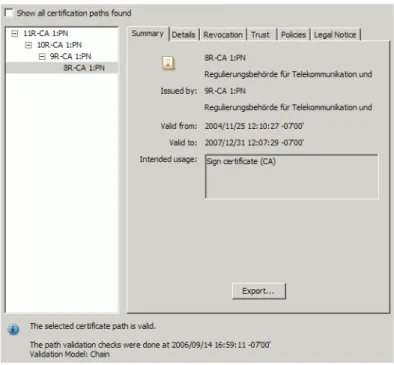
Your digital IDs appear in the Security Settings Console. From there, the Certificate Viewer can be used to display the time for which its certificate is valid and other details such as usage, a unique serial number, public key method, and so on (Figure 8).
To check certificate details:
1. Choose Advanced (Acrobat) or Document (Reader) > Security Settings. 2. Select Digital IDs in the left-hand tree (Figure 2.2.1).
3. Highlight an ID in the list on the right.
4. Choose Certificate Details. The Certificate Viewer displays the certificate. (Figure 8). The following details are available:
Acrobat Family of Products Getting and Using Your Digital ID
Security Feature User Guide Managing PKCS#12 Digital ID Files 17
Left hand panel: The certificate chain.
Bottom area: A description of the certificate, path validity statement, path validation time, and sometimes the type of validation.
Summary tab: Displays the owner, issuer, validity period, and other details. The Intended Usage field tells you whether the certificate can be used for signing, encryption, or both. An Export button allow you to export the certificate to a file.
Details tab: Lists all the certificate fields (extensions) and their values.
Revocation tab: Indicates whether a revocation check occurred and the result. Allows users to initiate a manual check and analyze problems.
Trust tab: Displays the certificate’s trust level. If it does not already exist in the trusted identities list, the Add to Trusted Identities is active.
Policies tab: Displays policy restriction information that must be met for a signature to be valid, if any.
Legal Notice tab: Displays other certificate policies as well as a button which links to that policy, if any.
Figure 8 Digital ID: Certificate viewer
2.3 Managing PKCS#12 Digital ID Files
PKCS#12 digital ID files have several convenient features:
Multiple IDs can be stored in a single, password-protected file. A file can contain both the public and private key.
Acrobat Family of Products Getting and Using Your Digital ID
Security Feature User Guide Logging in to a Digital ID File 18
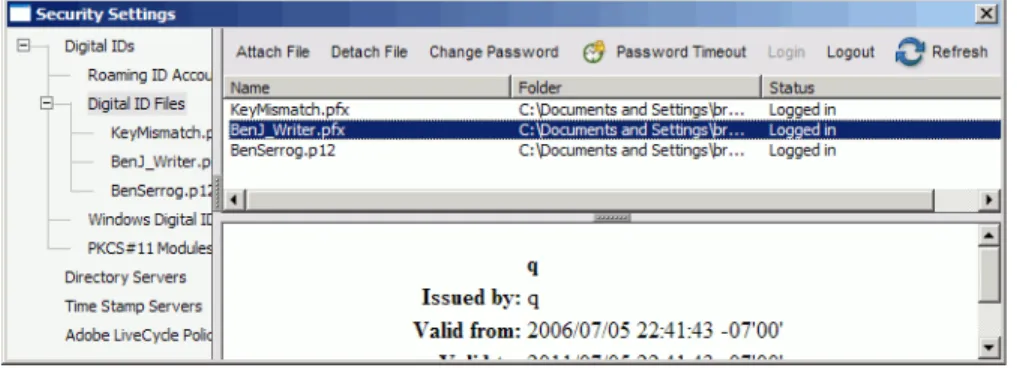
Figure 9 Digital ID Files menu
2.3.1 Logging in to a Digital ID File
You will not usually need to log in to a digital ID file. Logging in means that Acrobat wants you to prove that you know the password to open the password-protected file containing the digital IDs. Since you likely supplied the password when you created your ID or obtained a new one, then you should be logged in.
However, you may need to log in for the following cases: You logged out of the file for some reason.
You are importing an acrobatsecuritysettings file containing digital IDs. To log in to a digital ID file:
2.3.2 Finding an Existing Digital ID in a PKCS#12 File
If a required digital ID file does not appear in the digital ID list, search for it and add it. You can browse to PKCS#12 files (with .pfx or .p12 extensions) and Windows Certificate Store compatible files (with .cer and .der extensions).
Note: In enterprise settings, you may be instructed by your administrator to get a digital ID from a specific location or to customize Acrobat or Adobe Reader to work with software supplied by your organization.
To find a digital ID file:
1. Choose Advanced (Acrobat) or Document (Reader) > Security Settings. 2. Select Digital IDs in the left-hand tree (Figure 4).
3. Choose Add ID.
4. Select the My existing digital ID from and A file radio buttons (Figure 3). 5. Choose Next.
6. Choose Browse and browse to the digital ID file. PKCS#12 files may reside on a network or in some local location. For example, on a Window machine it might be C:\Documents and Settings\<username>\ Application Data\Adobe\<application name>\<version>\Security\.
Acrobat Family of Products Getting and Using Your Digital ID
Security Feature User Guide Adding and Removing Digital ID Files from the File List 19
7. Select the ID and choose Open. 8. Enter a password if one is required.
9. Review the digital ID list and choose Finish.
2.3.3 Adding and Removing Digital ID Files from the File List
Adobe Acrobat and Adobe Reader only allow deletion of user-created self-signed digital IDs created with those applications. A file can have one or more IDs.
To delete or add an ID file:
1. Choose Advanced (Acrobat) or Document (Reader) > Security Settings. 2. Select Digital IDs > Digital ID Files in the left-hand tree (Figure 9). 3. Highlight a digital ID file in the right-hand panel.
4. Do one of the following:
Choose Detach File. The file is removed from the list but still remains on your file system. Choose Attach File. Browse to the file, enter the file password, and choose OK.
Note: Detaching a file does not remove it from your system, and it may be reattached later.
2.3.4 Changing an ID File’s Password
Passwords and password time-outs are unique to PKCS#12 IDs. Since a file can contain multiple IDs, passwords and time-outs are configured at the file level rather than for individual IDs.
Note:If the file is read only, then the Change Password and Password Timeout options are disabled.
To change the password:
1. Choose Advanced (Acrobat) or Document (Reader) > Security Settings. 2. Highlight Digital ID Files in the left-hand tree (Figure 9).
3. Select a file in the right-hand panel (Figure 9). 4. Choose Change Password.
5. Enter the old password.
6. Enter a new password and confirm it. 7. Choose OK.
Acrobat Family of Products Getting and Using Your Digital ID
Security Feature User Guide Changing a PKCS#12 File’s Password Timeout 20
Figure 10 Digital ID files: Password configuration
2.3.5 Changing a PKCS#12 File’s Password Timeout
Passwords and password time-outs can only be set for PKCS#12 IDs. Since a file can contain multiple IDs, passwords and time-outs are configured at the file level rather than for individual IDs.
Note:If the is read only, then the Change Password and Password Timeout options are disabled.
To change the password timeout:
1. Choose Advanced (Acrobat) or Document (Reader) > Security Settings. 2. Highlight Digital ID Files in the left-hand tree (Figure 9).
3. Select a file in the right-hand panel (Figure 9). 4. Choose Password Timeout.
Tip: The password timeout feature interacts with the Login/Logout feature as described in
“Logging in to PKCS#12 Files” on page 21.
5. Configure the Password Timeout Policy dialog by specifying when a password prompt should appear: Always: A password is always required each time the digital ID is used regardless of whether or not
you are logged in to a file.
After: Choose a value from the drop-down list to set a time frame.
Once per session: A password is asked for only once while the application is open.
Never: The password is not usually required when using this ID and you are logged into the file. 6. Enter the password.
Acrobat Family of Products Getting and Using Your Digital ID
Security Feature User Guide Logging in to PKCS#12 Files 21
Figure 11 Digital ID files: Timeout settings
2.3.6 Logging in to PKCS#12 Files
The digital ID Login feature provides access to the IDs in a particular file. Login behavior is dependant on the user-specified password timeout feature. If the user has specified a password timeout of Never, then the application never asks for a password when an ID is used for some process. For example:
Signing: During signing workflows, you can sign with a digital ID without entering a password if you are logged into a file and the time-out is set to Never.
Batch processing: In normal operation, batch sequences that require access to a digital ID invoke the user-interface's authentication dialog. Because the dialog prompts for a password, the batch sequence is effectively stopped until a user intervenes. Logging in to a file provides the ID to the process without stopping it or requiring user input.
To enable sequences to run automatically and bypass normal user interface actions, do the following: 1. Choose Advanced (Acrobat) or Document (Reader) > Security Settings.
2. Select Digital ID Files in the left-hand tree (Figure 9).
Tip: Verify the password timeout is set according to your own preferences. For details, see
“Changing a PKCS#12 File’s Password Timeout” on page 20. 3. Select a file in the right-hand panel (Figure 9).
4. Do one of the following:
Logout: Highlight an ID in the list on the right and choose Logout.
Login: Highlight an ID in the list on the right and choose Login. Enter a password when prompted and choose OK.
2.3.7 Creating a Self-Signed Digital ID
Note: The option to create self-signed digital IDs is unavailable if your administrator has configured your application to prevent this operation.
Acrobat Family of Products Getting and Using Your Digital ID
Security Feature User Guide Creating a Self-Signed Digital ID 22
Users can create a self-signed digital ID if they don’t wish to purchase an ID from a 3rd party certificate authority (CA) or are not given a company-provided ID. Self-signed IDs are usually considered less secure because the user has not been verified by a 3rd party CA. For self-signed IDs, you act as your own CA. To create a self-signed digital ID:
1. Navigate to the Add Digital ID dialog as described in “Finding an Existing Digital ID in a PKCS#12 File” on page 18.
2. Choose A new digital ID I want to create now (Figure 3). 3. Choose Next.
Figure 12 Digital ID format selection
4. Select a digital ID format and storage location:
New PKCS#12 Digital ID File: Stores the IDs in a password protected file with a .pfx (Win) or .p12 (Mac) extension. The file is in a PKCS#12 standard format. The files can be copied, moved, and emailed. They are cross-platform, portable, and always password protected. This common format is supported by most security software applications, including web browsers. These files should always be backed up. On Windows XP, the default location is C:\Documents and Settings\ <username>\Application Data\Adobe\<application name>\<version>\Security\
.
Windows Certificate Store: (Windows only) Stores the ID in the Windows Certificate Store where it is also available to other Windows applications. The ID is protected by your Windows login. These IDs are easy to use and do not have to have file-level password protection. However, they are not portable and could be less secure if a file-level password is not specified.
Acrobat Family of Products Getting and Using Your Digital ID
Security Feature User Guide Creating a Self-Signed Digital ID 23
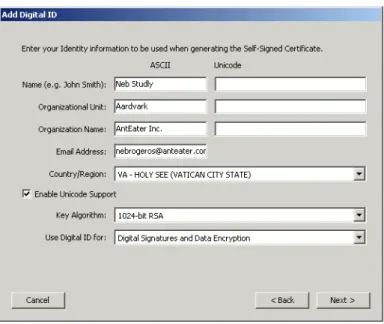
Figure 13 Digital ID: Configuration
6. Configure the digital ID. The dialog is prepopulated if the Identity preferences have been previously configured:
Tip: If you use non-Roman characters, choose Enable Unicode Support before continuing. Name: The name that appears in the Signatures tab and in the signature field.
Organizational Unit: Optional. Appears in the signature and certificate. Organizational Name: Optional. Appears in the signature and certificate. Email Address: Optional. Appears in the signature and certificate. Country/Region: Optional. Appears in the signature and certificate.
Enable Unicode Support: Optional. Use Unicode when your information cannot be adequately displayed with Roman characters.
Note:Many applications do not support non-ASCII characters in certificates. Be sure to specify both an ASCII representation of the information as well as the Unicode representation of information you are supplying.
Key Algorithm: 2048-bit RSA offers more security than 1024-bit RSA, but 1024-bit RSA is more universally compatible. Use the 1024 bit key length if you are unsure.
Use Digital ID for: Select whether to use the digital ID for digital signatures, data encryption (certificate security), or both.
7. If a Windows digital ID was selected, choose Finish; otherwise, for a PKCS#12 ID do the following: 1. Choose Next.
2. Specify a file name and location for the digital ID file. 3. Enter a password and confirm it.
Note:Passwords are case-sensitive and must contain at least six characters. 4. Choose Finish.
Acrobat Family of Products Getting and Using Your Digital ID
Security Feature User Guide Deleting a PKCS#12 Digital ID 24
Figure 14 Digital ID: PKCS#12 location and password
2.3.8 Deleting a PKCS#12 Digital ID
Adobe Acrobat and Adobe Reader only allow deletion of user-created, self-signed digital IDs created by them. The methodology for deleting other types of IDs varies with the type of ID.
While the ID will be removed from the ID list, other ID’s in the container .pfx or p12 file will not be affected. Deleting the last, self-signed PKCS#12 ID in a .pfx or p12 file also deletes the digital ID file.
Caution:Because deleting an ID deletes its private key, operations that require that key will no longer be possible. If the file is used by other programs or you need it to open encrypted documents, do not delete it.
To delete a self-signed ID:
1. Choose Advanced (Acrobat) or Document (Reader) > Security Settings. 2. Select Digital IDs in the left-hand tree (Figure 2.2.1).
3. Highlight a self-signed ID in the list on the right that uses a digital ID file or Windows Certificate Store storage mechanism.
4. Choose Remove ID.
5. Choose OK when asked to proceed. Figure 15 Digital ID: Deleting
Acrobat Family of Products Getting and Using Your Digital ID
Security Feature User Guide Managing Windows Digital IDs 25
2.4 Managing Windows Digital IDs
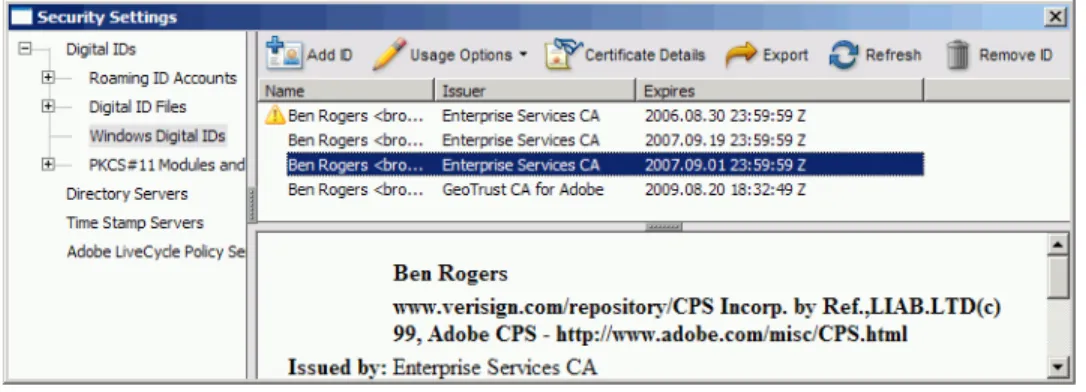
For the Acrobat family of products, a “Windows digital ID” is an ID that resides in the Windows certificate store rather than the Acrobat store. Windows supports several formats listed in Table 2. These IDs are protected by your Windows login, are easy to use, and do require file-level password protection. However, they are not portable and are less secure when a file-level password is not specified.
The Windows store makes these IDs available to other Windows applications such as Acrobat and Adobe Reader. When an ID in the Windows store is registered with the application, it appears in the Security Settings Console. IDs in the Windows store are subject to the same operations as described in “Generic ID Operations” on page 14
Figure 16 Windows digital ID menu
2.4.1 Finding a Digital ID in a Windows Certificate Store File
If a required digital ID file does not appear in the digital ID list, search for it and add it. You can browse to PKCS#12 files (.pfx or .p12) and Windows Certificate Store compatible files (.cer and .p7b).
For details, see “Finding an Existing Digital ID in a PKCS#12 File” on page 18.
2.4.2 Deleting a Digital ID from the Windows Certificate Store
IDs that have been added to the Windows certificate store can only be deleted from the Security Settings Console if they are self-signed IDs created in Acrobat or Reader version 8.0 or later. Other IDs must be removed from the Windows store by using an application such as Internet Explorer. The store’s location in Internet Explorer may vary by version, but is typically found under Tools > Internet Options > Content tab > Certificates button.
2.5 Managing Roaming ID Accounts and IDs
A roaming ID is a digital ID that is stored on a server. The private key always remains on the server, but the certificate and its public key can be downloaded at the subscriber’s request to any location. Roaming IDs require an Internet connection.
Roaming IDs enable remote ID access as well as Web-based user self-registration and ID issuance from a roaming ID server and central ID management. When IDs expire, new ones can be issued and placed on a
Acrobat Family of Products Getting and Using Your Digital ID
Security Feature User Guide Adding a Roaming ID Account to Get a Roaming ID 26
server rather than being distributed to each individual. Deployment and management therefore occurs in one location rather than on numerous client machines.
Depending on how the system is configured, users identify themselves (authenticate) to the server either with a username and password, Windows single sign-on, or by some 3rd party method such as ArcotID.
Note: Roaming IDs are only used for signing and cannot be used for certificate encryption. They are subject to the same operations as described in “Generic ID Operations” on page 14
2.5.1 Adding a Roaming ID Account to Get a Roaming ID
Roaming IDs are only available for those with roaming ID accounts on a roaming ID server. For connection details, contact your system administrator. Once you log in to your account, the IDs associated with that account will be automatically downloaded.
To install the roaming IDs certificate: 1. Verify you have an Internet connection.
Note: If a roaming ID administrator has sent you an file with the account settings preconfigured, see the following sections rather than follow the steps described below:
.acrobatsecurity file: “Security Setting Import and Export” on page 112 FDF file: “Importing Roaming ID Account Settings” on page 136
2. Do one of the following:
Navigate to the Add Digital ID dialog as described in “Finding an Existing Digital ID in a PKCS#12
File” on page 18.
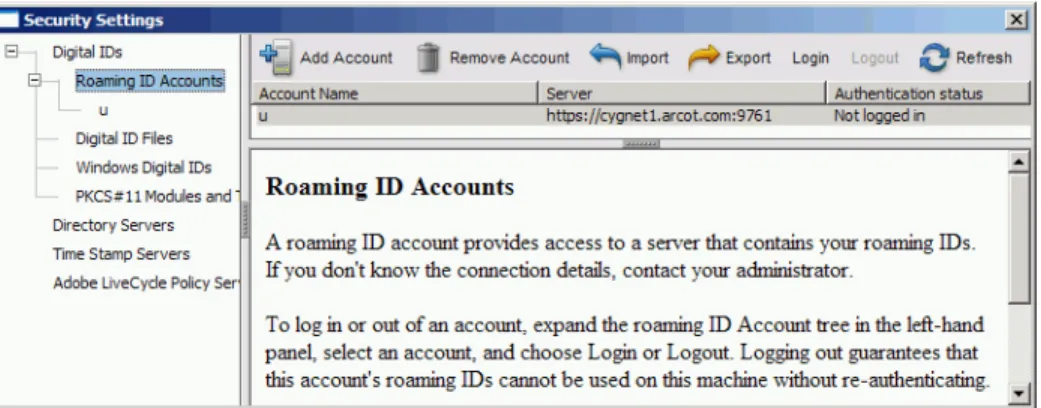
Choose Advanced (Acrobat) or Document (Reader) > Security Settings. Then expand the left-hand tree to Roaming ID Accounts and choose Add Account from the top menu (Figure 17). 3. Choose Configure a roaming ID for use on this computer (Figure 3).
4. Choose Next.
5. In the Add a Roaming ID dialog, enter a server name and URL. 6. Choose Next.
7. Enter your user name and password for this roaming ID server account. 8. Enter a server name and URL.
9. Choose Next.
10. Your certificate(s) will be automatically downloaded. Review the digital ID list and choose Finish.
2.5.2 Logging in to a Roaming ID Account
A roaming ID account is a user account on a roaming ID server containing one or more digital IDs. The login feature provides access to the IDs associated with the account. Depending on how the server administrator has set up the server, once you log in you may not be asked to supply a password again when you use that ID to sign.
Acrobat Family of Products Getting and Using Your Digital ID
Security Feature User Guide Managing IDs Accessible via PKCS#11 Devices 27
To log in to a device:
1. Choose Advanced (Acrobat) or Document (Reader) > Security Settings. 2. Expand the left-hand tree to Roaming ID Accounts(Figure 17).
3. Select an account in the right-hand panel. 4. Choose Login.
5. Follow the instructions in the dialogs. The workflow varies by the roaming ID supplier as well as the authentication type.
Figure 17 Roaming ID Security Settings menu items
2.6 Managing IDs Accessible via PKCS#11 Devices
Smart cards, hardware tokens, and other PKCS#11-compliant devices are increasingly being used by businesses and individuals to carry digital IDs. These devices provide enhanced mobility, remote access to intranets and extranets, as well as strong security with public/private key cryptography and PIN access to the digital ID.
The method for registering a digital ID on such a device with the application may vary. The manufacturer or your system administrator should provide detailed instructions. However, the steps below may be used as a general guide. IDs stored on a PKCS#11 device are subject to the same operations as described in
“Generic ID Operations” on page 14.
2.6.1 Adding an ID that Resides on External Hardware
Digital IDs can reside on hardware such as a smart card or token with a USB interface. In these cases, the card is inserted into a smart card reader or the token is inserted directly into an USB port. Adobe products can be configured to look for and use IDs on these devices by adding the device’s module (software driver) to the module list. The module’s IDs are automatically registered with the application.
To register an ID that resides on external hardware:
1. Choose Advanced (Acrobat) or Document (Reader) > Security Settings. 2. Expand Digital IDs in the left-hand list (Figure 16).
Acrobat Family of Products Getting and Using Your Digital ID
Security Feature User Guide Changing Passwords 28
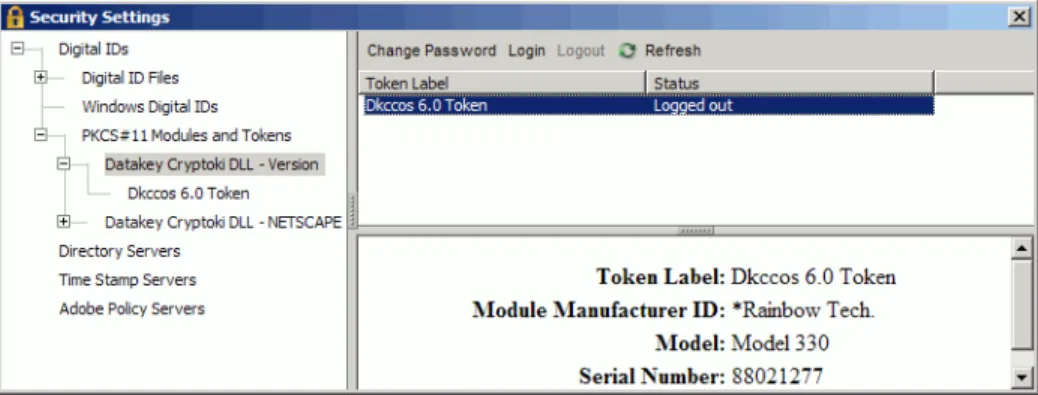
3. Highlight PKCS#11 Modules and Tokens.
Figure 18 PKCS#11 Security Settings menu items
4. Choose Add Module.
5. Browse to the device driver. On Windows, this could likely be C:\Windows\system32\<some
dll>.dll. The exact path will be supplied by your system administrator or the maker of your device.
6. Choose Open.
The module and its IDs are automatically added to the list in the right-hand panel.
2.6.2 Changing Passwords
A card or token may contain multiple IDs. All of the IDs are password protected by a single password. This password is used to log in to a device and to sign.
1. Expand the tree under PKCS#11 Modules and Tokens. 2. Highlight any module.
Figure 19 PKCS#11 Security Settings menu items
3. A card or token label should appear in the right-hand panel. If there is more than one, select one. 4. Choose Change Password.
Acrobat Family of Products Getting and Using Your Digital ID
Security Feature User Guide Logging in to a Device 29
6. Enter a new password and confirm it. 7. Choose OK.
Figure 20 Digital ID files: Password configuration
2.6.3 Logging in to a Device
The digital ID login feature provides access to the IDs on a particular device or smart card.
PKCS#11 workflows vary by the device supplier. For example, additional passwords or PINs may or may not be required. The login interface may be provided by the Adobe application or by the device supplier. To log in to a device:
1. Choose Advanced (Acrobat) or Document (Reader) > Security Settings. 2. Expand the tree under PKCS#11 Modules and Tokens.
3. Highlight any module.
4. A card or token label should appear in the right-hand panel. If there is more than one, select one. 5. Choose Login.
6. Enter a password. 7. Choose OK.
30
3
Managing Certificate Trust and Trusted Identities
As described in “What is a Digital ID?” on page 10, a digital ID consists of two main parts: a certificate with a public key and a private key. Participants in signing and certificate security workflows need to exchange the public part (the certificate) of their digital ID. Once you obtain someone’s certificate and add it to your trusted identities list, you can encrypt documents for them. If their certificate does not already chain up to a trust anchor that you have specified, you can set the certificate’s trust level so that you can validate the owner’s signature.
Understanding what a trusted identity is and how trust levels are set can help you set up streamlined workflows and troubleshoot problems. For example, you can add trusted identities ahead of time and individually set each certificate’s trust settings. In enterprise settings where certificates are stored on a directory server, you may also be able to search for certificates to expand your list of trusted identities. For more information, refer to the following:
“What is a Trusted Identity?” on page 30
“Using Directory Servers to Add Trusted Identities” on page 40 “Adding Someone to Your Trusted Identity List” on page 32 “Managing Contacts” on page 43
3.1 What is a Trusted Identity?
Digital signature and certificate security workflows both rely on certificates. Participants in signing workflows share their certificates ahead of time or embed them in a document. Participants in certificate security workflows must share their certificates ahead of time. Both operations involve importing other people’s certificates into your Trusted Identities list. When a person’s certificate information appears in the Trusted Identity Manager, they become a trusted identity.
Groups of people that share documents with certificate security or digital signatures are in essence a community of trusted identities that share their certificates to make those features work. You will add people to your trusted identity list and others will add you to theirs:
When you sign document, the document recipient can validate your signature by validating the certificate embedded in the document. Conversely, you need access to a document sender’s certificate to validate their signature.
You encrypt a document with the document recipient’s public key so that they can decrypt it with their corresponding private key. Conversely, others need your certificate to encrypt documents for you.
Acrobat Family of Products Managing Certificate Trust and Trusted Identities
Security Feature User Guide What is a Trusted Identity? 31
The Acrobat family of products provide tools for selecting and interacting with the certificates of document recipients you trust. For example, Acrobat’s user interface prompts authors to select one or more recipients when applying certificate security. Because it is often the case that a document will be sent or received from numerous individuals, it is expedient to create a list of trusted identities ahead of time. In large organizations, an administrator may do this for you; otherwise, you will use Acrobat’s Trusted Identity Manager to store your trusted identities’ contact information and certificates.
Getting someone’s contact information and certificate involves searching for (or having sent to you) the digital ID data in the requisite format. Some common ways of getting the data include the following: Import the data from an .acrobatsecurity file. Configuration details can be imported from a security
settings file as described in “Migrating and Sharing Security Settings” on page 112.
Extract the data from an FDF file. Double-clicking on an FDF file causes Acrobat to automatically import the information.
Search a server directory. Users can add directory servers containing contact information and certificates. Sometimes administrators preconfigure these directories.
Use the data embedded in a signed document. The Certificate Viewer’s Add to Trusted Identities button adds a certificate to the trusted identities list and allows setting its trust level.
Figure 22 Digital ID: Managing trusted identities
From within the Manage Trusted Identities dialog, users import and manage the certificates and certificate owner data for document recipients they wish to trust. A contact will occasionally be associated with multiple certificates. Therefore, contacts and certificates are in some respects managed independently of
Acrobat Family of Products Managing Certificate Trust and Trusted Identities
Security Feature User Guide Adding Someone to Your Trusted Identity List 32
each other. It is also possible to create a group from any number of contacts so that security can be applied to all group members with a single action. Users manage contacts, groups, and certificates by choosing Advanced (Acrobat) or Document (Reader) > Manage Trusted Identities and opening the Trusted Identities Manager.
Figure 23 Manage Trusted Identities menu item
3.2 Adding Someone to Your Trusted Identity List
As shown in Figure 22, you build a list of trusted identities by getting digital ID certificates from those who will be participating in signing and certificate security workflows. You get this information from a server, a file, or from a signed document. For signing workflows, you can get this information during the signature validation process. For certificate security workflows involving encryption, you must request the
information ahead of time so you can encrypt the document with the document recipient’s public key.
3.2.1 Adding a Certificate From a Signature
When you receive a signed document from someone whose certificate is not in your trusted identity list AND does not chain up to a trust anchor (another certificate that is trusted), the signing certificate’s validity is unknown and a yellow triangle appears in the document message bar. To validate the signature, you will need to trust one of the certificates in the certification chain. You could trust the signer (the end-entity certificate), one of the EE certificate issuer (an intermediate certificate), or the topmost certificate authority (the root).
Because revocation checking does not occur for certificates that are directly trusted (a trust anchor), it is best practice to trust a certificate other than the signer’s. That is, trust a certificate as high up in the chain as is practical for your signing workflows.
To add a certificate to your trusted identities list directly from a signature: 1. Right click on the signature and choose Show Signature Properties. 2. Choose Show Certificate.
3. When the Certificate Viewer appears, choose the Trust tab. 4. Choose Add to Trusted Identities (Figure 24).
Acrobat Family of Products Managing Certificate Trust and Trusted Identities
Security Feature User Guide Requesting a Digital ID via Email 33
5. Set the certificate trust settings as described in “Setting Certificate Trust” on page 37. Figure 24 Certificate Viewer: Trust tab
3.2.2 Requesting a Digital ID via Email
Email requests for digital ID information use .acrobatsecurity or FDF files. For details, see “Migrating and Sharing Security Settings” on page 112.
For details, see “Requesting a Certificate via Email” on page 124.
3.2.3 Importing a Certificate From a File
Acrobat and Adobe Reader are can export certificates to a file so that they can be shared as needed. To import certificates, follow the instructions described in “Migrating and Sharing Security Settings” on page 112.
However, certificates may also exist in other file types such as .cer, .p7b, and so on. To import certificates from these file types:
1. Choose Advanced (Acrobat) or Document (Reader) > Manage Trusted Identities. 2. Choose Add Contacts.
3. Choose Browse.
4. Browse to the contact file location. 5. Select the file.
Acrobat Family of Products Managing Certificate Trust and Trusted Identities
Security Feature User Guide Searching for Digital ID Certificates 34
Figure 25 Importing digital ID data
7. Choose Import.
8. Choose OK when the confirmation dialog appears.
3.2.4 Searching for Digital ID Certificates
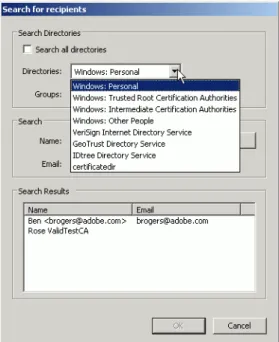
The search feature allows you to search a list of directories for certificates. If no directories have been previously specified, the Search button will NOT appear. The list of search servers in the Directories drop-down list is populated through three mechanisms:
The default server settings that ship with Adobe Acrobat and Adobe Reader. The Windows Certificate Store if the user has turned on this option.
User-specified directory servers the user has added in the Security Settings Console. For details, see
“Using Directory Servers to Add Trusted Identities” on page 40.
Tip: Home users do not usually need to change the directory server list. Users in enterprise environments typically have the list preconfigured by their system administrator.
Acrobat Family of Products Managing Certificate Trust and Trusted Identities
Security Feature User Guide Searching for Digital ID Certificates 35
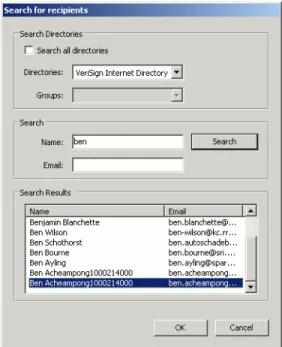
Figure 26 Digital IDs: Searching for certificates
To search for a certificate so that you can add one or more people to your trusted identities list: 1. Choose Advanced (Acrobat) or Document (Reader) > Manage Trusted Identities.
2. Choose Add Contacts. 3. Choose Search.
4. Configure the search options:
Choose Search all directories or select a directory and optional group.
Searching all directories may take some time. In a business environment, it is often expedient to just select the company’s LDAP directory.
Enter a name and/or email address to search. This is an AND search. Using both fields only returns results that match both criteria.
5. Choose Search.
6. Select a name from the search results. 7. Choose OK.
8. If the desired entries are found, choose Import. 9. Choose OK when the confirmation dialog appears.