1. Barracuda Spam Firewall - Overview . . . 4
1.1 Release Notes . . . 4
1.2 Deployment Options . . . 17
1.2.1 Deployment in the DMZ . . . 18
1.2.2 Deployment Behind the Corporate Firewall . . . 18
1.2.3 Clustering the Barracuda Spam Firewall . . . 19
1.2.3.1 Benefits of Clustering the Barracuda Spam Firewall . . . 19
1.2.3.2 How to Cluster the Barracuda Spam Firewall 6.x . . . 21
1.2.3.3 How to Cluster the Barracuda Spam Firewall 5.x . . . 24
1.2.4 Virtual Deployment . . . 26
1.2.4.1 Hypervisor Compatibility and Deployment - OVF Package . . . 27
1.2.4.2 Hypervisor Compatibility and Deployment - VMX Package . . . 28
1.2.4.3 Hypervisor Compatibility and Deployment - XVA Package . . . 29
1.2.4.4 Hypervisor Compatibility and Deployment - VHD Package . . . 29
1.2.4.4.1 Troubleshooting With Microsoft Hyper-V . . . 30
1.2.4.5 Barracuda Spam Firewall Vx Quick Start Guide . . . 38
1.2.4.6 Route Email to the Barracuda Spam Firewall Vx . . . 39
1.2.4.7 Sizing CPU, RAM and Disk for Your Barracuda Spam Firewall Vx . . . 40
1.2.4.8 Backing Up Your Virtual Machine System State . . . 40
1.2.5 Public Cloud Hosting . . . 41
1.2.5.1 Amazon Web Services . . . 41
1.2.5.1.1 Deploying the Barracuda Spam Firewall on Amazon Web Services . . . 42
1.2.5.1.2 Creating a Security Group on Amazon Web Services . . . 45
1.2.5.1.3 Barracuda Spam Firewall Quick Start Guide for Amazon Web Services . . . 46
1.2.5.1.4 Barracuda Spam Firewall Models on Amazon Web Services (BYOL and Metered) . . . 48
1.2.5.1.5 Creating a VPC, Internet Gateway and Subnet . . . 48
1.2.5.1.6 Configuring an Elastic IP Address for an Instance . . . 51
1.2.5.1.7 Routing Mail Through Amazon Web Services . . . 52
1.3 Getting Started . . . 53
1.3.1 Step 1: Understand the Concepts . . . 53
1.3.2 Step 2: Install the Barracuda Spam Firewall . . . 57
1.3.3 Step 3: Initial Configuration . . . 58
1.3.4 Step 4: Product Activation and Firmware Update . . . 61
1.3.5 Step 5: Configure the Web Interface . . . 61
1.3.5.1 How to Enable SSL for Administrators and Users . . . 62
1.3.6 Step 6: Routing Inbound Mail . . . 62
1.3.6.1 Using MX Records . . . 63
1.3.7 How to Tune and Monitor the Default Spam and Virus Settings . . . 66
1.3.7.1 Virus Checking and Notifications . . . 66
1.3.7.2 How to Get and Configure the Barracuda Exchange Antivirus Agent . . . 66
1.3.7.3 How Spam Scoring Works . . . 68
1.3.7.4 Monitoring Inbound and Outbound Email Traffic . . . 68
1.3.7.5 Performance and Email Statistics . . . 68
1.3.8 Quarantine: An Overview . . . 69
1.3.9 Mail Journaling . . . 70
1.3.10 Mail Journaling 6.0.2 . . . 70
1.3.11 How to Migrate From Postini to the Barracuda Spam Firewall . . . 71
1.4 Routing Outbound Mail . . . 72
1.4.1 About Scanning of Outbound Mail . . . 72
1.4.2 How to Route Outbound Mail from the Barracuda Spam Firewall . . . 73
1.4.3 How to Configure Office 365 for Inbound and Outbound Mail . . . 75
1.4.4 How to Configure Google Apps for Inbound and Outbound Mail . . . 79
1.4.5 How to Route Outbound Mail from Kerio Connect Mail Server through the Barracuda Spam Firewall . . . 80
1.4.6 Encryption of Outbound Mail 6.x . . . 81
1.4.6.1 Archiving Encrypted Email Messages . . . 84
1.4.6.2 How to Use DLP Filters With Spreadsheets . . . 84
1.4.7 Encryption of Outbound Mail 5.x . . . 85
1.4.8 How to Use DLP and Encryption of Outbound Mail . . . 87
1.4.8.1 Medical Dictionary Source for DLP HIPAA Compliance . . . 89
1.5 Securing the Barracuda Spam Firewall . . . 89
1.5.2 How to Set Up Your Cloud Protection Layer (CPL) . . . 92
1.6 Advanced Spam Filtering Inbound . . . 94
1.6.1 Rate Control Inbound . . . 95
1.6.2 IP Analysis Inbound . . . 95
1.6.3 Content Analysis Inbound . . . 97
1.6.4 Bayesian Analysis Inbound . . . 99
1.7 Advanced Spam Filtering Outbound . . . 101
1.7.1 Spam Scoring Outbound . . . 101
1.7.2 Rate Control Outbound . . . 101
1.7.3 IP Analysis Outbound . . . 102
1.7.4 Sender and Recipient Filtering Outbound . . . 102
1.7.5 Reverse DNS Blocking . . . 102
1.7.6 Content Analysis Outbound . . . 103
1.7.7 Attachment Filtering Outbound . . . 104
1.7.8 Bayesian Analysis Outbound . . . 104
1.8 Advanced Configuration . . . 104
1.8.1 Sender Authentication . . . 104
1.8.2 Recipient Verification . . . 106
1.8.3 Remote IMAP/POP Accounts . . . 107
1.8.4 Advanced Networking . . . 107
1.8.5 Non-Delivery Reports . . . 107
1.8.6 Remote Administration . . . 108
1.9 Creating and Managing Domains . . . 108
1.10 Managing Inbound Quarantine . . . 109
1.10.1 How Quarantine of Inbound Mail Works . . . 110
1.10.2 Quarantine Options . . . 110
1.10.3 Controlling Access to Account Features . . . 112
1.10.4 How Quarantine Notifications Work . . . 113
1.10.5 Retention Policy and Purging Old Messages . . . 114
1.11 Managing Outbound Quarantine . . . 114
1.12 Creating and Managing Accounts . . . 115
1.12.1 Role-based Administration . . . 117
1.12.1.1 Roles and Navigating the Web Interface . . . 118
1.12.1.2 Role Descriptions . . . 121
1.12.1.2.1 Domain Admin Role . . . 121
1.12.1.2.2 Helpdesk Role . . . 121
1.12.1.2.3 User Role . . . 123
1.12.1.2.4 Governance, Risk Management and Compliance (GRC) Account Role . . . 124
1.13 Monitoring the System . . . 124
1.13.1 Basic Monitoring Tools . . . 125
1.13.2 Reporting . . . 127
1.13.3 How to Set Up Alerts and SNMP Monitoring . . . 127
1.13.3.1 How to Use SNMP Monitoring . . . 128
1.13.3.2 Barracuda Spam Firewall SNMP MIB . . . 133
1.13.3.3 Barracuda Reference MIB . . . 133
1.13.4 Using a Syslog Server to Centrally Monitor System Logs . . . 133
1.13.4.1 Syslog and the Barracuda Spam Firewall . . . 133
1.13.4.2 How to Parse the Barracuda Spam Firewall Syslog . . . 139
1.13.5 How to Set Up Barracuda Cloud Control . . . 144
1.13.6 Front Panel Indicator Lights . . . 144
1.13.7 Troubleshooting . . . 145
1.14 Maintenance . . . 146
1.14.1 How to Back Up and Restore System Information . . . 148
1.14.2 Replacing a Failed System . . . 148
1.15 Tools and Add-Ins . . . 149
1.15.1 Barracuda Spam Firewall API Guide . . . 149
1.15.2 Barracuda Message Center User's Guide . . . 224
1.15.3 Barracuda Spam Firewall User 's Guide 6.x . . . 225
1.15.4 Barracuda Spam Firewall User's Guide 5.x . . . 231
1.15.5 Barracuda Outlook Add-In Overview 6.x . . . 237
1.15.7 Barracuda Spam Firewall Outlook Add-In Deployment Guide 6.x . . . 240
1.15.8 Barracuda Spam Firewall Outlook Add-In Deployment Guide 5.x . . . 243
1.15.9 SMTP Error Codes . . . 246
1.16 Hardware Compliance . . . 249
Barracuda Spam Firewall - Overview
en
The Barracuda Spam Firewall is an integrated hardware and software solution designed to protect your email server from spam, virus, spoofing, phishing and spyware attacks. Outbound filtering and encryption options also prevent confidential or sensitive information from being purposely or inadvertently leaked outside the organization. The optional cloud protection layer (CPL) shields email servers from inbound malware and DoS attacks while filtering out normal spam before it ever touches the network’s perimeter.
Where to Start
If you have the Barracuda Spam Firewall Vx virtual machine, start with the Barracuda Spam Firewall Vx Quick Start Guide. If you have the Barracuda Spam Firewall appliance, start with Getting Started.
For both the virtual machine and the appliance, continue with: How to Tune and Monitor the Default Spam and Virus Settings Quarantine: An Overview
Mail Journaling
Key Features
Spam and virus filtering with the optional Barracuda Exchange Antivirus Agent, an add-in that you can install on your Microsoft Exchange server(s).
mailbox
Global or per-user quarantine
Prevents spoofing, phishing and malware
Outbound email filtering for data loss prevention (DLP)
SMTP/TLS site-to-site encryption – see How to Use DLP and Encryption of Outbound Mail Invalid bounce suppression
Policy enforcement for compliance and corporate policies
Release Notes
en
Before installing any firmware version, back up your configuration and read all release notes that apply to versions more recent than the one currently running on your system.
Do not manually reboot your system at any time during an update, unless otherwise instructed by Barracuda Networks Technical Support. Depending on your current firmware version and other system factors, updating can take up to 10 minutes. If the process takes longer, please contact Barracyda Technical Support for further assistance.
Updating to Version 6.x
WARNING: After clicking the Apply Now on the ADVANCED > Firmware Update page, the progress bar may appear to time out and the administrator may need to manually return to the login screen after 5 minutes if it doesn't load automatically in the browser.
When upgrading from firmware version 5.1.3.004 or later:
Make sure that you have a recent backup of your configurations, since backups taken from firmware versions earlier than 4.1 will NOT restore properly with version 6.x or later.
Once you have updated to version 6.x, Barracuda Networks does not recommend reverting to an older firmware version. The Microsoft IE6 browser is supported ONLY for end-user pages in the web interface, which include the following:
QUARANTINE INBOX > Quarantine Inbox PREFERENCES > Whitelist/Blacklist PREFERENCES > Quarantine Settings PREFERENCES > Spam Settings PREFERENCES > Password
When upgrading from firmware versions earlier than 5.1.3.004:
You must be running firmware version 5.1.3.004 before upgrading to version 6.x, to ensure that all components are properly updated. If you are running on firmware version 3.x, you may need to make multiple firmware updates before you will be able to update to firmware 6.x.
Configuration backups from firmware versions earlier than 4.1 will NOT restore properly with version 6.x.
Firmware Version 6.1
What's New in Version 6.1
Email CategorizationThis feature gives administrators an additional way to decide what to do with various types of emails from senders on the Barracuda Reputation Whitelist. These emails are separated into different categories such as Transactional Corporate, and Ma
, each of which can have a different delivery action associated with it. rketing
Extended Malware Protection (Available on model 600 and higher)
An additional layer of deep message scanning is available as Extended Malware Protection leveraging a third-party scanner. This feature is only available with a subscription. Contact your local Barracuda Networks Sales Reseller to purchase this subscription.
Fixed in Version 6.1.2 (Early Release)
Version 6.1.2.001:
Mail Processing
Enhancement: Improved DLP detection algorithms for birth dates. [BNSF-21396] Enhancement: Improved handling of unusually formatted emails. [BNSF-21407]
Fix: Messages were erroneously blocked by attachment type when whitelisted by the sender. [BNSF-20505] Fix: Messages with certain malformed headers now appear correctly in the message log. [BNSF-21305] Fix: Resolved issues with malformed headers from Trusted Forwarders. [BNSF-21897, BNSF-21906]
Fix: Multiple messages in a single session are no longer encrypted after a message encrypted via the Outlook Add-in. [BNSF-21955] Fix: Per-User Scoring is no longer used when disabled. [BNSF-21800]
Web Interface
Feature: Added ability to submit Email Categories for incorrect or uncategorized messages. [BNSF-21700] Feature: Added support for Europe/Busingen timezone. [BNSF-21988]
Enhancement: Improved memory handling and performance of the Web Interface after long periods of time. [BNSF-22142, BNSF-22155] Fix: Resolved sporadic issue where Basic > Status page would fail to load. [BNSF-21994, BNSF-22184]
Fix: Deprecated timezones are not correctly updated when restored from a backup. [BNSF-21770, BNSF-21836]
Before upgrading, BE SURE TO TAKE THE BARRACUDA SPAM FIREWALL OFFLINE. This will ensure that the inbound queue is emptied and all messages are scanned before the update process begins. See the BASIC > Administration page for the Offline butto n.
Fix: Messages can now be delivered from any box in a cluster. [BNSF-22083]
Backup
Fix: Resolved intermittent scenario in which Restore would fail if a previous backup or restore had failed. [BNSF-21257] Fix: Scheduled Backups Destination can now be changed from Cloud. [BNSF-21286]
Cloud Control
Fix: The Cloud Control status chart now shows the correct date for the status bars. [BNSF-21842]
Security
High severity vulnerability: unauthenticated, remotely exploitable, HTTP header injection [BNSEC-1168 / BNSF-20796]
Fixed in Version 6.1.1
Version 6.1.1.001:
Virtualization
Feature: Added support for virtual deployment in Amazon Web Services. [BNSF-21875]
Fixed in Version 6.1.0
Version 6.1.0.003:
Mail Processing
Enhancement: Improved processing of attachment filenames. [BNSF-21995]
Web Interface
Fix: Bulk editing the list of domains no longer omits certain domains. [BNSF-21742]
Enhancement: Added support for localized web interface for Email Categorization. [BNSF-22029]
Version 6.1.0.001:
Mail Processing
Feature: Email Categorization. Messages from Barracuda-verified senders (including those on the Barracuda Reputation Whitelist) are categorized to allow the administrator another way to determine what action to take on various types of emails. Actions for each Category may be configured from the BLOCK/ACCEPT > IP Reputation page. [BNSF-21615]
Feature: An additional layer of malware detection has been added with the Extended Malware feature. [BNSF-21662] Enhancement: Per-Domain whitelisting and blocklisting of IP addresses now honors Trusted Forwarder status. [BNSF-13907] Fix: Improved processing of messages with very long URLs. [BNSF-21779]
Fix: Improved handling of Received headers containing missing IP addresses. [BNSF-21793]
Web Interface
Feature: The Message Log now contains the IP address of the destination server. [BNSF-21404]
Feature: The Message Debug Identifier has been added to the Queue Managment for easier tracing of messages. [BNSF-21405] Fix: Changing the character set in the Message Viewer now shows the message rather than the login page. [BNSF-21348] Fix: APIs now properly account for colons in regex values. [BNSF-21522]
Fix: Adding valid recipients is now logged to the GUI syslog. [BNSF-21536]
Fix: Explicit users are not supported by the list_valid_recipient_aliases API call. [BNSF-21768]
Reporting
Fix: LDAP Failure notification report now accounts for case changes in domains. [BNSF-17538]
Security
Fix: Resolved the following vulnerabilities:
High severity: Authentication bypass [BNSEC-3188 / BNSF-21585]
Medium - High severity: Requires authentication; security control bypass [BNSEC-3208 / BNSF-21593] Medium severity: Requires authentication; denial of service [BNSEC-3297 / BNSF-21598]
Medium severity: Unauthenticated; information disclosure [BNSEC-3259 / BNSF-21596] Medium severity: Requires authentication; security control bypass [BNSEC-3198 / BNSF-21591] Low severity: Unauthenticated; remotely exploitable; information disclosure [BNSEC-3421 / BNSF-21649] Low severity: Non-persistent XSS; requires authentication; remotely exploitable [BNSEC-3287 / BNSF-21597]
Firmware Version 6.0
What's New in Version 6.0
Web Interface
Updated Time Zone settings per new 2013 DST settings. - The following time zones have been converted (see the BASIC > Administration p age):
Old Time Zone New Time Zone
AQ -9000+00000 Antarctica/South Pole
Amundsen-Scott Station, South Pole
Antarctica/McMurdo
CA +4531-07334 America/Montreal Eastern Time
- Quebec - most locations
Toronto US +364708-1084111 America/Shiprock Mountain Time; Navajo America/Denver America/Shiprock
Cloud Services
Cloud Backup - New option to back up to the Barracuda Cloud with the same backup features as always, configurable from the ADVAN page. Use your Barracuda Customer Account credentials to connect. If you don't have an account, you can create one CED > Backup
following instructions in this Barracuda TechLibrary article: Create a Barracuda Cloud Control Account, or see the ADVANCED > Cloud page.
Control
Cloud Protection Layer (CPL) - Now provides an integrated Message Log together with messages processed by the Barracuda Spam Firewall.
Encryption
More reports detailing number of encrypted emails sent, number of encrypted emails opened by recipients, policies that triggered encryption action and number of recalled messages.
Ability to archive encrypted email threads to a specified Barracuda Message Archiver. Configured on the BASIC > Administration page, this feature will archive all encrypted correspondence, including encrypted replies, for all domains that have been validated on the Barracuda Spam Firewall.
Message Privacy
New Governance, Risk Management and Compliance (GRC) role. The GRC role is used as a way to provide governance, risk management and compliance to email content. The GRC only has access to Outbound Quarantine logs via the web interface and has the job of reviewing the messages in the log, determining which ones should be delivered or rejected based on policy. The administrator can enable or disable the GRC account at any time. Configure on the BASIC > Administration page.
Message Log Privacy - To protect email privacy, you can enable the Secondary Authorization feature to require a password before the Admin, Domain Admin Helpdeskor roles can view entries or email message contents across the system (including the global Message Log, per-domain Message Logs, queue management, outbound quarantine and quarantine inboxes). Configure on the BASIC >
page. Administration
SSL Certificates
Reporting
The Top Count setting upper limit, which is the maximum number of rows returned in a report (e.g. Top 10 Viruses), has been reduced to 50. See the BASIC > Reports page.
Barracuda Outlook Add-in
The Barracuda Outlook Add-in supports Outlook 2003, Outlook 2007, Outlook 2010 and 2013. Support for Outlook XP is no longer available.
: If you are running version 6.0.0.028 of the Barracuda Spam Firewall firmware, you must upgrade your Barracuda Outlook Add-in to Note
version 6.0.x or later (see the USERS > User Features page).
Fixed in Version 6.0.2
Version 6.0.2.002:
Mail Processing
Enhancement: Multi-level intent analysis consistently handles timeouts. [BNSF-21731]
Fix: PTR record analysis now honors Trusted Forwarder status; i.e. IP addresses are checked until and including the first IP that is not a trusted forwarder. [BNSF-21559]
Web Interface
Updated Time Zone settings per new 2013 DST settings. - The following time zones have been converted (see the BASIC > page):
Administration
Old Time Zone New Time Zone
AQ -9000+00000 Antarctica/South Pole
Amundsen-Scott Station, South Pole
Antarctica/McMurdo
CA +4531-07334 America/Montreal Eastern Time
- Quebec - most locations
Toronto
US +364708-1084111 America/Shiprock Mountain
Time; Navajo
America/Denver America/Shiprock Fix: Converted time zones per new 2013 DST settings. [BNSF-21277].
The following time zones have been converted:
Antarctica/South Pole, Amundsen-Scott Station, South Pole. New Time Zone: Antarctica/McMurdo America/Montreal Eastern Time - Quebec - most locations. New Time Zone: Toronto
America/Shiprock Mountain Time, Navajo. New Time Zone: America/Denver America/Shiprock Fix: Bulk editing the list of domains no longer omits certain domains. [BNSF-21742].
Version 6.0.2.001:
Mail Processing
Enhancement: Improved Sender Policy Framework (SPF) algorithms for increased accuracy. [BNSF-18114, BNSF-20387, BNSF-20523, BNSF-20558, BNSF-20883, BNSF-21068, BNSF-21118]
Enhancement: Hard SPF detection failures are now enabled by default. [BNSF-17929]
Enhancement: Inbound mail from a Trusted Relay source is now subject to Recipient Verification (if configured) to prevent sending email to an invalid user for the domain. [BNSF-20482].
Enhancement: Mail Journaling can now be configured to only journal Quarantined messages on delivery. [BNSF-19388] Enhancement: Multi-level intent analysis performs better with slow web servers. [BNSF-20003]
Enhancement: Improved disk space management. [BNSF-20543, BNSF-21026, BNSF-21339, BNSF-21308]
Enhancement: Improved recovery of services that are in an inconsistent state. [BNSF-20656, BNSF-20802, BNSF-20898] Enhancement: Improved real-time detection for multilevel intent analysis. [BNSF-20733]
Enhancement: Improved attachment detection and filtering. [BNSF-19488]
Enhancement: Improved DLP detection algorithms for message contents and attachments, including those for identifying dates, credit card information, and data in Excel files. [BNSF-21094, BNSF-21354, BNSF-20736, BNSF-21272]
Enhancement: Added default German NDR texts. [BNSF-21058]
Fix: The Create Password email can now be sent to users with spaces in the UID. [BNSF-14773] Fix: Block Sender Verify is no longer disabled when Block Empty Sender is enabled. [BNSF-14977] Fix: PTR record analysis is now performed when mail is received from a Trusted Forwarder. [BNSF-19257]
Fix: All messages in a single SMTP session are now whitelisted when sent from a whitelisted IP address. [BNSF-19779, BNSF-20562] Fix: Improved whitelist setting interactions between a primary account and its LDAP or Valid Recipient alias. [BNSF-20592, BNSF-21453] Fix: Improved detection of UPS tracking numbers previously mis-identified as Social Security Numbers. [BNSF-19577]
Fix: Outbound Quarantine messages could be delivered to the Inbound Quarantine address with the Inbound Quarantine tag when using Global Quarantine. [BNSF-20032]
Fix: Resolved issue processing messages with headers including ports with IP addresses. [BNSF-20524] Fix: Messages blocked due to file type now report as banned rather than accepted. [BNSF-20525]
Fix: Whitelist properly takes precedence over quarantine rules that are based on EmailReg settings. [BNSF-20934]
Fix: Resolved issue in which, in rare circumstances, per-user quarantine files could be written as zero bytes when in a clustered environment. [BNSF-20991]
Fix: Spam analysis conditions which could prevent unusual messages from being processed. [BNSF-20994, BNSF-20997]
Web Interface
Enhancement: Improved web interface performance when displaying a large number of users or domains. [BNSF-18336] Enhancement: Reduced time to reload system configurations when there are a large number of domains. [BNSF-20145] Enhancement: Single Sign-On now honors Valid Recipient alias linking. [BNSF-19754]
Enhancement: Improved support for Internet Explorer 9 and 10 and Firefox 23 and Safari. [BNSF-19525, BNSF-19837, BNSF-19978, BNSF-20259, BNSF-21324, BNSF-21244]
Enhancement: Manual Backups now show the correct status without requiring a manual refresh. [BNSF-19836] Enhancement: Improved detection of malformed character sets when displaying unicode messages. [BNSF-20503] Enhancement: Added 3 new methods to API to list, add and delete Valid Recipients. [BNSF-20605]
Enhancement: The SMTP port is now excluded from synchronization across systems in a cluster. [BNSF-20561]
Enhancement: Option for the Helpdesk role to view message headers (configured on the BASIC > Administration page). [BNSF-21204] Enhancement: Web Syslog contents now include the year, usernames, troubleshooting commands, and configuration changes made by Barracuda Technical Support. May require a restart of your syslog clients in order to receive the additional data. [BNSF-20990, BNSF-21206, BNSF-21207, BNSF-21431, BNSF-21504]
Enhancement: Updated translations. [BNSF-19999, BNSF-20000, BNSF-20217, BNSF-20325, BNSF-20862, BNSF-21123, BNSF-21418] Fix: Time zone updates for Israel per new 2013 DST settings. [BNSF-21277]
Fix: Journaling to the Barracuda Message Archiver now accepts an IP address. [BNSF-13505] Fix: Corrected handling of unicode characters in user whitelists. [BNSF-13751]
Fix: Reduced time to log into the web interface when the update server is not reachable. [BNSF-18333]
Fix: Improved handling of special characters such as '$' in the LDAP password for Single Sign-On users. [BNSF-19396] Fix: All users are now able to view quarantine messages when a device is removed from a cluster. [BNSF-19567] Fix: Viewing message bodies in a clustered environment no longer results in an error for some messages. [BNSF-21449] Fix: Searching the outbound quarantine from a user's account no longer forces a logout. [BNSF-19775]
Fix: Repaired erroneous validation of the Message Log's Time Range filters. [BNSF-20218] Fix: Repaired Time Range searches of Outbound messages in the Message Log. [BNSF-21273] Fix: Message Log filter errors are now properly encoded. [BNSF-19968]
Fix: The Barracuda Spam & Virus Firewall Vx now displays the correct expiration date for Energize Updates subscriptions. [BNSF-20076] Fix: The SNMP agent starts correctly on the Barracuda Spam & Virus Firewall Vx. [BNSF-19478]
Fix: Graceful shutdown via the power button now works in all cases. [BNSF-20706] Fix: The "ping" command works as expected with IPv6. [BNSF-20726]
Fix: Performance statistics are now displayed when viewing the BASIC > Status page in the web interface page for the Chinese locale. [BNSF-21156]
Backup
Enhancement: FTP backups now supports both active and passive modes. [BNSF-7762] Fix: SMB shares are now always unmounted after a backup. [BNSF-19249]
Fix: Repaired display of backup files available via FTP. [BNSF-21332]
Cloud Control
Fix: Errors restoring backups are now propagated to the top level of the Barracuda Cloud Control tree. [BNSF-19534] Fix: Repaired of links for running/completed tasks. [BNSF-20186, BNSF-20194]
Barracuda Outlook Add-in
This firmware version requires update of your Barracuda Outlook Add-in (see the USERS > User Features page) to version 6.0.40 or later.
Enhancement: Classification buttons are now available for public folders. [BNSF-20670]
Enhancement: The Alternate URL was removed from the ADM configuration in favor of auto-provisioning. [BNSF-20670] Fix: The property page now shows correctly in Outlook 2003 and 2007. [BNSF-21300]
Fix: The Add-in no longer fails to start if a localization is unavailable. [BNSF-21492]
Exchange Antivirus
Enhancement: Improved handling of corrupted virus definition updates. [BNSF-20648]
Fix: The Exchange Antivirus Agent now starts for all localized versions of Microsoft Exchange. [BNSF-19315]
Security
Fix: Resolved the following vulnerabilities:
High severity: Persistent XSS; unauthenticated; remotely exploitable. [BNSEC-2590] High severity: Authentication bypass. [BNSEC-2625]
High severity: Information disclosure. [BNSEC-2816]
Medium severity: Unauthenticated; information disclosure. [BNSEC-1658] Medium severity: Information disclosure. [BNSEC-2814]
Low - Medium severity: Persistent XSS; unauthenticated; authentication bypass. [BNSEC-2563] Low severity: Persistent XSS; requires authentication; remotely exploitable. [BNSEC-220] Low severity: Non-persistent XSS; requires authentication; remotely exploitable. [BNSEC-1052]
Fixed in Version 6.0.0
Version 6.0.0.029:
Mail Processing
Enhancement: Improved real-time detection of malformed attachments. [BNSF-21142].
Security
Fix: Resolved the following vulnerabilities:
High severity: Persistent XSS; unauthenticated; remotely exploitable. [BNSEC-1550 / BNSF-20929] High severity: Persistent XSS; unauthenticated; remotely exploitable. [BNSEC-1650 / BNSF-20943] Medium - High severity: Non-persistent XSS; unauthenticated [BNSEC-1251 / BNSF-20597] Low - High severity: Persistent XSS; requires authentication. [BNSEC-391 / BNSF-19756] Low - High severity: Non-persistent XSS; requires authentication [BNSEC-1068 / BNSF-20228] Low - High severity: Requires authentication; information disclosure. [BNSEC-1706 / BNSF-20955] Medium severity: Information disclosure. [BNSEC-107 / BNSF-17460]
Low - Medium severity: Unauthenticated; information disclosure. [BNSEC-1746 / BNSF-20978] Low severity: Persistent XSS; requires authentication. [BNSEC-220 / BNSF-18321]
Low severity: Persistent XSS; requires authentication. [BNSEC-1702 / BNSF-20953] Low severity: Non-persistent XSS; requires authentication. [BNSEC-1152 / BNSF-20394] Low severity: Requires authentication; information disclosure. [BNSEC-1160 / BNSF-20396] Low severity: [BNSEC-1383 / BNSF-20817]
Version 6.0.0.028:
Mail Processing
Enhancement: Access to Upgraded Barracuda Real Time Systems (BRTS). The Upgraded BRTS is significantly faster and leverages additional lookups and faster detection operations. with this BRTS Upgrade, the Barracuda Spam Firewall can adapt to spam faster and more accurately. [BNSF-20859]
Barracuda Outlook Add-in
This firmware version requires upgrade of your Barracuda Outlook Add-in (see the USERS > User Features page) to version 6.0.21 or later.
Web Interface
Fix: Firmware Upgrades no longer fail to show progress in some cases. [BNSF-20790]
Version 6.0.0.027:
Web Interface
Fix: The Search button returns the correct result set the first time it is clicked when using the 'Time' search filter. [BNSF-20591] Fix: Time zone Upgrades for Chile and Paraguay per new 2013 DST settings. [BNSF-20522]
Version 6.0.0.018
Security
Enhancement: Per-User Allow and Block lists now check Envelope From and Header From. [BNSF-17727] Fix: Reflective cross-site scripting issue in ADVANCED > Troubleshooting page. [BNSEC-1088]
Version 6.0.0.015
Security
Fix: Resolved issue with potential SSH access to unit when not deployed behind a firewall. To completely disable remote support functionality, contact Barracuda Networks Technical Support. Reported by Stefan Viehck, SEC Consult Vulnerability Lab (https://www.sec
). [BNSEC-767] -consult.com
Version 6.0.0.007:
Backup
Feature: Improved backup user interface. [BNSF-19325]
Enhancement: Backup files are deleted upon successful completion of a backup. [BNSF-18628] Enhancement: Restoring a backup no longer restores Advanced Network information. [BNSF-18957] Enhancement: Configuration backups are now encrypted. [BNSF-19496]
Fix: Backup does not fail if there are special characters in the login name or password. [BNSF-14472] Fix: SMB mounts are now automatically dismounted after a backup. [BNSF-14625]
Fix: Restoring a backup configuration now immediately processes mail for domains without requiring a Reload. [BNSF-19350]
Mail Processing
Enhancement: Disabling SMTP Over TLS at the system level no longer rejects domains which are required by the Domain-level Force TLS settings. [BNSF-17474]
Enhancement: Spoof Protection now looks at headers in addition to the envelope content. [BNSF-17679, BNSF-15997] Enhancement: Whitelisted messages are now flagged as whitelisted if Trusted Forwarders are configured on the BASIC > IP
page. [BNSF-17943] Configuration
Enhancement: Active directory default LDAP filter has been modified to reduce AD CPU load. [BNSF-17993] Enhancement: Improved HIPAA medical term detection in email content. [BNSF-18390]
Enhancement: Malicious URL scanning now correctly scans all HTML attachments. [BNSF-18564] Enhancement: TNEF files are now scanned for viruses. [BNSF-18921]
Enhancement: Added the ability to exempt email addresses and domains from encryption from the BASIC > Administration page. [BNSF-18949]
Enhancement: Improved recipient verification performance if no Explicit Users are defined. [BNSF-19048] Enhancement: Improved false positive detection in XLSX files for DLP settings. [BNSF-18738]
Enhancement: TLS can now be required for all incoming domains from the Domain-level ADVANCED > Email Protocol page. [BNSF-19738]
Fix: Duplicate X-Barracuda-IPDD header lines are no longer added. [BNSF-15751] Fix: Duplicate X-Barracuda-Registry header lines are no longer added. [BNSF-19829]
Fix: The Queue Management timestamp now matches the message log timestamp in all cases. [BNSF-19149] Fix: Improved processing performance for large multipart text emails. [BNSF-19644]
Fix: Attachment filter now correctly detects video file types with altered extensions. [BNSF-18977] Fix: LDAP routing will now enable alias rewriting if username/password are not set. [BNSF-19114] Fix: URL inspection now correctly handles UTF-8 characters. [BNSF-19575]
Fix: Improved process monitoring of front end scanning engine. [BNSF-19675]
Fix: Appliance remains offline after a firmware upgrade if it is already in offline mode. [BNSF-18941, BNSF-19705] Fix: Rate control settings for POP accounts are now applied correctly. [BNSF-19745]
Cloud Control
Enhancement: Added Users and Advanced pages to Barracuda Cloud Control administration. [BNSF-16098, BNSF-16288] Enhancement: Passwords are masked in syslog output. [BNSF-16498]
Fix: Unicode characters can now be added to tables through the Barracuda Cloud Control. [BNSF-18087]
Reporting
Fix: Report performance has been optimized. [BNSF-16599, BNSF-17853] Fix: Queue details now include the To address. [BNSF-17127, BNSF-18516]
Fix: LDAP failures are now sent to all email addresses when addresses include Unicode characters. [BNSF-18491] Fix: Traffic reports are no longer sorted in reverse order. [BNSF-18673]
Web Interface
Feature: Improved syslog performance [BNSF-18033]
Feature: Destination Mail Servers can now be defined using an MX record. [BNSF-19358] Enhancement: Syslog now logs 'Guest' logins. [BNSF-18102]
Enhancement: Improved webInterface performance. [BNSF-18378]
Enhancement: Improved search performance of message log in a clustered environment. [BNSF-17385, BNSF-18734] Fix: Clustering is now removed from Running Tasks when complete. [BNSF-9554]
Fix: Changing the hostname or destination mail server now takes immediate effect. [BNSF-17616, BNSF-19279] Fix: Adding a new domain now takes effect immediately without requiring a Reload. [BNSF-17673]
Fix: Resolved false notification of "old static routes on your system". [BNSF-17963] Fix: Domain Admins can now set an end user to the HelpDesk role. [BNSF-18843] Fix: Message log could fail to display under some circumstances. [BNSF-18921]
Fix: The Troubleshooting Telnet Utilities no longer omits the connection banner when telnetting to a mail server. [BNSF-19163] Fix: Product tips no longer expand to the entire browser width. [BNSF-19669]
Fix: Message Log is no longer sorted based on the Queue Management sort. [BNSF-16315] Fix: Product tips now properly expire [BNSF-19661]
Add-in
Feature: Outlook Add-in now supports Outlook 2013. [BNSF-19535]
Fix: Outlook Add-in no longer creates user accounts if quarantine is set to Global. [BNSF-18883]
Fixed in Version 5.1.3
Version 5.1.3.007:
Mail Processing
Enhancement: Multi-level intent analysis consistently handles timeouts. [BNSF-21731]
Fix: PTR record analysis now honors Trusted Forwarder status; i.e. IP addresses are checked until and including the first IP that is not a trusted forwarder. [BNSF-21490]
Web Interface
Fix: Updated time zones per new 2013 DST settings. [BNSF-21277]. The following time zones have been converted:
America/Montreal Eastern Time - Quebec - most locations. New Time Zone: Toronto America/Shiprock Mountain Time, Navajo. New Time Zone: America/Denver America/Shiprock
Fix: Changing character set in the message viewer now shows the message body rather than a login screen. [BNSF-21348] Fix: Quarantined messages can now be viewed from any Barracuda Spam Firewall in a cluster. [BNSF-21348]
Fix: Helpdesk users can view their own quarantined messages. [BNSF-21480]
Cloud Control
Fix: Barracuda Cloud Control shows correct status for firmware and subscriptions on the BASIC > Status page. [BNSF-21521]
Barracuda Outlook Add-in
This firmware version requires update of your Barracuda Outlook Add-in (see the USERS > User Features page) to version 6.0.40 or later. Feature: Outlook Add-in now supports Outlook 2013. [BNSF-19535]
Enhancement: Classification buttons are now available for public folders. [BNSF-20670] Fix: The property page shows correctly in Outlook 2003 and 2007. [BNSF-21300] Fix: The Outlook add-in starts even if a localization is unavailable. [BNSF-21492]
Security
Fix: Resolved the following vulnerabilities:
High severity: Authentication bypass. [BNSEC-2625]
Low - Medium severity: Persistent XSS; unauthenticated; authentication bypass. [BNSEC-2563]
Version 5.1.3.006:
Mail Processing
Enhancement: Improved Sender Policy Framework (SPF) algorithms for increased accuracy. [BNSF-18114, BNSF-20387, BNSF-20523, BNSF-20558, BNSF-20883, BNSF-21068, BNSF-21118]
Enhancement: Multi-level intent analysis performs better with slow web servers. [BNSF-20003]
Enhancement: Improved disk space management. [BNSF-20543, BNSF-21026, BNSF-21339, BNSF-21308]
Enhancement: Improved recovery of services that are in an inconsistent state. [BNSF-20656, BNSF-20802, BNSF-20898] Enhancement: Improved credit card detection accuracy. [BNSF-20736, BNSF-21272]
Enhancement: Improved Real-Time Protection performance for archived files. [BNSF-21147] Fix: The Create Password email can now be sent to users with spaces in the UID. [BNSF-14773] Fix: Block Sender Verify is no longer disabled when Block Empty Sender is enabled. [BNSF-14977] Fix: PTR record analysis is now performed when mail is received from a Trusted Forwarder. [BNSF-19257]
Fix: All messages in a single SMTP session are now whitelisted when sent from a whitelisted IP address. [BNSF-19779, BNSF-20562] Fix: Improved whitelist setting interactions between a primary account and its LDAP or Valid Recipient alias. [BNSF-20592]
Fix: Resolved issue in which, in rare circumstances, per-user quarantine files could be written as zero bytes when in a clustered environment. [BNSF-20991]
Fix: Whitelist properly takes precedence over quarantine rules that are based on EmailReg settings. [BNSF-20934] Fix: Spam analysis conditions which could prevent unusual messages from being processed. [BNSF-20994, BNSF-20997]
Web Interface
Enhancement: Improved web interface performance when displaying a large number of users or domains. [BNSF-18336] Enhancement: Reduced time to reload system configurations when there are a large number of domains. [BNSF-20145] Enhancement: Improved support for Internet Explorer 9 and 10 and Firefox 23. [BNSF-20259, BNSF-21324, BNSF-21244] Enhancement: Improved detection of malformed character sets when displaying unicode messsages. [BNSF-20503] Enhancement: Added 3 new methods to API to list and edit Valid Recipients. [BNSF-20605]
Enhancement: Web Syslog now includes troubleshooting commands. [BNSF-20990] Fix: Corrected handling of unicode characters in user whitelists. [BNSF-13751]
Fix: Reduced time to log into the web interface when the update server is not reachable. [BNSF-18333]
Fix: Improved handling of special characters such as '$' in the LDAP password for Single Sign-On users. [BNSF-19396] Fix: The SNMP agent starts correctly on Vx models. [BNSF-19478]
Fix: All users are now able to view quarantine messages when a device is removed from a cluster. [BNSF-19567] Fix: Searching the outbound quarantine from a user's account no longer forces a logout. [BNSF-19775]
Fix: Vx models now display the correct expiration date for Energize Updates subscriptions. [BNSF-20076]
[BNSF-21156]
Backup
Fix: SMB shares are now always unmounted after a backup. [BNSF-19249]
Fix: Backup retention policy is now correctly enforced when Bayesian database is not included. [BNSF-21022]
Add-in
Feature: Barracuda Outlook Add-in now supports Outlook 2013. [BNSF-21346]
Security
Fix: Resolved the following vulnerabilities:
Medium severity: Unauthenticated, URL redirection. Reported by David Niedermaier. [BNSEC-1800 / BNSF-21024] Low severity: Persistent XSS, requires authentication. Reported by Max Corrientes. [BNSEC-220 / BNSF-18321] Low severity: Persistent XSS, requires authentication, remotely exploitable. Reported by Maxim Rupp. [BNSEC-1001 / BNSF-18321]
Low severity: Non-persistent XSS, requires authentication, remotely exploitable. Reported by Yogesh Jaygadkar (jaygadkar.com). [BNSEC-1052 / BNSF-20474]
Version 5.1.3.005:
Mail Processing
Enhancement: Improved real-time detection for multi-level intent analysis. [BNSF-20733]. Enhancement: Improved real-time detection of malformed attachments. [BNSF-21142].
Web Interface
Fix: Graceful shutdown via powerbutton now works in all cases. [BNSF-20706].
Security
Fix: Resolved the following vulnerabilities: BNSEC-107 reported by Luca Carettoni BNSEC-509 reported by Dinesh Shetty BNSEC-1152 reported by secbounty BNSEC-1156 reported by secbounty BNSEC-1160 reported by secbounty
BNSEC-1550 reported by Justin Steven (justinsteven.com) BNSEC-1650 reported by Justin Steven (justinsteven.com) BNSEC-1702 reported by Justin Steven (justinsteven.com) BNSEC-1706 reported by Justin Steven (justinsteven.com) BNSEC-1710 reported by Justin Steven (justinsteven.com) BNSEC-1746 reported by Justin Steven (justinsteven.com) BNSEC-1788 reported by David Niedermaier
Version 5.1.3.004:
Mail Processing
Fix: Inbound mail from a Trusted Relay source is now subject to Recipient Verification (if configured) to prevent sending email to an invalid user for the domain. [BNSF-20482]
Version 5.1.3.003:
Mail Processing
Enhancement: Improved Spoof Protection analysis of envelope content. [BNSF-15997]
Enhancement: Improved recipient verification performance if no Explicit Users are defined. [BNSF-19048] Enhancement: Improved false positive detection for DLP settings. [BNSF-18738, BNSF-19321, BNSF-19946]
Enhancement: TLS can now be required for all incoming domains from the Per Domain ADVANCED > Email Protocol page. [BNSF-19738]
Enhancement: Improved performance for tar file attachments. [BNSF-19979] Enhancement: Improved performance for Realtime Intent Analysis. [BNSF-20002] Fix: Attachment content filtering does not cause a spike in CPU usage. [BNSF-17216]
Fix: Appliance remains offline after a firmware upgrade if it is already in offline mode. [BNSF-18941, BNSF-19705] Fix: Attachment filter now correctly detects video file types with altered extensions. [BNSF-18977]
Fix: Rejected mail retrieved from a POP3 server is now marked for deletion. [BNSF-19035] Fix: Duplicate X-Barracuda-IPDD header lines are no longer added. [BNSF-19547] Fix: Duplicate X-Barracuda-Registry header lines are no longer added. [BNSF-19829] Fix: Improved processing performance for large multi-part text emails. [BNSF-19644]
Fix: LDAP routing will now enable alias rewriting if username/password are not set. [BNSF-19114] Fix: SPF IPv6 record lookups work as expected. [BNSF-19500]
Fix: URL inspection now correctly handles UTF-8 characters. [BNSF-19575] Fix: Improved process monitoring of front-end scanning engine. [BNSF-19675] Fix: Rate control settings for POP accounts are now applied correctly. [BNSF-19745] Fix: UID with spaces now matches white/block lists. [BNSF-19801]
Reporting
Fix: Inbound Queue details now include the To address. [BNSF-17127]
Fix: General report improvements and optimizations. [BNSF-17853, BNSF-19956, BNSF-18673, BNSF-20119]
Cloud Control
Enhancement: Rate Control and Trusted Forwarder settings are now synchronized and used by CPL unless overridden in CPL. [BNSF-20094]
Web Interface
Fix: Message Log is no longer sorted based on the Queue Management sort. [BNSF-16315]
Fix: The Troubleshooting Telnet Utilities no longer omits the connection banner when telnetting to a mail server. [BNSF-19163] Fix: Product Tips (see BASIC > Status page) now properly expire. [BNSF-19661]
Fix: Changing the destination mail server now takes immediate effect. [BNSF-19279]
Version 5.1.3.001
Enhancement: Per-User Allow and Block lists now check Envelope From and Header From. [BNSF-17727]
Fixed in Version 5.1.2
Version 5.1.2.005:
Enhancement: The Link Domains feature, configured on the BASIC > Quarantine page, and the per-domain Unify Email Aliases optio n, configured on the USERS > LDAP Configurationpage at the domain level, are mutually exclusive and can no longer be enabled at the same time. These settings affect how and where user quarantined mail is delivered.
Important:
No changes are automatically made to existing settings after upgrading, so make sure to verify that both of these settings are not enabled at the same time. If both options were enabled prior to upgrading, and one is then disabled, that setting cannot be re-enabled without disabling the other setting. Please see the online help for both settings to understand what each feature does and decide which configuration works best for your organization. [BNSF-17401]
Enhancement: If using Single Sign-On, users can now log in with either an alias or with their primary email address. If the per-domain Uni option is set to , then when a user logs in with an alias, that user will be directed to the primary account.
fy Email Aliases Yes
[BNSF-18377]
Fix: When an LDAP user logs into the Barracuda Spam Firewall for the first time and uses an email alias to log in, a duplicate account will no longer be created if they already have a primary account. [BNSF-18839, BNSF-19406]
Firmware Version 5.0
Encryption of Outbound Mail
Ability to encrypt outbound email based on policy. Requires validation of sending domains on per-domain ADVANCED > Encryptionpag e. A notification email to the recipient provides a link to the Barracuda Message Center where the encrypted message can be retrieved. Encryption can be selected for the following filters:
Sender domain Sender email address Recipient filters Attachment filters Content Filters
Redirection of outbound email based on policy. Email is redirected over a TLS connection to another gateway or to an encryption server or service. Redirection can be selected for the same filters as encryption (see above).
Cloud Protection Layer
Includes the Barracuda Cloud Protection Layer, an optional cloud-based filtering layer to protect against spam and viruses. The Cloud Protection Layer also provides email spooling to hold email in the cloud for up to 96 hours if the destination network is unavailable. This feature is available via the Barracuda Control Center.
Mail Processing
Content Filtering: Ability to block, quarantine, encrypt or redirect messages based on content inside text-type file attachments such as MS Office files, html, pdf or other document files.
Attachment Filtering - ability to block, quarantine, encrypt or redirect messages based on the following: Attachment file name or file extension.
Defined attachment file types such as Microsoft Office, PDF, executables (exe) and Windows scripts (vbs). Attachment MIME types.
Multiple Quarantine Notifications: Ability to configure more than one notification in a 24 hour period.
Reporting
New reports and reporting features:
The Traffic Summary report can print to the screen as well as being sent by email.
For use when Bayesian Filtering is turned on: False Positives report shows number of messages marked as 'Not Spam' by user per 100 inbound emails. False Negatives report shows number of messages marked as 'Spam' by user per 100 inbound emails.
Reports can scheduled to be sent out daily, weekly or monthly. Output formats include HTML, PDF or text.
Add-in
The Outlook add-in feature now offers an installation kit download for administrators who wish to push the add-in to users' machines with a Windows GPO. MS Exchange Server versions 2003, 2007 and 2010 are supported.
The 3.x API is no longer supported in firmware release 5.x.
Fixed in Version 5.0.0
Version 5.0.0.023:
APC UPS is properly supported by Barracuda Spam & Virus Firewall models 300, 400, and 800. [BNSF-12041] Per-domain message logs now display every domain's messages in results from multiple filter searches. [BNSF-16746] Inbound and outbound quarantine notifications can now be generated at the same time. [BNSF-16758]
SSO issue with LDAP is resolved such that users can log in without errors. [BNSF-16812]
Attachments in Microsoft Composite Document file format which are corrupt can now be extracted without errors. [BNSF-16928]
Version 5.0.0.022:
Feature: At the per-domain level, ability to specify a 'blank' LDAP search base for Active Directory. Applies when using the global catalog port (3268) and enables searching the entire Active Directory if you have configured users for the domain outside of the domain's search base.
Enhancement: Ability to block mail from IP addresses with a blank PTR (reverse DNS) record from the BLOCK/ACCEPT > Reverse DNS page.
Enhancement: Time zone updates for Chile and Morocco.
Fix: Per-Domain Spoof Protection is correctly only blocking mail FROM the specified domain on the Barracuda Spam & Virus Firewall TO the specified domain. [BNSF-15845]
Fix: Users can add TLD entries (e.g. info or com) to their white/black lists and properly allow/block messages accordingly. [BNSF-16587] Fix: Inbound quarantine correctly appends Quarantine Subject Text to the subject of a message under global quarantine.
Fix: Multi-line regular expressions work correctly on the message header. [BNSF-16004]
Fix: After restoring a User Settings backup, quarantine size correctly appears as 0.00 KB on the USERS > Account View page. [BNSF-15426]
Additional updates in 5.0.0.x:
Enhancement: Italian localization now available/selectable for end user Web interface, online help files and Outlook add-in. Enhancement: Updated localizations for Dutch, French and Japanese.
Fix: Outbound quarantine no longer appends Quarantine Subject Text to the subject of the message, and those messages are delivered to the Quarantine Delivery Address, if configured, instead of to the original recipient. [BNSF-16329]
Fix: BLOCK/ACCEPT > Sender Domain page now properly validates top level domains (TLDs) in Bulk Edit. [BNSF-16205] Fix: Resolved quarantine issues.
Fix: SSL certificates no longer prevent making changes on the ADVANCED > Secure Administration page. [BNSF-16166] Enhancement: If TLS Encryption is required per the DOMAINS > Manage Domain > ADVANCED > Email Protocol page, the Barracuda Spam & Virus Firewall will always issue an EHLO, regardless of welcome banner containing ESMTP. [BNSF-15994] Enhancement: Updates to Japanese help files.
Fix: User Feature overrides work with clustered systems as expected. [BNSF-14521] Enhancement: Improved integration of Cloud Protection Layer and Barracuda Cloud Control. Enhancement: Updates to Japanese localization.
Fix: The API password stored in the configuration database is now decrypted before matching the entry. [BNSF-15906] Fix: The message body is correct in queued messages that are re-sent. [BNSF-15955]
Enhancement: Revised wording of HIPAA / Privacy filtering on BLOCK/ACCEPT > Content Filtering help page. [BNSF-15724] Enhancement: Updates to French localization.
Fix: SSL Certs work as expected.
Fix: On the BASIC > Message Log page, all messages matching filter criteria are now shown when the Search button is clicked on any page other than page 1. [BNSF-15795]
Fix: On the USERS > LDAP Configuration page at the domain level, multiple LDAP servers delimited by a space do not cause SSO failure after upgrading to version 5.0.
Update: In Reporting, PDF format is only available for emailed reports. [117131]
Fix: Online help is now correct for the Test Encryption Connection button popup on the per-domain ADVANCED > Encryption page. Fix: The Test LDAP button on the USERS > LDAP Configuration (domain level) page works as expected.
Fix: Whitelisted IP addresses are treated as such when using a Trusted Forwarder. [BNSF-13737] Fix: The Certified Email registry now overrides content filtering as expected. [BNSF-15643]
Enhancement: EmailReg.org Exemptions are now entered on the BLOCK/ACCEPT > Sender Authentication page instead of on the BL page. [BNSF-15497]
OCK/ACCEPT > Sender Domain
Deployment Options
en
You can deploy your Barracuda Spam Firewall behind your corporate firewall or in front of your corporate firewall in the DMZ. Clustering two or more Barracuda Spam Firewalls makes sense if your organization requires high availability, scalability, data redundancy and/or fault tolerance. Clustering also provides centralized management of policy because once you configure one of the devices, configuration settings are
synchronized across the cluster almost immediately. Clustered systems can be geographically dispersed and do not need to be located on the same network.
Barracuda Networks recommends reviewing and determining the best deployment option for your network before continuing with installation.
In this Section
Deployment in the DMZ
Deployment Behind the Corporate Firewall Clustering the Barracuda Spam Firewall Virtual Appliance Deployment
1. 2.
Deployment in the DMZ
en
Barracuda Spam Firewall in the DMZ
The figure below shows the Barracuda Spam Firewall in front of your corporate firewall in the DMZ. In this example, the Mail Server has an IP address of 64.5.5.6 and the Barracuda Spam Firewall has an internal IP address of 64.5.5.5.
Figure 1: The Barracuda Spam Firewall in the DMZ. In this type of setup, perform the following tasks:
Assign an available external IP address to the Barracuda Spam Firewall.
Change the MX (Mail Exchange) records on the DNS (Domain Name Server) to direct traffic to the Barracuda Spam Firewall. Create an A record and an MX record on your DNS for the Barracuda Spam Firewall.
The following example shows a DNS entry for a Barracuda Spam Firewall with a name of barracuda and an IP address of 64.5.5.5. barracuda.yourdomain.com IN A 64.5.5.5
The following example shows the associated MX record with a priority number of 10: IN MX 10 barracuda.yourdomain.com
Continue with Step 2: Install the Barracuda Spam Firewall.
Deployment Behind the Corporate Firewall
en
The figure below shows the Barracuda Spam Firewall behind your corporate firewall. In this example, the Mail Server has an IP address of 10.10.10.2 and the Barracuda Spam Firewall has an IP address of 10.10.10.3.
1. 2.
In this type of setup, perform the following tasks:
Forward (port redirection) incoming SMTP traffic on port 25 to the Barracuda Spam Firewall at 10.10.10.3. Configure the Barracuda Spam Firewall to forward filtered messages to the destination mail server at 10.10.10.2. There is no need to modify any MX records for this type of setup.
Continue with Step 2: Install the Barracuda Spam Firewall.
Clustering the Barracuda Spam Firewall
en
Clustering two or more Barracuda Spam Firewalls makes sense if your organization requires high availability, scalability, data redundancy and/or fault tolerance. Clustering also provides centralized management of policy because once you configure one of the devices, configuration settings are synchronized across the cluster almost immediately. Clustered systems can be geographically dispersed and do not need to be located on the same network.
For more information about setting up a cluster of Barracuda Spam Firewalls, see:
Benefits of Clustering the Barracuda Spam Firewall - Explains features and benefits of clustering. How to Cluster the Barracuda Spam Firewall 6.x - Steps to deploy and configure a cluster. How to Cluster the Barracuda Spam Firewall 5.x
Benefits of Clustering the Barracuda Spam Firewall
en
Clustering Barracuda Spam Firewalls enables organizations to meet their high availability and fault tolerance requirements while also providing centralized management of policy, scalability and data redundancy. Linking multiple Barracuda Spam Firewalls is easy to do with a few parameter settings, and once you configure
one of the devices, configuration settings are synchronized across the cluster almost immediately. Clustered systems can be geographically dispersed and do not need to be located on the same network.
Related Articles
How to Cluster the Barracuda Spam Firewall 6.xCentralized Policy Management
You can configure your spam, virus, and custom email delivery policies from any Barracuda Spam Firewall in the cluster – all changes are immediately replicated to the other Barracuda Spam Firewalls in the cluster.
Alternatively, you can designate one Barracuda Spam Firewall as the “host” from which to perform administration of the cluster. To do this, you would simply set that device to be the “Quarantine Host” and not direct any email traffic to it. There are two benefits to this configuration:
Enables you to tighten security by restricting Web interface access to only one Barracuda Spam Firewall in the cluster Optimizes performance of the Web interface by isolating it from the impact of spikes in email volume on the network Figure 1: Centralized policy management.
Data Redundancy and Guaranteed Configuration Updates
Quarantined messages are replicated across the cluster such that each user has a primary quarantine inbox on one Barracuda Spam Firewall and a secondary inbox on another Barracuda Spam Firewall. This redundancy and fault tolerance ensure that all user data remains available if a single node in the cluster fails.
Barracuda Spam Firewall clusters are also fault tolerant to temporary network failures or delays because all cluster events and updates are queued on each node. Each individual Barracuda Spam Firewalls continues to process email independently and automatically synchronizes quickly as network communications allow.
Federated Search
Clustering Barracuda Spam Firewalls provides you with a centralized view of all messages in a cluster through a distributed database architecture. With federated search, you can locate any messages across the cluster by issuing a query from any single Barracuda Spam Firewall. Unlike centralized database architectures that involve network traffic for all processed messages, this distributed database architecture restricts network traffic to only messages returned with query results.
1.
2. Scalability
Because Barracuda Spam Firewall clustering leverages a distributed database architecture, it is very simple to implement and is easily scalable. As your email traffic volume grows, you can simply add one or more additional Barracuda Spam Firewalls. Note that clustering is supported on Barracuda Spam Firewall models 400 and higher, and each Barracuda Spam Firewall in the cluster must be the same model number.
Secure Access and Data Transmission
Barracuda Spam Firewall clustering utilizes encrypted and secure communications for user access, message replication and configuration synchronization across the cluster.
Limiting User Access
As mentioned above, you can choose to dedicate one Barracuda Spam Firewall on the cluster as the “Quarantine Host” to limit users’ access to that node when checking their quarantine inboxes. In this configuration, quarantine notifications from all Barracuda Spam Firewalls in the cluster will direct users to that Quarantine Host, and you would direct all email to the other nodes on the cluster.
Data transmission is always encrypted through SSL communication between Barracuda Spam Firewalls in the cluster. Secure communication is controlled over defined TCP ports.
Restricted Access to Configuration
Transmission of configuration data between devices on the cluster is secured by a shared password, or “shared secret”, which the administrator creates and assigns to every Barracuda Spam Firewall. This prevents access to configuration parameters from other Barracuda Spam Firewalls outside the cluster or other network devices.
To cluster Barracuda Spam Firewalls
Deploying clustered Barracuda Spam Firewalls is easy with the step-by-step instructions documented in the user interface. Every Barracuda Spam Firewall in a cluster must be the same model and have the same version of firmware installed. For complete detailed instructions in the Barracuda TechLibrary, see How to Cluster the Barracuda Spam Firewall.
Directing Email to the Cluster: Load Balancing
You can load balance incoming email directed to a cluster of Barracuda Spam Firewalls in one of two ways:
Use a Barracuda Load Balancer to direct email into the cluster. The Barracuda Load Balancer can distribute traffic based on weighted round-robin, weight least connections, or adaptive scheduling methods that query each Barracuda Spam Firewall for load and distribute traffic accordingly.
Configure multiple DNS MX records. Generally, MX record load balancing will not distribute the traffic as evenly as a dedicated load balancer.
How to Cluster the Barracuda Spam Firewall 6.x
1. 2. 3. 4. 5. 6. a. b. c. 7. a. b. 8. 1.
Note that clustered systems can be geographically dispersed and do not need to be located on the same network. Important: Every Barracuda Spam Firewall in a cluster must meet the following requirements:
Be the same model (400 and above). Have the same version of firmware installed. Be configured for the same time zone.
Have a unique external IP address. This means that every Barracuda Spam Firewall behind a NAT must have a unique external IP address and must be reachable by that external IP address.
Related Articles
Benefits of ClusteringSet Up Clustered Systems
To cluster two Barracuda Spam Firewalls together, where one system is designated as “Barracuda1” and the other is designated “Barracuda2”, do the following:
Complete the installation process for each system as described in Step 2: Install the Barracuda Spam Firewall. Each Barracuda Spam Firewall in a cluster must be the same model# and be on exactly the same firmware version.
From the ADVANCED > Task Manager page on the Barracuda1 system, verify that no processes are running. Complete this step for the Barracuda2 system as well. No processes should be running when you add a system to a cluster.
Configure the Barracuda2 system as you would like Barracuda1, and any other system you might add to the cluster, to be configured. Make a backup of the configurations of each Barracuda Spam Firewall.
From the ADVANCED > Clustering page on the Barracuda1 system, enter a Cluster Shared Secret password for the cluster, and click .
Save Changes
Optional: In the Cluster Hostname field on Barracuda1, enter the DNS/hostname (FQDN) by which other Barracuda Spam Firewalls in the cluster will attempt to communicate with this one. If this field is left blank, the IP address entered below will be used. This field is also useful for limiting user access to a cluster - see Limiting Access to a Cluster below.
From the ADVANCED > Clustering page on the Barracuda2 system, do the following: Enter the same Cluster Shared Secret password, and click Save Changes.
Optionally enter the DNS/hostname (FQDN) in the Cluster Hostname field for Barracuda2.
In the Clustered Systems section, enter the IP address of the Barracuda1 system and click Join Cluster. At this point, the configuration of the Barracuda1 system will automatically propagate to Barracuda2.
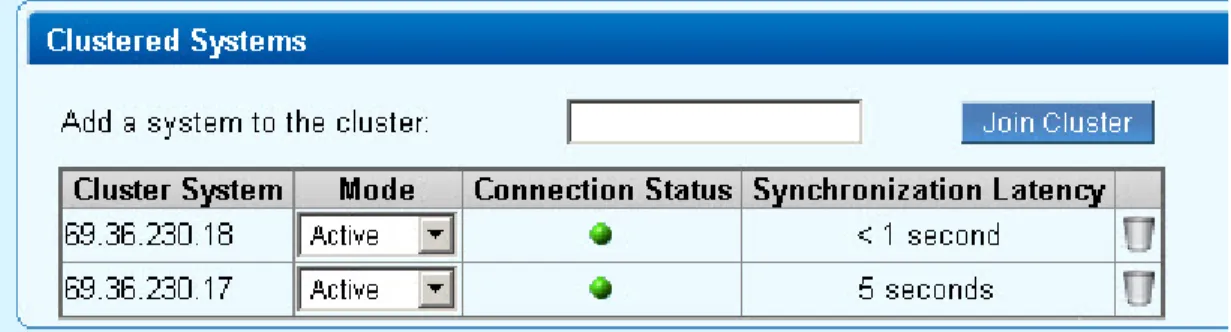
On each Barracuda system, refresh the ADVANCED > Clustering page, and verify that: Each system’s IP address appears in the Clustered Systems list
The Connection Status of each server is green - see Figure 1 below.
Distribute the incoming mail traffic to each Barracuda Spam Firewall using a Barracuda Load Balancer (preferred) or another load balancing device, or by using multiple DNS MX records of equal priority.
Figure 1: Two servers in a cluster with a 'green' status.
Add a Barracuda Spam Firewall to a Cluster
Begin by making a backup of the configuration of any system in the cluster, then perform these steps on the Barracuda Spam Firewall you want to add to the existing cluster:
When replacing a failed system in a cluster, be sure to follow step #3 as described below under Removing a Barracuda Spam Firewall
. From a Cluster
1. 2. 3. 4. 5. 6. 1. 2. 3.
Complete the installation process and ensure that the new Barracuda Spam Firewall is the same model# and running the same firmware version as all systems in the cluster.
From the ADVANCED > Task Manager page, verify that no processes are running. Do this on all other systems in the cluster as well. From the ADVANCED > Clustering page, enter the Cluster Shared Secret password for the cluster, and click Save Changes. Optional: In the Cluster Hostname field, enter the DNS/hostname (FQDN) by which other Barracuda Spam Firewalls in the cluster will attempt to communicate with this one.
On a Barracuda Spam Firewall already in the cluster, change any value in the configuration and click Save Changes. This ensures proper synchronization of the configuration.
On the ADVANCED > Clustering page on the new Barracuda Spam Firewall to be added to the cluster, enter the IP address of any system in the cluster in the Add System field and click the Join Cluster button. At this point, the configuration of the cluster will automatically propagate to the newly added system.
Limiting End-user Access to the Cluster
You can choose to dedicate a single Barracuda Spam Firewall as the Quarantine Host to serve up the end-user interface through which users will access their quarantine inboxes, even though their actual quarantine inbox (primary or secondary) may be hosted by another Barracuda Spam Firewall in the cluster. By not directing email to the Quarantine Host, you can:
Enhance network security by limiting end-user access (port 8000 by default) and administration to only one Barracuda Spam Firewall on the Internet
Insulate the user interface performance from any peaks in email volume
To configure one Barracuda Spam Firewall as the Quarantine Host, from the BASIC > Quarantine page, enter that system's hostname in the Qu field.
arantine Host
Removing a Barracuda Spam Firewall From a Cluster
Log into the system to be removed and change or clear the Cluster Shared Secret on the ADVANCED > Clustering page. Click Save Changes. Changing the cluster shared secret prevents the systems in the cluster from communicating with one another.
On the same system, delete all other systems from the Clustered Systems list.
On any system that remains in the cluster, go to the ADVANCED > Clustering page. In the Clustered Systems list, delete the system to be removed from the cluster. This step is very important when removing a failed Barracuda Spam Firewall from a cluster.
Centralized Policy Management With a Quarantine Host
You can optionally designate one Barracuda Spam Firewall as the “host” of the cluster such that all administration of configuration settings and access to per-user quarantine for the cluster can only be accessed and set from that node. This option has two advantages: it provides for additional security by limiting access to administration of the cluster, and it protects the user interface from mail processing load since, with this configuration, you do not direct any email traffic to the host node.
To assign one Barracuda Spam Firewall as the host of the cluster, enter the hostname of that device in the Quarantine Host field on the BASIC > page and do not direct any email to that device.
Quarantine
Redundancy of user quarantine data on the cluster
Each user account has a primary and backup server in the cluster. Regardless of how many Barracuda Spam Firewalls there are in the cluster, there are always two appliances that have the same quarantine information (configuration and quarantine messages).
Data Not Synchronized Across the Cluster
Clustering provides 100% redundant coverage of the propagated data. However, for practical reasons, some data is not propagated to the other clustered systems when a new system joins. Energize updates do not synchronize across systems in a cluster. The following Barracuda Spam Firewall configurations are considered unique and will not sync to match other Barracuda Spam Firewalls in a cluster:
IP Address, Subnet Mask, and Default Gateway (on the BASIC > IP Configuration page) Primary DNS Server and Secondary DNS Server (on the BASIC > IP Configuration page) Serial number (this will never change)
Hostname (on the BASIC > IP Configuration page)
Any advanced IP configuration (Barracuda Spam Firewall 600 and above, on the ADVANCED > Advanced Networking page) Administrator password
Guest password
Time Zone (on the BASIC > Administration page) Cluster hostname (on the ADVANCED > Clustering page)