Schafer
The book you need to succeed!
Master the essential building blocks
of the Web
The first step to any Web document is to build a strong
foundation. This comprehensive book focuses on the
essential building blocks of the Web: HyperText Markup
Language (HTML), extensible HTML (XHTML),
and Cascading Style Sheets (CSS). You’ll learn basic
scripting and coding standards; how to use tags, tables,
forms, and links; the best ways to test and validate
pages; and many more techniques that help you take
full advantage of these essential tools.
Companion
Web Site
• Explore the basics of HTML such as tags, attributes, and how to
structure content to create specialized document formatting
• Learn how multimedia and scripting can be used to make your
content dynamic
• Author, validate, and troubleshoot your coding and documents
• Enable content for multiple devices—from the standard PC browser
to various mobile devices
• Understand values, lists, colors, fonts, and other CSS metrics and
formatting basics
• Get up to speed on advanced document formatting
Companion
Web Site
Code samples and examples from the book, as well as extra material, can be found at www.wiley.com/go/ htmlbible5e.
Steven M. Schafer
has broad experience in technology and is a veteran of publishing. He’s been in and around technology as a programmer, an editor, a product specialist, a technical manager, and a Web developer. Steve employs both open-source and proprietary technologies and has worked with the Internet since the mid-1990s. He can be reached by e-mail at [email protected].
Master HTML 4.01,
CSS 2.1, and XHTML 1.1
Construct static and
dynamic Web pages
Build for a mobile and
social networking world
H
T
ML,
XH
T
ML,
and CSS
Shelving Category:COMPUTERS / Programming Languages / HTML, SGML
Reader Level:
Beginning to Advanced
$39.99
USA
www.wiley.com/go/ htmlbible5e
Steven M. Schafer
Fifth Edition
Fifth Edition
HTML,
XHTML,
and
CSS
HTML, XHTML,
AND CSS BIBLE
Fifth Edition
HTML, XHTML, and CSS Bible, Fifth Edition
Published by
Wiley Publishing, Inc.
10475 Crosspoint Boulevard Indianapolis, IN 46256
www.wiley.com
Copyright©2010 by Wiley Publishing, Inc., Indianapolis, Indiana Published simultaneously in Canada
ISBN: 978-0-470-52396-4
Manufactured in the United States of America 10 9 8 7 6 5 4 3 2 1
No part of this publication may be reproduced, stored in a retrieval system or transmitted in any form or by any means, electronic, mechanical, photocopying, recording, scanning or otherwise, except as permitted under Sections 107 or 108 of the 1976 United States Copyright Act, without either the prior written permission of the Publisher, or authorization through payment of the appropriate per-copy fee to the Copyright Clearance Center, 222 Rosewood Drive, Danvers, MA 01923, (978) 750-8400, fax (978) 646-8600. Requests to the Publisher for permission should be addressed to the Permissions Department, John Wiley & Sons, Inc., 111 River Street, Hoboken, NJ 07030, (201) 748-6011, fax (201) 748-6008, or online athttp://www.wiley.com/go/permissions.
Limit of Liability/Disclaimer of Warranty:The publisher and the author make no representations or warranties with respect to the accuracy or completeness of the contents of this work and specifically disclaim all warranties, including without limitation warranties of fitness for a particular purpose. No warranty may be created or extended by sales or promotional materials. The advice and strategies contained herein may not be suitable for every situation. This work is sold with the understanding that the publisher is not engaged in rendering legal, accounting, or other professional services. If professional assistance is required, the services of a competent professional person should be sought. Neither the publisher nor the author shall be liable for damages arising herefrom. The fact that an organi-zation or Web site is referred to in this work as a citation and/or a potential source of further information does not mean that the author or the publisher endorses the information the organization or Web site may provide or rec-ommendations it may make. Further, readers should be aware that Internet Web sites listed in this work may have changed or disappeared between when this work was written and when it is read.
For general information on our other products and services please contact our Customer Care Department within the United States at (877) 762-2974, outside the United States at (317) 572-3993 or fax (317) 572-4002.
Wiley also publishes its books in a variety of electronic formats. Some content that appears in print may not be available in electronic books.
Library of Congress Control Number:2009940878
About the Author
Credits
Executive Editor
Carol Long
Senior Project Editor
Adaobi Obi Tulton
Technical Editor
Shawn Kessel
Production Editor
Rebecca Anderson
Copy Editor
Luann Rouff
Editorial Director
Robyn B. Siesky
Editorial Manager
Mary Beth Wakefield
Marketing Manager
Ashley Zurcher
Vice President and Executive Group Publisher
Richard Swadley
Vice President and Executive Publisher
Barry Pruett
Associate Publisher
Jim Minatel
Project Coordinator, Cover
Lynsey Stanford
Proofreaders
Scott Klemp and Sheilah Ledwidge, Word One
Indexer
Robert Swanson
Cover Image
A
book like this requires a lot of hard work from a lot of talented people. This talent and hard work deserves recognition and thanks. As such, the author would like to thank the following:The management team at Wiley Publishing for continuing to support large, tutorial reference books so folks like you (the reader) can benefit.
Jenny Watson, acquisitions editor, for getting the ball rolling on this edition.
Carol A. Long, executive acquisitions editor, for picking up the rolling ball, keeping the project on track, and keeping this author both responsible and happy.
Adaobi Obi Tulton, senior project editor and the best developer I’ve had the pleasure to work with. Adaobi simultaneously kept everything on track and provided crucial insights and feedback throughout the process — all while treating everyone else as valuable team members.
Shawn Kessel, technical editor, for ensuring that the information provided is accurate as well as pertinent, and for providing many useful insights.
Rebecca Anderson, production editor, for making sure each element was ushered through the editing process, maintaining the high quality of writing found within.
Luann Rouff, copy editor, who proved to be another in the ‘‘best of’’ class. Luann helped make my gibberish legible, ironed out the organizational rough spots, and otherwise finely crafted the text.
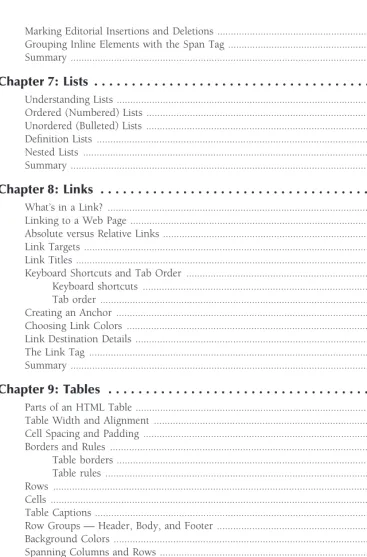
Introduction ...xxxix
Part I: Creating Content with HTML . . . 1
Chapter 1: What Is a Markup Language? ...3
Chapter 2: HTML Values and Units ...9
Chapter 3: What Goes into a Web Document? ...17
Chapter 4: The HEAD Elements ...41
Chapter 5: Text Structuring Essentials ...49
Chapter 6: Character Formatting Essentials ...61
Chapter 7: Lists ...71
Chapter 8: Links ...87
Chapter 9: Tables ...101
Chapter 10: Frames ...143
Chapter 11: Forms ...159
Chapter 12: Colors and Images ...185
Chapter 13: Multimedia ...213
Chapter 14: Special Characters ...231
Chapter 15: Internationalization and Localization ...247
Chapter 16: Scripts ... 261
Chapter 17: Dynamic HTML ...271
Chapter 18: The Future of HTML: HTML5 ...297
Part II: HTML Tools and Variants . . . 307
Chapter 19: Web Development Software ...309
Chapter 20: Publishing Your Site ...321
Chapter 21: An Introduction To XML ... 329
Chapter 22: Creating Mobile Documents ...349
Chapter 23: Tidying and Validating Your Documents ... 359
Chapter 24: HTML Tips and Tricks ...371
Part III: Controlling Presentation with CSS . . . 395
Chapter 25: CSS Basics ...397
Chapter 26: Style Definitions ...405
Chapter 27: CSS Values and Units ...421
Chapter 28: CSS Inheritance and Cascade ...431
Chapter 29: Font Properties ... 437
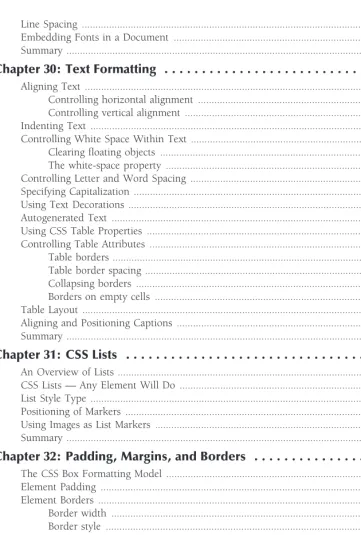
Chapter 30: Text Formatting ...445
Chapter 31: CSS Lists ... 471
Contents at a Glance
Chapter 33: Colors and Backgrounds ... 491
Chapter 34: CSS Layouts ...503
Chapter 35: Pseudo-Elements and Generated Content ... 525
Chapter 36: Dynamic HTML with CSS ...539
Chapter 37: Media Styles and Defining Documents for Printing ...553
Chapter 38: The Future of CSS: CSS3 ...571
Part IV: Additional CSS Tools . . . 579
Chapter 39: User Interface Styles ...581
Chapter 40: Testing and Validating CSS ...589
Chapter 41: CSS Tips and Tricks ...595
Appendix A: XHTML Element Quick Reference ...617
Appendix B: HTML Special Characters Quick Reference ...667
Appendix C: CSS 2.1 Properties Quick Reference ...679
Appendix D: CSS 2.1 Selectors Quick Reference ... 705
Appendix E: Pseudo-Elements and Pseudo-Classes Quick Reference ...709
Index . . . 711
Introduction . . . xxxix
Part I: Creating Content with HTML
1
Chapter 1: What Is a Markup Language? . . . 3
What Are We Doing Here? ...3
Understanding Hypertext ...4
Understanding Markup Instructions ...4
Understanding Markup Language ...6
Summary ...8
Chapter 2: HTML Values and Units . . . 9
Basic Tag Attribute Format ...9
Common Attributes ...12
Tag identifiers — IDs and classes ... 12
IDs ... 12
Classes ... 12
Text and Comments ...13
Comments ... 13
CDATA sections ... 14
Uniform Resource Indicators ...14
Language and International Options ...15
Language code ...15
Text direction ...15
Summary ...16
Chapter 3: What Goes into a Web Document? . . . 17
Specifying Document Type ...17
Overall Document Structure: HTML, Head, and Body ...18
The<html>tag ...18
The<head>tag ... 18
The<body>tag ...19
Style Definitions ... 20
Block Elements: Markup for Paragraphs and Other Blocks of Content ...21
Formatted paragraphs ...21
Headings ...22
Quoted text ... 24
Contents
Preformatted text ...26
Divisions ... 27
Inline Elements: Markup for Characters ... 28
Basic inline tags ...29
Spanning text ...31
Special Characters (Entities) ... 31
Organizational Elements ... 32
Tables ...32
Forms ...34
Linking to Other Pages ...35
Images ...37
Comments ...38
Scripts ...38
Putting It All Together ...39
Summary ...40
Chapter 4: The HEAD Elements . . . 41
Specifying the Document Title ... 41
Providing Information to Search Engines ...41
Setting the Default Path ...43
Script Sections ...45
Style Sections ...45
Specifying Profiles ... 45
Background Color and Background Images ...46
Specifying the document background color ... 46
Specifying the document background image ...47
Summary ...48
Chapter 5: Text Structuring Essentials . . . 49
Formatting Paragraphs ...49
Line Breaks ...51
Divisions ...52
Rules ... 56
Block Quotes ...57
Preformatted Text ...58
Summary ...59
Chapter 6: Character Formatting Essentials . . . 61
Methods of Text Control ...61
The<font>tag ...61
Emphasis and other text tags ...62
CSS text control ... 62
Bold and Italic Text ...65
Use of Emphasis Instead of Italics ...66
Monospace (Typewriter) Fonts ...66
Superscripts and Subscripts ...67
Abbreviations ...67
Contents
Marking Editorial Insertions and Deletions ...68
Grouping Inline Elements with the Span Tag ...68
Summary ...70
Chapter 7: Lists . . . 71
Understanding Lists ...71
Ordered (Numbered) Lists ...72
Unordered (Bulleted) Lists ...77
Definition Lists ... 81
Nested Lists ... 83
Summary ...85
Chapter 8: Links . . . 87
What’s in a Link? ... 87
Linking to a Web Page ...89
Absolute versus Relative Links ...90
Link Targets ...92
Link Titles ...93
Keyboard Shortcuts and Tab Order ... 94
Keyboard shortcuts ... 94
Tab order ...95
Creating an Anchor ...96
Choosing Link Colors ...96
Link Destination Details ...98
The Link Tag ...99
Summary ...100
Chapter 9: Tables . . . 101
[image:19.612.73.441.71.628.2]Parts of an HTML Table ...101
Table Width and Alignment ...103
Cell Spacing and Padding ...107
Borders and Rules ... 108
Table borders ...108
Table rules ...110
Rows ... 111
Cells ...112
Table Captions ...114
Row Groups — Header, Body, and Footer ...117
Background Colors ...119
Spanning Columns and Rows ...120
Grouping Columns ...125
Formatting with Tables ...127
Rudimentary Formatting with Tables ...127
Real-world examples ...131
Floating page ...132
Contents
Navigational menus and blocks ...139
Multiple columns ...141
Summary ...142
Chapter 10: Frames . . . 143
Frames Overview ...143
Framesets and Frame Documents ...144
Creating a frameset ... 144
The frameset tag ...146
The frame tag ...148
Frame margins, borders, and scroll bars ...148
Permitting or prohibiting user modifications ...150
Targeting Links to Frames ...151
Nested Framesets ...154
Inline Frames ...155
Summary ...158
Chapter 11: Forms . . . 159
Understanding Forms ...159
Inserting a Form ...162
HTTP GET ...163
HTTP POST ...163
Additional<form>attributes ...163
Field Labels ...164
Text Input Boxes ...164
Password Input Boxes ...165
Radio Buttons ...165
Check Boxes ...166
List Boxes ...167
Large Text Input ...169
Hidden Fields ...170
Buttons ...171
Images ...172
File Fields ...172
Submit and Reset Buttons ...174
Tab Order and Keyboard Shortcuts ... 174
Preventing Changes ...175
Fieldsets and Legends ...177
Using Events with Forms ...179
Form Scripts and Script Services ...182
Download a handler ...183
Use a script service ... 183
Summary ...183
Chapter 12: Colors and Images . . . 185
Web Color Basics ...185
Other Means to Specify Colors ...186
Contents
The Evolution of Color on the Web ... 187
Using Proper Means to Specify Colors ...191
Image Formats for the Web ...193
Image compression ...193
Compression options ... 194
GIF ...194
JPEG ...195
PNG ...195
Creating Graphics ...196
Essential functions ...196
Progressive JPEGs and interlaced GIFs ... 197
Using transparency ...198
Animated images ...199
Inserting an Image ...200
Image Alignment ... 201
Specifying Text to Display for Nongraphical Browsers ... 204
Sizing an Image ...205
Image Borders ...206
Image Maps ... 208
Specifying an image map ...208
Specifying clickable regions ...209
Specifying regions using anchor tags ... 211
Specifying regions using area tags ...211
Putting it all together ...211
Summary ...212
Chapter 13: Multimedia . . . 213
Animated Images ...214
Animation and Video Formats, Plug-ins, and Players ...216
Popular formats and players (plug-ins) ...217
Flash ...218
RealOne ...218
QuickTime ...218
YouTube ...218
Windows Media Player ...218
Embedding Media via the Object Tag ...219
Embedding a Windows Media Player Using<object>...223
Embedding YouTube Videos ... 226
Adding Sound to Web Pages ...228
Creating Multimedia Files ...229
A Final Word About Multimedia ...229
Summary ...230
Chapter 14: Special Characters . . . 231
Understanding Character Encodings ...231
Contents
En and Em Spaces and Dashes ...233 Copyright and Trademark Symbols ...234 Currency Symbols ...235 ‘‘Real’’ Quotation Marks ...235 Arrows ... 236 Accented Characters ...237 Greek and Mathematical Characters ...239 Other Useful Entities ...243 Summary ...245
Chapter 15: Internationalization and Localization . . . 247
Internationalization and Localization ...247 Translating Your Web Site ...249 Understanding Unicode ...249 Basic Latin (U+0000–U+007F) ...249 ISO-8859-1 ...254 Latin-1 Supplement (U+00 C0 - U+00FF) ...254 Latin Extended-A (U+0100 - U+017F) ...259 Latin Extended-B and Latin Extended Additional ...260 Summary ...260
Chapter 16: Scripts . . . 261
Client-Side versus Server-Side Scripting ... 261 Client-side scripting ...261 Server-side scripting ...262 Setting the Default Scripting Language ... 262 Including a Script ...263 Calling an External Script ...264 Triggering Scripts with Events ...264 Hiding Scripts from Older Browsers ...269 Summary ...270
Chapter 17: Dynamic HTML . . . 271
The Need for DHTML ...271 How DHTML Works ...272 The Document Object Model ...272 The history of the DOM ...273 Understanding the DOM ... 273 DOM node properties and methods ...275 Traversing and changing a document’s nodes ...278 The JavaScript DOM ...280 The window object ... 281 The document object ...283 The form object ...284 The location object ...284 The history object ...285 The self object ...285
Contents
Using Event Handlers ... 286 Accessing an Element by Its ID ...287 Cross-Browser Compatibility Issues ... 288 Browser detection: querying for identification ...288 Browser detection: object detection ...289 DHTML Examples ...289 Form Automation: Check boxes ...289 Rollovers ...291 Collapsible menus ...292 How they work ...293 Summary ...295
Chapter 18: The Future of HTML: HTML5 . . . 297
More Publishing and Layout Features ...297 Accessible Multimedia ...298 Changes: Elements and Attributes ...300 New elements ...301 New attributes by element ...301 New input types (form input element) ...302 New global attributes ...303 Deprecated elements ...303 Deprecated attributes ...304 Summary ...305
Part II: HTML Tools and Variants
307
Chapter 19: Web Development Software . . . 309
Text-Oriented Editors ... 309 Simple text editors ...309 Smart text editors ...310 HTML-specific editors ...311 WYSIWYG HTML Editors ...312 NetObjects Fusion ...312 Dreamweaver ...314 Firefox Add-ons ...316 Other Tools ... 317 Graphics editors ...317 Adobe Flash ...318 Summary ...319
Chapter 20: Publishing Your Site . . . 321
Contents
Chapter 21: An Introduction To XML . . . 329
XML Basics ...329 XML Syntax ...331 XML Declaration and DOCTYPE ...331 Elements ...332 Attributes ...333 Comments ... 334 Non-parsed data ...334 Entities ...335 Namespaces ...336 Stylesheets ... 337 Working with Document Type Definitions ...337 Using elements in DTDs ...338 Using element declaration syntax for empty elements ...339 Using element declaration syntax for elements with PCDATA ...339 Using element declaration syntax for elements with child elements ...339 Declaring the number of occurrences for elements ...339 Using attributes in DTDs ...341 Using entities in DTDs ...342 Using PCDATA and CDATA in DTDs ... 342 Introducing XML Schemas ...343 Working with Schemas ...343 Using XML ...345 Extensible Stylesheet Language Transformations ...346 XML editing ...346 XML parsing ...347 Summary ...347
Chapter 22: Creating Mobile Documents . . . 349
Understanding the Evolution of the Mobile Web ...350 The first, dark years of mobility ...350 The Open Mobile Alliance and other standards ...351 The bottom line ...351 XHTML Basic 1.1 ...352 The XHTML Basic 1.1 doctype ... 352 XHTML Basic 1.1 elements ...352 Special considerations ...353 Screen size ...354 Balancing content for bandwidth and cost ...354 Input restrictions ...354 Easy URLs ...355 Small images ...356 Descriptive alt attributes and link text ...356
Contents
Reliable navigation schemes ... 356 Limit complex display structures ... 356 Mobile Web Development Tools ...356 Summary ...357
Chapter 23: Tidying and Validating Your Documents . . . 359
Tidying Your HTML Code ...359 HTML Tidy ...362 Getting HTML Tidy ...362 Running HTML Tidy ...363 Validating Your Code ...365 Specifying the correct document type declaration ...365 Validation tools ... 366 Understanding validation output ...367 Additional Testing and Validation ...368 Testing with a variety of user agents ...368 Testing for a variety of displays ...368 Summary ...369
Chapter 24: HTML Tips and Tricks . . . 371
Preloading Images ... 371 Controlling Text Breaks in Table Cells ... 373 Stretching Title Bars ...374 Simulating Newspaper Columns ... 377 Including Image Size for Fast Display ...379 Protecting E-mail Addresses ...379 Automating Forms ...382 Manipulating form objects ...382 Validating form input ...384 Modifying the User Agent Environment ... 387 The concept ...387 The implementation ...387 The JavaScript functions ...392 Summary ...393
Part III: Controlling Presentation with CSS
395
Chapter 25: CSS Basics . . . 397
Contents
Chapter 26: Style Definitions . . . 405
The Style Definition Format ... 405 Understanding Selectors ...407 Matching elements by type ...407 Matching using the universal selector ...407 Matching elements by class ... 408 Matching elements by identifier ...409 Matching elements by specific attributes ... 409 Matching child, descendant, and adjacent sibling elements ... 410 Understanding document hierarchy ...410 Selecting by hierarchy ...411 Understanding Style Inheritance ...412 Using Pseudo-Classes ...413 Anchor styles ...413 The :first-child pseudo-class ...414 The :lang pseudo-class ...414 Pseudo-Elements ... 415 First line ... 415 First letter ...416 Before and after ...417 Shorthand Expressions ...418 Summary ...420
Chapter 27: CSS Values and Units . . . 421
General Property Value Rules ...421 Property Value Metrics ...423 Keyword values ...424 Real-world measures ...425 Screen measures ...426 Relational measures ...426 Color and URL functions ...428 Aural metrics ...429 Summary ...430
Chapter 28: CSS Inheritance and Cascade . . . 431
Inheritance ...431 Cascade ...433 Specificity ...435 Summary ...436
Chapter 29: Font Properties . . . 437
Understanding Fonts ...437 Font Types ...438 Font Sizing ... 440 Font Styling ...441
Contents
Line Spacing ...442 Embedding Fonts in a Document ... 442 Summary ...444
Chapter 30: Text Formatting . . . 445
[image:27.612.77.439.77.613.2]Aligning Text ...445 Controlling horizontal alignment ... 445 Controlling vertical alignment ...448 Indenting Text ...450 Controlling White Space Within Text ...451 Clearing floating objects ... 451 The white-space property ...454 Controlling Letter and Word Spacing ...455 Specifying Capitalization ...457 Using Text Decorations ...458 Autogenerated Text ...460 Using CSS Table Properties ... 460 Controlling Table Attributes ...460 Table borders ...461 Table border spacing ...462 Collapsing borders ...464 Borders on empty cells ... 465 Table Layout ...467 Aligning and Positioning Captions ...468 Summary ...470
Chapter 31: CSS Lists . . . 471
An Overview of Lists ...471 CSS Lists — Any Element Will Do ...472 List Style Type ...473 Positioning of Markers ...475 Using Images as List Markers ...476 Summary ...478
Chapter 32: Padding, Margins, and Borders . . . 479
Contents
Chapter 33: Colors and Backgrounds . . . 491
Element Colors ...491 Foreground colors ...491 Background colors ...492 Background Images ...496 Repeating and scrolling images ... 498 Positioning background images ...501 The background shortcut property ... 502 Summary ...502
Chapter 34: CSS Layouts . . . 503
Understanding CSS Positioning ...503 Static positioning ...503 Relative positioning ...504 Absolute positioning ... 506 Fixed positioning ...507 Specifying the Element Position ...508 Floating Elements to the Left or Right ...511 Defining an Element’s Width and Height ...514 Specifying exact sizes ...514 Specifying maximum and minimum sizes ... 515 Controlling element overflow ...515 Stacking Elements in Layers ...517 Controlling Element Visibility ... 522 Summary ...523
Chapter 35: Pseudo-Elements and Generated Content . . . 525
The Content Property ... 525 Pseudo-Elements ... 527 :first-line ... 528 :first-letter ...528 :before and :after ...530 Quotation Marks ... 531 Numbering Elements Automatically ...532 The counter object ...532 Changing the counter value ...532 A counter example: chapter and section numbers ...533 Custom list numbers ...536 Summary ...536
Chapter 36: Dynamic HTML with CSS . . . 539
Accessing CSS Properties with JavaScript ... 539 Useful CSS Manipulation ...545 Hiding and showing text ...545 Picture zooming ... 548 Menu buttons with rollovers ...549 Summary ...552
Contents
Chapter 37: Media Styles and Defining Documents for Printing . . . 553
Understanding CSS Media Types ... 553 Specifying media types ...554 Specifying one style’s media type ...554 Specifying a group of styles’ media type ...555 Specifying an external style sheet’s media type ...556 Setting Up Documents for Printing ...556 The page box formatting model ...556 Defining the page size with the @page rule ...557 Setting up the page size with the size property ... 559 Setting margins with the margin property ...559 Including crop and cross marks ...560 Controlling page breaks ...560 Using the page-break-before and page-break-after properties ... 560 Using the page-break-inside property ...562 Handling widows and orphans ...562 Preparing documents for double-sided printing ...564 Creating a Multimedia Document ... 564 The online (screen media) document ...565 Reformatting the page ...568 Summary ...570
Chapter 38: The Future of CSS: CSS3 . . . 571
Just Better ...571 Modularity ...572 Using CSS3 Properties Today ...573 More Control over Selections ... 574 Revisiting the Brass Ring of CSS: Rounded Corners ...575 Summary ...577
Part IV: Additional CSS Tools
579
Chapter 39: User Interface Styles . . . 581
Changing the Cursor ...581 User Interface Colors ...583 User Interface Fonts ...587 Summary ...587
Chapter 40: Testing and Validating CSS . . . 589
Contents
Chapter 41: CSS Tips and Tricks . . . 595
Hanging Indents ...595 Expanding Buttons ...597 Pull Quotes ...600 Tabbed Menus ...603 Rounded Boxes ...605 Flowing Elements ...608 Flowing Text ... 611 Summary ...615
Appendix A: XHTML Element Quick Reference . . . 617
Element Listings ...618
<a>...618 Context ...618 Attributes ...618 Usage example ...619
<abbr> ... 619 Context ...619 Attributes ...619 Usage example ...619
<acronym>...620 Context ...620 Attributes ...620 Usage example ...620
<address>...620 Context ...620 Attributes ...621 Usage example ...621
<area> ...621 Context ...621 Attributes ...621 Usage example ...621
<b>...621 Context ...622 Attributes ...622 Usage example ...622
<base>...622 Context ...622 Attributes ...622 Usage example ...622
<bdo> ... 623 Context ...623
Contents
Attributes ...623 Usage example ...623
<big>...623 Context ...623 Attributes ...623 Usage example ...624
<blockquote>...624 Context ...624 Attributes ...624 Usage example ...624
<body>...624 Context ...625 Attributes ...625 Usage example ...625
<br> ...625 Context ...625 Attributes ...625 Usage example ...626
<button>...626 Context ...626 Attributes ...626 Usage example ...626
<caption>...627 Context ...627 Attributes ...627 Usage example ...627
<cite>...627 Context ...627 Attributes ...627 Usage Example ...627
<code> ...628 Context ...628 Attributes ...628 Usage Example ...628
<col> ...628 Context ...628 Attributes ...628 Usage example ...629
Contents
<dd> ... 629 Context ...629 Attributes ...629 Usage example ...630
<del>...630 Context ...630 Attributes ...630 Usage example ...630
<dfn> ...630 Context ...630 Attributes ...630 Usage example ...631
<div>...631 Context ...631 Attributes ...631 Usage example ...631
<dl> ... 631 Context ...631 Attributes ...631 Usage example ...632
<dt> ...632 Context ...632 Attributes ...632 Usage example ...632
<em>...632 Context ...632 Attributes ...633 Usage example ...633
<fieldset> ...633 Context ...633 Attributes ...633 Usage example ...633
<form>...633 Context ...634 Attributes ...634 Usage example ...634
<h1>,<h2>,<h3>,<h4>,<h5>,<h6> ...634 Context ...634 Attributes ...635 Usage example ...635
<head> ...635 Context ...635
Contents
Attributes ...635 Usage example ...635
<hr> ...636 Context ...636 Attributes ...636 Usage example ...636
<html>...636 Context ...636 Attributes ...636 Usage example ...636
<i>...637 Context ...637 Attributes ...637 Usage example ...637
<img>...637 Context ...637 Attributes ...637 Usage example ...638
<input>...638 Context ...638 Attributes ...638 Usage example ...639
<ins> ...639 Context ...639 Attributes ...639 Usage example ...639
<kbd> ... 640 Context ...640 Attributes ...640 Usage example ...640
<label> ...640 Context ...640 Attributes ...640 Usage example ...640
<legend> ...641 Context ...641 Attributes ...641 Usage example ...641
Contents
<link> ... 642 Context ...642 Attributes ...642 Usage example ...642
<map>...643 Context ...643 Attributes ...643 Usage example ...643
<meta> ...643 Context ...643 Attributes ...644 Usage example ...644
<noscript>...644 Context ...644 Attributes ...644 Usage example ...644
<object> ...645 Context ...645 Attributes ...645 Usage example ...645
<ol>...646 Context ...646 Attributes ...646 Usage example ...646
<optgroup>...646 Context ...646 Attributes ...647 Usage example ...647
<option> ...647 Context ...647 Attributes ...647 Usage example ...647
<p> ... 647 Context ...648 Attributes ...648 Usage example ...648
<param> ... 648 Context ...648 Attributes ...648 Usage example ...649
<pre> ... 649 Context ...649
Contents
Attributes ...649 Usage example ...649
<q>...649 Context ...649 Attributes ...650 Usage example ...650
<samp> ...650 Context ...650 Attributes ...650 Usage example ...650
<script>...650 Context ...651 Attributes ...651 Usage example ...651
<select>...651 Context ...651 Attributes ...652 Usage example ...652
<small> ...652 Context ...653 Attributes ...653 Usage example ...653
<span> ...653 Context ...653 Attributes ...653 Usage example ...653
<strong>...653 Context ...654 Attributes ...654 Usage example ...654
<style> ... 654 Context ...654 Attributes ...654 Usage example ...654
<sub>...655 Context ...655 Attributes ...655 Usage example ...655
Contents
<table>...656 Context ...656 Attributes ...656 Usage example ...656
<tbody> ... 657 Context ...657 Attributes ...657 Usage example ...657
<td> ...657 Context ...657 Attributes ...658 Usage example ...658
<textarea> ...658 Context ...658 Attributes ...658 Usage example ...659
<tfoot> ...659 Context ...659 Attributes ...659 Usage example ...659
<th> ...659 Context ...660 Attributes ...660 Usage example ...660
<thead>...660 Context ...660 Attributes ...661 Usage example ...661
<title>...661 Context ...661 Attributes ...661 Usage example ...661
<tr> ...661 Context ...662 Attributes ...662 Usage example ...662
<tt> ...662 Context ...662 Attributes ...662 Usage example ...662
<ul> ... 662 Context ...663
Contents
Attributes ...663 Usage example ...663
<var>...663 Context ...663 Attributes ...663 Usage example ...663 Event Attributes ...664 Standard events ...664 Other Events ...664 Other Common Attributes ...665 Core attributes ...665 Internationalization attributes ...665 Common color codes ...665
Appendix B: HTML Special Characters Quick Reference . . . 667
Appendix C: CSS 2.1 Properties Quick Reference . . . 679
Contents
font-style ...689 font-variant ...689 font-weight ...689 font ... 690 letter-spacing ...690 word-spacing ...691 white-space ...691 Text direction ...691 unicode-bidi ...691 direction ... 692 Block ...692 margin-left, margin-right, margin-top, margin-bottom ... 692 margin ... 692 padding-left, padding-right, padding-top, padding-bottom ...693 padding ...693 clip ...693 overflow ...694 height, width ...694 max-height, max-width ...694 min-height, min-width ...694 line-height ... 695 vertical-align ...695 Positioning ...695 visibility ...696 display ... 696 position ...696 float ...697 top, bottom, left, right ...697 z-index ...697 clear ...698 Borders ...698
border-color, border-top-color, border-bottom-color, border-left-color, border-right-color ...698 border-style, border-top-style, border-bottom-style, border-left-style,
border-right-style ...699 border-width, border-top-width, border-bottom-width, border-left-width,
Contents
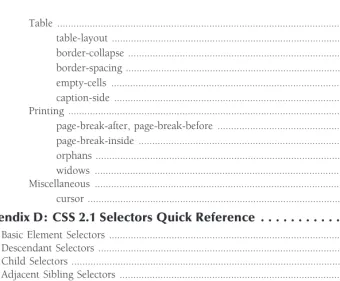
Table ...701 table-layout ...701 border-collapse ...701 border-spacing ...701 empty-cells ... 702 caption-side ...702 Printing ...702 page-break-after, page-break-before ...703 page-break-inside ...703 orphans ...703 widows ... 703 Miscellaneous ... 704 cursor ...704
Appendix D: CSS 2.1 Selectors Quick Reference . . . 705
Basic Element Selectors ...705 Descendant Selectors ...706 Child Selectors ...706 Adjacent Sibling Selectors ...707 Class Selectors ...707 ID Selectors ...707 Attribute Selectors ...708
Appendix E: Pseudo-Elements and Pseudo-Classes
Quick Reference . . . 709
Pseudo-Elements ... 710 Pseudo-Classes ...710
W
elcome toHTML, XHTML, and CSS Bible, Fifth Edition. This book was conceived, designed, and written to provide a comprehensive overview of the two largest Web technologies, HyperText Markup Language (HTML) and Cascading Style Sheets (CSS).This book serves as an introduction and reference to the information you need to create documents — simple and complex — for the World Wide Web.
A Brief History of the Internet
and the World Wide Web
The World Wide Web is omnipresent in our lives today, and most computers and computerized devices are connected to it. However, the Web and its underlying Internet infrastructure had a very different childhood that betrays the consumer and commercial base it has today.
The Internet has its roots in the U.S. Department of Defense Advanced Research Project Agency (ARPA) project begun in or around 1960. Among the project’s goals was the ability to network computers quickly and across great distances. The network was to be designed to be almost fail-safe, enabling connected computers to continue communicating even if assorted routes between them were to fail.
In 1969, the ARPANet was born, connecting several key universities. The network continued to grow, with more and more universities coming online. One of the goals of the initial project — robust, nearly fail-safe performance — was realized via the Internet Protocol (IP). This protocol enabled communication packets to find various routes to a destination in case one or more of the routes became unstable. This communication protocol became the backbone of today’s Internet, and is how the Internet got its name.
The Transmission Control Protocol was joined with the IP to provide a robust transmission suite, a marriage of two protocols to offer more flexibility and the ability to create better communica-tions applicacommunica-tions for the Internet.
In the 1980s, the Internet went through several transitions. Although it was highly populated by educational institutions, the U.S. military hadn’t forgotten its original project. Other government agencies also took notice and joined the crowd online; and the military decided to create its own network, MILNET, lessening the load slightly.
Introduction
send such documents, and the first browser editor, called the World Wide Web. The ‘‘Web’’ soon came to the attention of the National Center for Supercomputing Applications (NCSA), where a programming team decided to create a better browser. Thus was Mosaic born, the first browser to support a high degree of multimedia. Mosaic helped usher in the crop of modern browsers we use today.
As the Web continued to be adopted outside of the government and educational sectors, it became more consumer-savvy. Many companies began using the Web infrastructure for market-ing and support purposes, while many Web developers began to target a wider, nontechnical, audience.
By the early 2000s, the Web was accessible by almost any network-connected computer, many electronic devices, and some unlikely consumer devices such as automobiles. Each of these con-nected devices uses the same type of connection, the same languages to define documents, and the same protocols to send the information.
As more and more nontechnical users began using the Web, web ‘‘pages’’ began to look more like high-quality printed documents — resembling newspapers, brochures, magazines, and the like. This movement in content signaled how far the Web had come from its inception — from technical, text-only pages to full-color, heavily designed documents.
During the entire evolution of the World Wide Web, and especially in the last few years, stan-dards, tools, and related applications have changed and evolved, sometimes at a very rapid pace. This gives Internet books a wide realm to cover.
What This Book Covers
What exactly is covered in this book? The easy answer is HTML and CSS, just as the title suggests; but with four plus notable versions of HTML, three plus notable versions of CSS, and a bevy of connected technologies, the answer is not so cut and dried.
The more exact answer is as follows:
HTML 4.01/XHTML 1.1
CSS 2.1
JavaScript
A few supporting applications to create and troubleshoot Web documents
A few multimedia formats (graphics, video, and so on) and supporting applications The following sections explain how these diverse sets of applications converge.
HTML 4.01/XHTML 1.1
HTML 4.01 is the latest version of HTML. This version is very stable, having been released in December 1999. Although HTML version 5 (HTML5) is in draft stage as of this writing, the specification is probably a good year (or so) away from actual release.
Introduction
Note, however, that this book promotes and uses XHTML 1.1 standards. This includes standards such as the following:
Every tag needs to be explicitly closed, whether by a matching closing tag or a slash at the end of a tag (if it has no matching closing tag).
Every tag must be in lowercase; in other words, use<p>instead of<P>.
Every tag attribute needs to be enclosed in quotes.
Every tag attribute must have a value — for example, the attributeselectedshould be
selected ="selected"instead.
Although these standards are not a mandatory part of HTML 4.01, they are covered in this book because the XHTML standards are stricter, don’t hamper HTML, and prepare you for authoring documents in other XML-based languages.
Note
Future versions of HTML are to be based on XHTML coding standards.
Cross-Ref
Chapter 18 provides a glimpse inside HTML5.
CSS 2.1
The latest CSS version is 2.1. Although version 3.0 is in development, its release might still be years away. Therefore, this book concentrates on CSS 2.1 due to its maturity. CSS version 2.0 has been around for almost a decade, is used for millions of Web pages, and is well understood by most Web designers. CSS version 2.1 combines some bug fixes, exact specifications where there was some ambiguity, and a few more properties and values. At its core, however, it is very much like version 2.0.
Although the CSS version 3.0 specification exists in draft form and has certain features adopted into certain user agents, it is far from being viable for a wide audience. As such, it is safer to stick with the existing 2.1 standard.
Cross-Ref
Chapter 38 provides a glimpse inside CSS3.
User Agent (Browser) Coverage
Introduction
The two staples of browser-dom, IE and Firefox, continue to dominate today’s market but also continue to adopt their own standards in various ways that frustrate even the most seasoned Web developer.
Over the last few years, Mac users have had Safari, a Mac-native browser. Safari hasn’t been known for its speed or adherence to standards, but it does give Mac users an alternative to Microsoft Internet Explorer.
In 2009, Google’s Chrome browser was released, adding yet another platform to the mix. Chrome provides many enticing features, such as a robust security framework and decent compatibility, although it is still in its infancy despite being the fourth most widely used browser. As it matures it will no doubt go through its own growing pains, including support of standard XHMTL and CSS.
So, with all these browser options, which browser(s) are specifically covered in this book? Specifically, none of the above. Rather than cover the technology of any particular browser(s), this book concentrates on the current standards of XHTML and CSS. The technologies are presented in their ratified standard form. Browser support is mentioned where appropriate, but browser-specific hacks or workarounds are not covered.
Note
Although most of the figures in this book were produced with Microsoft’s Internet Explorer, it is only a
matter of publishing practicality, not favoritism.
This decision regarding what to include keeps the book content from being too confusing while trying to cover the various quirks of various browsers, and keeps the book a manageable size.
Web 2.0
In 2004, a new World Wide Web was heralded: ‘‘Web 2.0.’’ This new age of the Web was to facilitate interactive information sharing, interoperability, user-centered design, and collaboration. In the next few years several outlets for this new frontier were born. They included blogs, web-based communities, hosted services, and a bevy of social-networking and collaborative sites. It seemed as though the new Web was coming into its own. Except, this new Web was nothing new.
Web 2.0 is built on the same technologies as the original and normal Web: (X)HTML, CSS, JavaScript, etc. The only difference was that the new application of the technology was much more focused on social and collaborative features. If one were to follow the evolution of the web — from academia, through business marketing, through personal use — social uses would be the next step of the evolution of the Web. This step would be a natural evolution, not the technical revolution foretold. This book takes the position that Web 2.0, as defined back in 2004, never actually took root. Instead the spirit of the use of technology on the Web reached a natural point in its evolution, using the same tools and technologies that created the Web. As such, you will not find any specific Web 2.0 coverage within this book, but will be able to employ the building blocks that are covered for a wide range of purposes, including social and collaborative online tools.
Introduction
Terminology
To stay progressive with the evolution of the Web and its direction today, this book uses less technical and more progressive terminology.
For example, you will seldom, if ever, see the words ‘‘page’’ or ‘‘Web page’’ used to refer to Web content in this book. That’s because as the Web has matured as a publishing medium, words such as ‘‘document’’ are much more apt for describing content on the Web.
Similarly, the word ‘‘browser’’ is a bit pass´e, and is therefore rarely used. In the past, applications such as Mosaic, Mozilla, Firefox, Opera, and Internet Explorer were the only game in town when it came to accessing the Web. Such applications, which were primarily used to ‘‘browse’’ content on the Web, were aptly dubbed ‘‘browsers.’’
However, the devices and applications used to access Web content today are much broader:
Personal electronic devices
Onboard vehicle systems
Entertainment system controllers
Mall kiosks
Many of these Web-enabled applications are not like traditional browsers. They may access data differently, present data differently, and might be controlled differently than a browser. A better term for these applications is user agent, which basically means ‘‘something that enables a user to access data,’’ which is what each of these does. For that reason, get used to seeinguser agent
instead ofbrowser.
Who Should Read This Book?
This book is geared toward a wide audience. Readers who are just getting started with HTML and Web content will benefit the most, as this book provides both a solid learning foundation as well as ample reference material for later perusal. Experienced users will find the chapters covering new standards and technologies to be the most useful, but also will appreciate having a comprehensive reference for consultation.
Although the Web is technical in nature, this book boils down the technology into simple and straightforward terms. Whether you qualify as a computer scientist or as a computer neophyte, you will be able to understand, adopt, and deploy the information throughout this book.
This Is Not a Web Design Book
Introduction
Typically, both approaches do not appear in the same book due to size constraints. The other reason why the two approaches are different has to do with the separation of content and design. This book concentrates on the content portion of Web design, whereas other design-centric books cover the design (visible attributes).
Tip
Wiley publishes many Web design books that can be paired with this book to provide a wide range of skills and techniques for creating technically correct and visually pleasing documents. Two such recommendations include:
Creating Web Sites Bible, Third Edition, by Philip Crowder and David A. Crowder (2008).
Beginning CSS Cascading Style Sheets for Web Design, 2nd Edition, by Richard York (Wrox,
2007).
Visit the Wiley website (www.wiley.com) and search on ‘‘web design’’ to find other books applicable to
your needs.
What Is Contained in This Book?
This book is divided into four major sections, plus five appendixes.
Part I: Creating Content with HTML
This part of the book covers the basics of HTML — the tags, attributes, and structure that make up the language. You learn how to structure a document, format text, and incorporate multime-dia. You also learn basic and advanced scripting to lend a dynamic edge to your documents.
Part II: HTML Tools and Variants
This part of the book covers utilities to help you author, validate, and troubleshoot your docu-ments. A few useful HTML variants and extensions — including XML and XHTML Basic — are also covered.
Part III: Controlling Presentation with CSS
This part of the book covers the basics of CSS, the syntax of CSS selectors, valid properties and values, and how to use CSS properties to effectively format the various portions of your docu-ment. You will also learn how to format a document for printing using CSS media types.
Part IV: Additional CSS Tools
The last part of this book covers additional CSS topics, including advanced layout, user interface styles, testing and validating CSS, and some CSS tips and tricks.
Introduction
Reference Appendixes
The appendixes provide a quick reference to the material covered in detail throughout the rest of the book.
Tip
See the Table of Contents for a breakdown of chapter topics in each part.
How to Use This Book
This book can be used in a variety of ways depending upon your skill level and intent.
The sequential read
If you need to learn HTML and CSS from beginning to end, then a sequential read — reading the chapters in order from beginning to end — is for you. The chapters are designed to intro-duce topics in a particular order to get you started and build toward more advanced topics. For a tutorial approach, choose a sequential read.
A targeted or random read
If you need only a refresher of certain material or want to learn in a different order than the chapters provide, then a targeted or random read — finding a topic in the table of contents or index to read, or reading chapters in a different order than numbered — is for you. Although the chapters were written to build on one another, they also are topical and encapsulate individual subjects. Find a chapter with information you need to learn and read it, or find a section within a chapter and read it alone.
For a referential approach, choose a targeted or random read.
Conventions and Features
Many different organizational and typographical features are used throughout this book to help you get the most from the information contained within.
Tips, Notes, and Cross-References
Whenever the author wants to bring something important to your attention, the information appears in a Tip, Note, or Cross-Reference. These elements are formatted as follows:
Tip
Introduction
Tips generally are used to provide information that can make your work easier — special short-cuts or methods for doing something more easily than the norm.
Notes provide additional, ancillary information that is helpful but somewhat outside the scope of the material presented.
Cross-references indicate other places in the book you’ll find information pertinent to the topic at hand.
Code
It is often necessary to display code (HTML tags, JavaScript commands, script listings) within the text. This book uses two distinct conventions, depending on where the code appears.
Code in text
A special font is used to indicate code within normal text. For example:
<body id="COMPONENT-body-0001" onLoad =‘‘displaygraphics();">.
Code listings
This code is set apart and indented from regular text, as follows:
Code listings appear in specially formatted listings, in a different font, similar to these lines.***
Companion Website
A companion website has been created to help support this book. It contains code from the book and examples within, as well as extra material not contained in this book. The website can be found atwww.wiley.com/go/htmlbible5e.
Part I
Creating Content with
HTML
IN THIS PART
Chapter 1
What is a Markup Language?
Chapter 2
HTML Values and Units
Chapter 3
What Goes into a Web Document?
Chapter 4
The HEAD Elements
Chapter 5
Text Structuring Essentials
Chapter 6
Character Formatting Essentials
Chapter 7
Lists
Chapter 8
Links
Chapter 10
Frames
Chapter 11
Forms
Chapter 12
Colors and Images
Chapter 13
Multimedia
Chapter 14
Special Characters
Chapter 15
Internalization and Localization
Chapter 16
Scripts
Chapter 17
What Is a Markup
Language?
IN THIS CHAPTER
What Are We Doing Here? Understanding Hypertext Understanding Markup
Instructions
Understanding Markup Language
T
he World Wide Web is a technology beast. If you have read this book’s introduction, you should have at least a passing familiar-ity with how the Web started — its humble beginnings to bring cross-referenced textual documents to the masses via the connectivity of the Internet.You are reading this book, so it’s a good assumption that you are familiar with what the Web has become today — a collection of technologies capable of transporting numerous media across the Internet for consumption directly on your desktop.
However, it’s important not to forget the Web’s humble beginnings because the technologies used for the very first simple documents are still in use today, and must be understood. This chapter helps frame the reasons why.
What Are We Doing Here?
Why are we diving into technical topics instead of talking about how to cre-ate Web documents? Well, technically we are talking about how to crecre-ate Web documents. The more you know about the technology behind the Web, the better prepared you will be to use the technology to your benefit, and the easier it will be to create Web documents.
Note
If you really do want to just dive into creating documents, check out Chapter 19, ‘‘Web Development Software,’’ which covers tools you can use to quickly create documents without knowing the underlying technol-ogy behind it all. However, keep in mind that such tools do not always accomplish the goal you desire and sometimes their results need manual tweaking — tweaking that you will learn to perform throughout the other
Part I: Creating Content with HTML
So back to the question: What are we doing here?
Answer: Web documents are created using several different technologies. The main technol-ogy is Hypertext Markup Language (HTML). HTML is responsible for telling a Web browser (e.g., Microsoft Internet Explorer, Mozilla Firefox, Opera, Mac Safari, Google Chrome, and so on) how text and other objects in a Web document should appear. Whether the text should be small, large, bold, underlined, or right or left justified is largely determined by the HTML embedded in a Web page.
As a consumer of Web pages, you rarely experience HTML directly; it’s hidden from the end user by the browser. However, as a creator of content, you need to be intimately familiar with HTML and its uses, which is why we are starting from scratch and covering some basics first. Don’t worry, the good stuff is right around the corner and we will get started creating actual content soon enough.
Understanding Hypertext
By its very nature, the Web and its content overcome many of the limitations of standard, linear text. This concept is best illustrated by a comparison of a book (in particular, a reference book) to the Web. For example, consider a cross-reference in a book. Accessing the cross-reference requiresyouto look up the page number, textual reference, or other object being referred to. On the Web, the reference is (usually) a single mouse click away.
Also, documents on the Web can be designed to vary depending on the user accessing them. Books, conversely, remain static objects no matter who is reading them.
The word ‘‘Hypertext’’ was created along with other Internet terms and technologies during the evolution of the Web. It was coined to describe documents that could change, redirect, and oth-erwise overcome the linearity of normal text. In short, ‘‘Hypertext’’ describes text on the World Wide Web.
Understanding Markup Instructions
Markup languages are not a difficult concept to grasp; most of you have ‘‘marked something up’’ at one point or another. For example, suppose you wanted someone to highlight a paragraph in this book. It would be fairly easy for you to instruct that person to do what you wanted — you could simply hand the person a highlighting pen, point to the paragraph, and ask the person to highlight it.
Note
Highlighting is only an example of what you might want to happen to a piece of text. You might want some text to be larger, bolder, underlined, or otherwise changed. Highlighting is used in this chapter as a simple,
real-world example.
Chapter 1: What Is a Markup Language?
Consider the paragraph shown in Figure 1-1, highlighted in Figure 1-2. FIGURE 1-1
A simple paragraph
Welcome to On Target Games, the online
home of the best-selling game, Vanguard
Odyssey. Enjoy browsing the site and don’t
forget to check out the updates section.
FIGURE 1-2
The same paragraph, highlighted
Welcome to On Target Games, the online
home of the best-selling game, Vanguard
Odyssey. Enjoy browsing the site and don’t
forget to check out the updates section.
This is a relatively easy task to ask of someone and have executed, because you, and most other people, understand the concept of paragraphs. You point to a paragraph and the person doing the highlighting knows the boundaries — the beginning and the end of the text to be high-lighted. If the individual were really dense or needed more explicit instructions, you could write the instructions on or near the paragraph, as shown in Figure 1-3.
Note
Writing explicit editing instructions in or around text is generally known asmarking up text.
Notice how the instructions ‘‘bookend’’ the portion you want affected. In other words, the ‘‘begin’’ instruction appears before the text to be highlighted, while the ‘‘end’’ instruction appears afterward. This is an important concept in text markup.
FIGURE 1-3
Explicitly designating the area to be highlighted by marking up the paragraph
Begin highlight here
Welcome to On Target Games, the online
home of the best-selling game, Vanguard
Odyssey. Enjoy browsing the site and don’t
forget to check out the updates section.
Part I: Creating Content with HTML
You might want more formatting to be done to the text. For example, suppose you wanted ‘‘Van-guard Odyssey’’ underlined. Specifying that additional formatting could resemble the paragraph shown in Figure 1-4.
FIGURE 1-4
Multiple formatting instructions might appear close to one another, or even nested within one another.
Begin highlight here
Begin underline here
End underline here
Welcome to On Target Games, the online
home of the best-selling game, Vanguard
Odyssey. Enjoy browsing the site and don’t
forget to check out the updates section.
End highlight here
Understanding Markup Language
On the Web, you aren’t dealing with humans; you are dealing with computers and software — namely, Web browsers. You create content specifying how the browser should display it (highlighting certain pieces of text, and so on). When the browser displays the page, it applies the appropriate formatting accordingly so the user sees the text and document as you intended. You need a way to mark up the text so the browser understands it.
In the early 1990s, a new programming-like language was created, Hypertext Markup Language, or HTML. Don’t let the word programming scare you — it is used here to put the word ‘‘lan-guage’’ in context; it’s not really programming, as you will see. The language was created to provide a way for users to mark up documents so Web browsers could display certain elements of the document in italics, underlined, and so on.
Several requirements must be considered when telling a computer how to format text. A short list of the requirements includes the following:
The instructions should follow a stringent set of guidelines.
The instructions should be included in the textual document.
The instructions should be invisible to the end user.
Chapter 1: What Is a Markup Language?
The instructions should tell the display device (usually a Web browser) where to start and end, and how to apply the formatting specified.
Note
The first item in the preceding list, requiring a ‘‘stringent set of guidelines,’’ is very important. As with most programming languages, a strict set of guidelines and syntax is necessary to ensure that the programmers (Web designers) create programs (Web pages) that the computers (Web browsers) can understand. Throughout this book, I will continually stress the standards created by organizations such as the World Wide Web Consortium (W3C), the folks behind the World Wide Web and its related
standards.
Essentially, amarkup languageis a systematized and standardized markup instruction set. Consider how such a language would work. As in the earlier example about highlighting, instructions could be appended to the paragraph similar to that shown in Figure 1-3. However, because the Web page needs to be in electronic text form only (no handwriting allowed!), the document would end up resembling something like this:
Begin Highlight Here Welcome to On Target Games, the online home of the best-selling game, Begin Underline Here Vanguard Odyssey End Underline Here. Enjoy browsing the site and don’t forget to check out the updates section. End Highlight Here
It’s difficult to tell where the text and markup begin and end when the markup is used in this way. It would be much better if the markup instructions were delimited by something so that you, and the Web browser, could tell where and what they were.
Thankfully, in HTML the markup instructions are indeed delimited. They are enclosed in angle brackets — more commonly known as ‘‘less than’’ and ‘‘greater than’’ signs (<and>). Further-more, the directives don’t need the words ‘‘begin’’ or ‘‘end.’’ The beginning marks simply contain a keyword corresponding to what the markup should accomplish, and the ending marks include a slash (/). For example, the underlining markup directive is simply ‘‘u’’ (for underline) and it appears as shown in the following text:
Welcome to On Target Games, the online home of the best-selling game,
<u>Vanguard Odyssey</u>. Enjoy browsing the site and don’t for-get to check out the updates section.
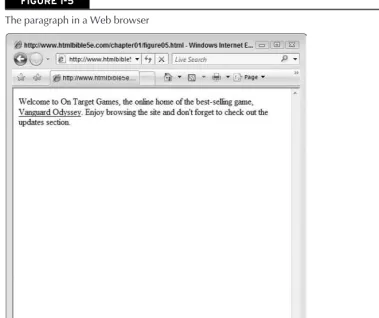
The<u>designates the beginning of the underline and the</u>designates the end. This para-graph rendered in a Web browser would resemble what is shown in Figure 1-5.
Part I: Creating Content with HTML
FIGURE 1-5
The paragraph in a Web browser
Summary
What does all this mean? There are some basic technologies underneath the surface of the Web to which you must pay attention. HTML is the backbone of these technologies, and knowing it is the key to successful Web design. Understanding markup concepts is key to understanding proper HTML use.
HTML Values
and Units
IN THIS CHAPTER
Basic Tag Attribute Format Common Attributes Text and Comments
Uniform Resource Indicators Language and International
Options
I
n the previous chapter you learned what markup language is and how it relates to HTML and the Web. Expanding on these basics, you can add attributes to your HTML tags to further control their effect on your documents.Basic Tag Attribute Format
Most HTML tags support one or more attributes. These attributes are included in the opening tag using a standard format, as follows:
attribute_name="attribute_value"
For example, theborderattribute is used with the<table>tag to control the width of the border in and around a table in the document. The border attribute resembles the following when actually included in the
<table>tag:
<table border="1">
Pay close attention to the following rules regarding attributes:
Any attributes in an HTML tag need to appear after the HTML tag name.
The attribute name must be followed immediately by an equal sign (=).
The attribute value needs to come immediately after the equal sign.
Part I: Creating Content with HTML
Note
In previous versions of HTML, some attributes — namely, those with default values — did not need to have a value associated with them. However, in HTML all attributes must have a value included inside the tag
with their declaration. In short, you should always provide a value with tag attributes.
Several different types of values can be used as values for attributes:
Text (single words, no spaces)
Numbers (unsigned)
Color values (color names or color values)
In the case of color values, several options can be used to specify a particular color:
Color names (blue, black, red, and so on)
Color values (in hexadecimal)
Color values (in decimal)
The color name method is very straightforward; you simply specify a color as the value of the attribute. For example, in the following color attribute snippet, the color is set simply to"blue":
color="blue"
This method accepts only a preset number of colors defined by HTML — approximately 147 different colors that can be found listed on sites such aswww.w3schools.com/html/html
colornames.asp.
The hexadecimal and decimal methods of specifying colors are slightly more complex because they allow you to actually mix colors by specifying custom amounts of the primary colors: red, green, and blue. The correct hexadecimal format follows:
"#RRGGBB"
The color specification must begin with a pound sign (#) and be followed by six digits — the first two digits corresponding to the value of red, the second green, and the third blue. Again, keep in mind that these values are hexadecimal,notdecimal. Consider the following codes and corresponding values:
#FF0000 Red
#00FF00 Green
#0000FF Blue
#FF00FF Purple (Red and Blue)
#000000 Black
#FFFFFF White
For example, to set a color attribute to purple, you could use the following code:
color="#FF00FF"