1 BUSINESS PROCESS REDESIGN WITH PROM
For the redesign of business processes the ProM framework has been extended. Most of the redesign functionality is provided by the Redesign Analysis plugin in ProM.
Getting Started
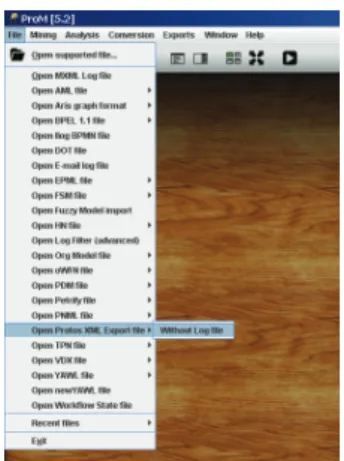
Start ProM by clicking theSTART TOOLbutton under Business Process Redesign with ProM on the main screen. As an example process in this tutorial we use a Protos model, but also other model languages or an event log can be used as input. Any input model for the Redesign Analysis plugin should contain information on the control flow, the data (input data elements and output data elements), the roles and the performance (e.g., processing times). We refer to the information related to data, resources and performance as high-level information. After creation, the Protos model is converted to an XML-file, which serves as the input for ProM. Figure 1 shows how a Protos XML Export file can be opened in ProM. After choosingFile⇒ Open Protos XML Export file⇒Without Log filea window opens for the selection of the location of the XML file.
Figure 1:Opening a Protos XML Export file in ProM
The Protos XML file opened in ProM is displayed in Figure 2. One can also see the selection of the next action throughAnalysis⇒Protos model⇒View/Edit High Level Process.
Figure 2:Opening the Edit / View High-level Information plugin
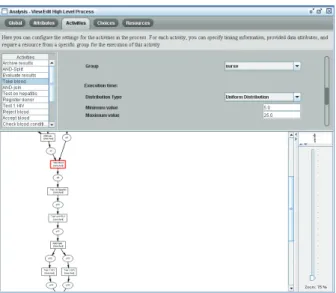
Another screen opens and shows the Edit / View High-level Information plugin which is used to display the high-level information to the user. This is depicted in Figure 3.
Figure 3:The Edit / View High-level Information plugin displaying a Protos model
The upper part of the plugin shows the high-level information and the lower part the control flow of the process (in this case as a Protos model). The Redesign Analysis plugin requires a Petri net enriched with high-level information (i.e., HL Petri net) as input. Therefore, the Pro-tos model is converted to a HL Petri net. With this conversion, the ProPro-tos model is converted to a Petri net and the high-level information is transferred to this Petri net. The conversion is performed by choosingConversion⇒High-level Process⇒HLProtosToHLPetriNet. As
3
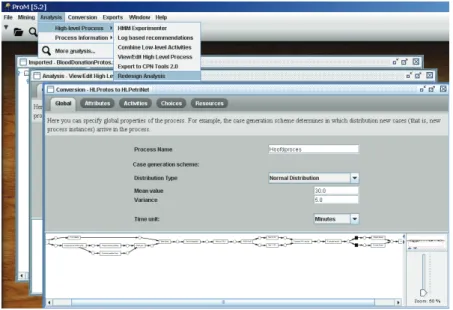
a result, again the Edit / View High-level Information plugin is opened but now the lower part displays the Petri net. This is shown in Figure 4 together with the next action. By choos-ingAnalysis⇒High-level Process⇒Redesign Analysisthe Redesign Analysis plugin is opened.
Figure 4:The Edit / View High-level Information plugin displaying a HL Petri net Creating an Alternative Process Model
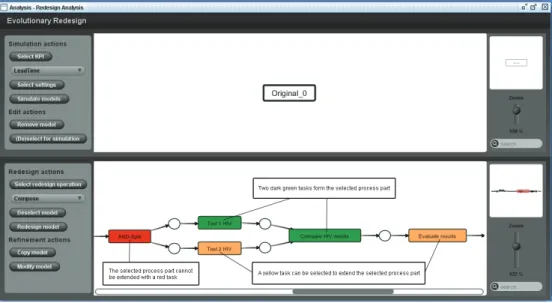
The first step in the creation of an alternative for the original process is the selection of a redesign operation. The Redesign Analysis plugin presents a list of all available redesign operations, conform Figure 5. After the selection of an operation, the optionSelect redesign operationcan be used to view all the possible process parts suitable for a redesign with the selected redesign operation. Then, the user selects a process part by selecting (i.e., clicking on) tasks in the process. The user is guided with colors as shown in Figure 6. The deselection of a task is performed by selecting the task again. A deselection of all tasks is performed with the optionDeselect model.
Figure 5:Selection of a redesign operation
5
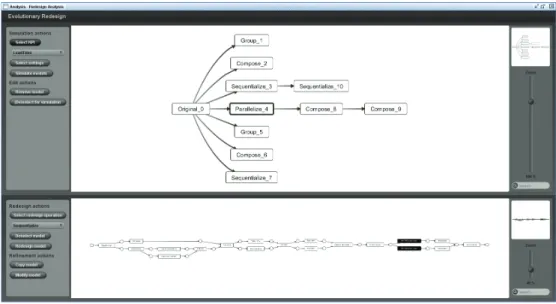
The creation of a process alternative is performed with the optionRedesign model. The al-ternative model is displayed in the lower half of the Redesign Analysis plugin while in the upper half shows a process alternatives tree. Such a tree provides an overview of the created process alternatives. Each alternative is represented by one node in the alternatives tree. Figure 7 shows an example of an alternatives tree. The original process model is the root node of an
Figure 7:A process alternatives tree
alternatives tree. This root node is calledOriginal 0. The first part of the node name indicates that this is the node that represents the original model. The second half, the number zero, is a unique identifier. The nodeGroup 1is connected to the root node and represents the first alternative that has been created. This alternative is created with the group operation, as is indicated by its name.
Other options that are related to the creation of alternative models are theCopy modeland the Modify modeloptions. The first option creates a copy of the model that is selected in the alternatives tree. With the second option, one can modify the parameters of the selected model. The Edit / View High-level Information plugin is used for this purpose and examples of parameters that can be modified are the processing time of a task, the case generation scheme or the number of resources with a certain role.
Evaluating Alternative Process Models
For the evaluation of the performance of the process alternatives we create a simulation model for each process alternative. We use Colored Petri nets (CPNs) as the simulation modeling language. Therefore, the process alternatives are converted to CPN models. The conversion is performed automatically with the creation of a process alternative and is updated after a modification of the alternative. The simulation models are stored on the C-drive in the folder RedesignAnalysis.
In the upper half of the tool’s user interface, next to the alternatives tree, one can find the simulation options that are provided by the Redesign Analysis plugin. With theSelect
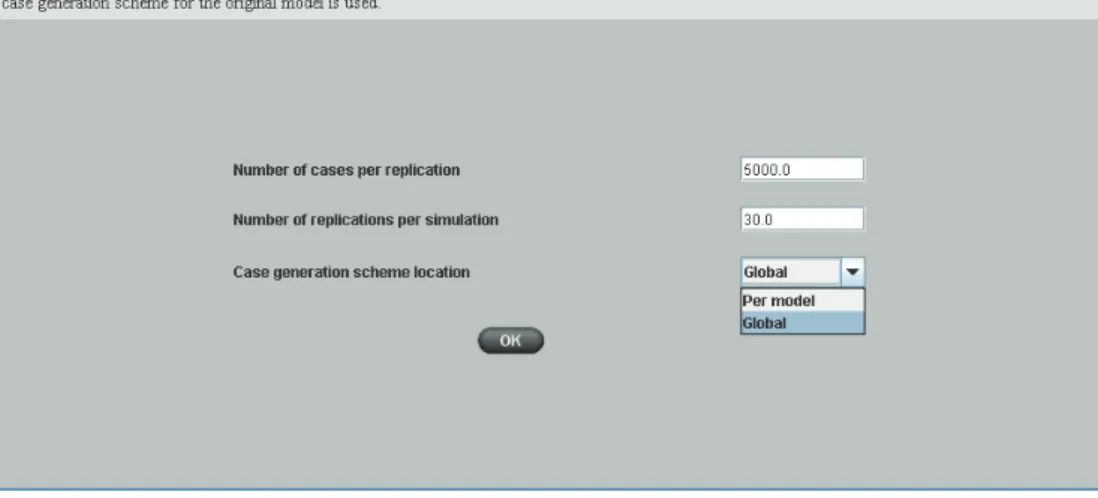
KPIoption one selects a key performance indicator (KPI) that will be evaluated. While only the evaluation of the lead time is supported at this stage, multiple KPIs are listed (lead time, waiting time, resource utilization, inventory costs, customer satisfaction and labor flexibility). TheSelect settingsoption supports the entering of the simulation settings like the number of cases per replication and the number of replications. This is displayed in Figure 8. Note that it is also possible to select the location of the case generation scheme. With the selection of aglobalscheme, all models are simulated with the same case generation scheme; the scheme that is set for the original model. With the selection of a schemeper modelthe individual case generation scheme settings, added through the modification of a model, are used. The option Simulate modelsstarts the simulation of the models in the alternatives tree with the selected settings.
Figure 8:Selection of the simulation settings
Next to the simulation options, there are also two options for editing the process alterna-tives tree: Remove model and(De)select for simulation. With the first edit option, nodes are removed from the alternatives tree. Not only the selected node, but also all its (in)direct successors are removed. The original model is always included when simulating. It is possible to select models for inclusion in the simulation and thus simulate only a subset of the alterna-tive models. If none of the models, except the original model, is selected then all models are simulated.
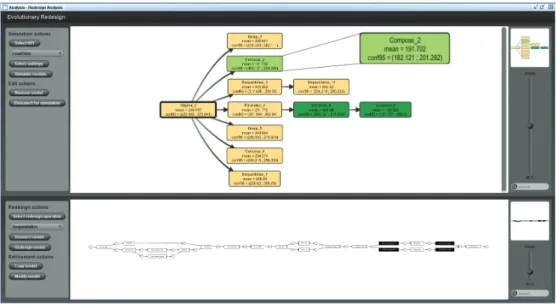
Once the simulation is completely finished, various statistics are calculated. The raw statis-tics can be found on the C-drive in the folder RedesignAnalysis. The aggregated results are displayed on the nodes to show the relative strengths of the various alternatives. Figure 9 dis-plays an example. We zoom in on one node, which shows the node name, the mean value for the lead time and the 95%-confidence interval. A comparison of the confidence intervals for an alternative with the intervals for the original model determines whether there is a significant change in performance (intervals do not overlap) or not (intervals overlap). Colors are used
7
to give a quick overview of the simulation results; not significantly better or worse perform-ing models are colored yellow, significantly better performperform-ing models are colored green and significantly worse performing models are colored red.