Jedi Knight Dedicated Server Auto Launcher Programming Project Proposal Description
For the JKDF2.COM Jedi Knight Dedicated Server, there is a specific need for an application that can automatically launch multiple instances of Jedi Knight, with instance-specific host settings. Concept written by EAH_XxHeReTiKxX on 4/1/2015 for the JKDF2.COM Dedicated Server project.
Reasons why this is important
When starting the server, the dedicated server operator must manually configure every hosted
JK game instance because it will default to the host settings of the previous successful JK hosted game.
For every hosted JK game instance, the server operator must manually configure 10 different
settings within the JK host game menus. These 10 different settings can vary widely depending on the type of hosted game. For example:
o Full Force Jedi Training Levels Rotating – Rank: 8, Use Score Limit: Yes, Use Time Limit: Yes, Team Play: No, Single-level only: No, Time Limit: 30, Score Limit: 20, Maximum Players: 32, Game Name: JEDI TRAINING FF
o No Force Capture the Flag Team Play Rotating – Rank: 0, Use Score Limit: Yes, Use Time
Limit: No, Team Play: Yes, Single-level only: No, Time Limit: (none), Score Limit: 300, Maximum Players, 32, Game Name: CTF ROTATE NF
If the game crashes, or if the server has to restart for any reason, the server operator must repeat this highly time consuming and tedious process.
Concept for a multiple-instance auto launcher
1. The launcher should refer to a configuration file that allows the operator to configure the number of automatically launched instances, the installed location of each instance, and the instance specific registry modifications.
a. Within the configuration file, with each instance launch parameters separated by line
break, each line should specify the following information, semicolon-delimited: File path to JK.exe (To launch it), and the following registry key instance-specific modifications: maxRank, gameFlags, timeLimit, scoreLimit, maxPlayers, tickRate, gameName.
2. The launcher should be able to automatically navigate through the Jedi Knight menu system
Documentation of Jedi Knight’s Registry Keys
The registry keys stored and modified by Jedi Knight that are used to automatically propagate the fields in Jedi Knight’s Host Game menu, are located in:
HKEY_LOCAL_MACHINE\SOFTWARE\Wow6432Node\LucasArts Entertainment Company\JediKnight\v1.0
There are a total of 7 keys that need to be modified specific to the individually launched instance of Jedi Knight:
maxRank, gameFlags, timeLimit, scoreLimit, maxPlayers, tickRate, gameName
The format of all of the keys according to regedit is REG_BINARY. Each key contains values in
hexadecimal format. The Auto Launcher does not need to know how to convert user-defined values to hexadecimal, because the operator will have pre-determined these values. The Auto Launcher needs only to update these specific registry keys based on the user-defined parameters in the Auto Launcher configuration file.
When I export Jedi Knight’s registry key to a file using Window’s regedit, the keys and their values appear within the file in the following format (as an example):
"maxRank"=hex:00,00,00,00 "gameFlags"=hex:08,00,00,00 "timeLimit"=hex:80,8d,5b,00 "scoreLimit"=hex:14,00,00,00 "maxPlayers"=hex:20,00,00,00 "tickRate"=hex:64,00,00,00 "gameName"=hex:4a,00,4b,00,44,00,46,00,32,00,20,00,53,00,45,00,52,00,56,00,45,\ 00,52,00,00,00,00,00,00,00,00,00,00,00,00,00,00,00,00,00,00,00,00,00,00,00,\ 00,00,00,00,00,00,00,00,00,00,00,00,00,00,00,00,00,00
Example auto launcher configuration file contents
Note: I figured the parameters should be semicolon-delimited, because the colon is used to separate hexadecimal values in the registry keys.
LAUNCHERCONFIG
Name; jkPath; maxRank; gameFlags; timeLimit; scoreLimit; maxPlayers; tickRate; gameName JKSERVER Hosted Instance 1;“C:\Program Files (x86)\Lucasarts\JK1\JK.EXE” –
windowgui;00,00,00,00;10,00,00,00;00,00,00,00;00,00,00,00;20,00,00,00;50,00,00,00; 4a,00,4b,00,44,00,46,00,32,00,20,00,53,00,45,00,52,00,56,00,45,\
00,52,00,00,00,00,00,00,00,00,00,00,00,00,00,00,00,00,00,00,00,00,00,00,00,\ 00,00,00,00,00,00,00,00,00,00,00,00,00,00,00,00,00,00
JKSERVER Hosted Instance 2;“C:\Program Files (x86)\Lucasarts\JK2\JK.EXE” –
windowgui;00,00,00,00;10,00,00,00;00,00,00,00;00,00,00,00;20,00,00,00;50,00,00,00; 4a,00,4b,00,44,00,46,00,32,00,20,00,53,00,45,00,52,00,56,00,45,\
00,52,00,00,00,00,00,00,00,00,00,00,00,00,00,00,00,00,00,00,00,00,00,00,00,\ 00,00,00,00,00,00,00,00,00,00,00,00,00,00,00,00,00,00
Jedi Knight Registry Key Documentation
HKEY_LOCAL_MACHINE\SOFTWARE\Wow6432Node\LucasArts Entertainment Company\JediKnight\v1.0
KEY NAME EXAMPLE KEY
CONTENT FORMAT
VALUES JEDI KNIGHT WILL ACCEPT
maxRank (MP Host: Maximum Force Rank: 0-8) hex:XX,XX,XX,XX 9 Diferent Values ranging from No Force (0) to 1-8 Rank 0 - Uninitiated (No Force) 00,00,00,00
Rank 8 - Jedi Lord 08,00,00,00 gameFlags (Use Score Limit, Use Time Limit (minutes), Team Play,
Single-level Only)
hex:XX,XX,XX,XX Checkbox Yes/No for all four settings
NO Score Limit, NO Time Limit, NO Team Play, NO Single-Level Only 00,00,00,00 YES Score Limit, NO Time Limit, NO Team Play, NO Single-Level Only 10,00,00,00 YES Score Limit, YES Time Limit, NO Team Play, NO Single-Level Only 18,00,00,00 YES Score Limit, YES Time Limit, NO Team Play, YES Single-Level Only 98,00,00,00 NO Score Limit, YES Time Limit, NO Team Play, NO Single-Level Only 08,00,00,00
timeLimit (Time Limit Value) hex:XX,XX,XX,XX 1-100
30 Minutes 40,77,1b,00
100 Minutes 80,8d,5b,00
scoreLimit (Score Limit Value) hex:XX,XX,XX,XX 0-999 Score Limit 10 0a,00,00,00
Score Limit 30 1e,00,00,00 Score Limit 100 64,00,00,00 Score Limit 999 e7,03,00,00
maxPlayers (Player Limit Value) hex:XX,XX,XX,XX 1-32 32 Player Limit 20,00,00,00
tickRate (Network Tick Rate Value in msec) hex:XX,XX,XX,XX 100-300 80 MSEC Tick Rate 50,00,00,00
gameName (Game Name Value) hex:XX,00,XX,00,X X,00,XX,00,XX,00, XX,00,XX,00,XX,00 ,XX,00,XX,00,XX,\ 00,XX,00,XX,00,XX ,00,XX,00,00,00,00 ,00,00,00,00,00,00, 00,00,00,00,00,00, 00,\ 00,00,00,00,00,00, 00,00,00,00,00,00, 00,00,00,00,00,00 00,78,00,78,00,78, 00,78,00,00,00,00, 00,00,00,00,00,00, 00,00,00,00,00,00, 00,\ 00,00,00,00,00,00, 00,00,00,00,00,00, 00,00,00,00,00,00
If left blank, defaults to "Player's Game". Otherwise accepts 1-15 characters. Each character is seperated by a "." which is 2e in the hex key. Within Jedi Knight, this field will not accept certain characters, including "."
Game Name: "JKDF2 SERVER" hex:4a,00,4b,00,4 4,00,46,00,32,00,2 0,00,53,00,45,00,5 2,00,56,00,45,\ 00,52,00,00,00,00, 00,00,00,00,00,00, 00,00,00,00,00,00, 00,00,00,00,00,00, 00,\ 00,00,00,00,00,00, 00,00,00,00,00,00, 00,00,00,00,00,00
Automatic Navigation Through the Jedi Knight Menus
With a programming standpoint, I don’t know how this is accomplished without hooking into DirectX. However, I suspect it can be done using mouse coordinates, for a few reasons.
Jedi Knight launched using –windowgui always occupies the same 640x480 window and always
launches is the same upper left corner of the Windows Desktop.
The operator will be using the Auto Launcher on a Windows 7, 64-Bit VMWare Workstation
Virtual Machine with Windows Classic desktop display mode.
Relevant to mouse coordinates, the Virtual Machine Desktop Resolution will always be
1920x1080.
When it comes to level selection in Jedi Knight’s Host Settings menu, there is no way to
pre-define which episode and level is automatically selected when this menu is reached. However, I intend to have multiple distinct Jedi Knight Installation directories that each contain only a single .GOB episode file in the Jedi Knight\EPISODE subfolder. Using this method I may be able to pre-define the episode and/or level that the host automatically launches.
Auto Launcher – Automatic menu clicks and key presses
FIGURE 1 – First Instance of Jedi Knight is launched. The first instance defined in the Auto Launcher’s configuration file, JK.EXE is launched by the Auto Launcher with the –windowgui launch parameter for windowed menu mode. Auto Launcher has already written this game’s instance-specific host settings to the registry.
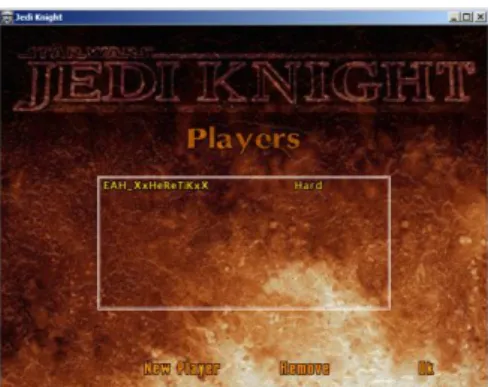
FIGURE 2 – Jedi Knight’s player selection screen. Player is automatically selected and highlighted by Jedi Knight.
MENU NAVIGATION FUNCTION #2 – Automatic LEFT click at mouse coordinates for menu button “OK”.
FIGURE 3 – Jedi Knight’s game mode selection screen.
MENU NAVIGATION FUNCTION #3 – Automatic LEFT click at mouse coordinates for menu button “Multiplayer”.
FIGURE 4 – Jedi Knight’s Multiplayer mode selection screen.
MENU NAVIGATION FUNCTION #4 – Automatic LEFT click at mouse coordinates for menu button “Host Game”.
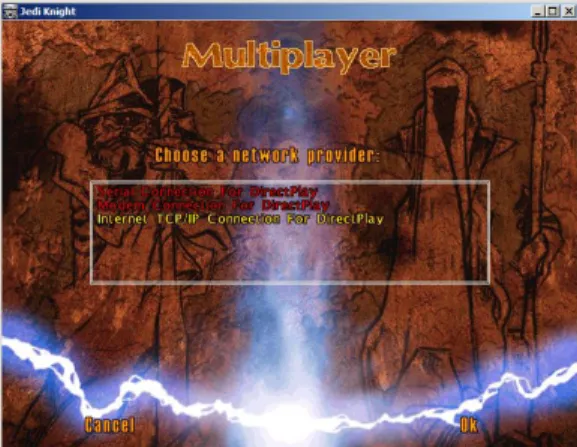
FIGURE 5 – Jedi Knight’s Multiplayer Network Provider Selection Screen. It will not default to TCP/IP. MENU NAVIGATION FUNCTION #5 – Automatic LEFT click at mouse coordinates to select network provider “Internet TCP/IP Connection for DirectPlay”.
FIGURE 6 - Internet TCP/IP Connection for DirectPlay has been selected.
MENU NAVIGATION FUNCTION #6 – Automatic LEFT click at mouse coordinates for menu button “Ok”.
FIGURE 7 – Multiplayer Host Settings Screen. All settings have been automatically pre-defined by Auto Launcher’s registry key value changes using the parameters in the configuration file for this specific instance.
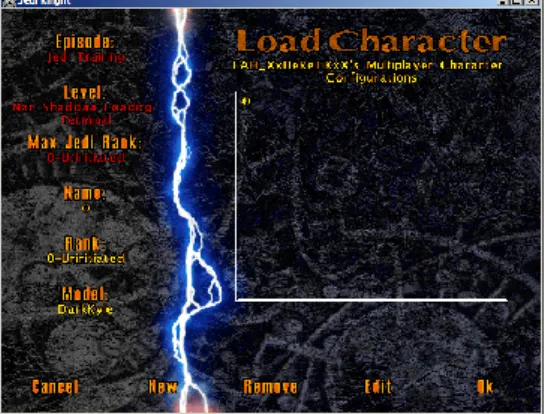
FIGURE 8 – Multiplayer Character Selection Screen.
MENU NAVIGATION FUNCTION #8 - Automatic LEFT click at mouse coordinates for menu button “Ok.”.
FIGURE 9 – Jedi Knight game successfully launched with all menus automatically navigated. Low resolution and color mode is specifically chosen because it uses the least amount of resources on the host machine. Previously launching Jedi Knight with -devmode permitted the operator to manually select DIBWindowedMode in Jedi Knight’s Advanced Display Settings menu.
MENU NAVIGATION FUNCTION #9 – Automatic key press ESC to escape game focus and hold in menu.
FIGURE 10 – Jedi Knight’s In-Game Settings Menu. At this point the instance has been successfully launched to completion by Auto Launcher with its own instance-specific launch parameters. The Auto launcher should now refer back to its configuration file and make the registry changes for the next Jedi Knight instance to be launched. Then, Auto Launcher should launch the next instance and repeat the 9 Menu Navigation Functions to completely launch the second instance. The Auto Launcher should be able to repeat this process as many times as required, theoretically launching up to at least 10 distinct Jedi Knight hosted games.