QSG108: Blue Gecko Bluetooth
®
Smart
Software Quick-Start Guide
Blue Gecko Bluetooth
®Smart Software Quick-Start Guide
This document walks you through the architecture and APIs of the Blue Gecko Blue-tooth Smart Software, which is used with the Silicon Labs’ Blue Gecko BlueBlue-tooth Smart modules. The document also briefly describes the software, tools, and applications de-livered with the Blue Gecko Bluetooth Smart SDK.
In the second part of this document, we describe the factory demo application pre-in-stalled in the Blue Gecko Bluetooth Smart wireless starter kits, and help you get started with your own software development.
KEY POINTS
• Describes architecture and APIs of the Blue Gecko Bluetooth Smart Software. • Explains software, tools, and applications
delivered with the product. • Shows the step-by-step process for
installing the Bluetooth Smart SDK. • Walks users through the WSTK demo
1. The Blue Gecko Bluetooth Smart Software
This chapter contains a short description of the Blue Gecko Bluetooth Smart Software architecture, the APIs it exposes, and the tools that are included in the SDK.
1.1 The Bluetooth Smart Stack
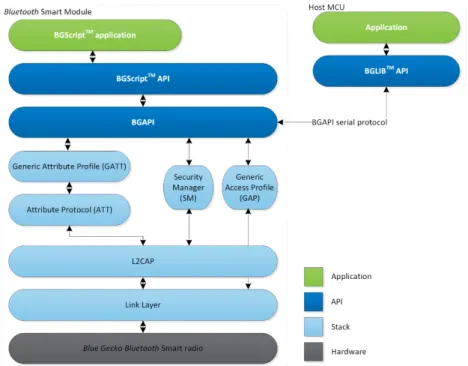
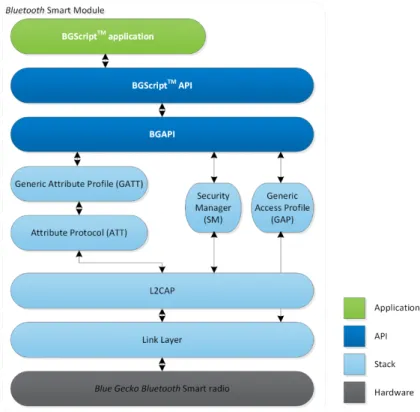
The main components of the Blue Gecko Bluetooth Smart Software are the Bluetooth Smart stack and APIs, illustrated in the figure below. The figure shows the layers implemented in the Bluetooth Smart stack as well as the APIs that can be used to interface to stack.
Figure 1.1. Bluetooth Smart Stack and APIs Key features of the Bluetooth Smart stack include:
• Bluetooth 4.1 Smart compatible • Central and peripheral roles
• Bluetooth GAP and Security Manager • L2CAP and Attribute protocols • Generic Attribute Profile (GATT)
• Support for any GATT based Bluetooth Smart profile • High performance features
• Eight simultaneous BLE connections • Up to 100 kbps throughput over ATT • Field upgradable
1.1.1 Bluetooth Smart Stack Features
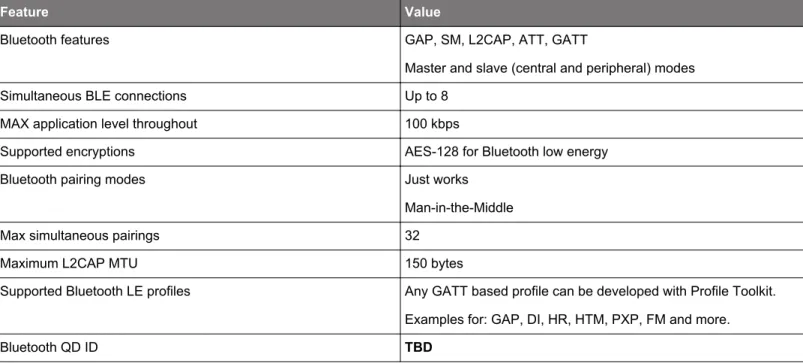
Table 1.1. Bluetooth Smart Stack Features
Feature Value
Bluetooth features GAP, SM, L2CAP, ATT, GATT
Master and slave (central and peripheral) modes
Simultaneous BLE connections Up to 8
MAX application level throughout 100 kbps
Supported encryptions AES-128 for Bluetooth low energy
Bluetooth pairing modes Just works
Man-in-the-Middle
Max simultaneous pairings 32
Maximum L2CAP MTU 150 bytes
Supported Bluetooth LE profiles Any GATT based profile can be developed with Profile Toolkit.
Examples for: GAP, DI, HR, HTM, PXP, FM and more.
Bluetooth QD ID TBD
1.2 Bluetooth Smart Stack APIs
This section of the document describes the different software APIs exposed by the Bluetooth Smart stack.
QSG108: Blue Gecko Bluetooth Smart Software Quick-Start Guide
1.2.1 BGAPI™ Serial Protocol API
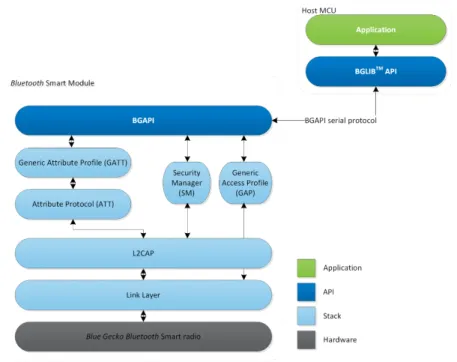
The BGAPI is a serial protocol that allows external hosts (MCUs) to interface to the Bluetooth Smart stack over UART interface. The BGAPI serial protocol is a lightweight and well-defined binary protocol which allows command and data to be sent to the Bluetooth Smart module. It also provides a way to receive responses, events, and data from the module.
The BGAPI serial protocol is used in applications where an external host (like a lower-power MCU) is used to control the Bluetooth Smart module over one of the host interfaces like UART, but the actual application resides on the host.
Figure 1.2. Architecture When Using BGAPI and BGLIB
The BGAPI commands are sent from the host to the Bluetooth Smart stack where the commands are validated and executed. The BGAPI serial protocol produces a response indicating a successful command, invalid parameter, or a parse error. Some commands will also produce events which the host application can detect.
1.2.2 BGLIB™ Host API
BGLIB host library is a reference implementation of the BGAPI serial protocol parser and is provided in C source code with the Blue-tooth Smart SDK. BGLIB host library abstracts the complexity of the BGAPI serial protocol and instead provides high level C functions and call-back handlers to the application developer, which makes the application development easier and faster.
BGLIB library can be ported to various host systems ranging from low cost MCUs to devices running Linux, Windows, or OSX.
/* Function: BLE discover */
struct gecko_msg_le_gap_discover_rspt* gecko_cmd_le_gap_discover(uint8 mode); /* Response structure */ struct gecko_msg_le_gap_discover_rsp_t { uint16 result } /* event id */ gecko_evt_le_gap_scan_response_id /* event structure */ struct gecko_msg_le_gap_scan_response_evt_t { int8 rssi, uint8 packet_type, bd_addr address, uint8 address_type, uint8 bonding, uint8 data_len,
const uint8 data_data[] }
Figure 1.4. BGLIB Host API
Both BGAPI serial protocol and BGLIB host library provide access to the following layers in the Bluetooth Smart stack and the Bluetooth Smart hardware:
• Generic Access Profile (GAP): GAP provides access to basic Bluetooth low energy features such as device advertisement, discov-ery, and connection establishment.
• Security manager (SM): Security manager is used to configure the local devices security features, create and manage bondings, and establish secure connections.
• GATT client: The GATT enables data transmission over BLE, allowing you to discover services and characteristics from remote devices and exchange data using the ATT protocol.
• GATT server: The GATT server allows you to modify data exposed by the local devices GATT database. • Hardware: Access to local hardware features and interfaces like SPI, I2C, GPIO, and ADC.
• Persistent Store: A data storage that allows data to be stored to and read from the internal flash. • System: Local device's status and management functions.
• DFU: DFU commands enable local devices firmware updates.
QSG108: Blue Gecko Bluetooth Smart Software Quick-Start Guide
1.2.3 BGScript™ Scripting Language API
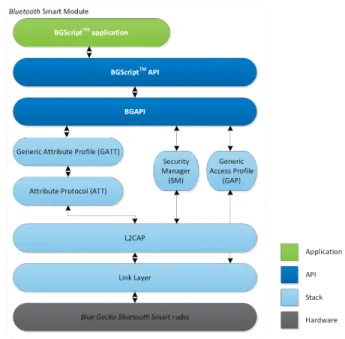
BGScript is a simple BASIC-style programming language that allows end-user applications to be easily embedded into the Bluetooth Smart modules. BGScript abstracts away the complexity of Bluetooth protocol, embedded hardware, scheduling, memory management, and provides a simple software development environment for creating Bluetooth Smart applications quickly and easily.
The second benefit of using BGScript is that no external MCU is needed for the application, making bill of material and size saving achievable. Although a simple programming language, BGScript provides access to all the same APIs and functions as BGAPI and BGLIB and can be used to create fairly complex applications.
BGScript is an event-driven programming language, and code execution is started when events such as system start-up, Bluetooth connection, I/O interrupt, etc. occur and the application code is written into event listeners. The script code is interpreted during run time by a BGScript interpreter included as part of the Bluetooth smart firmware.
BGScript applications can be developed with the free-of-charge Bluetooth Smart SDK and the tools included in it.
Figure 1.5. BGScript Architecture
# Boot event listener - Generated when the module is started event system_boot(major,minor,patch,build,bootloader,hw)
# Set advertisement interval to 1000ms, use all three adv channels call le_gap_set_adv_parameters(1600,1600,7)
# Start Bluetooth LE advertisements and enable connections call le_gap_set_mode(4,2)
end
# Disconnect event listener - generated when connection is closed event le_connection_closed(reason,connection)
# Restart advertisements call le_gap_set_mode(2,2) end
1.2.4 BGAPI vs. BGScript
This section describes the differences between using BGAPI and BGScript. In brief, the difference is:
• BGScript is our proprietary scripting language used for on-module applications. BGScript applications only run on the Bluetooth modules.
• BGAPI is a serial protocol used to externally control the modules over the host interface. BGLIB is an ANSI C reference implementa-tion of the BGAPI serial protocol and only runs outside of our modules and dongles.
So, the main difference between BGScript and BGLIB is that BGScript allows you to run an application right on the Bluetooth module, whereas BGLIB uses the BGAPI serial protocol API to send commands and receive events from an external device—typically a micro-controller. However, note that BGScript and BGLIB implement the same functionality. Every BGScript command, response, and event has a counterpart in the BGAPI serial protocol and BGLIB host library.
Another thing to keep in mind is that BGScript has some performance penalties compared to external API control, due to the fact that BGScript is an interpreted scripting language and requires extra overhead in order to use. It makes the Bluetooth module do the work that could otherwise be done elsewhere. If you are trying to achieve maximum performance or have a fairly complex application (lots of fast timers, interrupts, or communicating with many external sensors over I2C or SPI), it is often a good idea to use a small external microcontroller and BGLIB/BGAPI instead.
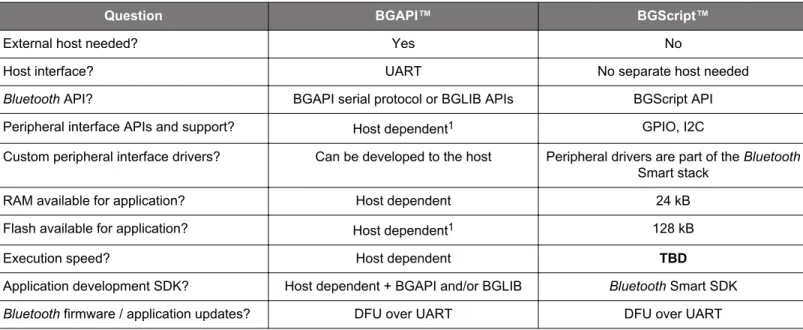
Table 1.2. BGAPI vs. BGScript
Question BGAPI™ BGScript™
External host needed? Yes No
Host interface? UART No separate host needed
Bluetooth API? BGAPI serial protocol or BGLIB APIs BGScript API
Peripheral interface APIs and support? Host dependent1 GPIO, I2C
Custom peripheral interface drivers? Can be developed to the host Peripheral drivers are part of the Bluetooth
Smart stack
RAM available for application? Host dependent 24 kB
Flash available for application? Host dependent1 128 kB
Execution speed? Host dependent TBD
Application development SDK? Host dependent + BGAPI and/or BGLIB Bluetooth Smart SDK
Bluetooth firmware / application updates? DFU over UART DFU over UART Note:
1. The Bluetooth Smart modules peripheral interfaces are still available via BGAPI commands, and can be used to extend the host MCUs I/Os.
1.2.5 Bluetooth Smart SDK
The Bluetooth Smart SDK is a full software development kit which enables you to develop applications on top of the Bluetooth Smart stack using either the BGScript scripting language or BGAPI serial protocol and BGLIB host library.
For BGScript developers, the SDK contains the BGScript compiler and firmware build toolchain, which allows the script applications to be compiled into a binary firmware image. The SDK also contains multiple BGScript example application in source code implementing various Bluetooth Smart profiles and other applications such as beacons.
For BGAPI / BGLIB developers, the SDK also includes the firmware build tools, which are needed to define the hardware and software configuration for the firmware and build a corresponding firmware image. The SDK also includes the BGLIB library in C source code, so it can be ported to the target host platform or modified if needed. Example applications are also included demonstrating how to build applications on top of the BGLIB library.
An essential part of the SDK is also the Bluetooth Smart Profile Toolkit™ which allows you to develop your own GATT-based Bluetooth Smart services and characteristics (the GATT database) and include the database in the firmware.
The Bluetooth Smart SDK includes the following APIs, components, and tools:
QSG108: Blue Gecko Bluetooth Smart Software Quick-Start Guide
1.2.6 BGLIB C Source Code
The BGLIB is delivered in C source code with the Bluetooth Smart SDK. It can be easily ported to various hosts systems ranging from embedded MCU to operating system platforms.
1.2.7 BGBuild Compiler
The BGBuild compiler is used to compile the Bluetooth Smart Stack, the BGScript application (optional), the hardware and software configurations, and the Bluetooth GATT services into a firmware binary that can be installed to the Bluetooth Smart modules.
1.2.8 Flashing Tools
Flashing tools are provided with the SDK and can be used to upload the firmware image to the Bluetooth Smart modules over the de-bug interface.
1.2.9 DFU Tools
The Device Firmware Update (DFU) protocol is an open serial protocol that can be used to perform field updates to the Bluetooth Smart modules. DFU protocol allows any firmware image generated with the BGBuild compiler to be installed into a Bluetooth Smart Module. The Bluetooth Smart SDK contains command line DFU tool.
1.2.10 BGTool Test Application
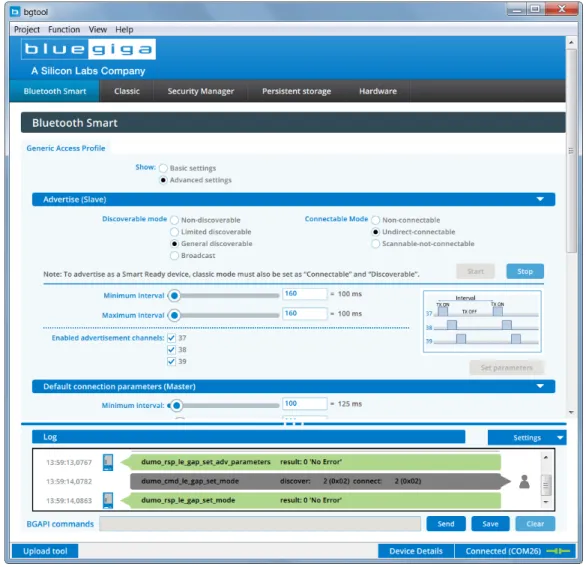
BGTool application can be used to test and evaluate the Bluetooth Smart module and issue BGAPI serial protocol commands to the smart module over host interfaces like UART. This is a useful tool for testing the functionality of the Bluetooth Smart module and debug-ging Bluetooth Smart applications.
Figure 1.7. BGTool Application
QSG108: Blue Gecko Bluetooth Smart Software Quick-Start Guide
1.2.11 Profile Toolkit™
The Bluetooth Smart profile toolkit is a simple set of tools, which can used to describe the Bluetooth Smart GATT service and charac-teristic databases, define how IDs access the GATT data base from the application code, and include the GATT data base in the firm-ware image. The profile toolkit consists of a simple XML-based description language and templates, which can be used to describe the services and characteristics along with their properties in a devices GATT database.
When the firmware is compiled, the GATT database developed with the Profile Toolkit is included as part of the devices firmware and can be accessed via the Bluetooth Smart stack GATT APIs.
<gatt>
<service uuid="1800">
<description>Generic Access Service</description> <characteristic uuid="2a00">
<properties read="true" const="true" /> <value>Blue Gecko BGM111</value>
</characteristic>
<characteristic uuid="2a01">
<properties read="true" const="true" /> <value type="hex">0768</value>
</characteristic> </service>
</gatt>
2. Factory Default Configuration
Listed below are short descriptions of the default configurations in the modules and development kits. 2.1 Blue Gecko Bluetooth Smart Modules Factory Configuration
When the modules are delivered from the factory, the Bluetooth Smart software with the following configurations are preinstalled: • Software: Newest stable release of the Bluetooth Smart stack.
• Host Interface:
• BGAPI serial protocol over UART interface • UART baud rate: 115200
• Hardware flow control: Enabled • Data bits: 8
• Parity: None • Stop bits: 1
• Firmware update interfaces: • DFU over UART enabled • Segger J-link interface enabled
2.2 Wireless Starter Kit Factory Configuration
When the Blue Gecko Wireless Starter Kits are delivered from the factory, the following configurations are preinstalled: • Software: Newest stable release of the Bluetooth Smart stack and a built-in demo application.
• Host interface: • None
• Firmware update interfaces: • Segger J-link interface enabled
QSG108: Blue Gecko Bluetooth Smart Software Quick-Start Guide
3. Getting Started with the Blue Gecko Bluetooth Smart Software
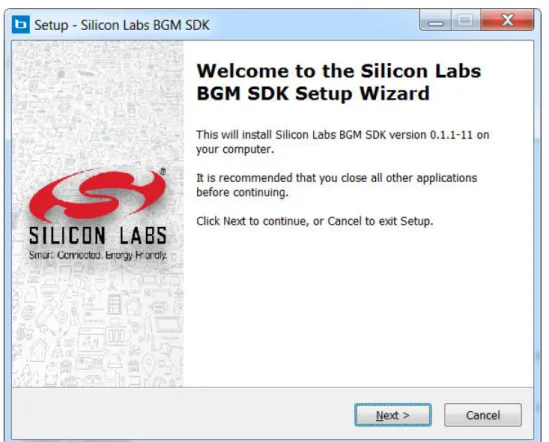
3.1 Installing the Bluetooth Smart SDKIn order to install the Bluetooth Smart SDK, please perform the following steps: 1. Go to http://www.silabs.com/bluetooth-getstarted.
2. Download the Blue Gecko Bluetooth Smart Software. 3. Run the installer.
4. Follow the on-screen instructions to install the SDK.
3.2 Folder Structure
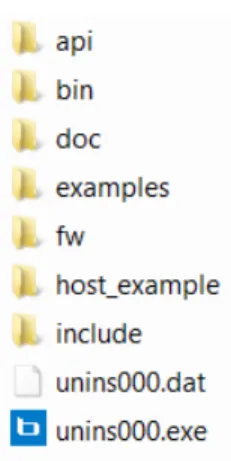
The SDK creates the following folders within the installation directory.
Figure 3.2. SDK Folders
BIN This folder includes all the binary applications needed by the SDK.
DOC Contains HTML version of the BGAPI, BGScript, and BGLIB API documentation
EXAMPLES This folder includes the BGScript demo applications, profile toolkit examples, and the Bluetooth module configu-ration examples, which all generate a firmware for the Bluetooth module if run through the BGBuild compiler. HOST_EXAMPLE This folder contains a C source code example demonstrating BGLIB usage.
FW This folder contains the actual Bluetooth Smart stack firmware binaries. 3.3 Included Tools
The following tools are installed by the SDK:
BGTool A graphical UI tool that can be used to control the Bluetooth Smart module over UART/RS232 using the BGAPI serial protocol. The tool is useful for quickly trying the features and capabilities of the Blue Gecko Bluetooth Smart Software, without writing any software.
BGBuild BGBUILD compiler is a simple compiler used to build firmware images for the Bluetooth Smart modules. BGBuild can also be used to flash the modules from the Windows command prompt.
eACommander A flash tool for installing firmware into the Blue Gecko modules over the debug interface.
QSG108: Blue Gecko Bluetooth Smart Software Quick-Start Guide
4. Walkthrough of the WSTK Demo Application
This chapter walks you through the demo application that is pre-installed on the factory configured Blue Gecko Wireless Starter Kits. The purpose of the chapter is to give an overview of the Bluetooth Smart SDK and discuss how you can start building your own applica-tions.
BGM111 Demo is the pre-installed demo application on the Blue Gecko Wireless Starter Kit when shipped directly from the factory. It enables advertisements of the Bluetooth Smart module and implements Health Thermometer, Find Me, Proximity profiles, and BLE beaconing. The demo is implemented with the BGScript scripting language, runs fully in the Bluetooth smart module, and does not re-quire an external host. The application also demonstrates basic peripheral connectivity as it reads the temperature from the develop-ment kits I2C altimeter and implements button press detection.
The demo is implemented with the Bluetooth Smart SDK and the application is developed with BGScript code. The figure below illustrates the demo application architecture.
4.1 Project Configuration
Building a Bluetooth Smart project starts always by making a project file, which is a simple XML file which defines all the resources used in the project.
<project device="bgm111">
<!-- GATT service database --> <gatt in="gatt.xml" />
<!-- Local hardware configuration file --> <hardware in="hardware.xml" />
<!-- BGScript source code --> <scripting>
<script in="bgm111demo.bgs" /> </scripting>
<!-- Boot loader firmware --> <bootloader fw="stack.bin" /> <!-- Firmware output file --> <image out="bgm111demo.bin" /> </project>
Figure 4.2. Project File
<project device="bgm111"> This tag starts the project definition and the project file must
end with the </project> tag. The device defines which
Bluetooth module the project is used for.
<gatt in="gatt.xml" /> The <gatt> tag is used to define the XML file containing the
GATT service and characteristic database used for Blue-tooth Smart profiles and services.
<hardware in="hardware.xml" /> The <hardware> tag defines which file contains the
hard-ware configuration for interfaces like UART, SPI or I2C, and GPIO.
<scripting > <script in ="bgm111demo.bgs " /> </scripting > Inside the <scripting> tags, all the included BGScript
code file(s) are defined. Individual script file(s) need to be defined with the <script> tags.
<bootloader fw="stack.bin" /> The <bootloader> tag defines the firmware image
contain-ing the Bluetooth stack and the bootloader.
<image out ="bgm111demo.bin " /> The <image> tag defines the name of the BGBuild compiler
output file. The generated .bin file contains the Bluetooth Smart stack, the GATT database, the hardware configura-tion, and the BGScript code (optional).
Note: The full syntax of the project configuration file and more examples can be found from the Blue Gecko Module Configuration Guide.
QSG108: Blue Gecko Bluetooth Smart Software Quick-Start Guide
4.2 Hardware Configuration
The next logical step is to define the hardware configuration of the Bluetooth module, which hardware interfaces are enabled, and their default configurations. The hardware configuration is defined in an XML file (typical hardware.xml), and in the demo looks like the ex-ample below.
<hardware>
<!-- UART configuration -->
<!-- Settings: @115200bps, no RTS/CTS and BGAPI serial protocol is disabled --> <uart index="1" baud="15200" flowcontrol="false" bgapi="true"/>
<!-- I2C configuration -->
<!-- Settings: SCL location 15 and SDA location 15 --> <i2c scl_location="15" sda_location="15" />
</hardware>
Figure 4.3. Hardware Configuration
Table 4.1. Hardware Configuration
<uart index=”1” baud="115200" flowc ontrol="true" bgapi="false" />
The <uart> tag is used to define whether or not the UART interface and its settings are
enabled.
In the example project, UART is enabled with settings: 115200, 8n1, RTS/CTS, and BGAPI serial protocol disabled, but currently the demo application does not use the UART for anything.
<i2c scl_location=”15” sda_location =”15”/>
The <i2c> tag is used to enable and configure the I2C interface.
In the example, the I2C interface is used to communicate with the humidity and tempera-ture sensor on the development kit main board.
Note: The full syntax of the project configuration file and more examples can be found from the Blue Gecko Module Configuration Guide.
4.3 GATT Services Configuration
The next step is to configure the Bluetooth GATT services used by the device. The GATT database is again an XML encoded file built with the Bluetooth Smart profile toolkit, which when is compiled with the BGBuild compiler as part of the firmware.
The GATT database defines the services and characteristics that the Bluetooth Smart devices use to expose its services and data to other devices.
In this application, the GATT database includes three different Bluetooth SIG adopted profiles: Health Thermometer, Find Me, and Proximity. Profile behavior and specifications are shortly introduced later in this chapter.
More detailed information can be found from Bluetooth SIG web page: https://developer.bluetooth.org/gatt/profiles/Pages/Profile-sHome.aspx
<!-- Generic Access Service --> <service uuid="1800">
<description>Generic Access Service</description> <!-- Device name -->
<characteristic uuid="2a00">
<properties read="true" const="true" /> <value>Blue Gecko BGM111</value>
</characteristic> <!-- Appearances -->
<characteristic uuid="2a01">
<properties read="true" const="true" /> <value type="hex">0768</value>
</characteristic> </service>
Figure 4.4. GAP Service
Note: The full syntax of the GATT configuration file and more examples can be found in the Profile Toolkit Developer Guide.
The Figure 4.4 GAP Service on page 16shows part of the GATT database used in the demo application and how it looks in the Profile Toolkit XML format. The figure only contains the Bluetooth Smart Generic Access Profile (GAP) service and the explanation of the syn-tax can be found below.
Table 4.2. GAP Service Explanaion
<service uuid=" 1800" /> The <service> tag is used to define a start of a GATT service. The UUID defines
the 16-bit or 128-but UUID used by the service.
In this case UUID 1800 refers to the GAP service defined by the Bluetooth SIG and details of which can be found from Bluetooth developer site here.
<description > Generic Access Service </d escription >
The <description> tag is just an informative definition in the GATT file and is not
used for anything other than just a comment describing what the service is.
<characteristic uuid=" 2a00"> <properties read="true" const="true" /> <value>Blue G ecko BGM111</value> </characteristic>
The <characteristics> tag starts the definition of a characteristic, so the actual
data exposed by the device. Again the characteristic UUID must be defined and every characteristic needs to have a unique 16-bit or 128-bit UUID. In this case 2a00 refers to device name characteristic, which can be found from here. The <properties> tag defines what the characteristics access and security
prop-erties are, meaning how it can be accessed (read, write etc.) by a remote Blue-tooth device what security needs to be in place to access the characteristic. An optional const parameter can also be used to define the value to be constant and
non-editable.
In case of constant values the actual value of the characteristic can be defined in-side the <value> tags.
QSG108: Blue Gecko Bluetooth Smart Software Quick-Start Guide
<characteristic uuid=" 2a01"> <properties read="true" const="true" /> <value type=" hex">0768</value> </characteristic>
The second characteristic (appearance) is defined in the same manner and has the same properties as the device name. The only difference is that the character-istic is in hex format instead of UTF-8 as defined with type="hex".
4.3.1 Other Services Implemented in the Demo
The GATT database in the demo application implements the following additional services, which are not covered in detail in this docu-ment:
Device information service: https://developer.bluetooth.org/gatt/services/Pages/ServiceViewer.aspx?u=org.bluetooth.service.de-vice_information.xml
Link loss service: https://developer.bluetooth.org/gatt/services/Pages/ServiceViewer.aspx?u=org.bluetooth.serv-ice.link_loss.xml
Immediate alert service: https://developer.bluetooth.org/gatt/services/Pages/ServiceViewer.aspx?u=org.bluetooth.service.im-mediate_alert.xml
TX power service: https://developer.bluetooth.org/gatt/services/Pages/ServiceViewer.aspx?u=org.bluetooth.serv-ice.tx_power.xml
4.4 BGScript Code Walkthrough
This section explains the most relevant sections of the BGScript code used in the demo application and how the application works. The code explanations in this application note are categorized by the features they apply. This should help to understand which parts of the script implements which feature.
4.4.1 System Boot Event
The system_boot event is always generated when power is applied to the module or a reset occurs and is the starting point for the
code execution.
In the system_boot event handler, the GPIO ports are first initialized and the beacon advertisement data is generated. Next, the
adver-tisement parameters are configured, the interval is set to 1000 ms, and all three adveradver-tisement channels are set to advertise. Finally the status of the GPIO (BP1 button) is read and the Bluetooth low energy advertisement data is set to normal or beaconing mode based on the status of the GPIO.
# Boot event listener - Generated when the module is started event system_boot(major,minor,patch,build,bootloader,hw) # Timer is not running
timer = 0
# Initialize hardware GPIOs call init()
# Initialize Beacon ADV data . . .
# Set advertisement interval to 1000ms, use all three advertisement channels call le_gap_set_adv_parameters(1600,1600,7)
# Read GPIO status (Button PB1)
call hardware_read_gpio (5,$80)(r,data) # check GPIO status
if(data)
# Start normal BLE advertisements and enable connections call le_gap_set_mode(2,2)
else
# BB1 button was pressed - start beacon BLE advertisements and enable connections call le_gap_set_adv_data(0, 30, advdata(0:30))
call le_gap_set_mode(4,2) end if
end
Figure 4.5. Part of System Boot Event
4.4.2 Script Applied for Beaconing
In the system_boot event, advertisement data for retail beacon is defined and stored in a buffer, which holds 30 bytes. To make a
beacon, a specific set of bytes must be inserted into the advertising packet on your module. The beacon data structure is defined in various beacon specifications (Apple iBeacon, Google, Physical Web, etc.) and the data must match the desired beacon implementa-tion.
In the system_boot event, the module is initialized to advertise using general discoverable mode. However, when using beaconing, the
advertisement and scan response data must be defined by a user and a special advertisement mode must be used where the user data is added to the advertisement packets. In the boot event the script checks the status of the BP1 button on the wireless starter kit main board, and if the button is pressed during the boot, the beaconing and the special advertisement modes are started. If the button is not pressed during the boot, normal advertisements are started.
QSG108: Blue Gecko Bluetooth Smart Software Quick-Start Guide
4.4.3 Script Applied for Health Thermometer
In the system_boot event, if the device is set to the normal advertising mode it will advertise the Health Thermometer service in the advertisement data as defined in the GATT database, making the HTM service and data available for remote devices and applications such as the Silicon Labs’ iOS application.
When a remote device implementing HTM collector connects the Bluetooth module, it will enable indications for the Temperature Meas-urement characteristic. In the script this triggers gatt_server_characteristic_status event, which indicates that the characteristic
client configuration value has changed and the remote device has either enabled or disabled the indications for the temperature meas-urement. In the script application we check that the indications for the correct characteristics have been enabled (or disabled), and make sure the indications were not already activated. If the indications are enabled we start a software timer, which triggers the temper-ature readings. If the indications are disabled, the software timer is stopped to avoid unnecessary sensor readings and minimize power consumption.
# Generated when GATT characteristic client configuration value is changed
event gatt_server_characteristic_status(connection,characteristic,status_flags,client_config_flags) # Check if indications have been enabled for HTM temperature measurement and that timer is not running if (characteristic = xgatt_temperature_celsius) && (status_flags = 1) && (client_config_flags = 2) && (time r = 0) then
# Indications were enabled - set software timer to tick each second call hardware_set_soft_timer (4096,0,0)
timer = 1 end if
# Check if indications have been disabled for HTM temperature measurement
if (characteristic = xgatt_temperature_celsius) && (status_flags = 1) && (client_config_flags = 0) then # Indications were disabled - stop software timer
call hardware_set_soft_timer (0,0,0) timer = 0
end if end
Figure 4.6. Detecting if Indications are Enabled or Disabled
Every time the timer expires, it triggers hardware_soft_timer event. In this event the temperature value is measured by reading the
RHT sensor connected to the I2C interface. The value is converted to a 16-bit floating point and written to the local GATT database Temperature Measurement characteristic. After the value has been written to the GATT database, it is indicated to all listening clients, which triggers a Bluetooth transmission.
# Software timer event - generated when software timer runs out event hardware_soft_timer(handle)
# Read temperature from the RHT sensor
# After using this procedure, exported variable "data" will carry the temperature value and "len" length of the value
call read_i2c()
# Build HTM service's temperature reading characteristic # Set flags for Celcius temperature
tmp(0:1)=0
# Convert the value to float
tmp(1:4)=float(data*1757/65536-469, -1)
# Write attribute to locat GATT data base Temperature Measurement attribute
call gat_server_write_attribute_value(xgatt_temperature_celcius,0,5,tmp(0:5)) (result) # Send indication to all "listening" clients
# 0xFF as connection ID will send indications to all connections
call gatt_server_send_characteristics_notification($ff, xgatt_temperature_celcius,5,temp(0:5)) (result) end
4.4.4 Script Applied for Immediate Alert Service
In the system_boot event, if the device is set to the normal advertising mode, it will advertise the Immediate Alert service in the
adver-tisement data as defined in the GATT database, making the IAS service and data available for remote devices and applications such as the Silicon Labs’ iOS application.
The Immediate Alert profile allows the IA client to trigger different alerts in the IA client, which can then be used to generate led flashing or sound alerts in the key fob. This is done by writing the Alert Level characteristic in the IA service, which can have three values: 0 (no alert), 1 (medium alert) or 2 (high alert).
In the BGScript code a characteristic write will generate an event, which is then used to indicate the alert level with the development kit leds, by turning them on or off.
# This event is generated when the local data base values are changed by GATT client
event gatt_server_attribute_value(connection,characteristic,att_opcode,offset,value_le,value) # if changed attribute is Find Me / Alert Level
if characteristic = xgatt_alert then level=value(0:1)
if level=0 then
#if no alert - turn off led
call hardware_write_gpio(5,$40,$40) end if
if level=1 then
#if mild alert - turn on led
call hardware_write_gpio(5,$40,$00) if level=2 then
#if high alert - turn on led
call hardware_write_gpio(5,$40,$00) end if
end if end
Figure 4.8. Detecting Characteristic Write Events
In the Silicon Labs’ iOS application after the Key Fobs option is chosen, a list of found key fobs will appear on the screen. When the Find button is pressed, the application will establish the connection to the slave. After that, the application will send a mild alert mes-sage to the key fob, which will trigger LED0 to be turned on.
When the connection is lost, le_connection_closed event is generated. It will shut down the alert, turning off LED0 and
advertise-ments are restarted to enable new connections.
QSG108: Blue Gecko Bluetooth Smart Software Quick-Start Guide
4.5 Compiling the Application with BGBuild
The demo application can be compiled and updated to the module with the BGBuild compiler by using the command prompt. The syntax is: bgbuild.exe <options> <project file>
Options:
-?, -h, --help Displays this help.
-v, --version Displays version information. -g, --gattonly Only create GATT c-file.
-r, --root <buildtools> Override default build tools location. -s, --scompiler <scriptcompiler> Path to script compiler.
-f, --flash Flash resulting image to device
Arguments:
input Project file to build.
Figure 4.9. Compiling the Demo Application
Note: After the firmware update, you need to physically reset the Bluetooth smart hardware by pressing the reset button on the WSTK main board.
4.6 Flashing the Firmware with eACommander
eACommander is a simple application which can also be used to flash the firmware to the Bluetooth Smart hardware via the Segger J-link interface. eACommander is included in the Bluetooth Smart SDK and can be found in the bin folder.
To flash the firmware with eACommander:
1. Connect the WSTK main board to PC via the USB connector. 2. Start eACommander.
3. Make sure you see a J-link device at the top of the UI. 4. Press Connect.
5. Select Flash utility.
6. Select the .bin file you want to flash to the device. 7. Leave all the settings to default values.
8. Press flash EFM32 and wait for the upload to finish.
Figure 4.10. Flashing with eACommander
Note: After the firmware update, you need to physically reset the Bluetooth smart hardware by pressing the reset button on the WSTK main board.
QSG108: Blue Gecko Bluetooth Smart Software Quick-Start Guide
4.7 Testing the Demo Application
This section briefly introduces a sample application for iOS called "Silicon Labs Smart Demos", which can be used for testing demo applications. Like the demo, this application implements three functionalities, with each one corresponding to a feature implemented in the demo. Although all three functionalities are supported by this application, their simultaneous operations are not allowed. The user must choose the desired demo from the front page of the application.
Notice that for the Health Thermometer and Key Fobs demos, the WSTK needs to be in the normal operational mode. However, for the retail beacon demo you need to reset the WSTK while keeping the PB1 button pressed to set it into the beaconing mode.
Figure 4.11. Application for iOS
If a platform other than iOS is desired, there are also several generic apps available which will apply the same features.
Note: Detailed instructions on how to use the iOS application with the demo can be found in the Blue Gecko Wireless Starter Kit Quick Start Guide.
Disclaimer
Silicon Laboratories intends to provide customers with the latest, accurate, and in-depth documentation of all peripherals and modules available for system and software implementers using or intending to use the Silicon Laboratories products. Characterization data, available modules and peripherals, memory sizes and memory addresses refer to each specific device, and "Typical" parameters provided can and do vary in different applications. Application examples described herein are for illustrative purposes only. Silicon Laboratories reserves the right to make changes without further notice and limitation to product information, specifications, and descriptions herein, and does not give warranties as to the accuracy or completeness of the included information. Silicon Laboratories shall have no liability for the consequences of use of the information supplied herein. This document does not imply or express copyright licenses granted hereunder to design or fabricate any integrated circuits. The products must not be used within any Life Support System without the specific written consent of Silicon Laboratories. A "Life Support System" is any product or system intended to support or sustain life and/or health, which, if it fails, can be reasonably expected to result in significant personal injury or death. Silicon Laboratories products are generally not intended for military applications. Silicon Laboratories products shall under no circumstances be used in weapons of mass destruction including (but not limited to) nuclear, biological or chemical weapons, or missiles capable of delivering such weapons.
Trademark Information
Silicon Laboratories Inc., Silicon Laboratories, Silicon Labs, SiLabs and the Silicon Labs logo, CMEMS®, EFM, EFM32, EFR, Energy Micro, Energy Micro logo and combinations thereof, "the world’s most energy friendly microcontrollers", Ember®, EZLink®, EZMac®, EZRadio®, EZRadioPRO®, DSPLL®, ISOmodem ®, Precision32®, ProSLIC®, SiPHY®, USBXpress® and others are trademarks or registered trademarks of Silicon Laboratories Inc. ARM, CORTEX, Cortex-M3 and THUMB are trademarks or registered trademarks of ARM Holdings. Keil is a registered trademark of ARM Limited. All other products or brand names mentioned herein are trademarks of their respective holders.
Silicon Laboratories Inc. 400 West Cesar Chavez Austin, TX 78701 USA