eWON
2104™
ADSL Modem
VPN (Virtual Private Network)
Ethernet Gateway
Remote Access Server (RAS)
Programmable Industrial Router (PIR)
Installation Guide
Rev. 1.3
Cool
Internet
eWON
2104™
Installation Guide
ver 1.31 Product description ... 4
1.1 Introduction... 4
1.2 General specification of the hardware platform... 4
1.3 Functions of the eWON2104™ ... 4
1.3.1 General ... 4
1.3.2 Virtual Private Network... 4
1.3.3 Remote Access Server functions ... 4
1.3.4 Ethernet to Serial Gateways... 5
1.3.5 Programmable Industrial Router functions ... 5
1.4 Typical applications ... 5
1.5 Part Numbers and internal options... 6
2 eWON technical documentation ... 7
3 Housing and markings ... 8
3.1 Housing Interfaces ... 8
3.2 Markings ... 9
3.3 Safety, Environmental & Regulatory Information... 10
3.3.1 Scope... 10
3.3.2 Applicable European Directives ... 10
3.3.3 Applicable Safety Standards ... 10
3.3.4 FCC Compliance... 10
3.3.5 Certifications... 11
3.4 Equipment information and versions ... 12
3.5 Mechanical outline... 13
3.6 Mounting and environmental conditions ... 14
3.7 Preparing the installation ... 14
3.8 Specification for external power supply selection ... 14
3.8.1 Auto fuse ... 15
4 Front panel control LEDs... 15
5 Specifications of communication interfaces and I/Os ... 16
5.1 Ethernet Ports... 16
5.2 Embedded ADSL Modem... 16
5.3 Embedded PSTN Modem (optional) ... 16
5.4 Embedded quad band GSM/GPRS Modem (optional)... 17
5.5 Embedded quad band EDGE Modem (optional) ... 17
5.5.1 SIM-card installation (EDGE and GPRS modem) ... 17
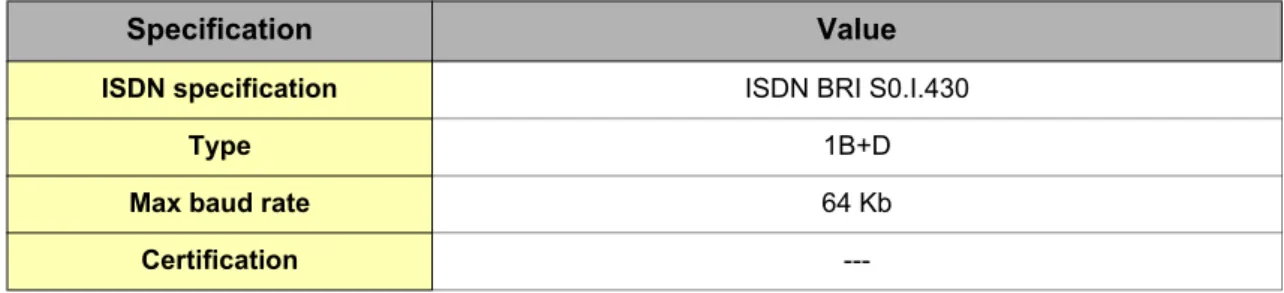
5.6 Embedded ISDN Modem (optional) ... 18
5.7 Configurable serial port ... 19
5.8 MPI port ... 20
5.9 Digital input ... 20
5.10 Digital output ... 21
6 IP parameters configuration... 22
6.1 Resets ... 23
6.1.1 User Reset ... 23
6.1.2 Factory Reset ... 23
7 Technical support... 24
eWON
2104™
Installation Guide
ver 1.38.1 Power Supply ... 24
8.2 Ethernet ... 25
8.2.1 Ethernet LAN... 25
8.2.2 Direct connection ... 26
8.2.3 Connection over hub/router ... 27
8.3 RJ45 connector... 28
8.4 Input/Outputs ... 29
8.5 Serial Port... 30
8.6 MPI port ... 31
8.7 ADSL / PSTN / ISDN phone line connector ... 32
eWON
2104™
Installation Guide
ver 1.31 Product description
1.1 Introduction
The eWON2104™ is the Industrial LAN/ADSL Router version of a complete range of Ethernet/Internet gateways also known as “Programmable Industrial Routers” (PIR). See our web site http://www.ewon.biz to get further information about the eWON range. The eWON is a terminal that enables access to technical data, whatever their format is. It is configurable by web pages. It is secure because it meets the toughest industrial standards and has restricted access features (required in open networks).
The eWON2104™ can optionally embed a modem (GSM/GPRS/EDGE/PSTN/ISDN).
The eWON range supports the TCP/IP and PPP protocols. This brings you all the benefits of an universally recognized standard network. It also allows you to use popular software tools like Internet Explorer, FTP client, SNMP Manager, Mail Recipient … and so to reduce significantly your costs (implementation and ownership).
1.2 General specification of the hardware platform
• Processor ARM clocked @ 75Mhz, 16Mb SDRAM, 32Mb Flash • Backed up real time clock (RTC) with 24 Hours autonomy • Battery with 10 years life expectancy (for RTC)• External power supply 12-24 VDC +/- 20%, consumption: 10W max • 1 ADSL modem
• 1 Ethernet switch with 4 ports 10/100Mb BaseTx • 1 Serial port configurable in RS232/RS422/RS485
OR
1 MPI port (up to 12 Mbits/sec) • 1 digital input (DI)
• 1 digital output (DO)
• DIN rail mounting compliant with EN50022 (latch) • Environmental conditions (operating):
Ambient T°: from -20°C to +70°C for eWON with GPRS/EDGE modem Ambient T°: from 0°C to +50°C for eWON with PSTN or ISDN modem Humidity: from 0 to 80% non condensing
1.3 Functions of the eWON2104™
1.3.1 General
• Ethernet Gateway to serial protocols • Web server – fully customizable web pages • Programmable by BASIC scripts
• Alarm management • Report generation
1.3.2 Virtual Private Network
• Allow to build your own Virtual Private Network (VPN) thanks to OpenVPN technology
1.3.3 Remote Access Server functions
• Remote Access Server (RAS) and TCP/IP Server • PAP/CHAP Authentication
• Login/password
• Remote network access • User access control • Security: NAT, IP filtering
eWON
2104™
Installation Guide
ver 1.31.3.4 Ethernet to Serial Gateways
• MODBUS TCP to MODBUS RTU • XIP to UNITELWAY
• EtherNet/IP™ to DF1 • FINS TCP to FINS Hostlink • ISOTCP to PPI (optionnaly MPI) • VCOM / ASCII
1.3.5 Programmable Industrial Router functions
• Automatic routing of protocols
• Programmable routing from I/O and Tag names (BASIC)
1.4 Typical applications
• Alarm management
• Sending alarms by network, phone, Email and/or SMS • Remote measurements, loop back, control and monitoring • Predictive and operational maintenance
• Diagnosis and machinery status control • Process and machinery activity logs • Commissioning support
• Remote programming
eWON
2104™
Installation Guide
ver 1.31.5 Part Numbers and internal options
Part Number structure of the eWON product range:EWaabzm[-x]
Where:aa = Type of hardware platform • 27 = eWON2104™
b = Power supply
• 2 = Low voltage 12-24DC power supply z = Serial Port type
• 0 = RS232 / RS422 / RS485 serial port • 6 = MPI port
m= Modem
• 1 = No modem (Ethernet only) • 3 = ISDN EU modem
• 4 = PSTN 56k modem • 7 = EDGE quad band • 8 = GPRS quad band
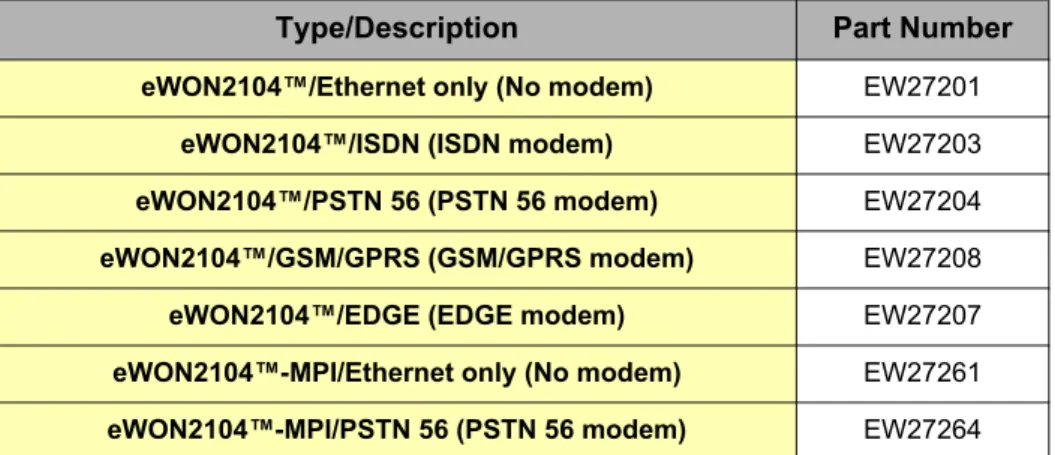
Examples of Part Numbers for the eWON2104™ platform:
Type/Description Part Number
eWON2104™/Ethernet only (No modem) EW27201
eWON2104™/ISDN (ISDN modem) EW27203
eWON2104™/PSTN 56 (PSTN 56 modem) EW27204
eWON2104™/GSM/GPRS (GSM/GPRS modem) EW27208
eWON2104™/EDGE (EDGE modem) EW27207
eWON2104™-MPI/Ethernet only (No modem) EW27261
eWON2104™-MPI/PSTN 56 (PSTN 56 modem) EW27264
eWON
2104™
Installation Guide
ver 1.32 eWON technical documentation
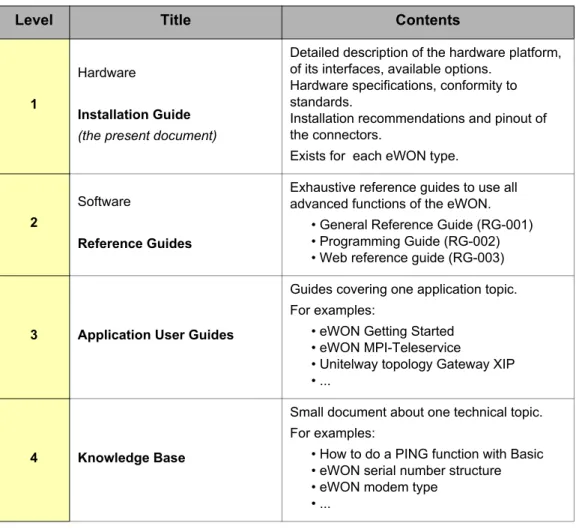
The eWON technical documentation is structured in 4 different levels as shown in the table below:
All those manuals are available for download in pdf format on the eWON website: http://support.ewon.biz.
Level Title Contents
1
Hardware
Installation Guide (the present document)
Detailed description of the hardware platform, of its interfaces, available options.
Hardware specifications, conformity to standards.
Installation recommendations and pinout of the connectors.
Exists for each eWON type.
2
Software
Reference Guides
Exhaustive reference guides to use all advanced functions of the eWON.
• General Reference Guide (RG-001) • Programming Guide (RG-002) • Web reference guide (RG-003)
3 Application User Guides
Guides covering one application topic. For examples:
• eWON Getting Started • eWON MPI-Teleservice
• Unitelway topology Gateway XIP • ...
4 Knowledge Base
Small document about one technical topic. For examples:
• How to do a PING function with Basic • eWON serial number structure • eWON modem type
• ...
eWON
2104™
Installation Guide
ver 1.33 Housing and markings
3.1 Housing Interfaces
Figure 1: Housing
LAN port
Ethernet 10/100
ADSL port
(phone line)
Reset button hole
Serial port
or MPI port
Digital IO
Power
Ground
Din rail latch
& SimCard
GSM antenna
connector
eWON
2104™
Installation Guide
ver 1.33.2 Markings
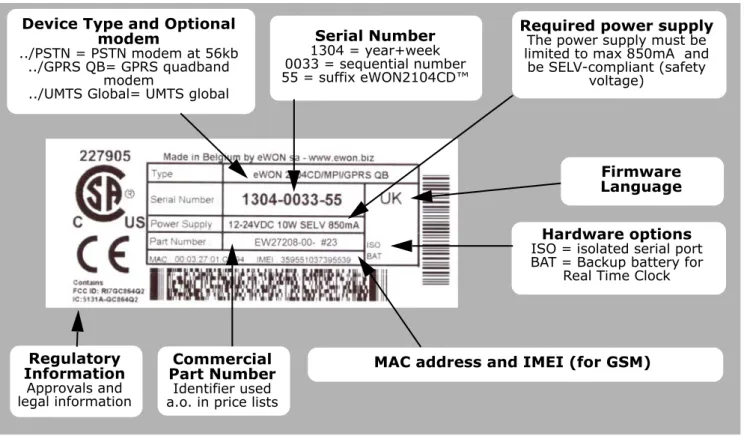
The identification label of the eWON is placed at the left hand side of the housing. The label is composed of the following fields:
Figure 2: eWON Label
The eWON Serial Number (SN) is an important traceability tool both for the user and for the manufacturer. Therefore, next to the product label, each eWON has its serial number stored in the flash memory. This SN is also used in order to scan the network for eWONs and to assign its IP address, subnet mask and gateway. For more details, See “Equipment information and versions” on page 12.
Serial Number 1304 = year+week 0033 = sequential number 55 = suffix eWON2104CD™ Device Type and Optional
modem
../PSTN = PSTN modem at 56kb ../GPRS QB= GPRS quadband
modem
../UMTS Global= UMTS global
MAC address and IMEI (for GSM) Firmware Language Hardware options ISO = isolated serial port BAT = Backup battery for
Real Time Clock
Regulatory Information Approvals and legal information Commercial Part Number Identifier used a.o. in price lists
Required power supply The power supply must be limited to max 850mA and be SELV-compliant (safety
eWON
2104™
Installation Guide
ver 1.33.3 Safety, Environmental & Regulatory Information
3.3.1 Scope
The present heading addresses Safety, Environmental & Regulatory Information for the eWON2104.
The eWON2104 range including its optional modems belongs to class A Information Technology Equipment (ITE). In a domestic environment this product may cause radio interference in which case the user may be required to take appropriate measures.
3.3.2 Applicable European Directives
The eWON2104 range is in conformity with the following directives: • EMC Directive 2004/108/EC
• RoHS Directive 2002/95/EsC
When applicable*, the product conform to the corresponding articles: • R&TTE Directive 1999/5/EC
• FCC 41 CFR
* Applies to eWONs with embedded wireless modem.
3.3.3 Applicable Safety Standards
The eWON2104 range including optional modems is in conformity with the following safety standards: • IEC/EN 60950-1
• UL 60950-1
• CSA-C22.2 No 60950-1-07 Battery:
Caution risk of explosion if battery is replaced by an incorrect type. Dispose of used battery according to the instructions. Do not disassemble, crush or puncture battery. Do not attempt to open or service battery. Do not dispose of batteries in a fire or with household waste.
3.3.4 FCC Compliance
The eWON2104 range including optional modems complies with Part 15 of the FCC Rules. Operating is subject to the following two conditions:
1. This device may not cause harmful interference, and
2. This device must accept any interference received, including interference that may cause undesired operation.
The telecommunication modules used into the eWON routers meets regulatory requirements. They have been granted modular approval for mobile applications. Integrators may use eWON with telecommunication modules in their host application that can be categorized as mobile devices without additional FCC or R&TTE certification approvals if the following conditions are met (otherwise, additional FCC approvals must be obtained):
• At least 20 cm (7.88”) separation distance between the antenna and the user’s body must be maintained at all times.
• The eWON and its antenna must not be collocated or operating in conjunction with any other transmitter or antenna.
• To comply with regulations limiting both maximum RF output power and human exposure to RF radiation, the maximum antenna gain, including cable loss, are given in the § 8.8.2 Antenna Specification
eWON
2104™
Installation Guide
ver 1.3The FCC defines a mobile device as being designed for use “in other than fixed locations and to generally be used in such a way that a separation distance of at least 20 centimeters is normally maintained between radiating structures and the body of the user or nearby persons.”
3.3.5 Certifications
Please check our http://wiki.ewon.biz/Support/ page to get the current versions of: • Declaration of Conformity (DoC)
eWON
2104™
Installation Guide
ver 1.33.4 Equipment information and versions
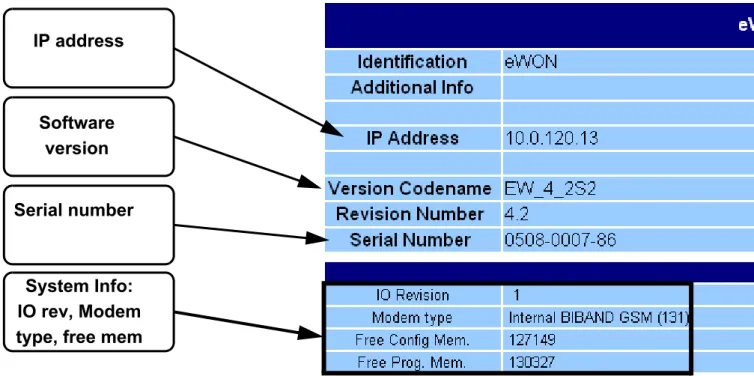
The eWON hardware and software revisions can be checked with a web browser on the eWON server. Once logged onto the eWON, clicking on the eWON logo shows these revisions.
Figure 3: eWON info page details
IP address
Software
version
Serial number
System Info:
IO rev, Modem
type, free mem
eWON
2104™
Installation Guide
ver 1.33.5 Mechanical outline
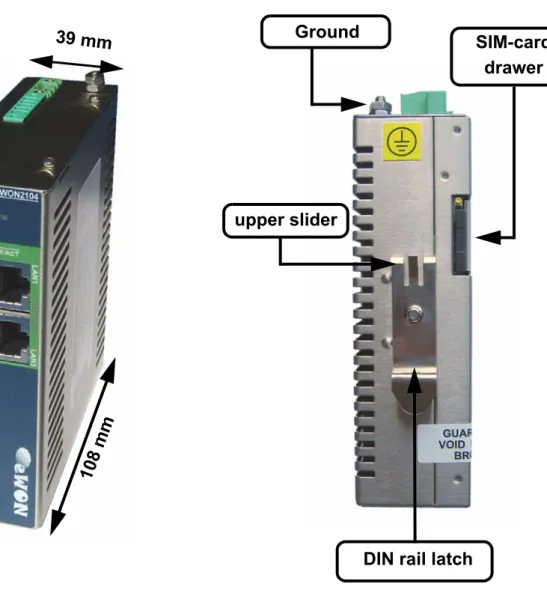
Figure 4: Left: Mechanical Outline - Right: DIN-rail latch The eWON must be fastened on a 35mm DIN rail compliant with EN50022.
To put the unit in place, insert the upper slider into the upper part of the rail, with the eWON™ tiled around 20°. Then push and rotate the eWON™ downward to put the unit right.
The eWON2104™ is now safely fastened.
39 mm
12
9
m
m
10
8
m
m
Ground
DIN rail latch
SIM-card
drawer
eWON
2104™
Installation Guide
ver 1.33.6 Mounting and environmental conditions
The eWON unit has an IP30 protection grade. It is therefore not suited for outdoor mounting. The design of the unit is such that it has to be integrated in an enclosed electrical cabinet, protected from excessive heat, humidity and dust. The eWON2104™ is complying to the CE-marking requirements regarding
electromagnetic compatibility (EMC) within an industrial environment.
The normal mounting position is wall mounted on DIN-rail (EN 50022). The unit is suited to work in any other position.
The equipment will operate within specified tolerances only if the following environmental conditions are respected:
3.7 Preparing the installation
The recommended free space in the cabinet for the eWON should be at least: 80-mm wide x 200-mm high x 160-mm deep (terminal block excluded). A piece of rigid DIN-rail profile (flat 35mm wide) of suitable length should be firmly fastened, horizontally, in the middle of the area.
Grounding the eWON is necessary to eliminate unwanted transients (lightning protection) and to conform to the EMC requirements. Therefore, a ground screw is available at the top of the unit. Connect this screw directly to a low impedance ground.
3.8 Specification for external power supply selection
The eWON2104™ has to be supplied by an external voltage source ranging from 12 to 24 VDC. The power supplied must be a Class 2 or Level 3, SELV-compliant (Safety Extra Low Voltage) and limited in current to a max of 850mA. The safety voltage power supply is not part of the delivery..
(*) Properly ground the unit with the earth screw at the top of the unit. This is mandatory to ensure the security and the electro mechanical compatibility (EMC) of the device.
Equipment Supplied by Class 2 or Level 3 Power Supply.
Ambient temperature range 0°C to +50°C
Ambient humidity 0-80% non-condensing
Specification Value
Secondary PS voltage from 12 to 24 VDC +/-20% (SELV-compliant)
Max secondary PS current 850 mA max.
eWON current protection 2A by auto fuse
eWON voltage protection 30V by transil
eWON EMI filter Common mode filter (*)
Power absorbed 10 Watts
Input Protection Protected against polrity inversion
eWON
2104™
Installation Guide
ver 1.33.8.1 Auto fuse
An auto fuse placed just after the power input protects the eWON devices against short circuits. This component returns by itself to its normal state when the short circuit has disappeared and after the
component has been cooling down. Would this fuse happen to operate, please check the device for presence of loose metal parts inside likely to generate a short circuit. If the problem recurs even after such a verification, then return the device to the vendor for further investigation.
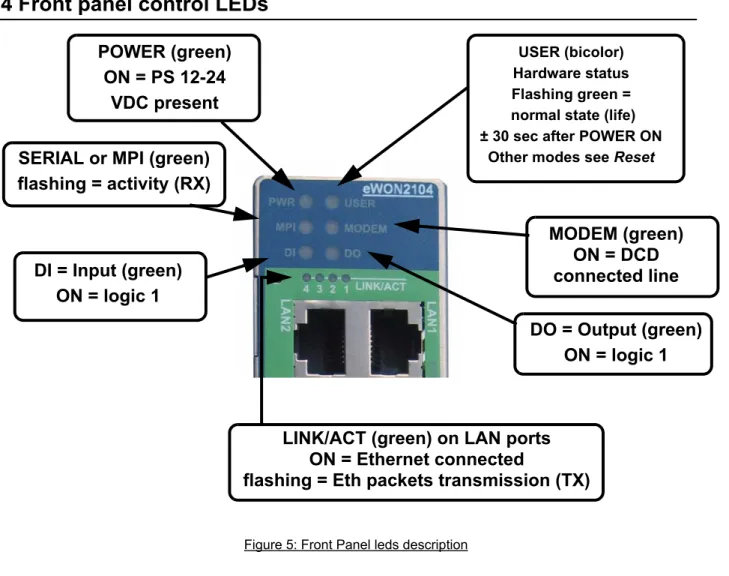
4 Front panel control LEDs
Figure 5: Front Panel leds description
POWER (green)
ON = PS 12-24
VDC present
SERIAL or MPI (green)
flashing = activity (RX)
DI = Input (green)
ON = logic 1
MODEM (green)
ON = DCD
connected line
USER (bicolor) Hardware status Flashing green = normal state (life) ± 30 sec after POWER ONOther modes see Reset
DO = Output (green)
ON = logic 1
LINK/ACT (green) on LAN ports
ON = Ethernet connected
eWON
2104™
Installation Guide
ver 1.35 Specifications of communication interfaces and I/Os
5.1 Ethernet Ports
The eWON2104TM has 1 ethernet interface:
• a LAN (Local Area Network) with an integrated 4 ports switch (autosense)
Please refer to the appendix (Direct connection on page 26 and Connection over hub/router on page 27) for information on the different Ethernet connexion modes (straight and crossed cables).
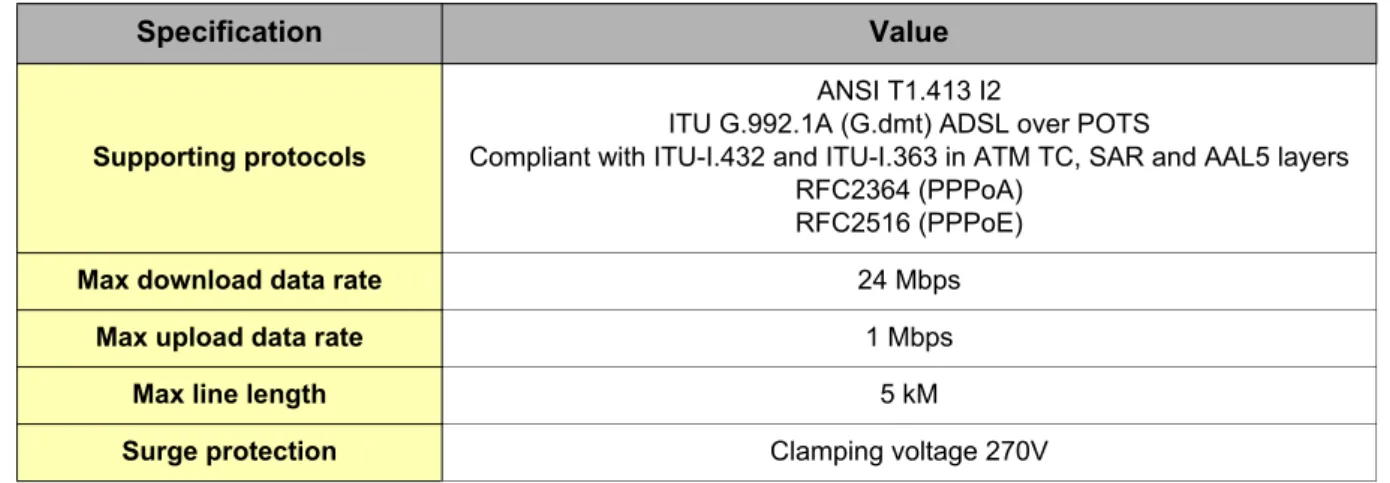
5.2 Embedded ADSL Modem
The eWON2104TM has an ADSL modem built-in. This modem supports the ADSL2/2+ standards.
5.3 Embedded PSTN Modem (optional)
Specification Value
Applicable standard 10/100BaseTX
Isolation 1,5 kV
Pinout RJ45 connector See label and appendix (RJ45 connector on page 28) Table 4: Ethernet ports specification
Specification Value
Supporting protocols
ANSI T1.413 I2
ITU G.992.1A (G.dmt) ADSL over POTS
Compliant with ITU-I.432 and ITU-I.363 in ATM TC, SAR and AAL5 layers RFC2364 (PPPoA)
RFC2516 (PPPoE)
Max download data rate 24 Mbps
Max upload data rate 1 Mbps
Max line length 5 kM
Surge protection Clamping voltage 270V
Table 5: ADSL port specification
Specification PSTN 56k
Max baud rate (V92) 56.000 bps
Pinout phone line connector See label and appendix (ADSL / PSTN / ISDN phone line connector on page 32)
Leased Line mode No
eWON
2104™
Installation Guide
ver 1.35.4 Embedded quad band GSM/GPRS Modem (optional)
5.5 Embedded quad band EDGE Modem (optional)
(*) Tightening torque for SMA antenna connector: MAX 0.5N.m (manual tightening should be used as a reference). See “Antenna connector” on page 32.
5.5.1 SIM-card installation (EDGE and GPRS modem)
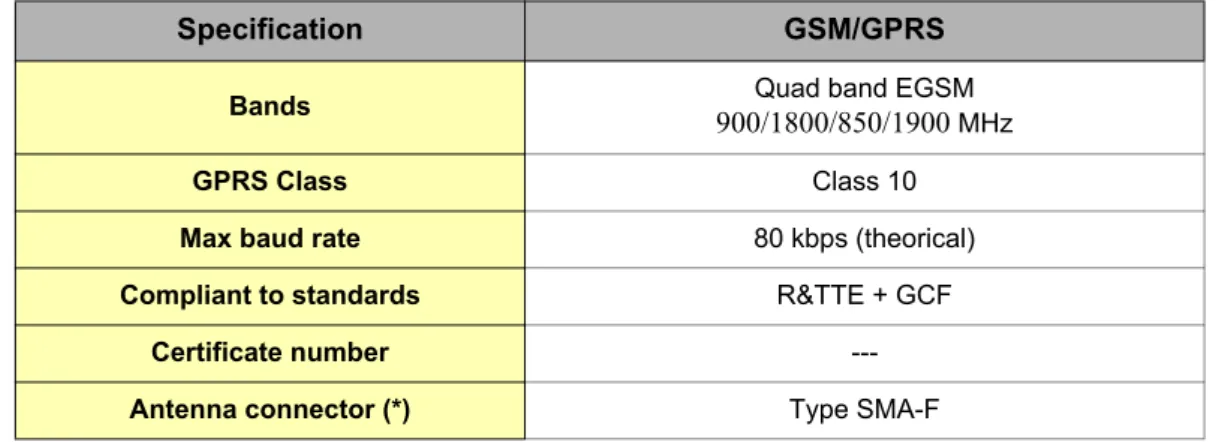
Specification GSM/GPRS
Bands Quad band EGSM
900/1800/850/1900 MHz
GPRS Class Class 10
Max baud rate 80 kbps (theorical)
Compliant to standards R&TTE + GCF
Certificate number
---Antenna connector (*) Type SMA-F
Table 7: GSM/GPRS modem specification
Specification EDGE
Bands 900/1800/850/1900Quad band EDGE MHz
E-GPRS Class Class 10
Max baud rate 115 kbps (theorical)
Compliant to standards R&TTE + GCF
Certificate number
---Antenna connector (*) Type SMA-F
eWON
2104™
Installation Guide
ver 1.35.6 Embedded ISDN Modem (optional)
Specification Value
ISDN specification ISDN BRI S0.I.430
Type 1B+D
Max baud rate 64 Kb
Certification
eWON
2104™
Installation Guide
ver 1.35.7 Configurable serial port
The configuration of the physical serial mode is done by a set of 4 dip switches located on left side of the unit.
The settings of the switches are shown in the table below (note: switch 1 is the right one).
Note: the 3 switch configurations shown here above are the sole configurations giving
Specification Value
Physical modes (configurable) RS232/RS485/RS422
Isolation not isolated
Pinout connector See label and appendix (Serial Port on page 30) Table 10: Serial port specification
Positions Mode
RS232
RS422, RS485
WITHOUT polarisation and termination resistor
RS422, RS485
WITH polarisation and termination resistor
eWON
2104™
Installation Guide
ver 1.35.8 MPI port
The MPI port is easily identifiable with its light blue square surrounding a female DB9 connector.
5.9 Digital input
Figure 7: Digital input: state vs voltage
The input range extends from 0 to 24VDC (30VDC max). A zero logic (OFF) state is detected when the input level is below 5Vdc. A one logic (ON) state is detected when the input level is above 10Vdc.
Specification Value
Physical mode MPI
Speed • 19.2 kBauds • 187.5 kBauds • 1.5 MBauds • 3.0 MBauds • 6.0 MBauds • 12.0 MBauds Polarisation 100 kOhms Termination
-Pinout connector See label and appendix(MPI port on page 31)
Specification Value
Input voltage range 0 to 24 VDC
Input voltage absolute max
(varistor protection) 33 VDC
Zero state max input voltage (OFF) 5 VDC
One state voltage range (ON) 10 to 30 VDC
One state currents (ON) 3.8mA @ 12VDC
8.2mA @ 24VDC
Isolation 3,5 kV
Pinout connector See label and appendix (Input/Outputs on page 29) Table 12: Specification of the digital input
eWON
2104™
Installation Guide
ver 1.35.10 Digital output
This digital output is activated by an open drain MOSFET transistor driven by an optocoupler. The maximum current flow into this transistor has a characteristic above the value specified in the eWON, in order to cope with the switching power losses. The transistor used is in an open drain type with pre drive. This means the relay power supply has to be supplied from an external source to the pre drive electronics.
The diagram below shows the external wiring needed for correct operation of the digital output. A relay has been chosen for this sample application but any load within the specifications can be used instead.
Warning: note that this is a sink only output to ground (the transistor acts like a switch to ground).
Figure 8: Digital output: wiring diagram
Specification Value
Type of output Open drain (MOSFET)
Max current (external source) 200mA @ 30 VDC
Isolation 3,5 kV
Pinout connector See label and appendix (Input/Outputs on page 29) Table 13: Specification of the digital output
eWON
2104™
Installation Guide
ver 1.36 IP parameters configuration
Warning: normally you cannot communicate with a device of which you don’t know the IP
parameters. Therefore, there is a special tool (called “eBuddy”) you can download from the eWON Internet site http://www.ewon.biz. Start this application once you have connected your eWON to the network. The application will scan the whole network and will identify all eWONs that are connected, including their IP parameters (Address and subnet mask) and their serial number. The utility allows also to edit the IP parameters. IP parameters always have to be defined in full
agreement with network policies applicable within your organisation (ask your network administrator).
Default settings:
note: By default, the incoming PPP connection is allowed. LAN interface
IP address 10.0.0.53
Subnet mask 255.255.255.0
Table 14: LAN IP factory config
Modem interface (incoming PPP)
IP address 202.0.0.240
Subnet mask 255.255.255.0
eWON
2104™
Installation Guide
ver 1.36.1 Resets
Warning: you should not reset your eWON unless you have been told to do so by someone of our technical support. The concerned files (differs depending on reset type) are totally lost and unrecoverable after being formatted.
To press the reset button, you will need a propelling pencil or an unfold paper clip to pass through the hole in the front panel.
6.1.1 User Reset
This is the first level and most usual level of reset. It consists in formatting only the « user file » part of the non volatile memory. The Tag configuration and the customer web site are part of the formatted files.
You generate this first level reset by pressing and maintaining the reset button during approximately 4 seconds after powering the eWON up until the “USER” LED flashes in red 1x per second. When this state is reached, release the button and wait approximatively 30 secs until the procedure is completed. The eWON restarts automatically and is ready to communicate. This type of reset does not modify the communication parameters.
6.1.2 Factory Reset
This second level reset is used only exceptionally because it formats all non volatile memories and make the eWON returning to its factory defaults. This operation consists in 3 stages:
• Formatting of all non volatile memories, including all COM parameters and IP addresses • Return to ex-factory configuration (default config)
• Full hardware auto test with result shown by the “USER” LED
You generate this second level reset by pressing and maintaining the reset button during approximately 20 secs after powering up the eWON until the “USER” LED remains RED continuously. When this state is reached, release the button and wait approximatively during 90 seconds until the procedure is completed. The procedure finishes with the result of the autotest on the “USER” LED. If the autotest is completed succesfully, then the “USER” LED shows its normal pattern of 200ms ON et 1,5 sec OFF.
Any other pattern will start with 200ms ON (opening of the pattern) followed by OFF and a certain number of times 1 sec ON that allows to identify the nature of the detected problem. Please call the technical support if you are confronted with an error pattern on the “USER” LED.
Reset button
hole
eWON
2104™
Installation Guide
ver 1.37 Technical support
If you need technical support, simply fill out the form on the Web site http://support.ewon.biz/php/contact.php
or send an email with the problem description to [email protected]. You will also find usefull documentation at http://support.ewon.biz
8 Appendix: Pinouts and connections
8.1 Power Supply
Figure 9: Power supply connector: eWON Mating female connector (included) • Manufacturer:
Phoenix Contact GmbH, http://www.phoenixcontact.com
Part Number: GMSTB 2,5/2-STF-5.08 • Pinout (see label)
Pin Description
1 Ground
2 Positive (+) Table 16: Pinout Power Supply Connector
2 1
-eWON
2104™
Installation Guide
ver 1.38.2 Ethernet
By default, only the LAN Ethernet interface of the eWON2104TM can be used to access the internal WebSite.
8.2.1 Ethernet LAN
The Ethernet LAN is a four ports autosense ethernet switch (10/100 Mb). Autosense means that you can use both direct and crossed cables.
color & activity Meaning
off No Link
green fixed Link
green blink Activity (RX or TX) Table 17: Led meanings on Ethernet LAN
eWON
2104™
Installation Guide
ver 1.38.2.2 Direct connection
If the eWON is connected directly to a PC, then use the crossed cable:
As the LAN interface is “autosense”, you can use a crossed or straight ethernet cable, but generally, a direct connection is done with a crossed cable.
The WAN interface is not “autosense”, then you must use a crossed ethernet cable to make a direct WAN connection.
When cabling over long distance, you have to take care of the twisted pairs. This means that along with the above cabling conventions, the emission (TX+/TX-) and reception (RX+/RX-) signals have to be connected on the same twisted pair:
Pins 4, 5, 7 and 8 do not have to be connected. The following picture shows the twisted pair connections: TX+: pin3, TX-: pin6 Twisted pair 1
RX+: pin1, RX-: pin2 Twisted pair 2
Crossed
eWON
2104™
Installation Guide
ver 1.38.2.3 Connection over hub/router
If the eWON is connected to a hub, it has to be connected like any other device, with a straight cable. Again, the wiring is as shown on the following picture, and care should be taken to keep the RX and TX signals on twisted pairs:
Hub/Router
Straight
cable
eWON
2104™
Installation Guide
ver 1.38.3 RJ45 connector
The RJ45 connector has got the following pins numbering, as it can be seen on the following picture, showing it from different angles:
eWON
2104™
Installation Guide
ver 1.38.4 Input/Outputs
Mating female connector (included):
Manufacturer: Sauro http://www.sauro.net/ Part Number: CTF050VT
Pin REF Description
1 DO_GND
Output digital signal (0V ground) connected to the emitter of the transistor
2 DO Output digital signal connected to the drain of the MOSFET transistor 3 DO_VDC Common of the external predrive power supply (between +12 et +24 VDC) 4 DI_GND Ground of the input (isolated)
5 DI Input digital signal Figure 10: Pinout I/O connector
eWON
2104™
Installation Guide
ver 1.38.5 Serial Port
Mating female connector (not included):
Pinout serial port (according to mode):
Type Female DB9 with 4/40 blocking screws
Pin RS232 RS485 RS422 1 - - -2 RXD - RX+ 3 TXD A+ TX+ 4 - - -5 GND GND GND 6 - - -7 RTS - RX-8 CTS B- TX-9 - -
eWON
2104™
Installation Guide
ver 1.38.6 MPI port
Mating male connector (not included):
MPI port pinout (DB9 female):
Type Male DB9 with 4/40 blocking screws
Pin MPI 1 -2 -3 B(+) 4 -5 GND 6 -7 -8 A(-) 9
eWON
2104™
Installation Guide
ver 1.38.7 ADSL / PSTN / ISDN phone line connector
• Mating male conector (not included):• Pinout ADSL / PSTN line:
• ISDN phone line mating male connector pinout (RJ11):
8.8 Antenna connector
For eWON with GSM/GPRS/EDGE/HSUPA modem, the antenna connector is placed on the top of eWON.
.
Type: RJ11 type "6P2C" without shield
Pin Description 1 -2 -3 TIP 4 RING 5 -6
-Table 20: pinout ADSL / PSTN modem
Pin Description
3 RX+
4
RX-Table 21: ISDN connector pinout
Specification Value
Type SMA-F
Tightening Torque
MAX 0.5N.m
(manual tightening should be used as a reference)