1
Using a Database: Tables and Queries
In the last lab, we saw how a spreadsheet can be useful for organized storage of
information. Some kinds of information, however, have more structure than can be easily represented in spreadsheets. As discussed in Chapter 20, we often want to represent relationships between pieces of information about the real world. In this lab, we will see how databases are well-suited for storing and working with information with complex structure.
Vocabulary
All key vocabulary used in this lab are listed below, with closely related words listed together:
relationship
entity-relationship (ER) diagram redundancy
table entity record
field, attribute, column data type
key, primary key row, tuple, record query
Post-lab Questions
1. Databases surround us on the web and everyday life. Now that you have a clearer idea of what database systems do, find two examples of web sites that you believe are likely to use databases and discuss what kinds of data they might be storing, as in the example answer.
2 2. Identify relationships. Suppose you are creating a database to help a university
keep track of its course offerings. You might have the following entities in your database, since they are distinct items in real life that are related to each other in important ways: course, classroom, professor, and department. In the space below, draw an ER diagram with a box for each of these four entities and arrows between the boxes labeled with the relationships they denote. (Don’t worry about what fields each of these entities should have for now.) See the example ER diagram in your textbook and in Part 1 of this lab.
3. Identify many-to-one relationships. For each of the relationships you diagrammed above, which ones are many-to-one? Which ones are many-to-many? Indicate the relationships by writing 1 or ∞ at each end of the relationship arrows. If you are not sure about whether a relationship is one-to-many or many-to-many, explain why.
4. Identify entities. Suppose you are creating a database to keep track of a radio station’s record collection. What are some of the entities your database might include?
5. Query results and tables look very similar—like a set of tuples. How are query results and tables different, however?
Discussion and Procedure
Throughout this lab, you will be working with a sample database that stores information about movies and movie directors. Before we actually work with the movie database in Access, however, we will spend some time discussing why this information is better suited for storing in a relational database, in contrast to a spreadsheet.
Part 1. Recognizing Relationships in Information
3 First, let’s consider what the information describes: movies and directors. Movies and
directors are separate things in real life, but they are also related. This “separate but related” property suggests that a database would be good for storing information about these things. The relationship between movies and directors can be represented in an
“entity-relationship” diagram, or ER diagram, like this:
Why not a spreadsheet? Let’s return to considering the movie and director information, keeping in mind the organizational structure represented in our ER diagram. The sample database stores this information in two tables, but unless we consider what it would be like to store this information in a spreadsheet, it might not be clear to you how a database is advantageous. Each movie has some information that we want to store about it, e.g., title, year of release, director. Each director also has some information, like their name and year of birth. The most natural way of storing all of this information in a spreadsheet might look like this:
Storing information this way, however, has some potential problems related to
redundancy.
1. Consider adding or editing information in the spreadsheet above and briefly describe how redundancy might lead to problems or inconveniences.
These redundancy problems are directly related to the fact that a single spreadsheet is being used to store two distinct groups of information: information about movies and information about directors. The more appropriate storage solution is to have a database with separate tables for movie information and director information. In the rest of this lab, we will examine a database that has this design and see how it simplifies viewing, modifying, and adding information.
4
Part 2. Viewing Information in Tables
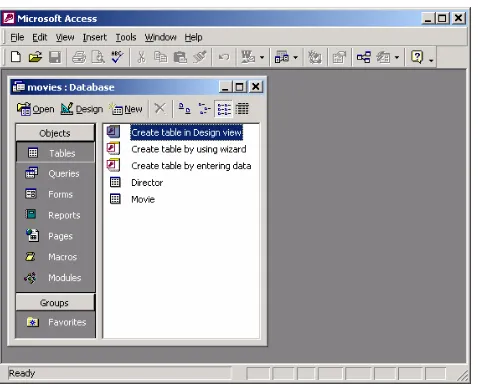
2. Open the sample database. Open movies.mdb. Your instructor will tell you how to obtain this file, possibly from a web page or a network drive. This should start Microsoft Access, and the main window should look like this:
(Note that the Access window has a subwindow titled “movies : Database.” As we will begin to see in this lab, databases have many parts, so Access displays them in separate subwindows, all within the main window titled “Microsoft Access.”)
This sample database already has some information stored in it, so we will start by seeing how it is organized into tables.
Among other things, a database contains tables, where all of the information is stored in
tuples; queries, which do not hold data themselves but are ways of building new tables out of the existing tables; and forms and reports, which are specialized ways of viewing the information. (Note that queries are somewhat similar to programs in that they describe processes and actions, rather than describe information.) The Database
subwindow lists these categories of parts on the left side, under the heading, “Objects.”
Notice that this database contains two tables: Director and Movie. (Select Tables under Objects to see the table list, if it is not already shown in the Database subwindow.) There is one table for each of the kinds of “separate but related” things the database is designed to store information about.
5 Along the top of the table, you see field names. (Another word for field is “attribute,”
which is commonly used when discussing databases. We will try to consistently use “field,” which is the term Microsoft Access uses.) The fields specify the information that the table stores for each movie. Each field has a name, shown in the gray buttons at the top of the columns in Datasheet View.
4. Identify the field names in the Movie table. Write the names of the fields below.
Information about each movie is stored as a set of field values and displayed as a row in Datasheet View. We call this set of field values a tuple or row in database terminology.
5. Examine the tuples for fields with unique values. Are there any tuples for which the values for the Title field are the same? Which field’s values are unique across all of the tuples in the Movie table?
Based on this, which field do you expect is the primary key for this table?
Examining a table’s structure. Datasheet View shows you both the information stored in the table, as well as a little bit about the structure of the information, i.e., how many fields there are for each tuple, and what the field names are. Access provides another view of a table called “Design View,” which is specialized for working with the structure of the information.
6 icon changes when you switch between views. While you are in Datasheet View,
it should look as shown at the right.
Design View is used to view and modify table structure, rather than table contents (which is what Datasheet View is primarily for). Again this view has rows and columns, but this time, each row contains information about an field. In this lab, we’ll just look at the table design, but in a later lab, we’ll revisit Design View and make changes to this table.
In this view, it is clear that in addition to a name, each field has a data type, which specifies what kind of information the field’s value must be (e.g., a number, some text, a currency amount, etc.). The database designer can also provide a brief description of what the field is for in the rightmost column.
Access identifies the primary key with a small key icon to the left of the field name. The data type for this field is a special kind of number data type that guarantees that no two tuples ever have the same value for the field.
The DirectorID field allows each tuple in the Movie table to be associated with a tuple in the Director table. Just like the Movie table, the Director table has a primary key field called DirectorID that uniquely identifies each director. Next, we will see more about how the primary keys in these tables are used to represent the relationship between movies and directors.
7. Close the Movie table.
7 The new subwindow should resemble the ER diagram from the beginning of this lab.
9. Judging from their titles and contents, what does each small window represent?
10.Each small window shows a list of fields. How is the primary key distinguished from the others in these lists?
11.Which fields from which tables are connected by the black line?
Just as in the ER diagram, the black line between the two smaller windows represents the relationship between movies and directors. The 1 and the infinity (∞) symbols are used to indicate that directors and movies have a “one-to-many” relationship, i.e., each director can be related to many movies. (Note that the reverse is not true, with the usually valid assumption that each movie has only one director. This is why we say the relationship is “one-to-many,” rather than “many-to-many.”)
What about many-to-many? In the world of movies, there are a variety of relationships that are many-to-many, instead of one-to-many. Consider actors and movies, for
example. Most movies feature more than one actor, and most (successful) actors star in more than one movie. Relational databases are also capable of storing many-to-many relationships, but the way you represent them is considerably more complicated than adding an ID field to a table. If you want to set up a many-to-many relationship between two tables, it requires that you add a third table, called a “junction” or “link” table. This third table stores pairs of IDs, and rows from the original two tables are related if their IDs appear together in a row of the link table. To keep things simple, we’ll stick with one-to-many relationships in these labs, but once we cover creating tables in Lab 3.4, you can give many-to-many relationships a try yourself.
Part 3. Queries on One Table
Now that we see what kind of information is stored in this database and how it is organized with tables and relationships, let’s see how to use queries to retrieve the information in different ways and answer questions using the information.
8 We begin with queries that are based on only one table. Here are some examples of
potentially useful questions that you can answer with one-table queries:
(1) Which movies were released before 1980, ordered by year of release?
(2) When were each of the Psycho movies released?
(3) Which movies have titles that start with the letter R?
Examining an existing query. Before we write any new queries from scratch, let’s look at the results of running a prewritten query. Queries, like tables, can be viewed in Datasheet or Design View.
12.Open the Query list. In the Database subwindow, under Objects, select Queries.
13.Open a query in Datasheet View. Open the “MoviesBefore1980” query by double-clicking it or clicking the Open button (in the Database subwindow’s toolbar) with the query selected. Describe the tuples you see in the resulting subwindow: What fields are shown in the columns?
What is true of all of the ReleaseYear values?
In what order, if any, do the tuples seem to be in?
In Datasheet View, the subwindow showing query results should look just like a table subwindow, because it is, in fact, a table. In contrast to the tables Movie and Director, however, query tables are not stored in the database. Instead, they are generated from one or more of the stored tables (in this case, just the Movie table). Next, we’ll look at the query’s Design View to see how it is set up to construct the tuples you see in Datasheet View.
14.Switch to Design View for this query. You can switch views with queries in the same way as with tables. Use the menus in the main Access window by selecting View \ Design View. You can also click the toolbar View button.
9 15.Examine the fields in the design grid. What are the two fields in the grid, and
which table are they from?
Which of the fields have criteria specified for them, and what are they?
Modifying a query. To better understand how changes in the design grid affect the results of the query, we will try changing this query (MoviesBefore1980), switching back to Datasheet View after each change to observe the effects on the query results.
16.Change sorting order. Two factors affect the order of tuples in a query result. First, for each field, you can specify whether the field is used for sorting, and, if so, whether the tuples are sorted in ascending or descending order by that field value. To select how an field should be treated for sorting purposes, in the design grid, click the cell in the Sort row in the field’s column. At the right end of the cell, a drop down list button should appear, and you can click it to select either “Ascending,” “Descending,” or “(not sorted).” The last option specifies that the field should not be used for sorting.
Try to modify query MoviesBefore1980 to sort the results in order by
ReleaseYear, starting with the most recent movie. What change(s) do you have to make to the query?
You might want to sort results by more than one field. For instance, in the
10 ties are broken by sorting by Title. Fields are considered in the order in which
they appear in the columns of the design grid. To move a column to a new location, start by clicking the narrow, unlabelled, gray button at the top of the column. (When you move the mouse pointer over one of these column selector buttons, it should change to a thick, black down-arrow. Once the column is selected, with your pointer on the column selector button, drag to the new location.
Try to modify the query to sort by Title, then ReleaseYear. What change(s) do you have to make to the query?
17.Change selection criteria. Change the criteria for the ReleaseYear field to =1980. Switch to Datasheet View and describe the result.
18.Remove/add an field. In addition to changing the order of the result tuples, you can change the fields included in the tuples. To remove an field, select its column in the design grid and press Delete or use the menus and select Edit \ Delete.
To add an field, drag it from its table (in the upper pane of the design view window) to the design grid below. Try removing the ReleaseDate field, and switch to Datasheet View to see the result. Then, add the ReleaseDate field back to the query, again verifying your change using Datasheet View.
Creating a new query. In the next steps, you will create a new one-table query for viewing information about directors. Your goal is a query to show just the names (first and last) of all directors whose last names begin with the letter S.
19.Open a new query in Design View. Double-click “Create query in Design View.” Access should open a new subwindow for a new query, giving it the preliminary name “Query1”, which you should replace with a more descriptive and
meaningful name when you save the query.
20.Select the table whose fields you want in this query. A Show Table dialog box should appear with the new query subwindow. Double-click the table(s) from which you want to take field values and close the dialog box when you are done. In this case, we are interested in fields from just the Director table. (You can add more tables later using the Show Table toolbar button. You can remove them by right-clicking them and selecting Remove Table.)
11 whose last names begin with the letter S, sorted by last name, then first name.
(The criterion for beginning with the letter S is Like "s*", where the asterisk indicates that anything can come after the S.) Describe the steps required to start with a blank, new query and end up with this “S directors” query.
What tuples are in the query results?
22.Construct other single-table queries to answer the remaining two questions introduced at the beginning of this part of the lab.
(2) When were each of the Psycho movies released?
(3) Which movies have titles that start with the letter R?
Part 4. Queries With Joins
Single-table queries can be useful, but they do not take advantage of the fact that
databases can store tables for different kinds of information, with keys used to represent relationships. In this part, we will see how to construct a query that combines field values from both the Movie and Director tables. We say that queries like this involve
joining two (or more) tables.
23.Create a new query with both the Movie and Director tables shown. The tables should be shown with a many-to-one relationship line.
12 Describe the steps required to construct this query.
Note that the query results show director information more than once for some directors. This is because there is a many-to-one relationship between movies and directors.
A real life movie database. The example database you work with in this lab is inspired by an extensive, real-life movie database on the web, quite simply named the Internet Movie Database, or IMDB for short (http://imdb.com/). The IMDB is much more complicated than the movie database you use in this lab, but the same basic principles apply. Data entities are stored with relationships, but not in Microsoft Access, which is too small and too slow to power a web site as large and popular as IMDB’s. IMDB’s database, like most large databases in the real world, likely runs on multiple computers with enormous amounts of disk storage.
Part 5. Submission Checklist
At the end of this lab, you should have a query to answer each of the following questions:
(1) Which movies were released before 1980, ordered by year of release?
(2) When were each of the Psycho movies released?
(3) Which movies have titles that start with the letter R?
13 (5) Which movies were directed by directors who were born after 1955?
Submitting your work. Check with your instructor for instructions on how to submit your database. You might be asked to save it to floppy disk, e-mail it as an attachment, or print it on paper.
Whose software do the big databases use? As of 2003, the most commonly used database systems included Oracle, IBM DB/2, and Microsoft’s SQLServer. Large, international businesses and organizations rely on these systems to keep track of their operations, records, etc.
Optional Additional Activities
• In the sidebar on many-to-many relationships, we give the example of actors and movies. Can you think of other examples of many-to-many relationships, in the context of movies or in other real life contexts? Is the relationship between people and phone numbers many-to-many? Between people and birthdays? Between nieces and aunts? Between people and workplaces? Explain your answers, using examples, if you wish.
Further Reading
• The idea of relational databases isn’t really that old. Find out when relational databases were invented, as well as when ER diagrams were introduced as a tool for designing and thinking about databases on these pages or do a web search on “history of databases”.