Dear Concurrent Customer,
Thank you for licensing Concurrent
™
PC DOS Expanded Memory (XM) from Digital Research~Concurrent PC DOS Expanded Memory (hereinafter called Concurrent) is an advanced operating system for IBM® Personal
com~uters
and IBM-compatibles. Unlike DOS, (either PC-DOS or MS-DOS T ) which isa single-tasking operating system, Concurrent supports multitasking, which means you can run up to four interactive DOS applications at once. Concurrent also provides windows which are simply areas of your terminal's screen from which you can run and monitor output from application programs. Concurrent's unique user interface lets you enter DOS-like commands, or select commands from menus.
Concurrent has been designed especially for computers that use expanded memory boards. Concurrent supports both the Expanded Memory Specification (EMS) and the Enhanced Expanded Memory Specification (EEMS) which allow a process to address memory that would otherwise be unavailable in the processor's normal 1 Mb address space.
Hardware Requirments
Concurrent runs on the IBM PC, PC/XT, PC/AT and 100%-compatible systems. To take full advantage of Concurrent's multitasking capability, your system board should have 640K of conventional (RAM) memory and a hard disk. To run applications with the EEMS, your system board should have 256K of conventional memory with the remainder backfilled by an expanded memory board.
Concurrent PC DOS XM Contents
This package should contain the following items: • Concurrent DOS 86 XM User's Guide
• Concurrent DOS 86 XM Refe.r~nce Guide
Mail Your Registration Card and Join
CompuServe~
for Free!After you read the End User Program License Agreement complete and mail in the Registration Card to receive a tree subscription to the CompuServe Information Service. On CompuServe you can access the Digital Research Forum (OR FORUM) to receive information about new updates and refeases. We will send you a CompuServe IntroPak which contains aU the information you need.
You can also join the Concurrent User's Group (CONUG). CONUG provides the information and support you need to make the most of Concurrent PC DOS XM. One feature of CONUG is the group newsletter. Each newsletter contains articles written by members covering all aspects of Concurrent PC DOS XM. For more information about CONUG, contact
Registration Gary Silvey CONUG P.O. Box 734 Marina, CA 93933
CompuServe 10 Number: 76004,156
Application Programming
Digital Research Commitment
We appreciate your continued interest and support for Digital Research and our products. We want to do all we can to provide the best operating systems for today's PC users.
Sincerely,
Digital Research Inc.
Copyright C 1986 by Digital Research Inc. Digital Research and its logo are registered trademarks of Digital Research Inc. Concurrent is a trademark of Digital Research Inc. CompuServe is a registered trademark of CompuServe, Inc., an H&R Block Company. IBM is a registered trademark of International Business Machines.
CONCURRENT
™
PC DOS EXPANDED MEMORYUSER'S GUIDE
COPYRIGHT
Copyright
©
1986 Digital Research Inc. All rights reserved. No part of this publication may be reproduced, transmitted, transcribed, stored in a retrieval system, or translated into any language or computer language, in any form or by any means, electronic, mechanical, magnetic, optical, chemical, manual, or otherwise, without the prior written permission of Digital Research Inc., 60 Garden Court, P.O. Box DRI, Monterey, California 93942.DISCLAIMER
DIGITAL RESEARCH INC. MAKES NO REPRESENTATIONS OR WARRANTIES WITH RESPECT TO THE CONTENTS HEREOF AND SPECIFICALLY DISCLAIMS ANY IMPLIED WARRANTIES OF MERCHANTABILITY OR FITNESS FOR ANY PARTICULAR PURPOSE. Further, Digital Research Inc. reserves the right to revise this publication and to make changes from time to time in the content hereof without obligation of Digital Research Inc. to notify any person of such revision or changes.
NOTICE TO USER
TRADEMARKS
Digital Research and its logo. CP/M. and CP/M-8S are registered trademarks of Digital Research Inc. Cardfile. Concurrent. Concurrent PC DOS Expanded Memory. DR EDI><' GEM. GEM Desktop. GEM Draw. GEM Graph. GEM Paint. GEM Wordchart. GEM Write. and Personal BASIC are trademarks of Digital Research Inc. "We Make Computers Work." is a service mark of Digital Research Inc. Portions
©
AST Research Inc. All rights reserved.The following are registered trademarks of the listed companies. Registered Trademark
COMPAQ
dBASE II. dBASE III IBM
IBM PC IBM PC/XT IBM PC/AT Intel Informix Lotus MailMerge Microsoft Multiplan
Peachtree General Ledger PFS:
Quadram
R:BASE SERIES 4000 SpeliStar
SuperCalc Turbo Pascal VisiCalc Word Perfect WordStar
Company
COMPAQ Computer Coropration Asbton-Tate
International Business Machines International Business Machines International Business Machines International Business Machines Intel Corporation
Relational Database Systems Inc. Lotus Development Corp.
MicroPro International Corporation Microsoft Corporation
Microsoft Corporation Peachtree Software Inc. Software Publishing Corp Quadram Corporation Microrim. Inc.
MicroPro International Corporation Sorcim/lUS Micro Software Borland International VisiCorp
The following are trademarks of the listed companies. Trademark
1-2-3
Above
Corporate MBA CorrectStar Crosstalk
Framework, Friday! Harvard Project Manager Hercules
Home Accountant Plus Microsoft Project Microsoft Word MS-DOS MultiMate OuadEMS+ RAMpage! R:BASE CLOUT Symphony ThinkTank
Company
Lotus Development Corp. Intel Corporation
Context Management Systems MicroPro International Corporation MicroStuf, Inc.
Ashton-Tate
Harvard Software, Inc.
Hercules Comput(!r Technology Array Inc.lContinental Softwa re Microsoft Corporation
Microsoft Corporation Microsoft Corporation MultiMate International Ouadram Corporation AST Research Inc. Microrim, Inc.
Lotus Development Corp. Living Videotext, Inc.
Concurrent PC DOS Expanded Memory User's Guide was printed in the United States of America.
Before You Begin
Concurrent
™
PC DOS Expanded Memory (hereinafter called Concurrent) is an advanced operating system for IBM.. Personal computers and IBM-compatibles. Unlike DOS* which is a single-tasking operating system, Concurrent supports multisingle-tasking, which means you can run up to four interactive DOS applications at once. Concurrent also provides windows which are simply areas of your terminal's screen from which you can run and monitor output from application programs. Concurrent's unique user interface lets you enter DOS-like commands, or select commands from menus.Concurrent has been designed especially for computers that use expanded memory boards. Concurrent supports both the Expanded Memory Specification (EMS) and the Enhanced Expanded Memory Specification (EEMS) which allow a process to address memory that would otherwise be unavailable in the processor's normal 1 Mb address space.
WHAT KIND OF HARDWARE DO YOU NEED
Since Concurrent is shipped on double-sided floppy disks, if you have single-sided floppy disk drives, you will need to use another computer with double-sided drives to make single-sided copies.
To take full advantage of Concurrent's multitasking capability, your system board should have 640K of conventional (RAM) memory. To run applications with the EEMS, your system board should have 256K of conventional memory with the remainder backfilled by an expanded memory board.
WHAT YOU NEED TO KNOW
This guide assumes you are already familiar with personal computers, including the general terminology used to describe hardware and software. You should be familiar with the documentation that accompanies your system before proceeding.
WHAT'S IN THIS GUIDE
This guide contains general information about Concurrent's requirements and features. Section 1 tells you how to install Concurrent on your system. Section 2 gives a brief introduction to Concurrent's features. Section
3
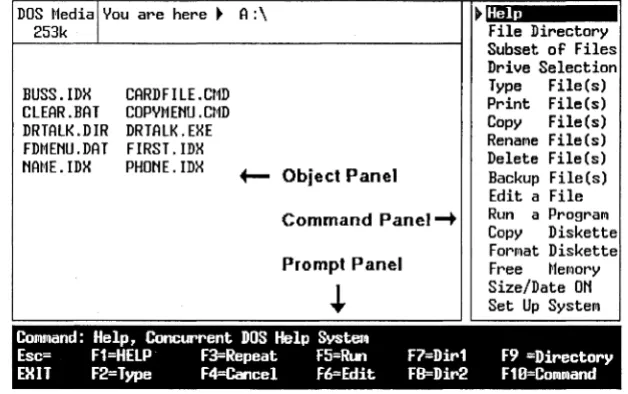
explains how to use the File Manager, the menu-driven user interface.WHERE TO FIND MORE INFORMATION
For detailed reference information on each of Concurrent's commands, see the Concurrent PC DOS Expanded Memory Reference Guide cited as the Reference Guide.
NOTATION CONVENTIONS
Examples use boldface blue type to represent information that you type into your computer, and blue type to represent information that your computer displays on the screen.
Contents
1 INSTALLING CONCURRENT
On a Floppy Disk System. . . . . . . . . . . . . . . . . . . . . . . . . 1-1 On a Hard Disk System . . . . . . . . . . . . . . . . . . . . . . . . . . 1-1 Starting Concurrent. . . . . . . . . . . . . . . . . . . . . . . . . . 1-3 Startup Files. . . . . . . . . . . . . . . . . . . . . . . . . 1-3 Configuring Your System. . . . . . . . . . . . . . . . . . . . . . . . 1-4 Connecting a Printer. . . . . . . . . . . . . . . . . . . . . . . . . 1-4 Connecting Serial Terminals. . . . . . . . . . . . . . . . . . 1-5 Attaching a Hard Disk. . . . . . . . . . . . . . . . . . . . 1-6 Connecting Other Devices. . . . . . . . . . . . . . . . . 1-6 Installing Applications . . . . . . . . . . . . . . . . . . . . . . 1-6 On Hard-disk Systems. . . . . . . . . . . . . . . . . . . . . . . . . 1-7 On Floppy-only Systems. . . . . . . . . . . . . 1-9 Configuring Applications for Terminals. . . . . . . . . .. 1-12
2 CONCEPTS AND FEATURES
Contents
Wildcards . . . . . . . . . . . . . . . . . . . . . . . . . . . . . . . . . . 2-8 Files. . . . . . . . . . . . . . . . . . . . . . . . . . . . . . . . . . . . . .
2-9
Drives . . . . . . . . . . . . . . . . . . . . . . . . . . . . . . . ..
2-11
Drive Designation. . . . . . . . . . . . . . . . . . . . . . . . . .
2-1
Floating Drives . . . . . . . . . . . . . . . . . . . . . . . . . . . . . ..
2-12
Current Drive. . . . . . . . . . . . . . . . . . . . . . . . . . . ..
2-13
MDISK, The Memory Drive. . . . . . . . . . . . . . . . . . . . . ..
2-13
Path Assignment. . . . . . . . . . . . . . . . . . . . . . . . . . . ..
2-14
How Files Are Accessed . . . . . . . . . . . . . . . . . . . . . . . . ..
2-15
Command Search Path. . . . . . . . . . . . . . . . . . . . ..
2-16
Changing Floppy Disks . . . . . . . . . . . . . . . . . . . . . ..
2-17
Commands. . . . . . . . . . . . . . . . . . . . . . . . . . . . . . ..
2-17
Line-editing Commands. . . . . . . . . . . . . . . . ..
2-19
Control Character Commands. . . . . . . . . . . . . . . . . . ..
2-21
Function Keys. . . . . . . . . . . . . . . . . . . . . . . . . . . . . ..
2-24
Input/Output Redirection . . . . . . . . . . . . . . . . . . . . . .. 2-25
3 FILE MANAGER
Command Panel. . . . . . . . . . . . . . . . . . . . . . . . .
3-2
Object Panel . . . . . . . . . . . . . . . . . . . . . . . .
3-2
Prompt Panel. . . . . . . . . . . . . . . . . . . . . . . . . . . . . .
3-2
Cursor Movement Keys . . . . . . . . . . . . . . . . . . . . . .
3-3
Wildcards. . . . . . . . . . . . . . . . . . . . . . . . . . .
3-5
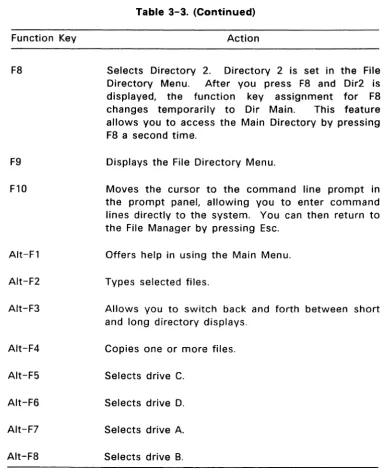
Function Keys . . . . . . . . . . . . . . . . . . . . . . . . . . . . .
3-5
Directories. . . . . . . . . . . . . . . . . . . . . . . . .
3-6
File Manager Menus. . . . . . . . . . . . . . . . . . . . . . .
3-6
Main Menu. . . . . . . . . . . . . . . . . . . .
3-7
Help Menu. . . . . . . . . . . . . . . . . . . . . . . . . . . . ..
3-13
File Directory Menu. . . . . . . . . . . . . . . . . . . . ..
3-13
Naming CP/M Directories . . . . . . . . . . . . . . . . . . . ..
3-16
Subset of Files Menu . . . . . . . . . . . . . . . . . ..
3-23
Contents
Type File(s) Menu. . . .. 3-25 Print File(s) Menu. . . .. 3-26 Copy File(s) Menu. . . .. 3-26 Rename File(s) Menu. . . .. 3-29 Delete File(s) Menu. . . .. 3-30 Backup File(s) Menu . . . .. 3-30 Edit a File Menu. . . .. 3-32
Run a Program Menu . . . .. 3--33
Copy Diskette Menu. . . .. 3-33 Format Diskette Menu . . . . 3-33 Free Memory Menu. . . .. 3-34 Size/Date ON Menu. . . .. 3-34 Set Up System Menu . . . .. 3-35 Using the Command Line. . . .. 3-38 Changing Color Configurations. . . .. . . . . . . .. 3-39
4 DR EDIX EDITOR
The Best Way to Learn DR EDIX. . . 4-2 Using the DR EDIX Tutorial . . . 4-2 Cursor Control Keys. . . 4-5 Exiting DR EDIX and Resetting Function Key Assignments . .. 4-8 DR EDIX Command Summary. . . .. 4-8
5 CARDFILE
Contents
Using the INSERT Command. . . 5-5 Using the COPY /UPDT Command . . . 5-6 Updating a Card. . . 5-6 Deleting a Card . . . 5-6 Searching For a Card. . . 5-7 Using the SCROLL Command . . . 5-7 Using the SEARCH Command. . . 5-7 Printing Cards and Labels. . . 5-8
6 PRINTER MANAGER
Printer Manager Summary. . . 6-1 Overview. . . 6-3 Starting Printer Manager . . . .. 6-3 Printing Files . . . 6-5 Print Options Summary. . . 6-6 Printing Multiple Copies . . . 6-8 Formatting the File Contents. . . 6-8 Selecting a Printer . . . 6-9 TABS and NOFEED Options. . . 6-9 Examples . . . 6-9 Viewing the Job Queue . . . .. 6-10 Deleting a Job From the Job Queue. . . .. 6-10 Stopping Printer Manager. . . .. 6-11 The Suspend Command . . . ". . . .. 6-11 The Stop Command . . . .. 6-12 Printer Manager From Floppy Disks . . . .. 6-12
7 CREATING AND MODIFYING MENUS
Contents
Menu Files and Menus . . . 7-3 Creating a Menu With EDITMENU . . . 7-4 Creating a Menu File and Menu. . . 7-4 Creating Menu Text. . . 7-9 Assigning Function Keys. . . .. 7-10 Saving a Menu and Exiting EDITMENU. . . .. 7-14 Using a Menu With Runmenu. . . .. 7-14 EDITMENU Advanced Techniques. . . .. 7-16 Special Characters. . . . .. 7-16 Creating the Border for SAMPLE. . . .. 7-17 Special Effects. . . . . . . .. 7-18 Entering Special Effects. . . .. 7-20 Restricting Menu Choices. . . .. . . . .. 7-23 Copying a Menu with COPYMENU . . . .. 7-26
A REQUIRED PROGRAM FILES. . . A-1 Startup Menu Program Files. . . .. A-1 File Manager Program Files . . . .. -A-2
Contents
Insufficient Memory . . . .. B-77 Unresolvable Errors. . . .. . . . .. B-78
C RUNNING APPLICATIONS UNDER CONCURRENT. . . .. C-l
Contents
General Ledger version 1.1 . . . .. C-l0 Harvard Project Manager version 1.16. . . .. C-ll Home Accountant Plus version 1.40 . . . .. C-ll Informix version 1.10.05
Lotus 1-2-3 versions 1.0 and 1.A . . . . Lotus 1-2-3 version 2.0 . . . . Microsoft Project version 1.0.
Microsoft Word version 3.0 .... MultiMate versions 3.30 and 3.31 Multimate Advantage version 3.6 .. . Multiplan versions 1.00 and 1.01 .. . PFS:File version 1.0B . . . .
PFS:Graph version 1.0 .... . PFS:Report version 1.0B PFS:Write version 1.0C .. R:base Clout version 1.01 R:base 4000 version 1.15 .. R:BASE 5000 version 1.01 .
SuperCalc 2 version 1.00 . . . . SuperCalc 3 version 1.00 . . . . SuperCalc 3 Release 2 . . . . Symphony version 1.10 . . . . ThinkTank versions 1.0 and 1.001 . . . . Turbo Pascal version 3.01A . . . .
VisiCalc version 1.20 . . . .
Word Perfect version 3.0 . . . . Word Perfect version 4.1 . . . . WordStar version 3.30 . . . . WordStar Professional version 3.31 P . . . . WordStar 2000 version 1.01 . . . .
Contents
o
INSTALLING EXPANDED MEMORY BOARDS. . . .. 0...,1QuadEMS+
™
Boards. . . .. 0-1 RAMpage!TM Boards. . . .. 0-1 Configuring Your System. . . .. 0-2 Examples. . . .. . . . . ... 0-3 Example 1: IBM PC with 64K . . . .. 0-4 Example 2: IBM PC/XT with 256K. . . .. 0-6 Example 3: IBM PC-AT. . . .. 0-7 Running SCEPTER. . . .. 0-8 Above™
Boa rd/PC. . . .. 0-8Figures
Contents
Tables
1-1 Port and Printer Numbering . . . . 2-1 DOS and CP/M Media . . . .
1-4 2-5 2-2 Common File Extensions . . . 2-10 2-3 Correspondence of Concurrent and DOS Commands. .. 2-17 2-4 Line-editing Commands. . . . 2-19 2-5 Control Character Commands . . . ' 2-22 3-1
3-2 3-3 3-4
Cursor Movement Keys . . . . File Manager Main Menu Commands . . . .
Function Key Assignments for Main Menu .. . File Directory Menu Commands . . . . 3-5 Drive selection Menu Commands . . . . 3-6 Function Keys for Drive Selection Menu .... . 3-7 Copy File(s) Menu Commands . . . . 3-8 Backup File(s) Menu Commands . . . . 3-9 Set Up System Menu Commands . . . . 3-10 Color Specifications for Fi Ie FM.CFG . . . . 3-11 File Manager Default Colors . . . . 4-1 Cursor Control Keys . . . . 4-2 DR EDIX Alt Commands. . . . . .
Section 1
This section helps you install Concurrent and configure it for your computer. The installation procedure is menu-driven, and includes instructions for installing Concurrent on either floppy-disk or hard disk systems, as well as backing up your distribution disks.
Note: Installing Concurrent does not affect the present configuration of your system. You should leave DOS and its associated files on your system.
ON A FLOPPY DISK SYSTEM
To install Concurrent on a system with two floppy-disk drives, complete the following steps:
1. Place the distribution disk labeled "Startup Disk" in drive A.
2. Press Ctrl-Alt-Del simultaneously, and wait for Concurrent to display the title screen.
3. Press the FlO function key to select the main installation menu. 4. At the main installation menu, press the F4 function key to install
Concurrent on a floppy disk, then follow the menu instructions.
ON A HARD DISK SYSTEM
To install Concurrent on a hard disk system, complete the following
"
On a Hard Disk System Concurrent User's Guide
1. Place the distribution disk labeled "Startup Disk" in drive A.
2. Start your computer and wait for Concurrent to display the title screen.
3. Press the FlO function key to select the main installation menu. 4. At the main installation, select F2 to install Concurrent on a hard
disk system, then follow the instructions from the menu.
During the installation process, Concurrent copies the following system files from the Startup disk to the hard disk's root directory:
CCPM.SYS CCONFIG.SYS CONFIDD.CMD
EMM.SYS LOADXM.COM BATCH.CMD
STARTUP1.BAT STARTUP2.BAT STARTUP3.BAT
STARTU P4. BAT STARTUP5.BAT STARTUP6.BAT
Concurrent modifies the existing AUTO EXEC. BAT file by adding the command:
LOADXM ASK
See the Reference Guide for information about LOADXM. Concurrent also creates a subdirectory on the hard disk named "CON-DOS" and copies into it the other system utilities from the Startup disk.
After the installation is complete, Concurrent displays a message on how to restart your computer to begin using Concurrent. At that time, you might want to use the commands PATH and ORDER to adjust the way Concurrent looks for files. The Reference Guide describes these commands.
Concurrent User's Guide Starting Concurrent
STARTING CONCURRENT
To start Concurrent in a computer with two floppy-disk drives when the power is off, follow these steps:
1. Insert the Startup Disk into drive A.
2. Now close the drive doors and turn the power on. When Concurrent finishes loading, a copyright screen appears for a few seconds, and then the Startup Menu appears.
To start Concurrent in a computer with two floppy-disk drives when the power is already on, follow these steps:
1. Insert the Startup Disk in drive A. 2. Press Ctrl-Alt-Del simultaneously.
To start Concurrent from a hard disk when the power is off, just turn the power on. To start Concurrent from a hard disk when the power is already on, press Ctrl-Alt-Del simultaneously.
Startup
FilesWhen you start Concurrent, it looks for six batch files with special names: STARTUP1.BAT for window 1, STARTUP2.BAT for window 2, STARTUP3.BAT for window 3, STARTUP4.BAT for window 4, and STARTUP5.BAT and STARTUP6.BAT for the serial terminals. Each batch file contains commands that are run from the specified window.
Configuring Your System Concurrent User's Guide
If you start Concurrent from a DOS hard disk partition, store your startup files in the partition's root directory.
The Reference Guide explains how to use the BATCH command. Section 2 explains how Concurrent uses windows.
CONFIGURING YOUR SYSTEM
When you connect printers, modems, and plotters to your computer, use the SETPORT command to configure a serial port according to the requirements of a specific device. The SETUP command lets you save the settings you make with SETPORT so that those settings are in effect each time you start Concurrent.
Connecting a Printer
Concurrent supports up to five printers--three parallel and two serial. To keep track of printers used in different windows, Concurrent assigns a number to each printer. Numbers are assigned in ascending order, starting with
O.
Port numbers are designated by your hardware. The port numbers with their corresponding printer numbers are given in Table 1-1.Table 1-1. Port and Printer Numbering
Port Number
o -
Parallel 1 - Parallel 2 - Parallelo -
Serial 1 - SerialPrinter Number
o
1 23
4Concurrent User's Guide Configuring Your System
When you start Concurrent, the default printer for each window is the first printer installed in your system. Use the PRINTER command to change the default printer for a given window.
One program can use a single printer at a time. If you have more than one printer, you can assign different printers to different windows and print files concurrently.
Connecting Serial Terminals
Concurrent lets you install serial terminals as part of your system. They can be used as work stations for additional users or as remote work stations, when connected to a modem.
There are two ways to get multiuser capability. On way is to connect additional terminals to your serial port. The other way is to connect a modem to a serial port. You can then dial the main computer from the remote terminal. You can also use a combination of these methods.
To install a serial terminal, use SETPORT to configure the serial port according to the terminal's requirements. Then run SETUP. SETUP allows you to set each serial port to be an auxiliary or printer port, or a serial terminal.
After designating an appropriate serial port as a serial terminal port, you can use SETUP to save the port configuration you made in SETPORT. By saving your selections, that port configuration is in effect each time you start Concurrent.
Configuring Your System Concurrent User's Guide
If you have a serial-console system, see the MULTIUSER topic in the HELP command for instructions on how to configure a multiuser system.
Attaching a Hard Disk
To attach a hard disk to your computer that is not automatically supported by Concurrent, you must edit the CCONFIG.SYS file and specify
FIXED-DEVICE= driver.fil
where driver.fil is the name of the hard disk device driver supplied in the hard disk's documentation.
Make sure that CONFIDD.CMD, CCONFIG.SYS, and the device driver are all in the root directory of your Startup Disk (either floppy or hard disk).
Connecting Other Devices
Concurrent supports serial devices that can provide input to and accept output from your computer. Such devices include modems, plotters, and video display terminals.
You can use PRN or LST with printers and some plotters. The PRINTER command assigns printer 3 (serial port 0) or printer 4 (serial port 1) to the PRN device.
Use the SETPORT command to set up the serial ports for your specifiC needs, regardless of which logical device you use to access a serial device.
INSTALLING APPLICATIONS
Concurrent User's Guide Installing Applications
1. Copy each application's program files. 2. Place the text files in the desired directory.
3.
Configure applications for terminals (if necessary). 4. Assign passwords (if file security is required).5.
Create batch files.The first two steps are different on floppy-disk-only systems than they are on hard-disk systems and are described separately below. The last three steps are the same for both kinds of systems.
The description of text file placement (step 2) describes the storage of text files on drive D in user numbers. User number 0 on CP/M drives is special; program files stored there can be accessed from any user number as long as the drive is specified in the path. Files in all other user numbers are only accessible when that user number is current. User numbers are not available on drive C, the DOS partition. Instead, you have the root directory and named subdirectories in which to store program and text files. See the MKDIR and CHDIR descriptions in the Reference Guide for explanations of subdirectories, how to create them, and how to use them. To have global access to program files on the DOS partition, record them in any subdirectory, and place the drive and directory name in the search path with the PATH command. If your computer has floppy drives only, skip to " ... on Floppy-only Systems."
On Hard-disk Systems
If the system is not running, turn it on. When the Startup Menu is displayed, press the Esc key to exit and display the command-line prompt.
Installing Applications Concurrent User's Guide
1. Copy all program files, except for those applications that do not run under Concurrent, to a drive or subdirectory that is included (or will be included) in the search path (user 0 for CP/M disks).
2. Copy all text files for these applications to an appropriate work disk or directory where you plan to use the application. However, before doing so, see "Placing Text Files" below for a description of the use of user numbers.
Use either PIP or COpy to copy the files. Use USER to change source and destination user numbers; use CHOIR to change the current source or destination directory.
Note: Do not transfer command or utility files provided with your previous operating system to CP/M media; Concurrent's commands replace them. If you need to maintain a DOS operating system environment, copy your DOS command files to a DOS subdirectory on DOS media only.
Now, put the application manufacturer's disk in drive A and enter the following:
D>COPY A:*.* D:
User numbers let you organize your text files into related groups on CP/M media. To organize text files by application, select a different user number for each application. Next, put the application manufacturer's disk in drive A and use COPY in the following form to copy the text files to drive D.
COPY A:filespec D:/5
which copies the selected file to drive 0:, user 5.
Concurrent User's Guide Installing Applications
subdivisions. To copy an application to a subdirectory, first create the subdirectory with MKDIR, then copy the application files to it. For example,
C>MKDIR STUFF
C>COpy A.*.* STUFF
creates a directory called "STUFF" and copy all the application files from disk A: to the directory "STUFF".
On Floppy-only Systems
Before you install the application, read its installation instructions to determine how much space its program and text files require. Also, add in the size of the Concurrent command files, such as PIP or COPY, SDIR, BATCH, and so forth, you need to have on the disk. If the required program and text files take up more than 360 kilobytes of space, you will need two disks to run the application. Otherwise, you can get by with one.
Note: Text files grow in size as you run the application and add information. Consider leaving 100 kilobytes empty on all disks. ·If this puts you over the 360 kilobyte limit on a disk used for both program and text files, consider keeping text files on a separate disk.
Each application and text file disk must be formatted before you can use it. Note that you can format the disks with either the DOS or CP/M formats. The DOS format gives you a bit more space per disk, subdirectories, and automatic time and date stamping. However, you cannot have password protection for the files on that disk. The CP/M format lets you have password protection and user numbers instead of subdirectories, but time and date stamping is not automatic.
Installing Applications Concurrent User's Guide
If you select the CP/M format and want to have time and date stamping, you must also run INITDIH and FSET.
DSKMAINT is a self-explanatory, menu-driven command used to copy and format disks. Press F7 in the DSKMAINT Main Menu to format disks. If you have questions about the format options, see the DSKMAINT description in the Reference Guide. The Reference Guide also contains the INITDIR and FSET descriptions.
Note: Before copying program files, read through "Configuring Applications for Terminals" below and your application's manual to determine if any program preparation is required. If so, complete the preparation before copying the application files.
Put the Concurrent disk with the COPY.CMD file on it in drive A, enter COPY, and press Enter. After the COpy prompt is displayed, replace the Concurrent disk with the manufacturer's disk in drive A and a blank, formatted disk in drive B. Enter each copy command in the following form:
A:filespec B:
Replace "filespec" in your command with the program file's filename and extension. Wait for the COpy prompt to reappear before entering another command and copy all of the application's program files.
Repeat this procedure for each application. You can change the drive A and B disks without terminating COPY; however, never remove a disk unless the COPY prompt is displayed.
To terminate COPY, press the Enter key when COPY is waiting for input. This returns the command-line prompt to the screen.
Concurrent User's Guide Installing Applications
To run an application, load Concurrent from the daily startup and then replace it with the application's set of program and text file disks. Refer to the application's manual for its operating instructions. Do not remove any disks from the system unless instructed to do so or until the application has been exited.
Configuring Applications for Terminals
Some applications have special configuration programs or procedures that prepare the program to run on a specific kind of terminal. The application's installation instructions describe any preparation procedures. If terminal installation is necessary, follow the application's instructions to create a version for the console or terminal the program will run on.
If you must configure the application for more than one kind of terminal or a console and a terminal, be careful--you might need different versions of the same program. This poses a problem because you cannot have two files with the same name. To solve the problem, use the REN command to give each terminal version a different name. Some installation programs also let you make up different names for the different terminal versions.
Section 2
Concepts and Features
This section describes the main features of Concurrent. Like DOS, Concurrent performs three basic functions:
• runs application programs such as word processing, database management, and spreadsheets.
• keeps track of files you create and use.
• controls the peripheral equipment connected to your computer such as video display screens, printers, and modems.
In addition, Concurrent has a number of unique features:
• Concurrency, or multitasking, which allows you to run more than one application at the same time.
• Windows, which allow you to see more than one program at a time on your computer screen.
• Expanded memory support, which allows a program to access memory beyond the 640K limit imposed by DOS.
• Dual media support, which allows you to access files on DOS as well as CP/M
©
media disks.• Menu-driven user interface, which allow you to run your computer by making choices from lists, rather than learning computer jargon.
Multitasking Concurrent User's Guide
MULTITASKING
Concurrent is a multitasking operating system, which means that multiple programs reside in memory simultaneously. Using a technique called time-slicing Concurrent runs each program for a very short time (1/60th of a second), then gives control to another program, so that each program has a chance to run. To the user, it appears as if each program runs alone. When running multiple programs, the total combined size of the programs cannot be greater than the range of memory used by application programs (from address 256K to address 640K). Thus, three lOOK programs could run simultaneously, but not two 250K programs.
WINDOWS
Windows are simply areas of your computer's screen from which you can run and monitor the screen output from your applications. Concurrent gives you four windows that enable you to run as many as four different interactive programs at once. You can switch windows as you switch channels on a television set.
When you start Concurrent, you see window 1. You can switch to any of the three other windows, windows 2, 3, or 4, by pressing the Ctrl key while you press 2, 3, or 4 on the numeric keypad. Press Ctrl-l to switch to window 1, Ctrl-2 to switch to window 2, and so on. The FUNCTION command, described in the Reference Guide, lets you change your window-switching keys.
Concurrent User's Guide Windows
Concurrent has two commands that allow you to modify your windows: WMENU, which is menu-driven, and WINDOW, which is command-line oriented. These commands let you move the window borders to shrink windows, expand them, hide them, or change foreground and background colors.
WINDOW and WMENU also let you write the contents of a window--full-screen or the portion within borders--to a file. With a single command, you can create a batch file that arranges your windows just as they are at the moment you enter the WINDOW or WMENU command. See the Reference Guide for details on WINDOW and WMENU.
EXPANDED MEMORY
Like DOS, Concurrent manages the conventional memory (from 0 to 640K) in your computer. Concurrent also supports two types of expanded memory: EMS and EEMS.
EMS stands for Expanded Memory Specification which is also called the LIM specification because it was developed jointly by Lotus®lntel®and Microsoft®. EMS memory is called paged memory because it maps the physical memory from an expanded memory board onto 16K pages of memory in a special location above 640K. Four of these pages (64K) can be accessed at a time. Some application programs such as Lotus 1-2-3 version 2.0 and Symphony version 1.1 are specially written to take advantage of expanded memory.
Expanded Memory Concurrent User's Guide
Concurrent is specially designed to support the Enhanced Expanded Memory Specification (EEMS). Concurrent allows the entire program area to be used for paging application programs. Every 1/60th of a second, when Concurrent gives control from one program to another, it also disables the EEMS memory used by the program being switched from, and enables the EEMS memory of the program being switched to. Thus, you can run four 300K programs simultaneously, if you have an expanded memory board with 1200K (4 x 300K) of memory.
Note: In order for Concurrent to support EEMS memory paging, you must allow the expanded memory board to supply as much of your system's conventional memory as possible in the range used by application programs because Concurrent converts this conventional memory to paged memory when you start the system. This may require you to remove or disable conventional memory that is already installed in your system in the application program area beyond address 256K.
DOS AND CP/M MEDIA
DOS media include disks formatted under DOS or DSKMAINT's DOS formatting options and DOS hard-disk partitions. CP/M media are CP/M-formatted disks, CP/M hard-disk partitions, and MDISKs.
Concurrent User's Guide DOS and CP/M Media
Table 2-1. DOS and CP/M Media
DOS CP/M
Hierarchical subdirectories User Numbers
Automatic Time/Date stamping Optional Time/Date stamping Passwords not supported Passwords supported
Working with DOS Media
DOS media consists of floppy disks prepared with Concurrent's DSKMAINT command or the FORMAT command. DOS media also refers to DOS hard-disk partitions prepared with Concurrent's HDMAINT or the DOS FDISK command. With files stored on DOS media, you can use a hierarchical directory structure and have automatic time stamping.
Each DOS medium has a single directory, called a root directory, that is created at the time the medium is formatted. Concurrent allows you to create one or more subdirectories beneath a root directory. Concurrent has three commands that provide support for subdirectories: MKDIR, RMDIR, and CHOIR. MKDIR allows you to create a subdirectory. RMDIR allows you remove a subdirectory. See "Moving among DOS Directory Levels" in Section 3 for detailed information.
DOS and CP/M Media Concurrent User's Guide
Working with CP/M Media
With your files stored on CP/M media, you can use user numbers, passwords, and optional time-stamping. You can use either CP/M formatted floppy disks or CP/M hard disk partition to start Concurrent. You can use user numbers to separate files stored on CP/M media into 16 file groups. All files on CP/M media are identified by a user number that ranges from 0 to 15. Concurrent assigns a user number to a file when the file is created. Generally, the file is assigned the current user number, the number that appears in the command line prompt. When you are in user 0, no number appears in the command line prompt. You can change the current user number with the USER command as described in the Reference Guide.
Most commands access only those files that have the current user number. For example, if the current user number is 7, a DEL command can erase only the files in user 7. These exceptions are the PIP, COpy, PRINTMGR, and SDIR commands. These commands have options that allow them to access files in user numbers other than the current user number. These commands are described in the Reference Guide.
Time Stamping
The time stamps on CP/M media indicate when a file was created or the last time a file was accessed or modified. You must initiate time stamping separately for each CP/M-formatted disk or CP/M hard-disk partition. First run INITDIR and FSET. Then run TIME and DATE whenever you start your computer. The Reference Guide describes these commands.
Concurrent User's Guide DOS and CP/M Media
File Attributes
File attributes control how a file can be accessed. You should become familiar with two file attributes. The first one can be either DIR (Directory) or SYS (System); the second one can be either RW (ReadIWrite) or RO (Read/Only). Both attributes can be used with files stored on DOS and CP/M media.
When you create a file, it is automatically marked with the DIR attribute. Filenames marked with the DIR attribute are displayed in response to the DIR command. Files with the SYS attribute are displayed in response to DIR/S.
Note that SDIR without options and DIR/A produce a display of all files that exist in the current user number or current DOS directory.
The second file attribute is RW or RO. Concurrent does not let you erase, rename, or edit a file marked RO. Use the RO attribute to protect important files. A file with the RO attribute cannot be modified or erased until the disk or the drive is set to RW.
Concurrent offers a third kind of attribute, called the archive attribute. The archive attribute lets you determine whether a file has been backed up. When you make changes to a file, the archive attribute is turned off. You turn the archive attribute on when you copy a file with PIP or BACKUP. Use the FSET command to assign attributes to a file. See FSET or PIP in the Reference Guide for a complete discussion of the archive attribute.
Passwords
DOS and CP/M Media Concurrent User's Guide
A password is an optional part of the file specification. It always appears next to the filename in the file specification, separated from the name of the file by a semicolon. Passwords can contain any characters that can be used in filenames and file extensions. Passwords can be up to eight characters in length. In the following file specification, the password is KEATS.
A:ODE.URN;KEATS
Concurrent's FSET command has a password option that assigns a password to any file. You must use FSET to enable password protection for a disk before you can use password protection for files. See the Reference Guide for details on FSET.
Some commands accommodate file specifications in their command tails and accept passwords with your specified filename. For these commands, a command line can require multiple passwords to execute properly.
Most built-in Concurrent commands, most word processing and accounting packages, and other application programs running under Concurrent do not accept passwords in the command tail. To allow these programs to access password-protected files, Concurrent lets you set a default password for a file or set of files. This feature also frees you from typing the password each time you access password-protected files. Default passwords are further explained in the description of the FSET command in the Reference Guide.
Wildcards
Concurrent User's Guide DOS and CP/M Media
The two wildcard characters are the question mark (?) and the asterisk (*). The rules for using wildcards are listed below:
• A question mark replaces any single character in a filename or file extension. For example, A?TXT matches AA.TXT, AB.TXT, A.TXT, or any other file that has a one- or two-character filename beginning with an A and a file extension of TXT.
• An asterisk replaces the character in the same position as the asterisk plus any remaining characters in the filename or file extension. For example, AA.T* matches AA.TX, AA.TA, AA.TXT, AA.TXR, or any other file whose filename is AA and whose file extension starts with a T. The file extension can be one, two, or three characters long.
Suppose, for example, you have a disk with the following six files:
A.CMD
AA.CMD
AAA.CMD
B.CMD
A.A86
B.A86
The following file specifications match all or some of the above files:
** *.CMD
?CMD ?*
A?CMD
is treated as ??????????? and matches all six names. is treated as ????????CMD and matches the first four names.
matches A.CMD and B.CMD.
is treated as ???? and matches A.CMD, B.CMD, A.A86, and B.A86.
Files Concurrent User's Guide
FILES
As in ~OS, Concurrent filenames consist of one to eight characters in uppercase or lowercase. You can use letters and numbers, but avoid using any of the following characters, which have special meanings to Concurrent:
<
> = , : ; " ' ? & ! [ ] ( ) / . $ \-The optional file extension can be one to three characters long; it follows the filename and is separated from the filename by a period. You can use either letters or numbers in the file extension. Table
2-2
lists the file extensions used by Concurrent. You should avoid using these file extensions when you name your own files.Extensions
.$$$
. BAK
. BAS
. BAT
. CMO
.COM
. EXE
Table 2-2. Common File Extensions
Descriptions
Temporary or incorrectly-closed file. Many application programs write temporary files on the disk during their operation .
Backup file created by a text editor.
File containing a Personal BASIC~M or CBASI(t program . File containing one or more· commands that Concurrent executes sequentially.
CP/M-86@program file .
DOS command file .
Concurrent User's Guide Drives
DRIVES
To the user, a drive is either a slot in which to insert a disk or an area in the system unit that contains a hard disk. To Concurrent, a drive is a place to look for files. When it searches for a file, Concurrent does not distinguish between floppy disks, hard disks, or memory disks.
Drive Designation
Concurrent supports up to four floppy-disk drives and two IBM-compatible hard-disk drives. Other drives may be supported with suitable device driver software.
Concurrent designates drives according to the following principles: • Concurrent designates disk drives by letter, starting with the letter
A and continuing in alphabetical order.
• Concurrent designates DOS partitions on one or more hard disks in alphabetical order, starting with the letter C. For systems with more than two floppy-disk drives, DOS partitions are designated starting with the first letter following the highest-lettered floppy-disk drive. • Concurrent designates CP/M partitions on one or more hard disks
in alphabetical order, a letter for each CP/M partition. If you have one hard disk and one or two floppy-disk drives, Concurrent designates the CP/M partition as drive D. With three floppy-disk drives and a hard disk, the CP/M partition is E; with four floppy-disk drives and a hard floppy-disk, the CP/M partition is F.
Drives Concurrent User's Guide
For example, in a system with one floppy-disk drive and one hard-disk drive, Concurrent designates the floppy-disk drive as A. A DOS partition is drive C and a CP/M partition is drive D.
In a two-floppy-disk-drive system, the left-hand drive is drive A; the right-hand drive is B. Additional floppy-disk drives would be drives C, 0, and so on.
In a system with two disk and two hard-disk drives, the floppy-disk drives are A and B. DOS partitions, if they exist, are C and D. The CP/M partitions, if they exist, are E and F.
For systems with only one floppy-disk drive, Concurrent does not map a "phantom" drive B to the same drive as drive A, as DOS does.
Floating Drives
Concurrent supports a special type of drive called a floating drive, which enables you to designate a subdirectory with a drive letter (N or 0). For example, the command:
A>CHDIR N:=C:\PAYROLL\DEPT8
sets the floating drive N to be the subdirectory named \PAYROLL\DEPT8 on drive C. A subsequent command such as:
A>COPY N:*.DAT A:
copies all the .DAT files from B:PAYROLL\DEPT8 to drive A.
You can use the floating drive L: (load drive) to designate the drive where an application program searches for its overlays or associated data files, since it always points to the subdirectory from where the last program was loaded.
Concurrent User's Guide Drives
Current Drive
When Concurrent searches for a file, it looks on the current drive. You can determine which drive is the current drive by examining the top of the File Manager Menu or the drive prompt in command mode. (Section 3 describes the File Manager.)
At any given time, one drive (the current drive) is associated with each window. Unless you put a drive specification in your command line, Concurrent and its commands look first in the directory of the disk in the current drive for all your program and text files.
The command prompt, A> means that the A drive is the current drive. The following input changes the current drive to C:
A>C:
The command line prompt message then appears as:
C>
The File Manager Menu displays a directory of the files contained on the disk in the current drive. You can change the current drive whenever you want to see the directory of a disk on another drive or whenever you want to use a file on another drive. You change the current drive by selecting the DRIVE SELECTION option from the File Manager Menu.
MDISK, The Memory Drive
Drives Concurrent User's Guide
MDISK is not permanent storage. Because MDISK exists in your computer's memory, the contents of MDISK disappear when power to the computer is turned off. If you store files in an MDISK, make sure that you copy those files to disk before turning off the power to your computer or performing a system reset. See SETUP in the Reference Guide for an explanation of how to install an MDISK.
Path Assignment
Concurrent assigns one drive as the initial path whenever you start Concurrent. The path is the drive where Concurrent looks for program and batch files if those files are not found in the current drive. Program and batch files are files with the extensions CMD, COM, EXE, and BAT. Note that the search does not include a program's overlay files or text files. If your commonly used program and batch files are on more than one disk or subdirectory, you can change the path to encompass additional drives and subdirectories in the command search.
On DOS media, you can make any DOS directory a part of the search path. See the PATH command in the Reference Guide. On CP/M media, files must be stored in user 0 to be accessible from the path assignment. The initial assignment of the path varies according to the configuration of your system. For all configurations, the initial system drive is the drive whose letter appears in the command line prompt when you start Concurrent.
In a computer without a hard disk, the path defaults to A:\. In a computer with one or more hard disks, the system drive is assigned to the drive from which you load Concurrent.
Concurrent User's Guide Drives
How Files Are Accessed
When you type a file specification in a command tail, the command or application program usually looks for the specified file in the drive indicated by the command line prompt. called the current (or default) drive. For example, if you type the command
A>DIR POEMS.BLY
DIR looks in the directory of the disk in drive A for POEMS.BL Y. You can use either uppercase or lowercase letters.
If your file is not on the disk in the current drive, you need to tell Concurrent to access a different drive. Concurrent lets you precede a filename with a drive specification, which is the drive letter followed by a colon. For example, in response to the command
A>DIR C:STAFFORD.LTR
DIR looks for the file STAFFORD.LTR in the directory of the disk in drive C. You can also precede the name of a program or a batch file with a drive specification. For example, if you type
A>C:HELP
Concurrent looks in the directory of the disk or hard disk in drive C for the file HELP.CMD. If Concurrent finds HELP.CMD in drive C, it loads HELP into memory and executes it.
Drives Concurrent User's Guide
Command Search Path
If you specify a drive in a command line, Concurrent looks for the command's program file only on the specified drive. On CP/M media, Concurrent searches only the current user number. On DOS media, Concurrent searches only in the current directory of the specified drive.
If you do not specify a drive, Concurrent looks for program and batch files first in the default directory, then in each directory specified in the PATH (see the Reference Guide).
Within a directory, on either kind of media, Concurrent searches for program and batch files in the following sequence of file extensions: 1. CMD
2. COM
3.
EXE4. BAT
When you enter the filename of a program or batch file at the command line prompt, Concurrent searches for a matching filename with a file extension of CMD. If Concurrent does not find the filename with a CMD file extension, it continues its search in the order listed above.
If you have two programs, or a program and a batch file, with the same filename, you can invoke the program whose file extension is lower in the search order. To do this, include the file extension along with the program's filename in the command line.
Concurrent User's Guide Drives
Changing Floppy Disks
You can replace a disk in a drive whenever the status line indicates that no program is accessing a file on that drive. If you remove a disk that contains open files, the programs accessing these files will be disrupted. If you were creating files on that disk, you might lose data in these files. Therefore, you should always consult the open-file space on the status line before removing a disk. Make certain that no program in any window has open files on the disk that you want to remove.
COMMANDS
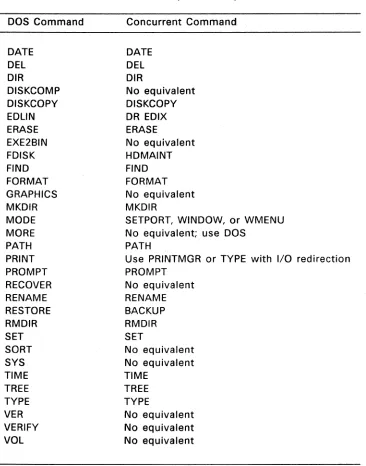
Like DOS, Concurrent commands are either built-in, or the names of executable program files. Table 2-3 shows the correspondence between DOS and Concurrent commands. For those commands with no Concurrent equivalent, you must revert to DOS if the specific functionality is required.
Table 2-3. Correspondence of Concurrent and DOS Commands DOS Command Concurrent Command
ASSIGN No equivalent
BACKUP BACKUP
BATCH BATCH
BREAK Use Ctrl-C
CHOIR CHOIR
CHKOSK CHKOSK
CLS CLS
COMP No equivalent
COpy COpy
Commands
DOS Command
DATE
DEL
DIR DISKCOMP DISKCOPY EDLIN ERASE EXE2BIN FDISK FIND FORMAT GRAPHICS MKDIR MODE MORE PATH PRINT PROMPT RECOVER RENAME RESTORE RMDIR SET SORT SYS TIME TREE TYPE VER VERIFY VOLTable
2-3.
(Continued)Concurrent Command
DATE DEL DIR
No equivalent DISKCOPY DR EDIX ERASE
No equivalent HDMAINT FIND FORMAT No equivalent MKDIR
Concurrent User's Guide
SETPORT, WINDOW, or WMENU No equivalent; use DOS
PATH
Use PRINTMGR or TYPE with 110 redirection PROMPT
No equivalent RENAME BACKUP RMDIR SET
No equivalent No equivalent TIME
TREE TYPE
[image:53.468.42.408.64.530.2]Concurrent User's Guide Commands
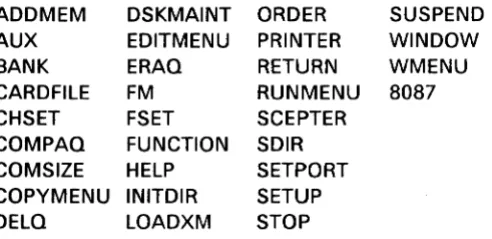
The following commands are unique to Concurrent and have no DOS equivalent:
ADDMEM DSKMAINT ORDER SUSPEND
AUX EDITMENU PRINTER WINDOW
BANK ERAQ RETURN WMENU
CARDFILE FM RUNMENU
8087
CHSET FSET SCEPTER
COMPAQ FUNCTION SDIR
COMSIZE HELP SETPORT
COPYMENU INITDIR SETUP
DELQ LOADXM STOP
The Reference Guide describes all the Concurrent commands in detail.
Line-editing Commands
Table 2-4 lists the control character commands Concurrent provides for editing the command line.
Table 2-4. Line-editing Commands
Character Function
[image:54.469.93.339.86.205.2]Commands
Character
CTRl-Q
CTRl-W
CTRl-H
CTRl-G
CTRl-T
CTRl-Y
CTRl-U
CTRl-K
CTRl-V
CTRl-E
CTRl-X
CTRl-M
CTRL-J
CTRL-R
Concurrent User's Guide
Table
2-4.
(Continued)Function
Move to the beginning of the line.
Move to the end of the line.
Delete character to left of cursor (same as Backspace).
Delete character to right of cursor.
Delete word.
Delete line.*
Delete to beginning of line.
Delete to end of line.
Insert/overstrike mode on/off.
Moye up in command history buffer*.
Move down in command history buffer*.
Enter command line (entire line is entered)*.
Same as CTRl-M*.
[image:55.468.33.401.56.492.2]Concurrent User's Guide Commands
Character
CTRL-Table
2-4.
(Continued)Function
Toggles the default search mode on/off and sets the current line's mode to the new default. The initial default is to begin each line with the search mode off.
*
saves line in history buffer if modifiedConcurrent has a command-line history buffer that saves as many command lines as possible for review or retrieval with CTRL -E and CTRL
-x.
The actual number of lines saved varies according to the length of the lines. Search mode (CTRL -R) searches the history buffer for a certain string. Either type the characters you want to search for, or use the up/down arrows (or CTRL -E and CTRL -X) to step you through the matching entries. The end-of-buffer is indicated by only the search string on the command line.Control Character Commands
Commands Concurrent User's Guide
Table
2-5.
Control Character CommandsControl Character Function
Ctrl-C Stops the currently running program. When pressed following a Shift-PrtSc, stops output to printer.
Ctrl-Del After the Window Manager is loaded, you can use Ctrl-Del to change the foreground, or switched-in window from partial screen to full screen. When you press Ctrl-Del a second time, the window returns to its former size and location. You can use Ctrl-Del while you are in an application program or at the operating system level.
Ctrl-Q Stops video output to a window until another key is pressed. Any program running in that window continues to run.
Ctrl-P
Ctrl-+
Ctrl-Q
Sends screen output to the printer and to the screen. A second Ctrl-P cancels the effect of the previous Ctrl-P.
When the Concurrent status line is displayed, Ctrl-+ brings you to the WMENU main menu so that you can make changes to your windows. Ctrl-+ works whether you are in an application program or at the operating system level. The Window Manager must be loaded before Ctrl-+ takes effect.
Concurrent User's Guide Commands
Table
2-5.
(Continued)Control Character Function
Ctrl-S Stops screen output. If the program is writing to the screen, it will pause. If the display on your screen scrolls too quickly for you to read, press Ctrl-S. Press Ctrl-Q to continue output.
Ctrl-Break Same as Ctrl-C.
Shift-PrtSc Copies the switched-in window and sends it to the printer. Prints a window that is the full size of the screen. You cannot switch windows while the Shift-PrtSc function is printing. Press Shift and PrtSc simultaneously.
Ctrl-1
Ctrl-2 Ctrl-3 Ctrl-4
Commands Concurrent User's Guide
Function Keys
Concurrent lets you set 50 combinations of programmable function keys (PFKs) on the personal computer keyboard. PFKs let you invoke any Concurrent command with just one or two keystrokes, as if you had typed the full command after the command line prompt or entered the string as input to an application program. The PFKs consist of the following keys and key combinations:
• The
10
keys labeled Fl through FlO on the left side of the keyboard. These keys can be used in combination with the Shift, Ctrl, and Alt keys. When you start Concurrent, keysFl through FlO have default values shown below:Fl
F2
F3 F4
F5
HELP F6
FM (File Manager) F7
FUNCTION Fa
WMENU F9
DSKMAINT FlO
CHKDSK DIR/w/A SCEPTER DIR/A STOP
Use the FUNCTION command to change or assign values to all PFKs and to read their assigned values.
• At the operating system level, the 10 keypad number keys on the right side of the keyboard can be either PFKs or number keys. To use these keys as PFKs, Num Lock must be off. To use these keys as number keys, Num Lock must be on. NUM appears on the status line if Num Lock is on.
When you press one of the Fl through FlO function keys, you can generate commands as long as 20 characters. The remaining 40 function keys, the numeric keypad keys, and the Ctrl-, Shift-, and Alt-function key combinations can generate strings that are four characters long.
Concurrent User's Guide Commands
See SETUP in the Reference Guide for information on setting function key definitions so they take effect each time you restart Concurrent (default definitions).
Note: Many function keys have different uses within the various menus; however, each use is clearly described on each of the menu screens. Also, some application programs might assign values to function keys that take precedence over assignments made with FUNCTION.
INPUT/OUTPUT REDIRECTION
In normal operation, you enter input at the keyboard and see output displayed on the console screen. You can, however, change this process by "redirecting" input or output to different destinations, such as a file or device.
You can redirect input or output by typing a Concurrent command followed by one of the symbols >, > >, and
<,
then a file specification or appropriate device. There must be no space between any of these symbols and the character following it.The form of the command line for I/O redirection to a file is: COMMAND >FILESPEC
For example, the command: