Virtual Editing Window
VEW
User's Reference M anual
188-100-201 F
May 1985
I
WICATsystems
I
-~
I
Copyright ©1981 by WICAT Systens IncorIX>rated
All Rights Reserved
Printed in the United States of America
Receipt of this manual nust not be construed as any kind of cormnibnent,
on the part of WICAT Systans IncorIX>rated, regarding delivery or
avnerShip of itans manufactured by WICAT.
This manual is subject to change without notice.
first printing
second printing third printing fourth printing fifth printing sixth printing
January 1981 August 1981 August 1982
Septanber 1982
July 1983
TyJ;x>graphical Conventions Used in this Publication
Bold facing indicates what you should type.
Square brackets, [], indicate a function key, the name' of which ap~ars
in uppercase within the brackets. For example, [RE'mN], [C1'RL], [ESC],
etc. Braces, {}, indicate a key in the alternate keypad. For example,
{PFl} , {ENTER}, {-}, etc.
Underlining is used for emphasis.
Information about this Manual
Review the tollowing items before you read this publication.
The subj ect of this manual
'!his manual is the primary reference tool available for your ongoing use of the Virtual Editing Window (VEW) Program.
The audience for wOOn this p.1bl.ication was written
Users who have at least completed the tutorials in the NMCS. User IS
IntroductQ;t:y Manual.
Related p.1bl.ications
The following Reader's Guide tells you about other WMCS publications you
should read.
Reader's Guide to WMCS Publications
Instructions: Determine the audience to which you belong andthen read only the publications at an arrowhead. Dotted arrowheads indicate optional reading.
System
manager
WMCS
user
Systems
programmer
Introducto
Release Notices
Software Bulletins
Key to color code:
Table of Contents
<llapter 1 General Information
Features
ofthe Virtual Editing
window ••••••••••••••••••••••••••••The VEW
program
andyour terminal
~••••••••••••••••••••••••••••
Executing the
VEWprogran •••••••••••••••••••••••••••••••••••••••••
The VEW
Pcirane'ter File ••••••••••••••••••••••••••••••••••••••••••••
The
VEWprogram
andyour terminal screen ••••••••••••••••••••••••••
Executing
VEW whenthe terminal
~ isset
iIlOOr reet! y • • • • • • • • • • • • • • • • • • • • • • • • • • • • • • • • • • • • • • • • • • • • • • • • • • • • •
Ftmct10ns availabl.e in VEil ••••••••••••••••••••••••••••••••••••••••
'ltle ~ S1g1l_ •••••••••••••••••••••••••••••••••••••••••••••••••••
Use: at: fmlct.1ons.. ••••••••••••••••••••••••••••••••••••••••••••••••
.Bel p d.iaspl. ay • • • • • • • • • • • • • • • • • • • • • • • • • • • • • • • • • • • • • • • • • • • • • • • • • • • • • •
Entering
andexiting the
VEWfunction
line ••••••••••••••••••••••••.AOOrting catIlIaIlCIs •••••••••••••••••••••••••••••••••••••••••••••••••
tlr1knatlll
<::CIIIIIaJlCJs...
Dia9llost..ic IllII:!Ssa.ges •••••••••••••••••••••••••••••••••••••••••••••••
Repeating/editing an escape-key function •...
Editing the VEW
function
line ••••••••••••••••••••••••••••••••••••• Restor ing del. eted IDa.ter ial. ••••••••••••••••••••••••••••••••••••••••L.iJle. lellgth
for
t:ext ••••••••••••••••••••••••••••••••••••••••••••••File versions •••.•..••••.•••••••••.•••.••••..••.••....•••...••••••
'l'oggl.e functions... ... .
Chapter 2 Directory of VEW Functions
l4cJve t:Ile Olrsor t:o: •••••••••••••••••••••••••••••••••••••••••••••••
Sea.rch •••••••••••••••••••••••••••••••••••••••••••••••••••••••••••• 1lreJ.~: ••••••••••••••••••••••••••••••••••••••••••••••••••••••••••• ~ei!lte b:lank 1 iIle •••••••••••••••••••••••••••••••••••••••••••••••••
Qlt, aJlCi ~e •••••••••••••••••••••••••••••••••••••••••••••••••••••
~ea.te a
ap ... .
Screen Functions
andHelp
Display •••••••••••••••••••••••••••••••••File
oonuol... •••••••••••••••••••••.••••..•••..•...•.••..• Conuol Olar'act.ers •••••••••••••••••••••••••••••••••••••••••••••...Table of Contents
Repeat or Edit the Previous Escape-key
Ftm.ction ••••••••••••••••••••••••••••••••••••••••••••••••••••••••
z.!a.cros ... .
RaIlge Fmlctions •••••••••••••••••••••••••••••••••••••••••••••••••••
Bl ()Ck
z.!a.rks...
'l'eIDliIla.te a VE'III fmction ••••••••••••••••••••••••••••••••••••••••••
Chapter 3
aa ab ae ai
at
bd cd cp eu db de dd de df dl dilldr
ds dwea
ec
e£
el. ex£1
fnfs
go be hvie
i f irle
Dictionary of VFN Functions
1m ~ me ml DIp JUt JIll 01 pa pf pl po ps pu rm rp
rs
sa
sbsf
SID spsr
ss
EIiIts
tw uc ud ulwo
xm
Table of Contents
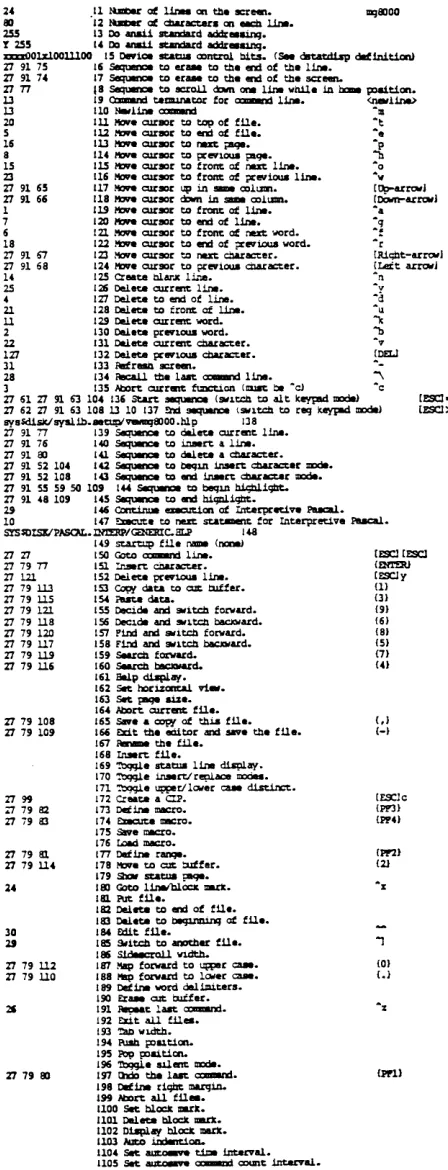
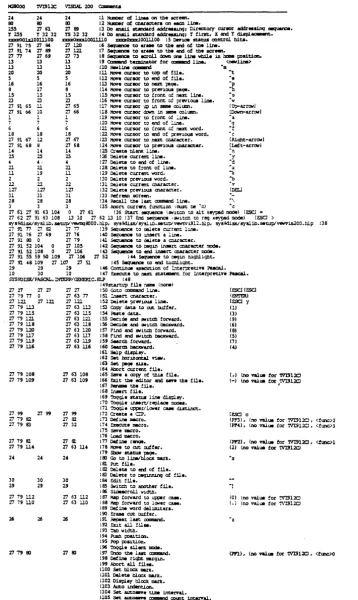
Appendix A Using VEW on Different Kinds of Tenninals
Assigning
a
te~ ~to
a port •••••••••••••••••••••••••••••••
A-2
Changing keystrokes for control-key functions ••••••••••••••••••••• A-2
An
overview of the setup tile ••••••••••••••••••••••••••••••••••A-2
c:h.anging the VFItl setup file... A-4
Crea.ting a setlIp tile... A--8
Line 1: Number of lines on the screen ••••••••••.•••••••••••.••• A-I 0
Line 2: Number of characters per line •••••••••••••••••••••••••• A-10
Lines 3 & 4: Direct cursor-addressing
sequence. • • • • • • • • • • • • • • • • • • • • • • • • • • • • • • • • • • • • • • • • • • • • • • • • • • • • A-II
Table of Contents
Line 5: Line 6: Line 7:
Line 8:
Line 9:
10: 11: 12: 13: 14: 15: 16: 17: 18:
Device status control bits ••••••••••••••••••••••••••••• Erase to end of line ••••••••••••••••••••••••••••••••••• Erase to end of screen ••••••••••••••••••••••••••••••••• Move text down fram home position •••••••••••••••••••••• Function tennirla.tor •••••••••••••••••••••••••••••••••••• Newline COITllTlalld. • • • • • • • • • • • • • • • • • • • • • • • • • • • • • • • • • • • • • •
Move to top ot file ••••••••••••••••••••••••••••••••••• Move to end of file ••••••••••••••••••••••••••••••••••• Move to J'lext IBge ••••••••••••••••••••••••••••••••••••• Move to previous
Move to front ot IBge. • • • • • • • • • • • • • • • • • • • • • • • • • • • • • ••• next line •••••••••••••••••••••••••••• Move to front ot previous line •••••••••••••••••••••••• Move up in same colllIllIl •••••••••••••••••••••••••••••••• Move down in same colllIllIl ••••••••••••••••••••••••••••••
19: Move to front ot line ••••••••••••••••••••••••••••••••• 20: Move to end of line ••••••••••••••••••••••••••••••••••• 21: Move to next word ••••••••••••••••••••••••••••••••••••• Line Line Line Line Line Line Line Line Line Line Line Line Line Line Line Line Line Line Line Line Line Line Line Line Line 34:
22: Move to 23: Move to 24: Move to
previous word ••••••••••••••••••••••••••••••••• next character •••••••••••••••••••••••••••••••• previous character •••••••••••••••••••••••••••• 25: Create blank line ••••••••••••••••••••••••••••••••••••• 26: Delete line ••••••••••••••••••••••••••••••••••••••••••• 27: Delete to end of line ••••••••••••••••••••••••••••••••• 28: Delete to front ot line ••••••••••••••••••••••••••••••• 29: Delete word ••••••••••••••••••••••••••••••••••••••••••• 30: Delete previous word ••••••••••••••••••••••••••••••••••
31: Delete character •••••••••••••••••••••••••••••••••••••• 32: Delete previous character ••••••••••••••••••••••••••••• 33: Ref resh screen ••••••••••••••••••••••••••••••••••••••••
Line 35: Line 36: Line 37: Line 38: Line 39: Line 40: Line 41: Line 42:
Recall last function line ••••••••••••••••••••••••••••• Aborting functions •••••••••••••••••••••••••••••••••••• Start sequence •••••••••••••••••••••••••••••••••••••••• Erlding se<:Iuence... •• Hel.p file ••••••••••••••••••••••••••••••••••••••••••••• Sequence to del.ete current line ••••••••••••••••••••••• Sequence to insert a line •••••••••••••••••••••••••••••
Sequence to delete a character •••••••••••••••••••••••• Sequence to begin insert
character mode ••••••••••••••••••••••••.••••••••••••.••.••••••
Line 43: Sequence to end insert character
rrOOe •••••••••••••••••••••••••••••••••••••••••••••••••••••••••
line 44: Line 45: Line 46:
Sequence to begin highlight ••••••••••••••••••••••••••• Sequence to end highlight ••••••••••••••••••••••••••••• Continue execution (Interpretive
~)
... .
x
A-12 A-I 2
A-I 3 A-I 3
A-I 3
A-I 3
A-I 4 A-14 A-I 4
A-I 4 A-14 A-I 4
A-I 4
A-IS A-IS A-IS A-IS A-IS A-IS A-IS A-lS A-I 6
A-16 A-16 A-16 A-16 A-I 6
A-16 A-16 A-17 A-17 A-17 A-17 A-I 8
Table of COntents
Line 47: Execute to next statement
(Interpretive Pascal) •••••••••••••••••••••••••••••••••••••••• Line 48:
Line 49: Line 50:
Line 51:
Line 52: Line 53:
Line 54:
Line 55:
Line 56:
Line 57:
Line 58:
Line 59:
Line 60:
Line 61:
Line 62:
Interpretive Pascal help file ••••••••••••••••••••••••• startup file •••••••••••••••••••••••••••••••••••••••••• Go to ftlllction line ••••••••••••••••••••••••••••••••••• Insert control character •••••••••••••••••••••••••••••• Delete previous line •••••••••••••••••••••••••••••••••• Cut line (s) •••••••••••••••••••••••••••••••••••••••••••
Paste line (s) ••••••••••••••••••••••••••••••••••••••••• (forward) ••••••••••••••••••••••••••••• (backward) •••••••••••••••••••••••••••• Decide & switch
Decide & swi tch
Find & switch
Find & switch
(forward) •••••••••••••••••••••••••••••••
Search Search
(backward) •••••••••••••••••••••••••••••• (forward) •••••••••••••••••••••••••••••••••••••• (backward) •••••••••••••••••••••••••••••••••••••
Hel P display ••••••••••••••••••••••••••••••••••••••••••
Set horizontal view ••••••••••••••••••••••••••••••••••• Line 63: Set page size ••••••••••••••••••••••••••••••••••••••••• Line 64: .Atx>rt tile •••••••••••••••••••••••••••••••••••••••••••• Line 65: Save •••••••••••••••••••••••••••••••••••••••••••••••••• Line 66: Exi t
'V'FIIl...
Line 67: RenaIIle file ••••••••••••••••••••••••••••••••••••••••••• Line 68:
Line 69: Line 70: Line 71:
Insert file ••••••••••••••••••••••••••••••••••••••••••• Sllow status 1 ine •••••••••••••••••••••••••••••••••••••• Inse rtf repl ace •••••••••••••••••••••••••••••••••••••••• Uppercase/lowercase flag •••••••••••••••••••••••••••••• Line 72: Create a CIP •••••••••••••••••••••••••••••••••••••••••• Line 73: Def ine rna.cro •••••••••••••••••••••••••••••••••••••••••• Line 74: Execute macro ••••••••••••••••••••••••••••••••••••••••• Line 75: Save nacro •••••••••••••••••••••••••••••••••••••••••••• Line 76: Loa.d nacro •••••••••••••••••••••••••••••••••••••••••••• Line 77: Define range •••••••••••••••••••••••••••••••••••••••••• Line 78: CUt & delete •••••••••••••••••••••••••••••••••••••••••• Line 79: Show status page •••••••••••••••••••••••••••••••••••••• Line 80: Go to line number or block rna.rk ••••••••••••••••••••••• Line 81: Put file •••••••••••••••••••••••••••••••••••••••••••••• Line 82: Delete to end of file ••••••••••••••••••••••••••••••••• Line 83: Delete to top of file ••••••••••••••••••••••••••••••••• Line 84: Edit file ••••••••••••••••••••••••••••••••••••••••••••• Line 85: SWitch to another file •••••••••••••••••••••••••••••••• Line 86: Sidescroll width •••••••••••••••••••••••••••••••••••••• Line 87: Change to uppercase ••••••••••••••••••••••••••••••••••• Line 88: Change to lowercase ••••••••••••••••••••••••••••••••••• Line 89: Define word delimiters ••••••••••••••••••••••••••••••••
Table of Contents Line Line Line Line Line Line Line Line Line Line Line Line Line Line Line 90 : 91 : 92: 93: 94: 95: 96: 97: 98: 99: 100: 101: 102: 103: 104:
Erase cut buffer •••••••••••••••••••••••••••••••••••••• Repeat last command ••••••••••••••••••••••••••••••••••• Exit all files •••••••••••••••••••••••••••••••••••••••• Tab width •••••••••••••••••••••••••••••••••••••••••••••
Push tx>sition •••••••••••••••••••••••••••••••••••••••••
Pop pos~t~on •••••••••••••••••••••••••••••••••••••••••• Toggle silent mode •••••••••••••••••••••••••••••••••••• Uooo deletiorV}?C>sition •••••••••••••••••••••••••••••••• Set right margin ••••••••••••••••••••••••••••••••••••••
A1:::x> rt all files ••••••••••••••••••••••••••••••••••••••• Set bl.ock mark ••••••••••••••••••••••••••••••••••••••• Delete block mark •••••••••••••••••••••••••••••••••••• Display block marks •••••••••••••••••••••••••••••••••• Auto indentation •••••••••••••••••••••••••••••••••••••
Auto sa.ve tiIllE! •••••••••••••••••••••••••••••••••••••••
Line 105: Auto save count ••••••••••••••••••••••••••••••••••••••
Sam~e Setup Files ••••••••••••••••••••••••••••••••••••••••••••• Creating a Hel.p File ••••••••••••••••••••••••••••••••••••••••••••••
~ndix B '!he Keyboard and the VEW Program
AIlt,a:na.tic r~ating ••••••••••••••••••••••••••••••••••••••••••••••• 'l!le ~ K~rd ••••••••••••••••••••••••••••••••••••••••••••••••• Olaracter Keys ••••••••••••••••••••••••••••••••••••••••••••••••• Function Keys ••••••••••••••••••••••••••••••••••••••••••••••••••
Other Keys ••••••••••••••••••••••••••••••••••••••••••••••••••••• Light Emitting Diodes (LIDs) •••••••••••••••••••••••••••••••••••
'Dle M ~rl1a:te K~ ••••••••••••••••••••••••••••••••••••••••••••••
~ndix C ASCII Olaracter Table
Chapter 1
General Information
The Virtual Editing Window (VEW) program, one of the utilities available
in the WMCS operating system, is designed for editing text files.
Only text files, i.e., files composed primarily of printable characters,
can be edited ~ neans of the VEW program. Such files might include
memoranda, manuals, files used in program developnent, etc.
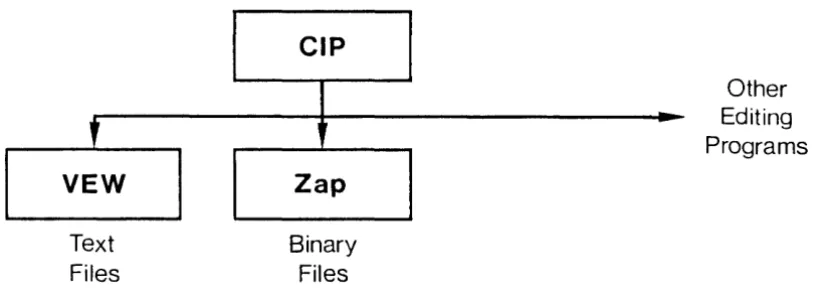
As Fig. 1.1 shows, the VEW program (as well as any other WMCS utility) is
executed f rom the canmand Interpreter Program (CIP). In other words,
each time you type the CIP corranand mnemonic VEW onto the CIP command line, you are given access to the VEW program.
,
YEW
Text Files
CIP
Ir
Zap
Binary
Files
..
-Other
Editing
Programs
Fig. 1.1 The relationship of the VEW program to other programs on your system
The functions explained in this manual, as well as the explanation of the
keyboard, apply only after you execute the VEW corranand. A complete
description of how to execute the VEW program ap~ars later in this
chapter.
General Information
r---Cursor
... 11_ "I ... , ... "',"110. • • , ... u ... , ... It I ... , .0<1 . . . n • .o . . . " • • 11 ••• ' ... 10 . . . , ... ". , ... 10 ... ' . . . I ... .
.
:::~.:':;:: :::~::~:.. ::.: ..
:.::.::~~,..
~. :,:~~:.f'::: :",:::-.:
:.:~::~.~~.::~~.' :~::...
,-::::.~..
~.:~:~.:..~.::~.:~.10'., ,01 ... 11 .. ' , .... I .... _ . . . 1 . . . , • ., ... ~ ... "'I . . . , .... ,u •• ""'1, ... 4
•• ' ... 1 ••••• , .... , _ •• 1 .... , .. , ... ' ... 1 ... _.11 ... , ... ' _ . ' 0
... 1 ... , . . . I ... d , , ' I . . . , ... h., , ... , . , . ,,"_ ... ,. ,d •• I ' ... ' .... .
,II ... ' ... , ... ,1_. 1 ... _ .... _.10 ... ,10"._0,1_,.
... 11 ... 'I.,n •• ,I ... _ ... _ .. _ ... n
I .. ,11 ... , ... 11 ... _ ... ,'1 ... , ... 1 ... 1, ... , .... 1 ... _ ... , .. .
... ... "'1., ,I ... .... oJ ... • 1 . . . '1 ... , .10'" ... ,"'"' " ... , .... _ ... 1 •• , ,.,11 ... " ... 1 ... ,10 . . . 1 ... , ... _ ... I ... , .... "" I. .. , ... _ . , 1 _ 10 .... th. ,1 ... '1 ... 1 ... I ... ,I •• ,1 . . . 11 ... / ... 1 .... / •• ' ... 1. I ... 1. " ... , ." ... , ... , ... .,_ ... , .. ,.,. ... , .... , ... ., ... 4 ,10 ... '" ... ,.n •• u ... 1 ... ., .. , ... II. e ... 1 ... .
••. 10. ,1t . . . . , ... II ... _ ... ,11 ... , . . . _ 1, ... 10 ... , . _ ' ... 11 . . . , ••••••
• " ... 10 .. _ It ... ,_ ... ~. ,lI ... , _ ... " .. _ It ... _ ... ,II .... I, ... II ... , •• ~ ... , ... ,,0"_ ,,0' .... 10 ... , . _ ... 1 ... _ .... ,.10. • . 1.1., ."... • .. ,160. I .•. , ... 1 . . . , .. u ... 60.... ., ." ... II ... , .... I .... ,_41.. ... , •• n ... , ... , ... , .. " ... ., , ... ., ." ••• "J ,'''' .... ., ... 1 . . . , .. 1 ....
• 11 ... _. , ... _ " ... 1 . . . . _ . ' .... " .. , .... ,_ .,1_. ,00'''_'' ... , .... , ... " ... ,_. , ... _ .... _ ... _ ... to. , ... , .. , .. _ .. h_.1
' ... 10 . . . , . _ ... N.e'''' , ... ...., . . . , ... 1 ... _ ... • .H., .... , ... _1 ... I ... 11.,11 .. " ... , ... - . -... , .. II •• , ... " .. _~
• ... _ II ... _ ... , ... I ._ 10_ ... ,._ .. _ _ u ... _ I ••• It __ I , ... _ It ... It ... I ... 1 .... _ h ... \ ... t ... _ . . . . . . . 1_. , ... _ . . . , ... _ ... ., . . . _ ••• _ ,. .... _". . . . , .. 1 .. _ . . . " ... _ . , ... , ... _ . , ... ,.., .. _ . . . 1
, ' , ... , . . . . 1 ... _ . , ... , ... _ _ ... , ... ". •• 1 ... ,1 ... _.., ... 10 ... " •• , ... , ' ' ' _ ' ' ... ... U ... _ ... ,n_ ,., .... _ I ... ,._ M _ _ I\ ... ___ ... "U ... 1·, ... _ ... \ ... , _ , .... ,n.,...I·,,, .... 1, ... _ I ... ,.. •• 1 •• _ ,t ... _,. ,.M. ' ,I , ... , ... 1 ••• , . . . "10., I ... , .... ,I", .... .,_ ... 1 . . . "oon_ ... , ... .,_ ... 1 . . . ,. ... "" ... ~ ... ,110 ... ,... ... c , .. tI_
.1 .... 01. I ... I ... 1 ... , ... I ... 1 ... _ ... I .. , ... _ •• ' _ ' , ... 1 ... _ , ... _ ... _ "'."_10 1._ .h •• 10 • • " ... "-... , ... cl_. ,00'''_'' .. _ . , .• Ic ... ·, ." . . . 11.0. 10 ... , _ ... c~ ... "10',,, ... ,1", I ... .,_ ... 1 .. c ,.., ... ., .... "_,, .... 1 . . . ,..U ... _10., ... I., ... It.'" , .... 10 .. ,_ ... 1 .. f , •• 11_ .ll ... I.. .. ... _ .. 1 .... ,00'''_'' .. _ .1 .. ,,,"_ ... ~ ... _ •• 1_. , .. I ... _ .1 ... _10.1_. ,00'''_'''' 1._ .1 .. , . . . ' ... _ •• 1_. , ... _ .. 1._.1 ,._ 10 .. _ It ... _ ." ••• " , _ 1·, ... _ I ... ,._ 10 .. '" ... _ ... , ... 1, ... _ II ... _ . . . 11 ... _ I., ... "oo .... I ... ,. ... I ... II ... .N •
... ., ... ,,, .1", .... .,_" .... 1 ••• ., .. 1 ... ' ... "' ... , ,J ... , .... ,'''' .... , ... 1 .. " ... _ ... hl • ., . . . _ ... t , .. , ... , ... ., ... ., . . . , .... 'P ... . , _ . . . , . . c , .. , ...
, ... "._ •• 1_. , •• 1"_" ,,_ ... 10_ ... ,,,,-,_, tl_. ,"1"_" .... ,I ... _ ... h ... """_11 ... , ... ,"_oM ... ,II ... ,. ... _ •• t.- ,..., .. _60. .. _ Ii
• , ... _ ' ... _ ... ,H ... 'ro .... ,._ .• ,,_ .... _ , .... "" ._ ... .,11 ... ' ... _ ' ... " ... ,11 . . . ·, ... _ I, ... I ... " , .... 10 .. _ II ... . ... .. .... _ •• 1_. ,00,t._10 "-- ... _,1 ... 10. , ... _. c .... , •• 1"_" ... _ .... _ .. cl .... ,..:"_" .. _ ... cM_ ... , ... ,1_ ... _ .. 10_ " ... 1 ... 11 •• ' ... ,1 ... _ . _ ... N."", ,1 ... 1 ... 1 •• 1", ,1 ... 1_""" .. 1000_.., ... 11., .... " ... . I, .. , ... I ... , • "'" ,. .. _ " ... _ ... ," ... , ... I ... ,._ .... _ , ... _'" ... .,11 ... 1,... .... _ _ U ... ,_ ... ,11 .... 1, ... I·, ... ,_ .... ,. ... _ 1 ... _ ... .. kl., ."", ... ,.60. , ... , ... "' •• 1 ••• , ... , ... , ... , .... 1 ... " ... , .. 11 .... •. 100 ... 10·, ... f, •• I1 ... , ... , ... 1 .... ,I&' ... , _ ... , . . . 11_
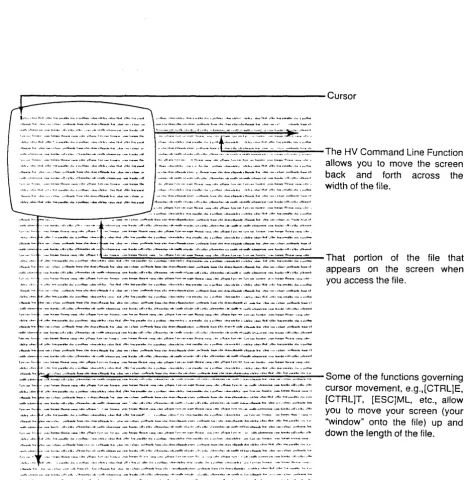
The HV Command Line Function allows you to move the screen back and forth across the width of the file.
That portion of the file that appears on the screen when you access the file .
~:~~~~.~~~~~~~~:~,~~~~:.~:~.:~.~~~:~~~::~:~:~:~:~~~~~~~:~::~:~:~:~:~~~:~~:~.:~:-::~:~:~~.~:~:~:~:-.~-:-:~.~~.:-:~~~::~:--Some of the functions governing
1, . . . 1 . . . , .... ' ... _ " ... _ ... ,lI .... 1, ... _1 ... ,._1 .• _, ... _ ... , ... 1, ... _11 ... " ... ,.1 ... 1, ... _., .... _ ... ,11.0. ,I", ... , . . . , ... _ . . . 1 . . . , ... ., ... , .... ,1 ... 1 ... _4 .... 1 . . . , .. , ... , ... , •.• ,1_..,_ ... 1 . . . , .. 1'_ ... , ' ... I, . . . , , _ .. , _ •••• _ ... '" ••
... _. , .. , .. _ ... ' ... , ... _ •• 1 _ ... _ ... _.10.,'"'_ ... 1_. ,,,'''_Ior .. _ ... _.H ... , ... ,'10 ... ,_" ... I, ..
... 10 . . . 110. ,1 .. _.1 ... ·.1._., ... _ ... '1 ... ,1 ... 1 ... 1 ... " ... , ... , ... _ ... ., ... · ••• 1_. ,...160 ... 60_ I, ... I . . . . ,._ .... _ , ... _ ... ,.1 ... ·, ... 1._ .... ,._1 ... _' ... _ ... , ... , ... _ ... _ ... 11 ... 1, ... 10 ... .., . . . _ ... II. ,I&.. ,It.. " .... ., ... "t.. 10 .. .,_ ... 1 ... 1 ... • J ... I .... ,'''' .... .,_4' . , .. I ... ' I •• "." ._4", .1 .. I , •• JI ... " . 0'" I·, ... 1.0 .. _ ... < , _ . , ••
• If ... , . . . 1 ••• , .. 1"_,, 1._ .1 . . . 1._.' ... f. .. _ .,1_. , ... t._ .. 10 ... h. , ... 1 ... 1 . . . , .... _ ... , . . . ". ,' •••• fI ... , ... ., ... , .... ,I", .... , ... "" . , •
.. ... ... 1. •.• 11 •• 1", ., ... , ... _ ... , .... , " ••• 1 ... 01 ... 1 ... 10 ... II. ,.t., ,1 ... , ... , .. __ ... ., ... _ .,,_. ,.., ... _'" 10. .. , .... 1.0." ... 11 ... _ ... ,n ... , ... I ... _ ... _ , ... _ ... ,11 ... , ... 11 ... " ... ," ... 1 . . . ' ... _ ... U ... ,'"
... <,,_. , ... _ .. 1._ ., ... 11 ... , ... -. ,.,_. ,00'''_'' I ... 1 .. , ... tl ... ,' .... """_It I. ... , ... 1 ... " ,1 ... 10 .. , _ ... 1 .. I,·
' I " ' " 1 ... ,,, ••• 11 •• ,10 •• 1 ... 1 .... " ... 10 ... , ... , ... 11 •• 1 ... 10 .... 1 ... , ... ,11.,'10. ,110 ... 1 ... '1 ... , ... ,1 .... ,,,'''_'.10 ..
"00' ... , ... _ " , . . . 11 ... ' , .. , ... ,,_ ... II. _" ,_ .... 1 •• ,11 ... ' ... 11 .. '. , .... , . " . . . 11 ... ' , . . . , ... , .... 1 ... 11 •• 11 •• " .. . 01 ,I", • " ... 1 . . . ,t ... '0'" .",00. n ... _II. '-", , •. ,,10._ .1 .. , ••• U ... , ... \0.-•• \ ... 0110. ,~ ••• ".n ... ~ ... , .... "" .... I, ... I ... 'I ... , <
... , .... , ... It 1 ... 1. 1 ... ,.11 ... 10 . . . 40 . . . _ . , 1 ... , .. _ .. , ... , ... ' ... 010,1" ... ' ... 1 ... ,. ... " ••• ,01 ... '''.' .'''' ' •• , , ... ," . , .
' ... , .. " ... 11 ... , ... "" ..• 1 ... . . - ... _ " ... _ ... , ... , .. , ... 11 ... _. ,,' ... , ... 1 ... , ... 11." .... 11
cursor movement, e.g.,[CTRL]E, [CTRL]T, [ESC]ML, etc., allow you to move your screen (your "window" onto the file) up and down the length of the file .
Fig. 1.2 The VEJiI Program, and what appears on your tenninal screen
General Information
Features of the Virtual Fditing Window
Consider these five advantages of the VEW Program:
1. You can have extranely large text files (several hundreds of
thousands of bytes) •
2. The screen is a kind of window onto the file. (See fig. 1.2.)
The window is 23 lines long and 80 characters wide and you can
move it to any part of the file. For example, if you move the
cursor beyond the her izontal or vertical screen boundary, VFItl
automatically lllO\Tes the window sideways or vertically to show the
I;X)rtion of the file where the cursor is located.
3. '!he program is screen oriented so that what app:ars on the screen
is exactly what the file contains. You can instantly see any
changes you have made to a file.
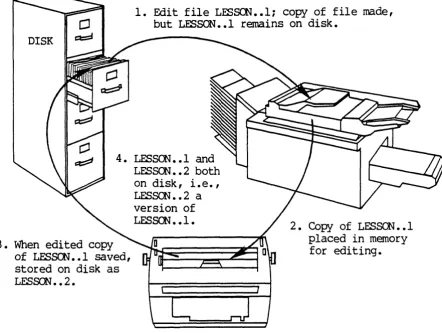
4. You never risk loss of the file because the file you are editing
(when you access an existing file) is a copy of the original,
i.e., a version. '!hus the original is kept until you purge or
delete it. VEW automatically saves the latest version of your
file every 15 minutes or after every 2,000 changes to the file.
File versions are described thoroughly later in this chapter.
5. '!he program is terminal-independent, i.e., it operates on a wide
variety of terminal types.
'!he VBtl program and your temdnal type
The VEW program works with a variety of terminal types. You must tell
VEW what type of terminal you are using so it can adapt the VEIN program
to your particular type of terminal. VEW usually learns what type of
terminal is assigned to each I;X)rt when you boot the systan, but if you
are using VEW for the first time, check with your systan manager to make
sure your terminal type is set correctly. Setting the terminal typ: is
discussed in Appendix A.
Executing the VEJtl program
A SUIIUllary of how to execute the VFJfI connnand, useful for quick reference,
is provided in the YlMCS. User's Reference
Manila'.
A complete descriptionof executing the VEW progran is given here.
General Information
Cornrrand Line Syntax
Mnemonic vew
Optional File List parameter
Switches
Parameters
File List
:autoindent :autosavecount= :autosavetime= : case :mernory= : override :pagesize= :preserve= :readonly :rightmargin= : screenlength= : screenwidth= :setupin= :setupout= :sidescroll= : silent : startup :tabwidth= :worddelimiters= : insert :macrofile=
Function Use this parameter to specify the name(s) of file(s) to be created or edited.
Default The file most recently edited at your terminal appears on the screen, if it is in your default directory. If not, a file by that name is created in your default directory.
Syntax Type the name(s) of the file(s) using the file name syntax described in the ~ User's Introductory Manual. The chapter on "The Geography of the System" in the introductory manual contains information on specifying a pathname with the file name. If you specify more than one file, separate the filenames with commas. Wildcard ~ymbols are not allowed.
If you specify more than one file name in the file list, VEJtl opens all of the files and then starts editing the first file. When you exit or abort the first file, the VEW program automatically switches to the second file, without returning you to the eIP command line. When you exit or abort the second file, VF1il
automatically switches to the third file in the list, and so on. VEW does not return you to the elP until you exit or abort all the files in the list.
SWitches
: auto indent Function
Default Syntax
General Information
If you do not s~cify a f il enarne wi th the VFW
corranand on the CIP corranand line, the VFW
program o~ns the filename you s~cified the
last time you executed the VFW corranand. '!he
cursor appears in the same position it was in
before you exited that file. If the last file you specified is not located in your default
directory, 'lEW creates a file with that
filename. If you have not used VEW since
logging on, 'lEW prompts you for the Fil e List
parameter.
If you do not specify a file extension as part
of a filename, e. g. , you ty~ VeN SlJDIDary on
the connnand line, no file extension is
assigned. '!hus, such a file might appear in a
directory listing as SUMMARY •• l.
If you wish to edit or create a file, but you are not in the directory where that file is
located, s~cify the directory pith as part of
the file designation. In other words, you do
not have to be in the directory where the file
is located in order to edit it.
The same is true of the devicename portion of the file designation; that is, a device need
not be your default device for you to edit the
files it contains.
,---Use this switch to automatically indent the
next line in your file to match the previous
line's indentation. This switch is identical
to the ~ function described in Chapter 3 of
this manual. :noautoindent
Type : autoindent
:autosavecount= Function Use this switch to specify how often (after a
given number of modifications) VEW
autanatically saves a cop.{ of the files you
are editing. Tb turn off this feature in
VFW, specify a value of zero for this switch.
This switch is identical to the
.ac.
functiondescribed in Chapter 3 of this manual.
General Information
Default
Syntax
:autosavecount=2000, i.e., the file is saved after every 2,000 IIDdifications.
~ :autosavecount follCMed by an integer
between 0 and 65,000.
:autosavetime= Function Use this switch to s~cify how often (after a
given number of minutes) VEW automatically
saves a copy of files you are editing. 'Ib
turn off this feature in VEN, s~cify a value
of zero for this switch. This switch is
identical to the gt function described in
Chapter 3 of this manual.
Default :autosavetime=15, i.e., the file is saved
every 15 minutes.
Syntax ~ :autosavetime= follCMed by an integer
between 0 and 6000.
: case Function Use this switch to differentiate between
: insert
: rnac rof il e=
:manory= Default Syntax Function Default Syntax Function Default Syntax Function
up~r- and lCMer-case characters in all search functions. This switch is identical to the .ul. function descr ibed in Chapter 3 of this manual.
:nocase, i.e., VEW <:bes not distinguish
between uppercase and lCMercase characters during a search.
~ :case
Use this switch to start the VEW progr am in
replace roode. This switch is similar to the
iL function described in Chapter 3 of this
manual. It is different from the ir. function
because you cannot toggle from insert to
replace mode with this switch. It simply
lets you start VEW in replace mode instead of
insert mode.
: inse rt, i. e., VEW starts in insert mode.
~ :noinsert to enter VFJN in replace mode.
Use this switch to load a file containing a
macro def ini tion you saved when you used VEW
previously. When you enter VEW, you can then
execute that macro with the
zm
function.This corranand is identical to the 1m function
described in Chapter 3 of this manual.
No macros are loaded when VFJN is executed.
~ :macrofile= follCMed by the filename of
a macro definition.
Use this switch to s~cify the amount of rcain
manory (in kilobytes) used with each file you
: override :pagesize= : preserve= Default Syntax Function Default Syntax Function Default Syntax Function
General Infor.mation
edi t. When you execute VFW and a file is opened, a copy of the file is put in main
memory. If the file is longer than the
memory allocated for the file, only a IX>rtion of it is brought into main manory; other parts of the file are roved into main manory
when you access than. VFJN runs faster when
the entire file is in main memory. You can
br ing the enti re file into memory by
specify ing zero as the value for this switch. :manory=16, i.e., 16 kilobytes of main memory is reserved for each file.
'lYP=
:menory= follCMed by any number betweeno
and 1900.Use this switch to edit a file that is not a
data ~ file, even though VFW is designed
to edit only data ~ files. If a new
version or a copy of the file is created, VEW
preserves the file ~ (the new file is the
same ~ of file).
: noover ride
'lYP=
:overrideUse this switch to sp:cify the number of lines VFW moves the cursor when you page forward or backward. This switch is identical
to the ~ function described in Chapter 3 of
this manual.
:pagesize=20, i.e., the default page size is 20 lines.
'lYP=
:pagesize= follCMed by an integer 1 orlarger.
Use this switch to specify what file
attr ibutes (protection and CMnership) are
preserved when a new version of a file is
created when you exit VFW. PROTECTION
preserves the protection the file originally had, but the CMnership of the file could change (if someone other than the CMner of
the original file edited the file) •
OOPROTECTION changes the protection of the file to the default protection of the user
who edited the file. CWNER preserves the
CMnership of the file, but the protection may change (if saneone who has default protection different from the original file edits the file). NXWNER changes the ownership of the
file to that of user who edited the file.
General Information :readonly :rightmargin= : screenlength= Default Syntax Function Default Syntax Function Default Syntax Function Default
ALL preserves both the ownership and
protection of the original file. NONE
changes the ownership and protection of the file to the default values of the user who edited the file.
:preserve=PROl'ECrION, i.e., the original
protection is preserved.
~ :preserve= followed by one of the
following values: PRarEcrION, OOPROI'EcrION,
0ffiER, N:XlVNER, ALL, or NONE.
Use this switch to prevent modification to
the file in VEW. When the file ap~ars on
your screen, VEJtl lets you move the cursor in
the file but ooes not let you make any
changes. A bell sounds if you try to ty~
new characters or use any functions that would modify the file. 'Ibis switch is useful if you want to read a file using VFJfl, which makes it easy to move forward and backward through the file, but you want to protect the file from any inadvertent modifications.
:noreadonly, i.e., the file can be modified.
~ : rea.donly
Use this switch to s~cify a column number
for the right-margin bell, a bell that is
sounded when you reach the s~cified right
margin. 'Ibis switch works like the
right-margin bell on a ty~riter; it does not
automatically force a carriage return but warns you that you have reached the margin. A value of zero for this switch turns off the
right-margin bell. This switch is identical
to the
zm
function described in Chapter 3 ofthis manual.
:rightmargin=O, i.e., the right-margin bell is turned off.
~ :rightmargin= followed by an integer 0
or larger.
Use this switch to s~cify the number of
lines that a~ar on the screen. In other
words, this is the number of lines in your
edi ting window on the file. 'Ibis swi tch is
normally used to make the screen length
shorter than the default value.
'!he defaul t screen length is the val ue
~cified in the setup file for your
particular terminal ty{;e. If you have a
:screenwidth=
:setupin=
:setupout=
Syntax
General. Information
. '17000 or r-I;8000 terminal, the default value
is 24.
~ :screenlength= followed by an integer
from 10 to 200.
Function Use this switch to specify the number of
characters or columns that appear on the
screen. In other words, this is the width of
your editing window on the file. This switch is normally used to make the screen width narrower than the default val ue.
Default The default screen width is the value
specified in the setup file for your
p:irticular terminal type. If you have a '17000 or M:;8000 terminal, the default value is 80.
Syntax ~ :screenwidth= followed by an integer
from 20 to 160.
Function Use this switch to specify which setup file
is used for screen input. Setup files are
described in Appendix A. This switch is
useful i f you are using a different terminal
for input and output. Also note that you can
merely specify a di rectory where the setup
files are located. If you specify a
directory, VEW looks in that directory for
the setup file based on the terminal type.
If you specify an explicit file, VEW uses
that file.
Default The default is the setup file in SYS$DISK!
SYSLm.SEWP/ that correstx:>nds to the
terminal type.
Syntax ~ :setupin= followed the name of a setup
file or a directory p:ith where setup files are located.
Function Use this switch to specify which setup file
to use for screen output. Setup files are
described in Appendix A. This switch is
useful if you are using a different terminal
for input and output. Also note that you can
merely specify a directory where the setup
files are located. If you specify a
directory, VEW looks in that directory for
the setup file based on the terminal type. If
you specify an explicit file, VEW uses that
file.
Default The default is the setup file in SYS$DISK!
SYSLm.SE'IUP/ that correstx:>nds to the
terminal type.
General Information
:sidescroll=
: silent
: startup
: tatM idth=
Syntax
'IYPe :
setupout= followedl:¥
the name of a setup file or a directory p:ith where setup files are located.Function Use this switch to specify how many columns VEW scrolls to the right or left when you
t~ FEist either screen boundary. ~cify a value of zero for this switch to turn off the side scrolling feature. This switch is identical to the ~ function described in Chapter 3 of this manual.
Default :sidescroll=20, i.e., the screen scrolls 20 columns sideways when the cursor reaches the
right or left screen boundary.
Syntax
'IYPe
:sidescroll= followed by an integer 0 or larger.Function Use this switch to start VEW in silent mode. In silent mode, the screen does not fully ref resh until the end of a macro or a find
and switch. 'Ibis switch is similar to the .t.s.
function described in Chapter 3 of this manual. 'Ibis switch differs from the ~
function because you cannot toggle in and out of silent mode with this switch. It simply lets you start VEW in silent mode.
Defaul t :nosilent, i. e., VEW does not start in silent mode.
Syntax
'IYPe :
silentFunction Use this switch to tell VEW not to read the
VEWSTART.PRM p:irameter file in your home
directory before each editing session. 'Ibe
VEWSTART.PRM FEirameter file is described
later in this chapter.
Default : startup, i.e., VEW reads the VEWSTART.PRM
file.
Syntax
'IYPe
:nostartupFunction Use this switch to specify the number of spaces between each tab stop. 'Ibis sw itch is identical to the ~ function described in Chapter 3 of this manual.
Default :tatMidth=8, i.e., there are 8 spaces between each tab stop.
Syntax
'IYPe
:tabwidth= followedl:¥
an integer between 2 and 1000.:worddelimiters= Function Use this switch to specify which characters
VEW Should treat as word delimiters. This
Default
Syntax
Examples
>
Vat testl. pasGeneral Information
swi tch is identical to the lYQ function
described in Chapter 3 of this manual.
The default values are:
<SP><TAB><NL>!"&'()*+,-.I:;<=>[] I{}#
'lYP=
:worddelimiters= followed by thecharacters you want to specify as word
delimiters.
This conunand edits the most recent version of the file TFSTl. PAS. If the
file ooes not exist, TFSI'l.PAS.l is created in your default directory.
>
Vetl davelprog.asmThis cormnand edits the most recent version of PRa:;.ASM (if the file
already exists) or creates file PR(X;.ASM.l in directory IDAVE! on the
defaul t device.
>
V&1 _dxOlrootdir/report.txt.3This corranand edits (or creates) the specified file in the nain directory on device _DXO, even if _DXO is not the default device.
>
Vat reportl. txt, report2 • txt, report3 • txtThis conunand opens (or creates) the files REOORr.l. • '1XT, R.EI()RT2. 'IXT, and
REroRr.3 • 'IXT in the defaul t di rectory, and V&I begins editing REroRTl.. 'IXT •
When REFORl'l. 'lXT is exited or aborted, YEW switches to REroRT2. '1XT. When
REOORT2. r.IXT is exited or aborted, YEW switches to REroRT3 • '1XT. When
REroRr.3. 'lXT is exited or aborted, YEW returns to the eIP command line.
>
Vel D¥file.OOO :menory=O :noinsert :autoindentThis conunand opens (or creates) MYFILE.OOO in the default directory. In
addition, the switches cause the entire file to be placed in manory, VEJtil
starts in replace mode, and the auto indent feature is turned on.
General Information
Using Prompts
If you execute VEW for the first time since logging on without specifying
a File List, VEW prompts you for the File List:
>VeN
File list
>
meno.txtThe VEW ParCllleter File
You can tailor VEW to your needs by creating a parameter file in your
hane directory. '!his file contains a corranand-line character string of
switches listed in the previous section. You can specify any switch in
this file that can be specified on the eIP cormnand line. '!he file is
called VEWSTART.PRM, and VEW reads this file before each editing session
to set up the characteristics listed in the file. In other words, typing
VFN is the same as typing VEW followed by the switches specified in the
parameter file. The VEWSTART.PRM file is not read by VEW if you sp:=cify
the :NOSI'AR'IUP switch on the command line when you execute VEW.
NOTE: If you specify a switch on the CIP command line when you execute
VEW that is also specified in the p:1rameter file, the switch on the
corranand 1 ine ooerrides the switch 1 isted in the VEWSTART. PRM file.
Also, you can execute certain functions in VEW to change the
characteristics listed in the VEWSTART.PRM file.
Follow these steps to create the VEWSTART.PRM file in your home
directory:
Step 1
Step 2
Step 3
Tyt:e the following on the CIP command 1 ine :
V&1 vewstart. prm
Str ike [RE'mN]
Tyt:e a corranand-line character string like the following on
the first line of the file, substituting the switches you prefer:
: r ightmargin=80 :autoindent :autosavetime=10 :case
General Information
Step 4 Strike [ESC] twice and type the following:
ex
This message ap{:ears at the oottan of your screen:
Exiting VEWSTART.P.RM
The characteristics you sI;ecified in the VEWSTART.PRM file are now set up
each time you execute VEW (unless you sI;ecify the : NOsrAR'lUP 9Ni tch on
the CIP command line when you execute VEW) • You can modify this file
whenever you want to change the characteristics that are set up when you
execute VEW.
'!be VBil progrClll and your terminal screen
When you type the VFJtl command and a filename onto the CIP command line
and strike [RE'IRN1, the cursor appears in the upI;er left-hand corner of
the screen at the beginning of the sI;ecified file. If the file is new,
this is what your tenninal screen looks like:
Fig. 1.3 The screen when you access a newly created file
General Information
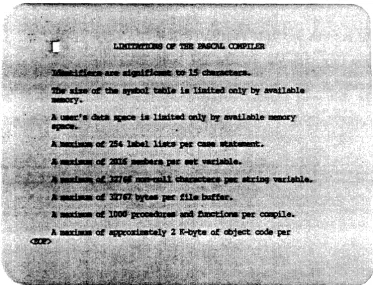
If the s~cified file already exists when you execute the VFW comrrand,
i.e., if the filename you s~cify for the p:lrameter to the VFW command is
the name of a file that already exists, the cursor ap~ars at the
beginning of that file. (See fig. 1.4.)
Once you gain access to a file, you can add text or edit the text al ready
in the file.
The dictionary of VEW functions (see Chapter 3) contains detail s on hON
to use the VEW program. For an explanation of how the cursor and
keyboard behave when you are in the VEW program, i.e., after you execute
the VEW command, see Apfendix B of this manual. You should also review
the information ~rtaining to the iI.: function (see Chapter 3) •
Fig. 1.4 What your screen looks like when you access an existing file
Executing VE)l when the terminal t.yp=! is set incorrectly
If you execute the VFW conunand to create or gain access to a file, and
when the file a~ars on the screen you find that the text is disarrayed
or garbled, your terminal t.yp=! is probably set incorrectly.
General Information
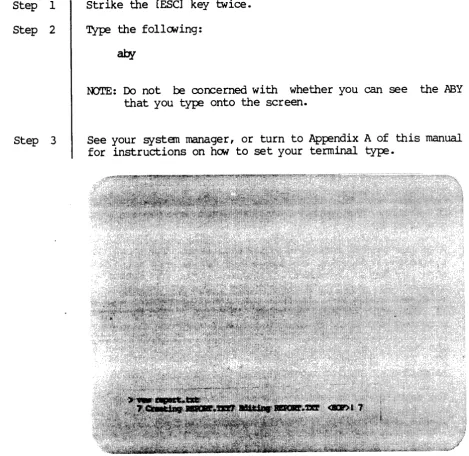
If you use the VEW command to call up a file and find that the text looks scrambled (see Figure 1.5), follCM these steps:
Step 1
Step 2
Strike the [ESC] key twice.
Type the follCMing:
aby
OOTE: Do not be concerned with whether you can see the PBY
that you type onto the screen.
Step 3 See your system manager, or turn to Appendix A of this manual
for instructions on how to set your terminal type.
Fig. 1.5 Scrambled Text
Note also that the p:lrticular keys used to execute the control-key
functions available in VEW vary (depending upon the type of terminal you have). The explanation of the control-key functions, presented in this manual., gives the WICAT-defaul t character keys for these functions.
General Information
Review Ap~ndix A if the keys specified in this manual do not ~rform the
desired function.
Functions available in VEIN
There are two kinds of VFJN functions: (1) control-key ftmctions and (2)
escape-key ftmctions. The control-key functions let you perform a
single, s~cific action, such as deleting one line, while the escape-key
ftmctions let you ~rform more general actions, such as deleting a given
number of lines. A control-key function is derived from an esca~-key
function, and represents a specific, comrronly used way to perform that
escape-key function. Whether you use a control-key or an escape-key
function in your editing depends on which is more convenient for you.
Control-key functions can be executed with fever keystrokes than
escape-key functions. Most control-key functions are of the type, [crRL] t,
where you depress the control key and, while pressing [crRL], strike a
character key. This ~ of cx:>ntrol-key ftmction usually can be repeated
by keeping the control key depressed and repetitively striking the
character key.
A second type of control-key function is of the type, [ESC] c, where you
strike the escape key (releasing the escape key after you strike it) and
then strike a character. A third type of control-key function is
executed by striking a key in the alternate keypad. For example, on
'I7000 and lv{;SOOO key boards, the alternate keypad, located to the right
of the main keypad, contains IS keys. You can execute one of' IS
different functions by striking a single key on the alternate keypad.
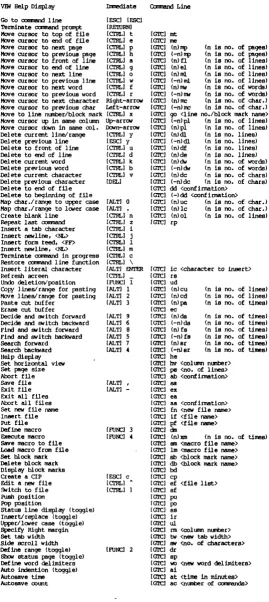
The control-key functions are referred to as immediate functions in the
VFJN help display, because they allCM you to perform the function
immediately, without accessing the VEW function line.
The description of each escape-key function in Chapter 3 lists alternate
ways to execute that function. For more information on the alternate
keypad, see ~ndix B of this manual.
Escape-key functions are of this form, i.e., two strokes of the escape
key follCMed by a two-letter nmemonic:
[ESC] [ESC] ml
General Information
When you strike the escape key twice, the number 1 ap~ars at the bottan
of the screen on what is called the VFItl function line:
Fig. 1.6 The VEW function line
The number in parentheses is called the function repetition number and
represents the number of times this function will be repeated. The
defaul t repetition number is one, but you can specify a nt.mlber other than
one by typing it at this FOint. The r~tition number you tYJ:e ap~ars
in the parentheses.
For example, [ESC] [ESC] 100 ML roves the cursor 100 lines toward the end
of the file. If you specify zero as the function r~tition number, the
function is repeated until the cursor reaches the end of the file or
until you strike any key. (The character for the key you strike to end
the repetition does not ap~ar on the screen.) This is called continuous
mode.
After you specify the function repetition number and begin typing the mnemonic, this prompt appears:
General Information
In same cases, the escape-key function begins execution immediately after
you t~ the mnemonic. In other cases you must strike [REIRN] or str ike
[ESC] twice to execute the ftmction or s~cify other information with the
ftmction (such as a search string) before it is executed. '!he execution
of each function is described in Chapter 3.
00l'E: Once you are on the VFJtl function line, [REIRN] and [ESC] [ESC] are equivalent.
Generally s~aking, the escape-key functions let you ~rform more
substantial textual changes, while control-key functions are designed to
~rform minor changes quickly.
00l'E: You can also execute a control-key function from the VEW ftmction
line. 'Ibis lets you s~cify a repetition number so you can repeat
the control-key function more than once. 'lb 00 this, ITOve to the
VFJtl ftmction line by striking [ESC] twice. Then t~ the
repetition number and the keystrokes needed to execute the control-key function. The control-control-key function is then executed the given number of times.
The Minus Sign
By default, i.e., unless you s~cify otherwise, all VFJtl functions are
performed toward the end of the file. However, as explained in the
instructions for each esca~-key function, the minus sign can be used to
perform the function toward the beginning of the file. In other words,
unless you s~cify a minus sign when typing the function I s rmenonic or
the repetition number for the function onto the VEW function line, the
function always, i.e., by default, is executed tavard the end of the
file.
For example, if you t~ 100ML onto the VEW function line, the cursor
moves 100 lines tCX\fard the end of the file. But if you ty~ -IOOML onto
the VFW ftmction line, the cursor moves 100 lines tavard the beginning of the file.
General Information
Use of functions
AI. though the control-key functions are a proper subset of the escape-key functions, i. e., the control-key functions were derived from the escape-key functions, not all of the control-escape-key functions are identical to the escape-key functions fran which they were derived. '!he follCMing list shCMs the control-key functions that are identical to escape-key functions:
[CI'RL] a
[CI'RL] b
[CI'RL] d
[CI'RL] e
[CI'RL] f
[CI'RL] g
[CI'RL] h
[CI'RL]
k
[CI'RL] n
[crRL] 0
[Cl'RL] p
[CI'RL] r
[crRL] t
[CI'RL] u
[CI'RL] v
[CI'RL] w
[CI'RL]
x
[CTRL] y
[CI'RL] z
[Cl'RL]
A
[Cl'RL] [CI'RL] ]
[ESC] c [ESC] y {PFl} {PF2} {PF3} {PF4} {7} {4} {8} {S} {9} {6} {-} {,} {I} {2} {3} {OJ {
.
}[ESC] [ESC] fl [ESC] [ESC] -dw
[ESC] [ESC] de [ESC] [ESC] me [ESC] [ESC] rcw
[ESC] [ESC] el [ESC] [ESC] -rep
[ESC] [ESC] dw
[ESC] [ESC] 01 [ESC] [ESC] rnl
[ESC] [ESC] mp
[ESC] [ESC] -IIW
[ESC] [ESC] mt [ESC] [ESC] df [ESC] [ESC] dc [ESC] [ESC] -ml
[ESC] [ESC] go [ESC] [ESC] ell
[ESC] [ESC] rp [ESC] [ESC] rs [ESC] [ESC] ef [ESC] [ESC] sf [ESC] [ESC] cp [ESC] [ESC] -ell
[ESC] [ESC] ud [ESC] [ESC] dr [ESC] [ESC] dIn [ESC] [ESC] xm
[ESC] [ESC] sr [ESC] [ESC] -sr [ESC] [ESC] fs [ESC] [ESC] -fs [ESC] [ESC] ds [ESC] [ESC] -ds
[ESC] [ESC] ex [ESC] [ESC] sa
[ESC] [ESC] cu [ESC] [ESC] cd [ESC] [ESC] pa
[ESC] [ESC] uc [ESC] [ESC] lc
Move cursor to front of line Delete previous word
Delete to end of line Move cursor to end of file Move to next word
Move cursor to end of line Move to previous page Delete current word Create blank line Move to next 1 ine Move to next page Move to previous word Move cursor to top of file Delete to front of line Delete current character Move to previous line
Move to line no. or block mark Delete current line
Repeat last conunand Refresh screen Edit a new file SWitch to a file Create a CIP
Delete previous line
Undo previous deletion/position Def ine range
Define macro Execute macro Search (forward) Search (backward)
Find & switch (forward) Find & switch (backward)
Decide & switch (forward)
Decide & switch (backward) Exit file and save this COp.{ Save this COp.{ of file
CUt line(s)
CUt & delete line(s) Paste
Change to upp:rcase Change to lCMercase
General Information
{ENTER} [ESC] [ESC] ic Insert control character
Help display
To call up a listing, or help display, of VEW functions and diagnostic
messages, strike [ESC] [ESC] and t~ he onto the VEW function line.
The help display is four pages, or screenfuls, long. Once you call it to the screen, press any key to move to the next page.
You can exit the help display at any time by typing [CI'RL] c or you can
exit from the last page of the display by pressing any key on the
keyboard. The cursor apt:ears where it was in the file before you called
up the help display.
Entering and exiting the VEH function line
Strike the escape key twice to access the VFJtl function line; strike
[ESC] [ESC] a second time (or strike [RETRN]) to exit the function line.
Consequently, if you enter the VEW function line and then decide not to
perform a function, si~y strike [ESC] [ESC] (or [RETRN]) again.
You can also exit the VEW function line by typing [CI'RL] c. In this
case, the cursor exits the command line and returns to the file,.and
anything you t~d in resp:>nse to the pranpts for that function is not
saved. In other words, if you begin typing a function and decide not to
execute it, you can exit the function line and return to the file by
typing [CI'RL] c. You cannot recall the values you typed for this
function and edit them since the values are not saved.
Aborting conunands
Sanetimes you execute a function and then decide you want to stop the
execution of the command.
'lYt:e
[CI'RL] c to do so. [crRL] c also aborts afunction before it is executed as described in the section above. This control-key function tenninates every function except the following:
[ESC] [ESC] sa [ESC] [ESC] pf
[CI'RL] c stops the function at whatever IX>int the function is at when
[crRL] c is t~d. In other words, if you execute .sI. and then t~
[crRL] c, the search is terrnina ted the moment you type [Cl'RL] c and the
General Information
cursor reappears on the screen at the point in the file to which the
search had been completed. Thus [CI'RL] c does not undo what the corrarand
did prior to its termination. You can return the cursor to where the
search began by executing the .ud function.
Unknom commands
If you try to
tTI:e
on the YEW function line anything other than themnemonics for the ftmctions listed in this manual, a bell or beep sounds.
The cursor ranains on the function line. You can either tYJ;e a recognized
esca~key or control-key function, or exit the YEW corrarand line by
striking [RETRN] or ~ing [CI'RL] c.
Diagnostic messages
If you make an error in the YEW program, a diagnostic message like the
following appears at the bottom of your screen:
YEW
FAILED MESSPGE
Opening file. txt
Status = 133.
The specified file could not be found.
The 1YMCS. User I s Reference
Manna'
has a complete glossary of diagnosticmessages. Look in that manual for an explanation of any diagnostic
messages that may appear during your editing session.
The contents of a file are not altered when a diagnostic message apt:ears.
Press [CI'RL] to ref resh your screen, and the diagnostic message
disappears.
Repeating/editing an escape-key ftmction
Use [crRL] \ to