BestPeer Pte. Ltd., Co. Reg. 200722504H. All rights reserved. Page 1
BestPeer
–
Installation
and
Demonstration
In this document, we first introduce BestPeer as a promising solution for data sharing platform which connects multiple company/organization’s portals. Two potential applications are Supply Chain Management (SCM) systems and nation-wide Electronic Medical Record (EMR) data sharing applications.
Then, we describe the installation process of BestPeer software in Section 2. We also demonstrate BestPeer’s functions of data query/analysis for EMR healthcare data sharing platform in this section. Finally, we describe the full functionalities of BestPeer software in Section 3.
BestPeer Pte. Ltd., Co. Reg. 200722504H. All rights reserved. Page 2
Table of Content
1. Introduction to BestPeer ... 4
1.1. Potential Applications of BestPeer ... 4
1.2. BestPeer Deployment for SCM System ... 5
1.3. BestPeer Deployment for EMR Data Sharing Platform ... 6
2. BestPeer Installation and Demonstration ... 8
2.1. Installation ... 8
2.2. Run BestPeer on a Single Machine ... 9
Start databases ... 9
Generate sample data ... 10
Run and test BestPeer system ... 10
Stop databases ... 21
2.3 Run BestPeer on Multiple Machines ... 21
3. Other Functions of BestPeer Software ... 23
3.1. Functions for Service Provider ... 23
Manage global data schema ... 24
Manage peer accounts ... 25
Define role-based access control ... 26
3.2. Functions for Administrator at Participating Organization ... 26
Define schema mapping ... 28
Export data and publish index ... 29
Periodical changed data capture ... 30
BestPeer Pte. Ltd., Co. Reg. 200722504H. All rights reserved. Page 3
Generating Reports ... 32
3.3. Functions for Normal Users at Participating Organization ... 34
Query the corporate network ... 34
Query data under access control ... 35
3.4. Database configuration ... 36
BestPeer Pte. Ltd., Co. Reg. 200722504H. All rights reserved. Page 4
1. Introduction to BestPeer
In this section, we briefly introduce two BestPeer’s potential applications: Supply Chain Management (SCM) system and Electronic Medical Record (EMR) Data Sharing
application. Then we present how BestPeer software can be adopted as a promising solution for these corporate network applications via sample deployments of SCM and EMR Data Sharing system using BestPeer.
1.1. Potential Applications of BestPeer
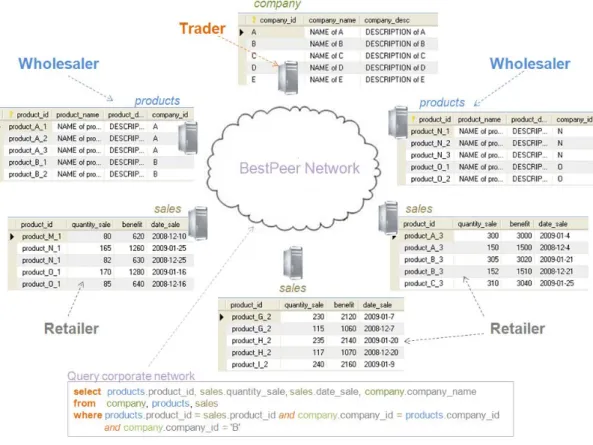
One of the potential applications of corporate network is the Supply Chain Management (SCM) system in which suppliers, manufacturers, and retailers collaborate with each other to reduce operation and production cost. Typically, the organizations produce and store the data in their production systems, e.g., ERP (Enterprise Resource Planning) systems. These production systems are usually placed in a secure place, hidden by firewalls, and do not allow access from entities outside. To share the data, the traditional way is to build a centralized Data Warehouse and pull the data out from each organization to that data warehouse for subsequent querying. However, this approach entails heavy initial investment for both hardware and software, limited system scalability, and a long implementation time frame.
Figure 1: Two potential applications of BestPeer
Another potential application of BestPeer is a National Health Care Network, or
BestPeer Pte. Ltd., Co. Reg. 200722504H. All rights reserved. Page 5
collaboration network, hospitals, clinics and national health care authorities work together to have a consolidated database, share knowledge and expertise, in order to provide cheaper and better health care for the nation. Traditional health care systems require the hospitals and clinics to purchase and install new softwares and servers. Some small clinics do not want to join the system due to the high setup cost. Instead, BestPeer provides a light-weighted peer-based solution for such applications. The clinics or hospitals can export data from their information systems to a peer data node of the BestPeer system. The BestPeer system handles the integration and processing of the information.
1.2. BestPeer Deployment for SCM System
A sample Supply Chain Management system consists of three categories of organization participating in this corporate network, including the traders, the wholesales and the retailers as illustrated in Figure 2. The traders’ production systems maintain the information about the companies whose products are distributed in this product tracking system while the wholesalers’ ERP systems store the detailed information about these products. Additionally, the sales information of these products is recorded at multiple retailers’ operational systems.
BestPeer Pte. Ltd., Co. Reg. 200722504H. All rights reserved. Page 6
By the adoption of BestPeer, a peer-based solution for corporate network, each participant in corporate network runs a BestPeer software on its own separate server. That server periodically extracts data from the participant’s production system, e.g. ERP, and acts as a peer to join the network. In this way, the participants can share their production data efficiently. Peer-based supply chain management system can solve the problem of "bullwhip effect" in the conventional systems.
1.3. BestPeer Deployment for EMR Data Sharing Platform
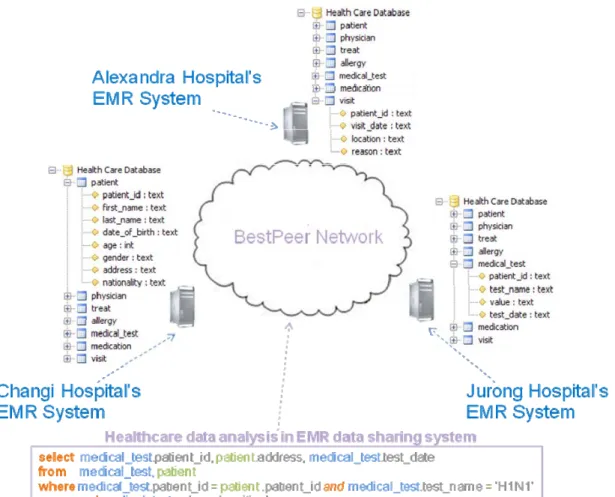
As current practices, each hospital and clinic has its own Practice Management and EMR System to manage its own patient records. Thus, each clinic can only view its own patients’ data. The possible consequences of this situation are: no data/knowledge sharing, inefficient and ineffective healthcare service for the nation.
BestPeer Pte. Ltd., Co. Reg. 200722504H. All rights reserved. Page 7
The adoption of BestPeer as a platform for EMR Data Sharing application, as illustrated in Figure 3, is a dynamic and cost-effective solution for national healthcare network. It provides continuity of care: patient records are available to other care-givers as needed. It also play as a gateway to other services such as e-prescribing, lab/x-ray orders and results. More importantly, it promotes data integration in a national healthcare network by cumulative record of patient data. Now, each EMR system shares its data with the EMR Data sharing platform. Hence, physician can access patient treatment history from other clinics/hospitals. Moreover, the national healthcare authority can perform healthcare data analysis or report based on shared data on the network.
BestPeer Pte. Ltd., Co. Reg. 200722504H. All rights reserved. Page 8
2. BestPeer Installation and Demonstration
In this section, we first describe the installation process of BestPeer software. Then, we demonstrate BestPeer’s functions of data query/analysis for EMR healthcare data sharing platform using sample generated data to help customers have a quick feeling of our solution. We will describe the full functionalities of BestPeer in Section 3.
2.1. Installation
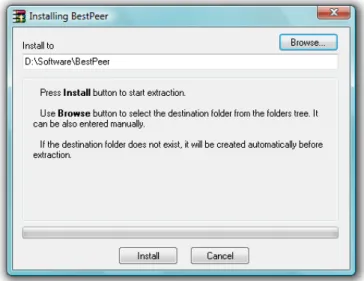
BestPeer software is distributed as a self-extracting file, which can be downloaded from BestPeer website. To install BestPeer, users execute (double-click) the downloaded installation file, then the software will automatically unpack to the
$BestPeerHome$ folder defined by users, for e.g. “D:\Software\BestPeer” as shown in Figure 4.
Figure 4: BestPeer installation interface
Table 1 describes the names and functions of the script files found in the $BestPeerHome$ after installation process. The functions of these files will be explained in more details when they are used in next sections.
BestPeer Pte. Ltd., Co. Reg. 200722504H. All rights reserved. Page 9
Filename Description
step1_start_all_databases.bat Start all underlying databases
step2_generate_sample_data.bat Generate sample data for EMR Data Sharing application
step3_run_bootstrap.bat Run Bestpeer Service Provider program step3_run_peer1.bat
step3_run_peer2.bat step3_run_peer3.bat
Run Bestpeer nodes to connect to individual EMR systems
stop_all_databases.bat Stop all underlying databases Table 1: Script files in $BestPeerHome$ folder
2.2. Run BestPeer on a Single Machine
Users can comfortably test BestPeer for EMR data sharing application on a single machine in following steps: start all underlying databases, generate sample data, then execute and test BestPeer program.
Start databases
Since BestPeer system physically stores data in underlying databases, we need to activate these databases so that BestPeer software can work. To start these databases, users execute (double-click) the script file named “step1_start_all_databases.bat” in $BestPeerHome$ folder. As shown in Figure 5, this operation will activate 4 databases: 1 database for BestPeer Service Provider and the other 3 databases for BestPeer nodes run at individual EMR systems.
BestPeer Pte. Ltd., Co. Reg. 200722504H. All rights reserved. Page 10 After executing the script file “step1_start_all_databases.bat”, four databases are expected to run properly as shown in Figure 5. Note that if one of these databases does not start (its window does not show up), users need to execute the script file “stop_all_databases.bat” in $BestPeerHome$ folder and then start them all again until we activate 4 databases successfully.
Generate sample data
In this step, users execute the script file named “step2_generate_sample_data.bat” in $BestPeerHome$ folder. This operation will generate sample data for EMR Data Sharing application and install them into the above 4 databases. These data include global schema defined at the BestPeer service provider, EMR data at individual EMR systems, schema mapping definition at BestPeer nodes. Note that, this step will show up some more console windows and takes about 10 seconds to finish all the generating-data-commands; then these console windows will automatically exit.
Then in the next step, users only need to export data from individual EMR systems into BestPeer data sharing platform and index these data to facilitate efficient query processing. Afterwards, users can comfortably use the web interface to query data and perform some data analysis task.
It is worth noting that we generate sample data (including global schema at BestPeer service provider, schema mapping at BestPeer nodes, access control policy, etc…) solely for convenient demonstration purpose. Users can define all these metadata via BestPeer graphic user interfaces (GUIs) as we will describe in Section 3.
Run and test BestPeer system
In this step, users start the BestPeer Service Provider program; execute the BestPeer nodes at 3 individual EMR systems; export and index data from individual EMR systems into BestPeer data sharing platform; and finally submit queries and perform data analysis task.
BestPeer Pte. Ltd., Co. Reg. 200722504H. All rights reserved. Page 11 Start BestPeer Service Provider
To start BestPeer service provider, users execute the script file named “step3_run_bootstrap.bat” in $BestPeerHome$ folder. The interface of BestPeer service provider program is illustrated in Figure 6.
Figure 6: BestPeer service provider interface Start BestPeer servers at individual EMR systems
To start BestPeer nodes, users sequentially execute the script files named “step3_run_peer1.bat”, “step3_run_peer2.bat”, “step3_run_peer3.bat” in $BestPeerHome$ folder.
BestPeer Pte. Ltd., Co. Reg. 200722504H. All rights reserved. Page 12 The login interface of BestPeer server is illustrated in Figure 7. The sample
username/password information for local administrators to log into these three
BestPeer nodes are (u1/u1), (u2/u2), (u3/u3) respectively.
Export and index data from individual EMR systems into BestPeer
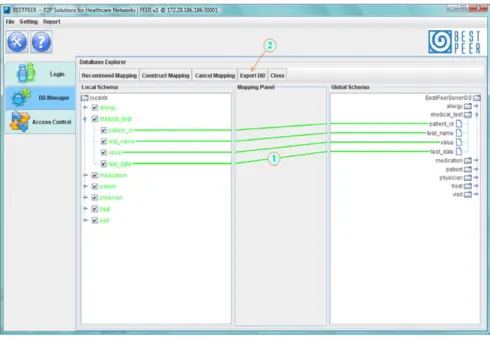
After 3 nodes have successfully joined and cooperated in BestPeer network, we now export data from individual EMR systems into BestPeer data sharing platform. Users first select the Tab named “DB Manager” in the BestPeer server’s main interface and then press the Button “Database Explorer”, we will get the interface as shown in Figure 8.
Figure 8: GUI for schema mapping definition.
This is the schema mapping between the local database and global data schema. Note that the schema mapping has been pre-defined in the sample generated data for demonstration purpose. Users can refer to Section 3 for detailed description of how to define global schema at BestPeer service provider and schema mapping at BestPeer data nodes.
Users press the button captioned “Export DB” in Figure 8 to enter the GUI for exporting and indexing data into BestPeer network.
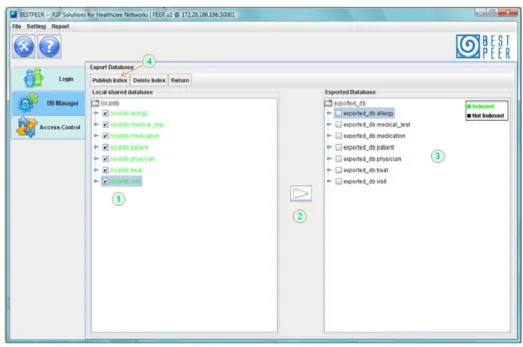
BestPeer Pte. Ltd., Co. Reg. 200722504H. All rights reserved. Page 13 The GUI for data exporting and indexing is shown in Figure 9.
Figure 9: GUI for data exporting and indexing.
Select tables in the local dabase of EMR system to export into BestPeer system. Press this button to export the tables selected in step 1.
Select the tables and columns that users desire to index. If a table is not indexed, it will not be seen and queried by other BestPeer data nodes in the network. Column indices are optional; they only faciliate fast query processing.
Press this button to index the table and column selected in step 3. Login to BestPeer web interface
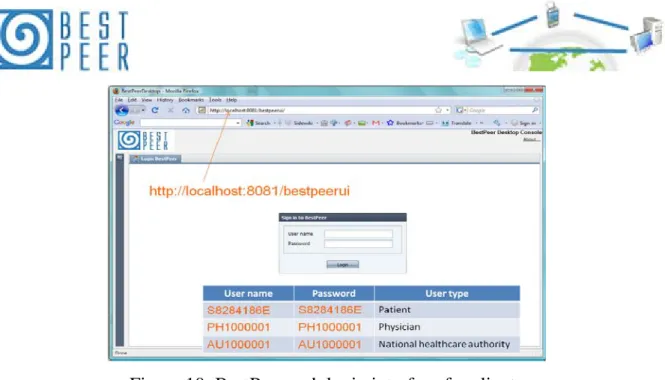
BestPeer also provides web interface for normal users to query data shared on the platform and perform data analysis tasks. The BestPeer web work best with Firefox and Google Chrome web browser. Users follow this address
“http://localhost:8081/bestpeerui/” to login BestPeer web interface. The sample
username/password information for normal users are (S8284186E/S8284186E),
(PH1000001/PH1000001), (AU1000001/AU1000001). The web interface for user login is depicted in Figure 10.
BestPeer Pte. Ltd., Co. Reg. 200722504H. All rights reserved. Page 14 Figure 10: BestPeer web login interface for clients
In the demo EMR data sharing application, there are three types of users, each of which has different access privileges on the shared patient record data. In particular, a patient (e.g. user S8284186E) can only see her/his own records. A physician (e.g. user PH1000001) has wider access roles, but still can only see records of patients under his treatment. Of course, physicians can be granted temporary rights to access other patients’ record (not under his treatment) in emergency cases.
Finally, a user coming from the national healthcare authority (e.g. user AU1000001) can access all patient record data for nation-wide healthcare data analysis and report. Again, these access control policies have been pre-defined in the sample data. Users can refer to Section 3 for details on how to define access control policy using BestPeer interfaces.
Query data and perform data analysis task
Now, we demonstrate how different users query the data in BestPeer EMR data sharing platform.
Figure 11 illustrates the web interface for a patient user (e.g. user S8284186E) to execute a built-in report query that lists the hospital-visit history of this user. Note that the term “report query” refers to some typical query templates that a user tends to
BestPeer Pte. Ltd., Co. Reg. 200722504H. All rights reserved. Page 15 execute frequently. Thus, we prepare these queries as built-in functions; and users can run them directly without having to design these queries.
Figure 11: Web interface for executing built-in report queries. Select the function to execute “report query”.
Select the built-in report query to execute, for e.g. “visit_history” query to list his hospital visit history.
Press this “Submit query” button to execute the selected query. This is the description about the selected query.
The result set of query execution is shown in this panel. We note two things from the result set of this “visit_history” query. First, this user can only view her own visit list. Second, the query results reveal that the user has visited different hospitals in different time. This information can only collected from the shared data of individual EMR systems that join BestPeer data sharing platform.
Figure 12 shows the web interface for a physician user (e.g. user PH1000001) to perform data mapping function. In EMR data sharing scenarios, different physicians
BestPeer Pte. Ltd., Co. Reg. 200722504H. All rights reserved. Page 16 may use different terms which actually refer to the same concepts, for e.g. “cephalalgia”, “cephalea”, “cephalgia” all are medical local terms for general global term “headache”. Each BestPeer data node needs to map its local terms to the proper global terms so that the system can return correct result set when the queries have predicate on these terms. Fortunately, as shown in Figure 12, BestPeer can help users to automatically perform this data mapping tasks for most of the cases based on Wordnet synonym database. Users only need to define the mapping for new terms; and these new terms will be cumulatively store into the global term directory.
Figure 12: Web interface for defining data mapping Select the data mapping function.
Select the table and column to check the data mapping definition.
Map a local term to a global term. As shown in Figure 12, BestPeer can suggest the mapping in most of the case and release the users from the burdens of this data mapping function.
BestPeer Pte. Ltd., Co. Reg. 200722504H. All rights reserved. Page 17 Figure 13 depicts the web interface for a physician user to perform report query with input parameters. This kind of report query requires users to input parameters for its query predicate during the execution of this report query.
Figure 13: Web interface for executing report queries with parameters. Select “Query Browser” and “Report Query” function.
Select the built-in report query to execute, for e.g. “medication_history” query to list the medication history of a certain patient. The patient_id of this patient will be the input parameters.
Press this “Submit query” button to execute the query.
The physician needs to interactively input the patient_id of the patient that he wants to check medication history.
Figure [14, 15, 16] depicts the web interfaces for a physician user to perform adhoc-queries through three stages. In BestPeer data sharing platform, there are some cases that the built-in report queries do not suffice for the user’s requirement. In these cases, users can design the query by themselves with the guide and supported interface of BestPeer. Moreover, users can store these newly designed queries as a built-in report query for future use.
BestPeer Pte. Ltd., Co. Reg. 200722504H. All rights reserved. Page 18 Figure 14: Perform an ad-hoc query (stage 1: choose tables to query)
Select “Ad-hoc Query” function.
Select the table to query, for e.g. “medical_test” table. Press this “Select” button to choose the table.
Press this “Next” button to go to the next stage of perform ad-hoc query, as shown in Figure 15.
Figure 15: Perform an ad-hoc query (stage 2: define attributes to retrieve and query predicate)
BestPeer Pte. Ltd., Co. Reg. 200722504H. All rights reserved. Page 19 Press this “Add column” to display more column of the selected tables for attribute projection.
Select which column for attribute projection. Define the query predicate on a specific attribute.
Define aggregation type on a specific attribute, for e.g. “group by” or “sum”, “count”, “max”, “min”, “avg”.
Determine whether this attributed will be projected and shown in result set or only used in query predicate.
Press this “Next” button to go to the final stage of perform ad-hoc query, as shown in Figure 16.
Figure 16: Perform an ad-hoc query (stage 3: view results and create report query) The query results are shown in this panel. Also note that this results show how data mapping works: different terms of “H1N1” used in different hospitals, but all of them
BestPeer Pte. Ltd., Co. Reg. 200722504H. All rights reserved. Page 20 will be mapped back to the global term and compared to the query predicate on this attribute.
If users find that this newly designed ad-hoc query is useful in the future, they can choose to store it as built-in report query.
Finally, Figure [17, 18] illustrate the web interfaces for a national healthcare authority user to perform data analysis task in BestPeer EMR data sharing platform.
Figure 17: Perform data analysis task (execute report query and define axis/graph type for drawing analysis graph)
Select the function to execute “report query”.
Select the report query to execute, for e.g. “dengue_distribution” query to display the places of dengue outbreak in Singapore.
Press this “Submit query” button to execute the query.
Press this “Build Analysis Graph” button to draw the analysis graph for the result set of this query.
BestPeer Pte. Ltd., Co. Reg. 200722504H. All rights reserved. Page 21 Define the axis for drawing analysis graph and choose the graph type, such as column, line, bar, or pie graph. The example column graph is shown in Figure 18.
Figure 18: Perform data analysis task (viewing graph results)
The analysis graph results obtained when performing “dengue_distribution” report query. It shows the number of dengue cases for each outbreak place in the form of column graph.
Stop databases
After finishing the test with BestPeer, users might want to stop all the underlying databases to release all the resources for the operating system. To stop these databases, users execute the script file named “stop_all_databases.bat” in $BestPeerHome$ folder.
2.3 Run BestPeer on Multiple Machines
The steps to run BestPeer on multiple machines are similar to the steps when run on a single machine. The only difference is that while in the previous case we start all the databases and BestPeer programs (including the service provider and data nodes) on a
BestPeer Pte. Ltd., Co. Reg. 200722504H. All rights reserved. Page 22 single machine, now we run BestPeer programs (and their associated underlying databases) on different machines, for e.g. we run BestPeer service provider program on one machine and 3 BestPeer instances of data node on other 3 machines.
The script files to start/stop a specific underlying database are stored in $BestPeerHome$/script_db folder. The script files to generate sample data for BestPeer service provider and data nodes are stored in $BestPeerHome$/generate_demo_db folder.
BestPeer Pte. Ltd., Co. Reg. 200722504H. All rights reserved. Page 23
3. Other Functions of BestPeer Software
In previous sections, we mainly demonstrate BestPeer’s functions of data query/analysis for an EMR healthcare data sharing application using sample generated data. Now, we describe other functions that have been integrated to the current version of BestPeer software in details. BestPeer software provides functions for three main categories of users: the service provider who provides BestPeer corporate network platform, the local administrators at the participating production systems and the normal users who mainly query the data shared in corporate network.
3.1. Functions for Service Provider
The BestPeer software package for the service provider includes the following functions as illustrated in Figure 19:
BestPeer Pte. Ltd., Co. Reg. 200722504H. All rights reserved. Page 24 Start the service for multiple organizations to join the corporate network.
Stop providing the service.
Manage global data schema. The BestPeer software also provides functions for each participant joining the corporate network to map its local schema to this global schema before sharing data (schema mapping is presented in section 3.2).
Manage peer accounts for local administrator at participating production systems to join the corporate network.
Define some standard role-based access control policies. Manage global data schema
Figure 20: Manage global data schema. Select the corporate database to add a new table.
BestPeer Pte. Ltd., Co. Reg. 200722504H. All rights reserved. Page 25 Add a new column to the table.
Delete the table.
Distribute global schema to participating peers.
We note that the global data schema will be automatically sent to the new participating peer when this fresh participant first joins the corporate network.
Manage peer accounts
Figure 21: Manage peer accounts.
Add a new peer account for the administrator at a specific participating ERP to join the corporate network.
Modify the peer account information. Delete the user account.
BestPeer Pte. Ltd., Co. Reg. 200722504H. All rights reserved. Page 26 Define rolebased access control
Figure 22: Define role-based access control. Select existing role to modify.
Create a new role. Define role hierarchy.
Define specific privileges for a role on the schema objects.
3.2. Functions for Administrator at Participating Organization
The BestPeer software package for the participating organizations in corporate network includes the following functions:
BestPeer Pte. Ltd., Co. Reg. 200722504H. All rights reserved. Page 27 • Schema mapping. The BestPeer software provides functions for each participant joining the corporate network to map its local schema to the global data schema defined by the service provider.
• Export data and publish index. The participating production system extracts its data to the peer data node and publishes the index of this data into the network. It is noted that the peer data node and the exported data are still in the participant’s boundary. Only the index of the shared data is distributed over the corporate network.
• Access control configuration. The administrator of the participating production system assigns access right to normal users with respect to the role-based access control policy defined by the service provider. This administrator can also extend the role definition (defined by the service provider) to use under his administrating domain only.
• Generating reports. BestPeer software also provides functions for local administrator of a participating ERP to generate reports and track the system state. These system reports can be viewed on screen or can be saved as pdf (portable document format) file for easy reference and as rtf (rich text format) file for later easy editing in word processor programs.
BestPeer Pte. Ltd., Co. Reg. 200722504H. All rights reserved. Page 28 Define schema mapping
Figure 23: Define schema mapping.
Select two corresponding attributes (one from local data schema and another from global data schema) to define a mapping between them.
Construct a mapping between two corresponding attributes.
Cancel (destruct) a mapping between two corresponding attributes.
BestPeer Pte. Ltd., Co. Reg. 200722504H. All rights reserved. Page 29 Export data and publish index
Figure 24: Export data and Publish index.
Select which local data (table/attributes) to share with the corporate network. Execute the export data command.
Select which exported data (table/attributes) to index over the corporate network. Publish the index of selected data at the above step 3.
Un-publish the index of data that previously published. This function is used when a participant does not want to share a specific table with the corporate network any longer.
BestPeer Pte. Ltd., Co. Reg. 200722504H. All rights reserved. Page 30 Periodical changed data capture
Figure 25: Setting time for periodical changed data capture. Select menu Setting/Data Export Time.
Define at which time in the day that the system will automatically merge out data from local databases into BestPeer data nodes. The system will trigger this changed data capture function at this time every day.
BestPeer Pte. Ltd., Co. Reg. 200722504H. All rights reserved. Page 31 Access control configuration
Figure 26: Access control configuration. Select an existing user account to modify its access right.
Create a new normal user account. Normal user accounts are provided to users (who can come from the participating ERP or from public domain) for querying the privileged data in corporate network.
Grant access roles to the normal user accounts.
Grant some more specific privileges (that are not defined in the access roles) on some schema objects.
We note that access operations to the data shared in business corporate network need to be controlled in the most satisfactory way. To fulfill this requirement, we employ distributed role-based access control. In corporate network, users who access data on a certain peer can come from different participating organizations. However, the local administrators of participating organizations reserve the right to manage the access of users on their own exported data. Hence, when a local administrator creates a new user
BestPeer Pte. Ltd., Co. Reg. 200722504H. All rights reserved. Page 32 account under his domains, he also sends this user information to other peers in the corporate network. In this way, each peer can identify users from other administrative domains and the local administrator of that peer can define the access control policy by determining whether to assign a user to a specific role or not.
Generating Reports
BestPeer software also provides functions for local administrator of a participating ERP to generate reports and track the system state. These system reports can be viewed on screen or can be saved as pdf (portable document format) file for easy reference and as rtf (rich text format) file for later easy editing in word processor programs. Some examples of system reports are statistics on disk space utilization, the list of peer data nodes that are sharing partitions of a certain table in global data schema, all privileges on schema objects that have been granted to a normal user. We demonstrate here (please see Figure 27) the function of generating detailed reports on the access control policy that has been granted to a specific user. When the system has complex role hierarchy and a large number of users, it is rather complicated to identify exactly which privileges have been granted to a user via user-roles assignments. Hence, this kind of reports help the local administrator at a participating ERP easily double check the access control policy applied to a user (all privileges on schema objects that have been granted to that user) and ensure that the user is granted with the minimum (least) privileges for her/his work only.
BestPeer Pte. Ltd., Co. Reg. 200722504H. All rights reserved. Page 33 Figure 27: Generating system reports.
Select menu to generate and view reports.
Print reports into pdf (portable document format) file for easy reference.
Print reports into rtf (rich text format) file for later easy editing in word processor programs.
It is important to note that BestPeer software currently supports functions to generate system reports for the service provider and local administrators to track the system state. Work reports for normal users often adhere to specific business rules and application context. These work reports can be implemented as functions in the applications built on top of BestPeer corporate network or as plug-in components to integrate into BestPeer software.
BestPeer Pte. Ltd., Co. Reg. 200722504H. All rights reserved. Page 34
3.3. Functions for Normal Users at Participating Organization
The BestPeer software package for normal users mainly provides functions and interfaces for these users to query the data shared in corporate network. Currently, BestPeer system supports typical SPJ (select-project-join) queries and aggregate queries.
Query the corporate network
Figure 28: Query the corporate network.
Input an SQL query based on the global data schema define by the service provider.
Submit the query into corporate network. The BestPeer system will perform query processing and return the results to this querying peer.
Set query waiting time. Due to network latency between peer data nodes in corporate network, users might want to increase the query waiting time so that complete result set can be received.
BestPeer Pte. Ltd., Co. Reg. 200722504H. All rights reserved. Page 35 Query data under access control
It is noted that the query result set might reflect the access control configurations that have been configured by the administrators of participating ERPs. Figure 29 shows the case of result set under column-level access control: the queried attribute is filled with 0 or null value when the user has no access right on it.
Figure 29: Query result under column-level access control.
Figure 30 illustrates the case of result set under row-level access control: the result set only contains records that satisfy some certain selection clauses defined by the row-level access control.
BestPeer Pte. Ltd., Co. Reg. 200722504H. All rights reserved. Page 36
3.4. Database configuration
Since BestPeer system physically stores data in underlying database, the database connection information need to be configured correctly before BestPeer software components can start.
Setting database connection for BestPeer software to operate at service provider: When the BestPeer service provider first runs and cannot connect to its underlying database, it will show up a GUI for users to enter appropriate database connection information as shown in Figure 31.
Figure 31: Setting database connection for BestPeer service provider. Setting database connection for participating ERPs:
When a BestPeer node first run and cannot connect to its underlying databases, it will show up a GUI for users to enter appropriate database connection information as shown in Figure 32. A Bestpeer node requires information for two database connections: 1) information for database connection to the Local DB, the database of the participating system that exports data to BestPeer network, please see in Figure
BestPeer Pte. Ltd., Co. Reg. 200722504H. All rights reserved. Page 37 32; and 2) information for database connection to BestPeer DB, the database for BestPeer node to run, please see in Figure 32.
BestPeer Pte. Ltd., Co. Reg. 200722504H. All rights reserved. Page 38
4. Contact us
If you would like additional information about the BestPeer software, BestPeer company and services, please find the contact information located below.
16, Ayer Rajah Crescent,
Tempco Technominium #04-05E, Singapore 139965
Phone +65 6773 1438 Fax +65 6773 2875
Website: www.bestpeer.com Email: [email protected]