1. Quick Setup
3. Programming
2. Features
IntraMail
System Guide
4. Soft Key Glossary
IntraMail requires version 03.**.** system software, CPU P/N 80025B (in DS2000), and cabinet P/N 80200A (in DS1000).
If you are not familiar with the IntraMail features, review
the IntraMail Feature Glossary on page 12.
Default Mailbox List
Mailbox Type Range
Announcement 008-0151
Call Routing 000-0071
Subscriber 300-427 in DS2000, 300-333 in DS1000
Master 600-607, 700-7071
Total Mailboxes 160 in DS2000, 66 in DS10001
• By default in DS1000, only the first 8 (300-307) extensions have Subscriber Mail-boxes enabled.
• By default in DS2000, only the first 16 (300-315) extensions have Subscriber Mail-boxes enabled.
This manual has been developed by NEC Unified Solutions, Inc. It is intended for the use of its customers and service personnel, and should be read in its entirety before attempting to install or program the system. Any comments or suggestions for improving this manual would be appreciated. Forward your remarks to:
NEC Unified Solutions, Inc.,
4 Forest Parkway Shelton, CT 06484
www.necunifiedsolutions.com
Nothing contained in this manual shall be deemed to be, and this manual does not constitute, a warranty of, or representation with respect to, any of the equipment covered. This manual is subject to change without notice and NEC Unified Solutions, Inc. has no obligation to provide any updates or corrections to this manual. Further, NEC Unified Solutions, Inc. also reserves the right, without prior notice, to make changes in equipment design or components as it deems appropriate. No
representation is made that this manual is complete or accurate in all respects and NEC Unified Solutions, Inc. shall not be liable for any errors or omissions. In no event shall NEC Unified Solutions, Inc. be liable for any incidental or consequential damages in connection with the use of this manual. This document contains proprietary information that is protected by copyright. All rights are reserved. No part of this document may be photocopied or reproduced without prior written consent of NEC Unified Solutions, Inc.
©2004 by NEC Unified Solutions, Inc. All Rights Reserved. Printed in U.S.A.
IntraMail Part Numbers and Capacities
P/N 80044 IntraMail 4 Port/4 Hour
P/N 80088 IntraMail 8 Port/8 Hour
Mailboxes Announcement: 8
Call Routing: 8
Subscriber (DS1000): 34 Subscriber (DS2000): 128 Master: 16
Total (DS1000): 66 Total (DS2000): 160
Ports: 4 or 8
Table of Contents
Table of Contents
Chapter 1: Quick Setup . . . 1
Installation . . . 1
DS1000 Installation . . . .1
Installing IntraMail in DS1000 . . . .1
DS2000 Installation . . . .4
Installing IntraMail in DS2000 . . . .4
Programming. . . 6
Initial Configuration and Programming. . . .6
Start-Up Programming . . . .6
Start-up (Default) IntraMail Configuration. . . 6
Start-up IntraMail Programming . . . 6
IntraMail System Requirements . . . .7
Specifications . . . .7
Application Examples . . . .8
Examples of Some Common Applications . . . .8
Example 1: Set Up Separate Day and Night Greetings . . . 8
Example 2: Provide Unique Day and Night Dialing Options for Callers . . . 9
Chapter 2: Features . . . 11
Introduction to IntraMail Features . . . 11
IntraMail Feature Glossary . . . 12
Announcement Mailbox. . . 22
The Next Call Routing Mailbox Options. . . 22
Announcement Message . . . 27
Answer Schedule Override . . . 28
Answer Tables . . . 30
The Default Mailbox and Routing Hierarchy . . . 31
Customizing an Answer Table. . . 31
Answering Machine Emulation . . . 35
Auto Attendant Do Not Disturb . . . 37
Auto Erase or Save. . . 40
Auto Time Stamp . . . 41
Automated Attendant . . . 42
Automated Attendant Transfer. . . 45
Automatic Routing for Rotary Dial Callers . . . 46
Call Forward to a Mailbox . . . 47
Call Forwarding a Subscriber’s Direct Inward Line to their Mailbox. . . 47
Call Routing Mailbox. . . 49
Call Screening . . . 53
Call Screening and Group Mailboxes . . . 53
Automatic Call Screening . . . 53
MW LED Operation Change . . . 53
Caller ID. . . 56
Caller ID with Return Call . . . 57
Table of Contents
ii ◆ Table of Contents IntraMail System Guide
Centrex Transfer . . . 59
Conversation Record . . . 61
Conversation Record Key for a Co-worker’s Mailbox . . . 61
Dial Action Table. . . 64
Dial Action Table Options. . . 65
Directory Dialing . . . 68
Using a Routing Mailbox for Directory Dialing . . . 68
Using a Master Mailbox for Directory Dialing . . . 71
Dialing Options Available while Entering a Name . . . 74
Dialing Options Available when more than one Employee has the Entered Name . . . . 75
Directory Dialing Mailbox. . . 76
Erasing All Messages. . . 77
Exiting a Mailbox. . . 78
Extension Hunting to Voice Mail . . . 79
Extension Hunting to Voice Mail Routing Charts. . . 79
Ring No Answer Trunk (Type 1) Hunting to Voice Mail . . . 81
Ring No Answer / Busy Trunk (Type 2) Hunting to Voice Mail . . . 82
Ring No Answer / Busy All (Type 3) Hunting to Voice Mail. . . 82
Busy Trunk (Type 4) Hunting to Voice Mail . . . 83
External Transfer . . . 84
Fax Detection . . . 86
Flexible Answering Schedules. . . 87
Flexible Call Routing . . . 88
Flexible Mailbox Numbering Plan. . . 89
Flexible Numbering Plan Example . . . 89
Forced Unscreened Transfer . . . 90
Getting Recorded Help. . . 91
Go To A Mailbox . . . 92
Greeting . . . 94
Remote Greetings . . . 94
Multiple Greetings . . . 94
Group Mailbox . . . 98
Understanding Group Mailbox Types . . . 98
Guest Mailbox . . . 101
Enhanced Guest Mailbox. . . 101
Hang Up . . . 104
Instruction Menu . . . 105
Leaving a Message. . . 107
Additional Options While Leaving a Message . . . 107
Listening to Messages . . . 109
Telephone Display while Listening to a Message . . . 110
Log Onto Voice Mail . . . 112
Local (On-site) Logon . . . 112
Remote Log On . . . 112
Mailbox Name . . . 114
Mailbox Options Menu . . . 116
Mailbox Security Code Delete . . . 117
Main Menu . . . 118
Make Call . . . 120
Master Mailbox . . . 122
Using Master Mailboxes for UCD Hunting Group Overflow . . . 123
Table of Contents
Using Master Mailboxes as Additional Call Routing Mailboxes . . . 124
Using Master Mailboxes as Additional Announcement Mailboxes . . . 125
Using Master Mailboxes as Guest Mailboxes . . . 125
Using Master Mailboxes for Directory Dialing. . . 125
Message Count Display . . . 126
Message Delete . . . 128
Message Forward . . . 129
Message Length . . . 131
Message Listen Mode . . . 132
Message Notification . . . 133
How Message Notification Works to Normal Telephone Numbers . . . 133
How Message Notification Works to Digital Pager Numbers. . . 133
Programming that Applies to All Types of Message Notification . . . 134
Unique Programming for Non-pager Message Notification . . . 135
Unique Programming for Digital Pager Message Notification . . . 136
Message On Hold. . . 139
Message Playback Direction . . . 141
Message Record . . . 142
Message Reply . . . 143
Message Retention . . . 144
Message Retention Guard Time . . . 144
Message Storage Limit. . . 145
Message Waiting Lamp . . . 146
Multiple Company Greetings. . . 147
Next Call Routing Mailbox . . . 148
Subscriber Mailbox Options . . . 148
Announcement Mailbox Options. . . 150
Programming Subscriber Mailboxes . . . 152
Programming Announcement Mailboxes . . . 152
Programming Voice Mail. . . 154
Quick Message . . . 156
Record and Send a Message. . . 158
Recording Options . . . 158
Remote Programming . . . 160
Screened Transfer. . . 161
Screened vs. Unscreened Transfer. . . 161
Screened Transfer and Inactive Mailboxes . . . 161
Security Code . . . 164
Single Digit Dialing . . . 166
Subscriber Mailbox . . . 168
System Administrator . . . 171
System Administrator Mailbox . . . 173
System Re-initialization . . . 174
Time and Date . . . 175
Time and Date Stamp. . . 176
Time and Date Stamp with Caller ID . . . 176
Transfer to a Mailbox. . . 177
Enhanced Mailbox Transfer . . . 177
Transfer to a UCD Group. . . 178
Undefined Routing . . . 179
Unscreened Transfer . . . 180
Table of Contents
iv ◆ Table of Contents IntraMail System Guide
Unscreened Transfer and Inactive Mailboxes . . . 180
Voice Mail Overflow . . . 183
Programming Group Ring DIL Overflow . . . 183
Programming UCD Hunting Group Overflow . . . 184
Programming DIL Overflow . . . 184
Programming Key Ring Overflow. . . 185
Voice Prompting Messages . . . 186
Volume Control . . . 187
Chapter 3: Programming. . . 189
Introduction to Programming . . . 189
Before You Start Programming . . . .189
How To Use This Chapter . . . .189
0101 - Class of Service . . . 190
0101 - Class of Service Options . . . .190
Options . . . .190
Conversation Record . . . 190
Unsupervised Conference . . . 190
Call Screening . . . 190
0101 Program Entry . . . .191
0200 - Tenant Options. . . 193
0201 - Tenant Option Programming . . . .193
Options . . . .193
Name Format. . . 193
0201 Program Entry . . . .194
1000 - Trunk Programming. . . 195
1003 - Trunk Options. . . .195
Options . . . .195
Direct Termination (Day) . . . 195
Direct Termination (Night) . . . 195
MOH Source . . . 196
Tandem Trunk . . . 196
Answer Table . . . 196
1003 Program Entry . . . .197
1800 - Extension Options . . . 198
1801 - Extension Port Description. . . .198
Options . . . .198
Extension Name . . . 198
Name Programming Chart . . . .199
1801 Program Entry . . . .201
1808 - IntraMail Subscriber Mailbox Options. . . .202
Options . . . .202
Extension Number. . . 202
Mailbox Type . . . 202
Mailbox Active . . . 202
Number of Messages . . . 203
Message Playback . . . 203
Auto Erase/Save of Messages . . . 203
Table of Contents
Recording Conversation Beep. . . 204
Message Waiting Lamp. . . 204
Auto Attendant Do Not Disturb . . . 204
Forced Unscreened Transfer . . . 205
Auto Time Stamp . . . 205
System Administrator . . . 205
Dialing Option. . . 205
Next Call Routing Mailbox . . . 206
Directory List Number . . . 206
1808 Program Entry . . . .207
8000 - Voice Mail . . . 208
8001 - Voice Mail Setup . . . .208
Options . . . .208
Voice Mail Type . . . 208
Voice Mail Master Extension Number . . . 208
8001 Program Entry . . . .208
8002 - Voice Mail Port Options (Part 1) . . . .209
Options . . . .209
Name . . . 209
Class of Service . . . 209
Toll Restriction Level (Day) . . . 209
Toll Restriction Level (Night). . . 209
Operator. . . 210
Dial 9 Group . . . 210
Outgoing Trunk Group Access . . . 210
8002 Program Entry . . . .211
8003 - Voice Mail Port Options (Part 2) . . . .212
Options . . . .212
Trunk Number . . . 212
Trunk Access Type . . . 212
8003 Program Entry . . . .212
8004 - IntraMail System Options . . . .213
Options . . . .213
Subscriber Message Length . . . 213
Non-Subscriber Message Length . . . 213
Message Backup/Go Ahead Time. . . 213
Fax Extension . . . 214
Digital Pager Callback Number . . . 214
Delay in Dialing Digital Pager Callback Number. . . 214
Wait Between Digital Pager Callout Attempts . . . 215
Wait Between Non-Pager Callout Attempts . . . 215
Wait Between Busy Non-Pager Callout Attempts . . . 215
Wait Between RNA Non-Pager Callout Attempts . . . 215
Wait for Answer Non-Pager Callout Attempts . . . 216
Number of Callout Attempts . . . 216
Send Pager Callout Until Acknowledged . . . 216
8004 Program Entry . . . .217
8005 - IntraMail Master Mailbox Options. . . .218
Options . . . .218
Mailbox Number . . . 218
Mailbox Type . . . 218
Table of Contents
vi ◆ Table of Contents IntraMail System Guide
Options for Call Routing Mailboxes (1) . . . .219
Options for Announcement Mailboxes (2) . . . .219
Options for Subscriber Mailboxes (3) . . . .219
Options for Directory Dialing Mailboxes (4) . . . .220
Minimum Number of Letters Required. . . 220
Directory List Number to Use . . . 220
Extension Name Match . . . 220
Unscreened or Screened Transfer . . . 221
Screened Transfer Timeout . . . 221
Time Limit for Dialing Commands. . . 221
Fax Detection . . . 221
Next Call Routing Mailbox . . . 222
8005 Program Entry (03.20.07 or Higher) . . . .223
8005 Program Entry . . . .225
8006 - IntraMail Routing Mailboxes . . . .227
Options . . . .227
Mailbox Number . . . 227
Mailbox Type . . . 227
Mailbox Active . . . 227
Options for Call Routing Mailboxes . . . .228
Dial Action Table . . . 228
Screened Transfer Timeout . . . 228
Time Limit for Dialing Commands. . . 228
Fax Detection . . . 229
Options for Announcement Mailboxes . . . .229
Next Call Routing Mailbox . . . 229
Repeat Count . . . 229
Hang Up After . . . 229
Options for Directory Dialing Mailboxes . . . .230
Minimum Number of Letters Required. . . 230
Directory List Number to Use . . . 230
Extension Name Match . . . 230
Unscreened or Screened Transfer . . . 231
Screened Transfer Timeout . . . 231
Time Limit for Dialing Commands. . . 231
Fax Detection . . . 231
Next Call Routing Mailbox . . . 232
8006 Program Entry (03.20.07 or Higher) . . . .233
8006 Program Entry (Prior to 03.20.07) . . . .234
8007 - IntraMail Answer Tables . . . .235
Options . . . .235
Answer Table . . . 235
Answer Schedule Override . . . 235
Override Mailbox . . . 235
Default Mailbox . . . 236
Next Answer Table . . . 236
Schedule Entry . . . 236
Schedule Type . . . 236
Type 1 (Day of the Week) Answer Schedule Options . . . .238
Routing Mailbox Number . . . 238
Day of the Week . . . 238
Table of Contents
Schedule Stop Time . . . 238
Type 1 (Day of Week) Example . . . 239
Type 2 (Range of Days) Answer Schedule Options . . . .240
Routing Mailbox Number . . . 240
Schedule Start Day . . . 240
Schedule End Day . . . 240
Schedule Start Time . . . 241
Schedule Stop Time . . . 241
Type 2 (Range of Days) Example . . . 241
Type 3 (Date) Answer Schedule Options . . . .242
Routing Mailbox Number . . . 242
Schedule Run Date . . . 242
Schedule Start Time . . . 242
Schedule Stop Time . . . 243
Type 3 (Date) Example . . . 244
8007 Program Entry . . . .245
8008 - IntraMail Dial Action Tables . . . .246
Dial Action Table Actions . . . .247
TRF Action - Screened Transfer (1) . . . 247
UTRF Action - Unscreened Transfer (2) . . . 247
REC1 Action - Quick Message With Greeting (3) . . . 248
REC2 Action - Quick Message Without Greeting (4) . . . 248
LOGON Action - Log Onto Voice Mail (5) . . . 248
Hang Up Action (6). . . 249
GOTO Action - Go to Mailbox (7) . . . 249
UND Action - Undefined Routing (0). . . 249
Dial Action Table Numbers (Data) . . . .250
Digits . . . 250
Caller Dialed Digits. . . 250
Ignore Digits . . . 250
No Routing . . . 251
Pause . . . 251
8008 Program Entry . . . .252
Table of Contents
Installation
1
Chapter 1:
Quick Setup
Installation
DS1000 Installation
DS1000 Installation
Installing IntraMail in DS1000
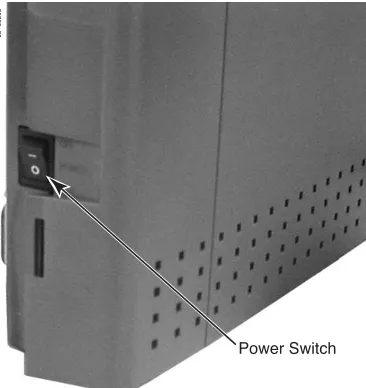
Step 1 Power down the system (Figure 1: Powering Down the DS1000). - Turn off the system power.
- Unplug the system’s AC power cord.
Figure 1: Powering Down the DS1000
Power Switch
Installation
DS1000 Installation
2 ◆ Chapter 1: Quick Setup IntraMail System Guide
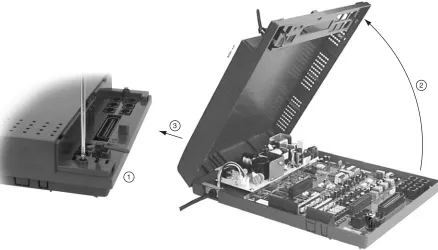
Step 2 Remove the cover (Figure 2: Removing the DS1000 Cover). - Unlock and remove the cover.
Step 3 Label and unplug all extension, trunk, and auxiliary cabling. - This will make reinstallation easier.
- If possible, leave the ground wire connected. This will help prevent static damage when plugging in the IntraMail PCB.
Step 4 Remove the DS1000 cabinet from wall.
Step 5 Remove the cabinet top panel (Figure 3: Removing the DS1000 Top Panel). - Unscrew the 2 captive screws that secure the cabinet top panel to the base. - Lift up and remove the top panel.
Figure 2: Removing the DS1000 Cover
Figure 3: Removing the DS1000 Top Panel
80200 - 2-01
Push button to "OPEN" position
80200 - 4 -01
1
2
Installation
DS1000 Installation
1
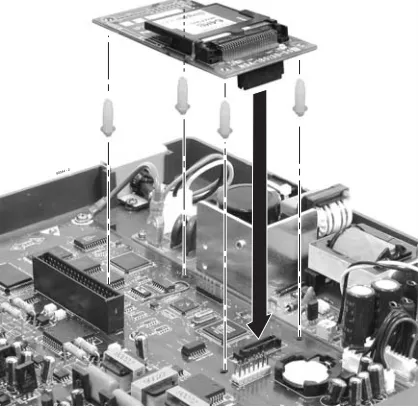
Step 6 Install the IntraMail PCB (Figure 4: Installing the IntraMail PCB in DS1000). - Attach a grounded wrist strap to a known earth ground.
■ Use the cabinet ground lug if the ground wire is still connected.
- Discharge any built-up static electricity by touching the cabinet ground lug. - Plug in the IntraMail PCB as shown below.
■ Be sure to snap the PCB into the supplied plastic standoffs.
Step 7 Replace and re-secure the top panel.
Step 8 Complete the reinstallation. - Hang the cabinet back on the wall.
- Reinstall all extension, trunk, and auxiliary cabling. - Replace and lock the cover.
- Plug in the system and turn on the system power.
Step 9 Verify IntraMail operation.
- After the system restarts, go to any keyset and press MW.
■ You should immediately log into that extension’s mailbox and hear the voice prompt, “You have
no new messages.”
Figure 4: Installing the IntraMail PCB in DS1000
Installation
DS2000 Installation
4 ◆ Chapter 1: Quick Setup IntraMail System Guide
DS2000 Installation
Installing IntraMail in DS2000
Step 1 Power down the system.Step 2 Remove the cover (Figure 5: Removing the DS2000 Cover). - Unscrew the two captive screws on the front cabinet cover.
- Lift up slightly on the front of the cover — then gently slide the cover back to remove it.
Step 3 Remove the CPU PCB (Figure 6: Removing the DS2000 CPU). - Attach a grounded wrist strap to a known earth ground.
- Discharge any built-up static electricity by touching the cabinet ground lug. - Unplug and label the CPU cabling (if installed).
- Remove the CPU and place it on a flat, anti-static surface.
Figure 5: Removing the DS2000 Cover
Figure 6: Removing the DS2000 CPU
80000 - 12
4 Slot Cabinet Shown
8000
0 - 3 0
Installation
DS2000 Installation
1
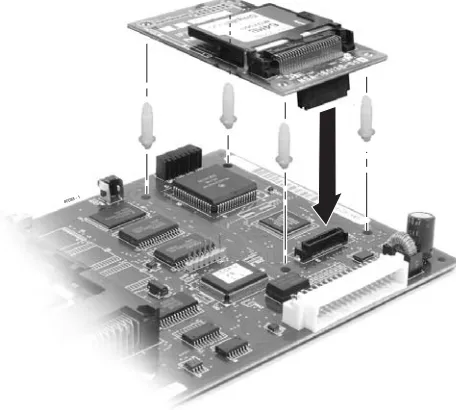
Step 4 Install the IntraMail PCB (Figure 7: Installing the IntraMail PCB in DS2000)
- Plug in the IntraMail PCB as shown below.
■ Be sure to snap the PCB into the supplied plastic standoffs.
Step 5 Reinstall the CPU PCB.
Step 6 Power up the system.
Step 7 Verify IntraMail operation.
- After the system restarts, go to any keyset and press MW.
■ You should immediately log into that extension’s mailbox and hear the voice prompt, “You have
no new messages.”
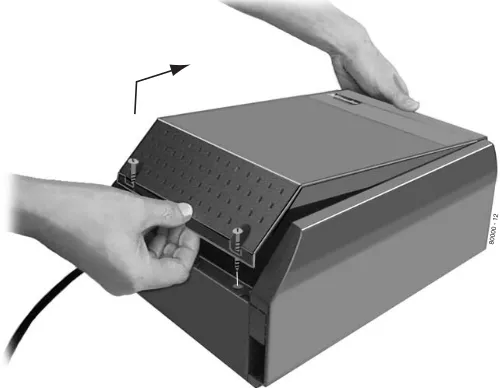
Step 8 Replace the cover (Figure 8: Replacing the DS2000 Cover).
- Hook the tabs on the rear of the cover into their associated slots, then push the front cover into place. - Screw in the 2 captive screws that secure the cover to the cabinet.
Figure 7: Installing the IntraMail PCB in DS2000
Figure 8: Replacing the DS2000 Cover 80088 - 1
80000 - 12 A
Programming
Initial Configuration and Programming
6 ◆ Chapter 1: Quick Setup IntraMail System Guide
Programming
Initial Configuration and Programming
Start-Up Programming
Start-up (Default) IntraMail Configuration
IntraMail automatically assigns a mailbox to each extension in the number plan.
■ By default in DS1000, only the first 8 (300-307) Subscriber Mailboxes are active/enabled.
■ By default in DS2000, only the first 16 (300-315) subscriber mailboxes are active/enabled.
■ The IntraMail Automated Attendant does not answer outside calls. Start-up IntraMail Programming
Step 1 Enable the mailboxes for all installed extensions.
1.1 (Prior to 03.20.07) 1808 - IntraMail Subscriber Mailbox Options: Mailbox Active on page 202. Enter Y (9) to enable the IntraMail mailbox for each installed extension.
- If disabled (N), a user pressing MW will be asked to enter their mailbox number. A voice prompt then announces, “That mailbox does not exist.”
1.2 (03.20.07 or higher) 1808 - IntraMail Subscriber Mailbox Options: Mailbox Type on page 202. Enter 1 (Personal) to enable a Personal IntraMail mailbox for each installed extension.
- If disabled (0), a user pressing MW will be asked to enter their mailbox number. A voice prompt then announces, “That mailbox does not exist.”
Step 2 Set up the Automated Attendant to answer outside calls during the day and at night.
2.1 1003 - Trunk Options: Direct Termination (Day) on page 195.
- Enter the IntraMail master number (700) for each trunk that you want IntraMail to answer.
Step 3 Set up the Automated Attendant to answer outside calls only at night.
3.1 1003 - Trunk Options: Direct Termination (Night) on page 195.
- Enter the IntraMail master number (700) for each trunk that you want IntraMail to answer only when the system is in the night mode.
Step 4 Check the Answer Table assignment.
4.1 1003 - Trunk Options: Answer Table on page 196.
- Initially, you should leave all trunks assigned to Answer Table 1.
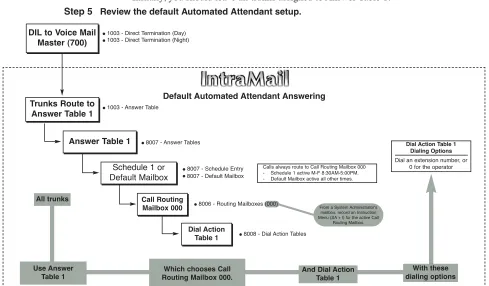
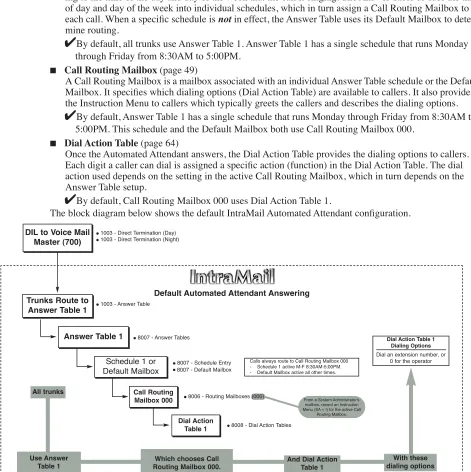
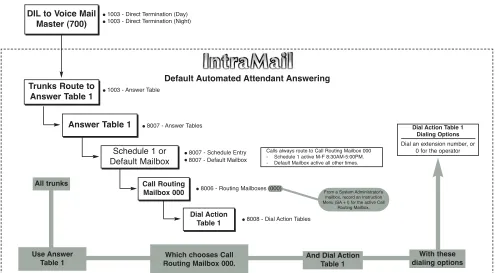
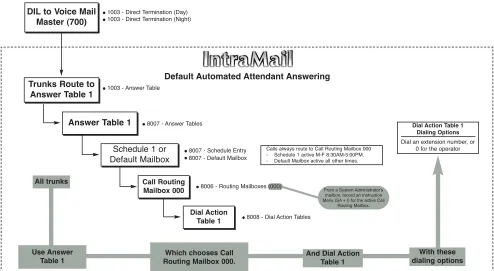
Step 5 Review the default Automated Attendant setup.
DIL to Voice Mail Master (700)
Trunks Route to Answer Table 1
Answer Table 1
Schedule 1 or Default Mailbox
Dial Action Table 1
●1003 - Answer Table
●8007 - Answer Tables
Calls always route to Call Routing Mailbox 000 - Schedule 1 active M-F 8:30AM-5:00PM. - Default Mailbox active all other times.
●8008 - Dial Action Tables
Dial Action Table 1 Dialing Options
Dial an extension number, or 0 for the operator
Default Automated Attendant Answering
All trunks
Use Answer
Table 1 Routing Mailbox 000.Which chooses Call
And Dial Action Table 1
With these dialing options
From a System Administrator's mailbox, record an Instruction Menu (SA + I) for the active Call
Routing Mailbox. ●8006 - Routing Mailboxes (000)
●1003 - Direct Termination (Day)
●1003 - Direct Termination (Night)
Call Routing Mailbox 000
●8007 - Schedule Entry
Programming
Initial Configuration and Programming
1
Note: The following programs are preset. Normally, you should not change their default values.
- 8001 - Voice Mail Setup: Voice Mail Type on page 208.
- 8001 - Voice Mail Setup: Voice Mail Master Extension Number on page 208. - 8002 - Voice Mail Port Options (Part 1): Name on page 209.
IntraMail System Requirements
■ DS1000/2000 System Software version 03.**.** or higher.
■ CPU PCB P/N 80025B (in DS2000)
■ Cabinet P/N 80200A (in DS1000)
Specifications
IntraMail Part Numbers and Capacities
P/N 80044 IntraMail 4 Port/4 Hour
P/N 80088 IntraMail 8 Port/8 Hour
Mailboxes Announcement: 8
Call Routing: 8
Subscriber (DS1000): 34 Subscriber (DS2000): 128 Master: 16
Total (DS1000): 66 Total (DS2000): 160
Ports: 4 or 8
Programming
Application Examples
8 ◆ Chapter 1: Quick Setup IntraMail System Guide
Application Examples
Examples of Some Common Applications
The examples below show some common applications. The chart in the beginning of each example shows:
■ How the relevant programmable options work by default.
■ The Application Summary, which provides the basic steps you need to take to set up the application.
Following the chart are the step-by-step instructions for setting up the application.
Example 1: Set Up Separate Day and Night Greetings
Step 1 Change the Default Mailbox to Call Routing Mailbox 001.
1.1 In 8007 - IntraMail Answer Tables: Default Mailbox, change the Default Mailbox assignment
to 001.
- See 8007 - IntraMail Answer Tables: Default Mailbox on page 236 for more.
Step 2 Record the daytime and night Instruction Menus.
2.1 At extension 300, press MW.
2.2 Dial SA (72) + I (4).
2.3 Dial 000 (for Call Routing Mailbox 000) + R (7).
2.4 Record the daytime Instruction Menu message + # twice.
2.5 Dial I (4).
2.6 Dial 001 (for Call Routing Mailbox 001) + R (7).
2.7 Record the night Instruction Menu message + # + hang up. - See Instruction Menu on page 105 for more.
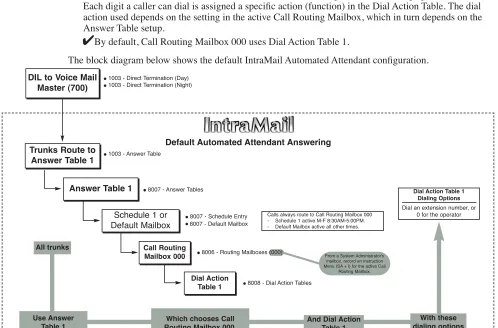
Default Automated Attendant Answering
■ All trunks answered by the Automated Attendant route to Answer Table 1.
- Answer Table 1 uses Schedule 1 to answer calls from 8:30 AM -5:00 PM Monday through Friday with Call Routing Mailbox 000.
- The Default Mailbox for Answer Table 1 picks up Automated Attendant calls at all other times. The Default
Mailbox for Answer Table 1 is also Call Routing Mailbox 000.
■ The greeting that plays to outside callers is the Instruction Menu for the Call Routing Mailbox that answers the call.
■ Since Schedule 1 and the Default Mailbox both use Call Routing Mailbox 000, the Automated Attendant answers all calls the same way day and night, with the Instruction Menu for Call Routing Mailbox 000.
Application Summary
■ Change the Default Mailbox from Call Routing Mailbox 000 to 001.
Programming
Application Examples
1
Example 2: Provide Unique Day and Night Dialing Options for Callers
Step 1 Set up separate day and night greetings.
1.1 Following example 1, set up separate day and night Instruction Menus using Call Routing Mailboxes 000 and 001.
- The day Instruction Menu can say something like:
Thank you for calling. For Sales, dial 301. For Technical Support, dial 302. To talk to an operator, dial 0. If you know your party’s extension number, please dial it now.
- The night Instruction menu can say something like:
Thank you for calling. Our normal business hours are 8:30 to 5:00, Monday through Fri-day. To leave us a message, please dial 0 now.
Step 2 Assign a unique Dial Action Table (2) to the night time Call Routing Mailbox (001).
2.1 In 8006 - IntraMail Routing Mailboxes: Dial Action Table, assign Dial Action Table 2 to Call
Routing Mailbox 001.
- See 8006 - IntraMail Routing Mailboxes: Dial Action Table on page 228 for more.
Step 3 Change the dialing options for the night time Dial Action Table (2).
3.1 In 8008 - Dial Action Table Actions for Dial Action Table 2, make the following changes:
- For the digits 3 and 4, enter 0 for the Action entry to prevent callers from dialing extensions at night.
- For the digit 0, change the Action entry to REC1 (by dialing 3) and the Data entry to 300. This allows night time callers to dial 0 to leave a message for the operator.
- Note that the * and # entries were left unchanged so that experienced users could still leave Quick Messages or do Remote Logons at night.
- See 8008 - IntraMail Dial Action Tables on page 246 for more. Default Dial Action Table Options
■ All Call Routing Mailboxes (000-007 by default) use Dial Action Table 1.
■ Dial Action Table 1 provides the following dial options: - Dial extension number (300-427).
- Dial 0 for the operator.
- Dial * + extension to leave a Quick Message.
- Dial # + extension to do a Remote Logon to the mailbox.
- Timeout to operator if no digits dialed.
Application Summary
Programming
Application Examples
2
Chapter 2:
Features
Introduction to IntraMail Features
Introduction to IntraMail Features
This chapter provides detailed information on the IntraMail features. The features in this chapter are in alphabetical order, like a dictionary. This chapter subdivides each feature definition into headings as follows:
■ Description
Read Description to get an overview of the feature, its benefit, any special considerations you should be aware of, and how it works in the default system.
■ Related Features
Related Features shows you at a glance how the feature interacts with other IntraMail features.
■ Programming
Here you’ll find easy to follow step-by-step programming instructions for the feature. If you need more detail about a program, just follow the page reference to the program in Chapter 3, Programming.
■ Operation
Operation provides charts that show you how the feature operates.
IntraMail Feature Glossary
12 ◆ Chapter 2: Features IntraMail System Guide
IntraMail Feature Glossary
Feature Glossary
Name Description Usage
Administrator Security Code
Control ■ See Security Code in this glossary. Voice Mail Alternate Next Call Routing
Mailbox ■ See Next Call Routing Mailbox in this Glossary. Voice Mail Announcement Mailbox Mailbox that allows a prerecorded greeting to play to callers.
■ See Announcement Mailbox on page 22 for more.
Automated Attendant
Announcement Message The message that the System Administrator records for a specific Announcement Mailbox.
■ See Announcement Message on page 27 for more.
Automated Attendant
Answer Table Determines how the Automated Attendant answers outside calls on each trunk, according to the time of the day and day of the week that the call is ringing.
■ See Answer Tables on page 30 for more.
Automated Attendant
Answering Machine Emulation A keyset on the connected telephone system can work like a home answering machine.
■ See Answering Machine Emulation on page 35 for
more.
Voice Mail
Answering Schedule Override Enables an alternate greeting and alternate dialing options for callers.
■ See Answer Schedule Override on page 28 for more.
Automated Attendant
Auto Attendant Do Not Disturb Auto Attendant Do Not Disturb sends Automated Attendant calls directly to an extension user’s mailbox. Their phone will not ring for calls from the Automated Attendant.
■ See Auto Attendant Do Not Disturb on page 37 for
more. Also see Greeting in this glossary.
Automated Attendant
Auto Erase or Save When a mailbox user completely listens to a new message and then exits their mailbox, IntraMail will either automat-ically save or erase the message.
■ See Auto Erase or Save on page 40 for more.
Auto Time Stamp After a user listens to a message, IntraMail can optionally announce the time and date the message was left.
■ See Auto Time Stamp on page 41 for more.
Voice Mail
Automated Attendant The Automated Attendant can automatically answer the telephone system’s incoming calls, play an Instruction Menu message, and provide dialing options to callers.
■ See Automated Attendant on page 42 for more.
Automated Attendant
Automated Attendant Transfer While on a trunk call, an extension user can transfer their trunk call to the Automated Attendant so the caller can use the Automated Attendant dialing options.
■ See Automated Attendant Transfer on page 45 for
more.
IntraMail Feature Glossary
2
Automatic Call Routing to a
Mailbox ■ See Go to a Mailbox in this glossary. Automated Attendant Automatic Message Erase/Save ■ See Auto Erase or Save in this glossary. Voice Mail
Automatic Routing for Rotary
Dial Callers If an Automated Attendant caller doesn’t dial any digits, IntraMail will automatically route them to a specified
option (such as the operator or a mailbox).
■ See Automatic Routing for Rotary Dial Callers on
page 46 for more.
Automated Attendant
Call Forward to a Mailbox An extension user can forward their calls to their mailbox.
■ See Call Forward to a Mailbox on page 47 for more.
Voice Mail
Call Screening Call Screening allows a display keyset extension user to listen to (screen) a voice mail message as it is being left in their mailbox. Unlike Personal Answering Machine emu-lation, Call Screening does not require the extension user to forward their calls immediately to voice mail.
■ See Call Screening on page 53 for more.
Voice Mail
Call Routing Mailbox The mailbox associated with an Answer Table that speci-fies which dialing options (Dial Action Table) and announcements are available to Automated Attendant call-ers.
■ See Call Routing Mailbox on page 49 for more.
Automated Attendant
Caller ID A telephone company service that provides a caller’s number and optional name. The telephone system can pass this infor-mation to IntraMail to enable Caller ID with Return Call.
■ See Caller ID on page 56 for more.
System
Caller ID with Return Call ■ See Make Call and Time and Date Stamp in this glos-sary.
Voice Mail
Calling (Logging Onto) a Mailbox ■ See Log Onto Voice Mail in this glossary. Voice Mail
Calling the Automated Attendant Automated Attendant callers can use various IntraMail features and then return to the Automated Attendant for additional dialing options.
■ See Calling the Automated Attendant on page 58 for
more.
Automated Attendant
Centrex Transfer The Automated Attendant to transfer a caller from a Cen-trex trunk to an outside number using the features of that Centrex trunk.
■ See Centrex Transfer on page 59 for more.
Automated Attendant
Conversation Record Allows an extension user to record their active call as a message in their mailbox. IntraMail will broadcast a beep and a voice prompt to the callers as Conversation Record begins.
■ See Conversation Record on page 61 for more.
Voice Mail
Day, Night, and Holiday
Greetings ■ See Flexible Answering Schedules in this glossary. Automated Attendant
IntraMail Feature Glossary
14 ◆ Chapter 2: Features IntraMail System Guide
Deleting a Message ■ See Message Delete in this glossary. Voice Mail
Deleting Mailbox Security Code ■ See Mailbox Security Code Delete in this glossary. Maintenance
Dial Action Table Defines the dialing options for a Call Routing Mailbox chosen by the active Answer Table, which in turn provides those dialing options to Automated Attendant callers.
■ See Dial Action Table on page 64 for more.
Automated Attendant
Directory Dialing Directory Dialing allows an Automated Attendant caller to reach an extension by dialing the first few letters in the extension user’s name.
■ See Directory Dialing on page 68 for more.
Automated Attendant
Erasing All Messages Lets the System Administrator delete mailbox messages system-wide.
■ See Erasing All Messages on page 77 for more.
Maintenance
Exiting a Mailbox An extension user can exit their mailbox by dialing a code or by hanging up.
■ See Exiting a Mailbox on page 78 for more.
Voice Mail
External Transfer An Automated Attendant caller can automatically route to an outside telephone number.
■ See External Transfer on page 84 for more.
Automated Attendant
Fax Detection The Automated Attendant can detect incoming fax calls and transfer them to a fax machine.
■ See Fax Detection on page 86 for more.
System
Flexible Answering Schedules The Automated Attendant can answer outside calls with different announcements and dialing options, depending on the time of day and day of week.
■ See Flexible Answering Schedules on page 87 for
more.
Automated Attendant
Flexible Call Routing The Automated Attendant can provide outside callers with a wide variety of dialing (routing) options. There are 3 components to Flexible Call Routing.
Answer Table
Determines how the Automated Attendant answers outside calls on each Voice Mail port, according to the time of the day and day of the week that the call is ringing.
Call Routing Mailbox
The mailbox associated with an Answer Table that speci-fies which dialing options (Dial Action Table) and announcements are available to Automated Attendant call-ers.
Dial Action Table
Defines the dialing options for the Call Routing Mailbox
chosen by the active Answer Table, which in turn provides those dialing options to Automated Attendant callers.
■ See Flexible Call Routing on page 88 for more.
Automated Attendant
IntraMail Feature Glossary
2
Flexible Mailbox Numbering Plan If the telephone system extension numbers are custom-ized, the IntraMail mailbox numbers can be customized to match.
■ See Flexible Mailbox Numbering Plan on page 89 for
more.
System
Forced Unscreened Transfer A Subscriber Mailbox can optionally convert Automated Attendant Screened Transfers to Unscreened Transfers.
■ See Forced Unscreened Transfer on page 90 for more.
Automated Attendant
Forwarding Calls to a Mailbox See Call Forward to a Mailbox in this glossary. Voice Mail
Getting Recorded Help If an extension user dials an incorrect code or forgets what to dial while in their mailbox, they can request help from the IntraMail voice prompts.
■ See Getting Recorded Help on page 91 for more.
Voice Mail
Go to a Mailbox An Automated Attendant caller can dial a digit and route directly into a mailbox.
■ See Go To A Mailbox on page 92 for more.
Automated Attendant
Greeting A Subscriber Mailbox user can record a personalized greeting for their mailbox. Caller’s to the user’s mailbox hear the greeting.
With Remote Greeting, an extension user can call into the Automated Attendant, access their mailbox, and remotely record their mailbox greeting.
DS1000/2000 software versions 03.20.07 and higher pro-vide Multiple Greetings. With Multiple Greetings, the mailbox subscriber can record up to three separate greet-ings and make any one of the three active.
■ See Greeting on page 94 for more.
■ Also see Auto Attendant Do Not Disturb in this glossary.
Voice Mail
Group Mailbox A Group Mailbox is a Subscriber Mailbox shared by a group of co-workers.
■ See Group Mailbox on page 98 for more.
Voice Mail
Guest Mailbox An outside party can have their own mailbox for receiving and sending messages.
■ See Guest Mailbox on page 101 for more.
Voice Mail
Hang Up An Automated Attendant option that immediately hangs up the outside call.
■ See Hang Up on page 104 for more.
Automated Attendant
Help ■ See Getting Recorded Help in this glossary. Voice Mail
Individual Trunk Greetings ■ See Multiple Company Greetings in this glossary. Automated Attendant
IntraMail Feature Glossary
16 ◆ Chapter 2: Features IntraMail System Guide
Instruction Menu The Instruction Menu is the announcement that plays to Automated Attendant callers. Normally, the Instruction Menu provides callers with the Automated Attendant dial-ing options.
■ See Instruction Menu on page 105.
Automated Attendant
Leaving a Message An extension user can leave a voice message in a
co-worker’s mailbox if that extension is busy, unanswered, or in Do Not Disturb.
■ See Leaving a Message on page 107 for more.
Voice Mail
Leaving a Message at a Busy/
DND Extension ■ See Leaving a Message in this glossary. Voice Mail Leave a Quick Message ■ See Quick Message in this glossary. Automated Attendant
Listening Options ■ See Listening to Messages in this glossary. Voice Mail
Listening to Messages While or after listening to a message, an extension user has many message handling options from which to choose.
■ See Listening to Messages on page 109 for more.
Voice Mail
Local Notification ■ See Message Notification in this glossary. Voice Mail
Log Onto Voice Mail An extension user can press a key to log onto (access) their IntraMail mailbox.
With Remote Logon, an employee calling through the Auto-mated Attendant can dial a single digit followed by their own mailbox number to remotely log onto their mailbox.
■ See Log Onto Voice Mail on page 112 for more.
Voice Mail
Mailbox Greeting ■ See Greeting in this glossary. Voice Mail
Mailbox Logon ■ See Log Onto Voice Mail in this glossary. Voice Mail
Mailbox Name A mailbox caller can hear the extension user’s prerecorded name instead of their mailbox number.
■ See Mailbox Name on page 114 for more.
Voice Mail
Mailbox Options Menu Sub-menu of a subscriber’s Main Menu that provides access to the Auto Time Stamp, Mailbox Security Code Delete, and Message Notification features.
■ See Mailbox Options Menu on page 116 for more.
Voice Mail
Mailbox Security Code Delete The System Administrator can delete the security code for any mailbox, effectively unlocking it.
■ See Mailbox Security Code Delete on page 117 for
more.
■ Also see Security Code in this glossary.
Maintenance
Mailbox Transfer ■ See Transfer to a Mailbox in this glossary. Voice Mail
Main Menu The IntraMail options available to an extension user when they log onto their mailbox.
■ See Main Menu on page 118 for more.
Voice Mail
IntraMail Feature Glossary
2
Make Call ■ A Subscriber Mailbox user can listen to a voice mes-sage and dial MC to return the call without knowing their caller’s phone number.
■ See Make Call on page 120 for more.
Voice Mail
Master Mailboxes Additional mailboxes used for Ring Group and UCD Hunting Group overflow. Can also be used for Guest Mail-boxes, as well as additional Call Routing, Announcement, and Directory Dialing Mailboxes.
■ See Master Mailbox on page 122 for more.
Message Count Display The telephone display can show the number of new mes-sages waiting in a user’s mailbox.
■ See Message Count Display on page 126 for more.
Voice Mail
Message Delete An extension user can delete any messages left in their mailbox.
■ See Message Delete on page 128 for more.
Voice Mail
Message Forward A subscriber can forward a message in their mailbox to a co-worker. They can optionally record a comment before the forwarded message.
■ See Message Forward on page 129 for more.
Voice Mail
Message Length The System Administrator can set the maximum length of a message that can be left in a user’s voice mailbox.
■ See Message Length on page 131 for more.
Voice Mail
Message Listen Mode When a user calls their mailbox, they can dial a code to listen to all their messages, their new messages, their saved messages, or their held messages.
■ See Message Listen Mode on page 132 for more.
Voice Mail
Message Notification Once activated by the mailbox user, dials a telephone number to let the recipient know there are new messages in the mailbox. Notification can call extensions, local numbers, long distance numbers and pagers.
■ See Message Notification on page 133 for more.
Voice Mail
Message On Hold The System Administrator can record a message that will play to callers while they wait on Hold
■ See Message On Hold on page 139 for more.
Voice Mail
Message Playback Direction An extension user can listen to their messages in either LIFO (last-in-first-out) or FIFO (first-in-first-out) order.
■ See Message Playback Direction on page 141 for
more.
Voice Mail
Message Record ■ See Record and Send a Message in this glossary. Voice Mail
Message Reply An extension user can reply to a message in their mailbox by dialing a simple code, without knowing the caller’s extension number.
■ See Message Reply on page 143 for more.
Voice Mail
IntraMail Feature Glossary
18 ◆ Chapter 2: Features IntraMail System Guide
Message Retention IntraMail will save a mailbox’s new, held, or saved mes-sages for the Message Retention interval, and then delete them.
■ See Message Retention on page 144 for more.
Voice Mail
Message Send ■ See Record and Send a Message in this glossary. Voice Mail
Message Storage Limit Sets how many messages a mailbox can store.
■ See Message Storage Limit on page 145 for more.
Voice Mail
Message Waiting Lamp An extension’s Message Waiting lamp flashes on the tele-phone indicating that they have new messages waiting in their mailbox.
■ See Message Waiting Lamp on page 146 for more.
Voice Mail
Multiple Company Greetings By assigning a unique Answer Table to each trunk, a sin-gle IntraMail system can provide individual greetings and dialing options for several companies.
■ See Multiple Company Greetings on page 147 for
more.
Automated Attendant
Name ■ See Mailbox Name in this glossary. Voice Mail
Next Call Routing Mailbox Provides callers with additional dialing options after they leave a message in an extension’s mailbox (depending on the setting of the Next Call Routing Mailbox Dial Mode).
■ See Next Call Routing Mailbox on page 148 for more.
Voice Mail
One-Touch Forwarding ■ See Call Forward to a Mailbox and Message Forward
in this glossary.
Voice Mail
One-Touch Mailbox Access ■ See Mailbox Logon in this glossary. Voice Mail
One-Touch Mailbox Retrieval ■ See Mailbox Logon in this glossary. Voice Mail
Personal Answering Machine
Emulation ■ See Answering Machine Emulation in this glossary. Voice Mail Personalized Mailbox Greeting ■ See Greeting in this glossary. Voice Mail
Programmable Security Code ■ See Security Code and Mailbox Security Code Delete
in this glossary.
Voice Mail
Programming Voice Mail IntraMail is programmed via a Window-based PC running the Admin program. The PC is connected to the IntraMail serial port. Limited programming can also be done from a System Administrator’s mailbox.
■ See Programming Voice Mail on page 154 for more.
■ Also see System Administrator Mailbox in this glos-sary.
Maintenance
Quick Message Automated Attendant callers can dial a digit followed by an extension number to leave a message directly in a user’s mailbox.
■ See Quick Message on page 156 for more.
Automated Attendant
IntraMail Feature Glossary
2
Record and Send a Message A Subscriber Mailbox user can record and send a message to any other Subscriber Mailbox.
■ See Record and Send a Message on page 158 for
more.
Voice Mail
Recorded Help ■ Pre-recorded voice prompts guide the user through the Intramail features.
Voice Mail
Recording a Conversation ■ See Conversation Record in this glossary. Voice Mail
Recording a Message ■ See Record and Send a Message in this glossary. Voice Mail
Recording Conversation Beep ■ See Conversation Record in this glossary. Voice Mail
Recording Options ■ See Record and Send a Message in this glossary. Voice Mail
Remote Log On ■ See Log Onto Voice Mail in this glossary. Voice Mail
Remote Greetings ■ See Greeting in this glossary. Voice Mail
Remote Message Notification ■ See Message Notification in this glossary. Voice Mail
Remote Programming IntraMail programming is available remotely via a modem connected to the IntraMail serial port.
■ See Remote Programming on page 160 for more.
Maintenance
Return Call (with Caller ID) ■ See Make Call in this glossary. Voice Mail
Rotary Dial Telephones ■ See Automatic Routing for Rotary Dial Callers in this glossary.
Automated Attendant
Screened Transfer Similar to telephone system screened transfers in which the transferring party controls the transfer.
After an Automated Attendant caller dials an extension, IntraMail calls (screens) the destination extension to see if the transfer can go through.
■ If the destination is busy or in DND, the Automated Attendant doesn’t extend the call and immediately provides the caller with additional options.
■ If the destination is available, the Automated Attendant rings it. If the destination answers, the call goes through. If the destination doesn’t answer within a pre-set interval, the Automated Attendant doesn’t extend the call and provides the caller with additional options.
■ See Screened Transfer on page 161 for more.
■ Also see Unscreened Transfer in this glossary.
Automated Attendant
Security Code An extension user’s mailbox can have a security code to protect the mailbox from unauthorized access.
■ See Security Code on page 164 for more.
■ Also see Mailbox Security Code Delete in this glos-sary.
Voice Mail
Select Listen Mode ■ See Message Listen Mode in this glossary. Voice Mail
IntraMail Feature Glossary
20 ◆ Chapter 2: Features IntraMail System Guide
Single Digit Dialing An Automated Attendant caller can press a single key to route to an extension, route to another destination, or use an IntraMail feature.
■ See Single Digit Dialing on page 166 for more.
Automated Attendant
Subscriber Mailbox The mailbox type normally used for telephone system extensions.
■ See Subscriber Mailbox on page 168 for more.
Voice Mail
System Administrator The extension user that has IntraMail system administra-tion capabilities.
■ See System Administrator on page 171 for more.
Maintenance
System Administrator Mailbox A Subscriber Mailbox option that enables the system administration capabilities.
■ See System Administrator Mailbox on page 173 for
more.
■ Also see System Administrator in this glossary.
Voice Mail
System Re-initialization Re-initializing IntraMail returns all programmed options to their default values.
■ See System Re-initialization on page 174 for more.
Maintenance
Time and Date After listening to a message, an extension user can dial a code to hear what time the message was sent.
■ See Time and Date on page 175 for more.
■ Also see Auto Time Stamp in this glossary.
Voice Mail
Time and Date Stamp With caller ID installed, an extension can listen to a mes-sage and dial a code to hear the time the mesmes-sage was sent, as well as the caller’s number.
■ See Time and Date Stamp on page 176 for more.
■ Also see Caller ID with Return Call and Time and Date in this glossary.
Voice Mail
Time and Date Stamp (with Caller
ID Storage See Time and Date Stamp in this glossary.
Transfer by Extension ■ See Screened Transfer and Unscreened Transfer in this glossary.
Automated Attendant
Transfer Calls to a FAX Machine ■ See Fax Detection in this glossary. Automated Attendant
Transfer to a Mailbox An extension user can transfer their active call to a co-worker’s mailbox.
■ See Transfer to a Mailbox on page 177 for more.
Voice Mail
Transfer to an ACD/UCD Group The Automated Attendant can transfer outside callers to ACD/UCD Group master numbers.
■ See Transfer to a UCD Group on page 178 for more.
Automated Attendant
Transfer to an Extension ■ See Screened Transfer and Unscreened Transfer in this glossary.
Automated Attendant
Transfer to the Automated
Attendant ■ See Automated Attendant Transfer in this glossary. Voice Mail
IntraMail Feature Glossary
2
Undefined Routing A dialpad digit for which the Automated Attendant has no routing defined. When an Automated Attendant caller dials a digit for which there is no routing assigned, Intra-Mail plays a brief error message and then repeats the dial-ing options.
■ See Undefined Routing on page 179 for more.
Automated Attendant
Undefined Routing Intercept ■ See Undefined Routing in this glossary. Automated Attendant
Unscreened Transfer Similar to telephone system unscreened transfers in which the transferring party immediately extends the call.
After an Automated Attendant caller dials an extension, IntraMail immediately transfers the call to the destination and hangs up. Any recalls or additional routing are han-dled by the telephone system – just as with any other unscreened transfer.
■ See Unscreened Transfer on page 180 for more.
■ Also see Screened Transfer in this glossary.
Automated Attendant
Voice Mail Overflow Ensures that IntraMail will pick up calls that don’t go through.
■ See Voice Mail Overflow on page 183 for more.
System
Voice Prompts IntraMail provides Voice Prompts that tell the extension user the status or progress of their call.
■ See Voice Prompting Messages on page 186 for more.
System
Volume Control A mailbox user can turn the volume up or down while lis-tening to their messages.
■ See Volume Control on page 187 for more.
Voice Mail
Announcement Mailbox
22 ◆ Chapter 2: Features IntraMail System Guide
Announcement Mailbox
Description
An Announcement Mailbox plays a pre-recorded announcement to Automated Attendant callers without providing dialing options. The Announcement Mailbox is typically set up to provide information to callers (such as company directions) and then route back to the Automated Attendant. For example:
■ The Automated Attendant instructs the caller to dial a digit (e.g., 1) for company directions.
- Record this in the Instruction Menu message for the active Call Routing Mailbox. See Instruction Menu on page 105 for more.
- Set the dialing options in the Dial Action Table associated with the active Call Routing Mailbox.
See Dial Action Table on page 64 for more.
■ The caller dials the digit and listens to the prerecorded Announcement Mailbox message for directions.
■ After playing the directions, the caller routes back to the Automated Attendant for additional dialing options.
- See the Hang Up and Next Call Routing Mailbox options in Programming below.
The Next Call Routing Mailbox Options
The charts beginning on the following page show how an Announcement Mailbox handles Automated Attendant calls.
■ The first chart explains what happens when the outside call is directly answered by the Announcement Mailbox. This happens when the Answer Table uses an Announcement Mailbox for routing instead of a Call Routing Mailbox.
■ The second chart explains what happens when the outside call is answered by a Call Routing Mailbox and then routed to the Announcement Mailbox. This can happen, for example, when a caller dials a digit to hear an announcement of company directions.
Announcement Mailbox
2
Direct Announcement Mailbox Routing
(If the outside caller routes directly to the Announcement Mailbox)
8006-Next Call
Routing Mailbox 8006-Repeat Count 8006-Hang Up After Action
Undefined 0 (No repeats) Yes or No ■ If the caller doesn’t dial, after the announcement IntraMail hangs up.
■ If the caller dials a digit during the announcement, IntraMail says “That is an
invalid entry” and hangs up.
0-15 (valid Call Routing Mailbox)
0 (No repeats) No ■ If the caller doesn’t dial, after the announcement they route to the Next Call Routing Mailbox.
■ If the caller dials a digit during the announcement, they route to the Next Call Routing Mailbox.
Yes ■ If the caller doesn’t dial, after the announcement IntraMail hangs up.
■ If the caller dials a digit during the announcement, they route to the Next Call Routing Mailbox.
Undefined x (x number of repeats)
Yes or No ■ If caller doesn’t dial, they hear the announcement x number of times and then IntraMail hangs up.
■ If the caller dials a digit during the announcement, IntraMail says “That is an
invalid entry” and aborts the
announce-ment. The announcement repeats (if allowed by the Repeat Count) and then IntraMail hangs up.
0-15 (valid Call Routing Mailbox)
x (x number of repeats)
No ■ If caller doesn’t dial, they hear the announcement x number of times and then route to the Next Call Routing Mailbox.
■ If the caller dials a digit during the announcement, they route to the Next Call Routing Mailbox.
Yes ■ If caller doesn’t dial, they hear the announcement x number of times and then IntraMail hangs up.
Announcement Mailbox
24 ◆ Chapter 2: Features IntraMail System Guide
Routed Announcement Mailbox Routing (Page 1 of 2)
(If the outside caller routes to the Announcement Mailbox from a Call Routing Mailbox)
8006-Next Call
Routing Mailbox 8006-Repeat Count 8006-Hang Up After Action
Undefined 0 (No repeats) No ■ If the caller doesn’t dial, after the announcement the caller goes back to the initial Call Routing Mailbox.
■ If the caller dials a digit during the announcement, IntraMail says “That is an
invalid entry” and routes the caller goes
back to the initial Call Routing Mailbox. Yes ■ If the caller doesn’t dial, after the
announcement IntraMail hangs up.
■ If the caller dials a digit during the announcement, IntraMail says “That is an
invalid entry” and hangs up.
0-15 (valid Call Routing Mailbox)
0 (No repeats) No ■ If the caller doesn’t dial, after the announcement they route to the Next Call Routing Mailbox.
■ If the caller dials a digit during the announcement, they route to the Next Call Routing Mailbox.
Yes ■ If the caller doesn’t dial, after the announcement IntraMail hangs up.
■ If the caller dials a digit during the announcement, they route to the Next Call Routing Mailbox.
Undefined x (x number of repeats)
No ■ If caller doesn’t dial, they hear the announcement x number of times and then go back to the initial Call Routing Mail-box.
■ If the caller dials a digit during the announcement, IntraMail says “That is an
invalid entry” and aborts the
announce-ment. The announcement repeats (if allowed by the Repeat Count) and then IntraMail routes back to the initial Call Routing Mailbox.
Yes ■ If caller doesn’t dial, they hear the announcement x number of times and then IntraMail hangs up.
■ If the caller dials a digit during the announcement, IntraMail says “That is an
invalid entry” and aborts the
Announcement Mailbox
2
Related Features
Automated Attendant (page 42)
The Automated Attendant can route callers to an Announcement Mailbox.
Call Routing Mailbox (page 49)
A Call Routing Mailbox (and the associated Dial Action Table) provides dialing options to Automated Attendant callers.
Master Mailbox (page 122)
You can set up Master Mailboxes as additional Announcement Mailboxes.
Next Call Routing Mailbox (page 148)
The Next Call Routing mailbox provides additional routing options to Announcement Mailbox callers.
System Administrator (page 171)
The System Administrator can record the Announcement Mailbox message.
Programming
Step 1 Set up the Announcement Mailbox.
1.1 8006 - IntraMail Routing Mailboxes:Mailbox Number on page 227.
- Select the Routing Mailbox you want to use as an Announcement Mailbox.
✔
By default, Routing Mailboxes 008-015 are Announcement Mailboxes.1.2 8006 - IntraMail Routing Mailboxes:Mailbox Type on page 227.
- Enter 2 to make the selection mailbox an Announcement Mailbox.
✔
By default, Routing Mailboxes 008-015 are Announcement Mailboxes.1.3 8006 - IntraMail Routing Mailboxes:Mailbox Active on page 227.
- Enter Y (9) to make the Announcement Mailbox active.
Step 2 To record the Announcement Message:
2.1 See Operation below.
✔
By default, a message is not recorded.Step 3 To have IntraMail hang up after playing the Announcement Mailbox message (without provid-ing additional dialprovid-ing options):
3.1 8006 - IntraMail Routing Mailboxes:Hang Up After on page 229.
- Enter Y (9) to have IntraMail hang up after the announcement.
✔
By default, this option is disabled (N). 0-15 (valid CallRouting Mailbox)
x (x number of repeats)
No ■ If caller doesn’t dial, they hear the announcement x number of times and then route to the Next Call Routing Mailbox.
■ If the caller dials a digit during the announcement, they route to the Next Call Routing Mailbox.
Yes ■ If caller doesn’t dial, they hear the announcement x number of times and then IntraMail hangs up.
■ If the caller dials a digit during the announcement, they route to the Next Call Routing Mailbox.
Routed Announcement Mailbox Routing (Page 2 of 2)
(If the outside caller routes to the Announcement Mailbox from a Call Routing Mailbox)
8006-Next Call
Announcement Mailbox
26 ◆ Chapter 2: Features IntraMail System Guide
Step 4 To provide Announcement Mailbox callers with more dialing options (instead of hanging up):
4.1 8006 - IntraMail Routing Mailboxes:Hang Up After on page 229.
- Enter N (6) to prevent IntraMail from hanging up after the announcement.
✔
By default, this option is disabled (N).4.2 Review Next Call Routing Mailbox on page 148 to set up additional dialing options for Announcement Mailbox callers.
Step 5 To have the Announcement Mailbox message repeat while the caller listens:
5.1 8006 - IntraMail Routing Mailboxes:Repeat Count on page 229.
- Enter the Repeat Count (0-10).
✔
By default, the count is 0 (no repeats).Step 6 Set the maximum length of the Announcement Mailbox message.
6.1 8004 - IntraMail System Options: Subscriber Message Length on page 213.
- Enter the maximum length of the Announcement Mailbox message (1-4095 seconds).
✔
By default, this interval is 120 seconds.Operation
Recording an Announcement Mailbox Message
[Super Display Soft Key] - [Keyset Soft Key]
Log onto System Administrator’s mailbox.
SA (72) Access System Administrator options.
[SYS ADMIN] - [N/A]
A (2) Select Announcement Mailbox message.
[ANNOUNCEMENT] - [ANN]
Enter the Announcement Mailbox number.
L (5) Listen to current Announcement Mailbox message.
[LISTEN] - [LSTN]
# Exit listen mode.
R (7) Record a new Announcement Mailbox message.
[RECORD] - [REC]
Record message.
* Pause or restart recording.
[RESUME] - [RESUME] [PAUSE] - [PAUSE]
E (3) Erase recording.
[CANCEL] - [CNCL]
# Exit recording mode.
[DONE] - [DONE]
E (3) Erase the Announcement Mailbox message.
[ERASE] - [ERASE]
# Go back to the System Administrator options.
[EXIT] - [EXIT]
# Go back to the System Administrator options.
[EXIT] - [EXIT]
Announcement Message
2
Announcement Message
Description
The Announcement Message is the voice message that the System Administrator records for a specific Announcement Mailbox. See Announcement Mailbox on page 22 for more.
Related Features
See Announcement Mailbox on page 22.
Programming
See Announcement Mailbox on page 22.