HP ARPA File Transfer Protocol
User’s Guide
HP 3000 MPE/iX Computer Systems
Edition 6
Manufacturing Part Number: 36957-90159 E0300
Notice
The information contained in this document is subject to change without notice.
Hewlett-Packard makes no warranty of any kind with regard to this material, including, but not limited to, the implied warranties of merchantability or fitness for a particular purpose. Hewlett-Packard shall not be liable for errors contained herein or for direct, indirect, special, incidental or consequential damages in connection with the furnishing or use of this material.
Hewlett-Packard assumes no responsibility for the use or reliability of its software on equipment that is not furnished by Hewlett-Packard.
This document contains proprietary information which is protected by copyright. All rights reserved. Reproduction, adaptation, or translation without prior written permission is prohibited, except as allowed under the copyright laws.
Restricted Rights Legend
Use, duplication, or disclosure by the U.S. Government is subject to restrictions as set forth in subparagraph (c) (1) (ii) of the Rights in Technical Data and Computer Software clause at DFARS 252.227-7013. Rights for non-DOD U.S. Government Departments and Agencies are as set forth in FAR 52.227-19 (c) (1,2).
Acknowledgments
UNIX is a registered trademark of The Open Group. Hewlett-Packard Company
3000 Hanover Street Palo Alto, CA 94304 U.S.A.
Contents
3 1. Overview
The ARPA Services. . . 12
FTP . . . 12
MPE/iX File Transfer Protocol . . . 13
FTP User (Client) . . . 13
FTP Server. . . 13
Who Should Use This Manual . . . 14
FTP User . . . 14
FTP Server. . . 14
Before Using the FTP Client . . . 15
2. FTP User Commands: Quick Reference 3. Getting Started: A Simple FTP Session FTP Session Example . . . 24
Step 1: Run FTP . . . 24
Step 2: Connect and Log into the Remote Host. . . 24
Step 3: View Your Local Directory . . . 24
Step 4: Transfer a File from MPE/iX to the Remote Host . . . 25
Step 5: View the Remote Directory . . . 25
Step 6: Transfer a File from the Remote Host to MPE/iX . . . 25
Step 7: Exiting the FTP User Program . . . 26
The Next Step . . . 26
4. Using FTP Running the FTP User (Client) Program . . . 28
Connecting and Logging On to a Remote Host . . . 28
IP Addresses . . . 28
Node Names. . . 29
Logging On . . . 29
Changing Accounts . . . 29
Accessing Another Remote Host . . . 29
Performing Directory Operations . . . 30
Viewing the Remote Working Directory . . . 30
Viewing the Contents of a Remote Directory . . . 30
Simple directory Listing . . . 30
Listing Directory Information to a Local File . . . 31
Changing Directories . . . 31
Example . . . 31
Setting or Changing Transfer Types . . . 32
Binary . . . 32
ASCII . . . 32
BYTESTREAM . . . 32
Transferring Files. . . 33
Transferring Limitations . . . 33
Transferring MPE/iX Files to the Remote Host . . . 33
File Naming . . . 34
Contents
Transferring Files from Other Groups . . . .34
Transferring Multiple Files . . . .34
Prompting . . . .35
Using Case . . . .35
Transferring Remote Host files to MPE/iX . . . .36
Default File Attributes. . . .36
Changing File Building Parameters . . . .37
Transferring Files to Other Groups . . . .37
Transferring Multiple Files . . . .38
Renaming Remote Files . . . .38
Deleting Remote Files . . . .39
Delete Multiple Files . . . .39
Viewing Local Settings . . . .39
Issuing MPE/iX Commands from Within FTP. . . .40
Temporarily Exiting FTP . . . .40
Obtaining Help . . . .40
Listing FTP User Commands . . . .40
Listing the Remote FTP Server Commands . . . .42
Using FTP Commands in UDCs and Programs. . . .42
Using EXITONERROR . . . .42
Transferring Multiple Files . . . .44
Using a Jobstream . . . .44
Programmatic Example . . . .45
Obtaining Status Information . . . .45
5. Using the FTP Server Sample FTP Session: Accessing MPE/iX . . . .51
Start FTP . . . .51
Connect to the Remote MPE/iX System . . . .51
Log on to MPE/iX . . . .51
Anonymous FTP . . . .51
Check the Session and Group . . . .52
View Files in the Working Group . . . .52
Transfer a File to Your System . . . .52
View Files in a Different Group. . . .52
Transfer a File from Another Group . . . .53
Transfer Multiple Files from MPE/iX to Your System . . . .53
Transfer a File from Your System to MPE/iX . . . .53
Use File Building Parameters . . . .53
Transfer Multiple Files to MPE/iX . . . .53
More Information About FTP and MPE/iX . . . .54
MPE/iX User Accounts. . . .54
Groups . . . .55
Changing Groups . . . .55
File Naming on MPE/iX . . . .55
Using Metacharacters . . . .56
Changing File Building Parameters . . . .56
Contents
5 6. MPE/iX File System and Data Transfers
How FTP Transfers Files . . . 58
ASCII Transfers . . . 58
Binary (IMAGE) Transfers . . . 58
Bytestream (Byte—Local-byte 8) Transfers . . . 58
MPE/iX Type vs. FTP Transfer Type . . . 58
Using BUILD Parameters with FTP. . . 59
Build Command Parameters . . . 59
Syntax . . . 59
Parameters. . . 59
Examples Using BUILD Parameters . . . 60
MPE/iX File System . . . 61
Fixed Record File Padding . . . 61
Record Truncation. . . 61
End-of-File Limitation . . . 62
File Transfer Examples . . . 62
Variable Record Files . . . 62
Mixed Mode Transfer . . . . 63
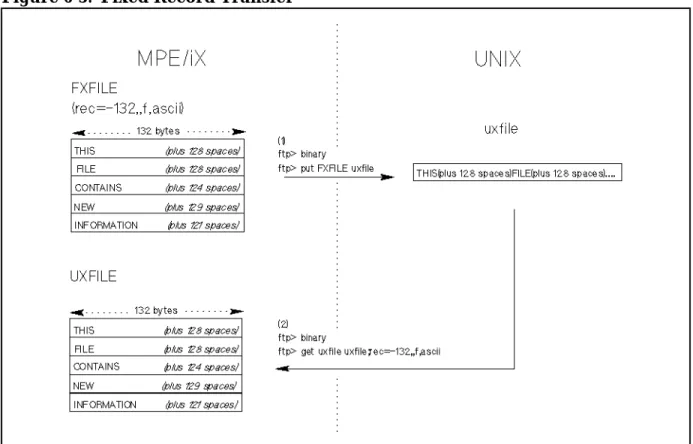
Fixed Record Files . . . 64
7. Troubleshooting Cannot Run FTP. . . 68
Cannot Connect to the Remote Host . . . 68
Cannot Logon to Remote (MPE/iX User) . . . 68
User Cannot Logon to MPE/iX . . . 68
File Transfer Problems . . . 69
Command Not Supported on Remote System. . . 69
A. MPE/iX and POSIX Differences Filename Size Restrictions . . . 72
MPE/iX Namespace. . . . 72
POSIX Namespace . . . . 72
Working With Directories . . . 74
Commands . . . 74
CHDIR . . . 74
CHGROUP . . . 74
Command Line (CI) Examples . . . 75
FTP Usage Examples . . . 76
Listing MPE/iX or POSIX Files . . . 77
Bytestream Files . . . 78
Build. . . 78
Building and Transferring a Bytestream File . . . 79
FTP Default Name Space. . . . 81
Transferring Files. . . 81
B. Error Messages FTP User Messages and Errors. . . 86
Contents
Tables
7
Figure 1-1.. FTP Client-Server Model . . . 12
Figure 1-2.. MPE/iX FTP User . . . 14
Figure 1-3.. MPE/iX FTP Server. . . 15
Figure 6-1.. ASCII Transfer . . . 63
Figure 6-2.. Mixed Mode Transfer . . . 64
9
Preface
The HP ARPA File Transfer Protocol product provides the ARPA file transfer protocol (FTP) service to MPE/iX users.
Related Documentation
The following manuals contain information related to the product described in this manual.
FTP
• Installing and Managing HP ARPA File Transfer Protocol Network Manager’s Guide
Link Products
• HP 3000/iX Network Planning and Configuration Guide • Using the OpenView DTC Manager
• (For NMMGR): Using the Node Management Services (NMS) Utilities
General Networking
• NS 3000/iX Operations and Maintenance Reference Manual • NS 3000/iX Screens Reference Manual
• NS 3000/iX Error Messages Reference Manual
MPE/iX
• MPE/iX Commands Reference Manual
• MPE/iX Error Messages Manual Volume I, Volume II, and Volume III
Network Services
• Using NS 3000/iX Network Services
Software Installation
• HP 3000 MPE/iX System Software Maintenance Manual • MPE/iX Documentation Guide
11
1
Overview
This chapter briefly describes ARPA services and what is provided on MPE/iX. In addition, who should use this manual is included.
Overview
The ARPA Services
The ARPA Services
The ARPA services are a subset of the networking services originally developed by the University of California at Berkeley for the Advanced Research Projects Agency (ARPA). ARPA services have become a de facto standard for multivendor network communication.
FTP
FTP is an ARPA Service that allows users to transfer files among other networked systems. FTP is the file transfer program that uses the ARPA standard File Transfer Protocol (FTP). With FTP, you can also perform file management operations.
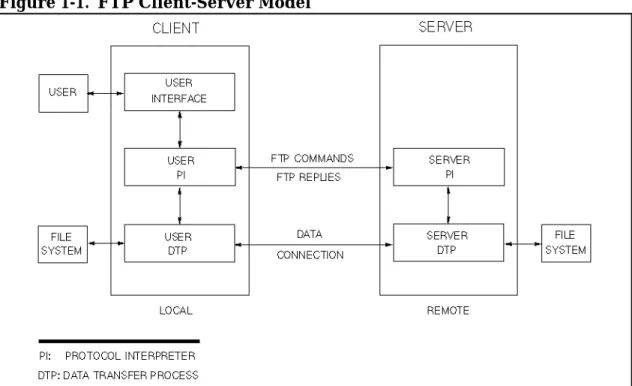
FTP is based on the client-server model as shown in Figure 1-1.. An FTP user on a system (the client) accesses the remote host FTP server to perform FTP tasks. FTP conforms to the de-facto industry standards RFC959 and RFC1123.
Chapter 1 13 Overview MPE/iX File Transfer Protocol
MPE/iX File Transfer Protocol
The MPE/iX FTP is an implementation of both the client and server programs which conform to RFC959 and RFC1123. The MPE/iX FTP can transfer files with FTP
implementations on many other system types, including MS-DOS, OS2, HP-UX, (AT&T, IBM & SUN) variations of UNIX, POSIX, VAX/VMS, IBM/MVS, HP-RTE and other MPE systems.
FTP/iX is supported over Internet Protocol (IP) based network and operates over many different hardware links. These hardware links include, Local Area Network links (LAN): 100VG-AnyLAN, 100Base-T, IEEE 802.3, ETHERNET, IEEE 802.5 (Token Ring), FDDI, and Wide Area Network links (WAN): X.25.
FTP User (Client)
The MPE/iX FTP user can perform the following tasks: • Connect to a remote host system
• Transfer or delete single or multiple files • Rename single files on the remote system • List or change remote directories
• Perform ASCII, binary, or bytestream file transfers
• Change file attributes (usingBUILD parameters) for files transferred to the MPE/iX system
The supported FTP user commands are summarized in Chapter 2 , “FTP User Commands: Quick Reference.”
FTP Server
Remote users accessing the MPE/iX FTP server can perform the following tasks: • Establish a session on a remote MPE/iX host system
• Transfer or delete single or multiple files
• Rename single files on the remote MPE/iX system • List or change remote MPE/iX hierarchical directories • Perform ASCII, binary, or bytestream file transfers
• Change file attributes (usingBUILD parameters) for files transferred to the MPE/iX system
The supported FTP Server commands available to remote users are described in Chapter 5 , “Using the FTP Server.”
Overview
Who Should Use This Manual
Who Should Use This Manual
This manual is intended for MPE/iX users who want to transfer files between MPE/iX and other HP and non-HP systems that support the FTP service.
FTP User
An MPE/iX user can access a remote systems FTP server by running the MPE/iX FTP client program.
The MPE/iX user enters commands to the FTP client program, which sends them to the remote systems FTP server. The remote systems FTP server responds with messages and data, as shown in Figure 1-2..
If you are using FTP for the first time, review the FTP user commands in Chapter 2 , “FTP User Commands: Quick Reference,” and Chapter 3 , “Getting Started: A Simple FTP Session,” and follow the Simple Session example.
To perform specific FTP tasks such as changing remote directories, or transferring files, see Chapter 4 , “Using FTP,” for a detailed task-oriented approach to using FTP.
Figure 1-2. MPE/iX FTP User
FTP Server
A remote user running an FTP client can access the MPE/iX FTP server as shown in Figure 1-3..
Chapter 5 , “Using the FTP Server,” provides information for remote users accessing the MPE/iX FTP server.
Chapter 1 15 Overview Who Should Use This Manual
Figure 1-3. MPE/iX FTP Server
Before Using the FTP Client
In order to use the FTP client, your network administrator must have a network up and running. The remote host you wish to access must be reachable from your network. You should have some understanding of the remote file system you want to access.
To use the FTP client you will need the following from your network administrator for each system you are accessing:
• The ARPA domain name, remote internet protocol (IP) address, or NS node name. • User logon identification and passwords.
Overview
17
2
FTP User Commands: Quick Reference
This chapter provides a quick reference of the syntax and usage of the FTP user commands. The commands are listed in alphabetic order.
FTP user commands can be entered in uppercase or lowercase letters.
To stop a file transfer or directory listing in progress, you can use[CTRL]-Y. You are prompted to exit FTP, cancel the transfer, or continue. From the FTP prompt you can exit by enteringQUIT or pressing the[Break] key.
:mpecommand
From within an FTP session you can execute an MPE/iX command or program by entering a colon (:) followed by the command or program name. After the command is executed, or the program is exited, you are returned to your FTP session.
? [subject]
A synonym for theHELP command. This command will display an
informative message about a particular subject. If no argument is given, FTP displays a list of the known commands.
APPENDlocalfile [remotefile] [;buildparms]
Store data from localfile on the local system into remotefile on the remote system. If remotefile is not specified, localfile will be used as the remote file name as well. If the remote file exists, the data will be appended to it; otherwise, the file will be created.
NOTE If the remote file does not exist, this command behaves the same asPUT, and any specified build parameters (buildparms) will be used. But if the file already exists, any buildparms will be ignored.
ASCII
Sets the FTP file transfer type toASCII. This is the default when you first enter the FTP program.
BINARY
Sets the FTP file transfer type to binary. BYE
Synonym for theQUIT command. BYTESTREAM (BYTE)
FTP User Commands: Quick Reference
Sets the file transfer type to bytestream. CASE
When using theMPUT command, turns on or off the feature to force
resulting filenames to lowercase. When case is off, resulting file names are all uppercase. The default is off.
CDremotedirectory
Changes the working directory on the remote host to the directory specified.
CLOSE
ClosesU the remote connection but remains in the FTP program. DEBUG
Turns on or off the terminal screen display of the commands and parameters that are sent to the remote host. The default is off. DELETEremotefilename
Deletes the remote file specified. A directory path may be included with
remotefilename.
DIR [remotedirectory [localfile]]
Writes the requestedremotedirectory listing to the terminal, or to a local file if specified. Ifremotedirectory is not specified, the current remote working directory contents are listed.
DISCONNECT
A synonym for theCLOSE command. EXIT
A synonym for theQUIT command. EXITONERROR
Turns on or off the feature to exit an FTP session when an error is
detected. The last error and message are saved in system variables (enter
SHOWVAR FTP@to display). Useful for batch jobs using FTP commands. The
default is off. FORM [NONPRINT]
Sets the FTP file transfer form to the specified format. The only supported form isNONPRINT. EnteringFORM without a parameter displays the
supported format.
GETremotefile [localfile] [;buildparms] [;move]
Transfers the remote file specified to a local file. Build parameters may be used to change how the file is stored on MPE/iX. If a local file name is not specified, the file is saved with the same name as the remote file name (assuming a legal file name).
Chapter 2 19 FTP User Commands: Quick Reference
Themoveoption requests that the specified source file be physically moved from the source location to the specified target location.
This is available forMGET,PUT andMPUT as well.
NOTE The removal of the original source file may be guarded by file system security. HASH
Toggles the state of the hash function within the ftp client. When the hash function is enabled, the “#” (hash) symbol will print to stdlist for every 1024 characters transferred during data transfer requests.
HELP [ftpcommand]
Displays a list of the valid FTP user commands. If an FTP user command is specified withHELP, a brief description of the command is displayed. You can also use theHELP command for information on specific FTP messages and errors, and the supported build parameters (buildparms).
LCDlocaldirectory
Changes the working directory on the local machine to the directory specified.
LS [remotedirectory [localfile]]
Displays the contents of a remote directory, one file per line. If a
localfile name is specified, the listing will be saved to the file specified. Ifremotedirectoryis not specified, the current remote working directory contents are listed.
MDELETEremotefiles
Delete multiple files on the remote system.
MGETremotefiles [;buildparms] [;move]
Retrieve multiple files from the remote system. Build parameters can be specified and apply to all files in the transfer. The resulting local files will have the same name as the remote files. Note that MPE/iX file names are exclusively uppercase.
MKDIRremotedirectory
Creates a directory on the remote host machine. MODE [STREAM]
Sets the FTP file transfer mode to the specified mode. The only supported mode isSTREAM. EnteringMODE without a parameter displays the
supported format. MODTIMEremotefile
Returns the last modification time and date of the remote file.
FTP User Commands: Quick Reference
Transfer multiple files using wildcard characters in thelocalfiles parameter.
Optionally, build parameters can be specified if the remote system is an MPE/iX system. The build parameters affect each file in the transfer. Non-MPE/iX FTP servers will not interpret the build parameters as intended. The resulting file names are in uppercase letters unless you use theCASEcommand to force the resulting file names to all lowercase letters.
OPENremotehostname
Opens a connection to the remote host specified. Must be either an ARPA domain name, IP address, or an NS node name.
PROMPT
Toggle interactive prompting. Interactive prompting is used during multiple file transfers to allow the user to selectively retrieve or restore files, and during multiple file deletes to selectively delete. If prompting is turned off, the default forMGET andMPUT is to transfer all files, and the default forMDELETE is to delete all files.
PUTlocalfile [remotefile] [;buildparms] [;move]
Transfers a local file to a file on the remote system. If the remote file name is not specified, the file is saved with the local file name (assuming a legal file name). Optionally, build parameters can be specified if the remote system is an MPE/iX system.
PWD
Displays the name of the remote working directory on the terminal. QUIT
Closes the connection to the remote system and exits from FTP. QUOTEstring
Sends server commands to the remote host. Used for troubleshooting.
RECVremotefile [localfile] [:buildparms]
A synonym for theGET command. REMOTEHELP [servercommand]
Displays the remote host FTP server commands supported. If a server command is specified with theREMOTEHELPcommand, a brief description of the command is displayed. (Implementation dependent).
RENAMEremotefile newname Renames a remote file. REPLACE
Toggles the internal replace flag and the value of the environment variable FTPREPLACE to either TRUE (on) or FALSE (off). This flag specifies the file placement policy during subsequent file transfers.
Chapter 2 21 FTP User Commands: Quick Reference
on sets the internal replace flag and the value of the
FTPREPLACECI environment variable to TRUE (this is the
default state). In this case, all file transfers will unconditionally replace the target file.
off sets the internal replace flag and the value of the environment variable to FALSE. In this state, all file transfers will be conditional predicated on user response to replace the target file if it previously existed.
RESET
Clear reply queue. This command resynchronizes command/reply sequencing with the remote FTP server. Resynchronization may be necessary following a violation of the FTP protocol by the remote server. RMDIRremotedirectory
Deletes a directory from the remote machine. RUNIQUE
Toggle receive-unique mode. In receive-unique mode, all files stored on the local machine will be guaranteed to be created with a unique file name.
SENDlocalfile [remotefile]
A synonym for thePUT command.
SITEstring
Asks remote server to perform a site-specific command. TypeREMOTEHELP SITE for a list of commands supported by the remote server.
SIZEremotefile
Returns the size in bytes of the remote file. STATUS
Display the status of the connection, the data type, whether each of verbose, debug, exit-on-error, prompting, lowercase, store-unique,
receive-unique, command tracing and data tracing are on or off, plus the connection timeout value.
STRUCT [FILE]
Sets the FTP file transfer structure to the specified structure. The only supported structure is FILE. EnteringSTRUCT without a parameter displays the supported structure type.
SUNIQUE
Toggle store-unique mode. In store-unique mode, all files stored on the remote machine will be guaranteed to be created with a unique file name. SYSTEM
Displays the remote system type. TIMEOUT [num-secs]
FTP User Commands: Quick Reference
The connection timeout value indicates how long to wait for a message from the remote FTP server before giving up. The allowable range is 0 to 3000. A value from 1 to 3000 indicates a timeout value in seconds. A value of 0 means no timeout (that is, wait forever). If num-secs is not specified, the current timeout value will be displayed. Otherwise, this command sets the connection timeout to num-secs seconds.
TRACE [command | data]
If command is specified, toggle TCP tracing on the command connection; likewise on the data connection if data is specified. If no parameter is given, toggle TCP tracing on both connections.
TYPE [transfertype]
Sets the FTP file transfer type to the specified type. If a transfer type is not included, the current file transfer type is displayed. The supported
transfer types areASCII,BINARY, andBYTESTREAM (as of 4.5.) The default isASCII.
USERusername
Used to enter a logon name in order to establish a session on the remote host. A connection to the remote host must already have been established usingOPEN.
VERBOSE
Turns on or off the display of responses from the remote host. The default is on.
23
3
Getting Started: A Simple FTP Session
This chapter provides you with a simple FTP file transfer session. The example shows the output from an MPE/iX user’s terminal accessing an HP 9000. The FTP responses shown are with verbose mode on.
Getting Started: A Simple FTP Session FTP Session Example
FTP Session Example
To follow the same steps as the example, make sure you have the following: • Remote logon name and passwords
• Remote system internet protocol (IP) address
• Create or have available a simple text file of typeASCII to transfer to the remote system.
Step 1: Run FTP
After you have entered your MPE/iX user account, enter: :FTP.ARPA.SYS
A banner similar to the following is displayed:
Transfer Protocol [A0002001] (C) Hewlett-Packard Co. 1995 ftp>
Step 2: Connect and Log into the Remote Host
At theftp> prompt, enter theOPEN command followed by the remote host IP address: ftp> OPEN 123.50.43.21
220 sysname FTP server (Version $Revision: 15.14 $ $Date: 89/09/23 11:35:11 $) ready.
Enter the remote user account and password when prompted: Name (username) myname
331 Password required for myname. PASSWORD: enter password)
230 User myname logged in. ftp>
Step 3: View Your Local Directory
Enter the MPE/iX commandLISTF, preceded by a colon (:) as follows: ftp> :LISTF,2
ACCOUNT = PUB GROUP = MYGROUP]
FILENAME CODE ---LOGICAL
RECORD---SIZE TYP EOF LIMIT
NSCREEN1 256B FA 800 10000
NSCREEN2 80B FA 500 14000
NSPROGX PROG 1934W VB 4551 9480
Chapter 3 25 Getting Started: A Simple FTP Session FTP Session Example
Step 4: Transfer a File from MPE/iX to the Remote Host
Select a simple ASCII text file, for example,README from your list of files. Transfer your local file to the remote host file namedreadme1 using thePUT command as follows: ftp> PUT README readme1
200 PORT command okay.
150 Opening data connection for readme1 (123.50.42.32,50894) 226 Transfer complete
nnn bytes sent in n.nn seconds: (nn.nn Kbytes/sec)
Step 5: View the Remote Directory
Enter theDIR command at theftp>prompt. A listing of the files in the remote working directory is displayed. The file you transferred should be in the list. In this example, readme1 is the third file in the listing.
ftp> DIR
200 PORT command okay.
150 Opening data connection for /bin/ls -l (123.50.42.32,50895) (0 bytes). total 13
-rw-rw-rw- 1 myname guest 10 Feb 13 18:44 cathy1
-rw-rw-rw- 1 myname guest 100 Feb 12 18:42 cathy2
-rw-rw-rw- 1 myname guest 110 Feb 13 18:43 readme1
226 Transfer complete
nnn bytes received in n.nn seconds (n.nn Kbytes/sec)
Step 6: Transfer a File from the Remote Host to MPE/iX
From the remote directory listing, choose an ASCII type file to transfer. For this exercise, you could use the file you just transferred and copy it back to your local system with a new name.
Enter theGET command followed by the name of the remote file you want to transfer and then the filename you want to copy into on your local system. For example:
ftp> GET readme1 README2 200 port command okay.
150 Opening data connection for readme2 (123.50.42.32,50896) (2997 bytes). 226 Transfer complete.
nnn bytes received in n.nn seconds: (n.nn Kbytes/sec)
You can verify that the file transferred to your account by entering a:LISTF command: ftp> :LISTF,2
ACCOUNT = PUB GROUP = MYGROUP]
FILENAME CODE ---LOGICAL
RECORD---SIZE TYP EOF LIMIT
Getting Started: A Simple FTP Session FTP Session Example
NSCREEN2 80B FA 500 14000
NSPROGX PROG 1934W VB 4551 9480
README 80B FA 500 14000
README2 80B FA 500 14000
Step 7: Exiting the FTP User Program
When you are finished transferring files or performing directory operations, enterQUIT. ftp> QUIT
221 Goodbye. END OF PROGRAM :
When you issue aQUIT command, you are logged off the remote host, and the remote connection is closed. You are returned to your MPE/iX session prompt.
The Next Step
The previous example showed the steps for a simple file transfer session. The Chapter 4 , “Using FTP,” section, provides more detailed task descriptions of the steps you followed in the simple session, and other features of FTP.
The Chapter 2 , “FTP User Commands: Quick Reference,” section, provides syntax and brief command descriptions for FTP listed in alphabetic order.
27
4
Using FTP
This chapter provides you with the information you can use to accomplish the following tasks with FTP:
• Running the FTP User Program
• Connecting and Logging on to a Remote Host • Performing Directory Operations
• Setting or Changing Transfer Types • Transferring Files
• Renaming Remote Files • Deleting Remote Files • Viewing Local Settings
• Issuing MPE/iX Commands from Within FTP • Temporarily Exiting FTP
• Obtaining Help
• Using FTP Commands in UDCs and Programs • Obtaining Status Information
NOTE FTP commands can be entered in upper or lowercase letters. Uppercase letters are used in the examples for clarity.
The examples in this chapter show output received for an FTP user on MPE/iX accessing an HP 9000 FTP server.
Using FTP
Running the FTP User (Client) Program
Running the FTP User (Client) Program
To run the FTP client program from the CI prompt::RUN FTP.ARPA.SYS [; INFO= “remotehostname”] or
:FTP.ARPA.SYS [remotehostname]
or on 5.0 and greater, if the HPPATH CI variable hasARPA.SYS in it, you can also run the client program by:
:FTP [remotehostname]
From the POSIX shell you can run the client program by: shell iX> ftp
You can start the FTP user program and connect to a remote host in one step by using the INFO= string in the form:
:RUN FTP.ARPA.SYS;INFO=“remotehostname”
Whereremotehostname is the ARPA domain name, internet protocol (IP) address, or remote host NS name.
Once the connection has been established, enter the remote user logon name and password when prompted as described in the next section under “Logging On.”
Connecting and Logging On to a Remote Host
From FTP, you must establish a connection to the remote host you wish to access.
If you did not enter a remote host name on the command line when you started FTP, you must open a connection to the remote system as follows.
From theftp> prompt, enter theOPEN command followed by the remote host ARPA domain name, internet protocol (IP) address, or NS node name supplied by your network administrator:
ftp> OPEN remotehostname
IP Addresses
IP addresses are assigned by your network administrator to uniquely identify computer systems to allow communication between systems on the network.
IP addresses, also called internet addresses, are in the form: nnn.nnn.nnn.nnn
Wherennn is a number from 000 to 255, inclusive. For example, if the IP address of the remote system is123.1.20.125, you would enter:
Chapter 4 29 Using FTP Connecting and Logging On to a Remote Host
ftp> OPEN 123.1.20.125
Node Names
Besides using IP addresses with the FTPOPEN command, you can use either an ARPA domain name or an NS node name in theOPEN command. NS names are recognized if the remote host supports the Probe protocol or if the remote host name is configured in your local node network directory. ARPA domain names are configured in two ASCII files,
RSLVCNF.NET.SYS andHOSTS.NET.SYS. For configuration information, refer to Installing
and Managing HP ARPA File Transfer Protocol Network Manager’s Guide. Obtain the
node names from your network administrator. For example, if the name,node2, is configured as a remote host name on your network, you can enter:
ftp> OPEN node2
For a system identified by a fully-qualified NS nodename such asnodex3.test.hp (in the form:nodename.domain.organization, you can enter:
ftp> OPEN nodex3.test.hp
Logging On
Once the connection has been established, enter the remote user logon name and password when prompted.
You must know the user logon syntax for the remote host you are accessing. For example, an HP 9000 logon name could be:myname. You would enter the following when prompted: Name (username) myname
331 Password required for myname. PASSWORD: (enter password) 230 User myname logged in.
Passwords are not echoed back to your terminal screen.
Changing Accounts
To log into a different user account on the remote system, use theUSER command. After entering the user logon name, you are prompted for any passwords associated with the logon name:
ftp> USER myname
331 Password required for myname. PASSWORD: (enter password) 230 User myname logged in.
Accessing Another Remote Host
After establishing a connection to a remote host, you can access another remote host by entering theCLOSE command, then entering anotherOPENremotehostname command: ftp> CLOSE
Using FTP
Performing Directory Operations
Performing Directory Operations
With FTP, you can view the remote working directory, change remote directories, and view or save a listing of the contents of remote directories.
Viewing the Remote Working Directory
ThePWD command is used to list the name of the remote working directory. The content of the information displayed byPWD is dependent on the remote system.
For example, a UNIX implementation could display: ftp> PWD
251 “/users/myname” is the current working directory
Viewing the Contents of a Remote Directory
To list the contents of the remote working directory use theDIR command. The contents displayed using theDIR command are dependent on the remote host directory listing facilities.
In the sample below, the working directory ismytest. The first entry is a directory, the remaining entries are files.
ftp> DIR
200 PORT command okay.
150 Opening data connection for /bin/ls -l (123.50.42.32,50895) (0 bytes). total 33
drwxrwxrwx 1 myname guest 10 Feb 13 18:44 ftest
-rw-rw-rw- 1 myname guest 100 Feb 12 18:42 file1
-rw-rw-rw- 1 myname guest 100 Feb 12 18:42 file2
-rw-rw-rw- 1 myname guest 110 Feb 13 18:43 testt
226 Transfer complete
nnn bytes received in n.nn seconds (n.nn Kbytes/sec)
To list the contents of another directory, enter theDIRcommand followed by a valid remote directory name:
ftp> DIR remotedirectory Simple directory Listing
TheLS command provides a consistent display of directory contents for unlike computer systems. One item per line is displayed. For example:
ftp> LS
200 PORT command okay.
150 Opening data connection for /bin/ls (123.50.42.32,50896) (0 bytes). ftest
file1 file2
Chapter 4 31 Using FTP Performing Directory Operations
testt
226 transfer complete
Listing Directory Information to a Local File
You can transfer remote directory information to a local file with theLS orDIR commands using the following form (assuming a remote host UNIX file system):
ftp> DIR [remotedirectory/]filename localfile or,
ftp> LS [remotedirectory/]filename localfile
The format ofremotedirectory/filename is dependent on the remote system
implementation. Thefilename part can contain metacharacters (wildcard characters) supported by the remote system. Some metacharacters supported by the HP 9000 are asterisk (*), and question mark (?).
For example, to transfer a listing of all files in the working directory to your local file REMDIR, enter:
ftp> DIR * REMDIR
To transfer the contents of the directory namedftest beginning with the letterR to local fileREMDIR1, enter:
ftp> LS ftest/R* REMDIR1
Changing Directories
To change directories in the remote account you are using, enter theCD command as follows:
ftp> CD remotedirectory
Whereremotedirectory is the directory you wish to access. Example
The following example shows a user logged in to an HP 9000 as“myname” who checks the current directory, changes directories, then checks the new current directory.
ftp> PWD
251 “/users/myname” is the current working directory. ftp> CD test
200 CWD command okay. ftp> PWD
251 “/users/myname/test” is the current working directory. ftp> CD ..
200 CWD command okay. ftp> PWD
Using FTP
Setting or Changing Transfer Types
Setting or Changing Transfer Types
FTP supports three transfer types, binary, ASCII, and BYTESTREAM. When you first enter FTP, the transfer type defaults to ASCII. For example, text files are type ASCII and are transferred as ASCII files.
To find out what the transfer type is for your current session, enter theTYPE command without parameters. For example, if ASCII is the current transfer type, the following displays:
ftp> TYPE
Using ASCII mode to transfer file (FTPINFO 25).
Binary
To change the file transfer type to binary, enter the commandBINARY at theftp> prompt as follows:
ftp> BINARY
200 Type set to l.
You can also use theTYPEtransfertype command to change the file transfer type. To set the transfer type to binary, you can enter:
ftp> TYPE BINARY 200 Type set to l.
ASCII
To change the file transfer type to ASCII, enter the commandASCII at theftp> prompt: ftp> ASCII
200 Type set to A.
You can also use theTYPE[transfertype] command to change the file transfer type. To set the transfer type to ASCII, you can enter:
ftp> TYPE ASCII 200 Type set to A.
BYTESTREAM
To change the file transfer type to BYTESTREAM, enter the commandBYTESTREAM or BYTE at theftp> prompt:
ftp> BYTESTREAM
200 Type set to L (byte size 8).
You can also use theTYPE[transfertype] command to change the file transfer type. To set the transfer type toBYTESTREAM, you can enter:
ftp> TYPE BYTESTREAM
Chapter 4 33 Using FTP Transferring Files
Transferring Files
Once you have logged on to the remote host, you can transfer files from your system to the remote host, or from the remote host to your local system.
Transferring Limitations
The following types of MPE/iX files can be transferred to a remote host using FTP :. Standard MPE files, with fixed, variable, or bytestream format, and either binary or ASCII data types.
In addition, the latest enhancemnets enable the transfer of the following types of
non-standard types between two HP 3000 machines. Both the FTP server and the client must be running the latest version.
1. Circular files 2. Message files 3. RIO files
4. CM KSAM files 5. NM KSAM files 6. HPSPOOL files
Of these, SPOOL files are transferred as fixed ASCII files. The above non-standard file transfers are not possible between an MPE and an non-MPE system. However, SPOOL files can be transferred as fixed ASCII files from an MPE to a non-MPE system.
The following MPE/iX file type cannot be transferred with FTP. • HFS (Hierarchical File System) directories
In addition, undefined (U) record format files cannot be transferred.
Transferring MPE/iX Files to the Remote Host
Use thePUTcommand to copy a file on your system to the remote host. FTP does not delete the local copy of the file. The file is saved in the remote working directory.
ftp> PUT localfile remotefile
Theremotefile named must follow the file naming conventions for the remote system. If
you omit theremotefile name, the file will be saved with thelocalfile specified: ftp> PUT localfile
Using FTP
Transferring MPE/iX Files to the Remote Host
CAUTION If the remote file name you specify already exists on the remote host, the remote system may overwrite the existing remote file without warning.
File Naming
Note that other systems may support uppercase and lowercase file names. For example, if you entered the following commands and file names when connected to a UNIX system, the result would be two new remote files namedRFILE andrfile.
ftp> PUT RFILE ftp> PUT rfile
On MPE/iX,RFILE orrfile is the same file name.
Transferring Files to a Different Directory
To transfer a file to other than the remote working directory, you can change directories using theCD command, or you can specify the directory name with theremotefile specified as in the following example (to a UNIX file system):
ftp> PUT myfile testdir/myremfile 200 PORT command okay.
150 Opening data connection for testdir/myremfile 226 Transfer complete.
nnn bytes sent in n.nn seconds: (n.nn Kbytes/sec)
Transferring Files from Other Groups
Thelcd command will change directories and consequently the group. For example, you could transfer a file namedNSPROG1fromGROUP1to a remote file namednsprogas follows: ftp> PUT NSPROG1.GROUP1 nsprog
If theremotefile is not specified in this example, the remote file name would be: NSPROG1.GROUP1
Transferring Multiple Files
To transfer a group of files to the remote system, use the FTPMPUT command.
For example, transfer all files in your account, beginning with the letter “C” to the remote host. First verify that the files are all of one type (ASCII or binary) using the MPE/iX
LISTF command:
ftp> :LISTF C@,2
ACCOUNT = PUB GROUP = MYGROUP]
FILENAME CODE ---LOGICAL
RECORD---SIZE TYP EOF LIMIT
Chapter 4 35 Using FTP Transferring MPE/iX Files to the Remote Host
CAT2 80B FA 800 10000
CAT3 80B FA 900 10000
CAT4 80B FA 700 10000
Transfer this group of ASCII files to the remote system: ftp> ASCII
200 Type set to A. ftp> MPUT C@
mput CAT1? Y
200 PORT command okay.
150 Opening data connection for CAT1 (15.13.132.120,63014). 226 Transfer complete.
nnn bytes sent in n.nn seconds: (n.nn Kbytes/sec) mput CAT2? Y
You are prompted whether or not (yes or no) to transfer each file in the selected group of files.
Pressing[Enter] at the prompt defaults to yes.To verify the files transferred: ftp> LS C*
200 PORT command okay.
150 Opening data connection for /bin/ls -1 (123.50.42.32,50895) (0 bytes). total nn
CAT1 CAT2 CAT3 CAT4
226 Transfer complete
nnn bytes sent in n.nn seconds (n.nn Kbytes/sec
Prompting
To transfer this group of files without prompting enabled, use thePROMPTcommand which turns interactive prompting on and off:
ftp> PROMPT
Interactive mode off. (FTPINFO 42)
Using Case
MPE/iX only supports uppercase file names. You can use theCASE command to force a group of files transferred withMPUT to lower case as follows:
ftp> CASE
Lower case on. (FTPINFO 43) ftp> MPUT C@
200 PORT command okay.
150 Opening data connection for cat1 (15.13.132.120,63018). 226 Transfer complete.
Using FTP
Transferring Remote Host files to MPE/iX
NOTE The sequence of commands is repeated for each file transferred. Check that the files transferred correctly:
ftp> LS C@
200 PORT command okay.
150 Opening data connection for /bin/ls -1 (123.50.42.32,50895) (0 bytes). total nn
Cat1 Cat2 Cat3 Cat4
226 Transfer complete
nnn bytes sent in n.nn seconds (n.nn Kbytes/sec)
Transferring Remote Host files to MPE/iX
Use theGETcommand to copy a file from the remote host to your local MPE/iX system. FTP does not delete the remote copy of the file. Enter theGET command followed by the file name of the remote file, followed by the name of the file you want to copy to on your local system.
ftp> GET remotefile localfile
If you do not specify thelocalfilename, the file will be transferred with theremotefile name specified:
If theremotefile name used is not a valid file name on MPE/iX, the file transfer fails. ftp GET remotefile
CAUTION If the local file name you specify already exists on your local MPE/iX system, FTP overwrites the existing file without warning.
Default File Attributes
Files copied from the remote host to MPE/iX are saved with default file attributes as follows:
File Type Record: size (bytes), type
Disk Space
ASCII 80, fixed 204,800 Binary 256, fixed 204,800 BYTESTREAM 1, byte 16,384,000
Chapter 4 37 Using FTP Transferring Remote Host files to MPE/iX
ASCII 80 Bytes Fixed = Default record length for a terminal screen padded with blanks.
Binary 256 Bytes Fixed = Default record length for a MPE executable program file.
Changing File Building Parameters
You can change how a file is copied to your local system with the MPE/iXBUILD command parameters of theGET orPUT command using the following syntax:
ftp> GET remotefile localfile;buildparms The supportedBUILD command parameters are:
:REC=[-rcsizebytes][,blkfactor[,[{F}][,{BINARY}]]]] {V} {ASCII}
{B} [;DEV=device]
[;CODE=filecode]
[;DISC=[numrec][,[numextents][,[initialloc]]]]
The parameterREC= can also be specified in words (two bytes per word) using a positive integer value. The defaultblkfactor size is one.
HP ARPA FTP supports a subset of the MPE/iX build parameters implemented by the MPE/iXBUILD command. Accordingly, many of the build parameter defaults are overridden by FTP. The FTP build parameter defaults are configured in the ASCII file
BLDPARMS.ARPA.SYS and may by modified as desired. Also, users may make local copies
and set their own defaults via a file equation like the following. :FILE BLDPARMS.ARPA.SYS=MYFILE
See Chapter 6 , “MPE/iX File System and Data Transfers,” for more information about FTP and supportedBUILD command parameters. For additional information aboutBUILD parameters, use MPE/iX online help (HELP BUILD PARMS), see the MPE/iX Commands
Reference Manual, or read theBLDPARMS.ARPA.SYS file, for more information. Using file building parameters, you can transfer a file as follows:
ftp> GET remfile newfile;REC=-80,,F,ASCII
In the next example, usingCODE=PROG defaults to a target file of fixed binary, 128 words (which are theREC= default values):
ftp> GET filex file2;CODE=PROG
Transferring Files to Other Groups
To transfer files to other groups in your account, you can exit from FTP, and re-log on into the other group, or specify the group name as part of thelocalfile specified.
For example, you could transfer a file namednsprog toNSTEST1 inGROUP1 as follows: ftp> GET nsprog NSTEST1.GROUP1
Using FTP
Renaming Remote Files
Transferring Multiple Files
To transfer a group of files from the remote system to your MPE/iX system, use theMGET command.
For example, transfer a group of binary files beginning with the letter “B” to your MPE/iX system. First verify the files to be transferred:
ftp> DIR
200 PORT command okay.
150 Opening data connection for /bin/ls -l (123.50.42.32,50895) (0 bytes). total 33
drwxrwxrwx 1 myname guest 10 Feb 13 18:44 bprog1
-rw-rw-rw- 1 myname guest 100 Feb 12 18:42 bprog2
-rw-rw-rw- 1 myname guest 100 Feb 12 18:42 bprog3
-rw-rw-rw- 1 myname guest 110 Feb 13 18:43 bprog4
226 Transfer complete
nnn bytes received in n.nn seconds (n.nn Kbytes/sec) Transfer this group of binary files with interactive prompting off: ftp> BINARY
200 Type set to 1. ftp> MGET b*
200 PORT command okay.
Opening data connection for bprog1 (123.50.42.32,56077) (nnn bytes). 226 Transfer complete.
nn bytes received in n.nn seconds (n.nn Kbytes/sec) 200 PORT command okay.
Opening data connection for bprog2 (123.50.42.32,56077) (nnn bytes). 226 Transfer complete.
nn bytes received in n.nn seconds (n.nn Kbytes/sec) The sequence of commands are repeated for each file transferred. Check that the files transferred:
ftp> :LISTF b@ FILENAME
PROG1 PROG2 PROG3 PROG4
Renaming Remote Files
You can rename remote files using theRENAME command as follows: ftp> RENAME remotefile newfile
To rename a file in other than the working directory on a UNIX-type system, include the directory name with thenewfile parameter as you normally would on the UNIX system
Chapter 4 39 Using FTP Deleting Remote Files
as follows:
ftp> RENAME remotefile directoryname/newfile
CAUTION If the new file name you specify already exists on the remote system, the remote system may overwrite the existing file without warning.
Deleting Remote Files
You can delete files on the remote host from FTP as follows: ftp> DELETE remotefile
To delete a file in a different directory on a UNIX-type system, include the directory name with theremotefile specified as you normally would on the remote UNIX system as follows:
ftp> DELETE directoryname/remotefile
Delete Multiple Files
You can delete multiple files on the remote host using theMDELETE command.
With interactive prompting enabled, you are prompted whether or not to delete each file in the fileset you have specified. For example:
ftp> MDELETE c* mdelete cat1? y
200 DELE command okay. mdelete cat2? y
200 DELE command okay. mdelete cat3?
200 DELE command okay. mdelete cata4? n
ftp>
Viewing Local Settings
FTP provides commands that determine how files are transferred. For FTP, each of these commands have only one supported option as shown here.
Command Option
FORM NONPRINT
Using FTP
Issuing MPE/iX Commands from Within FTP
STRUCT FILE
If you issue one of these commands without the option, the supported option is displayed. For example if you enterMODE, the following is displayed:
ftp> MODE
We only support STREAM mode, sorry. (FTPWARN 18)
Issuing MPE/iX Commands from Within FTP
You can enter MPE/iX commands by preceding the command name with a colon (:). The command will execute, and return you to theftp>prompt on completion. For example you can list your current group files on your local system with theLISTFcommands as follows: ftp> :LISTF
To list files in other than the current group, include the group name in theLISTF command. For example:
ftp> :LISTF @.group1
You can also run programs such as an editor from FTP. Upon exiting the program, you are returned to theftp> prompt.
Temporarily Exiting FTP
From theftp> prompt, you can temporarily exit FTP without losing the connection to the remote host by using the break key.
Use the MPE/iXRESUME command to return to your FTP session.
Obtaining Help
Use theHELP command for information about the supported FTP user commands. The
REMOTEHELP command provides information about the remote host FTP server.
Listing FTP User Commands
Enter theHELP command at theftp> prompt for a list of FTP supported user commands: ftp> HELP
Chapter 4 41 Using FTP Obtaining Help
Enter theHELP command with a valid FTP user command to obtain information about individual commands supported. For example:
ftp> HELP OPEN OPEN remote-host
Establish a connection to the specified hot FTP server. Remote-hot
can either be an ARPA domain name, an MPE/iX NS node name, or an IP address. : append ascii binary bye bytestream case cd close debug delete dir disconnect exit exitonerror form get help lcd ls mdelete mget mkdir mode modtime mput open prompt put pwd quit quote recv remotehelp rename reset rmdir runique send site size status struct sunique system timeout trace type verbose user ?
Using FTP
Using FTP Commands in UDCs and Programs
Listing the Remote FTP Server Commands
TheREMOTEHELP command displays the remote host supported server commands. A
display similar to the following appears, (depending on the supported server commands). ftp> REMOTEHELP
EnteringREMOTEHELPcommand, wherecommand is a valid remote FTP server command, provides you with a brief description of the server command. For example:
ftp> REMOTEHELP USER 214 Syntax: USER username
FTP server commands may not have the same name as the user commands.
Using FTP Commands in UDCs and Programs
You can use FTP commands in User Defined Commands (UDC), command files and programs to help you perform tasks such as:
• Automating the connection and logon process • Transferring multiple files
• Creating batch jobs
Using EXITONERROR
The MPE/iX FTP commandEXITONERRORallows you to turn on or off the capability to exit an FTP session if an error occurs. The last error and message are saved in CI variables. To show the errors, enter the following at the MPE/iX colon prompt:
:SHOWVAR FTP@
In the following example,EXITONERROR is activated. The secondGET command generates an error because the file does not exist:
ftp> EXITONERROR
ExitOnError mode on. (FTPINFO 33) ftp> GET filex filey
200 PORT command okay.
150 Opening data connection for filey (123.50.42.32,50897) (320 bytes). 214-HP ARPA FTP SERVER recognizes the following commands (*-unimplemented): USER PASS ACCT* SMNT* REIN* QUIT PORT PASV* TYPE STRU MODE RETR STOR APPE MLFL* MAIL* MSND* MSOM* MSAM* MRSQ* MRCP* ALLO* REST* RNFR RNTO ABOR* DELE CWD XCWD LIST NLST SITE SYST STAT HELP NOOP MKD XMKD RMD XRMD PWD XPWD MKD XMKD RMD XRMD PWD XPWD 214 Refer to FTPDOC.ARPA.SYS for more FTP Server information.
Chapter 4 43 Using FTP Using FTP Commands in UDCs and Programs
226 Transfer complete.
322 bytes received in 0.65 seconds: (4.25 Kbytes/second) ftp> GET filez
200 PORT command okay.
550 filez: No such file or directory. Data Transfer Request Failed. (FTPERR 13) END OF PROGRAM
:
:SHOWVAR ftp@ FTPLASTERR = -13 FTPXFERFILES = 0 FTPREQFILES = 0 FTPREPLACE = true
FTPLASTREPLY = 550 filez: No such file or directory FTPLASTMSG = Data Transfer Request Failed. (FTPERR 13) :
NOTE FTPLASTERR indicates an error if the value is negative and a warning if the
Using FTP
Using FTP Commands in UDCs and Programs
Transferring Multiple Files
You can create a command file to automatically copy a group of files from the remote system into your account as in the following example.
1. Create a file with the following contents:
2. From the CI, (:) enter the following to execute the command file you created: :yourfile remotehostname username password
EXITONERROR is enabled in the above example. If there is an error while executing, the error will be printed on the terminal display.
You can create a UDC using the same set of commands above, except changing the word parm to a UDC name such asgetfiles. The first statement for this UDC is:
getfiles node, user, pass
Enter the contents of the file in your UDC file. To execute this UDC, you would enter:
:getfilesremotehosthame username password
Using a Jobstream
The following example shows how to use a job file to automate the logon procedure and retrieve a file from a remote system. To execute a job, enterSTREAMjobnameat the MPE/iX prompt (:).
!JOB FTPFILE,USERNAME.ACCT,PUB !RUN FTP.ARPA.SYS
OPEN 123.50.42.32 USER remuser rempass PWD
DIR* GET file1 QUIT
parm node, user, pass continue
purge ftpcmds,temp echo exitonerror echo open !node echo open !user !pass echo get file1 file1 echo get file2 file2 echo get file3 file3 echo quit
> > ftpcmds > > ftpcmds > > ftpcmds > > ftpcmds > > ftpcmds > > ftpcmds > > ftpcmds run ftp.arpa.sys;stdin=ftpcmds
if !FTPLASTERR < > 0 then showvar FTP@
endif continue
Chapter 4 45 Using FTP Using FTP Commands in UDCs and Programs
!EOJ
Programmatic Example
You can use FTP commands in programs using theHPCICOMMAND intrinsic, as in the following example. The input file containing the FTP commands, FTPIN, is listed following the program.
The contents of the STDIN fileFTPIN are listed below: OPEN 123.50.42.32
USER remuser rempass PWD DIR* GET file1 GET file2 GET file3 QUIT
Obtaining Status Information
Use theSTATUS command to obtain status information regarding the FTP client and server. The status information is useful for debugging purposes and for identifying the states and modes of the client and server peers.
program ftp_prog (input, output); Const var msglevel cr cmdimage cmderror parmnum = 0
= chr (13); : string [80] : shortint; : shortint; procedure HPCICOMMAND; intrinsic
begin
{ ---{ Run the User-FTP program using the FTPIN input file. { The FTPOUT file will be created in the temporary space { and will contain the output of the FTP session.
{ ---} } } } }
cmdimage := ‘RUN FTP.ARPA.SYS;STDIN=FTPIN;STDLIST=FTPOUT,NEW’ + cr; HPCICOMMAND (cmdimage,cmderror,parmnum,msglevel); if cmderror < > 0 then
begin
writelin ( ‘CMDERROR = ‘, cmderror:1 ); writelin ( ‘PARMNUM = ‘, parmnum:1 ); end:
Using FTP
Using FTP Commands in UDCs and Programs
In the following example, both the client (abc.cup.hp.com) and server
(katsu.cup.hp.com) are MPE/iX machines.
ftp>status
Connected to katsu.cup.hp.com (22.11.138.29). (FTPINFO 40) Using ASCII mode to transfer files. (FTPINFO 25)
Verbose mode on. (FTPINFO 22)
Debugging off (debug=0). (FTPINFO 23) ExitOnError mode off. (FTPINFO 34) Interactive mode on. (FTPINFO 41) Lower case off. (FTPINFO 44)
Store unique mode off. (FTPINFO 51) Receive unique mode off. (FTPINFO 53) Command tracing off. (FTPINFO 55) Data tracing off. (FTPINFO 57)
Connection time-out value set to 120 seconds. (FTPINFO 49) 211- katsu FTP server status
Version A0007F06
Connected to abc.cup.hp.com (25.33.144.142) Logged in as ,MANAGER.SYS,PUB
TYPE: ASCII
FORMat: Non-print; STRUcture: File; transfer MODE: Stream No data connection.
211 End of status. ftp>
47
5
Using the FTP Server
This chapter provides information for remote users accessing the MPE/iX FTP server and is organized as follows:
• A list of user commands and the corresponding FTP server commands supported. • Sample session for a remote user accessing the FTP MPE/iX server.
• More information about FTP and MPE/iX for the remote user.
User command(SERVER command)
DESCRIPTION
ASCII(TYPE A)
Sets the FTP file transfer type to ASCII. This is the default when you first enter FTP.
BINARY(TYPE I)
Sets the FTP file transfer type to binary.
BYTESTREAM (TYPE L)
Sets the FTP file transfer type to bytestream.
CD remotedirectory(CWD | XCWD)
Changes the working directory on the remote host to the directory specified.
CLOSE(QUIT)
Closes the remote connection but remains in the FTP program.
DELETE remotefilename(DELE)
Deletes the remote file specified. A directory path may be included with
theremotefilename.
DIR [remotedirectory][localfile](LIST)
Writes the requested remote directory listing to the terminal, or to a local file if specified. Ifremotedirectory is not included, the current remote working directory contents are listed.
FORM [NONPRINT] (FORM)
Sets the FTP file transfer form to the specified format. The only supported form isNONPRINT.
Using the FTP Server
Transfers the remote file specified to a local file. If a local file name is not specified, the file is saved with the same name as the remote file name (assuming a legal file name).
LS [remotedirectory][localfile](NLST)
Displays the contents of a remote directory, one file per line. If a
localfilename is specified, the listing will be saved to the file specified.
Ifremotedirectory is not included, the current remote working
directory contents are listed.
MDELETE remotefiles(NLST,DELE)
The remote system expands the wildcard characters inremotefilesand deletes the set of files on the remote MPE/iX host.
MGET remotefiles(NLST,RETR)
The remote system expands the wildcard characters inremotefiles and retrieves the set of files from the remote host.
MKDIR remotedirectory(MKD | XMKD)
Creates a directory on the remote machine.
MODE [STREAM](MODE)
Sets the FTP file transfer mode to the specified mode. The only supported mode isSTREAM.
MODTIME remotefile(MDTM)
Returns the last modification time and date of the remote file.
MPUT localfiles(NLST,STOR)
The local system expands the wildcard characters inlocalfiles and transfers the set of files from the local host to the remote MPE/iX system.
OPEN remotehostname
Opens a connection to the remote host specified.
PUT localfile [remotefile] [;buildparms](STOR)
Transfers a local file to a file on the remote MPE/iX system. Build
parameters may be used to change how the file is stored on MPE/iX. If the remote file name is not specified, the file is saved with the local file name provided the local file name is a valid name on the remote MPE/iX system. PWD(PWD)
Displays the name of the remote working directory on the terminal. On MPE/iX, the session information is returned as well.
QUIT(QUIT)
Closes the connection to the remote system and exits from FTP.
REMOTEHELP [servercommand](HELP)
Chapter 5 49 Using the FTP Server
server command is specified with theREMOTEHELP command, a brief description of the command is displayed.
RENAME remotefile newname(RNFR,RNTO)
Renames a remote file.
RMDIR remotedirectory(RMD|XRMD)
Deletes a directory from the remote machine. SITE <sp> HELP
| MPE/iX
| BUILDPARMS file-name
| USER_LABELS filename [number] | STREAM file-name
| TIMEOUT num-secs (SITE)
Remote system
HELP Returns a help line.
MPE/iX Sets an internal flag indicating that the local system is an
MPE/iX machine.
BUILDPARMS Gives the build parameters of the specified file.
USERLABELS Gives the user label listing of the specified file.
STREAM Streams a given job-file.
TIMEOUT Sets the server time-out to the specified value.
SIZE remotefile(SIZE)
Returns the size in bytes of the remote file.
SRUCT [FILE](STRU)
Sets the FTP file transfer structure to the specified structure. The only supported structure isFILE.
SYSTEM(SYST)
Displays the remote system type.
TYPE [transfertype](TYPE)
Sets the FTP file transfer type to the specified type. The supported transfer types areASCII andBINARY andBYTESSTREAM.
USER sess,user.acct,group(USER)
Used to enter a logon name in order to establish a session on the remote host. A connection to the remote host must already have been established usingOPEN. Passwords may be included in the logon string as follows: sess,user/userpass.acct/acctpass,group/grppass
Note: Passwords can only be entered once. If you enter passwords with the logon string, do not re-enter them at the password prompt, just press the
Using the FTP Server
Sample FTP Session: Accessing MPE/iX
[Return] key. If you enter passwords as part of the logon string, they are displayed in the message text of the password prompt.
Sample FTP Session: Accessing MPE/iX
The purpose of this sample session is to provide help for a remote user accessing the MPE/iX FTP server. More detailed information about FTP behavior follows the sample. In order to follow the same steps as the sample on your system, you must obtain the following from your network administrator:
• Internet Protocol (IP) address of the MPE/iX system • MPE/iX logon account and passwords
• Names of the groups in the logon account containing the files you want to access.
Start FTP
Start FTP from your system.
Connect to the Remote MPE/iX System
To open a connection to MPE/iX use theOPEN command followed by the internet protocol (IP) address for the MPE/iX system. For example:
ftp> OPEN 123.50.43.21
220 MPE/iX File Transfer Protocol Server [A0002001] (C) Hewlett-Packard Co. 1990
Log on to MPE/iX
Supply the MPE/iX logon account and password when prompted, or use theUSER command. For example:
ftp> USER sess1,user.myacct,mygroup
331 Password required for SESS1,USER.MYACCT,MYGROUP [userpass][,accountpass][,grouppass]
Password: userpass,acctpass,grouppass (enter passwords) 230 User logged on.
Anonymous FTP
If anonymous FTP is supported on the remote MPE FTP server, the user can login anonymously by giving the username as “anonymous” or “ftp”.
ftp> o 15.70.188.48
connected to 15.70.188.48.
220 HP ARPA FTP Server [A0008OZ3] (C) Hewlett-Packard Co. 1990 Name (15.70.188.48:rram): anonymous
Chapter 5 51 Using the FTP Server Sample FTP Session: Accessing MPE/iX
331 Guest login ok, send ident as password. Password:
230 User logged on
Remote system type is MPE/IX
Check the Session and Group
Check the session and group you are accessing. This example shows the user logged on with the working group,MYGROUP.
ftp> pwd
257 “/MYACCT/MYGROUP” is the current directory.
257 “SESS1,USER.MYACCT,MYGROUP” is the current session.
View Files in the Working Group
Examine the files in the working group using the FTPDIR command: ftp> :DIR *
200 PORT command ok.
150 File LISTF opened; data connection will be opened ACCOUNT = MYACCT GROUP = MYGROUP]
FILENAME CODE ---LOGICAL
RECORD---SIZE TYP EOF LIMIT
NSCREEN1 256B FA 800 10000
NSCREEN2 80B FA 500 14000
NSPROGX PROG 1934W VB 4551 9480
PROGRAMX 256B FA 700 1350
256 Transfer complete
nnn bytes received in n.nn seconds (n.nn Kbytes/sec) ftp>
Transfer a File to Your System
Transfer a remote MPE/iX file to your system using theGET command: ftp> GET nscreen1
200 PORT command ok.
150 File NSCREEN1 opened; data connection will be opened 226 Transfer complete
nnn bytes received in n.nn seconds (n.nn Kbytes/sec) ftp>
The file will be saved asnscreen1 on your system.
View Files in a Different Group
Examine the files in another group using theLS command with the group name: ftp> LS @.group1
Using the FTP Server
Sample FTP Session: Accessing MPE/iX
150 File LISTF opened; data connection will be opened AFILE.GROUP1
TSCREEN.GROUP1 TSCREEN2.GROUP1 NSPROG1.GROUP1 NSPROG2.GROUP1 NSPROG3.GROUP1 NPROGRAM.GROUP1
226 Transfer complete
nnn bytes received in n.nn seconds (n.nn Kbytes/sec) ftp>
Note that this display is different than using theLS command with no group name which displays only file names.
Transfer a File from Another Group
Transfer a binary file from MPE/iX to your system from other than the current working group:
ftp> BINARY
200 Type set to l.
ftp> GET NPROGRAM.GROUP1
The MPE/iX file will be saved asNPROGRAM.GROUP1 on your system.
Transfer Multiple Files from MPE/iX to Your System
To transfer multiple files from MPE/iX to your system use theMGET command: ftp> MGET @
All files in the working group will be transferred and have the same names as on MPE/iX (up to 8 alphanumeric characters, all capitals).
Transfer multiple files from other than the working group on MPE/iX to your system: ftp> MGET [email protected]
The resulting file names are: NSPROG1.GROUP1
NSPROG2.GROUP1 NPROGRAM.GROUP1
Transfer a File from Your System to MPE/iX
Transfer a local file to the MPE/iX working group using thePUT command. ftp> PUT yfile xfile
Use File Building Parameters
Transfer a local file to other than the MPE/iX working group, using MPE/iX file building parameters:
Chapter 5 53 Using the FTP Server More Information About FTP and MPE/iX
Transfer Multiple Files to MPE/iX
Transfer multipleASCII files to MPE/iX using theMPUT command: ftp> ASCII
200 Type set to A. ftp> MPUT A*
If your system supports prompting, you are prompted whether or not (yes or no) to transfer each file in the selected group of files.
Check that the files transferred: ftp> :DIR A@
200 PORT command ok.
150 File LISTF opened; data connection will be opened ACCOUNT = MYACCT GROUP= MYGROUP]
FILENAME CODE ---LOGICAL
RECORD---SIZE TYP EOF LIMIT
AFILE 80B FA 800 204800
AFILE123 80B FA 800 204800
AFILE124 80B FA 800 204800
AFILENAM 80B FA 800 204800
AFILEXX 80B FA 800 204800
256 Transfer complete
nnn bytes received in n.nn seconds (n.nn Kbytes/sec) ftp>
If the file names are longer than eight characters, the file transfer fails. Note that all files were saved with the default FTPASCIIfile attributes: records of fixed length and 80 bytes.
More Information About FTP and MPE/iX
This section describes, in more detail, MPE/iX logon syntax and file system behavior when using FTP.
MPE/iX User Accounts
MPE/iX user logon accounts are in the form:
ftp> USER sessname,username.acctname,groupname
The sessionname parameter (sessname) is optional. Passwords may be required for all three parts of the user account:
userpass,accountpass,grouppass