Unique Registration Facility
User’s Guide
30/08/2010 (version 4.2.2)Table of Contents
INTRODUCTION ... 3
Benefits of using the URF ... 3
Roles ... 3
SELF REGISTRATION IN URF ... 4
Self Registration ... 4
Self Registration – Organisation data ... 8
Self Registration – Legal Address... 11
Self Registration – My Contact Information ... 13
Self Registration – Status of the Organisation ... 15
Self Registration – Summary of your data ... 21
Self Registration - Confirmation ... 24
Modify Self-registration data (Draft Mode) ... 27
View Self-Registration data... 29
Self Registration – Upload Documents ... 31
LEAR ROLE IN URF... 37
LEAR Nomination - Mails... 37
Modify data ... 45
Organisation data... 46
Legal Address ... 47
Status of the Organisation... 48
Balance sheet ... 49
Enterprise data... 50
Document management ... 53
Validate your modifications ... 54
NEF Requirement – Balance Sheet ...58
GLOSSARY... 65
Functional Mailboxes ... 66
INTRODUCTION
The Unique Registration Service/Facility (URF) is an online web interface, providing access to the
registration service for FP7 participants. Participants should register only once, so the registration process they go through will be unique. URF has been conceived to avoid redundant requests for information and to facilitate keeping the information concerning the participants up-to-date. In order to support this
process, URF introduces the notion of the unique Participant Identification Code. The helpdesk's contact is: [email protected]
Before self-registering, you must have an ECAS Password.
A LEAR (Legal Entity Appointed Representative) must also have an ECAS password. Note that the LEAR account can only be created after validation has taken place.
ECAS stands for the European Commission's user Authentication Service. It allows authorized users to login to a wide range of Commission information systems, using a single username and password. For more information, see ECAS help at https://webgate.ec.europa.eu/cas/ec/help.jsp
Benefits of using the URF
• Registering your organisation only ONCE;
• Receiving a Participant Identification Code (PIC), which identifies your organisation (details and status);
• Confirmation and approval of your data based on supporting documents is done by the Validation Services ;
• Using the PIC in the process of electronic proposal submission and negotiation;
• Multiple use of participant's data during all FP7 activities for all Research DG’s programmes ; • Validated information can be available during proposal submission;
• The LEAR can provide relevant legal and financial data via the URF; • The organisations' data is updated in the relevant IT systems.
Roles
This guide contains the description of the functionalities that allow new participants to self-register an organisation and LEAR to complete or modify the data entered during self-registration.
SELF REGISTRATION IN URF
Self Registration
When you connect the first time to URF (not being a LEAR), you have to self register as a participant.
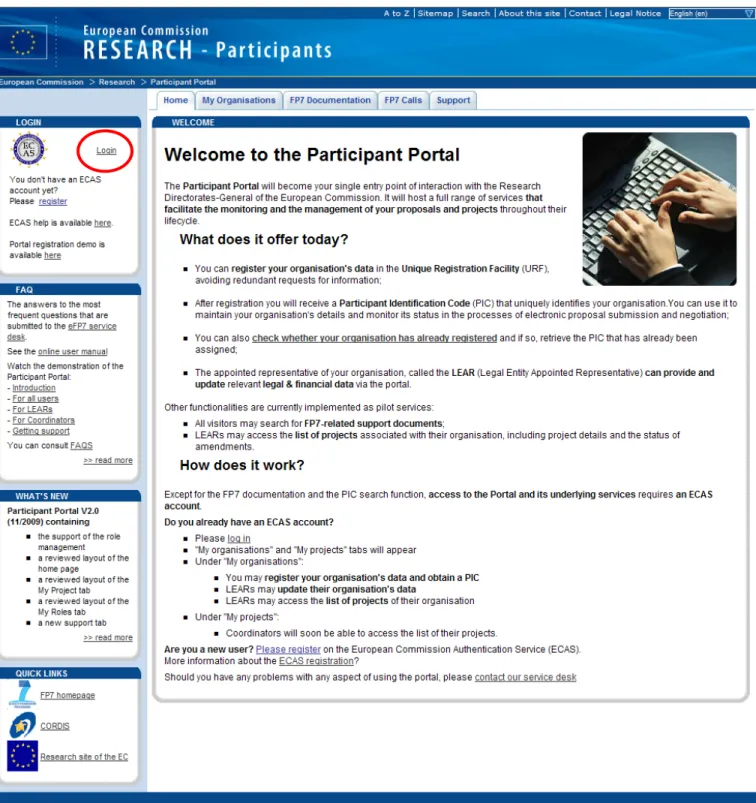
Figure 1 : Participant Portal - Welcome Page
See the User's Guide for the Participant Portal for information related to the ECAS registration. The first time you connect to URF, the welcome page will be displayed in your browser.
This page shows that you have not registered any organisation yet. See Figure 2: URF Self Registration empty (the "Manage organisation data" arrow is greyed and disabled – the "Register an Organisation" arrow is blue and enabled).
Figure 2: URF Self Registration empty
Figure 3 : Register a new organisation
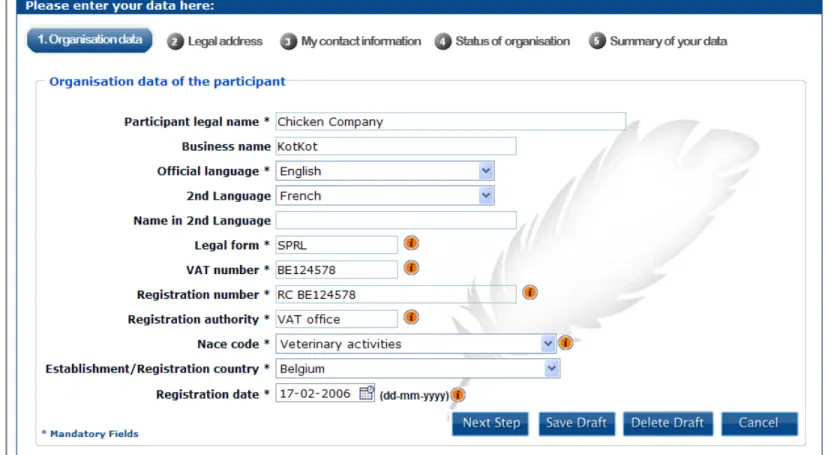
Self Registration – Organisation data
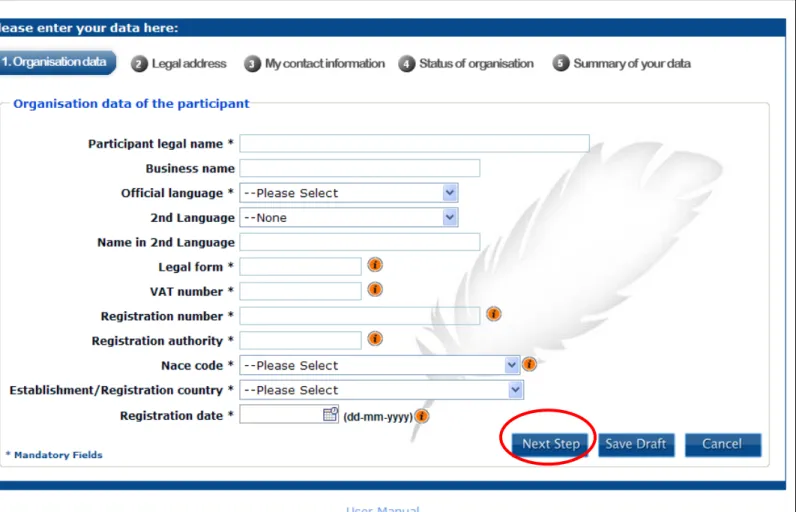
The first page to be displayed is related to the organisation's data. You have to fill in a set of fields (see table below).
Complete the form with at least all the mandatory fields marked with * in order to proceed to the next screen.
Note that the following buttons are present on all the pages during self-registration: • [Next Step] [Previous Step]: go to next/ previous registration page. • [Save Draft]: save current data in a temporary URF database.
•
[Cancel]: cancel current work since last saved draft or last login.
FIELD
COMMENT
* PARTICIPANT LEGAL NAME Legal name of the organisation as stated in the legal statute or decree establishing the. This field should contain less than 240 characters.
BUSINESS NAME The official acronym of your organisation. This field should contain less than 40 characters.
* OFFICIAL LANGUAGE Language used within the organisation for communication.
2nd LANGUAGE Language used for the translation of the legal name.
NAME IN 2nd LANGUAGE Translation of the legal name (usually to be provided in
English), applicable only if it is a commercial/business name identified in any official document to be provided during registration or if your character set is a non-latin one.
* LEGAL FORM This is a free text box. Please enter the form under which your organisation is legally registered, as in your organisation's statute. The legal form depends on the type of entity and the country. If your organisation is a private body, your form could be for example LLP, Ltd, PLC, SA, GmbH, etc. Please note that "university" or "public body" are not legal forms. After validation, this field will display the legal form as validated by the European Commission.
* VAT NUMBER It is the unique number given to organisations that pay Value Added Tax (VAT). In the European Union, the VAT is a general, broadly based consumption tax, assessed on the value added to goods or services.
Tips: If you are not sure about your VAT number, check with your financial department.If your organisation does not have a VAT number, you can enter “not applicable”.
* REGISTRATION NUMBER Code usually provided by the Chamber of Commerce of your country.
Tips: The registration number, the registration authority and the registration date are usually provided in the same document. Contact your financial department for more information. If your organisation does not have a registration number, you can enter “not applicable”.
* REGISTRATION AUTHORITY The authority by which your organisation was
registered, such as e.g. the administration of the city, or region, the Chamber of Commerce, etc.
Tips: The registration number, the registration authority and the registration date are usually provided in the same document. If your organisation does not have a registration authority, you can enter “not applicable”.
* NACE CODE The statistical classification of economic activities in the European Community (in French: Nomenclature statistique des activités économiques dans la Communauté européenne), commonly referred to as NACE, is a European industry standard classification system consisting of a 6 digit code.
FIELD
COMMENT
More info on:
http://ec.europa.eu/eurostat/ramon/index.cfm?TargetUrl=DSP_PUB_ WELC
* ESTABLISHMENT
REGISTRATION COUNTRY
Enter the location of the headquarters of the organisation.
* REGISTRATION DATE Date when your organisation was registered, for example with the Chamber of Commerce in your country.
Tips: The registration number, the registration authority and the registration date are usually provided in the same document. Enter 01-01-1900 if not applicable”.
Self Registration – Legal Address
Figure 5: Self Registration - Legal address
FIELD
COMMENT
* STREET NAME Street / legal address as stated in the official legal statute (in principle the address of the headquarters, not the address of the subsidiaries/department,etc.).
STREET NUMBER Number or name of the building on the street (max. 20 alphanumerical characters)- see also above
PO BOX If the organisation has a postal box
COUNTY / REGION Enter your county/region
* POSTAL CODE ZIP CODE of the organisation
* CEDEX Only for France
* CITY Official name of the city where the organisation is established
FIELD
COMMENT
INTERNET HOMEPAGE The format should be www.homepage.domain
FAX Format should be: (international code) and FAX number without space
* PHONE 1 Format should be: (international code) and PHONE number without space
PHONE 2 Format should be: (international code) and PHONE number
without space
COMPANY E-MAIL This e-mail address should be the address via which the Validation Services can contact the organisation if there is a need for clarifications.
E-mail addresses beginning with " info@" should be avoided as communications often get lost.
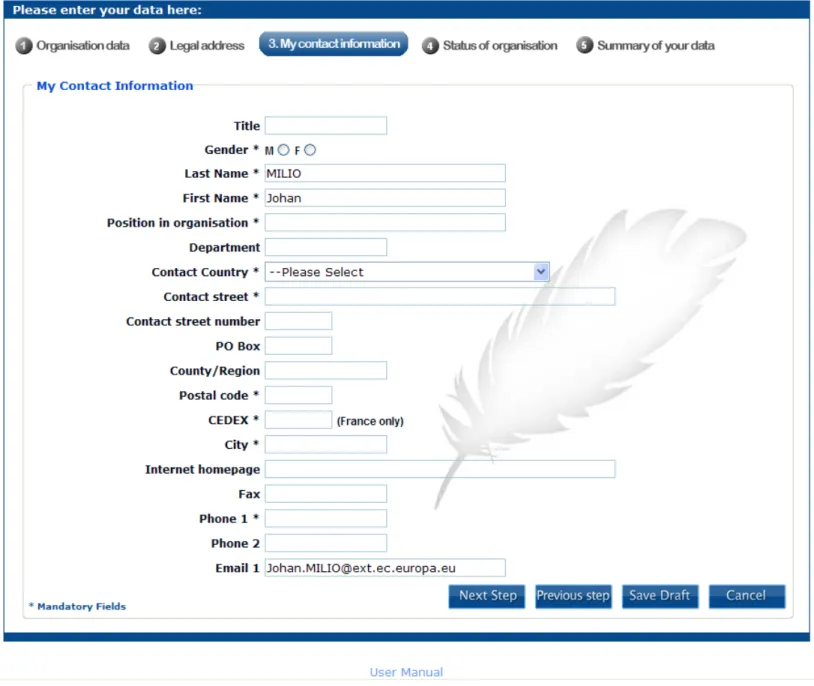
Self Registration – My Contact Information
This person is to be contacted until a person is validated as LEAR for the organisation. For further explanation about LEAR, please see: http://cordis.europa.eu/fp7/pp-lear_en.html
FIELD
COMMENT
TITLE The title: Mr., Mrs., Prof., Dr. …
* GENDER Specify the gender
* LAST NAME Automatically filled with the last name registered; the field can be modified
* FIRST NAME Automatically filled with the first name registered; the field can be modified
* POSITION IN ORGANISATION The title in your organisation
DEPARTMENT The department in your organisation
* CONTACT COUNTRY Select the country where your department is
established
* CONTACT STREET Enter the street name
* CONTACT STREET NUMBER Fill with the street number
PO BOX Fill with the PO BOX number
COUNTY / REGION Enter the county/region
* POST CODE Enter the ZIP CODE of the address of your
department
* CEDEX Only for France
* CITY Official name of the city
INTERNET HOMEPAGE The format should be: www.homepage.domain
FAX Format should be: (international code) and your FAX number without space
* PHONE 1 Format should be: (international code) and your
PHONE number without space
PHONE 2 Format should be: (international code) and your
PHONE number without space
E-MAIL 1 This e-mail address should be person specific.
Functional mailboxes should be avoided.
Self Registration – Status of the Organisation
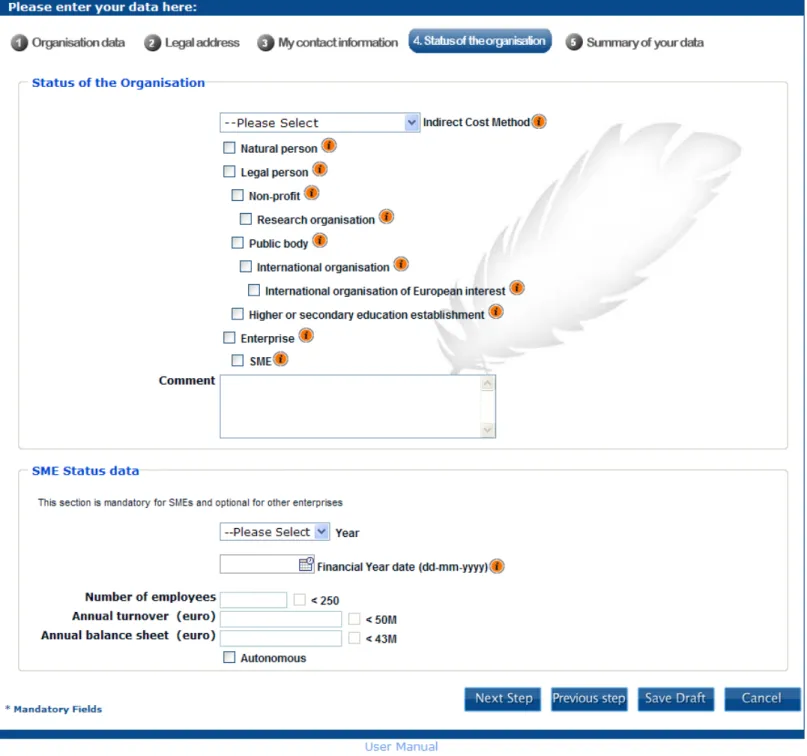
In the "Status of the organisation" screen, please select the appropriate status for your organisation. The selected status will need to be demonstrated by your statute and registration document.
For the definitions of the status of organisations, please see below and consult the "REGULATION (EC) No 1906/2006 OF THE EUROPEAN PARLIAMENT AND OF THE COUNCIL of 18 December 2006 laying down the rules for the participation of undertakings, research centres and universities in actions under the Seventh
Framework Programme and for the dissemination of research results (2007-2013)". To access the regulation, follow the link:
In the "Status of your organisation" screen, please select the right status for your organisation.
FIELD
COMMENT
Indirect cost model calculation method
The indirect cost calculation method is chosen by the participant. Indirect costs, also called overheads, are all the eligible costs which cannot be identified by the beneficiary as directly attributed to the project, but can be identified and justified by its accounting system as being incurred in direct relationship with the eligible direct costs of the project. The available options for the choice are determined by the legal status of the participant, the status of their accounting system and the history of indirect cost calculation methodologies in previous FP7 participations. The options are described as follows:
o Actual indirect costs: available for all categories of beneficiaries which have an analytical accounting system to identify their indirect costs. A simplified method is also available for all categories of
beneficiaries which are unable to perform detailed cost allocation and can aggregate their indirect costs only at the level of the legal entity, unless they used actual indirect costs in previous FP7 participations. The simplified approach must be based on actual costs derived from the financial accounts of the period in question.
o Standard flat rate: available for all categories of beneficiaries, unless they used actual indirect costs or the simplified method in previous FP7 participations. The flat rate is of 20% of its total direct eligible costs, excluding its direct eligible costs for subcontracting and the costs of reimbursement of resources made available by third parties which are not used on the premises of the participant.
o Specific flat rate of 60%: (or' transitional flat rate of 60%') available for non-profit public bodies,
secondary and higher education establishments, and non-profit research organisations and SMEs, which are unable to identify with certainty their real indirect costs and unless they used actual indirect costs or the simplified method before. The legal entity may opt for the specific flat rate of 60% when participating in funding schemes which include
research and technological development activities. This flat rate is of 60% of its total eligible costs excluding its direct eligible costs for subcontracting and the costs of reimbursement of resources made available by third parties which are not used on the premises of the participant. If these participants change their status during the life of a project, flat rate of 60% shall still be applied for the whole duration of the project.
ATTENTION: If your organisation already participated in the 6th Framework Programme and used the Full Cost (FC) model, this implies that your organisation
FIELD
COMMENT
has an analytical accounting system and would therefore not be eligible for the Specific flat rate of 60%
in FP7. Potential ex-post audits might reveal the non-eligibility for Specific flat rate of 60% with all the potential consequences.
The participant shall apply the same indirect cost calculation method in all grant agreements under the Seventh Framework Programme.However, any beneficiary that has opted for flat rate in a grant agreement funded under the Seventh Framework Programme may opt in a subsequent one for the actual or simplified method above described. However, it must then use that method in all subsequent grant
agreements established under the Seventh Framework Programme
In case of evolution in the accounting system of the organisation (see art. II.15. 3 of the GA) or change in the legal status, the new ICM should be applicable only for the future grant agreements to be concluded, not for the running ones (except in case of mistake in the establishment of the ICM while registering the organisation in the EC database).
Tips: View the financial guide page 52 to 61 for explanation of the method of calculation of indirect costs:
ftp://ftp.cordis.europa.eu/pub/fp7/docs/financialguide_en.pdf
Natural Person A "natural person" is a citizen (to be distinguished from "legal persons", which refer to corporations). Natural persons always have legal personality and are therefore legal entities without other proof being required than their identification papers. Individuals who are registered as free-lance professionals and have a VAT number, are also legal persons. Please note, that citizens who are freelance-professionals and want to be validated as FP7 participants, have to choose whether they want to apply as "natural person" or as "legal person".
Legal person A legal person has a legal personality, can act on its own name, exercise rights and be subject to obligations . For a "legal person" to exist, an act of incorporation and usually also a registration is required. A legal person exercises rights and is subject to obligationswith regard to the national law of its place of establishment,
community law or international law. A legal person can group other legal entities (natural or legal), or contain only possessions (e.g. foundation).
Non profit A legal entity is qualified as a "non-profit organisation", when considered as such by national or international law (international organisations as well as any specialized agency set up by international organisations). Generally, as a consequence, any possible profits have to be reinvested within the organisation itself and cannot be distributed. The quality of being a non-profit organisation
FIELD
COMMENT
has to be proven by your statute.
Research organisation "Research organisation" means a non-profit organisation which carries out scientific or technical research as its main objective. The quality of being a research organisation has to be stated in your statute.
Public body "Public body" means any legal entity established as such by national public law, and international organisations. "Established" signifies that the legal entity either has to be incorporated as a public body in the formal act or, governed by public law (usually both).
Criteria such as the direct supervision of a legal entity by the State, the public financing or the public service mission are no longer sufficient to define an entity as a public body
International organisation "International organisation" means an intergovernmental organisation, other than the European Community, which has legal personality under international public law, as well as any specialized agency set up by such international organisations.
International organisation of European interest
"International organisation of European interest" means an international organisation, the majority of whose members are Member States or Associated Countries, and whose principal objective is to promote scientific and technological cooperation in Europe.
Higher or secondary education establishment
It is an organisation which has as main objectives training and education, and delivers state recognized diplomas.
Enterprise Any entity engaged in an economic activity, irrespective
of its legal form. This includes commercial companies, but also self-employed persons and family businesses engaged in craft or other activities, as well as
partnerships or associations regularly engaged in an economic activity.
SME "SMEs" are micro, small and medium-sized enterprises within the meaning of Recommendation 2003/361/EC in the version of 6 May 2003.
Tips: To determine what type of SME your organisation is, see http://ec.europa.eu/research/sme-techweb/index_en.cfm
Year Enter the year related to your information below. This
information must be related to your balance sheet.
Financial Year Date Date of the financial year
Number of employees Enter the number of employees for the year
Number of employees < 250 This check box, in read-only mode, is checked if your organisation has less than 250 employees
Annual turnover Enter the annual turnover in €.
FIELD
COMMENT
annual turnover is less than € 50 millions
Annual balance sheet Enter the annual balance sheet in €.
Annual balance sheet <43M This check box, in read-only mode, is checked if the annual balance sheet is less than € 43 millions
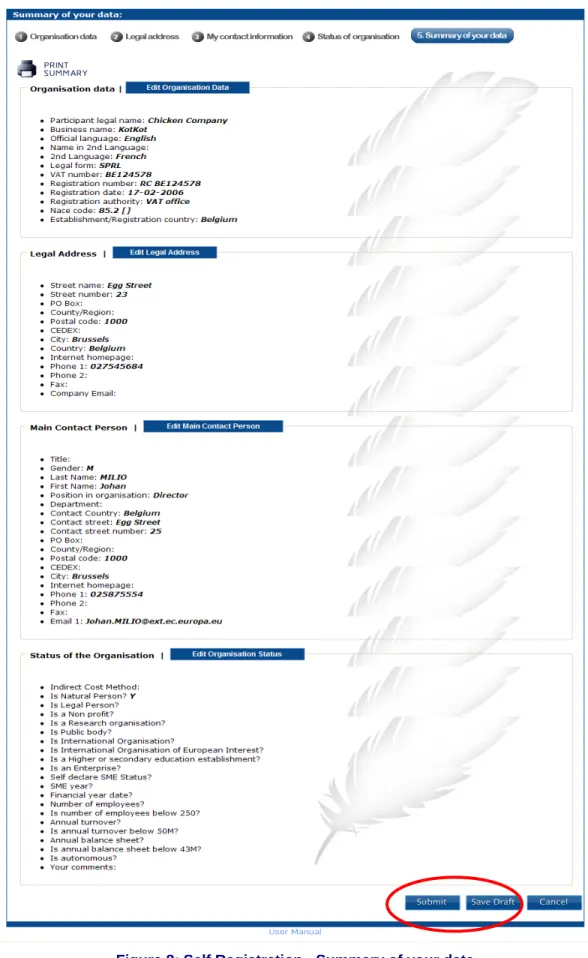
Self Registration – Summary of your data
The final screen summarises all the values entered in the previous screens.
After verification and when the data provided is correct, select the [Submit] button to submit the information to the Validation Services. Once the information has been submitted, you will not be able to correct the organisation data in URF until it has been processed by the Validation services. Upon completion of the validation, the Legal Entity Appointed Representative (LEAR) can be appointed and validated (see below). If the validation services have not yet started the validation process, it is still possible to modify the data and to upload documents (see below).
If you wish to suspend your verification, you can do so by clicking the [Save Draft] button. Then the data is saved and the pop-up is closed.
While your data will be under validation by the Validation services, you will be able to upload up to 10 Mb of documents. Once uploaded, these documents cannot be downloaded, except by the LEAR, after he/she has been appointed and validated.
Self Registration - Confirmation
After you have submitted your data, the confirmation page will be displayed. See Figure 9: Self Registration - Confirmation
Note: Your Participant Identification Code (PIC number) will be displayed on the page.
Figure 9: Self Registration - Confirmation
Immediately after the data has been submitted for validation, you will receive an e-mail with the data you entered, and a Participant Identification Code (PIC) will be provided to you.
This is an example of the confirmation e-mail:
From: [email protected] [email protected] To: your_email_registered
Dear Mr. / Mrs. John Doe,
The Research Directorates-General of the European Commission thank you for having registered your legal entity in our database of participants.
The record has been successfully created. The Participant Identification Code (PIC) for the legal entity you have registered is 123456789.
If you intend to use your PIC for proposal submission, please note that there is a delay of 48 hours before the associated data is visible to EPSS.
This time constraint effectively prevents you from using the above-mentioned PIC when submitting a proposal to a call closing within the next two days.
If you have registered because your organisation is currently negotiating a grant agreement, please provide us as soon as possible with the supporting documents so that your organisation can be validated.
On the link - http://cordis.europa.eu/fp7/urf-valid_en.html - you can find downloadable forms and instructions
for the submission of supporting documents. Please note that the validation could result in a possible change of the PIC. If you are negotiating a grant agreement, you are also kindly invited to launch the process of appointment
of the Legal Entity Appointed Representative (LEAR) within your organisation.
The LEAR will be the responsible for updating in URF the legal and financial data of your organisation. On the link - http://cordis.europa.eu/fp7/urf_en.html - you can find downloadable forms and instructions
for the appointment of the LEAR. You will find as well some additional information regarding the PIC usage and the LEAR. The Central Validation Team
Below is the summary of your entered data: Organisation Data ================= Legal name : xxxxxxx Business name : xxxxxxx Official language : xxxxxx Translated name : xxxxxx Translated language : xxxxxx Legal form : xxxxx VAT number : xxxxxxxx Registration number : xxxxxxxx Registration date : xxxxxxxx Registration authority : xxxxxxxxx NACE Code : xxxxxxxxx Registration country : xxxxxx Legal Address ================ Street name : xxxxxxx Street number : 12345789 PO box : 123456789 Region/County : Postal code : 123456789 CEDEX : City : xxxxxx Country : xxxxxxx
Internet homepage : www.myorganisationwebpage.domain Fax : +123 1234567890
Phone1 : +123 1234567892 Phone2 : +123 1234567891
Email1 : [email protected] Main Contact Person
=================== Contact Title : XXXXX Contact Gender : X
Contact Position in organisation : XXXXXXX Contact Department : XXXXXXX
Contact Last name : XXXXXXX Contact First name : XXXXXXX Contact Country : XXXXXXX Contact Street : XXXXXXX Contact Street number : 123456 Contact PO box :123456
Contact Region/County : XXXXXXXX Contact Postal Code : 123456 Contact CEDEX : 123
Contact City : XXXXXXXXX
Contact Internet homepage : www.XXXXXX.XXX Contact Fax : +123 123456789
Contact Primary phone : +123 1234568788 Contact Secondary phone: +123 12345787 Contact E-mail: [email protected] Status of the Organisation
==========================
Indirect Cost Method: Standard Flat Rate Is it a Natural Person? X Is it a Legal Person? X Is it a Non profit? X Is it a Research organisation? X Is it a Public body? X Is it an International Organisation? X
Is it an International Organisation of European Interest? X Is it a Higher or secondary education establishment? X Is it an Enterprise? X
Self declared SME Status? X
Is the number of employees below 250? X Is the annual turnover below 50M? X Is the annual balance sheet below 43M? X Is it autonomous? X
Your comments:
Modify Self-registration data (Draft Mode)
During Self registration, if you have saved your data by using the [SAVE DRAFT] button, you can modify your registration data by clicking on the "modify or delete link in the "Register" tab: Figure 10: Self Registration - Modify draft data.
.
Figure 10: Self Registration - Modify draft data Then you will have access again to the different pages described above.
View Self-Registration data
During self-registration you can modify your data (data which is not confirmed yet, but saved as draft ). After your data have been submitted you are still able to modify it until the Validation Services start the validation process.
Just click in the "modify your self-registration" link in the 'Register' tab (see Figure 12: Self Registration - Data Submitted)
Figure 12: Self Registration - Data Submitted
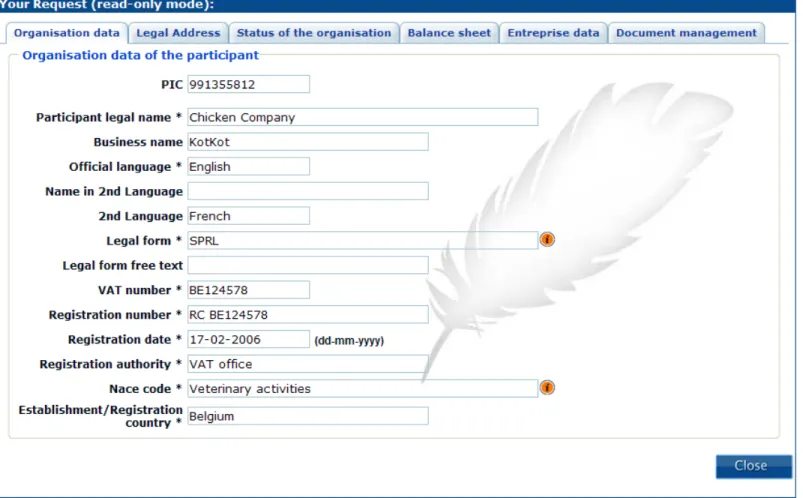
When the Validation Services have started the validation,, your registered data can then be seen in read-only mode (see Figure 13: Self Registration - View data under validation (Organisation data))
Self Registration – Upload Documents
Once your data is submitted from your self-registration, you still have access to URF through the "Register" tab of the Participant Portal. (see Figure 14 : Register tab – link to upload documents).
In this page, you can activate the upload document facility by clicking the "upload additional documents" link. The total file size is limited to 10 Mb for upload and no further download is available.
Figure 15 : Self Registration - Upload Document Page On Figure 15 : Self Registration - Upload Document Page, the document list is empty. To upload a new document, just click on the [Upload] button.
Figure 16 : Self Registration - Upload New Document Page
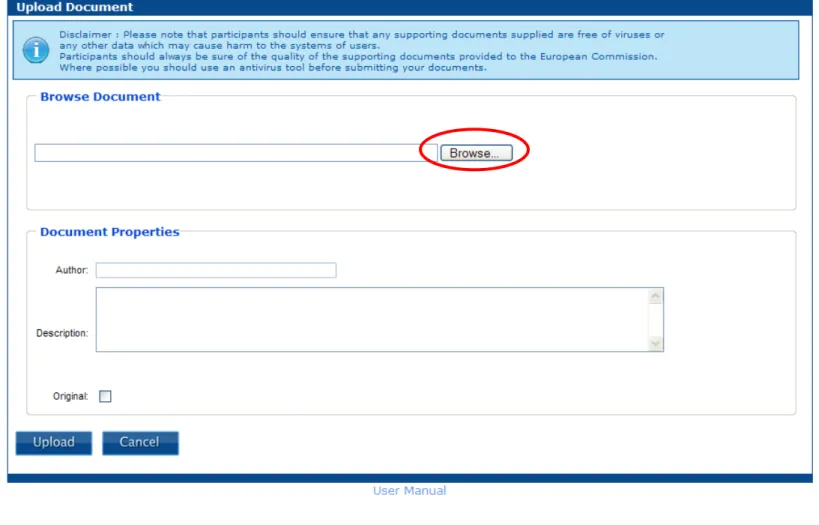
In the Document properties page (see Figure 16 : Self Registration - Upload New Document Page) click on the [Browse] button, in order to select the file to upload.
Figure 17 : Self Registration - Upload Document – Browse
Figure 18 : Self Registration - Upload Document - Fill Meta data
In the Document Properties page, enter the Author name and the file description, these fields are mandatory... Check the 'Original' check box if your file is the original one.
Finally, click on the [Upload] button to save your data and to upload your file (see Figure 18 : Self Registration - Upload Document - Fill
Meta data
).Figure 19 : Self Registration - Uploaded Document List
IIn the Document List page, you can now see your file. You can either upload another document by clicking on the [Upload] button or quit this page by clicking on the [Close] button. See Figure 19 : Self Registration - Uploaded
Document List
.LEAR ROLE IN URF
The Legal Entity Appointed Representative (LEAR) is the person chosen by the organisation itself in order to ease the communication with the European Commission and avoid double registrations. The LEAR can only be nominated after completion of the validation process and is the only person who may request changes to his/her organisation's data and submit legal documents through URF.
He/She is going to be the only contact person of the organisation with the URF. The LEAR is not necessarily the authorized legal representative of the legal entity LEARs can submit requests for update of their:
• Legal Data (Name, address, registration number etc.) • FP7 account (SME, Public private, educational etc.) • Balance sheet data
And they can upload supporting documents in URF to support their requests.
More information on the LEAR and the documents required to appoint him/her are available in the FAQ section of the Participant Portal:
http://ec.europa.eu/research/participants/portal/appmanager/participants/portal?_nfpb=true&_pageLabel=faq #LEAR
Note : In the Participant Portal, LEARs are authorized to nominate Account Administrators that have the same rights but cannot revoke the LEAR.
LEAR Nomination - Mails
This login is to be used by the persons who have been validated as LEAR (Legal Entity Appointed Representative) of their organisations.
As a LEAR you will connect to the URF by using your ECAS account:
¾ If your organisation has nominated you as a LEAR, you will first receive by email your username and an explanation on how to activate your account.
Subject: 7th Framework Programme - User account creation
Dear John Doe,
In the context of the 7th Framework Programme, you have recently been nominated as the LEAR for your organisation. In order to access the Unique Registration Facility (URF), the web application that allows you to manage the data of your organisation, an account has been created for you by the European Commission. Once activated, this account can be used to access initially the Unique Registration Facility (URF) and subsequently, it may be possible for you to access other Commission sites.
Your user name is: nnnnnnnn
(Note: you can also use your registered email address instead of the username to access your account).
You will soon receive by letter (and if possible, by phone) your personal identification number (PIN) required to activate your account. When you receive the PIN, please visit this link and follow the instructions on screen to activate your account. Please make sure that the domain that is selected in ECAS is "External", not European Commission.
You will be asked to provide your user name and PIN. Then, you will be offered the opportunity to choose a password of your liking. Please choose your password wisely in accordance to the instruction provided on the pages. When you have completed these steps, your account will be automatically activated.
If the above mentioned link does not work, you can copy the following address (without any line break) and paste it in your browser address bar: https://webgate.ec.europa.eu/ecas/init/PINCode.do?domain=external
Once your account has been activated, you can visit the URF application at the following address: http://ec.europa.eu/research/participants/urf
If you believe that this message has reached you in error or should you require any further assistance, please do not hesitate to contact our eFP7 Service Desk using the co-ordinates provided below.
The eFP7 Service Desk Team
E-mail: [email protected] Phone: +352 4301 31570
¾ For the LEARs that self registered, the received mail is different because they already have an ECAS account.
From: DIGIT CED CUD SUPPORT
Sent: Thursday, February 19, 2009 5:27 PM
Subject: 7th Framework Programme - User account upgrade
Importance: High
Sensitivity: Private
Subject: 7th Framework Programme - User account upgrade Dear John Doe
In the context of the 7th Framework Programme, you have recently been nominated as the LEAR for your organisation. In order to access the Unique Registration Facility (URF), the web application that allows you to manage the data of your organisation, you can use the existing user account that was previously created for you by the European Commission. Nevertheless, you are required to upgrade this account.
Your user name is: username
(Note: you can also use your registered email address instead of the username to access your account).
In order to start using the system, your account must be upgraded. You will soon receive by letter (and if possible, by phone) your personal identification number (PIN) required to upgrade your existing account.
When you receive the PIN, please visit this link and follow the instructions on screen to activate your account. Please make sure that the domain that is selected in ECAS is "External", not European Commission (see the attached file).
You will be asked to provide your user name and PIN. Then, you will be offered the opportunity to choose a password of your liking. Please choose your password wisely in accordance to the instruction provided on the pages. When you have completed these steps, your account will be automatically activated.
If the above mentioned link does not work, you can copy the following address (without any line break) and paste it in your browser address bar: https://webgate.ec.europa.eu/ecas/init/PINCode.do?domain=external
Once your account has been activated, you can visit the URF application at the following address:
http://ec.europa.eu/research/participants/portal/
We regret that, for technical reasons, you will be unable to use your existing account for access to any Commission information system until your account has been upgraded. Please contact us if you have an urgent need for access but have not yet received your PIN.
If you believe that this message has reached you in error or should you require any further assistance, please do not hesitate to contact our eFP7 Service Desk using the details provided below.
The eFP7 Service Desk Team
E-mail: [email protected] Phone: +352 4301 31570
The LEARS would also receive a letter with their PIN code:
EUROPEAN COMMISSION
DIRECTORATE-GENERALINFORMATICS
Directorate B - Information systems
e-Commission, Interoperability, Architecture and Methods
Dear John DOE,
Re: your nomination as Legal Entity Authorised Representative (LEAR)
The European Commission's Unique Registration Facility is a web-based application for participating organisations in the Seventh Research Framework Programme. This online service allows registered users to view and update their organisation's legal and financial data.
According to our records, you are the Legal Entity Authorised Representative (LEAR) for the above-mentioned organisation. The European Commission Authentication Service (ECAS) has therefore created a user account for you to access the Unique Registration Facility and manage your organisation's data.
An email was sent to your registered email address: aaaa.bbbb@aba It explains how to activate your new user account using a PIN code. Please follow the instructions carefully.
Your activation PIN is: xxxxx
Your user account is strictly personal and will allow you in future to access other online services the European Commission is currently developing for the Seventh Research Framework Programme and the Competitiveness and Innovation Programme.
Please contact the eFP7 Service Desk if any of the information about yourself or your organisation contained in this letter is inaccurate or if you have any problem activating your account.
Figure 20 : ECAS Password initialisation for LEAR
As a LEAR, after login in the Participant Portal, you can see the following home page (Figure 21 : Participant Portal Home
Page
).When you are the LEAR of a validated organisation, the "Manage organisation data" arrow is enabled and blue. Click on it to see the tab dedicated to your organisation. You can also click on the "My Organisations" tab
Figure 22 : My Organisations
This page shows you some info concerning your organisation. Three links are located on the right of this page: - Organisation's Data: all info about the data and requests related to the organisations you are involved in. (see Figure 24: My Organisation's data).
- View Projects: info about the projects which your organisation is involved in (see Participant User's guide for more info).
- Roles: the different roles of the users involved in your organisation (see Figure 23 : The roles in my
organisation
) - (see Participant User's guide for more info).Figure 24: My Organisation's data
The data under the "Data of the organisation <my organisation>" area is the most recently validated data. Below, the request history lists all the chronological changes on the data, the last one being the self registration itself.
Modify data
As a LEAR, you are able to modify your data (when the [Update] button is enabled in the page above - Figure 24: My Organisation's data ).
The modifications page (Figure 25: LEAR - Modifications of the validated data ) contains 6 tabs: • Organisation data
• Legal address
• Status of the organisation
• Balance Sheet, this tab can be modified only when requested by NEF. It is normally in read-only mode. • Enterprise data
• Document management
In these different tabs, an [UPDATE YOUR DATA] button is present. This button saves all the data from ALL tabs and closes the window.
You can open any tab by clicking on its title and then modify any data or create new enterprise data or new balance sheets (only if requested by NEF – see below) or upload new documents.
Remark : If all or any of the following attributes (see below) are updated then the request will update the record directly in the registry without the need for validation by CVT. Any combination of one of those attributes and any out of the following list means that, if any other attribute is also updated,then the request for update will follow the existing preparation and validation process.
From Organisation data tab • Business name
From Legal Address tab • Internet homepage • Fax
• Phone1 • Phone2
Organisation data
In this tab, you must choose the update reason in the list box.
If the participant legal name is modified, then the 'effective date' field becomes active and you have to enter the date of entry into force of this modification (for grant amendment reason).
Legal Address
If significant fields are modified in the legal address then the 'effective date' field becomes active and you have to specify the date of entry into force of this modification (for grant amendment reason).
Status of the Organisation
The certification data and the data on the indirect cost method are in read-only mode. Only the CVT can modify them.
Each status of the organisation is now associated with an effective date. For each modified flag, the effective date field is enabled and you will have to enter the date of entry into force of this modification This date can not refer to future changes. All the changes requested must be already effective modifications
Balance sheet
In this tab, you can modify existing balance sheets (by clicking on the year number) or create a new balance sheet only when requested by NEF (see below).
NEF is the electronic negotiation tool used for the negotiation of Grant Agreements, and it may prompt you to submit some additional information via the URF tool. In this tab, you can modify existing balance sheets (by clicking on the year number) or create a new balance sheet only when requested by NEF
In the figure below (Figure 28: LEAR – Balance Sheet tab disabled for LEAR update request ) , you are not allowed to create/modify balance sheet data. This is the case when the LEAR manage a normal change request.
Figure 28: LEAR – Balance Sheet tab disabled for LEAR update request
In the figure below ( Figure 29: LEAR Balance sheet tab enabled for Financial Request), the LEAR is requested to provide financial info, so the balance sheet tab is enabled : the [newYear] button is visible and active(allowing to ceate a new balance sheet data set). The existing yearly balance sheet data are represented by a button per year and can be modified.
Please, see below § NEF Requirement – Balance Sheet for the description of the balance sheet data entry due to a financial info requested by NEF
Enterprise data
In this tab, you can modify existing enterprise data (by clicking on the year number) or introduce the enterprise data for a new year (by clicking on the [newYear] button).
You can also modify the global SME flag (and effective date, as well).
Figure 30: LEAR - Modifications of the validated data (Enterprise Data)
When the year is entered, then click on [Submit] in order to create a new yearly enterprise data set.
Figure 32: LEAR - Modifications of the validated data (Entreprise Data - Yearly values)
You have to enter the financial date, the number of employees, the annual turnover and balance sheet amount in EURO.
If you want to modify an existing yearly enterprise data set that has been validated, then you have to click first on the [EDIT] button to enable the data fields.
Document management
For uploading documents related to the organisation, the LEAR will follow the same procedure as described in the section: Self Registration – Upload Documents.
The LEAR can upload up to 20 Mb of documents. Please refer to Self Registration – Upload Documents paragraph above.
Furthermore any modification related to legal status, whenever introduced by the LEAR after the validation of the legal entity need also to be supported by the relevant official/legal document to be uploaded by the LEAR
together with their request"
Validate your modifications
In all the different tabs, the [Update your data] and [Cancel] button are present (see below, Figure 35 : Update/Cancel buttons located in all the tabs).
Figure 35 : Update/Cancel buttons located in all the tabs
The [Cancel] button a closes the window/URF but without saving changes). The [Update your data] button saves all the data from ALL tabs.
Once this button is clicked, a confirmation page appears. You are then asked to confirm or cancel your modifications (see Figure 36: LEAR- Confirmation of modifications).
Figure 36: LEAR- Confirmation of modifications
If you click on the [Cancel] button, the you are redirected to the previous screen, your change are still present and you can introduce new changes
When you confirm your modifications by clicking on the [SUBMIT] button, your modifications are saved and the window closes.
You can then logout or return to the Participant Portal (see Figure 37: LEAR - Organisation page with new request)
You can see that the "Data of the Organisation" area has changed in the Request history SECTION: • The first request is now in read-only: only the [VIEW] button is enabled;
• Your submitted modifications are displayed in the second request. While the CVT (Central Validation Team) has not yet set the request status to 'UNDER VALIDATION' (Figure 38 : Data of the organisation during validation by CVT), you will be able to update or delete your request. In this case,
the buttons [View] [Update] [Delete] are enabled (Figure 37: LEAR - Organisation page with new request (top of the list).
NEF Requirement – Balance Sheet
During negotiation, NEF may request some financial info from the LEAR in order to complete the financial viability check of the organisation. A mail is sent to the LEAR by NEF for this purpose.
In URF, a reminder is displayed in the Status Page (see Figure 40: Status Page with NEF reminder): "You are requested to provide additional financial information in order to complete the negotiation of your grant for proposal <Proposal Id>".
Figure 40: Status Page with NEF reminder
Figure 41 : Balance sheet tab when NEF info requested
To satisfy the NEF request, you have to update the most recent closed financial data and open the 'Balance sheet' tab.
The [newYear] button is present and enabled. Click on it.
Figure 42 : Submit a new year for balance sheet data To create a new balance sheet, choose a year and click on the [Submit] button.
The first information to enter is the closing date of your balance sheet, its duration and the currency that will be used for the values below. The indicative final date of validity (facultative) show the limit date until the financial data are valid. This field is clearly labelled as a 'self declared' field; it will not be validated in any way by the CVT. It is simply a one way statement by the LEAR
.
The first set of values is related to assets.
The second set of values is related to liabilities.
Warning: Total value of assets and liabilities must be equal.
The last set of values concerns profit and loss account. Note that calculations are performed 'on line' after your validation of the data.
Figure 44 : Balance Sheet (part 2)
When you validate your data, by clicking on the [VALIDATE] button, the legal financial viability (LFV) simulation is performed.
Figure 46 : Balance sheet - Financial Viability Simulation
The results of the LFV simulation are then displayed at the bottom of the page.
If you want to modify an existing balance sheet, you must first click on the [EDIT] button to enable the data fields When you submit financial info, you are also required to upload financial documents. See message in Figure 47 : Document management during a financial request below.
Figure 47 : Document management during a financial request
In the Organisation tab of the Participant Portal you can see a new request type : Financial.
GLOSSARY
Term Definition
CIP Competitiveness and Innovation Programme
Coordinator The participant designated as the coordinator in a consortium and in the grant agreement
ECAS European Commission's user Authentication Service
EC Officer European Commission's Project/Scientific Officer or Administrative Officer representing the European Commission during the negotiations.
FP7 7th Framework Programme of Research and Technological Development of the European Commission
LEAR A legal signatory of each legal entity will be asked by the Commission to appoint one person (the so-called LEAR - Legal Entity Appointed Representative) for being the correspondent towards the Commission on all issues related to the legal status of the entity.
The LEAR provides the Commission with up-to-date legal and financial data (including supporting documents, where necessary) and commits to maintain the account so that it is up-to-date enabling future use for grants and other
transactions between the entity and the Commission research (and other) programmes.
This person is chosen by the organisation itself in order to ease the
communication with the European Commission and avoid double registrations. Only the LEAR may introduce a Change request (of his organisation's data) through URF and submit legal documents through URF.
NEF The negotiation process is supported by the online Negotiation Facility tool (NEF), an electronic implementation of the negotiation forms used to exchange
information between the participants and the European Commission. NEF provides the main channel for interactive communication between the Consortium and the EC Project Officer as all necessary administrative and financial data about the projects and the participants is collected and agreed through NEF.
Negotiation The negotiation is a process during which the details about the proposal are agreed between the participants and the European Commission.
Negotiation session A period during which the coordinators are allowed to provide changes on their proposals.
Participant Any legal or natural person, that has some dealings with FP or CIP programmes. For example: Legal Entity as partner to a grant agreement, department or institute of such, person working in participating organisation and relevant to the
programmes, expert. Participants are external to the Commission.
In order to structure this participant concept into further details, a clear distinction should be made between:
The "executing participant" proposing and executing an action (e.g. a department within a university or an independent expert)
The "participating legal entity" endorsing the responsibility of this proposition and execution (e.g. a university or the expert as a legal natural person). "A
Term Definition
will participate in the programmes of FP and CIP, whether in Grant Agreements, contracts or proposals only" (List of Agreements PDM/URF WG, as of 14th January 2007).
"Contacts" by the executing participants and participating legal entities for exchange of information (e.g. a professor within the university department, the financial officer of the university, an expert him/herself, etc.). Contacts typically play roles within participating entities and may have a specific address.
It is worth to notice that the "executing participant" and the "participating legal entity" can be the same entity (e.g. a private company) or that several legal entities could collectively endorse the responsibility for a single executing participant (case of a consortium).
Participant Portal The Participant Portal hosts services that facilitate the monitoring and the management of the participants proposals and projects.
It is a secure Internet site that ensures adequate authentication and confidentiality mechanisms, based on the European Commission Authentication Service (ECAS).
PIC (Participant Identity Code)
Participant Identity Code is a unique ID of an organisation. The PIC is a 9 digits code obtained through URF registration and used in each step of the process to identify an organisation. The PIC received during registration needs to be validated by the CVT, and will then become permanent.
SME Small and Medium sized Enterprise
Status of validation Indication that data provided in a form have been validated by the Commission
URF Unique Registration Facility: a service providing unique registration for participants in the Framework Programmes at proposal and contract stages. It encompasses a set of rules for data acquisition and validation.
Functional Mailboxes
You can use our functional mailboxes in order to communicate to our services :
• Validation - REA URF VALIDATION : [email protected];
• Lear validation - REA LEAR VALIDATION : [email protected]