IDL Version 6.0 July, 2003 Edition
Copyright © Research Systems, Inc. All Rights Reserved
Installing and
Licensing
IDL 6.0
The IDL®, ION Script™, and ION Java™ software programs and the accompanying procedures, functions, and documentation described herein are sold under license agreement. Their use, dupli-cation, and disclosure are subject to the restrictions stated in the license agreement. Research Sys-tems, Inc., reserves the right to make changes to this document at any time and without notice.
Limitation of Warranty
Research Systems, Inc. makes no warranties, either express or implied, as to any matter not expressly set forth in the license agreement, including without limitation the condition of the soft-ware, merchantability, or fitness for any particular purpose.
Research Systems, Inc. shall not be liable for any direct, consequential, or other damages suffered by the Licensee or any others resulting from use of the IDL or ION software packages or their doc-umentation.
Permission to Reproduce this Manual
If you are a licensed user of this product, Research Systems, Inc. grants you a limited, nontransfer-able license to reproduce this particular document provided such copies are for your use only and are not sold or distributed to third parties. All such copies must contain the title page and this notice page in their entirety.
Acknowledgments
IDL® is a registered trademark and ION™, ION Script™, ION Java™, are trademarks of Research Systems Inc., registered in the United States Patent and Trademark Office, for the computer program described herein.
Numerical Recipes™ is a trademark of Numerical Recipes Software. Numerical Recipes routines are used by permission. GRG2™ is a trademark of Windward Technologies, Inc. The GRG2 software for nonlinear optimization is used by permission. NCSA Hierarchical Data Format (HDF) Software Library and Utilities
Copyright 1988-2001 The Board of Trustees of the University of Illinois All rights reserved.
NCSA HDF5 (Hierarchical Data Format 5) Software Library and Utilities
Copyright 1998, 1999, 2000, 2001, 2002 by the Board of Trustees of the University of Illinois. All rights reserved. CDF Library
Copyright © 1999
National Space Science Data Center NASA/Goddard Space Flight Center NetCDF Library
Copyright © 1993-1996 University Corporation for Atmospheric Research/Unidata HDF EOS Library
Copyright © 1996 Hughes and Applied Research Corporation
This software is based in part on the work of the Independent JPEG Group. Portions of this software are copyrighted by INTERSOLV, Inc., 1991-1998.
Use of this software for providing LZW capability for any purpose is not authorized unless user first enters into a license agreement with Unisys under U.S. Patent No. 4,558,302 and foreign counterparts. For information concerning licensing, please contact: Unisys Corporation, Welch Licensing Department - C1SW19, Township Line & Union Meeting Roads, P.O. Box 500, Blue Bell, PA 19424. Portions of this computer program are copyright © 1995-1999 LizardTech, Inc. All rights reserved. MrSID is protected by U.S. Patent No. 5,710,835. Foreign Patents Pending.
This product includes software developed by the Apache Software Foundation (http://www.apache.org/) IDL Wavelet Toolkit Copyright © 2002 Christopher Torrence.
Installing and Licensing IDL 6.0 3
Contents
Chapter 1:
Introduction
... 9
About Adobe
®Acrobat
®Reader
... 10
Contacting RSI
... 10
System Requirements
... 11
IDL 6.0
... 11
Hardware Requirements for IDL 6.0
... 11
Software Requirements for IDL 6.0
... 12
ION 2.0
... 12
Hardware Requirements for ION 2.0
... 12
Web Server Requirements for ION 2.0
... 13
Web Browser Requirements for ION 2.0
... 13
Java Virtual Machine Requirements for ION 2.0
... 13
IDL-Java Bridge
... 14
Contents Installing and Licensing IDL 6.0
IDL Virtual Machine
... 15
Demonstration Mode
... 15
Evaluation License
... 15
Personal Use License
... 15
Node-Locked License
... 16
Floating License
... 16
Running IDL in Demonstration Mode
... 18
Installing and Running—Windows
... 18
Installing and Running—UNIX and Macintosh
... 18
Running the IDL Demo Applications
... 19
Windows
... 19
UNIX or Macintosh
... 19
Chapter 2:
Installing and Licensing IDL 6.0 for Windows
... 21
Introduction
... 22
Before You Begin
... 22
Recommended Steps for Installing and Licensing IDL for Windows
... 22
IDL Virtual Machine
... 22
Evaluation Licenses
... 22
Personal Use Licenses
... 22
Node-Locked Licenses
... 23
Floating Licenses
... 23
Installing IDL for Windows
... 24
System Requirements
... 24
Run the IDL Installer
... 24
Requesting a License
... 28
Preparing a License Request
... 28
Manually Sending a License Request
... 29
Evaluation Licensing
... 31
Troubleshooting Evaluation Licensing
... 31
Personal Use Licensing
... 32
Save the License File
... 32
Enter the License Key
... 32
Troubleshooting a Personal Use License
... 33
Installing and Licensing IDL 6.0 Contents
Save the License File
... 36
Enter the License Key
... 36
Troubleshooting a Node-Locked License
... 37
Floating Licensing
... 41
Windows NT
... 45
Windows 2000
... 46
Windows XP
... 46
Customizing Floating Licenses
... 47
Working with the License Server
... 47
Starting and Stopping the License Manager
... 47
Removing the License Manager Service
... 47
Reclaiming an Unused License
... 47
Multiple Applications Using the Same License Server
... 49
Combining License Files
... 49
Configuring Unique FLEXlm License Manager Services on the Same Server
. 50
Troubleshooting a Floating License
... 51
Troubleshooting the License Server Startup
... 53
Saving the License File in an Alternative Location
... 56
For Windows NT Systems
... 56
For Windows 2000 Systems
... 57
For Windows XP Systems
... 57
Running IDL under Windows
... 58
Running the IDL Virtual Machine under Windows
... 58
Running IDL Runtime Programs under Windows
... 59
Chapter 3:
Installing IDL 6.0 for UNIX
... 61
Introduction
... 62
Before You Begin
... 62
Recommended Steps for Installing and Licensing IDL for UNIX
... 62
IDL Virtual Machine
... 62
Evaluation Licenses
... 62
Personal Use Licenses
... 63
Node-Locked or Floating Licenses
... 63
Installing IDL for UNIX
... 64
Contents Installing and Licensing IDL 6.0
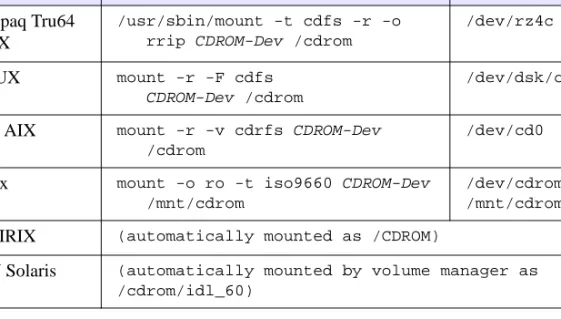
Mount the IDL CD-ROM on Your System
... 64
Run the IDL Installer
... 65
Unmount the IDL CD-ROM from Your System
... 68
Chapter 4:
Installing IDL 6.0 for Macintosh
... 69
Introduction
... 70
Recommended Steps for Installing and Licensing IDL for Mac OS X
... 70
IDL Virtual Machine
... 70
Evaluation Licenses
... 70
Personal Use Licenses
... 70
Node-Locked or Floating Licenses
... 71
Installing IDL for Macintosh
... 72
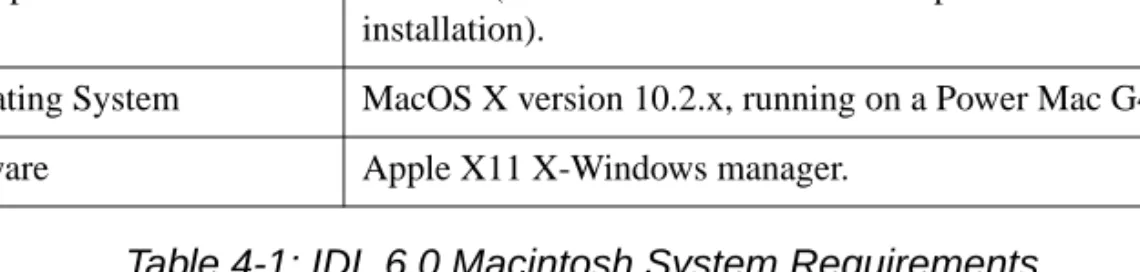
System Requirements
... 72
Run the IDL Installer
... 72
Installing IDL 6.0 Virtual Machine
... 75
Removing IDL 6.0 for Macintosh
... 77
Chapter 5:
Licensing IDL 6.0 for UNIX and Macintosh
... 79
Setting Up Your Environment
... 80
Requesting a License
... 81
Preparing a License Request
... 81
Manually Sending a License Request
... 83
Evaluation Licensing
... 84
Troubleshooting Evaluation Licensing
... 85
Personal Use Licensing
... 86
Node-locked or Floating Licensing
... 88
Modifying the License File
... 93
Sample License Files
... 93
Viewing or Modifying the License File
... 93
Locating the License File
... 94
Altering the License File
... 94
Working with the License Server
... 95
Starting the License Manager
... 95
Starting Automatically at Boot Time
... 95
Installing and Licensing IDL 6.0 Contents
Linux
... 96
Sun Solaris, SGI IRIX, HP-UX, and Compaq Tru64 UNIX
... 96
Creating a License Manager Log File
... 96
Shutting Down The License Manager
... 97
Reclaiming an Unused License
... 97
Checking the License Manager Status
... 99
Obtaining a Host ID
... 99
If You Encounter Errors
... 99
Multiple Applications That Use The Same License Manager
... 100
All Products Use the Same Set of Server Nodes
... 100
The Products Use Different Servers
... 101
Troubleshooting
... 102
License Manager Startup Troubleshooting
... 105
Chapter 6:
Setting Up and Running IDL on UNIX/Macintosh
... 109
Setting Up the IDL Environment
... 110
Define IDL Environment Variables and Aliases
... 110
Define ION Environment Variables and Aliases
... 111
Define the Path to the License File or License Server
... 111
Node-locked License
... 112
Floating Licenses
... 112
Running IDL under UNIX
... 114
Running the IDL Virtual Machine under UNIX
... 114
Running IDL Runtime Applications under UNIX
... 115
Running IDL under Mac OS X
... 116
Running the IDL Virtual Machine under Mac OS X
... 117
Running IDL Runtime Applications under Mac OS X
... 117
Appendix A:
Customizing Your Floating Licenses
... 119
Creating an Options File
... 120
Options File Keywords
... 120
Contents Installing and Licensing IDL 6.0
Appendix B:
Running Older Versions of IDL
... 125
Running Older Versions of IDL Concurrently with IDL 6.0
... 125
Start the Latest Version of the License Manager
... 125
Installing and Licensing IDL 6.0 9
Chapter 1:
Introduction
This guide describes how to install and license version 6.0 of the following products: • IDL — The standard version of IDL, offering full access to all of the software’s
features including the ability to run and compile programs.
• IDL Virtual Machine— A free runtime version of IDL that lets users run IDL
applications and other IDL-based programs that have been packaged as IDL .sav files. The IDL development environment and the command line are not accessible when using IDL Virtual Machine.
Installing and Licensing IDL 6.0
About Adobe
®
Acrobat
®
Reader
IDL online manuals (which are installed with IDL) require Adobe Acrobat Reader with Search 3.0 or greater. Acrobat Reader Search has been included on your IDL CD-ROM in the adobe directory (Windows and UNIX), or in the root directory of the CD (Macintosh). Windows and Macintosh users can launch the Acrobat installer directly from the CD; UNIX users should extract the contents of the *.tar file from the subdirectory corresponding to their operating system and follow the installation instructions included in the README file (or, for IRIX and Tru64 users, in the instguid.txt file).
Note
UNIX and Mac OS X users: Adobe Acrobat Reader with Search 3.0 or greater must be
installed on your system to view the online help. The online help systems used in previous versions of IDL have been replaced with an online help system that requires Adobe Acrobat Reader.
Visit the Adobe Systems Web site at www.adobe.com for the latest Acrobat Reader information and downloads.
Contacting RSI
If you have problems with installing or licensing this software product, contact Research Systems technical support for assistance:
• E-mail: [email protected]
• Phone: (303) 413-3920 • Fax: (303) 786-9909
• Web page: http://www.RSInc.com — Visit the Services section on our Web page for Tech Tips and Frequently Asked Questions.
International customers should contact their local RSI office or distributor for technical support.
Installing and Licensing IDL 6.0 System Requirements
System Requirements
IDL 6.0
Hardware Requirements for IDL 6.0
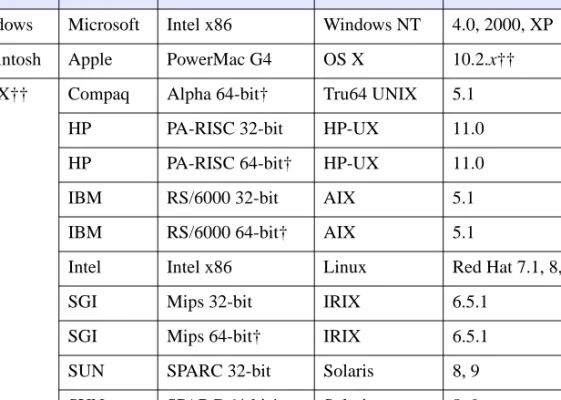
The following table describes the supported platforms and operating systems for IDL 6.0:
On platforms that provide 64-bit support, IDL can be run as either a 32-bit or a 64-bit application. Both versions are installed, and the 64-bit version is the default. The 32-bit version can be run by specifying the -32 switch at the command line:
% idl -32
† The DXF file format and IDL Data Miner are not supported on 64-bit IDL platforms. †† For UNIX (including Mac OS X), the supported versions indicate that IDL was either built on (the lowest version listed) or tested on that version. You can install and run IDL on other versions that are binary compatible with those listed.
Platform Vendor Hardware Operating
System Supported Versions
Windows Microsoft Intel x86 Windows NT 4.0, 2000, XP
Macintosh Apple PowerMac G4 OS X 10.2.x††
UNIX†† Compaq Alpha 64-bit† Tru64 UNIX 5.1
HP PA-RISC 32-bit HP-UX 11.0
HP PA-RISC 64-bit† HP-UX 11.0
IBM RS/6000 32-bit AIX 5.1
IBM RS/6000 64-bit† AIX 5.1
Intel Intel x86 Linux Red Hat 7.1, 8, 9†††
SGI Mips 32-bit IRIX 6.5.1
SGI Mips 64-bit† IRIX 6.5.1
SUN SPARC 32-bit Solaris 8, 9
SUN SPARC 64-bit† Solaris 8, 9
System Requirements Installing and Licensing IDL 6.0
††† IDL 6.0 was built on the Linux 2.4 kernel with glibc 2.2 using Red Hat Linux. If your version of Linux is compatible with these, it is possible that you can install and run IDL on your version.
Software Requirements for IDL 6.0
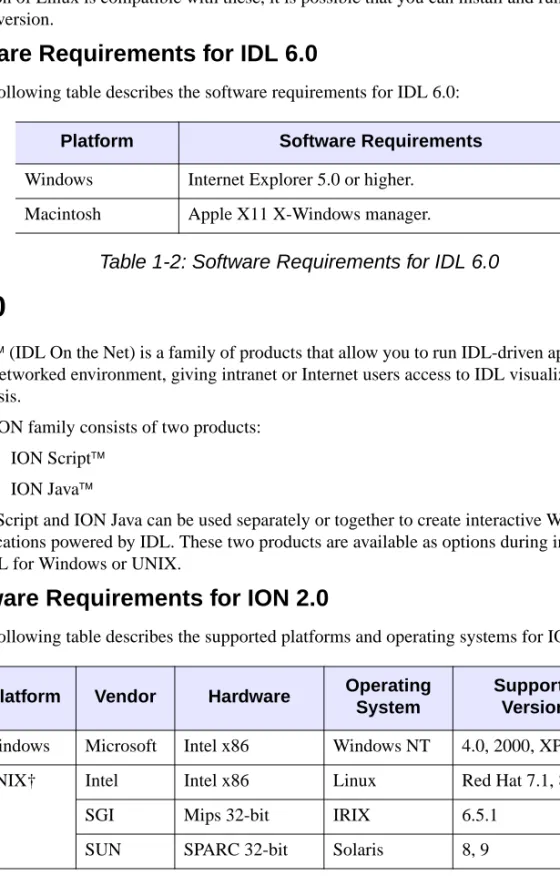
The following table describes the software requirements for IDL 6.0:
ION 2.0
ION (IDL On the Net) is a family of products that allow you to run IDL-driven applications in a networked environment, giving intranet or Internet users access to IDL visualization and analysis.
The ION family consists of two products: • ION Script
• ION Java
ION Script and ION Java can be used separately or together to create interactive Web applications powered by IDL. These two products are available as options during installation of IDL for Windows or UNIX.
Hardware Requirements for ION 2.0
The following table describes the supported platforms and operating systems for ION 2.0:
Platform Software Requirements
Windows Internet Explorer 5.0 or higher. Macintosh Apple X11 X-Windows manager.
Table 1-2: Software Requirements for IDL 6.0
Platform Vendor Hardware Operating System
Supported Versions
Windows Microsoft Intel x86 Windows NT 4.0, 2000, XP
UNIX† Intel Intel x86 Linux Red Hat 7.1, 8, 9††
SGI Mips 32-bit IRIX 6.5.1
SUN SPARC 32-bit Solaris 8, 9
Installing and Licensing IDL 6.0 System Requirements † For UNIX, the supported versions indicate that ION was either built on (the lowest version listed) or tested on that version. You can install and run ION on other versions that are binary compatible with those listed.
†† ION 2.0 was built on the Linux 2.4 kernel with glibc 2.2 using Red Hat Linux. If your version of Linux is compatible with these, it is possible that you can install and run ION 2.0 on your version.
Web Server Requirements for ION 2.0
In order to use ION, you must install an HTTP Web server. ION has been tested with the following Web server software:
• Apache Web Server version 2.0 for Windows, Linux, and Solaris.
• Apache Web Server version 1.3.14 for IRIX. This version is included with the IRIX operating system.
• Microsoft Internet Information Server (IIS) version 5.0 for Windows 2000 Server and version 5.1 for Windows XP Professional.
If you do not already have Web server software, the IDL 6.0 CD-ROM contains the following Apache Web Server software:
• Windows — Version 2.0.45 • Linux — Version 2.0.43 • Solaris — Version 2.0.43 • IRIX — Version 1.3.14
Note
For more information on Apache software for your platform, see http://www.apache.org.
Web Browser Requirements for ION 2.0
ION 2.0 supports the HTTP 1.0 protocol. The following are provided as examples of popular Web browsers that support HTTP 1.0:
• Netscape Navigator versions 4.7 and 6.0. • Microsoft Internet Explorer versions 5.5 and 6.0.
Browsers differ in their support of HTML features. As with any Web application, you should test your ION Script or Java application using Web browsers that anyone accessing your application is likely to be using.
Java Virtual Machine Requirements for ION 2.0
The following are provided as examples of popular Web browsers that are shipped with the required JVMs:
System Requirements Installing and Licensing IDL 6.0
• Microsoft Internet Explorer versions 5.5 and 6.0.
Browsers differ in their support of Java features. As with any Web application, you should test your ION Java application using Web browsers that anyone accessing your application is likely to be using.
IDL-Java Bridge
IDL now supports the use of Java objects. You can access Java objects within your IDL code using the IDL-Java bridge, a built-in feature of IDL 6.0. The IDL-Java bridge enables you to take advantage of special Java I/O, networking, and third party functionality.
The IDL-Java Bridge is installed by default in a standard IDL installation. See “New IDL-Java Bridge” in the What’s New in IDL 6.0 manual for details.
Installing and Licensing IDL 6.0 Licensing Methods
Licensing Methods
Access to IDL and other products from RSI is controlled by a software application that ensures a proper license has been entered on the user’s system. Licensing options include demonstration, evaluation, IDL Virtual Machine, personal use, node-locked, and floating, each discussed in the following sections. If you are installing IDL to run an application provided by a third-party developer, consult the licensing instructions that accompany that application.
IDL Virtual Machine
The IDL Virtual Machine is a freely distributed runtime utility for running IDL programs that are distributed as *.sav files compiled in IDL version 6.0 and later. This utility runs without an IDL license, so it can be installed on any machine to make it possible for others to run the IDL applications you develop. Virtual Machine installations are limited to running IDL applications; you cannot create IDL applications on an IDL Virtual Machine installation. (The IDL Virtual Machine is not related to the Java Virtual Machine.) For more information about the IDL Virtual Machine, see the IDLvm.pdf file on the installation CD-ROM.
The IDL Virtual Machine is installed automatically as part of a full IDL application
installation, but it can also be installed by itself from the IDL Installation CD-ROM. Users can also download the IDL Virtual Machine from the RSI web site at
www.rsinc.com/download.
Demonstration Mode
Demonstration mode allows you to run a limited version of IDL in seven-minute
demonstration mode. You do not need to request or enter a license file. For more information, see “Running IDL in Demonstration Mode” on page 18.
Evaluation License
Evaluation licenses are temporary trial licenses allowing access to all IDL features for a specified number of days. Once the evaluation license expires, you will be alerted by a dialog box stating that the application is available only in seven-minute demonstration mode. Contact RSI or your local distributor to purchase a permanent license or to extend your evaluation license.
The following is a sample evaluation license key that you will receive either by e-mail or fax: Product: IDL X.X
Expiration: 23-Aug-20XX
Key: ABC123DEF456GHI7-123
Personal Use License
Personal use licenses are permanent licenses tied to a single user. After you request a personal use license from RSI or your local distributor, you will receive a license key. Entering and saving the license key on a personal computer enables full IDL functionality for the
Licensing Methods Installing and Licensing IDL 6.0
designated user. A personal use license can be installed on up to four machines for the exclusive use of the designated user.
Personal use licenses are available for the Windows, Macintosh, and PC-based UNIX (Linux) versions of IDL 6.0 only. The following is a sample personal use license key that you will receive either by e-mail or fax:
FEATURE idl idl_lmgrd X.XXX 1-jan-0000 uncounted \ ABC123DEF456GHI789JK
VENDOR_STRING="000000-01John Doe" HOSTID=ANY PLATFORMS=i86_r \ NOTICE=PERSONAL_USE ck=82
Node-Locked License
Node-locked licenses tie a single software application to a single machine. This method of licensing requires a machine’s unique host ID to be incorporated into a license request file. After a license request is sent to RSI or your local distributor, a license file is returned. Entering and saving the license file enables full IDL functionality on the machine for which you have sent the host ID.
The following is a sample Windows node-locked license key that you will see on your product license information form which you will receive either by e-mail or fax:
# Installation Number(s): 000011-70-1
INCREMENT idl idl_lmgrd X.XXX 1-jan-0000 uncounted \
ABC123DEF456GHI789JK VENDOR_STRING="000011-70-1Node-Locked \ Windows License" HOSTID=00aabb11ccdd ck=28
INCREMENT wavelet idl_lmgrd X.XXX 1-jan-0000 uncounted \
ABC123DEF456GHI789JK VENDOR_STRING="000011-70-1Node-Locked \ Windows License" HOSTID=00aabb11ccdd ck=28
A UNIX server-based node-locked license for a single user looks like this: # License Number(s): 000111
SERVER ourserver 00aabb11ccdd 1700
DAEMON idl_lmgrd /usr/local/rsi/idl_6.0/bin
INCREMENT idl idl_lmgrd x.000 0-jan-0000 1 0A0000A00A000AA0A \ VENDOR_STRING=”000111Node-Locked Single for UNIX” \
HOSTID=0000aaaaa0aa0a ck=000 FEATURESET idl_lmgrd ABC123DEF456GHI7
Floating License
Floating licenses (also known as client/server licenses) allow multiple users to concurrently access IDL. After installing and licensing IDL on the server machine, the license manager, installed along with your IDL software, handles requests for licenses from remote client machines. As the server administrator, you can choose how users access the licenses. You can select to reserve licenses for individuals or groups, or select to allow all users to share access to the licenses. If you have a team of 20 people, and you have purchased IDL with 10 floating
Installing and Licensing IDL 6.0 Licensing Methods licenses, you can select to reserve licenses for certain individuals in the group, or allow all team members to share access to the ten licenses throughout the day.
While both node-locked and floating licenses use a license file or key containing information based on a unique host ID from the machine being licensed, floating licenses (and server-based node-locked licenses) additionally require the installation of a license manager. IDL (with floating licenses and server-based node-locked licenses) uses the Macrovision FLEXlm license manager. The license manager runs continuously on your system, waiting for a request from IDL. When a request arrives, the license manager determines whether the proper license for a requested product is available. If the proper license is present and not already in use, the license manager allows access to the software.
The following is a sample floating license key that you will receive either by e-mail or fax: # Installation Number(s): 000011-70-1
SERVER myserver 00aabb11ccdd 1700
DAEMON idl_lmgrd C:\RSI\IDLXX\BIN\BIN.x86\IDL_LMGRD.exe
INCREMENT idl idl_lmgrd X.XXX 1-jan-0000 6 ABC123DEF456GHI789JK \ VENDOR_STRING="000011-70-1Floating Windows License" ck=205 FEATURESET idl_lmgrd ABC123DEF456GHI7
The main difference between a single node-locked license and a floating license or server-based node-locked license is that a floating license or server-server-based node-locked license contains SERVER, DAEMON, and FEATURESET lines. The license server should be installed and run on the server indicated in the SERVER line of the license key.
Running IDL in Demonstration Mode Installing and Licensing IDL 6.0
Running IDL in Demonstration Mode
If you want to run IDL for demonstration purposes, you must first install IDL. To install and run in demonstration mode, complete the following steps:
Installing and Running—Windows
1. Install IDL. See “Installing IDL for Windows” on page 24. If you wish to run IDL only in unlicensed demonstration mode, select No when the Product Licensing dialog appears.
2. Start IDL. Click the Windows Start button, and select Programs→RSI IDL
6.0→IDL. The Demo Mode dialog appears.
3. Click OK. This starts IDL in seven-minute demonstration mode. IDL will
automatically start in demonstration mode until licensed.
Installing and Running—UNIX and Macintosh
1. Install IDL. See “Installing IDL for UNIX” on page 64 or “Installing IDL forMacintosh” on page 72.
2. Set up and run IDL. See “Setting Up Your Environment” on page 80. IDL will start in demonstration mode which allows you to run a seven-minute session.
Tip
Try running the IDL Demo Applications that illustrate some of the many ways IDL can help visualize data. See “Running the IDL Demo Applications” on page 19 for more information.
Installing and Licensing IDL 6.0 Running the IDL Demo Applications
Running the IDL Demo Applications
The IDL Demo Applications are a series of IDL programs that illustrate some of the many ways IDL can help you visualize data.
Note
If you have already started IDL, you can just type in DEMO at the IDL command prompt. IDL> DEMO
To run the IDL Demo Applications from an installed version of IDL:
Windows
Click the Windows Start button, and select Programs
→
RSI IDL 6.0
→
IDL Demo. If you have installed IDL Virtual Machine, select
Programs
→
RSI IDL Virtual Machine 6.0
→
IDL Demo.
UNIX or Macintosh
• From the UNIX prompt enter idldemo
or
• From the UNIX prompt, start IDL by typing idlde and then type demo at the IDL prompt.
If idldemo or idlde do not work, you need to set IDL environment aliases. See “Setting Up Your Environment” on page 80.
Installing and Licensing IDL 6.0 21
Chapter 2:
Installing and Licensing
IDL 6.0 for Windows
This chapter covers the following topics:
Introduction
. . . 22
Installing IDL for Windows
. . . 24
Requesting a License
. . . 28
Evaluation Licensing
. . . 31
Personal Use Licensing
. . . 32
Node-Locked Licensing
. . . 36
Floating Licensing
. . . 41
Saving the License File in an Alternative
Location
. . . 56
Introduction Installing and Licensing IDL 6.0
Introduction
Before You Begin
You must have Administrator privileges to install IDL. Additionally, a user with Administrator privileges must be the first one to start a session of IDL in order for the configuration to be complete.
If you do not have such privileges, the installation process cannot modify the system configuration of the machine and it will fail. After you have installed IDL, you do not need Administrator privileges to run IDL.
Recommended Steps for Installing and Licensing IDL
for Windows
The steps required to install and license IDL depend upon the type of license you will be using. RSI recommends you use the following steps when installing and licensing IDL.
IDL Virtual Machine
The following step is all that is required to install the IDL Virtual Machine: 1. Install IDL Virtual Machine — See “Run the IDL Installer” on page 24.
For more information about the IDL Virtual Machine, see “IDL Virtual Machine” on page 15.
Evaluation Licenses
The following steps are recommended when installing and licensing IDL using an evaluation license:
1. Install IDL — See “Run the IDL Installer” on page 24.
2. Request a License — You may have already received an evaluation license key by
e-mail or fax. If you haven’t received it, contact your RSI sales representative to request an evaluation license.
3. Enter Your License Key — See “Evaluation Licensing” on page 31.
Personal Use Licenses
The following steps are recommended when installing and licensing IDL using a personal use license:
1. Install IDL — See “Run the IDL Installer” on page 24.
2. Request a License — You may have already received your personal use license key by
e-mail or fax. If you haven’t received it, contact your RSI sales representative to request a personal use license.
Installing and Licensing IDL 6.0 Introduction 3. Enter Your License Key — See “Personal Use Licensing” on page 32.
Node-Locked Licenses
The following steps are recommended when installing and licensing IDL using a node-locked license:
1. Install IDL — See “Run the IDL Installer” on page 24.
2. Request a License — You may have already received your RSI product license
information by e-mail or fax. It provides your product installation number and additional information about licensing your product. If you haven’t received it, see “Requesting a License” on page 28 to create a license request.
3. Enter Your License Key — See “Node-Locked Licensing” on page 36.
Floating Licenses
The following steps are recommended when installing and licensing IDL using a floating license:
1. Install IDL on the License Server — Install the network license server on the
machine you have designated to run the license manager. You can accomplish this by running the IDL installer on your server machine and deselecting every option except the IDL Program Files and Network License Server features.
Note
Carefully consider the machine you have chosen as your server machine before saving your license file and starting the license manager. Since “client” machines will be sending requests for licenses to the “server” machine, the ability of client machines to access the license manager software depends on the reliability of the server machine. Therefore, the machine chosen as the server must be one that has a history of reliable operation and one that is running most of the time.
2. Request a License — You may have already received your RSI product license
information by e-mail or fax. It provides your product installation number and additional information about licensing your product. If you haven’t received it, see “Requesting a License” on page 28 to create a license request.
3. Enter Your License Key — See “Floating Licensing” on page 41.
4. Configure the License Server and Start the License Manager — See “Configure the License Server” on page 43 and “Start the License Manager” on page 44. 5. Install IDL on Your Client Machines — See “Run the IDL Installer” on page 24 6. Configure the Client Machines — Configure the client machines so that they can
access the license manager, see “Configure Clients to Access the License Server” on page 44.
Installing IDL for Windows Installing and Licensing IDL 6.0
Installing IDL for Windows
This sections describes system requirements, recommended steps for installing and licensing IDL, and installation instructions for IDL 6.0 on Windows platforms.
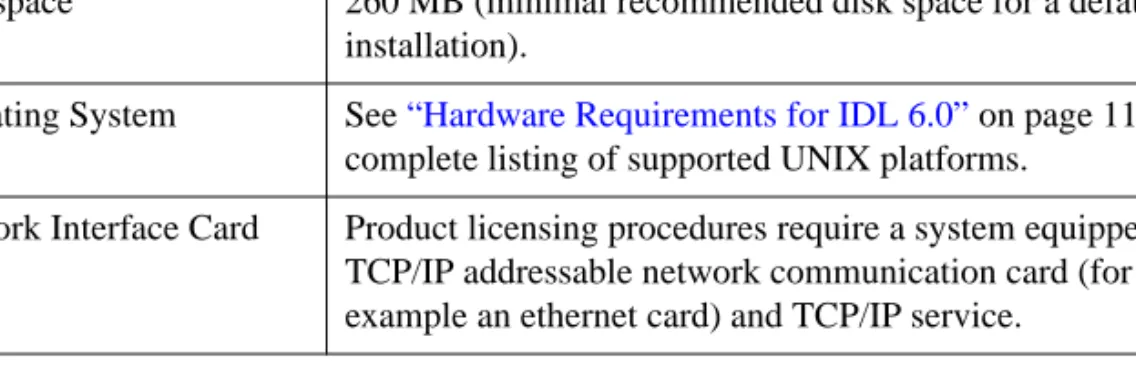
System Requirements
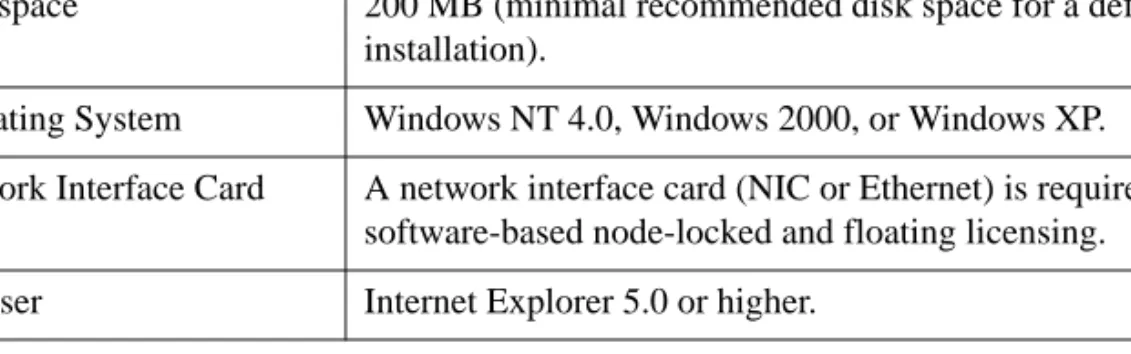
The following are the system requirements for IDL 6.0 for Windows:
Run the IDL Installer
To install IDL 6.0:Note
You may be required to restart your computer during the installation process. To avoid losing unsaved information, save all open files and close any open applications before installing IDL.
If you are prompted to reboot after installation, you will need to run the licensing wizard to license IDL by selecting Start → Programs → RSI IDL 6.0 → License.
1. Insert the IDL CD-ROM in your CD-ROM drive. After a short delay, the IDL
Installer starts. If the Installer does not start automatically, select Start → Run. In the
Run dialog, type X:\DEMO, where X is the name of your CD-ROM drive, and click
OK.
2. Start the IDL installation process. Click Install IDL from the IDL autorun program.
Then click Next to start the installation wizard.
3. Accept the license agreement. After reading the license agreement, click Yes to
continue the installation.
4. View the IDL Release Notes. The release notes contain important information about
this release of IDL. Click Next after viewing the IDL Release Notes file.
Requirement Description
Disk space 200 MB (minimal recommended disk space for a default installation).
Operating System Windows NT 4.0, Windows 2000, or Windows XP. Network Interface Card A network interface card (NIC or Ethernet) is required for
software-based node-locked and floating licensing. Browser Internet Explorer 5.0 or higher.
Installing and Licensing IDL 6.0 Installing IDL for Windows 5. Complete the Customer Information form. Enter the following:
• Your User Name (the name with which you log on to your system). • Your Organization (the name of your company, department., etc.). Click Next to continue.
6. Select an installation option. You have the choice of installing either the full IDL
application or a runtime IDL Virtual Machine version for running IDL programs that are distributed as compiled *.sav files. See “IDL Virtual Machine” on page 15 for more information on the IDL Virtual Machine.
Note
If you select the IDL Virtual Machine installation option, you will not be prompted to select features to install (steps 8-11) or to license IDL (step 13).
7. Choose the destination location. In the Destination Location dialog, select the
directory in which to install IDL. The default installation directory, which is \RSI on the disk on your computer with the greatest amount of free space, is displayed. To install IDL in a different location, click Browse. In the Choose Folder dialog, select an alternate location, and click OK. RSI recommends that you select the RSI folder in whatever location you choose.
The installation directory will be referred to as the RSI-DIR for the remainder of the installation and licensing instructions.
Click Next to accept the directory that is displayed.
8. Select the features to install. In the Custom Setup dialog, the typical installation
features are pre-selected and indicated by the hard drive symbol. Clicking on a feature displays information about that option. To add a feature to your installation, click the check box to install the feature on your hard drive. To remove a feature from your installation, clear the check box.
Note
If you are installing this version of IDL on the machine you have designated as the license server for floating licenses, you must select the Network License Server feature. You can deselect any features except the IDL Program Files feature.
Click Next to continue.
Note
ION (IDL On the Net) is available as an installation option. If you have opted to install ION, you will be prompted for ION configuration information. If you have not selected ION as an installation option, proceed to step 12.
9. If you are installing ION Java, you will be prompted to enter your Web server’s default directory containing HTML files to automatically copy the necessary ION Java files to
Installing IDL for Windows Installing and Licensing IDL 6.0
the Web server directory. This directory is often called htdocs (on the Apache Web server) or wwwroot (on the IIS Web server). For the Apache Web Server, the path to this directory might be similar to:
c:\Program Files\Apache Group\Apache2\htdocs Enter the path and click Next to continue.
If you have installed a previous version of ION Java and have an existing IONJava directory within the htdocs directory, it will be renamed to IONJava.backup. 10. If you are installing Ion Script, the Web Server Configuration dialog will prompt you
for the location of your Web server’s CGI executables directory. For example: C:\Program Files\Apache Group\Apache2\cgi-bin
Enter the location and click Next to continue.
Note
If you leave this field blank because you have not yet installed a Web server, you will need to manually copy ion-i.exe and ion-p.exe from the
ion_script/cgi-bin directory to the CGI executables directory of your Web server after it has been installed.
11. In the second field of the Web Server Configuration dialog, specify the fully qualified domain name and path to the CGI executables directory for your Web server. For example:
myhost.mydomain.com/cgi-bin
Enter the domain name and path, and click Next to continue.
Note
If you leave this field blank because you have not yet installed a Web server, the installer will use your Windows machine name and the path to your CGI executables directory will be assumed to be /cgi-bin. In order to access ION over the Internet once you have installed your Web server, you will need to update the Image Server, Data Server, and ION Script Parser URLs on the URLs tab of the ION Script Configuration utility (Start → Programs → RSI ION 2.0 → ION Script
Configuration) to use the fully qualified domain name and the proper path to your
Web server’s CGI executable directory. For more information, see Chapter 1, “Configuring ION Script” in the ION Script User’s Guide manual.
12. Begin the installation. Select Next from the Start Copying Files dialog.
13. Run license program. To license IDL now, click Yes. See the following for more information:
• “Evaluation Licensing” on page 31 • “Personal Use Licensing” on page 32
Installing and Licensing IDL 6.0 Installing IDL for Windows • “Node-Locked Licensing” on page 36
• “Floating Licensing” on page 41
Note
To license IDL at a later time, or to run IDL only in seven-minute demonstration mode, click No. If you are installing IDL Virtual Machine, you will not be prompted to license IDL.
14. Select to Install Adobe Acrobat Reader. The Install Adobe Acrobat dialog appears after you exit the licensing wizard if you have not previously installed Acrobat Reader 5.1 or greater.
IDL online manuals require Acrobat Reader with Search 3.0 or greater. Select Yes to install Adobe Acrobat Reader if you have not previously installed version 3.0 or greater.
15. Click Finish. Your installation is now complete.
Note
The first user to start a session of IDL must have Administrator privileges.
Tip
To Modify or Repair your installation, insert the IDL CD-ROM and click Install IDL from the IDL autorun program. From the Program Maintenance dialog, you can Modify the installed components, or Repair your installation.
Requesting a License Installing and Licensing IDL 6.0
Requesting a License
If you are licensing with a node-locked or floating license, you need a permanent license file from RSI or your distributor. The license file is created using information from the machine on which you have installed IDL. A built-in licensing program has been created to simplify the request and installation of your license file.
Note
You do not need to use the licensing wizard to request a license if you are using a personal use or evaluation license. The required information will be sent to you automatically.
Note
The electronic request program will not be able to retrieve the correct information if you do not have a configured network interface card and do not meet one or more of the following network protocols:
• NETBEUI Transport Protocol
• NW Link (IPX/SPX) Transport Protocol • SNMP service
Preparing a License Request
The licensing wizard allows you to easily generate and send a license request. The request contains information necessary for RSI to generate your license key. If you have exited the installation program, access the licensing wizard by selecting Start → Programs → RSI IDL 6.0 → License.
If you are requesting a license from an IDL Virtual Machine installation, select Start →
Programs → RSI IDL Virtual Machine 6.0 → Evaluate IDL
Note
If you have purchased a floating license, the licensing wizard must be run from the designated license server machine on which you have installed IDL. This ensures proper generation of the server LMHostid and Hostname for your license file.
1. Begin the license request process. Click Permanent from the Product Licensing
dialog.
2. Prepare a Request file. Click Request to prepare a license request file to submit to
RSI. The licensing wizard guides you through the creation of a license request file that will contain all the information necessary for RSI to create a valid license file for your software installation.
3. Enter your information. Fill in the following text fields in the Permanent Licensing
Installing and Licensing IDL 6.0 Requesting a License • Contact Person — Enter the name of the person to whom the license file should
be sent.
• Email Address — Enter the e-mail address of the contact person.
• Installation Number — Enter the installation number found on the RSI Product
Registration Form. You should have already received this form by e-mail or fax. If you have not received the form, contact RSI technical support. See “Contacting RSI” on page 10 for more information.
• Site Notice — Enter the name that you want to appear when you launch the
software. The name you select will replace <your site notice> in the following statement: “licensed for use by <your site notice>.” This is typically your company’s name, department, or project.
4. Select the license type. Select either Node Locked or Floating. The license wizard
automatically generates the correct Hostname and LMHostid. Do not modify these values.
5. Enter comments. Enter any comments you may have.
6. Click Next to continue.
7. Review your license request. If the information is correct, click Next to save the
license request file and proceed. If the information is incorrect, edit it in the text window or click Back to make any corrections.
8. Send the license request file. Click Next to send the license request file to RSI. If you
did not purchase your software directly from RSI, modify the e-mail address and send the file to your local distributor.
Note
If you can’t send e-mail from your machine or if you receive a message stating that an attempt to send the e-mail was unsuccessful, see “Manually Sending a License Request” on page 29. A license file will be generated and sent to you at the e-mail address or fax number you supply.
9. Exit the license wizard. Click Finish to exit the license request program.
If you do not receive a license file or any confirmation that the request was received, see the section below to manually re-send the request. To contact RSI, see “Contacting RSI” on page 10.
Manually Sending a License Request
To manually send a license request, select the appropriate step below and e-mail your request to [email protected] or fax the request file text to RSI at (303) 786-9909. If you did not purchase IDL directly from RSI, send the file to your local distributor.
• From the license wizard — Select Back to display the request file. Copy all of the
Requesting a License Installing and Licensing IDL 6.0
• Outside of the license wizard — Copy the request file, located in
RSI-DIR\license\rsi_request.txt, where RSI-DIR is the directory where you have installed IDL, and send it by fax or e-mail. If necessary, transfer the file to another machine that can send e-mail.
Installing and Licensing IDL 6.0 Evaluation Licensing
Evaluation Licensing
After installing IDL, use the licensing wizard to install the license key for your evaluation license. If you do not have a license key, contact your RSI sales representative to request an evaluation license.
1. Start the licensing wizard. If you have exited the installation program, access the
licensing wizard by doing one of the following:
• Select Start→Programs→RSI IDL 6.0→ License.
• If you are evaluating IDL from an IDL Virtual Machine installation, select Start
→ Programs → RSI IDL Virtual Machine 6.0 → Evaluate IDL.
2. Access the Evaluation Licensing dialog. Select the Evaluation button on the Product
Licensing dialog.
3. Enter your license information.
• Select the Product — select the product you wish to license from the drop-down list. Only installed products are displayed.
• Enter the Expiration date exactly as it appears on your registration form — for example, 12-Oct-2000.
• Enter the license Key — enter the key exactly as it appears and click Next. 4. Exit the Licensing wizard. Click Finish.
IDL is now licensed. After your trial period expires, a message stating this fact appears when you start IDL. Until re-licensed, IDL will operate only in seven-minute demonstration mode.
Troubleshooting Evaluation Licensing
If you receive an error message, locate it below for suggestions on resolving the problem. 1. The license information does not pass the checksum test. Carefully check to make
sure you have entered your license information exactly as it appears in your RSI product license information. Exactly duplicate capitalization, spacing and the date format as shown on your form.
The license information must not contain leading or trailing spaces. For an example of a correctly formatted evaluation license key, see “Evaluation License” on page 15. 2. The file already exists. If you have an existing evaluation license for this product, you
will be asked if you want to replace it. Select Yes to overwrite the old license with the new, extended evaluation license.
3. The file cannot be written. You may not have write permissions for the directory or
the file to which you are attempting to write. Check the permissions to make sure neither the directory nor any files you are attempting to overwrite are designated as “read-only.”
Personal Use Licensing Installing and Licensing IDL 6.0
Personal Use Licensing
After installing IDL, use the licensing wizard to install the license key for your personal use license. Your license key will be sent to you via e-mail or fax. If you have not received your license key, contact your RSI sales representative to request a personal use license
Save the License File
If your license key arrived via e-mail, you can save the e-mail message out to a file so that the licensing wizard can import it. Complete the following steps:
1. From your e-mail application, save the license key e-mail anywhere on your system as a file.
2. With a text editor, remove any lines that appear before the beginning of the actual license information, and either save the file or copy the edited license information text to the Windows clipboard.
Enter the License Key
To enter your license key:1. Start the IDL Licensing Wizard. If you have already exited the installation program
and licensing wizard, click the Windows Start button, and select Programs → RSI
IDL 6.0 → License.
2. Display the Permanent Licensing dialog. Click Permanent and then License from
the licensing wizard.
3. Enter your license key. Paste the text of the license key into the dialog, or click Browse to select the license file you saved on your system. If you paste in your license
key text, remove any header lines that are included in the file but keep the comment lines that begin with the “#” character. If you have received your license key via fax or other hardcopy method, type the information directly into the text window.
4. Save the license file. Click Next to save the license file in the directory where you
have installed the software. The licensing wizard recognizes where you have installed the software and generates the appropriate path:
RSI-DIR\license\license.dat.
Note
If you receive a message that there is an existing license file, save the existing file under a different name before proceeding. While the new license usually contains information for all currently licensed products, save the old file as a safeguard against destroying license information. Run the license wizard again to save the new license file in the default location.
Installing and Licensing IDL 6.0 Personal Use Licensing
Note
If you need to save the license file in a directory other than the default
RSI-DIR\license\license.dat, you must set an environment variable pointing to the license.dat file before starting the software or the license manager. See “Saving the License File in an Alternative Location” on page 56 for instructions.
Troubleshooting a Personal Use License
1. Check the License Format
After installing the permanent license information via the licensing wizard program, one of the following error messages appears when attempting to start IDL:
% LICENSE MANAGER: Future license file format or misspelling in license file
The file was issued for a later version of FLEXlm than this program understands.
Feature: idl
License path: C:\RSI\license\license.dat;C:\RSI\license\*.lic FLEXlm error: -90,313. System Error: 2 ""
% LICENSE MANAGER: Invalid license file syntax Feature: idl
License path: C:\RSI\license\license.dat;C:\RSI\license\*.lic FLEXlm error: -2,134. System Error: 2 ""
These errors may indicate that the license information has been corrupted.
Some email programs can corrupt license text, replacing original characters with invalid characters. For example, the string:
VENDOR_STRING="000011myvendor" HOSTID=ANY PLATFORMS=i86_r \ NOTICE=PERSONAL_USE ck=99
could be inadvertently changed to:
VENDOR_STRING?"000011myvendor" HOSTID?ANY PLATFORMS?i86_r \ NOTICE?PERSONAL_USE ck?99
Another cause of license corruption is inadvertent line wrapping introduced by the email program. For example, a line in the license might be changed from (2 lines).
Correct format:
INCREMENT idl idl_lmgrd 6.000 1-jan-0000 0 EC3B7DA4CA19E85C0A71 \ VENDOR_STRING="000011Research Systems, Inc." \
HOSTID=00b012345678 ck=123 Incorrect format:
Personal Use Licensing Installing and Licensing IDL 6.0
\
VENDOR_STRING="000011Research Systems, Inc." \ HOSTID=00b012345678 ck=123
For an example of a correctly formatted personal use license file, see “Personal Use License” on page 15.
If the license file appears to have been corrupted, try to restore the problem characters or line wrapping to its original state. Or if a separate file attachment of the license information was provided please use the license information in the file attachment to replace the corrupted license information. The licensing wizard may be used to edit the license file information that has already been installed.
2. Files needed for initialization of the licensing program could
not be found
3. License file does not support this version
After installing the permanent license information via the licensing wizard program, a form of the following error message appears when attempting to start IDL:
% LICENSE MANAGER: License file does not support this version Feature: idl
Application version > License version: 6.0 > 5.400
License path: C:\RSI\\license\license.dat;C:\RSI\\license\*.lic FLEXlm error: -21,126. System Error: 2 ""
Confirm that the license being referenced contains the correct version. Check the license(s) listed in the "license path" of the error message to verify the contents of the referenced license. Below is an example of an IDL 6.0 license feature (2 lines):
INCREMENT idl idl_lmgrd 6.000 1-jan-0000 0 EC3B7DA4CA19E85C0A71 \ VENDOR_STRING=000011RSI HOSTID=00b012345678 ck=123
Notice that the product “idl” is listed after “INCREMENT” and the IDL version “6.000” is located after “idl_lmgrd”. An IDL 6.0 FLEXlm license can also support previous versions of IDL.
If the listed IDL version is less than the version you are trying to license, then an old version of the license is being referenced. Make sure you that the correct version of the
license.dat file is being referenced. See “Saving the License File in an Alternative Location” on page 56 for more information.
If you do not have a license with the correct version, you must request another license. See “Requesting a License” on page 28 for information on how to request a license.
4. IDL cannot find license
After installing the license information via the licensing wizard, an error message appears that indicates that the license.dat file cannot be found.
Installing and Licensing IDL 6.0 Personal Use Licensing % LICENSE MANAGER: Cannot find license file
The license files (or server network addresses) attempted are listed below. Use LM_LICENSE_FILE to use a different license file, or contact your software provider for a license file.
Feature: idl
Filename: C:\RSI\IDL60\license.dat License path: C:\RSI\IDL60\license.dat
FLEXlm error: -1,359. System Error: 2 "No such file or directory" Make sure that you have either installed the license.dat file in the default location (RSI-DIR\license\license.dat) or that you have defined your
LM_LICENSE_FILE environment variable to the path where the license.dat file exists. See “Saving the License File in an Alternative Location” on page 56 for more information. If this information is correct, try the following (if using Windows NT, 2000 or XP, you should be logged on as a user with administrative privileges before proceeding):
1. Quit any IDL session.
2. Open a Windows Explorer and browse to the bin\bin.x86 subdirectory the IDL installation (for example: C:\RSI\IDL60\bin\bin.x86).
3. Find the file idl.000. If you can't find the idl.000 file in the bin.x86 directory, select the Windows Explorer View menu (Windows NT) or the Tools menu (Windows 2000 or XP), then select Folder Options. Then, under the View tab:
• Select the option for Show hidden files and folders.
• Clear the box for the option: Hide file extensions for known file types. • Apply and save the changes.
4.) After locating the idl.000 file in the bin.x86 directory, rename it to idl.ini. 5.) Start a session of IDL.
6.) When prompted to import preferences, select Yes.
If the licensing information is correct, IDL should find the license and start in licensed mode.
5. Search the RSI Technical Support Library
Go to www.RSInc.com/services/search.cfm and select the following for more information on troubleshooting personal licensing:
Product: IDL
Platform: WINDOWS
Category: LICENSING
Functional Area: LICENSING - FLEXlm
6. Contact RSI Technical Support
If you are still having problems licensing, see “Contacting RSI” on page 10 for information on how to contact Technical Support.
Node-Locked Licensing Installing and Licensing IDL 6.0
Node-Locked Licensing
After installing IDL, use the licensing wizard to install the license key for your node-locked license. Your license key will be sent to you via e-mail or fax. If you have not received your license key, see “Requesting a License” on page 28.
Save the License File
If your license key arrived via e-mail, you can save the e-mail message out to a file so that the licensing wizard can import it. Complete the following steps:
1. From your e-mail application, save the license key e-mail anywhere on your system as a file.
2. With a text editor, remove any lines that appear before the beginning of the actual license information, keeping the comment lines that begin with the “#” character, and either save the file or copy the edited license information text to the Windows clipboard. For an example of a license key, see “Node-Locked License” on page 16.
Enter the License Key
To enter your license key:
1. Start the IDL Licensing Wizard. If you have already exited the installation program
and licensing wizard, click the Windows Start button, and select Programs → RSI
IDL 6.0 → License.
2. Display the Permanent Licensing dialog. Click Permanent and then License from
the licensing wizard.
3. Enter your license key. Paste the text of the license key into the dialog, or click Browse to select the license file you have saved on your system. If you paste in your
license key, remove any header lines that are included in the file but keep the comment lines that begin with the “#” character. If you have received your license key via fax or other hardcopy method, type the information directly into the text window.
Note
The license key consists of non-indented lines, indented lines, and blank lines. Besides the comment lines (lines beginning with the number sign (#)), non-indented lines should begin with a keyword such as FEATURE or INCREMENT. Because of e-mail/fax limitations, extra-long lines of the license key may have been
inadvertently wrapped to a new line. If a non-indented line begins with a character other than a number sign (#) or a FEATURE or INCREMENT keyword, then it is likely that an extra-long line has been incorrectly wrapped and that the segment belongs at the end of the previous line. Make sure that you review your license key for these errors. If the key does contain an error, the software will not be licensed.
Installing and Licensing IDL 6.0 Node-Locked Licensing 4. Save the license file. Click Next to save the license file in the directory where you
have installed the software. The licensing wizard recognizes where you have installed the software and generates an appropriate path, for example,
RSI-DIR\license\license.dat.
Note
If you receive a message that there is an existing license file, save the existing file under a different name before proceeding. While the new license usually contains information for all currently licensed products, save the old file as a safeguard against destroying license information. Run the license wizard again to save the new license file in the default location.
5. Exit the licensing wizard. Click Finish to save the license file.
Note
If you need to save the license file in a directory other than the default
RSI-DIR\license\license.dat, you must set an environment variable pointing to the license.dat file before starting the software or the license manager. See “Saving the License File in an Alternative Location” on page 56 for instructions.
Troubleshooting a Node-Locked License
1. Check the License Format
After installing the permanent license information via the licensing wizard program, one of the following error messages appears when you attempt to start IDL:
% LICENSE MANAGER: Future license file format or misspelling in license file
The file was issued for a later version of FLEXlm than this program understands.
Feature: idl
License path: C:\RSI\license\license.dat;C:\RSI\license\*.lic FLEXlm error: -90,313. System Error: 2 ""
% LICENSE MANAGER: Invalid license file syntax Feature: idl
License path: C:\RSI\license\license.dat;C:\RSI\license\*.lic FLEXlm error: -2,134. System Error: 2 ""
These errors may indicate that the license information has been corrupted.
Some email programs can corrupt license text, replacing original characters with invalid characters. For example, the string:
Node-Locked Licensing Installing and Licensing IDL 6.0
could be inadvertently changed to:
VENDOR_STRING?"000011Research Systems, Inc." HOSTID?00b012345678 ck?99
Another cause of license corruption is inadvertent line wrapping introduced by the email program. For example, a single line in the license might be changed to two lines. Correct format:
INCREMENT idl idl_lmgrd 6.000 1-jan-0000 0 EC3B7DA4CA19E85C0A71 \ VENDOR_STRING="000011Research Systems, Inc."
HOSTID=00b012345678 ck=123 Incorrect format:
INCRMENT idl idl_lmgrd 6.000 1-jan-0000 0 EC3B7DA4CA19E85C0A71 \
VENDOR_STRING="000011Research Systems, Inc." HOSTID=00b012345678 ck=123
For an example of a correctly formed node-locked license, see “Node-Locked License” on page 16.
If the license file appears to have been corrupted, try to restore the problem characters or line wrapping to its original state. Or if a separate file attachment of the license information was provided, please use the license information in the file attachment to replace the corrupted license information. The licensing wizard may be used to edit the license file information that has already been installed.
2. The hostid of this system does not match the hostid
After installing the permanent license information via the licensing wizard, a form of the following error message appears when starting IDL:
% LICENSE MANAGER: Invalid host
The hostid of this system does not match the hostid specified in the license file
Feature: idl
Hostid: 00b0d0911470
License path: C:\RSI\license\license.dat;C:\RSI\license\*.lic FLEXlm error: -9,57. System Error: 2 ""
Confirm that the node-locked hostid in the license matches the actual hostid of the machine that is running IDL:
1. Start the licensing wizard by clicking Start→Programs→RSI IDL 6.0→License.
2. Click Permanent and then Request.
3. Compare the Node LMHostid value with the HOSTID value in your IDL license file. For example the following IDL license feature line:
INCREMENT idl idl_lmgrd 6.000 1-jan-0000 0 EC3B7DA4CA19E85C0A71 \ VENDOR_STRING=000011RSI HOSTID=00b012345678 ck=123
Installing and Licensing IDL 6.0 Node-Locked Licensing is built for the node hostid “00b012345678”.
If the hostid information obtained from the licensing wizard is different from the information listed in the license file, then the license will not work with your machine. The license HOSTID value cannot be altered by a user without invalidating the license. If the hostid of the machine on which you are installing is different from the hostid in the license, you must request another license. See “Requesting a License” on page 28 for information on how to request a license.
3. License file does not support this version
After installing the permanent license information via the licensing wizard program, a form of the following error message appears when attempting to start IDL:
% LICENSE MANAGER: License file does not support this version Feature: idl
Application version > License version: 6.0 > 5.400
License path: C:\RSI\\license\license.dat;C:\RSI\\license\*.lic FLEXlm error: -21,126. System Error: 2 ""
Confirm that the license being referenced contains the correct version. Check the license(s) listed in the "license path" of the error message to verify the contents of the referenced license. Below is an example of an IDL 6.0 license feature (2 lines):
INCREMENT idl idl_lmgrd 6.000 1-jan-0000 0 EC3B7DA4CA19E85C0A71 \ VENDOR_STRING=000011RSI HOSTID=00b012345678 ck=123
Notice that the product “idl” is listed after “INCREMENT” and the IDL version “6.000” is located after “idl_lmgrd”. An IDL 6.0 FLEXlm license can also support previous versions of IDL.
If the listed IDL version is less than the version you are trying to license, then an old version of the license is being referenced. Make sure that the correct version of the license.dat file is being referenced. See “Saving the License File in an Alternative Location” on page 56 for more information.
If you do not have a license with the correct version, you must request another license. See “Requesting a License” on page 28 for information on how to request a license.
4. Cannot find license
After you install the license information via the licensing wizard, an error message appears that indicates that the license.dat file cannot be found.
% LICENSE MANAGER: Cannot find license file
The license files (or server network addresses) attempted are listed below. Use LM_LICENSE_FILE to use a different license file, or contact your software provider for a license file.
Feature: idl
Filename: C:\RSI\IDL60\license.dat License path: C:\RSI\IDL60\license.dat