DbVisualizer 9.1
Users Guide
Table of Contents
1 DbVisualizer 9.1 ______________________________________________________________________ 11 2 Getting Started _______________________________________________________________________ 12 2.1 Downloading _____________________________________________________________________ 12 2.2 Installing ________________________________________________________________________ 12 2.2.1 Installing with an Installer ______________________________________________________ 13 2.2.2 Installation from an archive file __________________________________________________ 13 2.3 Starting DbVisualizer _______________________________________________________________ 13 2.4 Evaluating the Pro Edition ___________________________________________________________ 14 2.5 Installing a Pro Edition License _______________________________________________________ 14 2.5.1 Installing a License Key String __________________________________________________ 15 2.5.2 Installing a License Key File ____________________________________________________ 15 2.5.3 Uninstalling the license key ____________________________________________________ 15 2.6 Creating a Connection - basics _______________________________________________________ 16 2.6.1 Using the Connection Wizard ___________________________________________________ 16 2.6.2 Setting Up a Connection Manually _______________________________________________ 20 2.7 Creating a Table - basics ___________________________________________________________ 22 2.8 Viewing a Table - basics ____________________________________________________________ 23 2.9 Editing a Table - basics _____________________________________________________________ 25 2.10 Executing SQL - basics _____________________________________________________________ 26 2.11 Checking for Updates ______________________________________________________________ 27 2.12 Printing _________________________________________________________________________ 28 2.12.1 Printer Setup _______________________________________________________________ 29 2.12.2 Printing a Grid, a Chart and Plain Text ___________________________________________ 29 2.12.3 Printing a Graph _____________________________________________________________ 29 2.12.4 Print Preview _______________________________________________________________ 29 3 Getting the Most Out of the GUI __________________________________________________________ 31 3.1 Main Window Layout _______________________________________________________________ 31 3.2 Tab Types _______________________________________________________________________ 32 3.2.1 Navigation Tabs _____________________________________________________________ 32 3.2.2 Object View Tabs ____________________________________________________________ 33 3.2.3 SQL Commander Tabs _______________________________________________________ 34 3.3 Opening a Tab ____________________________________________________________________ 35 3.4 Pinning a Tab ____________________________________________________________________ 36 3.5 Closing a Tab ____________________________________________________________________ 36 3.6 Listing Open Tabs _________________________________________________________________ 37 3.7 Maximizing and Minimizing a Tab _____________________________________________________ 37 3.8 Floating a Tab ____________________________________________________________________ 38 3.9 Rearranging Tabs _________________________________________________________________ 38 3.10 Changing the Tab Label ____________________________________________________________ 40
3.11 Selecting a Node for a Tab __________________________________________________________ 41 3.12 Preserving Tabs Between Sessions ___________________________________________________ 41 3.13 Using Tab Colors and Borders _______________________________________________________ 42 3.14 Changing the GUI Apperance ________________________________________________________ 43 3.15 Changing Keyboard Shortcuts _______________________________________________________ 43 4 Working with Tables ___________________________________________________________________ 47 4.1 Creating a Table __________________________________________________________________ 47 4.1.1 Opening the Create Table Dialog ________________________________________________ 47 4.1.2 Columns Tab _______________________________________________________________ 49 4.1.3 Primary Key Tab ____________________________________________________________ 51 4.1.4 Foreign Keys Tab ____________________________________________________________ 52 4.1.5 Unique Constraints Tab _______________________________________________________ 53 4.1.6 Check Constraints Tab ________________________________________________________ 54 4.1.7 Indexes Tab ________________________________________________________________ 55 4.1.8 SQL Preview _______________________________________________________________ 56 4.1.9 Execute ___________________________________________________________________ 56 4.2 Altering a Table ___________________________________________________________________ 56 4.2.1 Opening the Alter Table Dialog _________________________________________________ 56 4.2.2 Columns Tab _______________________________________________________________ 58 4.2.3 Primary Key Tab ____________________________________________________________ 60 4.2.4 Foreign Keys Tab ____________________________________________________________ 61 4.2.5 Unique Constraints Tab _______________________________________________________ 63 4.2.6 Check Constraints Tab ________________________________________________________ 63 4.2.7 Indexes Tab ________________________________________________________________ 64 4.2.8 SQL Preview _______________________________________________________________ 65 4.2.9 Execute ___________________________________________________________________ 66 4.3 Creating a Trigger _________________________________________________________________ 66 4.3.1 Opening the Create Trigger Dialog ______________________________________________ 66 4.3.2 Trigger Editor _______________________________________________________________ 67 4.4 Creating an Index _________________________________________________________________ 68 4.5 Viewing Table Data ________________________________________________________________ 70 4.5.1 Opening the Data tab _________________________________________________________ 70 4.5.2 Sorting ____________________________________________________________________ 72 4.5.3 Where Filter ________________________________________________________________ 72 4.5.4 Quick Filter _________________________________________________________________ 74 4.5.5 Max Rows/Max Chars ________________________________________________________ 75 4.5.6 Max Rows at First Display _____________________________________________________ 76 4.5.7 Column Header Tooltips ______________________________________________________ 77 4.5.8 Highlight Primary Key Columns _________________________________________________ 77 4.5.9 Show Only Some Columns ____________________________________________________ 77 4.5.10 Auto Resize Columns _________________________________________________________ 79 4.5.11 Right-Click Menu Operations ___________________________________________________ 79 4.5.12 Creating Monitors ____________________________________________________________ 81
4.5.13 Aggregation Data for Selection _________________________________________________ 82 4.6 Editing Table Data _________________________________________________________________ 83 4.6.1 Opening the Data tab _________________________________________________________ 84 4.6.2 Editing Data in the Grid _______________________________________________________ 85 4.6.3 Copy/Paste _________________________________________________________________ 86 4.6.4 Updates and Deletes Must Match Only One Table Row ______________________________ 88 4.6.5 Key Column(s) Chooser _______________________________________________________ 89 4.6.6 Editing Multiple Rows _________________________________________________________ 90 4.6.7 Data Type checking __________________________________________________________ 90 4.6.8 New Line and Carriage Return __________________________________________________ 90 4.6.9 Using the Cell Editor/Viewer ___________________________________________________ 91 4.6.10 Using the Form Editor/Viewer __________________________________________________ 92 4.6.11 Preview Changes ____________________________________________________________ 95 4.6.12 Editing Binary/BLOB and CLOB Data ____________________________________________ 95 4.7 Working with Binary and BLOB Data __________________________________________________ 96 4.8 Working with Large Text/CLOB Data __________________________________________________ 96 4.9 Using Max Rows and Max Chars for a Table ____________________________________________ 96 4.10 Changing the Data Display Format ____________________________________________________ 98 4.10.1 Date, Time and Timestamp formats ______________________________________________ 98 4.10.2 Number formats _____________________________________________________________ 99 4.11 Exporting a Table _________________________________________________________________ 99 4.11.1 Output Format _____________________________________________________________ 100 4.11.2 Output Destination __________________________________________________________ 100 4.11.3 Options ___________________________________________________________________ 100 4.11.4 Using Variables in Fields _____________________________________________________ 101 4.11.5 Exporting Binary/BLOB and CLOB Data _________________________________________ 101 4.11.6 Saving And Loading Settings __________________________________________________ 101 4.11.7 Other Ways to Export Table Data ______________________________________________ 102 4.12 Importing Table Data ______________________________________________________________ 102 4.12.1 Input File Format and Other Options ____________________________________________ 103 4.12.2 Data Formats and Data Type Per Column ________________________________________ 104 4.12.3 Matching Columns and Data Types for an Existing Table ____________________________ 106 4.12.4 Adjusting Table Declaration for a New Table ______________________________________ 108 4.12.5 Importing Binary/BLOB and CLOB Data _________________________________________ 110 4.12.6 Saving And Loading Settings __________________________________________________ 110 4.12.7 Other Ways to Import Table Data ______________________________________________ 111 4.13 Comparing Tables ________________________________________________________________ 111 4.14 Viewing Table Relationships ________________________________________________________ 111 4.15 Navigating Table Relationships ______________________________________________________ 112 4.15.1 Opening the Navigator _______________________________________________________ 113 4.15.2 Navigating Realtionships _____________________________________________________ 114 4.15.3 Adding Context Information to the Graph _________________________________________ 118 4.15.4 Arranging the Graph _________________________________________________________ 119
4.15.5 Exporting and Printing the Graph _______________________________________________ 120 4.15.6 Opening the Navigator from the Data tab ________________________________________ 121 4.16 Viewing the Table DDL ____________________________________________________________ 121 4.17 Filtering Tables in the Tree _________________________________________________________ 121 4.18 Showing Row Count in the Tree _____________________________________________________ 122 4.19 Using Permissions for Table Data Editing ______________________________________________ 122 4.20 Scripting a Table _________________________________________________________________ 123 5 Working with Views ___________________________________________________________________ 124 5.1 Creating a View __________________________________________________________________ 124 5.2 Altering a View __________________________________________________________________ 124 5.3 Editing a View ___________________________________________________________________ 124 5.4 Exporting a View _________________________________________________________________ 124 5.5 Viewing the View DDL _____________________________________________________________ 125 5.6 Filtering Views in the Tree __________________________________________________________ 125 5.7 Scripting a View __________________________________________________________________ 126 6 Working with Procedures, Functions and Other Code Objects __________________________________ 127 6.1 Creating a Function _______________________________________________________________ 127 6.2 Creating a Procedure _____________________________________________________________ 129 6.3 Creating Other Code Objects _______________________________________________________ 131 6.4 Editing a Code Object _____________________________________________________________ 132 6.5 Executing a Code Object ___________________________________________________________ 134 6.5.1 Executing in the Code Editor __________________________________________________ 135 6.5.2 Executing in the SQL Commander ______________________________________________ 135 6.5.3 Using the Script Object Dialog _________________________________________________ 137 6.6 Exporting a Code Object ___________________________________________________________ 138 6.7 Scripting a Code Object ___________________________________________________________ 139 7 Working with Schemas ________________________________________________________________ 140 7.1 Creating a Schema _______________________________________________________________ 140 7.2 Comparing Schemas ______________________________________________________________ 140 7.3 Viewing Entity Relationships ________________________________________________________ 140 7.4 Exporting a Schema ______________________________________________________________ 142 7.4.1 Output Format _____________________________________________________________ 142 7.4.2 Output Destination __________________________________________________________ 142 7.4.3 Object Types ______________________________________________________________ 143 7.4.4 Options ___________________________________________________________________ 143 7.4.5 Using Variables in Fields _____________________________________________________ 143 7.4.6 Saving And Loading Settings __________________________________________________ 143 7.5 Filtering Schemas in the Tree _______________________________________________________ 144 8 Working with SQL ____________________________________________________________________ 146 8.1 Selecting Database Connection, Catalog and Schema ___________________________________ 146 8.2 Editing SQL Scripts _______________________________________________________________ 147 8.2.1 Syntax Color Coding ________________________________________________________ 148 8.2.2 Charsets and Fonts _________________________________________________________ 150
8.2.3 Loading and Saving Scripts ___________________________________________________ 150 8.2.4 Drag and Drop a File ________________________________________________________ 151 8.2.5 Drag and Drop Database Objects ______________________________________________ 151 8.2.6 Loading and Saving Bookmarks and Monitors _____________________________________ 153 8.2.7 Navigating Between History Entries _____________________________________________ 153 8.2.8 Confirming Overwriting Unsaved Changes _______________________________________ 153 8.2.9 SQL Formatting ____________________________________________________________ 153 8.2.10 Auto Completion ____________________________________________________________ 155 8.2.11 Recording and Playing Edit Macros _____________________________________________ 158 8.2.12 Folding Selected Text _______________________________________________________ 159 8.2.13 Selecting a Rectangular Area _________________________________________________ 160 8.2.14 Tab Key Treatment _________________________________________________________ 160 8.2.15 Key Bindings ______________________________________________________________ 161 8.3 Executing SQL Statements _________________________________________________________ 161 8.3.1 Execute Multiple Statements __________________________________________________ 161 8.3.2 Execute Only the Current Statement ____________________________________________ 162 8.3.3 Control Execution after a Warning or an Error _____________________________________ 162 8.4 Re-Executing SQL Statements ______________________________________________________ 163 8.4.1 Using Previous and Next in the SQL Commander __________________________________ 163 8.4.2 Using the SQL History Window ________________________________________________ 163 8.4.3 Using Quick Load ___________________________________________________________ 165 8.5 Executing Complex Statements _____________________________________________________ 166 8.5.1 Using Execute Buffer ________________________________________________________ 166 8.5.2 Using an SQL Block _________________________________________________________ 166 8.5.3 Using the @delimiter command ________________________________________________ 167 8.6 Executing an External Script ________________________________________________________ 167 8.7 Locating SQL Errors ______________________________________________________________ 169 8.8 Analyzing (explain) Query Performance _______________________________________________ 169 8.9 Auto Commit, Commit and Rollback __________________________________________________ 171 8.10 Managing Frequently Used SQL _____________________________________________________ 173 8.10.1 Creating, Editing and Organizing Bookmarks _____________________________________ 174 8.10.2 Executing Bookmarks _______________________________________________________ 175 8.10.3 Adding a Bookmark as a Favorite ______________________________________________ 176 8.10.4 Sharing Bookmarks _________________________________________________________ 176 8.10.5 Using Quick Load ___________________________________________________________ 176 8.11 Creating Queries Graphically _______________________________________________________ 177 8.11.1 Creating a Query ___________________________________________________________ 178 8.11.2 Testing the Query ___________________________________________________________ 189 8.11.3 Loading a Query From the Editor _______________________________________________ 190 8.11.4 Properties for the Query Builder ________________________________________________ 191 8.11.5 Current Limitations __________________________________________________________ 192 8.12 Formatting SQL __________________________________________________________________ 192 8.13 Using DbVisualizer Variables _______________________________________________________ 194
8.13.1 Variable Syntax ____________________________________________________________ 194 8.13.2 Pre-defined Variables ________________________________________________________ 195 8.13.3 Variable Substitution in SQL statements _________________________________________ 196 8.13.4 Changing the Delimiter Characters _____________________________________________ 200 8.14 Using Parameter Markers __________________________________________________________ 200 8.15 Using Max Rows and Max Chars for Queries ___________________________________________ 201 8.16 Getting the DDL for an Object _______________________________________________________ 203 8.17 Using the Log Tab ________________________________________________________________ 203 8.18 Writing to the Log Tab _____________________________________________________________ 204 8.19 Using the DBMS Output Tab ________________________________________________________ 205 8.20 Comparing SQL Scripts ____________________________________________________________ 206 8.21 Exporting Query Results ___________________________________________________________ 206 8.21.1 Automatic table name to file mapping ___________________________________________ 209 8.21.2 Multiple results to a single file _________________________________________________ 209 8.21.3 Using predefined settings _____________________________________________________ 210 8.22 Using Permissions in the SQL Commander ____________________________________________ 210 8.23 Sending Comments to the Database with Statements ____________________________________ 211 8.24 Using Client-Side Commands _______________________________________________________ 211 9 Working with Result Sets _______________________________________________________________ 214 9.1 Viewing a Result Set ______________________________________________________________ 214 9.1.1 Viewing as a Grid ___________________________________________________________ 214 9.1.2 Viewing as Text ____________________________________________________________ 214 9.1.3 Viewing as a Graph _________________________________________________________ 215 9.2 Editing a Result Set _______________________________________________________________ 215 9.3 Exporting a Result Set _____________________________________________________________ 216 9.4 Comparing Result Sets ____________________________________________________________ 216 9.5 Pinning Result Sets _______________________________________________________________ 216 10 Working with Charts __________________________________________________________________ 218 10.1 Charting a Result Set _____________________________________________________________ 220 10.1.1 Selecting Category Column ___________________________________________________ 222 10.1.2 Selecting Series ____________________________________________________________ 223 10.1.3 Chart Type ________________________________________________________________ 224 10.2 Chart Preferences ________________________________________________________________ 225 10.2.1 Appearance Preferences _____________________________________________________ 225 10.2.2 Series Preferences __________________________________________________________ 227 10.3 Zooming _______________________________________________________________________ 227 10.4 Export _________________________________________________________________________ 227 11 Exporting a Grid _____________________________________________________________________ 229 11.1 Settings page ___________________________________________________________________ 229 11.2 Data page ______________________________________________________________________ 231 11.2.1 Generating Test Data ________________________________________________________ 232 11.3 Preview ________________________________________________________________________ 235 11.4 Output Destination ________________________________________________________________ 235
11.5 Settings Menu ___________________________________________________________________ 236 12 Comparing Data _____________________________________________________________________ 237 12.1 Selecting the Objects to Compare ____________________________________________________ 237 12.2 Comparing Text Data _____________________________________________________________ 238 12.3 Comparing Grids _________________________________________________________________ 239 13 Monitoring Data Changes ______________________________________________________________ 245 13.1 Creating a Monitored Query ________________________________________________________ 245 13.1.1 Monitor table row count ______________________________________________________ 247 13.1.2 Monitor table row count difference ______________________________________________ 249 13.2 Running a Monitored Query ________________________________________________________ 250 14 Accessing Frequently Used Objects ______________________________________________________ 253 14.1 Keeping Tabs Open Between Sessions _______________________________________________ 253 14.2 Using Favorites __________________________________________________________________ 253 14.3 Using Scripts ____________________________________________________________________ 256 15 Delimited Identifiers and Qualifiers _______________________________________________________ 258 16 Handling Transactions _________________________________________________________________ 259 16.1 Changing the Auto Commit Setting ___________________________________________________ 259 16.1.1 Changing Auto-Commit for a Database Type _____________________________________ 259 16.1.2 Changing Auto-Commit for a Connection ________________________________________ 259 16.1.3 Changing Auto-Commit for an SQL Commander tab ________________________________ 259 16.1.4 Changing Auto-Commit for a Statement Block ____________________________________ 260 16.2 Setting Transaction Isolation ________________________________________________________ 260 17 Database Connection Options __________________________________________________________ 262 17.1 Configuring Connection Properties ___________________________________________________ 262 17.2 Copying an Existing Connection _____________________________________________________ 266 17.3 Organizing Connections in Folders ___________________________________________________ 266 17.4 Rearranging Connections and Folders ________________________________________________ 267 17.5 Removing a Connection ___________________________________________________________ 267 17.6 Setting Common Authentication Options ______________________________________________ 267 17.7 Using an SSH Tunnel _____________________________________________________________ 268 17.8 Using Oracle TNS Names __________________________________________________________ 271 17.9 Using SQL Server Single-Sign-On or Windows Authentication _____________________________ 272 17.10Using Variables in Connection Fields _________________________________________________ 273 17.11Automatically Connecting at Startup _________________________________________________ 274 17.12Executing SQL at Connect and Disconnect ____________________________________________ 274 18 Finding Database Objects and Data ______________________________________________________ 276 18.1 Finding and Replacing Text in the Editor ______________________________________________ 276 18.2 Finding Data in a Grid _____________________________________________________________ 276 18.3 Locating an Object in an SQL Statement ______________________________________________ 276 18.4 Locating an Object in the Databases tab ______________________________________________ 276 18.5 Searching a Connection ___________________________________________________________ 277 19 Exporting and Importing Settings ________________________________________________________ 279 20 Command Line Interface _______________________________________________________________ 282
20.1 Command Line Options ____________________________________________________________ 282 20.2 Examples _______________________________________________________________________ 283 20.2.1 Executing single statements __________________________________________________ 283 20.2.2 Executing scripts ___________________________________________________________ 285 20.2.3 Controlling the output ________________________________________________________ 285 20.2.4 Combining OS scripts, the command line interface and DbVisualizer variables ___________ 287 21 Database Profiles ____________________________________________________________________ 289 21.1 Understanding Database Profiles ____________________________________________________ 289 21.1.1 Affected DbVisualizer features _________________________________________________ 291 21.1.2 How a Database Profile is loaded ______________________________________________ 293 21.2 Creating a Database Profile ________________________________________________________ 294 21.3 Extending an existing Database Profile ________________________________________________ 294 21.3.1 Extending Commands _______________________________________________________ 295 21.3.2 Extending Database Objects Tree ______________________________________________ 295 21.3.3 Extending Actions __________________________________________________________ 300 21.3.4 Extending Object Views ______________________________________________________ 301 21.3.5 Remove an Element _________________________________________________________ 301 21.3.6 Complete sample Database Profile _____________________________________________ 302 21.4 Top level XML Elements ___________________________________________________________ 305 21.4.1 XML template ______________________________________________________________ 305 21.4.2 XML element - DatabaseProfile ________________________________________________ 306 21.4.3 XML element - InitCommands _________________________________________________ 308 21.4.4 XML element - Commands ___________________________________________________ 310 21.4.5 XML element - ObjectsTreeDef ________________________________________________ 317 21.4.6 XML element - ObjectsViewDef ________________________________________________ 326 21.4.7 XML element - ObjectsActionDef _______________________________________________ 343 21.5 Icons __________________________________________________________________________ 365 21.5.1 Introduction _______________________________________________________________ 366 21.5.2 icons.prefs file _____________________________________________________________ 366 21.5.3 Icons Search Path __________________________________________________________ 367 21.6 Conditional Processing ____________________________________________________________ 367 21.6.1 Introduction _______________________________________________________________ 368 21.6.2 Conditional processing when database connection is established _____________________ 368 21.6.3 Conditional processing during command execution _________________________________ 370 21.7 Database Profile Utilities ___________________________________________________________ 371 21.7.1 Analyze Database Profile _____________________________________________________ 371 21.7.2 Show All Type and Icon Attributes ______________________________________________ 371 21.7.3 Show Available Icons ________________________________________________________ 373 21.7.4 Export Merged Profile _______________________________________________________ 373 21.7.5 Configure Search Path _______________________________________________________ 373 21.7.6 Reload Database Profiles List _________________________________________________ 373 22 Troubleshooting ______________________________________________________________________ 374 22.1 Debugging DbVisualizer ___________________________________________________________ 374
22.2 Fixing Connection Issues __________________________________________________________ 375 22.3 Handling Dropped Connections _____________________________________________________ 376 22.4 Handling Memory Constraints _______________________________________________________ 377 22.5 Reporting Issues _________________________________________________________________ 378 23 Reference Material ___________________________________________________________________ 381 23.1 GUI Command Line Arguments _____________________________________________________ 381 23.2 Installation Structure ______________________________________________________________ 381 23.3 Installing a Custom JDBC Driver _____________________________________________________ 382 23.3.1 What is a JDBC Driver? ______________________________________________________ 382 23.3.2 Get the JDBC driver file(s) ____________________________________________________ 383 23.3.3 Driver Manager ____________________________________________________________ 384 23.4 Setting Up a JNDI Connection ______________________________________________________ 392 23.5 Special Properties ________________________________________________________________ 394 24 Index ______________________________________________________________________________ 397
1. 2. 3. 4.
2 Getting Started
DbVisualizer is a feature rich, intuitive multi-database tool for developers and database administrators, providing a single powerful interface across a wide variety of operating systems. With its easy-to-use and clean interface, DbVisualizer has proven to be one of the most cost effective database tools available, yet to mention that it runs on all major operating systems and supports all major RDBMS that are available. Users only need to learn and master one application. DbVisualizer integrates transparently with the operating system being used.
The screenshots throughout the users guide are produced on Windows 7 using the Windows Look and Feel, but DbVisualizer lets you choose among other Look and Feels as well.
In addition to this Users Guide, the following online resources may be be useful: The home of DbVisualizer (http://www.dbvis.com/),
The FAQ (http://confluence.dbvis.com/display/FAQ) which is regularly updated with frequently asked questions and known problems,
The Databases and JDBC Drivers (http://www.dbvis.com/doc/database-drivers/) online page. This page gives information about supported databases and JDBC drivers,
The DbVisualizer forums (http://www.dbvis.com/forum/).
2.1 Downloading
DbVisualizer installers are available on our web site at http://www.dbvis.com/download/. Download the installer for your operating system that fits your needs:
Without Java VM if you already have Java installed,
WIth Java VM if you do not have Java installed, or if you want to use the recommended Java version for DbVisualizer and another Java version for other applications,
An Installer unless you must use an archive format for some reason.
2.2 Installing
There are two ways to install DbVisualizer: using an Installer or extracting files from an archive file.
Installing with an Installer (see page 13) Installation from an archive file (see page 13)
Installation Notes for ZIP archives (Windows) (see page 13) Installation Notes for TAR archives (Unix) (see page 13) Installation Notes for RPM archives (Linux) (see page 13)
2.2.1 Installing with an Installer
To install DbVisualizer, just execute the Installer you have downloaded and follow the instructions in the screens.
2.2.2 Installation from an archive file
Installation Notes for ZIP archives (Windows)
All files are contained in an enclosing folder named DbVisualizer-<verion>, e.g. DbVisualizer-9.1.
Unpack the distribution file with the built-in zip archive extraction utility in Windows or with the winzip utility. The ZIP archive installer will not add any entries to the Start menu, add desktop launchers or even register the software in the Windows registry.
Start DbVisualizer by clicking the dbvis.exe file in the installation directory for DbVisualizer.
To uninstall DbVisualizer installed via a ZIP archive, simply delete the complete DbVisualizer-<version> directory.
Installation Notes for TAR archives (Unix)
All files are contained in an enclosing folder named DbVisualizer-<verion>, e.g. DbVisualizer-9.1. Unpack the distribution file with:
gunzip dbvis_unix_9_1.tar.gz tar xf dbvis_unix_9_1.tar
Start DbVisualizer by executing the shell script in the installation directory, e.g. DbVisualizer-9.1/dbvis. To uninstall DbVisualizer installed via a TAR archive, simply delete the complete DbVisualizer-<version> directory.
Installation Notes for RPM archives (Linux)
Install the rpm with rpm -i <download_filename> or your favorite rpm tool.
Start DbVisualizer by executing the shell script in the installation directory, e.g. DbVisualizer-9.1/dbvis. To uninstall DbVisualizer installed via an RPM archive, use the rpm utilities.
1.
2. 3.
How to start DbVisualizer depends on the operating system you are using.
Windows
In the Start menu, select the DbVisualizer menu item.
Linux/Unix
Open a shell and change directory to the DbVisualizer installation directory. Execute the dbvis program
Mac OS X
Double click on the DbVisualizer application or the DbVisualizer.app application bundle.
You can also start DbVisualizer with the bundled script files, please see the GUI Command Line Arguments (see
page for details. For tasks that do not require a GUI, such as tasks scheduled via the operating
page 381)
system's scheduling tool, you can also use the pure command line interface (see page 282).
2.4 Evaluating the Pro Edition
The DbVisualizer Pro edition offers far more features than the Free edition. If you are using the Free edition, it is Pro edition evaluation to see if suits your needs:
easy to activate a
Open Help->Evaluate Pro Edition
Enter your email address and click Evaluate,
Click Restart when prompted after the activation of the evaluation.
If you start DbVisualizer with one of the bundled scripts rather than with the launcher, you need to manually restart DbVisualizer after the activation.
1. 2. 3. 4. 5. 6. 1. 2. 3. 4. 5. 6.
install the License Key String or License Key File that you To enable the Pro edition features, you need to
received after purchasing the license.
Installing a License Key String (see page 15) Installing a License Key File (see page 15) Uninstalling the license key (see page 15)
2.5.1 Installing a License Key String
Select and copy the License Key String included in the email,
Start DbVisualizer and select the Help->License Key main menu choice, Select License Key String as the License Type,
Paste the key string into the text area, Click Install License,
Restart DbVisualizer when prompted to do so.
The DbVisualizer main window should now say DbVisualizer Pro in the window title. You're ready to go.
2.5.2 Installing a License Key File
Save the dbvis.license file attached to the email to disk,
Start DbVisualizer and select the Help->License Key main menu choice, Select License Key File as the License Type,
In the License Key File field, enter the path to the newly saved dbvis.license file or click the button to the right of the field to open a file browser to locate the file,
Click Install License,
Restart DbVisualizer when prompted to do so.
The DbVisualizer main window should now say DbVisualizer Pro in the window title. You're ready to go.
2.5.3 Uninstalling the license key
If you ever need to uninstall the license key, you can do so by removing (or renaming) the following file: Operating System Filename
Windows C:\Documents and Settings\<user>\.dbvis\dbvis.license UNIX/Linux /home/<user>/.dbvis/dbvis.license
1.
2.6 Creating a Connection - basics
To access a database with DbVisualizer, you must first create and setup a Database Connection. The easiest way to set up a connection is to use the Connection Wizard, but you can also do it manually.
Using the Connection Wizard (see page 16) Setting Up a Connection Manually (see page 20)
2.6.1 Using the Connection Wizard
Launch the wizard from Database->Create Database Connection and click Use Wizard when prompted,
3. Select an installed JDBC driver (marked with a green checkmark) on the second wizard page (see for how to install a JDBC driver manually),
Installing a Custom JDBC Driver (see page 382)
The JDBC-ODBC bridge driver is not intended for production use and is known to be limited and unreliable. Use it only if there is no pure JDBC driver for your database.
4.
5. 6.
Enter information about the database server on the third wizard page (see below for details),
Verify that a network connection can be established to the specified address and port by clicking the Ping button,
Server
If Ping Server shows that the server can be reached, click the Finish button to create the connection.
See Fixing Connection Issues (see page 375) for some tips if you have problems connecting to the database.
The information about the database server that needs to be entered on the third page depends on the which JDBC driver you use. For most drivers, you need to specify:
1.
Field Description
Database Server The IP address or DNS name for the server where the database runs.
Database Port The TCP/IP port used by the database.
Database Userid The database user account name. Enter (null) to not send an account name.
Database Password The database user account password. Enter (null) to not send a password.
For an Oracle database, you may use a TNS name (see page 271) instead of specifying the server and port. You may also optionally specify SSH tunneling information (see page 268) and Options, such as:
Option Description
Auto Commit Check if you want to enable auto commit in the SQL Commander by default for the connection.
Save Database Password
Check if you want the password to be saved (encrypted) between sessions.
Connection Mode One of Development, Test or or Production to select which set of Permissions (see
to use.
page 262)
Additional options are available for some JDBC drivers, such as Authentication Method (see page 272) for the SQL Server jTDS driver.
See the Configuring Connection Properties (see page 262) page for related topics.
2.6.2 Setting Up a Connection Manually
Create a new connection from Database->Create Database Connection and click No Wizard when prompted. An Object View tab for the new connection is opened,
DbVisualizer 9.1 Users Guide
2. 3. 4. 5. 6. 7.
Enter a name for the connection in the Name field, Leave the Database Type as Auto Detect,
Select an installed JDBC driver (marked with a green checkmark) from the Driver (JDBC) list (see for how to install a JDBC driver manually),
Installing a Custom JDBC Driver (see page 382)
Enter information about the database server in the remaining fields (see below for details),
Verify that a network connection can be established to the specified address and port by clicking the Ping button,
Server
If Ping Server shows that the server can be reached, click Connect to actually connect to the database server.
See Fixing Connection Issues (see page 375) for some tips if you have problems connecting to the database.
1. 2.
The page Creating a Connection (basics) could not be found.
Alternatively, you can set the Settings Format to Database URL (this is the only choice for some custom JDBC drivers). This replaces the fields for information about the database server with a single Database URL field, where you can enter the JDBC URL.
2.7 Creating a Table - basics
Only in DbVisualizer Pro
This feature is only available in the Pro edition. In the Free edition, please execute the corresponding SQL in the SQL Commander (see page 146).
To create a new table:
Expand nodes in the Databases tab tree under the connection node until you reach the Tables node, Select the Tables node and launch the Create Table dialog from the right-click menu:
DbVisualizer 9.1 Users Guide
3. 4.
1. 2.
Add columns and constraints in the different tabs, Click the Execute button to create the table.
You can learn more about the Create Table dialog in the Creating a Table (see page 47) page.
2.8 Viewing a Table - basics
To view details about a database table:
Expand nodes in the Databases tab tree under the connection node until you find the table, Double-click on the table node to open its Object View tab.
DbVisualizer 9.1 Users Guide
The Object View has a number of sub tabs. Exactly which sub tabs are available depends on the database type, but these are common:
Subtab Description
Info Brief information about the table.
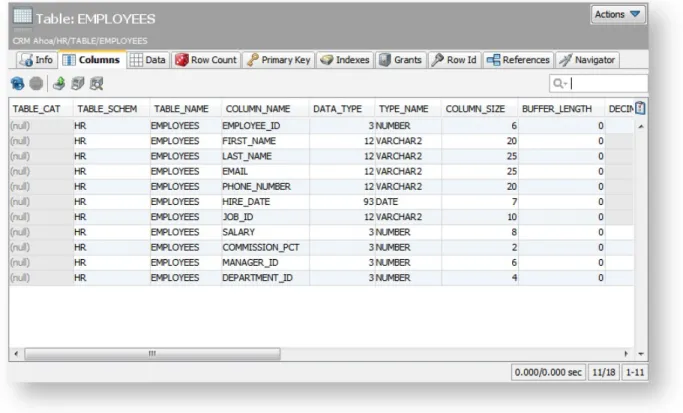
Columns Information about all table columns, e.g. data types and sizes.
Data Then table data. Here you can view (see page 70) and edit (see page 83) the data.
Row Count The number of rows in the table.
Primary Keys
Information about the table's primary key columns, if any.
Indexes Information about the table's indexes, if any.
Grants Information about granted privileges for the table.
DDL Shows the CREATE statement for the table.
References Shows declared primary/foreign key relationships to other tables. Please read more in Viewing
.
Table Relationships (see page 111)
1. 2. 3.
4. 5.
Subtab Description
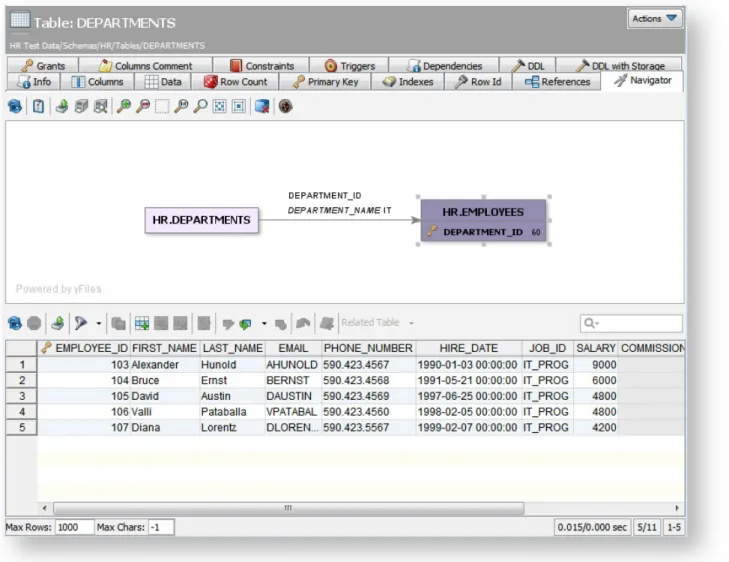
Navigate through the declared relationships. Please read more in Navigating Table
.
Relationships (see page 112)
2.9 Editing a Table - basics
Only in DbVisualizer Pro
This feature is only available in the Pro edition. In the Free edition, please execute the corresponding SQL in the SQL Commander (see page 146).
To edit table data:
Expand nodes in the Databases tab tree under the connection node until you find the table, Double-click on the table node to open its Object View tab,
Open the Data sub tab
Edit column values directly in the grid, add and remove rows by clicking on the buttons in the toolbar, Save the edited data by clicking on the Save button in the toolbar.
1.
2. 3. 4. 5.
Note that if the table does not have any declared Primary Key, you will be prompted to select the column(s) that uniquely identify a row.
You can learn more about the editing features in Editing Table Data (see page 83).
2.10 Executing SQL - basics
To execute SQL statements:
Open an SQL Commander window from SQL Commander->New SQL Commander or by clicking the button in the main toolbar,
New SQL Commander
Select the database, catalog and schema to use, Enter the SQL statements in the editor area,
Execute the statements by clicking the Execute button in the toolbar or choosing SQL Commander->Execute,
1.
2.
You can learn more about editing, saving and executing SQL statements in the Working with SQL (see page
section.
146)
2.11 Checking for Updates
By default, DbVisualizer checks for new versions on a weekly basis. To change the interval or manually check for updates:
Open Help->Check for Updates,
Change the interval to one of Every Start-Up Daily Weekly Monthly, , , or Never, or click the Check Now
button to see if there is a new versions available right now.
If you are interested in getting information about Beta versions to help us fine tune upcoming versions, check the corresponding checkbox. By default, Beta versions are not considered when checking for updates (unless you are already running a Beta version).
If a newer version is available, a dialog is displayed from where you can install the new version, read release notes, or in case your license is not valid for the new version, open our purchase page in your web browser.
Upgrading the currently used version is done by clicking the Upgrade link in the above dialog and then follow the instructions.
2.12 Printing
DbVisualizer supports printing of grids, graphs, charts and plain text, such as the content of an SQL Editor. The print dialog looks somewhat different depending on what is printed. In all cases, you launch the print dialog by clicking on the Print button in the toolbar for the object you want to print, or by choosing Print from the right-click menu. The right-click menu also contains a Print Preview choice, if you want to see what the printout will look like before you actually print.
Printer Setup (see page 29)
Printing a Graph (see page 29) Print Preview (see page 29)
2.12.1 Printer Setup
If you want to set the page orientation (e.g., portrait or landscape) and paper size, you must launch the Printer Setup dialog, using the File->Printer Setup main menu option, before you print. Printing varies widely between platforms, so even though the Print dialog (as opposed to the Printer Setup dialog) on some platforms also lets you choose a page orientation and other options, they may be ignored if specified in that dialog. The only supported way to specify the page orientation and other options is via the Printer Setup dialog.
2.12.2 Printing a Grid, a Chart and Plain Text
For a grid, chart and plain text, DbVisualizer launches the platform's native Print dialog, so it looks different on different platforms. The two options available on all platforms are a choice of printer and the page range. On some platforms, the dialog may offer additional options, but they may be ignored by DbVisualizer. Use the Printer Setup dialog to set other options besides which printer to use and the page range, as described above When you print a grid in DbVisualizer, the grid is printed as it is shown on the screen, i.e., with the table headers, sort and primary key indicator, etc. It is printed as a screenshot that may span several pages,
depending on the number of rows and columns that are printed. For a grid, the right-click menu contains a Print choice that you can use if you just want to print selected rows and columns.
Selection
An alternative to printing a grid as a screenshot is to export the grid to HTML and then use a web browser to print it.
Printing a chart scales the chart to the size of the paper. Plain text is printed as-is and may span multiple pages, both in height and width.
2.12.3 Printing a Graph
Printing a graph adds a custom dialog before the native Print dialog is displayed. You can specify the number of rows (pages) and columns (pages) that the complete image will be split into. You can also select whether the view as it appears on the screen or the complete graph should be printed. When you click Ok, the native Print dialog is displayed, where you can select the printer.
2.12.4 Print Preview
3 Getting the Most Out of the GUI
DbVisualizer has a tab-based user interface that gives you a lot of control over the layout and how to work with your database objects. This section describes how you can open as many tabs as you need, arrange them to focus on what is important to you, and more.
3.1 Main Window Layout
The DbVisualizer GUI main window contains a navigation area to the left and an area for working with database objects and scripts the right.
At the top of the window, you find the main menus and a toolbar.
Tooltips are used to provide more details about a component throughout the GUI. They are also used to express status information. An example is the grid column header tooltip that shows information about the column. To see a tooltip, let the mouse hover over an area of the user interface, e.g., a button or grid header. If there is a tooltip for the area, it will pop up in about a second.
3.2 Tab Types
There are three main types of tabs in DbVisualizer:
Navigation Tabs (see page 32) Object View Tabs (see page 33) SQL Commander Tabs (see page 34)
3.2.1 Navigation Tabs
The left part of the DbVisualizer window holds a navigation area with three tabs: Databases Scripts, and . They all contain an object tree where you can select the objects you want to work with.
Favorites
The Databases tab tree contains you database connections at the top and, when connected, the database objects they contain. If you have many database connections, you can also create folder objects in this tree to organize them.
The Scripts tab tree contains Bookmarks and Monitors, see the Managing Frequently Used SQL (see page 173
and the pages for details.
) Monitoring Data Changes (see page 245)
Finally, the Favorites tab tree contains objects that you want to have easy access to, either database objects (such as tables, views, or procedures) or scripts. You can read more about Favorites in the Favorites (see page
page.
3.2.2 Object View Tabs
An Object View tab shows information about a database object, such as the data and DDL for a table, or the source code for a stored procedure. The different types of information are shown as sub tabs within the Object View tab.
3.2.3 SQL Commander Tabs
An SQL Commander tab contains an editor for editing SQL scripts, controls for executing the script and a results area with a Log tab and possibly Result Set tabs and a DMBS Output tab.
3.3 Opening a Tab
You can open an object by double-clicking on the object node, or by pressing Enter with the node selected, in all navigation tab trees. This opens either an Object View tab or an SQL Commander tab, depending on the object type: database object or script.
A database object is opened in an Object View tab that is "available," meaning it is not pinned, busy running a task, or contains pending edits. The current tab is choosen if it is available, otherwise any other available tab is used. If none of the tabs is available, a new tab is created for the object. If a tab is already open for the object, it is made the active tab. An alternative to double-clicking a database object is to use the Open in Tab choice from the node's right-click menu. Open in Tab is also available in the Open Object drop-down menu button in the
tab toolbar.
Databases
If you want to open a database object in a new tab instead of an available tab, hold down the Alt key when you double-click the node, use the Open in New Tab choice from the node's right-click menu or from the Open
drop-down menu button in the tab toolbar. The drop-down button keeps the last choice as
Object Databases
the default, so once you have choosed Open in New Tab once, you only need to click the button to do the same.
Both Open in Tab and Open in New Tab can als be used when multiple nodes are selected in the tree to open multiple tabs in one go.
To replace the content in a specific Object View tab with information for another object, drag the node for the new object from the object tree and drop it on the Object View tab header.
Scripts (Bookmarks and Monitors) are always opened in a new SQL Commander tab unless the script is already opened in a tab. If so, that tab is activated instead. An alternative to double-clicking the node is to use
in the right-click menu or the corresponding button in the tab toolbar. The
Open in SQL Commander Scripts
righ-click menu also holds an Open in SQL Commander and Execute choice.
A new, empty SQL Commander tab is created by clicking the Create SQL Commander button in the main toolbar or using the corresponding File menu item. You can use this kind of SQL Commander tab for ad-hoc statement execution or to create a new script.
tabs can also be opened for files in the file system. Click the button in the main
SQL Commander Open File
toolbar or choose File->Open to open the file chooser window and select one of more files. Alternatively, you can drag files from your platform's file browser and drop them in the main toolbar area.
Only in DbVisualizer Pro
Multiple SQL Commander tabs are only available in the DbVisualizer Pro edition.
3.4 Pinning a Tab
To prevent an Object View tab to be reused for another object or to prevent any tab to be removed unless you explicitly asks for it, you can "pin" it. In the right-click menu for a tab you find a Pin Tab toggle to accomplish this.
You can also click on the icon in the tab header as a shortcut for toggling between the "pinned" and "unpinned" states.
3.5 Closing a Tab
A top level tab and a Result Set tab in an SQL Commander tab can be closed by clicking the cross to the right of the tab label, or clicking the tab header with the middle mouse button.
If you want to close a number of tabs at the same time, you can use the tab header menu choices:
Close Tab Close just the current tab.
Close Other Tabs
Close Closeable Tabs
Close all tabs that are in a state where they can be closed with no action required by the user, e.g. not pinned and no pending edits.
Close All Pinned Tabs
Close all pinned tabs.
Close All Tabs Close all tabs, regardless of state
You can also hide Object View sub tabs that you are not interested in. Use the Close Tab right-click menu choice to do so. To see the hidden tabs again, use Restore Hidden Tabs in the right-click menu.
3.6 Listing Open Tabs
If you have many tabs opened, there may not be room enough to show them all at the same time. In this case, you can scroll through them using the arrow buttons that appear to the right of the tabs. It is, however, often faster to locate the tab you want to work with by clicking the list icon next to the arrow buttons. This brings up a list of all open tabs so you can select the one you want directly.
3.7 Maximizing and Minimizing a Tab
The three Navigation tabs can be minimized either by double-clicking on the tab header or using Minimize Tab in the tab's right-click menu. Clicking on a minimized tab brings it back to its regular place and size again. All other tabs can be maximized by double-clicking on the tab header or using Maximize Tab in the tab's right-click menu. When you maximize a tab, the Navigation tabs are minimized to make as much room as possible available and the tab you maximized fills all available space. Double-clicking on the the tab again restores all tabs back to their original size.
An icon in the main status bar indicates when a tab is maximized. An alternative for restoring the original size of all tabs is to double-click on this icon.
3.8 Floating a Tab
Sometimes it is handy to break up the user interface in multiple freestanding windows. Every tab in DbVisualizer can be placed in a separate window by "floating" the tab. Use the Floating menu choice in the tab header right-click menu to float the tab in a separate window.
When you close a floating tab, a dialog is displayed where you can choose to really close the tab or restore it back into the main window.
3.9 Rearranging Tabs
You can move the tabs around by drag and drop. This allows you to see the content of multiple tabs at the same time
When you drag a tab, and outline of the tab borders shows what will happen when you drop it: place it in above, below or next to another tab, or simply move it to another location among its siblings.
The tab header right-click menu also has a couple of choices for arranging all tabs at the same level as either "tiled" (the content of all tabs visible side-by-side) or "collapsed" (only the content of the active tab visible).
You can save your rearranged layout of an Object View tab so that it is applied for all objects of the the same type for the same database type. In the sub tab header right-click menu, just select Save as Default Layout. To restore the default layout, use Reset to Factory Layout.
Only in DbVisualizer Pro
This feature is only available in the DbVisualizer Pro edition.
3.10 Changing the Tab Label
The tab labels are set based on a pattern that you can change in Tools->Tool Properties, in the category.
Appearance/Tabs
You can select one of the predefined patterns or create your own by editing the pattern. The variables available for these patterns are:
Variable Available For Description
${connectionname} All Connection name
${filename} SQL Commander Tabs
Script filename, or "Untitled" if no file is loaded
${index} All A unique index
${longfilename} SQL Commander Tabs
Absolute path for the script, or "Untitled" if no file is loaded
${objectname} Object View Tabs Object name
${objecttype} Object View Tabs Object type, e.g. Table, View etc.
${rows} Result Set Tabs Number of rows in the result set
${sql} Result Set Tabs Part of the SQL statement that produced the result set
${table} Result Set Tabs Name of the table (first if more than one) the result set comes from
${time} Result Set Tabs Time when the result set was produced
${userid} All Userid used for the connection
${vendor} Result Set Tabs Database vendor name
You can also manually change the label for Object View, SQL Commander and Result Set tabs, using the menu choice in the tab right-click menu.
Rename
3.11 Selecting a Node for a Tab
To quickly navigate to and select the node in the Databases tab tree that an Object View tab belongs to, you can click on the object path in the Object View header area. Alternatively, you can use Select in Databases Tab in the tab right-click menu.
Similarly, you can navigate to the object represented by a Favorite object using its Select Target Object right-click menu choice. It selects the object in the Databases or Scripts tab, depending on the Favorite type. For an SQL Commander tab that is associated with a connection, you can use Select in Databases Tab in the tab right-click menu to select the connection node.
1. 2. 3. 4.
If you often work with the same objects and a few scripts, you can ensure that the Object View and SQL Commander tabs for these objects remain open between DbVisualizer sessions.
Open Tools->Tool Properties,
Select the Appearance/Tabs category,
Enable one of both of Preserve SQL Commander tabs between Sessions and Preserve Object View
,
tabs between Sessions
Click Apply or OK to apply the new settings.
This feature is enabled by default for SQL Commander tabs but not for Object View tabs.
The content of the SQL Commander tabs is saved at regular intervals so when you restart DbVisualizer, the content is the same as where you left off.
For Object View tabs, you can also enable Preserve Object View tabs at Disconnect. By default, Object View tabs for objects that belong to a connection are closed when it is disconnected.
3.13 Using Tab Colors and Borders
Only in DbVisualizer Pro
This feature is only available in the DbVisualizer Pro edition.
If you like to distinguish tabs and other GUI components for a specific connection from those of others, you can specify a tab background color and/or border to use for a connection. If you set these in the Tool Properties window, they apply to all connections with the corresponding database type. Therefore these properties are typically set in the Properties tab for a specific connection instead.
For the border, you can either select one of the predefined styles or specify a small image file to use for the border.
The selected color and border are also shown in the connection tab node in the Databases tab and in the Database Connection list in the SQL Commander.
1. 2.
3.14 Changing the GUI Apperance
To change how the DbVisualizer GUI is displayed: Open Tools->Tool Properties,
Select the Appearance category under the General tab.
Here you can select a different Look and Feel and adjust the size and use of icons.
In the subcategories Fonts and Colors you can adjust the fonts used for different parts of the GUI and the colors used to highlight grid elements.
The main View menu also contains a number of toggle controls for showing or hiding GUI elements, such as toolbars and status bars.
3.15 Changing Keyboard Shortcuts
You can define key bindings for almost all operations and editor commands in DbVisualizer. Key bindings are grouped in Key Maps. DbVisualizer includes a set of predefined key maps targeted for the supported operating
systems. These key maps cannot be deleted or modified. To customize key bindings, copy an existing key map and make your changes.
All user defined key maps are stored in your $HOME/.dbvis/config70/keymaps directory. A key map file contain only the differences between the copied key map and the current.
To create a new key map, select the map you want to copy and click the Make Copy button. Set a name on the new key map and activate it with the Set Active button. The newly created key map now has the exact same key bindings as the parent key map.
The action list is organized in folders. The Editor Commands folder lists all actions available in the SQL
Commander editor and their current key bindings. The Main Menu folder contains subfolders, each representing a main window menu. The other folders group feature specific actions, such as actions to control the references graph, form editor, etc.
To modify the key bindings for an action, select the action from the action list. The current key bindings are listed in the Key Bindings list.
The keystroke dialog controls whether a key binding is already assigned somewhere else. If there is a conflict with another binding, the Conflicts area shows the names of the actions that are conflicting. The modifier keys Shift, Alt, Ctrl and Command can be used to form the final key binding.
1. 2.
4 Working with Tables
DbVisualizer provides many ways to work with tables.4.1 Creating a Table
Only in DbVisualizer Pro
This feature is only available in the Pro edition. In the Free edition, please execute the corresponding SQL in the SQL Commander (see page 146).
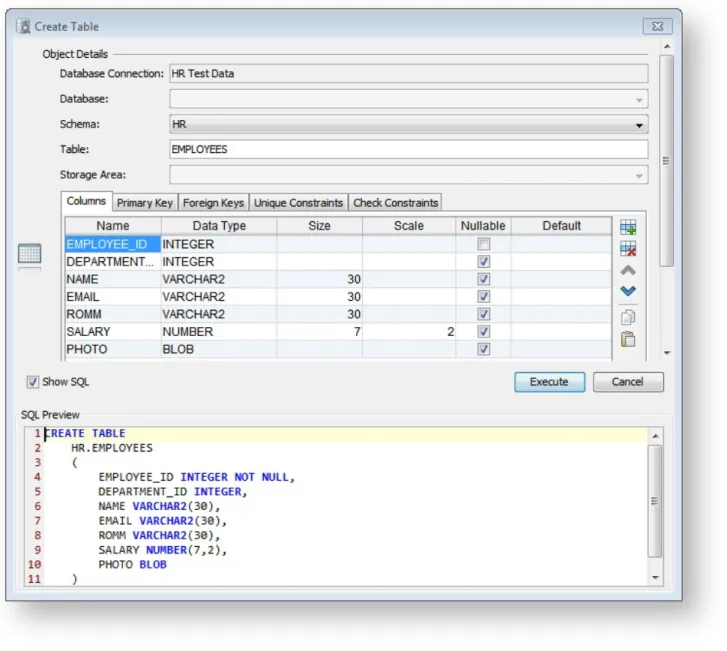
The Create Table dialog helps you create a table without writing SQL.
Opening the Create Table Dialog (see page 47) Columns Tab (see page 49)
Primary Key Tab (see page 51) Foreign Keys Tab (see page 52) Unique Constraints Tab (see page 53) Check Constraints Tab (see page 54) Indexes Tab (see page 55)
SQL Preview (see page 56) Execute (see page 56)
4.1.1 Opening the Create Table Dialog
To create a new table:Expand nodes in the tree under the connection node in the Databases tab tree until you reach the node,
Tables
The Create Table dialog is organized in three areas from the top: General Table Info
Specifies the owning database connection, database and/or schema. These are picked up from the selection in the tree when the dialog is opened. Table name is is set to a default name that you should change to the real table name.
Table Details
A number of tabs where you specify information about the columns and, optionally, various constraints. The Columns Primary Key, and Foreign Key tabs are available for all databases. The remaining tabs are database-specific and depends on the features supported by the database engine.
SQL Preview
1. 2.
3.
4.
4.1.2 Columns Tab
The Columns tab lists all table columns along with their attributes.
To add a column:
Click the Add button,
Enter the name of the column in the first field and select a data type from a drop down list in the second field, or start typing the data type name to find it and select it with the Enter key. The list contains the names of all data types the database supports,
For some data types, such as character types, you may also specify a size, i.e., the maximal length of the value. For others, like the decimal types, you can may specify both a size and a scale (the maximal number of decimals),
In the last two fields, specify if the table is nullable and a default value to use for rows inserted into the table without specifying a value for the column.
Below the column list, you may find additional fields depending on the features supported by the database you create the table for and the data type for the current column. The Collation field is shown for character columns if the database supports the declaration of a collation for textual data.
The Auto Increment field, and possibly Start With and Increment By fields, are shown for numeric fields if the database supports automatically inserting the next available sequence number in a numeric column.
The Create Table dialog uses database metadata to try to enable only the fields that apply to the selected data type, but please note that it is not always possible. For instance, there is no metadata available to tell if a data
1. 2.
1. 2.
1. 2.
type requires, or allows, a size. If you don't enter a required attribute or enter an attribute that is unsupported for a data type, you will get an error message when you click Execute to create the table.
To remove a column:
Select a cell in the column row, Click the Remove button. To move a column to another location:
Select a cell in the column row, Click the Up or Down buttons.
4.1.3 Primary Key Tab
The Primary Key tab contains information about an optional primary key for the table. A primary key is a column, or a combination of columns, that uniquely identifies a row in a table.
To declare a Primary Key:
Optionally enter a constraint name for the primary key constraint in the Constraint Name field, Select the columns to be part of the primary key by clicking the checkboxes in the Include field in the columns list.
1. 2. 3.
4.
5.
4.1.4 Foreign Keys Tab
In the Foreign Keys tab, you can declare one or more foreign keys for the table. A foreign key is a column, or a combination of columns, that refer to the primary key of another table. Foreign keys are used by the database to enforce integrity, i.e., that there is a row in the referenced table with a primary key that matches the foreign key value when a new row is inserted or updated, and you can optionally declare rules for what to do when a referenced primary key is removed or updated in the referenced table.
The tab has the following sections: A list of foreign keys,
Controls for selecting the table the currently selected foreign key refers to, including the database (catalog) and/or schema for the table,
A list of all columns for the table being created. To declare a new foreign key constraint:
Click the Add button next to the list of foreign keys,
Optionally enter a name for the foreign key in the first field in the list,
Select On Delete and On Update actions from the pull-down menus. The pull-down lists include all actions that the database support, typically CASCADE, RESTRICT, NO ACTION and SET NULL. The
field is read-only and gets its value automatically when you select which columns to include in
Columns
the key later,