UNDERSTAND YOUR FORTUNE SYSTEM
Copyright ~ 1982 Fortune Systems Corporation. All rights reserved.
No part of this document may be copied, photocopied, reproduced, translated, or reduced to any electronic medium or machine readable form without prior consent in writing from Fortune Systems
Corporation. The information in this manual may be used only under the terms and conditions of separate Fortune Systems Corporation license agreements.
Science Management Corporation - Busi~ess BASIC
Science Management Corporation - IDOLeV , Data Base Management System Multiplan is a trademark of Microsoft Corporation
Printed in U.S.A
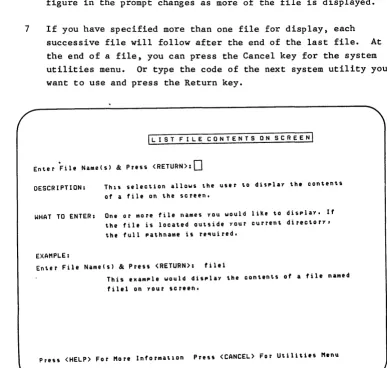
1 2 3 4 5 6 7 8 9 0
Ordering Understand Your Fortune System I
Order Number: 1000828-01
Please do not order products from the address shown below. an authorized Fortune Systems dealer for copies of manuals technical information.
Customer Comments
Consult and
Your ideas about Fortune products and evaluations of Fortune manuals will be appreciated. Submit your comments to the Publications Department, Fortune Systems Corporation, 1501 Industrial Road, San Carlos, CA 94070. By submitting any idea, evaluation, or other information to Fortune Systems Corporation, you consent to any use or distribution of such information deemed appropriate by Fortune Systems Corporation. Fortune Systems Corporation shall have no obligation whatsoever with respect to such information.
Disclaimer of Warranty and Liability
No representations or warranties, expressed or implied, of any kind are made by or with respect to anything in this manual. By way of example, but not limitation, no representations or warranties of merchantability or fitness for any particular purpose are made by or with respect to anything in this manual.
In no event shall Fortune Systems Corporation be liable for any incidental, indirect, special or consequential damages whatsoever (including but not limited to lost profits) arising out of or related to this manual or any use thereof even if Fortune Systems Corporation has been advised, knew or should have known of the possibility of such damages. Fortune Systems Corporation shall not be held to any liability with respect to any claim on account of, or arising from, the ~anual or any use thereof.
How to Use This Guide
Your Fortune system is assembled. All parts are connected together and are performing as expected. Furthermore, ~ou probably have run a software application and have put some information on the hard disk.
Understand Your Fortune System explains how to manage the Fortune 32:16 and all information created on it through use of a series of menus. It assumes that you have already read Meet Your Fortune System. If you are responsible for managing a Fortune system used specifically for running software applications,
Understand Your Fortune System contains all the information you need to successfully manage your system.
However, there is more to having a successful computer system than just plugging in equipment and running some programs. The Fortune system must be carefully managed, with attention given to system security, management of disk space, the addition of new equipment, and other system maintenance tasks.
To give you~an idea of the scope of the system manager's responsibilities, Part 1 of this guide presents an overview of the various tasks involved in managing a computer. You'll be introduced to the procedures you'll have to perform. Then you'll be told how to log in to the system as system manager of the Fortune 32:16.
One of the reasons your company purchased the Fortune 32:16 is for the capabilities of the UNIX-based Fortune Operating System. Part 2 provides an explanation of the basic operating system concepts you'll need for managing the computer. You'll learn to communicate with the operating system and to understand how it organizes information.
Part 3 contains instructions for all the activities you'll perform as part of your daily routine. You'll learn how to manage space on the hard disk, how to control information stored off the system on flexible disks, and how to recover any data that may have been lost, inadvertently through a user error or as the result of a power failure or a brown out.
Finally, in Part 5, you'll learn how to detect and correct minor system problems.
This guide is written particularly for the novice user. Readers with programming and operating system backgrounds should refer
instead to the Fortune Operating System guide, which contains information for managing a system used for programming and
Contents
How to Use This Guide
Part 1
Part 2
Taking Control of the Computer
1
2
The Role of the the System Manager Maintaining Software Applications Managing Disk Space
Planning and Performing File Backup Emergency Situations
System Security Troubleshooting
The System Manager'& First Steps Log in as the System Manager
Parts of the Fortune Operating System What's a System Utility?
How to Get Help When You Need It
Using the Fortune Operating System
3
4
Levels of Communication Functions of the Menus The Product Maintenance Menu The System Utilities Menu The System Management Menu
Introducing Directories and Files Creating a Directory
Directory Organization Pathnames
Identifying the Current Directory Listing the Contents of a Directory Displaying a Detailed List of a Directory Changing Directories
Creating a File
Appending One File to Another Displaying a File on the Screen Printing a File
Part 3
Part 4
Routine Maintenance
5
6
7
8
Applications Handling Installing an Application Backing Up an Application Deleting an Application
Managing Disk Space
How Much Space Is Used on a Disk Moving or Renaming Files
Deleting Files
Moving or Renaming Directories Deleting Directories
Copying Files Copying Directories
Backing up Your Files Planning a Backup Procedure Preparing Disks for Backup Clearing a Disk
Rotating the Backup Disks
Frnding Out Who Is Using the System Sending a Message to a Terminal Sending a Message to the Users The Backup Process
Archiving Files
What to Do if the System Fails
Shutting Down the System in an Emergency Recovering Your Files
Recovering the Operating System
Administering Users
9 Keeping a Secure System
Levels of File and Directory Permissions File Ownership
Group Ownership of a File Directory Ownership
Group Ownership of a Directory Changing File Permissions Changing Directory Permissions
Part 5
10
11
Maintaining User Accounts Creating a New Account Listing All Accounts Modifying an Account
Ignoring Operating System Standards for an Account
Assigning a Password to an Account Removing a Password
Turning Accounts Off and On Adding a New User ID Number Adding an Account to a Group Assigning a New Home Directory Deleting an Account from a Group Adding a Comment to an Account Assigning a New Login Procedure
Changing Your Password Deleting an Account
Maintaining User Groups Creating a New Group Listing All Groups
Mddifying an Existing Group
Ignoring Operating Systems Standards for a Group
Entering a New Group Name Turning Groups Off and On Assigning a New Group ID Number Deleting a Group
Keeping the System up and Running
12
13
Error Messages
Troubleshooting Guide for Error Messages Error Messages from the Operating System When You Make a Mistake
Equipment Problems CPU Problems
These persian astronomers made good use of the most sophisticated instruments and mathematical techniques of their day. Instruments shown in this medieval observatory include compasses, a globe of the world, astrolabes, and a mechanical clock.
~hoto by Derek Price, Courtesy of the General Library of the University of Istanbul.
Taking Control of the Computer
Whether a Fortune system is single user or multiuser, it requires a method for managing information created and the users creating it. The system manager is responsible for this. Though multiuser
systems may have an officially appointed system manager, the
procedures described throughout this guide should be followed by the person with a single user system, as well. To effectively manage the Fortune 32:16, you first need to know what activities the system manager carries out.
The most valuable system management tool available to you is the Fortune Operating System. You don't have to be a computer whiz to use this versatile operating system. Just follow the instructions in this guide, and you'll be communicating easily with the Fortune ,Operating System. Furthermore, as your company's requirements grow,
the operating system can grow also, for many features can be added to the system as need arises.
Before taking control of the computer, you should be aware of the responsibilities of the system manager. In Part 1, you'll be introduced to the tasks involved in system management. These include:
• Maintaining software applications • Managing disk space
, Creating backing up files • Handling emergency situations
• Maintaining system and file security • Solving system problems
• Logging in as the system manager • Using system utilities
• Getting help when you need it
1 The Role of the System Manager
The system manager wears many hats in the course of administrating the Fortune system. As system manager, you are responsible for maintaining or adding new equipment to the system hardware, and handling equipment problems, such as printers that need ribbons. Managing software is another responsibility of the system manager:
The following pages present the activities of the system manager. How you personally fit into this role depends on the applications for which your system is used and the number of users on the system. For example, a single user system does not need procedures for modifying user groups or for altering the
configuration of the system to provide extra workstations. However, these may be your responsibilities in the future as your system expands with business needs.
While learning about the system manager's duties, you might want to set up a notebook and write down how each duty applies to your system. Set up a chart in the notebook similar to the one pictured below. Later, as you learn the procedures involved in each
SYSTEM MANAGER'S RESPONSIBILITIES
REQUIREMENT PROCEDURE
---Disk Maintenance
Backup Files
Delete a File Move or Rename a File Copy a Directory Clear a Disk Backup Files
,
Maintaining Software Applications
Since your Fortune system is used primarily for its applications, loading and maintaining software applications will be one of your chief responsibilities as system manager. Familiarize yourself with the applications to be used on your system by reviewing the
operator's and reference guides included in the application packages. Some applications include special management tasks that are performed within the application itself. For example, in the
You can find information about the following applications maintenance procedures in these sections:
• Loading the application involves moving the application software from the master flexible disk to the hard disk. See the section titled "Installing an Application" in Chapter 5 for the
procedure.
• Making a copy, or backing up, the application master disk is your insurance in case that disk becomes damaged. This is discussed in Chapter 5 in the section named "Backing Up an Application."
- Ensuring that the master disk is stored in a safe place is also discussed in "Backing Up an Application."
• Deleting an application to free space on the hard disk should be done whenever an application or part of an application is no longer being used. The procedure for this task is found in the section named "Deleting an Application" in Chapter 5.
Managing Disk Space
All Fortune systems, large and small, single user and multiuser, risk running out of space on the hard disk as new applications are loaded and users create files. Keeping track of disk usage and deleting files as needed is one of the most important duties you'll have as the system manager. How often you check disk usage depends upon how heavily your system is used and the number of users it supports.
Managing disk space involves a great deal more than just reading a list of files and deleting or copying those that seem
Refer to the indicated sections for more information about managing disk space:
-Analyzing reports on disk usage is the first step in managing disk space. How to analyze the disk usage list is expl~ined in the section on "Ho\v Much Space Is Used on a Disk" in Chapter 6.
• Moving or renaming files and directories can help you organize information on a disk effectively. Procedures for doing this are found in the sections in Chapter 6 titled "Moving or Renaming Files" and "Moving or Renaming Directories.1f
• Deleting files and directories should be done whenever you determine that a file or directory is obsolete. The sections called "Deleting Files" and "Deleting Directories" in Chapter 6 explain how to do this.
• Copying files and directories is necessary for reorganizing space once you have moved or deleted other files. In addition, you may want to make copies of a file and change the copies slightly. Procedures for doing this are found in "Copying Files" and ''''Copying Directories" in Chapter 6.
Planning and Performing File Backup
Making offline copies, or backing up your files, is your insurance against loss of information. Files can be deleted from a disk in many ways. A new user may accidentally delete a file. An
The system manager is responsible for devising a backup schedule, organizing the backup disks, and keeping a backup logbook. Procedures for backing up files are listed below, along with references to the sections where the procedures are discussed more fully:
• Devising a plan for backup and a plan for rotating backup disks are two steps to take before actually backing up files.
Information about these subjects is contained in the sections in Chapter 7 named "Planning a Backup Procedure" and "Rotating the Backup Disks."
• Before flexible disks are used for backup, they must be prepared, or formatted, to receive files. Two sections in Chapter 7, "Preparing Disks for Backup" and "Clearing a Disk," explain how to do this.
• Once you know when you are going to schedule backup, you'll need to inform other users on the system of your intention to back up files. Files that are being edited at the time of backup may not be copied to the disk with the most recent changes intact. The system provides ways to determine who is using the system and to send messages to the users. These programs are discussed in three sections in Chapter 7, "Finding Out Who Is Using the System," "Sending a Message to a Terminal," and "Sending a Message to the Users."
• Actually backing up the files is a simple procedure found in the section called "Back Up Your Files" in Chapter 7.
Emergency Situations
Most of the time your system will work smoothly. If you regularly check disk space and back up your files, few crises will occur. However, there are certain unplanned situations, for example a power failure, which may cause the system to accidentally power down, or crash.
As system manager, you must know the special procedures for recovering from an emergency. They are discussed below.
• A file system check is performed by the system as soon as it is powered up after a crash. The section on "Pathnames" in
Chapter 4 explains the file system check.
• File recovery is the next step if the computer detects damaged files when checking the file system. The section in Chapter 8 called "Recovering Your Files" explains how to do this •
• Operating system recovery is necessary in the unlikely event that the information on the hard disk is destroyed. The section titled "Recovering the Operating System" in Chapter 8 reviews the operating system reloading procedures you learned in Meet Your Fortune System.
System Security
Ano~her major responsibility of the system manager is keeping the system secure against unauthorized operators. Two methods of information protection are available: protecting the system itself against unauthorized use by creating accounts and groups, and
protecting individual directories and files by limiting access to them.
Protecting the system against people who do not have permission to use it is especially important if you have a multiuser system or if you locate a single user system in a public area. If a single user system is located in a company's reception area, for example, it should be protected against visitors who might play with it and gain access to confidential files.
As system manager, you'll be responsible for protecting both the system and the files. The security procedures you'll need are found in the sections below.
• Changing file permissions and the various file access rights are discussed in the "Changing File Permissions" and "Changing Directory Permissions" sections in Chapter 9.
• Changing file ownership involves transferring ownership rights from one account to another. Read more about it in "File Ownership" and "Directory Ownership" in Chapter 9.
• Users are given permission rights according to their individual accounts and their assigned user groups. Creating accounts and user groups is discussed in the sections titled "Creating a New Account" in Chapter 10 and "Creating a New Group" in Chapter 11.
• Modifying accounts and user groups is discussed in the sections "t1odifying an Account" in Chapter 10 and "Modifying an Existing Group" in Chapter 11.
Troubleshooting
When something goes wrong with the computer, it is the system manager's job to try to fix it. Emergencies such as power failures seldom happen; but little problems, such as a user trying to send a ,file to a printer that hasn't been powered up, happen all the time. It's these little problems that you must learn to detect, evaluate, and fix.
Error messages are the system's device to help you to know when a problem has occurred and to determine what action you can take to remedy the problem. You'll learn how to analyze error messages and solve minor problems in the sections mentioned below.
• Error messages and suggestions on how to use them are found in Chapter 12, "Error Messages."
2 The System Manager's First Steps
You may have become system manager by being appointed to the position. Or, as the only user of the Fortune system, you may be system manager by default. However, the system itself does not know you have a new title and responsibilities until you tell it you are manager. This is done through the login procedure.
When logged in as manager, you'll perform certain activities that are crucial to the computer's operation, such as backing up files or, in the extreme, recovering the operating system. Many of these tasks can be performed only by the system manager or an appointed assistant.
Therefore, you should be extremely careful as you follow the steps in Understand Your Fortune System. If you don't know what to do in a certain situation, don't guess. Instead, get help by pressing the blue Help key which displays a message on the screen about the menu, utility, or other function you are using. Or refer to the Table of Contents in this guide to find the section with the information you need. The next ~ew pages explain how to log in as manager and how to use the references provided both on the screen and in this guide. You'll also learn a little bit about the Fortune Operating System and the system utilities used throughout the guide.
USING THIS GUIDE AS A REFERENCE
Understand Your Fortune System differs from Meet Your Fortune System in that it is intended for repeated use. The procedures you are about to learn can apply to a variety of situations. For example, you'll often use the procedure to list the contents of a directory on the screen. The steps involved in this procedure are always the same, but the names you type and the system's responses will usually be different.
Log In as the System Manager
To become the system manager, you must log in using a special account name called manager. This account mayor may not have a password.
PROTECT THE MANAGER ACCOUNT
Depending upon your company's security requirements and the location of your Fortune system, you may want to assign a password to the manager account. It is possible that the Fortune Systems dealer or person who originally set up the Fortune system assigned a password to manager. If you are asked to supply a password when you log in as manager, either call your dealer or get in touch with the person who assembled your computer to find out the password.
When logged in as manager, you'll have access to special
functions that enable you to add a new user or determine who is and is not allowed
to
use a file. Therefore, you should consider assigning a password to manager if it doesn't have one, using the procedure in the section "Assigning a Password to an Account.1I If the manager account currently has a password, keep this password for the time being until you read the section "Changing Your Password.1I Then change the password of manager to one you'll remember. You probably will appoint an assistant to help with system management tasks. If you choose to password protect the manager account, make sure this person knows the password.Be very careful when logged in as manager, because some of the activities you perform are very important to proper system
performance. For example, if the system crashes and certain files are destroyed, your dealer may step you through a file system check -- a vital system operation. Be sure to follow all instructions, whether you receive them on the phone from a dealer or read them in a procedure.
Log in to the system with the manager account when you are going to use procedures that can only be performed by the manager account. Do not use the manager
Here is the procedure for logging in as manager.
1. Power up the Fortune system. Type in the date and time. Wait for the login screen.
2. In response to the prompt "Type in your name and press
(RETURN):," type manager in all lowercase letters. Press the Return key.
3. The system tells you the percentage of space available for use. You'll learn what this message means soon.
4. The global menu then appears on your screen.
Once you've finished your system management chores, you'll probably want to leave the manager account and log in as another account. This is how to do it.
1. Return to the global menu.
2. Press the Cancel key.
3. The login display is now on your screen. You can log in as another account.
FORTUNE SYSTEMS 32:16
Press <HELP> For Assistance
Type in your naMe and press <RETURN): Manafer
[J
Parts of the Fortune Operating System
One of the first things you should learn to effectively manage your Fortune 32:16 is the organization of the Fortune Operating System. In Meet Your Fortune System, you used the operating system, without really seeing what it can do. If you changed your system from single user to multiuser, you loaded the multiuser operating system onto the hard disk, a procedure called a cold boot. The Fortune Operating System is based on a large operating system called UNIX, developed by Bell Laboratories. If you have already performed a cold boot, you may recall typi~g the word unix when loading the operating system. The Fortune Operating System is a smaller version of UNIX, tailored to run on the Fortune 32:16.
On the Fortune 32:16, the operating system has three levels. The first two levels; the kernel and the user commands, are found in
standard UNIX. The third level, the menu system, is a special addition made by Fortune Systems Corporation. Each has a dedicated function, which is explained below.
THE KERNEL
Imagine the operating system as a globe like the Earth, as shown in the illustration on the next page. At the core of this globe is the kernel. It performs only the most basic functions of the operating system. For example, the kernel handles input sent to it from the keyboard; it moves output from the central processing unit (CPU) to the printer and disk. If you have a multiuser system, the kernel is responsible for giving users their segments of computer time. All of these activities happen automatically, without any need of human intervention.
When you start up the Fortune system, a program external to the operating system copies the kernel from the hard disk into the computer's memory. Though the kernel does not contain operating system programs you can access, it keeps track of where these system programs are located on the user command level of the operating system.
THE USER COMMANDS
set of programs that interprets these commands, called a command interpreter. The user commands are so-named because they are system programs to which any user has access for creating and manipulating files, scheduling programs, and so forth. Commands range from the simplest type, such as finding out who is using the system, to the extremely comp:ex, such as searching the files on a hard disk to see if any have been damaged. Should you want to learn more about the user commands, see the Fortune Operating System Guide.
If you ever write programs on the Fortune system, you'll regularly use the user command level of the operating system. To run a user command, you type its name and other information needed by the command. The command interpreter reads what you have typed and executes the user command program.
THE MENU SYSTEM
The top layer of the Fortune Operating System is the menu ~ystem. It helps you access many of the user commands on the second level of the operating system, as well as any application you may have
loaded. Because it acts as go-between for the user and the rest of the operating system, the menu system is sometimes called a user interface.
The advantage of the menu system is that it lets you access the user commands without having to remember them or look them up in a book. Instead, you select the command from a particular menu.
Application
What's a System Utility
System utilities are programs that perform specialized functions, such as manipulating files or helping you find out various types of information. These utilities are actually user commands located on the second level of the operating system. Utility names are
underlined, as in create a file, wherever they appear in the text. When you select the name of a utility listed on a menu, the menu
system tells the command interpreter on the user command level to run the utility. When the utility program is run, it will present at least one display on your terminal screen.
As the system manager, you'll be using system utilities to help you perform management activities. For example, you'd use the permission change of a file utility to protect sensitive reports from unauthorized users. Another utility will tell you who is using the system. While reading Meet Your Fortune System, you learned about two system utilities that format and copy a disk.
This guide explains how to use utilities that help maintain and protect the system. Using them requires no more computer knowledge
than that contained in this guide. Utilities are easy to learn, simple to use, and very important for keeping your system running smoothly. Some of the utilities you'll learn about are used to move information from one place on the hard disk to another. Other utilities are used to give passwords to accounts. Still others are used for copying information on the hard disk on to a flexible disk.
Other kinds of system utilities, found on the user command level of the operating system, are designed for programming purposes. If you need to know about them, refer to the Programmers Reference Guide and the programming language manuals.
How to Get Help When You Need It
As you use the menu system, you may want to know more about a particular utility. The Fortune system provides a method of displaying information about a utility on the screen so that you don't have to spend time searching through a book for an answer.
All you have to do is find the utility you want to use, type its code, and then press the blue Help key, just as you may have done when using an application. Information about the utility will then appear on the screen.
HERE'S HELP:
SYSTEM UTILITIES MENU
The System ~ilities menu conta1ns selections for worKinf with
files, d1rectories, and flexible disKs. Each item on the menu is numbered and has one or more separate screens that eKPlain what YOU can do and how to do it. In addition, each screen has a HELP screen like
th1S one that ~ives YOU more informat10n about the OPtion, eKPlains
terms, and, when necessary, fives YOU warn1n~s about usin~ the option.
To move from one selection to another on a nemu, use the arrow keys or type 1n the menu selector. When the cursor is Posit10ned on the select10n YOU want, press <RETURN> or <EXECUTE> to see the screen for that selection.
When there 1S more than one OPtion on a select10n screen, choose the one YOU want by typinf the whole opt10n word like "displaY", or by
tYP1nf the first letter, " d " .
Some words YOU see 1n the HELP teKt for a screen will be hlfhl1fhted. This identif1es key words. For more information on the
word, type "keYword" and press <RETURN>.
hlelp florward black mlenu>[J
Mathematical and bookkeeping onerations no lUll~er require the kind of tedious and painstaking effort that went into these 1665 calculations of several logarithims to 55 places.
2 Using the Fortune Operating System
In the rest of this guide you'll be communicating with the Fortune Operating System by using the selections on three menus listed in
the System Tools category on the global menu. These menus are system utilities, system management, and product maintenance.
Having already worked with the global menu, you should have a pretty sound idea of how to select items from menus and how submenus
descend from each other.
On the next pages, you'll view the three menus you'll use in the rest of the guide. You'll also learn a little bit more about files and how to manage them efficiently. Topics covered include:
• Functions of the menus • Pathnames and file systems
• Creation and manipulation of files • Creation and manipulation of directories • Organization of disk space
3 Levels of Communication
The utilities described in this guide are selected through the product maintenance, system utilities, and system management menus. Choosing a utility from these menus involves typing either the first letter of the utility's name or a two number code
When you select a utility from a menu, the menu system tells the command interpreter on the second level of the operating system to run the user command for the utility you selected. The actual steps involved in processing are carried out by the kernel, as shown in the illustration.
Now you are going to learn how to access the three utility menus "from the global menu and view the functions available from these
menus.
~
~
Functions of the Menus
Because they are part of the Fortune Operating System, the system utilities, system management, and product maintenance menus are standard products on every Fortune 32:16. All menus in the system are arranged beneath the global menu, the main menu of the Fortune system. As you load training programs and any purchased applications, their names are lighted on the global menu. The menus that are part of these applications and training programs are loaded onto the menu system. As you read about the functions of the menu system, experiment going from the utilities menus to the global menu.
Global Menu System
Utilities Menu
System r-tanagement
Menu
Product }1aintenance
Menu
The Product Maintenance Menu
The product maintenance menu is selection 85 on the global menu. It is used for organizing applications software, dnd is depicted in the illustration on the next page. The selections on the menu are the names of the product maintenance utilities. To run a utility, you select its name from the product maintenance menu.
Because they involve large, important programs, the utilities listed on the product maintenance menu can only be used when you are logged in as manager.
The product maintenance menu lets you install application software from flexible disks onto the hard disk. Product
maintenance performs two other vital applications-related functions as well: backup and delete. Applications typically occupy a large portion of memory. If you don't have much memory or you have a multiuser system, you may want to delete applications not in use from the hard disk.
The backup existing product utility lets you copy, or back up, an entire application from the hard disk. This master should be stored in a cabinet for inactive files away from the system, or offline, as your insurance against any damage that might occur to the copy regularly in use. When you load the application at a later date, use the copy of the application, not the application master.
Here's how to access the product maintenance menu.
I From the global menu, type s5 and press the Return key.
2 The product maintenance menu is now displayed on the screen. If you want to leave the menu before making a selection, press the Cancel key to return to the global menu.
3 Make a selection by pressing the first letter of the name of the utility you want to run. Then press the Return key.
Practice moving back and forth from the global menu to the product maintenance menu. The remainder of the instructions in this guide assume that you know how to move between the product
maintenance and global menus. If you forget how to do this, refer to this section.
PRO Due T H A I N TEN A NeE
+---+
I'-Install _a product (from diskette) , II'-Delete _existing product ' I
I'-Backup _existing product ' I
+---+
_SELECTION:
The System Utilities Menu
The system utilities menu is selection Sl on the global menu. The options listed on the menu are the names of the system utility programs. Each utility listed on the menu has its own display, containing instructions to help you use it. You can also get more help with a particular utility by selecting the utility name from the system utilities menu, and then pressing the Help key while viewing the utility's associated screen.
You'll use the system utilities menu for handling files and directories, which you'll learn about on the next few pages. Any account can use the utilities listed under File Handling and Directory Handling, with a few exceptions.
You must be logged in as manager to use the utilities group ID change of a file, group ID change of a
directory, change file ownership, and change directory ~, all df which are discussed in Part 4. To use
the permission change of a file and permission change of directory utilities, you must either be the owner of the file or directory or logged in as manager.
The system utilities menu also lists four utilities for disk handling activities, which you'll learn about in Part 3.
Here is how to access the system utilities menu.
I From the global menu, type ~ and press the Return key.
2 The system utilities menu is now displayed on the screen.
3 Select any utility on the menu by typing its numeric code or by moving the cursor with the cursor control keys to the utility name. Then press the Return key.
5 If you continue, the utility performs the activity you requested, for example, copying a file.
6 When the activity is completed, leave the utility by pressing Cancel to go back to the system utilities menu. Or, move from one system utility to another by typing the numeric code of the next utility you want to use and then pressing Return.
7 When finished, press Cancel to go from the system utilities menu to the global menu.
Practice moving back and forth from the global menu to the system utilities menu. The remainder of the instructions in this guide assume that you know how to move between the system utilities and global menus.
ISYSTEM UTILITIES MENUI
FIL.E HANDLING
10 Append
11 COpy
12 Create
13 Delete
14 Group
15 LlSt
16 Move
17 Owner
One File To Another
A Fi le
A Fi le
A File
10 Chan.e Of A File
File Contents On Screen Or RenaMe A File Chan.e File Ownership
18 Print File Content On Printer
19 PermIssion Chan.e Of A File
30 Backup
31 Reload
Files To Flexible Disk Files FrOM Flexlble Disk
20 COpy
21 Creat.e
22 Delet.e
23 Go To
24 Croup
25 LlSt
26 Move
27 NaMe
o IRE C TOR Y HAN D L. INC-'
A Di recto ry A Di recto ry A Directory Another Directory
10 Chan.e Of Directory
Directory InforMation Or RenaMe A Directory Current Directory
28 Owner Chan.e Directory Owner
29 PerMIssion Chan.e Of Directory
32 ForMat.
33 Clear
Fluible Disk
Files On.Flexible Disk
Press <HELP> For More InforMat.1on Press <CANCEL> For Clobal Menu
Enter Selection Number & Press <RETURN>:[]
The System Management Menu
The system management menu is selection 82 from the global menu. It is divided into three sections: Accounts, Groups, and Other Tools. The selections listed in the Accounts and Groups sections are the names of utilities for protecting the system from unauthorized users. With the exception of list accounts and list groups, these utilities can only be used by the manager account. The utilities listed in the Other Tools section can be used by everyone, with the exception of change device connections, which can only be accessed by the manager account.
You'll use the system management menu to create and modify accounts and user groups. You'll also use the options listed under Other Tools to get reports about the system's performance and to perform miscellaneous other activities.
Here is how to access the system management menu.
1 From the global menu, type s2 and press the Return key.
2 The system management menu is now on the screen.
3 Select any utility by typing its code or moving the cursor to the utility name by pressing the cursor control keys. Then press the Return key. You can get help on the screen about a particular utility by typing its code and pressing the Help key.
4 The system either will prompt you or show the utility's associated display on the screen. (Two utilities, modify existing account and modify existing group have submenus. They'll be discussed in Part 4.)
5 To leave system management, press the Cancel key. You'll return to the global menu.
Practice moving back and forth between the global menu to the system management menu. The remainder of the instructions in this guide assume that you know how to move between the global menu and system management. menu. If you forget how to do this, refer to this section.
ISYSTEM MANAGEMENTI
ACCOUNTS
10 Add new acco~t.
11 Modify eMist.in' account.
12 Delet.e exist.in. account.
13 List. account.s
30 Shut.aown COMPut.er
20 Add
21 Modify
22 Delet.e
23 Li It.
OTHER TOOLS
35 Displ aY
31 Who is usin. t.he COMPut.er 36 SRt.
32 Disk usa.e 37 Wri t.e .
33 NUMber of free blocks 38 Send
34 Chan .. your password 39 Chan ..
GROUPS
new .roup lMist.in • • roup lMist.in, .roup .roups
current. dat.e and t.i.e dat.e and t.i.e
,ussa.e t.o a t.e r.inal .essa.e t.o all t.er.inals device connect.ions
Press (HELP> For More InforMat.ion Press (CANCEL) For Global ",nu
Ent.er Select.ion NUMber & Press (RETURN):[J
The system management menu is used for creating and modifying
4 Introducing Directories and Files
To help the system locate and store information, space on the hard disk is arranged in groups of directories and files -- two terms you've often seen but may not have clearly understood. In the following pages, you'll learn about files, directories, and the concept of file systems. You'll also learn some simple operations you can perform on directories and files.
WHAT ARE FILES?
When you use applications to create a business report, document, or worksheet, you create what the Fortune Operating System considers a file. A file is related information grouped together for a
particular purpose. For example, a spreadsheet created through the Multiplan appliCation is one type of ordinary file. Programs and data files are also examples of files.
Three major kinds of files are recognized by the operating system. The first kind, ordinary files, are those you create in your everyday work, as mentioned above. The second, special files, are used by the operating system for handling devices like disks and printers. The third kind of file, directories, are merely lists of files and other directories.
Creating a Directory
Directories are lists of files and other directories grouped
together for a particular purpose, usually because they belong to a person or department. Directories are created through the system utilities menu, or through Fortune software applications such as Fortune Systems Word Processing and Multiplan. For example, a library created by Fortune Systems Word Processing is actually a directory.
PARENT DIRECTORIES AND SUBDIRECTORIES
A directory can have other directories listed in it. This type of directory is referred to as the parent directory of those
directories listed in it. Any directory listed in the parent directory is called a subdirectory. For instance, a parent directory named /u/schwartz might contain a list of all files and subdirectories created by account schwartz. Or, a Marketing
Department might have all its files and subdirectories listed under a parent directory called market. Finally, the operating system and the applications software list related types of program files under various parent directories.
The first system utility you'll learn how to use is create a directory. This utility creates an empty directory into which you can create, move, or copy files and subdirectories. Any directory can contain a variety of files. For example, Multiplan worksheets, programs written in any programming language, and accounting reports can all be listed under one directory.
Follow these instructions for creating a directory. If you are using the system utilities menu for the first time, don't worry about what a current directory or a pathname is for the time being. You'll learn about them shortly.
I From the system utilities menu, type 21 to select the create a directory utility, and press the Return key.
2 The create a directory display is now on the screen. Take a few minutes and read it.
4 Type the name of the new directory. If you want to locate it under a directory other than the current one, type its
pathname. After typing the directory name, press the Return key.
5 The system creates the directory either as a subdirectory of the current directory or of the parent directory specified in the pathname.
6 The screen is automatically returned to the system utilities menu.
ICREATE A DIRECTORyl
Enter File Name(s) & Press <RETURN>:[]
DESCRIPTION:
WHAT TO ENTER:
EXAMPLE:
This selection WIll create a new d1rectory, This directory will be empty,
The d1rectory name(s) YOU would like to create. Enter the full pathname if the directory is to be located outside your current d1rectorY,
Enter Directory Name(s) & Press <RETURN>: d i r 1
This will create an eMPty directory named d1rl 1n your current directory.
Directory Organization
Every file on the system is organized in an order called a
hierarchy, resembling an upside down tree. ~he illustration shows the typical directory organization found on the Fortune system. Note that the illustration contains directories with files and other directories branching from them. A slash (/) is always the first character in a dire~toryts name.
I (root directory)
-~
--IMn letc lusr
~~
Ibin I (cODllll8nds) letc/(cODllll8nds)/
\
),,,/(app~,,,,..)
--
----'-- -"-lu (user other
directories root
i
directory)\
--lu/savio luI sung
--
filesdirectories directories
THE ROOT DIRECTORY
At the top of the hierarchy is the root directory. Actually, root is the English name for the top directory. The operating system recognizes the root directory by the symbol
I.
For example, if you want to go to the root directory, you type a slash when asked for the directory name by the go to another directory utility. Unless you log in as manager and change the permissions assigned to the root directory, any account can move to this directory and create directories and files within it. (You'll learn how to change directory permissions in Part 4.)The root directory is the parent directory of all files and directories on the hard disk. This includes all directories and files that are part of the operating system and of any applications you load. Root also contains all directories and files created by every account on the system.
Five major directories branching from root contain utilities and other operating system programs you'll use regularly, although you probably won't be aware of this. These directories are named /bin, /etc, Idev, /usr, and /u. (The slash preceding the directory names indicates the root directory.) The directories /bin, /etc, and /usr contain, along with other files and directories, the utilities that you'll access through the system utilities and system management menus. Special files in the /dev directory are used when the
operating system performs activities related to the disks, printers, and ASCII terminals.
USER DIRECTORIES
The directory called /u might be thought of as the parent user directory. When an account is created for a person, the operating system creates a user directory for that account and lists it in
lu. This user directory is called the home directory. It's full name, or pathname, is /u/(account name). A particular exception to this rule is the manager account. When you log in as manager, you are in the root directory, which is the home directory of the manager account.
Whenever users log in under their own account names, they are automatically located in the home directories for their accounts. A user can create as many subdirectories and files as needed in his or her home directory. These subdirectories can be moved to by using the go to another directory utility.
Any account can use the system utilities to create files and directories. In addition, the applications will place files and directories created through them in whatever parent directory is
specified, not just the particular account's home directory. However, the parent directory where the files and directories are placed must not be protected against access by anyone other than the directory owner.
THE FILE SYSTEM
The root directory and all subdireccories and files on the disk make up what is called a file system. On a standard Fortune 32:16, there is only one file system. The previous illustration of the file system tree shows a typical file system on the Fortune 32:16. Yours will be similar, although the files under
lu,
of course, will be different.A list of all standard directories supplied by Fortune Systems and located directly beneath the root directory appears in the Appendix. As an aid to locating your files, you should make a list of the directories and files you create, including their parent and subdirectories.
If you ever have to reset the computer or power it down without going through the shutdown sequence you learned in Meet Your Fortune System, the file system is checked for problems as soon as the computer is powered up again. You'll see the message, "Checking Your Files" on the screen right after the system finishes counting
Pathnames
Though you may think of your home directory as your account name, the operating system always thinks of your home directory as /u/(your account name). The characters /u/(your account name) are but one example of what is called a pathname. Pathnames tell the operating system exactly where to locate a file or directory on the file system.
A pathname of a file always starts with a slash, indicating the root directory, names all subdirectories the system must go through to locate the file, and finally gives the name of the file or directory you want to use. You'll use pathnames frequently when manipulating files and directories on a disk. In many cases you'll have to supply the pathname of a file or directory when using a utility on the menu system.
WHAT IS THE CURRENT DIRECTORY1
The current directory is the directory your account is currently using. If you just logged in with your user account, the current directory is the home directory for that account. Remember,
however, if you just logged in as manager, the current directory is /, the root directory.
As you create ordinary files and directories, the Fortune Operating System adds them to your current directory, as explained on the next few pages. You should access any files created in an application by using the functions within the application. However, when using the system utilities menu, you'll have to supply a
pathname for any file or directory not in the current directory.
THE FULL PATHNAME
You can specify a file not in the current directory by either using its full pathname or using its relative pathname. The type of pathname used depends on how well you know the part of the file system where your current directory is located and how well you know the area of the file system containing the needed file. Use the full pathname whenever you are not that familiar with the part of the file system where the directory or file you want is located.
The illustration on the previous page shows the full pathname of a file called apples created by the account sullivan. The
illustration below divides the pathname of apples into its parts. The very first character of the pathname is a slash, representing the root directory. The next character, u, represents the parent user directory. Notice how the u is followed by a slash. Each subdirectory in a pathname should be followed by a slash to separate it from the next directory. The directory sullivan is the home directory of the sullivan account. The directory fruits is a
subdirectory of the sullivan account's home directory. There can be as many subdirectories as needed in the pathname. The last entry in the pathname is the name of the file or directory you want to use. It should be fotlowed by a space, not a slash, indicating that it is the file or directory wanted. User sullivan created the file apples within fruits, hence,
lu/sullivan/fruits/apples
is the full pathname of the file apples.
I~
the
1
root directoryI
,sullivan,I
....L
account sullivan'shome directory
the user main directory
,fruits,
I
I
a sub-directorya file
Go back to the illustration showing the pathnames for directories within the /u directory. Suppose you are currently using a directory located beneath /etc and want to copy the file apples created by user sullivan. The copy a file utility, which you'll learn about in Part 3, asks for the name of the file to be copied. Because your current directory isn't located directly above or below /u, you should specify the entire pathname of apples, as shown on the previous page.
RELATIVE PATHNAME
A relative pathname tells the system whe~e a file or directory is located in relation to the current directory. For example, suppose you wanted to access a file called rabbits that is in the current directory. All you have to do is specify the unique name of the file, rabbits. This is the simplest form of a relative pathname.
If a needed file or directory is in a direct line either above or below your current directory, you don't have to specify a full pathname starting with /. You can supply a relative pathname
instead. Use relative pathnames when you are familiar with the part of the file syseem containing the files and directories to be used.
Suppose your current directory was /u and you wanted to copy the file apples. When asked by the copy a file utility for the file to be copied, you would supply the following relative pathname.
sullivan/fruits/apples
The first directory in the relative pathname is the subdirectory of the current directory /u. In this case, that subdirectory is sullivan. Do not place a slash before the first directory in the relative pathname. The absence of the slash tells the system that the first directory in the name is a subdirectory of the current directory. If you were to put a slash before sullivan, the system would go to the root directory and look for a subdirectory called sullivan.
Now you've learned how write a relative pathname for a file or directory below the current directory. If you wanted to make some changes involving the parent directory of your current directory, you don't have to type its pathname, or even its individual name. When the utility asks you for the directory wanted, just type two periods ( •• ). The system automatically knows you are referring to the parent directory.
Suppose you want to move to a file not directly above or below your current directory, but having a parent directory in common with
your current directory. You can use the .• symbol in the relative pathname to move up in the file system to that parent directory, and then down through its subdirectories to find the file.
,
Refer to the illustration showing the pathnames for the
directories beneath /u. Suppose you are in the directory schwartz and want to copy the file apples. Apples is located in a
subdirectory of sullivan, not beneath schwartz. However, the directories sullivan and schwartz have a common parent directory,
lu.
Here is how to specify the pathname of apples to a utility while in the directory schwartz ••• /su11ivan/fruits/apples
Identifying the Current Directory
You've seen how the current directory effects the way you specify files in a pathname. Therefore, you should always be aware of what the current directory is. Before you begin any operations on files and directories, learn how to find out what directory you're in. This is especially important if you are working in a directory other than your home directory. The current directory affects the
pathname you use for a file.
If a file is not in the current directory, you may take one of ~ two actions to access the file •
• Change directories to the one in which the file is located, access the utility you want, and simply type the file's name in response to the prompts •
• Access the utility you want and, in response to the prompts, specify the file by its pathname.
The next procedure shows you how to find out the name of the current directory, so that you can determine whether to use an individual file name, a full pathname, or a relative pathname in your operations.
This is how to find out the name of the current directory. If you just logged in under your account name, you're in /u/(account name), your home directory. If you just logged in as manager, you're in /, the root directory.
1 From the system utilities menu, type 27 to access the name current directory utility. Press the Return key.
2 The name current directory display is on the screen. It is shown in the illustration.
3 To see the name of the current directory, type Z and press the Return key. If you want to go back to the system utilities menu at this time, type ~ and press the ~eturn key.
4 The full pathname of the directory is displayed in the top left corner of the screen.
Press (HELP) For More Intormatlon Press (CANCEL) For Utilities Menu
INAME CURRENT DIRECTORyl
Do You Want To See Your Current Directory Name? ( yes no
)I[]
DESCRIPTION: This selection allows yOU to display the current
directory naml YOU reside in.
Press (HELP) For More lntormatlon Press (CANCEL) ForUtilities Menu
Listing the Contents of a Directory
\~en you work with directories and files, you need to know where they are located and how they fit into the file system. Remember that the original home directories of all user accounts are normally found beneath
lu.
But from there, any account can create any number of subdirectories and files anywhere on the file system, except in those directories that are protected from being changed by all users.Since the manager account has a home directory of
I,
you can create directories and files in the root directory as soon as you log in.Use your regular user account to create and edit files, saving the manager account for whenever you use utilities that can only be accessed by manager. This will ensure that the files you create will be beneath
lu,
making them easier to find and manipulate.If you don't know where a file is located, the best thing to do is to list the contents of the root directory and so on down the file system until you find the file. If you know the file belongs to a user (as opposed to being an operating system program or
application), start by listing the contents of
lu.
When you finally locate the file, go to the name current directory utility to find out the current directory's name. To create the file's full pathname, add the file name to the end of the directory name displayed on the screen.DISPLAYING A SIMPLE DIRECTORY LIST
When using the list directory information utility, you can select one of two kinds of lists to be displayed. The simple directory list, selection 1 .(the letter 1) on the list directo~y information menu, contains just the names of files and subdirectories within the parent directory whose name you've specified.
1 From the system utilities menu, type 25 and press the Return key.
3 To view the simple list t type lowercase I and press the Return key.
4 The system promptst "Enter Directory Name(s) and Press Return."
5 Type the name of the directory whose contents you want to see. To list more than one directorYt type a space and then type the second directory name. If one or more of these directories is not in the current directoryt you must type their pathnames. After you have typed in the directory names t press the Return key. To list the contents of the current directorYt follow steps 1 through 4 t then press the Return key. You don't have to type the current directory's name.
6 The names of the files and subdirectories within the specified parent directory are displayed at the top of the screen.
7 Press the Return key to go back to the system utilities menu. Or type the code of another utility listed on the system
utilities menu t and press the Return key to access that utility.
ILIST A DIRECTORyl
Enter One OPtion & Press <RETURN>:[]
DESCRIPTION: ThlS selection wlil allow YOU to look at all
the members in a directoerY.
WHAT TO ENTER: One of the folloWlng optIons:
EXAMPLE:
llst - The names of the members only
display - All the characteristics of each member
You will then be prompted to enter the directory name to be llsted.
Enter One OPtlon & Press <RETURN>:
This example will list all the names of the members of a directory. You wlil be requested to enter the dlrectory yOU want to list.
Press <HELP> For More Information Press <CANCEL) For Utliltles Menu
DISPLAYING A DETAILED LIST OF A DIRECTORY
You can also obtain a detailed list of a directory from the list a directory menu. The detailed list presents information about each file in the directory. An example of such a list is shown below.
(directory name)
total (number of files)
drwxrwxrwx 2 root
-rwxrwx--- 3 sacco
~I
T
T
type of number account
file and of users owning
its per- linked the file
missions to a
file
160 64
--,--I
number of characters in the file
Aug 5 18:48 Aug 8 19:42
I
date file was last changedbin notes
file name
The parts of the detailed directory list are as follows.
(directory name)
total (number of files)
drwxrwxrwz
-rwxrwx---The name of the listed directory.
The total number of files and
subdirectories within the listed parent directory.