V
I
S
OFTWARE
M
ANUAL
SI
L
OGIC
: U
TILITIES
V230-21-G23 Rev: 3:00RE
AL
IES
Rev: 3:00The information in this document reflects products at the date of printing. Unitronics reserves the right, subject to all applicable laws, at any time, at its sole discretion, and without notice, to discontinue or change the features, designs, materials and other specifications of its products, and to either permanently or temporarily withdraw any of the forgoing from the market. All information in this document is provided "as is" without warranty of any kind, either expressed or implied, including but not limited to any implied warranties of merchantability, fitness for a particular purpose, or non-infringement. Unitronics assumes no responsibility for errors or omissions in the information presented in this document. In no event shall Unitronics be liable for any special, incidental, indirect or consequential damages of any kind, or any damages whatsoever arising out of or in connection with the use or performance of this information.
The tradenames, trademarks, logos and service marks presented in this document, including their design, are the property of Unitronics (1989) (R"G) Ltd. or other third parties and you are not permitted to use them without the prior written consent of Unitronics or such third party as may own them.
SD Cards
Table of Contents
About Utilities ... 2
VisiLogic: Internal Utilities ... 2
SD Cards ... 2 Data Tables ... 48 String Library ... 65 Web Server ... 72 Trends ... 78 Alarms ... 85 Information Mode ... 87
Remote Access: Accessing a PLC via PC ... 92
Creating Project files (Clone files) ... 98
PTO Functions: Simple Motion Control ... 1
Unitronics' Standalone Software Utilities ... 8
SD Card Suite ... 8
Remote Operator ... 16
Remote Access ... 20
UniVision Licensing ... 41
VisiLogic Version Swapper ... 1
DataXport ... 1
UniOPC Server ... 14
UniDDE ... 37
Implementing DDE ... 42
Creating the Excel file ... 43
SD Cards
About Utilities
About Utilities
Vision controllers offer a broad range of utilities. VisiLogic offers internal, built
Standalone Software Utilities are
downloaded from http://www.unitronics.com/Content.aspx?page=Downloads
VisiLogic: Internal
SD Cards
Enhanced Vision controllers support
sized SD cards; V130, V350 and V1070 support micro SD cards. In the V570 series, the slot is located at the top of the controller; in V130, V350 and V1070 the slot is located on the right side.
What can I do with an SD card? "Clone" a complete PLC, elements.
SD Ladder Functions
and PLC memory operands, including Trend data.
Store Alarms History on SD. Use Information Mode or
OS firmware and compressed VisiLogic
operand values to/from an SD card, and to backup and even completely 'clone' a PLC.
Use Unitronics' SD Card Explorer, included in the SD Card Suite, to transfer SD files from PLC to PC
card, send files via email attachment.
View and execute files on the PLC display via the HMI element Browser.
Host complex Web pages using the program in the .zip file located at: http://www.unitronics.com/data/uploads/communication/WebServer.zip. Use the tools in SD Card Suite to:
- Format the SD Card.
- Convert, view, and read/write the data to/from PC. - Export that data to Excel or as an .csv file.
- Remotely view, open, copy, or delete SD c Ethernet.
This standalone software is available from:
http://www.unitronics.com/Content.aspx?page=Downloads a broad range of utilities.
built-in utilities.
ilities are developed by Unitronics. They
/www.unitronics.com/Content.aspx?page=Downloads
al Utilities
lers support SD cards. The V570 supports standard V350 and V1070 support micro SD cards. In the V570
d at the top of the controller; in V130, V350 and V1070 e right side.
ard?
PLC, via Information mode or via SD Clone Ladder ns enable you to read/write data between an SD Card
perands, including blocks of file data, D ry on SD.
ode or SD Clone Ladder elements to upload/download ompressed VisiLogic Applications, Data Tables, and
from an SD card, and to backup and even completely Card Explorer, included in the SD Card Suite, to om PLC to PC--or, if the PLC comprises an Ethernet
email attachment.
iles on the PLC display via the HMI element
pages using the program in the .zip file located at: ics.com/data/uploads/communication/WebServer.zip.
Card Suite to: rd.
d read/write the data to/from PC. o Excel or as an .csv file.
pen, copy, or delete SD card files via serial, CANbus, or tware is available from:
ics.com/Content.aspx?page=Downloads SD Cards y may be freely ge=Downloads orts standard-s. In the V570 V350 and V1070 Clone Ladder en an SD Card Data Tables, and
load/download Tables, and ven completely Suite, to an Ethernet ment SD e located at: WebServer.zip. erial, CANbus, or ds.
VisiLogic: Utilities SD Cards
Note Previous to the year 2008, controller models V570, V130, and V350
were produced with stickers covering the SD slots. In order to use the SD slot, peel off the sticker.
VisiLogic V7.00 and OS versions OS 1.3.00 and up support SD Cards. OS versions 2.23 and higher support SDHC (SD High Capacity) cards. Use fast SD cards from a reputable manufacturer with a capacity of at least 1G.
The PLC supports SD cards with a single partition, which may be equal to the capacity of the card.
Before you begin: SD Card Suite
First, you must download and install the SD Card Suite from the Downloads page at http://www.unitronics.com. The Suite contains the SD Card Manager and utilities you must have to work with an SD card.
Before you insert the SD card into the PLC, you must connect the card to your
PC and format it according to the instructions in the SD Card Manager.
This formatter embeds the necessary framework, creating a folder structure on the SD card; when the application writes data to the SD, it will write it to the appropriate folder.
SD Cards VisiLogic: Utilities
The SD Card Manager also contains a calculator which reports how long your application will take to fill the card to capacity. Run this before you insert the card.
To insert the card, slide it into the slot and lightly press it until it clicks into place. This click engages the spring that holds the card. To remove the card, press it lightly and release; the spring pops the card up.
SD and Information Mode When you enter
Information Mode and select SD, you see buttons representing all available categories of data that can be downloaded to the SD and uploaded to the controller. Press a button,
VisiLogic: Utilities
Tables between
controllers--even to clone a complete PLC application including data.
In all cases, you first select the category of data, and then the direction of the action, Download to SD or Upload to PLC. After this, follow the on-screen directions.
Note You can only download data to an SD Card that is guarded with a
password. Information mode requests the password before carrying out the operation. The only exception is Firmware.
Information Mode Actions
Note These actions have parallel Ladder functions: SD Clone functions.
Firmware You can download an OS to the SD card; the extension of the
resulting file will be: V130: .O13 V350: .O35 V570: .O57
You can download either Application or Application + .vlp from the PLC to the SD card; the extension of the resulting files will be:
V130: .V13 V350: .V35 V570: .V57
You can upload these applications from the SD card to the Mode.
You can also create V13, .V35, and .V57 files via VisiLogic, by selecting Project> Create Project flies. You can then store them in this folder, and install them via Information Mode>Application> Upload to PLC, or via the SD
Application If you select this category, and download the application to SD, the application will not include an editable upload image -even if the application in the controller was downloaded including the Burn Upload option.
Application
+ .vlp Note that you can only select this category if the application in the controller was downloaded including the Burn Upload option.
If you select this category, and download the application to SD,the application includes an editable upload
if you use Information Mode to upload the application to a PLC, you can upload the application to VisiLogic for editing. Data Table If you use Information Mode to download a Data Table from the
PLC to an SD Card, it creates a single .fdt f n
ct r
ownload data to an SD Card that is guarded with a rmation mode requests the password before carrying on. The only exception is Firmware.
have parallel Ladder functions: SD Clone functions. download an OS to the SD card; the extension of the g file will be:
30: .O13 50: .O35 70: .O57
r Application or Application + .vlp from the PLC to the of the resulting files will be:
pplications from the SD card to the PLC via Information .V35, and .V57 files via VisiLogic, by selecting Project> an then store them in this folder, and install them via ation> Upload to PLC, or via the SD Clone functions.
select this category, and download the application to he application will not include an editable upload image
if the application in the controller was downloaded ing the Burn Upload option.
that you can only select this category if the application controller was downloaded including the Burn Upload n.
select this category, and download the application to e application includes an editable upload
use Information Mode to upload the application to a you can upload the application to VisiLogic for editing.
Information Mode to download a Data Table from the SD Card, it creates a single .fdt file in this folder. This
SD Cards arded with a before carrying ne functions. xtension of the the PLC to the via Information electing Project> nstall them via one functions. e application to le upload image-downloaded f the application he Burn Upload e application to d image. Then, pplication to a
gic for editing. Table from the this folder. This
SD Cards
file copies the entire Data Table section from the PLC's RAM
memory--When you upload the .fdt to the PLC, it overwrites the entire Data Table section
Operand If you download operand data from the PLC to an SD Card, it
takes all of the current operand values and creates a single file; the extension of the resulting file will be:
V130: .D13 V350: .D35 V570: .D57
If you upload this to the PLC it overwrites all PLC operand data.
Cloning The process described below
PLC, if both support SD cards. The process takes all of the data: the Ladder control program (including an upload file if this option was selected at download) the HMI application including fonts and images, the OS, com
including data, webserver definitions, String Library, and all operand values.
Note
must be identical.
1. Insert a clone.
2. Enter Information mode. 3. Select the SD option.
4. Select Clone, then Download to SD. The PLC will create a Clone file containing the OS, the HMI and Ladder
applications, all operand values, Data Tables and their values, web s
V130: .C13 V350: .C35 V570: .C57
Note that you can also open these files with VisiLogic, and edit the application.
5. Remove the SD card, and insert it into another PLC of the same model.
6. Select Clone, then Upload to P installs the clone application
You can also create .Cxx files via SD Clone Functions, or in VisiLogic, by selecting Project> Create Project files. You can then store them in this folder, and install them via Information Mode, or via th
the entire Data Table section from the PLC's RAM all 120k.
upload the .fdt to the PLC, it overwrites the entire e section
wnload operand data from the PLC to an SD Card, it f the current operand values and creates a single file; sion of the resulting file will be:
30: .D13 50: .D35 70: .D57
oad this to the PLC it overwrites all PLC operand data. cess described below enables you to effectively 'clone' a
oth support SD cards. The process takes all of the e Ladder control program (including an upload file if on was selected at download) the HMI application g fonts and images, the OS, complete Data Tables g data, webserver definitions, String Library, and all
values.
The SD Card password and the Clone File password identical.
ert a formatted SD card into the PLC you want to ne.
er Information mode. ect the SD option.
ect Clone, then Download to SD. The PLC will create a ne file containing the OS, the HMI and Ladder
lications, all operand values, Data Tables and their ues, web server settings, fonts, HMI images.
30: .C13 50: .C35 70: .C57
e that you can also open these files with VisiLogic, and the application.
move the SD card, and insert it into another PLC of the me model.
ect Clone, then Upload to PLC; Information Mode alls the clone application
also create .Cxx files via SD Clone Functions, or in c, by selecting Project> Create Project files. You can
re them in this folder, and install them via Information r via the SD Clone functions.
VisiLogic: Utilities PLC's RAM es the entire n SD Card, it es a single file; operand data. fectively 'clone' a es all of the upload file if application Data Tables
brary, and all
File password you want to LC will create a Ladder es and their ages. th VisiLogic, and other PLC of the tion Mode ctions, or in files. You can
VisiLogic: Utilities
SD Card: Folders and File Types
The following figure shows the folders that are created by SD Tools. These folders may contain the files described below.
Folder Alarms DT EXCEL Log SdBLocks System Types
ws the folders that are created by SD Tools. These files described below.
r Purpose
ms If a PLC contains an SD card, the PLC
application comprises Alarms, and Log to History is selected in the Alarms
Configuration, the PLC stores Alarms in a .ual file in this folder.
Note that SB 352 SD: Write Alarm History to SD (OFF by default) must be turned ON. This can contain two kinds of files:
.fdt - When a user uses Information Mode to download a Data Table from the PLC to an SD Card, it creates a single .fdt file in he main DT folder. .udt - The Ladder function DT to SD creates .udt files and saves them in this folder, or in one of four sub
Note that the main DT folder and subfolders DT1, DT2, DT3, DT4 can each contain 64 files, for a total of 320 .udt files.
EL The Ladder function Create Delimited Line
pulls PLC data, including text strings and saves it to a vector of operands.
The function Write Delimited Line
data to build either a .csv or .txt line, and can write it to (or create) an Ex
folder, or in one of four sub
Note that the main EXCEL folder and subfolders EXCEL0, EXCEL1, EXCEL2,
EXCEL3 can each contain 64 files, for a total of 320 .csv files.
When the Ladder function W
SD runs, it logs lines from the specified table to a single file called UNILOG.ulg in this folder.
Locks Your Ladder application can create up to 4
SD Data Block .udb files in this folder: Block0.udb, Block1.udb, Block2.udb, and Block3.udb. SD Block functions read/write blocks of raw data between operands and these .udb files.
tem When you upload/download an OS from
the PLC using Information Mode, it via this folder. These may be .O13, .O35, or .O57 files.
When you create a Clone file via
SD Cards Tools. These rd, the PLC ms, and Log to larms res Alarms in a e Alarm History to be turned ON. of files: es Information Data Table from
d, it creates a ain DT folder. ction DT to SD saves them in this ur sub-folders. T folder and
DT3, DT4 can for a total of 320 e Delimited Line ext strings and
rands.
ed Line uses this or .txt line, and an Excel file in this
b-folders. folder and 1, EXCEL2,
64 files, for a total Write Log Line to
the specified UNILOG.ulg in n create up to 4 this folder: ock2.udb, and ctions read/write n operands and wnload an OS from ation Mode, it is may be .O13, one file via
SD Cards Trends User_App Web SD System Operands # Description SB 217 SD Card Present SB 218 SD Card Write Enabled SB 219 SD FIFO Empty (SD Card may be Ejected) • • •
SBs 324-29 are linked to the SD File utilities.
SB 324 SD: Open File (Read to SD)
(Status messages in SI 67)
Information Mode, the file is stored in this folder. When you install Clone file from an SD card to a PLC, Information Mode looks in this folder for the
appropriate file: .C13, .C35, or C57
nds When the Ladder function W
runs, it creates .utr files in this folder. Note that you can use this function to create up to 4 subfolders in your Ladder
These are named Trends1, Trends2, Trends3, Trends4.
Note that the main Trends folder and subfolders can each contain 64 files, for a total of 320 .utr files.
r_App Via either Ladder function or Via
Information Mode, you can create a compressed application from the PLC into this folder; these files will use extensions as follows: V130: .V13, V350: .V35, V570: .V57
You can backup all current operand values;these files will use extensions as follows: V130: .D13, V350: .D35,
V570: .D57
You can use Windows Explorer to store any type of file into this folder, such as .html or .jpg. Your Ladder application can read these files in 'chunks' of 512 bytes via the
functions.
Turns ON when: Turns OFF when: An SD Card is in the slot,
and is formatted to FAT32
SD Card is not found, or is incorrectly formatted Write is enabled: the
card's write-protect lock is off
Write is disabled: the card's write-protect lock is on • Power-up
• No SD Card is in Slot • No SD requests exist
There are no SD requests pending, such as Data Table Copy/Log, Alarms, or from Info Mode
the SD File utilities.
When Ladder function SD File: Open successfully activates a file for Read
When Ladder function SD File: Close finishes closing an open file and SB 327 (EOF) turns ON
VisiLogic: Utilities
e file is stored in install Clone file PLC, Information der for the
.C35, or C57 Write Trend SD
this folder. Note ion to create up der application. Trends2, folder and n 64 files, for a tion or Via u can create a n from the PLC files will use
V130: .V13, 57
rrent operand use extensions as V350: .D35,
orer to store any such as .html or on can read these es via the SD File
Reset by: , or is d OS e card's on OS uests ta Table r from OS n SD osing 327 OS. At Power-up and at SD File: Close
VisiLogic: Utilities SD Cards
final Chunk File: Close SB 327 SD: Open File (Write
to SD)
(Status messages in SI 67)
When Ladder function SD File: Open successfully activates a file for Write on a SD card
SB 328 SD File: Write Chunk in Progress (a Chunk is 512 bytes long)
When the Ladder function SD: Get Next File Chunk is writing a chunk into a vector
SB329 SD Write File: End Of File (EOF, entire file has been read)
When the When the Ladder function SD: Get Next File Chunk writes the final Chunk
SB 340 Log to SD in Progress Row is being copied from DT to SD Card
When copy is complete OS SB 341 Write Data Table
from PLC to SD in Progress
Entire Data Table is being copied from DT to SD Card
When the Write process is complete OS SB 342 Read Data Table
from SD to PLC in Progress
Entire Data Table is being copied from SD Card to DT
When the Write process is complete OS SB 343 File Report in
Progress While Report process is in progress When the Report is complete OS SB 345 Email Send in
Progress
ON when function is busy SB 344 Write delimited line
to SD in Progress While line is being written When the Write process is complete OS SB 346 SD Data Block 0
Busy When a Write or Read utility is being run on a Data Block
When no utility is running OS SB 347 SD Data Block 1 Busy SB 348 SD Data Block 2 Busy SB 349 SD Data Block 3 Busy SB 352 SD: Enable writing
Alarm History to SD Turned ON by user to write Alarm History to SD Card
Off by default.
Causes the PLC to write Alarm History to the PLC
At Power-up, or by user SB 358 SD: Delete File in
Progress ON when function is busy OFF when function is not busy OS SB 359 Folder Report
Function in Progress
ON when function is busy OFF when function is not busy
OS SB 366 Clone in Progress
(Process can take from several seconds to several minutes)
ON when function is busy OFF when function is not
busy OS
# Description Value Comments
SI 63 Maximum number of Trend files that can be saved (read-only)
0-64
The maximum amount of Trend files (*.utt files) in a single folder is 64. The value in SI 634shows the number of remaining *.utr files; if 5 *.utr files exist, SI 64 = 59
• Initialized at Power-up • Updated when:SB 217 is
ON and SB 341 turns ON
SI 64 Maximum number of DT files that can be saved (read-only)
0-64
The maximum amount of Data Table files (*.udt files) in a single folder is 64. The value in SI 634shows the number of remaining *.udt files; if 5 *udt
• Initialized at Power-up • Updated when:SB 217 is
SD Cards VisiLogic: Utilities
files exist, SI 64 = 59 SI 66 SD Card Status
Messages
This SI is a bitmap; a bit turns ON to indicate status.
• All bits OFF – No errors • Bit 1 – Read: End Of File
indication
• Bit 2 – Can't open file
• Bit 3– Error while writing to a file
• Bit 4 – Error while reading from a file
• Bit 5 – Failed to close a file • Bit 6 – SD is full
• Bit 7 – Path not found
• Bit 14 - Turns ON when SD is inserted into slot and PLC runs checks, turns OFF when SB 217 turns ON
• Initialized at Power-up. • While the application is
running, the user
application must reset the bits.
SI 67 SD Card, Read Files: Status
Value 0= No error
1= No SD card in Slot
2= Vector is not long enough to contain data (may be at upper address limit of that data type) 3= Path to SD file not found 4=Another file is currently open 5 = File is closed
6 = Busy: previous request in progress
7 = File Open Error 8 = Read Error 9 = File Close error
SI 67 reports status for the following SD File utilities:
• Read SD File: Open • Read Next File Chunk • Read SD File: Close
SI 68 SD Card, Write Files:
Status Value 0 = No error
1 = No SD card in Slot
2 = Vector is not long enough to contain data (may be at upper address limit of that data type) 3 = Path to SD file not found 4 = Another file is currently open 5 = File is closed
6 = File Open error 7 = Write Error 14 = File Close error
SI 68 reports status for the following SD File utilities:
• Write SD File: Open • Write Next File Chunk • Write SD File: Close
SI 69 SD Card: File Open Time (may signal file
fragmentation)
Time required to open SD files,
in units of 10mSec. Each time a file is opened, the OS updates this value. A typical first write (open + write) = approx. 500mSec, typical first read (open + read)= approx. 60mSec Over time, this may increase due to file fragmentation. If the time becomes to great, the card should be reformatted
VisiLogic: Utilities SD Cards
card.
Initialized by the user, or when the PLC is initialized.
SI 160 SD Trend 1 status This SI is a bitmap; a bit turns ON to indicate status when the function Start Saving Trend to SD runs.
• All bits OFF – No errors • Bit 4 – Start Saving Trend is
in progress for another Trend • Bit 7 – This Trend does not
exist (may result when an MI is used to provide the Trend number, and the value points to a non-existent Trend) • Bit 8 – Start Saving Trend is
in progress for this Trend • Bit 9 – Start Saving Trend
failed SI 161 SD Trend 2 status SI 162 SD Trend 3 status SI 163 SD Trend 4 status SI 164 SD Trend 5 status SI 165 SD Trend 6 status SI 166 SD Trend 7 status SI 167 SD Trend 8 status SI 330 SD: Write DT from PLC to SD - Total Amount of Data to be Copied (blocks of 512 bytes)
When the application runs the function Copy Data Table to SD, SI 330 shows the total number of blocks of data to be copied
from the PLC.
Initialized at Power-up
SI 331 SD: Write DT from PLC to SD - Remaining Amount (blocks not yet copied)
Shows how many blocks of data
remain to be copied.
The value increases by 1 each time a block is copied.
Initialized:
• When the PLC begins to copy a new block of data to the SD card
• At Power-up. SI 332 SD: Read DT SD to PLC
-Total Amount of Data to be Copied (blocks of 512 bytes)
When the application runs the function Copy Data Table to PLC, SI 332 shows the total number of blocks of data to be copied
from the SD.
Initialized at Power-up
SI 333 SD: Read DT from SD to PLC - Remaining Amount (blocks not yet copied)
Shows how many blocks of data
remain to be copied.
The value increases by 1 each time a block is copied.
Initialized:
• When the PLC begins to copy a new block of data from the SD card
• At Power-up.
# Description Value Comments
SDW 59
SD Card: Free space (bytes)
Capacity given in 512-byte chunks.
The value is written when SB 217 turns ON, and is updated at each write operation. The operand is reset when SB 217 turns OFF.
• Initialized at Power-up.
SD Ladder Functions
Use the SD ladder functions to read and write data to and from an SD card. The functions are located on the SD menu on the Ladder toolbar.
SD Cards VisiLogic: Utilities
If you include SD functions in your application, build a net that uses SB 217 to check that the SD card is in the PLC and correctly formatted, and SB 218 to check that the card is enabled, if it contains a write-protection tab
VisiLogic: Utilities SD Cards
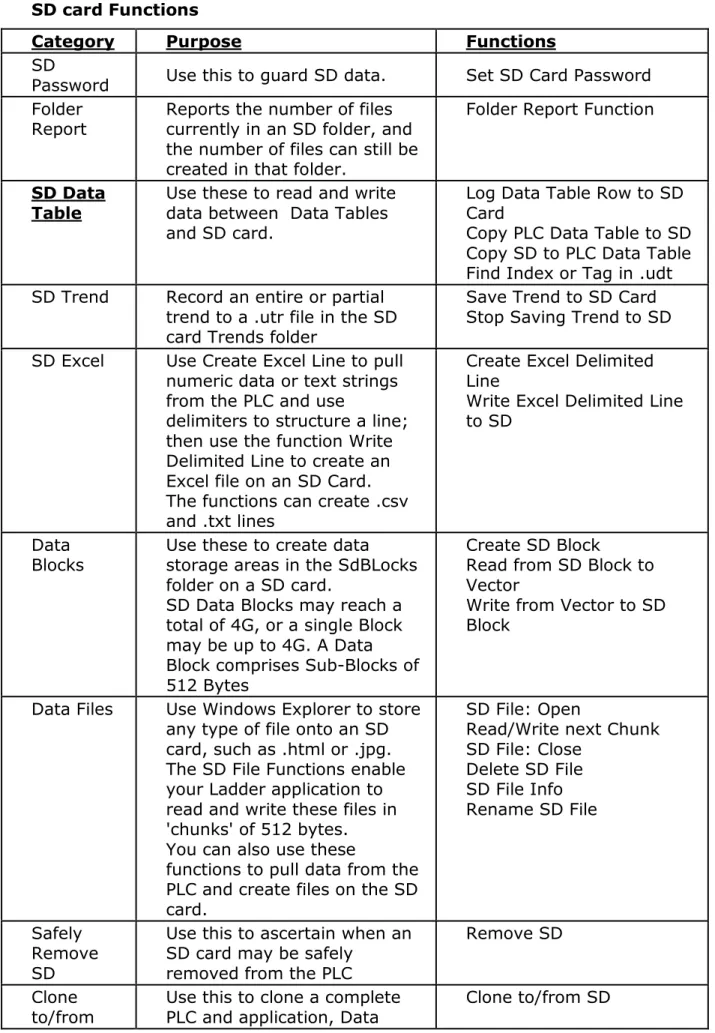
SD card Functions
Category Purpose Functions
SD
Password Use this to guard SD data. Set SD Card Password
Folder
Report Reports the number of files currently in an SD folder, and the number of files can still be created in that folder.
Folder Report Function
SD Data
Table Use these to read and write data between Data Tables and SD card.
Log Data Table Row to SD Card
Copy PLC Data Table to SD Copy SD to PLC Data Table Find Index or Tag in .udt
SD Trend Record an entire or partial
trend to a .utr file in the SD card Trends folder
Save Trend to SD Card Stop Saving Trend to SD
SD Excel Use Create Excel Line to pull
numeric data or text strings from the PLC and use
delimiters to structure a line; then use the function Write Delimited Line to create an Excel file on an SD Card. The functions can create .csv and .txt lines
Create Excel Delimited Line
Write Excel Delimited Line to SD
Data
Blocks Use these to create data storage areas in the SdBLocks folder on a SD card.
SD Data Blocks may reach a total of 4G, or a single Block may be up to 4G. A Data Block comprises Sub-Blocks of 512 Bytes
Create SD Block
Read from SD Block to Vector
Write from Vector to SD Block
Data Files Use Windows Explorer to store
any type of file onto an SD card, such as .html or .jpg. The SD File Functions enable your Ladder application to read and write these files in 'chunks' of 512 bytes. You can also use these
functions to pull data from the PLC and create files on the SD card.
SD File: Open
Read/Write next Chunk SD File: Close Delete SD File SD File Info Rename SD File Safely Remove SD
Use this to ascertain when an SD card may be safely
removed from the PLC
Remove SD Clone
SD Cards VisiLogic: Utilities
SD Tables, or operand values
from a PLC or install such clone files to a PLC of the same model
VisiLogic: Utilities
PLC Name
If you apply a PLC name, the PLC writes this name to the files it creates on the SD Card.
HMI Progress Bar
You can use SI 330 and SI 331 to create a progress bar on an HMI display that shows when the PLC is writing data to the SD; and SI 332 and SI333 to sho data being written from the SD to the PLC.
elements shown in the following image. Note that the PLC copies data at a rate of .5k per second. This means that a PLC requires approximately 24 seconds to transfer a Data Table comprising 120k to an SD card.
Removing the SD Card
To indicate that the SD card may be safely removed, you can link an HMI element to SB 219 SD FIFO Empty (SD Card may be Ejected).
Set SD Card Password
You can guard the SD card with a password.
Note that when the PLC is in Information Mode, a user can only download data to an SD card:
If the SD is guarded with a password.
If the user can supply the password. The only exception is Firmware, which may be downloaded without password.
Note The SD Password is case
The maximum Password length is 8 bytes. Each register byte contains one character.
1. Place a Set SD Password function in the Ladder; you can either directly assign a text password, or provide it via MI.
e, the PLC writes this name to the files it creates on the
SI 331 to create a progress bar on an HMI display that writing data to the SD; and SI 332 and SI333 to sho
the SD to the PLC. To create a progress bar, use the ollowing image. Note that the PLC copies data at a rate means that a PLC requires approximately 24 seconds to
mprising 120k to an SD card.
card may be safely removed, you can link an HMI FIFO Empty (SD Card may be Ejected).
ard with a password.
is in Information Mode, a user can only download data d with a password.
ply the password. The only exception is Firmware, nloaded without password.
ord is case-sensitive
d length is 8 bytes. Each register byte contains one sword function in the Ladder; you can either directly word, or provide it via MI.
SD Cards
it creates on the
HMI display that SI333 to show ss bar, use the es data at a rate ely 24 seconds to ink an HMI y download data s Firmware, contains one either directly
SD Cards
SD Card: Folder Report Function Use this Function to see:
The number of files are currently in an SD folder The number of files can still be created in that folder
Notes The function reports only on the types of files that
particular folder. For example, each Data Table folder (DT) may contain a maximum of 64 .udt files. If Folder Report is set to DT folders, it only reports the number of .udt file. If there are other file types present in the folder, they a
If there are fewer files than the maximum allowed, but the SD card capacity is exceeded, SI 66 will indicate SD Card Full.
Use SB 343,SD: File Report in Progress, as a condition to running the function
Parameter Name
Input SD Folder: Select SD Folder
nction :
are currently in an SD folder can still be created in that folder reports only on the types of files that a
der. For example, each Data Table folder (DT) may ximum of 64 .udt files. If Folder Report is set to DT
y reports the number of .udt file. If there are other file t in the folder, they are ignored.
ewer files than the maximum allowed, but the SD card xceeded, SI 66 will indicate SD Card Full.
SD: File Report in Progress, as a condition to running
Purpose
ct Either select a folder, or link an operand. To use an operand value to access folders, use the numbers shown in Select
VisiLogic: Utilities
re linked to a er (DT) may t is set to DT ere are other file
but the SD card ll.
on to running
d. To use an operand s shown in Select
VisiLogic: Utilities
Output Number of files currently in Folder Number of Files that may still be created Folder Report: Status Operand
Folder Report: Success Bit
Note SB 359: Folder Report
SD Card and Data Table Functions (Ladder) These functions enable you to:
Log a single row of data from a Data Table into a .ulg file located on the SD card
Write all or part of a Data Table into a .udt file located on the SD card Read all or part of an SD card .udt file to a Data Table
Search for tagged sections in a .udt file
If a Data Table is marked as Part of Project, you log lines from it to an SD card.
# Description
SI 64 Maximum number of DT files that can be saved (read-only)
der The number of files currently in Folder (max = 64 per folder) that
ated
The number of files that may still be created (max = 64 per folder)
This MI is a bitmap; a bit turns ON to indicate status. The MI is initialized when the function starts.
• All bits OFF – No errors, and the SD card is idle • Bit 1 - SD Card internal error
• Bit 2 - SD file is incorrect type • Bit 3 - There is no SD card in the slot • Bit 4 - The SD card has failed (Check SI 66) • Bit 5 - Path not found
Turns ON when the Report is complete. It remains ON until it is reset by the application, or until the application calls the function.
port Function in Progress (ON when function is busy) nctions (Ladder)
you to:
data from a Data Table into a .ulg file located on the a Data Table into a .udt file located on the SD card an SD card .udt file to a Data Table
sections in a .udt file
e is marked as Part of Project, you cannot it to an SD card.
Value Comments
0-64
The maximum amount of Trend files (*.udt files) in a single folder is 64. The value in SI 634shows the number of remaining *.udt files; if 5 *udt files exist, SI 64 = 59
• Initialized at Power
• Updated when:SB 217 is ON and SB 341 turns ON
SD Cards
max = 64 per eated (max = 64 per
dicate status. tarts. e SD card is idle e slot Check SI 66) It remains ON until e application calls nction is busy) located on the the SD card nnotcopy it or Power-up n:SB 217 is ON and ON
SD Cards VisiLogic: Utilities
Log Data Table Row to SD Card
1. To log a row from a Data Table, build a net that includes the function SD> Write Log Line to SD.
Use SB 340 to ensure that the PLC is not currently logging a row to the SD card.
When the application writes this type of data to the SD card, it creates a single file called UNILOG.ulg in the LOG folder, and then appends each new line from the selected Data Table to this log file.
Parameter
Name Purpose
Source Selects the Data Table you want to log from. Row index Determines which row in the table will be logged. Status
messages
This MI is a bitmap; a bit turns ON to indicate status. The MI is initialized when the function starts.
All bits OFF – No errors, and the SD card is idle
Bit 1 – The SD card was formatted in an SD Tools version that is not compatible with the VisiLogic application in the PLC. or VisiLogic version is not compatible with the PLC OS. Check to see if you need to update versions.
Bit 2 – The data in the SD is not compatible with the data in the Data Table
Bit 3 – Data checksum error Bit 4 – Failed to open file
Bit 5 - Failed to write to the SD file Bit 6 - Failed to close file
Bit 7 - In progress Bit 8 - No SD card found
Bit 9 - SD error, check SI 66 for error message Bit 10 – Requested Data Table does not exist
Success Bit Turns ON when the data is successfully written to the SD card. It remains ON until it is reset by the application, or until the application calls the function.
VisiLogic: Utilities SD Cards
Data Table To / From SD Card
The Ladder function DT to SD creates .udt files and saves them in the main DT folder or in one of four sub-folders. DT1, DT2, DT3, DT4.
Each folder can contain 64 files, for a total of 320 .udt files. Write Data Table to SD (Copy DT to SD)
1. To copy an entire or partial Data Table, build a net that includes the function SD> Write DataTable to SD.
Use an inverted contact of SB 341 to ensure that the PLC is not currently writing to the SD card.
2. Set the options to copy all or part of a Data Table.
When the application writes this type of data to the SD card, it creates a file with the extension .udt in the selected DT folder.
SD Cards VisiLogic: Utilities Parameter Name Purpose Source: Data Table to copy
Selects the Data Table you want to write from.
Copy options Select to copy all or part of a Data Table.
Selecting Copy enables the Start Row and Number of Rows parameters. Target: SD Folder This is where the .udt file will be stored on the SD card. You can select the
folder, or provide the Folder number via register. Values point to folders as follows: 1=the main DT folder, 100=DT1, 101=DT2, 102=DT3, and
103=DT4.
.udt File Name Can be up to 8 characters long, and may be provided by constant text or register. Note that if the name comes from an MI, the function copies a vector 8 bytes long, or until it finds a 'null' character.
Overwrite/Append If the function finds a .udt file in that folder of the same name, • Selecting Overwrite replaces the file.
• Selecting Append adds the new data to the existing .udt file. You can assign a unique name (DT Tag) to each appended section, marking the sections for later use in your program.
The Tag may contain up to 16 characters. Status messages This MI is a bitmap; a bit turns ON to indicate status.
The MI is initialized when the function starts.
All bits OFF – No errors, and the SD card is idle
Bit 1 – The SD card was formatted in an SD Tools version that is not compatible with the VisiLogic application in the PLC. or VisiLogic version is not compatible with the PLC OS. Check to see if you need to update versions.
Bit 2 – The structure of the .udt file and the Data Table are not identical
Bit 3 – Data checksum error. Please send application and any related information to [email protected].
Bit 4 – Failed to open file Bit 5 - Failed to read from file Bit 6 - Failed to close file Bit 7 - In progress Bit 8 - No SD card found
Bit 9 - SD error, check SI 66 for error message Bit 10 – Requested Data Table does not exist
Success Bit Turns ON when the data is successfully written to the SD Card. It remains ON until it is reset by the application, or until the application calls the function.
Note The maximum number of Data Table files that can be created in a
VisiLogic: Utilities SD Cards
Use an inverted contact of SB 342 to ensure that the PLC is not reading writing from the SD card.
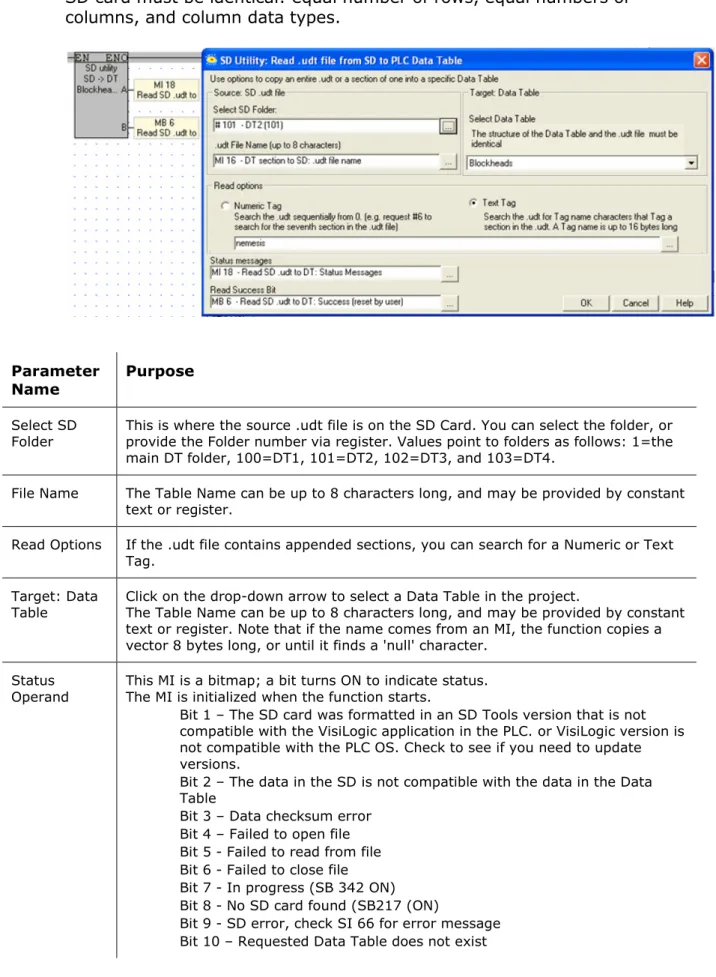
Note that in order to copy data, the Data Table structure in both PLC and SD card must be identical: equal number of rows, equal numbers of columns, and column data types.
Parameter
Name Purpose
Select SD Folder
This is where the source .udt file is on the SD Card. You can select the folder, or provide the Folder number via register. Values point to folders as follows: 1=the main DT folder, 100=DT1, 101=DT2, 102=DT3, and 103=DT4.
File Name The Table Name can be up to 8 characters long, and may be provided by constant text or register.
Read Options If the .udt file contains appended sections, you can search for a Numeric or Text Tag.
Target: Data
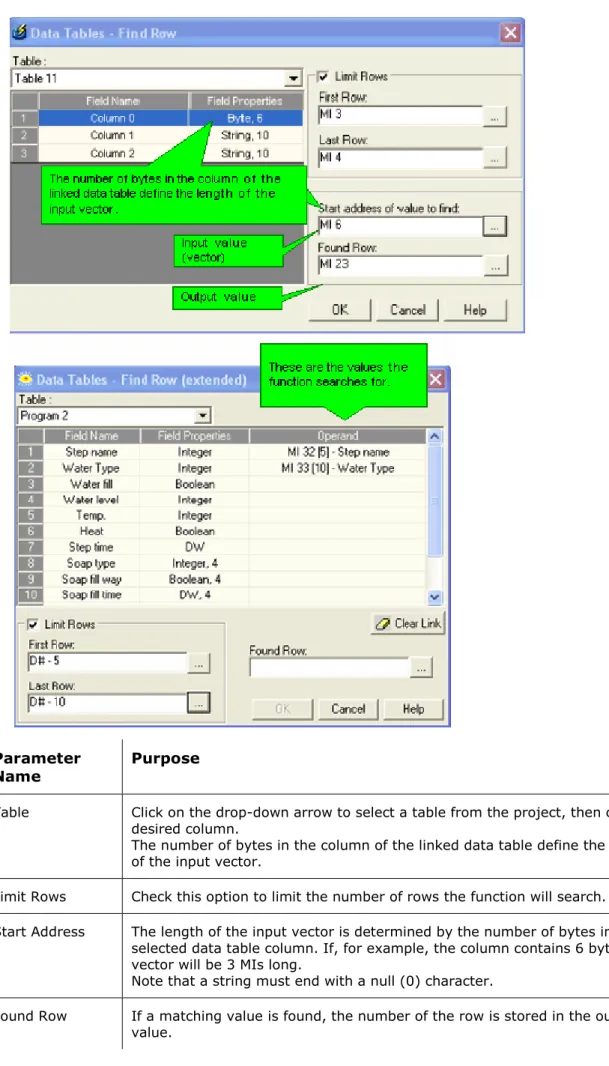
Table Click on the drop-down arrow to select a Data Table in the project. The Table Name can be up to 8 characters long, and may be provided by constant text or register. Note that if the name comes from an MI, the function copies a vector 8 bytes long, or until it finds a 'null' character.
Status
Operand This MI is a bitmap; a bit turns ON to indicate status. The MI is initialized when the function starts.
• Bit 1 – The SD card was formatted in an SD Tools version that is not compatible with the VisiLogic application in the PLC. or VisiLogic version is not compatible with the PLC OS. Check to see if you need to update versions.
• Bit 2 – The data in the SD is not compatible with the data in the Data Table
• Bit 3 – Data checksum error • Bit 4 – Failed to open file • Bit 5 - Failed to read from file • Bit 6 - Failed to close file • Bit 7 - In progress (SB 342 ON) • Bit 8 - No SD card found (SB217 (ON)
• Bit 9 - SD error, check SI 66 for error message • Bit 10 – Requested Data Table does not exist
SD Cards VisiLogic: Utilities
Success Bit Turns ON when the data is successfully read. It remains ON until it is reset by the application, or until the application calls the function.
Search .udt for Tag or Index#
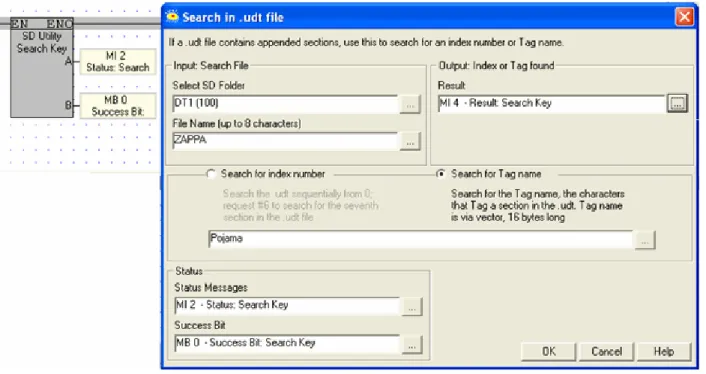
If a .udt file was created using appended sections, you can search it for the index number or tag name.
Use an inverted contact of SB 342 to ensure that the PLC is not reading writing from the SD card.
Parameter
Name Purpose
Select SD Folder
This is where the source .udt file is on the SD Card. You can select the folder, or provide the Folder number via register. Values point to folders as follows: 1=the main DT folder, 100=DT1, 101=DT2, 102=DT3, and 103=DT4.
File Name The Table Name can be up to 8 characters long, and may be provided by constant text or register.
Tag Type Search for a Numeric or Text Tag.
Table Click on the drop-down arrow to select a Data Table in the project.
The Table Name can be up to 8 characters long, and may be provided by constant text or register. Note that if the name comes from an MI, the function copies a vector 8 bytes long, or until it finds a 'null' character.
Status Operand
This MI is a bitmap; a bit turns ON to indicate status. The MI is initialized when the function starts.
VisiLogic: Utilities SD Cards
• Bit 3 – Data checksum error • Bit 4 – Failed to open file • Bit 5 - Failed to read from file • Bit 6 - Failed to close file • Bit 7 - In progress (SB 342 ON) • Bit 8 - No SD card found (SB217 (ON)
• Bit 9 - SD error, check SI 66 for error message • Bit 10 – Requested Data Table does not exist
Success Bit Turns ON when the tag is found. It remains ON until it is reset by the application, or until the application calls the function.
SD Cards VisiLogic: Utilities
Import data from an SD card into a PLC Data Table
This imports data from a Data Table on the SD card into a Data Table in the PLC.
The Data Tables must be identical. In order to ensure this, follow the recipe below.
1. Open the Data Table, and click Export the Data Table Structure to
convert the table to an .xml file.
2. From the VisiLogic Tools menu, open SD Tools. 3. From the SD Tools Tools
menu, open DB Tools.
4. Navigate to and select the .xml file.
5. SD Tools opens the file for editing.
VisiLogic: Utilities SD Cards
6. Click on table cell to edit the values.
7. From the File menu, select Build DT for PLC.
8. Copy the resulting .udt file to the SD card, and then place it in the PLC.
SD Cards VisiLogic: Utilities
9. Build a net including the SD utility DT to PLC.
When the Program runs, it will copy the values from the Data Table on the SD card into the PLC Data Table cells.
SD Card and Trends
Use the Start Saving Trend to SD to record an entire or partial trend; and Stop Saving Trend to halt the recording process.
When the application writes this type of data to the SD card, it creates a file with the extension .utr in the Trends folder. Each time you start and stop saving the Trend, the application adds a new segment to the file.
Parameter Name
Purpose Source Trend
Number Click on the drop-down arrow to select a Trend in the project.
Target SD .utr file Link an operand to provide a file name. Note that you MUST provide a file name. If the linked register is empty, the Trend will not be recorded to the SD. This is where the .udt file will be stored on the SD card. You can select the folder, or provide the Folder number via register. Values point to folders as follows: 1=the main DT folder, 100=DT1, 101=DT2, 102=DT3, and 103=DT4.
VisiLogic: Utilities SD Cards
• Bit 2 – The data in the SD is not compatible with the data in the Data Table
• Bit 3 .-.Data checksum error • Bit 4 – Failed to open file • Bit 5 - Failed to read from file • Bit 6 - Failed to close file • Bit 7 - In progress • Bit 8 - No SD card found
• Bit 9 - SD error, check SI 66 for error message
Success Bit Turns ON when the data is successfully written to the PLC Data Table. It remains ON until it is reset by the application, or until the application calls the function.
Displaying the saved Trend
You can display Trend curves directly from a .utr file by using the HMI element Trend from SD.
Link SBs 117 and 118 with HMI buttons to enable users to jump between segments. Use the inverted contact of SB119 as a condition as shown below.
When you save a Trend to an SD card, each time you start and stop the save, another segment is added to the .utr file.
# Description Turns ON : Turns OFF : Reset by: SB 116 SD Trends to SD: Set to Overwrite .utr User application User application User
Use these to control the display of Trend segments on the HMI screen. Use the inverted contact of SB119 as a condition.
SB 117 SD Trends: Jump to next segment User application User application User SB 118 SD Trends: Jump to
previous segment User application
User
application User SB 119 SD Trends: System busy - Draw Trend is
gathering data
User application User application User
SD Card: Data to Excel
You can write PLC data to Excel files an the SD card using the functions Create Delimited Line to structure a line, and Write Delimited Line to send it to a specified Excel file on an SD Card.
Note Note that the main EXCEL folder and subfolders EXCEL0, EXCEL1,
EXCEL2, EXCEL3 can each contain 64 files, for a total of 320 .csv files. The .csv file name cannot exceed 8 characters. It may include only English characters and numbers: 0 - 9, A - Z, a - z, and the
SD Cards VisiLogic: Utilities
Create Delimited Line
Use this function to select PLC data, including numeric data and text strings, structure it, and save the resulting line to a vector of operands.
Defining a Line
Each row in the table displayed under Input will be a cell in the Excel line. 1. Click the Add Row icon to open the Excel Field dialog box.
VisiLogic: Utilities SD Cards
3. Click the Delimiter cells to select a Delimiter character that is different from the default.
SD Cards VisiLogic: Utilities
Type Parameter Purpose Source:
Define Data
Field Use this to specify data for a cell in the Excel line.
Delimiters Control characters that delimit the data for that cell Target: Data Buffer SD: Start of Vector, Create .csv Line
Select the operand that will be start of the vector the function uses to store the data selected for the line, plus its delimiters.
Use this operand for the function Write Delimited Line SD: Max
Vector Length, Create .csv Line (bytes)
Sets the maximum length of the vector in bytes.
SD: Final # of bytes, Create .csv Line
Reports the actual number of bytes sent to the vector
Status SD: Create .csv Line
Status Messages
This is a bitmap; a bit turns ON to indicate status. It is initialized when the function starts.
• Bit 1 - The line is truncated • Bit 2 - Fail to open the file. • Bit 3 - Fail to write the file • Bit 4 - SD full
• Bit 5 - No SD card (SB [217]) • Bit 6 - Path not found
• Bit 7 - Unknown error - please check SI 66
Write Delimited Line
Use Write Delimited Line to pull the data from the vector used by Create
Delimited, and use it to write to (or create) an Excel file in this folder, or in one of four sub-folders.
Notes Write Delimited Line pulls data from the vector in chunks of 512 bytes, and writes this entire 512 bytes to the SD card. Write Delimited line is not linked in any way to Create Delimited Line. In Create Delimited Line, the parameters SD: Max Vector Length and SD: Final # of bytes, do not influence Write Delimited line.
Use SB 344,Write delimited line to SD in Progress, as a condition to running the function.
VisiLogic: Utilities
Type Parameter Purpose Source Start of
Vector Use the operand that is the Start of Vector for the Create Delimited Line function. Target Select SD
folder This is where the line will be stored on the SD card.You
Values point to folders as follows: 10=the main Excel folder, 1000= Excel1, 1001= Excel2, 1002= Excel3, and 1003= Excel4.
File Name Either enter a name, or link an operand to provide a fi
that you MUST provide a file name. If the linked register is empty, the file will not be created to the SD.
If the folder does not contain a file of that name, the function will create one. File Extension Select .txt or csv Status SD: Write .csv Line Status Messages
This is a bitmap; a bit turns ON to indicate status. It
Success Bit Turns ON when line is successfully written
SD Block Functions
SD Data Blocks are data storage files in the SdBLocks folder on a SD card. SD Data Blocks may reach a total of 4G, or a single Block may be up to 4G. A Data Block comprises Sub
you to read/write blocks of raw data between operands and these files. SD Data Block Functions
Create SD Block
Creates an SD Data Block in the SdBLocks folder.
urpose
e the operand that is the Start of Vector for the Create Delimited ne function.
is is where the line will be stored on the SD card.
u can select the folder, or provide the Folder number via register. lues point to folders as follows: 10=the main Excel folder, 1000= cel1, 1001= Excel2, 1002= Excel3, and 1003= Excel4.
her enter a name, or link an operand to provide a fi
at you MUST provide a file name. If the linked register is empty, the e will not be created to the SD.
the folder does not contain a file of that name, the function will eate one.
lect .txt or csv
is is a bitmap; a bit turns ON to indicate status. is initialized when the function starts.
• Bit 1 - Wrong data
• Bit 2 - Fail to open the file. • Bit 3 - Fail to write the file • Bit 4 - SD full
• Bit 5 - No SD card (SB [217]) • Bit 6 - Path not found
• Bit 7 - Unknown error - please check SI 66 rns ON when line is successfully written
a storage files in the SdBLocks folder on a SD card. ach a total of 4G, or a single Block may be up to 4G. A
ub-Blocks of 512 Bytes. The SD Block functions enable s of raw data between operands and these files.
a Block in the SdBLocks folder.
SD Cards
Create Delimited d.
mber via register. xcel folder, 1000=
Excel4.
e a file name. Note egister is empty, the the function will
6
n a SD card. be up to 4G. A unctions enable ese files.
SD Cards
Read from SD Block to Vector Reads a specified Sub
vector that is 512 bytes long. Write from Vector to SD Block
Writes 512 bytes from an operand vector to a specified Sub Data Block
Create SD Block
Use this function to:
Create an SD Data Block. You can cre
Block0.udb, Block1.udb, Block2.udb, and Block3.udb Specify the number of Sub
Enlarge an existing block.
You can also specify the number of Sub be used to enlarge the B
Parameter Purpose
SD Block number Select the Block number, 0 time.
Sub-Blocks Use this to specify the number of Sub
Overwrite/Append If this function finds an existing SD Block of this number, you can overwrite it or append these Sub
adding Sub
Status Operand This MI is a bitmap; a bit turns ON to indicate status. The MI is initialized
• All bits OFF • Bit 1 • Bit 2 •
k to Vector
ub-Block from a specified Data Block to an operand bytes long.
o SD Block
om an operand vector to a specified Sub
Block. You can create up to 4 SD Data Block: .udb, Block2.udb, and Block3.udb
r of Sub-Blocks it contains. block.
number of Sub-Blocks the block will contain. This may Block by appending Sub-Blocks.
Block number, 0-3, or use an operand to assign a number at run o specify the number of Sub-blocks in the Data Block.
ction finds an existing SD Block of this number, you can overwrite it these Sub-Blocks. Selecting Append enlarges the SD Block by b-blocks.
a bitmap; a bit turns ON to indicate status. nitialized when the function starts.
bits OFF – No errors, and the SD card is idle t 1 – The SD card is busy.
t 2 – No SD card found, or the card is locked (Write
VisiLogic: Utilities
o an operand ub-Block in a
Block:
ontain. This may
n a number at run Block.
you can overwrite it he SD Block by
VisiLogic: Utilities SD Cards
Read from Vector to SD Block
Parameter Purpose SD Block
number Select the Block number, 0-3, or use an operand to assign a number at run time. Target
Sub-Block (location in Block): Vec->SD.udb
The data will be written to this sub block. The number is the sequential number of the sub-block in the .udb file.
Source: Start of Vector (512 bytes): Vec->SD
Select the operand that is the start of the 512-byte long vector that provides the data that is written to the .udb file.
Status Messages
This MI is a bitmap; a bit turns ON to indicate status. The MI is initialized when the function starts.
• All bits OFF – No errors, and the SD card is idle • Bit 1 – The SD card is busy.
• Bit 2 – No SD card found, or the card is locked (Write-enable OFF) • Bit 3 .-.There are less than 512 bytes in this vector (can happen if the
start of the vector is too close to the end of the operand address range) • Bit 4 – The SD Data Block number is invalid (valid numbers are 0-3. This
error may result when using indirect addressing) • Bit 5 - SD card function was called while the SD is busy • Bit 6 - Internal error
• Bit 7 - Data Block size exceeds 4G • Bit 8 - SD card is full
•
Bits 10-13 can occur because the SD card does not have an SD_Blocks folder, or because a file of that name has not been created in the SD_Blocks folder.
• Bit 10 - Can't open file/path not found
• Bit 11 - Error while writing to a file/path not found • Bit 13 - Failed to close a file/path not found
• Bit 14 - Create SD Block: Do not overwrite is selected, but the number of Sub-blocks is less than the number of sub-blocks already in the Data Block
Success Bit Turns ON when the data is successfully written to the Block. It remains ON until it is reset by the application, or until the application calls the function.
SD Cards VisiLogic: Utilities
Write from SD Block to Vector
Parameter Purpose SD Block
number
Select the Block number, 0-3, or use an operand to assign a number at run time.
Source Sub-Block (location in Block): SD.udb-> Vec
This is the sequential number of the sub-block in the .udb file.
Target: Start of Vector: SD.udb-> Vec
The function will write 512 bytes of data to the PLC, starting with this operand.
Status Messages
This MI is a bitmap; a bit turns ON to indicate status. The MI is initialized when the function starts.
• All bits OFF – No errors, and the SD card is idle • Bit 1 – The SD card is busy.
• Bit 2 – No SD card found, or the card is locked (Write-enable OFF) • Bit 3 .-.There are less than 512 bytes in this vector (can happen if the
start of the vector is too close to the end of the operand address range) • Bit 4 – The SD Data Block number is invalid (valid numbers are 0-3.
This error may result when using indirect addressing) • Bit 5 - SD card function was called while the SD is busy • Bit 6 - Internal error
• Bit 8 - SD card is full
• Bit 9 - Read: End Of File indication
Bits 10-13 can occur because the SD card does not have an SD_Blocks folder, or because a file of that name has not been created in the SD_Blocks folder.
• Bit 10 - Can't open file/path not found
• Bit 12 - Error while reading from a file/path not found • Bit 13 - Failed to close a file/path not found
Success Bit Turns ON when the data is successfully written to the Block. It remains ON until it is reset by the application, or until the application calls the function.
SD File Functions
You can use Windows Explorer to store any type of file onto an SD card, such as .html or .jpg. The SD File Functions enable your Ladder application to read
VisiLogic: Utilities
Using SD File Functions
Each read or write operation requires
Write, and Close File. The functions are located on SD>SD File Utilities. Open SD File
Note that there are separate Open File functions for both Read and Write. Open File must be used to activate the correct file in th
before running a read or write function. Read Next Chunk
Reads a specified file from a specified folder to an operand vector in 'chunks' that are 512 bytes long.
Write Next Chunk
Writes data chunks 512 bytes from an operand vector to a the SD card.
Close File.
There are separate Close File functions for both Read and Write.
The examples below show the functions and the System operands required to run read and write operations.
Read File: Example
Note the use of SBs 324, 325, and 326. These enable the Read Next Chunk function to continue reading data chunks until it has completed reading the entire file.
ation requires three functions: Open File, Read or he functions are located on SD>SD File Utilities.
separate Open File functions for both Read and Write. used to activate the correct file in the c
ad or write function.
le from a specified folder to an operand vector in 12 bytes long.
512 bytes from an operand vector to a Close File functions for both Read and Write.
ow the functions and the System operands required to ations.
4, 325, and 326. These enable the Read Next Chunk ding data chunks until it has completed reading the
SD Cards
e, Read or Utilities.
Read and Write. orrect folder d vector in a specified file on Write. nds required to d Next Chunk d reading the
SD Cards VisiLogic: Utilities
Write File: Example
Read From SD File: Open
Parameter Purpose
Select Folder Select the folder, or use an operand to assign a number at run time using the following values:
Alarms: 0 DT main folder: 1 DT1–4: 101 to 103 Log: 3 System: 4 User_app: 5 Trends main folder - 600 Trends1-4: 600 to 603 SdBLocks: 9
Excel main folder: 100 Excel1-4: 1000 to 1003 Web: 11 File name Either enter the file name, or provide it via operand.
File size When the function runs, this reports the size of the file, in bytes.
Read File: Get Next Chunk
Parameter Purpose Read: File
Chunk Buffer
This the start of the vector that holds the data read from the file. This vector is 512 bytes long.
Read: File
VisiLogic: Utilities SD Cards
Write From SD File: Open
Parameter Purpose
Select Folder Select the folder, or use an operand to assign a number at run time using the following values:
Alarms: 0 DT main folder: 1 DT1–4: 101 to 103 Log: 3 System: 4 User_app: 5 Trends main folder - 600 Trends1-4: 600 to 603 SdBLocks: 9
Excel main folder: 100 Excel1-4: 1000 to 1003 Web: 11 File name Either enter the file name, or provide it via operand.
Note that:
-If the file does not exist on the SD -and the SD card is Write-enabled the function will create the file.
File size When the function runs, this reports the size of the file, in bytes.
Write File: Get Next Chunk
Parameter Purpose Write: File
Chunk Buffer This the start of the vector that holds the data that will be written to the file. The function takes 512 bytes of data. Write: File
Chunk Length
SD Cards VisiLogic: Utilities
Write File: Close
Run this when entire files has been written.
Delete File
Use this to delete any file on the SD card
Note These functions can only run on files that observe the 8.3 naming
convention; the file name cannot exceed 8 characters, and the file extension cannot exceed three.
Use SB 358, Delete File in Progress, as a condition to running the function
Parameter Purpose
Select Folder Select the folder, or use an operand to assign a number at run time using the following values:
Alarms: 0 DT main folder: 1 DT1–4: 101 to 103 Log: 3 System: 4 User_app: 5 Trends main folder - 600 Trends1-4: 600 to 603 SdBLocks: 9
Excel main folder: 100 Excel1-4: 1000 to 1003 Web: 11 File name Either enter the file name, or provide it via operand.
Note that:
-If the file does not exist on the SD -and the SD card is Write-enabled the function will create the file. Status
VisiLogic: Utilities SD Cards
Success Bit Turns ON when the data is successfully written to the Block. It remains ON until it is reset by the application, or until the application calls the function.
SD File Information
Use this function to check if a specific file is located in a specific SD folder, and get specific file details.
Note Use SB 359, File Info function in Progress, as a condition to running
the function
Parameter Purpose
Select Folder Select the folder, or use an operand to assign a number at run time using the following values:
Alarms: 0 DT main folder: 1 DT1–4: 101 to 103 Log: 3 System: 4 User_app: 5 Trends main folder - 600 Trends1-4: 600 to 603 SdBLocks: 9
Excel main folder: 100 Excel1-4: 1000 to 1003 Web: 11 File name Either enter the file name, or provide it via operand.
Status Messages
This MI is a bitmap; a bit turns ON to indicate status. The MI is initialized when the function starts.
• All bits OFF – No errors, and the SD card is idle • Bit 1 – SD Card internal error.
• Bit 2 – Cannot read file
• Bit 3 - No SD card found, or the card is locked (Write-enable OFF) • Bit 4– The SD card has failed (Check SI 66)
• Bit 5 - Path not found
Success Bit Turns ON when the data is successfully written to the Block. It remains ON until it is reset by the application, or until the application calls the function.
SD Cards
Rename SD File
Use this to rename any file on the SD card.
Parameter Purpose
Select Folder Select the folder, or use an operand to assign a number at following values:
Alarms: 0 DT main folder: 1 User_app: 5
Excel main folder: 100 Old/New File
name Either enter the file name, or provide it via operand. Status
Messages This MI is a bitmap; a bit turns ON to indicate status.The MI is initialized when the function starts.
• All bits OFF
• Bit 1 –
• Bit 2 –
• Bit 3
-• Bit 5
-• Bit 7
-Success Bit Turns ON when the data is successfully written to the Block.
is reset by the application, or until the application calls the function.
SD: Cloning via Ladder SD Clone functions can:
Create compressed
e on the SD card.
er, or use an operand to assign a number at run time using the es:
T main folder: 1 DT1–4: 101 to 103 Log: 3 Trends main folder - 600 Trends1-4: 600 to 603 older: 100 Excel1-4: 1000 to 1003 Web: 11
e file name, or provide it via operand. map; a bit turns ON to indicate status. lized when the function starts.
OFF – No errors, and the SD card is idle SD Card internal error.
Rename Failed
No SD card found, or the card is locked (Write-Path not found
The SD card has failed (Check SI 66)
n the data is successfully written to the Block. It remains ON until it application, or until the application calls the function.
data files and store them on an SD card.
VisiLogic: Utilities
n time using the System: 4 603 SdBLocks: 9 enable OFF) t remains ON until it nction. rd.
VisiLogic: Utilities SD Cards
Note The SD Card password and the Clone File password must be identical.
You can use Unitronics' SD Card Explorer, included in the SD Card Suite, to access SD card files and either upload them to a PC for viewing and editing, or transfer them into another PLC's SD card. This function must be used with a negative transition element.
SD Cards VisiLogic: Utilities
Parameter Purpose
Direction Clone To SD: Creates a compressed data file in the correct SD card folder Clone From SD: Installs a compressed data file from an SD card folder into the PLC
File Type Select Direct or Constant.
If you select Direct, the value in the register determines the data file that the function creates/installs according to the following legend:
2 = Full Data Table (*.fdt files)
4 = Firmware (*.Oxx files: .O13, .O35, or .O57)
5 = User Application (+VLP if exists) (*.vxx files: .V13, .V35, .V57) 7 - Full cloning (DT, Firmware, UA, Operands)(*.Cxx) .C13, .C35, or C57) 8 = Operands (*.Dxx files: .D13, .D35, .D57)
Note that the file extension numbers relate to the Vision model: .x13 =V130, .x35 =V350, .x57 =V570
File Name This is limited to 8 characters. The file extension is automatically assigned by the PLC according to the file type.
If you are cloning an OS or a ‘Full Clone’, the file name MUST be exactly 8 characters long.
Status This MI is a bitmap; a bit turns ON to indicate status. The MI is initialized when the function starts.
• All bits OFF – No errors, and the process is idle
• Bit 1 – No SD card found, or the card is locked (Write-enable OFF) • Bit 2 – Clone utility busy
• Bit 3 -File type not found (*.FDT,*.Oxx,*.Vxx,*.Dxx,*.Cxx) • Bit 4– Incompatible Boot Version/Firmware/Clone file • Bit 5 - Internal use
• Bit 6- Timeout exceeded
• Bit 7 - - Safe to Remove Bit is ON • Bit 8 - Path not found (Install Clone) • Bit 9 - Password error
Success Bit Turns ON when the data is successfully written to the SD. It remains ON until it is reset by the application, or until the application calls the function.
SB 366: Clone in Progress. Note that the process can take from several seconds to several minutes.
VisiLogic: Utilities
SD: Safely Remove
Use SD: Safely Remove to prevent the card from being physically removed while an SD function is in progress.
When SD: Safely Remove is called, it:
Checks to see if any SD functions are running. If so, Safe to Remove indicates
It allows a current task to be completed, but prevents new ones from starting.
When the SD card is completely free, the Safe to Remove bit turns ON. This must be reset by the user.
The Status DW is a bitmap
Bits and their indications are shown in the following table. When a bit is ON, the related function is active.
to prevent the card from being physically removed n progress.
ve is called, it:
y SD functions are running.
ve indicates which function is active via the Status DW. task to be completed, but prevents new ones from mpletely free, the Safe to Remove bit turns ON. This
er.
map.
s are shown in the following table. When a bit is ON, ctive.
SD Cards
ally removed
a the Status DW. w ones from
urns ON. This
SD Cards
Bit Function
0-5 (reserved)
6 Start Saving to SD is running: SD Trend 8 7 Start Saving to SD is running: SD Trend 7 8 Start Saving to SD
9 Start Saving to SD is running: SD Trend 5 10 Start Saving to SD is running: SD Trend 4 11 Start Saving to SD is running: SD Trend 3 12 Start Saving to SD is running: SD Trend 2 13 Start Saving to SD is running:SD Trend 1 14 HMI function Trend from SD
15 SD File Info 16 Delete SD File
17 Folder Report: Number of Files 18 Create Excel Delimited Line 19 SD File Utilities: SD File Write 20 SD File Utilities: SD File Read
21 SD Block Utilities: Read/Write to Block 3 22 SD Block Utilities: Read/Write to Block 2 23 SD Block Utilities: Read/Write to Block 1 24 SD Block Utilities: Read/Write to Block 0 25 HMI Variable SD Browser
26 PC Utility is communicating with SD 27 Information Mode is accessing SD 28 SD Data Table Utilities: