Configuring SME Disks
This chapter contains information about managing disks using SME, referred to as SME Disk management.
Read all of the Cautions carefully while configuring SME Disks.
Note
This chapter includes the following topics:
•Information About SME Disk Management, on page 1 •Data Preparation, on page 6
•Recovering SME Disk when Data Preparation Fails, on page 6 •Rekeying, on page 8
•Replacing an SME Enabled MDS Switch , on page 9 •Turning Off Encryption, on page 9
•Snapshot Support , on page 9
•SME Disk Key Management, on page 9 •Cisco KMC, on page 11
•Data Replication, on page 12
•SME Disk Key Replication, on page 12 •ISSU with SME Disk, on page 15
•Managing Key Change Operations in Cisco DCNM for DKR, on page 16 •Read-Only Disks, on page 16
•Configuring SME Disk Management Using the CLI, on page 17 •Configuring Key Management Operations, on page 34
•Verifying the SME Disk Management Configuration, on page 35 •Monitoring SME Disk Management, on page 37
•Feature History for SME Disk Management, on page 55
Information About SME Disk Management
SME Disk management includes the following topics:SME Disk Architecture
The SME Disk feature encrypts the data contained in a disk.
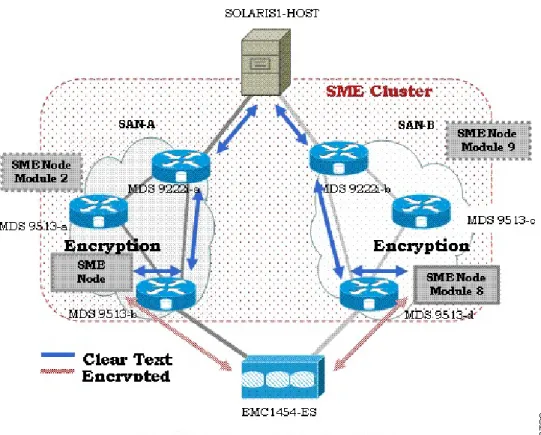
The software architecture for the SME Disk is similar to the existing SME infrastructure that supports the SME tape. Disk support has been added to the existing SME architecture from MDS NX-OS Release 5.2.1. Figure 1: SME Disk Architecture, on page 2depicts a typical dual-fabric production data centerThe SME disk functionality is provided on the following Cisco MDS hardware:
• 16-Port Storage Services Node (SSN-16) Module • 18/4 Multiservice Module (MSM-18/4)
• 9222i Switch
Figure 1: SME Disk Architecture
In the figure, a switch is termed as an SME node. A module has one or more interfaces that support SME. The SME nodes encrypt and decrypt the traffic flowing between the host and the storage. The Fibre Channel traffic to be encrypted or decrypted is directed to the SME node through the FC-Redirect feature of the SAN. For example, the SSN-16 can support 4 SME interfaces and the MSM-18/4 supports 1 SME interface. SME Disk functionality works in the dual-fabric topology, where it performs encryption and decryption on all the paths present between the host and the storage.
SME Disk does not support thin provisioning of disks.
Caution
Configuring SME Disks SME Disk Architecture
SME Disk needs to manage all the paths to the disk in both the fabrics. An SME cluster provides this functionality. An SME cluster consists of a collection of SME nodes. Any SME node that fails in a cluster triggers another node in the same cluster to take control of the encryption and/or decryption activity. The disk on which the SME Disk provides the encryption and/or decryption functionality can be the one without any existing data or the one with existing data. If the disk has existing data, the existing data needs to be encrypted. The process of converting the existing clear data to encrypted data is termed as data preparation. Data preparation can be performed in offline mode. In the offline data preparation mode, the application on the host accessing the disk is quiesced and no I/Os are sent to the disk. SME Disk functionality also ensures that if any host tries to read or write the data from or into the disk, the particular I/O is failed back to the host. In the Online Mode, the application on the host can continue to perform I/O on the disk while SME is converting the existing data on the disk from clear text to encrypted text.
The disk is uniquely identified in configuration by the cluster name, disk group name, and disk name. For the purpose of encryption or decryption, the SME Disk requires encryption keys. For every encrypted disk, a key is generated. The SME’s existing Key Management Center (KMC) infrastructure is used for SME disk key management. Keys for each disk are generated by the Storage Media Encryption coprocessor and are stored in the SME Key Management Center.
SME Disk does not allow dynamic resizing of LUN. For Release 5.2.1, the maximum supported disk size is one block less than two terabyte (TB). The maximum LBA is 0xFFFFFFFE.From Release 5.2.6, the supported disk size for signature and nonsignature mode clusters is greater than two TB. SME Disk only supports disk block size of 512 bytes.For Release 5.2.1, SME Disk does not support online conversion of existing clear data on the disk to encrypted data.
Caution
Replication
There are two kinds of replication:
• Mirrors or Clones—When the data for the source disk is duplicated by the disk array into another disk in the same storage system, the destination disk is called a mirror or clone of the source disk. This is called local replication.
• Remote Replication—When the data for the source disk is being duplicated by the disk array into another disk in a remote storage system, then the source disk and the remote disk are in a replication relationship. Based on the distance and bandwidth availability between local and the remote site, remote replication is categorised under the following types:
• Synchronous—The local disk array does not respond to the write command on the local LUN until the data is also written to the remote LUN.
• Asynchronous—The local disk array does not immediately write the data to the remote LUN. The changes to the local LUN are batched into a delta dataset and periodically sent to the remote LUN.
Snapshot
Snapshots are point-in-time copies that can be created instantly for a source disk. Once a snapshot is created any writes to the source disk will result in the previous data to be saved elsewhere before modification. This allows the disk array to present a specific point-in-time copy of the data of the source disk.
Configuring SME Disks
Managing Replication with SME
SME supports replication through Disk key replication (DKR). DKR simplifies the key management of the source and destination disk by automating the propagation of the source disk key to destination disk. SME Disk Clusters are of two modes:
• Non-signature cluster • Signature cluster
Replication management is the same for both the cluster modes. Replication management consists of following steps:
• Extraction of replication relationship using array vendor specific technology. The output of this step results in identifying the source and destination disk relationship based on the SCSI properties of the vendor, product. and device identifiers.
• Importing the replication relationship information into SME through DKR using DCNM.
Ensure you manage all SME configuration operations on the disks in a DKR relationship through DCNM only.
Note
Manage Key Change Operations in DCNM for DKR
Key change operations involve the following:
• No data preparation—Any local key changes will result in DKR suspending host access to the remote disk. Once the local key change is verified for data integrity and the data replication to the remote end is synchronized, the admin can select the corresponding relationship and perform the sync operation in DKR. This operation will synchronized the source and destination keys and resume the host access to the remote disk.
• Data preparation—Ensure you disable DKR relationship and the replication between the source and destination disk before you start data preparation on the source disk. This is a disk array vendor specific operation. Once you complete data preparation and have verified for data integrity, follow the procedure below:.
• Enable the data replication between the source and destination using disk array vendor specific operation.
• Once data is synchronized between the source and destination disk, enable the DKR relationship. This operation will synchronize the source and estination keys.
Host access on the destination disk should be quiesced until the above two steps are completed.
Note
Managing Snapshots of Crypto Disks
This section describes how to manage snapshots of crypto disks. Snapshot management is different for signature and non-signature clusters.
Configuring SME Disks Managing Replication with SME
To manage crypto snapshots that are discovered by a same host through the same SME cluster as the source disk, then follow the below procedure:
Step 1 Start a discovery in SME for configuring the snapshot disks.
Step 2 If SME finds a valid SME metadata on the disk media with no corresponding active key in the Key management center (KMC) then the disk is put in a failed state by SME.
Step 3 The administrator has the option to recover the disk using recovery from- metadata option.
Step 4 Once the above recovery is performed, the snapshot comes up as a crypto disk and it can be accessed by the host.
Managing Snapshots using DKR
To manage snapshots that are being discovered by a different host through a differnt SME cluster from the source, use DKR and follow the below procedure:
Step 1 tart a discovery in SME for configuring the snapshot disks.
Step 2 Once the snapshot disks are configured into SME, create a DKR relationship between the source and snapshot disk. Step 3 Enable the DKR relationship to synchronize the source and snapshot key.
Step 4 Destroy the DKR relationship between the source and snapshot. Step 5 Host can now have access to the snapshot disk.
Ensure you destroy the DKR relationship between the source and snapshot after key synchronization. If the source key is rekeyed, it may result in data integrity issues on the snapshot.
Note
Cluster Support
For Release 5.2.1, the switch can support up to two SME clusters. The following prerequisites must be met for supporting multiple clusters. If these prerequisites are not met data loss can occur.
• For SME disks, the SME cluster must be set as disk capable.
• SME Tape and SME Disk cannot co-exist in the same SME cluster. Use different clusters for SME Disk and SME Tape.
• Multiple SME clusters can be supported on the same MDS chassis with the following requirements : • SME tape cluster node is on one Cisco MSM18/4 switching module.
• SME disk cluster node is on another Cisco MSM 18/4 switching module.
• For the SSN-16, SME Tape and Disk belong to different crypto nodes and belong to different clusters.
• Do not use the same target ports in different clusters.
• The same disk cannot be part of more than one SME cluster otherwise data loss occurs. • Do not add the same SME interfaces in two different clusters.
From MDS Release 5.2(6), SME Disk can write a signature to the media to identify the disk as a crypto disk. These SME clusters are called signature clusters. Nonsignature clusters are SME Disks that do not write a signature on the media to identify crypto on the disk.
Configuring SME Disks
Data Preparation
Data preparation is a process that converts the clear data on the disk to encrypted data and vice versa. When the SME Disk feature is enabled on an existing disk containing clear data, the existing clear data needs to be converted to encrypted data. The process can be done in two ways:
• With the host accessing the data. This is called as the online data preparation mode.
• With the disk that is inaccessible to the host. This is called as the offline data preparation mode.
Only offline data preparation mode is supported.
Note
When the SME Disk feature is enabled on a new disk that does not contain prior data, the host I/Os read/write is decrypted or encrypted using a key. This encryption process is transparent to the application. For these disks, the data preparation process is not required.
Ensure you do not change the cluster configuration while data preparation is under progress and do not remove node or add a new node while data preparation is in progress.
Note
For disks requiring data preparation, the user must have backed up data before starting conversion of clear data to encrypted data.
In an SME cluster, there can be multiple SME nodes handling the ITLs associated with a particular crypto disk. The multiple SME nodes encrypt or decrypt data written to or read from the crypto disk. However, the responsibility of the data preparation or rekeying for a crypto disk is assigned to one SME node which is the data preparation node. The cluster master handles the data preparation node based on the following:
• LUN visibility (report LUN, INQ, and so on) or accessibility (reservations) • Target port affinity
• Load factor of the SME nodes
For signature mode, when converting a clear disk to crypto disk, the administrator must ensure that the reserved space of 64 MB at the end of the disk is available on the SME disk.
Disk Key Replication (DKR) must be disabled when performing data preparation on the source disk.
Note
Recovering SME Disk when Data Preparation Fails
When data preparation fails, SME Disk puts the disk in a failed state. The disk is not accessible to hosts and all paths of the disk are put in I/O reject state ( reject all host I/Os state). To recover the disk from the failed state, follow these steps:
Step 1 Because the disk is not accessible from the host, restore the contents of the failed disk on the backend storage.
Configuring SME Disks Data Preparation
Step 2 Enter the recover command with appropriate arguments to recover the disk to the proper crypto state based on the backup data. For more information on the recover command syntax using CLI, seeRecovering the SME Disk, on page 29.
Example
In the Signature mode, the disk can be recovered by using the signature information on the media.
Offline Data Preparation
Offline data preparation is performed when the applications running on the host is not accessing data from the disk that is undergoing data preparation.
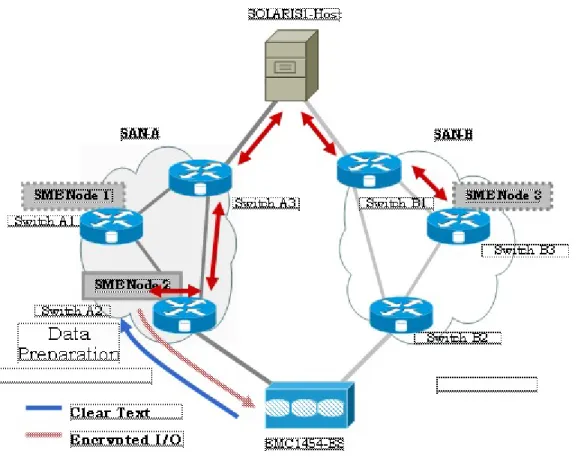
The following figure shows the SME Disk offline data preparation architecture.
Figure 2: SME Disk Offline Data Preparation Architecture
The offline data preparation involves the following actions:
• Quiescing the host applications by stopping the host I/O traffic.
• Backing up the clear data in the targeted disk. The backup can be to another disk or to an external tape. This backup is used to recover from errors.
• Server I/Os during the duration of the offline data preparation are rejected by the SME node.
Configuring SME Disks
While host I/Os are blocked the host paths must be online during offline data preparation since the identity of the host port is used by the crypto engine. All DKR relationships that involves disk must be in disable state. Disk Key Replication (DKR) is used to manage remote replication relationships.
Caution
Disable all replication links of that disk before starting data preparation on the disk.
Caution
Destroy older snapshots once the rekey is successful. The old snapshot can be kept as a backup to recover in case data preparation or rekey fails. Once successful, SME Disk does not support reading from older snapshots using previous keys.
Caution
• The offline data preparation is done by one SME node that uses the host identity of the selected path on which data preparation related I/Os are issued to the disk. During this process, I/Os to the targeted disk are failed back to the host with a SCSI check condition not ready. Server I/Os during the duration of the offline data preparation are sent back to the host as an SCSI check condition.
• Unquiescing the host applications. After the data preparation is completed, the applications running on the host are brought online to start access data from the encrypted crypto disk.
Online Data Preparation
Online data preparation is performed when the applications on the host are accessing the data on the crypto disk. The server read or write I/Os are decrypted or encrypted by the SME nodes while the data preparation process is going on.
For this release, only offline data preparation mode is supported.
Note
Rekeying
Once the data on the disk is encrypted, the key associated with the encrypted data has to be changed for security reasons. The change policy is organization specific. The process of changing the key associated with the encrypted data for a disk from an old key to a new key is referred to as the rekey process.
Rekeying is a special function of the data preparation operation where the currently encrypted contents of the disk is read, decrypted using the current (old) key, encrypted with a new key, and written back to the disk.
You cannot change the quorum or the master node during a Master key rekey.
Note
Configuring SME Disks Online Data Preparation
Replacing an SME Enabled MDS Switch
The steps to replace an MDS Switch acting as a node in one or more SME clusters depends on your current topology and configuration.
Multi-node Cluster
If the MDS switch you want to replace is the master node in one or more SME Clusters, you must first fail the master node and then remove the failed master node.
If the MDS switch you want to replace is a non-master node in a multi-node SME cluster, you must remove the SME interfaces (if any) and the node from the clusters using the DCNM SME management UI.
Single-node Cluster
If the MDS switch you want replace is the only node in an SME Cluster, the operation is completely destructive to the SME Cluster. Follow the procedure under Appendix BDisaster Recovery in SMEto build a new SME Cluster on the new switch.
Turning Off Encryption
If you disable encryption in the signature mode, the host can view the exact size of the disk. The exact size of the disk is 64 MB more than the size of the disk seen during encryption.
Snapshot Support
There are two types of snapshot supported:
• Nonsignature mode—In the nonsignature mode, when a snapshot is first discovered, SME does not detect it as a snapshot of a crypto LUN. The administrator must use the key of the source LUN and enable encryption without data preparation on the new LUN.
• Signature mode—In the signature mode, the SME disk detects snapshots during discovery. The SME disk discovers the signature of the media and moves these disks to a failed state with the explanation that they may be possible crypto snapshots. To enable encryption on crypto snapshots, you can use the recover-from-metadata option.
SME Disk Key Management
SME disk uses a two-level key hierarchy. An SME cluster consists of various disks that are grouped functionally into disk groups. The following is the key hierarchy:
• Master Key—Generated when a SME cluster is created. A master key is used to wrap the disk keys in the cluster. A master key is always wrapped with a password. The three security modes to store the master key are Basic, Standard, and Advanced. For more information on SME key details and the security modes, seeInformation About SME Key Management
Configuring SME Disks
.
• Disk Key—Generated only when the encryption is enabled. Only when it is enabled, the disk status is Crypto. Disk keys are always wrapped with the master key.
Keys are identified using a Globally Unique Identifier (GUID) and disk keys are stored in the Cisco Key Management Center (KMC). These disk keys are encrypted using the master key.
Key Generation
The secure keys are generated for each SME disk in the cluster in the SME node in a cryptographic way. Random key numbers are generated with the FIPS random-number generation. The key size used is 256 bits. A new key can be generated for each SME disk that is enabled. Keys also can be imported from a key file. Keys can also be replicated using the disk key replication feature.
Disk States
These types of disk states are available:
• Clear—The disk is online and encryption is disabled. • Crypto—The disk is online and encryption is enabled.
• Suspend—The disk has been suspended and the host I/O access is suspended. • Data-preparing—The data on the disk is currently being converted by SME Disk. • Failed—The disk data needs to be restored due to the failed data preparation. • Failed—Fails due to a mismatch between the signature and KMC.
• Pending enable no-dataprepare (Wait SME enable)—When there is a disk state mismatch between switch persistent data and CKMC. This state occurs when a customer does not copy the running configuration to saved configuration before rebooting the switch.
MKR fails when the disks are in the following states:
• Failure—MKR fails when there is a mismatch between the metadata and KMC. • Failure—MKR fails when the metadata exists but there is no key in the KMC. • Failure—MKR fails when the metadata write fails.
• Preparing (progress 2%, remainin...)—MKR displays the status preparing and fails. • Configured path status
• Offline—MKR fails if the disk itl discovery is pending.
• Is online—MKRfails when the disk itl is in a fault I/O state and is configured. • Crypto—MKR fails when the KMC verification is still pending.
• MKR fails if the metadata update is pending. • Crypto—MKR fails if the FSM update is pending.
Ensure all paths to the disk are discovered and are online.
Note
Configuring SME Disks Key Generation
Cisco KMC
The Cisco KMC is the centralized key management system that stores the key database for active and archived keys required for the encryption and decryption in the SME disk.
Each SME disk can have zero or one active key and zero or more archived keys. Each key entry consists of the following:
• Cluster name, disk group name and disk name needed to identify the configured disk in sme configuration • Vendor ID, Product ID, and Device Identifier needed to identify the corresponding physical disk in SAN • Active or archived state
• Creation and archived timestamp
SME cluster will contact and verify and update the CKMC during configuration changes. CKMC provides the following features:
• Centralized key management to archive, purge, recover, and distribute disk keys. • Integration into the DCNM-SAN Server depending on the deployment requirements. • Integrated access controls using AAA mechanisms.
For more information on the security modes and key management settings, see thesme_key_ management.ditamap#map_2E28C45DA463438AB9C78C77739358C9.
Cisco KMC supports SME disk-related operations. KMC operations include the following topics:
Archiving Clusters
Archiving deletes the cluster from the switch and it retains the keys in the Cisco KMC.
Purging Disks or Disk Groups
When storage arrays are decommissioned either due to lease expiration or upgrade, the keys associated with the disks can be purged. Purging keys can be done either at the disk level or at the disk group level. By deleting an active disk group, all the keys are archived. By deleting an archived disk group, all the keys are purged.
Purging the key is an unrecoverable operation. Unless there are exported backups of the key database, the key that is purged cannot be retrieved forever.
Caution
Rekeying
Data in the disk and disk group can be rekeyed either periodically for better security or on-demand when the key security has been compromised.
Configuring SME Disks
From Release 5.2.6, master key rekey is supported.
Note
The rekey operation at an individual disk level generates a new key for the disk and archives the old key. A data preparation operation is triggered to decrypt the data using old key, encrypt the data with the new key, and write it back to the disk.
The rekey operation performed at a disk group level on all the disks or a subset of disks in the disk group. KMC maintains a history of keys for all of the disks.
Accounting
Cisco KMC maintains an accounting log to record all the key-related operations, their results, and other related information. The view provides support to filter the log records based on the patterns. For more information, seeCisco KMC, on page 11.
Quorum Disk
A quorum has to be present for a cluster to be functional as a cluster is a group of servers. A quorum is defined as N/2 + 1 servers in the cluster are up and running. N is the total number of servers in the cluster. To avoid a split-brain scenario for a cluster with an even number of servers, in the case where half of the members of the cluster lose communication with the other half of the members of the cluster, a quorum disk is used to determine which partition has the quorum for remaining in the cluster.
Because a server cluster has to be functional even when an SME cluster fails, it is important that the quorum disk not be configured as a crypto disk.
Data Replication
Replication is a disk array based technology where the disk array automatically duplicates data from one LUN to another.
Data replication relationship is of two types: • Synchronous mode
• Asynchronous mode
Remote replication involves in moving of data on primary storage arrays over WAN links to secondary storage arrays on secondary sites. Remote replication protects data loss in case of primary site failure or a geographical disaster.
SME does not perform data replication. SME is designed to support other third-party data replication solutions.
SME Disk Key Replication
The SME Disk Key Replication (DKR) feature manages key replication in support of third-party data mirroring solutions. The DKR feature supports the following:
Configuring SME Disks Accounting
• Mirrors or clones—A copy of the data in the source disk is duplicated by the disk array into another disk (mirror or clone) in the same storage system.
• Replication—The data in the source disk is duplicated by the disk array into another disk in a remote storage system. Two types of replication are available: Synchronous and Asynchronous.
Disk Key Replication only takes care of key replication. The user needs to ensure data replication.
Note
DKR relationships are only allowed between the same SME Disk Clusters of the same type. For example, a Signature SME Disk cluster cannot be used in DKR with a nonsignature SME Disk cluster.
Note
The source and the destination disk can be in three stable states: clear, crypto, and failed. When a disk key replication relationship is synchronized, both the state and the active crypto key of the source disk are replicated to the destination disk.
The DKR feature is maintained by DCNM-SAN and all SME key modification operations for disks using DKR must be done through DCNM-SAN.
The key replication must be disabled when a disk is undergoing data preparation or rekey. The combination is not supported.
Caution
To ensure appropriate key associations, you must ensure that the same KMC (database) manages all the disks that are involved in a replication or snapshot relationship.
Note
DKR must be disabled when converting a nonsignature SME disk cluster to a signature SME disk cluster.
Note
Prerequisites for DKR
DKR has the following prerequisites:
• The CKMC must be the same for the DKR feature to connect and transfer data. The same KMC should be used for source and destination disks that are managed for disk replication.
• Disk replication takes care of key replication only and not the data replication as it is done by the storage vendor. Proper steps should be followed while syncing the keys.
Once a disk is added to an DKR relationship all SME operations on that disk must be done only through DCNM-SAN. SME Disk configuration must not be done through CLI for disks involved in DKR relationship. Using the CLI results in unpredictable results and can put data on the disk at risk.
Caution Configuring SME Disks
Guidelines and Limitations for DKR
The following are the guidelines and limitations for disk replication support:
• The Recover Point I/O journal snapshots are not supported across key change operations.
• Any type of snapshot is not supported when encryption is enabled, encryption is disabled, or on a rekey operation.
For non-signature clusters, we recommend that the snapshots be destroyed once the above operation is successfully completed. For signature clusters, snapshots can be supported across rekey operations.FR
Caution
Replication or Mirroring Requirements
The following are the requirements for replication or mirroring:
• A key update on the source disk must result in a key update on the destination disk that is in a current replication relationship with the source disk.
• A source disk can be the source disk for multiple destination disks.
• A destination disk in a replication relationship can be the destination of only one replication relationship.
DKR Features
DKR provides the following key features:
• DKR map file—Contains the XML-formatted information that allows you to input information about the replication relationships into DCNM-SAN.
• DKR database—DCNM-SAN processes the DKR map file and stores the relationships in a database in the source disk:destination disk:type of relationship:state of relationship format.
• Management of SME disk key change operations—All of the key change operations on the source disk need to be replicated on the destination disk.
DKR Relationships
DKR relationships are created through the DKR map file. Specify the source and destination disks that are in a DKR relationship, which allows you to input a large number of entries in a single operation. DKR relationships can be set up in two ways:
• Remote Replication relationship—The destination disk might be exported to the host and can be visible to the SME disk through device discovery.
DKR Mapping File
You can populate the DKR database by giving DCNM-SAN a map file that contains the replication and snapshot relationships. Each DKR relationship consists of a source and destination disk.
The disk can be identified in the following format:
<?xml version="1.0" encoding="UTF-8"?>
<SME_DKR xmlns:xsi="http://www.w3.org/2001/XMLSchema-instance" xsi:noNamespaceSchemaLocation="DKR.xsd">
Configuring SME Disks Guidelines and Limitations for DKR
<Version>Version</Version> <Options>SME_DKR_NONE</Options> <Relations> <Type>SME_DKR_MIRROR</Type> <Source> <Label>grp-1</Label> <Cluster_Name>source-1</Cluster_Name> <Disk_Group_Name>primary-cx400</Disk_Group_Name> <Disk_Name>pry0</Disk_Name> <Identifier> <VPW> <Vendor>DGC </Vendor> <Product>VRAID </Product> <WWN>600601609bc12a008ca7298a9c44e011</WWN> </VPW> </Identifier> </Source> <Destination> <Label>grp-2emote</Label> <Cluster_Name>destination-1</Cluster_Name> <Disk_Group_Name>secondary-cx400</Disk_Group_Name> <Disk_Name>sec0</Disk_Name> <Identifier> <VPW> <Vendor>DGC </Vendor> <Product>VRAID </Product> <WWN>600601600e602a00b461b7289b44e011</WWN> </VPW> </Identifier> </Destination> </Relations> </SME_DKR>
The administrator has to configure and discover the destination disk explicitly because DCNM-SAN does not configure the destination disk in the destination cluster.
Note
ISSU with SME Disk
In-Service Software Upgrade (ISSU) has the following requirements:
• No SME configuration changes must be in progress or initiated while an ISSU is in progress. • Ensure that no data preparation operations are underway before you schedule ISSU.
• ISSU causes the crypto nodes (DPP) to become offline during the firmware upgrade causing host I/O traffic to be disrupted.
• The IT-nexus that are bound to that crypto node can end up migrating to a different crypto which can cause an imbalanced load distribution.
For SME disk, the ISSU from Cisco NX-OS Release prior to 5.2(1) is not supported and the SME Disk configuration will be rejected.
Note
When upgrading from Release 5.2.1 to Release 5.2.6, the clusters have to be in the nonsignature mode and when downgrading from Release 5.2.6 to Release 5.2.1, signature clusters have to be deleted.
Configuring SME Disks
Managing Key Change Operations in Cisco DCNM for DKR
The following are the two key change operations:• No data preparation—Any local key changes result in DKR suspending host access to the remote disk. Once the local key change is verified for data integrity and the data replication to the remote end is synchronized, the administrator can select the required relationship and perform the synchronization operation in DKR. This operation synchronizes the source and destination keys and resumes the host access to the remote disk.
• Data preparation—Ensure that you complete the following before starting the data preparation on the source disk:
• Disable DKR relationship.
• Disable the replication between source and destination disk. This is a disk array vendor-specific operation.
Once data preparation is complete and verified for data integrity, perform the following:
• Enable the data replication between the source and destination using the disk array vendor-specific operation.
•
• Once data is synchronized between the source and destination disk, enable the DKR relationship. This operation synchronizes the source and destination keys.
Stop accessing the host on the destination disk until the data preparation is complete. Accessing the host during data preparation results in data loss.
Caution
Read-Only Disks
Read-only disks allows the host to read the contents of a disk in a failed state by specifying an encryption key. This is a solution to recover the contents of a disk. When there is an situation where the possible set of keys to a disk is known, this mode can be used to try each of the possible keys to find the correct key to read the contents of the disk. This mode is not expected to be used in the normal configuration or normal recovery procedures that have been discussed in this document.
To recover the data using the read-only mode, perform the following steps:
In the Manage Disk Encryption:Settings page, select Make Read-Only.
Once you get the correct key, you can recover the disk using the recovery wizard.
Configuring SME Disks Managing Key Change Operations in Cisco DCNM for DKR
Write Signature
You can use this feature on the signature cluster mode. When a disk has not been converted to signature mode, you can write the signature to the disk manually. You can do this through the disk details page or in batch mode through the cluster details page.
Use this command for converting a non-signature disk cluster to a signature disk cluster.
Note
Configuring SME Disk Management Using the CLI
Cisco KMC must be online at all times during configuration changes.Caution
In order to create or configure an SME Disk-capable cluster, you need to define the cluster as disk capable. For more information on how to configure this definition, refer to theCreating the SME Cluster.
Note
SME Disk cluster is not compatible with the following FCIP configurations: • FCIP with IP compression enabled
• FCIP with IPsec and WA
This section includes the following topics:
Discovering IT-Nexus
All IT-nexuses that host paths between the server and storage must be added to the configuration or else the data integrity is at risk.
Caution
To discover the IT-nexus disk, follow these steps:
Step 1 switch#configure terminal
Enters configuration mode.
Step 2 switch(config)#sme cluster clustername
Specifies the cluster and enters SME cluster configuration submode.
Step 3 switch(config-sme-cl)# [no]discover host wwn1 target wwn2 vsan vsanid fabric fabricname Configuring SME Disks
Specifies the IT-nexus that needs to be discovered.
Example
The discovery of Initiator-Target-LUN nexus (ITL) will involve querying the CKMC to determine the crypto state and if appropriate the active key of the disk. For more information on crypto disk states, seeDisk States, on page 10.
Disks and multiple paths to each disk are identified through SCSI Inquiry data of Vendor ID, Product ID, and Device Identifier (VPD).
Note
In a scripted environment where multiple IT-nexuses discovery is issued simultaneously, the resulting situation can cause too many queries to CKMC. This can sometimes result in some queries timing out. The workaround is to rediscover the IT-nexus. To prevent this scenario in a scripted environment, its always good to give a delay of one minute between each discovery command.
Note
Displaying IT-Nexus
To display all IT-nexuses that are added to a cluster, enter this command:
switch(config-sme-cl)# show sme cluster c52 it-nexus
---Host WWN, VSAN Status Switch Interface
Target WWN
---21:00:00:1b:32:84:ca:4a,
20:04:00:a0:b8:1f:4a:c6 5 online 172.23.146.52 sme10/1
The switch and the crypto node where the IT-nexus is bound to is also shown. In the above example, the IT-nexus is being hosted by the following:
• Switch with IP address 172.23.146.52
• On the control path processor (CPP) in the line card on module 10
• I/O traffic is being hosted by the data path processor (DPP) 1 on line card in module 10
Adding SME Nodes to the Cluster
To add an SME node to the cluster, follow these steps:
Step 1 switch#configure terminal
Enters configuration mode.
Configuring SME Disks Displaying IT-Nexus
Step 2 switch(config)#sme cluster clustername
Specifies the disk name to be created. Step 3 switch(config-sme-cl)#node local
Specifies the local node that will be added to the cluster. Step 4 switch(config-sme-cl)#node remote node ID
Specifies the IP address or name of the remote node that will be added to the cluster.
Adding SME Encryption Engine to the Cluster
To add an SME encryption engine to the cluster when the encryption engine is local to the master node, follow these steps:
Step 1 switch#configure terminal
Enters configuration mode.
Step 2 switch(config)#sme cluster clustername
Specifies the disk name to be created. Step 3 switch(config-sme-cl)#node local
Specifies the local node that will be added to the cluster. Step 4 switch(config-sme-cl-node)#fabric-membership fabricname
Specifies the local switch fabric name.
Step 5 switch(config-sme-cl-node)#interface sme 1/1 force
Specifies adding encryption engine to the cluster.
Adding an Ecryption Engine that Resides on the Non-Master Node
To add a encryption engine that resides on the non-master node, go to the mater node and create an SME interface and follow these steps:
Step 1 switch#configure terminal
Enters configuration mode.
Step 2 switch(config)#sme cluster enable
Enables the cluster feature. Step 3 switch(config)#sme enable
Configuring SME Disks
Enables the SME feature.
Step 4 switch(config-sme-cl-node)#interface sme 1/1 force
Specifies adding encryption engine to the cluster.
Adding the Remote Crypto Engine to the Cluster on the Master Node
On the master node, add the remote crypto engine to the cluster as follows:
Step 1 switch#configure terminal
Enters configuration mode.
Step 2 switch(config)#sme cluster clustername
Specifies the disk name to be created.
Step 3 switch(config)# node <node alias> ip-address <ip address of remote switch> Adds remote node to the cluster.
Step 4 switch(config)# fabric-membership <name of fabric> Specifies the remote switch fabric name.
Step 5 switch(config-sme-cl-node)#interface sme 1/1 force
Specifies adding encryption engine to the cluster.
Configuring a Disk Group
The disks in an SME cluster can be grouped functionally into disk groups. To configure a disk group, follow these steps:
Step 1 switch#configure terminal
Enters configuration mode.
Step 2 switch(config)# [no]sme cluster clustername
Specifies the cluster and enters SME cluster configuration submode. Step 3 switch(config-sme-cl)# [no]disk-group dg-name
Configures a disk group.
Configuring SME Disks Adding the Remote Crypto Engine to the Cluster on the Master Node
Adding a Disk to the Disk Group
A disk is specified as part of a disk group and is identified using a name as an alias. To add a disk to the disk group, follow these steps:
Step 1 switch#configure terminal
Enters configuration mode.
Step 2 switch(config)# [no]sme cluster clustername
Specifies the cluster and enters SME cluster configuration submode. Step 3 switch(config-sme-cl)# [no]disk-group dg-name
Configures a disk group.
Step 4 switch(config-sme-cl-dg)# [no]disk disk-name
Specifies the disk name to be created.
Adding Paths to the Disk
All paths (ITLs) of a host to the target LUN must be in the same disk to prevent data corruption.
Caution
A disk is specified as part of a disk group and is identified using a name as an alias. All the paths to the disk in the cluster must be specified using the host, target, LUN, VSAN, and fabric.
To add a disk, follow these steps:
Step 1 switch#configure terminal
Enters configuration mode.
Step 2 switch(config)# [no]sme cluster clustername
Specifies the cluster and enters SME cluster configuration submode. Step 3 switch(config-sme-cl)# [no]disk-group dg-name
Configures a disk group.
Step 4 switch(config-sme-cl-dg)# [no]disk disk-name
Specifies the disk name to be created.
Step 5 switch(config-sme-cl-dg-disk)# [no]host wwn1 target wwn2 lun 11vsan v1fabric f1
Specifies the path to the disk in the cluster.
Configuring SME Disks
Example
If the IT-nexus specified in the path above is not configured in SME, SME will also trigger a discovery of the IT-nexus along with adding the configured path to the specified disk. In a scripted environment, when adding paths, it is always advisable to give a delay of one minute to allow the IT-nexus discovery to complete.
Note
Displaying ITL-Nexus
To see the list of paths discovered on SUP, enter this command:
switch(config-sme-cl)# show sme cluster c52 disk detail Disk 1 is crypto
Model is LSI INF-01-00 Vendor ID is LSI
Product ID is INF-01-00
Device ID is 600a0b80001f4ac4000032454a3a69ce ASL ID is 581688B7
Is configured as disk device d1 in disk group dg1 Paths
Host 21:00:00:1b:32:84:ca:4a Target 20:04:00:a0:b8:1f:4a:c6 Lun 0x0000 vsan 5 Is online (SUCCESS), configured
To see the list of paths discovered on CPP where IT-nexus is bound, enter this command:
switch# attach module 10 Attaching to module 10 ...
To exit type 'exit', to abort type '$.'
module-10# show sme internal info crypto-node 1 itl brief
---if-ndx host tgt vsan lun type
sme locking event state
---0x12480000 21:00:00:1b:32:84:ca:4a 20:04:00:a0:b8:1f:4a:c6 5 0x0000
1 1 Unlocked SMED_ISAPI_ITL_ST_UP_CRYPTO
Managing Disks
This section includes the following topics:
Enabling Encryption on the SME Disk with Data Preparation
When SME encryption is enabled on a set of disks that have existing data, the existing data on the disks must be converted from clear to crypto. This process is called data preparation.
This operation involves reading data from the disk, encrypting the data, and writing back to the disk. The crypto engine takes on the host port identifier to perform the above operation.
The action to perform data prepare isenable offline.
Configuring SME Disks Displaying ITL-Nexus
The Initiator-Target-LUN(ITL) path that is undergoing data preparation must be online until the data preparation is complete. Any host port or target port flap results in the failure of data preparation.
Caution
Currently, offline data preparation is supported.
Note
During the data preparation process, we do not recommend that you manually enter the GUID of the key. The SME should generate the key automatically.
Caution
To perform data preparation on a disk, follow these steps:
Step 1 switch#configure terminal
Enters configuration mode.
Step 2 switch(config)#sme cluster clustername
switch(config-sme-cl)#
Specifies the cluster and enters SME cluster configuration submode. Step 3 switch(config-sme-cl)#disk-group dg-name
switch(config-sme-cl)# Creates a disk group.
Step 4 switch(config-sme-cl-dg)#disk disk-name
Specifies the disk name to be created.
Step 5 switch(config-sme-cl-dg-disk)#enable offline
Performs offline data preparation on an SME disk to convert clear data to encrypted data. Step 6 switch(config-sme-cl-dg-disk)#no enable offline
(Optional)Performs offline data preparation on an SME disk to convert encrypted data to clear data.
Example
When an enable or a disable encryption operation is performed on a disk, you must execute the copy running-config startup-config command on all the switches. Failure to do so results in Persistent Storage Service (PSS) on the switch which is inconsistent with the state of the disk as recorded in the CKMC.
Caution Configuring SME Disks
When an enable operation is performed on a signature mode cluster for the first time, ensure that there is sufficient LUN size for a 64 MB SME disk reserved space at the end of the disk. Failure to do so can result in data loss.
Caution
Rekeying the SME Disk
Data in the disk under a disk group can be rekeyed on demand. For example, when the key security has been compromised.
The rekey operation at an individual disk level generates a new key for the disk and archives the old key. A data preparation operation is triggered to decrypt the data using old key, encrypt the data with the new key, and write it back to the disk.
The rekey operation can be performed on all subsets of disks in the disk group. KMC maintains a history of keys for all of the disks.
To rekey the SME disk, follow these steps:
Step 1 switch#configure terminal
Enters configuration mode.
Step 2 switch(config)#sme cluster clustername
Specifies the cluster and enters SME cluster configuration submode. Step 3 switch(config-sme-cl)#disk-group dg-name
Creates a disk group.
Step 4 switch(config-sme-cl-dg)#disk disk-name
Specifies the disk name to be created. Step 5 switch(config-sme-cl-dg-disk)#rekey offline
Performs offline rekey on the SME disk.
Monitoring Data Preparation
To monitor progress of the data preparation, enter the following command:
switch# show sme cluster c52 disk-group dg1 disk d1
Disk d1 is data-preparing (progress 0%, remaining time d:0 h:0 m:0 s:26) Description is LSI INF-01-00
Vendor ID is LSI
Product ID is INF-01-00
Device ID is 600a0b80001f4ac4000032454a3a69ce Encryption is Enabled
Key guid is 5b2a0bb9c3ea2428-961579da480ed56f Paths
Host 21:00:00:1b:32:84:ca:4a Target 20:04:00:a0:b8:1f:4a:c6 Lun 0x0000 vsan 5
Configuring SME Disks Rekeying the SME Disk
[f52]
Is online (disk itl in IO reject state), configured, data prepare
Enabling Encryption on the SME Disk without Data Preparation
When SME encryption is enabled on a set of new disks that have no existing data, SME can be enabled without data preparation.
SME can be enabled only for a specified disk. Once SME is enabled, any host I/Os to the disks in the disk group are encrypted or decrypted.
Enabling SME at disk group level is not supported.
Note
For signature mode clusters, enabling encryption is possible only if there is at least one I/O capable path available to the disk.
Note
For asymmetric devices, an I/O capable path implies an Active Optimized (AO) path.
Note
All paths to the disk must be added to the SME prior to enabling encryption or else the data integrity is at risk.
Caution
Use the optional keywordno-dataprepareto enable encryption on the disk.
Enabling encryption on a disk that has paths that are discovered but not configured results in host I/Os issued on these paths to fail. To allow host I/Os, these paths must be configured on the disk.
Caution
Enabling encryption without data preparation operation must only be done on disks with no existing data or data loss can occur.
Caution
To perform encryption on a disk, follow these steps:
Step 1 switch#configure terminal
Enters configuration mode.
Step 2 switch(config)#sme cluster clustername
switch(config-sme-cl)#
Specifies the cluster and enters SME cluster configuration submode.
Configuring SME Disks
Step 3 switch(config-sme-cl)#disk-group dg-name
switch(config-sme-cl)# Creates a disk group.
Step 4 switch(config-sme-cl-dg)#disk disk-name
Specifies the disk name to be created.
Step 5 switch(config-sme-cl-dg-disk)#enable no-dataprepare
Enables encryption on a disk.
Step 6 switch(config-sme-cl-dg-disk)#no enable no-dataprepare
(Optional) Disables encryption on a disk.
Displaying the Configured Disk
To display the configured disk, enter this command:
switch# show sme cluster c52 disk-group dg1 disk d1 Disk d1 is crypto
Description is LSI INF-01-00 Vendor ID is LSI
Product ID is INF-01-00
Device ID is 600a0b80001f4ac4000032454a3a69ce Encryption is Enabled
Key guid is 1f09c7425d706a2e-6e00de45a53aa68
Paths
Host 21:00:00:1b:32:84:ca:4a Target 20:04:00:a0:b8:1f:4a:c6 Lun 0x0000 vsan 5 [f52] Is online (SUCCESS), configured
Path States
The types of path states that are available as follows: • Online—Path is discovered and is online.
• Path that is configured, discovered, and available for host I/O access.
Host 21:00:00:1b:32:84:ca:4a Target 20:04:00:a0:b8:1f:4a:c6 Lun 0x0000 vsan 5 [f52] Is online (success), configured
The above output is the expected state of a path that is configured correctly and successfully discovered.
Note
• Path that is configured, discovered, but not available for host I/O access.
Host 21:00:00:1b:32:84:ca:4a Target 20:04:00:a0:b8:1f:4a:c6 Lun 0x0000 vsan 5 [f52] Is online (disk itl in IO reject state), configured
Configuring SME Disks Displaying the Configured Disk
If the I/O reject state continues to persist even after a successful configuration and discovery, try to rediscover IT-nexus.
Note
• Path that is not configured is discovered, and is also available for host I/O access (encryption is not enabled on the disk).
Host 21:00:00:1b:32:84:ca:4a Target 20:04:00:a0:b8:1f:4a:c6 Lun 0x0000 vsan 5 [f52] Is online (success), NOT configured
• Path that is not configured, discovered, and not available for host I/O access (encryption is enabled on the disk or disk is suspended)
Host 21:00:00:1b:32:84:ca:4a Target 20:04:00:a0:b8:1f:4a:c6 Lun 0x0000 vsan 5 [f52] Is online (disk itl in IO reject state), NOT configured
All paths are expected to be online and available for host I/O access when a disk is completely and correctly configured.
Caution
• Offline—Configured path is not yet discovered.
Host 21:01:00:1b:32:a4:ca:4a Target 20:05:00:a0:b8:1f:4a:c6 Lun 0x0000 vsan 5 [f52] Is offline (disk itl discovery pending), configured
• Failed—Path has been taken down to prevent host I/Os because the disk is in a failed state.
Host 21:00:00:1b:32:84:ca:4a Target 20:04:00:a0:b8:1f:4a:c6 Lun 0x0000 vsan 5 [f52] Is failed (disk itl dp fail), configured
• Misconfigured path—Path being added to this disk belongs to another disk.
• Misconfigured paths are marked as authentication failed and host I/Os are not allowed.
• To recover, these paths must be deleted first followed by rediscovery and proper reconfiguration.
Host 21:00:00:1b:32:84:ca:4a Target 20:05:00:a0:b8:1f:4a:c6 Lun 0x0000 vsan 5 [f52] Is failed (disk itl auth fail vpd mismatch), configured
• Unconfigured path—Path is discovered but not yet added to this disk by the user. Shown as “Not configured” in output.
• If configured disk does not have encryption enabled, these paths allow host I/Os. • If configured disk has encryption enabled, these paths do not allow host I/Os.
Modifying the SME Disk Key
This procedure allows the user to modify the crypto key of a disk manually.
Configuring SME Disks
Manual modification of the crypto key of a disk is only allowed when the disk is in suspended state. In the suspended state, the host I/O access to a disk is not allowed.
Note
To modify the SME disk key, follow these steps:
Step 1 switch#configure terminal
Enters configuration mode.
Step 2 switch(config)#sme cluster clustername
Specifies the cluster and enters SME cluster configuration submode. Step 3 switch(config-sme-cl)#disk-group dg-name
Specifies a disk group.
Step 4 switch(config-sme-cl-dg)#disk disk-name
Specifies the disk name to be created. Step 5 switch(config-sme-cl-dg-disk)#suspend
Suspends the SME disk.
Step 6 switch(config-sme-cl-dg-disk)#modify-key guid guid
Modifies the SME disk key. Provides the key GUID as input that needs to be the new active key of the disk. Step 7 switch(config-sme-cl-dg-disk)#no suspend
Resumes the SME disk.
Example
This configuration is not expected to be provided directly by the administrator through the CLI. The DNCM-SAN Replication Key Context (DKR) takes advantage of the modify key feature to manage disk key replication relationships.
Caution
Displaying Suspended Disk
To display information on a suspended disk, enter this command:
switch(config-sme-cl-dg-disk)# show sme cluster c52 disk-group dg1 disk d1 Disk d1 is suspend
Description is LSI INF-01-00 Vendor ID is LSI
Product ID is INF-01-00
Device ID is 600a0b80001f4ac4000032454a3a69ce
Configuring SME Disks Displaying Suspended Disk
Encryption is Enabled
Key guid is 1f09c7425d706a2e-6e00de45a53aa68c Paths
Host 21:00:00:1b:32:84:ca:4a Target 20:04:00:a0:b8:1f:4a:c6 Lun 0x0000 vsan 5 [f52] Is online (disk itl in IO reject state), configured
Recovering the SME Disk
In order to perform the recovery on a failed disk, the administrator needs to first restore the contents of the disk from the backup, which is a storage operation. The administrator then needs to update the state of the failed disk in SME configuration with therecovercommand.
The SME recover CLI command is used only for recovery of encryption key and not for data.
Caution
Recovery can be done in two ways: Recovering SME Disk to Clear State
If the disk was recovered from a backup that contains clear data then the administrator need to recover the SME Disk to clear state.
For signature mode clusters, there must be at least one I/O-capable path for recovery to succeed. As part of the recovery, SME disk clears the signature from the signature portion of the disk.
Note
To recover the SME disk to clear state, follow these steps:
Step 1 switch#configure terminal
Enters configuration mode.
Step 2 switch(config)#sme cluster clustername
switch(config-sme-cl)#
Specifies the cluster and enters SME cluster configuration submode. Step 3 switch(config-sme-cl)#disk-group dg-name
switch(config-sme-cl)# Specifies a disk group.
Step 4 switch(config-sme-cl-dg)#disk disk-name
Specifies the disk name to be created. Step 5 switch(config-sme-cl-dg-disk)#recover
Resets the crypto state of the disk to a clear state. That is, no encryption is performed on the host I/Os issued on the disk.
Configuring SME Disks
Recovering SME Disk to Crypto State
If the disk was recovered from a backup that contains encrypted data then the administrator should recover the SME disk to crypto state.
For signature mode clusters, there must be atleast one I/O- capable path for recover to succeed. As part of the recovery, SME disk writes the signature to the signature portion of the disk.
Note
To recover the SME Disk to crypto state, follow these steps:
Step 1 switch#configure terminal
Enters configuration mode.
Step 2 switch(config)#sme cluster clustername
switch(config-sme-cl)#
Specifies the cluster and enters SME cluster configuration submode. Step 3 switch(config-sme-cl)#disk-group dg-name
switch(config-sme-cl)# Specifies a disk group.
Step 4 switch(config-sme-cl-dg)#disk disk-name
Specifies the disk name to be created.
Step 5 switch(config-sme-cl-dg-disk)#recover guid guid
Sets the encryption status of the disk to be a crypto disk and use the key specified by the GUI as encryption key for the disk.
Example
The Recover command does not recover the contents of the disk. Its recovers the crypto-state of the disk based on the data recovered into the disk. The data on the disk must first be restored before using the recover command.
Caution
Recovering SME Disk from KMC
This is applicable only for signature mode clusters.
Note
Configuring SME Disks Recovering SME Disk to Crypto State
To recover SME Disk from KMC, SME Disk looks for an active key in KMC. After the active key is found, the active key is used to generate the signature written on the disk as the disk recovers to a crypto state.
The encryption key is the active key recorded in KMC.
Note
If the KMC does not have an active key for the disk, then the disk recovers to a clear state and the signature in the reserved area is cleared.
Note
To recover the SME Disk from KMC, follow these steps:
Step 1 switch#configure terminal
Enters configuration mode.
Step 2 switch(config)#sme cluster clustername
Specifies the cluster and enters SME cluster configuration submode. Step 3 switch(config-sme-cl)#disk-group dg-name
Specifies a disk group.
Step 4 switch(config-sme-cl-dg)#disk disk-name
Specifies the disk name to be created.
Step 5 switch(config-sme-cl-dg-disk)#recover from -kmc
Sets the encryption status of the disk to be a crypto disk.
Recovering SME Disk from Signature on Disk
This option is available only for signature mode clusters.
Note
SME Disk gets the signature from the reserved area of the disk. If the signature is valid, SME Disk searches in the KMC using the GUID from the signature. If the KMC search succeeds, the disk recovers to a crypto state.
When the KMC search fails, the recover operation fails and the disk remains in failed state.
Note
When there are no signatures found on the disk, the disk recovers to a clear state.
Note Configuring SME Disks
To recover SME Disk from the signature mode cluster, follow these steps:
Step 1 switch#configure terminal
Enters configuration mode.
Step 2 switch(config)#sme cluster clustername
Specifies the cluster and enters SME cluster configuration submode. Step 3 switch(config-sme-cl)#disk-group dg-name
Specifies a disk group.
Step 4 switch(config-sme-cl-dg)#disk disk-name
Specifies the disk name to be created.
Step 5 switch(config-sme-cl-dg-disk)#recover from -metadata
Sets the encryption status of the disk to be a crypto disk.
Example
The disks in an SME cluster can be grouped functionally into disk groups.
When you add disks to a signature mode cluster and if the volume contains data, you have to resize the disk to reserve at least 64MB of space for Cisco SME signature information at the end of the volume.
Note
Configuring Signature Mode
Converting a SME Disk cluster from a non-signature mode to signature mode will result in writing signatures to all the configured crypto disks. Once the conversion is complete, verify if all the crypto disks and their paths are in online state and verify the signature of the disks.
Note
To convert a cluster to signature mode, follow these steps:
Step 1 The Cluster Details screen is displayed. Step 2 Click Convert to Signature Mode.
You will not see this option for disks that are already in signature mode.
Note
The Signature Mode Conversion screen is displayed.
Configuring SME Disks Configuring Signature Mode
Step 3 Click Next.
The Convert Cluster screen is displayed.
Once the conversion is complete, ensure there are no failed disks and verify the signature for crypto disks to ensure the signature is correct.
Converting Disks to Signature Mode
To convert a cluster to signature mode, follow these steps:
Step 1 The Cluster Details screen is displayed. Step 2 Click Convert Disks to Signature Mode.
Step 3 The Signature Mode Conversion screen is displayed. Step 4 Click Next.
Step 5 The Convert Cluster screen is displayed.
Verifying Signatures for Disks
To verify signatures on disks, follow these steps:
Step 1 In the DCNM-SAN web client, click the SME tab.
Step 2 Under Disk Groups, select the disk for signature verification. The Disk Details screen is displayed.
Step 3 Under Disk Signature, click Verify Signature.
The signature is verifies and the signature verification is successful message is displayed.
Example
In signature mode, SME verifiesthe signature on the disk by comparing the disk information in the KMC. Any mismatch between the information in KMC and the signature results in disk failure.
Recovering a Disk Using Metadata Signature
You can only recover signature disks.
Note
To recover the failure disk using the metadata, follow these steps:
Configuring SME Disks
Recovering a Disk from Key Manager
Configuring Key Management Operations
This section includes the following topics:Replacing Smart Cards
Step 1 To replace a smart card (Advanced security mode), follow these steps:Under Data Center Network Manager, click SME. The cluster list is displayed.
Step 2 Click Smartcards. The Recovery shares details along with the associated list of smart cards is displayed. Step 3 Select the smart card that you would want to replace and click Replace Smartcard and Rekey Master Key.
Configuring Master Key Rekey
You can initiate the master key rekey operation using one of the following methods:
• Under Data Center Network Manager, click SME. The cluster list is displayed. Click on the required cluster. Under Cluster Details > Security Mode, click Rekey Master Key.
• Under Data Center Network Manager, click SME. The cluster list is displayed. Click Smartcards. The Recovery shares details along with the associated list of smart cards is displayed. Under Recovery Shares, click Rekey Master Key.
Before you begin
• Ensure you install the smartcard drivers on the web client where MKR is initiated.
• Ensure there is IP communication between the Cisco DCNM server, primary server, secondary server, CKMC, and switches.
• Ensure Cisco DCNM-SAN services are running.
• Ensure the clusters are online throughout the MKR process. • Ensure you export the keys before starting MKR.
• Ensure there is free space for new shares on the smart cards.
• Always start MKR on a fresh browser and ensure there are no instances of DCNM client running. • Ensure you do not start MKR if the disk is in one of the following states:
• DP error • DP in-progress • Pending KMC update • ITL Offline
• Crypto state with no paths (VPD not known) • Suspend state with no paths (VPD not known) • Data Prepare (discovery pending)
• Wait enabled
Configuring SME Disks Recovering a Disk from Key Manager
Step 1 Once you initiate the rekey master key operation, you will receive a confirmation dialog box. Click OK The Get Keyshares dialog box is displayed.
All nodes that are part of the cluster should remain online until the rekey master key operation is complete.
Note
Step 2 Insert the Smart Card.
The Rekey Master Key configuration is successful.
Resume Sync
When you have all the shares stored in the smart card and when there are discrepancies in the fabric and when MKR fails, click Resume Sync to resume the MKR operation.
Verifying the SME Disk Management Configuration
To display the SME disk management configuration information, perform one of the following tasks: Purpose
Command
Displays detailed information about the clusters.
show sme cluster
Displays detailed information about the clusters.
show sme cluster detail
Displays detailed information about a particular cluster.
show sme cluster clustername
Displays detailed information about a particular cluster.
show sme cluster clustername detail
Displays summary information about the clusters.
show sme cluster summary
Displays detailed information about a particular cluster.
show sme cluster clustername summary
Displays detailed information about the IT-nexuses in a particular cluster.
show sme cluster clustername it-nexus
Displays the summary and total number of disks in a disk group.
show sme cluster clustername disk-group
Displays the detailed information about the disks in a particular disk group.
show sme cluster clustername disk-group
diskgroup-name
Displays the detailed information about the disks in a particular disk group.
show sme cluster clustername disk-group
diskgroup-name disk
Displays the detailed information about the disks in a particular disk group and shows the status of ITLs.
show sme cluster clustername disk-group
diskgroup-name disk diskname
Displays the detailed information about the disk in a cluster.
show sme cluster clustername disk detail Configuring SME Disks
Purpose Command
Displays the summary information about the disk in a cluster.
show sme cluster clustername disk summary
Displays the detailed information about the disks that are undergoing data preparation in a cluster.
This is currently not supported.
Note show sme cluster clustername disk-data
prepare detail
Displays the summary information about the disks that are undergoing data preparation in a cluster.
This is currently not supported.
Note show sme cluster clustername disk-data
prepare summary
Displays the detailed information about the SME interfaces in a cluster.
show sme cluster clustername interface detail
Displays the summary information about the SME interfaces in a cluster.
show sme cluster clustername interface summary
Displays the information about a particular SME interface in a cluster.
show sme cluster clustername interface sme
sme-interface
Displays the information about the SME interfaces for a remote node in a cluster.
show sme cluster clustername interface node
remote-switch
Displays the information about the keys in a cluster.
show sme cluster clustername key database
Displays the detailed information about the keys in a cluster.
show sme cluster clustername key database detail
Displays the summary information about the keys in a cluster.
show sme cluster clustername key database summary
Displays the key information in a cluster for the particular GUID.
show sme cluster clustername key database guid guid
Displays the load-balancing status for the cluster.
show sme cluster clustername load-balancing
Displays the crypto status for the LUNs in a cluster.
show sme cluster clustername lun crypto-status
Displays information about the nodes in a cluster.
show sme cluster clustername node
Displays summary information about the nodes in a cluster.
show sme cluster clustername node summary
Displays information about a particular remote node in a cluster.
show sme cluster clustername node
remote-switch
Displays information about SME cluster recovery officer.
show sme cluster clustername recovery officer
Displays information about a particular SME cluster recovery officer.
show sme cluster clustername recovery officer
recovery-index
Displays detail information about SME cluster recovery officer.
show sme cluster clustername recovery officer detail
Configuring SME Disks Verifying the SME Disk Management Configuration