Automating
@RISK
with
VBA
The purpose of this document is to introduce the @RISK Excel Developer Kit (XDK) and explain how you can use VBA to automate @RISK.1 The term “automate” simply means that you write a program in VBA to make @RISK do what you normally do through the @RISK user interface. For example, suppose you often need to modify a financial planning simulation model. Each time you do this, you will change some inputs distributions or their parameters, run one or more simulations, request various reports, and create useful graphs. This requires a considerable number of steps—the same steps—each time you do it. Wouldn’t it be nice to click a button and have all of these steps magically happen? This is exactly the type of thing you will learn how to do with the @RISK XDK. In fact, it is surprisingly easy.
A Primer on VBA
2As stated above, VBA is the programming language for Excel. It is also the programming language for other applications in Microsoft Office: Word, PowerPoint, and Outlook, for example. It is even the programming language for some non‐Microsoft products. To understand how this works, it helps to separate the name VBA into two parts: “Visual Basic” and “for Applications.” You can think of Visual Basic, or VB, as the “backbone” programming language. It contains programming elements that all programmers use, regardless of programming language or the type of development task. For example, it contains subroutines, variable types, logical constructs such as If‐Then‐Else, loops for repetitive tasks, arrays for storing lists, and much more. Actually, there are non‐VBA versions of VB. For example, you might be familiar with VB6 and VB.NET. All of these versions of VB, including VBA, are extremely popular because VB is fairly easy to learn and quite powerful. In any case, to learn VBA for Excel or @RISK, you must first learn the backbone VB language. The following is a typical segment of VB code. Even if you know nothing about programming, you will probably have little trouble understanding what this code accomplishes. Again, this is the attraction of VB. It is relatively easy to learn and understand. Note the lines that begin with an apostrophe. These
lines are comments. They are ignored by VBA when the program runs, but they are very useful for
documentation. Sub Invoice()
' Declare variables.
Dim nProducts As Integer, i As Integer Dim total As Currency, subTotal As Currency Dim nPurchased As Variant, unitPrice As Variant
' Define constants for this business. Const taxRate = 0.06
Const cutoff1 = 50, cutoff2 = 100 Const discount1 = 0.05, discount2 = 0.1
' Enter information about this order nProducts = 4 nPurchased = Array(5, 2, 1, 6) unitPrice = Array(20, 10, 50, 30) total = 0
1 You must have the Professional or Industrial Edition of @RISK to run any automation code. The Standard Edition of
@RISK does not support automation.
2 If you are already familiar with VBA for Excel, you can skip to the section “Introduction to the @RISK XDK” on
' Loop over all products purchased. For i = 1 To nProducts
' Calculate revenue, including possible discount, for this product. subTotal = nPurchased(i) * unitPrice(i)
If subTotal >= cutoff2 Then
subTotal = (1 - discount2) * subTotal ElseIf subTotal >= cutoff1 Then
subTotal = (1 - discount1) * subTotal End If
' Add to total for this order. total = total + subTotal Next
' Add tax.
total = (1 + taxRate) * total ' Display result.
MsgBox "The total for this order, including tax, is " & Format(total, "$#,#00.00") End Sub
If you run this code in Excel, you will see the display (a message box) in Figure 1.
Figure 1 Result of VBA Program
Subroutines, Programs, and Macros
Before proceeding, it is useful to discuss three terms you often hear: subroutine, program, and macro. A
subroutine is any section of code that begins with the keyword Sub and ends with the keyword End Sub.
Its purpose is typically to perform one specific task. A program is a collection of one or more related
subroutines that achieves an overall goal. In practice, long programs are often broken up into smaller
subroutines for enhanced readability and easier debugging. A macro is essentially the same as a
program, and it is the term favored by many Excel programmers. However, if your programs are relatively short, consisting of a single subroutine, the terms subroutine, program, and macro are practically synonymous and are often used interchangeably.
Object Models
The above Invoice subroutine can be run in Excel, but it really has nothing to do with Excel. There are no references to ranges, formulas, worksheets, charts, or other items you use in Excel. The code is pure VB. But now we come to the “for Applications” part of VBA. All of the familiar items in Excel, which will nowbe called objects, are part of an object model that Excel provides to programmers through VBA. This
means that you as a programmer can reference these objects in your VBA code. In short, this object model allows you to “make things happen” through VBA code, rather than through the usual Excel user interface. In this way, you can automate Excel with VBA. So what does an object model, or Excel’s object model in particular, look like? At the top level, it is simply a list of things—objects—that the software contains. Excel’s object model is quite large because everything you see in Excel is an object. One of the most common objects is the Range object: any range of cells (including a single cell). But there are over a hundred more objects, including the Worksheet
object, the Chart object, the PivotTable object, and so on. There are also singular and plural objects. For example, there is the plural Worksheets object, the collection of all worksheets in an Excel workbook, and there is the singular Worksheet object, a particular worksheet in the workbook.
Figure 2 displays a partial list of the objects in Excel, plural (yellow) and singular (blue).
Figure 2 Excel Object Model
However, there is much more to an object model than the list of its objects. First, there is a hierarchy
among many objects. Basically, this means that you often need to “drill down” to get to the object you want. A good example is a Range object, such as cell B3. The idea is that a range is contained in a
worksheet, which is contained in a workbook. So the hierarchy is WorkbookWorksheetRange, and the following line of code is typical:
ActiveWorkbook.Worksheets("Costs").Range("B3").Value = 10
You read this as: Starting in the active workbook, go to cell B3 of the worksheet named Costs, and enter the value 10. This concept of hierarchy is crucial to learning VBA for Excel or @RISK.
Second, most objects have properties and methods. (Methods are also called functions.) If you think of
objects as “nouns,” then you can think of properties as “adjectives” and methods as “verbs.” Properties describe an object, and methods indicate what you can do to, or with, an object. For example, a Range object has a Value property, which was used in the above line of code. Similarly, a Font object has a Color property, a Size property, and many others. A typical object with methods is the Worksheet object. It has a Delete method, a Move method, and a few others.
Although less common, many objects also have events that they respond to. A good example is the
Open event of a Workbook object. This event occurs—it “fires”—when you open the workbook. VBA
allows you to write event handlers for the event. This is code that is executed when the event fires.
As you begin VBA programming for Excel, you gradually learn the most common objects, the hierarchies between them, their most common properties, methods, and events, and the syntax for using these in VBA code. It takes practice and perseverance, but if you want to make Excel “sing and dance” with the click of a button, this is time well spent.
By now, you should be starting to see the big VBA picture. Just as the Excel application can be
automated through its object model, other applications can be automated through their object models.
Microsoft Word is a typical example. Its objects are not the same as Excel’s. Instead of Worksheet, Range, and other typical Excel objects, Word has Sentence, Paragraph, and other objects that are useful in word processing, and these objects have their own hierarchies, properties, methods, and events. Fortunately, if you already know VBA for Excel and you want to learn VBA for Word, all you need to learn is the object model for Word. The backbone VB language is exactly the same in both applications. Admittedly, it is not a trivial task to learn a new application’s object model, but knowing VB for one application, like Excel, provides a big head start for learning VB for another application, like Word.
Using the Visual Basic Editor (VBE)
You will be doing all of your programming in the Visual Basic Editor (VBE). The easiest way is to openVBE from Excel is to press Alt+F11. Alternatively, if the Excel Developer tab is visible, you can click the
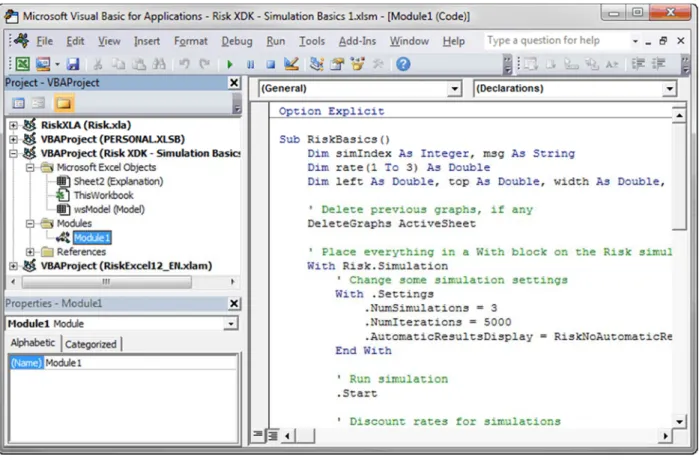
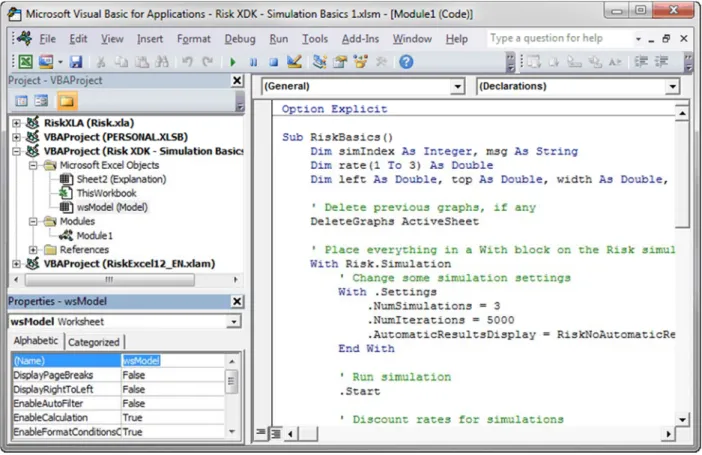
Visual Basic button on its ribbon. The VBE window appears in Figure 3. In particular, the Project pane on the left shows a list of all open workbooks. (To get back to the Excel window, you can click the Excel icon on the toolbar below the menu bar.)
Figure 3 Visual Basic Editor As you can see in the figure, the selected file contains a module. You will write all of your code in modules. (Actually, there are exceptions to this, but they aren’t discussed here.) By default, a file doesn’t contain a module, but you can insert one through the Insert menu. Then you will see a big white space on the right where you can start typing your code. Some of the code for this particular module appears in the figure.
Introduction to the @RISK XDK
Like Excel and Word, @RISK has its own object model, part of which is shown in Figure 4. It can be used to change application or simulation settings, run simulations, generate summary statistics or graph of inputs or outputs, create reports, and more. The details of these possibilities are discussed in some detail later in this document and in the accompanying @RISK XDK example files. Two questions probably come to mind. Do you really need to learn how to automate @RISK with VBA, and, if you do, how do you learn the language? There are at least two reasons why you might want to automate @RISK with VBA. First, it lets you automate tasks that you perform repeatedly. For example, suppose you need to download the most current data from a website, use @RISK to fit a distribution to the data, run an @RISK simulation, and finally create some standard @RISK reports. If you do this once or twice, it is probably not worth the effort to write a VBA program to automate the process. However, if you do this repeatedly, a VBAamong users—it lets them automate repetitive tasks with the click of a button. The same motivation certainly applies to repetitive tasks in @RISK.
Figure 4 @RISK Object Model
Second, suppose you are developing models for colleagues or clients who have little experience with @RISK. Instead of teaching them how the @RISK user interface works, it might be easier to develop a VBA application that allows them to simply click a button, or possibly click a menu item from your own customized menu, to make things happen. These “things” could include (1) entering @RISK distributions into particular cells, (2) designating @RISK outputs, (3) changing @RISK settings, (4) running the simulation, (5) displaying selected graphs and/or summary statistics, and other @RISK tasks. Assuming you think VBA for @RISK is for you, how do you learn the language? First, you need some facility in VBA for Excel. As discussed earlier, this requires you to learn the fundamentals of the VB “backbone” language and the basics of the Excel object model. There are a number of reference books on VBA for Excel, as well as Excel’s own online help. One recommendation is the first 11 chapters of VBA
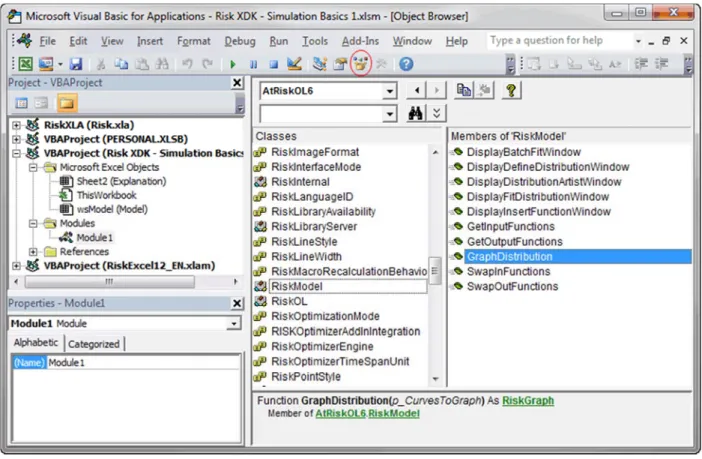
for Modelers by Albright. This book provides concise explanations and plenty of example code to get you up to speed in both the VB language and the Excel object model. Once you are familiar with VBA for Excel, you have at least four options—which are not mutually exclusive—for extending your knowledge to VBA for @RISK. 1. You can continue reading this document. It provides an overview of what can be done, and it provides sample code for how to do it. Alternatively, you can watch the first two introductory videos that cover much of the same material. They are available from the Developer Kit (XDK) item under @RISK Help. 2. You can do what all good programmers do—mimic code written by others. Examples of programs written for @RISK are provided in a number of @RISK XDK example files. (They can be found from Developer Kit (XDK) item under @RISK Help.) Once you see how something is done, such as changing an @RISK setting or creating an @RISK graph, you will probably have little difficulty adapting the code for your own use. 3. You can open one of the Reference documents from the Developer Kit (XDK) item under @RISK Help and start browsing. These documents are quite long, and no sane person would ever read them from beginning to end, but they give you a quick sense of the @RISK object model (or the RISKOptimizer object model), and they often enable you to find the specific details you need for your program. 4. You can open the Object Browser that is part of the Visual Basic Editor. This is particularly useful if you are in the midst of writing a program and need information on one specific detail. The Object Browser is discussed later in this document.
By the way, if you are familiar with VBA for Excel, you might want to start by recording macros for
@RISK, just as you can do for Excel. Unfortunately, this doesn’t work. If you turn on the recorder and
start clicking @RISK buttons, you will get some recorded code, but it will be entirely irrelevant. To
automate @RISK, you have to write the code.
Setting Library References
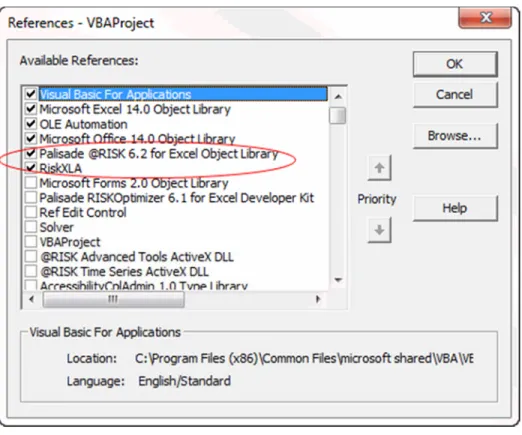
Before you can access the @RISK XDK with VBA code, you must first set references to two @RISK
libraries (from References in the Tools menu of the Visual Basic Editor). These are the RiskXLA and
Palisade @RISK 6.x for Excel Developer Kit references, illustrated in Figure 5. (The former references
the Risk.xla add‐in file. The latter is abbreviated as AtRiskOL6 in the Visual Basic Object Browser.) This
should be the first step before writing any VBA macros to automate @RISK. (As the figure indicates, you can also check the Palisade RISKOptimizer 6.x for Excel Developer Kit reference if you plan to automate RISKOptimizer.)
Figure 5 @RISK References
Writing Your First @RISK Program
This section won’t teach you a lot about VBA for @RISK, but it will give you the thrill of developing a simple @RISK application with VBA—and getting it to work! Here are the steps: 1. Launch @RISK. (You will need version 6.2 or later.)2. Open the file Risk XDK First Program.xlsx, which you can find this from Examples under @RISK
Help Developer Kit (XDK), and save it to a folder on your hard drive. This file contains a simple @RISK model with several revenue and cost inputs and a single NPV output.
3. Open the Visual Basic Editor (VBE) with Alt+F11.
4. Make sure Risk XDK First Program is selected in the Project pane. Then from the VBE’s Insert
menu, select Module.
5. From the VBE’s Tools menu, select References, check the two @RISK items shown in Figure 5,
RiskXLA and Palisade @RISK 6.x for Excel Object Library, and click OK.
6. Copy the following code and paste it into the Module window.3
Option Explicit
Sub FirstProgram()
' Change some simulation settings With Risk.Simulation.Settings .NumSimulations = 1 .NumIterations = 5000
.AutomaticResultsDisplay = RiskNoAutomaticResults
3 The top line, Option Explicit, forces you to declare all variables you use in your program, a highly recommended
programming practice. To make this line appear automatically at the top of all your modules, select Options from the Tools menu in the Visual Basic Editor and check Require Variable Declaration in the Editor tab.
End With ' Run simulation Risk.Simulation.Start ' Display results With Risk.Simulation.Results ' Summary statistics of output With .GetSimulatedOutput("NPV") Range("C19").Value = .Mean Range("C20").Value = .StdDeviation Range("C21").Value = .PToX(0.05) Range("C22").Value = .PToX(0.95) End With
' Graph of output distribution With .GraphDistribution("NPV")
.ImageToWorksheet ActiveSheet, RiskImageBMP, 250, 260, 300, 250 End With
End With End Sub
7. From the VBE’s Run menu, select Run Sub/Userform (or press the F5 key). In seconds, your
active Model worksheet should fill up: the @RISK simulation will run and selected numerical and graphical results will appear. Now you see what automation is all about! This program should be fairly simple to read, even if you know very little about VBA. The next “Guidelines” section explains many of the details, and the following “VBA Tips” section provides some general tips on using VBA effectively.
@RISK Automation Guidelines
This section provides some guidelines for automating @RISK with VBA code. The guidelines in this section are purposely kept brief and are intended only to get you started and alert you to a few technical issues. For a more pictorial set of guidelines for the @RISK object model, you should look atthe file Risk XDK ‐ Object Model Diagrams.xlsx. To see complete applications of @RISK automation, you
should look at the Risk XDK example files. (Again, all of the XDK example files, including the Object Model Diagrams file, are available under @RISK Help Developer Kit (XDK).) And finally, you can always visit the @RISK XDK Reference documents or the Object Browser in the Visual Basic Editor.
Getting Started: The “Root” Object
The “root” object that everything starts from is the Risk object, a reference to @RISK. All other @RISK
objects are down the hierarchy from it. For example, you will see Risk.Simulation, Risk.ApplicationSettings, and others. Many of these will be discussed shortly.
Technical Note: Risk Function versus Risk Object
There is a subtle issue here you should be aware of. As it is used here, Risk is a function in the RiskXLA
library that returns a Risk object in the AtRiskOL6 library.4 To put it another way, if you did not reference the RiskXLA library and wrote a typical line such as the following, Risk wouldn’t be recognized.
Risk.Simulation.Settings.NumIterations = 1000
However, if you do reference RiskXLA, as you should, you can simply write Risk, followed by any of its
properties or methods, and it will work fine. (In particular, you do not need to declare Risk as an object
variable.) Running a Simulation Risk.Simulation refers to the simulation model currently open. Then you can run a simulation with a single line of code: Risk.Simulation.Start Technical Note: What Is a Simulation? It is important to realize what a “simulation” refers to, either in VBA or in the @RISK user interface itself. It refers to everything that is currently open. For example, if you have logically distinct simulations in
multiple worksheets of a workbook, Risk.Simulation refers to all of them. Or if you have multiple
workbooks open, each with its own logically distinct simulation, Risk.Simulation again refers to all of
them. There is no way to refer to one specific simulation among many, so be careful! Changing Application Settings
You can change application settings with Risk.ApplicationSettings, just as you can through the usual
Utilities menu in @RISK. For example, the following line changes the report placement setting so that reports are sent to the active workbook. Risk.ApplicationSettings.ReportPlacement = RiskActiveWorkbook As you will see in the XDK example files, if you use VBA to change any application settings, it is always a good programming practice to restore these settings to their original values at the end of the program. Technical Note: AppliedToAutomationGraphs Setting
There is at least one application setting, the Boolean AppliedToAutomationGraphs setting, which can
be changed only with VBA. The default setting is True. To understand its purpose, imagine two different
types of developers. Developer #1 writes automation code for his own use only. Developer #2 writes code for her whole department. That is, she has many clients, each of whom can have different application settings. Developer #1 would probably expect all of his current application settings, such as the color of a curve, the default title, the scaling, and so on, to apply to the graphs he creates with his code. If they didn’t, he would be surprised and possibly annoyed. He can achieve this with the default True setting. In contrast, Developer #2 would definitely be upset if all the application settings on each client machine were applied. She probably wants all graphs to appear exactly as she intended. If AppliedToAutomationGraphs were set to True, she would have to change every single setting in her RiskGraph objects to ensure this. However, by changing the AppliedToAutomationGraphs setting to False, she will always get the application internal defaults instead of the users’ application settings. In short, if you are using VBA to create graphs for many clients, you should probably include the line Risk.ApplicationSettings.AppliedToAutomationGraphs = False
Changing Simulation Settings
As you probably know, the difference between application settings and simulation settings is that
application settings apply indefinitely (until you change them) to all @RISK models, whereas simulation
settings, such as the number of iterations, apply to a specific simulation. You get to the simulation
settings with Risk.Simulation.Settings. Then you can have code such as the following that changes a few
settings. Of course, this code should come before the line that runs the simulation.
With Risk.Simulation.Settings .NumSimulations = 5 .NumIterations = 5000
.AutomaticResultsDisplay = RiskNoAutomaticResults End With
Displaying Numeric Results of a Simulation
Once you run a simulation, you can get to the results with Risk.Simulation.Results. This can be followed
by two functions, GetSimulatedInput and GetSimulatedOutput, which enable you to get summary
statistics such as the mean, the standard deviation, and percentiles of an input or output. For example, the following line enters the mean of the Profit output in cell B20. Range("B20").Value = Risk.Simulation.Results.GetSimulatedOutput("Profit").Mean Alternatively, assuming multiple simulations are run, the following line enters the 5th percentile of the Q1_Cost input for simulation #3 in cell B15. Range(“B15”).Value = Risk.Simulation.Results.GetSimulatedInput(“Q1_Cost”,3).PToX(0.05) The arguments of GetSimulatedOutput specify the output you want. The first argument is either the name of the output, implicitly or explicitly defined in the RiskOutput function, or a cell reference. (It can also be an integer, such as 3, meaning the third output, but this isn’t usually a good practice unless you are sure of the ordering of the outputs.) An optional second argument when there are multiple simulations is the index of the simulation. The arguments of GetSimulatedInput are similar, except that if a name is used for the first argument, it must be the name specified in the RiskName property function. For example, if the formula in an input cell is =RiskNormal(1000,100,RiskName("Q1_Cost")), then the name “Q1_Cost” can be referenced. Note that if you ask for the results of a simulation that has not yet been run, you will get an error. You can check for this with the following line:
If Not Risk.Simulation.Results.Exist Then Risk.Simulation.Start
Alternatively, if this condition is true (no simulation results exist), you could display an error message, informing the user that a simulation needs to be run, and then quit prematurely. The following code illustrates what this might look like.
Sub RunWithErrorCheck()
If Not Risk.Simulation.Results.Exist Then
MsgBox "You need to run a simulation first.", vbInformation Exit Sub
Else
Range("B20").Value = Risk.Simulation.Results.GetSimulatedOutput("Profit").Mean End If
Displaying Graphical Results of a Simulation (requires version 6.2)
The RiskGraph object was added to the XDK in @RISK 6.2. (It replaces the functionality from the ResultsGraph method in previous versions.) The goal has been to create logical consistency and
flexibility. Starting with Risk.Simulation.Results, you can use any of the following six functions:
GraphDistribution, GraphSummary, GraphScatter, GraphTornado, GraphSpider, or
GraphScenarioTornado. Each of these returns a RiskGraph object. Because these functions return different types of graphs, their arguments vary slightly, as will be explained shortly. However, you typically use the following three steps with all of them.
1. Set a reference to a graph.
Dim rGraph As RiskGraph
Set rGraph = Risk.Simulation.Results.GraphDistribution("Profit")
2. Change one or more properties of the graph.
rGraph.TitleMainText = "Distribution of Profit"
3. Send the image of the graph to a worksheet, where the last four arguments determine the size and
position of the graph. (You can also send the image to the clipboard or to a file with the ImageToClipboard or ImageToFile functions.)
rGraph.ImageToWorksheet ActiveSheet, RiskImageBMP, 100, 100, 300, 250
Equivalently, you can do all of these steps with the following With block, without requiring the rGraph variable. Note that the first line creates an implicit RiskGraph object, so that you can refer to its TitleMainText property and its ImageToWorksheet method in the next two lines.
With Risk.Simulation.Results.GraphDistribution("Profit") .TitleMainText = "Distribution of Profit"
.ImageToWorksheet ActiveSheet, RiskImageBMP, 100, 100, 300, 250 End With Should you use explicit object variables such as rGraph? This is a matter of personal preference, and it sometimes depends on the situation. However, once you get used to programming with object models, you will probably prefer to omit such variables whenever possible. The following sections provide more information about the graph types. Of course, you can find detailed information in online help or the Object Browser. Keep in mind that the graphs shown in the figures are “plain vanilla” versions, which often suffice. However, you can change the many properties of a RiskGraph object to fine‐tune the graph as you like: the titles, the axes, the plot area color, and so on. GraphDistribution Function The GraphDistribution function is usually used to graph the distribution of an output, although it can also be used to graph the distribution of an input. This function takes an output, an input, or an array of inputs and/or outputs as its first argument and an optional second argument that can be a simulation index or an array of simulation indexes.5 Here is a simple example. The result appears in Figure 6. Sub GraphDistribution_Histogram() Risk.Simulation.Start With Risk.Simulation.Results.GraphDistribution("Profit")
5 Actually, if you are graphing an input, there is an optional third Boolean argument, indicating whether you want
.ImageToWorksheet ActiveSheet, RiskImageBMP, 10, 300, 300, 250 End With End Sub By default, this code provides a histogram, but you can use the DistributionDisplayFormat property to change the display type. For example, the following code changes the display type to a cumulative ascending graph, as shown in Figure 7. Sub GraphDistribution_CumulativeAscending() Risk.Simulation.Start With Risk.Simulation.Results.GraphDistribution("Profit") .DistributionDisplayFormat = RiskResultsGraphCumulativeAscending
.ImageToWorksheet ActiveSheet, RiskImageBMP, 10, 300, 300, 250
End With End Sub
Figure 6 Graph of Profit Distribution
Figure 7 Cumulative Ascending Graph of Profit Distribution
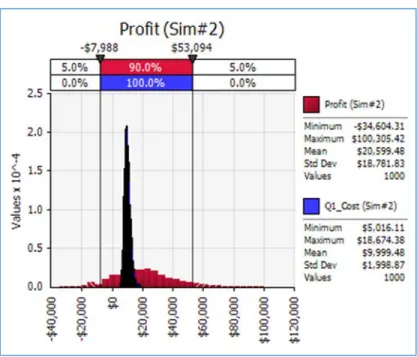
The following code requests a graph of a Profit output, overlayed with a Q1_Cost input, for simulation
#2. The last argument, True, indicates that the theoretical distribution of the input should be
suppressed. The result is shown in Figure 8. Sub GraphDistribution_HistogramOverlay1() Risk.Simulation.Start
With Risk.Simulation.Results.GraphDistribution(Array("Profit", "Q1_Cost"), 2, True)
.ImageToWorksheet ActiveSheet, RiskImageBMP, 10, 300, 300, 250
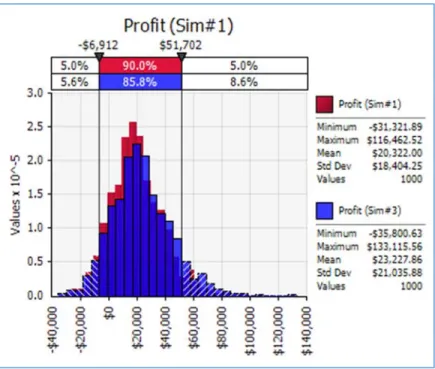
End With End Sub As another example, the following code requests a graph of Profit for simulation #1, overlayed with a similar graph for simulation #3, as shown in Figure 9. Sub GraphDistribution_HistogramOverlay2() Risk.Simulation.Start
With Risk.Simulation.Results.GraphDistribution("Profit", Array(1, 3))
.ImageToWorksheet ActiveSheet, RiskImageBMP, 10, 300, 300, 250
End With End Sub
Figure 8 Graph of Profit Distribution with Q1_Cost Overlay for Simulation #2
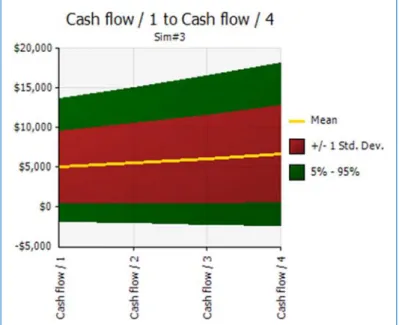
Figure 9 Graph of Profit Distribution for Simulations #1 and #3 GraphSummary Function The GraphSummary function is usually used to graph a time series of outputs, such as monthly cash flows. Its arguments include a reference to the output range, the type of summary graph (either RiskSummaryTrend or RiskSummaryBoxPlot), and an optional simulation index. This last argument can be an array of simulation indexes, in which case the curves are shown side‐by‐side. The following code generates the summary trend graph in Figure 10 for the cash flows from simulation #3. Sub GraphSummary_Trend() Risk.Simulation.Start
With Risk.Simulation.Results.GraphSummary(Range("Cash_Flow"), RiskSummaryTrend, 3)
.ImageToWorksheet ActiveSheet, RiskImageBMP, 10, 300, 300, 250
End With End Sub
Similarly, the following code generates the summary box plot in Figure 11. Sub GraphSummary_BoxPlot()
Risk.Simulation.Start
With Risk.Simulation.Results.GraphSummary(Range("Cash_Flow"), RiskSummaryBoxPlot, 3)
.ImageToWorksheet ActiveSheet, RiskImageBMP, 10, 300, 300, 250
End With End Sub
Figure 10 Summary Trend Graph of Cash Flows for Simulation #3
Figure 11 Summary Box Plot of Cash Flows for Simulation #3
GraphScatter Function
The GraphScatter function returns a scatter graph. It requires at least two arguments, the first for the X‐
axis and the second for the Y‐axis, and an optional third argument equal to a single simulation index (an
array isn’t allowed). Each of the first two arguments can be an output, an input, or an array of outputs and/or inputs. (Note that if you try to create a scatter graph of a variable versus itself, you will get an empty graph.) Here is a simple example of the Profit output versus the Q1_Cost input. It results in the graph in Figure 12. Sub GraphScatter_OneScatter() Risk.Simulation.Start
With Risk.Simulation.Results.GraphScatter("Q1_Cost", "Profit")
.ImageToWorksheet ActiveSheet, RiskImageBMP, 10, 300, 300, 250
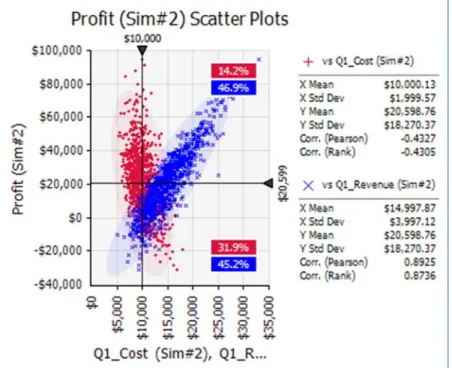
End With End Sub The following code creates two scatters (in the same graph) for simulation #2, as shown in Figure 13. The first is of Profit versus Q1_Cost, and the second is of Profit versus Q1_Revenue. Sub GraphScatter_TwoScatters() Risk.Simulation.Start
With Risk.Simulation.Results.GraphScatter(Array("Q1_Cost", "Q1_Revenue"), "Profit", 2)
.ImageToWorksheet ActiveSheet, RiskImageBMP, 10, 300, 300, 250
End With End Sub
Figure 12 Scatter Graph of Profit versus Q1_Cost
Figure 13 Scatters of Profit versus Q1_Cost and Profit versus Q1_Revenue for Simulation #2 GraphTornado Function The GraphTornado function returns a tornado graph, which is used to see how sensitive an output is to the inputs. It has two required arguments, a reference to an output and a tornado type: RiskTornadoChangeInOutputStatistic, RiskTornadoCorrelationCoefficients, RiskTornadoRegressionCoefficients, or RiskTornadoRegressionMappedValues. (These are the same choices available in the @RISK user interface.) Besides these two required arguments, there are eight
optional arguments. The first two are a single simulation index (an array is not allowed) and the
maximum number of bars in the graph. You can learn about the other optional arguments in online help. The following code generates a tornado graph of the “ChangeInOutputStatistic” type for Profit with a maximum of 4 bars, as shown in Figure 14. To get any of the other tornado types, you simply change the second argument to one of the constants listed above. Sub GraphTornado_ChangeInMean() Risk.Simulation.Start With Risk.Simulation.Results.GraphTornado("Profit",RiskTornadoChangeInOutputStatistic,,4)
.ImageToWorksheet ActiveSheet, RiskImageBMP, 10, 300, 300, 250
End With End Sub
GraphSpider Function
The GraphSpider function returns a spider graph, another type of graph for seeing how sensitive an output is to the inputs. It has only one required argument, a reference to the output, and seven optional
arguments. The first two of these are a single simulation index (an array is not allowed) and the
maximum number of lines in the graph. You can learn about the other optional arguments in online help.
Sub GraphSpider()
Risk.Simulation.Start
With Risk.Simulation.Results.GraphSpider("Profit", , 4)
.ImageToWorksheet ActiveSheet, RiskImageBMP, 10, 300, 300, 250
End With End Sub
Figure 14 Tornado Graph for Profit
Figure 15 Spider Graph for Profit
GraphScenarioTornado Function The GraphScenarioTornado function returns a type of tornado graph for seeing which inputs are most responsible for an output scenario. A typical example appears in Figure 16. The scenario is that the NPV output is greater than its 90th percentile, and the question is which inputs are most responsible (in the sense of being at their extremes) for these large NPV values. As you can see, the Product_lifetime input is at the top of the list. Its “subset median,” the median of its values in the subset of iterations where the scenario occurs, is at the 87.5th percentile of the median of this input for all iterations. The other number listed, 1.33, is the difference between the input’s subset median and its overall median, divided by the standard deviation of the input for all iterations. In other words, the input’s subset median for the scenario is 1.33 standard deviations above its overall median.
The function has five arguments and an optional sixth argument, the index of a single simulation (an
array is not allowed). The five required arguments are (1) a reference to the output, (2) a minimum scenario value, (3) a maximum scenario value, (4) whether the minimum and maximum values are percentiles (as opposed to actual values), and (5) the display label. The latter can be RiskPercentileValues, RiskActualValues, or RiskInputSignificance. The following code is typical and leads to the graph in Figure 16. Sub GraphScenarioTornado() Risk.Simulation.Start
With Risk.Simulation.Results.GraphScenarioTornado("NPV", 0.9, 1, True, RiskPercentileValues()
.ImageToWorksheet ActiveSheet, RiskImageBMP, 10, 300, 300, 250
End With End Sub
Figure 16 Scenario Tornado Graph for NPV
Creating Reports
There is no “RiskReport” object in the @RISK object model. However, it is still easy to create @RISK
enumeration that contains 11 items, the same 11 items you see in @RISK’s Excel Reports dialog box. Each refers to a specific report type. (You don’t need to memorize these 11 items. As soon as you type Risk.GenerateExcelReports and then a space, Intellisense will show you the list, and you can choose the one you want.) The following line requests a single “quick” report. Risk.GenerateExcelReports RiskSimulationReportQuick Alternatively, you can ask for several reports by separating the report constants with plus signs, such as the following.
Risk.GenerateExcelReports RiskSimulationReportQuick + RiskSimulationReportDetailedStatistics
The reports will be placed according to the report placement application setting currently in effect, either ActiveWorkbook or New Workbook.
Listing Inputs and Outputs, and Graphing Input Distributions (some features require version 6.2)
It is sometimes handy to list of all @RISK inputs and outputs in a worksheet. You can do this in VBA with
Risk.Model, as shown in the following code, taken from the file Risk XDK – Listing Inputs, Outputs.xlsm. For example, the line
nInputs = Risk.Model.GetInputFunctions(RFI_Inputs)
does two things. First, it returns the number of inputs in the variable nInputs. Second, it stores
information about the inputs in the array RFI_Inputs. Then, as shown in the For loop, you can access this
information and store it in cells. For example, RFI_Inputs(i).Function returns the function, such as
RiskNormal(10,1). Similarly, you can access information about the outputs with the GetOutputFunctions function.
Sub ListInputsOutputs()
Dim RFI_Inputs() As RiskFunctionInformation Dim RFI_Outputs() As RiskFunctionInformation Dim i As Long, nInputs As Long, nOutputs As Long
Dim left As Long, top As Long, width As Long, height As Long
' Display information about all input functions With wsInputsOutputs.Range("B3")
nInputs = Risk.Model.GetInputFunctions(RFI_Inputs) For i = 1 To nInputs
.Offset(i, 0).Value = i
.Offset(i, 1).Value = RFI_Inputs(i).Location.Worksheet.Name .Offset(i, 2).Value = RFI_Inputs(i).Location.Address .Offset(i, 3).Value = RFI_Inputs(i).Function
.Offset(i, 4).Value = RFI_Inputs(i).Name Next
End With
' Display information about all output functions With wsInputsOutputs.Range("H3")
nOutputs = Risk.Model.GetOutputFunctions(RFI_Outputs) For i = 1 To nOutputs
.Offset(i, 0).Value = i
.Offset(i, 1).Value = RFI_Outputs(i).Location.Worksheet.Name .Offset(i, 2).Value = RFI_Outputs(i).Location.Address .Offset(i, 3).Value = RFI_Outputs(i).Function
.Offset(i, 4).Value = RFI_Outputs(i).Name Next
End With
' Graph theoretical input distributions
left = 10: top = 125: width = 300: height = 250 With Risk.Model
With .GraphDistribution(wsModel.Range(RFI_Inputs(i).Location.Address))
.ImageToWorksheet wsInputsOutputs, RiskImageBMP, left, top, width, height End With
If i < nInputs Then left = left + width + 5 Next End With wsInputsOutputs.Activate Range("A1").Select End Sub This code also illustrates another graph option added to the XDK in version 6.2, the GraphDistribution method of the RiskModel object. (Don’t confuse this with the GraphDistribution function for simulated
results discussed earlier). This allows you to create the graph of a theoretical input distribution. Its
argument can be a range, as in the above code, an @RISK distribution function such as RiskNormal(100,10), or an array of these (for an overlay).
Fitting Distributions to Data (some features require version 6.2)
If you have used @RISK’s fitting tools, either for fitting to a single column of data or for batch fitting to several columns of data, you know that this can be done through the @RISK user interface with only a
few mouse clicks. However, this user interface has a lot of settings you can change, and this leads to a
fairly complex set of objects for fitting in the @RISK object model. You can explore these in the Risk XDK
‐ Object Model Diagrams.xlsx file or in online help, and several XDK fit example files illustrate the
possibilities. (Note: Fitting was possible in previous versions of the @RISK XDK, but several features
were added in version 6.2.)
The following code, taken from the file Risk XDK – Fitting to Data 1.xlsm, illustrates the most basic features. This fits nonnegative distributions to historical cost data. It first creates a fit definition and sets some of its properties. Then it performs the fitting, it lists several summary statistics of the data, and it lists several summary statistics and graphs of the best‐fitting distribution. For example, the GraphFitComparison function creates the graph in Figure 17. This shows the best‐fitting (Weibull) distribution superimposed on the histogram of the cost data. Sub FitTest() Dim msg As String
' Delete graphs if any DeleteGraphs wsData
' Delete named fit if it already exists On Error Resume Next
Risk.Fits("Costs").Delete
' Create fit definition
With Risk.Fits.Add(Range("Cost_Data"), RiskFitContinuousSamples, "Costs") .BestFitSelectorStatistic = RiskAIC .LowerLimitType = RiskFixedLimit .LowerLimitValue = 0 .UpperLimitType = RiskOpenLimit .SuppressQuestionableFits = True With .PerformFit With .FitInput
' Information about data
msg = "Summary stats of data:" & vbCrLf & vbCrLf
msg = msg & "Mean: " & Format(.Mean, "#,##0.00") & vbCrLf
msg = msg & "Std Dev: " & Format(.StdDeviation, "#,##0.00") & vbCrLf msg = msg & "5th percentile: " & Format(.PToX(0.05), "#,##0.00") & vbCrLf msg = msg & "95th percentile: " & Format(.PToX(0.95), "#,##0.00")
End With
With .BestFit(RiskAIC)
' Information about best fit
msg = "Information about best fit:" & vbCrLf & vbCrLf
msg = msg & "Distribution: " & .DistributionFunction & vbCrLf msg = msg & "Mean: " & Format(.Mean, "#,##0.00") & vbCrLf
msg = msg & "Std Dev: " & Format(.StdDeviation, "#,##0.00") & vbCrLf msg = msg & "5th percentile: " & Format(.PToX(0.05), "#,##0.00") & vbCrLf msg = msg & "95th percentile: " & Format(.PToX(0.95), "#,##0.00")
MsgBox msg
' Graphs of best fit
.GraphFitComparison.ImageToWorksheet wsData, RiskImageJPG, 100, 50, 300, 250 .GraphPP.ImageToWorksheet wsData, RiskImageJPG, 420, 50, 300, 250
.GraphQQ.ImageToWorksheet wsData, RiskImageJPG, 740, 50, 300, 250 End With
End With End With End Sub
Figure 17 Fit Comparison Graph
The following code, taken from the file Risk XDK – Batch Fitting to Data.xlsm, is typical for a batch fit. The fit definition is now created with the AddBatch function (not the Add function as above), and the properties of the fit definition now include a few properties that pertain only to batch fits. The code also illustrates how you can restrict the distributions to be fit with the EstimatedFitsSetList function, followed by an array of distribution names.
Sub BatchFit()
Dim distList(1 To 4) As String
' Delete named fit if it already exists On Error Resume Next
Risk.Fits("Cost_Fits").Delete
' Distributions to try distList(1) = "Gamma" distList(2) = "LogLogistic"
distList(3) = "Weibull" distList(4) = "Lognorm"
' Set up and run a batch fit
With Risk.Fits.AddBatch(Range("Cost_Data"), RiskFitContinuousSamples, "Cost_Fits") ' Batch fit properties
.BatchFitReportIncludeCorrelations = True .BatchFitReportIncludeDetailWorksheets = True .BatchFitReportInNewWorkbook = False .BatchFitReportStyle = RiskBatchFitStandardReport .BestFitSelectorStatistic = RiskAIC
' Try only the distributions in the distList array .EstimatedFitsSetList distList .PerformFit End With End Sub Creating Filters The @RISK Filter tool lets you “filter out” results that don’t meet certain conditions. There are two types of filters, standard and iteration. A standard filter is useful for seeing an output that satisfies conditions on it. For example, the following code, an excerpt from the file Risk XDK – Creating Filters.xlsm, adds a standard filter on the NPV output. The filter conditions are essentially that NPV is negative, and the resulting graph appears in Figure 18. As in the @RISK user interface for filters, you must first “do” something, usually add one or more filters or clear the filters, and apply the changes. For example, if the .Clear line were not followed by the .ApplyChanges line, the filters in effect wouldn’t be cleared; they would still be in effect. Sub FilterTest_Standard() With Risk.Simulation ' Run simulation .Start With .Results
' Value type standard filter on output With .Filters
.Add "NPV", RiskStandardFilter, RiskNegativeInfinity, 0, False .ApplyChanges
End With
With .GraphDistribution("NPV")
.TitleMainText = "NPV Distribution, Negative Values Only" .ImageToWorksheet ActiveSheet, RiskImageBMP, 320, 245, 300, 250 End With With .Filters .Clear .ApplyChanges End With End With End With End Sub The key to this code is the Add line. This adds a filter to the collection of filters currently in effect. Its arguments are a reference to an output (or input), the type of filter (standard or iteration), minimum and maximum values, and whether these are actual values or percentiles. If you wanted the values to be percentiles, you could change the Add line to something like the following.
Technical Note: Infinity Constants
Note that the filter on NPV in the above code is really “less than or equal to 0.” However, both a lower bound and an upper bound are required when adding this filter. For the lower bound, you can use @RISK’s built‐in constant RiskNegativeInfinity. A RiskPositiveInfinity constant is also available.
Figure 18 Graph of an Output with a Standard Filter
The VBA code for an iteration filter is virtually identical, as shown below, with the resulting graph in Figure 19. (It is again an excerpt from the file Risk XDK – Creating Filters.xlsm.) However, it is important to understand what it is doing. In this example, two iteration filters are added: one where the year 1 cost input is above its median and one where the year 1 revenue input is below its median. Each
iteration where both of these conditions hold is “marked,” and the requested graph for the NPV output
uses only the marked iterations—in this case, about 25% of them. It turns out that the unfiltered mean NPV for this model is about 800. Obviously, the filtered mean is much lower. Sub FilterTest_Iteration() With Risk.Simulation ' Run simulation .Start With .Results
' Value type standard filter on output With .Filters
.Add "Year1_Cost", RiskIterationFilter, 0.5, 1, True
.Add "Year1_Revenue", RiskIterationFilter, 0, 0.5, True
.ApplyChanges End With
With .GraphDistribution("NPV")
.TitleMainText = "NPV Distribution, Filters on Year 1 Inputs"
.TitleDescriptionText = “Year 1 cost above median, Year 1 revenue below median” .ImageToWorksheet ActiveSheet, RiskImageBMP, 320, 245, 300, 250
End With
With .Filters .Clear
.ApplyChanges End With
End With End With End Sub
Figure 19 Graph of an Output with an Iteration Filter on Two Inputs
Goal Seek Analysis
The Goal Seek tool in @RISK is similar to the Goal Seek tool in Excel, which forces the value of a formula to a specified value by changing the value in an “adjustable cell.” @RISK’s Goal Seek tool is more flexible
because it lets you force a summary measure of an output, such as the mean, the standard deviation, or
a percentile, to a specified value.
The following code, taken from the file Risk XDK ‐ Goal Seek Analysis 1.xlsm, illustrates the basic possibilities. From Risk.Simulation, you first create a new Goal Seek analysis with the NewGoalSeekAnalysis function. Then you specify the adjustable cell (VariationCell), the output cell, the type of output statistic, and required values. You can set the number of iterations to any value, but because several simulations will be run to “sneak up on” the best value of the adjustable cell, it is usually a good idea to specify a fairly small number of iterations. Then you use the RunAnalysis function to run Goal Seek. This function returns True if a solution is found and False otherwise, so an error check should
be included. For example, there might not be any value of the cost factor that makes the 25th percentile
of NPV equal to 800. Sub RunGoalSeek()
' Create new Goal Seek analysis
With Risk.Simulation.NewGoalSeekAnalysis() ' Goal Seek settings
Set .VariationCell = Range("Cost_Factor") Set .OutputCell = Range("NPV")
.OutputStatistic = RiskStatisticPercentile .OutputPercentile = 0.25
' Small number of iterations for Goal Seek Risk.Simulation.Settings.NumIterations = 500
' Run Goal Seek and check if a solution is found If Not .RunAnalysis() Then
MsgBox "Goal Seek couldn't find a solution.", vbInformation Exit Sub
Else
MsgBox "Cost factor that makes 25th percentile of NPV equal to 800 = " _ & Format(Range("Cost_Factor").Value, "#,##0.000")
End If End With End Sub
Advanced Sensitivity Analysis
The @RISK Advanced Sensitivity Analysis tool provides more sensitivity options than the usual tornado or spider graphs. For example, it allows you to perform sensitivity analysis on fixed inputs, not just on inputs with distribution functions.
The following code, taken from the file Risk XDK – Advanced Sensitivity Analysis.xlsm, is typical. It is fairly long but straightforward. From Risk.Simulation, you use the NewAdvSensitivityAnalysis function to create a new advanced sensitivity analysis. Next, you specify an output and an output statistic to
monitor, and you specify as many inputs as you like. In this example, the first input is a fixed value and the other four are distributions. Next, you specify how you want the inputs to vary. In this example, the fixed input varies from 0.05 to 0.15 in 5 steps, with a base value of 0.1. The distribution‐based inputs also vary over 5 steps, but they use their 10th, 25th, 50th, 75th, and 90th percentiles for varying. (Note how the VariationPercentiles_SetArray function takes an array as its argument. This explains why the percent array is created.) Finally, you specify the report placement and the reports you want, and you run the analysis with the RunAnalysis function.
Sub AdvSensAnalysisTest()
Dim inputCellBased As RiskAdvSensInput
Dim inputDistBased(1 To 4) As RiskAdvSensInput Dim percent(1 To 5) As Double
Dim i As Integer
' Specify output and inputs
With Risk.Simulation.NewAdvSensitivityAnalysis ' Output to analyze
Set .OutputCell = Range("NPV") .OutputStatistic = RiskStatisticMean
' Input that isn't a distribution
Set inputCellBased = .Inputs.Add(RiskSensAnalysisCellBasedInput, Range("Discount_Rate"))
' Properties of cell-based input With inputCellBased .VariationMethod = RiskVariationMinMaxRange .BaseValue = 0.1 .VariationMinimum = 0.05 .VariationMaximum = 0.15 .VariationNumSteps = 5 End With
' Inputs that are distributions Set inputDistBased(1) = .Inputs.Add _
(RiskSensAnalysisDistributionBasedInput, Range("Fixed_Cost")) Set inputDistBased(2) = .Inputs.Add _
(RiskSensAnalysisDistributionBasedInput, Range("Revenue_Year1")) Set inputDistBased(3) = .Inputs.Add _
(RiskSensAnalysisDistributionBasedInput, Range("Annual_Revenue_Change")) Set inputDistBased(4) = .Inputs.Add _
' Percentages used in variation of distribution-based inputs
percent(1) = 0.1:percent(2) = 0.25:percent(3) = 0.5:percent(4) = 0.75:percent(5) = 0.9 For i = 1 To 4 With inputDistBased(i) .VariationMethod = RiskVariationDistributionPercentiles .VariationPercentiles_SetArray percent End With Next ' ReportPlacement .ReportPlacement = RiskActiveWorkbook ' Reports to include .IncludeSummaryReport = True .IncludePercentilesGraph = False .IncludeBoxWhiskerPlot = False .IncludePercentChangeGraph = True .IncludeTornadoDiagram = True
' Run sensitivity analysis .RunAnalysis End With End Sub Stress Analysis @RISK's Stress Analysis tool allows you to compare the results from a "base" model to one where one or more inputs are "stressed," that is, where the values of these inputs are sampled from conditional probability distributions instead of the original distributions. The following code illustrates a typical stress analysis. It is in an insurance context, where the input is the random Damage and the output is the loss to the insurance company, assuming a deductible amount near the 70th percentile of the damage distribution. (Any other deductible amount could be used.) The insurance company wants to see the distribution of its loss when really large damages occur. Starting with Risk.Simulation, you create a new stress analysis with the NewStressAnalysis function. Next, you add one or more inputs and specify their parameters. In this example, the Damage input is constrained
to be above its 90th percentile, so that the stress analysis will sample damages from the top 10 percent
of the damage distribution. Then you specify the output cell to monitor, the report placement, and the desired reports. Finally, you run the analysis with the RunAnalysis function.
Sub StressAnalysis()
' Create new Stress analysis
With Risk.Simulation.NewStressAnalysis ' Define input and its parameters With .Inputs.Add(Range("Damage")) .StressMethod = RiskStressPercentileRange .PercentileMin = 0.9 .PercentileMax = 1 End With ' Define output
Set .OutputCell = Range("Insurance_Company_Loss")
' Specify report placement and reports, and run analysis .ReportPlacement = RiskActiveWorkbook .IncludeSummaryReport = True .IncludeComparisonGraphs = True .RunAnalysis End With End Sub
One of the resulting graphs from this analysis appears in Figure 20. It shows the distribution of the loss to the insurance company for the original baseline model and the model with stressing. Obviously, the losses in the latter tend to be considerably larger. In the baseline model, the company pays nothing about 70% of the time, and it pays a positive amount 30% of the time. In the stressed model, the
insurance company always pays.
Figure 20 Box Plots of Insurance Company Losses for Baseline and Stressed Version
Automating RISKOptimizer
Starting in version 6.0, RISKOptimizer is totally integrated into @RISK. Nevertheless, it has its own XDK, with its own object model. For example, most RISKOptimizer objects start with “Opt,” whereas @RISK objects start with “Risk.” When you automate RISKOptimizer with VBA code, you should not only set the usual references to RiskXLA and Palisade @RISK 6.x for Excel Object Library, but you should also set a reference to Palisade RISKOptimizer 6.x for Excel Developer Kit. (In the Object Browser, this library is
abbreviated as RiskOptOL6.)
A good place to start learning the new object model is the RISKOptimizer XDK ‐ Object Model
Diagrams.xlsx file. There are plenty of objects, properties, and methods, but the “flow” is fairly
straightforward. You start with the “root” object RiskOptimizerRoot. Actually, you can simply type
RiskOptimizer to reference this root object. (Technically, RiskOptimizer is a function from RiskXLA that
returns a RiskOptimizerRoot object.) Then you create an OptModelWorkbook object, and from it, you
define the goal, the adjustable cells groups, the constraints, and the optimization settings. Finally, after
using optimizing with the line RiskOptimizer.Optimize, you can report optimization results.
The following code, taken from the file RISKOptimizer XDK – Budget Method.xlsm, is typical. Here are
the basic steps.
2. It specifies that the goal is to maximize the 5th percentile of the Ending_Value output. 3. It removes any previous adjustable cell groups and constraints, just in case. 4. It adds an adjustable cell group of the budget type. The range for this cell group is the Investment_Weights range, its lower and upper limits are in the Min_Weights and Max_Weights ranges, respectively, the next three optional arguments are omitted, and the last optional argument indicates a step size of 0.005 for a discrete search. 5. It adds a hard constraint that should be enforced on each iteration. The arguments indicate that the "APPL_CSCO_Pct" range should be within minimum and maximum values. 6. It changes some optimization settings. 7. It changes some simulation settings. 8. It runs the optimization and reports some results. Sub RunRiskOptimizer() Dim msg As String ' Optimization Model With RISKOptimizer.ModelWorkbook(ActiveWorkbook) ' Goal With .Goal
Set .CellToOptimize = Range("Ending_Value") .StatisticToOptimize = OptStatisticPercentile .StatisticParameter = 0.05
.GoalType = OptGoalMaximize End With
' Remove adjustable cells and constraints if any .AdjustableCellGroups.RemoveAll
.Constraints.RemoveAll
' Add budget adjustable cell group
.AdjustableCellGroups.AddWithBudgetSolvingMethod.AdjustableCellRanges _ .AddForBudgetSolvingMethod Range("Investment_Weights"), _
Range("Min_Weights"), Range("Max_Weights"), , , , 0.005
' Constraint (just for illustration)
.Constraints.AddHardInSimpleMode OptEvaluationEachIteration, _
Range("Min_APPL_CSCO"), OptLessOrEqual, Range("APPL_CSCO_Pct"), OptStatisticValue, _ 0, OptLessOrEqual, Range("Max_APPL_CSCO"), "Limits for APPL plus CSCO"
' Optimization settings With .OptimizationSettings .Engine.OptimizationEngine = OptEngineAutomatic .Runtime.TrialCountStoppingCondition = True .Runtime.trialCount = 1000 End With ' Simulation settings With Risk.Simulation.Settings .NumIterations = 100 .AutomaticResultsDisplay = RiskNoAutomaticResults End With ' Run optimization RISKOptimizer.Optimize
' Report selected results With .OptimizationResults
msg = "Time to optimize (seconds): " _
& Format((.FinishTime - .StartTime) * 24 * 60 * 60, "#,#00.0")
msg = msg & vbCrLf & "Best result: " & Format(.BestValueWithoutPenalties, "$#,#00") End With
MsgBox msg End With End Sub