Table of Contents
pageMaking the VMware View Horizon Management
Solution Work Beyond Your Wildest Dreams
. . . .2
Software Requirements
. . . .2
What VMware View Does Not Do
. . . .2
What ZENworks Adds to the Solution
. . . .2
Deploying ZENworks in a VMware View Horizon
Environment
. . . .3
Conclusion
. . . .8
Augmenting VMware View
Horizon (VDI) with Micro Focus
Client Management
White Paper
Augmenting VMware View Horizon (VDI) with Micro Focus Client Management
Taking care of a virtual endpoint is much like taking care of a physical one—you still need to patch, administer and manage it . Using Micro Focus® ZENworks® together with VMware View Horizon is a great step toward easily managing virtual endpoints .
In this paper, we’ll illustrate the steps required to properly set up an environment where VMware and ZENworks work in tandem .
Software Requirements
This white paper focuses on a Windows-based Active Directory (AD) infrastructure . We considered the following environment:
Microsoft Windows 2008 R2 (64-Bit) Microsoft Active Directory
VMware View Horizon 5 .3 ZENworks 11 SP3
Microsoft Windows 7 (32-Bit)
What VMware View Does Not Do
VMware View Horizon is a mature solution powered by VMware, one of the foremost providers of virtualization solutions . This solution enables administrators to deploy virtual desktop images on machines running Windows XP, Windows Vista, Windows 7 and Windows 8 . However, there are some capabilities View Horizon does not provide . Luckily, admins can use ZENworks to augment functionality in VMware View Horizon . Later, you’ll see how to set up more functions by using both products . Below is a list of capabilities ZENworks can provide to VMware View Horizon:
Application management Patch management
Software inventory and licensing
Built-in user remote control or shadowing for a VDI session Policy management
Auditing of users who access desktops
What ZENworks Adds to the Solution
Although not all ZENworks capabilities apply to VDI deployments, you can integrate some functions to enhance a VMware View Horizon de-ployment, such as:
Extending VDI devices to the ZENworks zone. It is simple to extend a standard ZENworks zone to include management of VDI-based user devices . This is particularly useful in a VDI deployment where IT must manage both VDI and non-VDI devices .
Agent deployment. Every management suite in the market requires you to deploy an agent . You can deploy the ZENworks agent to a VDI-hosted desktop; later, we’ll show you what you must consider when doing so . This allows ZENworks to manage a VDI deployment . The delivery of this agent is seamless and requires no knowledge on the user’s part .
Policy management. ZENworks has a vast range of policies which could apply to a VDI . Here, we will explore what policies it makes sense to use and that specifically augment the VMware solution .
Making the VMware View Horizon
Management Solution Work
Beyond Your Wildest Dreams
The ability to deploy virtual desktops can provide cost savings and productivity benefits for both your
workforce and IT department . To enable administrators to do this, companies like Citrix, VMware and
Microsoft provide solutions, but some solutions don’t cover all the functionality customers require when
managing Virtual Desktop Instances (VDIs) .
Inventory. ZENworks has extensive inventorying capabilities that cover both software and hardware . Although hardware inventory is irrelevant to a VDI, a software inventory provides very useful information .
Asset management. ZENworks can record software usage statistics . Given the lack of physical desktop devices, it is critical that organizations can track the use of software running on VDIs . Remote management. ZENworks provides the benefit of remote management in a VMware-based VDI deployment . Although users access their devices remotely, there are instances where some form of user shadowing would be useful, especially in support and helpdesk functions . Few organizations would go entirely to VDI, so it is also useful to have the same remote management mechanism for both VDIs and non-VDIs .
Audit. ZENworks has the new capability to audit a user’s access to VDI devices .
Patch management. Even though a VDI endpoint device is virtual, you still need to patch the environment, from the OS to key application software . ZENworks offers functionality in this realm that VMware View does not .
Deploying ZENworks in a VMware View Horizon
Environment
Step 1: Prepare the VMware View Horizon Master or Gold Image
The first thing you’re going to need to do is create desktop pools . The desktop pool is a group of virtual devices created from the same master image in accordance with settings defined in VMware . You can create the following types of pools:
Persistent or Dedicated Pool. Persistent pools are assigned to the user when he or she first logs in . After that, users always connect to the same virtual desktop . In VMware View, persistent pools allow for a persistent disk (old hard disks) . When the persistent disk is created, the VMware View agent instructs the Windows Guest OS to offload the user profile to this secondary disk . The user profile is made up of Application Data, Registry Entries, My Documents, My Videos and all other folders under C:\Documents and Settings\%username% on Windows XP; or C:\Users\%username% on Windows 7 .
To deploy desktop pools, VMware uses master images . These desktop pools contain a working desktop environment configured for a specific role with all applications installed . They contain everything that is not user-specific for the desktop environment, and are connected to an AD domain . To prepare the master image with the ZENworks agent:
1. Install the agent manually from the zone .
2. Backup the initial-web-service file from the %ZENworks_Home%\ conf location .
3. If you want to add a registration key, you can add it in the initial-web-service file . The first line of the file contains the list of IP addresses and host names of the server to which your device is registered . Add the registration key in the second line .
4. Unregister the device by using the zac unr command .
5. Clear the workstation globally unique identifier (GUID) by using the zac fsg -d command .
6. At the command prompt, go to %ZENworks_Home%\bin\preboot folder, then run the ZISWIN.exe -w command to clear image-safe data .
7. Clear the cache by using the zac cc command .
8. Copy the backed-up initial-web-service file to %ZENworks_ Home%\conf location .
9. Shutdown VMware and take the snapshot for creating the linked clone pools .
The snapshot includes VMware Tools and VMware View agent . VMware Tools provides paravirtualized network and disk drivers . The VMware View agent allows the workstation image to register with VMware View Horizon, allowing you to create desktop pools based on the master image .
Step 2: Configure ZENworks for the VDI Environment
In the majority of VDI deployments, the VDI replaces all other access methods . In this case, ZENworks has to consider both the VDI and the physical desktops together as a single ZENworks zone .
The implementation of ZENworks in a mixed VDI and non-VDI environ-ment is different than it would be for a full non-VDI environenviron-ment . You need to take specific settings into account for both deployments .
White Paper
Augmenting VMware View Horizon (VDI) with Micro Focus Client Management
Note: This section details only the specific changes for VMware View Horizon . For more information, see: www.novell.com/documentation/ zenworks113/
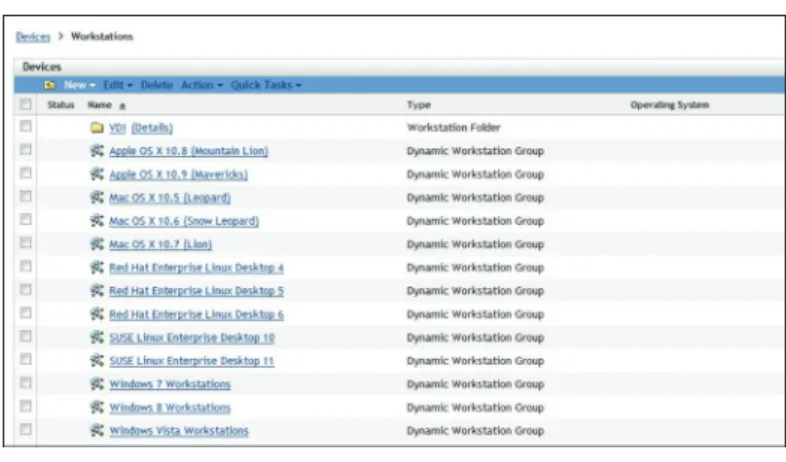
The VDI folder lets you separate VDI desktops and manage them based on settings you specified at the VDI folder level . These settings are considered unique requirements of the VDI and optimize ZENworks for this use case .
In this example, the “VDI” folder contains all managed devices in the VDI environment . Select Details from the VDI Workstation folder and click the Settings tab . The following is then displayed:
These settings allow you to change ZENworks and manage the devices within the folder .
Content: You can schedule content blackouts to stop devices from receiving content within a specified period . This allows you to block deployment during the system’s engaged hours . We recommend against performing mass deployments during peak demand hours .
Device management: You can control devices such as ZENworks agent refresh and remove . It is usually detrimental to excessively refresh devices, as you would be raising individual VDI processor utilization within the ESX host hypervisor . Refreshing a single device also reduces the performance of devices sharing the same ESX host hypervisor . To reduce the impact of device refreshes in a virtual environment, increase the default refresh value from 300 to 600 and the maximum device refresh value from 360 to 720 . Another important setting to change is the device removal schedule . Change the flag to remove . The removal flag assists ZENworks in tracking variable devices . This helps you man-age VDI deployments since VDIs have a reduced lifecycle compared to physical devices .
Note: Pool instances or desktops that you remove from a VDI pool’s implementation you must also remove in ZENworks .
Figure 1. The VDI Workstation Folder
Figure 2.
Under these settings, disable the Image Management feature . This has no function within a VDI deployment .
Inventory: In a VDI environment, all the VDIs are virtual hosts, and there is no need to collect hardware information from virtual desktops . Hence, it is recommended you disable hardware data collection .
You should lengthen the inventory schedule to ensure frequent inven-tory scans don’t use unnecessary resources .
Asset Management: The folder-level setting allows you to set usage monitoring if it is not configured at a system level . Ensure this setting is enabled .
Endpoint Security Management: This setting allows you to assign endpoint security policies on the VDI container . The following policies are useful in a VDI implementation:
Application Control Policy. Stops named applications from running on the managed device
USB Control Policy. Prevents USB devices from connecting to the VDI session
Storage Control Policy. Achieves the same aim as the USB policy, but operates at a lower level
Firewall Policy. Populates firewall rules on the managed VDI Scripting Policy. Runs scripts in a protected environment on VDI devices
Enable all reconciled settings Enable differentiation
These settings allow the device to reconcile during provisioning of the pool, VMware refresh and pool recomposure .
Step 3: Provisioning the Desktop Pools
After you have installed all required software, install the ZENworks agent and configure it as in Step 1 .
To create automated linked clone pools in a view, perform the follow-ing steps:
1. Click Add Pool and select Automated Pool . Figure 4.
White Paper
Augmenting VMware View Horizon (VDI) with Micro Focus Client Management
2. Based on your environment’s requirements, select User Assignment options and click Next .
3. Select View Composer linked clones .
4. Specify details for pool identification . 5. Set user-required settings for pool settings .
6. Specify the details for provisioning settings as required . 7. Select the appropriate option, based on type of pool . 8. Select the appropriate option for storage optimization .
9. Under vCenter Settings, select the image details that you configured as described in Step 1, and specify appropriate details for resource settings .
The VDI folder lets you separate VDI desktops and manage them based on settings you specified at the VDI folder level . These settings are considered unique requirements of the VDI and optimize ZENworks for this use case .
10. Proceed with remaining steps to complete pool creation .
Step 4: Add ZENworks Functionality
Policy: ZENworks can apply various policies in a workstation for differ-ent purposes . Within a VDI infrastructure, where the destination devices are virtual, it does not make sense to use all these policies . The following policies are valuable in a VDI environment:
The Application Control Policy allows you to centrally control whether applications are permitted . This policy can be inherited or assigned directly to the VDI folder .
The Firewall policy allows you to customize rules within the firewall for the virtual desktop session . This policy can be applied at a folder level .
The USB Connectivity policy allows you to apply further protection to the virtual endpoint . Even if the accessed device has working USB support and the VMware View client has USB pass-thru, this policy would allow you to block the USB port in the virtual image .
The Scripting policy allows you to run Java or Visual Basic scripts in a protected environment . This policy can be inherited or assigned directly to the VDI folder .
Figure 6.
Figure 7.
desktop . However, devices on the network don’t retain a state between sessions .
INVENTORY CONFIGURATION INFORMATION
All VDI-specific configurations for inventory should be done at the VDI folder level within ZENworks . Changes you make to inventory settings will customize the inventory schedule which operates on VDI desktop de-vices . It will also configure the agent and scope of the scanning process . Note: These settings disable collection of hardware inventory but still collect software inventory data .
ASSET MANAGEMENT
Asset Management within ZENworks extends inventory to include both software usage tracking and the consolidation of existing licensing agreements against the actual use of software .
This is important because existing licensing obligations are still in ef-fect whether you’re running applications on physical or virtual devices . This information is vital for VDI implementations since software usage is difficult to track .
Note: The Asset Management module also provides usage information with respect to VDI and non-VDI platforms .
REMOTE MANAGEMENT
Virtual desktop users have the same requirements as traditional desktop users . Getting help from the helpdesk is one of those needs . Helpdesks must assist users through support issues, but that sometimes requires shadowing user actions remotely . VMware View does support remote assistance through PCoIP or Remote Desktop Protocol (RDP), but for an organization already running ZENworks or an enterprise that requires a more integrated solution, it makes sense to extend ZENworks remote control over VDI sessions as well .
You can configure and assign the Remote Control policy to the VDI folder . This allows specific VDI customization of available ZENworks Remote Management functionality .
top devices . There are many implications for any environment in which you do not maintain patch levels . You should consider that the default desktop environment would require patches to both the OS and to any vendor-specific applications and that not patching could have security and performance implications for any VDI implementation .
VMWARE VIEW AND ZENWORKS PATCH MANAGEMENT
The way you patch your devices depends on whether you are patching a persistent or non-persistent pool of devices .
Non-Persistent Pool: A non-persistent pool of devices is linked to one master image . In this scenario, any customization you make is lost when the user logs out . The image reverts to the initial image, which is linked to the master .
If you want to make permanent changes, you must make them to the master image . From there, VMware View can update linked clones that form individual user desktops .
First, ensure the master is registered to a ZENworks primary, and then apply patches . After this, the master must be deregistered before you use VMware View to update all the linked desktop images . Persistent Pool: Persistent pools are assigned to the user when they log in, and users always connect to the same virtual desktop . In this scenario, each device retains any customization you make in the persistent disk . This scenario is identical to the ZENworks deployment based on physical devices, since the configuration steps required by ZENworks and ZENworks Patch Management are identical .
Given the special needs of the virtual environment, we suggest you select the minimum set of patches required to protect the deployment and to maintain overall system stability and performance .
DEVICE REMOVAL
Removing a device from ZENworks is an important part of the overall management lifecycle . With a physical device, this is simple—you physi-cally remove a piece of hardware from the network . But with a virtual device, you remove a virtual image .
Note: When removing VDIs, you must remove each virtual image from both the virtualization infrastructure and ZENworks .
Micro Focus
UK Headquarters
United Kingdom +44 (0) 1635 565200
U.S. Headquarters
Provo, Utah 801 861 4272 888 321 4272
Additional contact information and office locations:
www.novell.com To remove a VDI from ZENworks, set the
time-frame for removal in the VDI folder . For instance:
Set the device removal schedule to a preferred number of days for the environment . This pre-ferred number of days depends on the fre-quency of use for any individual VDI .
If ZENworks removes a device which is in an error state, that device shows it is registered to the ZENworks zone when a user initializes the device . ZENworks identifies the device, auto-matically recreates it in the VDI folder and full functionality is restored .
Conclusion
Once you’ve taken these steps, you should be in a good situation when it comes to managing your virtual environment . Even if a user were to do something to corrupt their individual VDI, redeploying their virtual desktop would be the most you would have to do . ZENworks gives you the simplicity of management you expect . Combined with your virtual desktop solution, you can capture the convenience and savings of VDIs without sacrificing capabilities .
www.microfocus.com
Figure 9.
About Micro Focus
Since 1976, Micro Focus has helped more than 20,000 customers unlock the value of their business logic by creating en-abling solutions that bridge the gap from well-established technologies to modern functionality . The two portfolios work to a single, clear vision—to deliver innovative products supported by exceptional cus-tomer service . www.microfocus.com